USB FORD F-650/750 2018 Owners Manual
[x] Cancel search | Manufacturer: FORD, Model Year: 2018, Model line: F-650/750, Model: FORD F-650/750 2018Pages: 386, PDF Size: 9.01 MB
Page 7 of 386
Brake Fluid Check........................................205
Power Steering Fluid Check....................205
Washer Fluid Check....................................206
Draining the Fuel Filter Water Trap - 6.7L Diesel...........................................................206
Fuel Filter - 6.8L...........................................207
Changing the 12V Battery.........................207
Checking the Wiper Blades.....................209
Changing the Wiper Blades....................209
Adjusting the Headlamps
.........................210
Removing a Headlamp................................211
Changing a Bulb
.............................................211
Bulb Specification Chart............................212
Changing the Engine Air Filter - 6.7L Diesel.............................................................213
Changing the Engine Air Filter - 6.8L......217
Changing the Engine-Mounted and Diesel Fuel Conditioner Module Fuel
Filters .............................................................
218
Electrical System Inspection....................221
Air Induction System Inspection.............221
Exhaust System Inspection.....................222
Brake System Inspection..........................223
Axle Inspection
.............................................226
Steering System Inspection.....................226
Suspension System Inspection
..............227
Frame and Tow Hook Inspection...........227
Rear Axle Fluid Check.................................227
Spring U-Bolt Check...................................228
Vehicle Care
General Information
...................................229
Cleaning Products
.......................................229
Cleaning the Exterior..................................229
Waxing.............................................................230
Cleaning the Engine.....................................231
Cleaning the Windows and Wiper Blades...........................................................231
Cleaning the Interior....................................232
Cleaning the Instrument Panel and Instrument Cluster Lens........................232 Repairing Minor Paint Damage
...............233
Cleaning the Wheels..................................233
Vehicle Storage
.............................................234
Wheels and Tires
Tire Care
..........................................................236
Using Snow Chains......................................251
Changing a Road Wheel............................251
Technical Specifications...........................253
Capacities and Specific- ations
Engine Specifications - 6.7L Diesel.......255
Engine Specifications - 6.8L
...................256
Motorcraft Parts - 6.7L Diesel..................257
Motorcraft Parts - 6.8L..............................258
Vehicle Identification Number
................259
Vehicle Certification Label.......................260
Transmission Code Designation............260
Capacities and Specifications - 6.7L Diesel............................................................261
Capacities and Specifications - 6.8L..............................................................269
Audio System
General Information
...................................276
Audio Unit - Vehicles With: AM/FM/CD/ SYNC.............................................................277
Audio Unit - Vehicles With: AM/FM
......279
Satellite Radio
...............................................281
Audio Input Jack...........................................283
USB Port
.........................................................284
SYNC™
General Information
...................................285
Using Voice Recognition............................287
Using SYNC™ With Your Phone............289
Using SYNC™ With Your Media Player............................................................301
SYNC™ Troubleshooting
..........................310
4
F650750 (TBC) , enUSA, Edition date: 201708, First Printing Table of Contents
Page 20 of 386
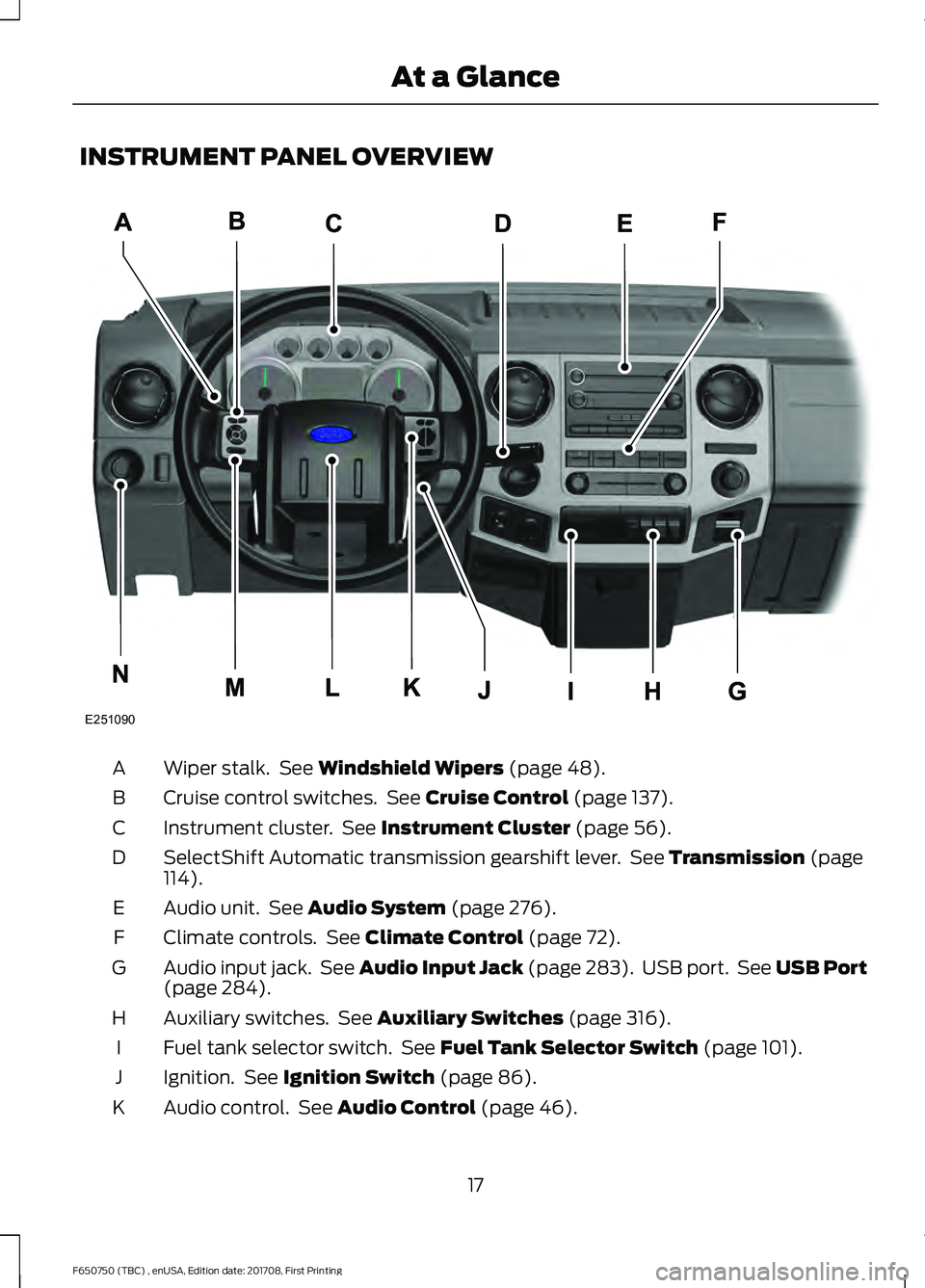
INSTRUMENT PANEL OVERVIEW
Wiper stalk. See Windshield Wipers (page 48).
A
Cruise control switches. See
Cruise Control (page 137).
B
Instrument cluster. See
Instrument Cluster (page 56).
C
SelectShift Automatic transmission gearshift lever. See
Transmission (page
114).
D
Audio unit. See
Audio System (page 276).
E
Climate controls. See
Climate Control (page 72).
F
Audio input jack. See Audio Input Jack (page 283). USB port. See USB Port
(page
284).
G
Auxiliary switches. See
Auxiliary Switches (page 316).
H
Fuel tank selector switch. See
Fuel Tank Selector Switch (page 101).
I
Ignition. See
Ignition Switch (page 86).
J
Audio control. See
Audio Control (page 46).
K
17
F650750 (TBC) , enUSA, Edition date: 201708, First Printing At a GlanceE251090
Page 287 of 386
6. Press AUX until LINE or LINE IN
appears in the display. You should hear
music from your device even if it is low.
7. Adjust the volume on your portable music player until it reaches the volume
level of the FM station or CD. Do this
by switching back and forth between
the
AUX and FM or CD controls.
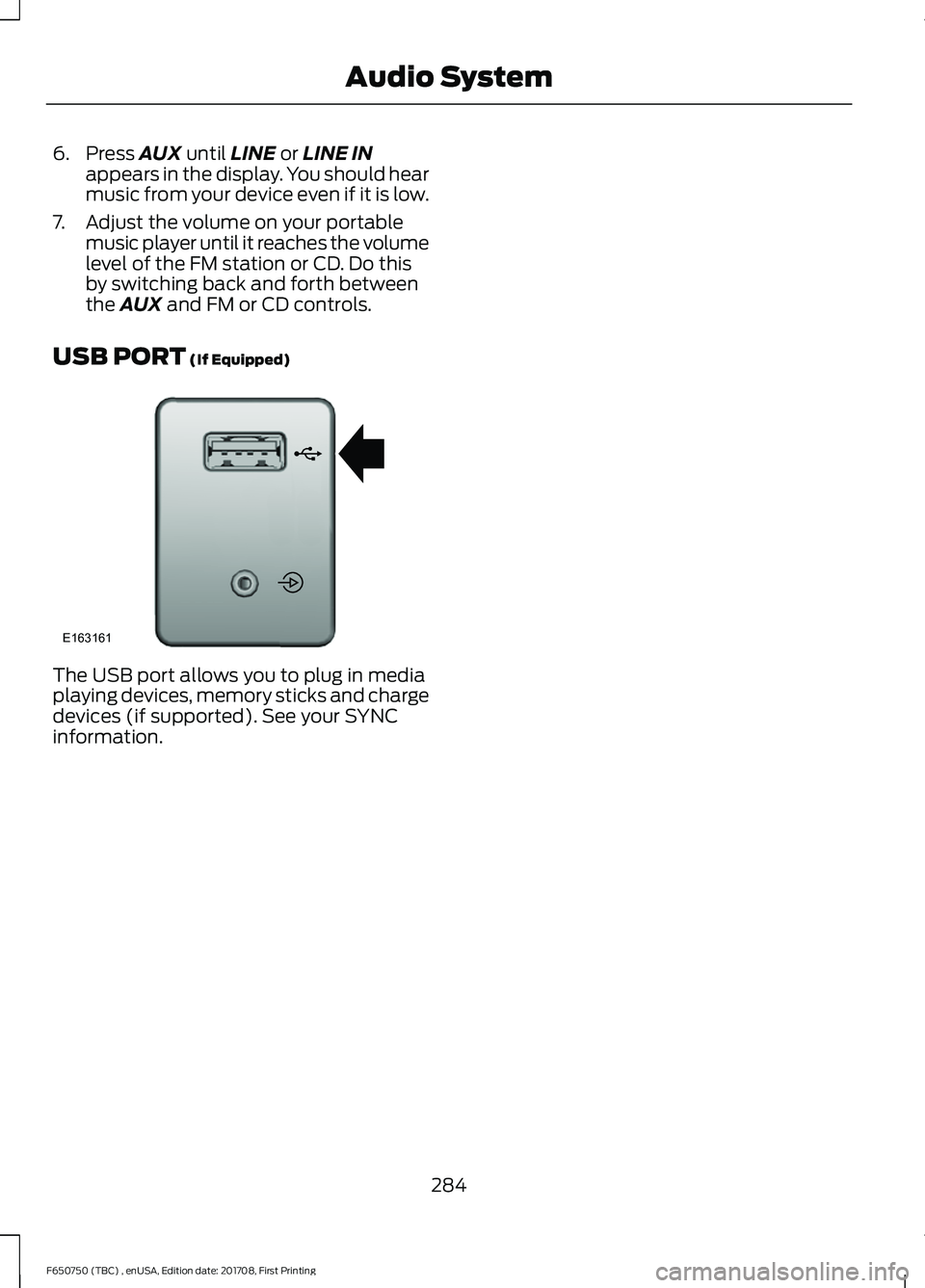
USB PORT
(If Equipped) The USB port allows you to plug in media
playing devices, memory sticks and charge
devices (if supported). See your SYNC
information.
284
F650750 (TBC) , enUSA, Edition date: 201708, First Printing Audio SystemE163161
Page 288 of 386
GENERAL INFORMATION
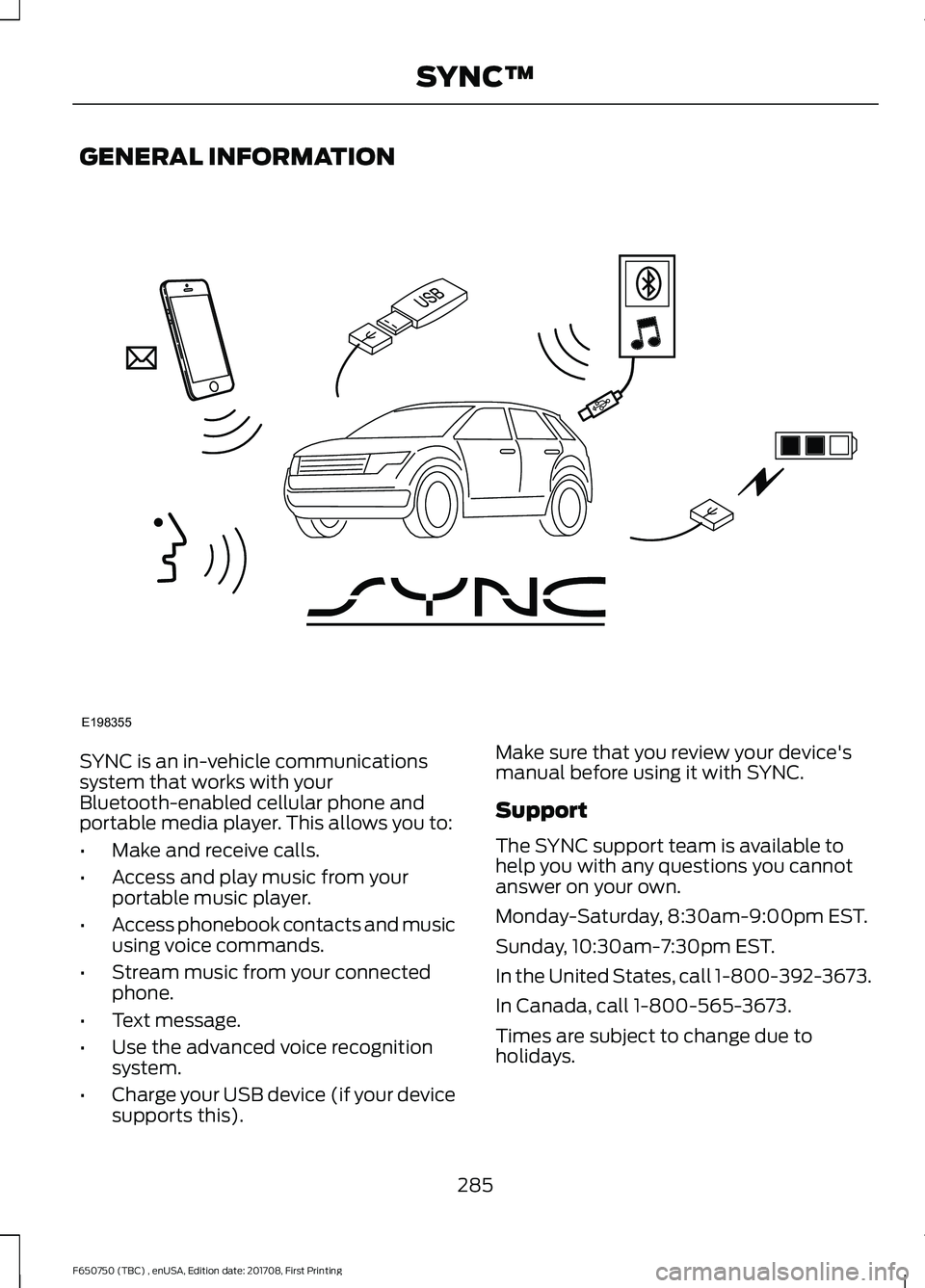
SYNC is an in-vehicle communications
system that works with your
Bluetooth-enabled cellular phone and
portable media player. This allows you to:
•
Make and receive calls.
• Access and play music from your
portable music player.
• Access phonebook contacts and music
using voice commands.
• Stream music from your connected
phone.
• Text message.
• Use the advanced voice recognition
system.
• Charge your USB device (if your device
supports this). Make sure that you review your device's
manual before using it with SYNC.
Support
The SYNC support team is available to
help you with any questions you cannot
answer on your own.
Monday-Saturday, 8:30am-9:00pm EST.
Sunday, 10:30am-7:30pm EST.
In the United States, call 1-800-392-3673.
In Canada, call 1-800-565-3673.
Times are subject to change due to
holidays.
285
F650750 (TBC) , enUSA, Edition date: 201708, First Printing SYNC™E198355
Page 290 of 386
USING VOICE RECOGNITION
This system helps you control many
features using voice commands. This
allows you to keep your hands on the
wheel and focus on what is in front of you.
Helpful Hints
•
Make sure the interior of your vehicle is
as quiet as possible. Wind noise from
open windows and road vibrations may
prevent the system from correctly
recognizing spoken commands.
• After pressing the voice button, wait
until after the tone sounds and
Listening appears before saying a
command. Any command spoken
before this does not register with the
system. •
Speak naturally, without long pauses
between words.
• At any time, you can interrupt the
system while it is speaking by pressing
the voice button.
Initiating a Voice Session Initiate a voice session by
pressing the voice button on the
steering wheel controls. See
Steering Wheel (page 46).
When prompted you can say any of the following: If you want the system to carry out the following
Voice command
Stream audio from your phone.
Bluetooth Audio
Cancel the requested action.
Cancel
Access the device connected to the auxiliary input jack.
Line In | Aux | Audio In
Make calls.
Phone
Access the device connected to your USB port.
USB [1]
Adjust the level of voice interaction and feedback.
Voice Settings | Voice
Preferences
Hear a list of voice commands available in the current mode.
Help
You can say any of the voice commands that appear within open and close brackets that
are separated by |. For example, where (line in| Aux | Audio In) appears you say; line in,
aux or audio in.
You do not need to say words that appear within square brackets. For example, for where
USB [1] appears, you can say just USB.
287
F650750 (TBC) , enUSA, Edition date: 201708, First Printing SYNC™E142599
Page 304 of 386
USING SYNC™ WITH YOUR
MEDIA PLAYER
You can access and play music from your
digital music player over your vehicle's
speaker system using the system's media
menu or voice commands. You can also
sort and play your music by specific
categories, for example artist and album.
Note:
The system is capable of indexing up
to 6,000 songs.
SYNC is capable of hosting nearly any
digital media player including: iPod®,
Zune ™, plays from device players, and
most USB drives. SYNC also supports the
following audio formats MP3, WMA, WAV
and ACC. Connecting Your Digital Media
Player to the USB Port
Note:
If your digital media player has a
power switch, make sure you switch it on
before plugging it in.
To Connect Using Voice Commands
Plug the device into the USB port. See
USB Port (page 284). Press the voice button and when prompted say:
Action and Description
Voice command
You can now play music by saying any of the appropriate
voice commands. See Media voice commands.
USB [1]
You do not need to say words that appear within square brackets. For example, for where
USB [1] appears, you can say USB or USB one.
To Connect Using the System Menu
Plug the device into the USB port. See
USB Port
(page 284). Press the
AUX button, then the Menu
button to enter the Media Menu.
You can then scroll to: Action and Description
Message
Press the
OK button.
Select Src
Press the
OK button.
USB
Depending on how many digital media files are on your
connected device, the following message may appear in the
radio display.
Indexing\b
When indexing is complete, the screen returns to the Play menu. You can then
select one of the following:
301
F650750 (TBC) , enUSA, Edition date: 201708, First Printing SYNC™E142599
Page 305 of 386
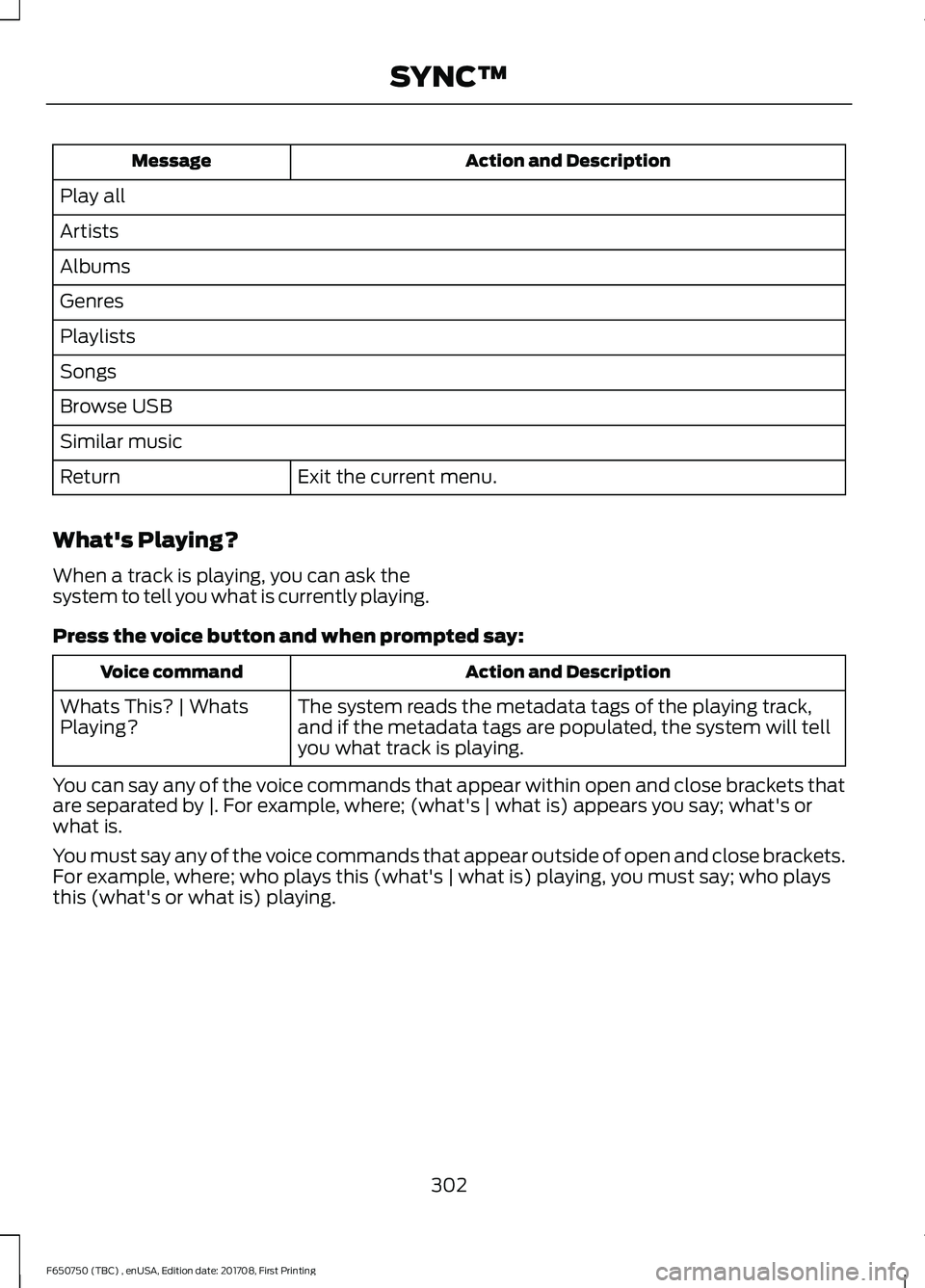
Action and Description
Message
Play all
Artists
Albums
Genres
Playlists
Songs
Browse USB
Similar music Exit the current menu.
Return
What's Playing?
When a track is playing, you can ask the
system to tell you what is currently playing.
Press the voice button and when prompted say: Action and Description
Voice command
The system reads the metadata tags of the playing track,
and if the metadata tags are populated, the system will tell
you what track is playing.
Whats This? | Whats
Playing?
You can say any of the voice commands that appear within open and close brackets that
are separated by |. For example, where; (what's | what is) appears you say; what's or
what is.
You must say any of the voice commands that appear outside of open and close brackets.
For example, where; who plays this (what's | what is) playing, you must say; who plays
this (what's or what is) playing.
302
F650750 (TBC) , enUSA, Edition date: 201708, First Printing SYNC™
Page 306 of 386
![FORD F-650/750 2018 Owners Manual Media Voice Commands
Press the voice button and when
prompted say any of the following:
Voice command
USB [1]
You can then say any of the following
[Phone] Connections | [Media] Connec-
tions | [Bluet](/img/11/40759/w960_40759-305.png "FORD F-650/750 2018 Owners Manual Media Voice Commands
Press the voice button and when
prompted say any of the following:
Voice command
USB [1]
You can then say any of the following
[Phone] Connections | [Media] Connec-
tions | [Bluet")
Media Voice Commands
Press the voice button and when
prompted say any of the following:
Voice command
USB [1]
You can then say any of the following
[Phone] Connections | [Media] Connec-
tions | [Bluetooth] Connections
Pause
Play
Play All 1,2
Play Artist ___
1,2
Play Album ___
1,2
Play Genre ___
3
[Play] Next Folder
[Play] Next Track | [Play] Next Song
1,2
Play Playlist ___
3
[Play] Previous Folder
[Play] Previous Track | [Play] Previous
Song
1,2
[Play] Next Track | [Play] Next Song
Repeat [On]
Repeat Off
Shuffle [On]
Shuffle Off
1,2
Search Album ___
1,2
Search Artist ___ Voice command
1,2
The system searches all
the data from your
indexed music and, if
available, begins to play
the chosen type of music.
You can only play genres
of music which are present
in the GENRE metadata
tags that you have on your
digital media player.
Search
Genre ___
1,2
The system searches for a
specific artist/track/album
from the music indexed
through the USB port.
Search
Track ___
| Search
Song ___
1,2
This allows you to make
your previous command
more specific. By using this
command you can filter
though a previous selec-
tion, such as an artist to
play only specific album.
Refine
album ___
The system compiles a
playlist and then plays similar
music to what is currently
playing from the USB port
using indexed metadata
information.
Similar
Music
303
F650750 (TBC) , enUSA, Edition date: 201708, First Printing SYNC™
Page 307 of 386
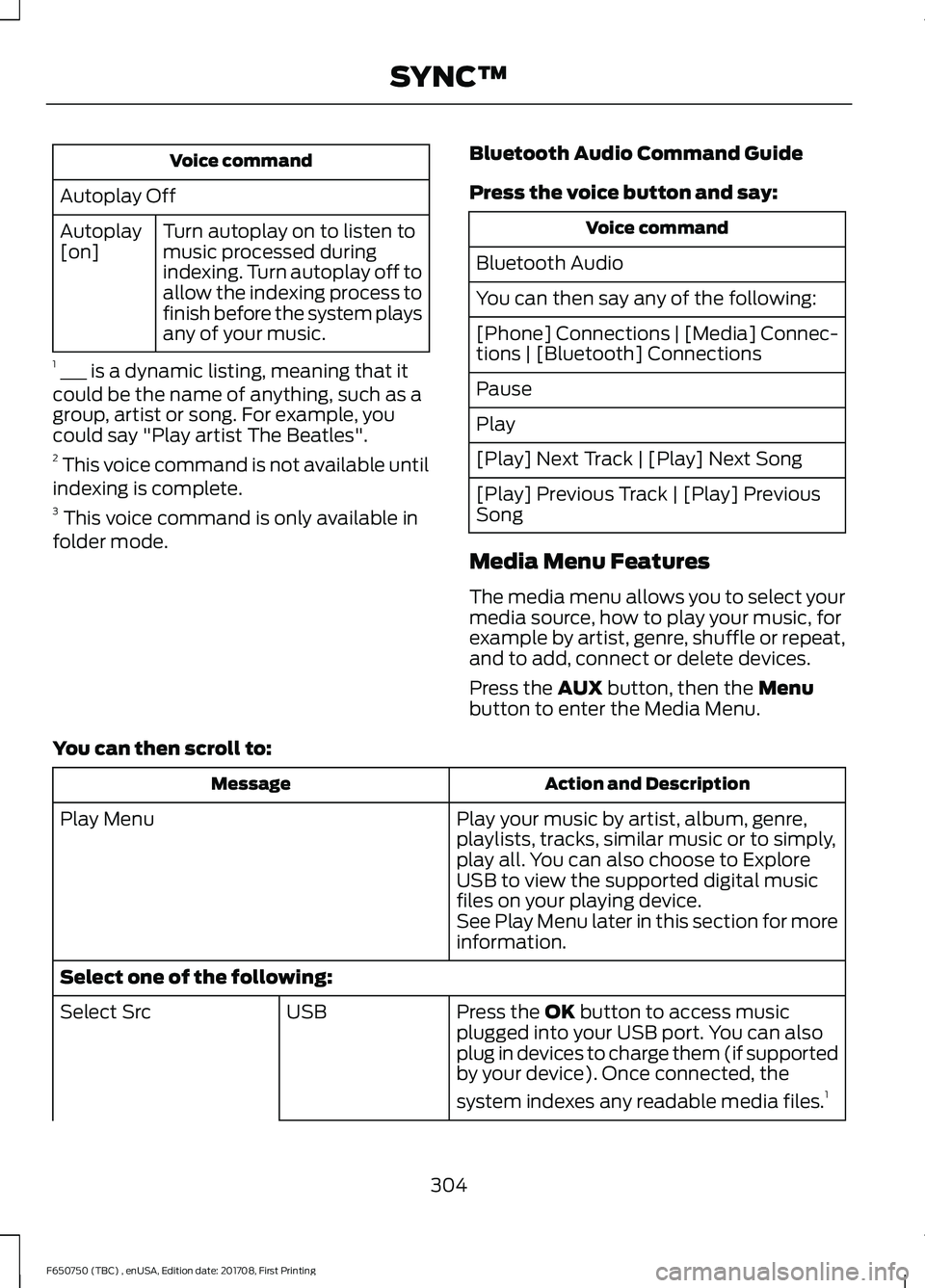
Voice command
Autoplay Off Turn autoplay on to listen to
music processed during
indexing. Turn autoplay off to
allow the indexing process to
finish before the system plays
any of your music.
Autoplay
[on]
1 ___ is a dynamic listing, meaning that it
could be the name of anything, such as a
group, artist or song. For example, you
could say "Play artist The Beatles".
2 This voice command is not available until
indexing is complete.
3 This voice command is only available in
folder mode. Bluetooth Audio Command Guide
Press the voice button and say: Voice command
Bluetooth Audio
You can then say any of the following:
[Phone] Connections | [Media] Connec-
tions | [Bluetooth] Connections
Pause
Play
[Play] Next Track | [Play] Next Song
[Play] Previous Track | [Play] Previous
Song
Media Menu Features
The media menu allows you to select your
media source, how to play your music, for
example by artist, genre, shuffle or repeat,
and to add, connect or delete devices.
Press the AUX button, then the Menu
button to enter the Media Menu.
You can then scroll to: Action and Description
Message
Play your music by artist, album, genre,
playlists, tracks, similar music or to simply,
play all. You can also choose to Explore
USB to view the supported digital music
files on your playing device.
Play Menu
See Play Menu later in this section for more
information.
Select one of the following: Press the
OK button to access music
plugged into your USB port. You can also
plug in devices to charge them (if supported
by your device). Once connected, the
system indexes any readable media files. 1
USB
Select Src
304
F650750 (TBC) , enUSA, Edition date: 201708, First Printing SYNC™
Page 309 of 386
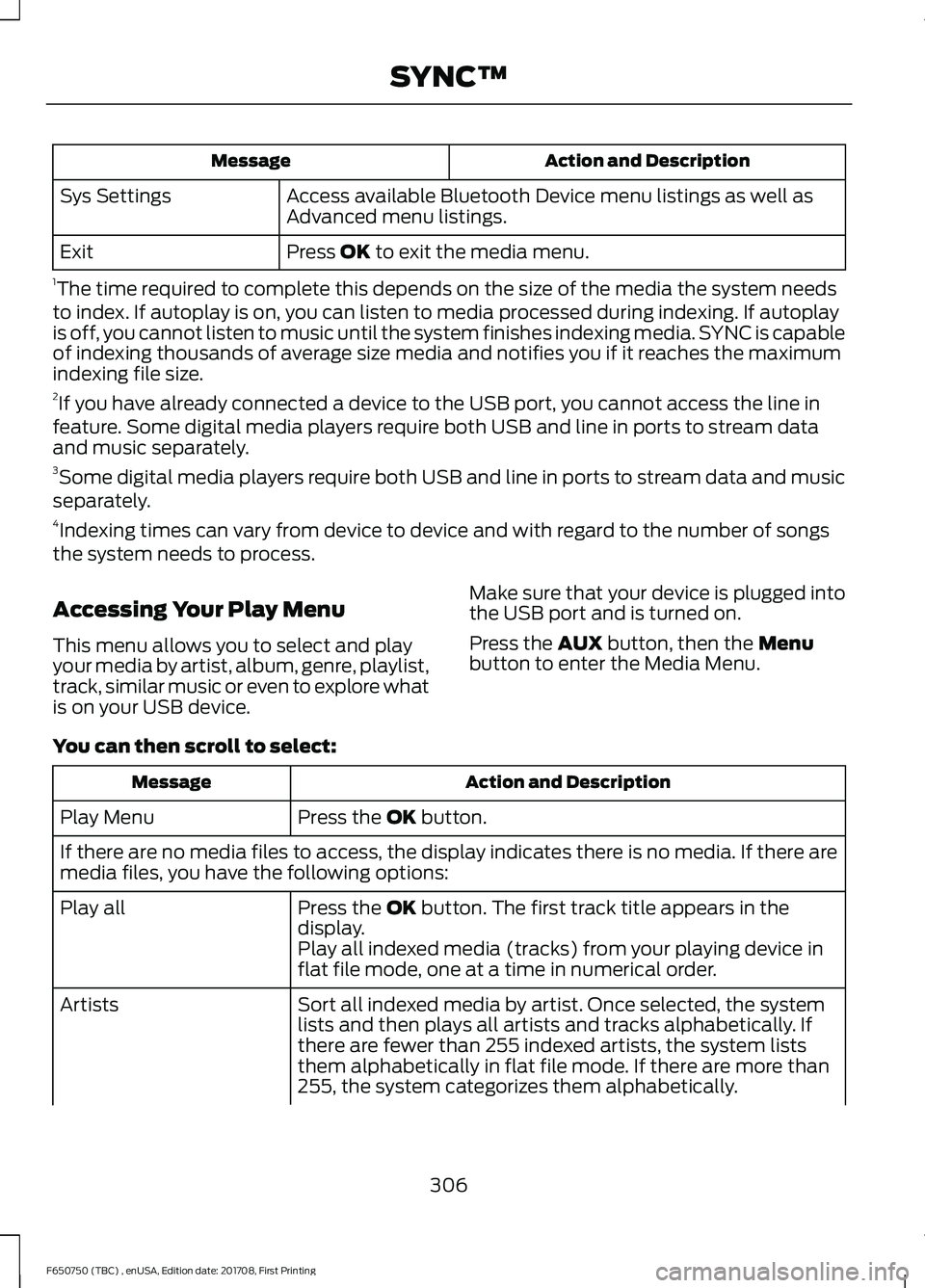
Action and Description
Message
Access available Bluetooth Device menu listings as well as
Advanced menu listings.
Sys Settings
Press OK to exit the media menu.
Exit
1 The time required to complete this depends on the size of the media the system needs
to index. If autoplay is on, you can listen to media processed during indexing. If autoplay
is off, you cannot listen to music until the system finishes indexing media. SYNC is capable
of indexing thousands of average size media and notifies you if it reaches the maximum
indexing file size.
2 If you have already connected a device to the USB port, you cannot access the line in
feature. Some digital media players require both USB and line in ports to stream data
and music separately.
3 Some digital media players require both USB and line in ports to stream data and music
separately.
4 Indexing times can vary from device to device and with regard to the number of songs
the system needs to process.
Accessing Your Play Menu
This menu allows you to select and play
your media by artist, album, genre, playlist,
track, similar music or even to explore what
is on your USB device. Make sure that your device is plugged into
the USB port and is turned on.
Press the
AUX button, then the Menu
button to enter the Media Menu.
You can then scroll to select: Action and Description
Message
Press the
OK button.
Play Menu
If there are no media files to access, the display indicates there is no media. If there are
media files, you have the following options:
Press the
OK button. The first track title appears in the
display.
Play all
Play all indexed media (tracks) from your playing device in
flat file mode, one at a time in numerical order.
Sort all indexed media by artist. Once selected, the system
lists and then plays all artists and tracks alphabetically. If
there are fewer than 255 indexed artists, the system lists
them alphabetically in flat file mode. If there are more than
255, the system categorizes them alphabetically.
Artists
306
F650750 (TBC) , enUSA, Edition date: 201708, First Printing SYNC™