radio FORD F150 2007 11.G User Guide
[x] Cancel search | Manufacturer: FORD, Model Year: 2007, Model line: F150, Model: FORD F150 2007 11.GPages: 344, PDF Size: 3.59 MB
Page 32 of 344
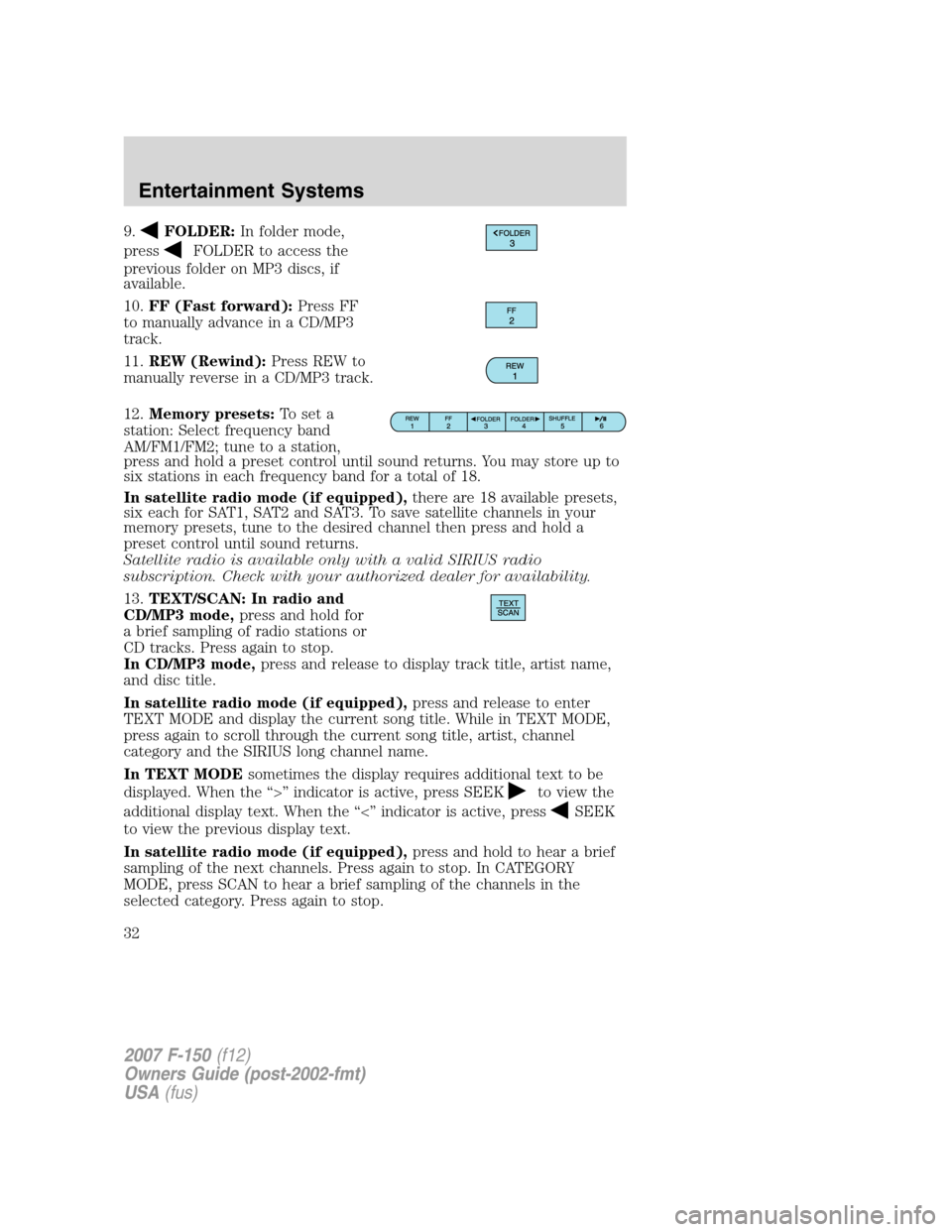
9.FOLDER:In folder mode,
press
FOLDER to access the
previous folder on MP3 discs, if
available.
10.FF (Fast forward):Press FF
to manually advance in a CD/MP3
track.
11.REW (Rewind):Press REW to
manually reverse in a CD/MP3 track.
12.Memory presets:To set a
station: Select frequency band
AM/FM1/FM2; tune to a station,
press and hold a preset control until sound returns. You may store up to
six stations in each frequency band for a total of 18.
In satellite radio mode (if equipped),there are 18 available presets,
six each for SAT1, SAT2 and SAT3. To save satellite channels in your
memory presets, tune to the desired channel then press and hold a
preset control until sound returns.
Satellite radio is available only with a valid SIRIUS radio
subscription. Check with your authorized dealer for availability.
13.TEXT/SCAN: In radio and
CD/MP3 mode,press and hold for
a brief sampling of radio stations or
CD tracks. Press again to stop.
In CD/MP3 mode,press and release to display track title, artist name,
and disc title.
In satellite radio mode (if equipped),press and release to enter
TEXT MODE and display the current song title. While in TEXT MODE,
press again to scroll through the current song title, artist, channel
category and the SIRIUS long channel name.
In TEXT MODEsometimes the display requires additional text to be
displayed. When the “>” indicator is active, press SEEK
to view the
additional display text. When the “<” indicator is active, press
SEEK
to view the previous display text.
In satellite radio mode (if equipped),press and hold to hear a brief
sampling of the next channels. Press again to stop. In CATEGORY
MODE, press SCAN to hear a brief sampling of the channels in the
selected category. Press again to stop.
2007 F-150(f12)
Owners Guide (post-2002-fmt)
USA(fus)
Entertainment Systems
32
Page 33 of 344
Satellite radio is available only with a valid SIRIUS radio
subscription. Check with your authorized dealer for availability.
14.AM/FM:Press AM/FM to select
AM/FM1/FM2 frequency band.
15.ON/OFF/Volume:Press
VOL-PUSH to turn ON/OFF. Turn
VOL-PUSH to increase/decrease
volume.
Note:If the volume is set above a
certain level and the ignition is turned off, the volume will come back on
at a “nominal” listening level when the ignition switch is turned back on.
16.CD: Press to enter CD/MP3
mode. If a CD/MP3 is already loaded
into the system, CD/MP3 play will
begin where it ended last.
17.
(CD eject):Press to eject a
CD/MP3.
18.CD slot:Insert a CD/MP3 label
side up in the CD slot.
2007 F-150(f12)
Owners Guide (post-2002-fmt)
USA(fus)
Entertainment Systems
33
Page 34 of 344
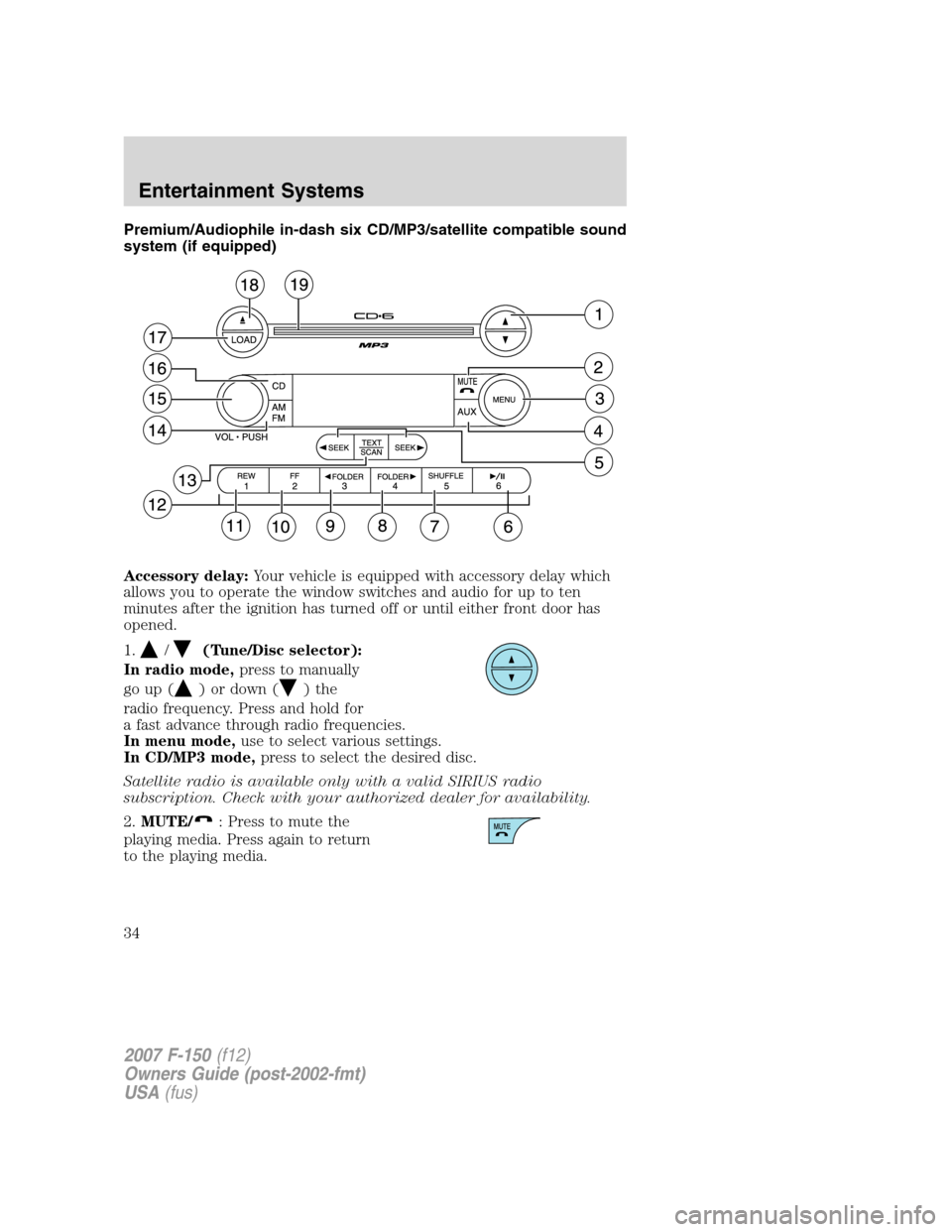
Premium/Audiophile in-dash six CD/MP3/satellite compatible sound
system (if equipped)
Accessory delay:Your vehicle is equipped with accessory delay which
allows you to operate the window switches and audio for up to ten
minutes after the ignition has turned off or until either front door has
opened.
1.
/(Tune/Disc selector):
In radio mode,press to manually
go up (
) or down ()the
radio frequency. Press and hold for
a fast advance through radio frequencies.
In menu mode,use to select various settings.
In CD/MP3 mode,press to select the desired disc.
Satellite radio is available only with a valid SIRIUS radio
subscription. Check with your authorized dealer for availability.
2.MUTE/
: Press to mute the
playing media. Press again to return
to the playing media.
2007 F-150(f12)
Owners Guide (post-2002-fmt)
USA(fus)
Entertainment Systems
34
Page 35 of 344
3.MENU:Press repeatedly to
access to the following settings:
CATEGORY (satellite radio if equipped):Press MENU until the
currently active category appears in the display (CATEGORY MODE). In
CATEGORY MODE, press
/to scroll through the list of available
SIRIUS channel Categories (Pop, Rock, News, etc.) Press
SEEK
or SCAN to select the category. After a category is selected, press SEEK
to search for that specific category of channels only (i.e. ROCK). To
select a different category, press MENU until the category appears in the
display. Press
/to select a different category. You may also select
CATEGORY ALL to seek all available SIRIUS categories and channels.
Satellite radio is available only with a valid SIRIUS radio
subscription. Check with your authorized dealer for availability.
Setting the clock:Press until SELECT HOUR or SELECT MINS is
displayed. Press
//SEEKto adjust the hours/minutes.
AUTOSET:Press MENU until the display reads AUTOSET. Autoset
allows you to set the strongest local radio stations without losing your
original manually set preset stations for AM/FM1/FM2. Use
//
SEEK, SEEKto turn on/off.
When the six strongest stations are filled, the station stored in preset 1
will begin playing. If there are less than six strong stations, the system
will store the last one in the remaining presets.
RBDS: Available only in FM mode. This feature allows you to search
RBDS-equipped stations for a certain category of music format:
CLASSIC, COUNTRY, INFORM, JAZZ/RB, ROCK, etc.
To activate,press MENU repeatedly until RBDS (ON/OFF) appears in
the display. Use
//SEEKto toggle RBDS ON/OFF. When
RBDS is OFF, you will not be able to search for RBDS equipped stations
or view the station name or type.
To search for specific RBDS music categories:When the desired
category appears in the display, press
/to find the desired type,
then press and release
SEEK, SEEKor press and hold SCAN to
begin the search.
To view the station name or type:When the desired category appears
in the display, press TEXT/SCAN to toggle between displaying the station
type (COUNTRY, ROCK, etc.) or the station name (WYCD, WXYZ, etc.).
2007 F-150(f12)
Owners Guide (post-2002-fmt)
USA(fus)
Entertainment Systems
35
Page 36 of 344
BASS:Press MENU to reach the bass setting. Use//
SEEK, SEEKto adjust.
TREB (Treble):Press MENU to reach the treble setting.
Use
//SEEK, SEEKto adjust.
BAL (Balance):Press MENU to reach the balance setting.
Use
//SEEK, SEEKto adjust the audio between the left
(L) and right (R) speakers.
FADE:Press MENU to reach the fade setting. Use
//
SEEK, SEEKto adjust the audio between the back (B) and
front (F) speakers.
ALL SEATS (Occupancy mode)(Available on Audiophile radios only):
Press MENU repeatedly to access. Press
//SEEKto
optimize sound for ALL SEATS, DRIVERS SEAT or REAR SEATS.
SPEEDVOL (Speed sensitive volume, if equipped):Press MENU to
reach the SPEEDVOL setting. Radio volume automatically gets louder
with increasing vehicle speed to compensate for road and wind noise.
Use
//SEEK, SEEKto adjust.
The default setting isoff;increasing your vehicle speed will not change
the volume level.
Adjust1–7:Increasing this setting from 1 (lowest setting) to 7 (highest
setting) allows the radio volume to automatically change slightly with
vehicle speed to compensate for road and wind noise.
Recommended level is1–3;SPEED OFF turns the feature off and level 7
is the maximum setting.
Track/Folder Mode:Available only on MP3 discs in CD mode. In Track
Mode, pressing
SEEKwill scroll through all tracks on the disc.
In Folder mode, pressing
SEEKwill scroll only through tracks
within the selected folder.
Press
FOLDER, FOLDERto access the previous/next folder (if
available).
2007 F-150(f12)
Owners Guide (post-2002-fmt)
USA(fus)
Entertainment Systems
36
Page 37 of 344
COMPRESS (Compression):Available only in CD/MP3 mode. Press
MENU until COMPRESS ON/OFF appears in the display. Use
//
SEEK, SEEKto toggle ON/OFF. When COMPRESS is ON, the
system will bring soft and loud CD passages together for a more
consistent listening level.
4.AUX:Press repeatedly to cycle
through FES/DVD (if equipped),
LINE IN (Auxiliary audio mode, if
equipped), SAT1, SAT2 and SAT3 modes (Satellite Radio, if equipped).
For location and further information on the auxiliary audio mode, refer
toAuxiliary input jacklater in this chapter.
Satellite radio is available only with a valid SIRIUS radio
subscription. Check with your authorized dealer for availability.
5.SEEK: In radio mode,press
/to access the
previous/next strong station.
In CD mode,press
/to
access the previous/next CD track.
In satellite radio mode (if equipped), press
SEEK, SEEKto
seek to the previous/next channel. If a specific category is selected,
(Jazz, Rock, News, etc.), press
SEEK, SEEKto seek to the
previous/next channel in the selected category. Press and hold
SEEK, SEEKto fast seek through the previous /next channels.
In TEXT MODE,press
SEEK, SEEKto view the
previous/additional display text.
In CATEGORY MODE,press
SEEK, SEEKto select a category.
Satellite radio is available only with a valid SIRIUS radio
subscription. Check with your authorized dealer for availability.
6.
(Play/Pause):This control
is operational in CD mode. When a
CD is playing, press to pause or play
the current CD. The CD status will display in the radio display.
If your vehicle is equipped with a Family Entertainment System (FES)
please refer to theDVD supplementfor further information.
2007 F-150(f12)
Owners Guide (post-2002-fmt)
USA(fus)
Entertainment Systems
37
Page 38 of 344
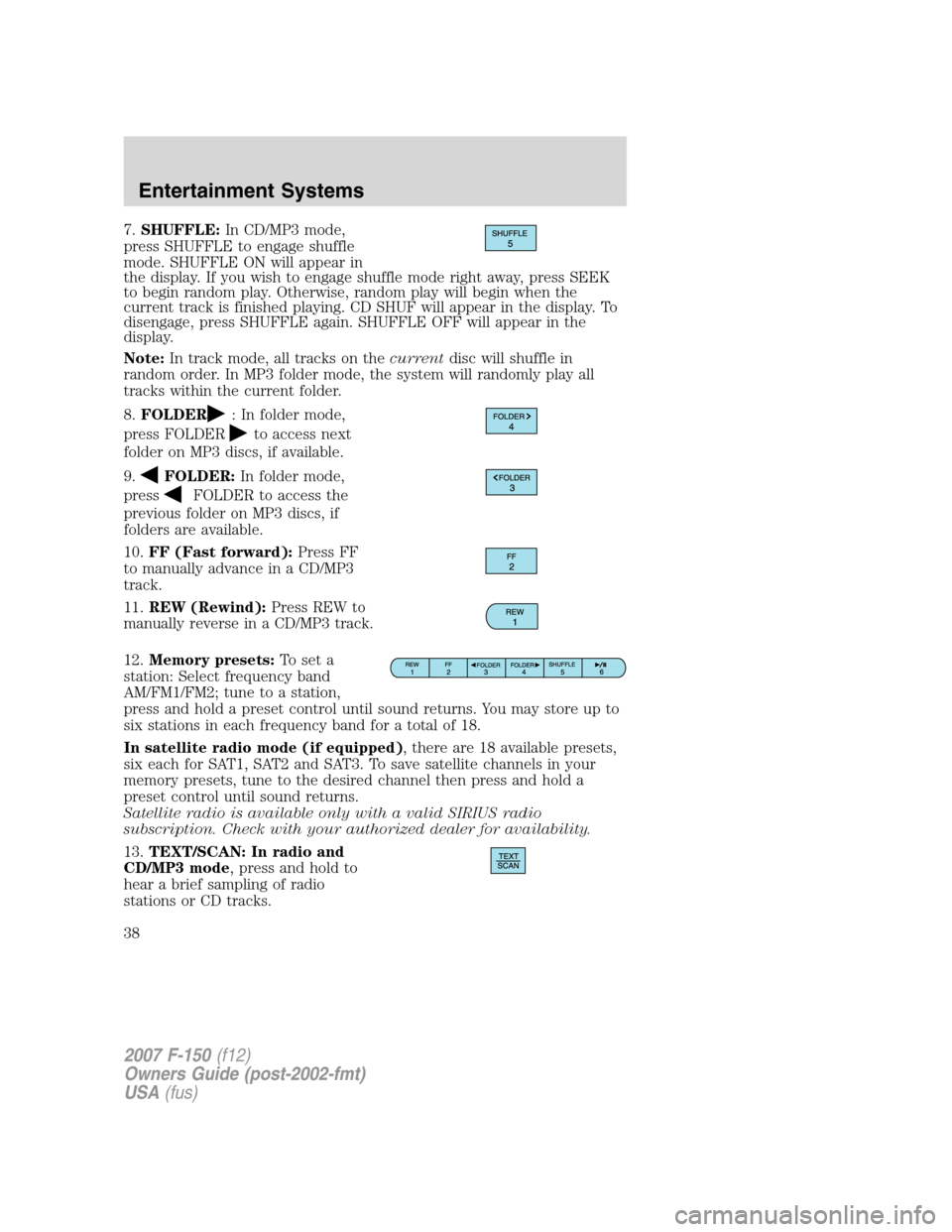
7.SHUFFLE:In CD/MP3 mode,
press SHUFFLE to engage shuffle
mode. SHUFFLE ON will appear in
the display. If you wish to engage shuffle mode right away, press SEEK
to begin random play. Otherwise, random play will begin when the
current track is finished playing. CD SHUF will appear in the display. To
disengage, press SHUFFLE again. SHUFFLE OFF will appear in the
display.
Note:In track mode, all tracks on thecurrentdisc will shuffle in
random order. In MP3 folder mode, the system will randomly play all
tracks within the current folder.
8.FOLDER
: In folder mode,
press FOLDER
to access next
folder on MP3 discs, if available.
9.
FOLDER:In folder mode,
press
FOLDER to access the
previous folder on MP3 discs, if
folders are available.
10.FF (Fast forward):Press FF
to manually advance in a CD/MP3
track.
11.REW (Rewind):Press REW to
manually reverse in a CD/MP3 track.
12.Memory presets:To set a
station: Select frequency band
AM/FM1/FM2; tune to a station,
press and hold a preset control until sound returns. You may store up to
six stations in each frequency band for a total of 18.
In satellite radio mode (if equipped), there are 18 available presets,
six each for SAT1, SAT2 and SAT3. To save satellite channels in your
memory presets, tune to the desired channel then press and hold a
preset control until sound returns.
Satellite radio is available only with a valid SIRIUS radio
subscription. Check with your authorized dealer for availability.
13.TEXT/SCAN: In radio and
CD/MP3 mode, press and hold to
hear a brief sampling of radio
stations or CD tracks.
2007 F-150(f12)
Owners Guide (post-2002-fmt)
USA(fus)
Entertainment Systems
38
Page 39 of 344
In CD/MP3 mode,press and release to display track title, artist name,
and disc title and file name (if available).
In satellite radio mode (if equipped),press and release to enter
TEXT MODE and display the current song title. While in TEXT MODE,
press again to scroll through the current song title, artist, channel
category and the SIRIUS long channel name.
In TEXT MODE, sometimes the display requires additional text to be
displayed. When the “>” indicator is active, press SEEK
to view the
additional display text. When the “>” indicator is active, press
SEEK
to view the previous display text.
In satellite radio mode (if equipped),press and hold to hear a brief
sampling of the next channels. Press again to stop.
In CATEGORY MODE, press SCAN to hear a brief sampling of channels
in the selected category. Press again to stop.Satellite radio is available
only with a valid SIRIUS subscription. Check with your authorized
dealer for availability.
14.AM/FM:Press to select
AM/FM1/FM2 frequency band.
15.ON/OFF/Volume:Press to turn
ON/OFF. Turn to increase/decrease
volume.
Note:If the volume is set above a
certain level and the ignition is
turned off, the volume will come back on at a “nominal” listening level
when the ignition switch is turned back on.
16.CD:Press to enter CD/MP3
mode. If a CD/MP3 is already loaded
into the system, CD/MP3 play will
begin where it ended last.
17.LOAD:Toloadadiscintothe
system, press LOAD. Select a slot
number using memory presets 1–6.
When the display reads LOAD CD#,
load the desired disc, label side up.
If you do not choose a slot within 5 seconds, the system will choose for
you. Once loaded, the first track will begin to play.
2007 F-150(f12)
Owners Guide (post-2002-fmt)
USA(fus)
Entertainment Systems
39
Page 41 of 344
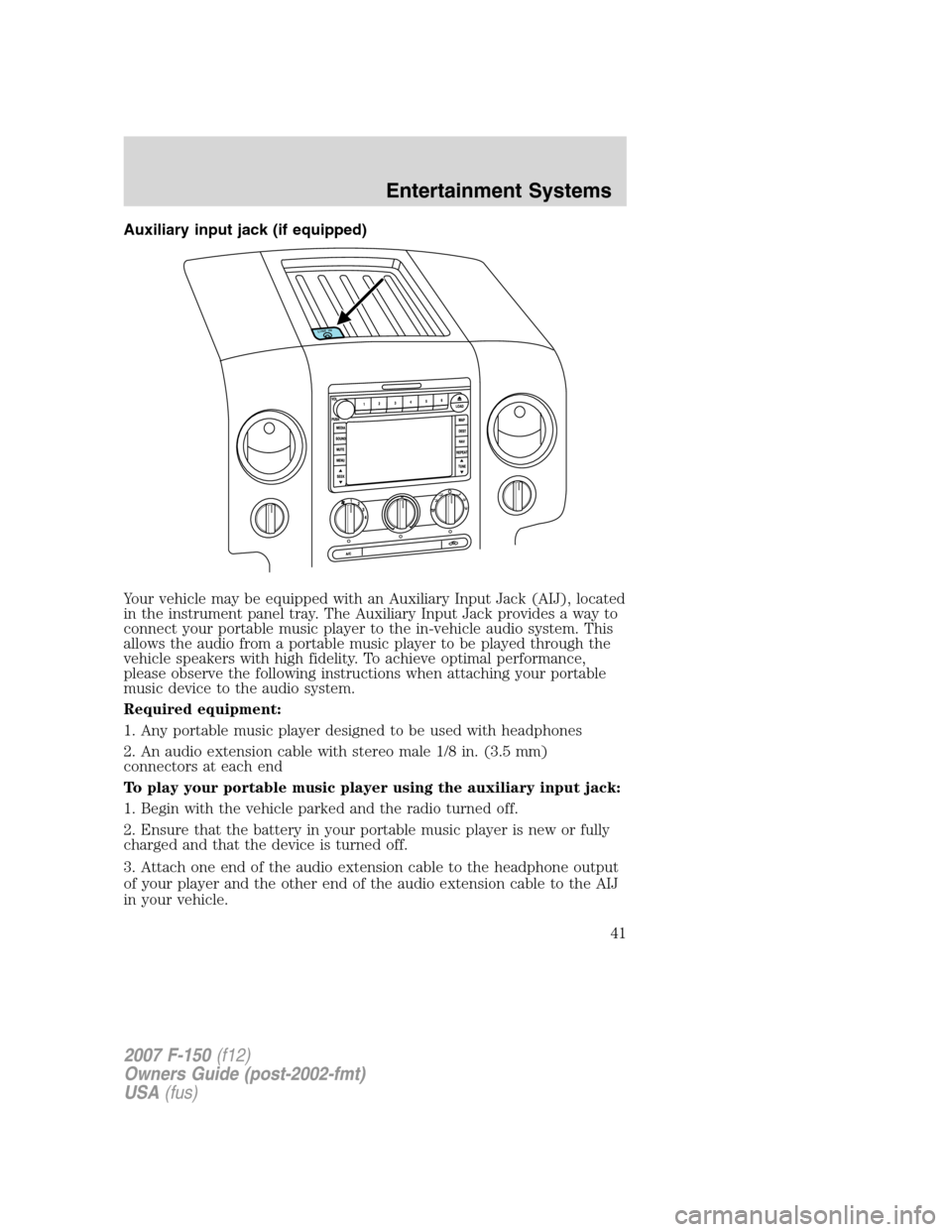
Auxiliary input jack (if equipped)
Your vehicle may be equipped with an Auxiliary Input Jack (AIJ), located
in the instrument panel tray. The Auxiliary Input Jack provides a way to
connect your portable music player to the in-vehicle audio system. This
allows the audio from a portable music player to be played through the
vehicle speakers with high fidelity. To achieve optimal performance,
please observe the following instructions when attaching your portable
music device to the audio system.
Required equipment:
1. Any portable music player designed to be used with headphones
2. An audio extension cable with stereo male 1/8 in. (3.5 mm)
connectors at each end
To play your portable music player using the auxiliary input jack:
1. Begin with the vehicle parked and the radio turned off.
2. Ensure that the battery in your portable music player is new or fully
charged and that the device is turned off.
3. Attach one end of the audio extension cable to the headphone output
of your player and the other end of the audio extension cable to the AIJ
in your vehicle.
2007 F-150(f12)
Owners Guide (post-2002-fmt)
USA(fus)
Entertainment Systems
41
Page 42 of 344
4. Turn the radio on, using either a tuned FM station or a CD loaded into
the system. Adjust the volume to a comfortable listening level.
5. Turn the portable music player on and adjust the volume to 1/2 the
volume.
6. Press AUX on the vehicle radio repeatedly until LINE IN appears in
the display.
You should hear audio from your portable music player although it may
be low.
7. Adjust the sound on your portable music player until it reaches the
level of the FM station or CD by switching back and forth between the
AUX and FM or CD controls.
Troubleshooting:
1. Do not connect the audio input jack to a line level output. Line level
outputs are intended for connection to a home stereo and are not
compatible with the AIJ. The AIJ will only work correctly with devices
that have a headphone output with a volume control.
2. Do not set the portable music player’s volume level higher than is
necessary to match the volume of the CD or FM radio in your audio
system as this will cause distortion and will reduce sound quality. Many
portable music players have different output levels, so not all players
should be set at the same levels. Some players will sound best at full
volume and others will need to be set at a lower volume.
3. If the music sounds distorted at lower listening levels, turn the
portable music player volume down. If the problems persists, replace or
recharge the batteries in the portable music player.
4. The portable music player must be controlled in the same manner
when it is used with headphones as the AIJ does not provide control
(play, pause, etc.) over the attached portable music player.
5. For safety reasons, connecting or adjusting the settings on your
portable music player should not be attempted while the vehicle is
moving. Also, the portable music player should be stored in a secure
location, such as the center console or the glove box, when the vehicle is
in motion. The audio extension cable must be long enough to allow the
portable music player to be safely stored while the vehicle is in motion.
GENERAL AUDIO INFORMATION
Radio frequencies:
AM and FM frequencies are established by the Federal Communications
Commission (FCC) and the Canadian Radio and Telecommunications
Commission (CRTC). Those frequencies are:
2007 F-150(f12)
Owners Guide (post-2002-fmt)
USA(fus)
Entertainment Systems
42