USB FORD F150 2017 13.G User Guide
[x] Cancel search | Manufacturer: FORD, Model Year: 2017, Model line: F150, Model: FORD F150 2017 13.GPages: 599, PDF Size: 7.34 MB
Page 434 of 599
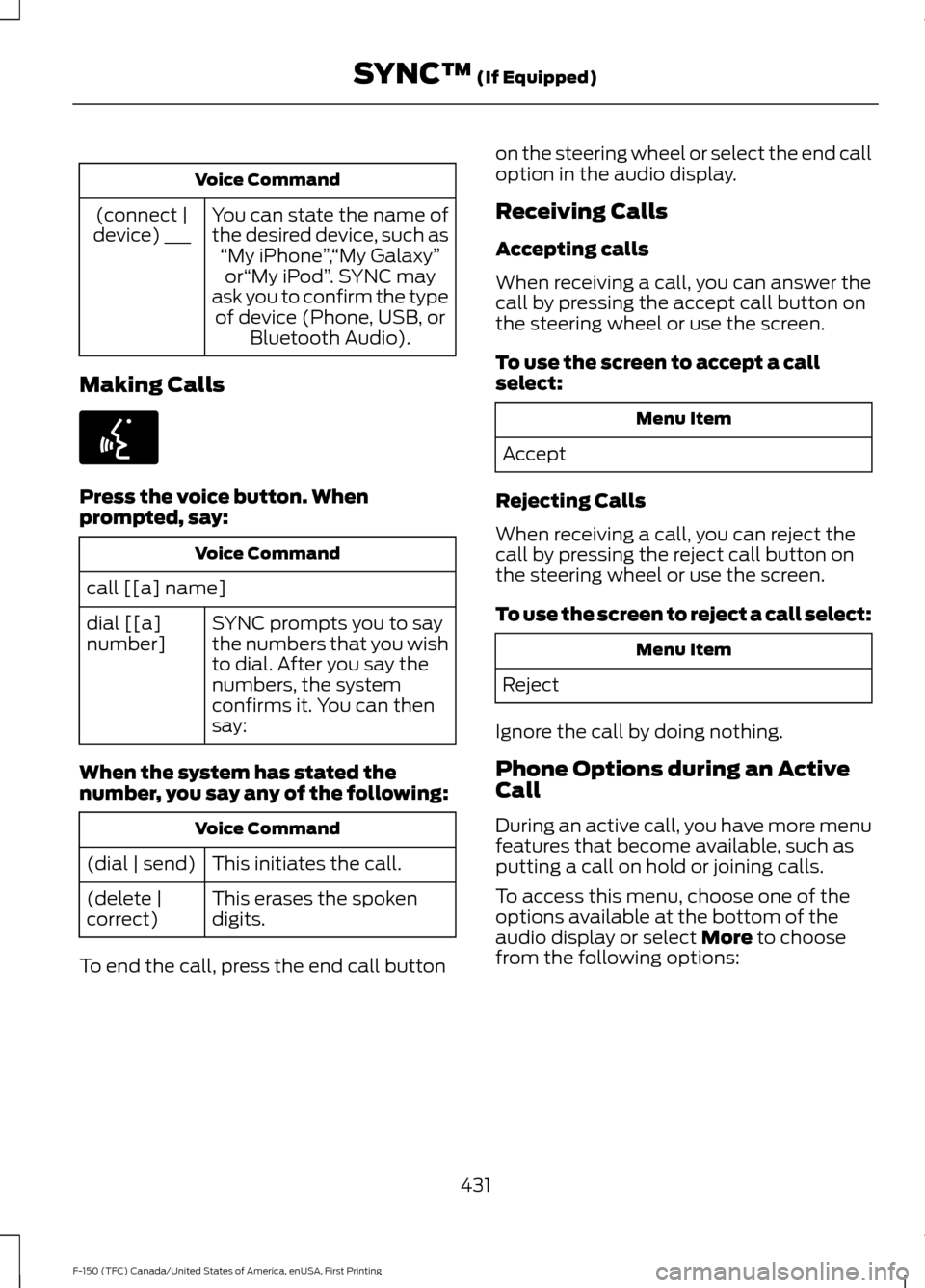
Voice Command
You can state the name of
the desired device, such as“My iPhone ”,“My Galaxy ”
or “My iPod ”. SYNC may
ask you to confirm the type of device (Phone, USB, or Bluetooth Audio).
(connect |
device) ___
Making Calls Press the voice button. When
prompted, say:
Voice Command
call [[a] name] SYNC prompts you to say
the numbers that you wish
to dial. After you say the
numbers, the system
confirms it. You can then
say:
dial [[a]
number]
When the system has stated the
number, you say any of the following: Voice Command
This initiates the call.
(dial | send)
This erases the spoken
digits.
(delete |
correct)
To end the call, press the end call button on the steering wheel or select the end call
option in the audio display.
Receiving Calls
Accepting calls
When receiving a call, you can answer the
call by pressing the accept call button on
the steering wheel or use the screen.
To use the screen to accept a call
select:
Menu Item
Accept
Rejecting Calls
When receiving a call, you can reject the
call by pressing the reject call button on
the steering wheel or use the screen.
To use the screen to reject a call select: Menu Item
Reject
Ignore the call by doing nothing.
Phone Options during an Active
Call
During an active call, you have more menu
features that become available, such as
putting a call on hold or joining calls.
To access this menu, choose one of the
options available at the bottom of the
audio display or select More to choose
from the following options:
431
F-150 (TFC) Canada/United States of America, enUSA, First Printing SYNC™
(If Equipped)E142599
Page 441 of 599
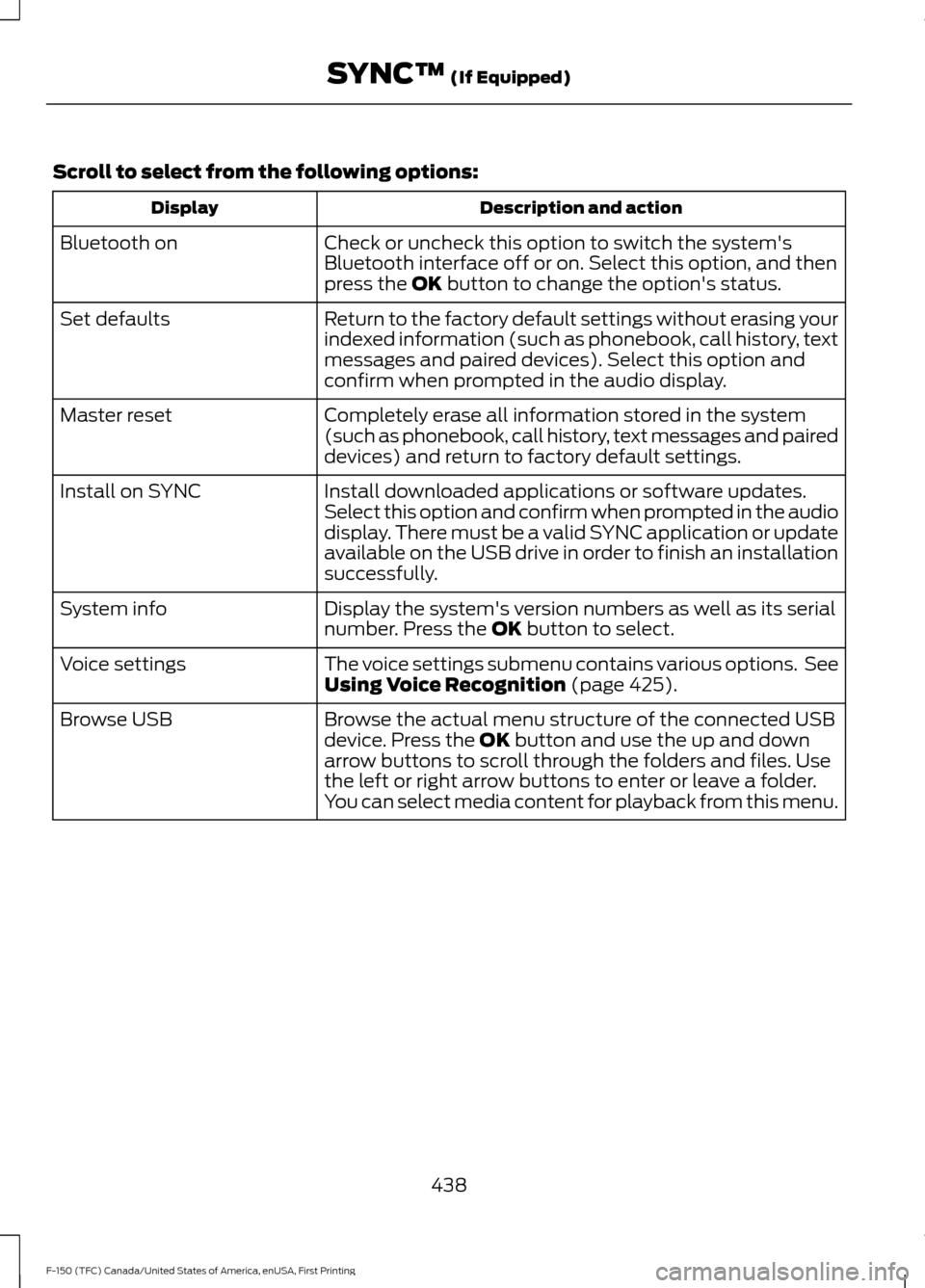
Scroll to select from the following options:
Description and action
Display
Check or uncheck this option to switch the system's
Bluetooth interface off or on. Select this option, and then
press the OK button to change the option's status.
Bluetooth on
Return to the factory default settings without erasing your
indexed information (such as phonebook, call history, text
messages and paired devices). Select this option and
confirm when prompted in the audio display.
Set defaults
Completely erase all information stored in the system
(such as phonebook, call history, text messages and paired
devices) and return to factory default settings.
Master reset
Install downloaded applications or software updates.
Select this option and confirm when prompted in the audio
display. There must be a valid SYNC application or update
available on the USB drive in order to finish an installation
successfully.
Install on SYNC
Display the system's version numbers as well as its serial
number. Press the
OK button to select.
System info
The voice settings submenu contains various options. See
Using Voice Recognition
(page 425).
Voice settings
Browse the actual menu structure of the connected USB
device. Press the
OK button and use the up and down
arrow buttons to scroll through the folders and files. Use
the left or right arrow buttons to enter or leave a folder.
You can select media content for playback from this menu.
Browse USB
438
F-150 (TFC) Canada/United States of America, enUSA, First Printing SYNC™
(If Equipped)
Page 444 of 599
911 Assist Privacy Notice
When you switch on 911 Assist, it may
disclose to emergency services that your
vehicle has been in a crash involving the
deployment of an airbag or activation of
the fuel pump shut-off. Certain versions or
updates to 911 Assist may also be capable
of electronically or verbally disclosing to
911 operators your vehicle location or other
details about your vehicle or crash to assist
911 operators to provide the most
appropriate emergency services. If you do
not want to disclose this information, do
not switch the feature on.
SYNC Mobile Apps
The system enables voice and steering
wheel control of SYNC AppLink enabled
smartphone apps. When an app is running
through AppLink, you can control main
features of the app through voice
commands and steering wheel controls.
Note:
You must pair and connect your
smartphone to SYNC to access AppLink.
Note: iPhone users need to connect the
phone to the USB port.
Note: Android users need to connect the
phone to SYNC using Bluetooth.
Note: For information on available apps,
supported smartphone devices and
troubleshooting tips please visit the Ford
website.
Availability of SYNC AppLink enabled Apps
will vary by region. Note:
Make sure you have an active account
for the app that you have downloaded.
Some apps work automatically with no
setup. Other apps want you to configure
your personal settings and personalize your
experience by creating stations or favorites.
We recommend you do this at home or
outside of your vehicle.
Note: AppLink is not available if your
vehicle is equipped with the MyFordTouch
system.
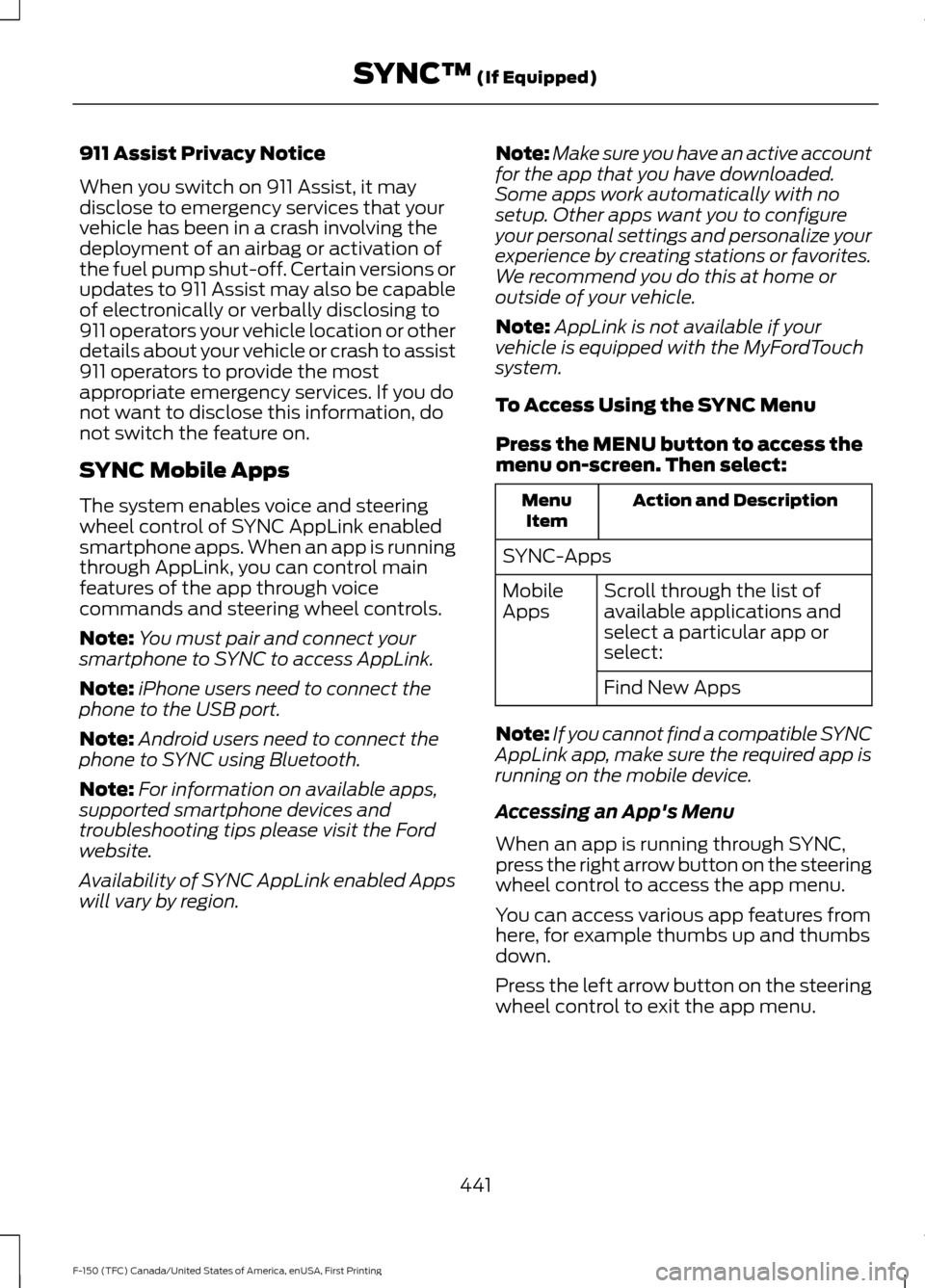
To Access Using the SYNC Menu
Press the MENU button to access the
menu on-screen. Then select: Action and Description
Menu
Item
SYNC-Apps Scroll through the list of
available applications and
select a particular app or
select:
Mobile
Apps
Find New Apps
Note: If you cannot find a compatible SYNC
AppLink app, make sure the required app is
running on the mobile device.
Accessing an App's Menu
When an app is running through SYNC,
press the right arrow button on the steering
wheel control to access the app menu.
You can access various app features from
here, for example thumbs up and thumbs
down.
Press the left arrow button on the steering
wheel control to exit the app menu.
441
F-150 (TFC) Canada/United States of America, enUSA, First Printing SYNC™
(If Equipped)
Page 447 of 599

There are three possible statuses:
Action and Description
Menu Item
The system has detected a new apprequiring authorization or a general permissions update is required.
Update Needed
No update is required.
Up-To-Date
The system is trying to receive an update.
Updating...
Update settings Action and Description
Menu Item
Select this option from the settings menuto manually preform a needed update.
Request Update
Select this option from the settings menuto disable automatic updates.
Disable Updates
Doing so also disables the use of MobileApps on SYNC.
USING SYNC™ WITH YOUR
MEDIA PLAYER
You can access and play music from your
digital music player over your vehicle's
speaker system using the system's media
menu or voice commands. You can also
sort and play your music by specific
categories, such as artist and album.
Note: The system is capable of indexing up
to 15,000 songs.
SYNC is capable of hosting nearly any
digital media player including: iPod, Zune,
plays from device players, and most USB
drives. SYNC also supports audio formats,
such as MP3, WMA, WAV and ACC. Confirm that the USB device has been
formatted correctly and has the following
specifications:
•
USB 2.0.
• File format must be FAT16/32.
The format of the audio files on the USB
device must be:
• MP3.
• Non DRM protected WMA.
• WAV.
• AAC.
Connecting Your Digital Media
Player to the USB Port
Note: If your digital media player has a
power switch, make sure you switch it on
before plugging it in.
444
F-150 (TFC) Canada/United States of America, enUSA, First Printing SYNC™ (If Equipped)
Page 448 of 599
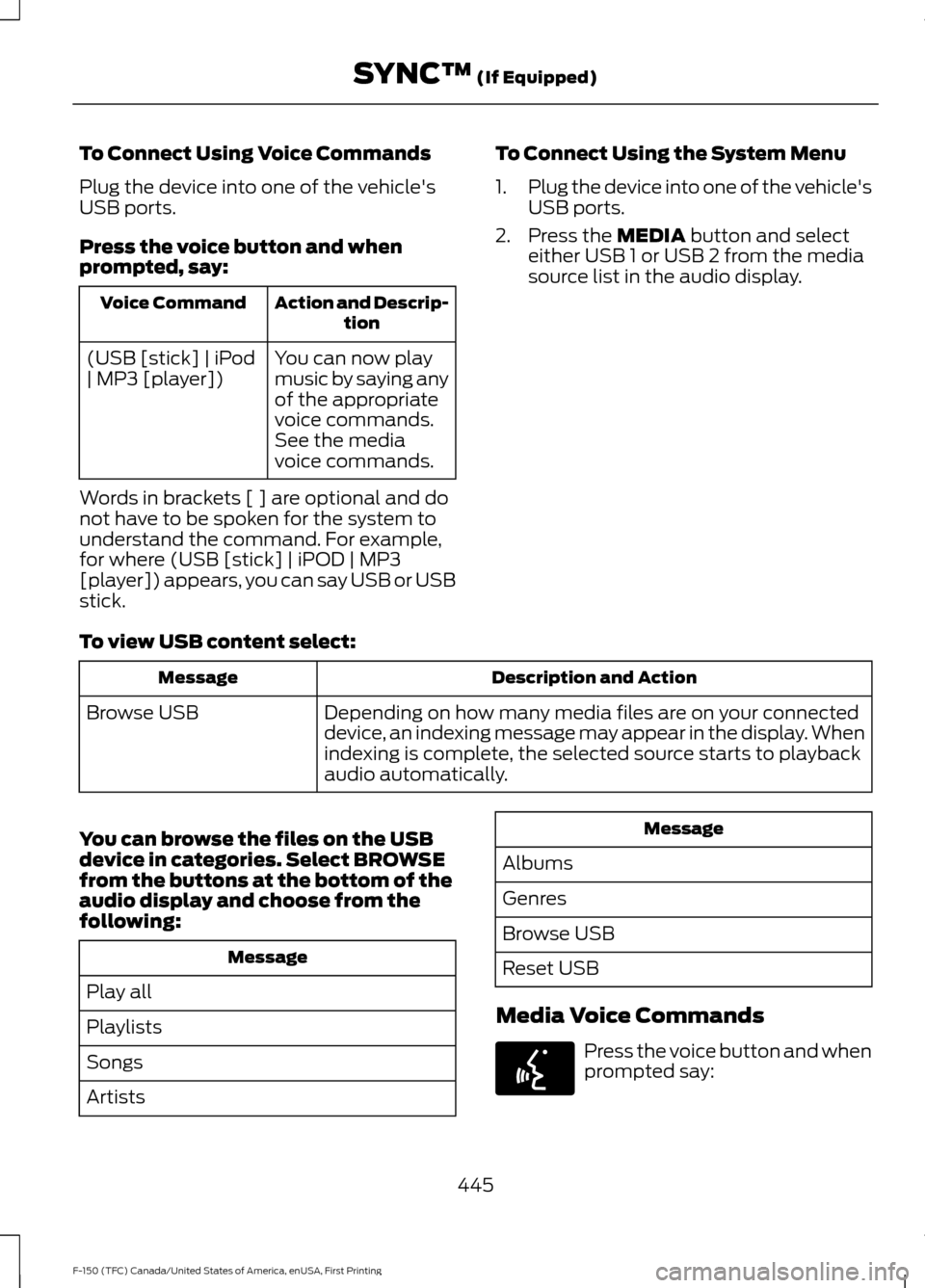
To Connect Using Voice Commands
Plug the device into one of the vehicle's
USB ports.
Press the voice button and when
prompted, say:
Action and Descrip-
tion
Voice Command
You can now play
music by saying any
of the appropriate
voice commands.
See the media
voice commands.
(USB [stick] | iPod
| MP3 [player])
Words in brackets [ ] are optional and do
not have to be spoken for the system to
understand the command. For example,
for where (USB [stick] | iPOD | MP3
[player]) appears, you can say USB or USB
stick. To Connect Using the System Menu
1.
Plug the device into one of the vehicle's
USB ports.
2. Press the MEDIA button and select
either USB 1 or USB 2 from the media
source list in the audio display.
To view USB content select: Description and Action
Message
Depending on how many media files are on your connected
device, an indexing message may appear in the display. When
indexing is complete, the selected source starts to playback
audio automatically.
Browse USB
You can browse the files on the USB
device in categories. Select
BROWSE
from the buttons at the bottom of the
audio display and choose from the
following: Message
Play all
Playlists
Songs
Artists Message
Albums
Genres
Browse USB
Reset USB
Media Voice Commands Press the voice button and when
prompted say:
445
F-150 (TFC) Canada/United States of America, enUSA, First Printing SYNC™
(If Equipped)E142599
Page 449 of 599
![FORD F150 2017 13.G User Guide Description and Action
Voice Command
You can now play music by saying any of the appropriate
voice commands.
(USB [stick] | iPod | MP3
[player])
You can say any of the voice commands that appear withi](/img/11/5065/w960_5065-448.png "FORD F150 2017 13.G User Guide Description and Action
Voice Command
You can now play music by saying any of the appropriate
voice commands.
(USB [stick] | iPod | MP3
[player])
You can say any of the voice commands that appear withi")
Description and Action
Voice Command
You can now play music by saying any of the appropriate
voice commands.
(USB [stick] | iPod | MP3
[player])
You can say any of the voice commands that appear within open and close brackets that
are separated by |. For example, where; (what's | what is) appears you say; what's or
what is.
You must say any of the voice commands that appear outside of open and close brackets.
For example, where; (what's | what is) playing, you must say either "what's playing" or
"what is playing". Description and Action
Command
Pauses device playback.
pause
Resumes device playback.
play
play [album] ___Play all media on the device from the first
track to the last.
play all
play [artist] ___
play [genre] ___
play [playlist] ___ Plays the next track on the current media.
next [track | title | song | file | podcast |
chapter | episode]
Plays the previous track on current media.
previous [track | title | song | file |
podcast | chapter | episode]
Creates a playlist with a similar genre to the
one currently playing.
[play] (similar music | more like this)
play [song | track | title | file] ___repeat offRepeats the current track.
repeat (one | track) [on]
446
F-150 (TFC) Canada/United States of America, enUSA, First Printing SYNC™ (If Equipped)
Page 450 of 599
![FORD F150 2017 13.G User Guide Description and Action
Command
Plays the current playlist in a random order.
(Not all devices support this command.)
shuffle [all] [on]
shuffle offAt any time during playback, you can press
the voice](/img/11/5065/w960_5065-449.png "FORD F150 2017 13.G User Guide Description and Action
Command
Plays the current playlist in a random order.
(Not all devices support this command.)
shuffle [all] [on]
shuffle offAt any time during playback, you can press
the voice")
Description and Action
Command
Plays the current playlist in a random order.
(Not all devices support this command.)
shuffle [all] [on]
shuffle offAt any time during playback, you can press
the voice button and ask the system what is
playing. The system reads the metadata tags
(if populated) of the current track.
((who's | who is) this | who plays this |
(what's | what is) playing [now] | (what | which) (song | track | artist) is this |
(who's | who is) playing | (what's | what is) this)
___ is a dynamic listing, meaning that it
could be the name of anything, such as a
group, artist or song. For example you
could say "Play artist The Beatles".
Examples of USB Commands
SYNC provides the user with many intuitive
ways to find and play a song using voice.
For example, if we have a song called
"Penny Lane" from the album "Magical
Mystery Tour" we can say the following to
play this song:
• Play song "Penny Lane".
• Play "Penny Lane".
If we wanted to play the entire album, we
can say: •
Play album "Magical Mystery Tour".
• Play "Magical Mystery Tour".
Bluetooth Audio
The system is also capable of playing
music from your cellular phone through
Bluetooth.
To switch the Bluetooth Audio on, press
the MEDIA button and select: Menu Item
BT audio
Then any of the following: Voice Command
pause
play
next [track | title | song | file | podcast | chapter | episode]
previous [track | title | song | file | podcast | chapter | episode]
Media Menu Features
The media menu allows you to select how
to play your music (such as by artist, genre,
shuffle or repeat), find similar music or
reset the index of your USB devices. Press the MEDIA button and select either
USB 1 or USB 2 from the media source list
in the audio display to start USB playback.
447
F-150 (TFC) Canada/United States of America, enUSA, First Printing SYNC™
(If Equipped)
Page 451 of 599
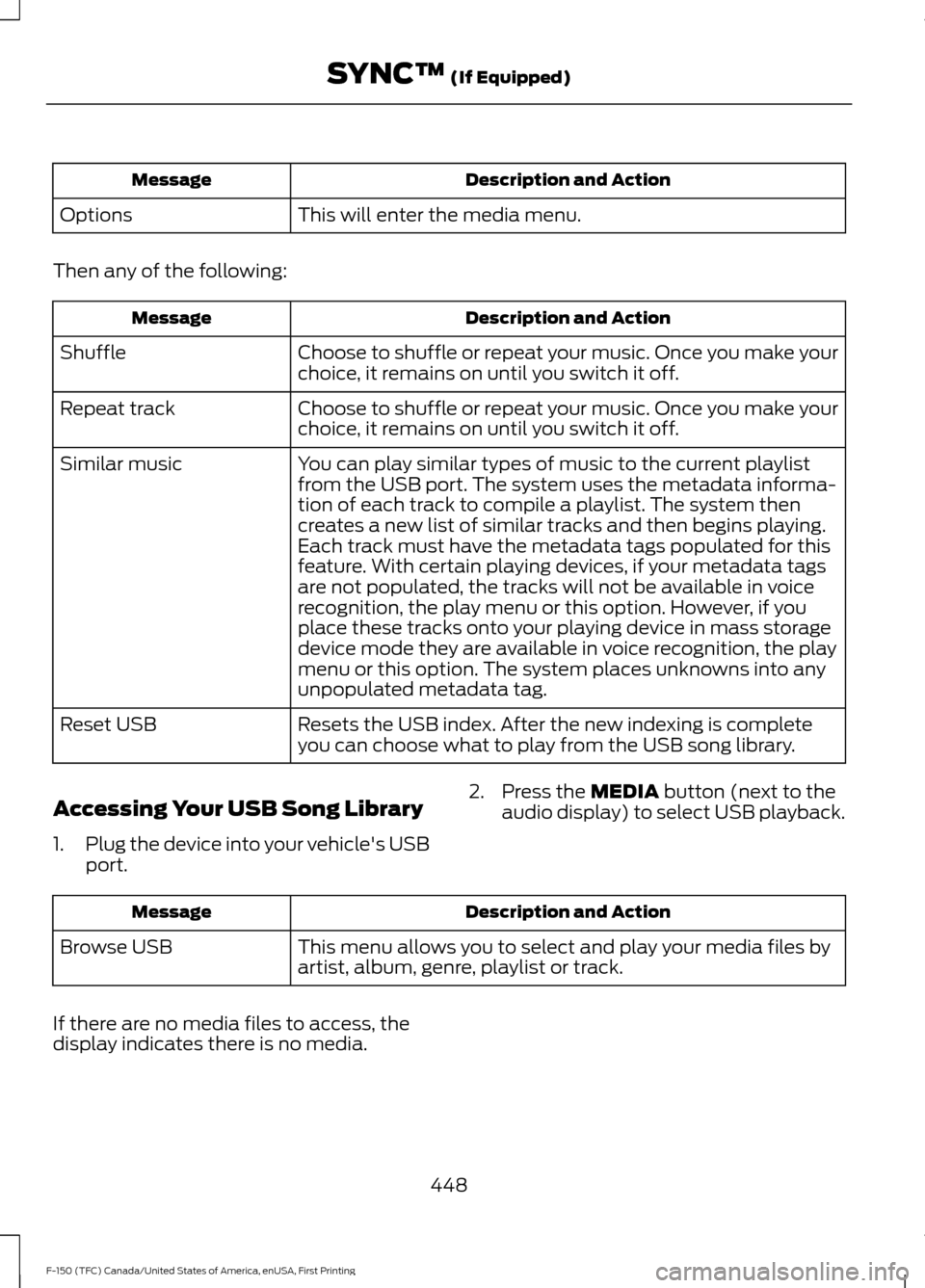
Description and Action
Message
This will enter the media menu.
Options
Then any of the following: Description and Action
Message
Choose to shuffle or repeat your music. Once you make your
choice, it remains on until you switch it off.
Shuffle
Choose to shuffle or repeat your music. Once you make your
choice, it remains on until you switch it off.
Repeat track
You can play similar types of music to the current playlist
from the USB port. The system uses the metadata informa-
tion of each track to compile a playlist. The system then
creates a new list of similar tracks and then begins playing.
Each track must have the metadata tags populated for this
feature. With certain playing devices, if your metadata tags
Similar music
are not populated, the tracks will not be available in voice
recognition, the play menu or this option. However, if you
place these tracks onto your playing device in mass storage
device mode they are available in voice recognition, the play
menu or this option. The system places unknowns into any
unpopulated metadata tag.
Resets the USB index. After the new indexing is complete
you can choose what to play from the USB song library.
Reset USB
Accessing Your USB Song Library
1. Plug the device into your vehicle's USB
port. 2. Press the MEDIA button (next to the
audio display) to select USB playback. Description and Action
Message
This menu allows you to select and play your media files by
artist, album, genre, playlist or track.
Browse USB
If there are no media files to access, the
display indicates there is no media.
448
F-150 (TFC) Canada/United States of America, enUSA, First Printing SYNC™
(If Equipped)
Page 452 of 599
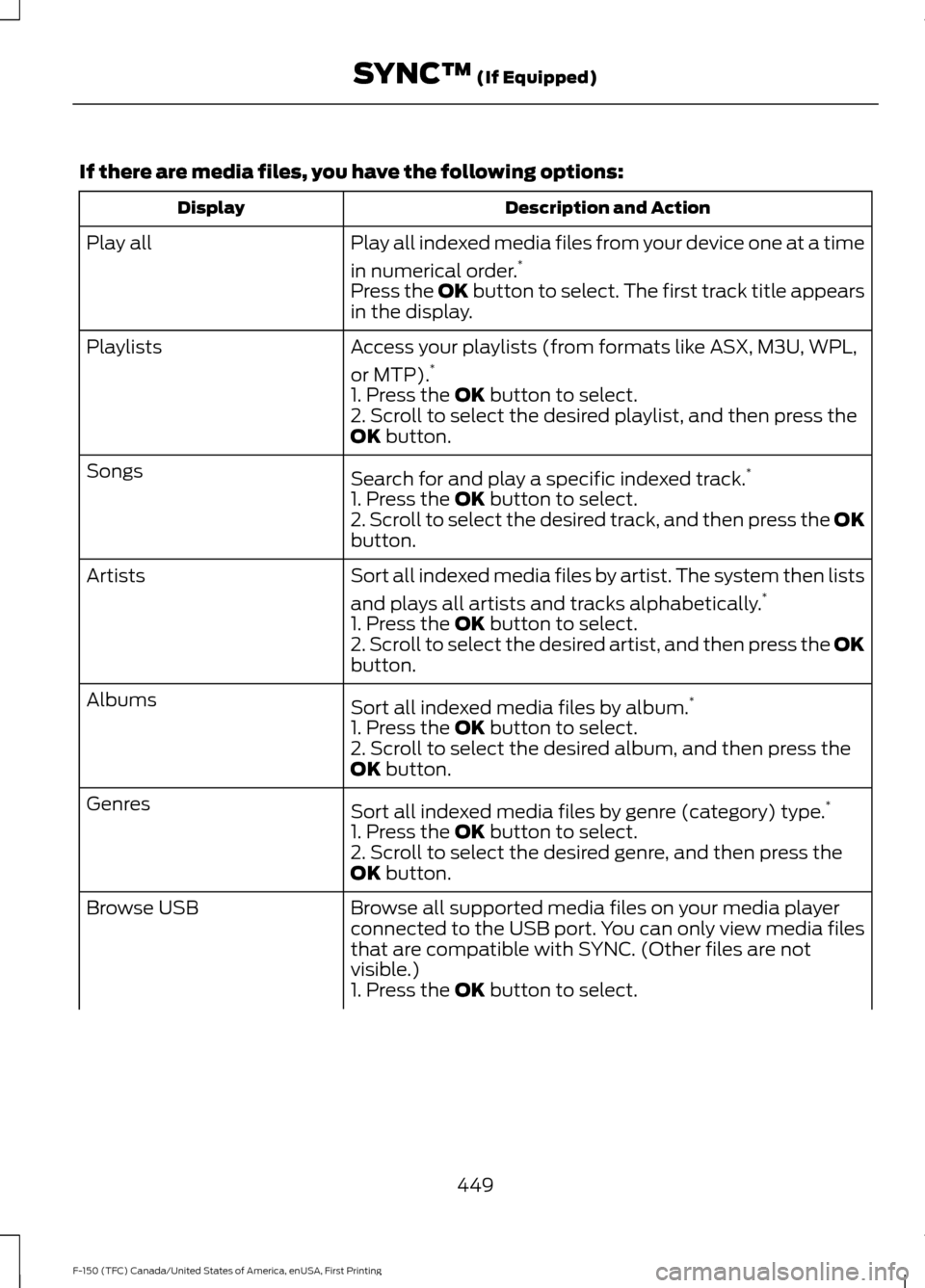
If there are media files, you have the following options:
Description and Action
Display
Play all indexed media files from your device one at a time
in numerical order.*
Play all
Press the OK button to select. The first track title appears
in the display.
Access your playlists (from formats like ASX, M3U, WPL,
or MTP).*
Playlists
1. Press the OK button to select.
2. Scroll to select the desired playlist, and then press the
OK
button.
Search for and play a specific indexed track. *
Songs
1. Press the
OK button to select.
2. Scroll to select the desired track, and then press the OK
button.
Sort all indexed media files by artist. The system then lists
and plays all artists and tracks alphabetically. *
Artists
1. Press the
OK button to select.
2. Scroll to select the desired artist, and then press the OK
button.
Sort all indexed media files by album. *
Albums
1. Press the
OK button to select.
2. Scroll to select the desired album, and then press the
OK
button.
Sort all indexed media files by genre (category) type. *
Genres
1. Press the
OK button to select.
2. Scroll to select the desired genre, and then press the
OK
button.
Browse all supported media files on your media player
connected to the USB port. You can only view media files
that are compatible with SYNC. (Other files are not
visible.)
Browse USB
1. Press the
OK button to select.
449
F-150 (TFC) Canada/United States of America, enUSA, First Printing SYNC™
(If Equipped)
Page 453 of 599
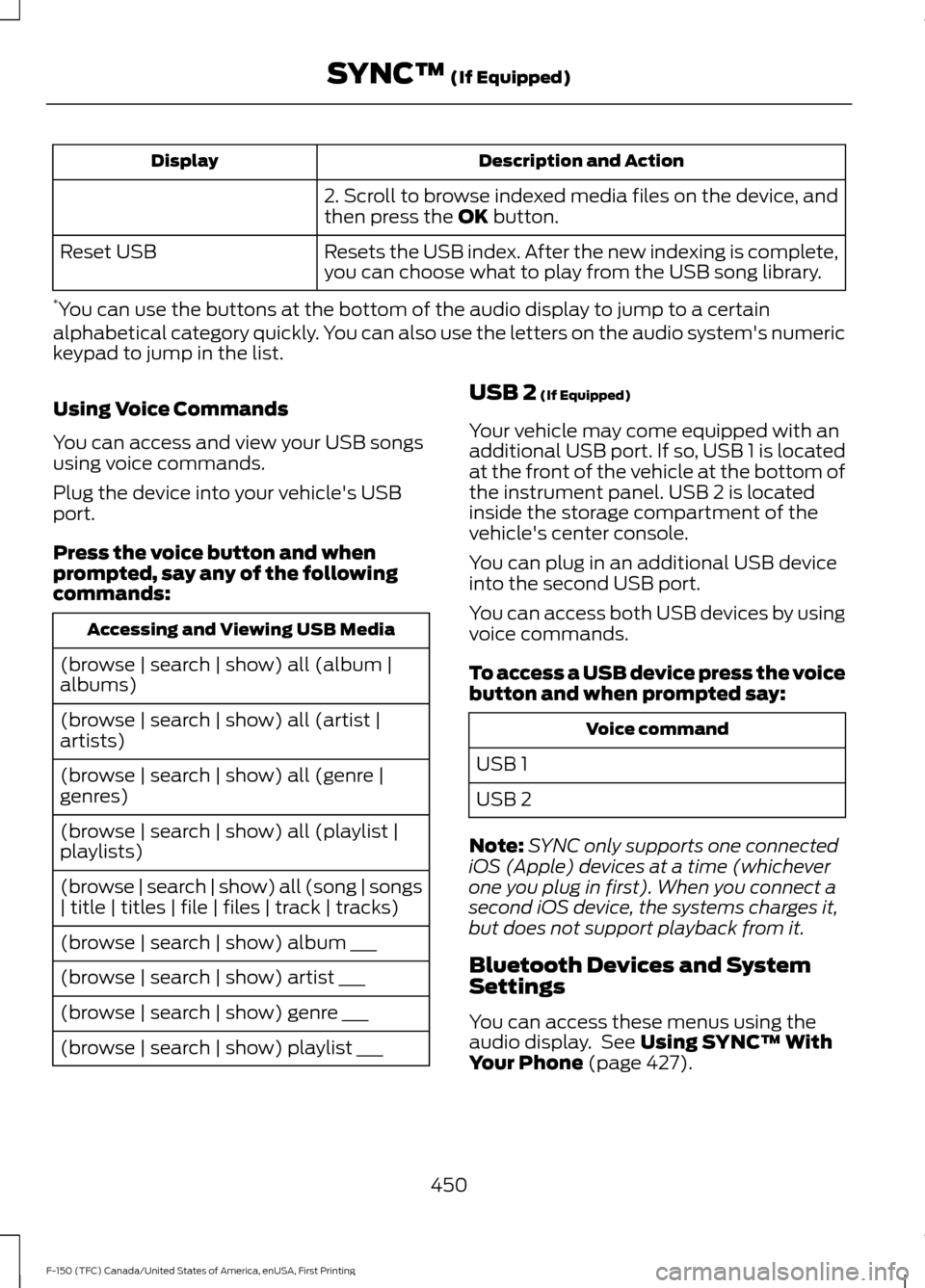
Description and Action
Display
2. Scroll to browse indexed media files on the device, and
then press the OK button.
Resets the USB index. After the new indexing is complete,
you can choose what to play from the USB song library.
Reset USB
* You can use the buttons at the bottom of the audio display to jump to a certain
alphabetical category quickly. You can also use the letters on the audio system's numeric
keypad to jump in the list.
Using Voice Commands
You can access and view your USB songs
using voice commands.
Plug the device into your vehicle's USB
port.
Press the voice button and when
prompted, say any of the following
commands: Accessing and Viewing USB Media
(browse | search | show) all (album |
albums)
(browse | search | show) all (artist |
artists)
(browse | search | show) all (genre |
genres)
(browse | search | show) all (playlist |
playlists)
(browse | search | show) all (song | songs
| title | titles | file | files | track | tracks)
(browse | search | show) album ___
(browse | search | show) artist ___
(browse | search | show) genre ___
(browse | search | show) playlist ___ USB 2
(If Equipped)
Your vehicle may come equipped with an
additional USB port. If so, USB 1 is located
at the front of the vehicle at the bottom of
the instrument panel. USB 2 is located
inside the storage compartment of the
vehicle's center console.
You can plug in an additional USB device
into the second USB port.
You can access both USB devices by using
voice commands.
To access a USB device press the voice
button and when prompted say: Voice command
USB 1
USB 2
Note: SYNC only supports one connected
iOS (Apple) devices at a time (whichever
one you plug in first). When you connect a
second iOS device, the systems charges it,
but does not support playback from it.
Bluetooth Devices and System
Settings
You can access these menus using the
audio display. See
Using SYNC™ With
Your Phone (page 427).
450
F-150 (TFC) Canada/United States of America, enUSA, First Printing SYNC™
(If Equipped)