ECO mode FORD F150 2017 13.G Service Manual
[x] Cancel search | Manufacturer: FORD, Model Year: 2017, Model line: F150, Model: FORD F150 2017 13.GPages: 599, PDF Size: 7.34 MB
Page 408 of 599
GENERAL INFORMATION
Radio Frequencies and Reception
Factors
AM and FM frequencies are established by
the Federal Communications Commission
(FCC) and the Canadian Radio and
Telecommunications Commission (CRTC).
Those frequencies are:
•
AM: 530, 540-1700, 1710 kHz
• FM: 87.9-107.7, 107.9 MHz Radio Reception Factors
The further you travel from an AM or FM station, the
weaker the signal and the weaker the reception.
Distance and strength
Hills, mountains, tall buildings, bridges, tunnels, freeway
overpasses, parking garages, dense tree foliage and
thunderstorms can interfere with the reception.
Terrain
When you pass a ground-based broadcast repeating
tower, a stronger signal may overtake a weaker one and
result in the audio system muting.
Station overload
CD and CD Player Information
Note: CD units play commercially pressed
4.7 in (12 cm) audio compact discs only. Due
to technical incompatibility, certain
recordable and re-recordable compact discs
may not function correctly when used in
Ford CD players.
Note: Do not insert CDs with homemade
paper (adhesive) labels into the CD player
as the label may peel and cause the CD to
become jammed. You should use a
permanent felt tip marker rather than
adhesive labels on your homemade CDs.
Ballpoint pens may damage CDs. Please
contact an authorized dealer for further
information.
Note: Do not use any irregularly shaped
discs or discs with a scratch protection film
attached.
Always handle discs by their edges only.
Clean the disc with an approved CD
cleaner only. Wipe it from the center of the
disc toward the edge. Do not clean in a
circular motion. Do not expose discs to direct sunlight or
heat sources for extended periods.
MP3 and WMA Track and Folder
Structure
Audio systems capable of recognizing and
playing MP3 and WMA individual tracks
and folder structures work as follows:
•
There are two different modes for MP3
and WMA disc playback: MP3 and
WMA track mode (system default) and
MP3 and WMA folder mode.
• MP3 and WMA track mode ignores any
folder structure on the MP3 and WMA
disc. The player numbers each MP3
and WMA track on the disc (noted by
the MP3 or WMA file extension) from
T001 to a maximum of T255. The
maximum number of playable MP3 and
WMA files may be less depending on
the structure of the CD and exact
model of radio present.
405
F-150 (TFC) Canada/United States of America, enUSA, First Printing Audio System
Page 409 of 599
•
MP3 and WMA folder mode represents
a folder structure consisting of one
level of folders. The CD player numbers
all MP3 and WMA tracks on the disc
(noted by the MP3 or WMA file
extension) and all folders containing
MP3 and WMA files, from F001 (folder)
T001 (track) to F253 T255.
• Creating discs with only one level of
folders helps with navigation through
the disc files.
If you are burning your own MP3 and WMA
discs, it is important to understand how
the system reads the structures you create.
While various files may be present (files
with extensions other than MP3 and
WMA), only files with the MP3 and WMA
extension are played; other files are
ignored by the system. This enables you to
use the same MP3 and WMA disc for a
variety of tasks on your work computer,
home computer and your in-vehicle
system. In track mode, the system displays and
plays the structure as if it were only one
level deep (all MP3 and WMA files play,
regardless of being in a specific folder). In
folder mode, the system only plays the
MP3 and WMA files in the current folder.
AUDIO UNIT - VEHICLES WITH:
AM/FM WARNING
Driving while distracted can result in
loss of vehicle control, crash and
injury. We strongly recommend that
you use extreme caution when using any
device that may take your focus off the
road. Your primary responsibility is the safe
operation of your vehicle. We recommend
against the use of any hand-held device
while driving and encourage the use of
voice-operated systems when possible.
Make sure you are aware of all applicable
local laws that may affect the use of
electronic devices while driving. Note:
Your audio system may not be
equipped with a CD player.
406
F-150 (TFC) Canada/United States of America, enUSA, First Printing Audio System
Page 414 of 599
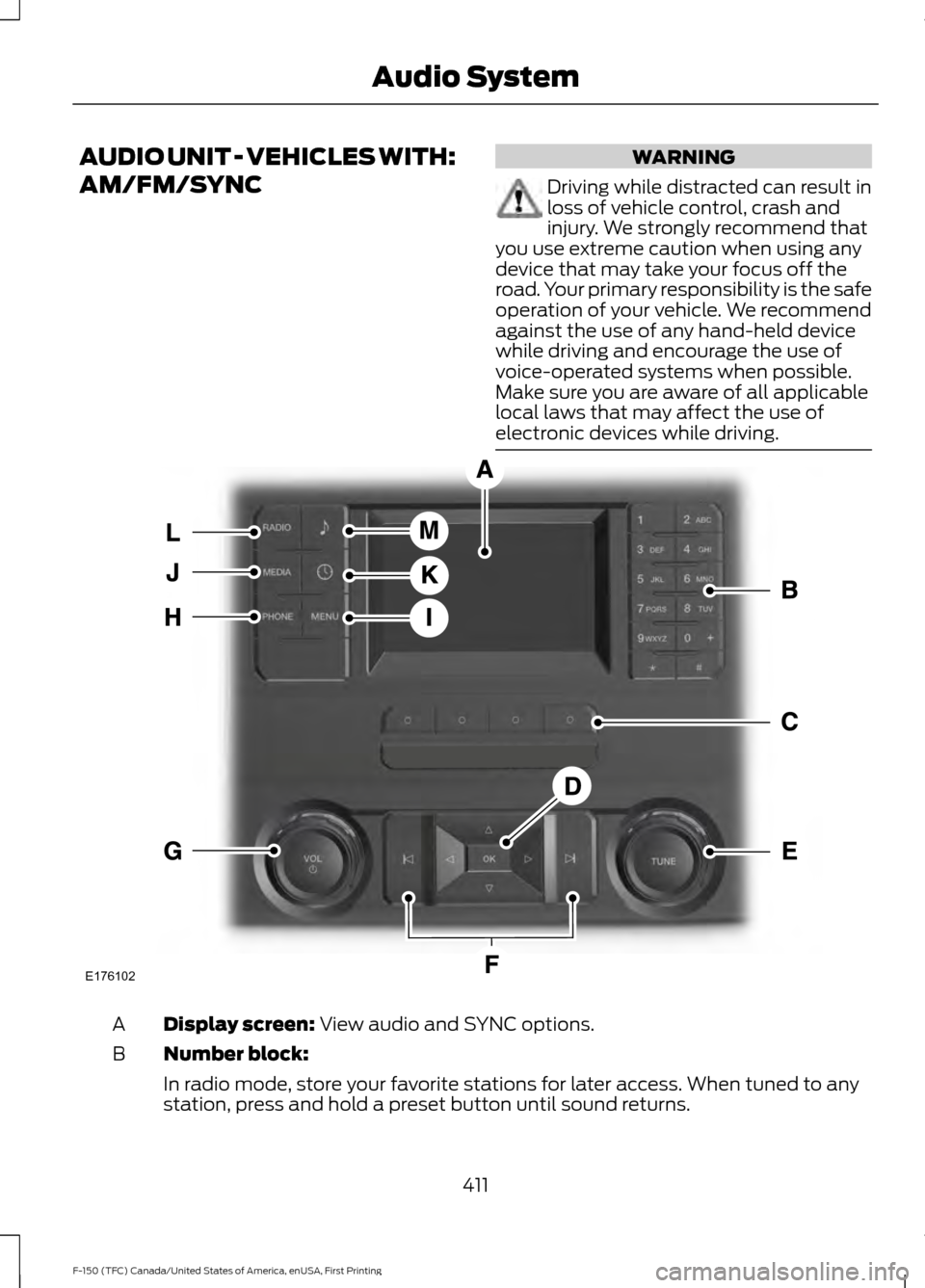
AUDIO UNIT - VEHICLES WITH:
AM/FM/SYNC WARNING
Driving while distracted can result in
loss of vehicle control, crash and
injury. We strongly recommend that
you use extreme caution when using any
device that may take your focus off the
road. Your primary responsibility is the safe
operation of your vehicle. We recommend
against the use of any hand-held device
while driving and encourage the use of
voice-operated systems when possible.
Make sure you are aware of all applicable
local laws that may affect the use of
electronic devices while driving. Display screen: View audio and SYNC options.
A
Number block:
B
In radio mode, store your favorite stations for later access. When tuned to any
station, press and hold a preset button until sound returns.
411
F-150 (TFC) Canada/United States of America, enUSA, First Printing Audio SystemE176102
Page 423 of 599
Note:
This receiver includes the eCos
real-time operating system. eCos is
published under the eCos License.
Satellite Radio Reception Factors Potential satellite radio reception issues
For optimal reception performance, keep the antenna
clear of snow and ice build-up and keep luggage and other
material as far away from the antenna as possible.
Antenna obstructions
Hills, mountains, tall buildings, bridges, tunnels, freeway
overpasses, parking garages, dense tree foliage and
thunderstorms can interfere with your reception.
Terrain
When you pass a ground-based broadcast-repeating
tower, a stronger signal may overtake a weaker one and
the audio system may mute.
Station overload
Your display may show ACQUIRING . . . to indicate the
interference and the audio system may mute.
Satellite radio signal interfer-
ence
SIRIUS® Satellite Radio Service
Note: SIRIUS reserves the unrestricted right
to change, rearrange, add or delete
programming including canceling, moving
or adding particular channels, and its prices,
at any time, with or without notice to you.
Ford Motor Company shall not be
responsible for any such programming
changes. SIRIUS satellite radio is a
subscription-based satellite radio service
that broadcasts a variety of music, sports,
news, weather, traffic and entertainment
programming. Your factory-installed
SIRIUS satellite radio system includes
hardware and a limited subscription term,
which begins on the date of sale or lease
of your vehicle. See an authorized dealer
for availability.
For more information on extended
subscription terms (a service fee is
required), the online media player and a
complete list of SIRIUS satellite radio
channels, and other features, please visit
www.siriusxm.com in the United States,
www.siriusxm.ca in Canada, or call SIRIUS
at 1-888-539-7474.
Satellite Radio Electronic Serial
Number (ESN)
You need your ESN to activate, modify or
track your satellite radio account. When in
satellite radio mode, tune to channel 0.
420
F-150 (TFC) Canada/United States of America, enUSA, First Printing Audio SystemE208625
Page 429 of 599
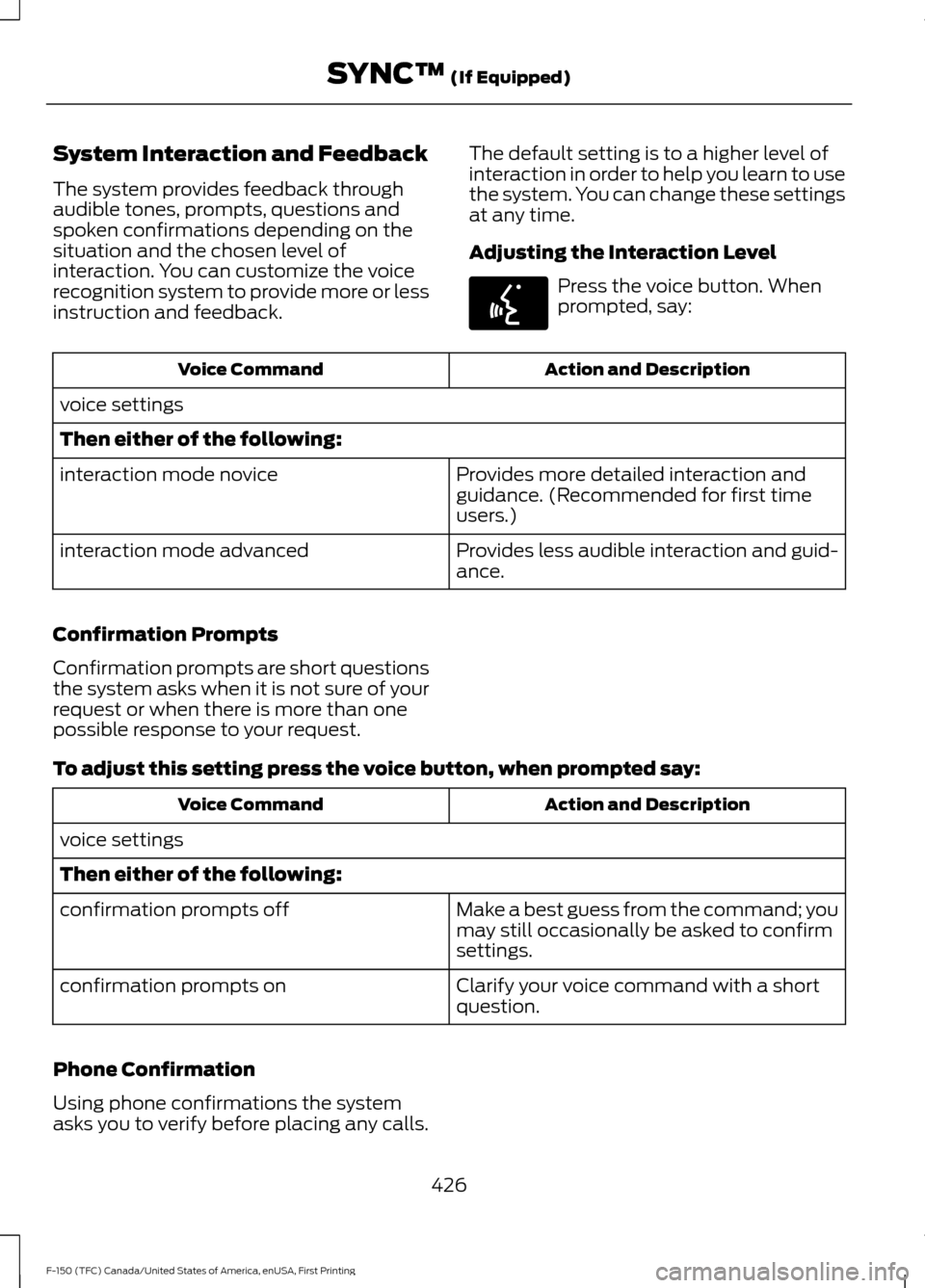
System Interaction and Feedback
The system provides feedback through
audible tones, prompts, questions and
spoken confirmations depending on the
situation and the chosen level of
interaction. You can customize the voice
recognition system to provide more or less
instruction and feedback.
The default setting is to a higher level of
interaction in order to help you learn to use
the system. You can change these settings
at any time.
Adjusting the Interaction Level Press the voice button. When
prompted, say:
Action and Description
Voice Command
voice settings
Then either of the following: Provides more detailed interaction and
guidance. (Recommended for first time
users.)
interaction mode novice
Provides less audible interaction and guid-
ance.
interaction mode advanced
Confirmation Prompts
Confirmation prompts are short questions
the system asks when it is not sure of your
request or when there is more than one
possible response to your request.
To adjust this setting press the voice button, when prompted say: Action and Description
Voice Command
voice settings
Then either of the following: Make a best guess from the command; you
may still occasionally be asked to confirm
settings.
confirmation prompts off
Clarify your voice command with a short
question.
confirmation prompts on
Phone Confirmation
Using phone confirmations the system
asks you to verify before placing any calls. 426
F-150 (TFC) Canada/United States of America, enUSA, First Printing SYNC™ (If Equipped)E142599
Page 430 of 599
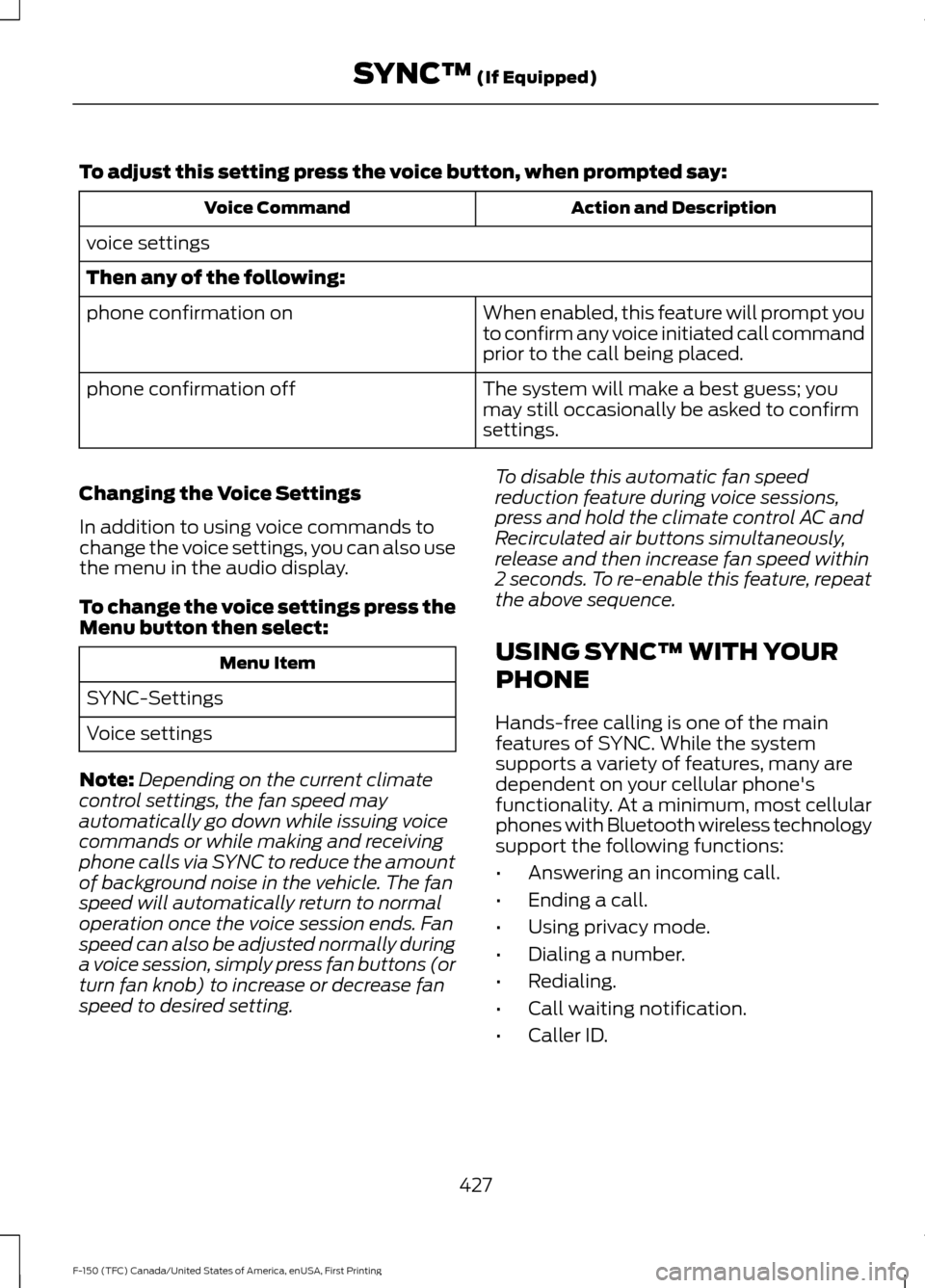
To adjust this setting press the voice button, when prompted say:
Action and Description
Voice Command
voice settings
Then any of the following: When enabled, this feature will prompt you
to confirm any voice initiated call command
prior to the call being placed.
phone confirmation on
The system will make a best guess; you
may still occasionally be asked to confirm
settings.
phone confirmation off
Changing the Voice Settings
In addition to using voice commands to
change the voice settings, you can also use
the menu in the audio display.
To change the voice settings press the
Menu button then select: Menu Item
SYNC-Settings
Voice settings
Note: Depending on the current climate
control settings, the fan speed may
automatically go down while issuing voice
commands or while making and receiving
phone calls via SYNC to reduce the amount
of background noise in the vehicle. The fan
speed will automatically return to normal
operation once the voice session ends. Fan
speed can also be adjusted normally during
a voice session, simply press fan buttons (or
turn fan knob) to increase or decrease fan
speed to desired setting. To disable this automatic fan speed
reduction feature during voice sessions,
press and hold the climate control AC and
Recirculated air buttons simultaneously,
release and then increase fan speed within
2 seconds. To re-enable this feature, repeat
the above sequence.
USING SYNC™ WITH YOUR
PHONE
Hands-free calling is one of the main
features of SYNC. While the system
supports a variety of features, many are
dependent on your cellular phone's
functionality. At a minimum, most cellular
phones with Bluetooth wireless technology
support the following functions:
•
Answering an incoming call.
• Ending a call.
• Using privacy mode.
• Dialing a number.
• Redialing.
• Call waiting notification.
• Caller ID.
427
F-150 (TFC) Canada/United States of America, enUSA, First Printing SYNC™ (If Equipped)
Page 451 of 599
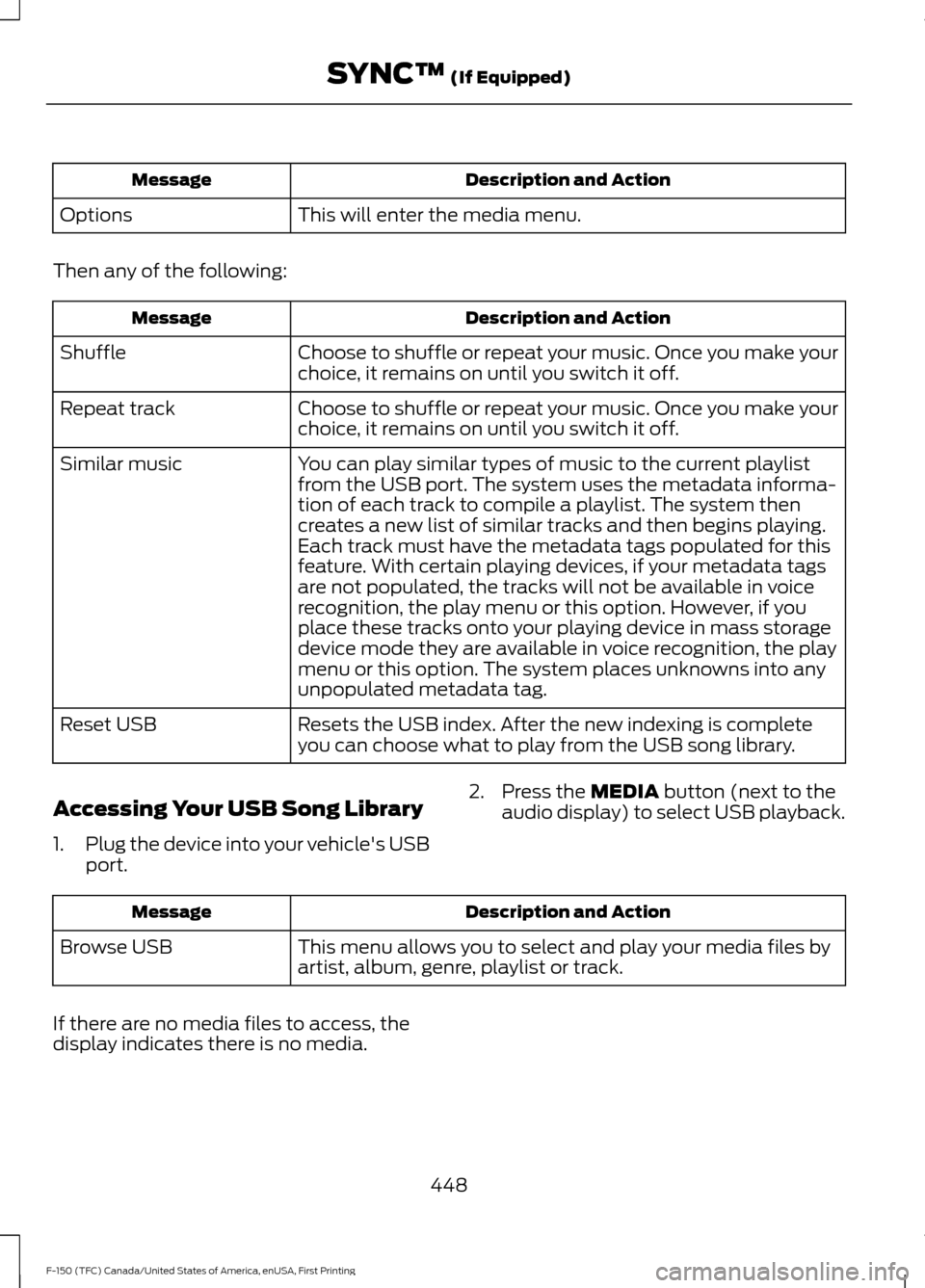
Description and Action
Message
This will enter the media menu.
Options
Then any of the following: Description and Action
Message
Choose to shuffle or repeat your music. Once you make your
choice, it remains on until you switch it off.
Shuffle
Choose to shuffle or repeat your music. Once you make your
choice, it remains on until you switch it off.
Repeat track
You can play similar types of music to the current playlist
from the USB port. The system uses the metadata informa-
tion of each track to compile a playlist. The system then
creates a new list of similar tracks and then begins playing.
Each track must have the metadata tags populated for this
feature. With certain playing devices, if your metadata tags
Similar music
are not populated, the tracks will not be available in voice
recognition, the play menu or this option. However, if you
place these tracks onto your playing device in mass storage
device mode they are available in voice recognition, the play
menu or this option. The system places unknowns into any
unpopulated metadata tag.
Resets the USB index. After the new indexing is complete
you can choose what to play from the USB song library.
Reset USB
Accessing Your USB Song Library
1. Plug the device into your vehicle's USB
port. 2. Press the MEDIA button (next to the
audio display) to select USB playback. Description and Action
Message
This menu allows you to select and play your media files by
artist, album, genre, playlist or track.
Browse USB
If there are no media files to access, the
display indicates there is no media.
448
F-150 (TFC) Canada/United States of America, enUSA, First Printing SYNC™
(If Equipped)
Page 468 of 599
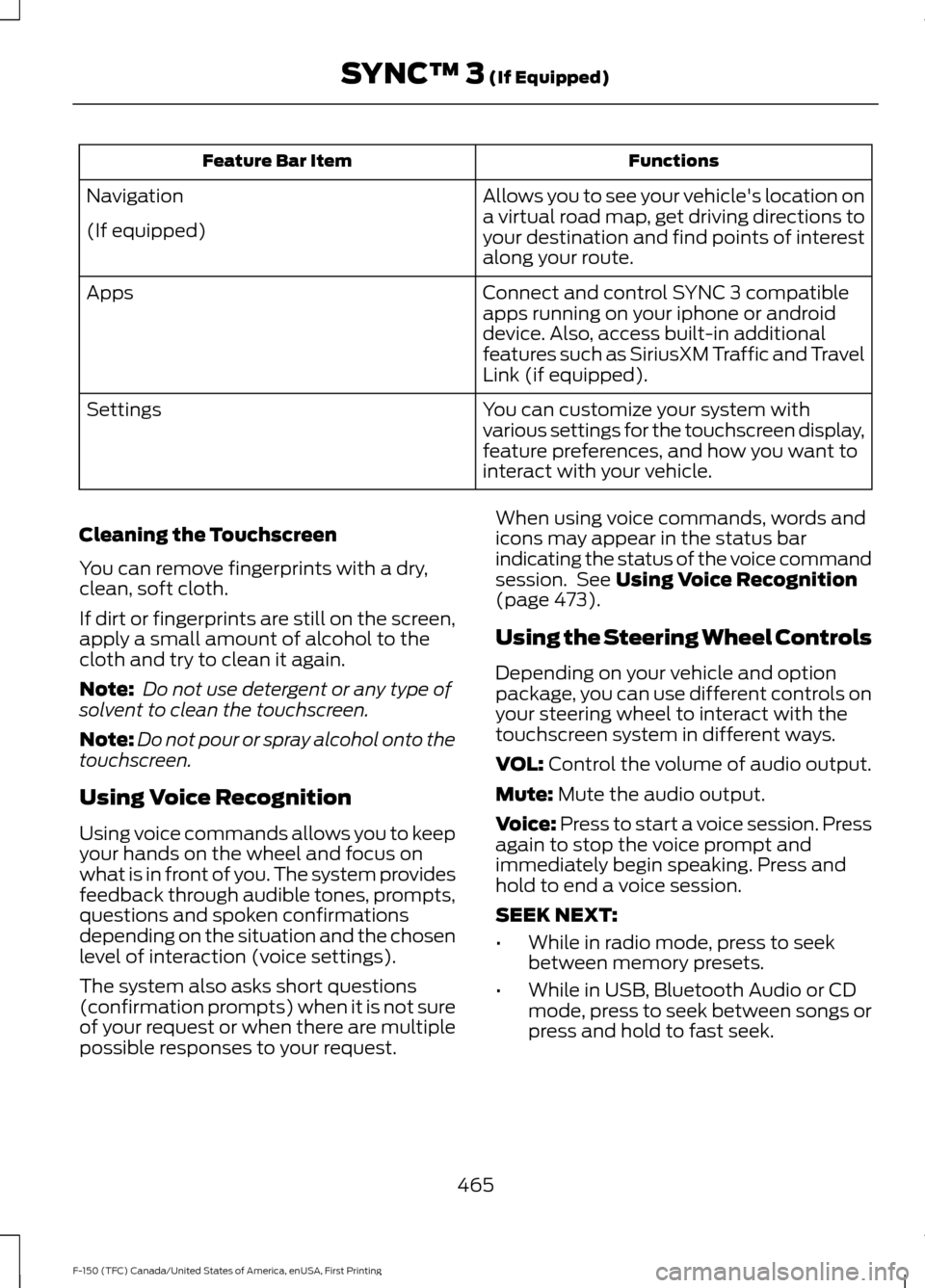
Functions
Feature Bar Item
Allows you to see your vehicle's location on
a virtual road map, get driving directions to
your destination and find points of interest
along your route.
Navigation
(If equipped)
Connect and control SYNC 3 compatible
apps running on your iphone or android
device. Also, access built-in additional
features such as SiriusXM Traffic and Travel
Link (if equipped).
Apps
You can customize your system with
various settings for the touchscreen display,
feature preferences, and how you want to
interact with your vehicle.
Settings
Cleaning the Touchscreen
You can remove fingerprints with a dry,
clean, soft cloth.
If dirt or fingerprints are still on the screen,
apply a small amount of alcohol to the
cloth and try to clean it again.
Note: Do not use detergent or any type of
solvent to clean the touchscreen.
Note: Do not pour or spray alcohol onto the
touchscreen.
Using Voice Recognition
Using voice commands allows you to keep
your hands on the wheel and focus on
what is in front of you. The system provides
feedback through audible tones, prompts,
questions and spoken confirmations
depending on the situation and the chosen
level of interaction (voice settings).
The system also asks short questions
(confirmation prompts) when it is not sure
of your request or when there are multiple
possible responses to your request. When using voice commands, words and
icons may appear in the status bar
indicating the status of the voice command
session. See Using Voice Recognition
(page 473).
Using the Steering Wheel Controls
Depending on your vehicle and option
package, you can use different controls on
your steering wheel to interact with the
touchscreen system in different ways.
VOL:
Control the volume of audio output.
Mute:
Mute the audio output.
Voice:
Press to start a voice session. Press
again to stop the voice prompt and
immediately begin speaking. Press and
hold to end a voice session.
SEEK NEXT:
• While in radio mode, press to seek
between memory presets.
• While in USB, Bluetooth Audio or CD
mode, press to seek between songs or
press and hold to fast seek.
465
F-150 (TFC) Canada/United States of America, enUSA, First Printing SYNC™ 3
(If Equipped)
Page 469 of 599
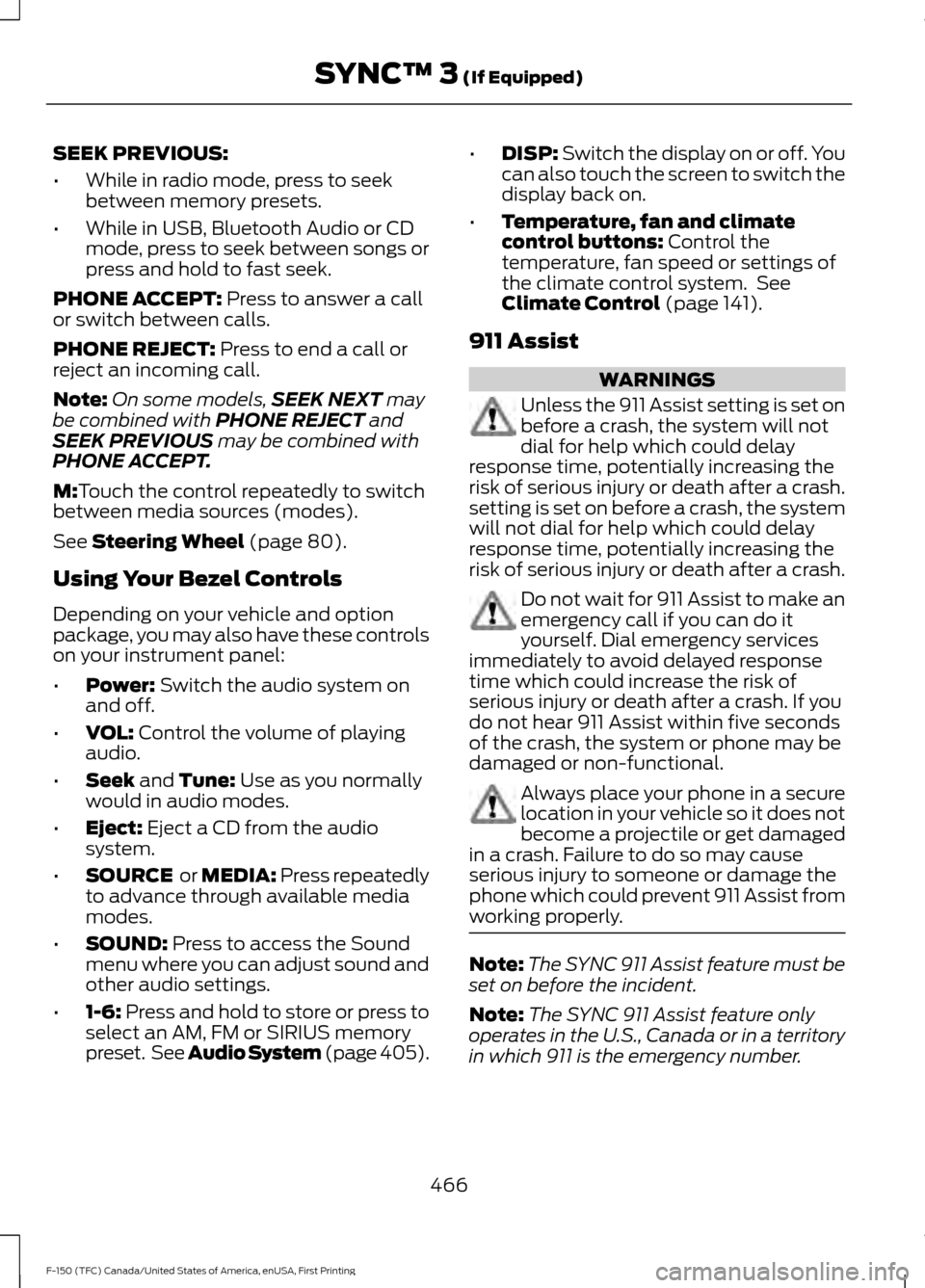
SEEK PREVIOUS:
•
While in radio mode, press to seek
between memory presets.
• While in USB, Bluetooth Audio or CD
mode, press to seek between songs or
press and hold to fast seek.
PHONE ACCEPT: Press to answer a call
or switch between calls.
PHONE REJECT:
Press to end a call or
reject an incoming call.
Note: On some models, SEEK NEXT
may
be combined with PHONE REJECT and
SEEK PREVIOUS may be combined with
PHONE ACCEPT.
M:
Touch the control repeatedly to switch
between media sources (modes).
See
Steering Wheel (page 80).
Using Your Bezel Controls
Depending on your vehicle and option
package, you may also have these controls
on your instrument panel:
• Power:
Switch the audio system on
and off.
• VOL:
Control the volume of playing
audio.
• Seek
and Tune: Use as you normally
would in audio modes.
• Eject:
Eject a CD from the audio
system.
• SOURCE
or MEDIA: Press repeatedly
to advance through available media
modes.
• SOUND:
Press to access the Sound
menu where you can adjust sound and
other audio settings.
• 1-6:
Press and hold to store or press to
select an AM, FM or SIRIUS memory
preset. See Audio System (page
405). •
DISP:
Switch the display on or off. You
can also touch the screen to switch the
display back on.
• Temperature, fan and climate
control buttons:
Control the
temperature, fan speed or settings of
the climate control system. See
Climate Control
(page 141).
911 Assist WARNINGS
Unless the 911 Assist setting is set on
before a crash, the system will not
dial for help which could delay
response time, potentially increasing the
risk of serious injury or death after a crash.
setting is set on before a crash, the system
will not dial for help which could delay
response time, potentially increasing the
risk of serious injury or death after a crash. Do not wait for 911 Assist to make an
emergency call if you can do it
yourself. Dial emergency services
immediately to avoid delayed response
time which could increase the risk of
serious injury or death after a crash. If you
do not hear 911 Assist within five seconds
of the crash, the system or phone may be
damaged or non-functional. Always place your phone in a secure
location in your vehicle so it does not
become a projectile or get damaged
in a crash. Failure to do so may cause
serious injury to someone or damage the
phone which could prevent 911 Assist from
working properly. Note:
The SYNC 911 Assist feature must be
set on before the incident.
Note: The SYNC 911 Assist feature only
operates in the U.S., Canada or in a territory
in which 911 is the emergency number.
466
F-150 (TFC) Canada/United States of America, enUSA, First Printing SYNC™ 3
(If Equipped)
Page 482 of 599
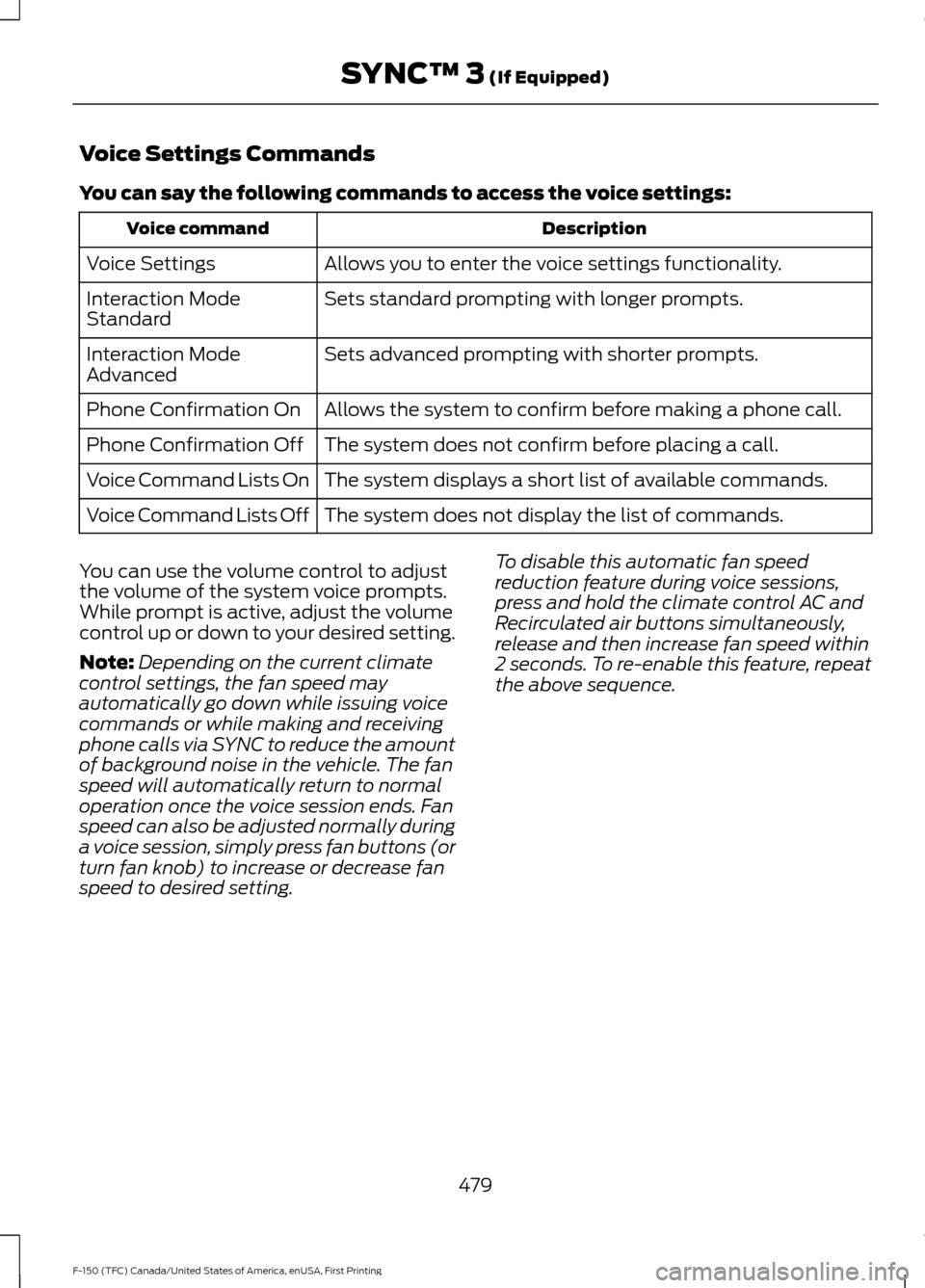
Voice Settings Commands
You can say the following commands to access the voice settings:
Description
Voice command
Allows you to enter the voice settings functionality.
Voice Settings
Sets standard prompting with longer prompts.
Interaction Mode
Standard
Sets advanced prompting with shorter prompts.
Interaction Mode
Advanced
Allows the system to confirm before making a phone call.
Phone Confirmation On
The system does not confirm before placing a call.
Phone Confirmation Off
The system displays a short list of available commands.
Voice Command Lists On
The system does not display the list of commands.
Voice Command Lists Off
You can use the volume control to adjust
the volume of the system voice prompts.
While prompt is active, adjust the volume
control up or down to your desired setting.
Note: Depending on the current climate
control settings, the fan speed may
automatically go down while issuing voice
commands or while making and receiving
phone calls via SYNC to reduce the amount
of background noise in the vehicle. The fan
speed will automatically return to normal
operation once the voice session ends. Fan
speed can also be adjusted normally during
a voice session, simply press fan buttons (or
turn fan knob) to increase or decrease fan
speed to desired setting. To disable this automatic fan speed
reduction feature during voice sessions,
press and hold the climate control AC and
Recirculated air buttons simultaneously,
release and then increase fan speed within
2 seconds. To re-enable this feature, repeat
the above sequence.
479
F-150 (TFC) Canada/United States of America, enUSA, First Printing SYNC™ 3 (If Equipped)