ad blue FORD F250 2013 Owner's Manual
[x] Cancel search | Manufacturer: FORD, Model Year: 2013, Model line: F250, Model: FORD F250 2013Pages: 577, PDF Size: 7.74 MB
Page 455 of 577
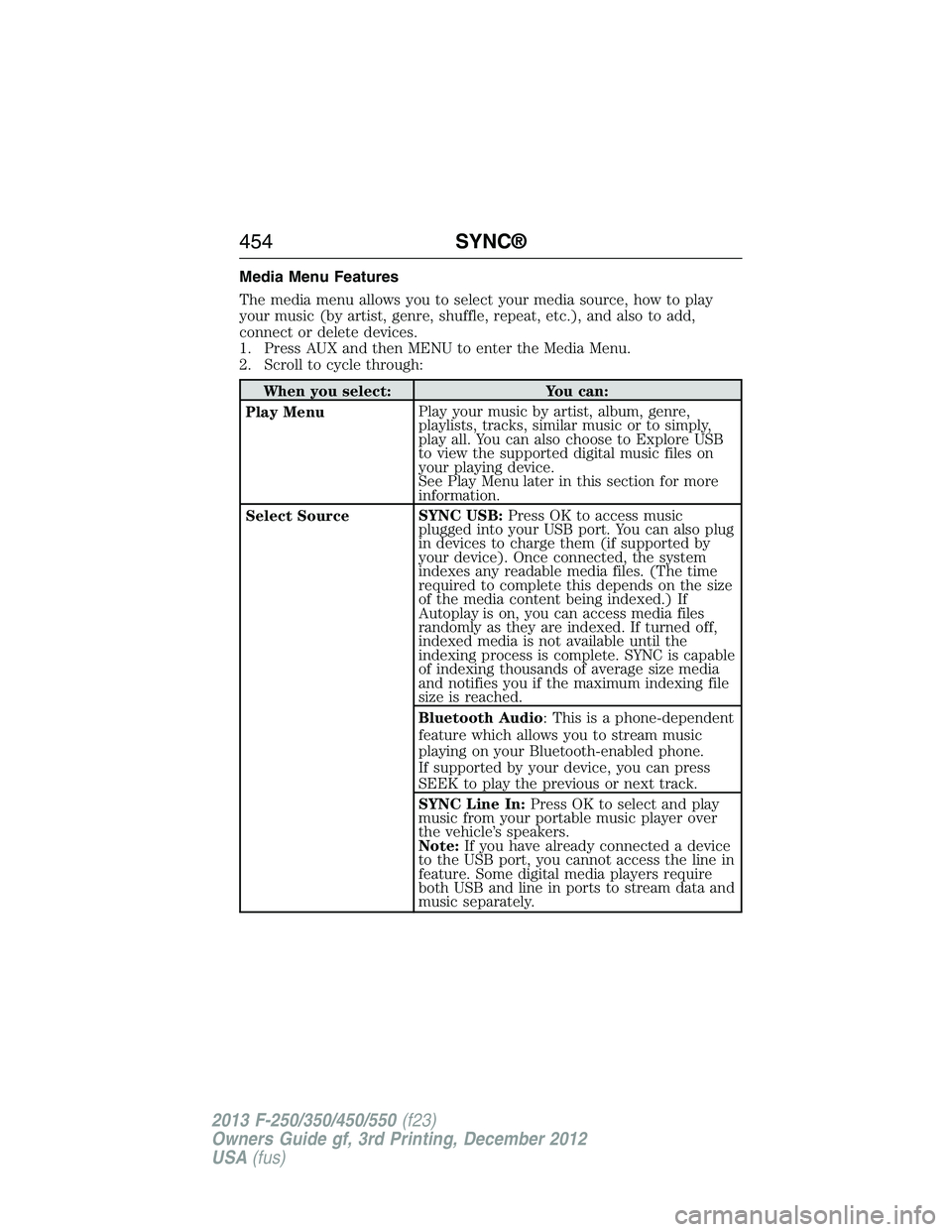
Media Menu Features
The media menu allows you to select your media source, how to play
your music (by artist, genre, shuffle, repeat, etc.), and also to add,
connect or delete devices.
1. Press AUX and then MENU to enter the Media Menu.
2. Scroll to cycle through:
When you select: You can:
Play MenuPlay your music by artist, album, genre,
playlists, tracks, similar music or to simply,
play all. You can also choose to Explore USB
to view the supported digital music files on
your playing device.
See Play Menu later in this section for more
information.
Select SourceSYNC USB:Press OK to access music
plugged into your USB port. You can also plug
in devices to charge them (if supported by
your device). Once connected, the system
indexes any readable media files. (The time
required to complete this depends on the size
of the media content being indexed.) If
Autoplay is on, you can access media files
randomly as they are indexed. If turned off,
indexed media is not available until the
indexing process is complete. SYNC is capable
of indexing thousands of average size media
and notifies you if the maximum indexing file
size is reached.
Bluetooth Audio: This is a phone-dependent
feature which allows you to stream music
playing on your Bluetooth-enabled phone.
If supported by your device, you can press
SEEK to play the previous or next track.
SYNC Line In:Press OK to select and play
music from your portable music player over
the vehicle’s speakers.
Note:If you have already connected a device
to the USB port, you cannot access the line in
feature. Some digital media players require
both USB and line in ports to stream data and
music separately.
454SYNC®
2013 F-250/350/450/550(f23)
Owners Guide gf, 3rd Printing, December 2012
USA(fus)
Page 456 of 577
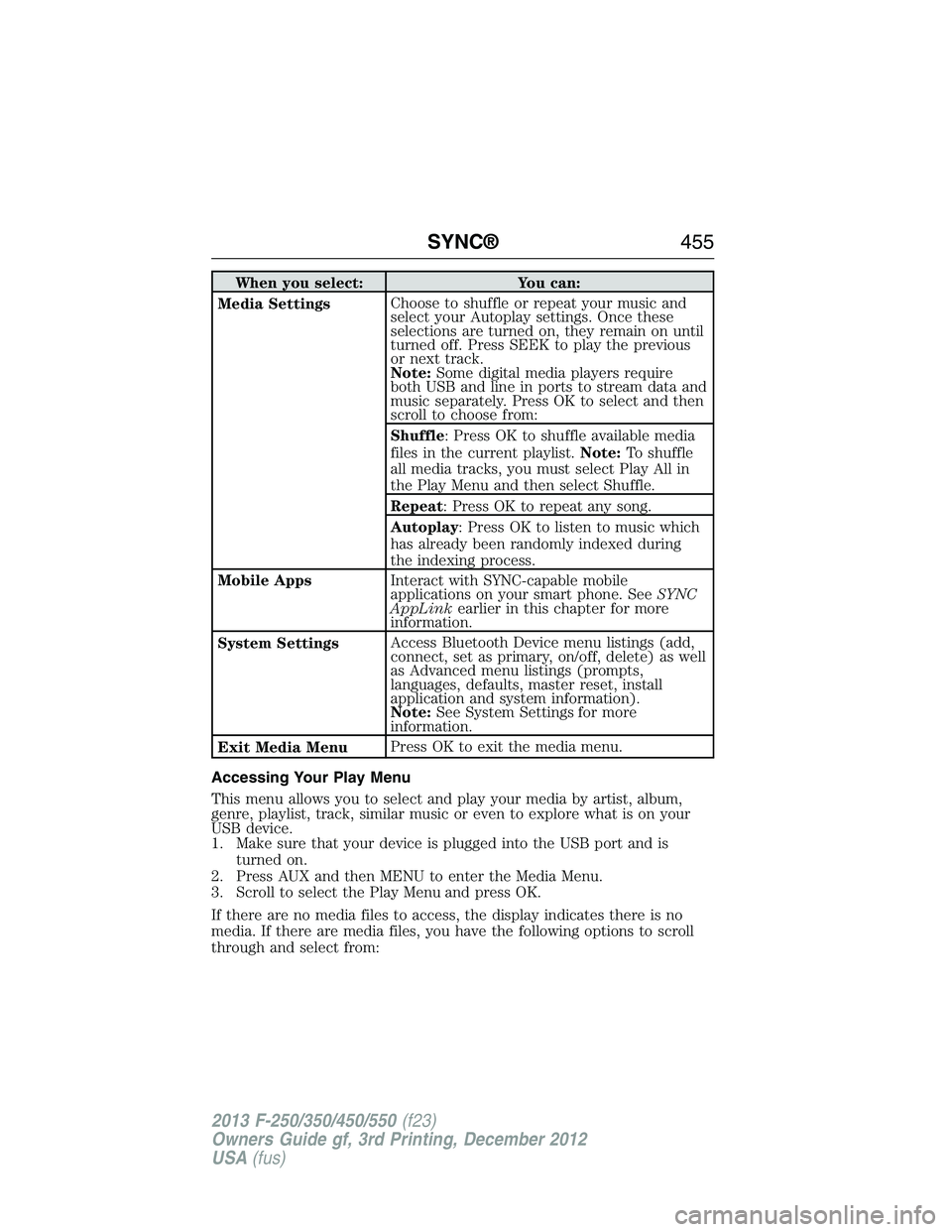
When you select: You can:
Media SettingsChoose to shuffle or repeat your music and
select your Autoplay settings. Once these
selections are turned on, they remain on until
turned off. Press SEEK to play the previous
or next track.
Note:Some digital media players require
both USB and line in ports to stream data and
music separately. Press OK to select and then
scroll to choose from:
Shuffle: Press OK to shuffle available media
files in the current playlist.Note:To shuffle
all media tracks, you must select Play All in
the Play Menu and then select Shuffle.
Repeat: Press OK to repeat any song.
Autoplay: Press OK to listen to music which
has already been randomly indexed during
the indexing process.
Mobile AppsInteract with SYNC-capable mobile
applications on your smart phone. SeeSYNC
AppLinkearlier in this chapter for more
information.
System SettingsAccess Bluetooth Device menu listings (add,
connect, set as primary, on/off, delete) as well
as Advanced menu listings (prompts,
languages, defaults, master reset, install
application and system information).
Note:See System Settings for more
information.
Exit Media MenuPress OK to exit the media menu.
Accessing Your Play Menu
This menu allows you to select and play your media by artist, album,
genre, playlist, track, similar music or even to explore what is on your
USB device.
1. Make sure that your device is plugged into the USB port and is
turned on.
2. Press AUX and then MENU to enter the Media Menu.
3. Scroll to select the Play Menu and press OK.
If there are no media files to access, the display indicates there is no
media. If there are media files, you have the following options to scroll
through and select from:
SYNC®455
2013 F-250/350/450/550(f23)
Owners Guide gf, 3rd Printing, December 2012
USA(fus)
Page 458 of 577
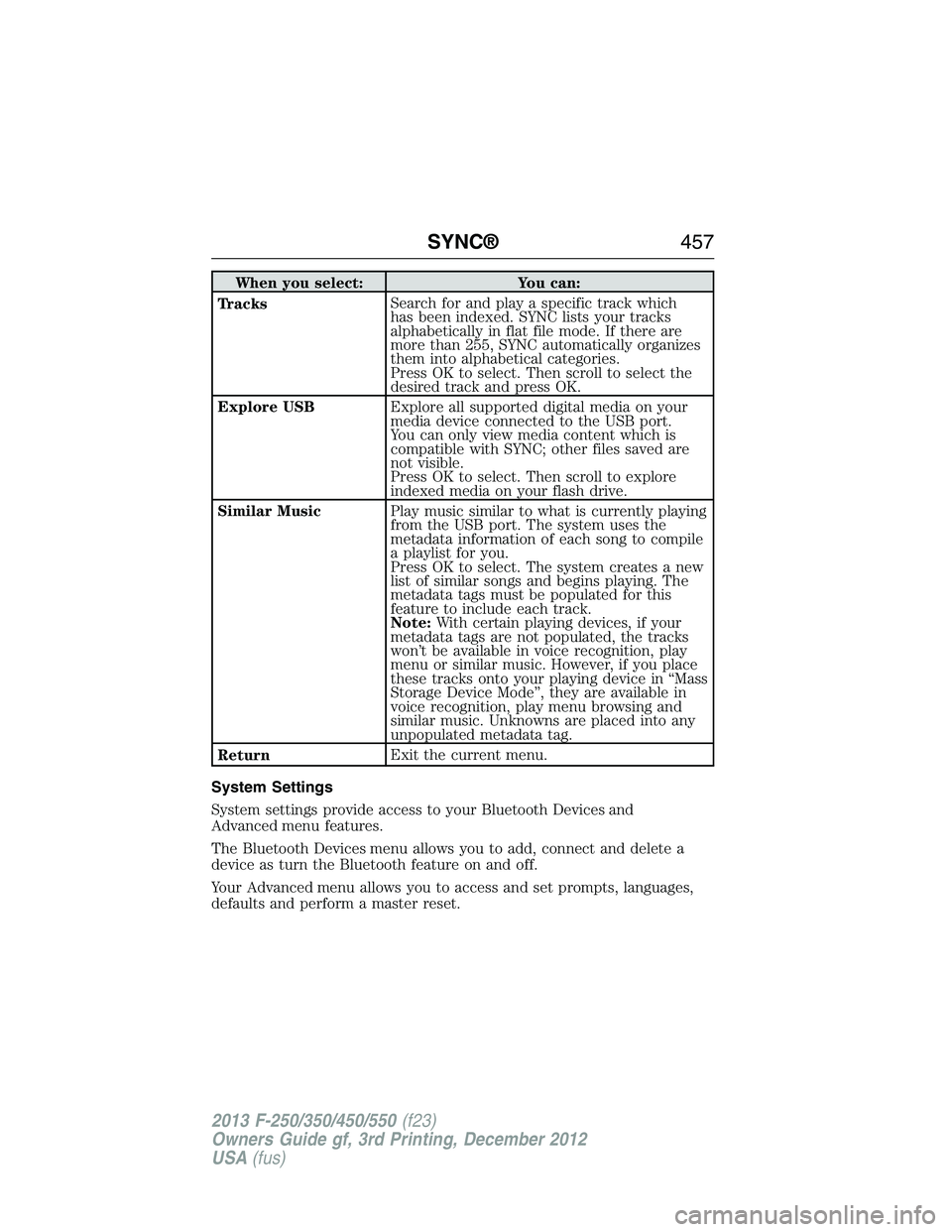
When you select: You can:
TracksSearch for and play a specific track which
has been indexed. SYNC lists your tracks
alphabetically in flat file mode. If there are
more than 255, SYNC automatically organizes
them into alphabetical categories.
Press OK to select. Then scroll to select the
desired track and press OK.
Explore USBExplore all supported digital media on your
media device connected to the USB port.
You can only view media content which is
compatible with SYNC; other files saved are
not visible.
Press OK to select. Then scroll to explore
indexed media on your flash drive.
Similar MusicPlay music similar to what is currently playing
from the USB port. The system uses the
metadata information of each song to compile
a playlist for you.
Press OK to select. The system creates a new
list of similar songs and begins playing. The
metadata tags must be populated for this
feature to include each track.
Note:With certain playing devices, if your
metadata tags are not populated, the tracks
won’t be available in voice recognition, play
menu or similar music. However, if you place
these tracks onto your playing device in “Mass
Storage Device Mode”, they are available in
voice recognition, play menu browsing and
similar music. Unknowns are placed into any
unpopulated metadata tag.
ReturnExit the current menu.
System Settings
System settings provide access to your Bluetooth Devices and
Advanced menu features.
The Bluetooth Devices menu allows you to add, connect and delete a
device as turn the Bluetooth feature on and off.
Your Advanced menu allows you to access and set prompts, languages,
defaults and perform a master reset.
SYNC®457
2013 F-250/350/450/550(f23)
Owners Guide gf, 3rd Printing, December 2012
USA(fus)
Page 459 of 577
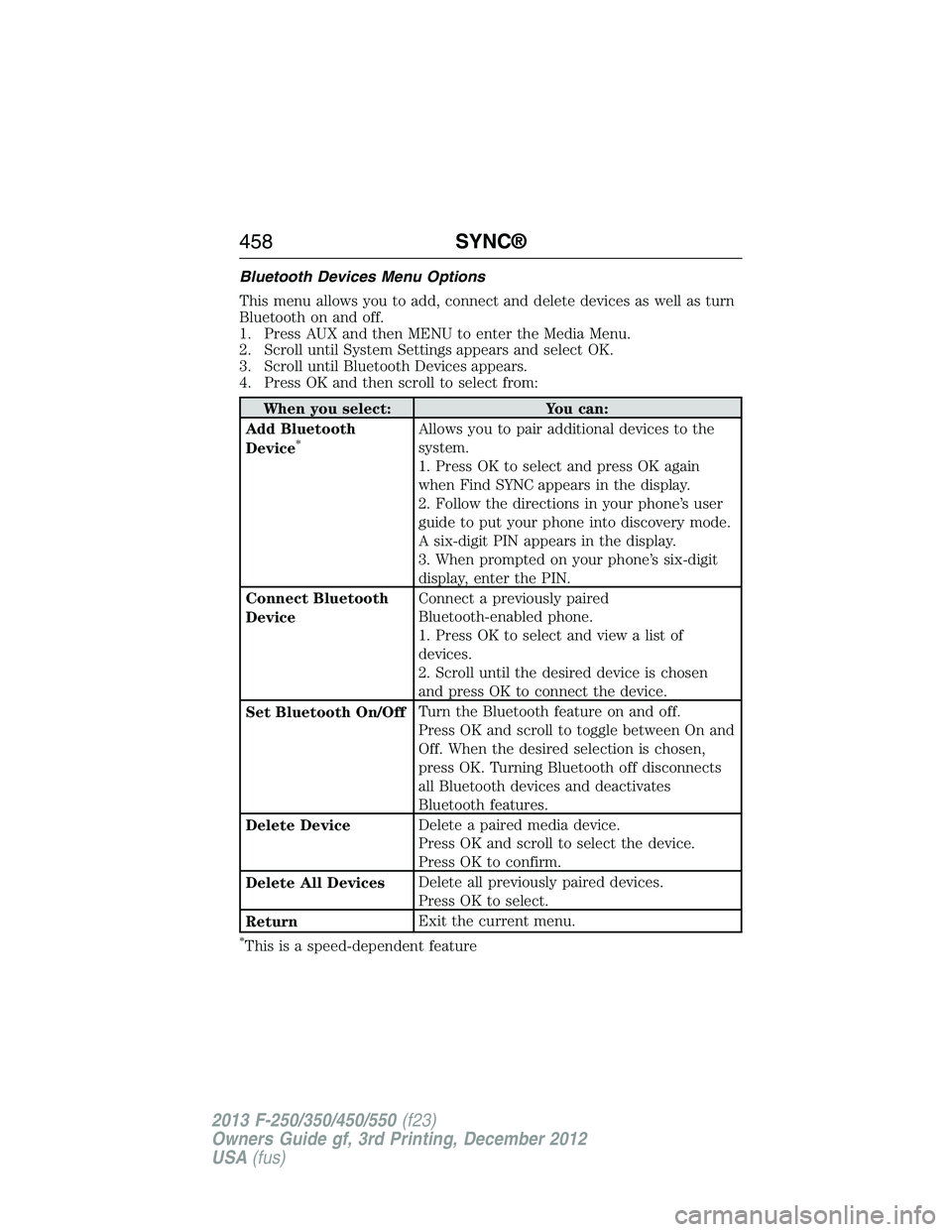
Bluetooth Devices Menu Options
This menu allows you to add, connect and delete devices as well as turn
Bluetooth on and off.
1. Press AUX and then MENU to enter the Media Menu.
2. Scroll until System Settings appears and select OK.
3. Scroll until Bluetooth Devices appears.
4. Press OK and then scroll to select from:
When you select: You can:
Add Bluetooth
Device
*Allows you to pair additional devices to the
system.
1. Press OK to select and press OK again
when Find SYNC appears in the display.
2. Follow the directions in your phone’s user
guide to put your phone into discovery mode.
A six-digit PIN appears in the display.
3. When prompted on your phone’s six-digit
display, enter the PIN.
Connect Bluetooth
DeviceConnect a previously paired
Bluetooth-enabled phone.
1. Press OK to select and view a list of
devices.
2. Scroll until the desired device is chosen
and press OK to connect the device.
Set Bluetooth On/OffTurn the Bluetooth feature on and off.
Press OK and scroll to toggle between On and
Off. When the desired selection is chosen,
press OK. Turning Bluetooth off disconnects
all Bluetooth devices and deactivates
Bluetooth features.
Delete DeviceDelete a paired media device.
Press OK and scroll to select the device.
Press OK to confirm.
Delete All DevicesDelete all previously paired devices.
Press OK to select.
ReturnExit the current menu.
*This is a speed-dependent feature
458SYNC®
2013 F-250/350/450/550(f23)
Owners Guide gf, 3rd Printing, December 2012
USA(fus)
Page 462 of 577
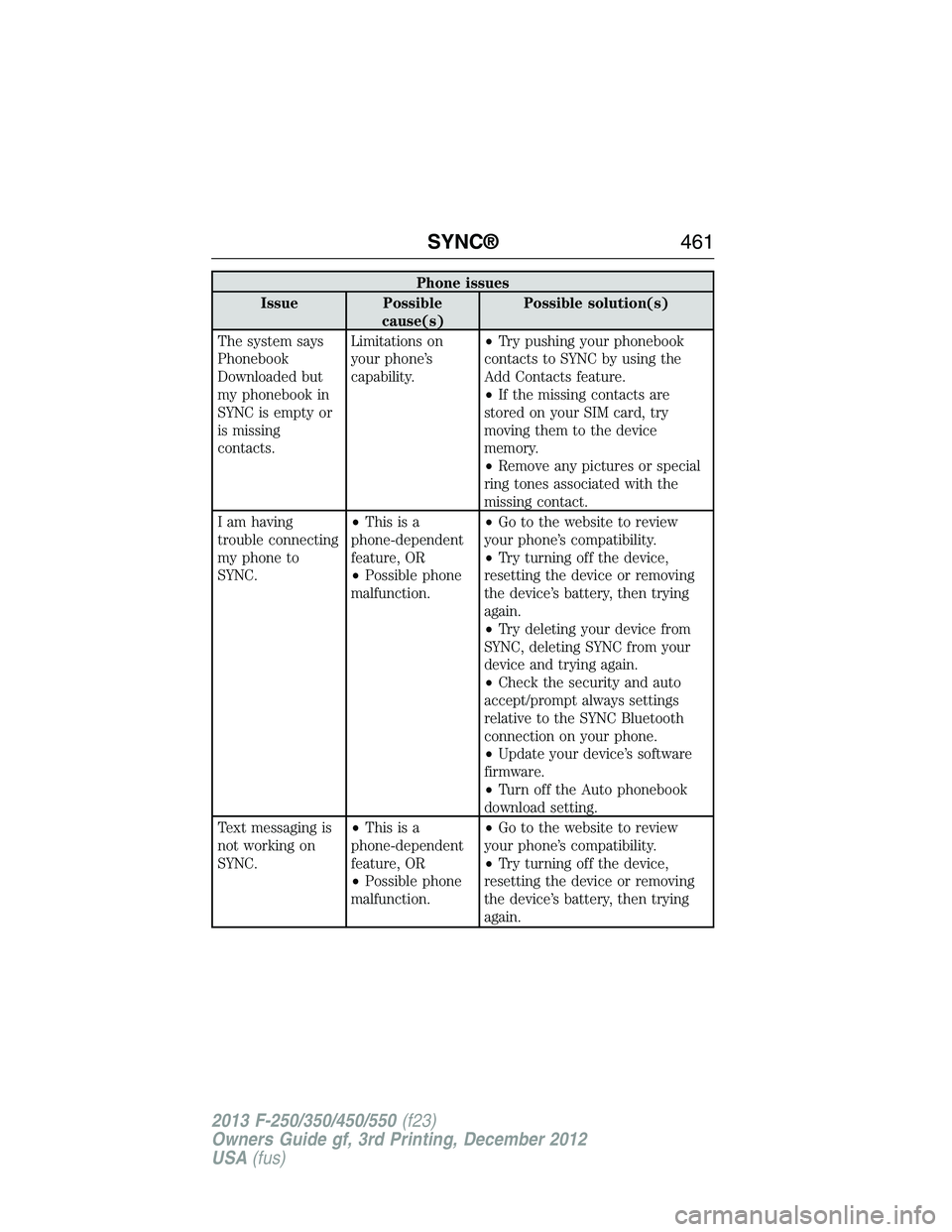
Phone issues
Issue Possible
cause(s)Possible solution(s)
The system says
Phonebook
Downloaded but
my phonebook in
SYNC is empty or
is missing
contacts.Limitations on
your phone’s
capability.•Try pushing your phonebook
contacts to SYNC by using the
Add Contacts feature.
•If the missing contacts are
stored on your SIM card, try
moving them to the device
memory.
•Remove any pictures or special
ring tones associated with the
missing contact.
I am having
trouble connecting
my phone to
SYNC.•Thisisa
phone-dependent
feature, OR
•Possible phone
malfunction.•Go to the website to review
your phone’s compatibility.
•Try turning off the device,
resetting the device or removing
the device’s battery, then trying
again.
•Try deleting your device from
SYNC, deleting SYNC from your
device and trying again.
•Check the security and auto
accept/prompt always settings
relative to the SYNC Bluetooth
connection on your phone.
•Update your device’s software
firmware.
•Turn off the Auto phonebook
download setting.
Text messaging is
not working on
SYNC.•Thisisa
phone-dependent
feature, OR
•Possible phone
malfunction.•Go to the website to review
your phone’s compatibility.
•Try turning off the device,
resetting the device or removing
the device’s battery, then trying
again.
SYNC®461
2013 F-250/350/450/550(f23)
Owners Guide gf, 3rd Printing, December 2012
USA(fus)
Page 463 of 577
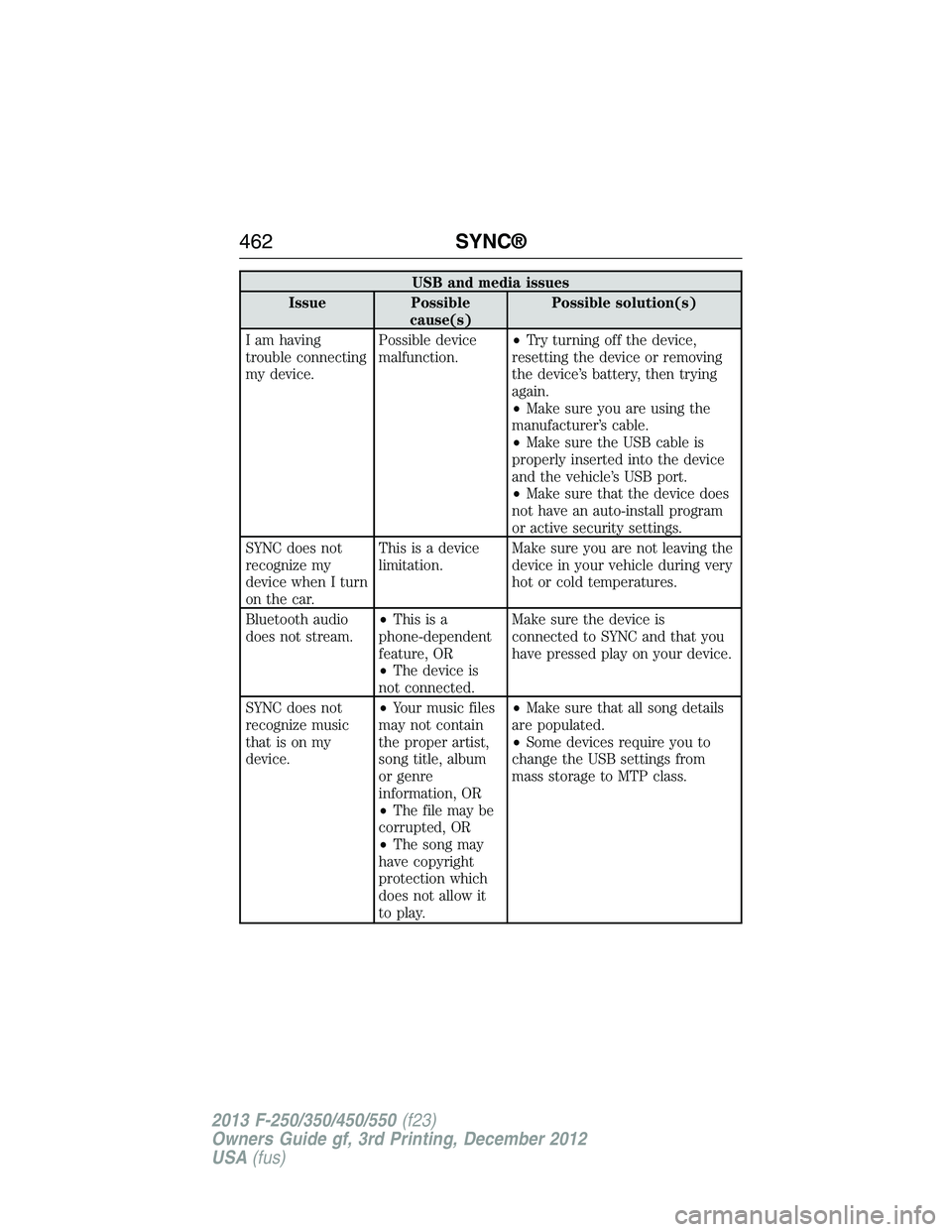
USB and media issues
Issue Possible
cause(s)Possible solution(s)
I am having
trouble connecting
my device.Possible device
malfunction.•Try turning off the device,
resetting the device or removing
the device’s battery, then trying
again.
•Make sure you are using the
manufacturer’s cable.
•Make sure the USB cable is
properly inserted into the device
and the vehicle’s USB port.
•Make sure that the device does
not have an auto-install program
or active security settings.
SYNC does not
recognize my
device when I turn
on the car.This is a device
limitation.Make sure you are not leaving the
device in your vehicle during very
hot or cold temperatures.
Bluetooth audio
does not stream.•Thisisa
phone-dependent
feature, OR
•The device is
not connected.Make sure the device is
connected to SYNC and that you
have pressed play on your device.
SYNC does not
recognize music
that is on my
device.•Your music files
may not contain
the proper artist,
song title, album
or genre
information, OR
•The file may be
corrupted, OR
•The song may
have copyright
protection which
does not allow it
to play.•Make sure that all song details
are populated.
•Some devices require you to
change the USB settings from
mass storage to MTP class.
462SYNC®
2013 F-250/350/450/550(f23)
Owners Guide gf, 3rd Printing, December 2012
USA(fus)
Page 464 of 577
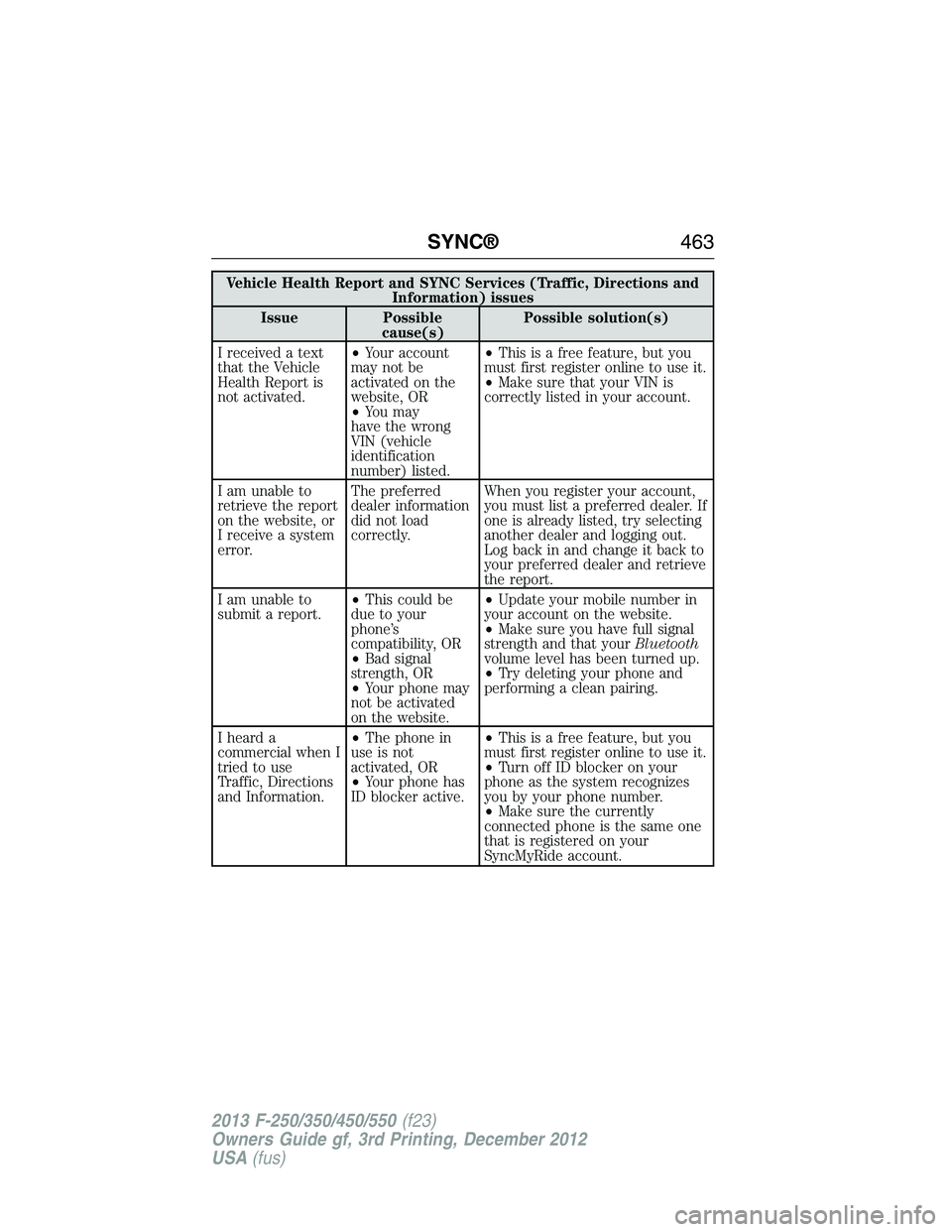
Vehicle Health Report and SYNC Services (Traffic, Directions and
Information) issues
Issue Possible
cause(s)Possible solution(s)
I received a text
that the Vehicle
Health Report is
not activated.•Your account
may not be
activated on the
website, OR
•You may
have the wrong
VIN (vehicle
identification
number) listed.•This is a free feature, but you
must first register online to use it.
•Make sure that your VIN is
correctly listed in your account.
I am unable to
retrieve the report
on the website, or
I receive a system
error.The preferred
dealer information
did not load
correctly.When you register your account,
you must list a preferred dealer. If
one is already listed, try selecting
another dealer and logging out.
Log back in and change it back to
your preferred dealer and retrieve
the report.
I am unable to
submit a report.•This could be
due to your
phone’s
compatibility, OR
•Bad signal
strength, OR
•Your phone may
not be activated
on the website.•Update your mobile number in
your account on the website.
•Make sure you have full signal
strength and that yourBluetooth
volume level has been turned up.
•Try deleting your phone and
performing a clean pairing.
I heard a
commercial when I
tried to use
Traffic, Directions
and Information.•The phone in
use is not
activated, OR
•Your phone has
ID blocker active.•This is a free feature, but you
must first register online to use it.
•Turn off ID blocker on your
phone as the system recognizes
you by your phone number.
•Make sure the currently
connected phone is the same one
that is registered on your
SyncMyRide account.
SYNC®463
2013 F-250/350/450/550(f23)
Owners Guide gf, 3rd Printing, December 2012
USA(fus)
Page 472 of 577
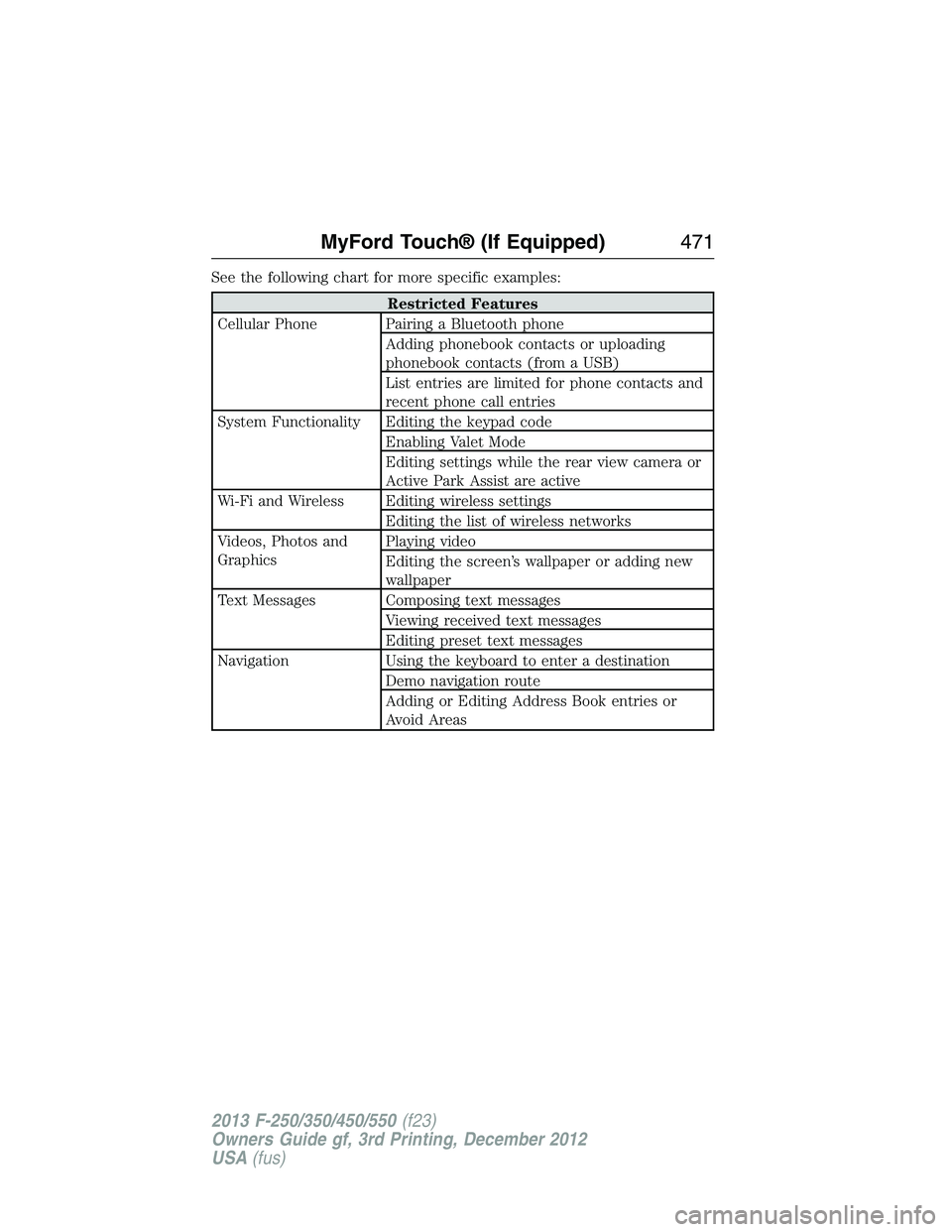
See the following chart for more specific examples:
Restricted Features
Cellular Phone Pairing a Bluetooth phone
Adding phonebook contacts or uploading
phonebook contacts (from a USB)
List entries are limited for phone contacts and
recent phone call entries
System Functionality Editing the keypad code
Enabling Valet Mode
Editing settings while the rear view camera or
Active Park Assist are active
Wi-Fi and Wireless Editing wireless settings
Editing the list of wireless networks
Videos, Photos and
GraphicsPlaying video
Editing the screen’s wallpaper or adding new
wallpaper
Text Messages Composing text messages
Viewing received text messages
Editing preset text messages
Navigation Using the keyboard to enter a destination
Demo navigation route
Adding or Editing Address Book entries or
Avoid Areas
MyFord Touch® (If Equipped)471
2013 F-250/350/450/550(f23)
Owners Guide gf, 3rd Printing, December 2012
USA(fus)
Page 475 of 577
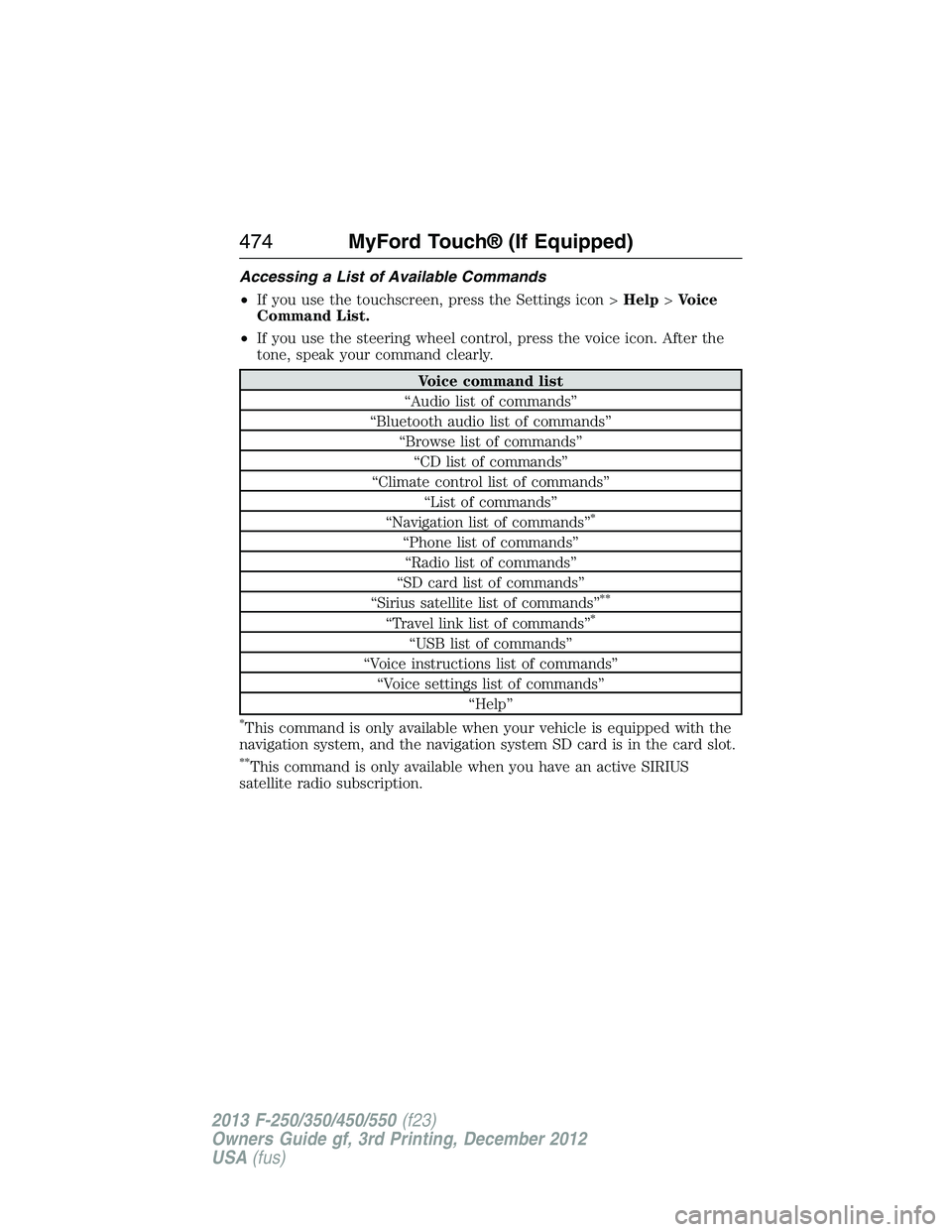
Accessing a List of Available Commands
•If you use the touchscreen, press the Settings icon >Help>Voice
Command List.
•If you use the steering wheel control, press the voice icon. After the
tone, speak your command clearly.
Voice command list
“Audio list of commands”
“Bluetooth audio list of commands”
“Browse list of commands”
“CD list of commands”
“Climate control list of commands”
“List of commands”
“Navigation list of commands”
*
“Phone list of commands”
“Radio list of commands”
“SD card list of commands”
“Sirius satellite list of commands”
**
“Travel link list of commands”*
“USB list of commands”
“Voice instructions list of commands”
“Voice settings list of commands”
“Help”
*This command is only available when your vehicle is equipped with the
navigation system, and the navigation system SD card is in the card slot.
**This command is only available when you have an active SIRIUS
satellite radio subscription.
474MyFord Touch® (If Equipped)
2013 F-250/350/450/550(f23)
Owners Guide gf, 3rd Printing, December 2012
USA(fus)
Page 477 of 577
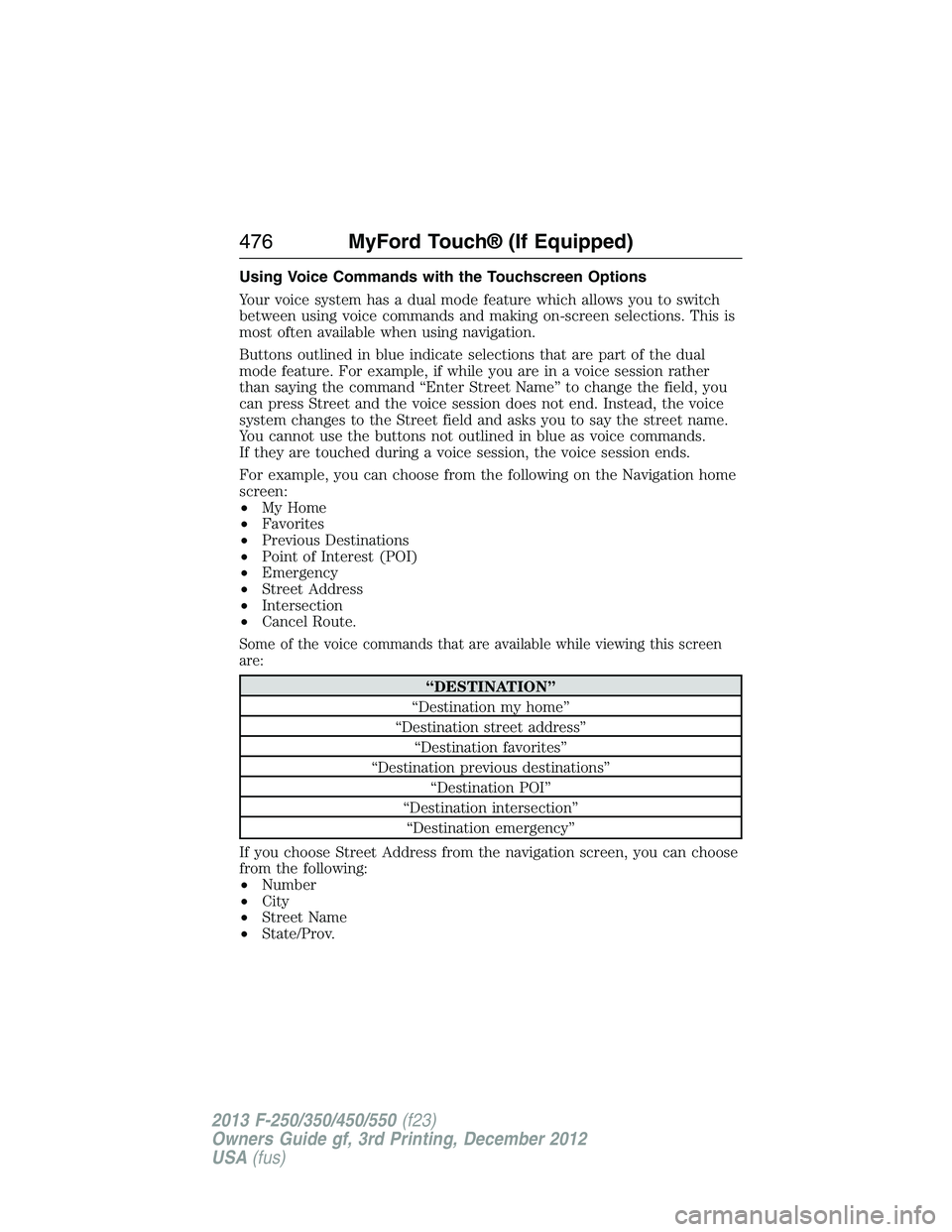
Using Voice Commands with the Touchscreen Options
Your voice system has a dual mode feature which allows you to switch
between using voice commands and making on-screen selections. This is
most often available when using navigation.
Buttons outlined in blue indicate selections that are part of the dual
mode feature. For example, if while you are in a voice session rather
than saying the command “Enter Street Name” to change the field, you
can press Street and the voice session does not end. Instead, the voice
system changes to the Street field and asks you to say the street name.
You cannot use the buttons not outlined in blue as voice commands.
If they are touched during a voice session, the voice session ends.
For example, you can choose from the following on the Navigation home
screen:
•My Home
•Favorites
•Previous Destinations
•Point of Interest (POI)
•Emergency
•Street Address
•Intersection
•Cancel Route.
Some of the voice commands that are available while viewing this screen
are:
“DESTINATION”
“Destination my home”
“Destination street address”
“Destination favorites”
“Destination previous destinations”
“Destination POI”
“Destination intersection”
“Destination emergency”
If you choose Street Address from the navigation screen, you can choose
from the following:
•Number
•City
•Street Name
•State/Prov.
476MyFord Touch® (If Equipped)
2013 F-250/350/450/550(f23)
Owners Guide gf, 3rd Printing, December 2012
USA(fus)