steering FORD F250 2013 Workshop Manual
[x] Cancel search | Manufacturer: FORD, Model Year: 2013, Model line: F250, Model: FORD F250 2013Pages: 577, PDF Size: 7.74 MB
Page 449 of 577
Disconnecting from SYNC Services
1. Press and hold the phone button on the steering wheel.
2. Say “Good-bye” from the SYNC Services main menu.
SYNC Services quick tips
PersonalizingYou can personalize your Services feature to
provide quicker access to your most used or
favorite information. You can save address
points such as work or home. You can also
save favorite information like sports teams or
a news category. To learn more, log onto
www.SYNCMyRide.com.
Push to interruptPress the voice button at any time (while you
are connected to SYNC TDI Services) to
interrupt a voice prompt or an audio clip
(such as a sports report), wait for the
listening tone, and say your voice command.
PortableYour subscription is associated with your
Bluetooth-enabled cellular phone number,
not your VIN (Vehicle Identification Number).
You can pair and connect your phone to any
vehicle equipped with Traffic, Directions and
Information and continue enjoying your
personalized services.
You can even access your account outside the
vehicle. Just use the number on your phone’s
call history. Traffic and Directions features do
not function properly but information services
and the 411 connect and text message
features are available.
448SYNC®
2013 F-250/350/450/550(f23)
Owners Guide gf, 3rd Printing, December 2012
USA(fus)
Page 450 of 577
SYNC AppLink™
Note:This feature is only available in the United States.
Note:Your smartphone must be paired and connected to SYNC to access
AppLink.
Note:iPhone users need to connect the phone to the USB port in order
to start the application. It is recommended to lock your iPhone after
starting an application.
Note:The AppLink feature is not available if your vehicle is equipped
with the MyFord Touch or MyLincoln Touch system.
Depending on your display type, you can access AppLink from the media
menu, the phone menu, or by using voice commands. Once an app is
running through AppLink, you can control main features of the app
through voice commands and steering wheel controls.
To Access Using the Phone Menu
1. Press the phone button to access the SYNC phone menu on-screen.
2. Scroll to Mobile Apps and pressOKto access a list of available
applications.
3. Scroll through the list of available applications and pressOKto
select a particular app.
4. Once an app is running through SYNC, you can access an app’s menu
by pressing theMENUbutton to first access the SYNC menu.
5. Select “SYNC-Media” by pressingOK.
6. Scroll until “
Menu), then pressOK.From here, you can access an application’s
features, such as Thumbs up, Thumbs down, etc. For more
information, please visit www.SYNCMyRide.com.
To Access Using the Media Menu
1.PressAUXbutton on the center console.
2. Press MENU to access the SYNC menu.
3. Select “SYNC-Media” by pressingOK.
4. Then scroll to Mobile Apps and pressOKto access a list of available
applications.
5. Scroll through the list of available applications and pressOKto
select a particular app.
6. Once an app is running through SYNC, you can access an app’s menu
by pressing theMENUbutton to first access the SYNC menu.
7. Select “SYNC-Media” by pressingOK.
8. Scroll until “
Menu), then pressOK.From here, you can access an application’s
features, such as Thumbs up, Thumbs down, etc. For more
information, please visit www.SYNCMyRide.com.
SYNC®449
2013 F-250/350/450/550(f23)
Owners Guide gf, 3rd Printing, December 2012
USA(fus)
Page 475 of 577
Accessing a List of Available Commands
•If you use the touchscreen, press the Settings icon >Help>Voice
Command List.
•If you use the steering wheel control, press the voice icon. After the
tone, speak your command clearly.
Voice command list
“Audio list of commands”
“Bluetooth audio list of commands”
“Browse list of commands”
“CD list of commands”
“Climate control list of commands”
“List of commands”
“Navigation list of commands”
*
“Phone list of commands”
“Radio list of commands”
“SD card list of commands”
“Sirius satellite list of commands”
**
“Travel link list of commands”*
“USB list of commands”
“Voice instructions list of commands”
“Voice settings list of commands”
“Help”
*This command is only available when your vehicle is equipped with the
navigation system, and the navigation system SD card is in the card slot.
**This command is only available when you have an active SIRIUS
satellite radio subscription.
474MyFord Touch® (If Equipped)
2013 F-250/350/450/550(f23)
Owners Guide gf, 3rd Printing, December 2012
USA(fus)
Page 480 of 577
F. Touch this button to scroll down for more options, such as:
•SD Card
•BT Stereo
•A/V In
G. These buttons change with the media mode you are in.
H. Radio memory presets and CD controls.
Note:Some features may not be available in your area. Contact an
authorized dealer for more information.
You can access these options using the touchscreen or voice commands.
Browsing Device Content
When listening to audio on a device, you can browse through other
devices without having to change sources. For example, if you are
currently listening to audio on an SD card, you can browse all the artists
that are stored on your USB device.
Press the voice icon on the steering wheel. When prompted,
you can say:
“BROWSE” within Devices
“Browse”*
“Browse
“Browse
“Browse CD track list”
“Browse Sirius channel guide”
“Browse SD card”
“Browse USB”
“Help”
*If you have said “Browse”, you can then say any commands in the
following chart.
**This command is only usable if you have an active subscription to
SIRIUS satellite radio.
MyFord Touch® (If Equipped)479
2013 F-250/350/450/550(f23)
Owners Guide gf, 3rd Printing, December 2012
USA(fus)
Page 481 of 577

“BROWSE”
“
”
“CD track list”
“SD card”
“Sirius channel guide”
“USB”
“Help”
*This command is only usable if you have an active subscription to
SIRIUS satellite radio.
**For more commands in SD card or USB mode, see the “SD card and
USB Port” section of this chapter.
For a complete list of “Browse” voice commands, seeUSB and SD card
voice commandsandBluetooth audio voice commandsin the
following sections.
Your voice system allows you to change audio sources with a simple voice
command. For example, if you are listening to music on a USB device, then
want to switch to a satellite radio channel, simply press the voice button on
the steering wheel controls and say the name of the SIRIUS station (such
as, “the Highway”). The following voice commands are available at the top
level of the voice session no matter which current audio source you are
listening to (such as a USB device or SIRIUS satellite radio).Note:This is
only available when your MyFord Touch system language is set to North
American English.
“AM <530 - 1710>” “FM <87.7 – 107.9>”
“<530 - 1710>” “<87.7 – 107.9>”
“Sirius <0-223>”
*“
“Play [genre]
“Play [artist]
“Play [album]
“Play
*
*
This command is only usable if you have an active subscription to
SIRIUS satellite radio.
**The commands that have [ ] around the word means that the word is
optional. For example, if you say, “Play Metallica”, this is the same as the
voice command, “Play [artist]
480MyFord Touch® (If Equipped)
2013 F-250/350/450/550(f23)
Owners Guide gf, 3rd Printing, December 2012
USA(fus)
Page 487 of 577
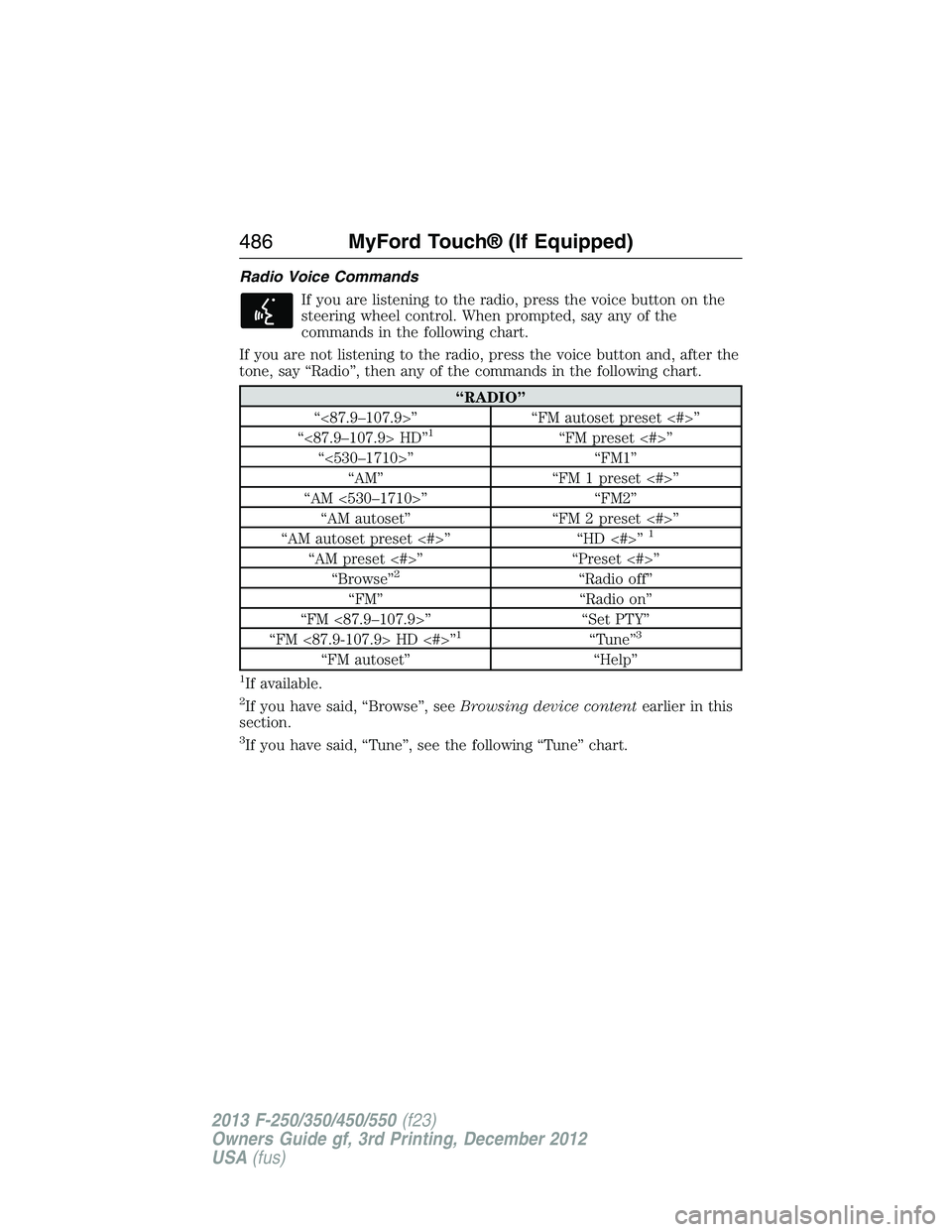
Radio Voice Commands
If you are listening to the radio, press the voice button on the
steering wheel control. When prompted, say any of the
commands in the following chart.
If you are not listening to the radio, press the voice button and, after the
tone, say “Radio”, then any of the commands in the following chart.
“RADIO”
“<87.9–107.9>” “FM autoset preset <#>”
“<87.9–107.9> HD”
1“FM preset <#>”
“<530–1710>” “FM1”
“AM” “FM 1 preset <#>”
“AM <530–1710>” “FM2”
“AM autoset” “FM 2 preset <#>”
“AM autoset preset <#>” “HD <#>”
1
“AM preset <#>” “Preset <#>”
“Browse”2“Radio off”
“FM” “Radio on”
“FM <87.9–107.9>” “Set PTY”
“FM <87.9-107.9> HD <#>”
1“Tune”3
“FM autoset” “Help”
1If available.
2If you have said, “Browse”, seeBrowsing device contentearlier in this
section.
3If you have said, “Tune”, see the following “Tune” chart.
486MyFord Touch® (If Equipped)
2013 F-250/350/450/550(f23)
Owners Guide gf, 3rd Printing, December 2012
USA(fus)
Page 490 of 577
Browse
Touch this button to view a list of all available stations. Scroll to see
more categories. Touch the station you want to listen to.
TouchSkipif you want to skip this channel.
TouchLockif you do not want anyone to listen to this channel.
TouchTi t l eorArtistto see song and artists on other stations.
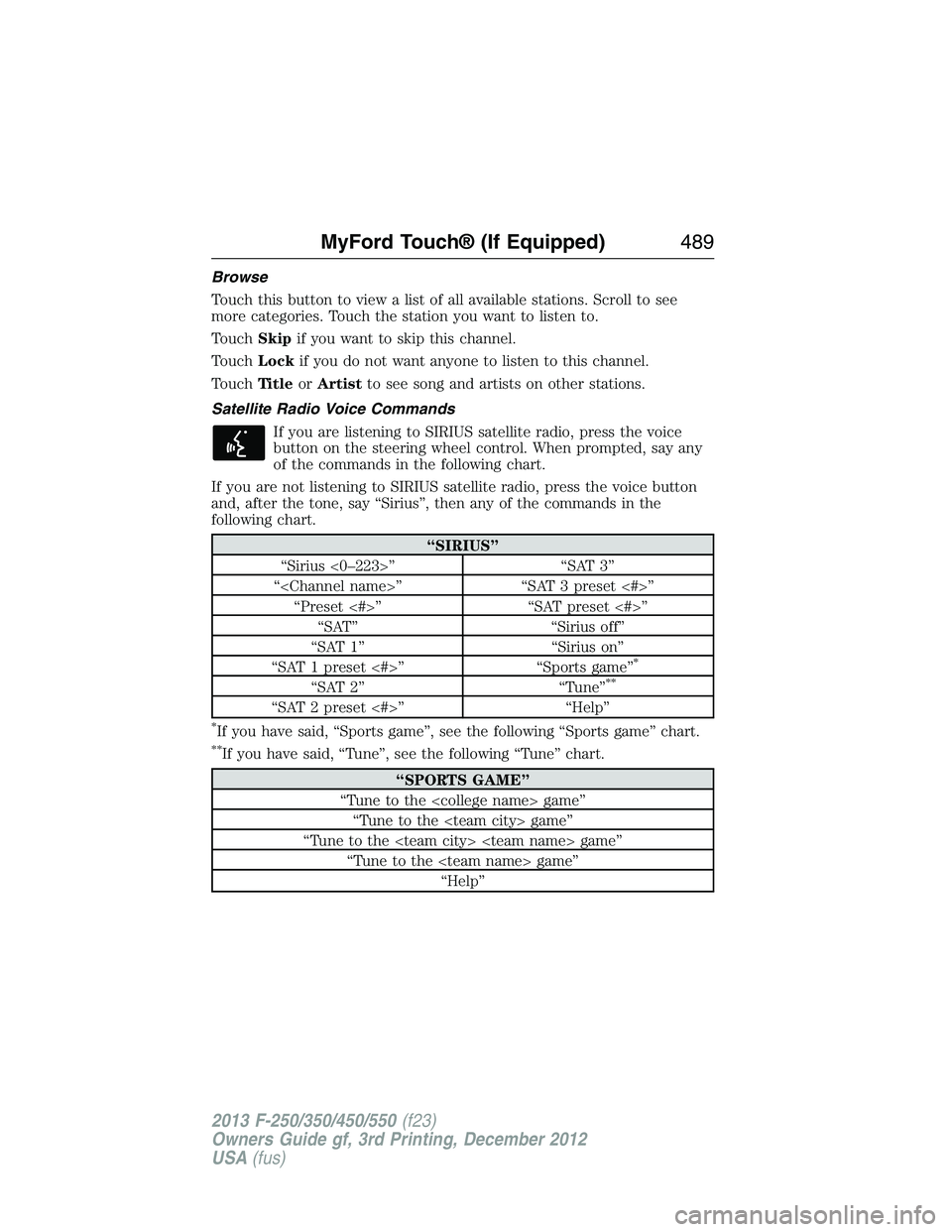
Satellite Radio Voice Commands
If you are listening to SIRIUS satellite radio, press the voice
button on the steering wheel control. When prompted, say any
of the commands in the following chart.
If you are not listening to SIRIUS satellite radio, press the voice button
and, after the tone, say “Sirius”, then any of the commands in the
following chart.
“SIRIUS”
“Sirius <0–223>” “SAT 3”
“
“Preset <#>” “SAT preset <#>”
“SAT” “Sirius off”
“SAT 1” “Sirius on”
“SAT 1 preset <#>” “Sports game”
*
“SAT 2” “Tune”**
“SAT 2 preset <#>” “Help”
*If you have said, “Sports game”, see the following “Sports game” chart.
**If you have said, “Tune”, see the following “Tune” chart.
“SPORTS GAME”
“Tune to the
“Tune to the
“Tune to the
“Tune to the
“Help”
MyFord Touch® (If Equipped)489
2013 F-250/350/450/550(f23)
Owners Guide gf, 3rd Printing, December 2012
USA(fus)
Page 494 of 577
Shuffle
Touch this button to play the tracks or entire albums in random order, or
turn the feature off if already on.
Scan
Touch this button to hear a brief sampling of all available tracks.
More Info
Touch this button to see disc information.
Options
Sound Settingsallows you to adjust settings for:
•Bass
•Midrange
•Treble
•Balance and Fade
•DSP (Digital Signal Processing)
•Occupancy Mode
•Speed Compensated Volume.
Note:Your vehicle may not have all these sound settings.
Compressionallows you to turn the compression feature on and off.
Browse
Touch this button to look through all available CD tracks.
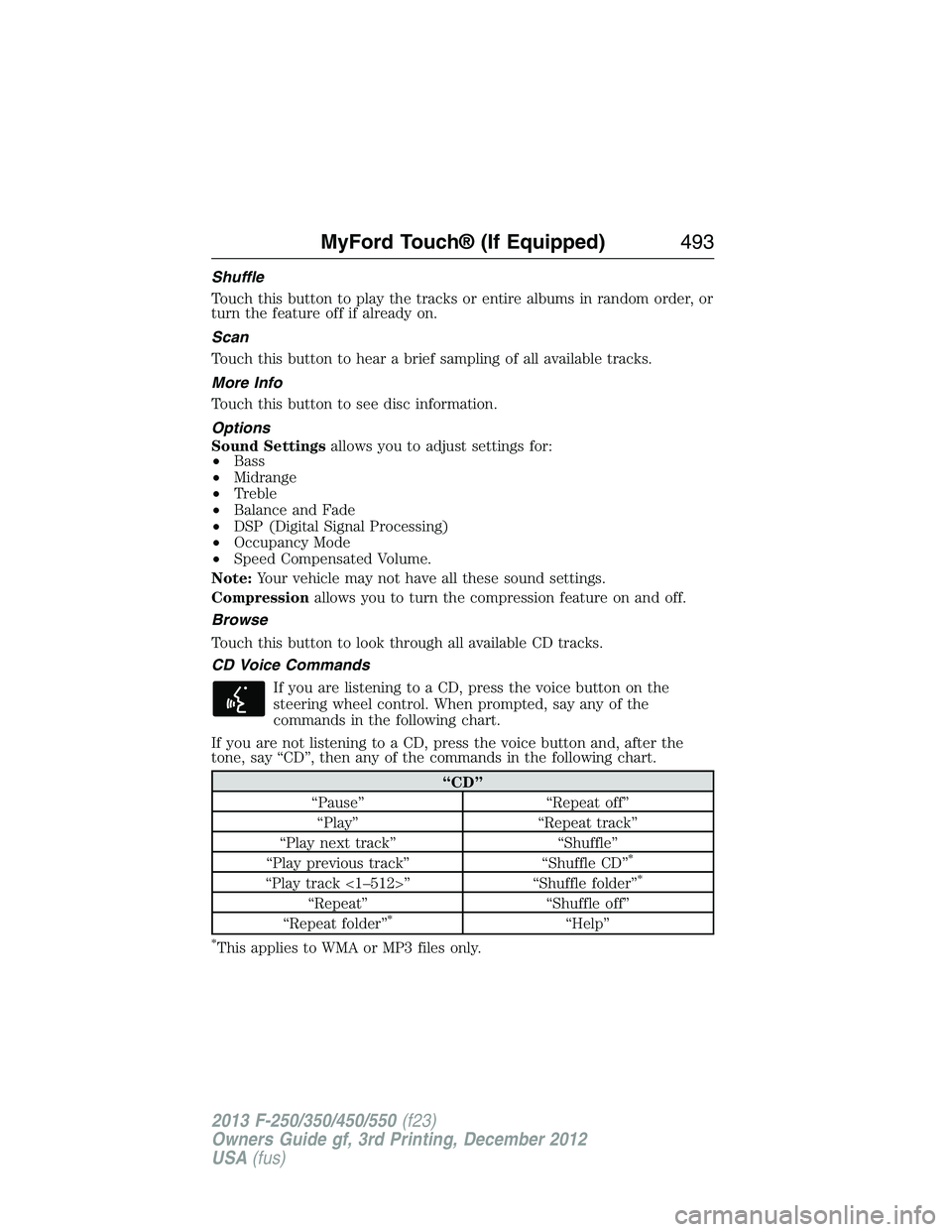
CD Voice Commands
If you are listening to a CD, press the voice button on the
steering wheel control. When prompted, say any of the
commands in the following chart.
If you are not listening to a CD, press the voice button and, after the
tone, say “CD”, then any of the commands in the following chart.
“CD”
“Pause” “Repeat off”
“Play” “Repeat track”
“Play next track” “Shuffle”
“Play previous track” “Shuffle CD”
*
“Play track <1–512>” “Shuffle folder”*
“Repeat” “Shuffle off”
“Repeat folder”*“Help”
*This applies to WMA or MP3 files only.
MyFord Touch® (If Equipped)493
2013 F-250/350/450/550(f23)
Owners Guide gf, 3rd Printing, December 2012
USA(fus)
Page 497 of 577
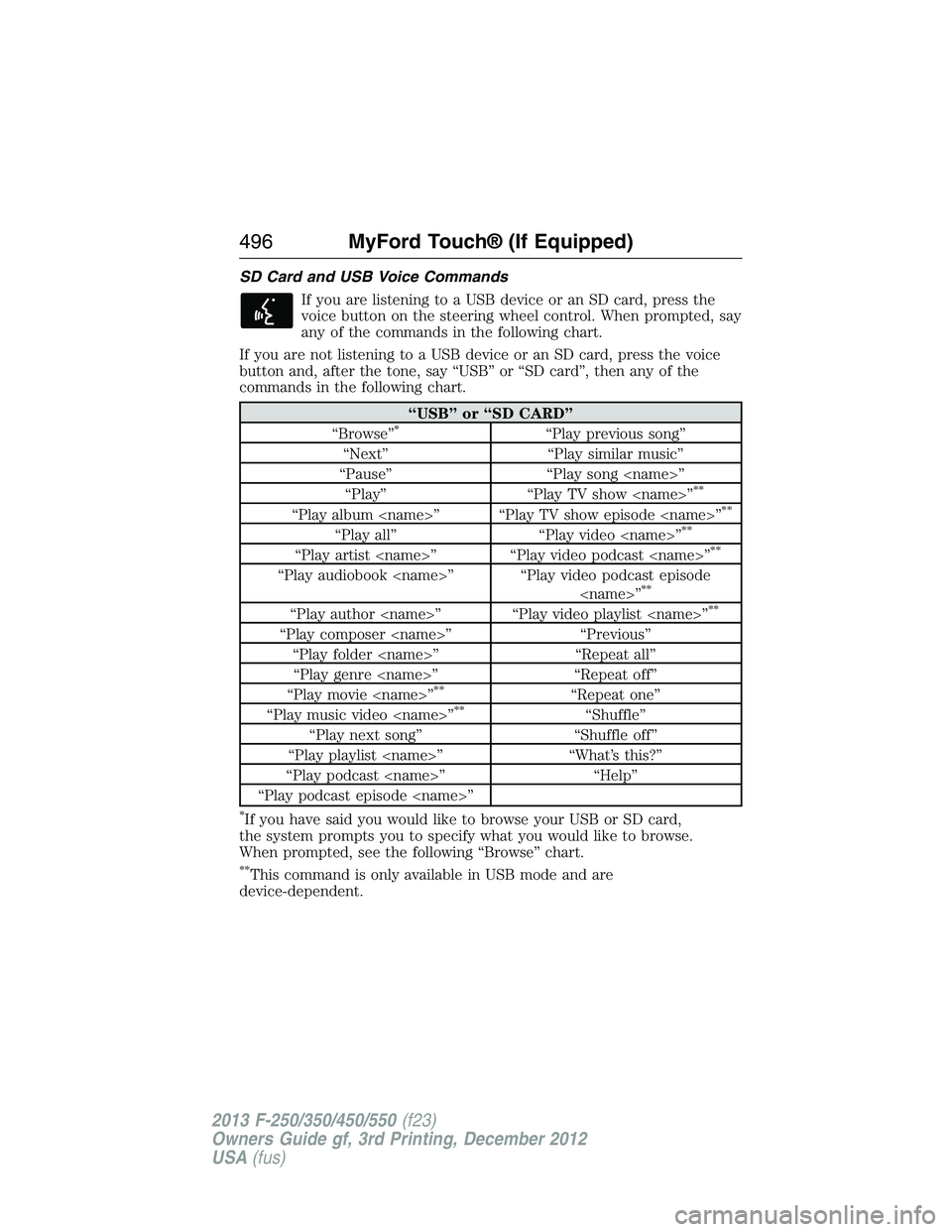
SD Card and USB Voice Commands
If you are listening to a USB device or an SD card, press the
voice button on the steering wheel control. When prompted, say
any of the commands in the following chart.
If you are not listening to a USB device or an SD card, press the voice
button and, after the tone, say “USB” or “SD card”, then any of the
commands in the following chart.
“USB” or “SD CARD”
“Browse”*“Play previous song”
“Next” “Play similar music”
“Pause” “Play song
“Play” “Play TV show
**
“Play album
“Play all” “Play video
“Play artist
“Play audiobook
“Play author
“Play composer
“Play folder
“Play genre
“Play movie
**“Repeat one”
“Play music video
“Play next song” “Shuffle off”
“Play playlist
“Play podcast
“Play podcast episode
*If you have said you would like to browse your USB or SD card,
the system prompts you to specify what you would like to browse.
When prompted, see the following “Browse” chart.
**This command is only available in USB mode and are
device-dependent.
496MyFord Touch® (If Equipped)
2013 F-250/350/450/550(f23)
Owners Guide gf, 3rd Printing, December 2012
USA(fus)
Page 499 of 577
Bluetooth Audio
Your system allows you to stream audio over your vehicle’s speakers from
your connected, Bluetooth-enabled cellular phone.
To access, press the lower left corner on the touchscreen, then
select theBT Stereotab.
Bluetooth Audio Voice Commands
If you are listening to a Bluetooth audio device, press the voice
button on the steering wheel control. When prompted, say
“Next song”, “Pause”, “Play” or “Previous song”.
If you are not listening to a Bluetooth audio device, press the voice
button and, after the tone, say “Bluetooth Audio”, then “Next song”,
“Pause”, “Play” or “Previous song”.
A/V Inputs
WARNING:Driving while distracted can result in loss of vehicle
control, crash and injury. We strongly recommend that you use
extreme caution when using any device that may take your focus off
the road. Your primary responsibility is the safe operation of your
vehicle. We recommend against the use of any hand-held device while
driving and encourage the use of voice-operated systems when possible.
Make sure you are aware of all applicable local laws that may affect the
use of electronic devices while driving.
WARNING:For safety reasons, do not connect or adjust the
settings on your portable music player while your vehicle is
moving.
WARNING:Store the portable music player in a secure location,
such as the center console or the glove box, when your vehicle is
in motion. Hard objects may become projectiles in a crash or sudden
stop, which may increase the risk of serious injury. The audio extension
cable must be long enough to allow the portable music player to be
safely stored while your vehicle is moving.
498MyFord Touch® (If Equipped)
2013 F-250/350/450/550(f23)
Owners Guide gf, 3rd Printing, December 2012
USA(fus)