AUX FORD F250 2014 User Guide
[x] Cancel search | Manufacturer: FORD, Model Year: 2014, Model line: F250, Model: FORD F250 2014Pages: 460, PDF Size: 5.33 MB
Page 223 of 460
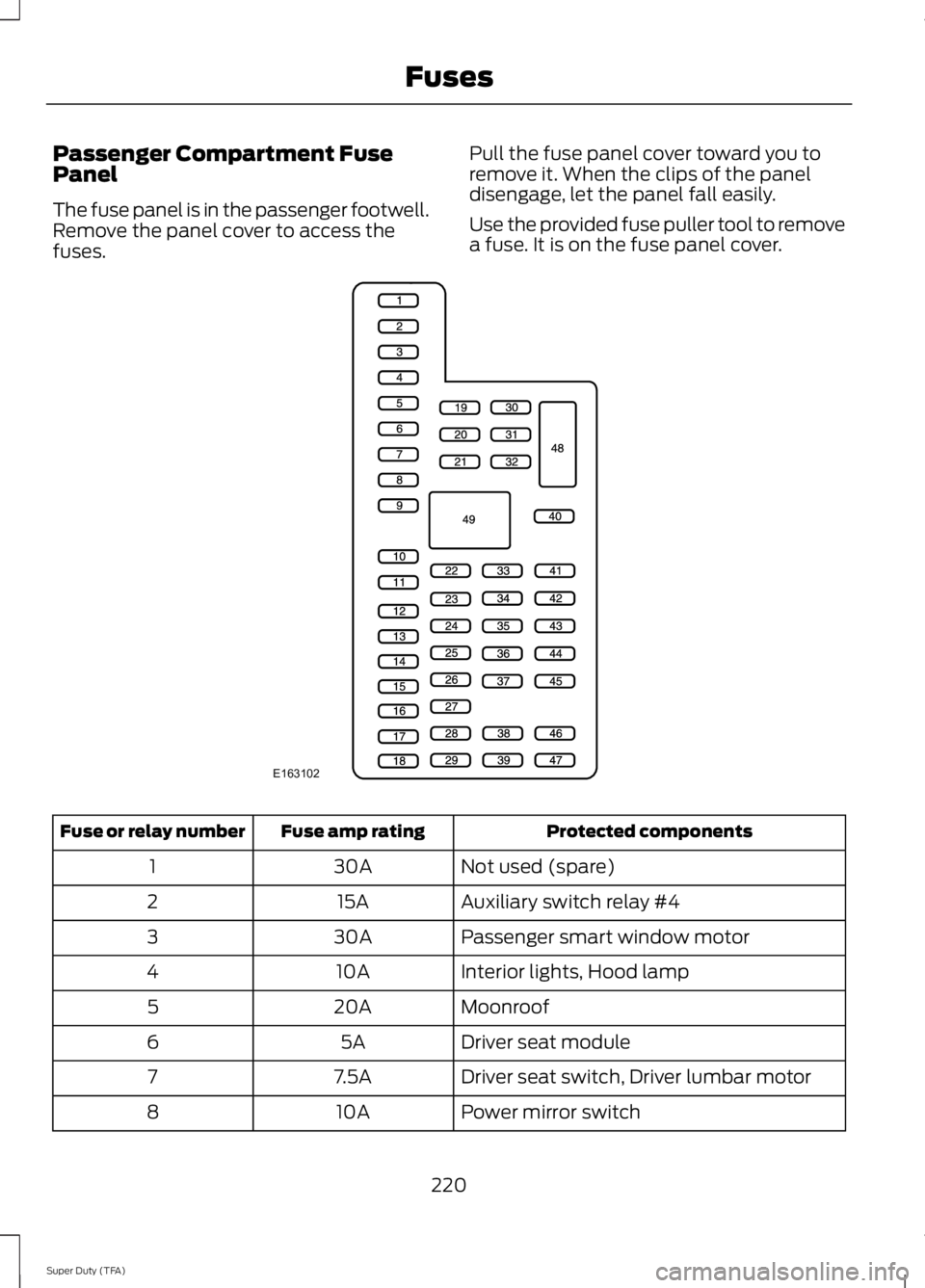
Passenger Compartment Fuse
Panel
The fuse panel is in the passenger footwell.
Remove the panel cover to access the
fuses.
Pull the fuse panel cover toward you to
remove it. When the clips of the panel
disengage, let the panel fall easily.
Use the provided fuse puller tool to remove
a fuse. It is on the fuse panel cover. Protected components
Fuse amp rating
Fuse or relay number
Not used (spare)
30A
1
Auxiliary switch relay #4
15A
2
Passenger smart window motor
30A
3
Interior lights, Hood lamp
10A
4
Moonroof
20A
5
Driver seat module
5A
6
Driver seat switch, Driver lumbar motor
7.5A
7
Power mirror switch
10A
8
220
Super Duty (TFA) FusesE163102
Page 224 of 460
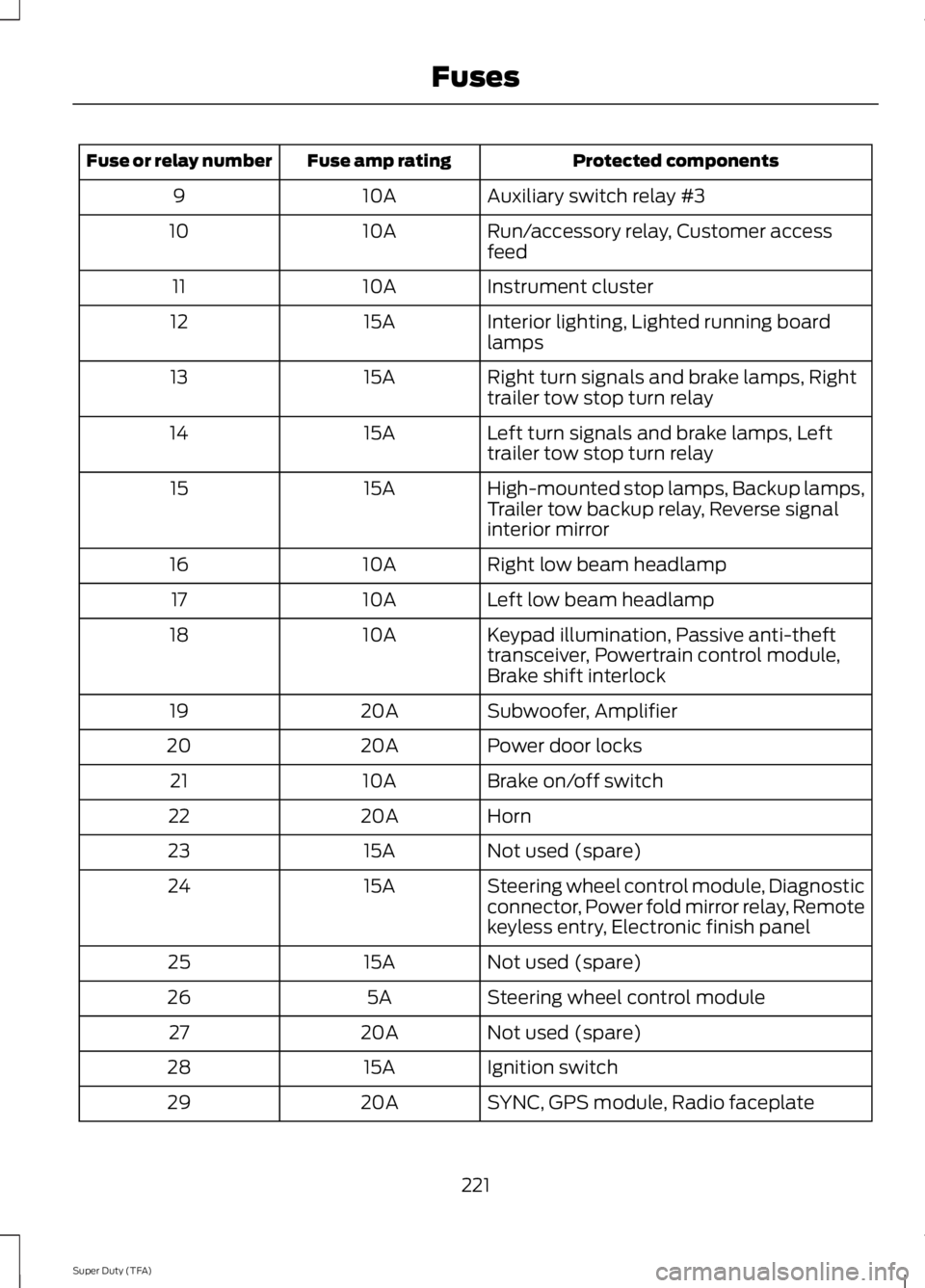
Protected components
Fuse amp rating
Fuse or relay number
Auxiliary switch relay #3
10A
9
Run/accessory relay, Customer access
feed
10A
10
Instrument cluster
10A
11
Interior lighting, Lighted running board
lamps
15A
12
Right turn signals and brake lamps, Right
trailer tow stop turn relay
15A
13
Left turn signals and brake lamps, Left
trailer tow stop turn relay
15A
14
High-mounted stop lamps, Backup lamps,
Trailer tow backup relay, Reverse signal
interior mirror
15A
15
Right low beam headlamp
10A
16
Left low beam headlamp
10A
17
Keypad illumination, Passive anti-theft
transceiver, Powertrain control module,
Brake shift interlock
10A
18
Subwoofer, Amplifier
20A
19
Power door locks
20A
20
Brake on/off switch
10A
21
Horn
20A
22
Not used (spare)
15A
23
Steering wheel control module, Diagnostic
connector, Power fold mirror relay, Remote
keyless entry, Electronic finish panel
15A
24
Not used (spare)
15A
25
Steering wheel control module
5A
26
Not used (spare)
20A
27
Ignition switch
15A
28
SYNC, GPS module, Radio faceplate
20A
29
221
Super Duty (TFA) Fuses
Page 225 of 460
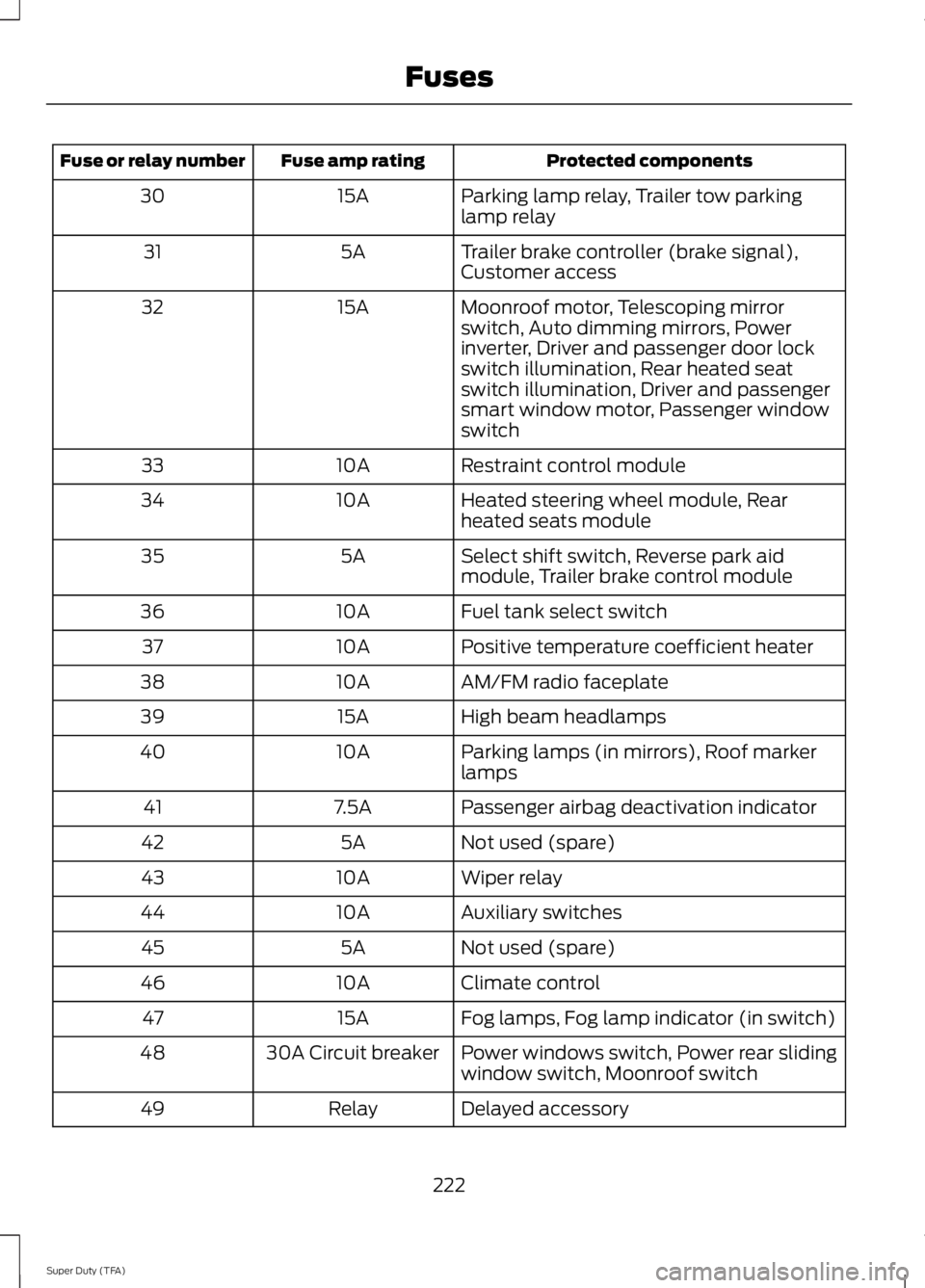
Protected components
Fuse amp rating
Fuse or relay number
Parking lamp relay, Trailer tow parking
lamp relay
15A
30
Trailer brake controller (brake signal),
Customer access
5A
31
Moonroof motor, Telescoping mirror
switch, Auto dimming mirrors, Power
inverter, Driver and passenger door lock
switch illumination, Rear heated seat
switch illumination, Driver and passenger
smart window motor, Passenger window
switch
15A
32
Restraint control module
10A
33
Heated steering wheel module, Rear
heated seats module
10A
34
Select shift switch, Reverse park aid
module, Trailer brake control module
5A
35
Fuel tank select switch
10A
36
Positive temperature coefficient heater
10A
37
AM/FM radio faceplate
10A
38
High beam headlamps
15A
39
Parking lamps (in mirrors), Roof marker
lamps
10A
40
Passenger airbag deactivation indicator
7.5A
41
Not used (spare)
5A
42
Wiper relay
10A
43
Auxiliary switches
10A
44
Not used (spare)
5A
45
Climate control
10A
46
Fog lamps, Fog lamp indicator (in switch)
15A
47
Power windows switch, Power rear sliding
window switch, Moonroof switch
30A Circuit breaker
48
Delayed accessory
Relay
49
222
Super Duty (TFA) Fuses
Page 308 of 460
•
Track/Folder is only available on MP3
files when in CD mode. In track mode,
pressing the SEEK arrows allows you
to scroll through all the tracks on the
disc. In folder mode, pressing the SEEK
arrows allows you to scroll through all
the tracks within the selected folder.
Press the
FOLDER buttons to access
other folders.
• COMPRESS
(Compression) is only
available in CD and MP3 modes.
Switching compression on brings the
soft and loud passages together for a
more consistent listening level. Use the
SEEK
buttons and up and down arrow
buttons to switch it on and off.
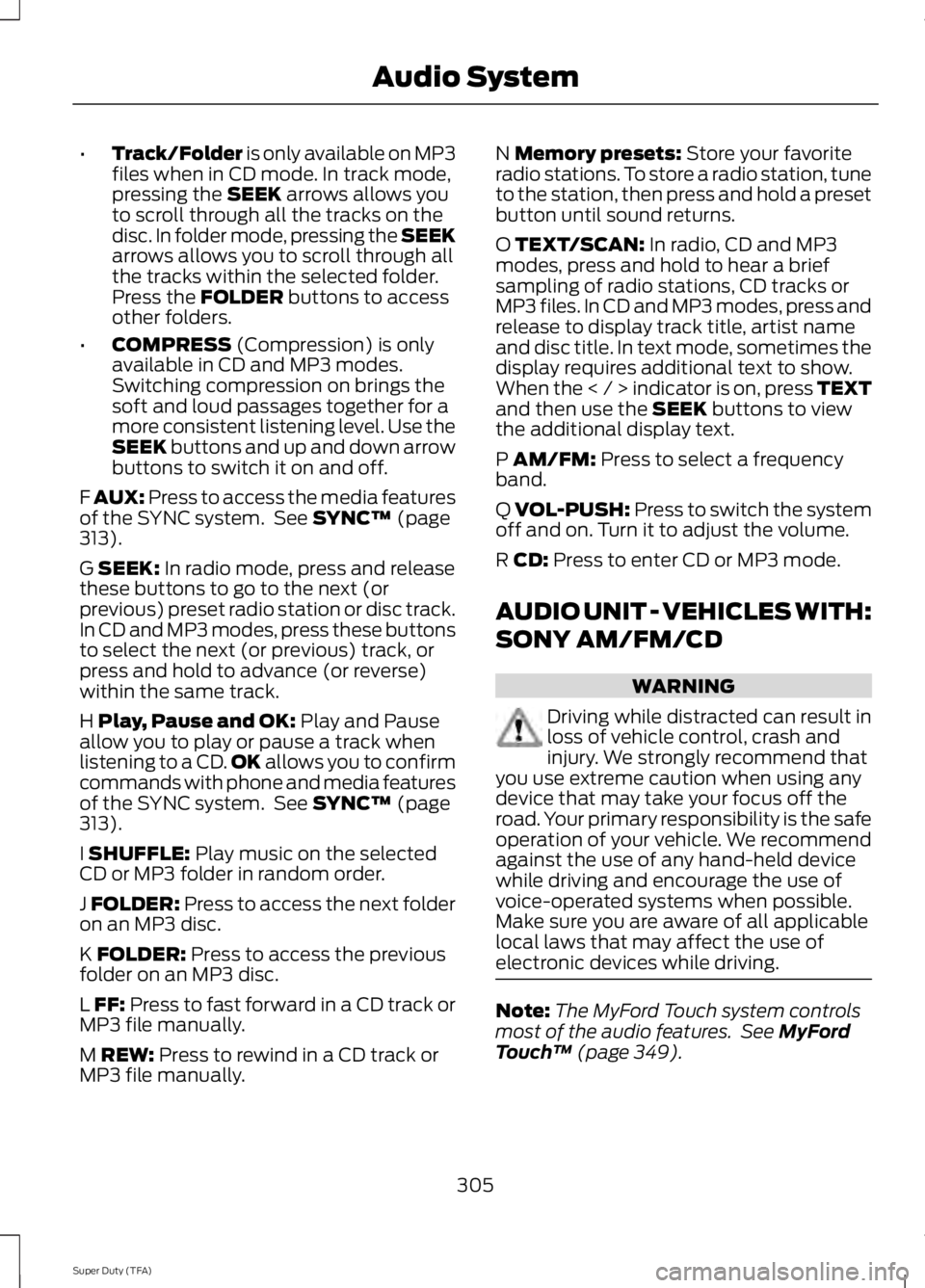
F
AUX: Press to access the media features
of the SYNC system. See SYNC™ (page
313).
G
SEEK: In radio mode, press and release
these buttons to go to the next (or
previous) preset radio station or disc track.
In CD and MP3 modes, press these buttons
to select the next (or previous) track, or
press and hold to advance (or reverse)
within the same track.
H
Play, Pause and OK: Play and Pause
allow you to play or pause a track when
listening to a CD. OK
allows you to confirm
commands with phone and media features
of the SYNC system. See
SYNC™ (page
313).
I
SHUFFLE: Play music on the selected
CD or MP3 folder in random order.
J
FOLDER: Press to access the next folder
on an MP3 disc.
K
FOLDER: Press to access the previous
folder on an MP3 disc.
L
FF: Press to fast forward in a CD track or
MP3 file manually.
M
REW: Press to rewind in a CD track or
MP3 file manually. N
Memory presets: Store your favorite
radio stations. To store a radio station, tune
to the station, then press and hold a preset
button until sound returns.
O
TEXT/SCAN: In radio, CD and MP3
modes, press and hold to hear a brief
sampling of radio stations, CD tracks or
MP3 files. In CD and MP3 modes, press and
release to display track title, artist name
and disc title. In text mode, sometimes the
display requires additional text to show.
When the < / > indicator is on, press TEXT
and then use the
SEEK buttons to view
the additional display text.
P
AM/FM: Press to select a frequency
band.
Q
VOL-PUSH: Press to switch the system
off and on. Turn it to adjust the volume.
R
CD: Press to enter CD or MP3 mode.
AUDIO UNIT - VEHICLES WITH:
SONY AM/FM/CD WARNING
Driving while distracted can result in
loss of vehicle control, crash and
injury. We strongly recommend that
you use extreme caution when using any
device that may take your focus off the
road. Your primary responsibility is the safe
operation of your vehicle. We recommend
against the use of any hand-held device
while driving and encourage the use of
voice-operated systems when possible.
Make sure you are aware of all applicable
local laws that may affect the use of
electronic devices while driving. Note:
The MyFord Touch system controls
most of the audio features. See
MyFord
Touch ™ (page 349).
305
Super Duty (TFA) Audio System
Page 314 of 460
Possible action
Condition
Radio display
Contact SIRIUS at 1-888-
539-7474 to resolve
subscription issues.
Your satellite service is no
longer available.
Call SIRIUS 1-888-539-7474
Use the channel guide to
turn off the Lock or Skip
function on that station.
All the channels in the
selected category are either
skipped or locked.
None found. Check Channel
Guide.
No action required.
SIRIUS has updated the
channels available for your
vehicle.
Subscription Updated
AUDIO INPUT JACK WARNINGS
Driving while distracted can result in
loss of vehicle control, crash and
injury. We strongly recommend that
you use extreme caution when using any
device that may take your focus off the
road. Your primary responsibility is the safe
operation of your vehicle. We recommend
against the use of any hand-held device
while driving and encourage the use of
voice-operated systems when possible.
Make sure you are aware of all applicable
local laws that may affect the use of
electronic devices while driving. For safety reasons, do not connect
or adjust the settings on your
portable music player while your
vehicle is moving. Store the portable music player in a
secure location, such as the center
console or the glove box, when your
vehicle is moving. Hard objects may
become projectiles in a collision or sudden
stop, which may increase the risk of serious
injury. The audio extension cable must be
long enough to allow the portable music
player to be safely stored while your
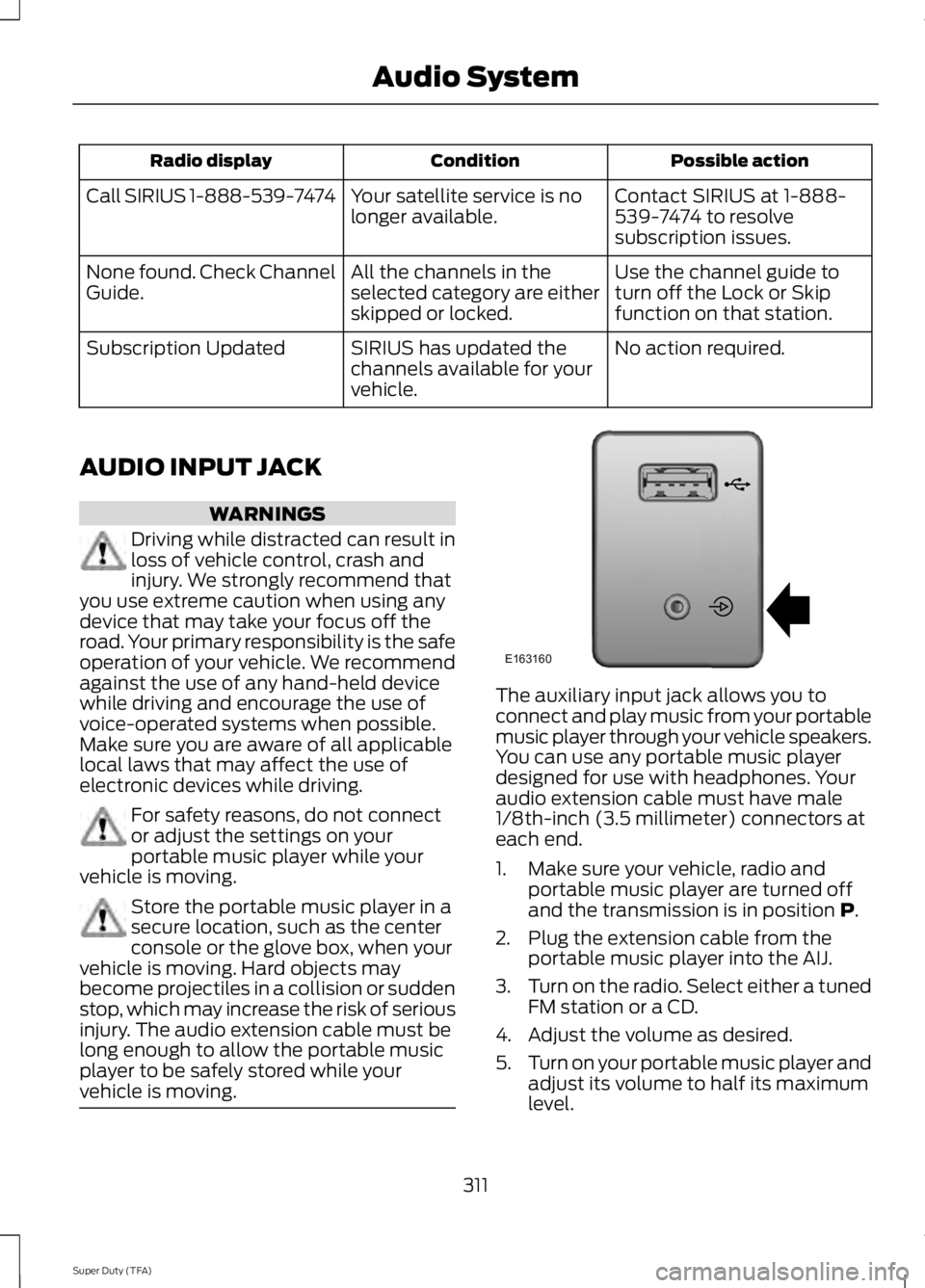
vehicle is moving. The auxiliary input jack allows you to
connect and play music from your portable
music player through your vehicle speakers.
You can use any portable music player
designed for use with headphones. Your
audio extension cable must have male
1/8th-inch (3.5 millimeter) connectors at
each end.
1. Make sure your vehicle, radio and
portable music player are turned off
and the transmission is in position P.
2. Plug the extension cable from the portable music player into the AIJ.
3. Turn on the radio. Select either a tuned
FM station or a CD.
4. Adjust the volume as desired.
5. Turn on your portable music player and
adjust its volume to half its maximum
level.
311
Super Duty (TFA) Audio SystemE163160
Page 315 of 460
6. Press AUX until LINE or LINE IN
appears in the display. You should hear
music from your device even if it is low.
7. Adjust the volume on your portable music player until it reaches the volume
level of the FM station or CD. Do this
by switching back and forth between
the AUX and FM or CD controls.
USB PORT
(IF EQUIPPED) The USB port allows you to plug in media
playing devices, memory sticks and charge
devices (if supported). See SYNC™
(page
313).
MEDIA HUB
(IF EQUIPPED)
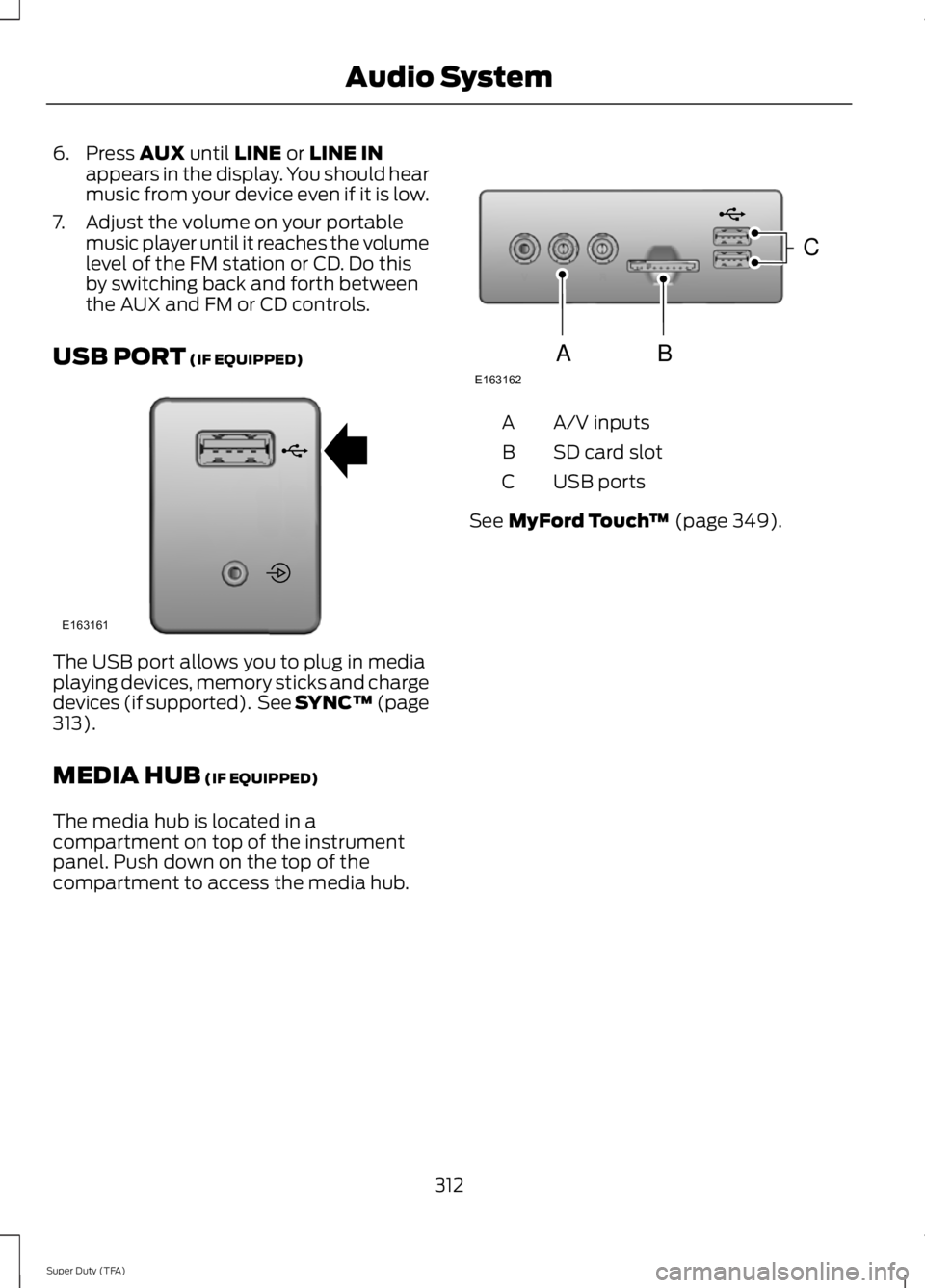
The media hub is located in a
compartment on top of the instrument
panel. Push down on the top of the
compartment to access the media hub. A/V inputs
A
SD card slot
B
USB ports
C
See
MyFord Touch ™ (page 349).
312
Super Duty (TFA) Audio SystemE163161 E163162
C
BA
Page 318 of 460
System data cannot be accessed without
special equipment and access to the
vehicle's SYNC module. Ford Motor
Company and Ford of Canada will not
access the system data for any purpose
other than as described absent consent, a
court order, or where required by law
enforcement, other government
authorities, or other third parties acting
with lawful authority. Other parties may
seek to access the information
independently of Ford Motor Company and
Ford of Canada. For further privacy
information, see the sections on 911 Assist,
Vehicle Health Report, and Traffic,
Directions and Information.
USING VOICE RECOGNITION
This system helps you control many
features using voice commands. This
allows you to keep your hands on the
wheel and focus on what is in front of you.
Initiating a Voice Session Push the voice icon. A tone
sounds and Listening appears in
the display. Say any of the
following: If You Want To
Say
Stream audio from your phone.
"Bluetooth audio"
Cancel the requested action.
"Cancel"
Access the device connected to the auxiliary input jack.
"Line in"
Access mobile applications.
"Mobile apps" *
Make calls.
"Phone"
Access the SYNC Services portal.
"Services" *
Return to the main menu.
"SYNC"
Access the device connected to your USB port.
"USB"
Run a vehicle health report.
"Vehicle health report" *
Adjust the level of voice interaction and feedback.
"Voice settings"
Hear a list of voice commands available in the current
mode.
"Help"
* This is an optional feature and available in the United States only.
315
Super Duty (TFA) SYNC™ (If Equipped)E142599
Page 338 of 460
To Access Using the Media Menu
1. Press the AUX button on the center
console.
2. Press
MENU to access the SYNC
menu.
3. Select "SYNC-Media" by pressing
OK.
4. Scroll to Mobile Apps and press OK to
access a list of available applications.
5. Scroll through the list of available applications and press
OK to select a
particular app.
6. Once an app is running through SYNC,
you can access an app ’s menu by
pressing the
MENU button to first
access the SYNC menu.
7. Select "SYNC-Media" by pressing
OK.
8. Scroll until "
then press
OK. From here, you can
access an application's features, such
as Thumbs up and Thumbs down. For
more information, please visit
www.SYNCMyRide.com.
To Access Using Voice Commands
1. Press the voice icon.
2. When prompted, say "Mobile Apps".
3. Say the name of the application after the tone.
4. The app should start. While an app is running through SYNC, you can press
the voice button and speak commands
specific to the app, such as "Play
Station Quickmix". Say "Help" to
discover available voice commands. USING SYNC™ WITH YOUR
MEDIA PLAYER
You can access and play music from your
digital music player over your vehicle's
speaker system using the system's media
menu or voice commands. You can also
sort and play your music by specific
categories, such as artist and album.
Note:
The system is capable of indexing up
to 30,000 songs.
SYNC is capable of hosting nearly any
digital media player including: iPod®,
Zune ™, Plays from device players, and
most USB drives. SYNC also supports
audio formats, such as MP3, WMA, WAV
and ACC.
Connecting Your Digital Media
Player to the USB Port
Note: If your digital media player has a
power switch, make sure you switch it on
before plugging it in.
To Connect Using Voice Commands
1. Plug the device into the USB port.
2. Press the voice icon and when prompted, say "USB".
3. You can now play music by saying any of the appropriate voice commands.
See the media voice commands.
To Connect Using the System Menu
1. Plug the device into the USB port.
2. Press
AUX and then MENU to enter
the media menu.
3. Scroll to Select Source. Press
OK.
4. Scroll to USB. Press
OK.
5. Depending on how many digital media
files are on your connected device,
Indexing
may appear in the radio
display. When indexing is complete, the
screen returns to the Play menu.
335
Super Duty (TFA) SYNC™
(If Equipped)
Page 341 of 460
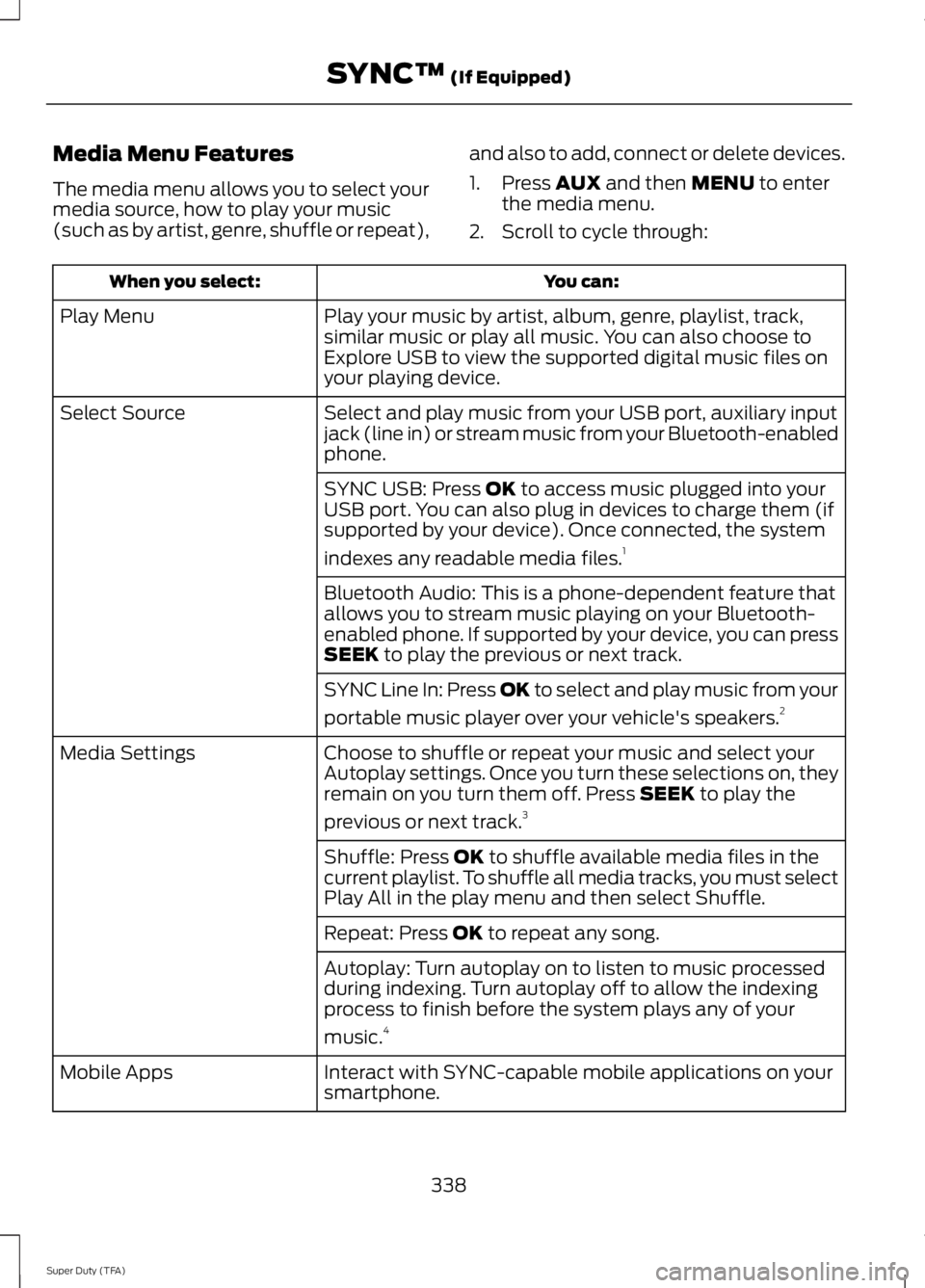
Media Menu Features
The media menu allows you to select your
media source, how to play your music
(such as by artist, genre, shuffle or repeat),
and also to add, connect or delete devices.
1. Press AUX and then MENU to enter
the media menu.
2. Scroll to cycle through: You can:
When you select:
Play your music by artist, album, genre, playlist, track,
similar music or play all music. You can also choose to
Explore USB to view the supported digital music files on
your playing device.
Play Menu
Select and play music from your USB port, auxiliary input
jack (line in) or stream music from your Bluetooth-enabled
phone.
Select Source
SYNC USB: Press
OK to access music plugged into your
USB port. You can also plug in devices to charge them (if
supported by your device). Once connected, the system
indexes any readable media files. 1
Bluetooth Audio: This is a phone-dependent feature that
allows you to stream music playing on your Bluetooth-
enabled phone. If supported by your device, you can press
SEEK
to play the previous or next track.
SYNC Line In: Press
OK to select and play music from your
portable music player over your vehicle's speakers. 2
Choose to shuffle or repeat your music and select your
Autoplay settings. Once you turn these selections on, they
remain on you turn them off. Press
SEEK to play the
previous or next track. 3
Media Settings
Shuffle: Press
OK to shuffle available media files in the
current playlist. To shuffle all media tracks, you must select
Play All in the play menu and then select Shuffle.
Repeat: Press
OK to repeat any song.
Autoplay: Turn autoplay on to listen to music processed
during indexing. Turn autoplay off to allow the indexing
process to finish before the system plays any of your
music. 4
Interact with SYNC-capable mobile applications on your
smartphone.
Mobile Apps
338
Super Duty (TFA) SYNC™
(If Equipped)
Page 342 of 460
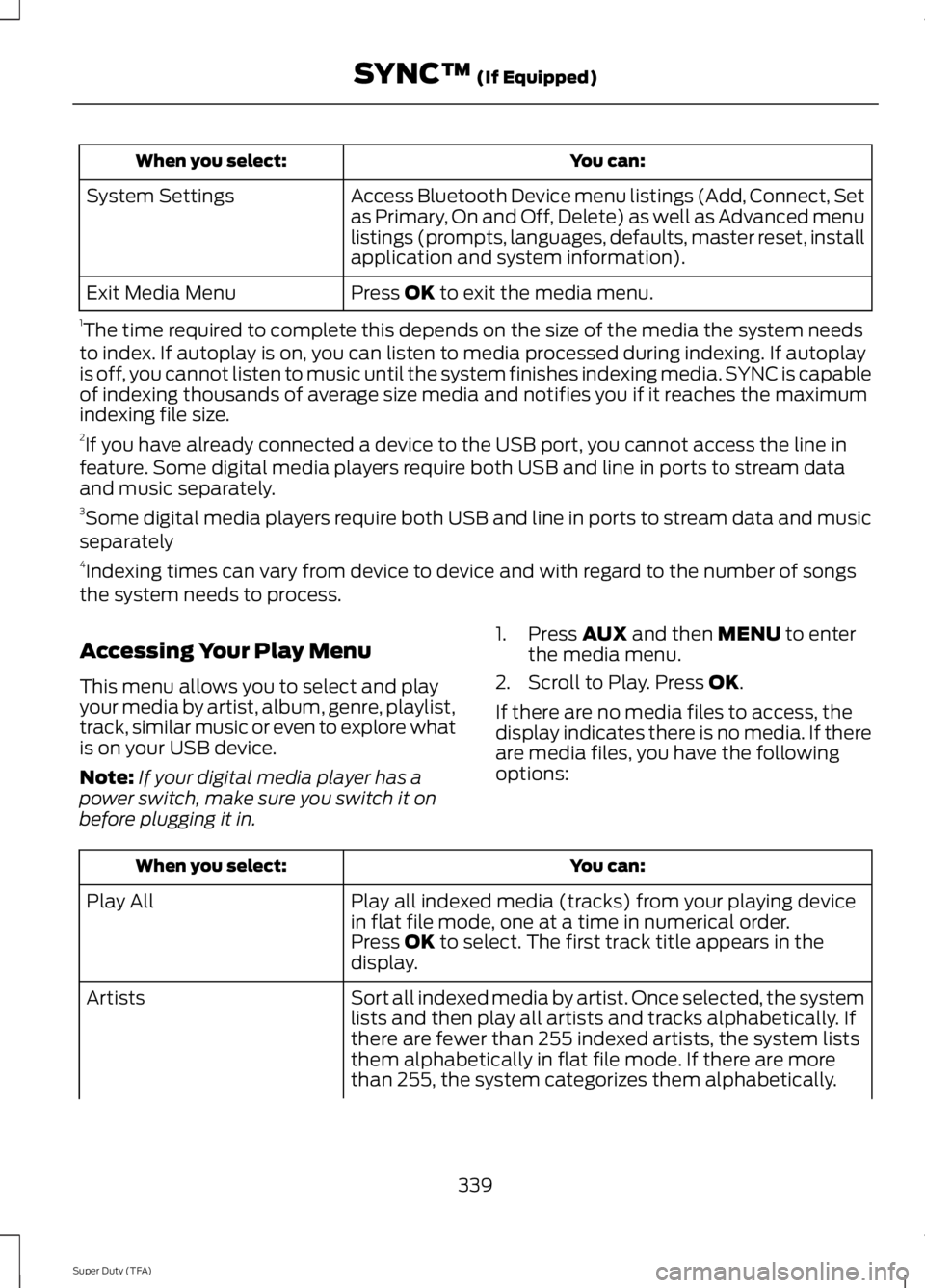
You can:
When you select:
Access Bluetooth Device menu listings (Add, Connect, Set
as Primary, On and Off, Delete) as well as Advanced menu
listings (prompts, languages, defaults, master reset, install
application and system information).
System Settings
Press OK to exit the media menu.
Exit Media Menu
1 The time required to complete this depends on the size of the media the system needs
to index. If autoplay is on, you can listen to media processed during indexing. If autoplay
is off, you cannot listen to music until the system finishes indexing media. SYNC is capable
of indexing thousands of average size media and notifies you if it reaches the maximum
indexing file size.
2 If you have already connected a device to the USB port, you cannot access the line in
feature. Some digital media players require both USB and line in ports to stream data
and music separately.
3 Some digital media players require both USB and line in ports to stream data and music
separately
4 Indexing times can vary from device to device and with regard to the number of songs
the system needs to process.
Accessing Your Play Menu
This menu allows you to select and play
your media by artist, album, genre, playlist,
track, similar music or even to explore what
is on your USB device.
Note: If your digital media player has a
power switch, make sure you switch it on
before plugging it in. 1. Press
AUX and then MENU to enter
the media menu.
2. Scroll to Play. Press
OK.
If there are no media files to access, the
display indicates there is no media. If there
are media files, you have the following
options: You can:
When you select:
Play all indexed media (tracks) from your playing device
in flat file mode, one at a time in numerical order.
Play All
Press
OK to select. The first track title appears in the
display.
Sort all indexed media by artist. Once selected, the system
lists and then play all artists and tracks alphabetically. If
there are fewer than 255 indexed artists, the system lists
them alphabetically in flat file mode. If there are more
than 255, the system categorizes them alphabetically.
Artists
339
Super Duty (TFA) SYNC™
(If Equipped)