radio FORD F250 2014 Service Manual
[x] Cancel search | Manufacturer: FORD, Model Year: 2014, Model line: F250, Model: FORD F250 2014Pages: 460, PDF Size: 5.33 MB
Page 377 of 460
Tune to the channel, to Cancel the alert or
to Disable Alerts. If you are listening to a
sporting event, you can save your favorite
teams so that the system can alert you
when they are playing on a satellite radio
channel.
Note:
SIRIUS does not support the Alert
feature on all channels. Ford Motor
Company shall not be responsible for Alert
feature variation.
Electronic Serial Number (ESN)
SIRIUS requires this number when
communicating with you about your
account.
Direct Tune
Touch this button to manually enter the
desired satellite channel number. Touch
Enter when you are done.
Browse
Touch this button to view a list of all
available stations. Scroll to see more
categories. Touch the station you want to
listen to.
Touch
Skip if you want to skip this
channel.
Touch
Lock if you do not want anyone to
listen to this channel.
Touch
Title or Artist to see song and
artists on other stations.
SIRIUS Satellite Radio Information
Note: SIRIUS reserves the unrestricted right
to change, rearrange, add or delete
programming including canceling, moving
or adding particular channels, and its prices,
at any time, with or without notice to you.
Ford Motor Company shall not be
responsible for any such programming
changes. SIRIUS satellite radio is a
subscription-based satellite radio service
that broadcasts a variety of music, sports,
news, weather, traffic and entertainment
programming. Your factory-installed
SIRIUS satellite radio system includes
hardware and a limited subscription term
that begins on the date of sale or lease of
your vehicle. See an authorized dealer for
availability.
For more information on extended
subscription terms (a service fee is
required), the online media player and a
list of SIRIUS satellite radio channels, and
other features, please visit
www.siriusxm.com in the United States,
www.sirius.ca in Canada, or call SIRIUS at
1-888-539-7474.
Note:
This receiver includes the eCos
real-time operating system. eCos is
published under the eCos License.
Satellite Radio Electronic Serial Number
(ESN)
You need your ESN to activate, modify or
track your satellite radio account. The ESN
is on the System Information Screen (SR
ESN:XXXXXXXXXXXX). To access your
ESN, touch the bottom left corner of the
touchscreen. Touch
SIRIUS > Options.
374
Super Duty (TFA) MyFord Touch
™
(If Equipped)E142593
Page 378 of 460
SIRIUS Satellite Radio Reception Factors and Troubleshooting
Potential reception issues
For optimal reception performance, keep the antenna
clear of snow and ice build-up and keep luggage and other
materials as far away from the antenna as possible.
Antenna obstructions
Hills, mountains, tall buildings, bridges, tunnels, freeway
overpasses, parking garages, dense tree foliage and
thunderstorms can interfere with your reception.
Terrain
When you pass a ground-based broadcast-repeating
tower, a stronger signal may overtake a weaker one and
the audio system may mute.
Station overload
Your display may show ACQUIRING... to indicate the
interference and the audio system may mute.
Satellite radio signal interfer-
ence Troubleshooting tips
Action
Cause
Radio display
No action required. This
message should disappear
shortly.
Radio requires more than
two seconds to produce
audio for the selected
channel.
Acquiring...
If this message does not
clear shortly, or with an igni-
tion key cycle, your receiver
may have a fault. See an
authorized dealer for service.
There is an internal module
or system failure present.
Sat Fault/SIRIUS System
Failure.
Tune to another channel or
choose another preset.
The channel is no longer
available.
Invalid Channel.
Contact SIRIUS at 1-888-
539-7474 to subscribe to
the channel, or tune to
another channel.
Your subscription does not
include this channel.
Unsubscribed Channel.
The signal is blocked. When
you move into an open area,
the signal should return.
The signal is lost from the
SIRIUS satellite or SIRIUS
tower to your vehicle
antenna.
No Signal.
375
Super Duty (TFA) MyFord Touch
™ (If Equipped)
Page 379 of 460
Troubleshooting tips
Action
Cause
Radio display
No action required. The
process may take up to
three minutes.
Update of channel
programming in progress.
Updating.
Contact SIRIUS at 1-888-
539-7474 to resolve
subscription issues.
Your satellite service is no
longer available.
Call SIRIUS
1-888-539-7474.
Use the channel guide to
turn off the Lock or Skip
function on that station.
All the channels in the
selected category are either
skipped or locked.
None found. Check Channel
Guide.
No action required.
SIRIUS has updated the
channels available for your
vehicle.
Subscription Updated.
SIRIUS Satellite Radio Voice
Commands If you are listening to SIRIUS
satellite radio, press the voice
button on the steering wheel
controls. When prompted, say any of the
following commands.
If you are not listening to SIRIUS satellite
radio, press the voice button and, after the
tone, say "SIRIUS", then any of the
following commands. "SIRIUS"
"
"SAT preset <#>" "SAT 1"
"SAT 1 Preset <#>" "SAT 2" "SIRIUS"
"SAT 2 preset <#>" "SAT 3"
"SAT 3 preset <#>" "Sirius <0-223>" "Sirius off""Sirius on"
"Sports game" *
"Tune" **
"Help"
* If you have said "Sports game", see the
following "Sports game" chart.
** If you have said "Tune", see the following
"Tune" chart.
376
Super Duty (TFA) MyFord Touch
™ (If Equipped)E142599
Page 385 of 460
To access, press the lower left
corner on the touchscreen, then
select the BT Stereo tab.
Bluetooth Audio Voice Commands If you are listening to a Bluetooth
audio device, press the voice
button on the steering wheel
control. When prompted, say "Next song",
"Pause", "Play" or "Previous song".
If you are not listening to a Bluetooth audio
device, press the voice button and, after
the tone, say "Next song", "Pause", "Play"
or "Previous song".
A/V Inputs WARNINGS
Driving while distracted can result in
loss of vehicle control, crash and
injury. We strongly recommend that
you use extreme caution when using any
device that may take your focus off the
road. Your primary responsibility is the safe
operation of your vehicle. We recommend
against the use of any handheld device
while driving and encourage the use of
voice-operated systems when possible.
Make sure you are aware of all applicable
local laws that may affect the use of
electronic devices while driving. For safety reasons, do not connect
or adjust the settings on your
portable music player while your
vehicle is moving. Store the portable music player in a
secure location, such as the center
console or the glove box, when your
vehicle is moving. Hard objects may
become projectiles in a crash or sudden
stop, which may increase the risk of serious
injury. The audio extension cable must be
long enough to allow the portable music
player to be safely stored while your
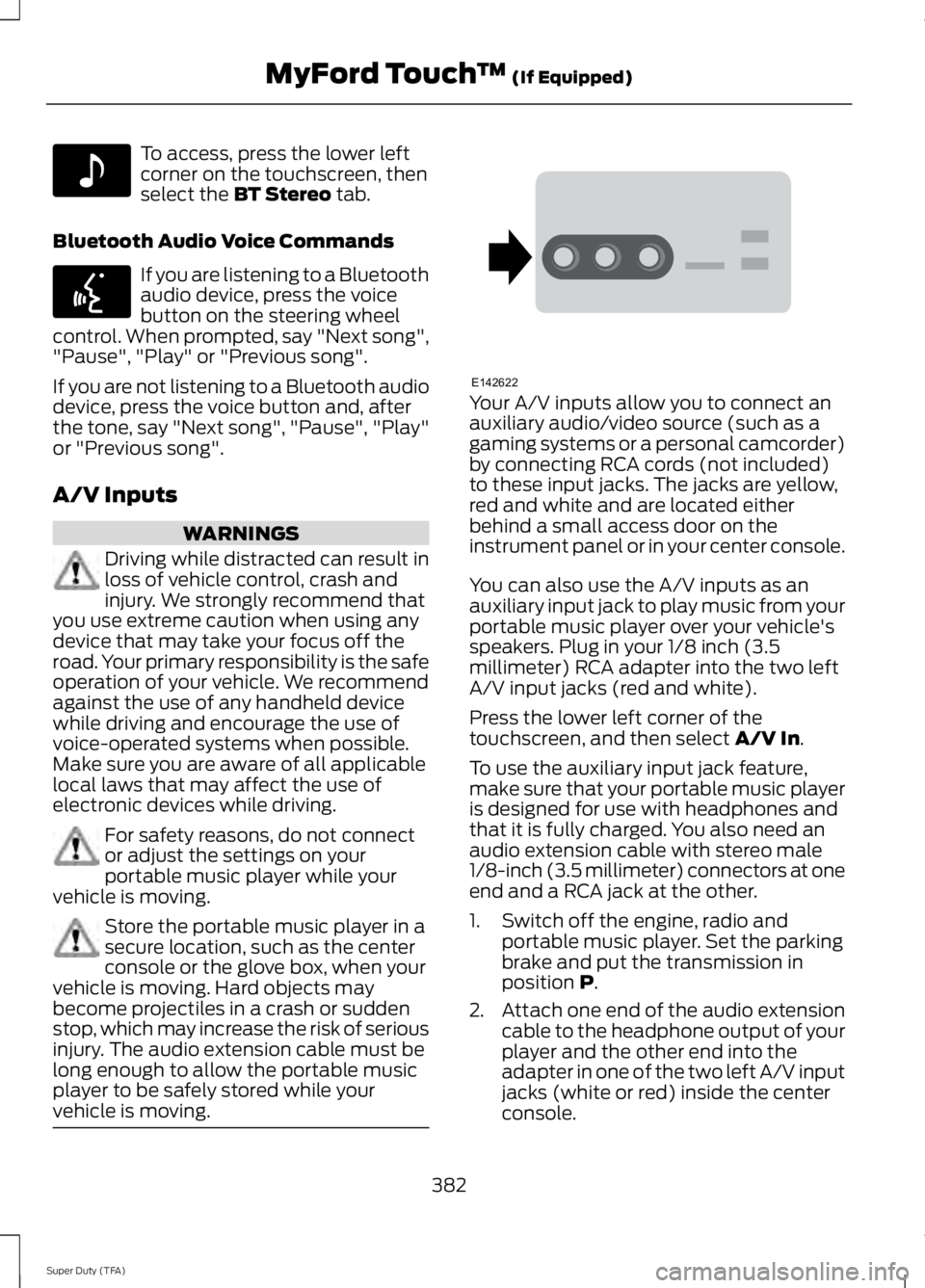
vehicle is moving. Your A/V inputs allow you to connect an
auxiliary audio/video source (such as a
gaming systems or a personal camcorder)
by connecting RCA cords (not included)
to these input jacks. The jacks are yellow,
red and white and are located either
behind a small access door on the
instrument panel or in your center console.
You can also use the A/V inputs as an
auxiliary input jack to play music from your
portable music player over your vehicle's
speakers. Plug in your 1/8 inch (3.5
millimeter) RCA adapter into the two left
A/V input jacks (red and white).
Press the lower left corner of the
touchscreen, and then select
A/V In.
To use the auxiliary input jack feature,
make sure that your portable music player
is designed for use with headphones and
that it is fully charged. You also need an
audio extension cable with stereo male
1/8-inch (3.5 millimeter) connectors at one
end and a RCA jack at the other.
1. Switch off the engine, radio and portable music player. Set the parking
brake and put the transmission in
position
P.
2. Attach one end of the audio extension
cable to the headphone output of your
player and the other end into the
adapter in one of the two left A/V input
jacks (white or red) inside the center
console.
382
Super Duty (TFA) MyFord Touch
™
(If Equipped)E142611 E142599 E142622
Page 386 of 460
3. Press the lower left corner on the
touchscreen. Select either a tuned FM
station or a CD (if there is a CD already
loaded into the system).
4. Adjust the volume as desired.
5. Turn the portable music player on and adjust the volume to ½ the maximum.
6. Press the lower left corner on the touchscreen. Select the A/V In tab.
(You should hear audio from your
portable music player although it may
be low.)
7. Adjust the sound on your portable music player until it reaches the level
of the FM station or CD by switching
back and forth between the controls.
In order to playback video from your iPod
or iPhone, you must have a special
combination USB/RCA composite video
cable (which you can buy from Apple).
When you connect the cable to your iPod
or iPhone, plug the other end into both the
RCA jacks and the USB port. Troubleshooting
•
Do not connect the audio input jack to
a line level output. The jack only works
correctly with devices that have a
headphone output with a volume
control.
• Do not set the portable music player's
volume level higher than is necessary
to match the volume of the CD or FM
radio as this causes distortion and
reduces sound quality.
• If the music sounds distorted at lower
listening levels, turn the portable music
player volume down. If the problem
persists, replace or recharge the
batteries in the portable media player.
• Control the portable media player in
the same manner when used with
headphones, as the auxiliary input jack
does not provide control (such as Play
or Pause) over the attached portable
media player.
PHONE 383
Super Duty (TFA) MyFord Touch
™
(If Equipped)A
B
C
D
E
F
E161968
Page 387 of 460
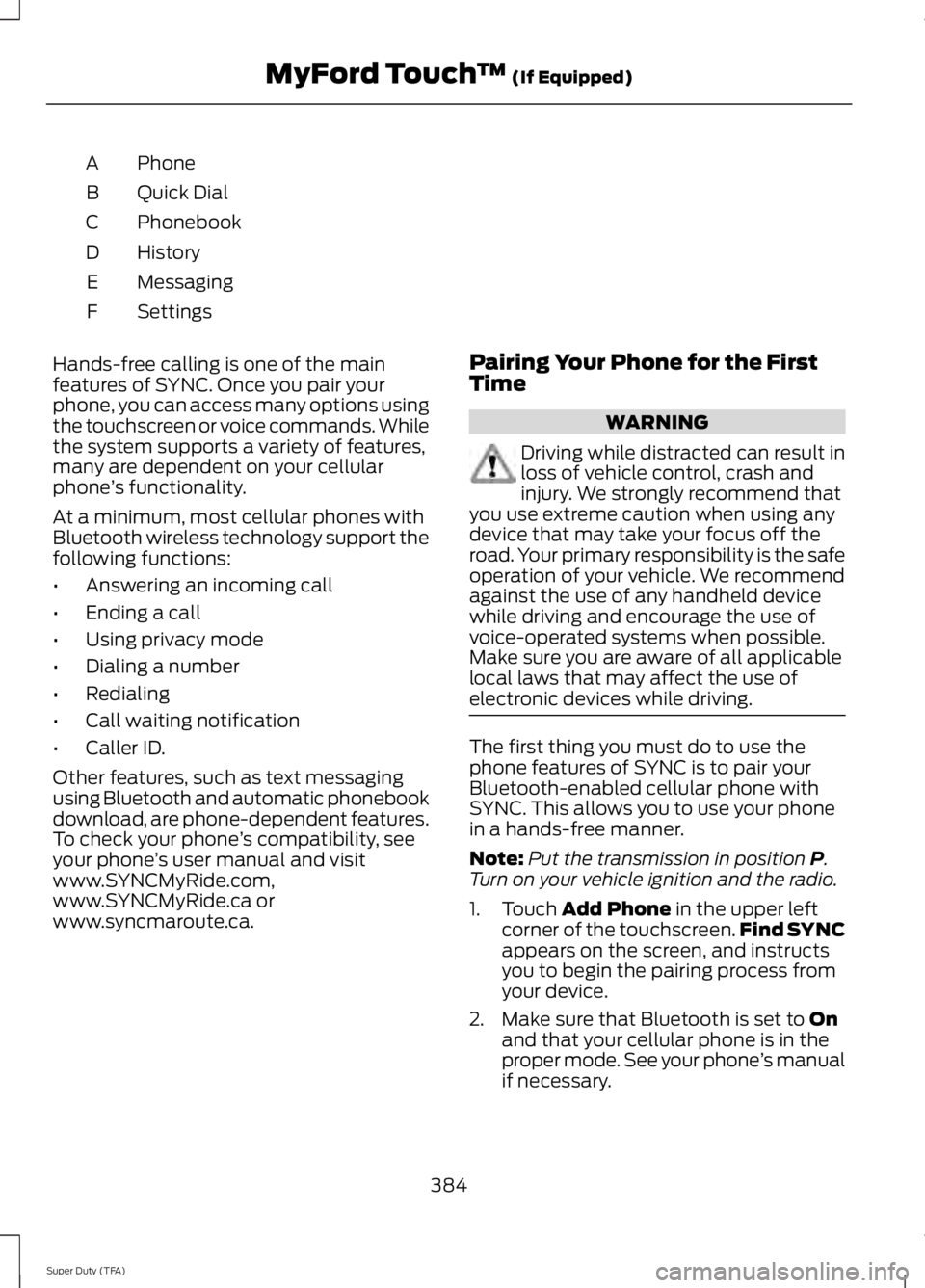
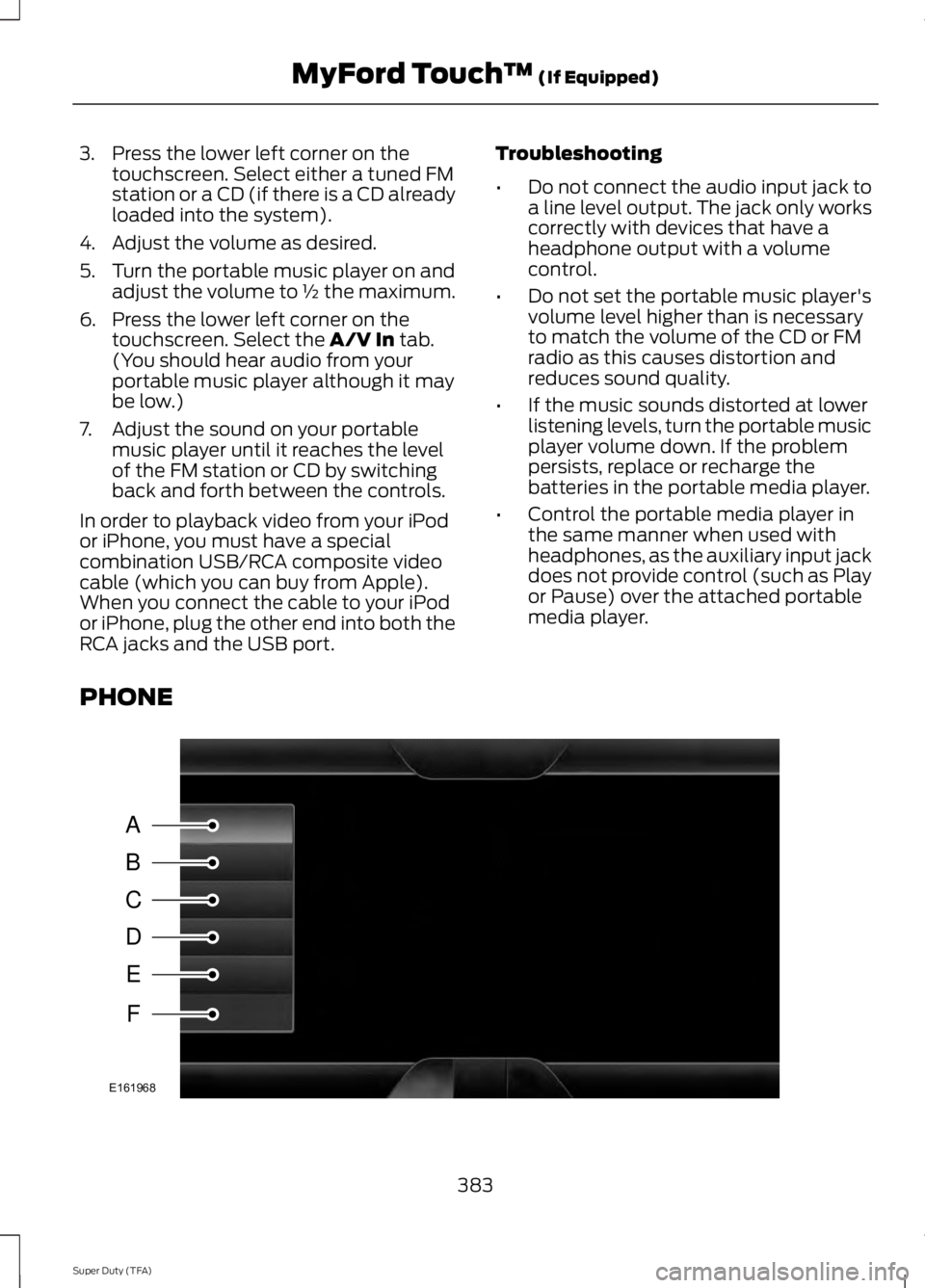
Phone
A
Quick Dial
B
Phonebook
C
History
D
Messaging
E
Settings
F
Hands-free calling is one of the main
features of SYNC. Once you pair your
phone, you can access many options using
the touchscreen or voice commands. While
the system supports a variety of features,
many are dependent on your cellular
phone ’s functionality.
At a minimum, most cellular phones with
Bluetooth wireless technology support the
following functions:
• Answering an incoming call
• Ending a call
• Using privacy mode
• Dialing a number
• Redialing
• Call waiting notification
• Caller ID.
Other features, such as text messaging
using Bluetooth and automatic phonebook
download, are phone-dependent features.
To check your phone ’s compatibility, see
your phone ’s user manual and visit
www.SYNCMyRide.com,
www.SYNCMyRide.ca or
www.syncmaroute.ca. Pairing Your Phone for the First
Time WARNING
Driving while distracted can result in
loss of vehicle control, crash and
injury. We strongly recommend that
you use extreme caution when using any
device that may take your focus off the
road. Your primary responsibility is the safe
operation of your vehicle. We recommend
against the use of any handheld device
while driving and encourage the use of
voice-operated systems when possible.
Make sure you are aware of all applicable
local laws that may affect the use of
electronic devices while driving. The first thing you must do to use the
phone features of SYNC is to pair your
Bluetooth-enabled cellular phone with
SYNC. This allows you to use your phone
in a hands-free manner.
Note:
Put the transmission in position P.
Turn on your vehicle ignition and the radio.
1. Touch
Add Phone in the upper left
corner of the touchscreen. Find SYNC
appears on the screen, and instructs
you to begin the pairing process from
your device.
2. Make sure that Bluetooth is set to
On
and that your cellular phone is in the
proper mode. See your phone ’s manual
if necessary.
384
Super Duty (TFA) MyFord Touch
™
(If Equipped)
Page 388 of 460
Note:
Select SYNC, and a six-digit PIN
appears on your device.
3. If prompted to enter a PIN on your device, it does not support Secure
Simple Pairing. To pair, enter the PIN
displayed on the touchscreen. Skip the
next step.
4. When prompted on your phone ’s
display, confirm that the PIN provided
by SYNC matches the PIN displayed
on your cellular phone.
5. The display indicates when the pairing
is successful.
SYNC may prompt you with more phone
options. For more information on your
phone's capability, see your phone's
manual and visit the website.
Pairing Subsequent Phones
Note: Put the transmission in position
P.
Turn on your vehicle ignition and the radio.
1. Press the
Phone corner of the
touchscreen > Settings > BT Devices
>
Add Device.
2. Make sure that Bluetooth is set to
On
and that your cellular phone is in the
proper mode. See your phone ’s manual
if necessary.
Note: Select
SYNC, and a six-digit PIN
appears on your device.
3. If prompted to enter a PIN on your device, it does not support Secure
Simple Pairing. To pair, enter the PIN
displayed on the touchscreen. Skip the
next step.
4. When prompted on your phone ’s
display, confirm that the PIN provided
by SYNC matches the PIN displayed
on your cellular phone.
5. The display indicates when the pairing
is successful. SYNC may prompt you with more phone
options. For more information on your
phone's capability, see your phone's
manual and visit the website.
Making Calls Press the voice button on your
steering wheel controls. When
prompted, say, "Call
or say "Dial", then the desired number. To end the call or exit phone
mode, press and hold the phone
button.
Receiving Calls
During an incoming call, an audible tone
sounds. Call information appears in the
display if it is available. Accept the call by pressing
Accept
on the touchscreen or
by pressing the phone button on
your steering wheel controls.
Reject the call by pressing
Reject on the
touchscreen or by pressing and holding the
phone button on your steering wheel
controls.
Ignore the call by doing nothing. SYNC logs
it as a missed call.
Phone Menu Options
Press the top left corner on your
touchscreen to select from the following
options:
Phone
Touch this button to access the on-screen
numerical pad to enter a number and place
a call. During an active call, you can also
choose to:
• Mute the call
• Put the call on hold
• Turn on the privacy feature
385
Super Duty (TFA) MyFord Touch
™
(If Equipped)E142599 E165966 E165966
Page 413 of 460
For maximum vehicle performance, keep
the following information in mind when
adding accessories or equipment to your
vehicle:
•
When adding accessories, equipment,
passengers and luggage to your
vehicle, do not exceed the total weight
capacity of the vehicle or of the front
or rear axle (GVWR or GAWR as
indicated on the Safety Compliance
Certification label). Ask an authorized
dealer for specific weight information.
• The Federal Communications
Commission (FCC) and Canadian
Radio Telecommunications
Commission (CRTC) regulate the use
of mobile communications systems
that are equipped with radio
transmitters, for example, two-way
radios, telephones and theft alarms.
Any such equipment installed in your
vehicle should comply with Federal
Communications Commission (FCC)
and Canadian Radio
Telecommunications Commission
(CRTC) regulations and should be
installed only by an authorized dealer.
• An authorized dealer needs to install
mobile communications systems.
Improper installation may harm the
operation of your vehicle, particularly
if the manufacturer did not design the
mobile communication system
specifically for automotive use.
• If you or an authorized Ford dealer add
any non-Ford custom electrical or
electronic accessories or components
to your vehicle, you may adversely
affect battery performance and
durability. In addition, you may also
adversely affect the performance of
other electrical systems in the vehicle. AUXILIARY SWITCHES
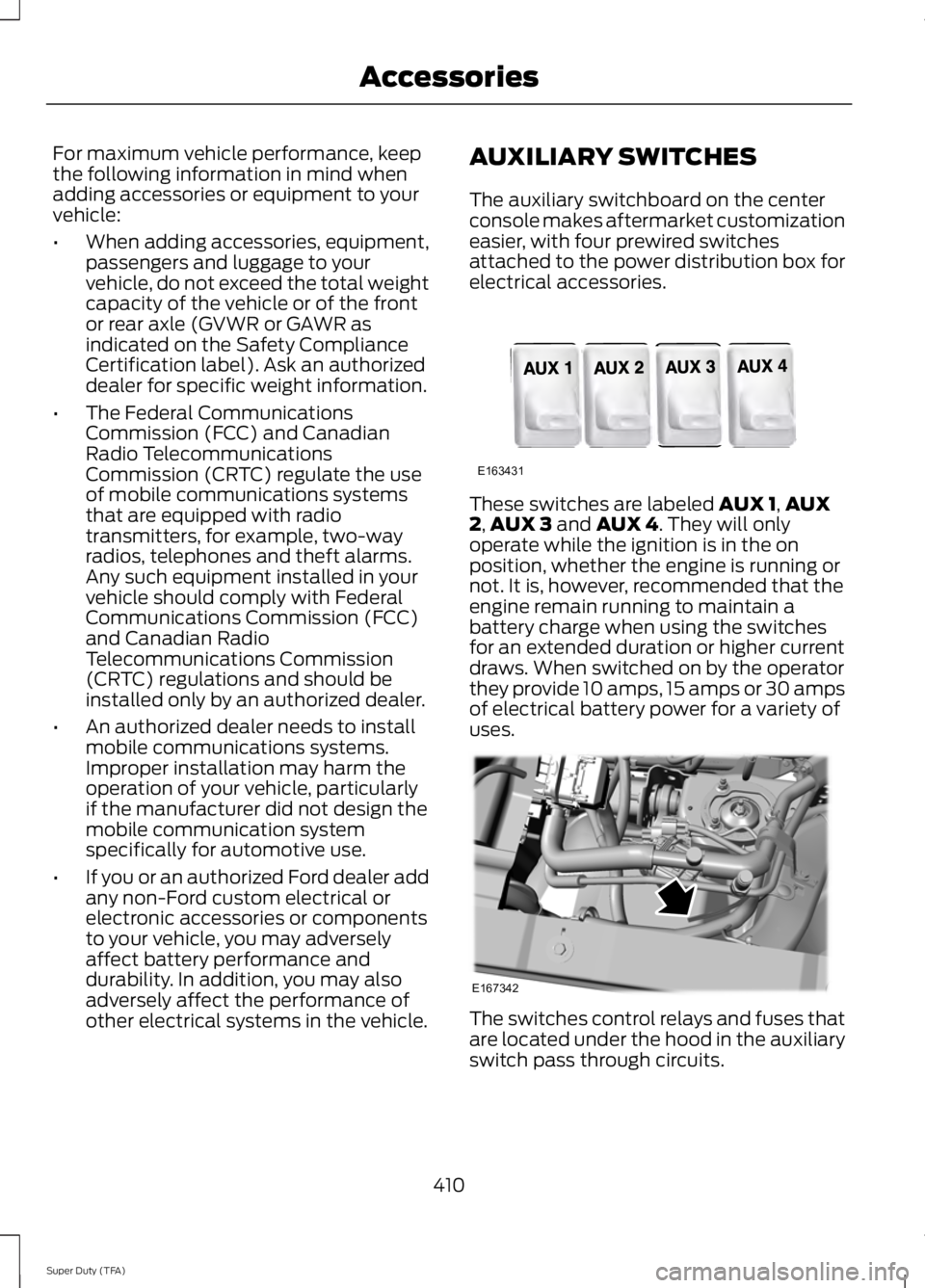
The auxiliary switchboard on the center
console makes aftermarket customization
easier, with four prewired switches
attached to the power distribution box for
electrical accessories.
These switches are labeled AUX 1,
AUX
2, AUX 3 and AUX 4. They will only
operate while the ignition is in the on
position, whether the engine is running or
not. It is, however, recommended that the
engine remain running to maintain a
battery charge when using the switches
for an extended duration or higher current
draws. When switched on by the operator
they provide 10 amps, 15 amps or 30 amps
of electrical battery power for a variety of
uses. The switches control relays and fuses that
are located under the hood in the auxiliary
switch pass through circuits.
410
Super Duty (TFA) AccessoriesE163431 E167342
Page 429 of 460
THE GRACENOTE SOFTWARE, EACH ITEM
OF GRACENOTE DATA AND THE
GRACENOTE CONTENT ARE LICENSED
TO YOU "AS IS". NEITHER GRACENOTE
MAKES ANY REPRESENTATIONS OR
WARRANTIES, EXPRESS OR IMPLIED,
REGARDING THE ACCURACY OF ANY
GRACENOTE DATA FROM THE
GRACENOTE SERVERS OR GRACENOTE
CONTENT. GRACENOTE COLLECTIVELY
AND SEPARATELY RESERVE THE RIGHT
TO DELETE DATA AND/OR CONTENT
FROM THE COMPANIES' RESPECTIVE
SERVERS OR, IN THE CASE OF
GRACENOTE, CHANGE DATA
CATEGORIES FOR ANY CAUSE THAT
GRACENOTE DEEMS SUFFICIENT. NO
WARRANTY IS MADE THAT EITHER
GRACENOTE CONTENT OR THE
GRACENOTE SOFTWARE OR
GRACENOTE SERVERS ARE ERROR-FREE
OR THAT THE FUNCTIONING OF THE
GRACENOTE SOFTWARE OR
GRACENOTE SERVERS WILL BE
UNINTERRUPTED. GRACENOTE IS NOT
OBLIGATED TO PROVIDE YOU WITH ANY
ENHANCED OR ADDITIONAL DATA TYPES
THAT GRACENOTE MAY CHOOSE TO
PROVIDE IN THE FUTURE AND IS FREE
TO DISCONTINUE ITS ONLINE SERVICES
AT ANY TIME. GRACENOTE DISCLAIM ALL
WARRANTIES EXPRESS OR IMPLIED,
INCLUDING, BUT NOT LIMITED TO,
IMPLIED WARRANTIES OF
MERCHANTABILITY, FITNESS FOR A
PARTICULAR PURPOSE, TITLE, AND
NON-INFRINGEMENT. NEITHER
GRACENOTE WARRANTS THE RESULTS
THAT WILL BE OBTAINED BY YOUR USE
OF THE GRACENOTE SOFTWARE OR ANY
GRACENOTE SERVER. IN NO CASE WILL
GRACENOTE BE LIABLE FOR ANY
CONSEQUENTIAL OR INCIDENTAL
DAMAGES OR FOR ANY LOST PROFITS
OR LOST REVENUES FOR ANY REASON
WHATSOEVER.
© Gracenote 2007.
FCC ID: KMHSYNCG2
IC: 1422A-SYNCG2
This device complies with Part 15 of the
FCC Rules and with RSS-210 of Industry
Canada. Operation is subject to the
following two conditions: (1) This device
may not cause harmful interference, and
(2) this device must accept any
interference received, including
interference that may cause undesired
operation.
WARNING
Changes or modifications not
expressively approved by the party
responsible for compliance could
void the user's authority to operate the
equipment. The term "IC" before the radio
certification number only signifies that
Industry Canada technical specifications
were met. The antenna used for this transmitter must
not be co-located or operating in
conjunction with any other antenna or
transmitter.
426
Super Duty (TFA) Appendices
Page 451 of 460
Car Wash
See: Cleaning the Exterior............................... 247
Center Console..............................................129
Removable Front Cupholders........................ 129
Changing a Bulb............................................241 Lamp Assembly Condensation..................... 241
Replacing Brake/Tail/Turn/Reverse Lamp Bulbs.................................................................. 242
Replacing Cargo Lamp and High-mount Brake Lamp Bulbs........................................ 242
Replacing Fog Lamp Bulbs (If Equipped.......................................................... 242
Replacing Front Clearance and Identification Lamp Bulbs (If
Equipped)......................................................... 241
Replacing the License Plate Lamp Bulb.................................................................... 243
Changing a Fuse............................................214 Fuses....................................................................... 214
Changing a Road Wheel
............................279
Dissimilar Spare Wheel and Tire Assembly
Information...................................................... 279
Location of the Spare Tire and Tools........280
Removing the Spare Tire (With Spare Tire Carrier Only).................................................... 281
Tire Change Procedure.................................... 282
Changing the 12V Battery.........................235 Battery Management System (If
Equipped)........................................................ 236
Changing the Engine Air Filter.................245
Changing the Wiper Blades......................237
Checking MyKey System Status...............52
Checking the Wiper Blades
......................237
Child Restraint and Safety Belt Maintenance.................................................35
Child Safety
.......................................................15
General Information............................................. 15
Child Safety Locks..........................................27
Child Seat Positioning..................................26
Cleaning Leather Seats
..............................251
Cleaning Products........................................247
Cleaning the Alloy Wheels........................251
Cleaning the Engine....................................248
Cleaning the Exhaust
.................................249 Cleaning the Exterior
...................................247
Cleaning Plastic Exterior Parts..................... 248
Exterior Chrome.................................................. 247
Stripes or Graphics (if equipped)................247
Underbody........................................................... 248
Cleaning the Instrument Panel and Instrument Cluster Lens........................250
Cleaning the Interior
...................................250
Cleaning the Windows and Wiper Blades...........................................................249
Clearing All MyKeys.......................................52
Climate............................................................398 Climate Control Voice Commands.............399
Climate Control
.............................................103
Coolant Check See: Engine Coolant Check............................ 227
Crash Sensors and Airbag Indicator.......44
Creating a MyKey
...........................................50
Programming/Changing Configurable
Settings................................................................ 51
Cruise Control...................................................61 Principle of Operation....................................... 174
Cruise control See: Using Cruise Control................................. 174
Customer Assistance
................................208
D
Data Recording
..................................................9
Event Data Recording.......................................... 10
Service Data Recording........................................ 9
Daytime Running Lamps
............................66
Digital Radio..................................................306
HD Radio Reception and Station
Troubleshooting............................................ 307
Direction Indicators
........................................67
Lane Change.......................................................... 67
Driver and Passenger Airbags....................37 Children and Airbags........................................... 42
Passenger Airbag On and Off Switch ..........37
Proper Driver and Front Passenger Seating Adjustment......................................................... 41
Driving Aids
......................................................175
Driving Hints..................................................200
Driving Through Water................................201
DRL See: Daytime Running Lamps........................ 66
448
Super Duty (TFA) Index