reset FORD F250 SUPER DUTY 2014 Service Manual
[x] Cancel search | Manufacturer: FORD, Model Year: 2014, Model line: F250 SUPER DUTY, Model: FORD F250 SUPER DUTY 2014Pages: 460, PDF Size: 6.55 MB
Page 348 of 460
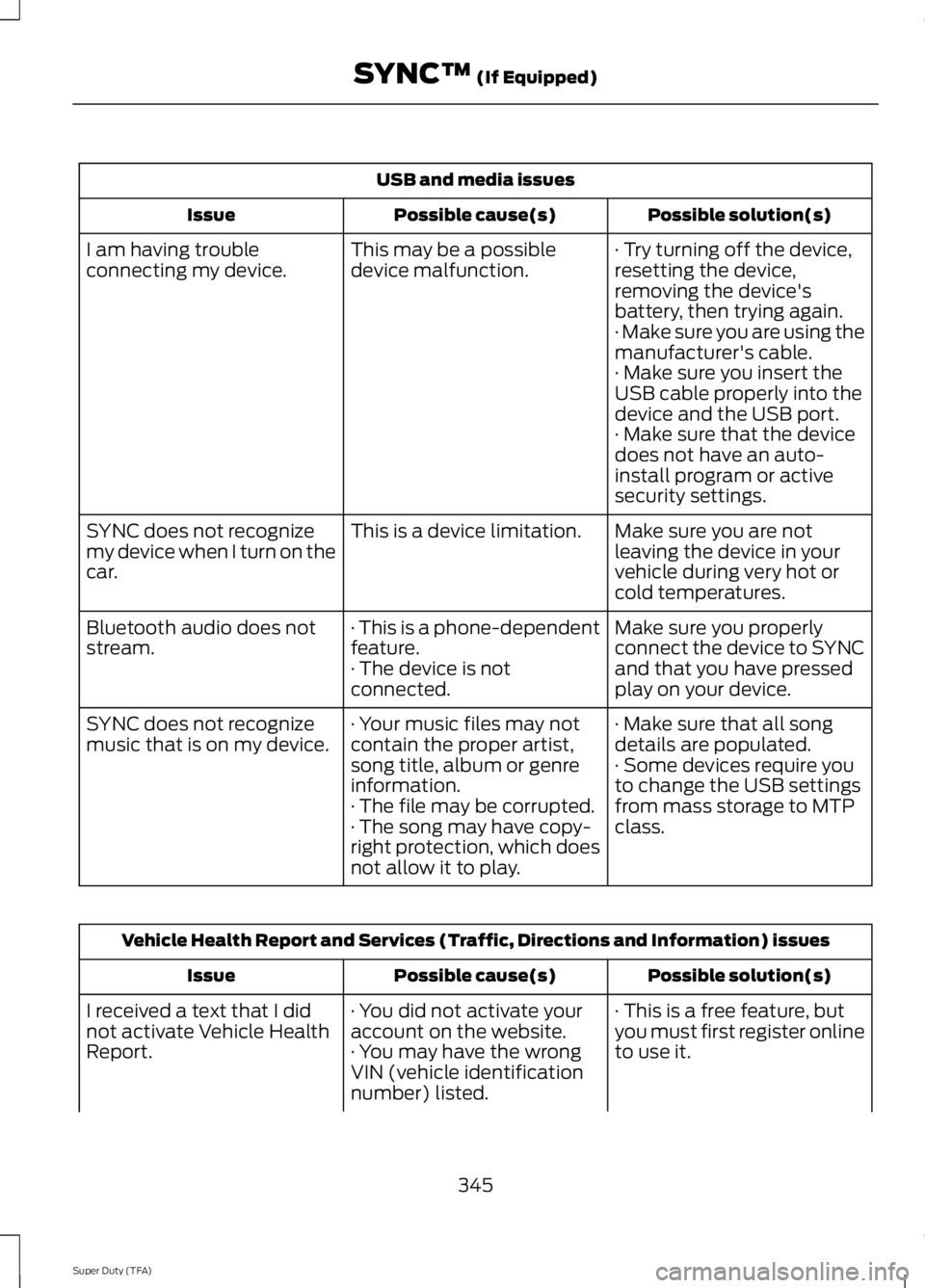
USB and media issues
Possible solution(s)Possible cause(s)Issue
· Try turning off the device,resetting the device,removing the device'sbattery, then trying again.
This may be a possibledevice malfunction.I am having troubleconnecting my device.
· Make sure you are using themanufacturer's cable.· Make sure you insert theUSB cable properly into thedevice and the USB port.· Make sure that the devicedoes not have an auto-install program or activesecurity settings.
Make sure you are notleaving the device in yourvehicle during very hot orcold temperatures.
This is a device limitation.SYNC does not recognizemy device when I turn on thecar.
Make sure you properlyconnect the device to SYNCand that you have pressedplay on your device.
· This is a phone-dependentfeature.· The device is notconnected.
Bluetooth audio does notstream.
· Make sure that all songdetails are populated.· Your music files may notcontain the proper artist,song title, album or genreinformation.
SYNC does not recognizemusic that is on my device.· Some devices require youto change the USB settingsfrom mass storage to MTPclass.· The file may be corrupted.· The song may have copy-right protection, which doesnot allow it to play.
Vehicle Health Report and Services (Traffic, Directions and Information) issues
Possible solution(s)Possible cause(s)Issue
· This is a free feature, butyou must first register onlineto use it.
· You did not activate youraccount on the website.· You may have the wrongVIN (vehicle identificationnumber) listed.
I received a text that I didnot activate Vehicle HealthReport.
345
Super Duty (TFA)
SYNC™ (If Equipped)
Page 356 of 460
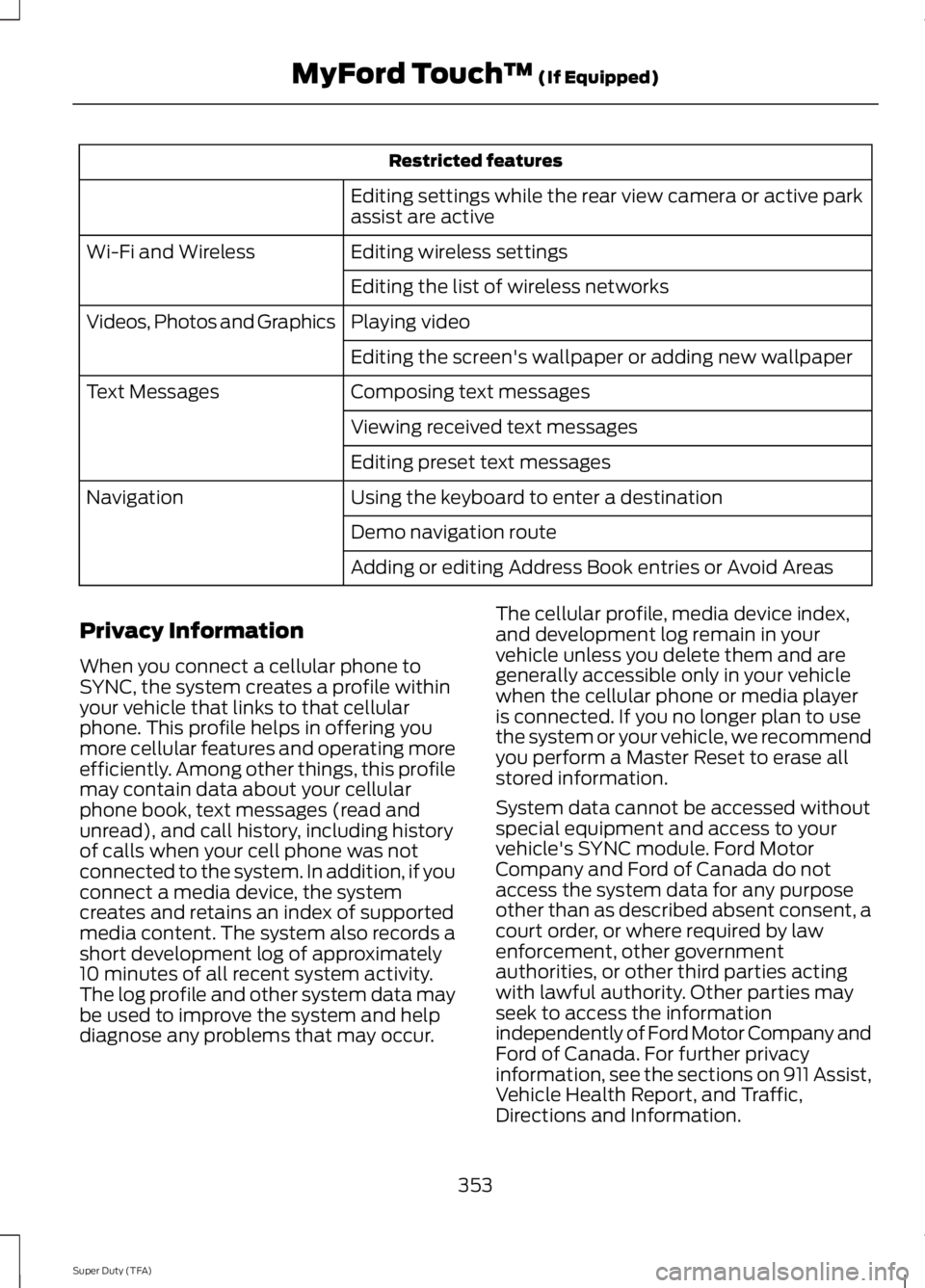
Restricted features
Editing settings while the rear view camera or active parkassist are active
Editing wireless settingsWi-Fi and Wireless
Editing the list of wireless networks
Playing videoVideos, Photos and Graphics
Editing the screen's wallpaper or adding new wallpaper
Composing text messagesText Messages
Viewing received text messages
Editing preset text messages
Using the keyboard to enter a destinationNavigation
Demo navigation route
Adding or editing Address Book entries or Avoid Areas
Privacy Information
When you connect a cellular phone toSYNC, the system creates a profile withinyour vehicle that links to that cellularphone. This profile helps in offering youmore cellular features and operating moreefficiently. Among other things, this profilemay contain data about your cellularphone book, text messages (read andunread), and call history, including historyof calls when your cell phone was notconnected to the system. In addition, if youconnect a media device, the systemcreates and retains an index of supportedmedia content. The system also records ashort development log of approximately10 minutes of all recent system activity.The log profile and other system data maybe used to improve the system and helpdiagnose any problems that may occur.
The cellular profile, media device index,and development log remain in yourvehicle unless you delete them and aregenerally accessible only in your vehiclewhen the cellular phone or media playeris connected. If you no longer plan to usethe system or your vehicle, we recommendyou perform a Master Reset to erase allstored information.
System data cannot be accessed withoutspecial equipment and access to yourvehicle's SYNC module. Ford MotorCompany and Ford of Canada do notaccess the system data for any purposeother than as described absent consent, acourt order, or where required by lawenforcement, other governmentauthorities, or other third parties actingwith lawful authority. Other parties mayseek to access the informationindependently of Ford Motor Company andFord of Canada. For further privacyinformation, see the sections on 911 Assist,Vehicle Health Report, and Traffic,Directions and Information.
353
Super Duty (TFA)
MyFord Touch™ (If Equipped)
Page 361 of 460
Only the photograph(s), which meets thefollowing conditions, display:
•Compatible file formats are as follows:.jpg, .gif, .png, .bmp
•Each file must be 1.5 MB or less.
•Recommended dimensions: 800 x 384
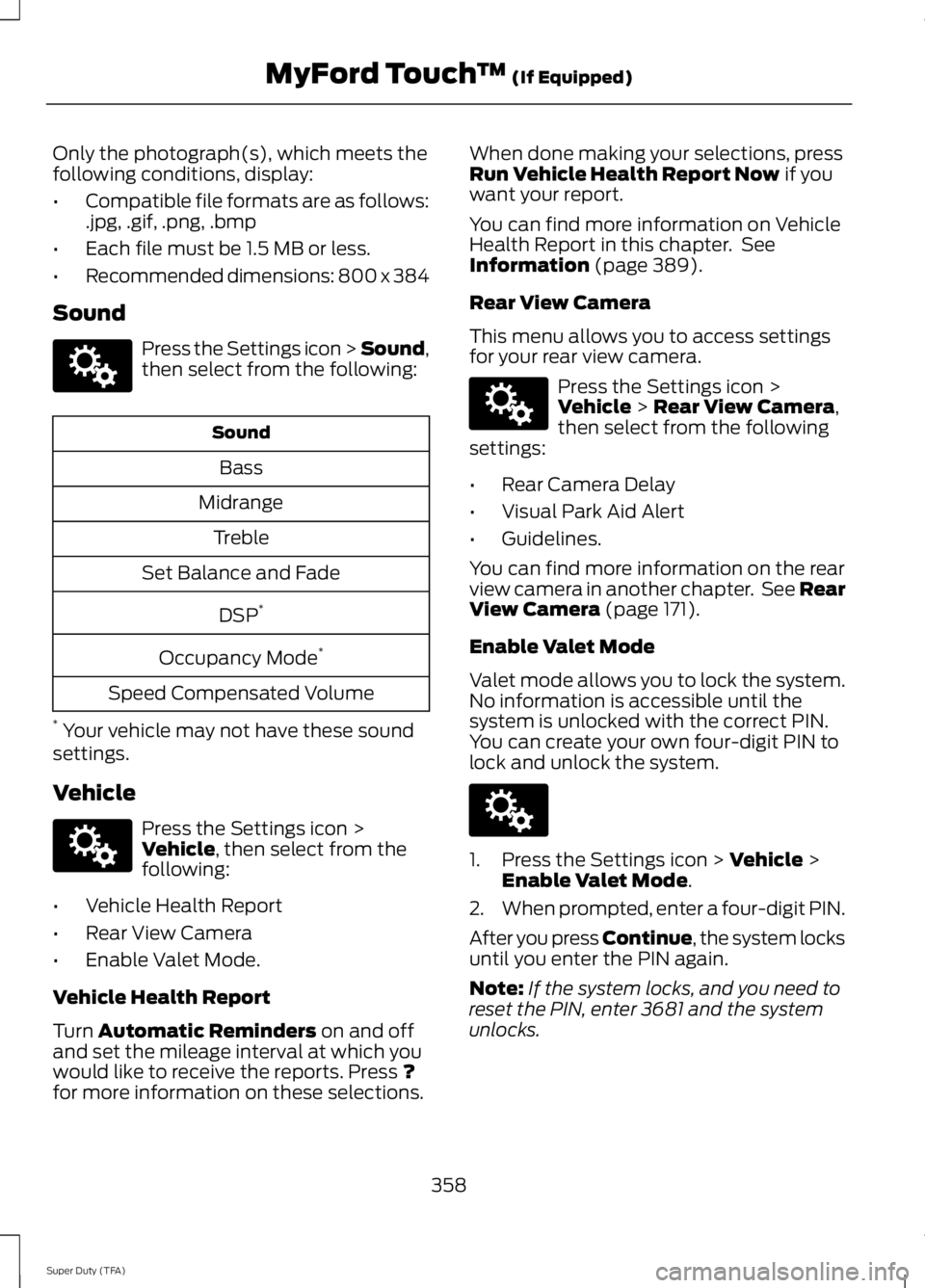
Sound
Press the Settings icon > Sound,then select from the following:
Sound
Bass
Midrange
Treble
Set Balance and Fade
DSP*
Occupancy Mode*
Speed Compensated Volume
* Your vehicle may not have these soundsettings.
Vehicle
Press the Settings icon >Vehicle, then select from thefollowing:
•Vehicle Health Report
•Rear View Camera
•Enable Valet Mode.
Vehicle Health Report
Turn Automatic Reminders on and offand set the mileage interval at which youwould like to receive the reports. Press ?for more information on these selections.
When done making your selections, pressRun Vehicle Health Report Now if youwant your report.
You can find more information on VehicleHealth Report in this chapter. SeeInformation (page 389).
Rear View Camera
This menu allows you to access settingsfor your rear view camera.
Press the Settings icon >Vehicle > Rear View Camera,then select from the followingsettings:
•Rear Camera Delay
•Visual Park Aid Alert
•Guidelines.
You can find more information on the rearview camera in another chapter. See RearView Camera (page 171).
Enable Valet Mode
Valet mode allows you to lock the system.No information is accessible until thesystem is unlocked with the correct PIN.You can create your own four-digit PIN tolock and unlock the system.
1. Press the Settings icon > Vehicle >Enable Valet Mode.
2.When prompted, enter a four-digit PIN.
After you press Continue, the system locksuntil you enter the PIN again.
Note:If the system locks, and you need toreset the PIN, enter 3681 and the systemunlocks.
358
Super Duty (TFA)
MyFord Touch™ (If Equipped)E142607 E142607 E142607 E142607
Page 362 of 460
Settings
Access and adjust system settings, voicefeatures, as well as phone, navigation andwireless settings.
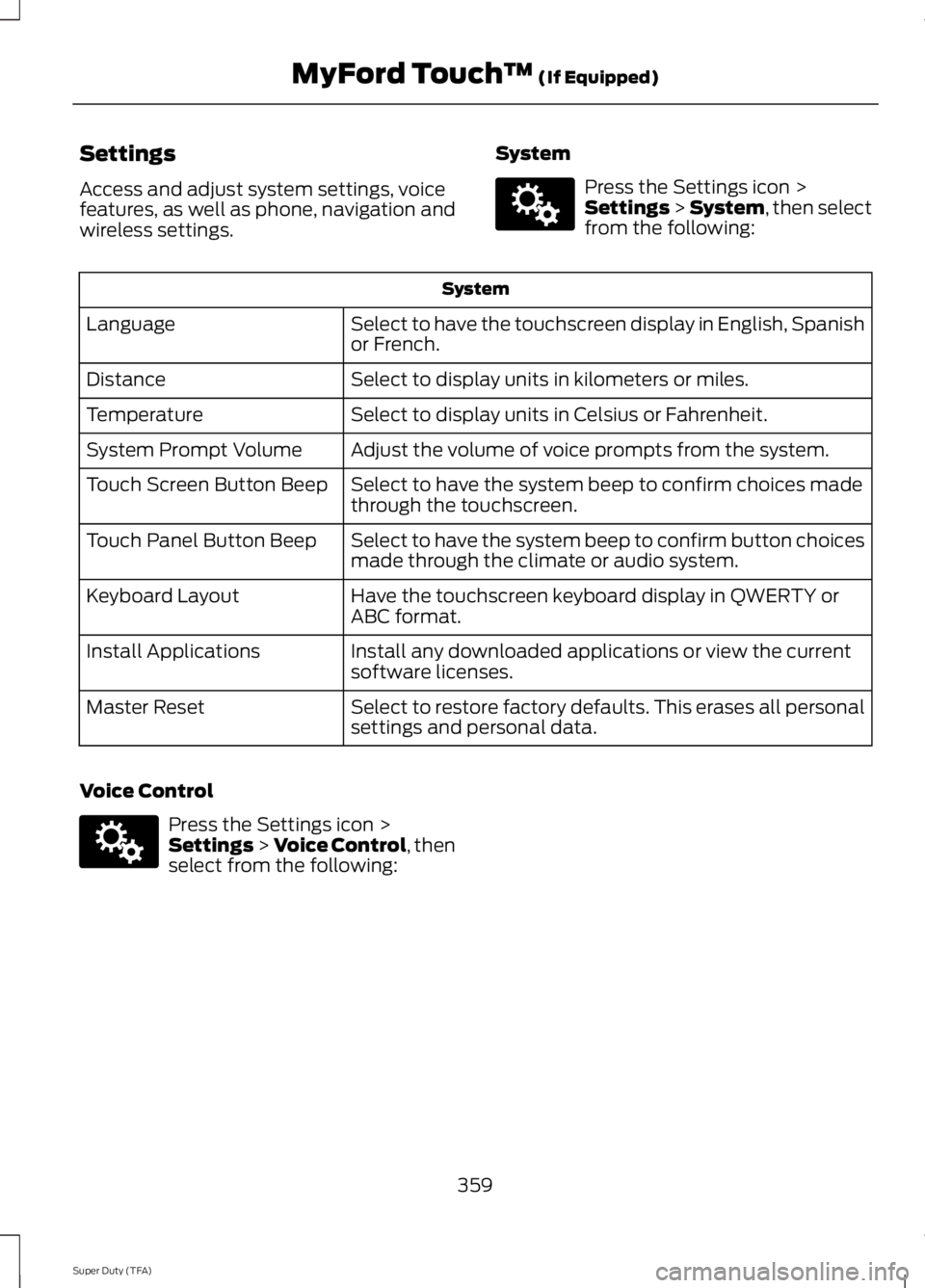
System
Press the Settings icon >Settings > System, then selectfrom the following:
System
Select to have the touchscreen display in English, Spanishor French.Language
Select to display units in kilometers or miles.Distance
Select to display units in Celsius or Fahrenheit.Temperature
Adjust the volume of voice prompts from the system.System Prompt Volume
Select to have the system beep to confirm choices madethrough the touchscreen.Touch Screen Button Beep
Select to have the system beep to confirm button choicesmade through the climate or audio system.Touch Panel Button Beep
Have the touchscreen keyboard display in QWERTY orABC format.Keyboard Layout
Install any downloaded applications or view the currentsoftware licenses.Install Applications
Select to restore factory defaults. This erases all personalsettings and personal data.Master Reset
Voice Control
Press the Settings icon >Settings > Voice Control, thenselect from the following:
359
Super Duty (TFA)
MyFord Touch™ (If Equipped)E142607 E142607
Page 369 of 460
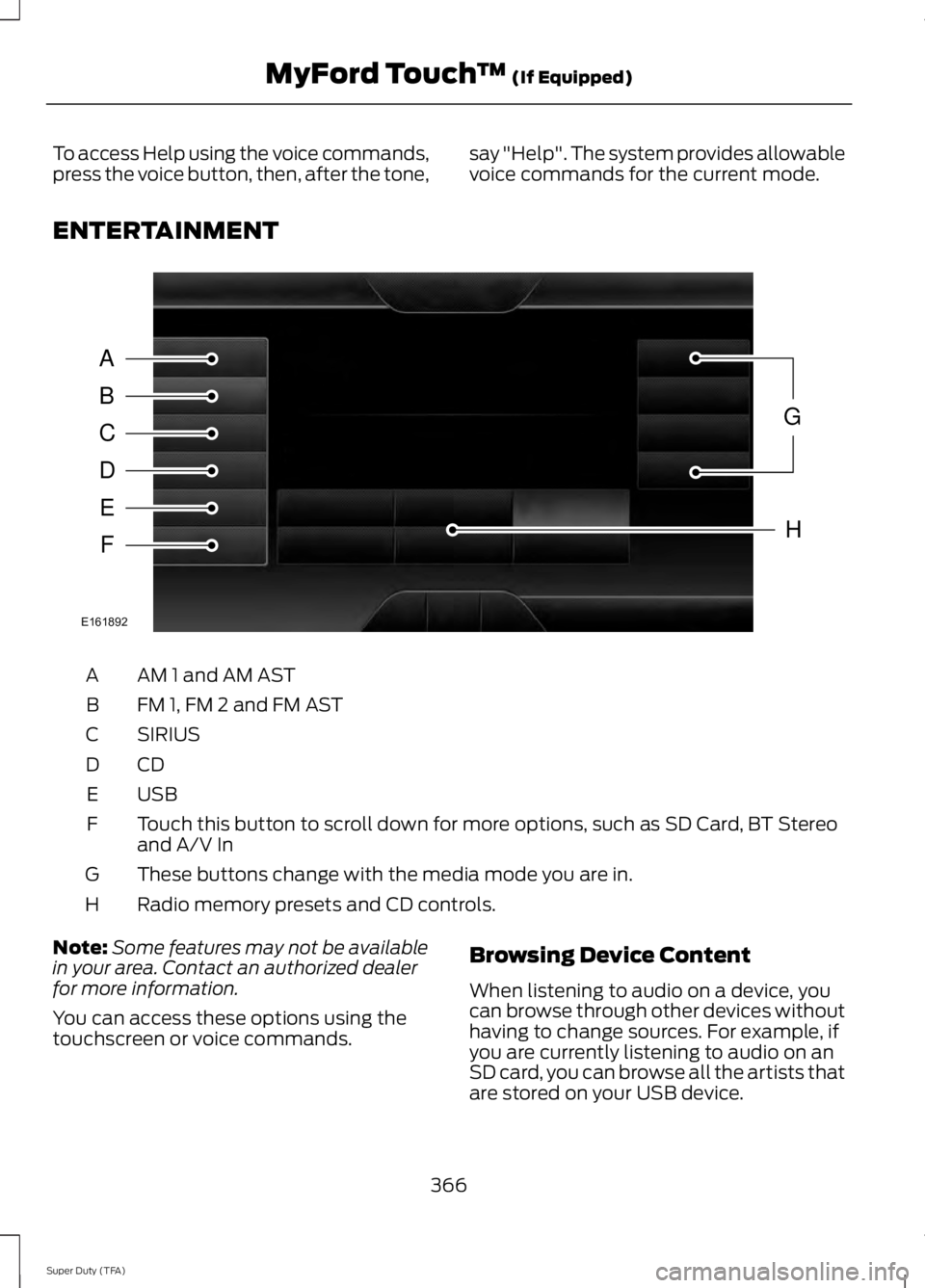
To access Help using the voice commands,press the voice button, then, after the tone,say "Help". The system provides allowablevoice commands for the current mode.
ENTERTAINMENT
AM 1 and AM ASTA
FM 1, FM 2 and FM ASTB
SIRIUSC
CDD
USBE
Touch this button to scroll down for more options, such as SD Card, BT Stereoand A/V InF
These buttons change with the media mode you are in.G
Radio memory presets and CD controls.H
Note:Some features may not be availablein your area. Contact an authorized dealerfor more information.
You can access these options using thetouchscreen or voice commands.
Browsing Device Content
When listening to audio on a device, youcan browse through other devices withouthaving to change sources. For example, ifyou are currently listening to audio on anSD card, you can browse all the artists thatare stored on your USB device.
366
Super Duty (TFA)
MyFord Touch™ (If Equipped)A
B
C
D
E
F
G
H
E161892
Page 371 of 460
![FORD F250 SUPER DUTY 2014 Service Manual Sample commands
"Sirius <0-223>"*
"Sports games"*
* This command is only usable if you havean active subscription to SIRIUS satelliteradio.** The commands that have [ ] around theword](/img/11/58784/w960_58784-370.png "FORD F250 SUPER DUTY 2014 Service Manual Sample commands
\"Sirius <0-223>\"*
\"Sports games\"*
* This command is only usable if you havean active subscription to SIRIUS satelliteradio.** The commands that have [ ] around theword")
Sample commands
"Sirius <0-223>"*
"Sports games"*
* This command is only usable if you havean active subscription to SIRIUS satelliteradio.** The commands that have [ ] around theword means that the word is optional. Forexample, if you say, "Play Metallica", thisis the same as the voice command, "Play[artist]
AM/FM Radio
Touch the AM or FM tab to listento the radio.
To change between AM and FM presets,just touch the AM or FM tab.
Memory Presets
Save a station by pressing and holding oneof the memory preset areas. There is a briefmute while the radio saves the station.Sound returns when finished.
HD Radio
Touch this button to turn HD Radio on. Thelight on the button illuminates when thefeature is on. HD Radio allows you toreceive radio broadcasts digitally, whereavailable, providing free, crystal-clearsound. See HD Radio information later inthis chapter.
Scan
Touch this button to go to the next strongAM or FM radio station. The light on thebutton illuminates when the feature is on.
Options
Sound Settings
Touch this button to adjust settings for:
•Bass
•Midrange
•Treble
•Balance and Fade
•DSP (Digital Signal processing)
•Occupancy Mode
•Speed Compensated Volume.
Note:Your vehicle may not have all thesesound settings.
Set PTY for Seek/Scan
This allows you to select a category ofmusic you would like to search for. You canthen choose to either seek or scan for thestations playing that category.
RDS Text Display
This allows you to view the informationbroadcast by FM stations.
AST
AST (Autostore) allows you to have thesystem automatically store the sixstrongest stations in your current location.
TAG Button
This feature is available when HD Radio ison, and allows you to tag a song todownload later. When you select On,TAGappears on-screen when HD Radio isactive. You can touch TAG to save theinformation of the song that is playing.When you plug in your portable musicplayer, the information transfers, ifsupported by your device. When you areconnected to iTunes, the tags appear toremind you of the songs you would like todownload. See HD Radio information laterin this chapter.
368
Super Duty (TFA)
MyFord Touch™ (If Equipped)E142611
Page 373 of 460
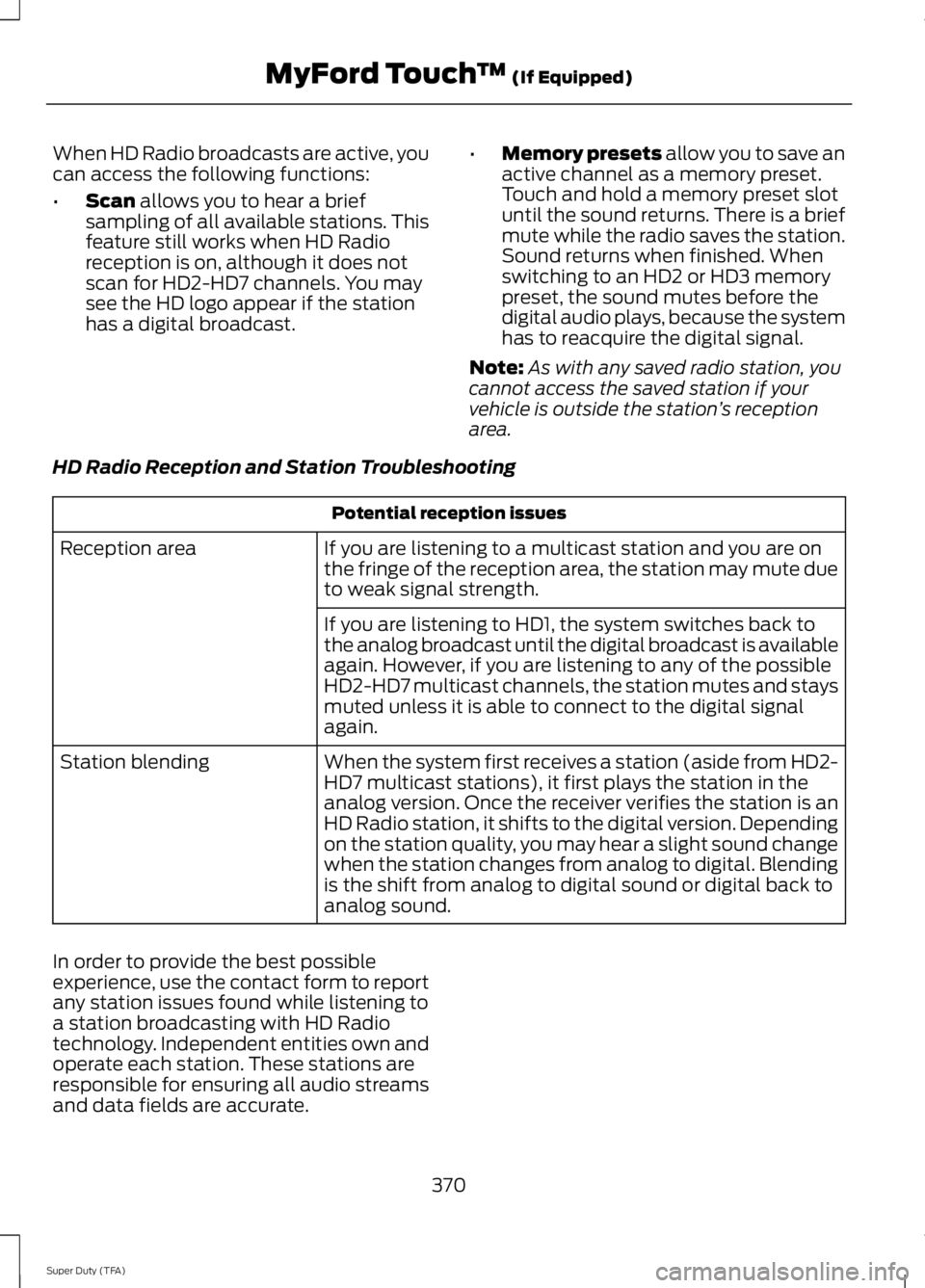
When HD Radio broadcasts are active, youcan access the following functions:
•Scan allows you to hear a briefsampling of all available stations. Thisfeature still works when HD Radioreception is on, although it does notscan for HD2-HD7 channels. You maysee the HD logo appear if the stationhas a digital broadcast.
•Memory presets allow you to save anactive channel as a memory preset.Touch and hold a memory preset slotuntil the sound returns. There is a briefmute while the radio saves the station.Sound returns when finished. Whenswitching to an HD2 or HD3 memorypreset, the sound mutes before thedigital audio plays, because the systemhas to reacquire the digital signal.
Note:As with any saved radio station, youcannot access the saved station if yourvehicle is outside the station’s receptionarea.
HD Radio Reception and Station Troubleshooting
Potential reception issues
If you are listening to a multicast station and you are onthe fringe of the reception area, the station may mute dueto weak signal strength.
Reception area
If you are listening to HD1, the system switches back tothe analog broadcast until the digital broadcast is availableagain. However, if you are listening to any of the possibleHD2-HD7 multicast channels, the station mutes and staysmuted unless it is able to connect to the digital signalagain.
When the system first receives a station (aside from HD2-HD7 multicast stations), it first plays the station in theanalog version. Once the receiver verifies the station is anHD Radio station, it shifts to the digital version. Dependingon the station quality, you may hear a slight sound changewhen the station changes from analog to digital. Blendingis the shift from analog to digital sound or digital back toanalog sound.
Station blending
In order to provide the best possibleexperience, use the contact form to reportany station issues found while listening toa station broadcasting with HD Radiotechnology. Independent entities own andoperate each station. These stations areresponsible for ensuring all audio streamsand data fields are accurate.
370
Super Duty (TFA)
MyFord Touch™ (If Equipped)
Page 374 of 460
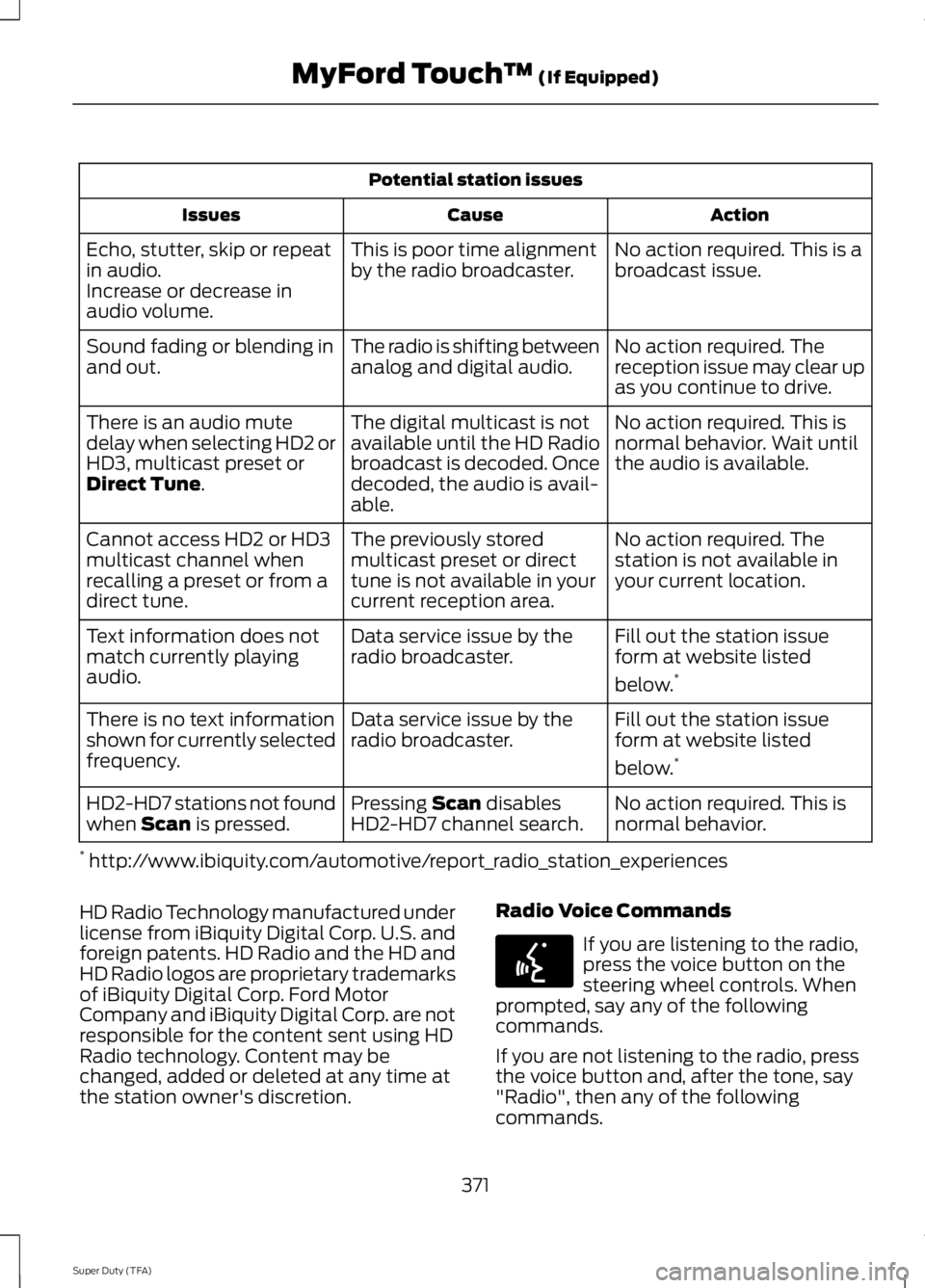
Potential station issues
ActionCauseIssues
No action required. This is abroadcast issue.This is poor time alignmentby the radio broadcaster.Echo, stutter, skip or repeatin audio.Increase or decrease inaudio volume.
No action required. Thereception issue may clear upas you continue to drive.
The radio is shifting betweenanalog and digital audio.Sound fading or blending inand out.
No action required. This isnormal behavior. Wait untilthe audio is available.
The digital multicast is notavailable until the HD Radiobroadcast is decoded. Oncedecoded, the audio is avail-able.
There is an audio mutedelay when selecting HD2 orHD3, multicast preset orDirect Tune.
No action required. Thestation is not available inyour current location.
The previously storedmulticast preset or directtune is not available in yourcurrent reception area.
Cannot access HD2 or HD3multicast channel whenrecalling a preset or from adirect tune.
Fill out the station issueform at website listed
below.*
Data service issue by theradio broadcaster.Text information does notmatch currently playingaudio.
Fill out the station issueform at website listed
below.*
Data service issue by theradio broadcaster.There is no text informationshown for currently selectedfrequency.
No action required. This isnormal behavior.Pressing Scan disablesHD2-HD7 channel search.HD2-HD7 stations not foundwhen Scan is pressed.
* http://www.ibiquity.com/automotive/report_radio_station_experiences
HD Radio Technology manufactured underlicense from iBiquity Digital Corp. U.S. andforeign patents. HD Radio and the HD andHD Radio logos are proprietary trademarksof iBiquity Digital Corp. Ford MotorCompany and iBiquity Digital Corp. are notresponsible for the content sent using HDRadio technology. Content may bechanged, added or deleted at any time atthe station owner's discretion.
Radio Voice Commands
If you are listening to the radio,press the voice button on thesteering wheel controls. Whenprompted, say any of the followingcommands.
If you are not listening to the radio, pressthe voice button and, after the tone, say"Radio", then any of the followingcommands.
371
Super Duty (TFA)
MyFord Touch™ (If Equipped)E142599
Page 375 of 460
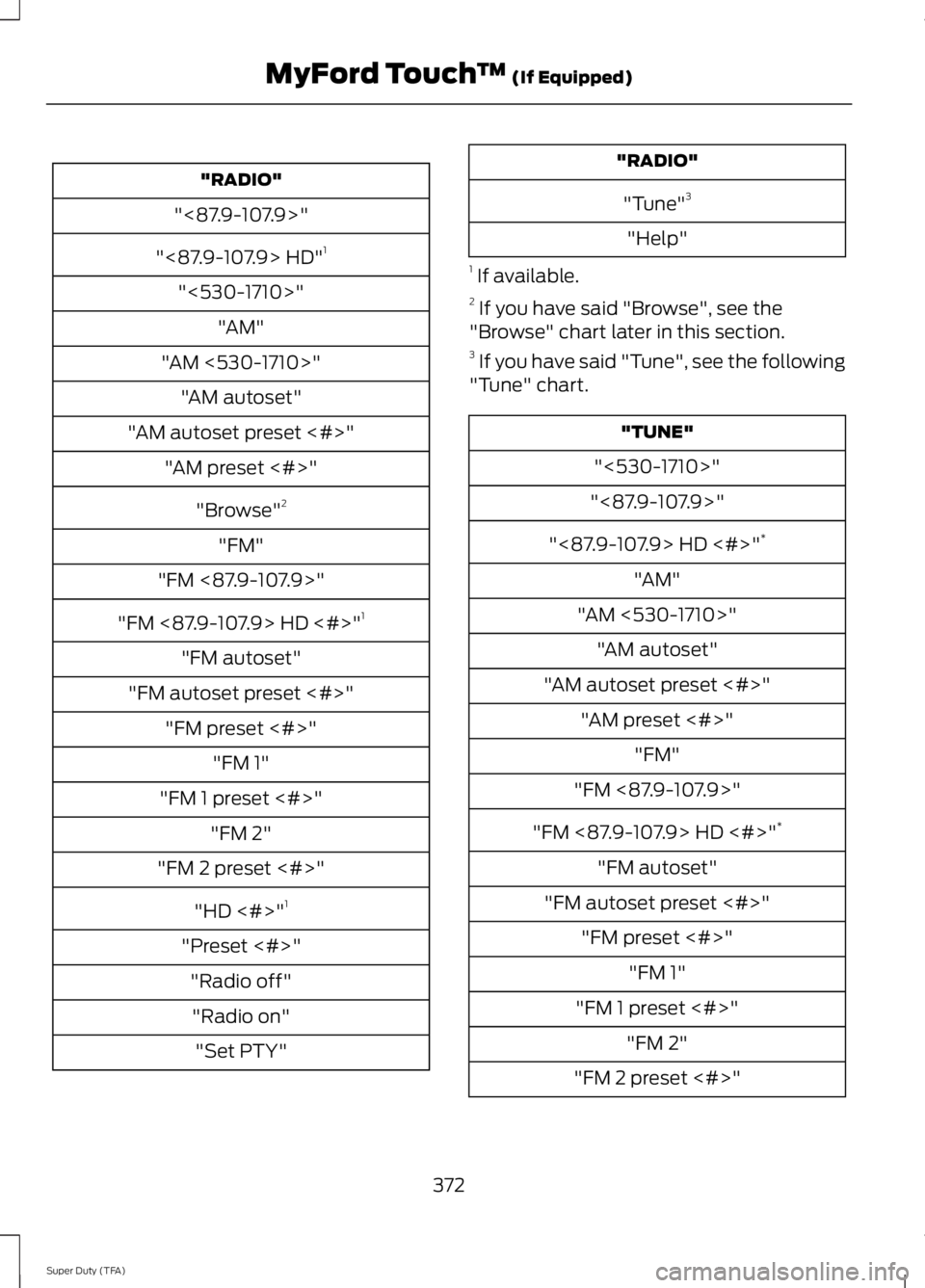
"RADIO"
"<87.9-107.9>"
"<87.9-107.9> HD"1
"<530-1710>"
"AM"
"AM <530-1710>"
"AM autoset"
"AM autoset preset <#>"
"AM preset <#>"
"Browse"2
"FM"
"FM <87.9-107.9>"
"FM <87.9-107.9> HD <#>"1
"FM autoset"
"FM autoset preset <#>"
"FM preset <#>"
"FM 1"
"FM 1 preset <#>"
"FM 2"
"FM 2 preset <#>"
"HD <#>"1
"Preset <#>"
"Radio off"
"Radio on"
"Set PTY"
"RADIO"
"Tune"3
"Help"
1 If available.2 If you have said "Browse", see the"Browse" chart later in this section.3 If you have said "Tune", see the following"Tune" chart.
"TUNE"
"<530-1710>"
"<87.9-107.9>"
"<87.9-107.9> HD <#>"*
"AM"
"AM <530-1710>"
"AM autoset"
"AM autoset preset <#>"
"AM preset <#>"
"FM"
"FM <87.9-107.9>"
"FM <87.9-107.9> HD <#>"*
"FM autoset"
"FM autoset preset <#>"
"FM preset <#>"
"FM 1"
"FM 1 preset <#>"
"FM 2"
"FM 2 preset <#>"
372
Super Duty (TFA)
MyFord Touch™ (If Equipped)
Page 376 of 460
"TUNE"
"HD <#>"*
"Preset <#>"
"Help"
* If available.
SIRIUS® Satellite Radio (IfActivated)
Press the lower left corner of thetouchscreen, and then select theSIRIUS tab.
Memory Presets
Save a channel by pressing and holdingone of the memory preset areas. There isa brief mute while the radio saves thechannel. Sound returns when finished.
ALERT
Save the current song, artist, or team as afavorite. The system alerts you when itplays again on any channel.
Replay
Replay audio on the current channel. Youcan replay approximately 45 minutes ofaudio as long as you have remained tunedto the current station. Changing stationserases the previous audio.
While in replay mode:
•Press and release the seek buttons tohear the previous or next song.
•Press and hold the seek buttons toreverse or fast forward in the currenttrack.
•Press play or pause to play or pausethe audio.
•Press Replay to return to live audio ifyou have been using the feature toreplay audio.
Scan
Touch this button to hear a brief samplingof channels.
Options
Touch this button to view and adjustvarious media settings.
Sound Settings
Touch this button to adjust settings for:
•Bass
•Midrange
•Treble
•Balance and Fade
•DSP (Digital Signal processing)
•Occupancy Mode
•Speed Compensated Volume.
Note:Your vehicle may not have all thesesound settings.
Set Category for Seek/Scan
This allows you to select a category ofmusic you would like to search for. You canthen choose to either seek or scan for thestations playing that category.
Parental Lockout
This allows you to lock and unlockchannels, change or reset your PIN orunlock all channels. To use this feature,you need your initial PIN, which is 1234.
Artist/Title/Team Alerts
This feature allows you to select Artists,Titles and Teams that you would like thesystem to alert you to when they areplaying on other channels. Press Edit Alertsto delete or turn off alerts. You can alsoset all alerts to on or off. When an alertappears on the screen, you can choose to
373
Super Duty (TFA)
MyFord Touch™ (If Equipped)E142611