CD player FORD F250 SUPER DUTY 2014 Owners Manual
[x] Cancel search | Manufacturer: FORD, Model Year: 2014, Model line: F250 SUPER DUTY, Model: FORD F250 SUPER DUTY 2014Pages: 460, PDF Size: 6.55 MB
Page 7 of 460
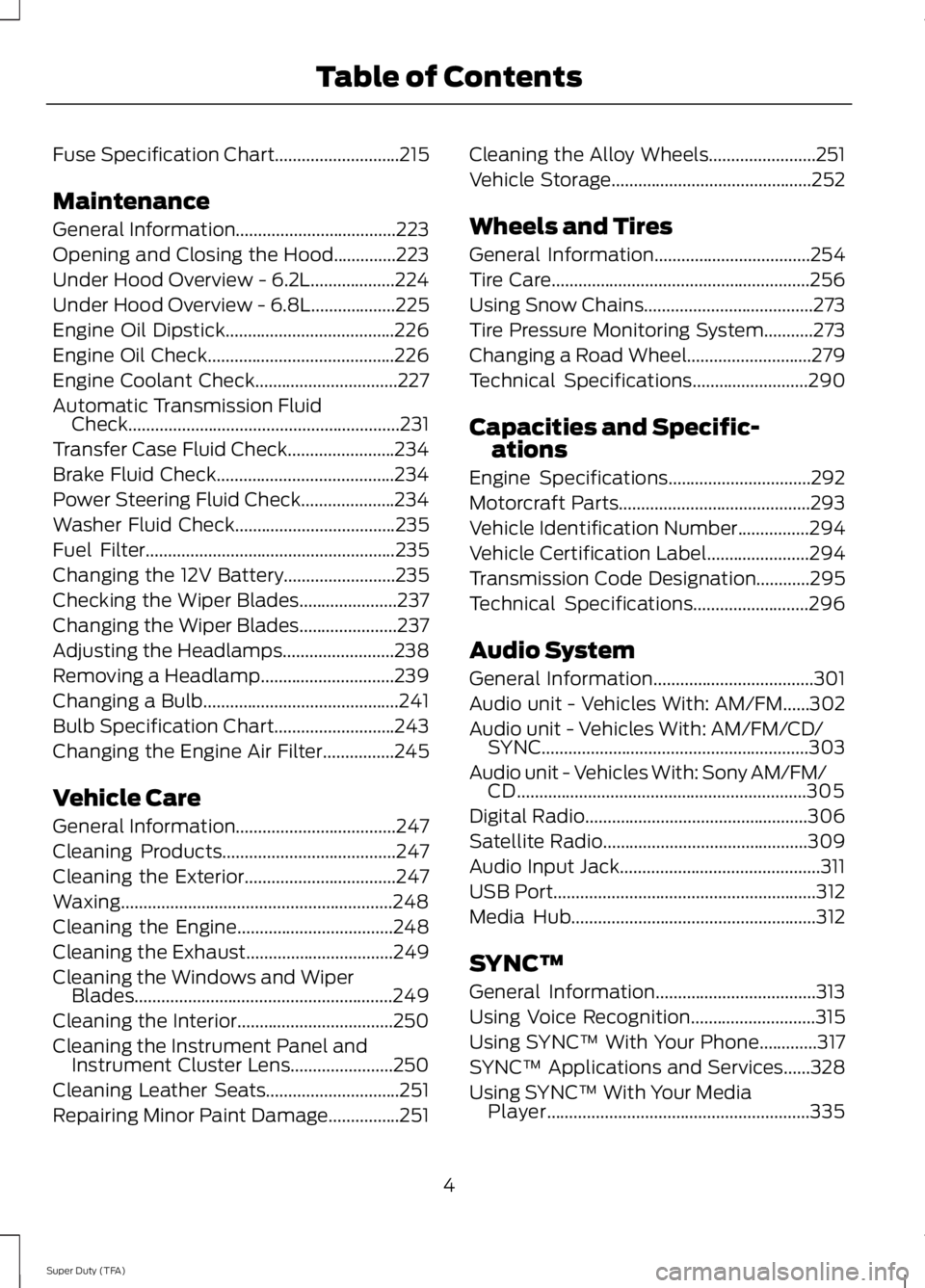
Fuse Specification Chart............................215
Maintenance
General Information....................................223
Opening and Closing the Hood..............223
Under Hood Overview - 6.2L...................224
Under Hood Overview - 6.8L...................225
Engine Oil Dipstick......................................226
Engine Oil Check..........................................226
Engine Coolant Check................................227
Automatic Transmission FluidCheck.............................................................231
Transfer Case Fluid Check........................234
Brake Fluid Check........................................234
Power Steering Fluid Check.....................234
Washer Fluid Check....................................235
Fuel Filter........................................................235
Changing the 12V Battery.........................235
Checking the Wiper Blades......................237
Changing the Wiper Blades......................237
Adjusting the Headlamps.........................238
Removing a Headlamp..............................239
Changing a Bulb............................................241
Bulb Specification Chart...........................243
Changing the Engine Air Filter................245
Vehicle Care
General Information....................................247
Cleaning Products.......................................247
Cleaning the Exterior..................................247
Waxing.............................................................248
Cleaning the Engine...................................248
Cleaning the Exhaust.................................249
Cleaning the Windows and WiperBlades..........................................................249
Cleaning the Interior...................................250
Cleaning the Instrument Panel andInstrument Cluster Lens.......................250
Cleaning Leather Seats..............................251
Repairing Minor Paint Damage................251
Cleaning the Alloy Wheels........................251
Vehicle Storage.............................................252
Wheels and Tires
General Information...................................254
Tire Care..........................................................256
Using Snow Chains......................................273
Tire Pressure Monitoring System...........273
Changing a Road Wheel............................279
Technical Specifications..........................290
Capacities and Specific-ations
Engine Specifications................................292
Motorcraft Parts...........................................293
Vehicle Identification Number................294
Vehicle Certification Label.......................294
Transmission Code Designation............295
Technical Specifications..........................296
Audio System
General Information....................................301
Audio unit - Vehicles With: AM/FM......302
Audio unit - Vehicles With: AM/FM/CD/SYNC............................................................303
Audio unit - Vehicles With: Sony AM/FM/CD.................................................................305
Digital Radio..................................................306
Satellite Radio..............................................309
Audio Input Jack.............................................311
USB Port...........................................................312
Media Hub.......................................................312
SYNC™
General Information....................................313
Using Voice Recognition............................315
Using SYNC™ With Your Phone.............317
SYNC™ Applications and Services......328
Using SYNC™ With Your MediaPlayer...........................................................335
4
Super Duty (TFA)
Table of Contents
Page 304 of 460
GENERAL INFORMATION
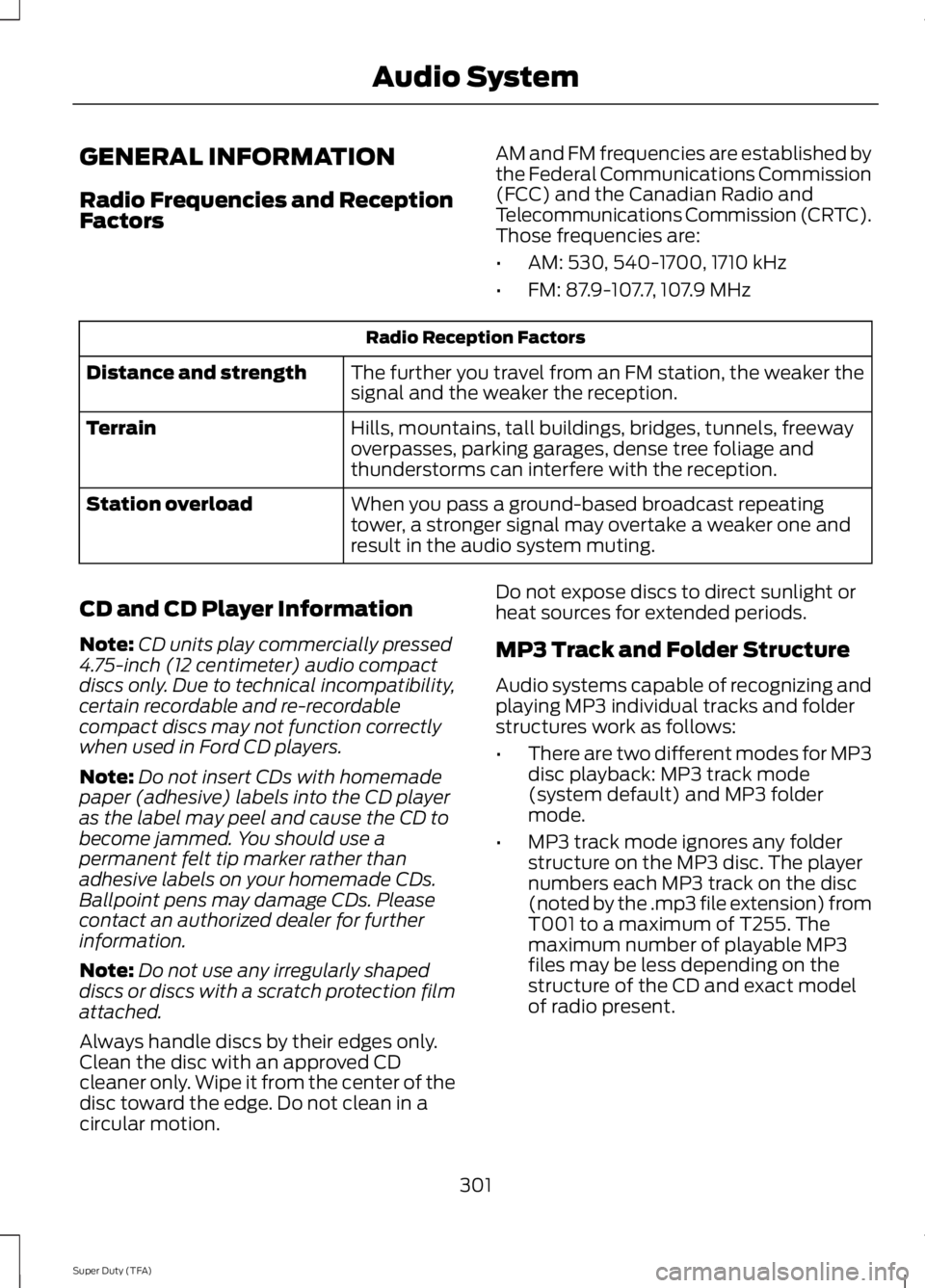
Radio Frequencies and ReceptionFactors
AM and FM frequencies are established bythe Federal Communications Commission(FCC) and the Canadian Radio andTelecommunications Commission (CRTC).Those frequencies are:
•AM: 530, 540-1700, 1710 kHz
•FM: 87.9-107.7, 107.9 MHz
Radio Reception Factors
The further you travel from an FM station, the weaker thesignal and the weaker the reception.Distance and strength
Hills, mountains, tall buildings, bridges, tunnels, freewayoverpasses, parking garages, dense tree foliage andthunderstorms can interfere with the reception.
Terrain
When you pass a ground-based broadcast repeatingtower, a stronger signal may overtake a weaker one andresult in the audio system muting.
Station overload
CD and CD Player Information
Note:CD units play commercially pressed4.75-inch (12 centimeter) audio compactdiscs only. Due to technical incompatibility,certain recordable and re-recordablecompact discs may not function correctlywhen used in Ford CD players.
Note:Do not insert CDs with homemadepaper (adhesive) labels into the CD playeras the label may peel and cause the CD tobecome jammed. You should use apermanent felt tip marker rather thanadhesive labels on your homemade CDs.Ballpoint pens may damage CDs. Pleasecontact an authorized dealer for furtherinformation.
Note:Do not use any irregularly shapeddiscs or discs with a scratch protection filmattached.
Always handle discs by their edges only.Clean the disc with an approved CDcleaner only. Wipe it from the center of thedisc toward the edge. Do not clean in acircular motion.
Do not expose discs to direct sunlight orheat sources for extended periods.
MP3 Track and Folder Structure
Audio systems capable of recognizing andplaying MP3 individual tracks and folderstructures work as follows:
•There are two different modes for MP3disc playback: MP3 track mode(system default) and MP3 foldermode.
•MP3 track mode ignores any folderstructure on the MP3 disc. The playernumbers each MP3 track on the disc(noted by the .mp3 file extension) fromT001 to a maximum of T255. Themaximum number of playable MP3files may be less depending on thestructure of the CD and exact modelof radio present.
301
Super Duty (TFA)
Audio System
Page 305 of 460
•MP3 folder mode represents a folderstructure consisting of one level offolders. The CD player numbers all MP3tracks on the disc (noted by the .mp3file extension) and all folderscontaining MP3 files, from F001(folder) T001 (track) to F253 T255.
•Creating discs with only one level offolders helps with navigation throughthe disc files.
If you are burning your own MP3 discs, it isimportant to understand how the systemreads the structures you create. Whilevarious files may be present, (files withextensions other than mp3), only files withthe .mp3 extension are played; other filesare ignored by the system. This enablesyou to use the same MP3 disc for a varietyof tasks on your work computer, homecomputer and your in-vehicle system.
In track mode, the system displays andplays the structure as if it were only onelevel deep (all .mp3 files play, regardlessof being in a specific folder). In foldermode, the system only plays the .mp3 filesin the current folder.
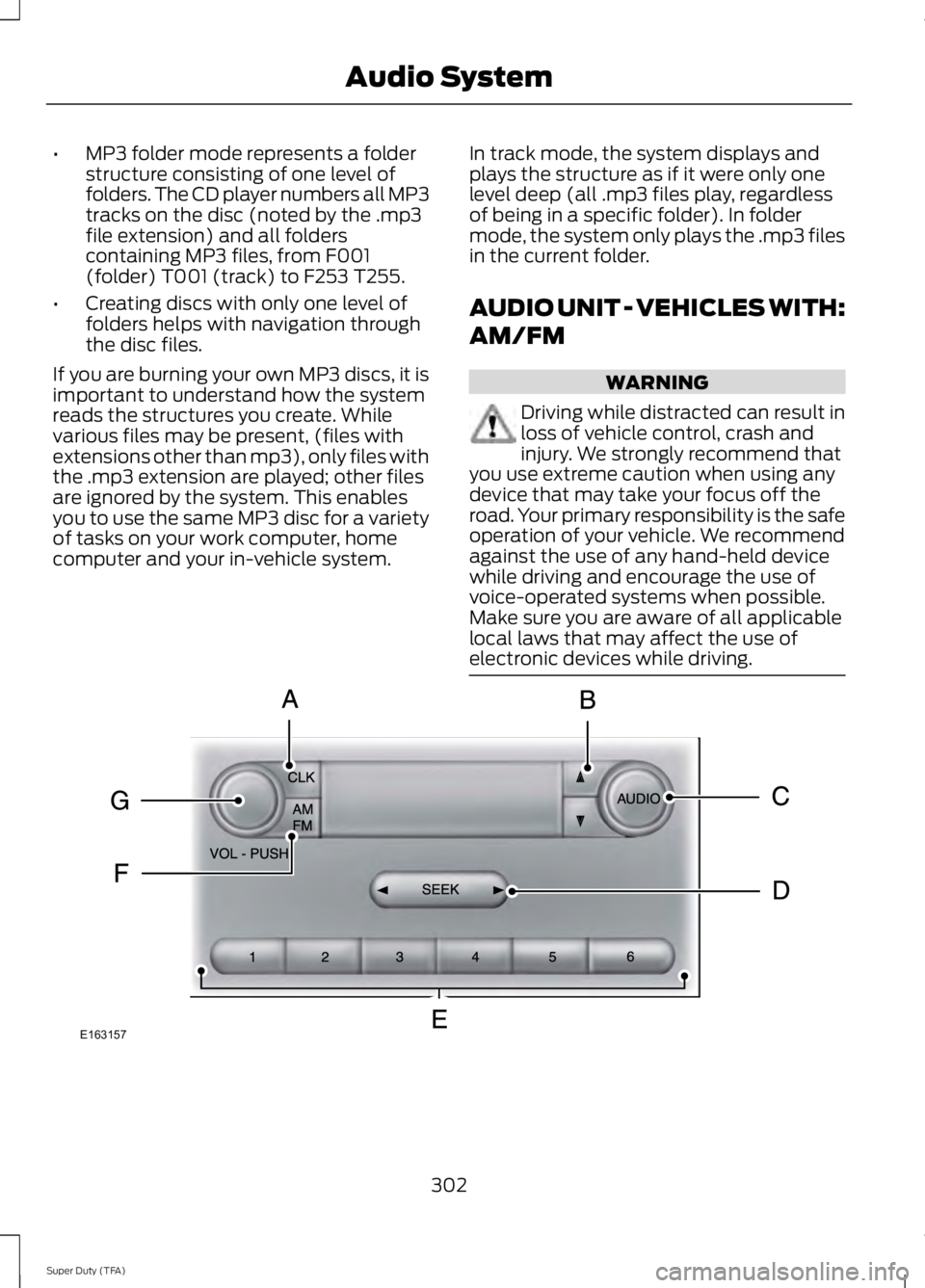
AUDIO UNIT - VEHICLES WITH:
AM/FM
WARNING
Driving while distracted can result inloss of vehicle control, crash andinjury. We strongly recommend thatyou use extreme caution when using anydevice that may take your focus off theroad. Your primary responsibility is the safeoperation of your vehicle. We recommendagainst the use of any hand-held devicewhile driving and encourage the use ofvoice-operated systems when possible.Make sure you are aware of all applicablelocal laws that may affect the use ofelectronic devices while driving.
302
Super Duty (TFA)
Audio SystemE163157
Page 313 of 460
SIRIUS satellite radio is asubscription-based satellite radio servicethat broadcasts a variety of music, sports,news, weather, traffic and entertainmentprogramming. Your factory-installedSIRIUS satellite radio system includeshardware and a limited subscription term,which begins on the date of sale or leaseof your vehicle. See an authorized dealerfor availability.
For more information on extendedsubscription terms (a service fee isrequired), the online media player and acomplete list of SIRIUS satellite radiochannels, and other features, please visitwww.siriusxm.com in the United States,www.sirius.ca in Canada, or call SIRIUS at1-888-539-7474.
Satellite Radio Electronic SerialNumber (ESN)
You need your ESN to activate, modify ortrack your satellite radio account. When insatellite radio mode, press Options.
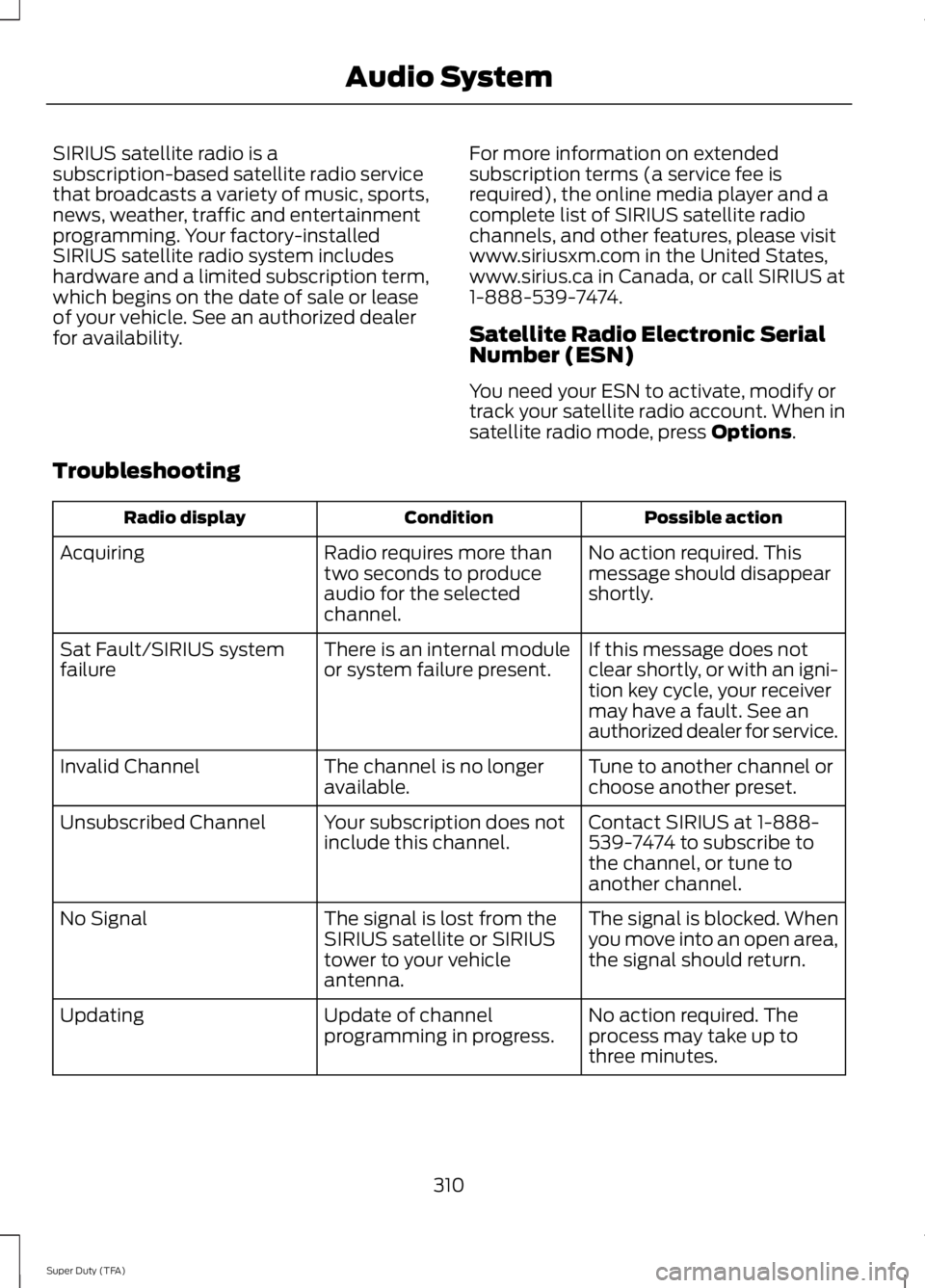
Troubleshooting
Possible actionConditionRadio display
No action required. Thismessage should disappearshortly.
Radio requires more thantwo seconds to produceaudio for the selectedchannel.
Acquiring
If this message does notclear shortly, or with an igni-tion key cycle, your receivermay have a fault. See anauthorized dealer for service.
There is an internal moduleor system failure present.Sat Fault/SIRIUS systemfailure
Tune to another channel orchoose another preset.The channel is no longeravailable.Invalid Channel
Contact SIRIUS at 1-888-539-7474 to subscribe tothe channel, or tune toanother channel.
Your subscription does notinclude this channel.Unsubscribed Channel
The signal is blocked. Whenyou move into an open area,the signal should return.
The signal is lost from theSIRIUS satellite or SIRIUStower to your vehicleantenna.
No Signal
No action required. Theprocess may take up tothree minutes.
Update of channelprogramming in progress.Updating
310
Super Duty (TFA)
Audio System
Page 314 of 460
Possible actionConditionRadio display
Contact SIRIUS at 1-888-539-7474 to resolvesubscription issues.
Your satellite service is nolonger available.Call SIRIUS 1-888-539-7474
Use the channel guide toturn off the Lock or Skipfunction on that station.
All the channels in theselected category are eitherskipped or locked.
None found. Check ChannelGuide.
No action required.SIRIUS has updated thechannels available for yourvehicle.
Subscription Updated
AUDIO INPUT JACK
WARNINGS
Driving while distracted can result inloss of vehicle control, crash andinjury. We strongly recommend thatyou use extreme caution when using anydevice that may take your focus off theroad. Your primary responsibility is the safeoperation of your vehicle. We recommendagainst the use of any hand-held devicewhile driving and encourage the use ofvoice-operated systems when possible.Make sure you are aware of all applicablelocal laws that may affect the use ofelectronic devices while driving.
For safety reasons, do not connector adjust the settings on yourportable music player while yourvehicle is moving.
Store the portable music player in asecure location, such as the centerconsole or the glove box, when yourvehicle is moving. Hard objects maybecome projectiles in a collision or suddenstop, which may increase the risk of seriousinjury. The audio extension cable must belong enough to allow the portable musicplayer to be safely stored while yourvehicle is moving.
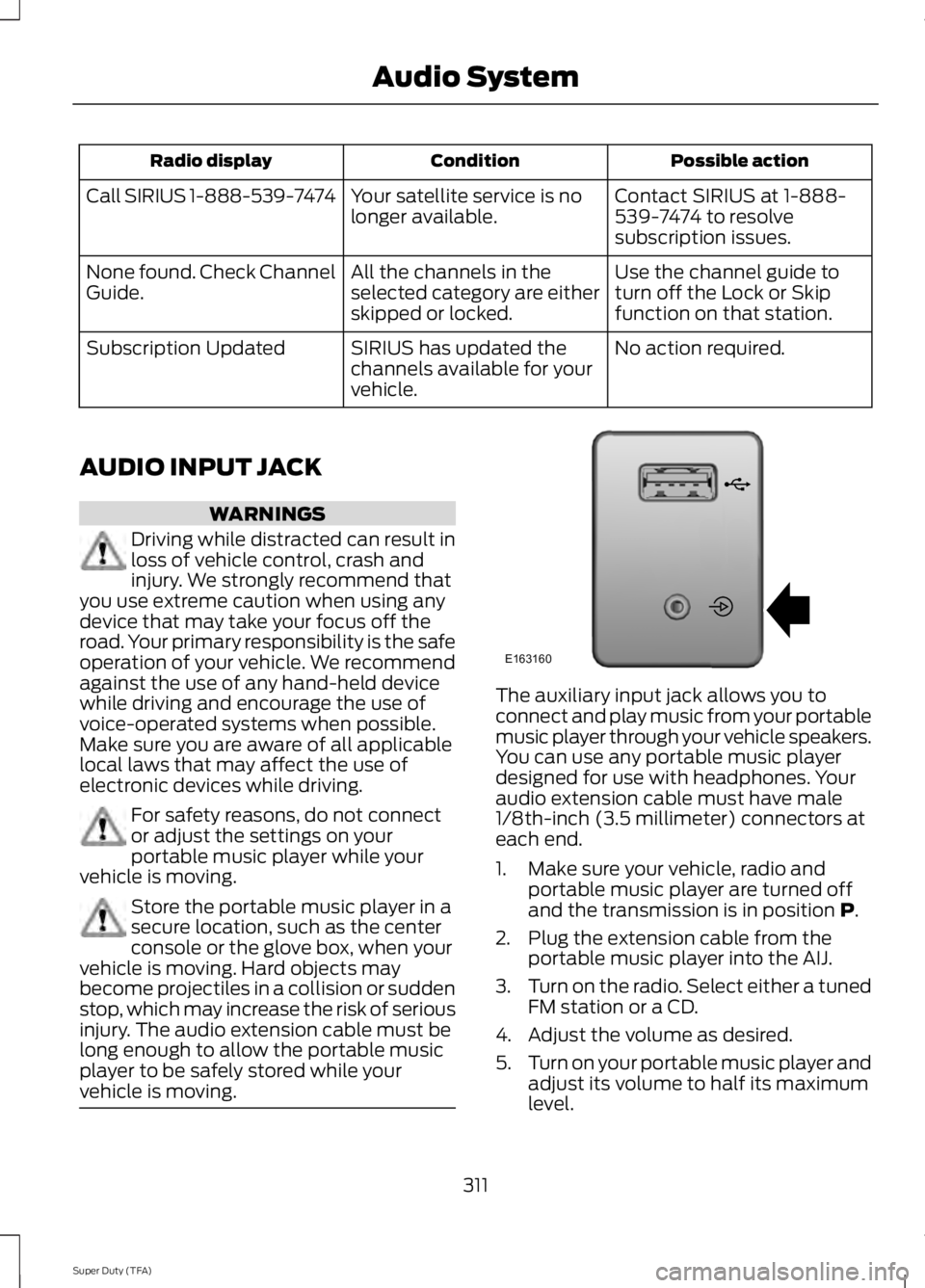
The auxiliary input jack allows you toconnect and play music from your portablemusic player through your vehicle speakers.You can use any portable music playerdesigned for use with headphones. Youraudio extension cable must have male1/8th-inch (3.5 millimeter) connectors ateach end.
1. Make sure your vehicle, radio andportable music player are turned offand the transmission is in position P.
2. Plug the extension cable from theportable music player into the AIJ.
3.Turn on the radio. Select either a tunedFM station or a CD.
4. Adjust the volume as desired.
5.Turn on your portable music player andadjust its volume to half its maximumlevel.
311
Super Duty (TFA)
Audio SystemE163160
Page 315 of 460
6. Press AUX until LINE or LINE INappears in the display. You should hearmusic from your device even if it is low.
7. Adjust the volume on your portablemusic player until it reaches the volumelevel of the FM station or CD. Do thisby switching back and forth betweenthe AUX and FM or CD controls.
USB PORT (IF EQUIPPED)
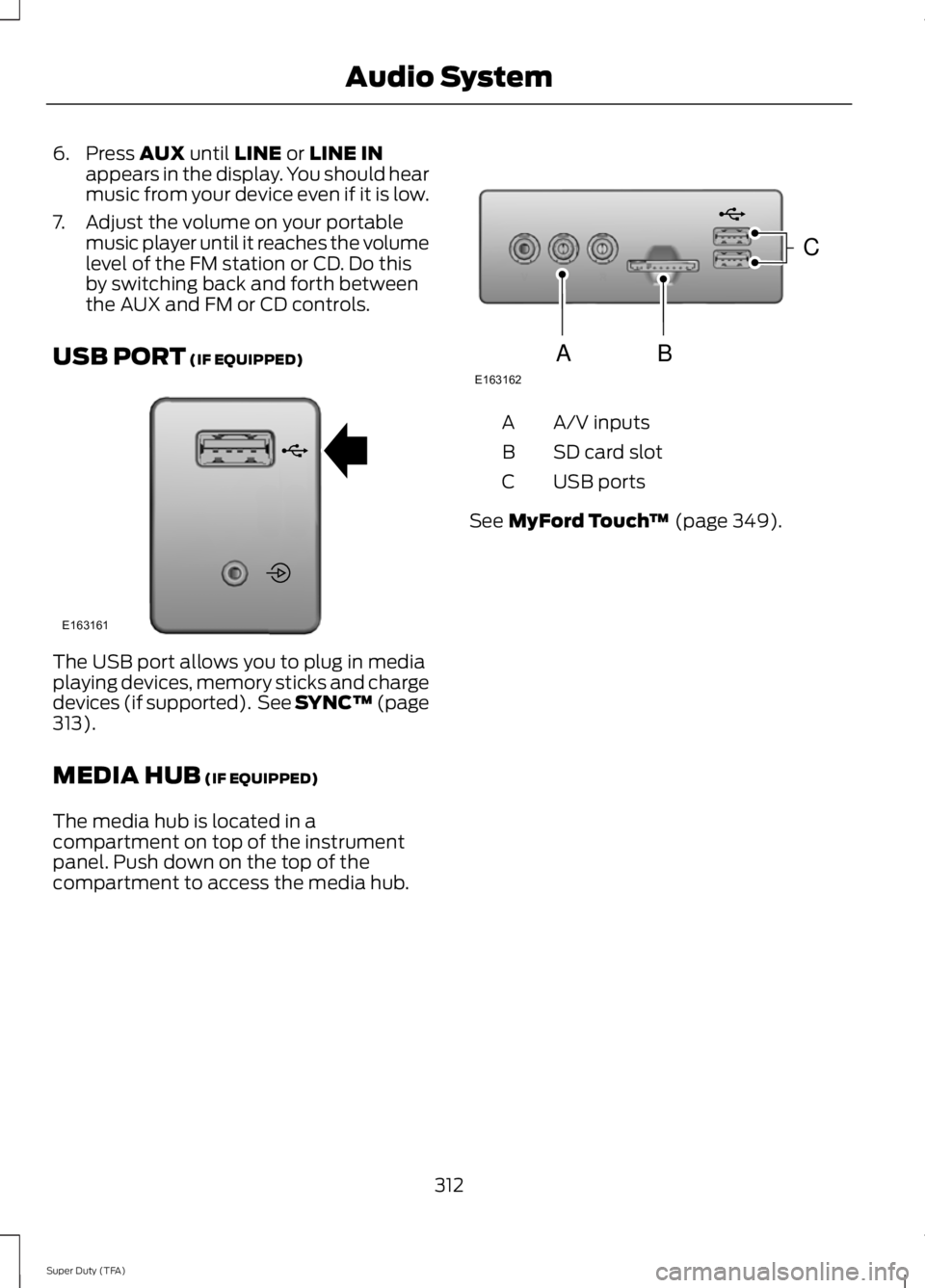
The USB port allows you to plug in mediaplaying devices, memory sticks and chargedevices (if supported). See SYNC™ (page313).
MEDIA HUB (IF EQUIPPED)
The media hub is located in acompartment on top of the instrumentpanel. Push down on the top of thecompartment to access the media hub.
A/V inputsA
SD card slotB
USB portsC
See MyFord Touch™ (page 349).
312
Super Duty (TFA)
Audio SystemE163161 E163162
C
BA
Page 316 of 460
GENERAL INFORMATION
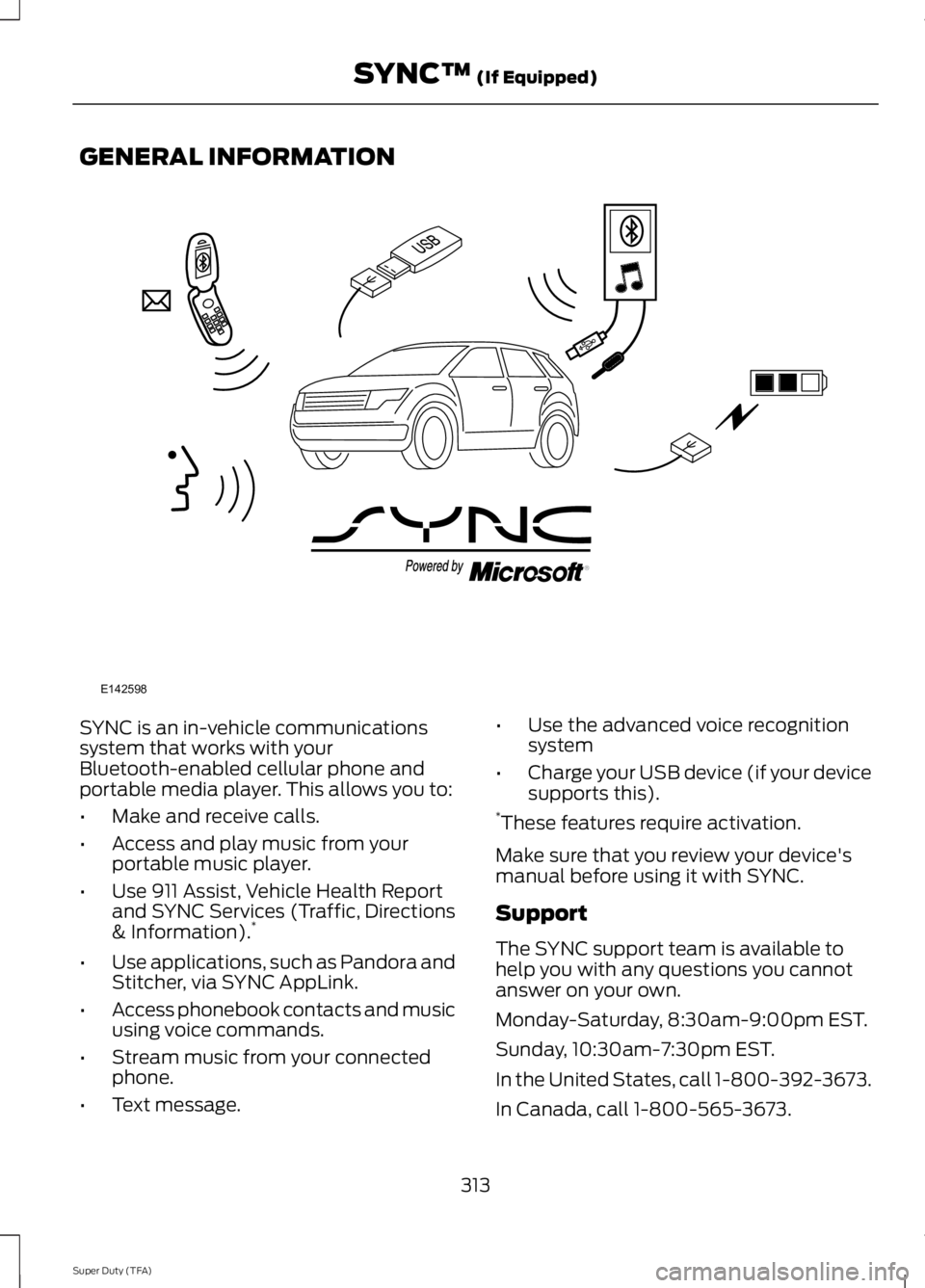
SYNC is an in-vehicle communicationssystem that works with yourBluetooth-enabled cellular phone andportable media player. This allows you to:
•Make and receive calls.
•Access and play music from yourportable music player.
•Use 911 Assist, Vehicle Health Reportand SYNC Services (Traffic, Directions& Information).*
•Use applications, such as Pandora andStitcher, via SYNC AppLink.
•Access phonebook contacts and musicusing voice commands.
•Stream music from your connectedphone.
•Text message.
•Use the advanced voice recognitionsystem
•Charge your USB device (if your devicesupports this).*These features require activation.
Make sure that you review your device'smanual before using it with SYNC.
Support
The SYNC support team is available tohelp you with any questions you cannotanswer on your own.
Monday-Saturday, 8:30am-9:00pm EST.
Sunday, 10:30am-7:30pm EST.
In the United States, call 1-800-392-3673.
In Canada, call 1-800-565-3673.
313
Super Duty (TFA)
SYNC™ (If Equipped)E142598
Page 317 of 460
Times are subject to change due toholidays.
SYNC Owner Account
Why do I need a SYNC owner account?
•Required to activate Vehicle HealthReport and to view the reports online.
•Required to activate thesubscription-based SYNC Services andto personalize your Saved Points andFavorites.
•Essential for keeping up with the latestsoftware downloads available forSYNC.
•Access to customer support for anyquestions you may have.
Driving Restrictions
For your safety, certain features arespeed-dependent and restricted when yourvehicle is traveling over 3 mph (5 km/h).
Safety Information
WARNING
Driving while distracted can result inloss of vehicle control, crash andinjury. We strongly recommend thatyou use extreme caution when using anydevice that may take your focus off theroad. Your primary responsibility is the safeoperation of your vehicle. We recommendagainst the use of any hand-held devicewhile driving and encourage the use ofvoice-operated systems when possible.Make sure you are aware of all applicablelocal laws that may affect the use ofelectronic devices while driving.
When using SYNC:
•Do not operate playing devices if thepower cords or cables are broken, splitor damaged. Place cords and cablesout of the way, so they do not interferewith the operation of pedals, seats,compartments or safe driving abilities.
•Do not leave playing devices in yourvehicle during extreme conditions as itcould cause them damage. See yourdevice's manual for further information.
•Do not attempt to service or repair thesystem. See an authorized dealer.
Privacy Information
When a cellular phone is connected toSYNC, the system creates a profile withinyour vehicle that is linked to that cellularphone. This profile is created in order tooffer you more cellular features and tooperate more efficiently. Among otherthings, this profile may contain data aboutyour cellular phone book, text messages(read and unread), and call history,including history of calls when your cellularphone was not connected to the system.In addition, if you connect a media device,the system creates and retains an index ofsupported media content. The system alsorecords a short development log ofapproximately 10 minutes of all recentsystem activity. The log profile and othersystem data may be used to improve thesystem and help diagnose any problemsthat may occur.
The cellular profile, media device index,and development log will remain in thevehicle unless you delete them and aregenerally accessible only in the vehiclewhen the cellular phone or media playeris connected. If you no longer plan to usethe system or the vehicle, we recommendyou perform a Master Reset to erase allstored information.
314
Super Duty (TFA)
SYNC™ (If Equipped)
Page 338 of 460
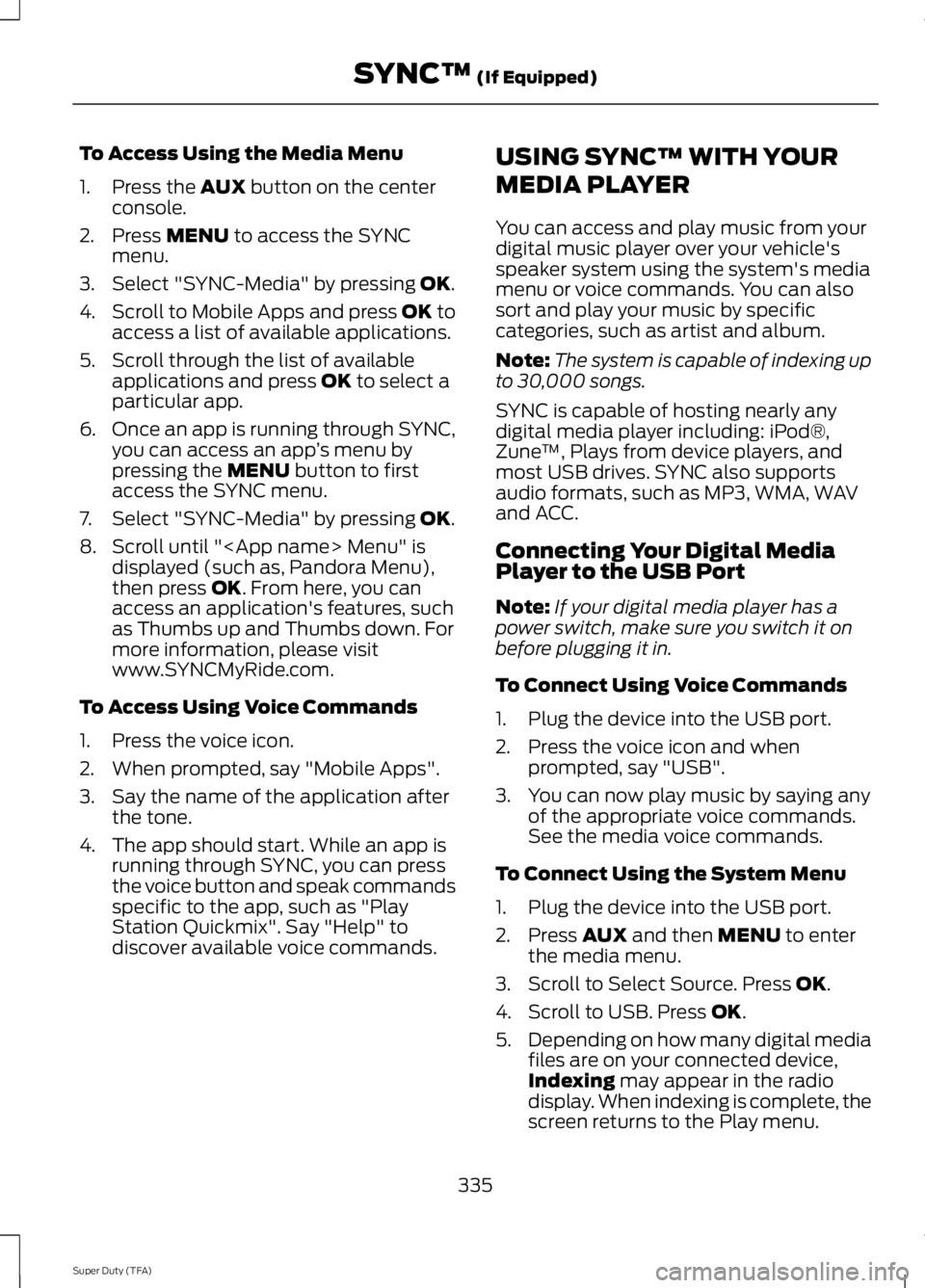
To Access Using the Media Menu
1. Press the AUX button on the centerconsole.
2. Press MENU to access the SYNCmenu.
3. Select "SYNC-Media" by pressing OK.
4.Scroll to Mobile Apps and press OK toaccess a list of available applications.
5. Scroll through the list of availableapplications and press OK to select aparticular app.
6.Once an app is running through SYNC,you can access an app’s menu bypressing the MENU button to firstaccess the SYNC menu.
7. Select "SYNC-Media" by pressing OK.
8. Scroll until "
To Access Using Voice Commands
1. Press the voice icon.
2. When prompted, say "Mobile Apps".
3. Say the name of the application afterthe tone.
4. The app should start. While an app isrunning through SYNC, you can pressthe voice button and speak commandsspecific to the app, such as "PlayStation Quickmix". Say "Help" todiscover available voice commands.
USING SYNC™ WITH YOUR
MEDIA PLAYER
You can access and play music from yourdigital music player over your vehicle'sspeaker system using the system's mediamenu or voice commands. You can alsosort and play your music by specificcategories, such as artist and album.
Note:The system is capable of indexing upto 30,000 songs.
SYNC is capable of hosting nearly anydigital media player including: iPod®,Zune™, Plays from device players, andmost USB drives. SYNC also supportsaudio formats, such as MP3, WMA, WAVand ACC.
Connecting Your Digital MediaPlayer to the USB Port
Note:If your digital media player has apower switch, make sure you switch it onbefore plugging it in.
To Connect Using Voice Commands
1. Plug the device into the USB port.
2. Press the voice icon and whenprompted, say "USB".
3. You can now play music by saying anyof the appropriate voice commands.See the media voice commands.
To Connect Using the System Menu
1. Plug the device into the USB port.
2. Press AUX and then MENU to enterthe media menu.
3. Scroll to Select Source. Press OK.
4. Scroll to USB. Press OK.
5.Depending on how many digital mediafiles are on your connected device,Indexing may appear in the radiodisplay. When indexing is complete, thescreen returns to the Play menu.
335
Super Duty (TFA)
SYNC™ (If Equipped)
Page 340 of 460
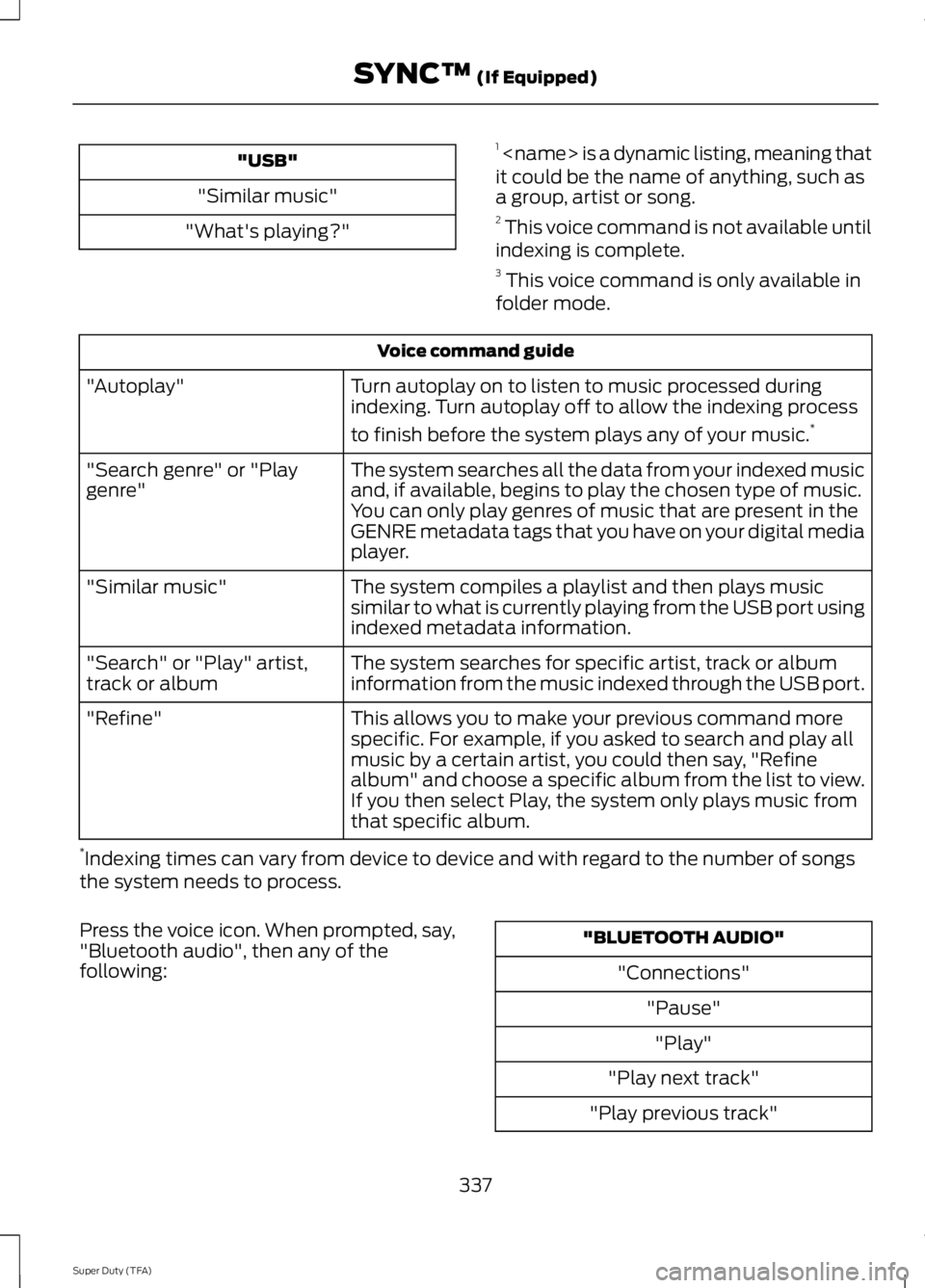
"USB"
"Similar music"
"What's playing?"
1
Voice command guide
Turn autoplay on to listen to music processed duringindexing. Turn autoplay off to allow the indexing process
to finish before the system plays any of your music.*
"Autoplay"
The system searches all the data from your indexed musicand, if available, begins to play the chosen type of music.You can only play genres of music that are present in theGENRE metadata tags that you have on your digital mediaplayer.
"Search genre" or "Playgenre"
The system compiles a playlist and then plays musicsimilar to what is currently playing from the USB port usingindexed metadata information.
"Similar music"
The system searches for specific artist, track or albuminformation from the music indexed through the USB port."Search" or "Play" artist,track or album
This allows you to make your previous command morespecific. For example, if you asked to search and play allmusic by a certain artist, you could then say, "Refinealbum" and choose a specific album from the list to view.If you then select Play, the system only plays music fromthat specific album.
"Refine"
*Indexing times can vary from device to device and with regard to the number of songsthe system needs to process.
Press the voice icon. When prompted, say,"Bluetooth audio", then any of thefollowing:
"BLUETOOTH AUDIO"
"Connections"
"Pause"
"Play"
"Play next track"
"Play previous track"
337
Super Duty (TFA)
SYNC™ (If Equipped)