audio FORD F650 2017 13.G User Guide
[x] Cancel search | Manufacturer: FORD, Model Year: 2017, Model line: F650, Model: FORD F650 2017 13.GPages: 382, PDF Size: 5.18 MB
Page 280 of 382
SATELLITE RADIO (If Equipped)
SIRIUS® broadcasts a variety of music,
news, sports, weather, traffic and
entertainment satellite radio channels. For
more information and a complete list of
SIRIUS satellite radio channels, visit www.siriusxm.com in the United States,
www.siriusxm.ca in Canada, or call SIRIUS
at 1-888-539-7474.
Note:
This receiver includes the eCos
real-time operating system. eCos is
published under the eCos License.
Satellite Radio Reception Factors Potential satellite radio reception issues
For optimal reception performance, keep the antenna
clear of snow and ice build-up and keep luggage and other
material as far away from the antenna as possible.
Antenna obstructions
Hills, mountains, tall buildings, bridges, tunnels, freeway
overpasses, parking garages, dense tree foliage and
thunderstorms can interfere with your reception.
Terrain
When you pass a ground-based broadcast-repeating
tower, a stronger signal may overtake a weaker one and
the audio system may mute.
Station overload
Your display may show ACQUIRING . . . to indicate the
interference and the audio system may mute.
Satellite radio signal interfer-
ence
SIRIUS® Satellite Radio Service
Note: SIRIUS reserves the unrestricted right
to change, rearrange, add or delete
programming including canceling, moving
or adding particular channels, and its prices,
at any time, with or without notice to you.
Ford Motor Company shall not be
responsible for any such programming
changes. SIRIUS satellite radio is a
subscription-based satellite radio service
that broadcasts a variety of music, sports,
news, weather, traffic and entertainment
programming. Your factory-installed
SIRIUS satellite radio system includes
hardware and a limited subscription term,
which begins on the date of sale or lease
of your vehicle. See an authorized dealer
for availability.
For more information on extended
subscription terms (a service fee is
required), the online media player and a
complete list of SIRIUS satellite radio
channels, and other features, please visit
www.siriusxm.com in the United States,
www.siriusxm.ca in Canada, or call SIRIUS
at 1-888-539-7474.
277
F-650/750 (TBC) , enUSA, First Printing Audio SystemE142593
Page 281 of 382
Satellite Radio Electronic Serial
Number (ESN)
You need your ESN to activate, modify or
track your satellite radio account. When in
satellite radio mode, tune to channel 0.
Troubleshooting Action
Condition
Message
No action required. This
message should disappear
shortly.
Radio requires more than
two seconds to produce
audio for the selected
channel.
Acquiring\b
If this message does not
clear shortly, or with an igni-
tion key cycle, your receiver
may have a fault. See an
authorized dealer for service.
There is an internal module
or system failure present.
Satellite antenna fault
SIRIUS system failure
Tune to another channel or
choose another preset.
The channel is no longer
available.
Invalid Channel
Contact SIRIUS at 1-888-
539-7474 to subscribe to
the channel, or tune to
another channel.
Your subscription does not
include this channel.
Unsubscribed Channel
The signal is blocked. When
you move into an open area,
the signal should return.
The signal is lost from the
SIRIUS satellite or SIRIUS
tower to your vehicle
antenna.
No Signal
No action required. The
process may take up to
three minutes.
Update of channel
programming in progress.
Updating\b
Contact SIRIUS at 1-888-
539-7474 to resolve
subscription issues.
Your satellite service is no
longer available.
Questions? Call
1-888-539-7474
Use the channel guide to
turn off the Lock or Skip
function on that station.
All the channels in the
selected category are either
skipped or locked.
None found
Check Channel Guide
No action required.
SIRIUS has updated the
channels available for your
vehicle.
Subscription Updated
278
F-650/750 (TBC) , enUSA, First Printing Audio System
Page 282 of 382
AUDIO INPUT JACK
WARNINGS
Driving while distracted can result in
loss of vehicle control, crash and
injury. We strongly recommend that
you use extreme caution when using any
device that may take your focus off the
road. Your primary responsibility is the safe
operation of your vehicle. We recommend
against the use of any hand-held device
while driving and encourage the use of
voice-operated systems when possible.
Make sure you are aware of all applicable
local laws that may affect the use of
electronic devices while driving. For safety reasons, do not connect
or adjust the settings on your
portable music player while your
vehicle is moving. Store the portable music player in a
secure location, such as the center
console or the glove box, when your
vehicle is moving. Hard objects may
become projectiles in a collision or sudden
stop, which may increase the risk of serious
injury. The audio extension cable must be
long enough to allow the portable music
player to be safely stored while your
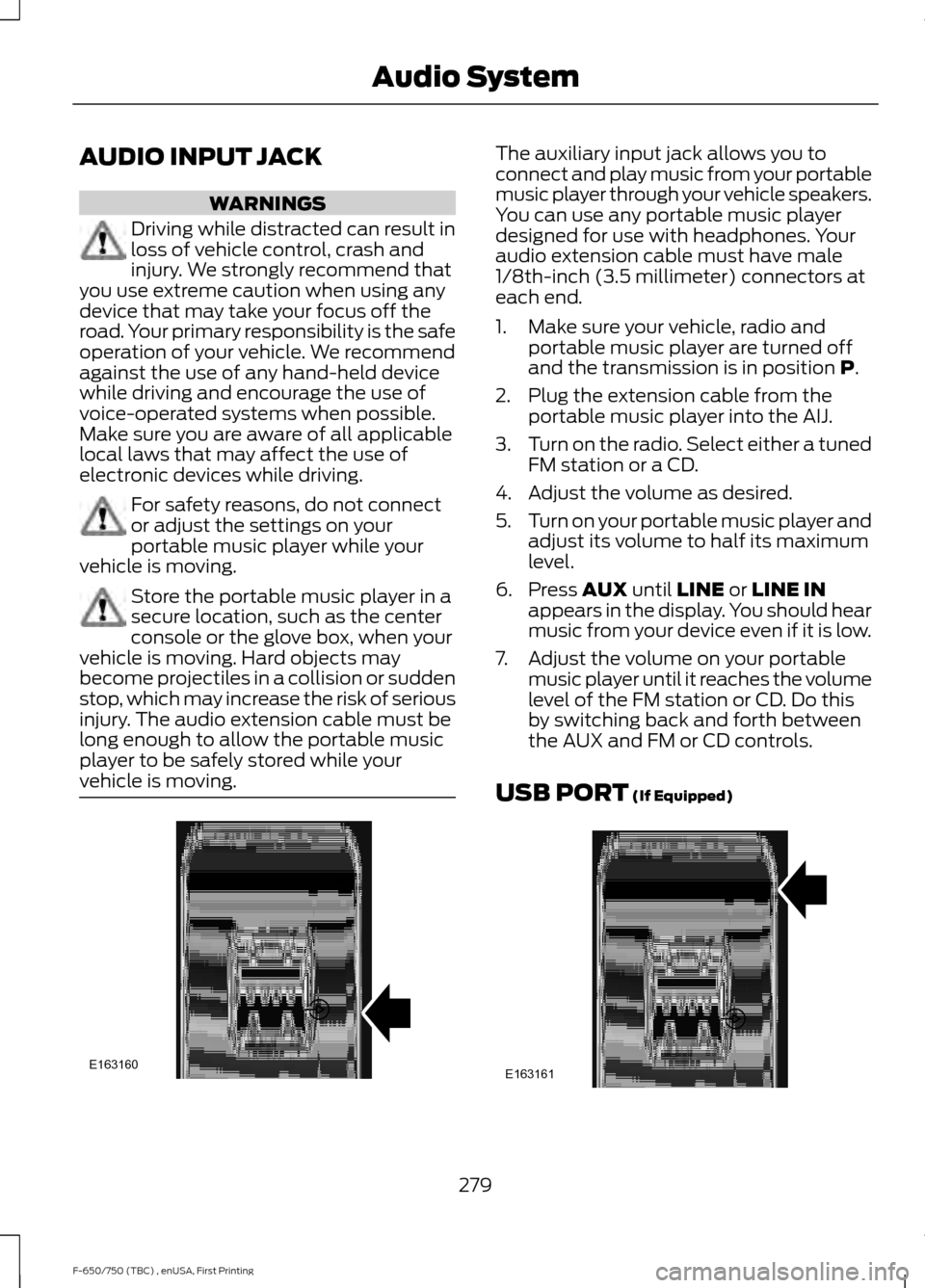
vehicle is moving. The auxiliary input jack allows you to
connect and play music from your portable
music player through your vehicle speakers.
You can use any portable music player
designed for use with headphones. Your
audio extension cable must have male
1/8th-inch (3.5 millimeter) connectors at
each end.
1. Make sure your vehicle, radio and
portable music player are turned off
and the transmission is in position P.
2. Plug the extension cable from the portable music player into the AIJ.
3. Turn on the radio. Select either a tuned
FM station or a CD.
4. Adjust the volume as desired.
5. Turn on your portable music player and
adjust its volume to half its maximum
level.
6. Press
AUX until LINE or LINE IN
appears in the display. You should hear
music from your device even if it is low.
7. Adjust the volume on your portable music player until it reaches the volume
level of the FM station or CD. Do this
by switching back and forth between
the AUX and FM or CD controls.
USB PORT
(If Equipped) 279
F-650/750 (TBC) , enUSA, First Printing Audio SystemE163160 E163161
Page 283 of 382

The USB port allows you to plug in media
playing devices, memory sticks and charge
devices (if supported). See SYNC™ (page
281).
280
F-650/750 (TBC) , enUSA, First Printing Audio System
Page 286 of 382
USING VOICE RECOGNITION
This system helps you control many
features using voice commands. This
allows you to keep your hands on the
wheel and focus on what is in front of you.
Helpful Hints
•
Make sure the interior of your vehicle is
as quiet as possible. Wind noise from
open windows and road vibrations may
prevent the system from correctly
recognizing spoken commands.
• After pressing the voice button, wait
until after the tone sounds and
Listening appears before saying a
command. Any command spoken
before this does not register with the
system. •
Speak naturally, without long pauses
between words.
• At any time, you can interrupt the
system while it is speaking by pressing
the voice button.
Initiating a Voice Session Initiate a voice session by
pressing the voice button on the
steering wheel controls. See
Steering Wheel (page 44).
When prompted you can say any of the following: If you want the system to carry out the following
Voice command
Stream audio from your phone.
Bluetooth Audio
Cancel the requested action.
Cancel
Access the device connected to the auxiliary input jack.
Line In | Aux | Audio In
Make calls.
Phone
Access the device connected to your USB port.
USB [1]
Adjust the level of voice interaction and feedback.
Voice Settings | Voice
Preferences
Hear a list of voice commands available in the current mode.
Help
You can say any of the voice commands that appear within open and close brackets that
are separated by |. For example, where (line in| Aux | Audio In) appears you say; line in,
aux or audio in.
You do not need to say words that appear within square brackets. For example, for where
USB [1] appears, you can say just USB.
283
F-650/750 (TBC) , enUSA, First Printing SYNC™
(If Equipped)E142599
Page 288 of 382
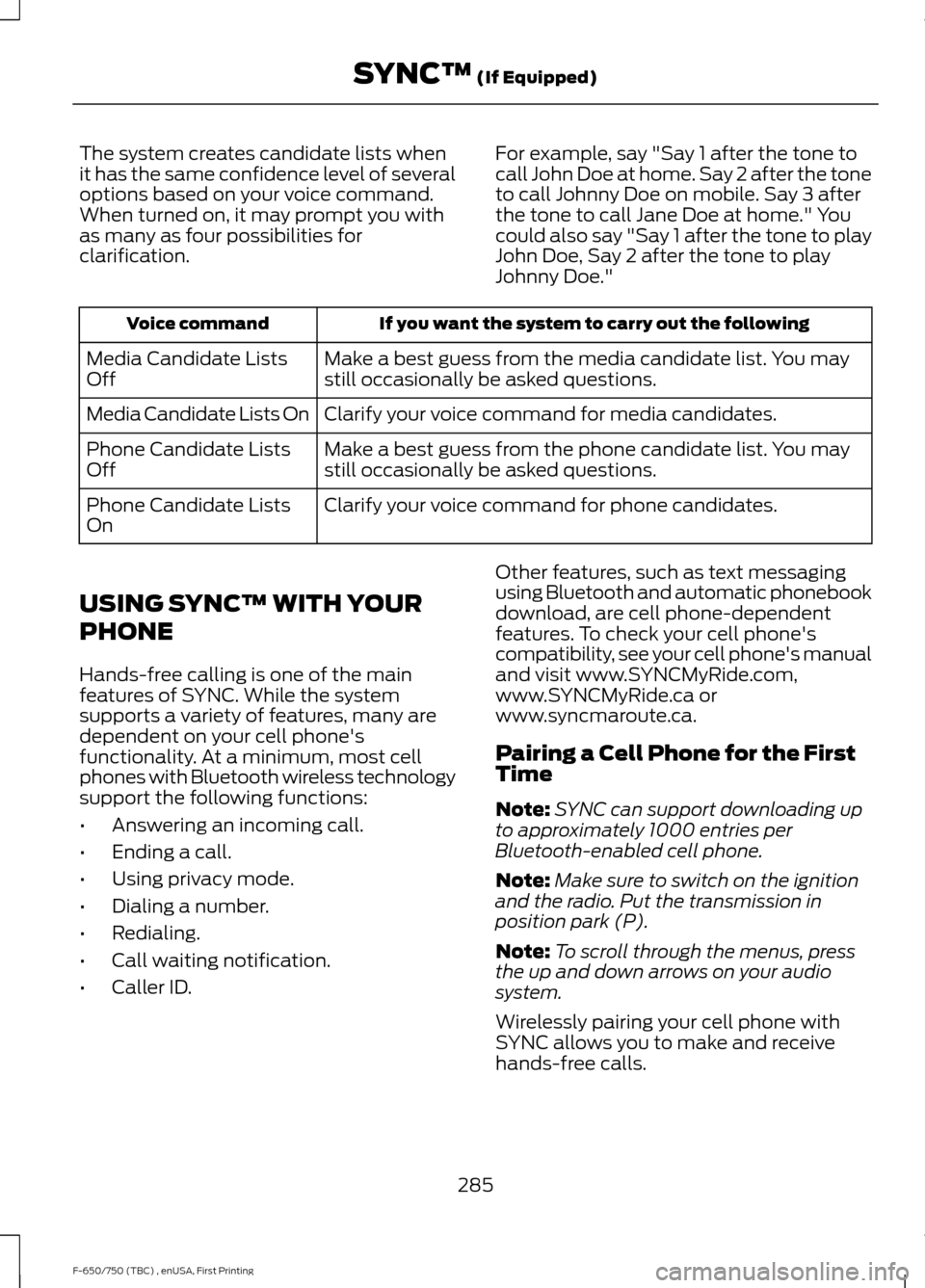
The system creates candidate lists when
it has the same confidence level of several
options based on your voice command.
When turned on, it may prompt you with
as many as four possibilities for
clarification.
For example, say "Say 1 after the tone to
call John Doe at home. Say 2 after the tone
to call Johnny Doe on mobile. Say 3 after
the tone to call Jane Doe at home." You
could also say "Say 1 after the tone to play
John Doe, Say 2 after the tone to play
Johnny Doe."If you want the system to carry out the following
Voice command
Make a best guess from the media candidate list. You may
still occasionally be asked questions.
Media Candidate Lists
Off
Clarify your voice command for media candidates.
Media Candidate Lists On
Make a best guess from the phone candidate list. You may
still occasionally be asked questions.
Phone Candidate Lists
Off
Clarify your voice command for phone candidates.
Phone Candidate Lists
On
USING SYNC™ WITH YOUR
PHONE
Hands-free calling is one of the main
features of SYNC. While the system
supports a variety of features, many are
dependent on your cell phone's
functionality. At a minimum, most cell
phones with Bluetooth wireless technology
support the following functions:
• Answering an incoming call.
• Ending a call.
• Using privacy mode.
• Dialing a number.
• Redialing.
• Call waiting notification.
• Caller ID. Other features, such as text messaging
using Bluetooth and automatic phonebook
download, are cell phone-dependent
features. To check your cell phone's
compatibility, see your cell phone's manual
and visit www.SYNCMyRide.com,
www.SYNCMyRide.ca or
www.syncmaroute.ca.
Pairing a Cell Phone for the First
Time
Note:
SYNC can support downloading up
to approximately 1000 entries per
Bluetooth-enabled cell phone.
Note: Make sure to switch on the ignition
and the radio. Put the transmission in
position park (P).
Note: To scroll through the menus, press
the up and down arrows on your audio
system.
Wirelessly pairing your cell phone with
SYNC allows you to make and receive
hands-free calls.
285
F-650/750 (TBC) , enUSA, First Printing SYNC™ (If Equipped)
Page 289 of 382
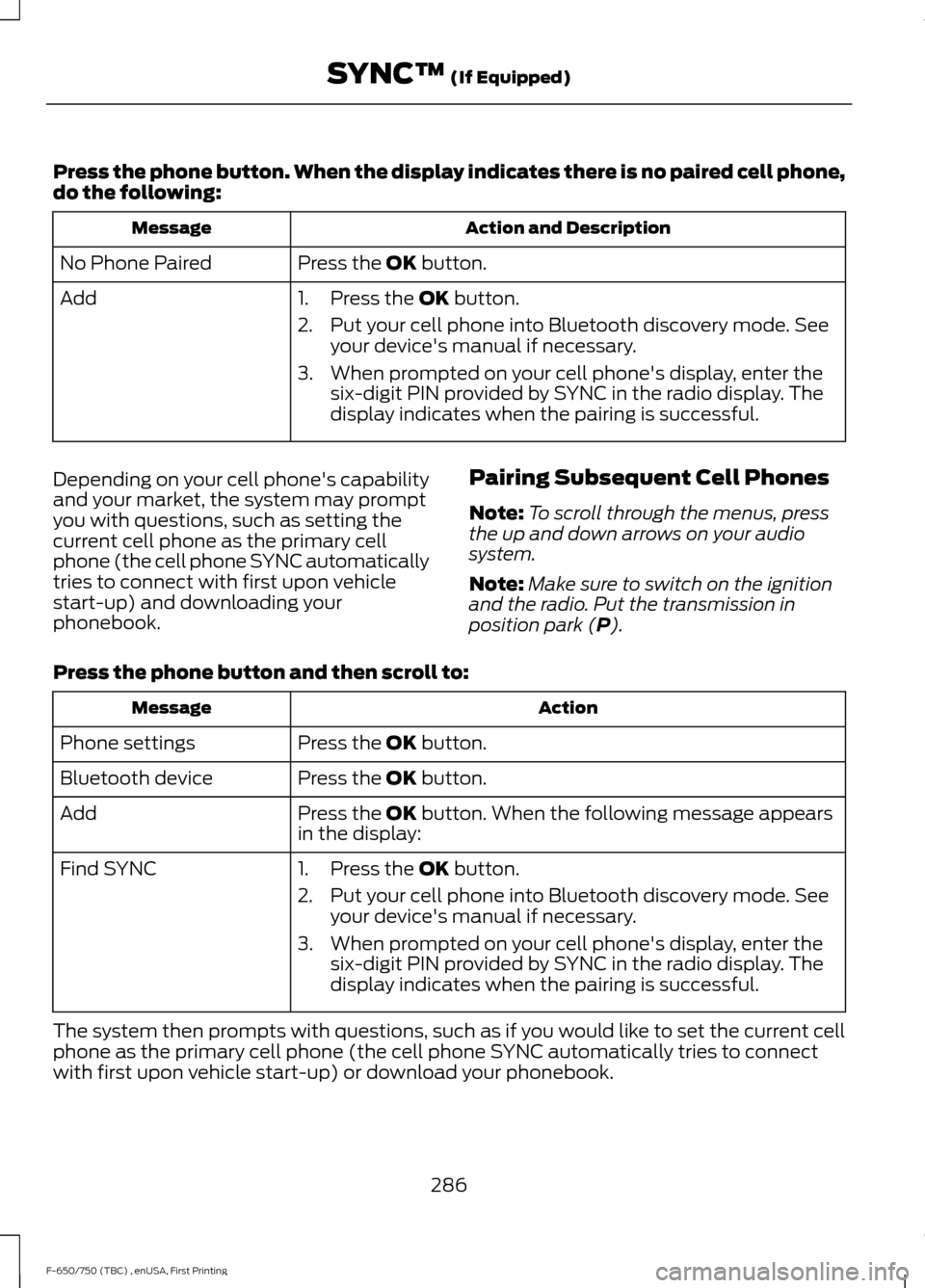
Press the phone button. When the display indicates there is no paired cell phone,
do the following:
Action and Description
Message
Press the OK button.
No Phone Paired
Add 1. Press the
OK button.
2. Put your cell phone into Bluetooth discovery mode. See your device's manual if necessary.
3. When prompted on your cell phone's display, enter the six-digit PIN provided by SYNC in the radio display. The
display indicates when the pairing is successful.
Depending on your cell phone's capability
and your market, the system may prompt
you with questions, such as setting the
current cell phone as the primary cell
phone (the cell phone SYNC automatically
tries to connect with first upon vehicle
start-up) and downloading your
phonebook. Pairing Subsequent Cell Phones
Note:
To scroll through the menus, press
the up and down arrows on your audio
system.
Note: Make sure to switch on the ignition
and the radio. Put the transmission in
position park (
P).
Press the phone button and then scroll to: Action
Message
Press the
OK button.
Phone settings
Press the
OK button.
Bluetooth device
Press the
OK button. When the following message appears
in the display:
Add
Find SYNC
1. Press the
OK button.
2. Put your cell phone into Bluetooth discovery mode. See your device's manual if necessary.
3. When prompted on your cell phone's display, enter the six-digit PIN provided by SYNC in the radio display. The
display indicates when the pairing is successful.
The system then prompts with questions, such as if you would like to set the current cell
phone as the primary cell phone (the cell phone SYNC automatically tries to connect
with first upon vehicle start-up) or download your phonebook.
286
F-650/750 (TBC) , enUSA, First Printing SYNC™
(If Equipped)
Page 300 of 382
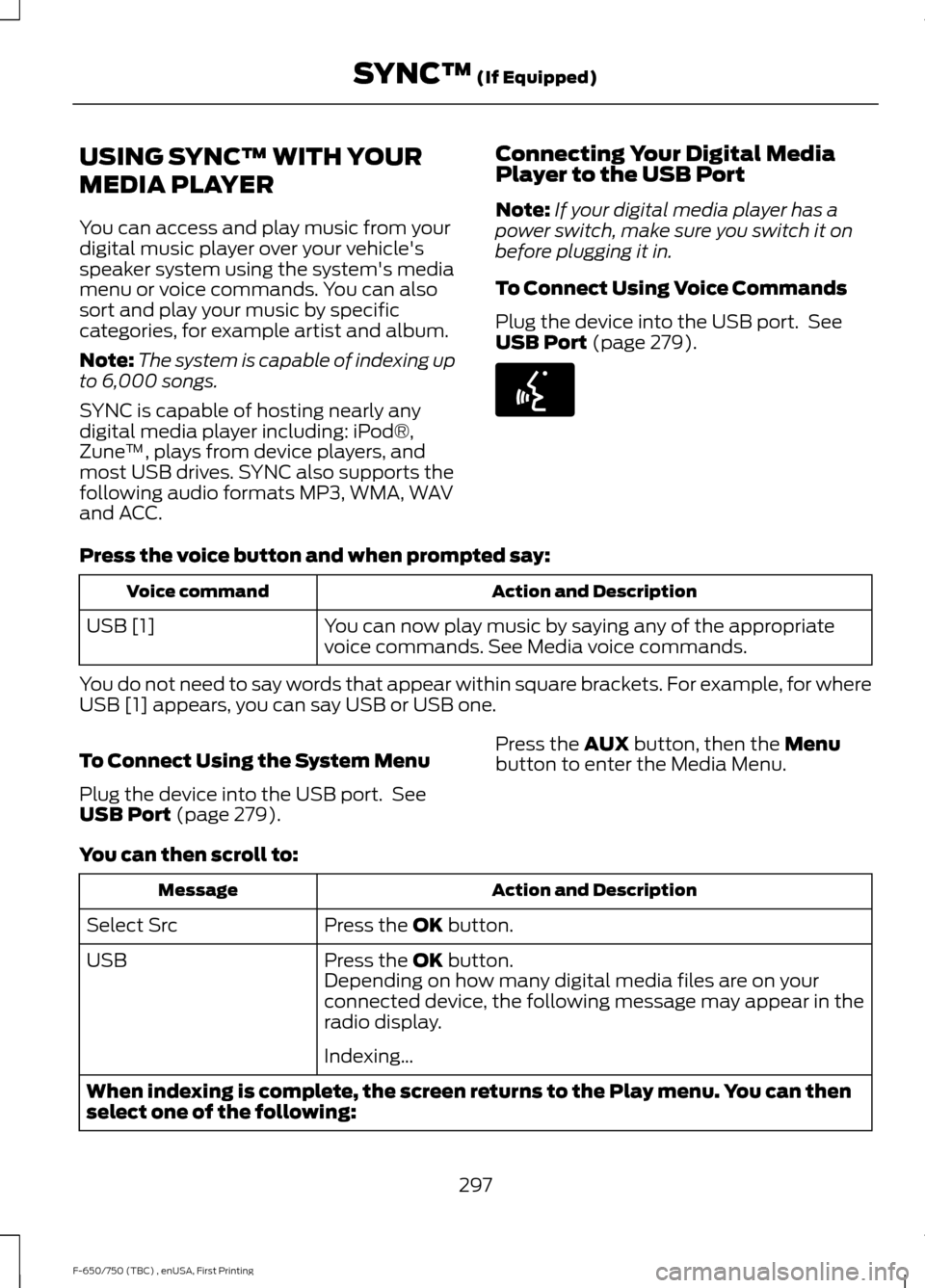
USING SYNC™ WITH YOUR
MEDIA PLAYER
You can access and play music from your
digital music player over your vehicle's
speaker system using the system's media
menu or voice commands. You can also
sort and play your music by specific
categories, for example artist and album.
Note:
The system is capable of indexing up
to 6,000 songs.
SYNC is capable of hosting nearly any
digital media player including: iPod®,
Zune ™, plays from device players, and
most USB drives. SYNC also supports the
following audio formats MP3, WMA, WAV
and ACC. Connecting Your Digital Media
Player to the USB Port
Note:
If your digital media player has a
power switch, make sure you switch it on
before plugging it in.
To Connect Using Voice Commands
Plug the device into the USB port. See
USB Port (page 279). Press the voice button and when prompted say:
Action and Description
Voice command
You can now play music by saying any of the appropriate
voice commands. See Media voice commands.
USB [1]
You do not need to say words that appear within square brackets. For example, for where
USB [1] appears, you can say USB or USB one.
To Connect Using the System Menu
Plug the device into the USB port. See
USB Port
(page 279). Press the
AUX button, then the Menu
button to enter the Media Menu.
You can then scroll to: Action and Description
Message
Press the
OK button.
Select Src
Press the
OK button.
USB
Depending on how many digital media files are on your
connected device, the following message may appear in the
radio display.
Indexing\b
When indexing is complete, the screen returns to the Play menu. You can then
select one of the following:
297
F-650/750 (TBC) , enUSA, First Printing SYNC™
(If Equipped)E142599
Page 303 of 382
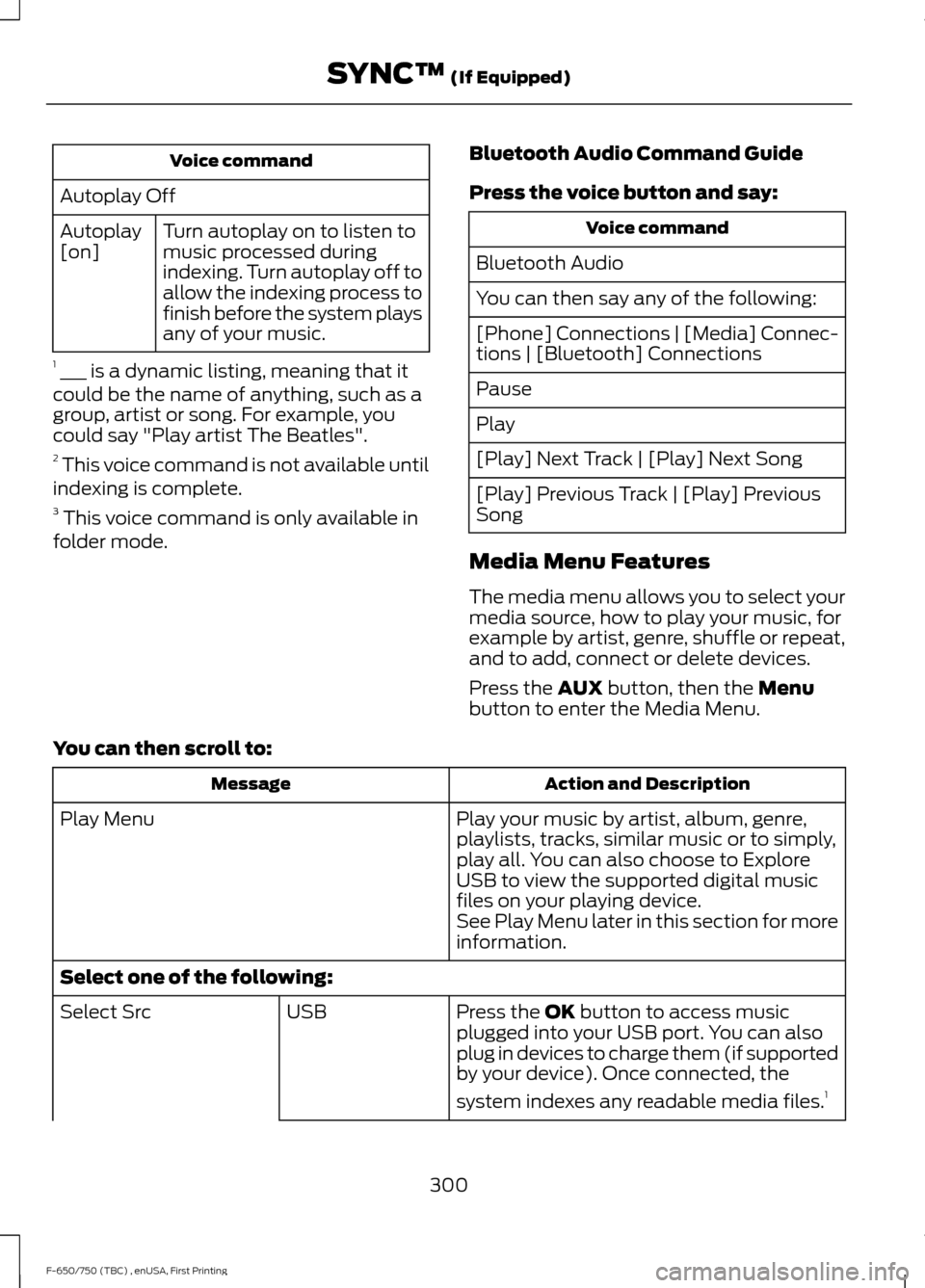
Voice command
Autoplay Off Turn autoplay on to listen to
music processed during
indexing. Turn autoplay off to
allow the indexing process to
finish before the system plays
any of your music.
Autoplay
[on]
1 ___ is a dynamic listing, meaning that it
could be the name of anything, such as a
group, artist or song. For example, you
could say "Play artist The Beatles".
2 This voice command is not available until
indexing is complete.
3 This voice command is only available in
folder mode. Bluetooth Audio Command Guide
Press the voice button and say: Voice command
Bluetooth Audio
You can then say any of the following:
[Phone] Connections | [Media] Connec-
tions | [Bluetooth] Connections
Pause
Play
[Play] Next Track | [Play] Next Song
[Play] Previous Track | [Play] Previous
Song
Media Menu Features
The media menu allows you to select your
media source, how to play your music, for
example by artist, genre, shuffle or repeat,
and to add, connect or delete devices.
Press the AUX button, then the Menu
button to enter the Media Menu.
You can then scroll to: Action and Description
Message
Play your music by artist, album, genre,
playlists, tracks, similar music or to simply,
play all. You can also choose to Explore
USB to view the supported digital music
files on your playing device.
Play Menu
See Play Menu later in this section for more
information.
Select one of the following: Press the
OK button to access music
plugged into your USB port. You can also
plug in devices to charge them (if supported
by your device). Once connected, the
system indexes any readable media files. 1
USB
Select Src
300
F-650/750 (TBC) , enUSA, First Printing SYNC™
(If Equipped)
Page 304 of 382
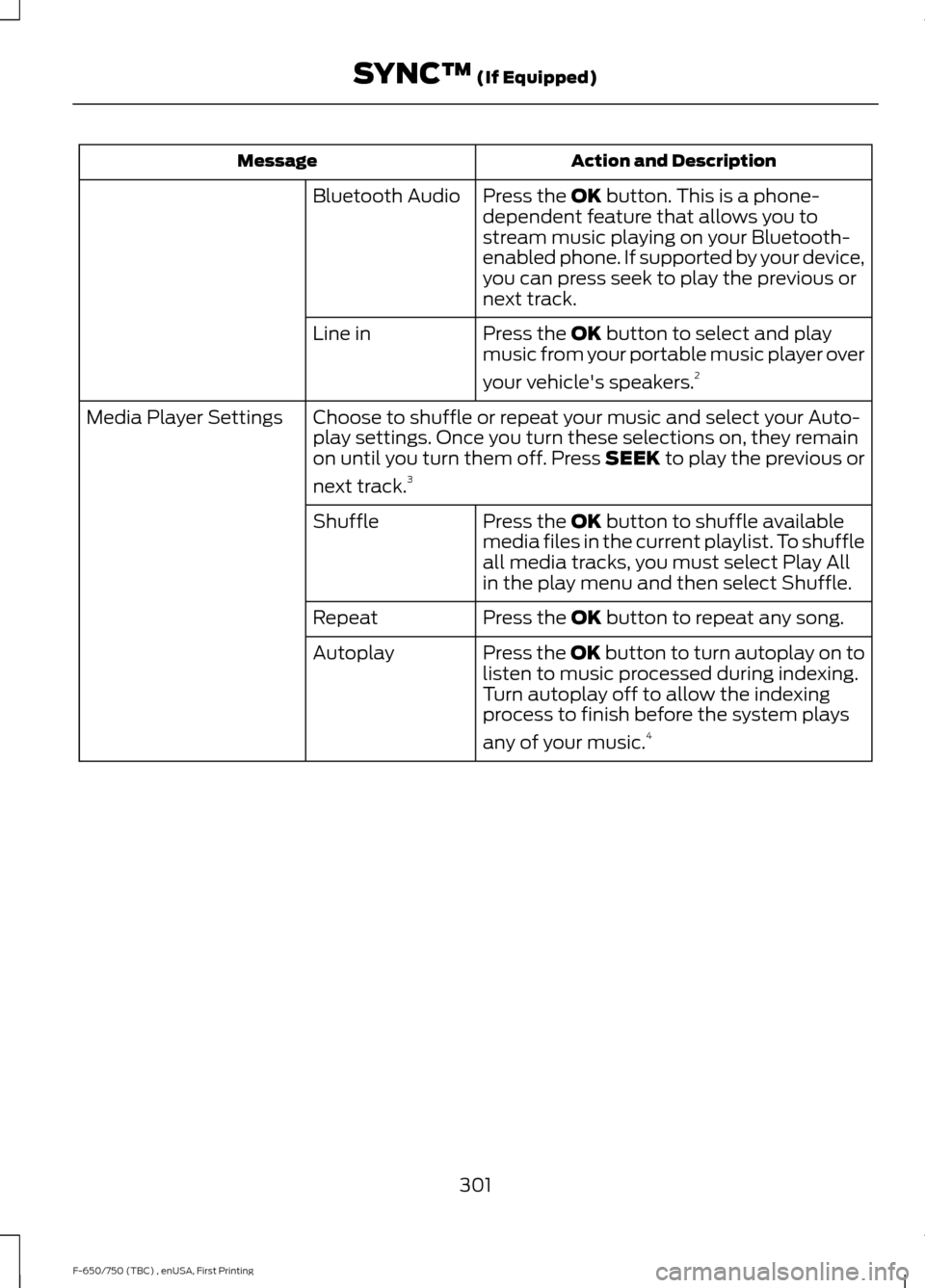
Action and Description
Message
Press the OK button. This is a phone-
dependent feature that allows you to
stream music playing on your Bluetooth-
enabled phone. If supported by your device,
you can press seek to play the previous or
next track.
Bluetooth Audio
Press the
OK button to select and play
music from your portable music player over
your vehicle's speakers. 2
Line in
Choose to shuffle or repeat your music and select your Auto-
play settings. Once you turn these selections on, they remain
on until you turn them off. Press SEEK to play the previous or
next track.
3
Media Player Settings
Press the
OK button to shuffle available
media files in the current playlist. To shuffle
all media tracks, you must select Play All
in the play menu and then select Shuffle.
Shuffle
Press the
OK button to repeat any song.
Repeat
Press the OK button to turn autoplay on to
listen to music processed during indexing.
Turn autoplay off to allow the indexing
process to finish before the system plays
any of your music.4
Autoplay
301
F-650/750 (TBC) , enUSA, First Printing SYNC™
(If Equipped)