display FORD F650/750 2019 Workshop Manual
[x] Cancel search | Manufacturer: FORD, Model Year: 2019, Model line: F650/750, Model: FORD F650/750 2019Pages: 387, PDF Size: 4.78 MB
Page 300 of 387
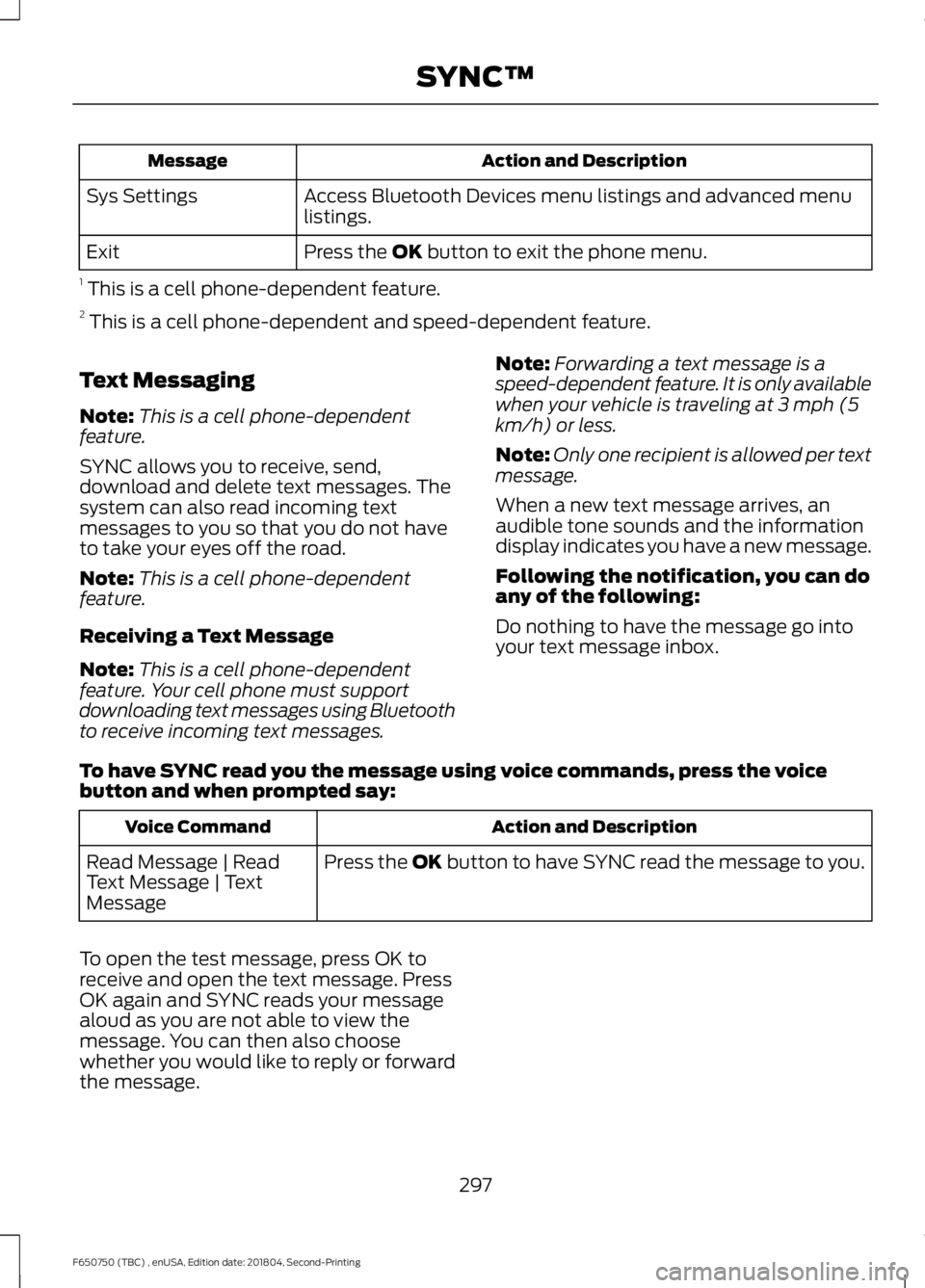
Action and Description
Message
Access Bluetooth Devices menu listings and advanced menu
listings.
Sys Settings
Press the OK button to exit the phone menu.
Exit
1 This is a cell phone-dependent feature.
2 This is a cell phone-dependent and speed-dependent feature.
Text Messaging
Note: This is a cell phone-dependent
feature.
SYNC allows you to receive, send,
download and delete text messages. The
system can also read incoming text
messages to you so that you do not have
to take your eyes off the road.
Note: This is a cell phone-dependent
feature.
Receiving a Text Message
Note: This is a cell phone-dependent
feature. Your cell phone must support
downloading text messages using Bluetooth
to receive incoming text messages. Note:
Forwarding a text message is a
speed-dependent feature. It is only available
when your vehicle is traveling at 3 mph (5
km/h) or less.
Note: Only one recipient is allowed per text
message.
When a new text message arrives, an
audible tone sounds and the information
display indicates you have a new message.
Following the notification, you can do
any of the following:
Do nothing to have the message go into
your text message inbox.
To have SYNC read you the message using voice commands, press the voice
button and when prompted say: Action and Description
Voice Command
Press the
OK button to have SYNC read the message to you.
Read Message | Read
Text Message | Text
Message
To open the test message, press OK to
receive and open the text message. Press
OK again and SYNC reads your message
aloud as you are not able to view the
message. You can then also choose
whether you would like to reply or forward
the message.
297
F650750 (TBC) , enUSA, Edition date: 201804, Second-Printing SYNC™
Page 302 of 387

Action and Description
Message
Allows you to download your unread messages to SYNC. To
download the messages, press the OK button to select. The
display indicates the system is downloading your messages.
When downloading is complete, SYNC returns you to the
inbox.
Download now
Allows you to delete current text messages from SYNC. To
delete the messages, press the
OK button to select. The
display indicates when it is finished deleting all your text
messages. SYNC returns you to the text message menu.
Delete All Messages?
Press the
OK button to exit the current menu.
Return
Accessing Your Phone Settings
These are cell phone-dependent features.
Your cell phone settings allow you to
access and adjust some features. For
example ring tones, text message
notifications, modifying your phonebook
and setting up automatic downloads.
Press the phone button, then scroll to: Action and Description
Message
Press the
OK button.
Phone settings
Select one of the following:
See the provider, name, signal power, battery power and roaming
status of your connected cell phone.
Phone status
Press
OK to select and scroll to view the information. When done,
press OK again to return to the phone status menu.
Select which ring tone sounds during an incoming call. You can choose
one of the system ring tones or your cell phone ring tones.
Set ringtone
Press the
OK button and scroll to hear the available options. You can
also choose to use your phone's ring tone.
Press the
OK button to select the desired ring tone. If your cell phone
supports in-band ringing, your cell phone ring plays when you choose
the phone ringer option.
You have the option of hearing an audible tone to notify you when a
text message arrives.
Text msg notify
299
F650750 (TBC) , enUSA, Edition date: 201804, Second-Printing SYNC™
Page 305 of 387
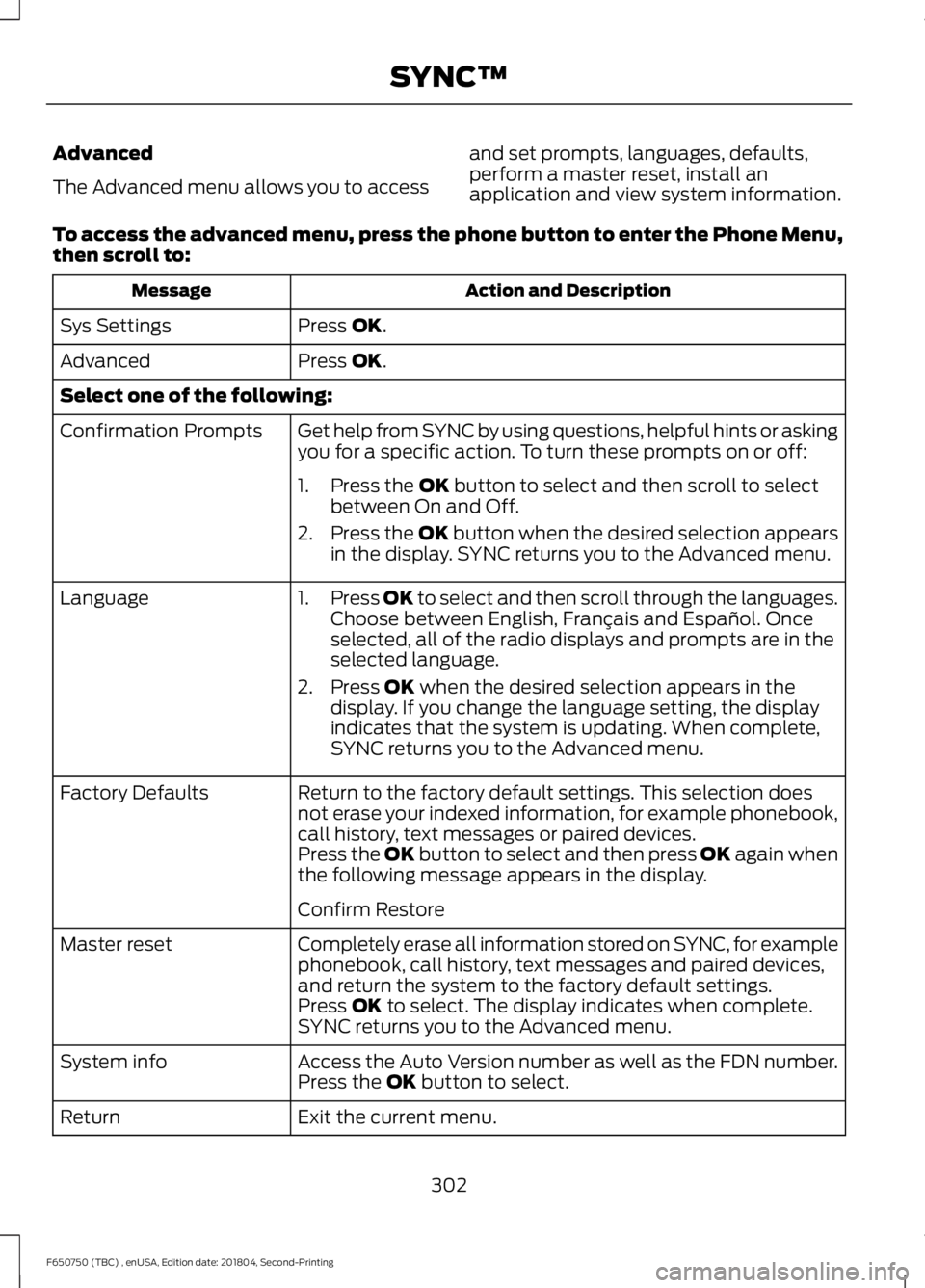
Advanced
The Advanced menu allows you to access
and set prompts, languages, defaults,
perform a master reset, install an
application and view system information.
To access the advanced menu, press the phone button to enter the Phone Menu,
then scroll to: Action and Description
Message
Press OK.
Sys Settings
Press
OK.
Advanced
Select one of the following:
Get help from SYNC by using questions, helpful hints or asking
you for a specific action. To turn these prompts on or off:
Confirmation Prompts
1. Press the
OK button to select and then scroll to select
between On and Off.
2. Press the
OK button when the desired selection appears
in the display. SYNC returns you to the Advanced menu.
1. Press
OK to select and then scroll through the languages.
Choose between English, Français and Español. Once
selected, all of the radio displays and prompts are in the
selected language.
2. Press
OK when the desired selection appears in the
display. If you change the language setting, the display
indicates that the system is updating. When complete,
SYNC returns you to the Advanced menu.
Language
Return to the factory default settings. This selection does
not erase your indexed information, for example phonebook,
call history, text messages or paired devices.
Factory Defaults
Press the OK button to select and then press OK again when
the following message appears in the display.
Confirm Restore
Completely erase all information stored on SYNC, for example
phonebook, call history, text messages and paired devices,
and return the system to the factory default settings.
Master reset
Press
OK to select. The display indicates when complete.
SYNC returns you to the Advanced menu.
Access the Auto Version number as well as the FDN number.
System info
Press the
OK button to select.
Exit the current menu.
Return
302
F650750 (TBC) , enUSA, Edition date: 201804, Second-Printing SYNC™
Page 306 of 387
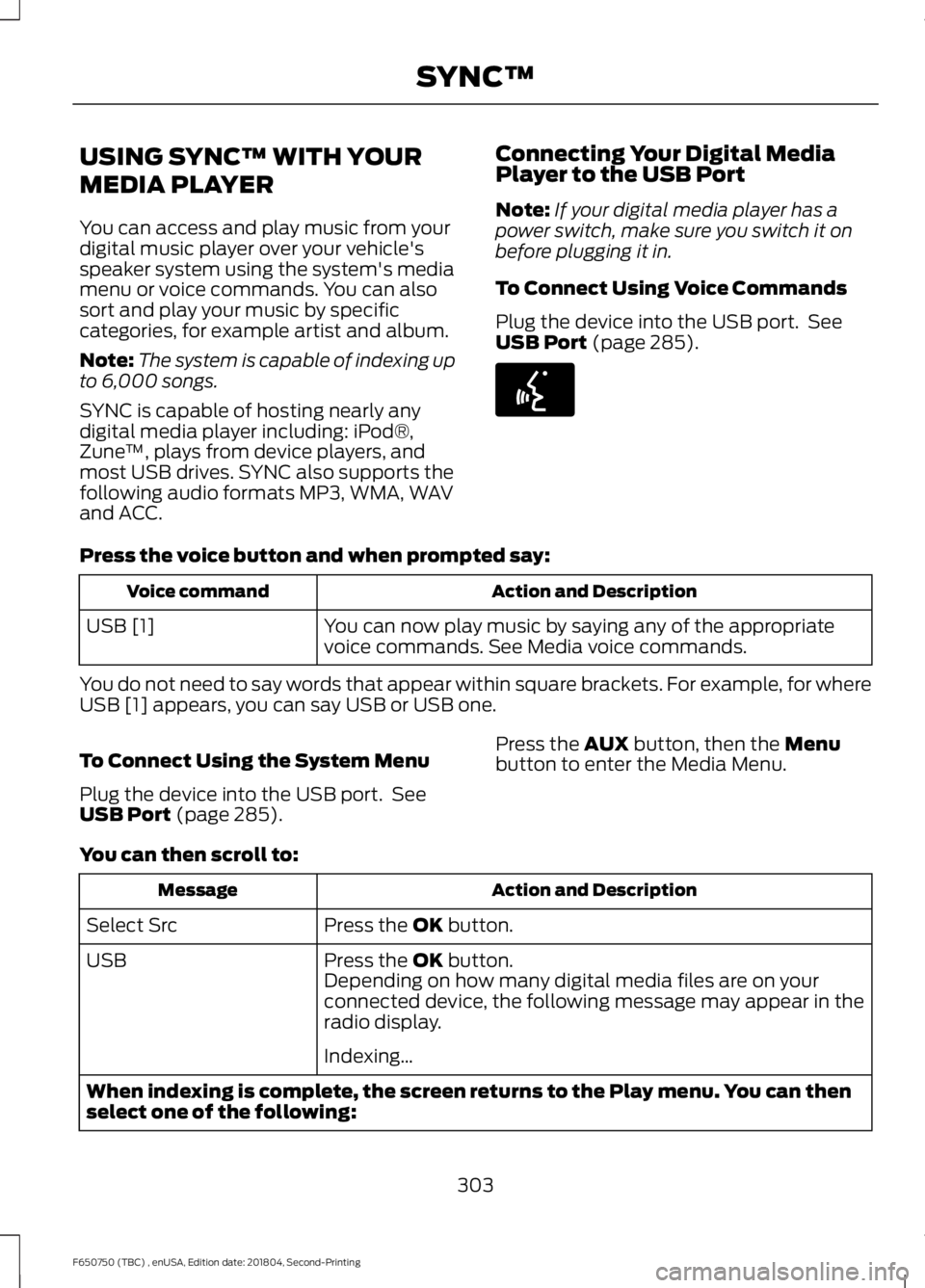
USING SYNC™ WITH YOUR
MEDIA PLAYER
You can access and play music from your
digital music player over your vehicle's
speaker system using the system's media
menu or voice commands. You can also
sort and play your music by specific
categories, for example artist and album.
Note:
The system is capable of indexing up
to 6,000 songs.
SYNC is capable of hosting nearly any
digital media player including: iPod®,
Zune ™, plays from device players, and
most USB drives. SYNC also supports the
following audio formats MP3, WMA, WAV
and ACC. Connecting Your Digital Media
Player to the USB Port
Note:
If your digital media player has a
power switch, make sure you switch it on
before plugging it in.
To Connect Using Voice Commands
Plug the device into the USB port. See
USB Port (page 285). Press the voice button and when prompted say:
Action and Description
Voice command
You can now play music by saying any of the appropriate
voice commands. See Media voice commands.
USB [1]
You do not need to say words that appear within square brackets. For example, for where
USB [1] appears, you can say USB or USB one.
To Connect Using the System Menu
Plug the device into the USB port. See
USB Port
(page 285). Press the
AUX button, then the Menu
button to enter the Media Menu.
You can then scroll to: Action and Description
Message
Press the
OK button.
Select Src
Press the
OK button.
USB
Depending on how many digital media files are on your
connected device, the following message may appear in the
radio display.
Indexing\b
When indexing is complete, the screen returns to the Play menu. You can then
select one of the following:
303
F650750 (TBC) , enUSA, Edition date: 201804, Second-Printing SYNC™E142599
Page 311 of 387
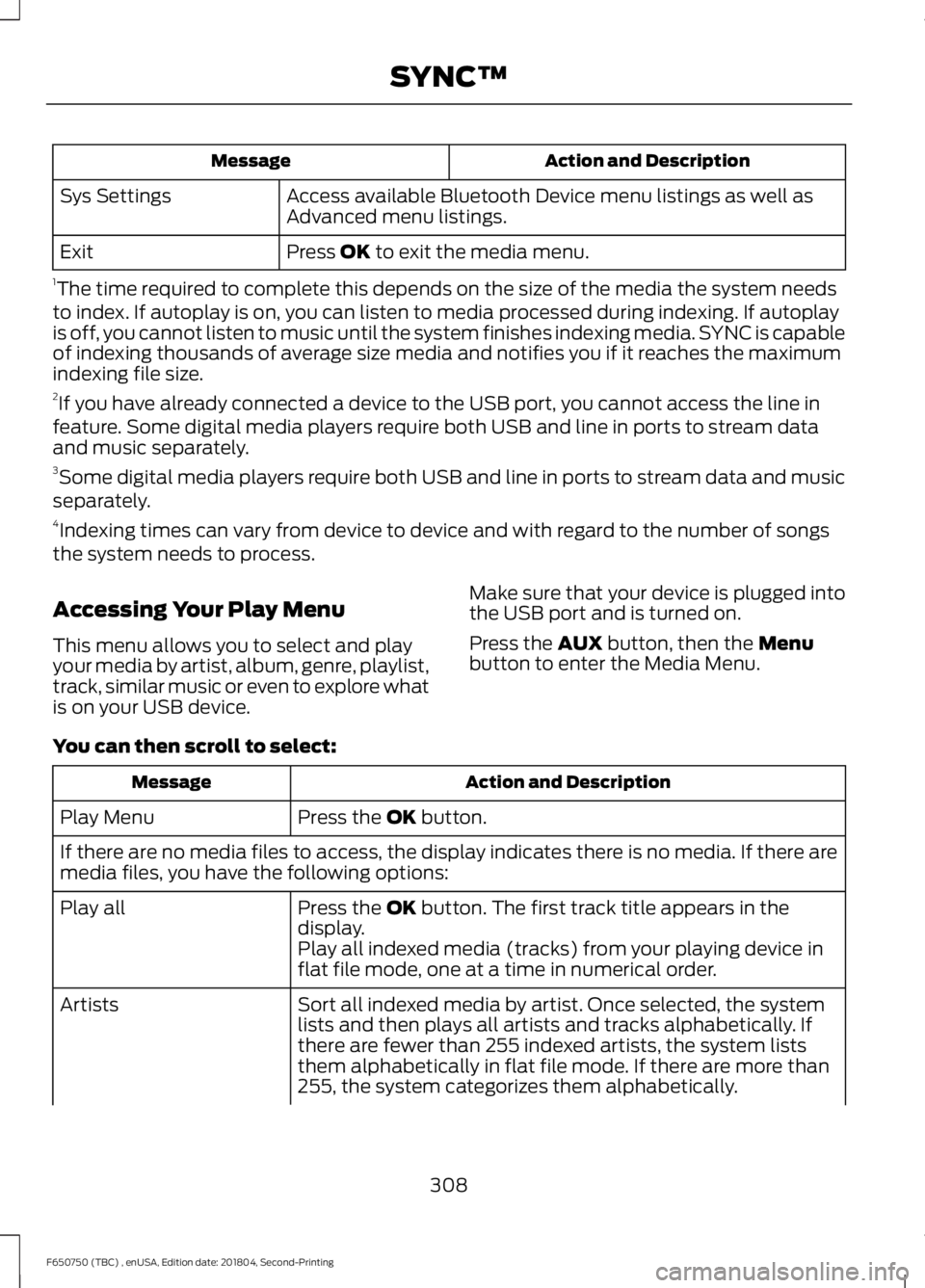
Action and Description
Message
Access available Bluetooth Device menu listings as well as
Advanced menu listings.
Sys Settings
Press OK to exit the media menu.
Exit
1 The time required to complete this depends on the size of the media the system needs
to index. If autoplay is on, you can listen to media processed during indexing. If autoplay
is off, you cannot listen to music until the system finishes indexing media. SYNC is capable
of indexing thousands of average size media and notifies you if it reaches the maximum
indexing file size.
2 If you have already connected a device to the USB port, you cannot access the line in
feature. Some digital media players require both USB and line in ports to stream data
and music separately.
3 Some digital media players require both USB and line in ports to stream data and music
separately.
4 Indexing times can vary from device to device and with regard to the number of songs
the system needs to process.
Accessing Your Play Menu
This menu allows you to select and play
your media by artist, album, genre, playlist,
track, similar music or even to explore what
is on your USB device. Make sure that your device is plugged into
the USB port and is turned on.
Press the
AUX button, then the Menu
button to enter the Media Menu.
You can then scroll to select: Action and Description
Message
Press the
OK button.
Play Menu
If there are no media files to access, the display indicates there is no media. If there are
media files, you have the following options:
Press the
OK button. The first track title appears in the
display.
Play all
Play all indexed media (tracks) from your playing device in
flat file mode, one at a time in numerical order.
Sort all indexed media by artist. Once selected, the system
lists and then plays all artists and tracks alphabetically. If
there are fewer than 255 indexed artists, the system lists
them alphabetically in flat file mode. If there are more than
255, the system categorizes them alphabetically.
Artists
308
F650750 (TBC) , enUSA, Edition date: 201804, Second-Printing SYNC™
Page 313 of 387
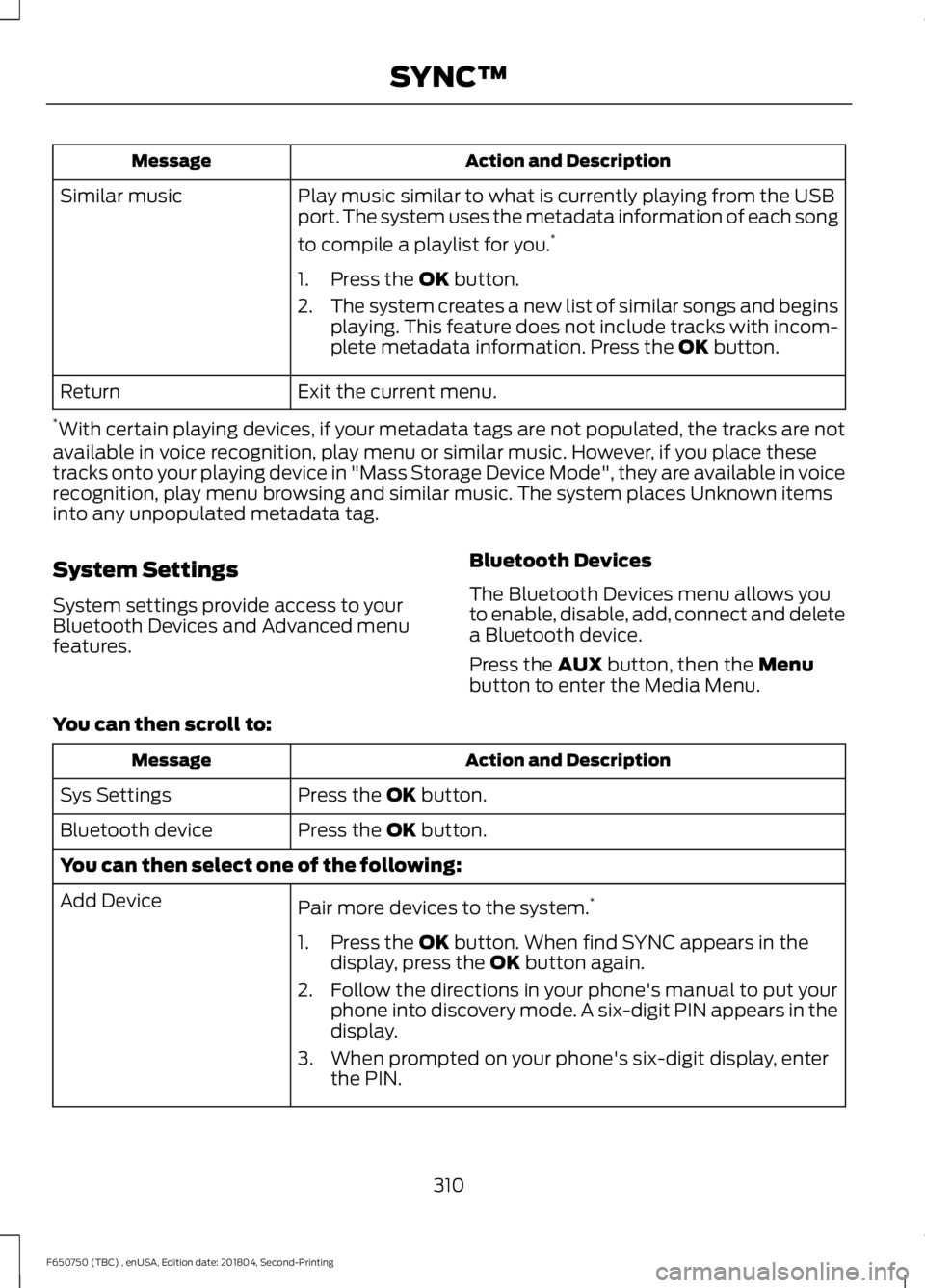
Action and Description
Message
Play music similar to what is currently playing from the USB
port. The system uses the metadata information of each song
to compile a playlist for you. *
Similar music
1. Press the OK button.
2. The system creates a new list of similar songs and begins
playing. This feature does not include tracks with incom-
plete metadata information. Press the
OK button.
Exit the current menu.
Return
* With certain playing devices, if your metadata tags are not populated, the tracks are not
available in voice recognition, play menu or similar music. However, if you place these
tracks onto your playing device in "Mass Storage Device Mode", they are available in voice
recognition, play menu browsing and similar music. The system places Unknown items
into any unpopulated metadata tag.
System Settings
System settings provide access to your
Bluetooth Devices and Advanced menu
features. Bluetooth Devices
The Bluetooth Devices menu allows you
to enable, disable, add, connect and delete
a Bluetooth device.
Press the
AUX button, then the Menu
button to enter the Media Menu.
You can then scroll to: Action and Description
Message
Press the
OK button.
Sys Settings
Press the
OK button.
Bluetooth device
You can then select one of the following:
Pair more devices to the system. *
Add Device
1. Press the
OK button. When find SYNC appears in the
display, press the OK button again.
2. Follow the directions in your phone's manual to put your phone into discovery mode. A six-digit PIN appears in the
display.
3. When prompted on your phone's six-digit display, enter the PIN.
310
F650750 (TBC) , enUSA, Edition date: 201804, Second-Printing SYNC™
Page 315 of 387
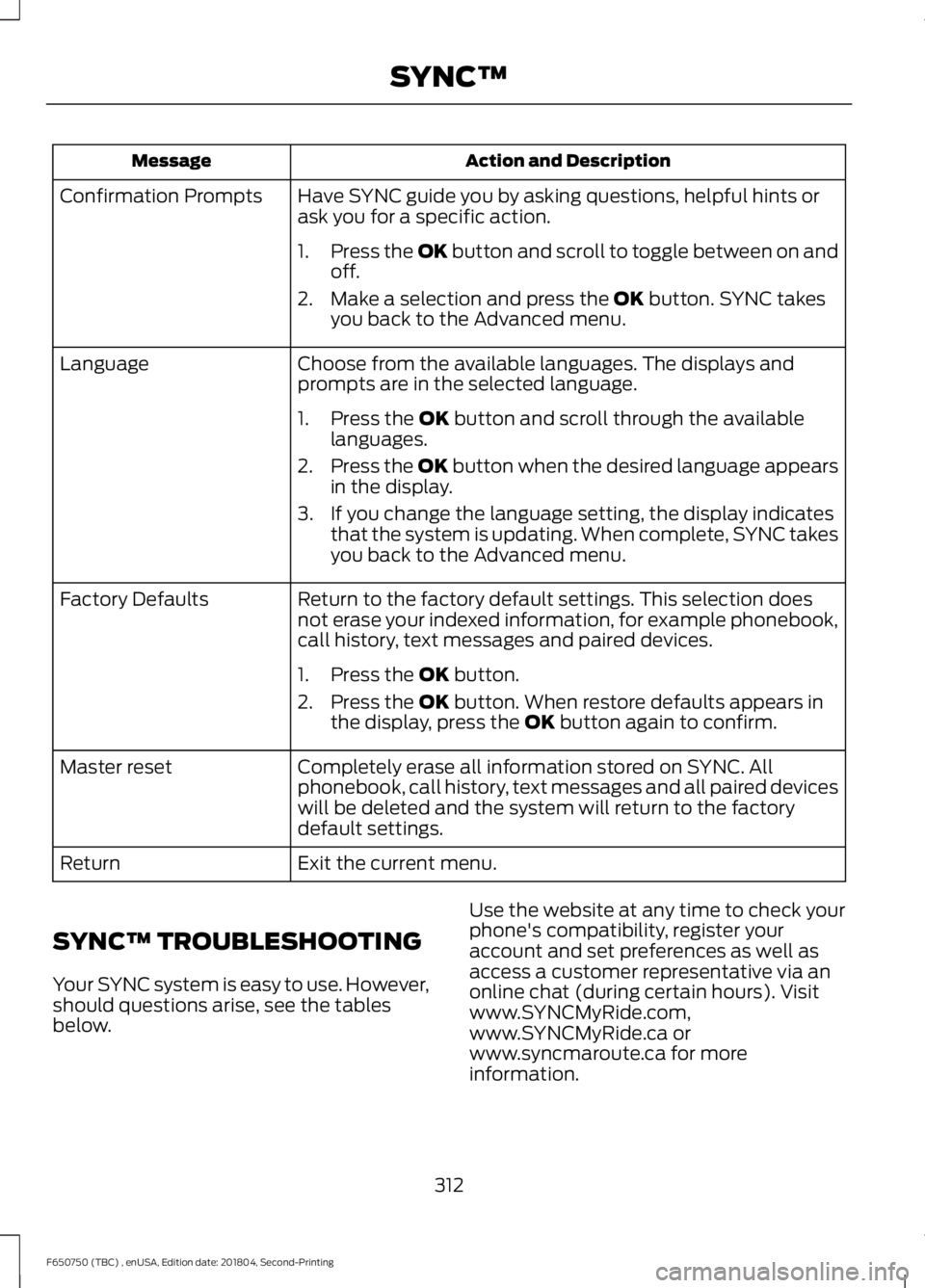
Action and Description
Message
Have SYNC guide you by asking questions, helpful hints or
ask you for a specific action.
Confirmation Prompts
1.Press the OK button and scroll to toggle between on and
off.
2. Make a selection and press the OK button. SYNC takes
you back to the Advanced menu.
Choose from the available languages. The displays and
prompts are in the selected language.
Language
1. Press the
OK button and scroll through the available
languages.
2. Press the OK button when the desired language appears
in the display.
3. If you change the language setting, the display indicates that the system is updating. When complete, SYNC takes
you back to the Advanced menu.
Return to the factory default settings. This selection does
not erase your indexed information, for example phonebook,
call history, text messages and paired devices.
Factory Defaults
1. Press the
OK button.
2. Press the
OK button. When restore defaults appears in
the display, press the OK button again to confirm.
Completely erase all information stored on SYNC. All
phonebook, call history, text messages and all paired devices
will be deleted and the system will return to the factory
default settings.
Master reset
Exit the current menu.
Return
SYNC™ TROUBLESHOOTING
Your SYNC system is easy to use. However,
should questions arise, see the tables
below. Use the website at any time to check your
phone's compatibility, register your
account and set preferences as well as
access a customer representative via an
online chat (during certain hours). Visit
www.SYNCMyRide.com,
www.SYNCMyRide.ca or
www.syncmaroute.ca for more
information.
312
F650750 (TBC) , enUSA, Edition date: 201804, Second-Printing SYNC™
Page 325 of 387
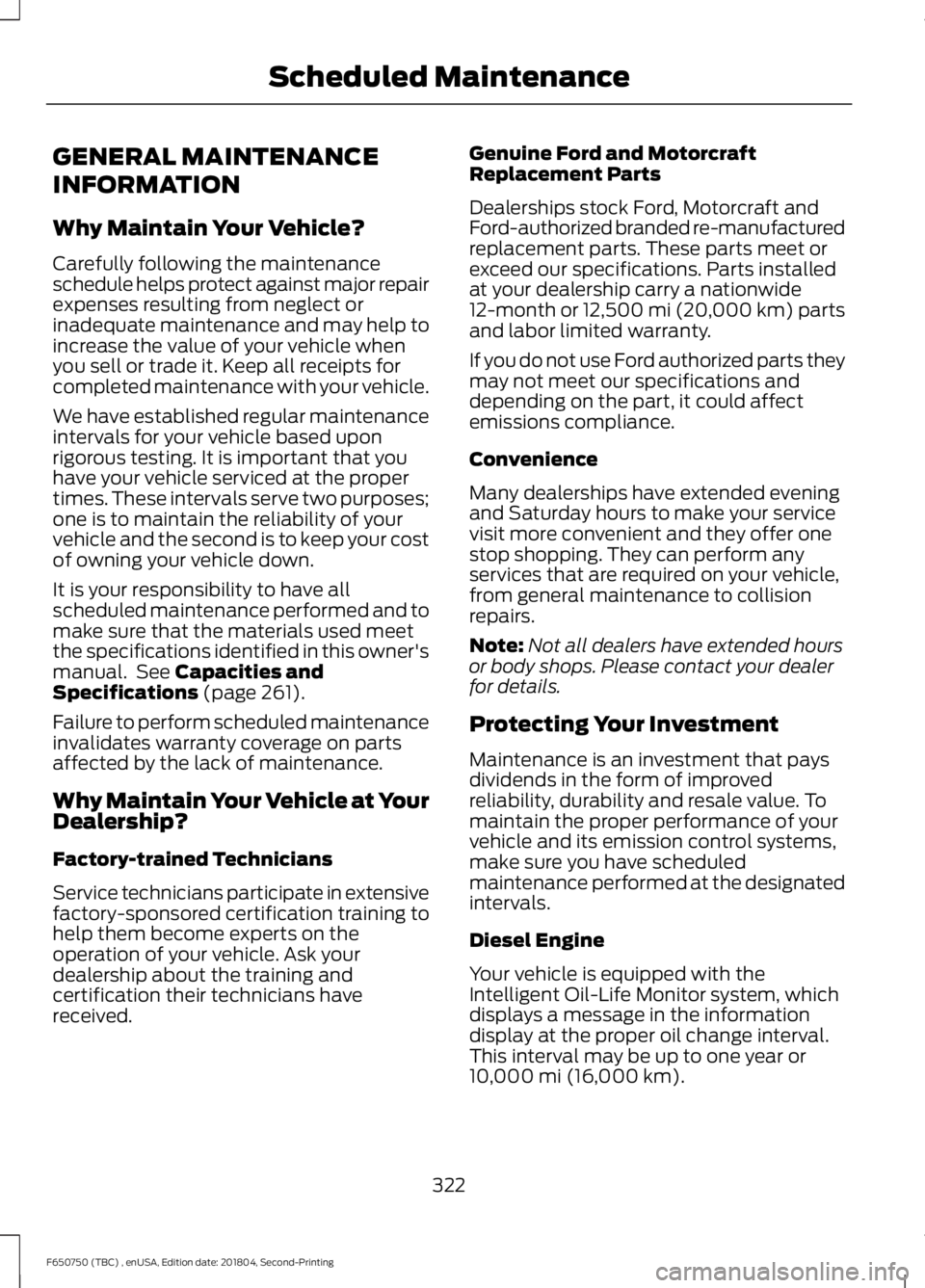
GENERAL MAINTENANCE
INFORMATION
Why Maintain Your Vehicle?
Carefully following the maintenance
schedule helps protect against major repair
expenses resulting from neglect or
inadequate maintenance and may help to
increase the value of your vehicle when
you sell or trade it. Keep all receipts for
completed maintenance with your vehicle.
We have established regular maintenance
intervals for your vehicle based upon
rigorous testing. It is important that you
have your vehicle serviced at the proper
times. These intervals serve two purposes;
one is to maintain the reliability of your
vehicle and the second is to keep your cost
of owning your vehicle down.
It is your responsibility to have all
scheduled maintenance performed and to
make sure that the materials used meet
the specifications identified in this owner's
manual. See Capacities and
Specifications (page 261).
Failure to perform scheduled maintenance
invalidates warranty coverage on parts
affected by the lack of maintenance.
Why Maintain Your Vehicle at Your
Dealership?
Factory-trained Technicians
Service technicians participate in extensive
factory-sponsored certification training to
help them become experts on the
operation of your vehicle. Ask your
dealership about the training and
certification their technicians have
received. Genuine Ford and Motorcraft
Replacement Parts
Dealerships stock Ford, Motorcraft and
Ford-authorized branded re-manufactured
replacement parts. These parts meet or
exceed our specifications. Parts installed
at your dealership carry a nationwide
12-month or 12,500 mi (20,000 km) parts
and labor limited warranty.
If you do not use Ford authorized parts they
may not meet our specifications and
depending on the part, it could affect
emissions compliance.
Convenience
Many dealerships have extended evening
and Saturday hours to make your service
visit more convenient and they offer one
stop shopping. They can perform any
services that are required on your vehicle,
from general maintenance to collision
repairs.
Note:
Not all dealers have extended hours
or body shops. Please contact your dealer
for details.
Protecting Your Investment
Maintenance is an investment that pays
dividends in the form of improved
reliability, durability and resale value. To
maintain the proper performance of your
vehicle and its emission control systems,
make sure you have scheduled
maintenance performed at the designated
intervals.
Diesel Engine
Your vehicle is equipped with the
Intelligent Oil-Life Monitor system, which
displays a message in the information
display at the proper oil change interval.
This interval may be up to one year or
10,000 mi (16,000 km)
.
322
F650750 (TBC) , enUSA, Edition date: 201804, Second-Printing Scheduled Maintenance
Page 326 of 387
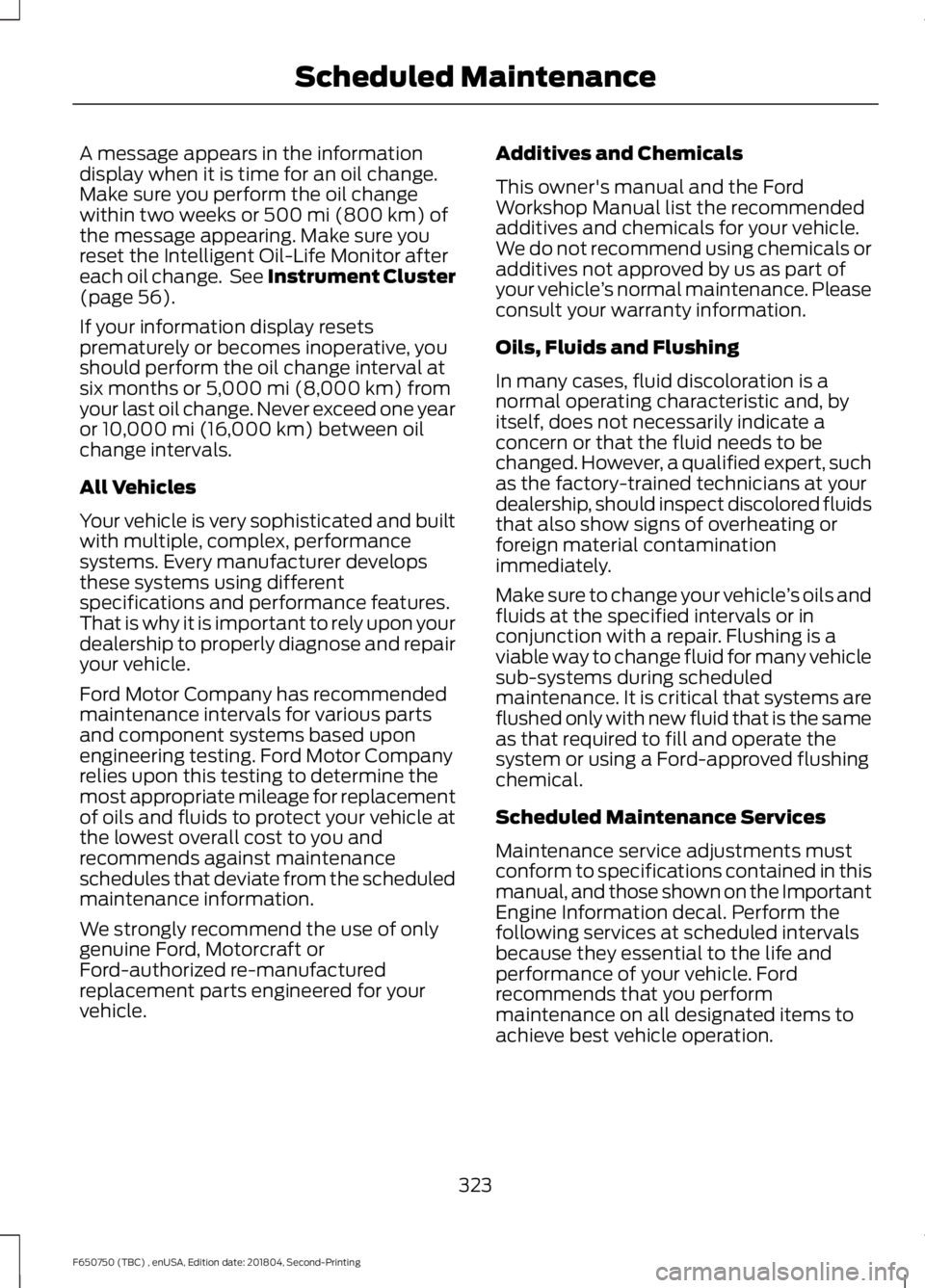
A message appears in the information
display when it is time for an oil change.
Make sure you perform the oil change
within two weeks or 500 mi (800 km) of
the message appearing. Make sure you
reset the Intelligent Oil-Life Monitor after
each oil change. See Instrument Cluster
(page
56).
If your information display resets
prematurely or becomes inoperative, you
should perform the oil change interval at
six months or
5,000 mi (8,000 km) from
your last oil change. Never exceed one year
or
10,000 mi (16,000 km) between oil
change intervals.
All Vehicles
Your vehicle is very sophisticated and built
with multiple, complex, performance
systems. Every manufacturer develops
these systems using different
specifications and performance features.
That is why it is important to rely upon your
dealership to properly diagnose and repair
your vehicle.
Ford Motor Company has recommended
maintenance intervals for various parts
and component systems based upon
engineering testing. Ford Motor Company
relies upon this testing to determine the
most appropriate mileage for replacement
of oils and fluids to protect your vehicle at
the lowest overall cost to you and
recommends against maintenance
schedules that deviate from the scheduled
maintenance information.
We strongly recommend the use of only
genuine Ford, Motorcraft or
Ford-authorized re-manufactured
replacement parts engineered for your
vehicle. Additives and Chemicals
This owner's manual and the Ford
Workshop Manual list the recommended
additives and chemicals for your vehicle.
We do not recommend using chemicals or
additives not approved by us as part of
your vehicle
’s normal maintenance. Please
consult your warranty information.
Oils, Fluids and Flushing
In many cases, fluid discoloration is a
normal operating characteristic and, by
itself, does not necessarily indicate a
concern or that the fluid needs to be
changed. However, a qualified expert, such
as the factory-trained technicians at your
dealership, should inspect discolored fluids
that also show signs of overheating or
foreign material contamination
immediately.
Make sure to change your vehicle ’s oils and
fluids at the specified intervals or in
conjunction with a repair. Flushing is a
viable way to change fluid for many vehicle
sub-systems during scheduled
maintenance. It is critical that systems are
flushed only with new fluid that is the same
as that required to fill and operate the
system or using a Ford-approved flushing
chemical.
Scheduled Maintenance Services
Maintenance service adjustments must
conform to specifications contained in this
manual, and those shown on the Important
Engine Information decal. Perform the
following services at scheduled intervals
because they essential to the life and
performance of your vehicle. Ford
recommends that you perform
maintenance on all designated items to
achieve best vehicle operation.
323
F650750 (TBC) , enUSA, Edition date: 201804, Second-Printing Scheduled Maintenance
Page 327 of 387
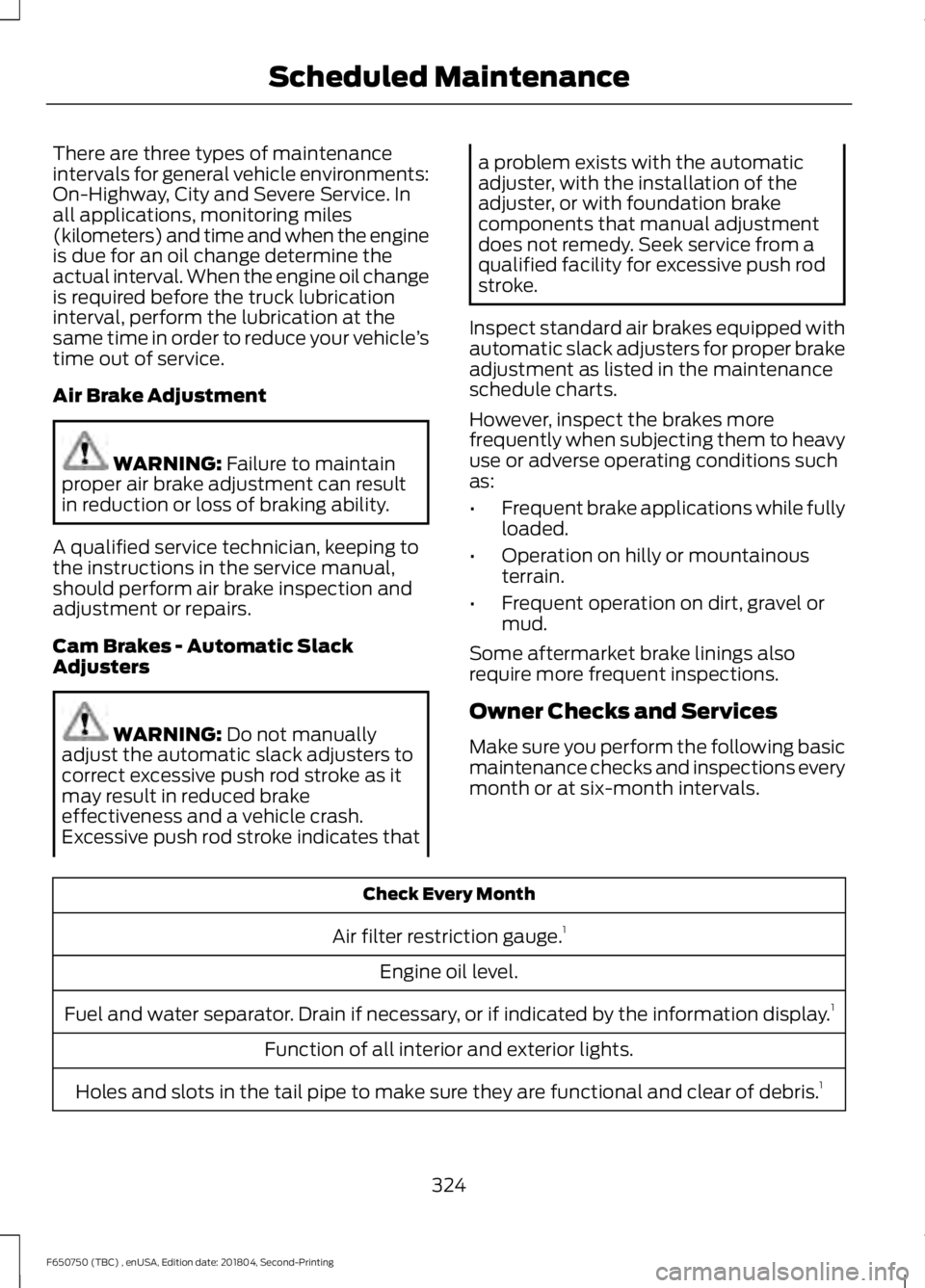
There are three types of maintenance
intervals for general vehicle environments:
On-Highway, City and Severe Service. In
all applications, monitoring miles
(kilometers) and time and when the engine
is due for an oil change determine the
actual interval. When the engine oil change
is required before the truck lubrication
interval, perform the lubrication at the
same time in order to reduce your vehicle
’s
time out of service.
Air Brake Adjustment WARNING: Failure to maintain
proper air brake adjustment can result
in reduction or loss of braking ability.
A qualified service technician, keeping to
the instructions in the service manual,
should perform air brake inspection and
adjustment or repairs.
Cam Brakes - Automatic Slack
Adjusters WARNING:
Do not manually
adjust the automatic slack adjusters to
correct excessive push rod stroke as it
may result in reduced brake
effectiveness and a vehicle crash.
Excessive push rod stroke indicates that a problem exists with the automatic
adjuster, with the installation of the
adjuster, or with foundation brake
components that manual adjustment
does not remedy. Seek service from a
qualified facility for excessive push rod
stroke.
Inspect standard air brakes equipped with
automatic slack adjusters for proper brake
adjustment as listed in the maintenance
schedule charts.
However, inspect the brakes more
frequently when subjecting them to heavy
use or adverse operating conditions such
as:
• Frequent brake applications while fully
loaded.
• Operation on hilly or mountainous
terrain.
• Frequent operation on dirt, gravel or
mud.
Some aftermarket brake linings also
require more frequent inspections.
Owner Checks and Services
Make sure you perform the following basic
maintenance checks and inspections every
month or at six-month intervals. Check Every Month
Air filter restriction gauge. 1
Engine oil level.
Fuel and water separator. Drain if necessary, or if indicated by the information display. 1
Function of all interior and exterior lights.
Holes and slots in the tail pipe to make sure they are functional and clear of debris. 1
324
F650750 (TBC) , enUSA, Edition date: 201804, Second-Printing Scheduled Maintenance