audio FORD FIESTA 2014 User Guide
[x] Cancel search | Manufacturer: FORD, Model Year: 2014, Model line: FIESTA, Model: FORD FIESTA 2014Pages: 398, PDF Size: 6.09 MB
Page 177 of 398
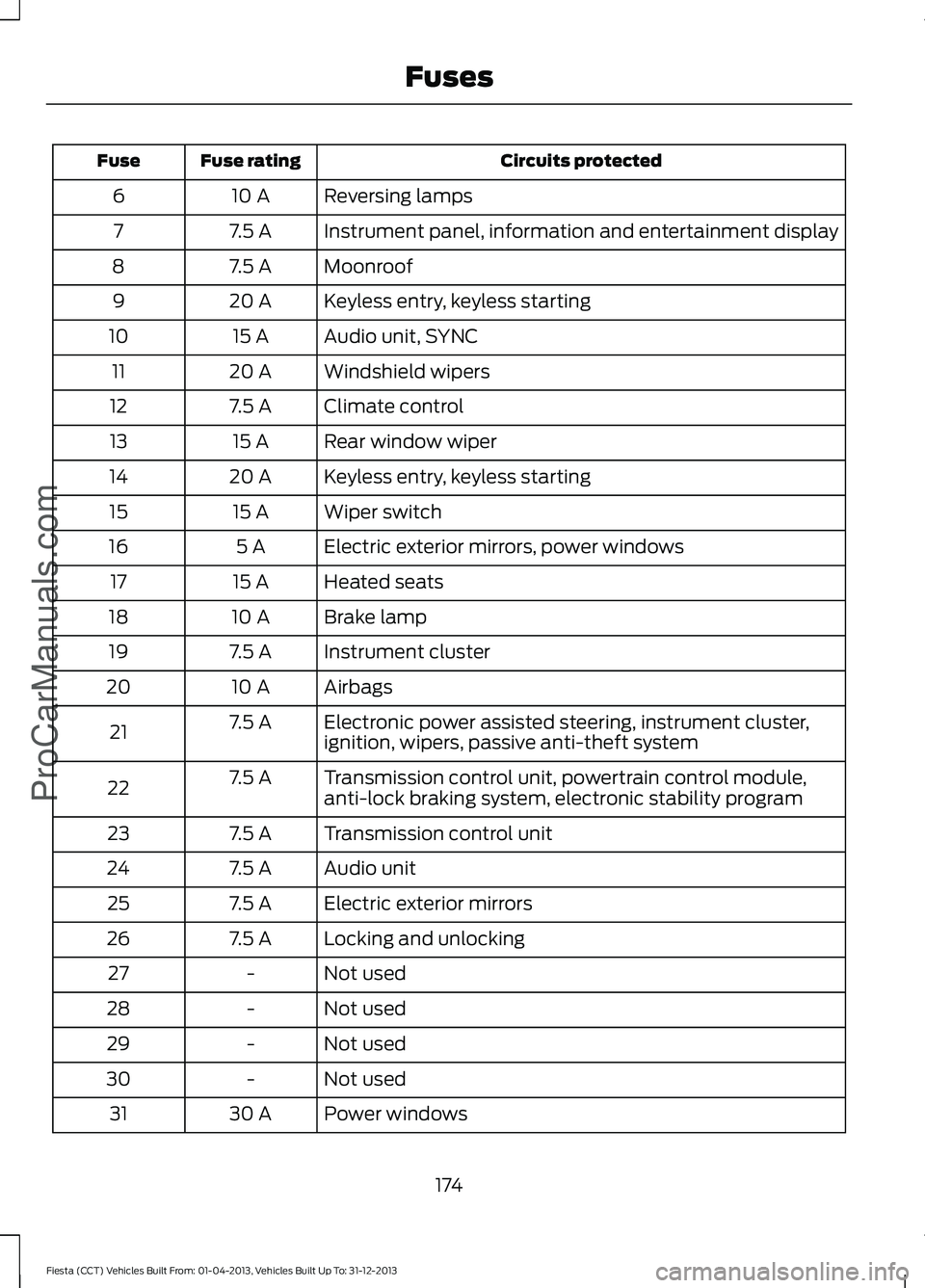
Circuits protected
Fuse rating
Fuse
Reversing lamps
10 A
6
Instrument panel, information and entertainment display
7.5 A
7
Moonroof
7.5 A
8
Keyless entry, keyless starting
20 A
9
Audio unit, SYNC
15 A
10
Windshield wipers
20 A
11
Climate control
7.5 A
12
Rear window wiper
15 A
13
Keyless entry, keyless starting
20 A
14
Wiper switch
15 A
15
Electric exterior mirrors, power windows
5 A
16
Heated seats
15 A
17
Brake lamp
10 A
18
Instrument cluster
7.5 A
19
Airbags
10 A
20
Electronic power assisted steering, instrument cluster,
ignition, wipers, passive anti-theft system
7.5 A
21
Transmission control unit, powertrain control module,
anti-lock braking system, electronic stability program
7.5 A
22
Transmission control unit
7.5 A
23
Audio unit
7.5 A
24
Electric exterior mirrors
7.5 A
25
Locking and unlocking
7.5 A
26
Not used
-
27
Not used
-
28
Not used
-
29
Not used
-
30
Power windows
30 A
31
174
Fiesta (CCT) Vehicles Built From: 01-04-2013, Vehicles Built Up To: 31-12-2013 FusesProCarManuals.com
Page 189 of 398
FUEL FILTER
Your vehicle is equipped with a lifetime
fuel filter that is integrated with the fuel
tank. Regular maintenance or replacement
is not needed.
WASHER FLUID CHECK
Note:
The reservoir supplies the front and
rear washer systems.
When adding fluid, use a mixture of washer
fluid and water to help prevent freezing in
cold weather and improve the cleaning
capability. We recommend that you use
only high quality washer fluid.
For information on fluid dilution, refer to
the product instructions.
CHANGING THE 12V BATTERY WARNING
For vehicles with start-stop the
battery requirement is different. You
must replace the battery with one of
exactly the same specification. Note:
Where applicable you must
reprogram the audio system using the
keycode.
The battery is located in the engine
compartment. See Maintenance (page
177). CHECKING THE WIPER
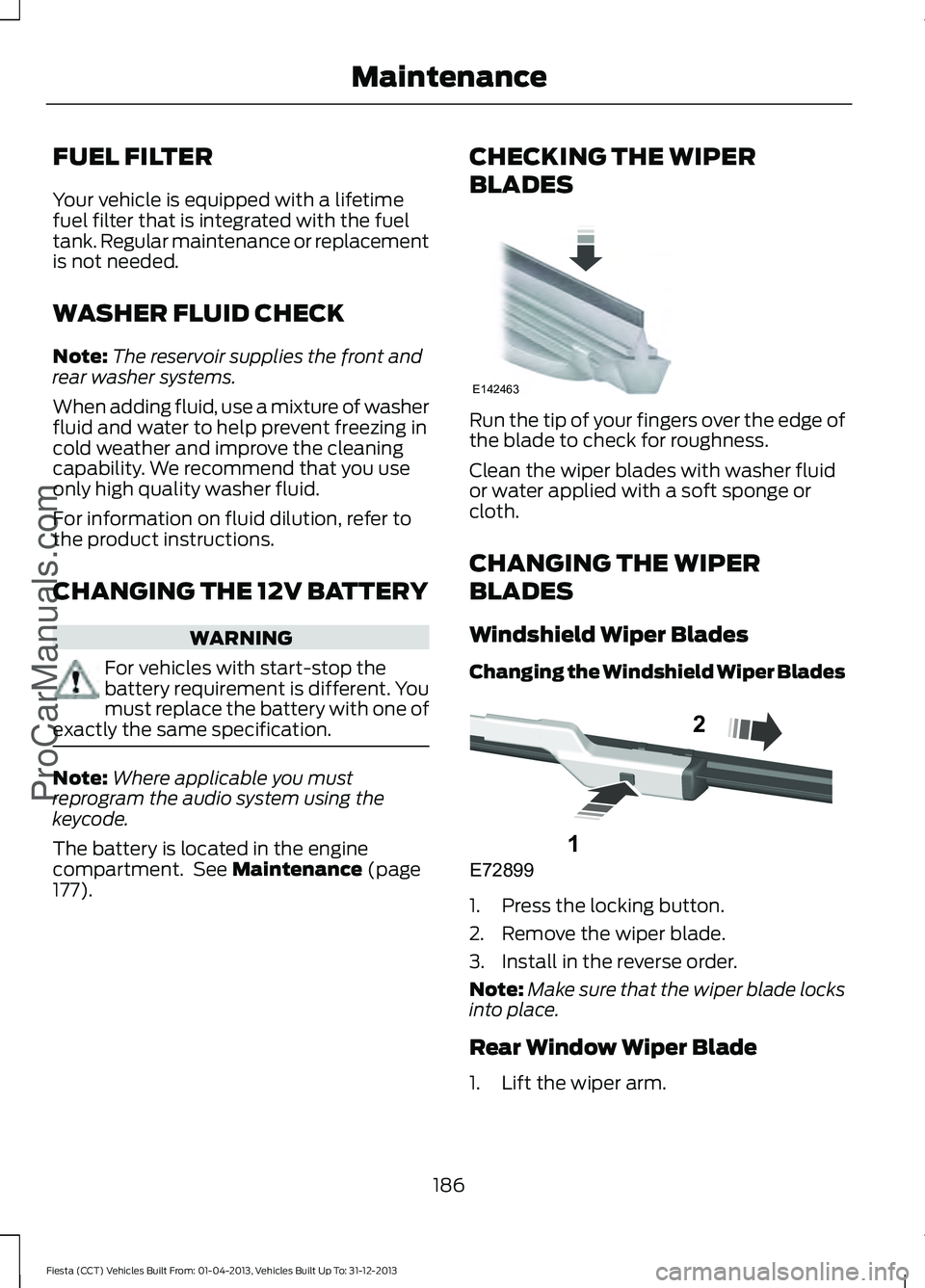
BLADES Run the tip of your fingers over the edge of
the blade to check for roughness.
Clean the wiper blades with washer fluid
or water applied with a soft sponge or
cloth.
CHANGING THE WIPER
BLADES
Windshield Wiper Blades
Changing the Windshield Wiper Blades
1. Press the locking button.
2. Remove the wiper blade.
3. Install in the reverse order.
Note:
Make sure that the wiper blade locks
into place.
Rear Window Wiper Blade
1. Lift the wiper arm.
186
Fiesta (CCT) Vehicles Built From: 01-04-2013, Vehicles Built Up To: 31-12-2013 Maintenance
ProCarManuals.comE142463 E72899
1
2
Page 247 of 398
GENERAL INFORMATION
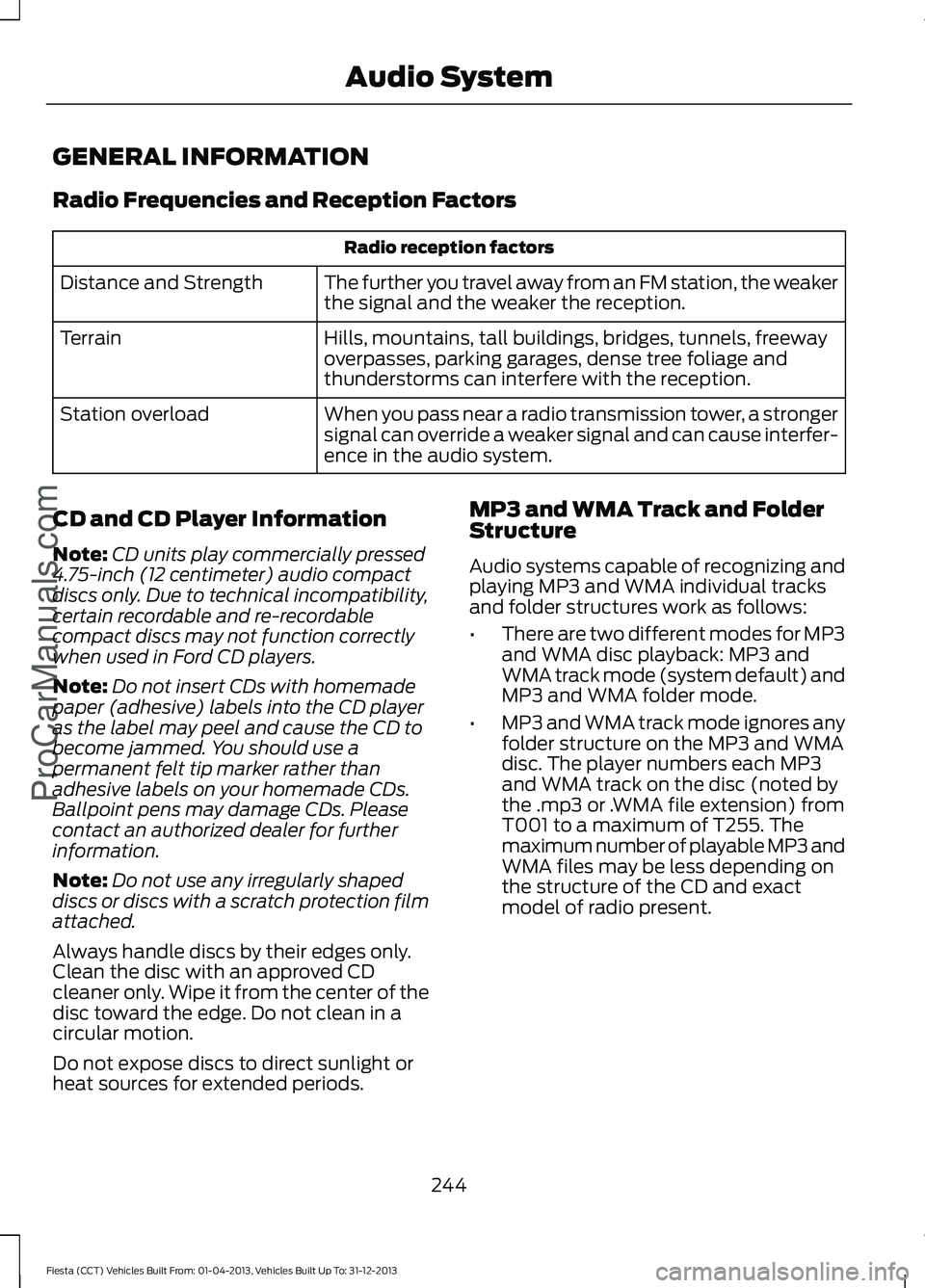
Radio Frequencies and Reception Factors
Radio reception factors
The further you travel away from an FM station, the weaker
the signal and the weaker the reception.
Distance and Strength
Hills, mountains, tall buildings, bridges, tunnels, freeway
overpasses, parking garages, dense tree foliage and
thunderstorms can interfere with the reception.
Terrain
When you pass near a radio transmission tower, a stronger
signal can override a weaker signal and can cause interfer-
ence in the audio system.
Station overload
CD and CD Player Information
Note: CD units play commercially pressed
4.75-inch (12 centimeter) audio compact
discs only. Due to technical incompatibility,
certain recordable and re-recordable
compact discs may not function correctly
when used in Ford CD players.
Note: Do not insert CDs with homemade
paper (adhesive) labels into the CD player
as the label may peel and cause the CD to
become jammed. You should use a
permanent felt tip marker rather than
adhesive labels on your homemade CDs.
Ballpoint pens may damage CDs. Please
contact an authorized dealer for further
information.
Note: Do not use any irregularly shaped
discs or discs with a scratch protection film
attached.
Always handle discs by their edges only.
Clean the disc with an approved CD
cleaner only. Wipe it from the center of the
disc toward the edge. Do not clean in a
circular motion.
Do not expose discs to direct sunlight or
heat sources for extended periods. MP3 and WMA Track and Folder
Structure
Audio systems capable of recognizing and
playing MP3 and WMA individual tracks
and folder structures work as follows:
•
There are two different modes for MP3
and WMA disc playback: MP3 and
WMA track mode (system default) and
MP3 and WMA folder mode.
• MP3 and WMA track mode ignores any
folder structure on the MP3 and WMA
disc. The player numbers each MP3
and WMA track on the disc (noted by
the .mp3 or .WMA file extension) from
T001 to a maximum of T255. The
maximum number of playable MP3 and
WMA files may be less depending on
the structure of the CD and exact
model of radio present.
244
Fiesta (CCT) Vehicles Built From: 01-04-2013, Vehicles Built Up To: 31-12-2013 Audio SystemProCarManuals.com
Page 248 of 398
•
MP3 and WMA folder mode represents
a folder structure consisting of one
level of folders. The CD player numbers
all MP3 and WMA tracks on the disc
(noted by the .mp3 or .WMA file
extension) and all folders containing
MP3 and WMA files, from F001 (folder)
T001 (track) to F253 T255.
• Creating discs with only one level of
folders helps with navigation through
the disc files.
If you are burning your own MP3 and WMA
discs, it is important to understand how
the system reads the structures you create.
While various files may be present, (files
with extensions other than mp3 and
WMA), only files with the .mp3 and WMA
extension are played; other files are
ignored by the system. This enables you to
use the same MP3 and WMA disc for a
variety of tasks on your work computer,
home computer and your in-vehicle
system. In track mode, the system displays and
plays the structure as if it were only one
level deep (all .mp3 files play, regardless
of being in a specific folder). In folder
mode, the system only plays the .mp3 files
in the current folder.
AUDIO UNIT - VEHICLES WITH:
AM/FM/CD WARNING
Driving while distracted can result in
loss of vehicle control, crash and
injury. We strongly recommend that
you use extreme caution when using any
device that may take your focus off the
road. Your primary responsibility is the safe
operation of your vehicle. We recommend
against the use of any handheld device
while driving and encourage the use of
voice-operated systems when possible.
Make sure you are aware of all applicable
local laws that may affect the use of
electronic devices while driving. 245
Fiesta (CCT) Vehicles Built From: 01-04-2013, Vehicles Built Up To: 31-12-2013 Audio SystemProCarManuals.com
Page 249 of 398
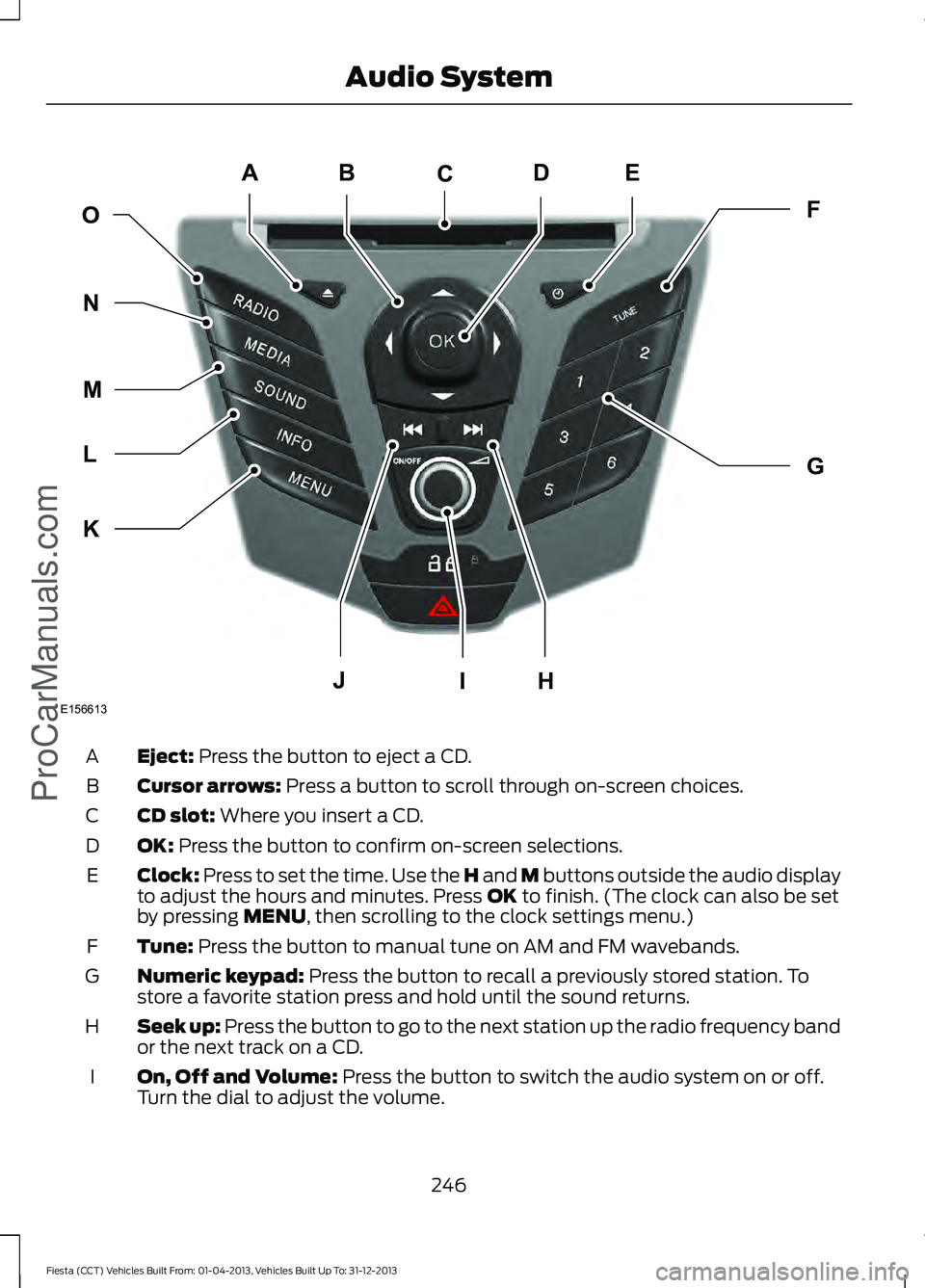
Eject: Press the button to eject a CD.
A
Cursor arrows:
Press a button to scroll through on-screen choices.
B
CD slot:
Where you insert a CD.
C
OK:
Press the button to confirm on-screen selections.
D
Clock:
Press to set the time. Use the H and M buttons outside the audio display
to adjust the hours and minutes. Press OK to finish. (The clock can also be set
by pressing MENU, then scrolling to the clock settings menu.)
E
Tune:
Press the button to manual tune on AM and FM wavebands.
F
Numeric keypad:
Press the button to recall a previously stored station. To
store a favorite station press and hold until the sound returns.
G
Seek up: Press the button to go to the next station up the radio frequency band
or the next track on a CD.
H
On, Off and Volume:
Press the button to switch the audio system on or off.
Turn the dial to adjust the volume.
I
246
Fiesta (CCT) Vehicles Built From: 01-04-2013, Vehicles Built Up To: 31-12-2013 Audio System
ProCarManuals.comE156613
ED
OF
G
K
L
M
N
JHI
C
A
B
Page 250 of 398
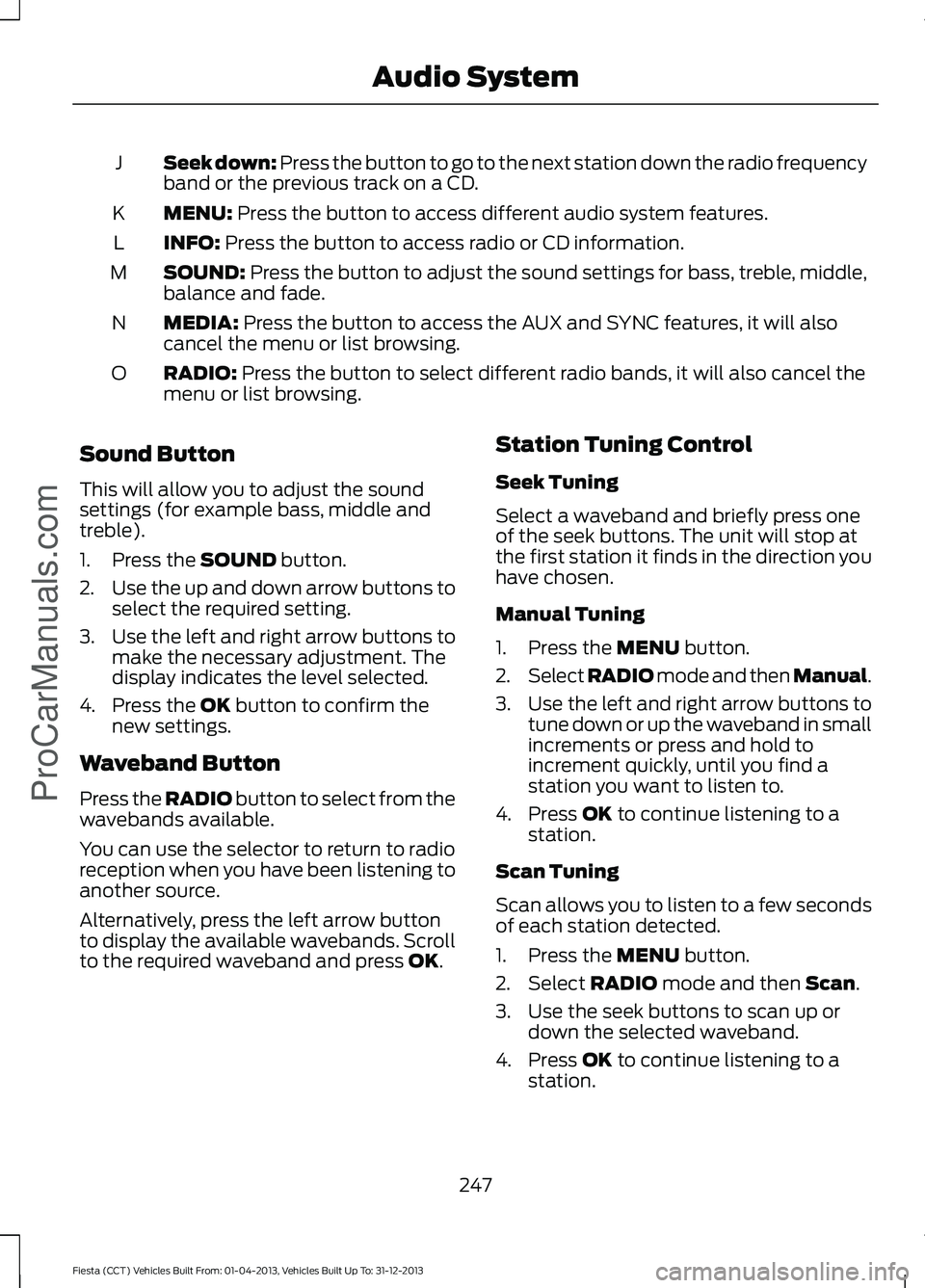
Seek down: Press the button to go to the next station down the radio frequency
band or the previous track on a CD.
J
MENU: Press the button to access different audio system features.
K
INFO:
Press the button to access radio or CD information.
L
SOUND:
Press the button to adjust the sound settings for bass, treble, middle,
balance and fade.
M
MEDIA:
Press the button to access the AUX and SYNC features, it will also
cancel the menu or list browsing.
N
RADIO:
Press the button to select different radio bands, it will also cancel the
menu or list browsing.
O
Sound Button
This will allow you to adjust the sound
settings (for example bass, middle and
treble).
1. Press the
SOUND button.
2. Use the up and down arrow buttons to
select the required setting.
3. Use the left and right arrow buttons to
make the necessary adjustment. The
display indicates the level selected.
4. Press the
OK button to confirm the
new settings.
Waveband Button
Press the
RADIO button to select from the
wavebands available.
You can use the selector to return to radio
reception when you have been listening to
another source.
Alternatively, press the left arrow button
to display the available wavebands. Scroll
to the required waveband and press
OK. Station Tuning Control
Seek Tuning
Select a waveband and briefly press one
of the seek buttons. The unit will stop at
the first station it finds in the direction you
have chosen.
Manual Tuning
1. Press the
MENU button.
2. Select RADIO mode and then Manual.
3. Use the left and right arrow buttons to
tune down or up the waveband in small
increments or press and hold to
increment quickly, until you find a
station you want to listen to.
4. Press
OK to continue listening to a
station.
Scan Tuning
Scan allows you to listen to a few seconds
of each station detected.
1. Press the
MENU button.
2. Select
RADIO mode and then Scan.
3. Use the seek buttons to scan up or down the selected waveband.
4. Press
OK to continue listening to a
station.
247
Fiesta (CCT) Vehicles Built From: 01-04-2013, Vehicles Built Up To: 31-12-2013 Audio System
ProCarManuals.com
Page 251 of 398
Station Preset Buttons
This feature allows you to store your
favorite stations, they can be recalled by
selecting the appropriate waveband and
pressing one of the preset buttons.
1. Select a waveband.
2. Tune to the station required.
3. Press and hold one of the preset
buttons. A progress bar and message
will appear. When the progress bar
completes the station has been stored.
The audio unit will also mute
momentarily as confirmation.
You can repeat this on each waveband and
for each preset button.
Note: When you drive to another part of the
country, stations that broadcast on
alternative frequencies and are stored on
preset buttons, may be updated with the
correct frequency and station name for that
area.
Autostore Control
Note: This will store up to a maximum of
the six strongest signals available, either
from the AM or the FM waveband and
overwrite the previously stored stations. You
can also store stations manually in the same
way as other wavebands.
• Press and hold the RADIO button.
• When the search is complete, sound is
restored and the strongest signals are
stored on the autostore presets.
Automatic Volume Control
When available, automatic volume control
adjusts the volume level to compensate
for engine noise and road speed noise.
1. Press the
MENU button and select
Audio Settings.
2. Select
Spd. Comp. Vol. 3. Use the left or right arrow button to
adjust the setting.
4. Press the
OK button to confirm your
selection.
5. Press the
MENU button to return.
News Broadcasts
Your audio unit may interrupt normal
reception to broadcast news bulletins from
stations on the FM waveband, radio data
system or other enhanced network linked
stations.
The display will indicate there is an
incoming announcement during news
broadcasts. When the audio unit interrupts
for a news broadcast the preset volume
level will be the same as traffic
announcements.
1. Press the
MENU button.
2. Select
Audio Settings.
3. Scroll to
News and turn on or off with
the OK button.
4. Press the
MENU button to return.
Alternative Frequencies
The majority of programs that broadcast
on the FM waveband have a program
identification code that can be recognized
by audio units.
When your vehicle moves from one
transmission area to another with the
alternative frequencies tuning switched
on, this function will search for the
strongest station signal.
Under certain conditions, alternative
frequencies tuning may temporarily disrupt
normal reception.
248
Fiesta (CCT) Vehicles Built From: 01-04-2013, Vehicles Built Up To: 31-12-2013 Audio System
ProCarManuals.com
Page 252 of 398
When selected, the unit continually
evaluates signal strength and if a better
signal becomes available, the unit will
switch to that alternative. It mutes while
it checks a list of alternative frequencies
and if necessary, it will search once across
the selected waveband for a genuine
alternative frequency.
It will restore radio reception when it finds
one or if one is not found, the unit will
return to the original stored frequency.
When selected,
AF will be shown in the
display.
1. Press the
MENU button.
2. Select
Audio Settings.
3. Scroll to
Alternat. freq. or Alt.
Frequency and turn on or off with the
OK button.
4. Press the
MENU button to return.
Regional Mode
Regional mode controls the behavior of
alternative frequencies switching between
regionally related networks of a parent
broadcaster. A broadcaster may run a fairly
large network across a large part of the
country. At various times of the day this
large network may be broken down into a
number of smaller regional networks,
typically centered on major towns or cities.
When the network is not split into regional
variants, the whole network carries the
same programming.
Regional mode ON: This prevents random
alternative frequency switches when
neighboring regional networks are not
carrying the same programming. Regional mode OFF: This allows a larger
coverage area if neighboring regional
networks are carrying the same
programming, but can cause random
alternative frequency switches if they are
not.
1. Press the
MENU button.
2. Select
Audio Settings.
3. Scroll to
RDS regional and turn on or
off with the OK button.
4. Press the
MENU button to return.
AUDIO UNIT - VEHICLES WITH:
AM/FM/CD/SYNC WARNING
Driving while distracted can result in
loss of vehicle control, crash and
injury. We strongly recommend that
you use extreme caution when using any
device that may take your focus off the
road. Your primary responsibility is the safe
operation of your vehicle. We recommend
against the use of any handheld device
while driving and encourage the use of
voice-operated systems when possible.
Make sure you are aware of all applicable
local laws that may affect the use of
electronic devices while driving. Note:
An integrated multi function display
is situated above the unit. This shows
important information regarding control of
your system. Additionally, there are various
icons placed around the display screen
which light up when a function is active (for
example CD, Radio or Aux).
249
Fiesta (CCT) Vehicles Built From: 01-04-2013, Vehicles Built Up To: 31-12-2013 Audio System
ProCarManuals.com
Page 253 of 398
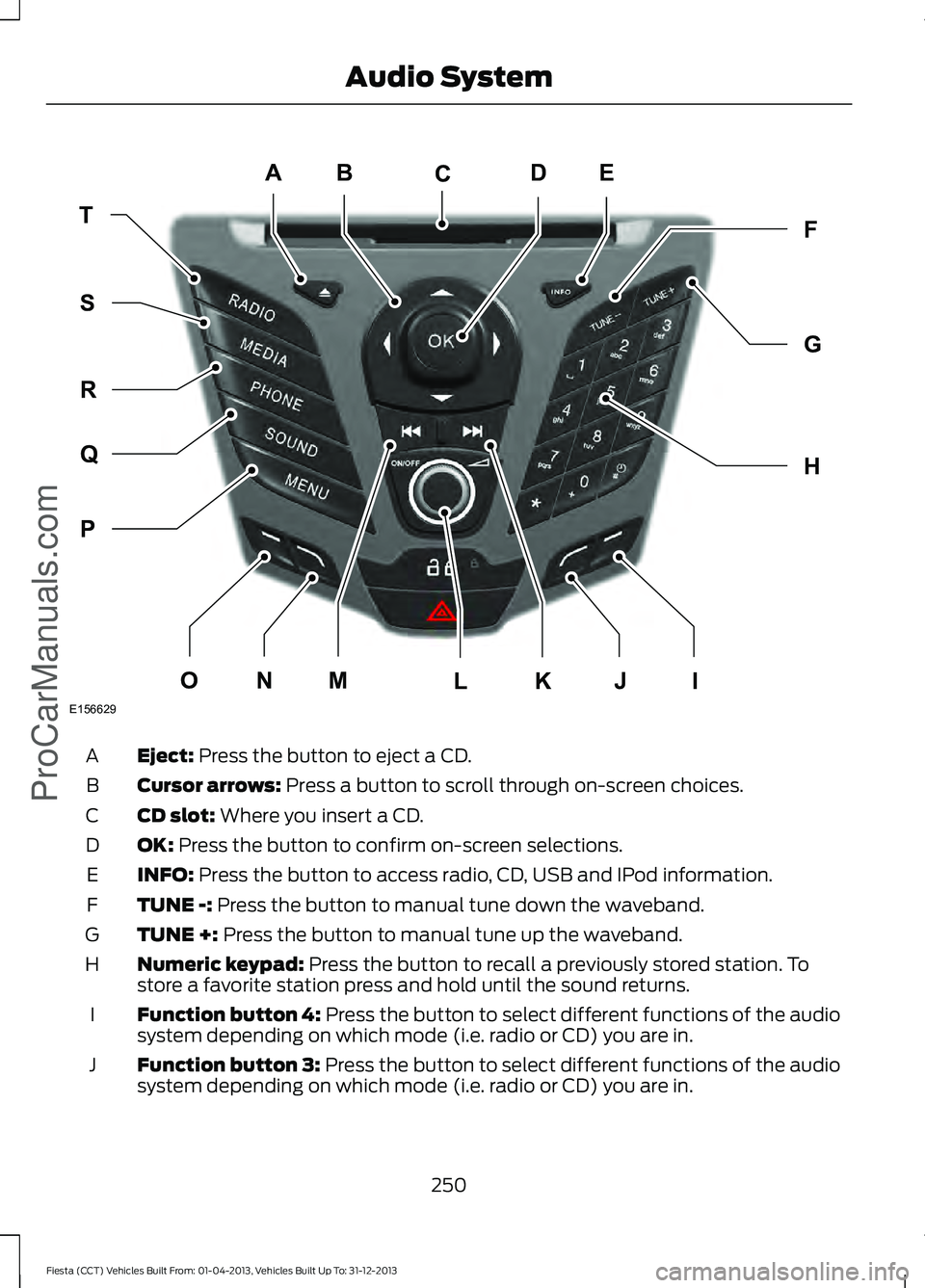
Eject: Press the button to eject a CD.
A
Cursor arrows:
Press a button to scroll through on-screen choices.
B
CD slot:
Where you insert a CD.
C
OK:
Press the button to confirm on-screen selections.
D
INFO:
Press the button to access radio, CD, USB and IPod information.
E
TUNE -:
Press the button to manual tune down the waveband.
F
TUNE +:
Press the button to manual tune up the waveband.
G
Numeric keypad:
Press the button to recall a previously stored station. To
store a favorite station press and hold until the sound returns.
H
Function button 4:
Press the button to select different functions of the audio
system depending on which mode (i.e. radio or CD) you are in.
I
Function button 3:
Press the button to select different functions of the audio
system depending on which mode (i.e. radio or CD) you are in.
J
250
Fiesta (CCT) Vehicles Built From: 01-04-2013, Vehicles Built Up To: 31-12-2013 Audio System
ProCarManuals.comE156629
JI
ED
TF
H
G
P
Q
R
S
MNOKL
C
A
B
Page 254 of 398
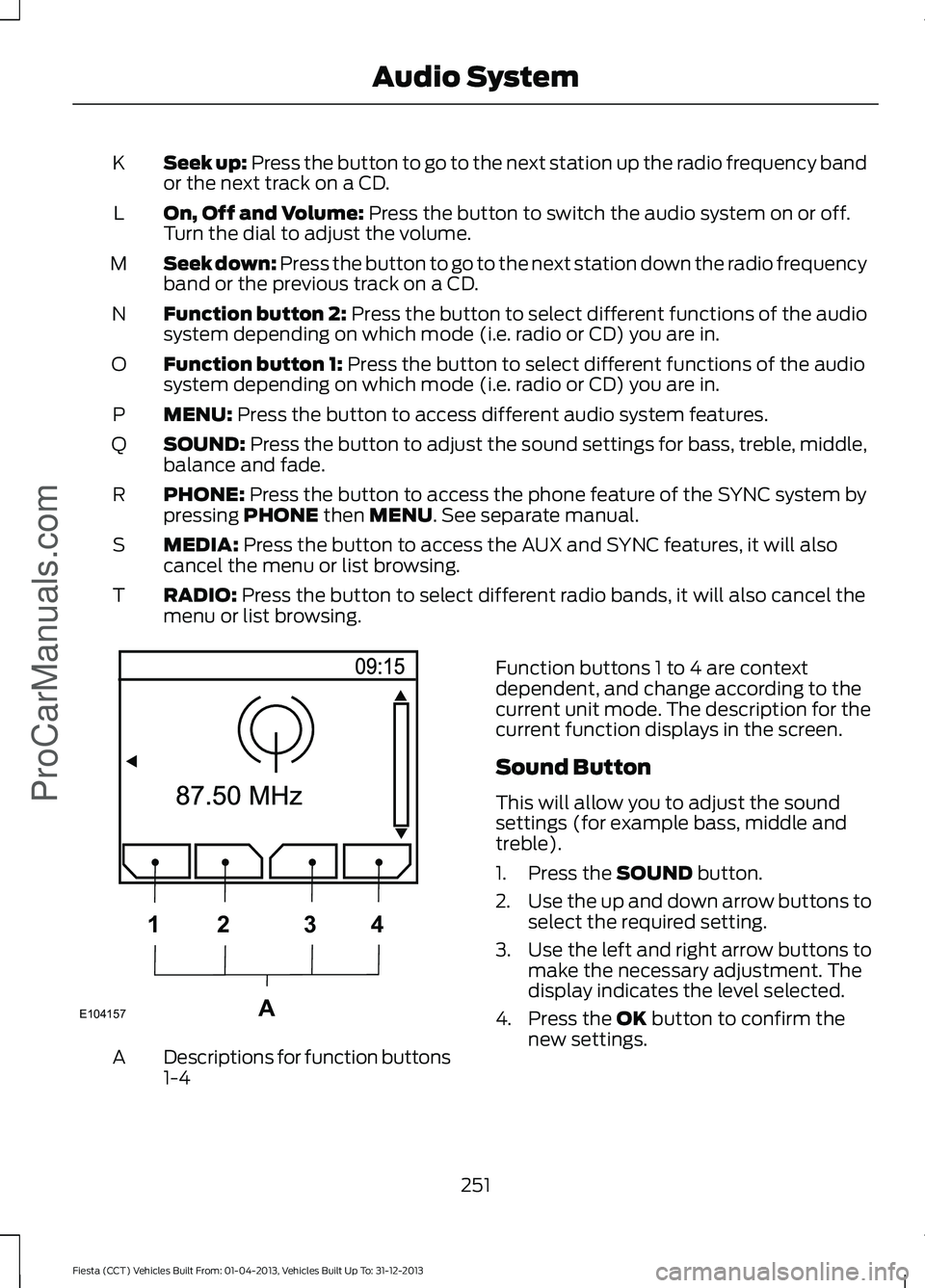
Seek up: Press the button to go to the next station up the radio frequency band
or the next track on a CD.
K
On, Off and Volume: Press the button to switch the audio system on or off.
Turn the dial to adjust the volume.
L
Seek down: Press the button to go to the next station down the radio frequency
band or the previous track on a CD.
M
Function button 2:
Press the button to select different functions of the audio
system depending on which mode (i.e. radio or CD) you are in.
N
Function button 1:
Press the button to select different functions of the audio
system depending on which mode (i.e. radio or CD) you are in.
O
MENU:
Press the button to access different audio system features.
P
SOUND:
Press the button to adjust the sound settings for bass, treble, middle,
balance and fade.
Q
PHONE:
Press the button to access the phone feature of the SYNC system by
pressing PHONE then MENU. See separate manual.
R
MEDIA:
Press the button to access the AUX and SYNC features, it will also
cancel the menu or list browsing.
S
RADIO:
Press the button to select different radio bands, it will also cancel the
menu or list browsing.
T Descriptions for function buttons
1-4
A Function buttons 1 to 4 are context
dependent, and change according to the
current unit mode. The description for the
current function displays in the screen.
Sound Button
This will allow you to adjust the sound
settings (for example bass, middle and
treble).
1. Press the
SOUND button.
2. Use the up and down arrow buttons to
select the required setting.
3. Use the left and right arrow buttons to
make the necessary adjustment. The
display indicates the level selected.
4. Press the
OK button to confirm the
new settings.
251
Fiesta (CCT) Vehicles Built From: 01-04-2013, Vehicles Built Up To: 31-12-2013 Audio System
ProCarManuals.comE104157A
1
2 34