radio FORD FIESTA 2014 Owner's Manual
[x] Cancel search | Manufacturer: FORD, Model Year: 2014, Model line: FIESTA, Model: FORD FIESTA 2014Pages: 398, PDF Size: 6.09 MB
Page 257 of 398
AUDIO UNIT - VEHICLES WITH:
TOUCHSCREEN DISPLAY
WARNING
Driving while distracted can result in
loss of vehicle control, crash and
injury. We strongly recommend that
you use extreme caution when using any
device that may take your focus off the
road. Your primary responsibility is the safe
operation of your vehicle. We recommend
against the use of any handheld device
while driving and encourage the use of
voice-operated systems when possible.
Make sure you are aware of all applicable
local laws that may affect the use of
electronic devices while driving. Note:
The MyFord Touch® system controls
most of the audio features. See MyFord
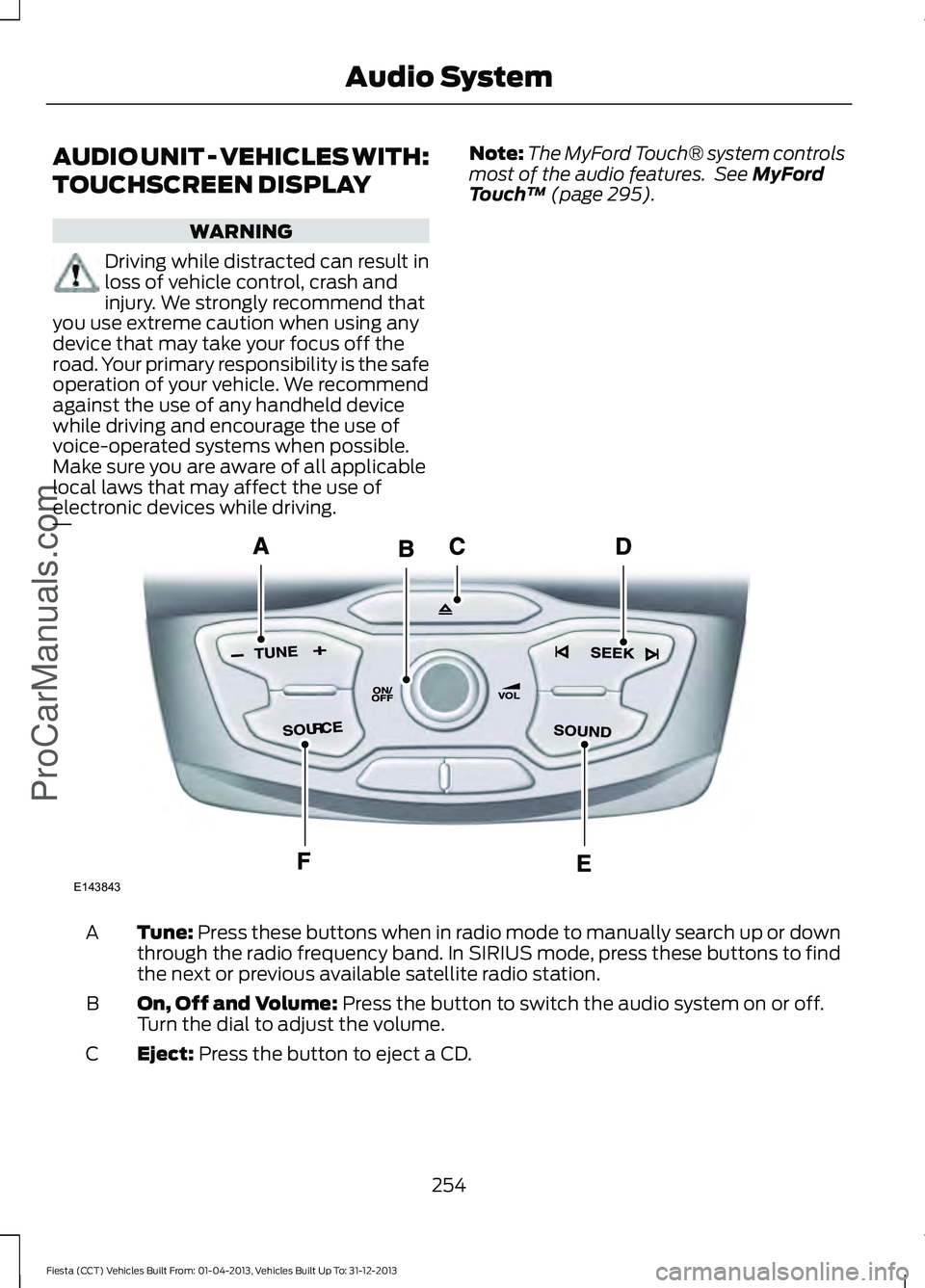
Touch ™ (page 295). Tune:
Press these buttons when in radio mode to manually search up or down
through the radio frequency band. In SIRIUS mode, press these buttons to find
the next or previous available satellite radio station.
A
On, Off and Volume:
Press the button to switch the audio system on or off.
Turn the dial to adjust the volume.
B
Eject:
Press the button to eject a CD.
C
254
Fiesta (CCT) Vehicles Built From: 01-04-2013, Vehicles Built Up To: 31-12-2013 Audio System
ProCarManuals.comE143843
Page 258 of 398
SEEK Press these buttons when you are in radio mode to go to the next station
up or down the radio frequency band, or to go to the next or previous track on
a CD. In SIRIUS mode, press these buttons to select the next or previous channel.
If a specific category is selected (for example Jazz, Rock or News), use these
buttons to find the next or previous channel in the selected category.
D
SOUND:
Press the button to adjust the sound settings for bass, treble, middle,
balance and fade.
E
SOURCE:
Press the button to access different audio modes, such as AM, FM
and A/V input.
F
AUDIO UNIT - VEHICLES WITH:
SONY AUDIO
SYSTEM/TOUCHSCREEN
DISPLAY WARNING
Driving while distracted can result in
loss of vehicle control, crash and
injury. We strongly recommend that
you use extreme caution when using any
device that may take your focus off the
road. Your primary responsibility is the safe
operation of your vehicle. We recommend
against the use of any handheld device
while driving and encourage the use of
voice-operated systems when possible.
Make sure you are aware of all applicable
local laws that may affect the use of
electronic devices while driving. Note:
The MyFord Touch® system controls
most of the audio features. See
MyFord
Touch ™ (page 295).
255
Fiesta (CCT) Vehicles Built From: 01-04-2013, Vehicles Built Up To: 31-12-2013 Audio System
ProCarManuals.com
Page 259 of 398
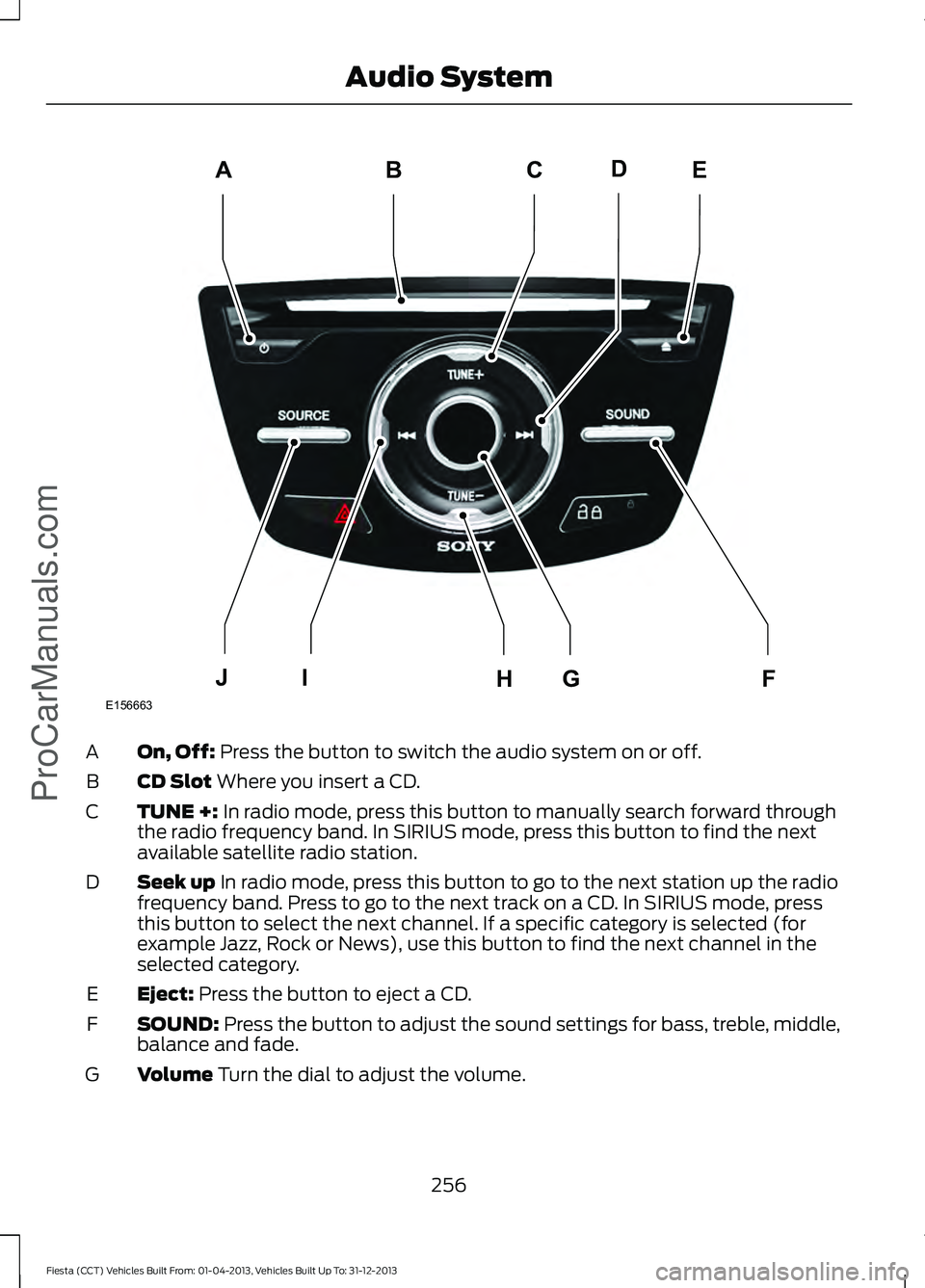
On, Off: Press the button to switch the audio system on or off.
A
CD Slot
Where you insert a CD.
B
TUNE +:
In radio mode, press this button to manually search forward through
the radio frequency band. In SIRIUS mode, press this button to find the next
available satellite radio station.
C
Seek up
In radio mode, press this button to go to the next station up the radio
frequency band. Press to go to the next track on a CD. In SIRIUS mode, press
this button to select the next channel. If a specific category is selected (for
example Jazz, Rock or News), use this button to find the next channel in the
selected category.
D
Eject:
Press the button to eject a CD.
E
SOUND:
Press the button to adjust the sound settings for bass, treble, middle,
balance and fade.
F
Volume
Turn the dial to adjust the volume.
G
256
Fiesta (CCT) Vehicles Built From: 01-04-2013, Vehicles Built Up To: 31-12-2013 Audio System
ProCarManuals.comE156663
ABCDE
JIFGH
Page 260 of 398
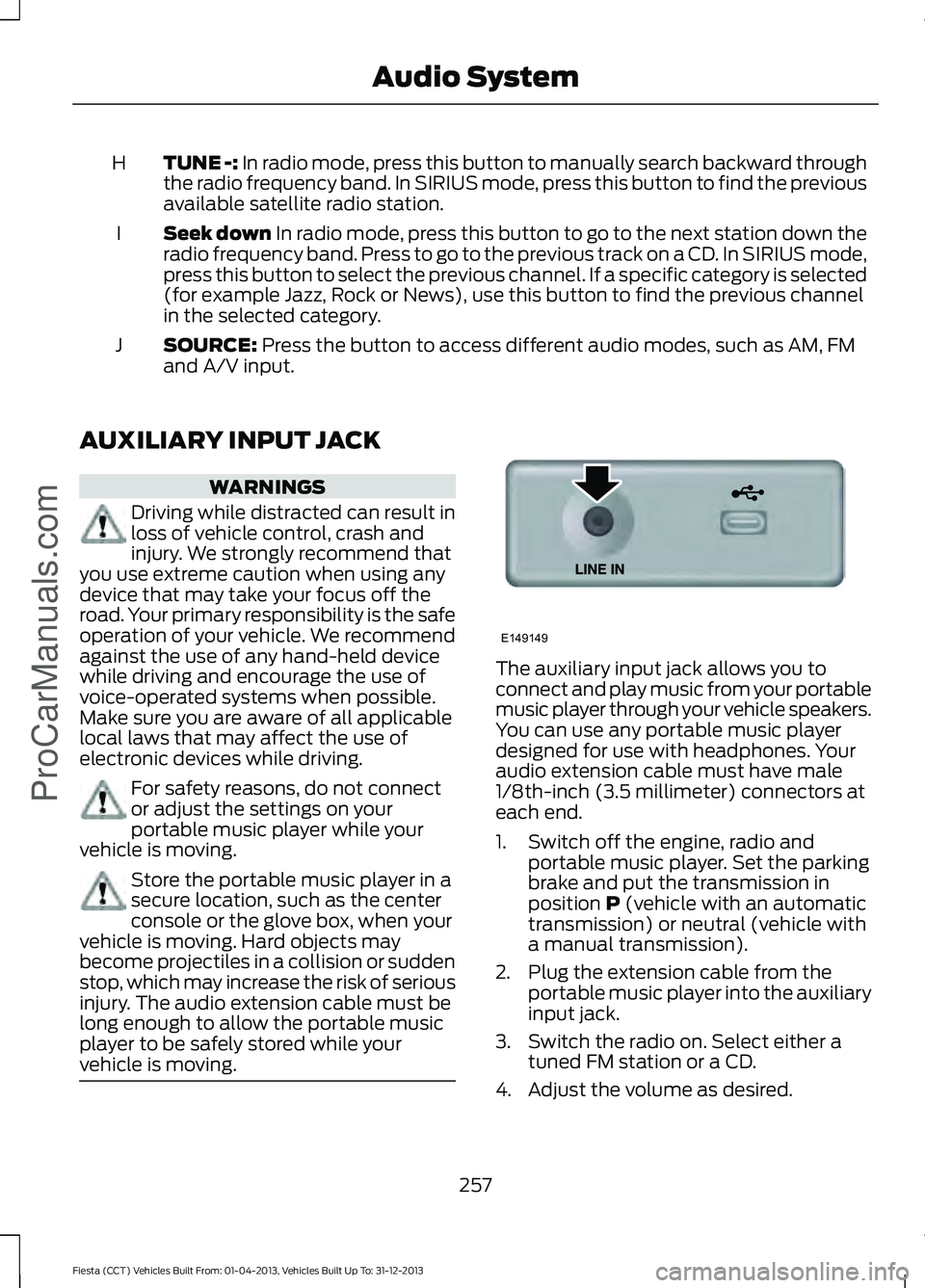
TUNE -: In radio mode, press this button to manually search backward through
the radio frequency band. In SIRIUS mode, press this button to find the previous
available satellite radio station.
H
Seek down
In radio mode, press this button to go to the next station down the
radio frequency band. Press to go to the previous track on a CD. In SIRIUS mode,
press this button to select the previous channel. If a specific category is selected
(for example Jazz, Rock or News), use this button to find the previous channel
in the selected category.
I
SOURCE:
Press the button to access different audio modes, such as AM, FM
and A/V input.
J
AUXILIARY INPUT JACK WARNINGS
Driving while distracted can result in
loss of vehicle control, crash and
injury. We strongly recommend that
you use extreme caution when using any
device that may take your focus off the
road. Your primary responsibility is the safe
operation of your vehicle. We recommend
against the use of any hand-held device
while driving and encourage the use of
voice-operated systems when possible.
Make sure you are aware of all applicable
local laws that may affect the use of
electronic devices while driving. For safety reasons, do not connect
or adjust the settings on your
portable music player while your
vehicle is moving. Store the portable music player in a
secure location, such as the center
console or the glove box, when your
vehicle is moving. Hard objects may
become projectiles in a collision or sudden
stop, which may increase the risk of serious
injury. The audio extension cable must be
long enough to allow the portable music
player to be safely stored while your
vehicle is moving. The auxiliary input jack allows you to
connect and play music from your portable
music player through your vehicle speakers.
You can use any portable music player
designed for use with headphones. Your
audio extension cable must have male
1/8th-inch (3.5 millimeter) connectors at
each end.
1. Switch off the engine, radio and
portable music player. Set the parking
brake and put the transmission in
position
P (vehicle with an automatic
transmission) or neutral (vehicle with
a manual transmission).
2. Plug the extension cable from the portable music player into the auxiliary
input jack.
3. Switch the radio on. Select either a tuned FM station or a CD.
4. Adjust the volume as desired.
257
Fiesta (CCT) Vehicles Built From: 01-04-2013, Vehicles Built Up To: 31-12-2013 Audio System
ProCarManuals.comE149149
Page 267 of 398
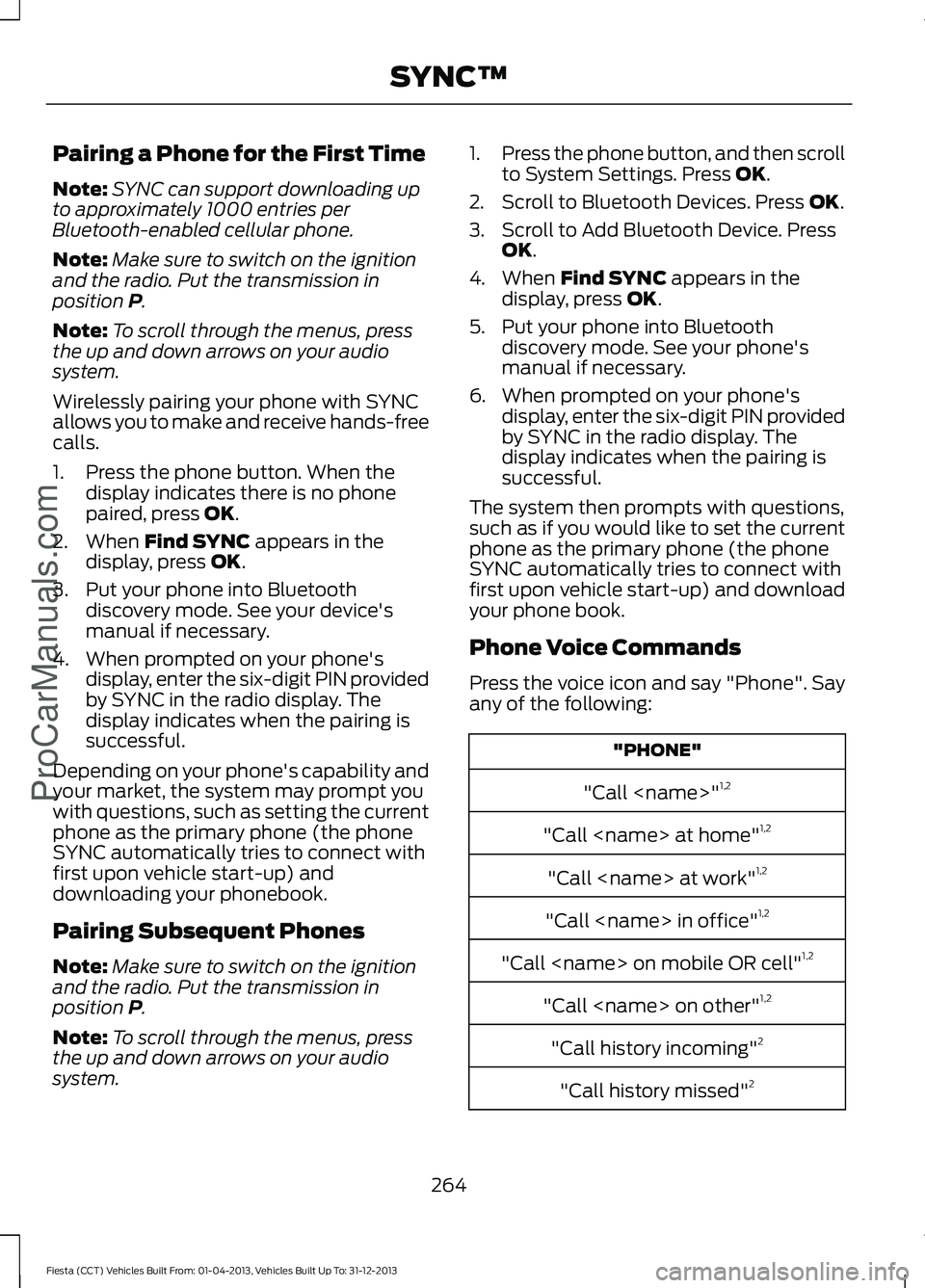
Pairing a Phone for the First Time
Note:
SYNC can support downloading up
to approximately 1000 entries per
Bluetooth-enabled cellular phone.
Note: Make sure to switch on the ignition
and the radio. Put the transmission in
position P.
Note: To scroll through the menus, press
the up and down arrows on your audio
system.
Wirelessly pairing your phone with SYNC
allows you to make and receive hands-free
calls.
1. Press the phone button. When the display indicates there is no phone
paired, press
OK.
2. When
Find SYNC appears in the
display, press OK.
3. Put your phone into Bluetooth discovery mode. See your device's
manual if necessary.
4. When prompted on your phone's display, enter the six-digit PIN provided
by SYNC in the radio display. The
display indicates when the pairing is
successful.
Depending on your phone's capability and
your market, the system may prompt you
with questions, such as setting the current
phone as the primary phone (the phone
SYNC automatically tries to connect with
first upon vehicle start-up) and
downloading your phonebook.
Pairing Subsequent Phones
Note: Make sure to switch on the ignition
and the radio. Put the transmission in
position
P.
Note: To scroll through the menus, press
the up and down arrows on your audio
system. 1.
Press the phone button, and then scroll
to System Settings. Press
OK.
2. Scroll to Bluetooth Devices. Press
OK.
3. Scroll to Add Bluetooth Device. Press OK
.
4. When
Find SYNC appears in the
display, press OK.
5. Put your phone into Bluetooth discovery mode. See your phone's
manual if necessary.
6. When prompted on your phone's display, enter the six-digit PIN provided
by SYNC in the radio display. The
display indicates when the pairing is
successful.
The system then prompts with questions,
such as if you would like to set the current
phone as the primary phone (the phone
SYNC automatically tries to connect with
first upon vehicle start-up) and download
your phone book.
Phone Voice Commands
Press the voice icon and say "Phone". Say
any of the following: "PHONE"
"Call
"Call
"Call
"Call
"Call
"Call
"Call history incoming" 2
"Call history missed" 2
264
Fiesta (CCT) Vehicles Built From: 01-04-2013, Vehicles Built Up To: 31-12-2013 SYNC™
ProCarManuals.com
Page 276 of 398
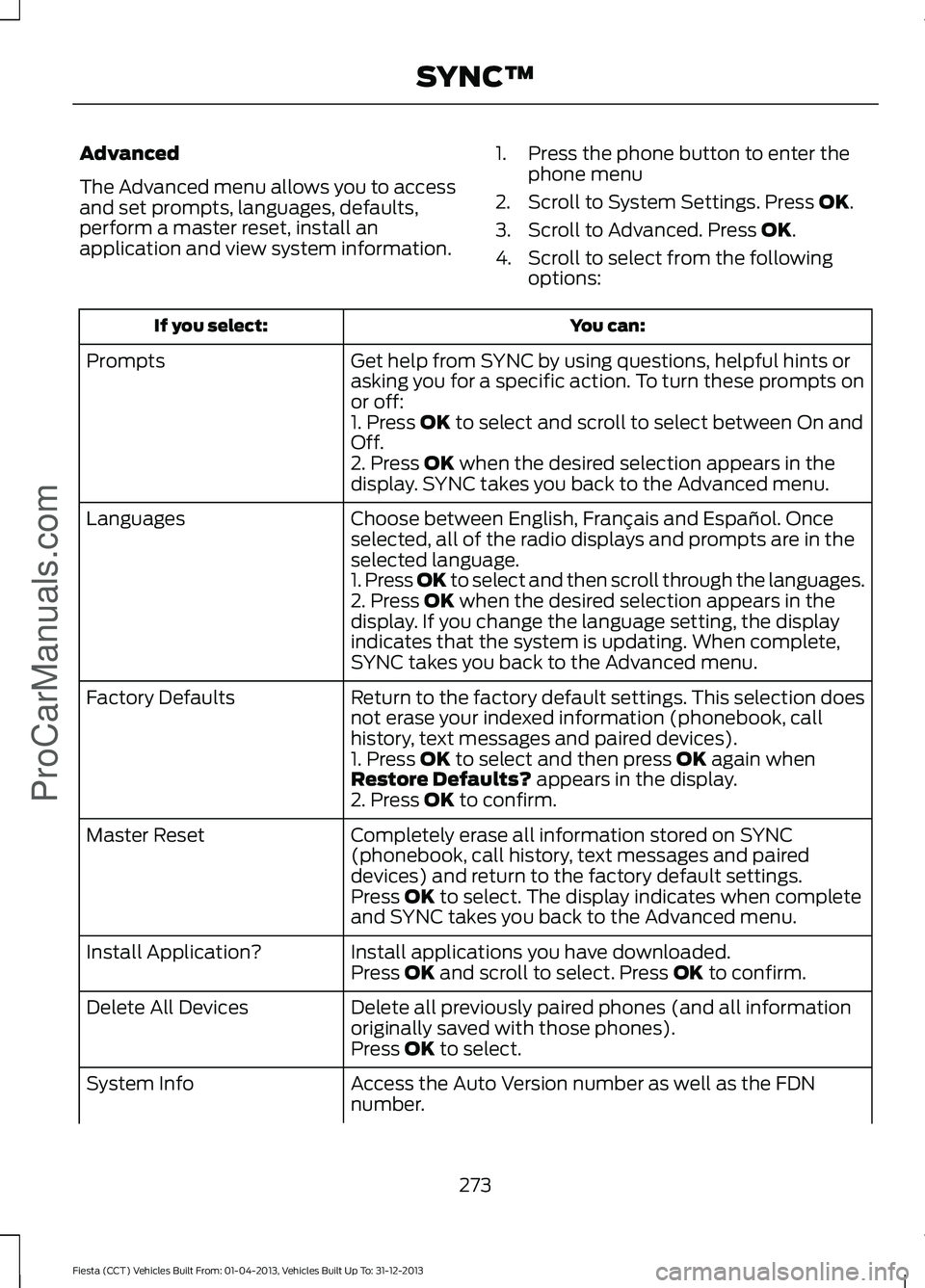
Advanced
The Advanced menu allows you to access
and set prompts, languages, defaults,
perform a master reset, install an
application and view system information.
1. Press the phone button to enter the
phone menu
2. Scroll to System Settings. Press OK.
3. Scroll to Advanced. Press
OK.
4. Scroll to select from the following options: You can:
If you select:
Get help from SYNC by using questions, helpful hints or
asking you for a specific action. To turn these prompts on
or off:
Prompts
1. Press
OK to select and scroll to select between On and
Off.
2. Press
OK when the desired selection appears in the
display. SYNC takes you back to the Advanced menu.
Choose between English, Français and Español. Once
selected, all of the radio displays and prompts are in the
selected language.
Languages
1. Press OK to select and then scroll through the languages.
2. Press
OK when the desired selection appears in the
display. If you change the language setting, the display
indicates that the system is updating. When complete,
SYNC takes you back to the Advanced menu.
Return to the factory default settings. This selection does
not erase your indexed information (phonebook, call
history, text messages and paired devices).
Factory Defaults
1. Press
OK to select and then press OK again when
Restore Defaults? appears in the display.
2. Press OK to confirm.
Completely erase all information stored on SYNC
(phonebook, call history, text messages and paired
devices) and return to the factory default settings.
Master Reset
Press
OK to select. The display indicates when complete
and SYNC takes you back to the Advanced menu.
Install applications you have downloaded.
Install Application?
Press
OK and scroll to select. Press OK to confirm.
Delete all previously paired phones (and all information
originally saved with those phones).
Delete All Devices
Press
OK to select.
Access the Auto Version number as well as the FDN
number.
System Info
273
Fiesta (CCT) Vehicles Built From: 01-04-2013, Vehicles Built Up To: 31-12-2013 SYNC™
ProCarManuals.com
Page 278 of 398
![FORD FIESTA 2014 Owners Manual If a crash deploys an airbag (excluding
knee airbags and rear inflatable safety
belts [if equipped]) or activates the fuel
pump shut-off, your SYNC-equipped
vehicle may be able to contact emergency
se](/img/11/57820/w960_57820-277.png "FORD FIESTA 2014 Owners Manual If a crash deploys an airbag (excluding
knee airbags and rear inflatable safety
belts [if equipped]) or activates the fuel
pump shut-off, your SYNC-equipped
vehicle may be able to contact emergency
se")
If a crash deploys an airbag (excluding
knee airbags and rear inflatable safety
belts [if equipped]) or activates the fuel
pump shut-off, your SYNC-equipped
vehicle may be able to contact emergency
services by dialing 911 through a paired and
connected Bluetooth-enabled phone. You
can learn more about the 911 Assist
feature, visit www.SYNCMyRide.com,
www.SYNCMyRide.ca or
www.syncmaroute.ca.
See Supplementary Restraints System
(page 34). Important information about
airbag deployment is in this chapter.
See
Roadside Emergencies (page 166).
Important information about the fuel pump
shut-off is in this chapter.
Setting 911 Assist On
1. Press the phone button to enter the phone menu.
2. Scroll to select 911 Assist.
3. Press
OK to confirm and enter the 911
Assist menu.
4. Scroll to select between On and Off.
5. Press
OK when the desired option
appears in the radio display. Set On or
Set Off
appears in the display as
confirmation.
Off selections include:
• Off with reminder: Provides a display
and voice reminder at phone
connection at vehicle start.
• Off without reminder: Provides a
display reminder only without a voice
reminder at phone connection.
To make sure that 911 Assist works
properly:
• SYNC must be powered and working
properly at the time of the incident and
throughout feature activation and use.
• The 911 Assist feature must be set on
before the incident. •
You must pair and connect a
Bluetooth-enabled and compatible
cell phone to SYNC.
• A connected Bluetooth-enabled phone
must have the ability to make and
maintain an outgoing call at the time
of the incident.
• A connected Bluetooth-enabled phone
must have adequate network coverage,
battery power and signal strength.
• The vehicle must have battery power
and be located in the U.S., Canada or
in a territory in which 911 is the
emergency number.
In the Event of a Crash
Not all crashes will deploy an airbag or
activate the fuel pump shut-off (the
triggers for 911 Assist). If a connected cell
phone sustains damage or loses its
connection to SYNC during a crash, SYNC
will search for and try to connect to a
previously paired cell phone; SYNC will
then attempt to call the emergency
services.
Before making the call:
• SYNC provides a short window of time
(about 10 seconds) to cancel the call.
If you fail to cancel the call, SYNC
attempts to dial 911.
• SYNC says the following, or a similar
message: "SYNC will attempt to call
911, to cancel the call, press Cancel on
your screen or press and hold the
phone button on your steering wheel."
If you do not cancel the call, and SYNC
makes a successful call, a pre-recorded
message plays for the 911 operator, and
then the occupant(s) in your vehicle is able
to talk with the operator. Be prepared to
provide your name, phone number and
location immediately, because not all 911
systems are capable of receiving this
information electronically.
275
Fiesta (CCT) Vehicles Built From: 01-04-2013, Vehicles Built Up To: 31-12-2013 SYNC™
ProCarManuals.com
Page 284 of 398
USING SYNC™ WITH YOUR
MEDIA PLAYER
You can access and play music from your
digital music player over your vehicle's
speaker system using the system's media
menu or voice commands. You can also
sort and play your music by specific
categories, such as artist and album.
SYNC is capable of hosting nearly any
digital media player including: iPod®,
Zune
™, Plays from device players, and
most USB drives. SYNC also supports
audio formats, such as MP3, WMA, WAV
and ACC.
Connecting Your Digital Media
Player to the USB Port
Note: If your digital media player has a
power switch, make sure you switch it on
before plugging it in.
To Connect Using Voice Commands
1. Plug the device into the USB port.
2. Press the voice icon and when prompted, say "USB".
3. You can now play music by saying any of the appropriate voice commands.
See the media voice commands.
To Connect Using the System Menu
1. Plug the device into the USB port.
2. Press AUX and then MENU to enter
the media menu.
3. Scroll to Select Source. Press
OK.
4. Scroll to USB. Press
OK.
5. Depending on how many digital media
files are on your connected device,
Indexing
may appear in the radio
display. When indexing is complete, the
screen returns to the Play menu. Press
OK and scroll through selections of:
• Play All
• Albums
• Genres
• Playlists
• Tracks
• Explore USB
• Similar Music
• Return
What's Playing?
At any time when a track is playing, you
can press the voice icon and ask the
system "What's playing?". The system
reads the metadata tags (if populated) of
the playing track to you.
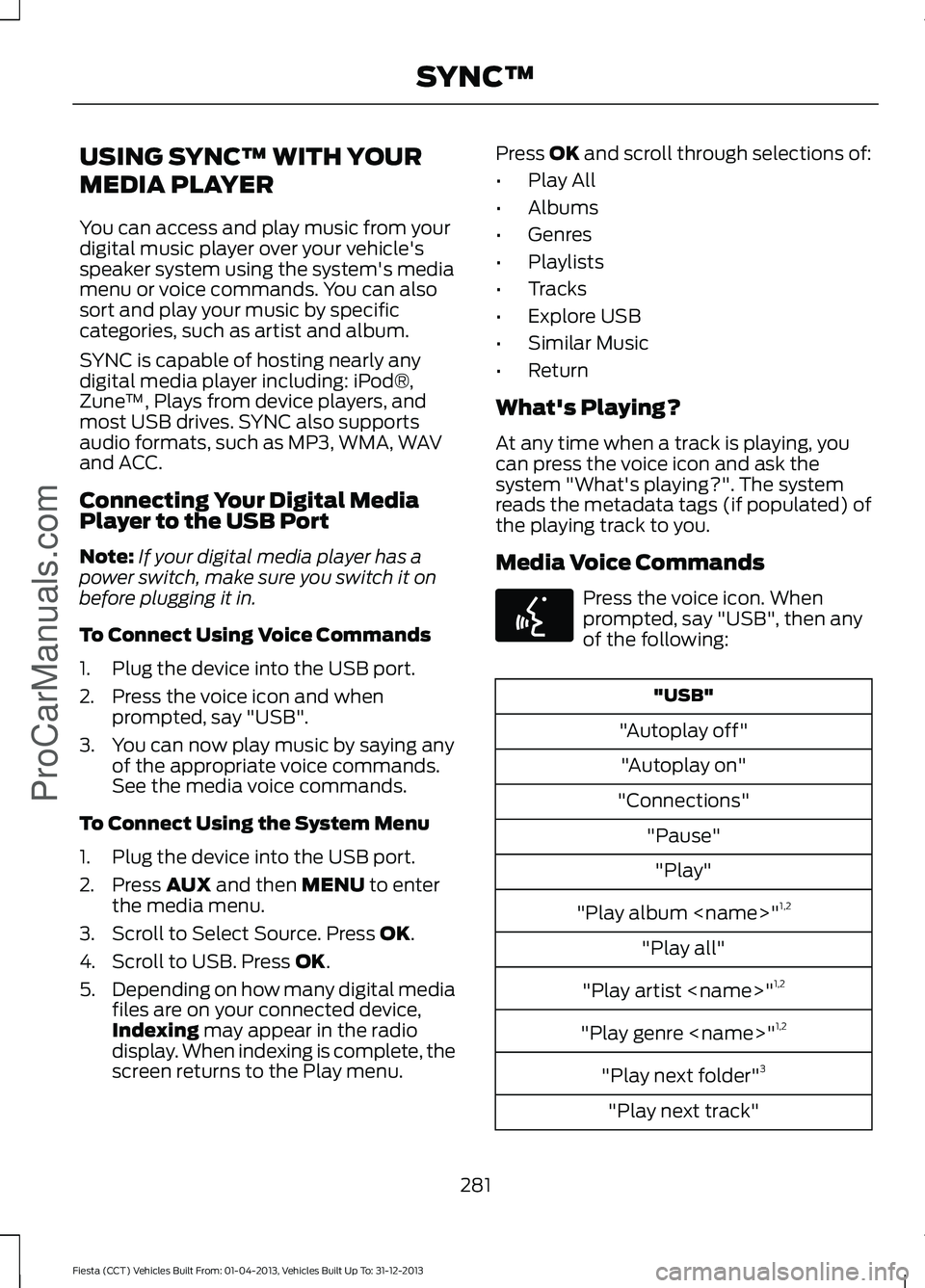
Media Voice Commands Press the voice icon. When
prompted, say "USB", then any
of the following:
"USB"
"Autoplay off" "Autoplay on"
"Connections" "Pause""Play"
"Play album
"Play all"
"Play artist
"Play genre
"Play next folder" 3
"Play next track"
281
Fiesta (CCT) Vehicles Built From: 01-04-2013, Vehicles Built Up To: 31-12-2013 SYNC™
ProCarManuals.comE142599
Page 303 of 398
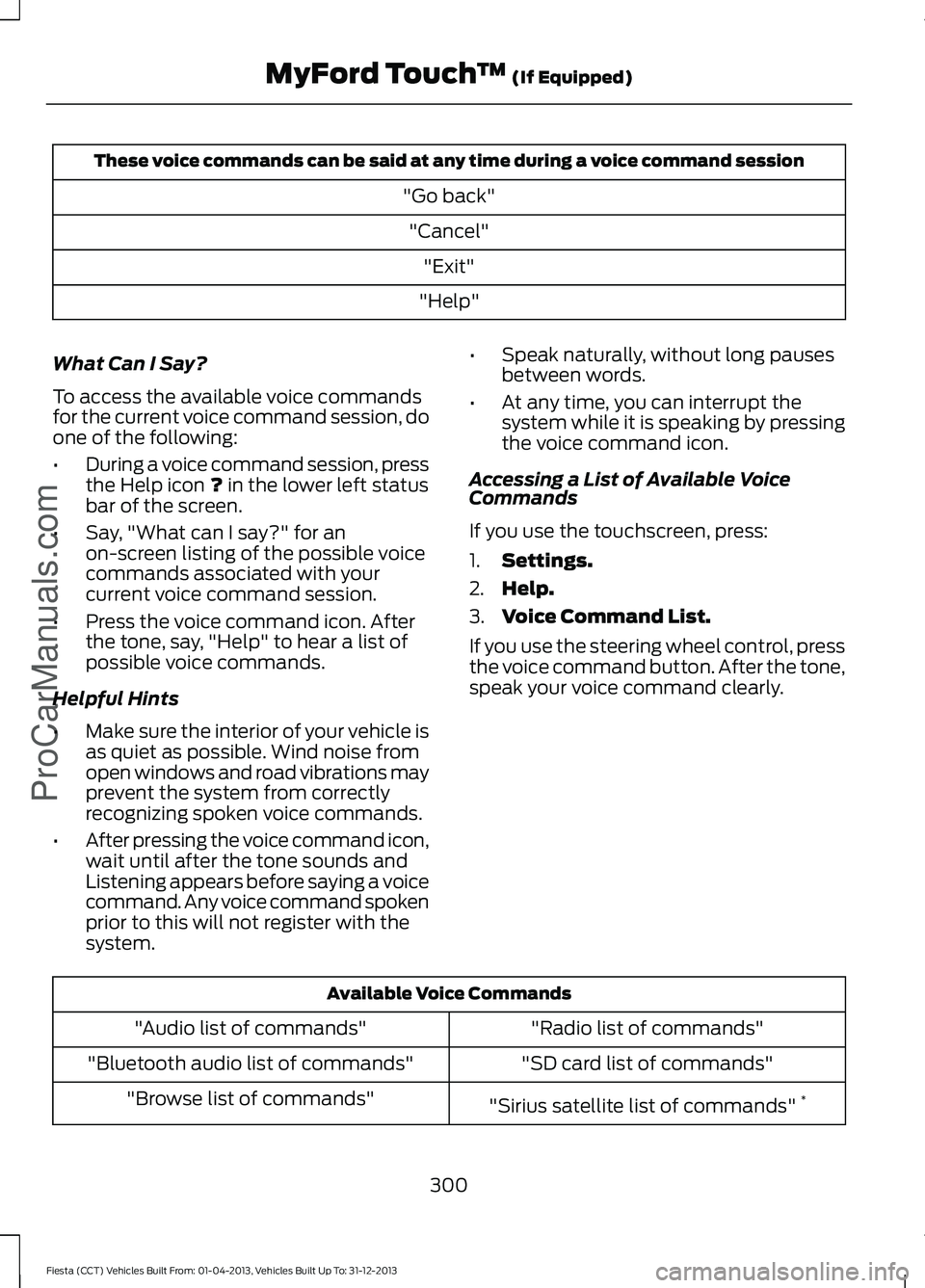
These voice commands can be said at any time during a voice command session
"Go back""Cancel" "Exit"
"Help"
What Can I Say?
To access the available voice commands
for the current voice command session, do
one of the following:
• During a voice command session, press
the Help icon ? in the lower left status
bar of the screen.
• Say, "What can I say?" for an
on-screen listing of the possible voice
commands associated with your
current voice command session.
• Press the voice command icon. After
the tone, say, "Help" to hear a list of
possible voice commands.
Helpful Hints
• Make sure the interior of your vehicle is
as quiet as possible. Wind noise from
open windows and road vibrations may
prevent the system from correctly
recognizing spoken voice commands.
• After pressing the voice command icon,
wait until after the tone sounds and
Listening appears before saying a voice
command. Any voice command spoken
prior to this will not register with the
system. •
Speak naturally, without long pauses
between words.
• At any time, you can interrupt the
system while it is speaking by pressing
the voice command icon.
Accessing a List of Available Voice
Commands
If you use the touchscreen, press:
1. Settings.
2. Help.
3. Voice Command List.
If you use the steering wheel control, press
the voice command button. After the tone,
speak your voice command clearly. Available Voice Commands
"Radio list of commands"
"Audio list of commands"
"SD card list of commands"
"Bluetooth audio list of commands"
"Sirius satellite list of commands" *
"Browse list of commands"
300
Fiesta (CCT) Vehicles Built From: 01-04-2013, Vehicles Built Up To: 31-12-2013 MyFord Touch
™
(If Equipped)
ProCarManuals.com
Page 312 of 398
Navigation
Have the system display areas with snow and ice on the
road may occur.
Have the system display any smog alerts.
Have the system display weather warnings.
Have the system display where there may be reduced
visibility.
Have the system turn on your radio for traffic announce-
ments.
Enter specific areas that would like to avoid on planned
navigation routes.
Avoid Areas
Phone To access, press:
1.
Settings icon.
2. Settings
.
3. Phone
.
Then select from the following: Phone
Connect, disconnect, add or delete a device, as well as
save it as a favorite.
Bluetooth Devices
Turn Bluetooth on and off.
Bluetooth
Have all calls go directly to your voice mail and not ring
inside your vehicle. With this feature turned on, text
message notifications are also suppressed and do not ring
inside your vehicle.
Do Not Disturb
Turn on or turn off the 911 Assist feature. See Information
(page
336).
911 Assist
Select the type of notification for phone calls - ring tone,
beep, text to speech, or have it be silent.
Phone Ringer
Select the type of notification for text messages - alert
tone, beep, text to speech, or have it be silent.
Text Message Notification
309
Fiesta (CCT) Vehicles Built From: 01-04-2013, Vehicles Built Up To: 31-12-2013 MyFord Touch
™
(If Equipped)
ProCarManuals.comE142607