ad blue FORD FIESTA 2014 Owner's Guide
[x] Cancel search | Manufacturer: FORD, Model Year: 2014, Model line: FIESTA, Model: FORD FIESTA 2014Pages: 398, PDF Size: 6.09 MB
Page 333 of 398
Bluetooth Audio Voice Commands
If you are listening to a Bluetooth
audio device, press the voice
button on the steering wheel
control. When prompted, say "Next song", "Pause", "Play" or "Previous song".
If you are not listening to a Bluetooth audio
device, press the voice button and, after
the tone, say "Next song", "Pause", "Play"
or "Previous song".
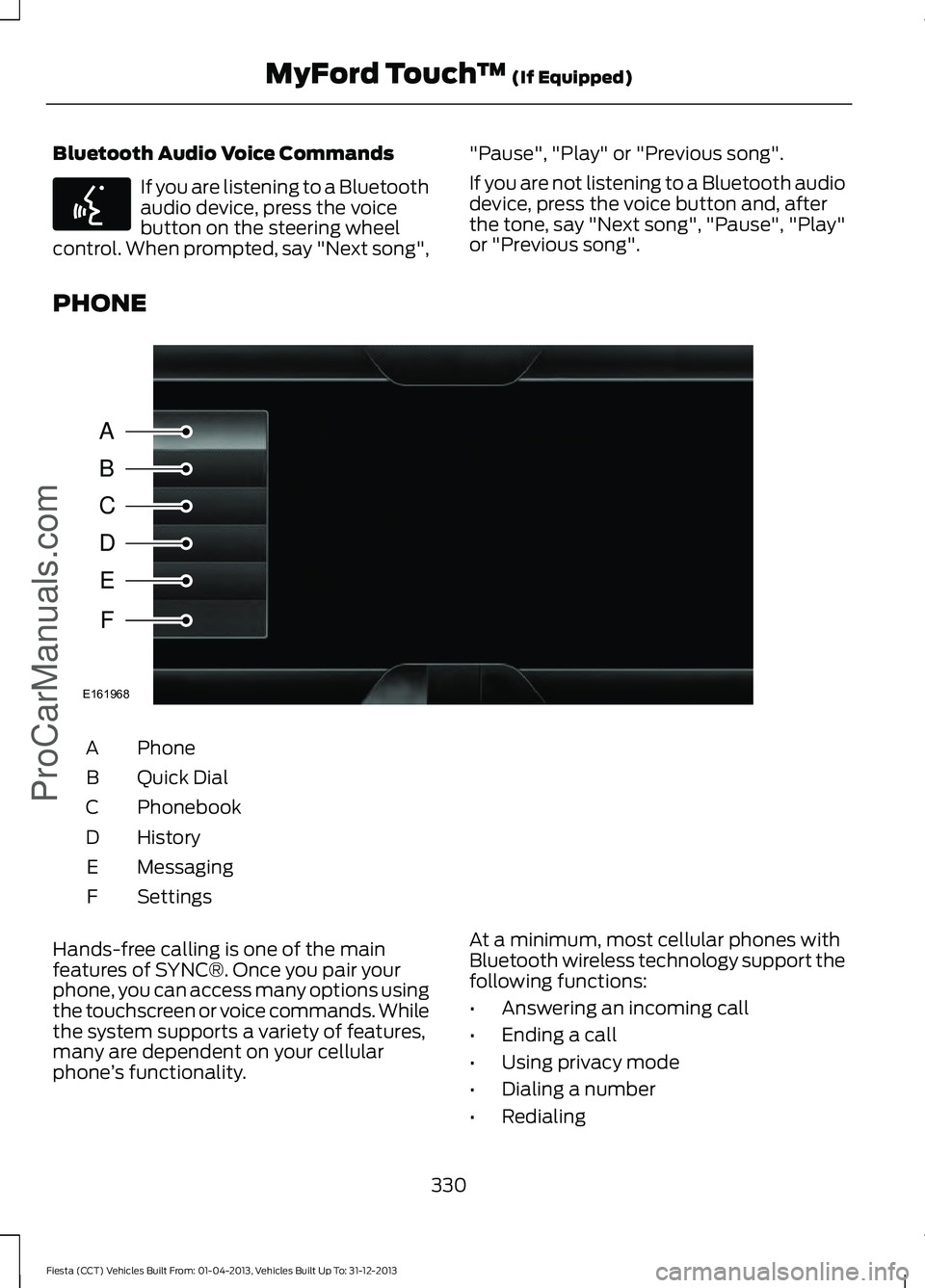
PHONE Phone
A
Quick Dial
B
Phonebook
C
History
D
Messaging
E
Settings
F
Hands-free calling is one of the main
features of SYNC®. Once you pair your
phone, you can access many options using
the touchscreen or voice commands. While
the system supports a variety of features,
many are dependent on your cellular
phone ’s functionality. At a minimum, most cellular phones with
Bluetooth wireless technology support the
following functions:
•
Answering an incoming call
• Ending a call
• Using privacy mode
• Dialing a number
• Redialing
330
Fiesta (CCT) Vehicles Built From: 01-04-2013, Vehicles Built Up To: 31-12-2013 MyFord Touch
™ (If Equipped)
ProCarManuals.comE142599 A
B
C
D
E
F
E161968
Page 334 of 398
•
Call waiting notification
• Caller ID.
Other features, such as text messaging
using Bluetooth and automatic phonebook
download, are phone-dependent features.
To check your phone ’s compatibility, see
your phone ’s user manual and visit
www.SYNCMyRide.com,
www.SYNCMyRide.ca or
www.syncmaroute.ca.
Pairing Your Phone for the First
Time WARNING
Driving while distracted can result in
loss of vehicle control, crash and
injury. We strongly recommend that
you use extreme caution when using any
device that may take your focus off the
road. Your primary responsibility is the safe
operation of your vehicle. We recommend
against the use of any handheld device
while driving and encourage the use of
voice-operated systems when possible.
Make sure you are aware of all applicable
local laws that may affect the use of
electronic devices while driving. The first thing you must do to use the
phone features of SYNC is to pair your
Bluetooth-enabled cellular phone with
SYNC. This allows you to use your phone
in a hands-free manner.
Note:
Put the transmission in position P.
Turn on your vehicle ignition and the radio.
1. Touch
Add Phone in the upper left
corner of the touchscreen. Find SYNC
appears on the screen, and instructs
you to begin the pairing process from
your device.
2. Make sure that Bluetooth is set to
On
and that your cellular phone is in the
proper mode. See your phone ’s manual
if necessary. Note:
Select
SYNC, and a six-digit PIN
appears on your device.
3. If you are prompted to enter a PIN on your device, it does not support Secure
Simple Pairing. To pair, enter the PIN
displayed on the touchscreen. Skip the
next step.
4. When prompted on your phone ’s
display, confirm that the PIN provided
by SYNC matches the PIN displayed
on your cellular phone.
5. The display indicates when the pairing
is successful.
SYNC may prompt you with more phone
options. For more information on your
phone's capability, see your phone's
manual and visit the website.
Pairing Subsequent Phones
Note: Put the transmission in position
P.
Turn on your vehicle ignition and the radio.
Make sure that Bluetooth is set to
On and
that your cellular phone is in the proper
mode. See your device's manual if
necessary. To pair a subsequent phone,
press:
1. Phone
.
2. Settings
.
3. BT Devices
.
4. Add Device
.
5. When prompted on your phone's display, enter the six-digit PIN provided
by SYNC on the screen. The display
indicates when the pairing is
successful.
SYNC may prompt you with more phone
options. For more information on your
phone's capability, see your phone's
manual and visit the website.
331
Fiesta (CCT) Vehicles Built From: 01-04-2013, Vehicles Built Up To: 31-12-2013 MyFord Touch
™
(If Equipped)
ProCarManuals.com
Page 335 of 398
Making Calls
Press the voice button on the
steering wheel controls. When
prompted, say, "Call
or say "Dial", then the desired number. To end the call or exit phone
mode, press and hold the phone
button.
Receiving Calls
During an incoming call, an audible tone
sounds. Call information appears in the
display if it is available. Accept the call by pressing
Accept on the touchscreen or
by pressing this phone button on
the steering wheel controls. Reject the call by pressing
Reject
on the touchscreen or by
pressing and holding this phone
button on the steering wheel controls.
Ignore the call by doing nothing. SYNC logs
it as a missed call.
Phone Menu Options
Press the top left corner on your
touchscreen to select from the following
options:
Phone
Touch this button to access the on-screen
numerical pad to enter a number and place
a call. During an active call, you can also
choose to:
• Mute the call
• Put the call on hold
• Turn on the privacy feature
• Join two calls
• End the call. Quick Dial
Select and call contacts stored in your
phonebook contacts and call history folder.
Phonebook
Touch this button to access and call any
contacts in your previously downloaded
phone book. The system places the entries
in alphabetical categories summarized at
the top of the screen.
To turn on contact picture settings, if your
device supports this feature, press:
1.
Phone
.
2. Settings
.
3. Manage Phonebook
.
4. Download photos from Phonebook.
5. On
.
Certain smartphones may support
transferring street addresses when listed
with phone book contact information. If
your phone supports this feature, you can
select and use these addresses as
destinations and save them as favorites.
History
After you connect your Bluetooth-enabled
phone to SYNC, you can access any
previously dialed, received or missed calls.
You can also choose to save these to your
Favorites or to Quick Dial.
Note: This is a phone-dependent feature.
If your phone does not support downloading
call history using Bluetooth, SYNC keeps
track of calls made with the SYNC system.
Messaging
Send text messages using your
touchscreen. See
Text messaging later
in this section.
332
Fiesta (CCT) Vehicles Built From: 01-04-2013, Vehicles Built Up To: 31-12-2013 MyFord Touch
™
(If Equipped)
ProCarManuals.comE142599
Page 336 of 398
Settings
Touch this button to access various phone
settings, such turning Bluetooth on and off,
managing your phonebook and more. See
Phone settings later in this section.
Text Messaging
Note: Downloading and sending text
messages using Bluetooth are
phone-dependent features.
Note: Certain features in text messaging
are speed-dependent and not available
when your vehicle is traveling at speeds over
3 mph (5 km/h).
Note: SYNC does not download read text
messages from your phone.
You can send and receive text messages
using Bluetooth, read them aloud and
translate text messaging acronyms, such
as LOL.
1. Touch the top left corner of the display
to access the
Phone menu.
2. Select
Messaging.
3. Choose from the following:
• Listen (speaker icon)
• Dial •
Send Text
• View
• Delete.
Composing a Text Message
Note: This is a speed-dependent feature.
It is unavailable when your vehicle is
traveling at speeds over 5 mph (8 km/h).
Note: Downloading and sending text
messages using Bluetooth are
phone-dependent features.
1. Press
Phone .
2. Messaging
.
3. Send Text
.
4. Enter a phone number or choose from
your phonebook.
You can select from the following options:
• Send
, which sends the message as it
is.
• Edit Text
, which allows you to
customize the pre-defined message or
create a message on your own.
You can then preview the message, verify
the recipient as well as update the
message list, and send it to a connected
device (such as a USB drive). Text message options
I’ll call you back in a few minutes. I just left, I’ll be there soon.Can you give me a call? I’m on my way.
I’m running a few minutes late.
I’m ahead of schedule, so I’ll be there early. I’m outside.
I’ll call you when I get there.
333
Fiesta (CCT) Vehicles Built From: 01-04-2013, Vehicles Built Up To: 31-12-2013 MyFord Touch
™
(If Equipped)
ProCarManuals.com
Page 337 of 398
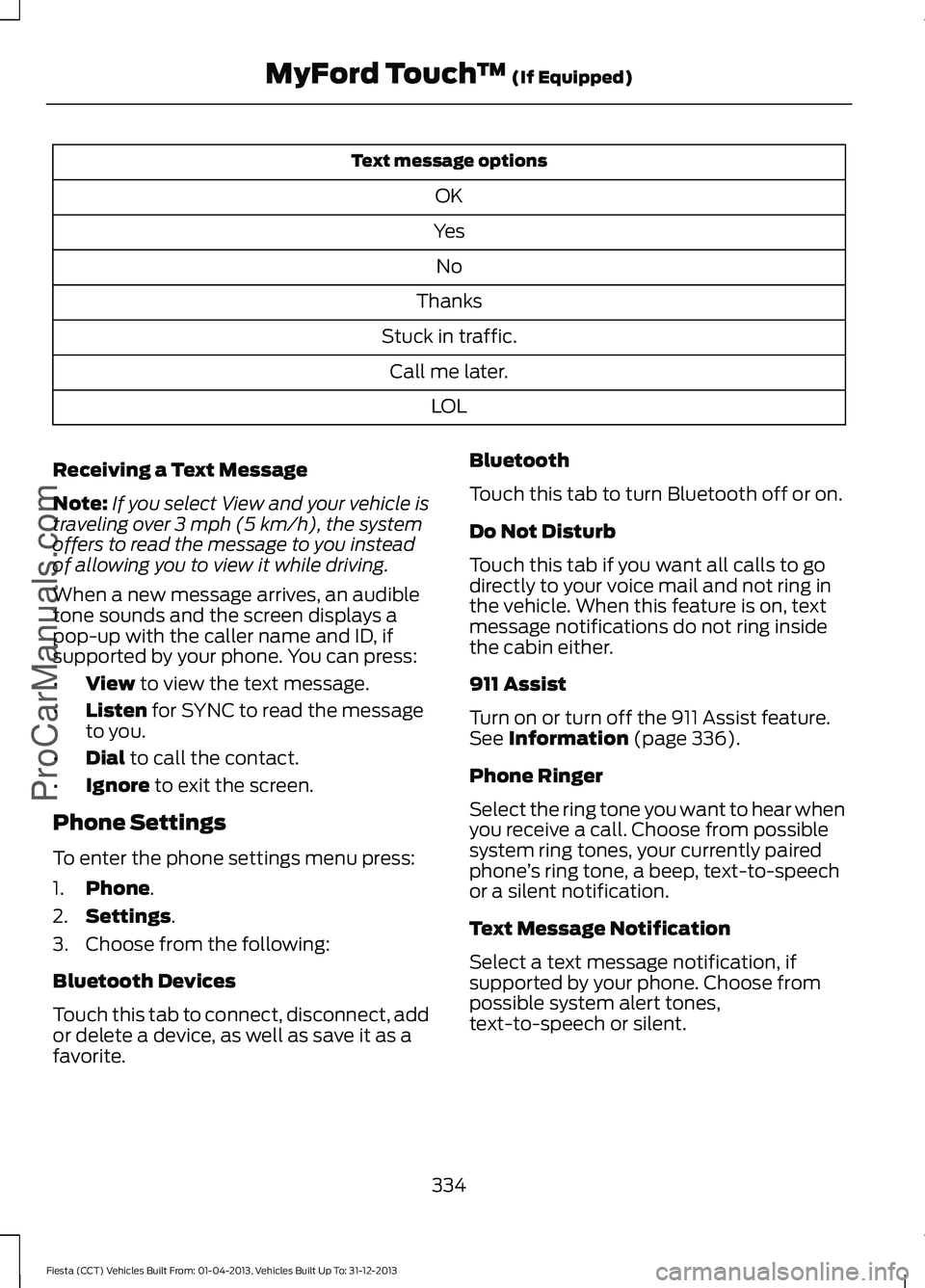
Text message options
OK
Yes No
Thanks
Stuck in traffic. Call me later. LOL
Receiving a Text Message
Note: If you select View and your vehicle is
traveling over 3 mph (5 km/h), the system
offers to read the message to you instead
of allowing you to view it while driving.
When a new message arrives, an audible
tone sounds and the screen displays a
pop-up with the caller name and ID, if
supported by your phone. You can press:
• View to view the text message.
• Listen
for SYNC to read the message
to you.
• Dial
to call the contact.
• Ignore
to exit the screen.
Phone Settings
To enter the phone settings menu press:
1. Phone
.
2. Settings
.
3. Choose from the following:
Bluetooth Devices
Touch this tab to connect, disconnect, add
or delete a device, as well as save it as a
favorite. Bluetooth
Touch this tab to turn Bluetooth off or on.
Do Not Disturb
Touch this tab if you want all calls to go
directly to your voice mail and not ring in
the vehicle. When this feature is on, text
message notifications do not ring inside
the cabin either.
911 Assist
Turn on or turn off the 911 Assist feature.
See
Information (page 336).
Phone Ringer
Select the ring tone you want to hear when
you receive a call. Choose from possible
system ring tones, your currently paired
phone ’s ring tone, a beep, text-to-speech
or a silent notification.
Text Message Notification
Select a text message notification, if
supported by your phone. Choose from
possible system alert tones,
text-to-speech or silent.
334
Fiesta (CCT) Vehicles Built From: 01-04-2013, Vehicles Built Up To: 31-12-2013 MyFord Touch
™
(If Equipped)
ProCarManuals.com
Page 340 of 398
SYNC Services
A
SIRIUS Travel Link
B
Alerts
C
Calendar
D
SYNC Applications
E
Under the Information menu, you can
access features such as:
• SYNC Services
• SIRIUS Travel Link
• Alerts
• Calendar
• SYNC Applications If your vehicle is equipped with
Navigation, press the
Information button to access
these features. If your vehicle is not
equipped with Navigation, press the corner
of the touchscreen with the green tab.
SYNC Services (If Equipped,
United States Only)
Note: SYNC Services requires activation
before use. Visit www.SYNCMyRide.com to
register and check your eligibility for
complimentary services. Standard phone
and message rates may apply. Subscription
may be required. You must also have the
active SYNC Services Bluetooth-enabled
cellular phone paired and connected to the
system in order to connect to, and use,
SYNC Services. See
Phone (page 330).
Note: This feature does not function
properly if you have enabled caller ID
blocking on your cellular phone. Make sure
your cellular phone is not blocking caller ID
before using SYNC Services. Note:
The driver is ultimately responsible
for the safe operation of the vehicle, and
therefore, must evaluate whether it is safe
to follow the suggested directions. Any
navigation features provided are only an aid.
Make your driving decisions based on your
observations of local conditions and existing
traffic regulations. Do not follow the route
suggestions if doing so would result in an
unsafe or illegal maneuver, if you would be
placed in an unsafe situation, or if you would
be directed into an area that you consider
unsafe. Maps used by this system may be
inaccurate because of errors, changes in
roads, traffic conditions or driving
conditions.
Note: When you connect, the service uses
GPS technology and advanced vehicle
sensors to collect your vehicle's current
location, travel direction and speed to help
provide you with the directions, traffic
reports, or business searches you request.
Further, to provide the services you request,
for continuous improvement, the service
may collect and record call details and voice
communications. For more information, see
SYNC Services Terms and Conditions at
www.SYNCMyRide.com. If you do not want
Ford or its service providers to collect your
vehicle travel information or other
information identified in the Terms and
Conditions, do not subscribe or use the
service.
337
Fiesta (CCT) Vehicles Built From: 01-04-2013, Vehicles Built Up To: 31-12-2013 MyFord Touch
™
(If Equipped)
ProCarManuals.comE142608
Page 341 of 398
SYNC Services uses advanced vehicle
sensors, integrated GPS technology and
comprehensive map and traffic data, to
give you personalized traffic reports,
precise turn-by-turn directions, business
search, news, sports, weather and more.
For a complete list of services, or to learn
more, please visit www.SYNCMyRide.com.
Connecting to SYNC Services Using
Voice Commands
1. Press the voice button.
2. When prompted, say "Services". This
initiates an outgoing call to SYNC
Services using your paired and
connected Bluetooth-enabled cellular
phone.
3. Once you connect to the service, follow
the voice prompts to request the
desired service, such as "Traffic" or
"Directions". You can also say, "What
are my choices?" to receive a list of
available services from which to
choose.
4. Say, "Services" to return to the Services
main menu or for help, say, "Help".
Connecting to SYNC Services Using
the Touchscreen If your vehicle is equipped with
Navigation, press the
Information button.
If your vehicle is not equipped with
Navigation, press the green tab on your
touchscreen.
1. Select
Connect to Services to initiate
an outgoing call to SYNC Services
using your phone. 2. Once connected, follow the voice
prompts to request your desired
Service, such as "Traffic" or
"Directions". You can also say, "What
are my choices?" to receive a list of
available services from which to
choose.
3. Say, "Services" to return to the Services
main menu or for help, say, "Help".
Receiving Turn-by-Turn Directions
1. When connected to SYNC Services, say "Directions" or "Business search".
To find the closest business or type of
business to your current location, just
say "Business search" and then
"Search near me". If you need further
assistance in finding a location you can
say "Operator" at any time within a
Directions or Business search to speak
with a live operator. The system may
prompt you to speak with an operator
when it has difficulty matching your
voice request. The live operator can
assist you by searching for businesses
by name or by category, residential
addresses by street address or by
name or specific street intersections.
Operator Assist is a feature of your
SYNC Services subscription. For more
information on Operator Assist, visit
www.SYNCMyRide.com/support.
2. Follow the voice prompts to select your
Destination. After the route download
is finished, the phone call automatically
ends.
338
Fiesta (CCT) Vehicles Built From: 01-04-2013, Vehicles Built Up To: 31-12-2013 MyFord Touch
™
(If Equipped)
ProCarManuals.comE142599 E142608
Page 342 of 398
If your vehicle is not equipped with
Navigation:
•
Turn-by-turn directions appear in the
information display, in the status bar
of your touchscreen system and on the
SYNC Services screen. You also receive
driving instructions from audible
prompts.
• When on an active route, you can
select Route Summary or Route
Status using the touchscreen controls
or voice commands to view the Route
Summary Turn List
or the Route
Status ETA. You can also turn voice
guidance on or off, cancel the route or
update the route. If you miss a turn, SYNC automatically asks
if you want the route updated. Just say,
"Yes" when prompted and the system
delivers a new route to your vehicle.
If your vehicle is equipped with Navigation,
SYNC Services downloads your requested
destination to the navigation system. The
navigation system then calculates the
route and provides driving instructions.
See
Navigation (page 345).
Disconnecting from SYNC Services
1. Press and hold the hang-up phone button on the steering wheel.
2. Say "Good-bye" from the SYNC Services main menu. SYNC Services quick tips
You can personalize your Services feature to provide
quicker access to your most used or favorite information.
You can save address points, such as work or home. You
can also save favorite information like sports teams, such
as Detroit Lions, or a news category. You can learn more
about personalization by logging onto
www.SYNCMyRide.com.
Personalizing
Press the voice button at any time (while connected to
SYNC Services) to interrupt a voice prompt or an audio
clip (such as a sports report) and say your voice command.
Push to interrupt
Your subscription is associated with your Bluetooth-
enabled cellular phone number, not your VIN (Vehicle
Identification Number). You can pair and connect your
phone to any vehicle equipped with SYNC Services and
continue enjoying your personalized services.
Portable
SYNC Services Voice Commands When a route has been
downloaded (non-navigation
systems), press the voice button
on the steering wheel controls. When
prompted, say any of the following
commands: "SERVICES"
"Cancel route"
"Navigation voice off" "Navigation voice on" "Next turn"
339
Fiesta (CCT) Vehicles Built From: 01-04-2013, Vehicles Built Up To: 31-12-2013 MyFord Touch
™
(If Equipped)
ProCarManuals.comE142599
Page 346 of 398
Note:
Before setting this feature on, make
sure that you read the 911 Assist Privacy
Notice later in this section for important
information.
Note: If any user turns 911 Assist on or off,
that setting applies for all paired phones. If
911 Assist is turned off, either a voice
message plays or a display message (or
icon) comes on (or both) when your vehicle
is started after a previously paired phone
connects.
Note: Every phone operates differently.
While SYNC 911 Assist works with most
cellular phones, some may have trouble
using this feature.
If a crash deploys an airbag (excludes knee
airbags and rear inflatable safety belts [if
equipped]) or activates the fuel pump
shut-off, your SYNC-equipped vehicle may
be able to contact emergency services by
dialing 911 through a paired and connected
Bluetooth-enabled phone. You can learn
more about the 911 Assist feature, visit
www.SYNCMyRide.com,
www.SYNCMyRide.ca or
www.syncmaroute.ca.
See Supplementary Restraints System
(page 34). Important information
regarding airbag deployment is in this
chapter.
See
Roadside Emergencies (page 166).
Important information regarding the fuel
pump shut-off is in this chapter.
Setting 911 Assist On If your vehicle is equipped with
Navigation, touch the i
(Information) button to access
these features. If your vehicle is not
equipped with Navigation, touch the corner
of the touchscreen with the green tab.
Touch
Apps > 911 Assist, then select On. You can also access 911 Assist
by:
• Pressing the Settings icon >
Settings
> Phone > 911 Assist, or
• Pressing the Settings icon > Help > 911
Assist
.
To make sure that 911 Assist works
properly:
• SYNC must be powered and working
properly at the time of the incident and
throughout feature activation and use.
• The 911 Assist feature must be set on
prior to the incident.
• You must pair and connect a
Bluetooth-enabled and compatible
phone to SYNC.
• A connected Bluetooth-enabled phone
must have the ability to make and
maintain an outgoing call at the time
of the incident.
• A connected Bluetooth-enabled phone
must have adequate network coverage,
battery power and signal strength.
• The vehicle must have battery power
and be located in the United States,
Canada or in a territory in which 911 is
the emergency number.
In the Event of a Crash
Not all crashes deploy an airbag or activate
the fuel pump shut-off (which would
trigger 911 Assist); however, SYNC tries to
contact emergency services if 911 Assist
triggers. If a connected phone sustains
damage or loses connection to SYNC,
SYNC searches for, and tries to connect
to, any available previously paired phone
and tries to make the call to 911.
343
Fiesta (CCT) Vehicles Built From: 01-04-2013, Vehicles Built Up To: 31-12-2013 MyFord Touch
™
(If Equipped)
ProCarManuals.comE142608 E142607
Page 390 of 398
Creating a MyKey...........................................48
Programming or Changing Configurable
Settings............................................................... 49
Cruise Control.................................................64 Principle of Operation....................................... 142
Cruise control See: Using Cruise Control................................ 142
Cup Holders.....................................................112
Customer Assistance.................................160
D
Data Recording
................................................10
Event Data Recording.......................................... 10
Service Data Recording...................................... 10
Daytime Running Lamps............................69
Direction Indicators.......................................69
Driver and Passenger Airbags....................35 Children and Airbags........................................... 35
Proper Driver and Front Passenger Seating Adjustment........................................................ 35
Driver Knee Airbag.........................................39
Driving Aids
.....................................................144
Driving Hints....................................................157
Driving Through Water................................157
DRL See: Daytime Running Lamps......................... 69
E
Economical Driving
.......................................157
Emission Control System...........................123 On-Board Diagnostics (OBD-II).................... 124
Readiness for Inspection/Maintenance (I/M) Testing.................................................... 124
End User License Agreement..................355 SYNC® End User License Agreement
(EULA).............................................................. 355
Engine Block Heater.....................................116 Using the Engine Block Heater........................ 117
Engine Coolant Check................................183 Adding Engine Coolant.................................... 184
Checking the Engine Coolant......................... 183
Recycled Engine Coolant................................. 185
Severe Climates.................................................. 185
Engine Immobilizer See: Passive Anti-Theft System.................... 60Engine Oil Check...........................................182
Adding Engine Oil............................................... 182
Resetting the Oil Life Monitoring System............................................................... 183
Engine Oil Dipstick - 1.0L EcoBoost™..................................................182
Engine Oil Dipstick - 1.6L Duratec-16V Ti-VCT (88kW/120PS) - Sigma..........182
Engine Oil Dipstick - 1.6L EcoBoost™..................................................182
Engine Specifications.................................235 Drivebelt Routing............................................... 235
Entertainment................................................313 AM/FM Radio....................................................... 314
Bluetooth Audio................................................. 329
Browsing Device Content................................. 313
CD........................................................................\
.... 325
SD Card Slot and USB Port........................... 326
SIRIUS® Satellite Radio (If Activated)........................................................ 320
Supported Media Players, Formats and Metadata Information................................ 329
Event Data Recording See: Data Recording............................................ 10
Export Unique Options
..................................12
Exterior Mirrors.................................................74
Fold-Away Exterior Mirrors................................ 75
Integrated Blind Spot Mirrors........................... 75
Power Exterior Mirrors......................................... 74
F
Fastening the Safety Belts..........................27 Restraint of Pregnant Women......................... 27
Safety Belt Extension Assembly.................... 29
Safety Belt Locking Modes............................... 28
Floor Mats
.......................................................158
Fog Lamps - Front See: Front Fog Lamps........................................ 69
Ford Credit
.........................................................12
(U.S. Only)................................................................ 12
Ford Extended Service Plan (ESP)........241 SERVICE PLANS (CANADA ONLY).............243
SERVICE PLANS (U.S. Only).......................... 241
Front Fog Lamps............................................69
Front Passenger Sensing System............36
Fuel and Refueling........................................118
387
Fiesta (CCT) Vehicles Built From: 01-04-2013, Vehicles Built Up To: 31-12-2013 Index
ProCarManuals.com