ESP FORD FIESTA 2014 Workshop Manual
[x] Cancel search | Manufacturer: FORD, Model Year: 2014, Model line: FIESTA, Model: FORD FIESTA 2014Pages: 398, PDF Size: 6.09 MB
Page 248 of 398
•
MP3 and WMA folder mode represents
a folder structure consisting of one
level of folders. The CD player numbers
all MP3 and WMA tracks on the disc
(noted by the .mp3 or .WMA file
extension) and all folders containing
MP3 and WMA files, from F001 (folder)
T001 (track) to F253 T255.
• Creating discs with only one level of
folders helps with navigation through
the disc files.
If you are burning your own MP3 and WMA
discs, it is important to understand how
the system reads the structures you create.
While various files may be present, (files
with extensions other than mp3 and
WMA), only files with the .mp3 and WMA
extension are played; other files are
ignored by the system. This enables you to
use the same MP3 and WMA disc for a
variety of tasks on your work computer,
home computer and your in-vehicle
system. In track mode, the system displays and
plays the structure as if it were only one
level deep (all .mp3 files play, regardless
of being in a specific folder). In folder
mode, the system only plays the .mp3 files
in the current folder.
AUDIO UNIT - VEHICLES WITH:
AM/FM/CD WARNING
Driving while distracted can result in
loss of vehicle control, crash and
injury. We strongly recommend that
you use extreme caution when using any
device that may take your focus off the
road. Your primary responsibility is the safe
operation of your vehicle. We recommend
against the use of any handheld device
while driving and encourage the use of
voice-operated systems when possible.
Make sure you are aware of all applicable
local laws that may affect the use of
electronic devices while driving. 245
Fiesta (CCT) Vehicles Built From: 01-04-2013, Vehicles Built Up To: 31-12-2013 Audio SystemProCarManuals.com
Page 252 of 398
When selected, the unit continually
evaluates signal strength and if a better
signal becomes available, the unit will
switch to that alternative. It mutes while
it checks a list of alternative frequencies
and if necessary, it will search once across
the selected waveband for a genuine
alternative frequency.
It will restore radio reception when it finds
one or if one is not found, the unit will
return to the original stored frequency.
When selected,
AF will be shown in the
display.
1. Press the
MENU button.
2. Select
Audio Settings.
3. Scroll to
Alternat. freq. or Alt.
Frequency and turn on or off with the
OK button.
4. Press the
MENU button to return.
Regional Mode
Regional mode controls the behavior of
alternative frequencies switching between
regionally related networks of a parent
broadcaster. A broadcaster may run a fairly
large network across a large part of the
country. At various times of the day this
large network may be broken down into a
number of smaller regional networks,
typically centered on major towns or cities.
When the network is not split into regional
variants, the whole network carries the
same programming.
Regional mode ON: This prevents random
alternative frequency switches when
neighboring regional networks are not
carrying the same programming. Regional mode OFF: This allows a larger
coverage area if neighboring regional
networks are carrying the same
programming, but can cause random
alternative frequency switches if they are
not.
1. Press the
MENU button.
2. Select
Audio Settings.
3. Scroll to
RDS regional and turn on or
off with the OK button.
4. Press the
MENU button to return.
AUDIO UNIT - VEHICLES WITH:
AM/FM/CD/SYNC WARNING
Driving while distracted can result in
loss of vehicle control, crash and
injury. We strongly recommend that
you use extreme caution when using any
device that may take your focus off the
road. Your primary responsibility is the safe
operation of your vehicle. We recommend
against the use of any handheld device
while driving and encourage the use of
voice-operated systems when possible.
Make sure you are aware of all applicable
local laws that may affect the use of
electronic devices while driving. Note:
An integrated multi function display
is situated above the unit. This shows
important information regarding control of
your system. Additionally, there are various
icons placed around the display screen
which light up when a function is active (for
example CD, Radio or Aux).
249
Fiesta (CCT) Vehicles Built From: 01-04-2013, Vehicles Built Up To: 31-12-2013 Audio System
ProCarManuals.com
Page 257 of 398
AUDIO UNIT - VEHICLES WITH:
TOUCHSCREEN DISPLAY
WARNING
Driving while distracted can result in
loss of vehicle control, crash and
injury. We strongly recommend that
you use extreme caution when using any
device that may take your focus off the
road. Your primary responsibility is the safe
operation of your vehicle. We recommend
against the use of any handheld device
while driving and encourage the use of
voice-operated systems when possible.
Make sure you are aware of all applicable
local laws that may affect the use of
electronic devices while driving. Note:
The MyFord Touch® system controls
most of the audio features. See MyFord
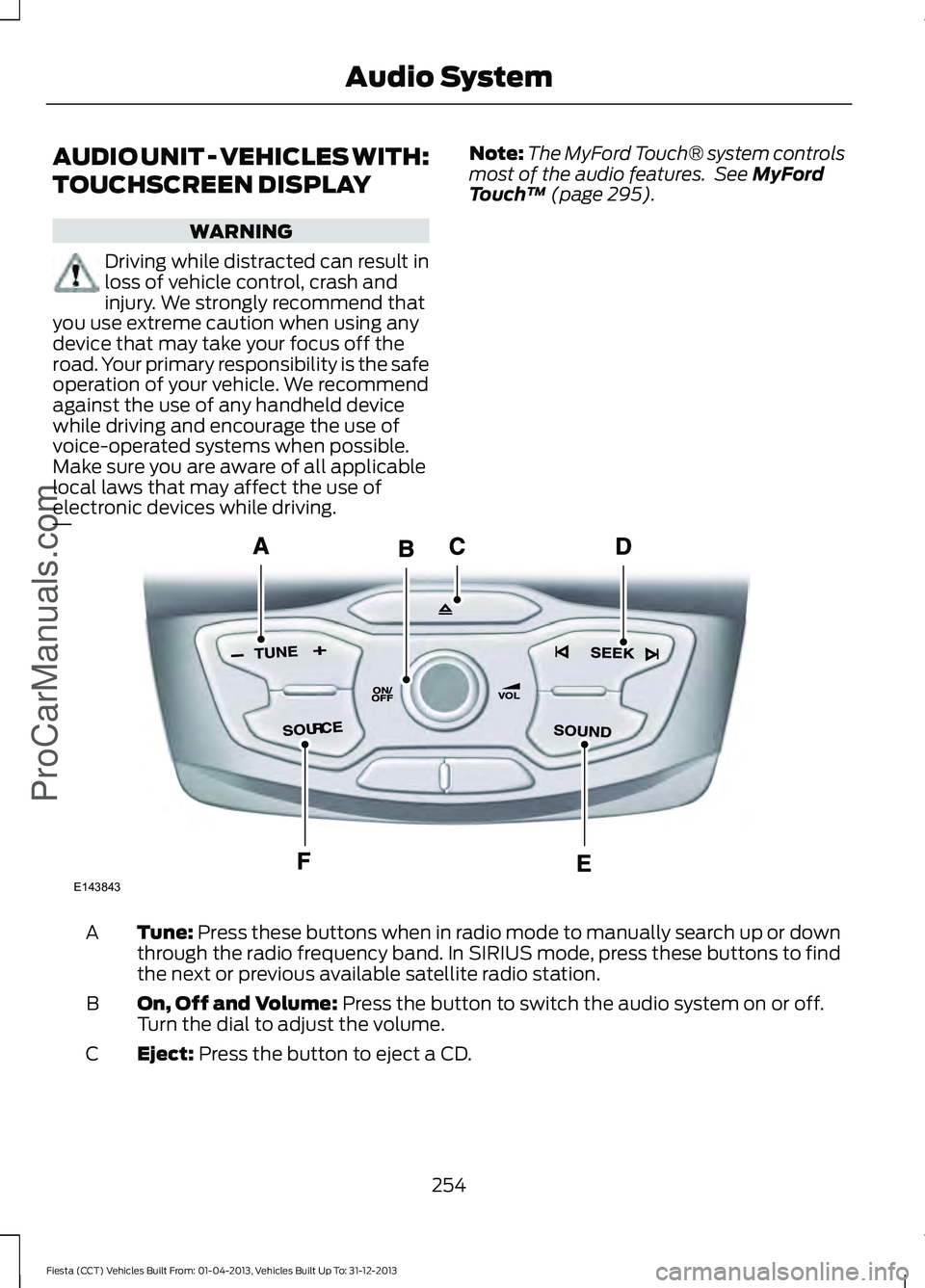
Touch ™ (page 295). Tune:
Press these buttons when in radio mode to manually search up or down
through the radio frequency band. In SIRIUS mode, press these buttons to find
the next or previous available satellite radio station.
A
On, Off and Volume:
Press the button to switch the audio system on or off.
Turn the dial to adjust the volume.
B
Eject:
Press the button to eject a CD.
C
254
Fiesta (CCT) Vehicles Built From: 01-04-2013, Vehicles Built Up To: 31-12-2013 Audio System
ProCarManuals.comE143843
Page 258 of 398
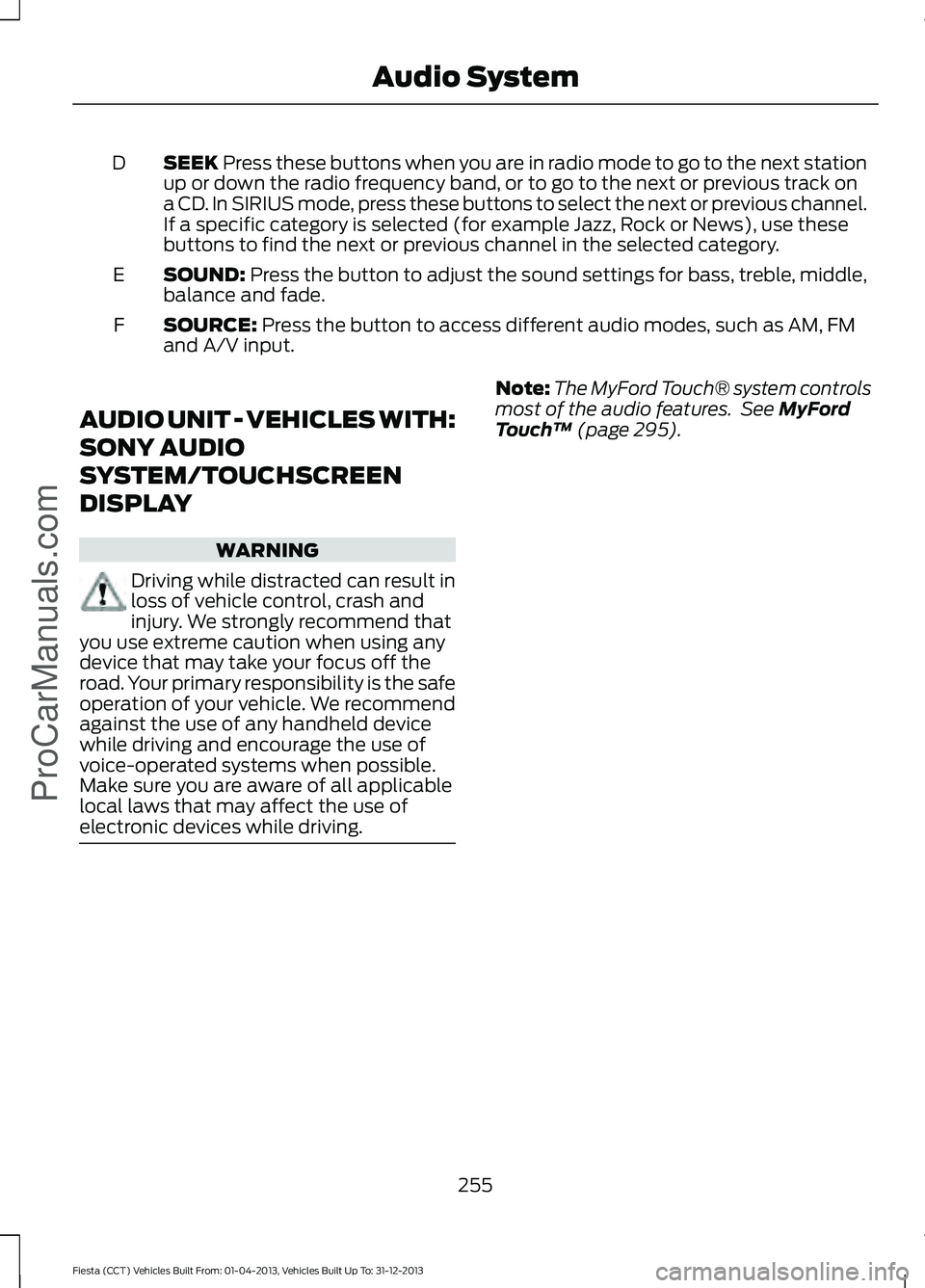
SEEK Press these buttons when you are in radio mode to go to the next station
up or down the radio frequency band, or to go to the next or previous track on
a CD. In SIRIUS mode, press these buttons to select the next or previous channel.
If a specific category is selected (for example Jazz, Rock or News), use these
buttons to find the next or previous channel in the selected category.
D
SOUND:
Press the button to adjust the sound settings for bass, treble, middle,
balance and fade.
E
SOURCE:
Press the button to access different audio modes, such as AM, FM
and A/V input.
F
AUDIO UNIT - VEHICLES WITH:
SONY AUDIO
SYSTEM/TOUCHSCREEN
DISPLAY WARNING
Driving while distracted can result in
loss of vehicle control, crash and
injury. We strongly recommend that
you use extreme caution when using any
device that may take your focus off the
road. Your primary responsibility is the safe
operation of your vehicle. We recommend
against the use of any handheld device
while driving and encourage the use of
voice-operated systems when possible.
Make sure you are aware of all applicable
local laws that may affect the use of
electronic devices while driving. Note:
The MyFord Touch® system controls
most of the audio features. See
MyFord
Touch ™ (page 295).
255
Fiesta (CCT) Vehicles Built From: 01-04-2013, Vehicles Built Up To: 31-12-2013 Audio System
ProCarManuals.com
Page 260 of 398
TUNE -: In radio mode, press this button to manually search backward through
the radio frequency band. In SIRIUS mode, press this button to find the previous
available satellite radio station.
H
Seek down
In radio mode, press this button to go to the next station down the
radio frequency band. Press to go to the previous track on a CD. In SIRIUS mode,
press this button to select the previous channel. If a specific category is selected
(for example Jazz, Rock or News), use this button to find the previous channel
in the selected category.
I
SOURCE:
Press the button to access different audio modes, such as AM, FM
and A/V input.
J
AUXILIARY INPUT JACK WARNINGS
Driving while distracted can result in
loss of vehicle control, crash and
injury. We strongly recommend that
you use extreme caution when using any
device that may take your focus off the
road. Your primary responsibility is the safe
operation of your vehicle. We recommend
against the use of any hand-held device
while driving and encourage the use of
voice-operated systems when possible.
Make sure you are aware of all applicable
local laws that may affect the use of
electronic devices while driving. For safety reasons, do not connect
or adjust the settings on your
portable music player while your
vehicle is moving. Store the portable music player in a
secure location, such as the center
console or the glove box, when your
vehicle is moving. Hard objects may
become projectiles in a collision or sudden
stop, which may increase the risk of serious
injury. The audio extension cable must be
long enough to allow the portable music
player to be safely stored while your
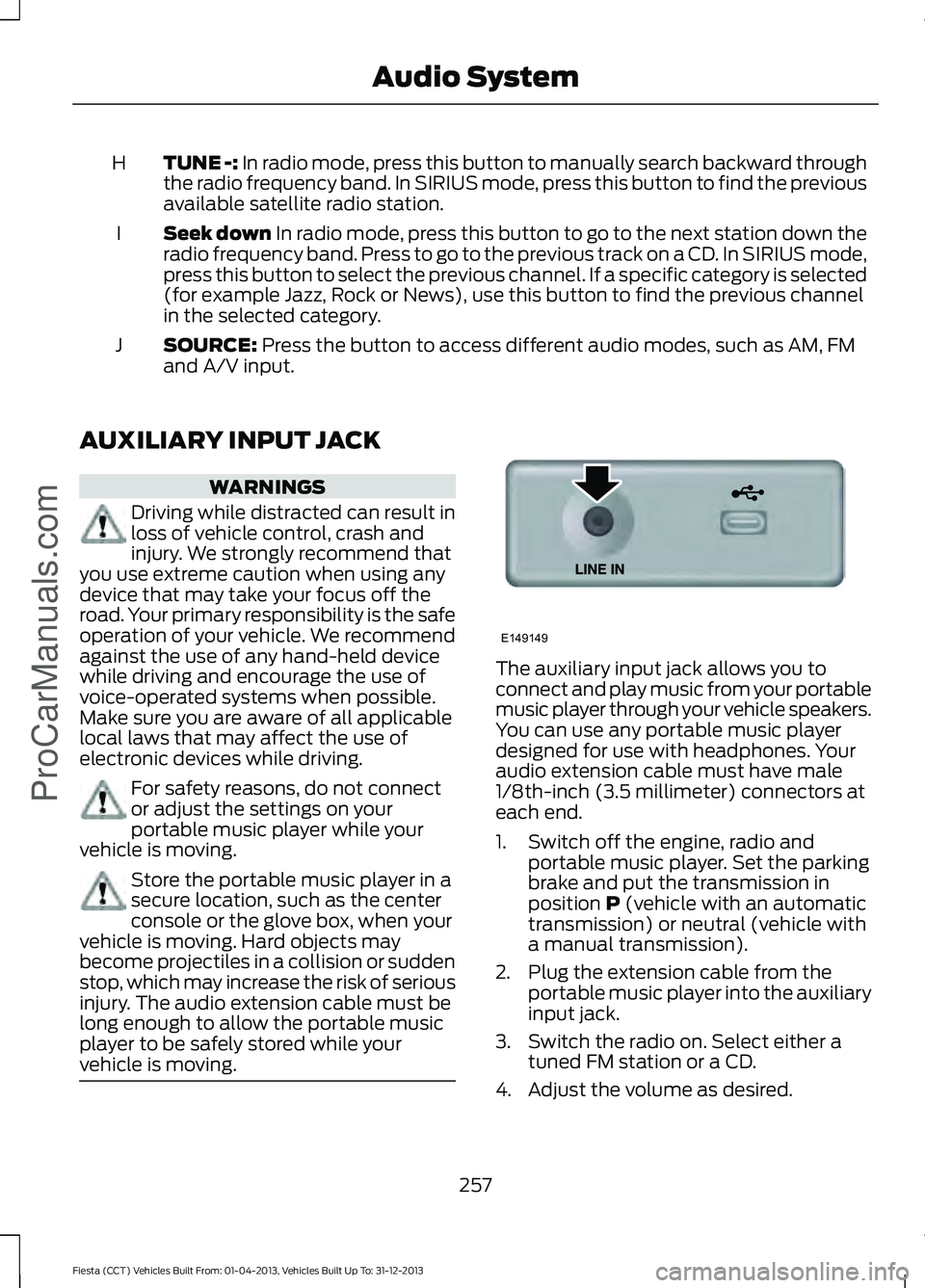
vehicle is moving. The auxiliary input jack allows you to
connect and play music from your portable
music player through your vehicle speakers.
You can use any portable music player
designed for use with headphones. Your
audio extension cable must have male
1/8th-inch (3.5 millimeter) connectors at
each end.
1. Switch off the engine, radio and
portable music player. Set the parking
brake and put the transmission in
position
P (vehicle with an automatic
transmission) or neutral (vehicle with
a manual transmission).
2. Plug the extension cable from the portable music player into the auxiliary
input jack.
3. Switch the radio on. Select either a tuned FM station or a CD.
4. Adjust the volume as desired.
257
Fiesta (CCT) Vehicles Built From: 01-04-2013, Vehicles Built Up To: 31-12-2013 Audio System
ProCarManuals.comE149149
Page 263 of 398
Times are subject to change due to
holidays.
SYNC Owner Account
Why do I need a SYNC owner account?
•
Required to activate Vehicle Health
Report and to view the reports online.
• Required to activate the
subscription-based SYNC Services and
to personalize your Saved Points and
Favorites.
• Essential for keeping up with the latest
software downloads available for
SYNC.
• Access to customer support for any
questions you may have.
Driving Restrictions
For your safety, certain features are
speed-dependent and restricted when your
vehicle is traveling over 3 mph (5 km/h).
Safety Information WARNING
Driving while distracted can result in
loss of vehicle control, crash and
injury. We strongly recommend that
you use extreme caution when using any
device that may take your focus off the
road. Your primary responsibility is the safe
operation of your vehicle. We recommend
against the use of any hand-held device
while driving and encourage the use of
voice-operated systems when possible.
Make sure you are aware of all applicable
local laws that may affect the use of
electronic devices while driving. When using SYNC:
•
Do not operate playing devices if the
power cords or cables are broken, split
or damaged. Place cords and cables
out of the way, so they do not interfere
with the operation of pedals, seats,
compartments or safe driving abilities.
• Do not leave playing devices in your
vehicle during extreme conditions as it
could cause them damage. See your
device's manual for further information.
• Do not attempt to service or repair the
system. See an authorized dealer.
Privacy Information
When a cellular phone is connected to
SYNC, the system creates a profile within
your vehicle that is linked to that cellular
phone. This profile is created in order to
offer you more cellular features and to
operate more efficiently. Among other
things, this profile may contain data about
your cellular phone book, text messages
(read and unread), and call history,
including history of calls when your cellular
phone was not connected to the system.
In addition, if you connect a media device,
the system creates and retains an index of
supported media content. The system also
records a short development log of
approximately 10 minutes of all recent
system activity. The log profile and other
system data may be used to improve the
system and help diagnose any problems
that may occur.
The cellular profile, media device index,
and development log will remain in the
vehicle unless you delete them and are
generally accessible only in the vehicle
when the cellular phone or media player
is connected. If you no longer plan to use
the system or the vehicle, we recommend
you perform a Master Reset to erase all
stored information.
260
Fiesta (CCT) Vehicles Built From: 01-04-2013, Vehicles Built Up To: 31-12-2013 SYNC™ProCarManuals.com
Page 265 of 398
System Interaction and Feedback
The system provides feedback through
audible tones, prompts, questions and
spoken confirmations depending on the
situation and the chosen level of
interaction (voice settings). You can
customize the voice recognition system to
provide more or less instruction and
feedback.
The default setting is to a higher level of
interaction in order to help you learn to use
the system. You can change these settings
at any time.
Adjusting the Interaction Level Push the voice icon. Say "Voice
settings" when prompted, then
any of the following:
The system:
When you say:
Provides more detailed interaction andguidance.
"Interaction mode standard"
Provides less audible interaction and moretone prompts.
"Interaction mode advanced"
The system defaults to the standard interaction mode.
Confirmation prompts are short questions
the system asks when it is not sure of your
request or when there are multiple possible
responses to your request. For example,
the system may ask "Phone, is that
correct?". If turned off, the system simply
makes a best guess as to what you
requested and may ask you to confirm
settings. The system:
When you say:
Makes a best guess from the command;you may still occasionally be asked to confirm settings.
"Confirmation prompts off"
Clarifies your voice command with a shortquestion.
"Confirmation prompts on"
The system creates candidate lists when
it has the same confidence level of several
options based on your voice command.
When turned on, it may prompt you with
as many as four possibilities for
clarification. For example, say "Say 1 after the tone to
call John Doe at home. Say 2 after the tone
to call Johnny Doe on mobile. Say 3 after
the tone to call Jane Doe at home." You
could also say "Say 1 after the tone to play
John Doe, Say 2 after the tone to play
Johnny Doe."
262
Fiesta (CCT) Vehicles Built From: 01-04-2013, Vehicles Built Up To: 31-12-2013 SYNC™ProCarManuals.comE142599
Page 276 of 398
Advanced
The Advanced menu allows you to access
and set prompts, languages, defaults,
perform a master reset, install an
application and view system information.
1. Press the phone button to enter the
phone menu
2. Scroll to System Settings. Press OK.
3. Scroll to Advanced. Press
OK.
4. Scroll to select from the following options: You can:
If you select:
Get help from SYNC by using questions, helpful hints or
asking you for a specific action. To turn these prompts on
or off:
Prompts
1. Press
OK to select and scroll to select between On and
Off.
2. Press
OK when the desired selection appears in the
display. SYNC takes you back to the Advanced menu.
Choose between English, Français and Español. Once
selected, all of the radio displays and prompts are in the
selected language.
Languages
1. Press OK to select and then scroll through the languages.
2. Press
OK when the desired selection appears in the
display. If you change the language setting, the display
indicates that the system is updating. When complete,
SYNC takes you back to the Advanced menu.
Return to the factory default settings. This selection does
not erase your indexed information (phonebook, call
history, text messages and paired devices).
Factory Defaults
1. Press
OK to select and then press OK again when
Restore Defaults? appears in the display.
2. Press OK to confirm.
Completely erase all information stored on SYNC
(phonebook, call history, text messages and paired
devices) and return to the factory default settings.
Master Reset
Press
OK to select. The display indicates when complete
and SYNC takes you back to the Advanced menu.
Install applications you have downloaded.
Install Application?
Press
OK and scroll to select. Press OK to confirm.
Delete all previously paired phones (and all information
originally saved with those phones).
Delete All Devices
Press
OK to select.
Access the Auto Version number as well as the FDN
number.
System Info
273
Fiesta (CCT) Vehicles Built From: 01-04-2013, Vehicles Built Up To: 31-12-2013 SYNC™
ProCarManuals.com
Page 277 of 398
You can:
If you select:
Press OK to select.
This is a Bluetooth component, which can further help
your phone with the exchange of text messages.
MAP Profile
Exit the current menu.
Return
SYNC™ APPLICATIONS AND
SERVICES
In order for the following features to work,
your cellular phone must be compatible
with SYNC. To check your phone's
compatibility, visit www.SYNCMyRide.com,
www.SYNCMyRide.ca or
www.syncmaroute.ca.
• SYNC Services *
: Provides access to
traffic, directions and information such
as travel, horoscopes, stock prices and
more.
• 911 Assist: Can alert 911 in the event of
an emergency.
• Vehicle Health Report *
: Provides a
diagnostic and maintenance report
card of your vehicle.
* This is an optional feature and available
in the United States only.
911 Assist WARNINGS
Unless the 911 Assist setting is set on
before a crash, the system will not
dial for help which could delay
response time, potentially increasing the
risk of serious injury or death after a crash. WARNINGS
Do not wait for 911 Assist to make an
emergency call if you can do it
yourself. Dial emergency services
immediately to avoid delayed response
time which could increase the risk of
serious injury or death after a crash. If you
do not hear 911 Assist within five seconds
of the crash, the system or phone may be
damaged or non-functional. Always place your phone in a secure
location in your vehicle so it does not
become a projectile or get damaged
in a crash. Failure to do so may cause
serious injury to someone or damage the
phone which could prevent 911 Assist from
working properly. Note:
The SYNC 911 Assist feature must be
set on before the incident.
Note: Before setting this feature on, make
sure that you read the 911 Assist Privacy
Notice later in this section for important
information.
Note: If any user turns 911 Assist on or off,
that setting applies for all paired phones. If
911 Assist is turned off, either a voice
message plays or a display message (or
icon) comes on (or both) when your vehicle
is started after a previously paired phone
connects.
Note: Every phone operates differently.
While SYNC 911 Assist works with most
cellular phones, some may have trouble
using this feature.
274
Fiesta (CCT) Vehicles Built From: 01-04-2013, Vehicles Built Up To: 31-12-2013 SYNC™
ProCarManuals.com
Page 281 of 398
Note:
The driver is ultimately responsible
for the safe operation of the vehicle, and
therefore, must evaluate whether it is safe
to follow the suggested directions. Any
navigation features provided are only an aid.
Make your driving decisions based on your
observations of local conditions and existing
traffic regulations. Do not follow the route
suggestions if doing so would result in an
unsafe or illegal maneuver, place you in an
unsafe situation, or if you would be directed
into an area that you consider unsafe. Maps
used by this system may be inaccurate
because of errors, changes in roads, traffic
conditions or driving conditions.
Note: When you connect, the service uses
GPS technology and advanced vehicle
sensors to collect your vehicle's current
location, travel direction and speed to help
provide you with the directions, traffic
reports, or business searches you request.
Further, to provide the services you request,
for continuous improvement, the service
may collect and record call details and voice
communications. For more information, see
SYNC Services Terms and Conditions at
www.SYNCMyRide.com. If you do not want
Ford or its service providers to collect your
vehicle travel information or other
information identified in the Terms and
Conditions, do not subscribe or use the
service.
SYNC Services uses advanced vehicle
sensors, integrated GPS technology and
comprehensive map and traffic data, to
give you personalized traffic reports,
precise turn-by-turn directions, business
search, news, sports, weather and more.
For a complete list of services, or to learn
more, please visit www.SYNCMyRide.com.
Connecting to SYNC Services Using
Voice Commands
1. Press the voice button. 2. When prompted, say "Services". This
initiates an outgoing call to SYNC
Services using your paired and
connected Bluetooth-enabled cellular
phone.
3. Once you connect to the service, follow
the voice prompts to request the
desired service, such as Traffic or
Directions. You can also say, "What are
my choices?" to receive a list of
available services from which to
choose.
4. Say, "Services" to return to the Services
main menu or for help, say, "Help".
Connecting to SYNC Services Using
the Phone Menu
1. Press the phone button to enter the phone menu.
2. Scroll to Services.
3. Press OK to confirm and enter the
Services menu. The display indicates
the system is connecting.
4. Press
OK. SYNC initiates the call to the
Services portal.
5. Once you connect to the service, follow
the voice prompts to request the
desired service, such as Traffic or
Directions. You can also say, "What are
my choices?" to receive a list of
available services from which to
choose.
6. Say, "Services" to return to the Services
main menu or for help, say, "Help".
Receiving Turn-by-Turn Directions
1. When connected to SYNC Services, say "Directions" or "Business search".
To find the closest business or type of
business to your current location, just
say "Business search" and then
"Search near me". If you need further
assistance in finding a location you can
say "Operator" at any time within a
278
Fiesta (CCT) Vehicles Built From: 01-04-2013, Vehicles Built Up To: 31-12-2013 SYNC™
ProCarManuals.com