display FORD FIESTA 2014 Repair Manual
[x] Cancel search | Manufacturer: FORD, Model Year: 2014, Model line: FIESTA, Model: FORD FIESTA 2014Pages: 398, PDF Size: 6.09 MB
Page 284 of 398
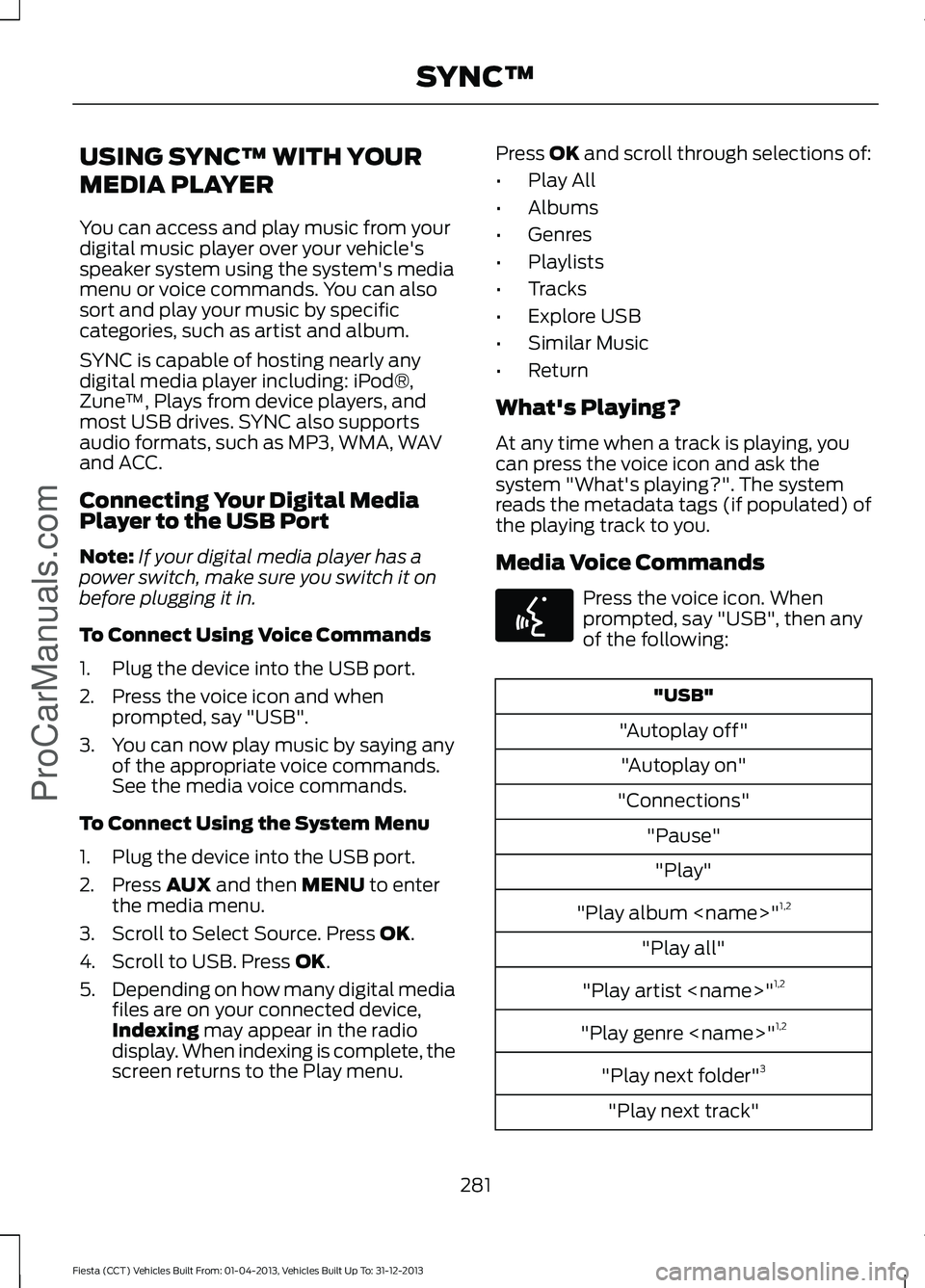
USING SYNC™ WITH YOUR
MEDIA PLAYER
You can access and play music from your
digital music player over your vehicle's
speaker system using the system's media
menu or voice commands. You can also
sort and play your music by specific
categories, such as artist and album.
SYNC is capable of hosting nearly any
digital media player including: iPod®,
Zune
™, Plays from device players, and
most USB drives. SYNC also supports
audio formats, such as MP3, WMA, WAV
and ACC.
Connecting Your Digital Media
Player to the USB Port
Note: If your digital media player has a
power switch, make sure you switch it on
before plugging it in.
To Connect Using Voice Commands
1. Plug the device into the USB port.
2. Press the voice icon and when prompted, say "USB".
3. You can now play music by saying any of the appropriate voice commands.
See the media voice commands.
To Connect Using the System Menu
1. Plug the device into the USB port.
2. Press AUX and then MENU to enter
the media menu.
3. Scroll to Select Source. Press
OK.
4. Scroll to USB. Press
OK.
5. Depending on how many digital media
files are on your connected device,
Indexing
may appear in the radio
display. When indexing is complete, the
screen returns to the Play menu. Press
OK and scroll through selections of:
• Play All
• Albums
• Genres
• Playlists
• Tracks
• Explore USB
• Similar Music
• Return
What's Playing?
At any time when a track is playing, you
can press the voice icon and ask the
system "What's playing?". The system
reads the metadata tags (if populated) of
the playing track to you.
Media Voice Commands Press the voice icon. When
prompted, say "USB", then any
of the following:
"USB"
"Autoplay off" "Autoplay on"
"Connections" "Pause""Play"
"Play album
"Play all"
"Play artist
"Play genre
"Play next folder" 3
"Play next track"
281
Fiesta (CCT) Vehicles Built From: 01-04-2013, Vehicles Built Up To: 31-12-2013 SYNC™
ProCarManuals.comE142599
Page 288 of 398
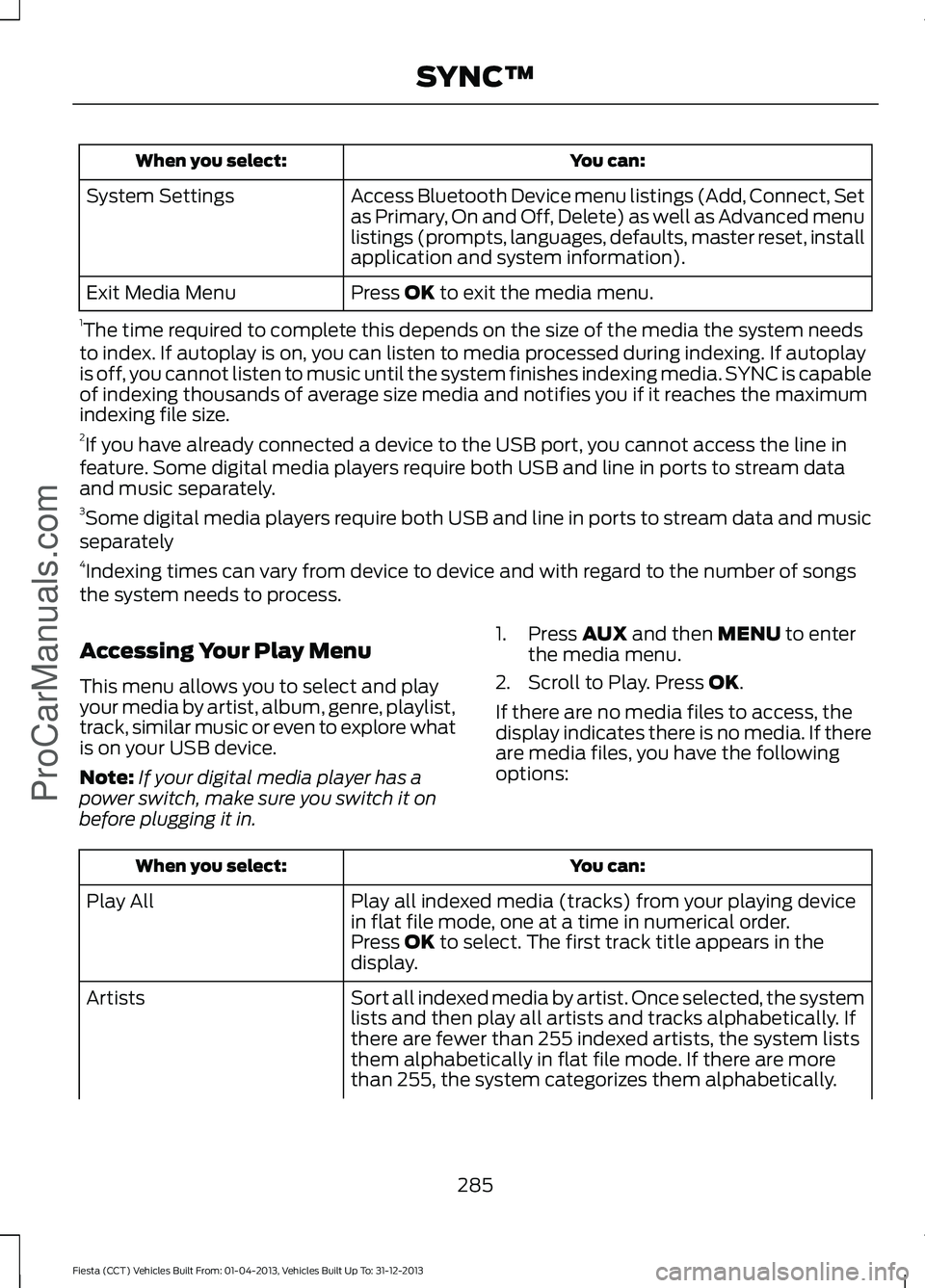
You can:
When you select:
Access Bluetooth Device menu listings (Add, Connect, Set
as Primary, On and Off, Delete) as well as Advanced menu
listings (prompts, languages, defaults, master reset, install
application and system information).
System Settings
Press OK to exit the media menu.
Exit Media Menu
1 The time required to complete this depends on the size of the media the system needs
to index. If autoplay is on, you can listen to media processed during indexing. If autoplay
is off, you cannot listen to music until the system finishes indexing media. SYNC is capable
of indexing thousands of average size media and notifies you if it reaches the maximum
indexing file size.
2 If you have already connected a device to the USB port, you cannot access the line in
feature. Some digital media players require both USB and line in ports to stream data
and music separately.
3 Some digital media players require both USB and line in ports to stream data and music
separately
4 Indexing times can vary from device to device and with regard to the number of songs
the system needs to process.
Accessing Your Play Menu
This menu allows you to select and play
your media by artist, album, genre, playlist,
track, similar music or even to explore what
is on your USB device.
Note: If your digital media player has a
power switch, make sure you switch it on
before plugging it in. 1. Press
AUX and then MENU to enter
the media menu.
2. Scroll to Play. Press
OK.
If there are no media files to access, the
display indicates there is no media. If there
are media files, you have the following
options: You can:
When you select:
Play all indexed media (tracks) from your playing device
in flat file mode, one at a time in numerical order.
Play All
Press
OK to select. The first track title appears in the
display.
Sort all indexed media by artist. Once selected, the system
lists and then play all artists and tracks alphabetically. If
there are fewer than 255 indexed artists, the system lists
them alphabetically in flat file mode. If there are more
than 255, the system categorizes them alphabetically.
Artists
285
Fiesta (CCT) Vehicles Built From: 01-04-2013, Vehicles Built Up To: 31-12-2013 SYNC™
ProCarManuals.com
Page 290 of 398
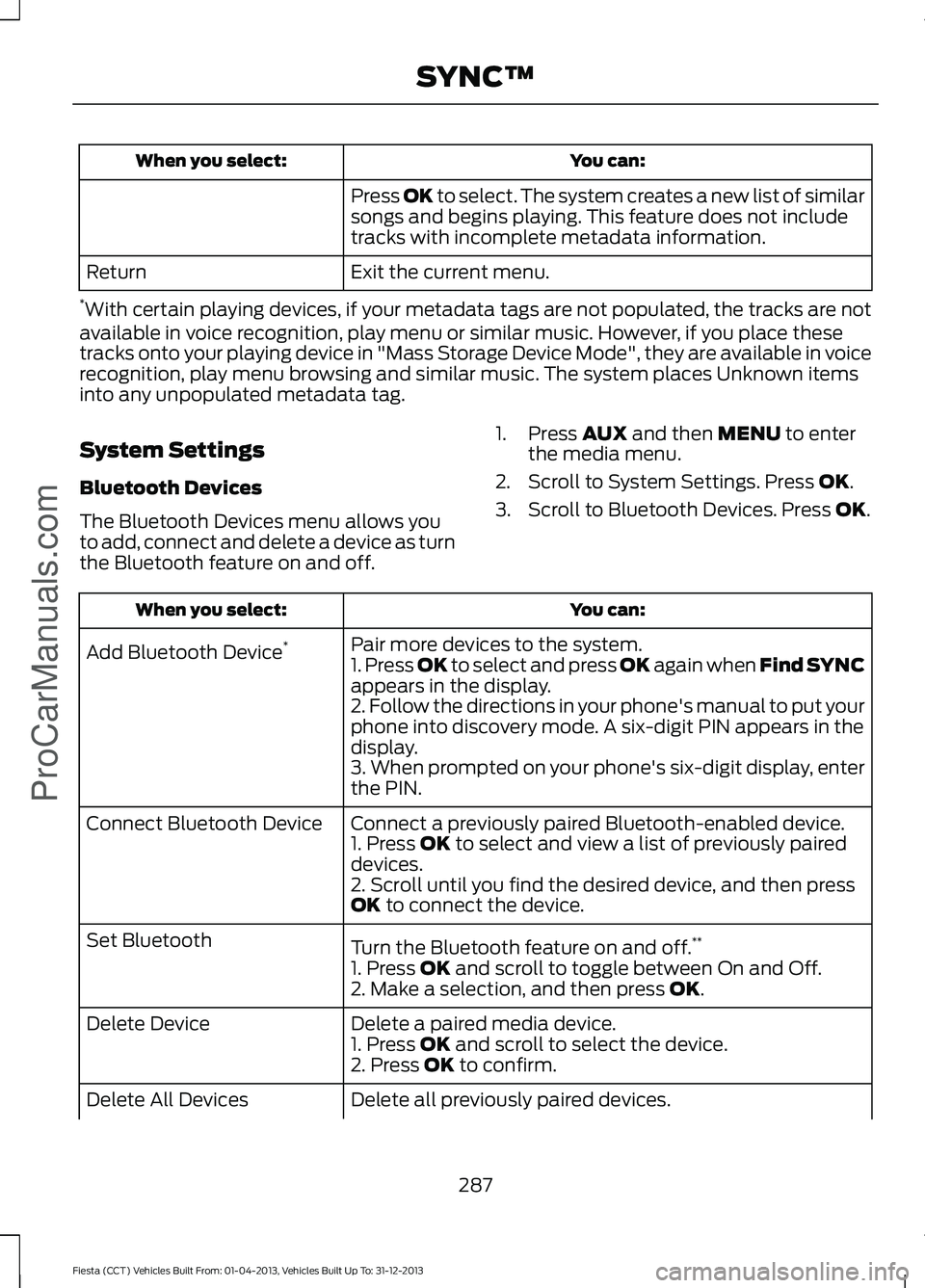
You can:
When you select:
Press OK to select. The system creates a new list of similar
songs and begins playing. This feature does not include
tracks with incomplete metadata information.
Exit the current menu.
Return
* With certain playing devices, if your metadata tags are not populated, the tracks are not
available in voice recognition, play menu or similar music. However, if you place these
tracks onto your playing device in "Mass Storage Device Mode", they are available in voice
recognition, play menu browsing and similar music. The system places Unknown items
into any unpopulated metadata tag.
System Settings
Bluetooth Devices
The Bluetooth Devices menu allows you
to add, connect and delete a device as turn
the Bluetooth feature on and off. 1. Press
AUX and then MENU to enter
the media menu.
2. Scroll to System Settings. Press
OK.
3. Scroll to Bluetooth Devices. Press
OK. You can:
When you select:
Pair more devices to the system.
Add Bluetooth Device *
1. Press OK to select and press OK again when Find SYNC
appears in the display.
2. Follow the directions in your phone's manual to put your
phone into discovery mode. A six-digit PIN appears in the
display.
3. When prompted on your phone's six-digit display, enter
the PIN.
Connect a previously paired Bluetooth-enabled device.
Connect Bluetooth Device
1. Press
OK to select and view a list of previously paired
devices.
2. Scroll until you find the desired device, and then press
OK
to connect the device.
Turn the Bluetooth feature on and off. **
Set Bluetooth
1. Press
OK and scroll to toggle between On and Off.
2. Make a selection, and then press OK.
Delete a paired media device.
Delete Device
1. Press
OK and scroll to select the device.
2. Press OK to confirm.
Delete all previously paired devices.
Delete All Devices
287
Fiesta (CCT) Vehicles Built From: 01-04-2013, Vehicles Built Up To: 31-12-2013 SYNC™
ProCarManuals.com
Page 291 of 398
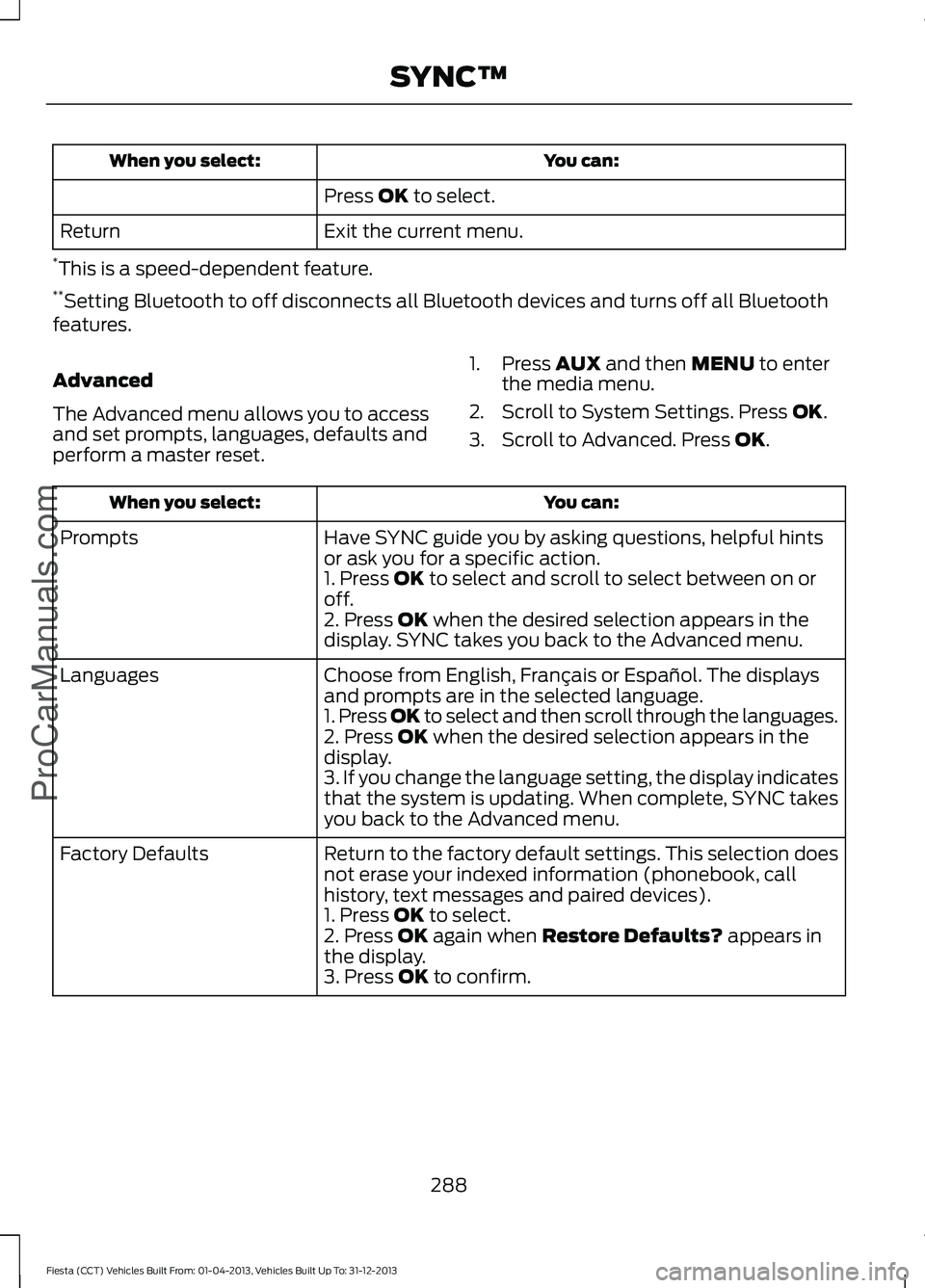
You can:
When you select:
Press OK to select.
Exit the current menu.
Return
* This is a speed-dependent feature.
** Setting Bluetooth to off disconnects all Bluetooth devices and turns off all Bluetooth
features.
Advanced
The Advanced menu allows you to access
and set prompts, languages, defaults and
perform a master reset. 1. Press
AUX and then MENU to enter
the media menu.
2. Scroll to System Settings. Press
OK.
3. Scroll to Advanced. Press
OK. You can:
When you select:
Have SYNC guide you by asking questions, helpful hints
or ask you for a specific action.
Prompts
1. Press
OK to select and scroll to select between on or
off.
2. Press
OK when the desired selection appears in the
display. SYNC takes you back to the Advanced menu.
Choose from English, Français or Español. The displays
and prompts are in the selected language.
Languages
1. Press OK to select and then scroll through the languages.
2. Press
OK when the desired selection appears in the
display.
3. If you change the language setting, the display indicates
that the system is updating. When complete, SYNC takes
you back to the Advanced menu.
Return to the factory default settings. This selection does
not erase your indexed information (phonebook, call
history, text messages and paired devices).
Factory Defaults
1. Press
OK to select.
2. Press OK again when Restore Defaults? appears in
the display.
3. Press
OK to confirm.
288
Fiesta (CCT) Vehicles Built From: 01-04-2013, Vehicles Built Up To: 31-12-2013 SYNC™
ProCarManuals.com
Page 299 of 398
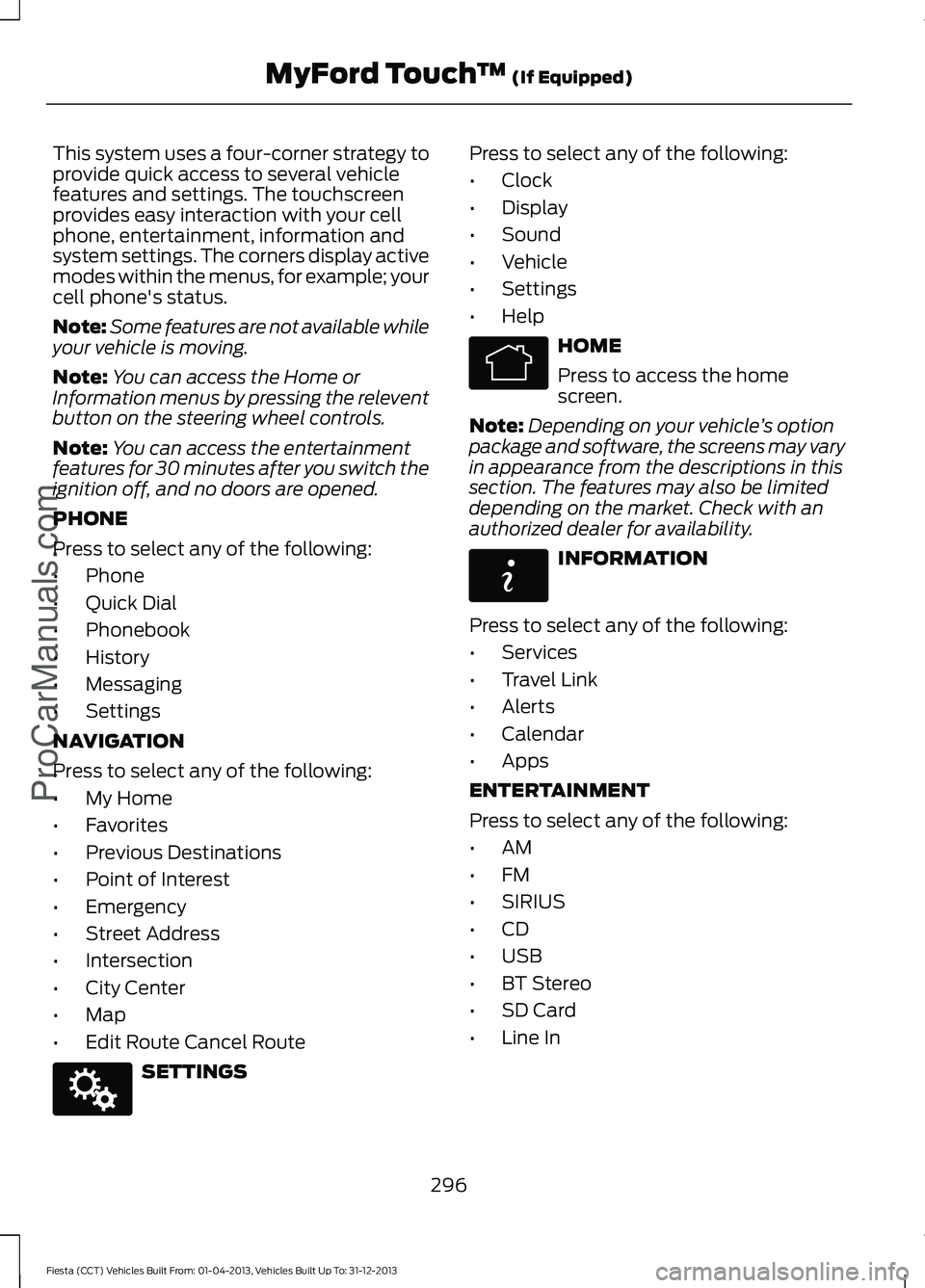
This system uses a four-corner strategy to
provide quick access to several vehicle
features and settings. The touchscreen
provides easy interaction with your cell
phone, entertainment, information and
system settings. The corners display active
modes within the menus, for example; your
cell phone's status.
Note:
Some features are not available while
your vehicle is moving.
Note: You can access the Home or
Information menus by pressing the relevent
button on the steering wheel controls.
Note: You can access the entertainment
features for 30 minutes after you switch the
ignition off, and no doors are opened.
PHONE
Press to select any of the following:
• Phone
• Quick Dial
• Phonebook
• History
• Messaging
• Settings
NAVIGATION
Press to select any of the following:
• My Home
• Favorites
• Previous Destinations
• Point of Interest
• Emergency
• Street Address
• Intersection
• City Center
• Map
• Edit Route Cancel Route SETTINGS Press to select any of the following:
•
Clock
• Display
• Sound
• Vehicle
• Settings
• Help HOME
Press to access the home
screen.
Note: Depending on your vehicle ’s option
package and software, the screens may vary
in appearance from the descriptions in this
section. The features may also be limited
depending on the market. Check with an
authorized dealer for availability. INFORMATION
Press to select any of the following:
• Services
• Travel Link
• Alerts
• Calendar
• Apps
ENTERTAINMENT
Press to select any of the following:
• AM
• FM
• SIRIUS
• CD
• USB
• BT Stereo
• SD Card
• Line In
296
Fiesta (CCT) Vehicles Built From: 01-04-2013, Vehicles Built Up To: 31-12-2013 MyFord Touch
™ (If Equipped)
ProCarManuals.comE142607 E142613 E142608
Page 300 of 398
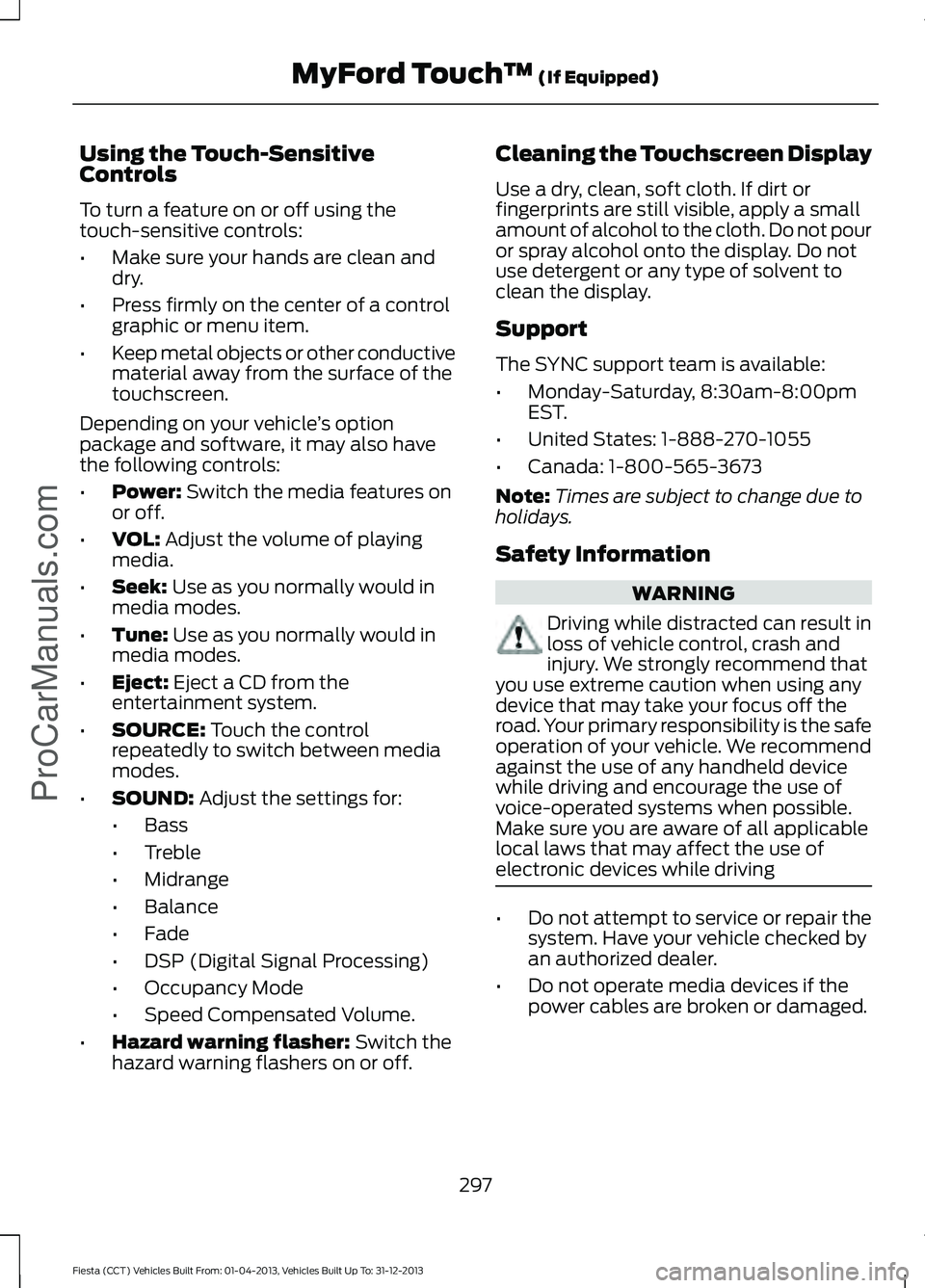
Using the Touch-Sensitive
Controls
To turn a feature on or off using the
touch-sensitive controls:
•
Make sure your hands are clean and
dry.
• Press firmly on the center of a control
graphic or menu item.
• Keep metal objects or other conductive
material away from the surface of the
touchscreen.
Depending on your vehicle ’s option
package and software, it may also have
the following controls:
• Power: Switch the media features on
or off.
• VOL:
Adjust the volume of playing
media.
• Seek:
Use as you normally would in
media modes.
• Tune:
Use as you normally would in
media modes.
• Eject:
Eject a CD from the
entertainment system.
• SOURCE:
Touch the control
repeatedly to switch between media
modes.
• SOUND:
Adjust the settings for:
• Bass
• Treble
• Midrange
• Balance
• Fade
• DSP (Digital Signal Processing)
• Occupancy Mode
• Speed Compensated Volume.
• Hazard warning flasher:
Switch the
hazard warning flashers on or off. Cleaning the Touchscreen Display
Use a dry, clean, soft cloth. If dirt or
fingerprints are still visible, apply a small
amount of alcohol to the cloth. Do not pour
or spray alcohol onto the display. Do not
use detergent or any type of solvent to
clean the display.
Support
The SYNC support team is available:
•
Monday-Saturday, 8:30am-8:00pm
EST.
• United States: 1-888-270-1055
• Canada: 1-800-565-3673
Note: Times are subject to change due to
holidays.
Safety Information WARNING
Driving while distracted can result in
loss of vehicle control, crash and
injury. We strongly recommend that
you use extreme caution when using any
device that may take your focus off the
road. Your primary responsibility is the safe
operation of your vehicle. We recommend
against the use of any handheld device
while driving and encourage the use of
voice-operated systems when possible.
Make sure you are aware of all applicable
local laws that may affect the use of
electronic devices while driving •
Do not attempt to service or repair the
system. Have your vehicle checked by
an authorized dealer.
• Do not operate media devices if the
power cables are broken or damaged.
297
Fiesta (CCT) Vehicles Built From: 01-04-2013, Vehicles Built Up To: 31-12-2013 MyFord Touch
™
(If Equipped)
ProCarManuals.com
Page 305 of 398
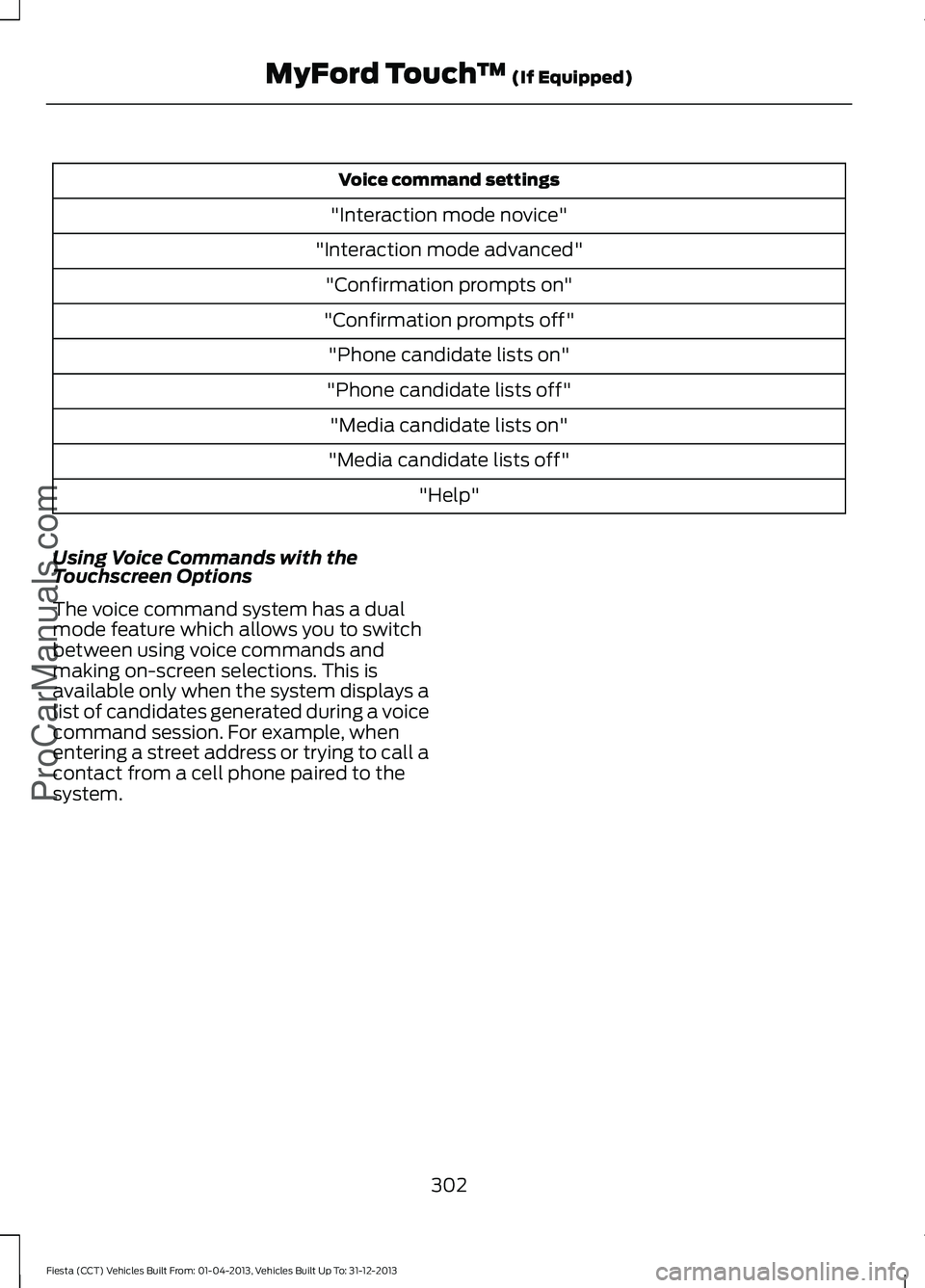
Voice command settings
"Interaction mode novice"
"Interaction mode advanced" "Confirmation prompts on"
"Confirmation prompts off" "Phone candidate lists on"
"Phone candidate lists off" "Media candidate lists on"
"Media candidate lists off" "Help"
Using Voice Commands with the
Touchscreen Options
The voice command system has a dual
mode feature which allows you to switch
between using voice commands and
making on-screen selections. This is
available only when the system displays a
list of candidates generated during a voice
command session. For example, when
entering a street address or trying to call a
contact from a cell phone paired to the
system.
302
Fiesta (CCT) Vehicles Built From: 01-04-2013, Vehicles Built Up To: 31-12-2013 MyFord Touch
™ (If Equipped)
ProCarManuals.com
Page 306 of 398
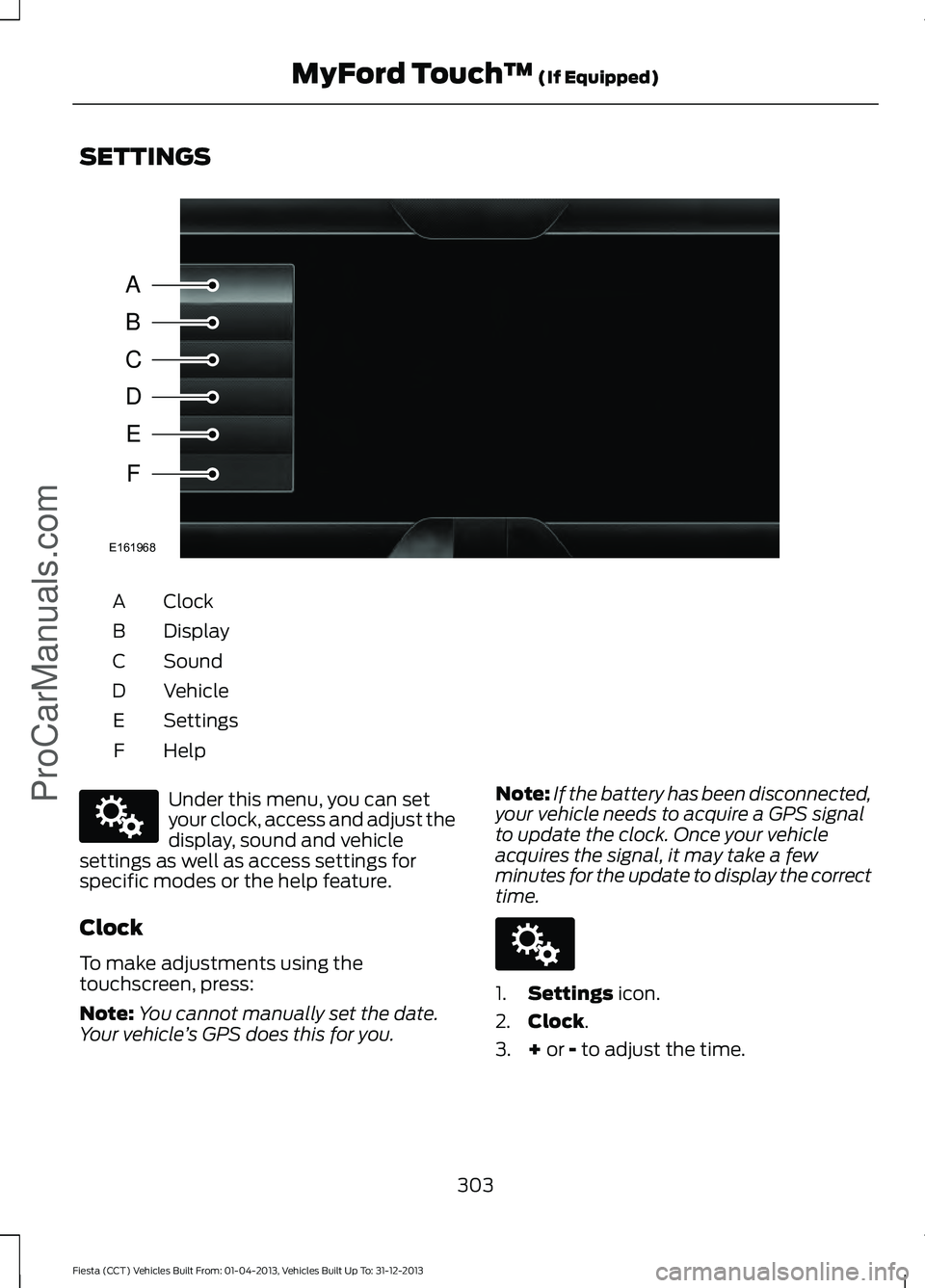
SETTINGS
Clock
A
Display
B
Sound
C
Vehicle
D
Settings
E
HelpF Under this menu, you can set
your clock, access and adjust the
display, sound and vehicle
settings as well as access settings for
specific modes or the help feature.
Clock
To make adjustments using the
touchscreen, press:
Note: You cannot manually set the date.
Your vehicle ’s GPS does this for you. Note:
If the battery has been disconnected,
your vehicle needs to acquire a GPS signal
to update the clock. Once your vehicle
acquires the signal, it may take a few
minutes for the update to display the correct
time. 1.
Settings icon.
2. Clock
.
3. +
or - to adjust the time.
303
Fiesta (CCT) Vehicles Built From: 01-04-2013, Vehicles Built Up To: 31-12-2013 MyFord Touch
™
(If Equipped)
ProCarManuals.comA
B
C
D
E
F
E161968 E142607 E142607
Page 307 of 398
From this screen, you can also make other
adjustments such as 12-hour or 24-hour
mode, activate GPS time synchronization
and have the system automatically update
new time zones.
You can also turn the outside air
temperature display off and on. It appears
at the top center of the touchscreen, next
to the time and date.
The system automatically saves any
updates you make to the settings.
Display
You can adjust the touchscreen display
through the touchscreen or by pressing the
voice button on the steering wheel controls
and when prompted, say, "Display
settings".
To make adjustments using the
touchscreen, press:
1. Settings icon.
2. Display
.
Then select from the following:
• Brightness
allows you to make the
screen display brighter or dimmer.
• Mode
allows you to set the screen to
a certain brightness or have the system
automatically change based on the
outside light level.
• If you select
AUTO or NIGHT, you
have the options of turning the
display's Auto Dim feature on or off
and changing the Auto Dim Manual
Offset feature.
• Edit Wallpaper
allows you to display
the default photo or upload your own. Uploading Photos for Your Home
Screen Wallpaper
Note:
You cannot load photos directly from
your camera. You must access the photos
either from your USB mass storage device
or from an SD card.
Note: Photographs with extremely large
dimensions (such as 2048 x 1536) may not
be compatible and appear as a blank
(black) image on the display.
Your system allows you to upload and view
up to 32 photos. To access, press:
1. Settings
icon.
2. Display
.
3. Edit Wallpaper
.
4. follow the system prompts to upload your photographs.
Only the photograph(s), which meets the
following conditions, display:
• Compatible file formats are as follows:
.jpg, .gif, .png, .bmp
• Each file must be 1.5 MB or less.
• Recommended dimensions: 800 x 384
Sound To make adjustments using the
touchscreen, press:
1. Settings
icon.
2. Sound
.
Then select from the following:
• Bass
• Midrange
• Treble
• Set Balance and Fade
• Occupancy Mode
304
Fiesta (CCT) Vehicles Built From: 01-04-2013, Vehicles Built Up To: 31-12-2013 MyFord Touch
™
(If Equipped)
ProCarManuals.comE142607 E142607 E142607
Page 308 of 398
•
Speed Compensated Volume
• DSP. *
Note: *
Your vehicle may not have these
sound settings.
Vehicle To make adjustments using the
touchscreen, press:
1. Settings icon.
2. Vehicle
.
Then select from the following:
• Active Park Assist
• Vehicle Health Report
• Rear View Camera
• Enable Valet Mode
• MyKey
• Traction Control
• Electronic Stability Control
• Hill Start Assist
Active Park Assist
When activated, your system displays
directions for you regarding the active park
assist process.
You can find more information on the
active park assist system in another
chapter. See
Parking Aids (page 138).
Vehicle Health Report
Turn
Automatic Reminders on and off
and set the mileage interval at which you
would like to receive the reports. Press the
?
for more information on these selections.
When done making your selections, press
Run Vehicle Health Report Now
if you
want your report.
You can find more information on Vehicle
Health Report in this chapter. Rear View Camera
This menu allows you to access settings
for your rear view camera. To make adjustments using the
touchscreen, press:
1. Settings
icon.
2. Vehicle
.
3. Rear View Camera
.
Then select from the following:
• Rear Camera Delay
• Visual Park Aid Alert
• Guidelines.
You can find more information on the rear
view camera system in another chapter.
See
Parking Aids (page 138).
Enable Valet Mode
Note: If the system locks, and you need to
reset the PIN, enter 3681 and the system
unlocks.
Valet mode allows you to lock the system.
No information is accessible until the
system is unlocked with the correct PIN. To access, press:
1. Settings
icon.
2. Vehicle
.
3. Enable Valet Mode
.
4. Continue
Note: After you press Continue the system
locks until you enter the PIN again.
Settings
Access and adjust system settings, voice
features, as well as phone, navigation and
wireless settings.
305
Fiesta (CCT) Vehicles Built From: 01-04-2013, Vehicles Built Up To: 31-12-2013 MyFord Touch
™
(If Equipped)
ProCarManuals.comE142607 E142607 E142607