CD player FORD FIESTA 2017 6.G User Guide
[x] Cancel search | Manufacturer: FORD, Model Year: 2017, Model line: FIESTA, Model: FORD FIESTA 2017 6.GPages: 450, PDF Size: 6.05 MB
Page 308 of 450
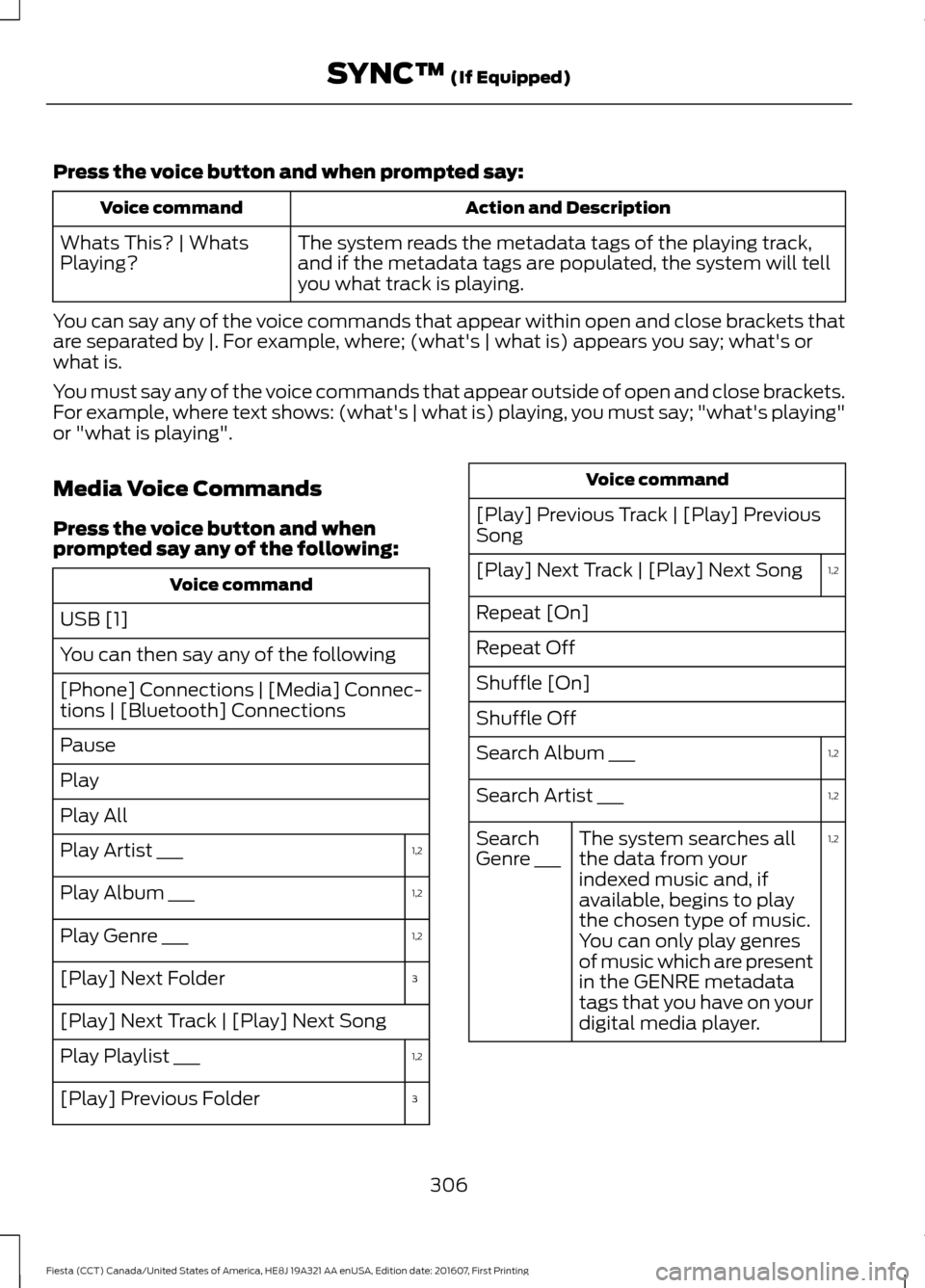
Press the voice button and when prompted say:
Action and Description
Voice command
The system reads the metadata tags of the playing track,
and if the metadata tags are populated, the system will tell
you what track is playing.
Whats This? | Whats
Playing?
You can say any of the voice commands that appear within open and close brackets that
are separated by |. For example, where; (what's | what is) appears you say; what's or
what is.
You must say any of the voice commands that appear outside of open and close brackets.
For example, where text shows: (what's | what is) playing, you must say; "what's playing"
or "what is playing".
Media Voice Commands
Press the voice button and when
prompted say any of the following: Voice command
USB [1]
You can then say any of the following
[Phone] Connections | [Media] Connec-
tions | [Bluetooth] Connections
Pause
Play
Play All 1,2
Play Artist ___
1,2
Play Album ___
1,2
Play Genre ___
3
[Play] Next Folder
[Play] Next Track | [Play] Next Song
1,2
Play Playlist ___
3
[Play] Previous Folder Voice command
[Play] Previous Track | [Play] Previous
Song 1,2
[Play] Next Track | [Play] Next Song
Repeat [On]
Repeat Off
Shuffle [On]
Shuffle Off
1,2
Search Album ___
1,2
Search Artist ___
1,2
The system searches all
the data from your
indexed music and, if
available, begins to play
the chosen type of music.
You can only play genres
of music which are present
in the GENRE metadata
tags that you have on your
digital media player.
Search
Genre ___
306
Fiesta (CCT) Canada/United States of America, HE8J 19A321 AA enUSA, Edition date: 201607, First Printing SYNC™ (If Equipped)
Page 310 of 450
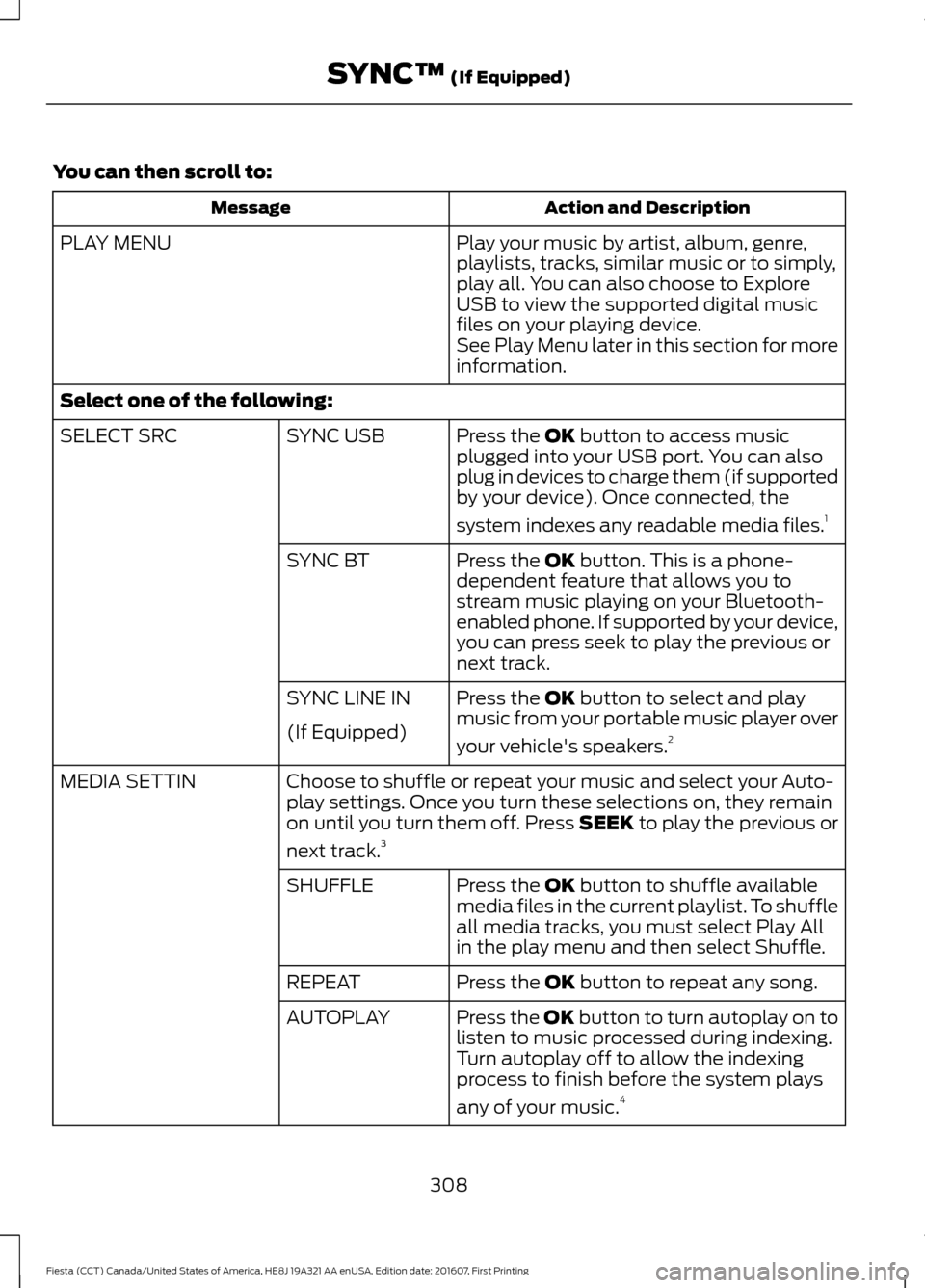
You can then scroll to:
Action and Description
Message
Play your music by artist, album, genre,
playlists, tracks, similar music or to simply,
play all. You can also choose to Explore
USB to view the supported digital music
files on your playing device.
PLAY MENU
See Play Menu later in this section for more
information.
Select one of the following: Press the OK button to access music
plugged into your USB port. You can also
plug in devices to charge them (if supported
by your device). Once connected, the
system indexes any readable media files. 1
SYNC USB
SELECT SRC
Press the
OK button. This is a phone-
dependent feature that allows you to
stream music playing on your Bluetooth-
enabled phone. If supported by your device,
you can press seek to play the previous or
next track.
SYNC BT
Press the
OK button to select and play
music from your portable music player over
your vehicle's speakers. 2
SYNC LINE IN
(If Equipped)
Choose to shuffle or repeat your music and select your Auto-
play settings. Once you turn these selections on, they remain
on until you turn them off. Press SEEK to play the previous or
next track.
3
MEDIA SETTIN
Press the
OK button to shuffle available
media files in the current playlist. To shuffle
all media tracks, you must select Play All
in the play menu and then select Shuffle.
SHUFFLE
Press the
OK button to repeat any song.
REPEAT
Press the OK button to turn autoplay on to
listen to music processed during indexing.
Turn autoplay off to allow the indexing
process to finish before the system plays
any of your music.4
AUTOPLAY
308
Fiesta (CCT) Canada/United States of America, HE8J 19A321 AA enUSA, Edition date: 201607, First Printing SYNC™
(If Equipped)
Page 311 of 450
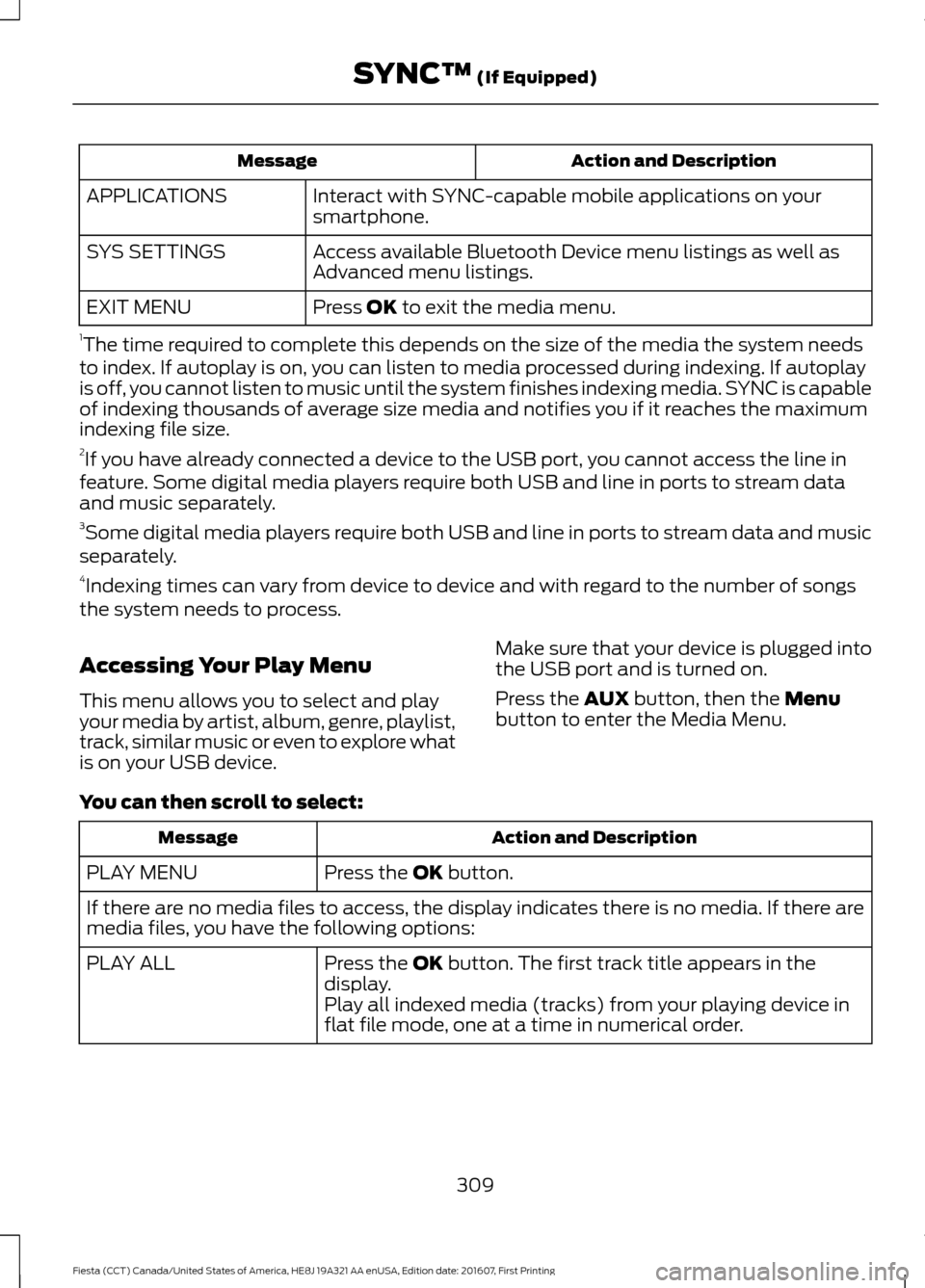
Action and Description
Message
Interact with SYNC-capable mobile applications on your
smartphone.
APPLICATIONS
Access available Bluetooth Device menu listings as well as
Advanced menu listings.
SYS SETTINGS
Press OK to exit the media menu.
EXIT MENU
1 The time required to complete this depends on the size of the media the system needs
to index. If autoplay is on, you can listen to media processed during indexing. If autoplay
is off, you cannot listen to music until the system finishes indexing media. SYNC is capable
of indexing thousands of average size media and notifies you if it reaches the maximum
indexing file size.
2 If you have already connected a device to the USB port, you cannot access the line in
feature. Some digital media players require both USB and line in ports to stream data
and music separately.
3 Some digital media players require both USB and line in ports to stream data and music
separately.
4 Indexing times can vary from device to device and with regard to the number of songs
the system needs to process.
Accessing Your Play Menu
This menu allows you to select and play
your media by artist, album, genre, playlist,
track, similar music or even to explore what
is on your USB device. Make sure that your device is plugged into
the USB port and is turned on.
Press the
AUX button, then the Menu
button to enter the Media Menu.
You can then scroll to select: Action and Description
Message
Press the
OK button.
PLAY MENU
If there are no media files to access, the display indicates there is no media. If there are
media files, you have the following options:
Press the
OK button. The first track title appears in the
display.
PLAY ALL
Play all indexed media (tracks) from your playing device in
flat file mode, one at a time in numerical order.
309
Fiesta (CCT) Canada/United States of America, HE8J 19A321 AA enUSA, Edition date: 201607, First Printing SYNC™
(If Equipped)
Page 335 of 450
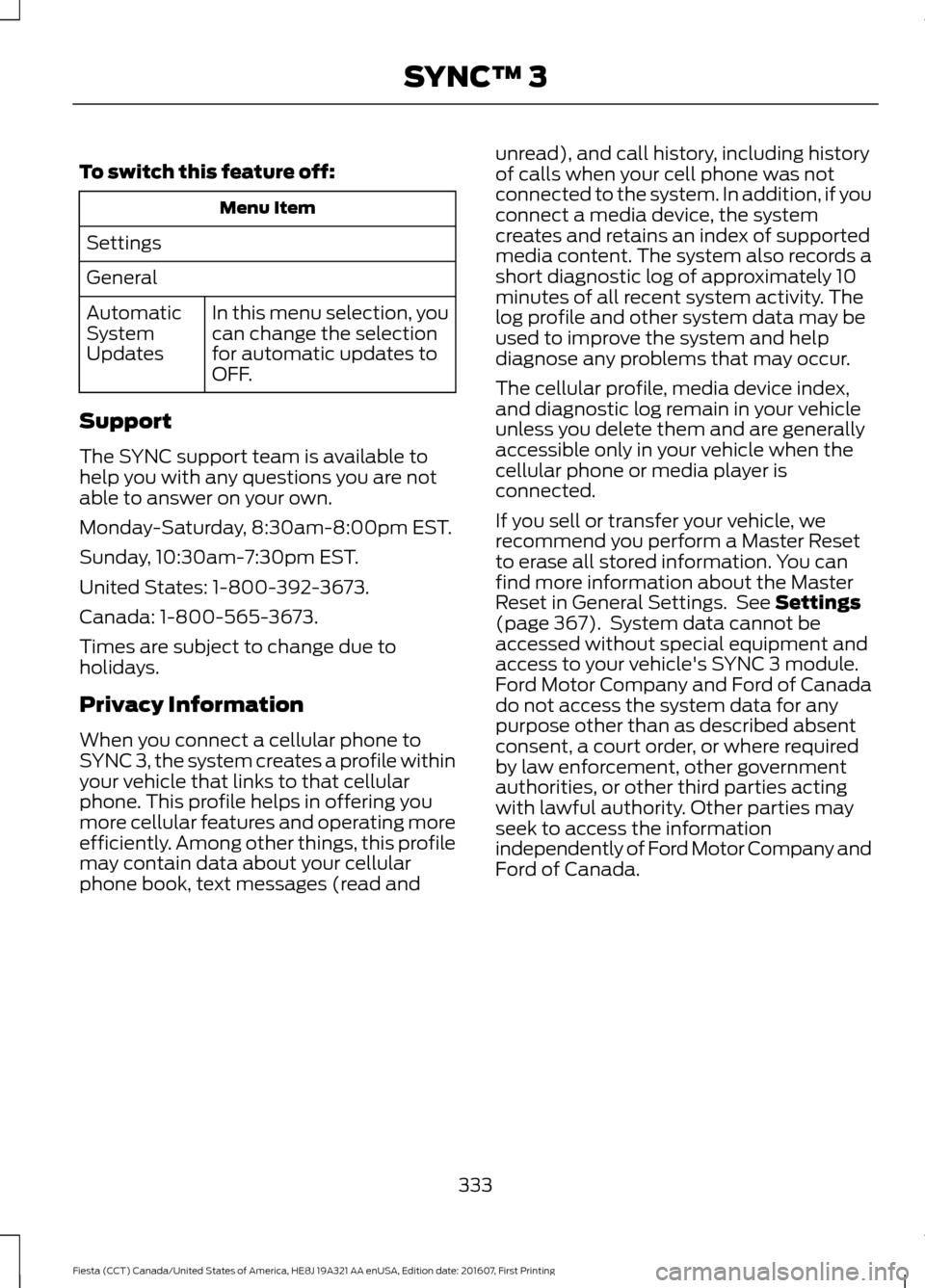
To switch this feature off:
Menu Item
Settings
General In this menu selection, you
can change the selection
for automatic updates to
OFF.
Automatic
System
Updates
Support
The SYNC support team is available to
help you with any questions you are not
able to answer on your own.
Monday-Saturday, 8:30am-8:00pm EST.
Sunday, 10:30am-7:30pm EST.
United States: 1-800-392-3673.
Canada: 1-800-565-3673.
Times are subject to change due to
holidays.
Privacy Information
When you connect a cellular phone to
SYNC 3, the system creates a profile within
your vehicle that links to that cellular
phone. This profile helps in offering you
more cellular features and operating more
efficiently. Among other things, this profile
may contain data about your cellular
phone book, text messages (read and unread), and call history, including history
of calls when your cell phone was not
connected to the system. In addition, if you
connect a media device, the system
creates and retains an index of supported
media content. The system also records a
short diagnostic log of approximately 10
minutes of all recent system activity. The
log profile and other system data may be
used to improve the system and help
diagnose any problems that may occur.
The cellular profile, media device index,
and diagnostic log remain in your vehicle
unless you delete them and are generally
accessible only in your vehicle when the
cellular phone or media player is
connected.
If you sell or transfer your vehicle, we
recommend you perform a Master Reset
to erase all stored information. You can
find more information about the Master
Reset in General Settings. See Settings
(page 367). System data cannot be
accessed without special equipment and
access to your vehicle's SYNC 3 module.
Ford Motor Company and Ford of Canada
do not access the system data for any
purpose other than as described absent
consent, a court order, or where required
by law enforcement, other government
authorities, or other third parties acting
with lawful authority. Other parties may
seek to access the information
independently of Ford Motor Company and
Ford of Canada.
333
Fiesta (CCT) Canada/United States of America, HE8J 19A321 AA enUSA, Edition date: 201607, First Printing SYNC™ 3
Page 345 of 450
There are two preset banks available for
AM and three banks for FM. To access
additional presets, tap the preset button.
The indicator on the preset button shows
which bank of presets you are currently
viewing.
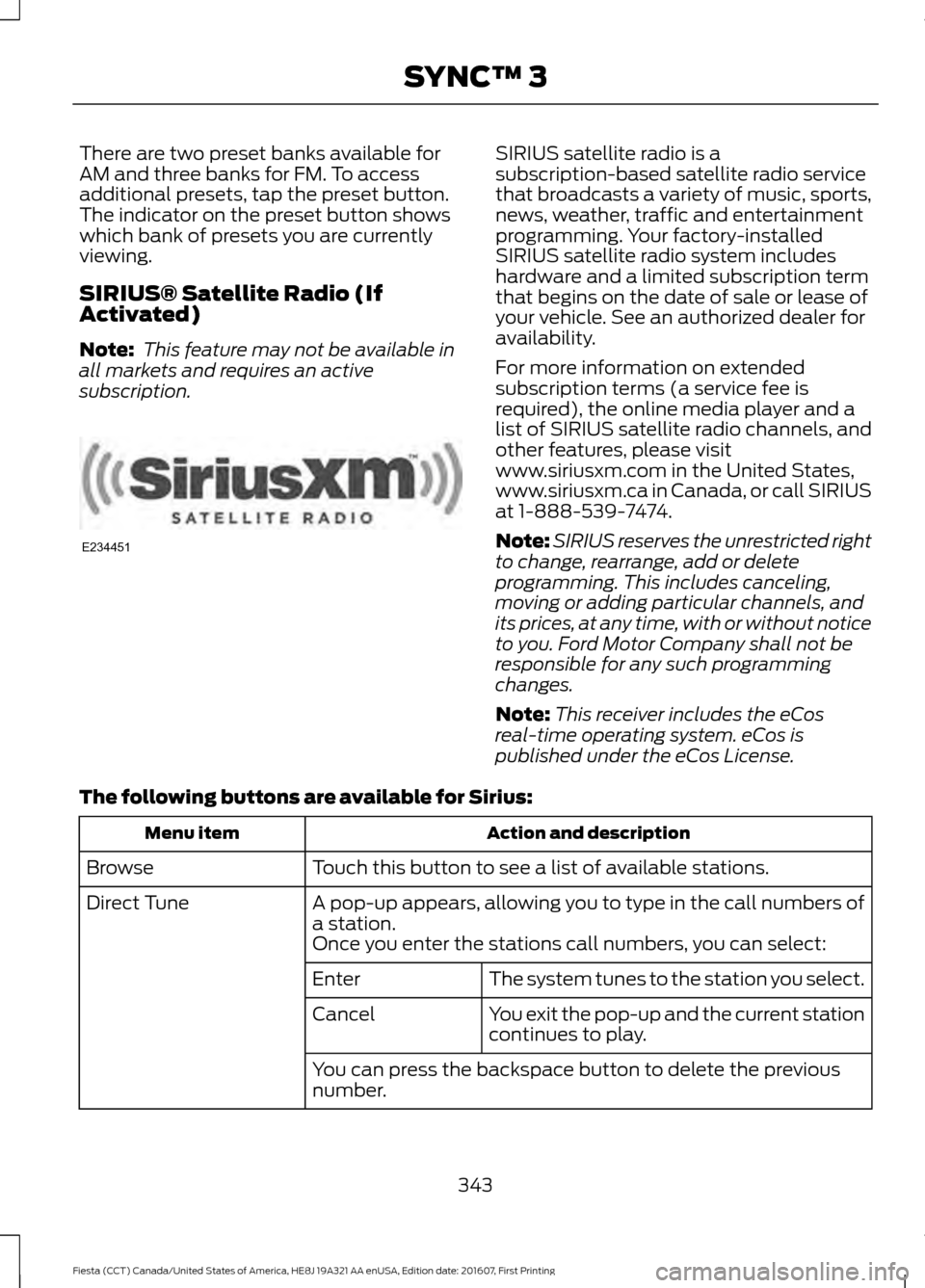
SIRIUS® Satellite Radio (If
Activated)
Note:
This feature may not be available in
all markets and requires an active
subscription. SIRIUS satellite radio is a
subscription-based satellite radio service
that broadcasts a variety of music, sports,
news, weather, traffic and entertainment
programming. Your factory-installed
SIRIUS satellite radio system includes
hardware and a limited subscription term
that begins on the date of sale or lease of
your vehicle. See an authorized dealer for
availability.
For more information on extended
subscription terms (a service fee is
required), the online media player and a
list of SIRIUS satellite radio channels, and
other features, please visit
www.siriusxm.com in the United States,
www.siriusxm.ca in Canada, or call SIRIUS
at 1-888-539-7474.
Note:
SIRIUS reserves the unrestricted right
to change, rearrange, add or delete
programming. This includes canceling,
moving or adding particular channels, and
its prices, at any time, with or without notice
to you. Ford Motor Company shall not be
responsible for any such programming
changes.
Note: This receiver includes the eCos
real-time operating system. eCos is
published under the eCos License.
The following buttons are available for Sirius: Action and description
Menu item
Touch this button to see a list of available stations.
Browse
A pop-up appears, allowing you to type in the call numbers of
a station.
Direct Tune
Once you enter the stations call numbers, you can select:The system tunes to the station you select.
Enter
You exit the pop-up and the current station
continues to play.
Cancel
You can press the backspace button to delete the previous
number.
343
Fiesta (CCT) Canada/United States of America, HE8J 19A321 AA enUSA, Edition date: 201607, First Printing SYNC™ 3E234451
Page 352 of 450
Function
Button
Composers
This button allows you to choose a specific
letter to view within the category you are
browsing.
A-Z Jump
If available, this allows you to browse the
folders and files on your USB device.
Explore Device
USB Ports The USB ports are in the center console or
behind a small access door in the
instrument panel.
This feature allows you to plug in USB
media devices, memory sticks, flash drives
or thumb drives, and charge devices if they
support this feature.
Select this option to play audio from your
USB device.
Apps
The system supports the use of certain
audio apps such as Pandora or iHeartRadio
through a USB or bluetooth-enabled
device.
Each app gives you different on-screen
options depending on the app's content.
See Apps (page 364). Supported Media Players, Formats
and Metadata Information
The system is capable of hosting nearly
any digital media player, including iPod,
iPhone, and most USB drives.
Supported audio formats include MP3,
WMA, WAV, AAC, and FLAC.
Supported audio file extensions include
MP3, WMA, WAV, M4A, M4B, AAC, and
FLAC.
Supported USB file systems include: FAT,
exFAT, and NTFS.
SYNC 3 is also able to organize the media
from your USB device by metadata tags.
Metadata tags, which are descriptive
software identifiers embedded in the
media files, provide information about the
file.
If your indexed media files contain no
information embedded in these metadata
tags, SYNC 3 may classify the empty
metadata tags as unknown.
SYNC 3 is capable of indexing up to
50,000 songs per USB device, for up to 10
devices.
350
Fiesta (CCT) Canada/United States of America, HE8J 19A321 AA enUSA, Edition date: 201607, First Printing SYNC™ 3E211463
Page 370 of 450
Media Player
This button is available when a media
device such as a Bluetooth Stereo or USB
device is the active audio source. Pressing
the button allows you to access the
following options for active devices only.Action and Description
Menu Item
For some Apple devices, SYNC 3 can adjust the playback speed of
podcasts. When a podcast is playing, you can choose:
Podcast Speed
Faster
Normal
Slower
For some Apple devices, SYNC 3 can adjust the playback speed of
audiobooks. When an audiobook is playing, you can choose:
Audiobook Speed
Faster
Normal
Slower
Cover art displays from your device ’s music
files. If no cover art for the files exists on the
device, then the Gracenote Database provides
cover art.
Media Player
Cover Art Priority
The Gracenote Database supplied cover art is
used for your music files. This overrides any
cover art from your device.
Gracenote®
Switches on and off Gracenote® to provide metadata information
such as genre, artist, album.
Gracenote®
Management
This allows you to view the version level of the Gracenote Database.
Gracenote® Data-
base Info
This allows you to view the manufacturer and model number of your
media device.
Device Informa-
tion
Erase the stored in media information in order to re-index.
Update Media
Index
Clock
To adjust the time, select the up and down
arrows on either side of the screen. The
arrows on the left adjust the hour and
arrows on the right adjust the minute. You
can then select AM or PM. You can adjust the following features:
368
Fiesta (CCT) Canada/United States of America, HE8J 19A321 AA enUSA, Edition date: 201607, First Printing SYNC™ 3
Page 385 of 450
USB and Bluetooth Stereo issues
Possible solution
Possible cause
Issue
Make sure you connect the device to SYNC
3 and that you have started the media
player on your device.
This is a device-
dependent feature.
Bluetooth audio
does not
stream. The device is not
connected.
Make sure that all song details are popu-
lated.
Your music files may not
contain the correct artist,
song title, album or genre
information.
SYNC 3 does
not recognize
music that is on
my device. Try replacing the corrupt file with a new
version.
The file may be
corrupted.
Some devices require you to change the
USB settings from mass storage to media
transfer protocol class.
The song may have
copyright protection that
does not allow it to play.
Convert the file to a supported format. See
Entertainment (page 341).
The file format is not
supported by SYNC 3.
Update media index. See
Settings (page
367).
The device needs to be
re-indexed.
Make sure your device is unlocked before
connecting it to SYNC 3.
The device has a lock
screen enabled.
Disconnect the device from SYNC 3. Try
switching your device off, resetting it or
removing the battery, then connect it back
to SYNC 3.
This is a device limitation.
When I connect
my device, I
sometimes do
not hear any
sound. To listen to Apple devices through USB,
select AirPlay from the devices Control
Center, then select Dock Connector.
To listen to Apple devices through
Bluetooth Stereo, select AirPlay from the
devices Control Center, then select SYNC.
383
Fiesta (CCT) Canada/United States of America, HE8J 19A321 AA enUSA, Edition date: 201607, First Printing SYNC™ 3
Page 392 of 450
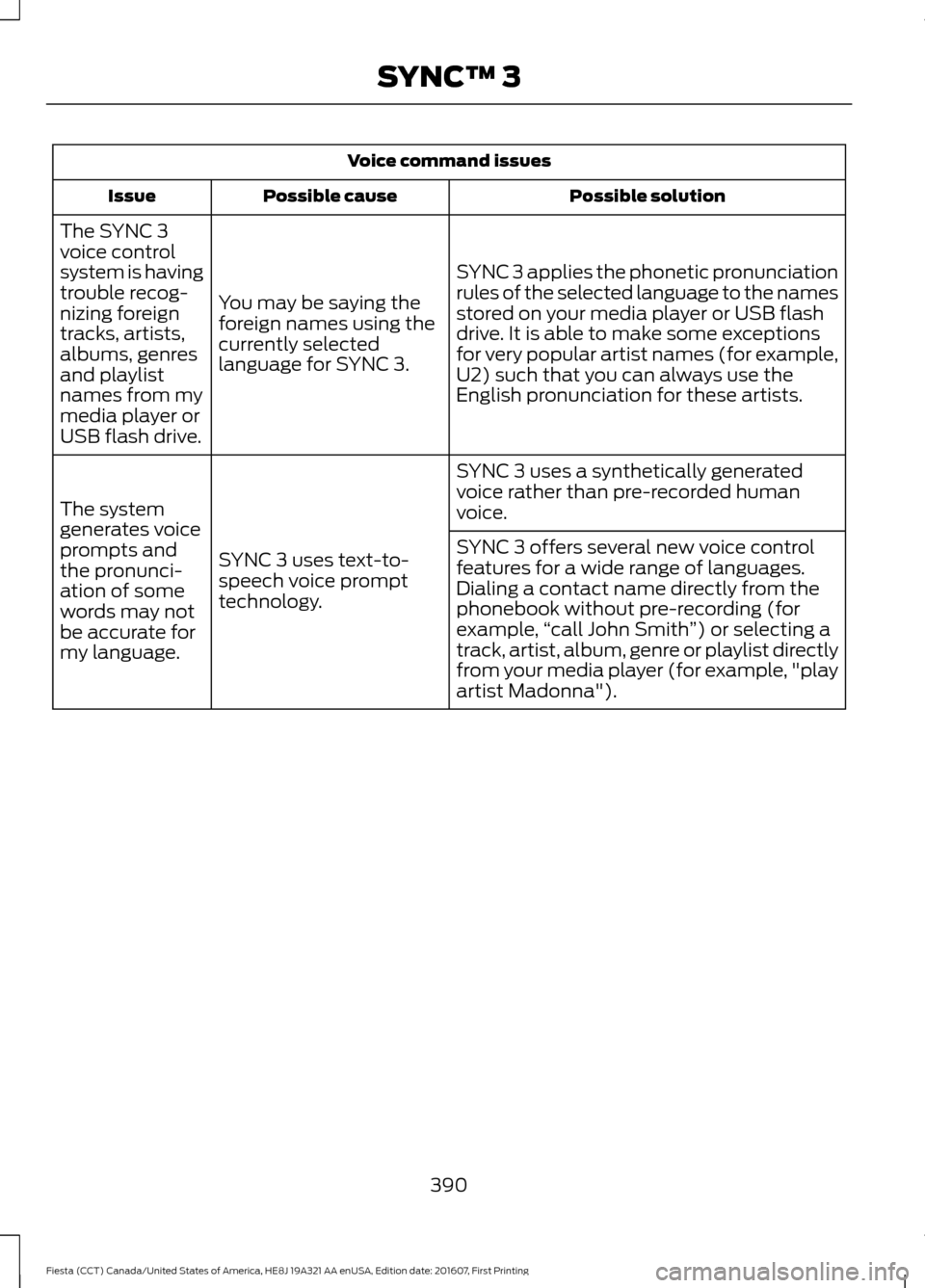
Voice command issues
Possible solution
Possible cause
Issue
SYNC 3 applies the phonetic pronunciation
rules of the selected language to the names
stored on your media player or USB flash
drive. It is able to make some exceptions
for very popular artist names (for example,
U2) such that you can always use the
English pronunciation for these artists.
You may be saying the
foreign names using the
currently selected
language for SYNC 3.
The SYNC 3
voice control
system is having
trouble recog-
nizing foreign
tracks, artists,
albums, genres
and playlist
names from my
media player or
USB flash drive.
SYNC 3 uses a synthetically generated
voice rather than pre-recorded human
voice.
SYNC 3 uses text-to-
speech voice prompt
technology.
The system
generates voice
prompts and
the pronunci-
ation of some
words may not
be accurate for
my language. SYNC 3 offers several new voice control
features for a wide range of languages.
Dialing a contact name directly from the
phonebook without pre-recording (for
example,
“call John Smith ”) or selecting a
track, artist, album, genre or playlist directly
from your media player (for example, "play
artist Madonna").
390
Fiesta (CCT) Canada/United States of America, HE8J 19A321 AA enUSA, Edition date: 201607, First Printing SYNC™ 3
Page 393 of 450
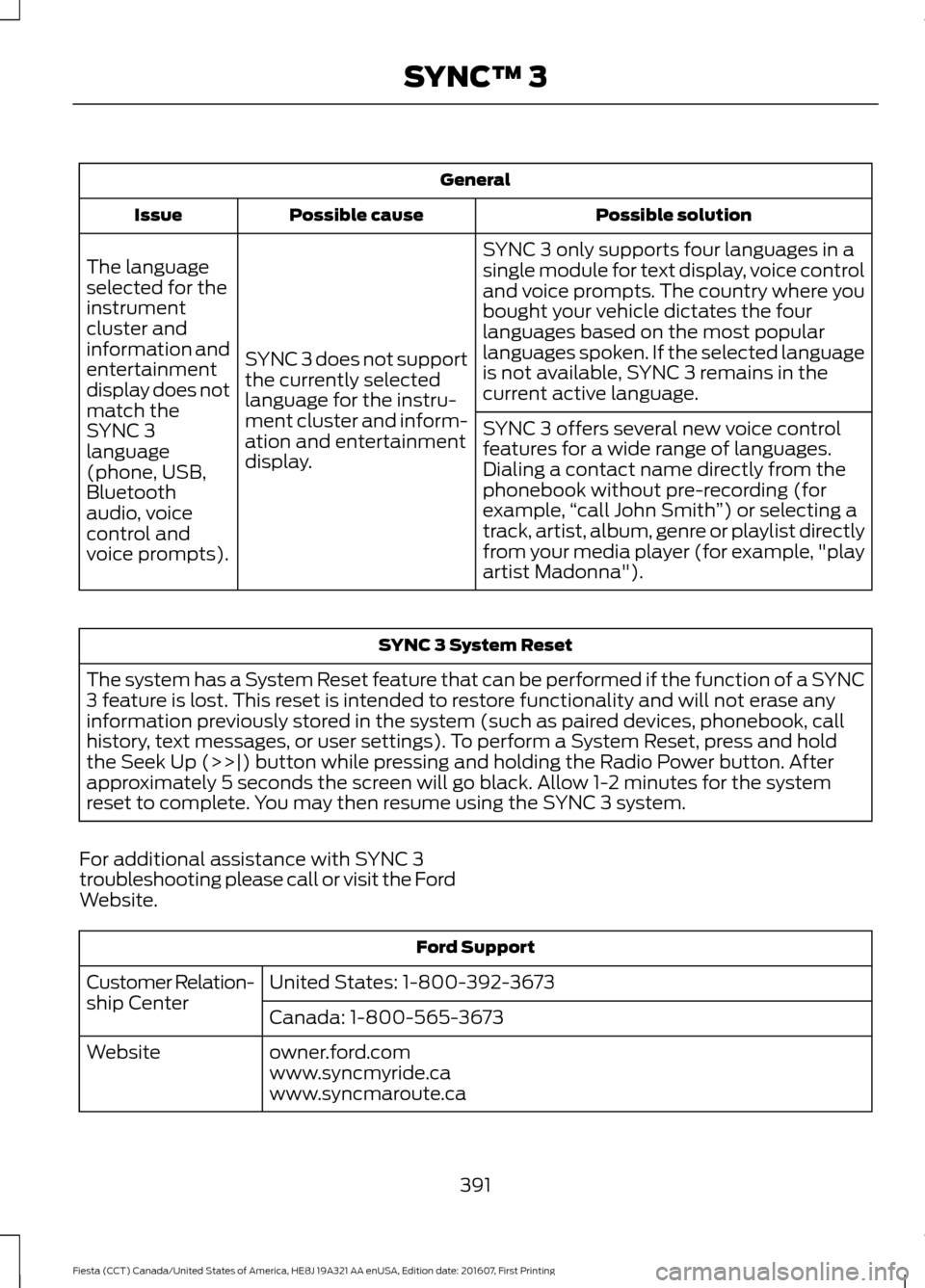
General
Possible solution
Possible cause
Issue
SYNC 3 only supports four languages in a
single module for text display, voice control
and voice prompts. The country where you
bought your vehicle dictates the four
languages based on the most popular
languages spoken. If the selected language
is not available, SYNC 3 remains in the
current active language.
SYNC 3 does not support
the currently selected
language for the instru-
ment cluster and inform-
ation and entertainment
display.
The language
selected for the
instrument
cluster and
information and
entertainment
display does not
match the
SYNC 3
SYNC 3 offers several new voice control
features for a wide range of languages.
Dialing a contact name directly from the
phonebook without pre-recording (for
example,
“call John Smith ”) or selecting a
track, artist, album, genre or playlist directly
from your media player (for example, "play
artist Madonna").
language
(phone, USB,
Bluetooth
audio, voice
control and
voice prompts). SYNC 3 System Reset
The system has a System Reset feature that can be performed if the function of a SYNC
3 feature is lost. This reset is intended to restore functionality and will not erase any
information previously stored in the system (such as paired devices, phonebook, call
history, text messages, or user settings). To perform a System Reset, press and hold
the Seek Up (>>|) button while pressing and holding the Radio Power button. After
approximately 5 seconds the screen will go black. Allow 1-2 minutes for the system
reset to complete. You may then resume using the SYNC 3 system.
For additional assistance with SYNC 3
troubleshooting please call or visit the Ford
Website. Ford Support
United States: 1-800-392-3673
Customer Relation-
ship Center
Canada: 1-800-565-3673
owner.ford.com
Website
www.syncmyride.ca
www.syncmaroute.ca
391
Fiesta (CCT) Canada/United States of America, HE8J 19A321 AA enUSA, Edition date: 201607, First Printing SYNC™ 3