buttons FORD FIESTA 2017 6.G User Guide
[x] Cancel search | Manufacturer: FORD, Model Year: 2017, Model line: FIESTA, Model: FORD FIESTA 2017 6.GPages: 450, PDF Size: 6.05 MB
Page 262 of 450
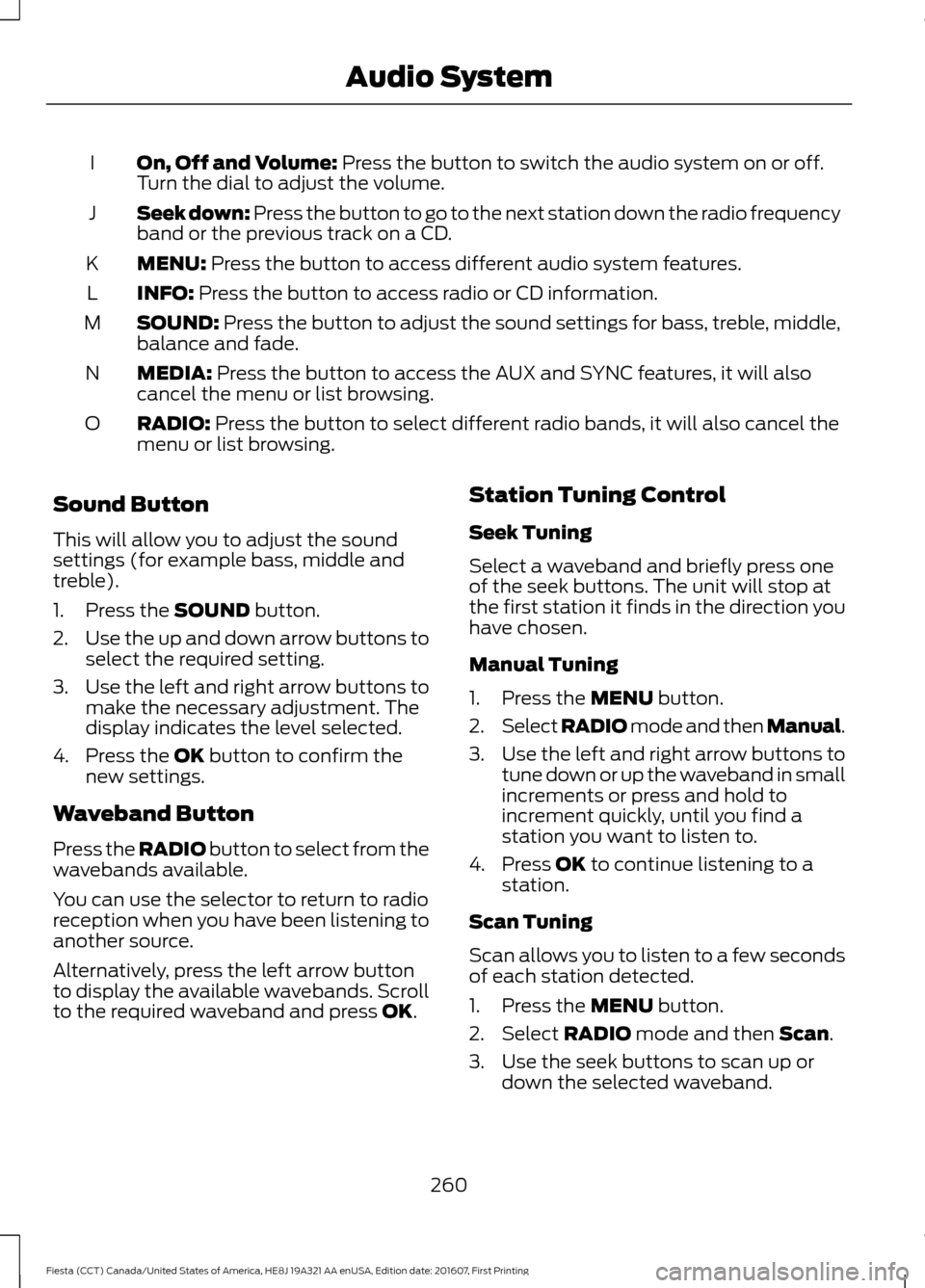
On, Off and Volume: Press the button to switch the audio system on or off.
Turn the dial to adjust the volume.
I
Seek down: Press the button to go to the next station down the radio frequency
band or the previous track on a CD.
J
MENU:
Press the button to access different audio system features.
K
INFO:
Press the button to access radio or CD information.
L
SOUND:
Press the button to adjust the sound settings for bass, treble, middle,
balance and fade.
M
MEDIA:
Press the button to access the AUX and SYNC features, it will also
cancel the menu or list browsing.
N
RADIO:
Press the button to select different radio bands, it will also cancel the
menu or list browsing.
O
Sound Button
This will allow you to adjust the sound
settings (for example bass, middle and
treble).
1. Press the
SOUND button.
2. Use the up and down arrow buttons to
select the required setting.
3. Use the left and right arrow buttons to
make the necessary adjustment. The
display indicates the level selected.
4. Press the
OK button to confirm the
new settings.
Waveband Button
Press the
RADIO button to select from the
wavebands available.
You can use the selector to return to radio
reception when you have been listening to
another source.
Alternatively, press the left arrow button
to display the available wavebands. Scroll
to the required waveband and press
OK. Station Tuning Control
Seek Tuning
Select a waveband and briefly press one
of the seek buttons. The unit will stop at
the first station it finds in the direction you
have chosen.
Manual Tuning
1. Press the
MENU button.
2. Select RADIO mode and then Manual.
3. Use the left and right arrow buttons to
tune down or up the waveband in small
increments or press and hold to
increment quickly, until you find a
station you want to listen to.
4. Press
OK to continue listening to a
station.
Scan Tuning
Scan allows you to listen to a few seconds
of each station detected.
1. Press the
MENU button.
2. Select
RADIO mode and then Scan.
3. Use the seek buttons to scan up or down the selected waveband.
260
Fiesta (CCT) Canada/United States of America, HE8J 19A321 AA enUSA, Edition date: 201607, First Printing Audio System
Page 263 of 450
4. Press OK to continue listening to a
station.
Station Preset Buttons
This feature allows you to store your
favorite stations, they can be recalled by
selecting the appropriate waveband and
pressing one of the preset buttons.
1. Select a waveband.
2. Tune to the station required.
3. Press and hold one of the preset buttons. A progress bar and message
will appear. When the progress bar
completes the station has been stored.
The audio unit will also mute
momentarily as confirmation.
You can repeat this on each waveband and
for each preset button.
Note: When you drive to another part of the
country, stations that broadcast on
alternative frequencies and are stored on
preset buttons, may be updated with the
correct frequency and station name for that
area.
Autostore Control
Note: This will store up to a maximum of
the six strongest signals available, either
from the AM or the FM waveband and
overwrite the previously stored stations. You
can also store stations manually in the same
way as other wavebands.
• Press and hold the
RADIO button.
• When the search is complete, sound is
restored and the strongest signals are
stored on the autostore presets.
Automatic Volume Control
When available, automatic volume control
adjusts the volume level to compensate
for engine noise and road speed noise.
1. Press the
MENU button and select
Audio Settings. 2. Select
Spd. Comp. Vol.
3. Use the left or right arrow button to adjust the setting.
4. Press the
OK button to confirm your
selection.
5. Press the
MENU button to return.
Alternative Frequencies
The majority of programs that broadcast
on the FM waveband have a program
identification code that can be recognized
by audio units.
When your vehicle moves from one
transmission area to another with the
alternative frequencies tuning switched
on, this function will search for the
strongest station signal.
Under certain conditions, alternative
frequencies tuning may temporarily disrupt
normal reception.
When selected, the unit continually
evaluates signal strength and if a better
signal becomes available, the unit will
switch to that alternative. It mutes while
it checks a list of alternative frequencies
and if necessary, it will search once across
the selected waveband for a genuine
alternative frequency.
It will restore radio reception when it finds
one or if one is not found, the unit will
return to the original stored frequency.
When selected, AF
will be shown in the
display.
1. Press the
MENU button.
2. Select
Audio Settings.
3. Scroll to
Alternat. freq. or Alt.
Frequency and turn on or off with the
OK button.
4. Press the
MENU button to return.
261
Fiesta (CCT) Canada/United States of America, HE8J 19A321 AA enUSA, Edition date: 201607, First Printing Audio System
Page 266 of 450
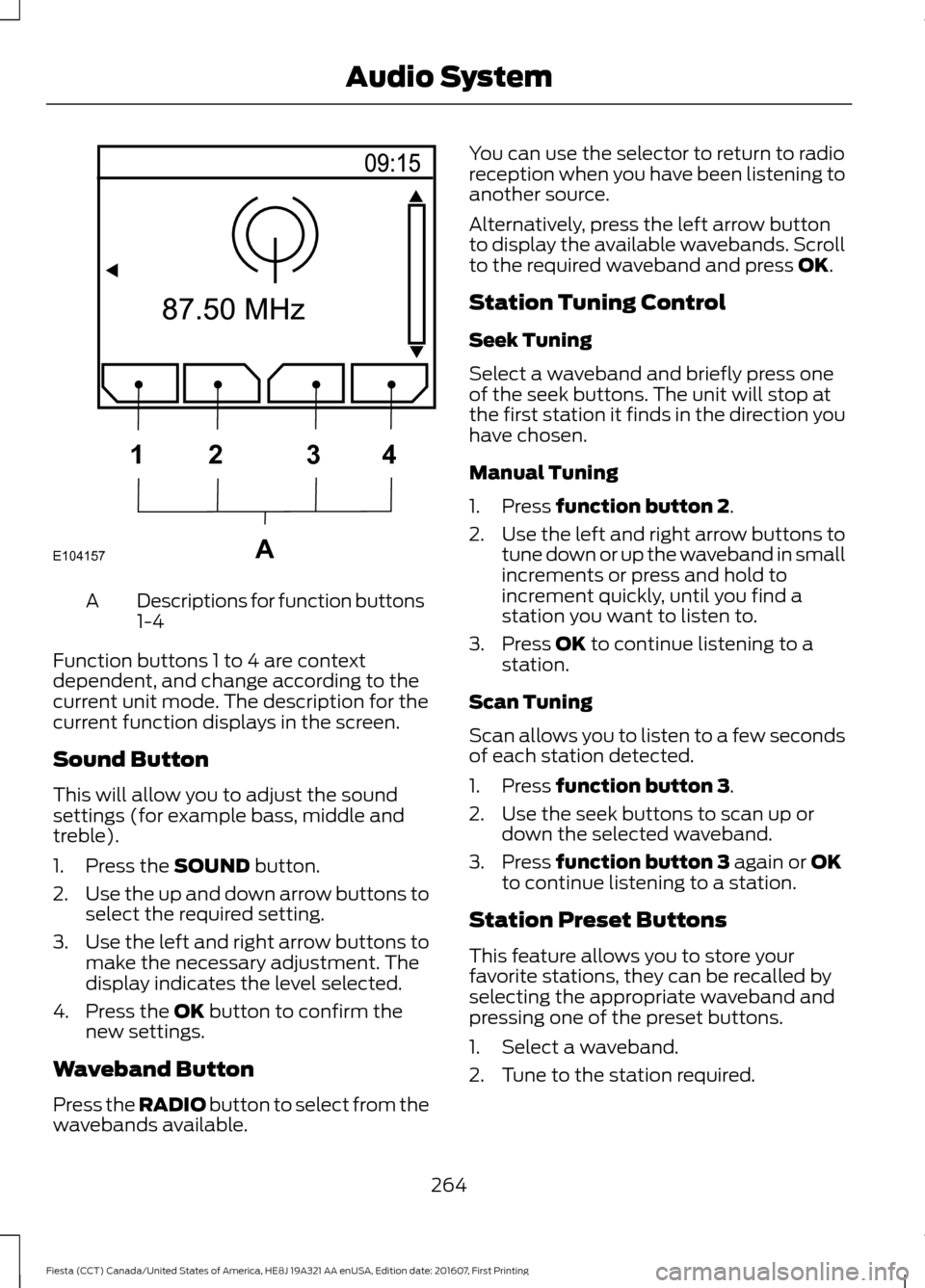
Descriptions for function buttons
1-4
A
Function buttons 1 to 4 are context
dependent, and change according to the
current unit mode. The description for the
current function displays in the screen.
Sound Button
This will allow you to adjust the sound
settings (for example bass, middle and
treble).
1. Press the SOUND button.
2. Use the up and down arrow buttons to
select the required setting.
3. Use the left and right arrow buttons to
make the necessary adjustment. The
display indicates the level selected.
4. Press the
OK button to confirm the
new settings.
Waveband Button
Press the
RADIO button to select from the
wavebands available. You can use the selector to return to radio
reception when you have been listening to
another source.
Alternatively, press the left arrow button
to display the available wavebands. Scroll
to the required waveband and press
OK.
Station Tuning Control
Seek Tuning
Select a waveband and briefly press one
of the seek buttons. The unit will stop at
the first station it finds in the direction you
have chosen.
Manual Tuning
1. Press
function button 2.
2. Use the left and right arrow buttons to
tune down or up the waveband in small
increments or press and hold to
increment quickly, until you find a
station you want to listen to.
3. Press
OK to continue listening to a
station.
Scan Tuning
Scan allows you to listen to a few seconds
of each station detected.
1. Press
function button 3.
2. Use the seek buttons to scan up or down the selected waveband.
3. Press
function button 3 again or OK
to continue listening to a station.
Station Preset Buttons
This feature allows you to store your
favorite stations, they can be recalled by
selecting the appropriate waveband and
pressing one of the preset buttons.
1. Select a waveband.
2. Tune to the station required.
264
Fiesta (CCT) Canada/United States of America, HE8J 19A321 AA enUSA, Edition date: 201607, First Printing Audio SystemE104157A
1
2 34
Page 267 of 450
3. Press and hold one of the preset
buttons. A progress bar and message
will appear. When the progress bar
completes the station has been stored.
The audio unit will also mute
momentarily as confirmation.
You can repeat this on each waveband and
for each preset button.
Note: When you drive to another part of the
country, stations that broadcast on
alternative frequencies, and are stored on
preset buttons, may be updated with the
correct frequency and station name for that
area.
Autostore Control
Note: This will store up to a maximum of
the 10 strongest signals available, either
from the AM or the FM waveband, and
overwrite the previously stored stations. You
can also store stations manually in the same
way as other wavebands.
• Press and hold the RADIO button.
• When the search is complete, sound is
restored and the strongest signals are
stored on the autostore presets.
Automatic Volume Control
When available, automatic volume control
adjusts the volume level to compensate
for engine noise and road speed noise.
1. Press the
MENU button and
selectAudio Settings.
2. Select
Spd. Comp. Vol.
3. Use the left or right arrow button to adjust the setting.
4. Press the
OK button to confirm your
selection.
5. Press the
MENU button to return. Alternative Frequencies
The majority of programs that broadcast
on the FM waveband have a program
identification code, it can be recognized by
audio units.
When your vehicle moves from one
transmission area to another with the
alternative frequencies tuning switched
on, this function will search for the
strongest station signal.
Under certain conditions, alternative
frequencies tuning may temporarily disrupt
normal reception.
When selected, the unit continually
evaluates signal strength and, if a better
signal becomes available, the unit will
switch to that alternative. It mutes while
it checks a list of alternative frequencies
and if necessary, it will search once across
the selected waveband for a genuine
alternative frequency.
It will restore radio reception when it finds
one or if one is not found, the unit will
return to the original stored frequency.
When selected,
AF
will be shown in the
display.
1. Press the
MENU button.
2. Select
Audio Settings.
3. Scroll to
Alternat. freq. or Alt.
Frequency. and turn on or off with the
OK button.
4. Press the
MENU button to return.
265
Fiesta (CCT) Canada/United States of America, HE8J 19A321 AA enUSA, Edition date: 201607, First Printing Audio System
Page 271 of 450
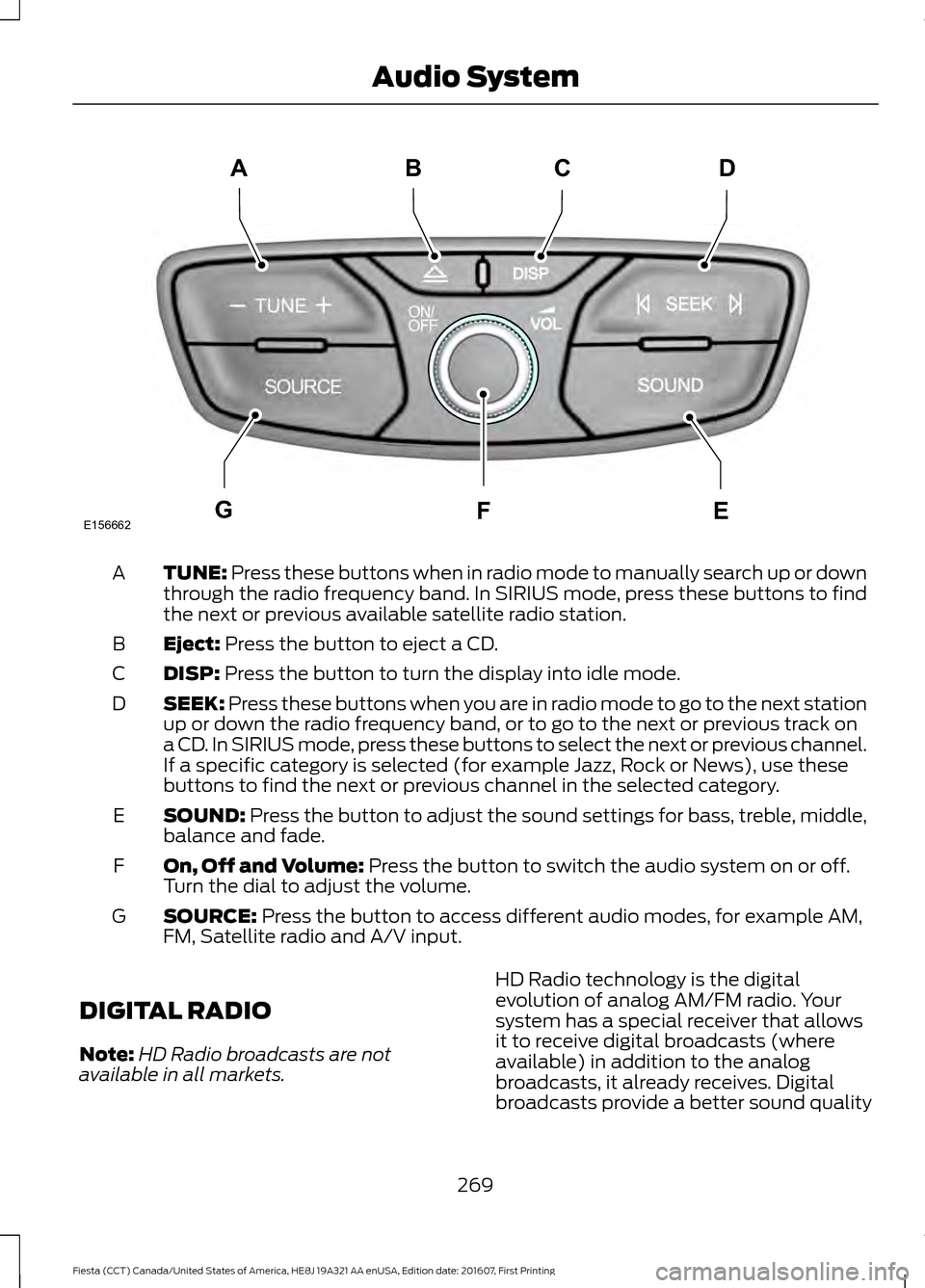
TUNE: Press these buttons when in radio mode to manually search up or down
through the radio frequency band. In SIRIUS mode, press these buttons to find
the next or previous available satellite radio station.
A
Eject:
Press the button to eject a CD.
B
DISP:
Press the button to turn the display into idle mode.
C
SEEK:
Press these buttons when you are in radio mode to go to the next station
up or down the radio frequency band, or to go to the next or previous track on
a CD. In SIRIUS mode, press these buttons to select the next or previous channel.
If a specific category is selected (for example Jazz, Rock or News), use these
buttons to find the next or previous channel in the selected category.
D
SOUND:
Press the button to adjust the sound settings for bass, treble, middle,
balance and fade.
E
On, Off and Volume:
Press the button to switch the audio system on or off.
Turn the dial to adjust the volume.
F
SOURCE:
Press the button to access different audio modes, for example AM,
FM, Satellite radio and A/V input.
G
DIGITAL RADIO
Note: HD Radio broadcasts are not
available in all markets. HD Radio technology is the digital
evolution of analog AM/FM radio. Your
system has a special receiver that allows
it to receive digital broadcasts (where
available) in addition to the analog
broadcasts, it already receives. Digital
broadcasts provide a better sound quality
269
Fiesta (CCT) Canada/United States of America, HE8J 19A321 AA enUSA, Edition date: 201607, First Printing Audio SystemE156662
CD
GEF
B
A
Page 286 of 450
Making a Call
Press the voice button and when prompted say:
Action and Description
Voice Command
This command is not available until your cell phone informa-
tion is completely downloaded using Bluetooth.
Call ___
Use to enter a phone number digit by digit.
Dial
When the system confirms the number say one of the following commands:
To confirm the number and initiate the call.
Dial
To erase the last spoken digit. You can also press the left
arrow button.
delete
To erase all spoken digits. You can also press and hold the
left arrow button.
clear
To end a call, press and hold the red phone button.
Receiving Calls
When receiving a call, you can:
• Answer the call by pressing the phone
button.
• Reject the call by pressing and holding
the red phone button.
• Ignore the call by doing nothing. Phone Options during an Active
Call
During an active call, you have more menu
features that become available, for
example putting a call on hold or joining
calls. Use the arrow buttons to scroll
through the menu options.
Press the MENU button during an active call, then scroll to: Action and Description
Message
Press the
OK button.
CALL MENU
Select one of the following:
Press the
OK button to switch a call from an active hands-free envir-
onment to your cell phone for a more private conversation.
PRIVACY
Press the
OK button to put an active call on hold.
CALL HOLD
Join two separate calls. SYNC supports a maximum of three callers
on a multiparty call or conference call.
JOIN CALLS
284
Fiesta (CCT) Canada/United States of America, HE8J 19A321 AA enUSA, Edition date: 201607, First Printing SYNC™
(If Equipped)
Page 293 of 450
Action and Description
Message
Press the OK button then select one of the following and press the
OK button again to confirm.
MSG NTFY ON
MSG NTFY OFF
Modify the contents of your phone book (such as add, delete, down-
load). Press OK to select and scroll between:
MODIFY
PHONEBOOK
Press the
OK button to add more contacts from your
phonebook. Push the desired contact(s) on your cell
phone. See your cell phone's manual on how to push contacts.
ADD
CONTACTS
Press
OK to delete the current phone book and call
history. When Delete Phonebook appears, press OK to confirm. SYNC takes you back to the Phone Settings menu.
DELETE
PHONEBOOK
Press
OK to select and press OK again when ConfirmDownload? appears.
DOWNLOAD
PHONEBOOK
Automatically download your phone book each time your phone
connects to SYNC. Press OK to select.
AUTODOWN-
LOAD
When this message appears, press
OK to have your
phonebook automatically downloaded each time.
AUTO ON?
Select Off to NOT download your phonebook every
time your phone connects to SYNC. Your phonebook,
call history and text messages can only be accessed when your specific phone is connected to SYNC. *
When enabled, SYNC speaks the contact name that is displayed on
the screen during phonebook browsing.
SPEAK NAMES
Exit the current menu.
RETURN
* Downloading times are cell phone-dependent and quantity-dependent. When Auto
Download is on, it automatically deletes any changes, additions or deletions saved since
your last download.
System Settings
This menu provides access to your
Bluetooth Devices and Advanced menu
features. Use the arrow buttons to scroll
through the menu options. Bluetooth Devices
The Bluetooth Devices menu allows you
to add, connect and delete devices, set a
cell phone as primary as well as turn your
Bluetooth feature on and off.
291
Fiesta (CCT) Canada/United States of America, HE8J 19A321 AA enUSA, Edition date: 201607, First Printing SYNC™
(If Equipped)
Page 324 of 450
AppLink issues
Possible solution(s)
Possible cause(s)
Issue
Unplug the USB cable from
the phone, wait a moment,
and plug the USB cable
back in to the phone. After a
few seconds, the app should
appear in SYNC's Mobile
Apps Menu. If not, "Force
Close" the application and
restart it.
The USB connection to
SYNC may need to be reset.
My iPhone phone is
connected, my app is
running, I restarted the app
but I still cannot find it on
SYNC.
Try increasing the Bluetooth
volume of the device by
using the device's volume
control buttons which are
most often found on the
side of the device.
The bluetooth volume on
the phone may be low.
I have an Android phone. I
found and started my media
app on SYNC, but there is no
sound or the sound is very
low.
Force close or uninstall the
apps you do not want SYNC
to find. If the app has a "Ford
SYNC" setting, disable that
setting in the app's settings
menu on the phone.
Some Android devices have
a limited number of
bluetooth ports apps can
use to connect. If you have
more AppLink apps on your
phone than the number of
availble Bluetooth ports, you
will not see all of your apps
listed in SYNC's mobile apps
menu.
I can only see some of the
AppLink apps running on my
phone listed in SYNC's
Mobile Apps Menu.
322
Fiesta (CCT) Canada/United States of America, HE8J 19A321 AA enUSA, Edition date: 201607, First Printing SYNC™ (If Equipped)
Page 326 of 450
Action and Description
Menu Item
Item
This bar displays icons and messages pertaining to current
system activities including climate settings, voice
commands and phone functions such as text messages.
Status Bar
A
This button is available on the main screens. Pressing it
takes you to the home screen view.
Home
B
This shows the current time. You can set the clock manually
or have it controlled by the vehicle's GPS location. See
Settings (page 367).
Clock
C
This displays the current outside temperature.
Outside
Temperature
D
You can touch any of the buttons on this bar to select a
feature.
Feature Bar
E
The touchscreen allows you quick access
to all of your comfort, navigation,
communication and entertainment
options. Using the status and feature bar
you can quickly select the feature you want
to use.
Note: Your system is equipped with a
feature that allows you to access and
control audio features for 10 minutes after
you switch the ignition off (and no doors
open). The Status Bar
Additional icons also display in the status
bar depending on market, vehicle options
and current operation. If a feature is not
active, the icon does not display. Certain
icons may move to the left or right
depending on what options are active.
324
Fiesta (CCT) Canada/United States of America, HE8J 19A321 AA enUSA, Edition date: 201607, First Printing SYNC™ 3
Page 330 of 450
•
SOUND: Press to access the Sound
menu where you can adjust sound and
other audio settings.
• 1-6:
Press and hold to store or press to
select an AM, FM or SIRIUS memory
preset. See Audio System (page
257).
• DISP:
Switch the display on or off. You
can also touch the screen to switch the
display back on.
• Temperature, fan and climate
control buttons:
Control the
temperature, fan speed or settings of
the climate control system. See
Climate Control
(page 95).
911 Assist WARNINGS
Unless the 911 Assist setting is set on
before a crash, the system will not
dial for help which could delay
response time, potentially increasing the
risk of serious injury or death after a crash.
setting is set on before a crash, the system
will not dial for help which could delay
response time, potentially increasing the
risk of serious injury or death after a crash. Do not wait for 911 Assist to make an
emergency call if you can do it
yourself. Dial emergency services
immediately to avoid delayed response
time which could increase the risk of
serious injury or death after a crash. If you
do not hear 911 Assist within five seconds
of the crash, the system or phone may be
damaged or non-functional. Always place your phone in a secure
location in your vehicle so it does not
become a projectile or get damaged
in a crash. Failure to do so may cause
serious injury to someone or damage the
phone which could prevent 911 Assist from
working properly. Note:
The SYNC 911 Assist feature must be
set on before the incident. Note:
The SYNC 911 Assist feature only
operates in the U.S., Canada or in a territory
in which 911 is the emergency number.
Note: Before setting this feature on, make
sure that you read the 911 Assist Privacy
Notice later in this section for important
information.
Note: If any user sets 911 Assist to on or off,
that setting applies for all paired phones. If
911 Assist is switched off and the phone is
connected to SYNC, an icon displays on the
status bar.
Note: Every phone operates differently.
While SYNC 911 Assist works with most
cellular phones, some may have trouble
using this feature.
If a crash deploys an airbag (excluding
knee airbags and rear inflatable safety
belts [if equipped]) or activates the fuel
pump shut-off, your SYNC-equipped
vehicle may be able to contact emergency
services by dialing 911 through a paired and
connected Bluetooth-enabled phone. You
can learn more about the 911 Assist
feature, by visiting: Website
www.owner.ford.com
www.syncmyride.ca
www.syncmaroute.ca
For important information about airbag
deployment and the fuel pump shut-off
please see the Supplementary Restrains
and Roadside Emergencies sections of
your owner manual.
To switch 911 Assist on and off please view
the settings information.
See Settings
(page 367).
328
Fiesta (CCT) Canada/United States of America, HE8J 19A321 AA enUSA, Edition date: 201607, First Printing SYNC™ 3