navigation FORD FIESTA 2017 6.G User Guide
[x] Cancel search | Manufacturer: FORD, Model Year: 2017, Model line: FIESTA, Model: FORD FIESTA 2017 6.GPages: 450, PDF Size: 6.05 MB
Page 334 of 450
You will need an empty USB drive. Please
check the website for minimum
requirements. Once you have inserted the
USB drive into your computer, choose to
start the download. Follow the instructions
provided to download the files to the USB
drive.
To install the update in your vehicle,
remove anything that is plugged in the USB
ports on the media hub and plug in the
USB drive containing the update. When
the USB drive is plugged in, the installation
should begin immediately. After a
successful installation, the update is
available the next time the vehicle is
started.
The installation of most files occurs in the
background, and does not interrupt your
use of the system. Navigation updates
cannot be installed in the background,
because the files are too large.
Please refer to the website for any further
actions.
Updating Over Wi-Fi
To update your System over Wi-Fi your
vehicle must be within the range of a Wi-Fi
access point. Data rates may apply.
To enable automatic updates using
Wi-Fi, select:
Menu Item
Settings
Wi-Fi You can then select your
Wi-Fi network. You may
have to enter the security
code if the network is
secured. The system
confirms when it has
connected to the network.
Available
Wi-Fi
Networks You must also give the system permission
to update automatically. Upon vehicle
delivery, the System asks you if you would
like to use the automatic update feature.
If you agree to automatic updates, you can
press OK to confirm. If this selection does
not appear upon vehicle delivery you can
access it through the General Settings. See
Settings (page 367). You can also perform
a master reset. See SYNC™ 3
Troubleshooting (page 379).
If you would like to switch this feature
on later, select: Menu Item
Settings
General From this menu, you can
enable automatic updates.
If you have not done so
already, the system
prompts you to set up a
Wi-Fi connection when you
enable this feature.
Automatic
System
Updates
When Wi-Fi and automatic updates are
enabled, your system checks for software
updates periodically. If a new version is
available, it downloads at that time.
Software downloads can take place for up
to 30 minutes after you have switched your
vehicle off. The updates do not interrupt
the normal use of your SYNC 3 system. If
a download does not complete for any
reason, the download continues where it
left off at the next Wi-Fi connected
opportunity. Upon activation of an update,
a banner displays on the touchscreen
indicating the system update. Select the
icon to see more detail. This icon displays
for two ignition cycles.
332
Fiesta (CCT) Canada/United States of America, HE8J 19A321 AA enUSA, Edition date: 201607, First Printing SYNC™ 3
Page 336 of 450
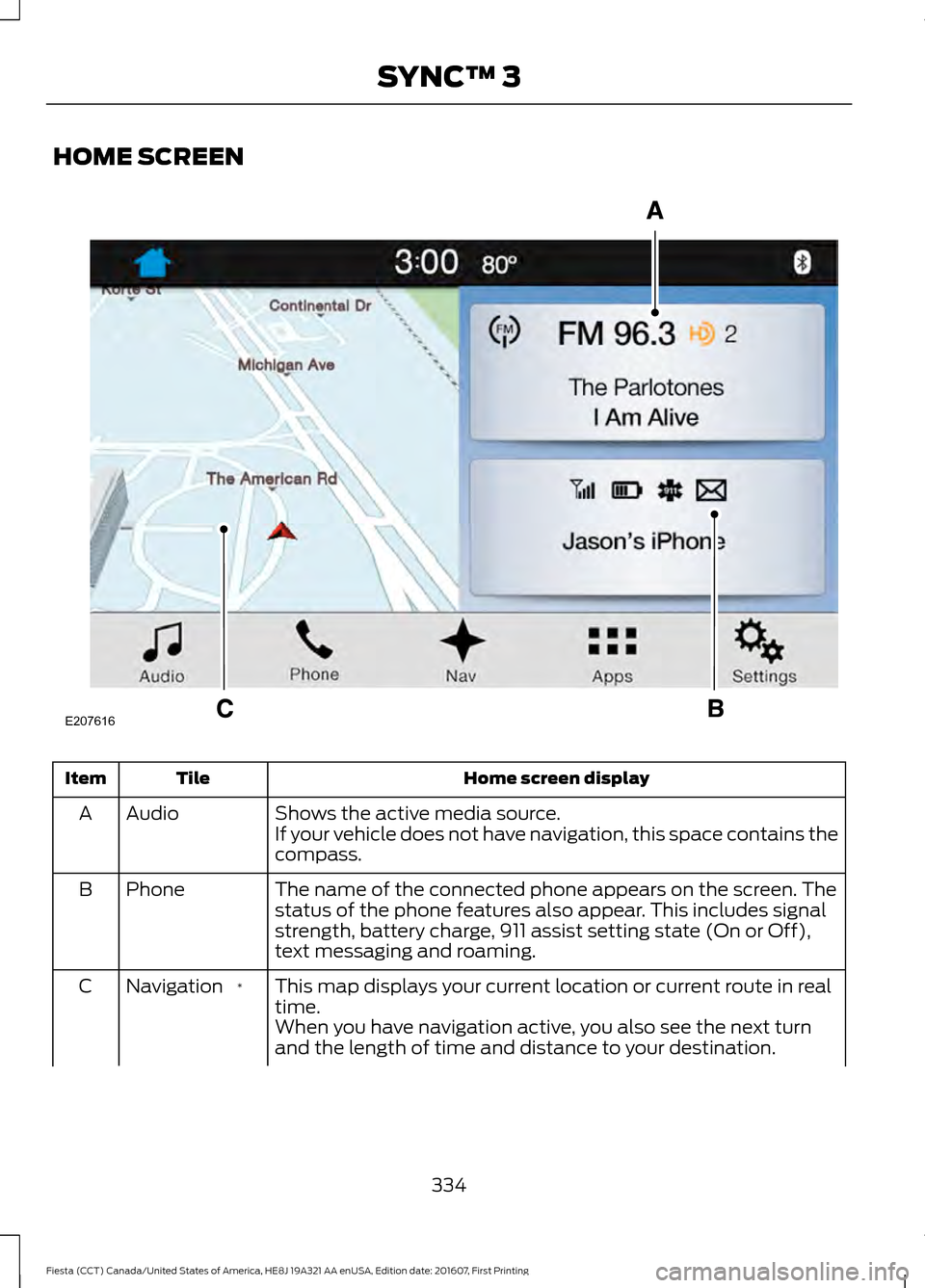
HOME SCREEN
Home screen display
Tile
Item
Shows the active media source.
Audio
A
If your vehicle does not have navigation, this space contains the
compass.
The name of the connected phone appears on the screen. The
status of the phone features also appear. This includes signal
strength, battery charge, 911 assist setting state (On or Off),
text messaging and roaming.
Phone
B
This map displays your current location or current route in real
time.
*
Navigation
C
When you have navigation active, you also see the next turn
and the length of time and distance to your destination.
334
Fiesta (CCT) Canada/United States of America, HE8J 19A321 AA enUSA, Edition date: 201607, First Printing SYNC™ 3E207616
Page 337 of 450
Home screen display
Tile
Item
If your vehicle does not have navigation, this space contains the
audio information.
* If equipped.
You can touch any of the feature displays
to access that feature.
Anytime you select the home button, the
system returns you to this screen.
USING VOICE RECOGNITION
The SYNC 3 system allows you to use voice
commands, to control features like audio
and phone. By using voice commands, you
can keep your hands on the wheel and your
eyes on the road. You can access each feature controlled by
SYNC 3 through a variety of commands. To activate the SYNC 3 voice
commands push the voice
button on the steering wheel and
wait for the prompt.
___ is a dynamic listing, meaning that it can
be the name of anything, such as artist, the
name of contact or number. The context
and the description of the command tell
you what to say for this dynamic option.
There are some commands that work for
every feature, these commands are: Action and Description
Voice Command
Brings you to the main menu.
Main Menu
Returns you to the previous screen.
Go back
Ends the voice session.
Cancel
Gives you a list of possible voice commands.
List of Commands
You can name any feature and the system gives a list of
commands available for the feature. For example, you could
say:
___ List of Commands
Phone List of Commands
Navigation List of Commands
You can use this command to view the next page of options on
any screen where multiple pages of choices are given.
Next Page
You can use this command to view the previous page of options
on any screen where multiple pages of choices are given.
Previous Page
Gives you available commands you can use on the current
screen.
Help
335
Fiesta (CCT) Canada/United States of America, HE8J 19A321 AA enUSA, Edition date: 201607, First Printing SYNC™ 3E142599
Page 340 of 450
Text Message Voice Commands
To access text message options, press the voice button and say:
Description
Voice command
Listen to Message You can say the number of the message you
would like to hear.
Listen to text message ___
Reply to Message
Navigation Voice Commands
Setting a Destination
You can use any of the following
commands to set a destination or find a
point of interest. ___ is a dynamic listing, meaning that for
navigation voice commands it can be a POI
category or an address.
You can find an address, a point of interest (POI), or search for points of interest
by category: Description
Voice command
Allows you to enter the address search functionality.
Find an Address
State the name of the POI category you would like to search for
such as "Find restaurants".
Find a ___
Allows you to enter the POI search functionality.
Find POI
Allows you to enter the intersection search functionality.
Find Intersection
State the name of the POI category you would like to search for
nearby such as "Destination nearest restaurants".
Destination Nearest
___
Allows you to see a list of your previous destinations.
Destination Previous
Destination
Allows you to route to your home address.
Destination Home
338
Fiesta (CCT) Canada/United States of America, HE8J 19A321 AA enUSA, Edition date: 201607, First Printing SYNC™ 3
Page 358 of 450
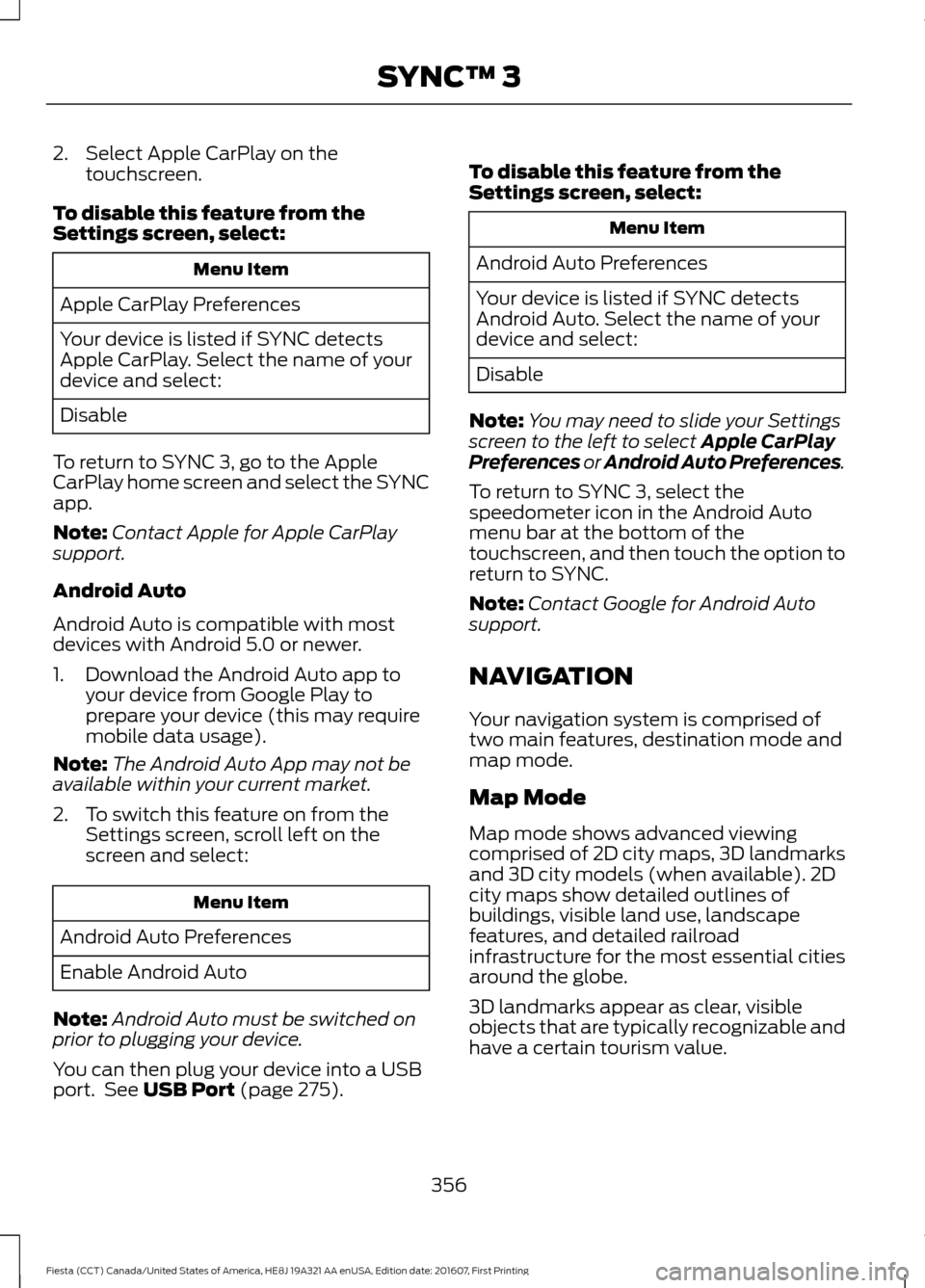
2. Select Apple CarPlay on the
touchscreen.
To disable this feature from the
Settings screen, select: Menu Item
Apple CarPlay Preferences
Your device is listed if SYNC detects
Apple CarPlay. Select the name of your
device and select:
Disable
To return to SYNC 3, go to the Apple
CarPlay home screen and select the SYNC
app.
Note: Contact Apple for Apple CarPlay
support.
Android Auto
Android Auto is compatible with most
devices with Android 5.0 or newer.
1. Download the Android Auto app to your device from Google Play to
prepare your device (this may require
mobile data usage).
Note: The Android Auto App may not be
available within your current market.
2. To switch this feature on from the Settings screen, scroll left on the
screen and select: Menu Item
Android Auto Preferences
Enable Android Auto
Note: Android Auto must be switched on
prior to plugging your device.
You can then plug your device into a USB
port. See USB Port (page 275). To disable this feature from the
Settings screen, select: Menu Item
Android Auto Preferences
Your device is listed if SYNC detects
Android Auto. Select the name of your
device and select:
Disable
Note: You may need to slide your Settings
screen to the left to select
Apple CarPlay
Preferences or Android Auto Preferences.
To return to SYNC 3, select the
speedometer icon in the Android Auto
menu bar at the bottom of the
touchscreen, and then touch the option to
return to SYNC.
Note: Contact Google for Android Auto
support.
NAVIGATION
Your navigation system is comprised of
two main features, destination mode and
map mode.
Map Mode
Map mode shows advanced viewing
comprised of 2D city maps, 3D landmarks
and 3D city models (when available). 2D
city maps show detailed outlines of
buildings, visible land use, landscape
features, and detailed railroad
infrastructure for the most essential cities
around the globe.
3D landmarks appear as clear, visible
objects that are typically recognizable and
have a certain tourism value.
356
Fiesta (CCT) Canada/United States of America, HE8J 19A321 AA enUSA, Edition date: 201607, First Printing SYNC™ 3
Page 360 of 450
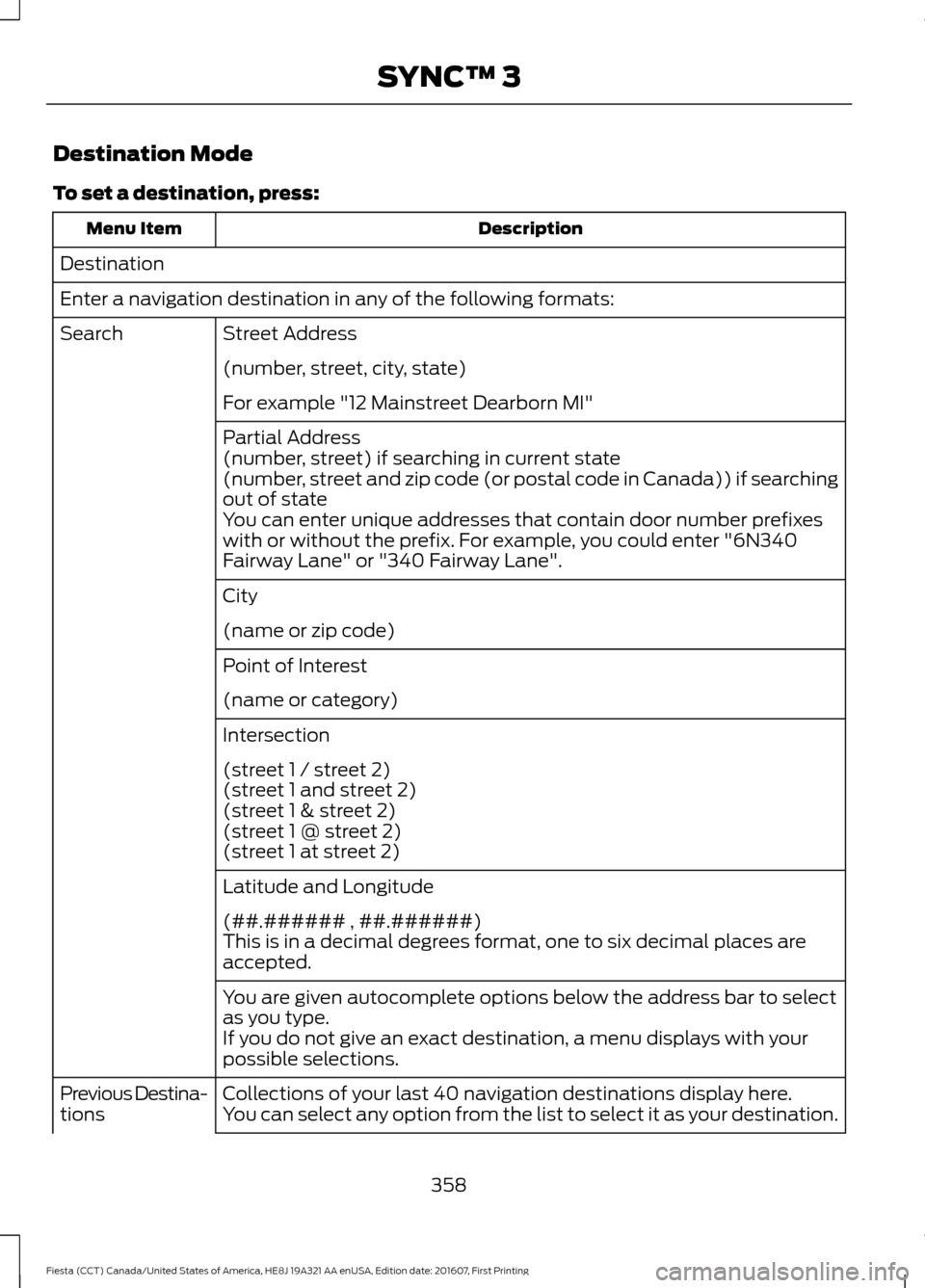
Destination Mode
To set a destination, press:
Description
Menu Item
Destination
Enter a navigation destination in any of the following formats: Street Address
Search
(number, street, city, state)
For example "12 Mainstreet Dearborn MI"
Partial Address
(number, street) if searching in current state
(number, street and zip code (or postal code in Canada)) if searching
out of state
You can enter unique addresses that contain door number prefixes
with or without the prefix. For example, you could enter "6N340
Fairway Lane" or "340 Fairway Lane".
City
(name or zip code)
Point of Interest
(name or category)
Intersection
(street 1 / street 2)
(street 1 and street 2)
(street 1 & street 2)
(street 1 @ street 2)
(street 1 at street 2)
Latitude and Longitude
(##.###### , ##.######)
This is in a decimal degrees format, one to six decimal places are
accepted.
You are given autocomplete options below the address bar to select
as you type.
If you do not give an exact destination, a menu displays with your
possible selections.
Collections of your last 40 navigation destinations display here.
Previous Destina-
tions You can select any option from the list to select it as your destination.
358
Fiesta (CCT) Canada/United States of America, HE8J 19A321 AA enUSA, Edition date: 201607, First Printing SYNC™ 3
Page 362 of 450
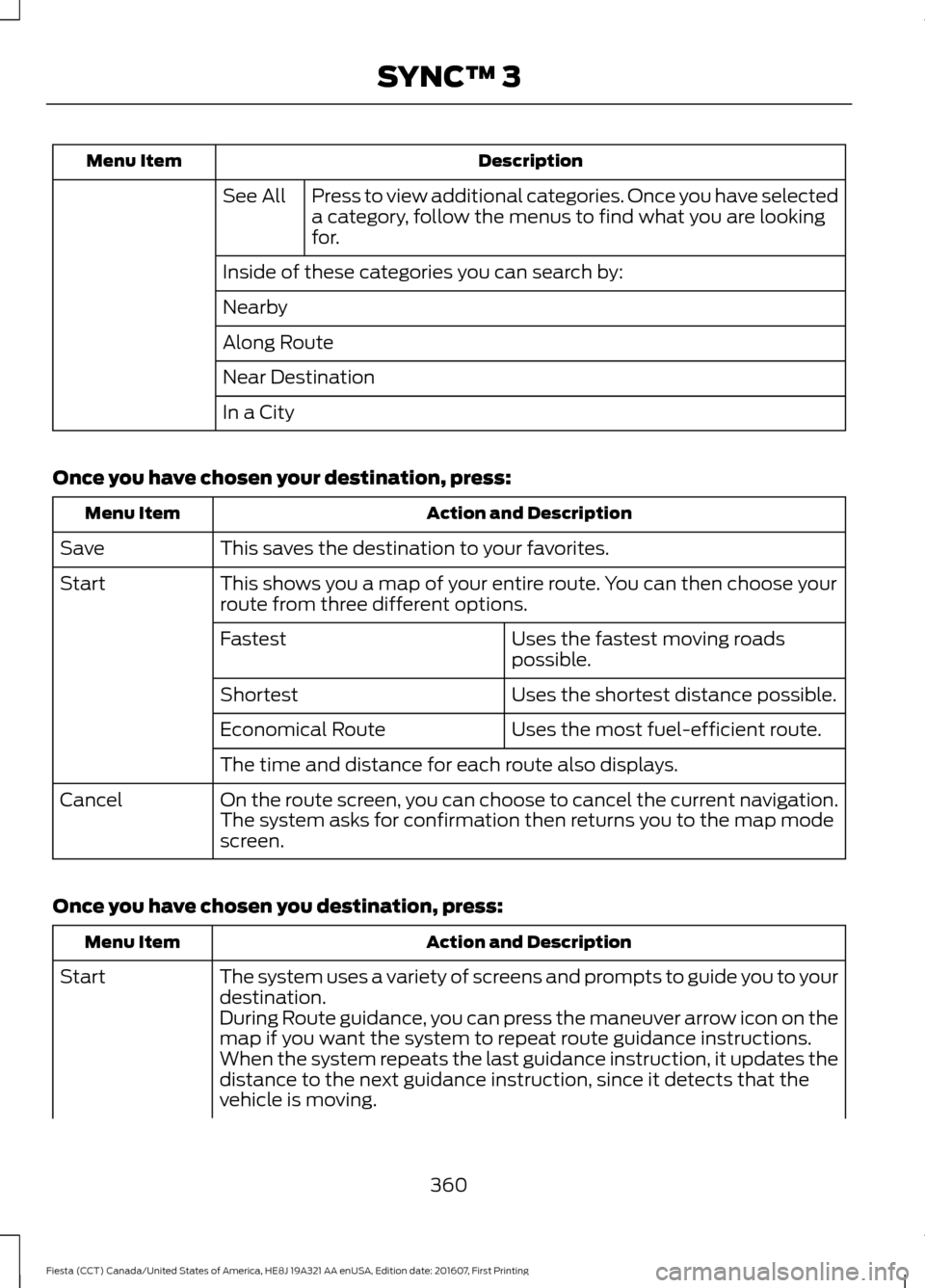
Description
Menu Item
Press to view additional categories. Once you have selected
a category, follow the menus to find what you are looking
for.
See All
Inside of these categories you can search by:
Nearby
Along Route
Near Destination
In a City
Once you have chosen your destination, press: Action and Description
Menu Item
This saves the destination to your favorites.
Save
This shows you a map of your entire route. You can then choose your
route from three different options.
Start
Uses the fastest moving roads
possible.
Fastest
Uses the shortest distance possible.
Shortest
Uses the most fuel-efficient route.
Economical Route
The time and distance for each route also displays.
On the route screen, you can choose to cancel the current navigation.
The system asks for confirmation then returns you to the map mode
screen.
Cancel
Once you have chosen you destination, press: Action and Description
Menu Item
The system uses a variety of screens and prompts to guide you to your
destination.
Start
During Route guidance, you can press the maneuver arrow icon on the
map if you want the system to repeat route guidance instructions.
When the system repeats the last guidance instruction, it updates the
distance to the next guidance instruction, since it detects that the
vehicle is moving.
360
Fiesta (CCT) Canada/United States of America, HE8J 19A321 AA enUSA, Edition date: 201607, First Printing SYNC™ 3
Page 363 of 450
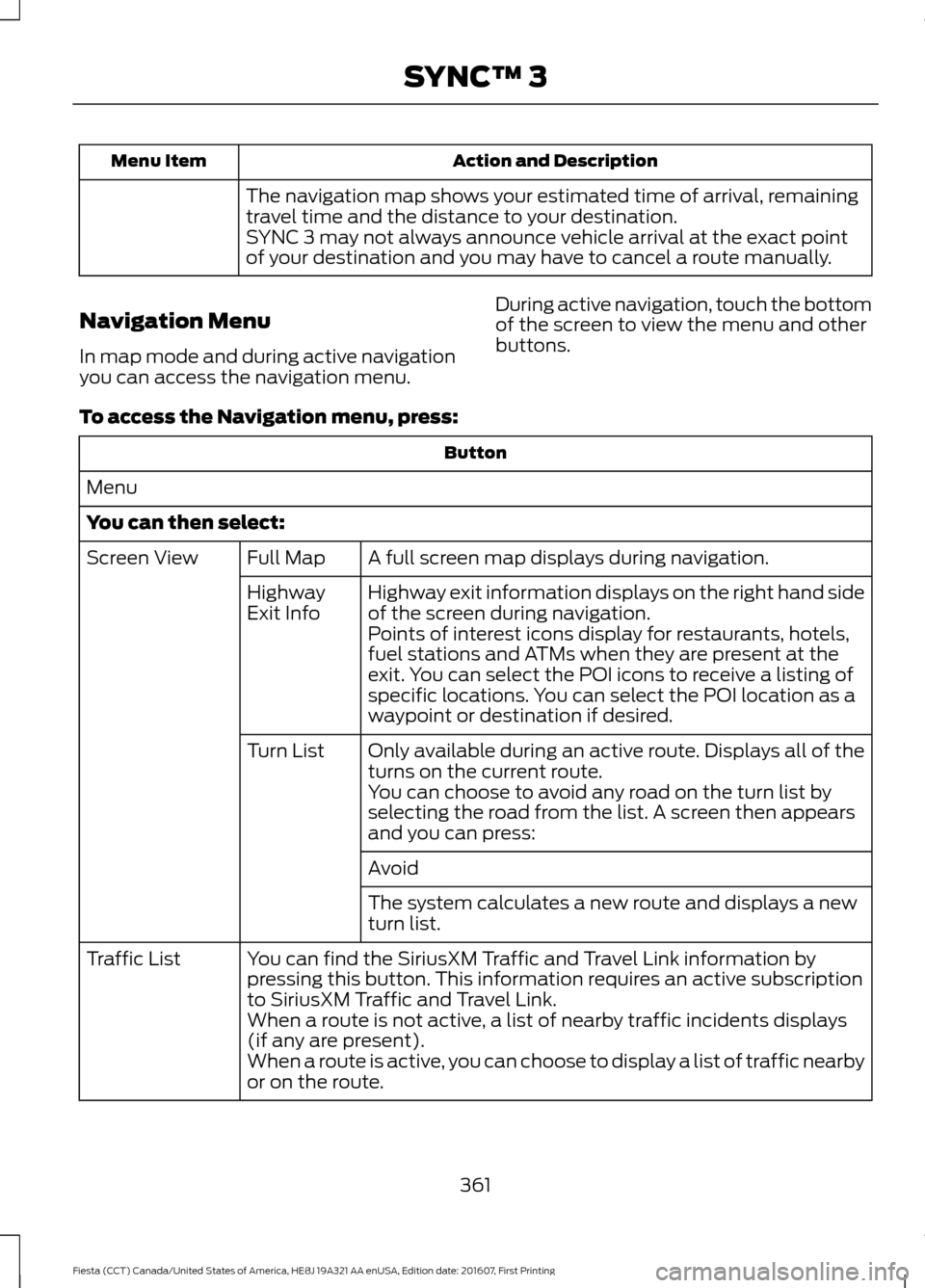
Action and Description
Menu Item
The navigation map shows your estimated time of arrival, remaining
travel time and the distance to your destination.
SYNC 3 may not always announce vehicle arrival at the exact point
of your destination and you may have to cancel a route manually.
Navigation Menu
In map mode and during active navigation
you can access the navigation menu. During active navigation, touch the bottom
of the screen to view the menu and other
buttons.
To access the Navigation menu, press: Button
Menu
You can then select: A full screen map displays during navigation.
Full Map
Screen View
Highway exit information displays on the right hand side
of the screen during navigation.
Highway
Exit Info
Points of interest icons display for restaurants, hotels,
fuel stations and ATMs when they are present at the
exit. You can select the POI icons to receive a listing of
specific locations. You can select the POI location as a
waypoint or destination if desired.
Only available during an active route. Displays all of the
turns on the current route.
Turn List
You can choose to avoid any road on the turn list by
selecting the road from the list. A screen then appears
and you can press:
Avoid
The system calculates a new route and displays a new
turn list.
You can find the SiriusXM Traffic and Travel Link information by
pressing this button. This information requires an active subscription
to SiriusXM Traffic and Travel Link.
Traffic List
When a route is not active, a list of nearby traffic incidents displays
(if any are present).
When a route is active, you can choose to display a list of traffic nearby
or on the route.
361
Fiesta (CCT) Canada/United States of America, HE8J 19A321 AA enUSA, Edition date: 201607, First Printing SYNC™ 3
Page 364 of 450
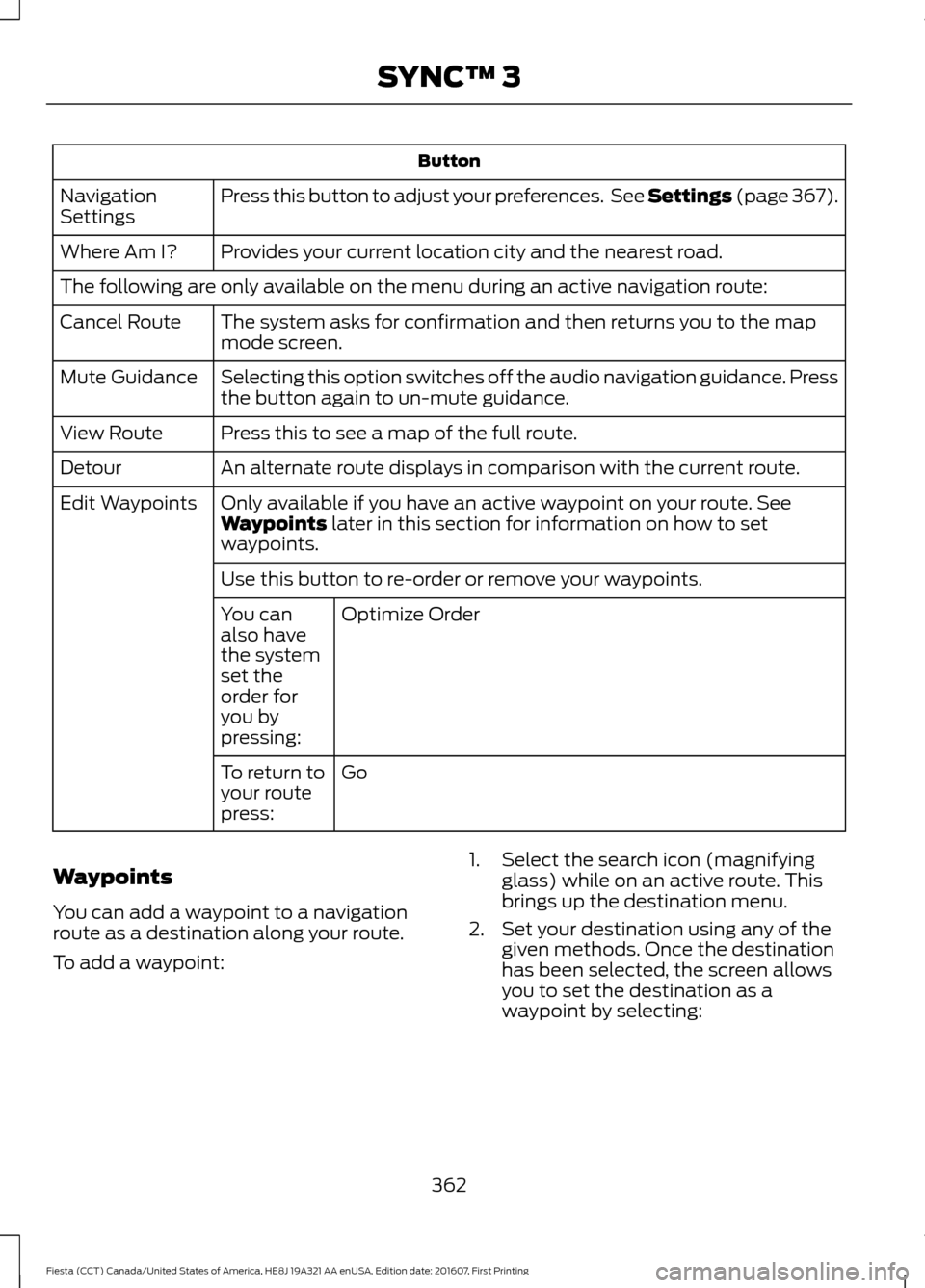
Button
Press this button to adjust your preferences. See Settings (page 367).
Navigation
Settings
Provides your current location city and the nearest road.
Where Am I?
The following are only available on the menu during an active navigation route:
The system asks for confirmation and then returns you to the map
mode screen.
Cancel Route
Selecting this option switches off the audio navigation guidance. Press
the button again to un-mute guidance.
Mute Guidance
Press this to see a map of the full route.
View Route
An alternate route displays in comparison with the current route.
Detour
Only available if you have an active waypoint on your route. See
Waypoints
later in this section for information on how to set
waypoints.
Edit Waypoints
Use this button to re-order or remove your waypoints.Optimize Order
You can
also have
the system
set the
order for
you by
pressing:
Go
To return to
your route
press:
Waypoints
You can add a waypoint to a navigation
route as a destination along your route.
To add a waypoint: 1. Select the search icon (magnifying
glass) while on an active route. This
brings up the destination menu.
2. Set your destination using any of the given methods. Once the destination
has been selected, the screen allows
you to set the destination as a
waypoint by selecting:
362
Fiesta (CCT) Canada/United States of America, HE8J 19A321 AA enUSA, Edition date: 201607, First Printing SYNC™ 3
Page 366 of 450
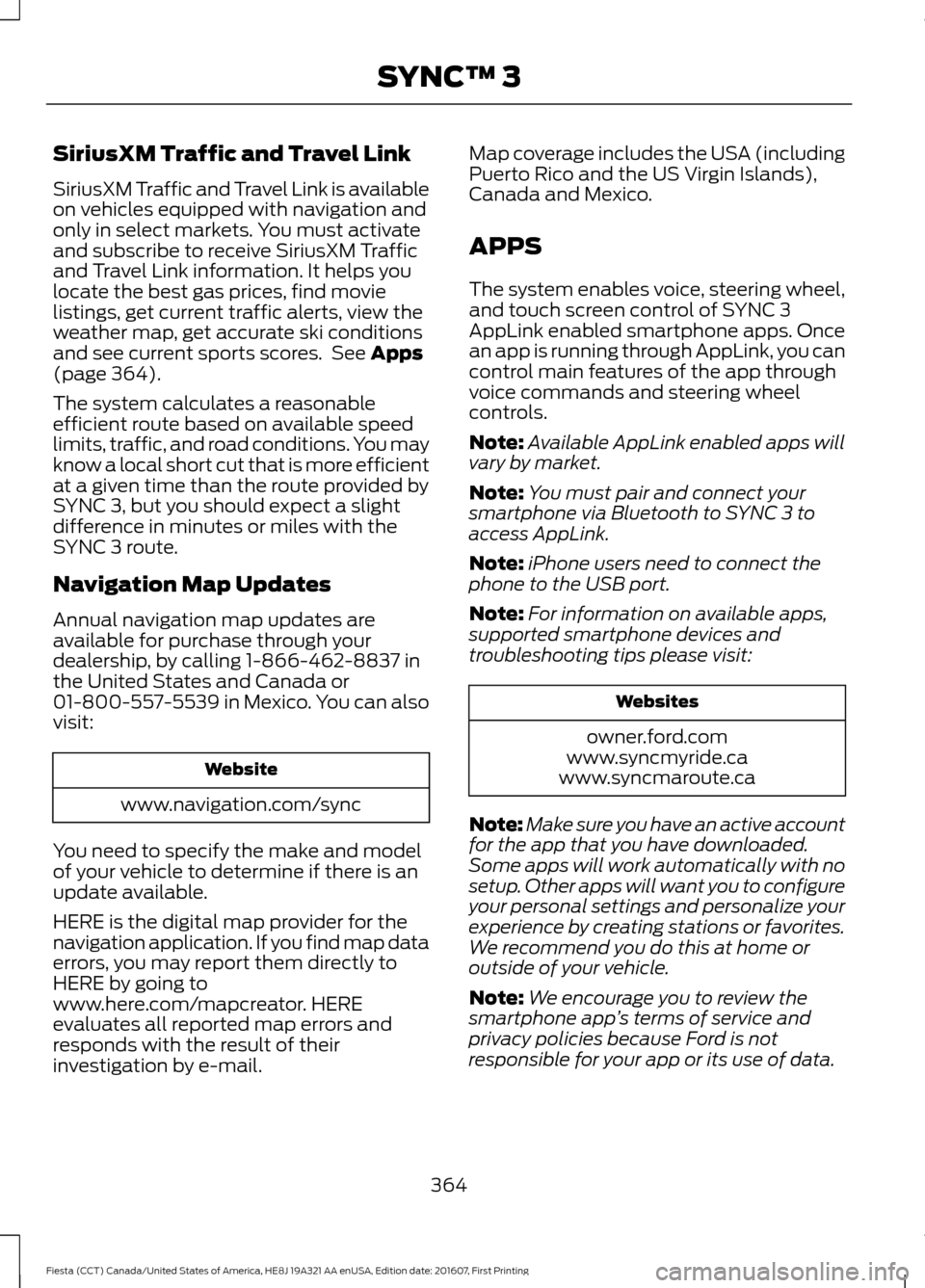
SiriusXM Traffic and Travel Link
SiriusXM Traffic and Travel Link is available
on vehicles equipped with navigation and
only in select markets. You must activate
and subscribe to receive SiriusXM Traffic
and Travel Link information. It helps you
locate the best gas prices, find movie
listings, get current traffic alerts, view the
weather map, get accurate ski conditions
and see current sports scores. See Apps
(page 364).
The system calculates a reasonable
efficient route based on available speed
limits, traffic, and road conditions. You may
know a local short cut that is more efficient
at a given time than the route provided by
SYNC 3, but you should expect a slight
difference in minutes or miles with the
SYNC 3 route.
Navigation Map Updates
Annual navigation map updates are
available for purchase through your
dealership, by calling 1-866-462-8837 in
the United States and Canada or
01-800-557-5539 in Mexico. You can also
visit: Website
www.navigation.com/sync
You need to specify the make and model
of your vehicle to determine if there is an
update available.
HERE is the digital map provider for the
navigation application. If you find map data
errors, you may report them directly to
HERE by going to
www.here.com/mapcreator. HERE
evaluates all reported map errors and
responds with the result of their
investigation by e-mail. Map coverage includes the USA (including
Puerto Rico and the US Virgin Islands),
Canada and Mexico.
APPS
The system enables voice, steering wheel,
and touch screen control of SYNC 3
AppLink enabled smartphone apps. Once
an app is running through AppLink, you can
control main features of the app through
voice commands and steering wheel
controls.
Note:
Available AppLink enabled apps will
vary by market.
Note: You must pair and connect your
smartphone via Bluetooth to SYNC 3 to
access AppLink.
Note: iPhone users need to connect the
phone to the USB port.
Note: For information on available apps,
supported smartphone devices and
troubleshooting tips please visit: Websites
owner.ford.com
www.syncmyride.ca
www.syncmaroute.ca
Note: Make sure you have an active account
for the app that you have downloaded.
Some apps will work automatically with no
setup. Other apps will want you to configure
your personal settings and personalize your
experience by creating stations or favorites.
We recommend you do this at home or
outside of your vehicle.
Note: We encourage you to review the
smartphone app ’s terms of service and
privacy policies because Ford is not
responsible for your app or its use of data.
364
Fiesta (CCT) Canada/United States of America, HE8J 19A321 AA enUSA, Edition date: 201607, First Printing SYNC™ 3