buttons FORD FIESTA 2018 User Guide
[x] Cancel search | Manufacturer: FORD, Model Year: 2018, Model line: FIESTA, Model: FORD FIESTA 2018Pages: 449, PDF Size: 6.8 MB
Page 264 of 449
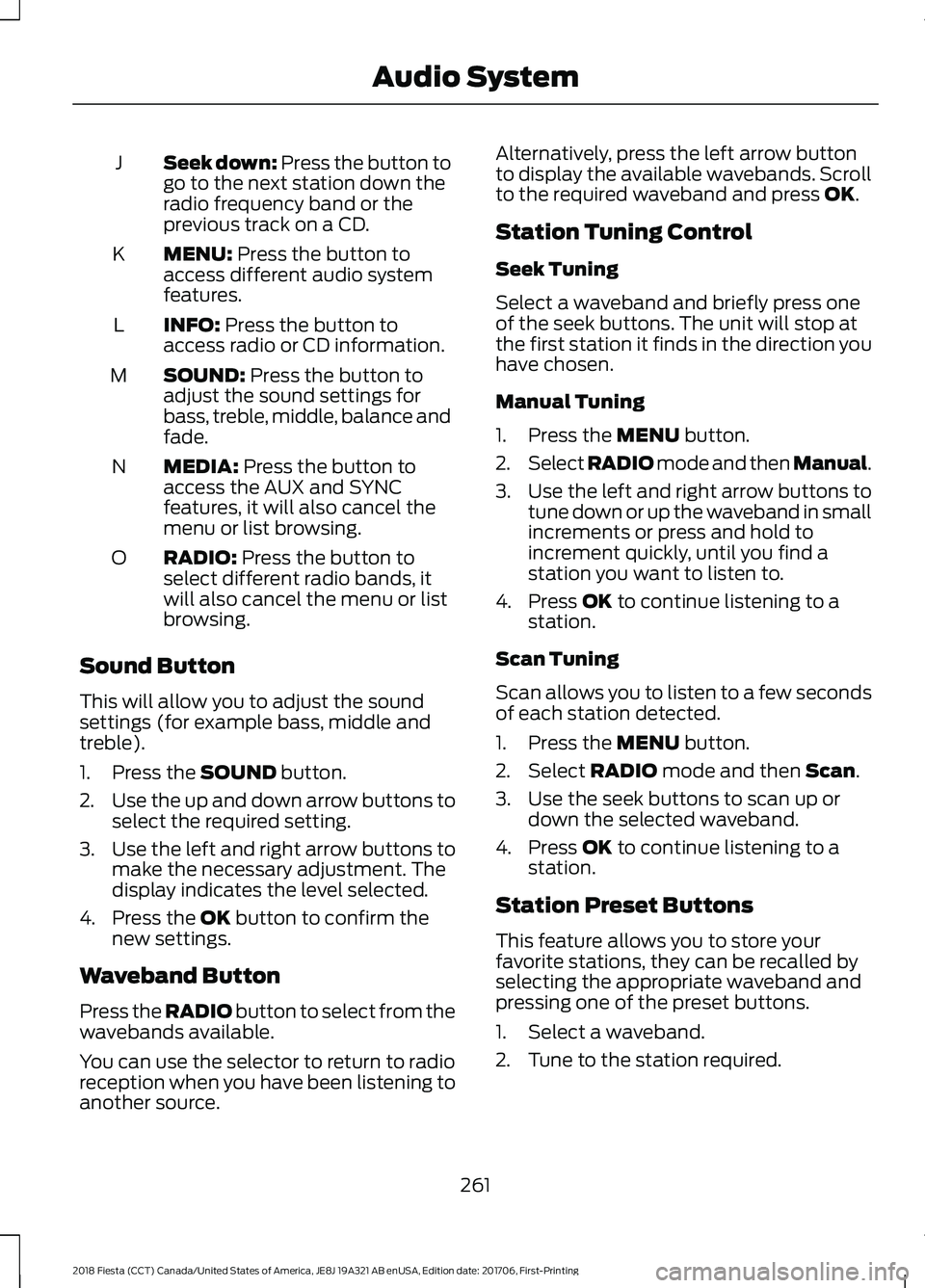
Seek down: Press the button to
go to the next station down the
radio frequency band or the
previous track on a CD.
J
MENU: Press the button to
access different audio system
features.
K
INFO:
Press the button to
access radio or CD information.
L
SOUND:
Press the button to
adjust the sound settings for
bass, treble, middle, balance and
fade.
M
MEDIA:
Press the button to
access the AUX and SYNC
features, it will also cancel the
menu or list browsing.
N
RADIO:
Press the button to
select different radio bands, it
will also cancel the menu or list
browsing.
O
Sound Button
This will allow you to adjust the sound
settings (for example bass, middle and
treble).
1. Press the
SOUND button.
2. Use the up and down arrow buttons to
select the required setting.
3. Use the left and right arrow buttons to
make the necessary adjustment. The
display indicates the level selected.
4. Press the
OK button to confirm the
new settings.
Waveband Button
Press the
RADIO button to select from the
wavebands available.
You can use the selector to return to radio
reception when you have been listening to
another source. Alternatively, press the left arrow button
to display the available wavebands. Scroll
to the required waveband and press
OK.
Station Tuning Control
Seek Tuning
Select a waveband and briefly press one
of the seek buttons. The unit will stop at
the first station it finds in the direction you
have chosen.
Manual Tuning
1. Press the
MENU button.
2. Select RADIO mode and then Manual.
3. Use the left and right arrow buttons to
tune down or up the waveband in small
increments or press and hold to
increment quickly, until you find a
station you want to listen to.
4. Press
OK to continue listening to a
station.
Scan Tuning
Scan allows you to listen to a few seconds
of each station detected.
1. Press the
MENU button.
2. Select
RADIO mode and then Scan.
3. Use the seek buttons to scan up or down the selected waveband.
4. Press
OK to continue listening to a
station.
Station Preset Buttons
This feature allows you to store your
favorite stations, they can be recalled by
selecting the appropriate waveband and
pressing one of the preset buttons.
1. Select a waveband.
2. Tune to the station required.
261
2018 Fiesta (CCT) Canada/United States of America, JE8J 19A321 AB enUSA, Edition date: 201706, First-Printing Audio System
Page 265 of 449
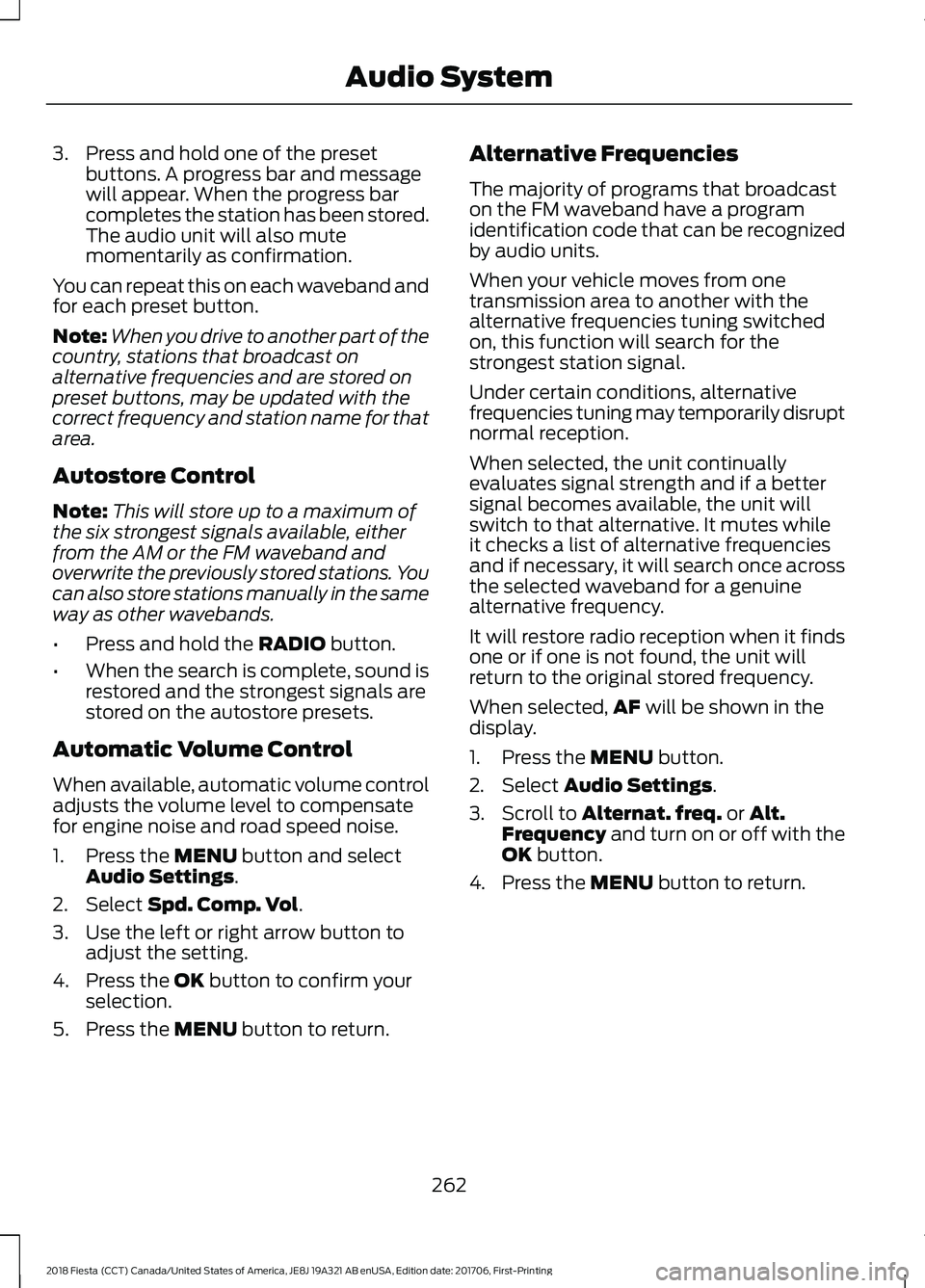
3. Press and hold one of the preset
buttons. A progress bar and message
will appear. When the progress bar
completes the station has been stored.
The audio unit will also mute
momentarily as confirmation.
You can repeat this on each waveband and
for each preset button.
Note: When you drive to another part of the
country, stations that broadcast on
alternative frequencies and are stored on
preset buttons, may be updated with the
correct frequency and station name for that
area.
Autostore Control
Note: This will store up to a maximum of
the six strongest signals available, either
from the AM or the FM waveband and
overwrite the previously stored stations. You
can also store stations manually in the same
way as other wavebands.
• Press and hold the RADIO button.
• When the search is complete, sound is
restored and the strongest signals are
stored on the autostore presets.
Automatic Volume Control
When available, automatic volume control
adjusts the volume level to compensate
for engine noise and road speed noise.
1. Press the
MENU button and select
Audio Settings.
2. Select
Spd. Comp. Vol.
3. Use the left or right arrow button to adjust the setting.
4. Press the
OK button to confirm your
selection.
5. Press the
MENU button to return. Alternative Frequencies
The majority of programs that broadcast
on the FM waveband have a program
identification code that can be recognized
by audio units.
When your vehicle moves from one
transmission area to another with the
alternative frequencies tuning switched
on, this function will search for the
strongest station signal.
Under certain conditions, alternative
frequencies tuning may temporarily disrupt
normal reception.
When selected, the unit continually
evaluates signal strength and if a better
signal becomes available, the unit will
switch to that alternative. It mutes while
it checks a list of alternative frequencies
and if necessary, it will search once across
the selected waveband for a genuine
alternative frequency.
It will restore radio reception when it finds
one or if one is not found, the unit will
return to the original stored frequency.
When selected,
AF
will be shown in the
display.
1. Press the
MENU button.
2. Select
Audio Settings.
3. Scroll to
Alternat. freq. or Alt.
Frequency and turn on or off with the
OK button.
4. Press the
MENU button to return.
262
2018 Fiesta (CCT) Canada/United States of America, JE8J 19A321 AB enUSA, Edition date: 201706, First-Printing Audio System
Page 268 of 449
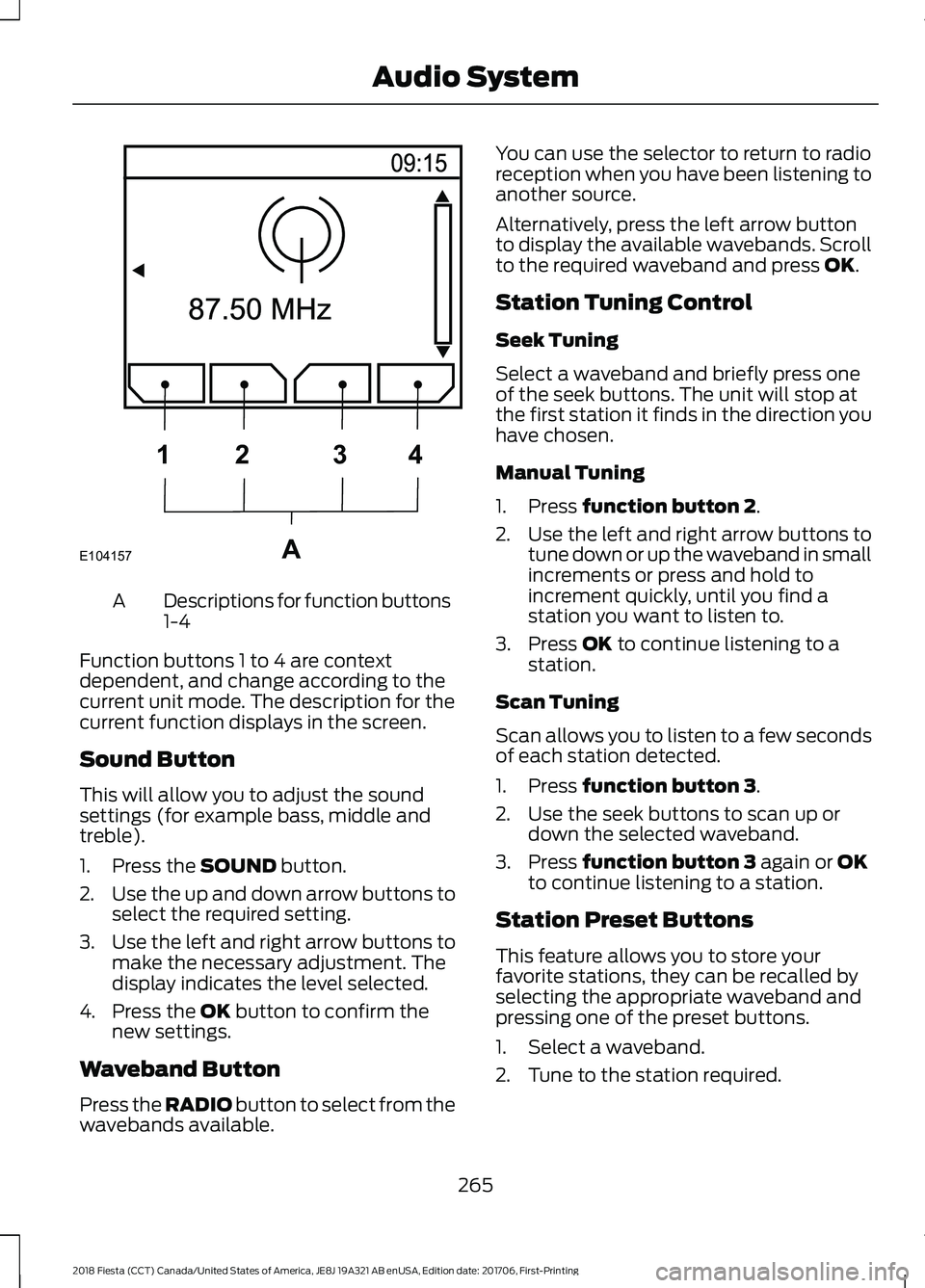
Descriptions for function buttons
1-4
A
Function buttons 1 to 4 are context
dependent, and change according to the
current unit mode. The description for the
current function displays in the screen.
Sound Button
This will allow you to adjust the sound
settings (for example bass, middle and
treble).
1. Press the SOUND button.
2. Use the up and down arrow buttons to
select the required setting.
3. Use the left and right arrow buttons to
make the necessary adjustment. The
display indicates the level selected.
4. Press the
OK button to confirm the
new settings.
Waveband Button
Press the
RADIO button to select from the
wavebands available. You can use the selector to return to radio
reception when you have been listening to
another source.
Alternatively, press the left arrow button
to display the available wavebands. Scroll
to the required waveband and press
OK.
Station Tuning Control
Seek Tuning
Select a waveband and briefly press one
of the seek buttons. The unit will stop at
the first station it finds in the direction you
have chosen.
Manual Tuning
1. Press
function button 2.
2. Use the left and right arrow buttons to
tune down or up the waveband in small
increments or press and hold to
increment quickly, until you find a
station you want to listen to.
3. Press
OK to continue listening to a
station.
Scan Tuning
Scan allows you to listen to a few seconds
of each station detected.
1. Press
function button 3.
2. Use the seek buttons to scan up or down the selected waveband.
3. Press
function button 3 again or OK
to continue listening to a station.
Station Preset Buttons
This feature allows you to store your
favorite stations, they can be recalled by
selecting the appropriate waveband and
pressing one of the preset buttons.
1. Select a waveband.
2. Tune to the station required.
265
2018 Fiesta (CCT) Canada/United States of America, JE8J 19A321 AB enUSA, Edition date: 201706, First-Printing Audio SystemE104157A
1
2 34
Page 269 of 449
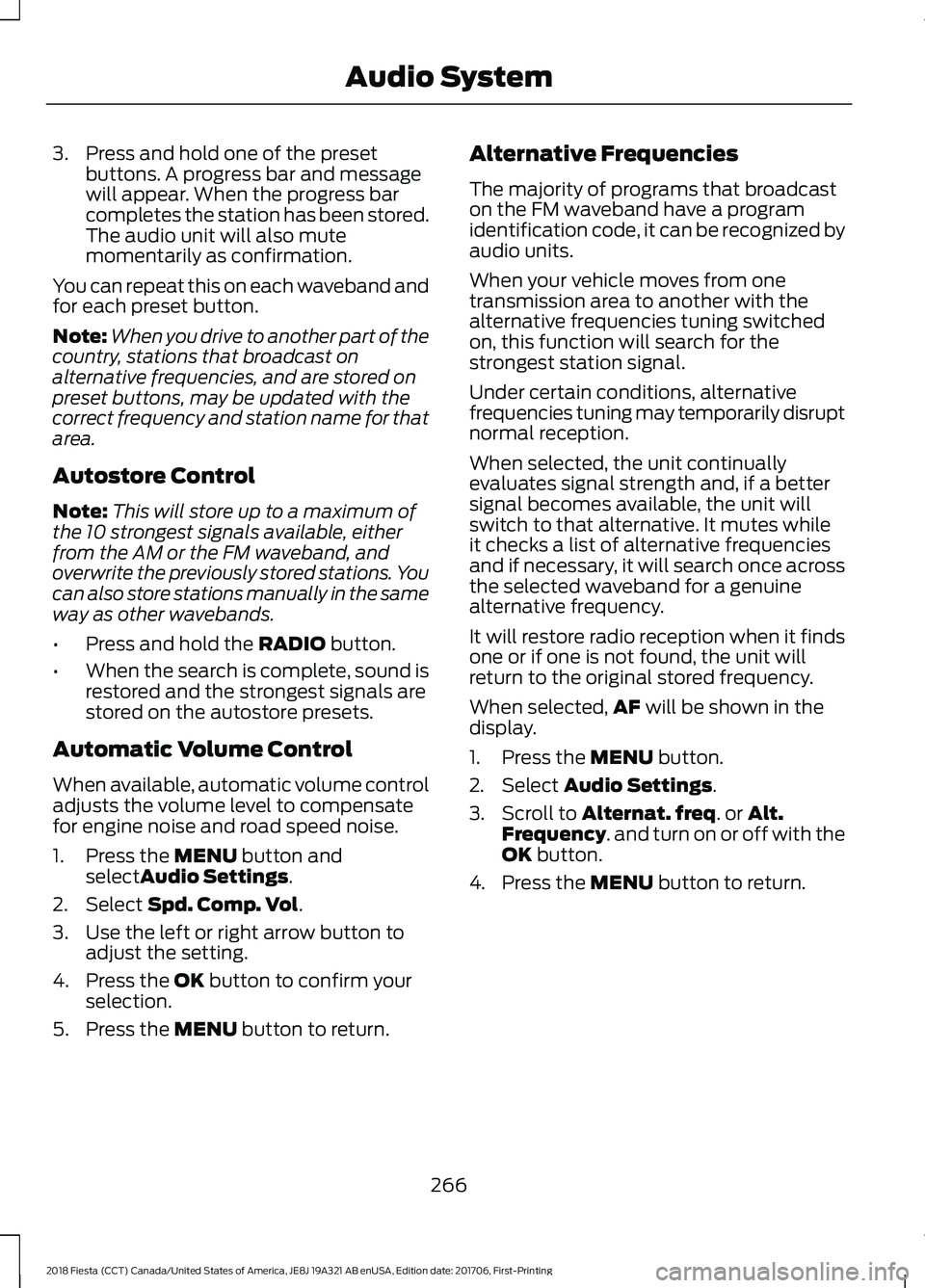
3. Press and hold one of the preset
buttons. A progress bar and message
will appear. When the progress bar
completes the station has been stored.
The audio unit will also mute
momentarily as confirmation.
You can repeat this on each waveband and
for each preset button.
Note: When you drive to another part of the
country, stations that broadcast on
alternative frequencies, and are stored on
preset buttons, may be updated with the
correct frequency and station name for that
area.
Autostore Control
Note: This will store up to a maximum of
the 10 strongest signals available, either
from the AM or the FM waveband, and
overwrite the previously stored stations. You
can also store stations manually in the same
way as other wavebands.
• Press and hold the RADIO button.
• When the search is complete, sound is
restored and the strongest signals are
stored on the autostore presets.
Automatic Volume Control
When available, automatic volume control
adjusts the volume level to compensate
for engine noise and road speed noise.
1. Press the
MENU button and
selectAudio Settings.
2. Select
Spd. Comp. Vol.
3. Use the left or right arrow button to adjust the setting.
4. Press the
OK button to confirm your
selection.
5. Press the
MENU button to return. Alternative Frequencies
The majority of programs that broadcast
on the FM waveband have a program
identification code, it can be recognized by
audio units.
When your vehicle moves from one
transmission area to another with the
alternative frequencies tuning switched
on, this function will search for the
strongest station signal.
Under certain conditions, alternative
frequencies tuning may temporarily disrupt
normal reception.
When selected, the unit continually
evaluates signal strength and, if a better
signal becomes available, the unit will
switch to that alternative. It mutes while
it checks a list of alternative frequencies
and if necessary, it will search once across
the selected waveband for a genuine
alternative frequency.
It will restore radio reception when it finds
one or if one is not found, the unit will
return to the original stored frequency.
When selected,
AF
will be shown in the
display.
1. Press the
MENU button.
2. Select
Audio Settings.
3. Scroll to
Alternat. freq. or Alt.
Frequency. and turn on or off with the
OK button.
4. Press the
MENU button to return.
266
2018 Fiesta (CCT) Canada/United States of America, JE8J 19A321 AB enUSA, Edition date: 201706, First-Printing Audio System
Page 270 of 449
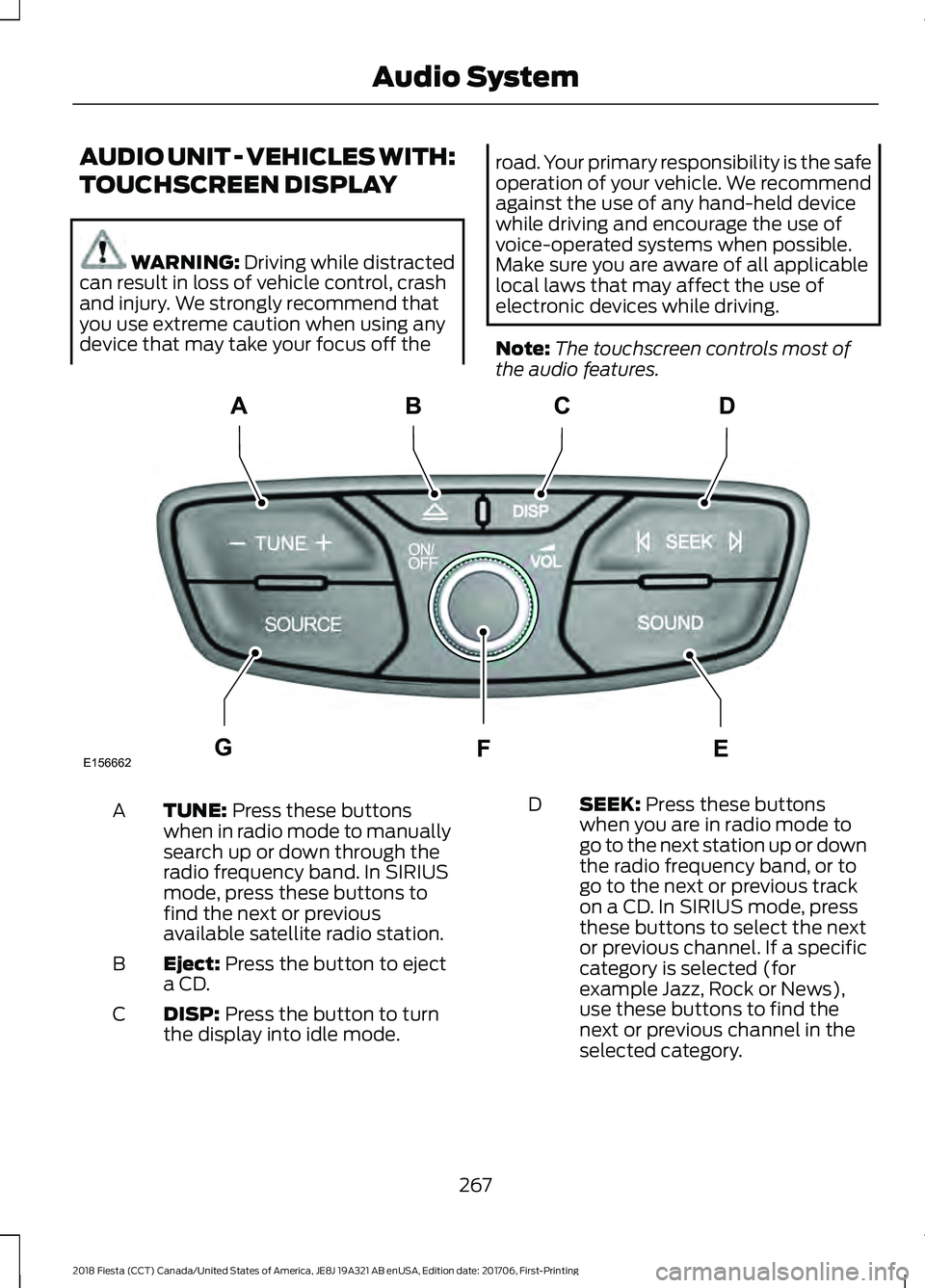
AUDIO UNIT - VEHICLES WITH:
TOUCHSCREEN DISPLAY
WARNING: Driving while distracted
can result in loss of vehicle control, crash
and injury. We strongly recommend that
you use extreme caution when using any
device that may take your focus off the road. Your primary responsibility is the safe
operation of your vehicle. We recommend
against the use of any hand-held device
while driving and encourage the use of
voice-operated systems when possible.
Make sure you are aware of all applicable
local laws that may affect the use of
electronic devices while driving.
Note:
The touchscreen controls most of
the audio features. TUNE:
Press these buttons
when in radio mode to manually
search up or down through the
radio frequency band. In SIRIUS
mode, press these buttons to
find the next or previous
available satellite radio station.
A
Eject:
Press the button to eject
a CD.
B
DISP:
Press the button to turn
the display into idle mode.
C SEEK:
Press these buttons
when you are in radio mode to
go to the next station up or down
the radio frequency band, or to
go to the next or previous track
on a CD. In SIRIUS mode, press
D
these buttons to select the next
or previous channel. If a specific
category is selected (for
example Jazz, Rock or News),
use these buttons to find the
next or previous channel in the
selected category.
267
2018 Fiesta (CCT) Canada/United States of America, JE8J 19A321 AB enUSA, Edition date: 201706, First-Printing Audio SystemE156662
CD
GEF
B
A
Page 284 of 449
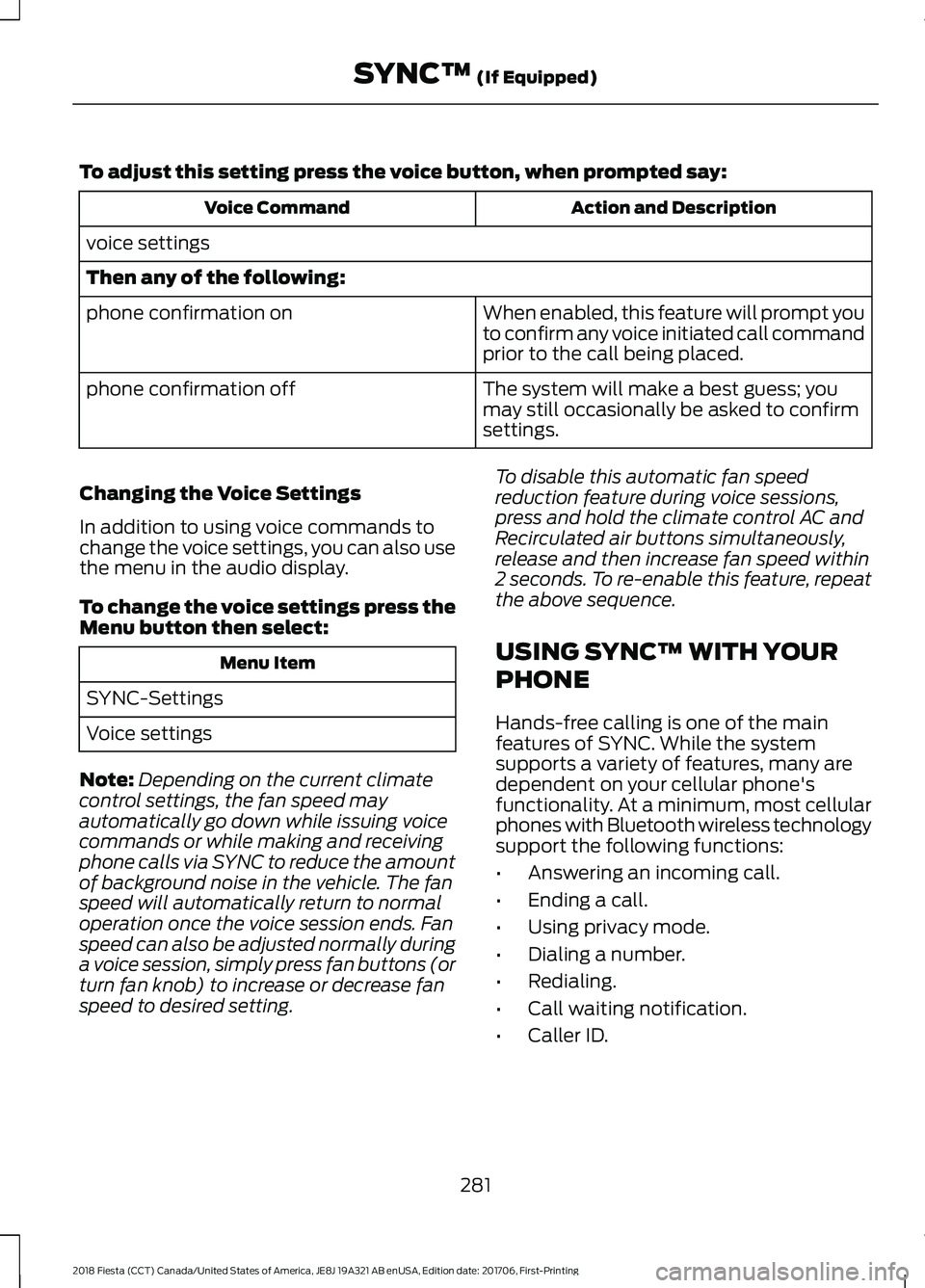
To adjust this setting press the voice button, when prompted say:
Action and Description
Voice Command
voice settings
Then any of the following: When enabled, this feature will prompt you
to confirm any voice initiated call command
prior to the call being placed.
phone confirmation on
The system will make a best guess; you
may still occasionally be asked to confirm
settings.
phone confirmation off
Changing the Voice Settings
In addition to using voice commands to
change the voice settings, you can also use
the menu in the audio display.
To change the voice settings press the
Menu button then select: Menu Item
SYNC-Settings
Voice settings
Note: Depending on the current climate
control settings, the fan speed may
automatically go down while issuing voice
commands or while making and receiving
phone calls via SYNC to reduce the amount
of background noise in the vehicle. The fan
speed will automatically return to normal
operation once the voice session ends. Fan
speed can also be adjusted normally during
a voice session, simply press fan buttons (or
turn fan knob) to increase or decrease fan
speed to desired setting. To disable this automatic fan speed
reduction feature during voice sessions,
press and hold the climate control AC and
Recirculated air buttons simultaneously,
release and then increase fan speed within
2 seconds. To re-enable this feature, repeat
the above sequence.
USING SYNC™ WITH YOUR
PHONE
Hands-free calling is one of the main
features of SYNC. While the system
supports a variety of features, many are
dependent on your cellular phone's
functionality. At a minimum, most cellular
phones with Bluetooth wireless technology
support the following functions:
•
Answering an incoming call.
• Ending a call.
• Using privacy mode.
• Dialing a number.
• Redialing.
• Call waiting notification.
• Caller ID.
281
2018 Fiesta (CCT) Canada/United States of America, JE8J 19A321 AB enUSA, Edition date: 201706, First-Printing SYNC™ (If Equipped)
Page 292 of 449
Sending a Text Message
Note:
You can only send a text message to
one recipient at a time.
1. Select the send option when the desired selection highlights in the audio
display.
2. Select the confirmation option when the contact appears.
3. Press the OK button again to confirm when the system asks if you want to
send the message. A pre-defined
signature appears on each text
message. Note:
You can send text messages either
by choosing a contact from the phonebook
and selecting the text option from the audio
display or by replying to a received message
in the inbox.
Accessing Your Phone Settings
These are phone-dependent features. Your
phone settings allow you to access and
adjust features such as your ring tone and
text message notification, modify your
phonebook, and set up automatic
download.
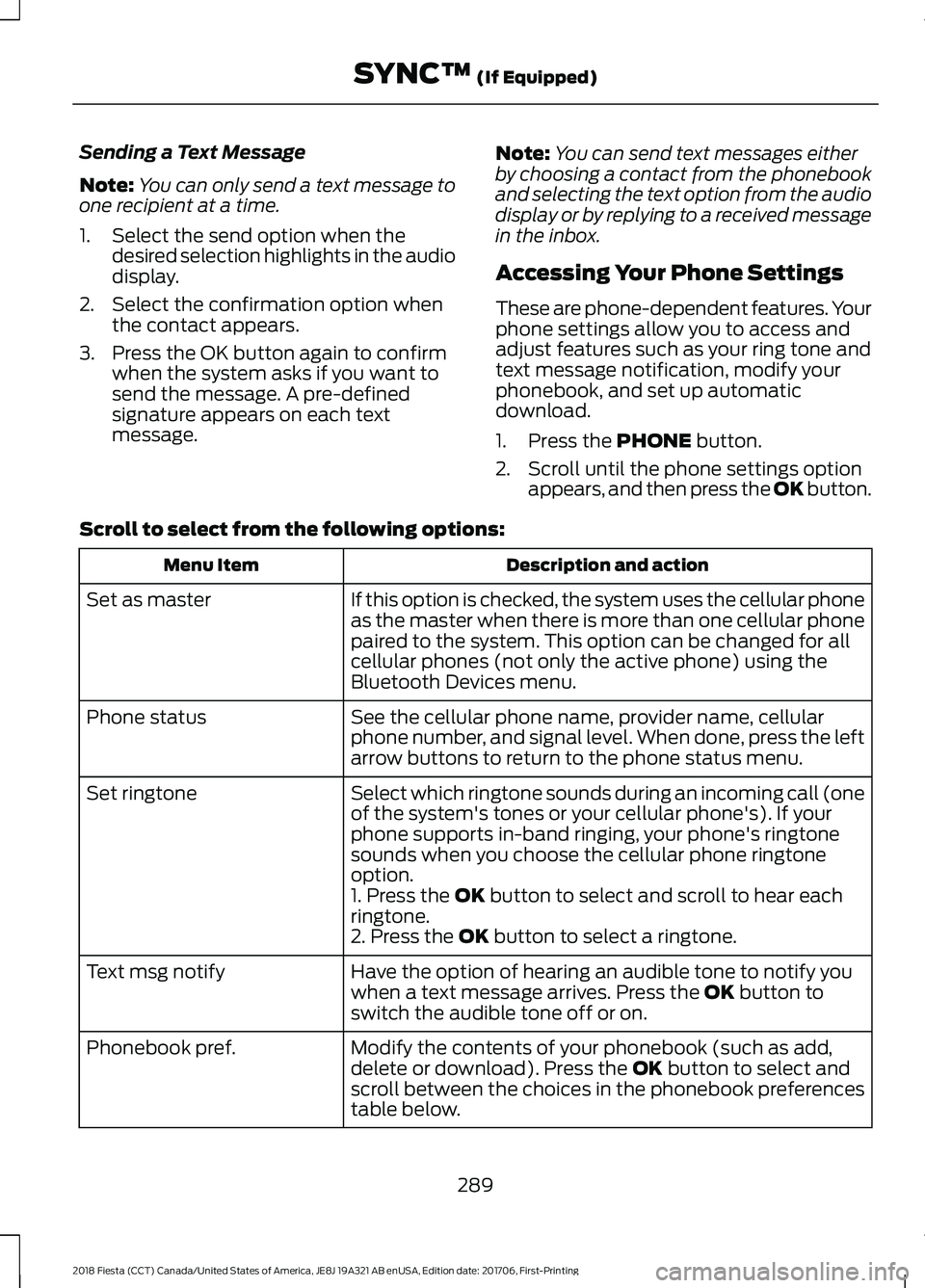
1. Press the PHONE button.
2. Scroll until the phone settings option appears, and then press the OK button.
Scroll to select from the following options: Description and action
Menu Item
If this option is checked, the system uses the cellular phone
as the master when there is more than one cellular phone
paired to the system. This option can be changed for all
cellular phones (not only the active phone) using the
Bluetooth Devices menu.
Set as master
See the cellular phone name, provider name, cellular
phone number, and signal level. When done, press the left
arrow buttons to return to the phone status menu.
Phone status
Select which ringtone sounds during an incoming call (one
of the system's tones or your cellular phone's). If your
phone supports in-band ringing, your phone's ringtone
sounds when you choose the cellular phone ringtone
option.
Set ringtone
1. Press the
OK button to select and scroll to hear each
ringtone.
2. Press the
OK button to select a ringtone.
Have the option of hearing an audible tone to notify you
when a text message arrives. Press the
OK button to
switch the audible tone off or on.
Text msg notify
Modify the contents of your phonebook (such as add,
delete or download). Press the
OK button to select and
scroll between the choices in the phonebook preferences
table below.
Phonebook pref.
289
2018 Fiesta (CCT) Canada/United States of America, JE8J 19A321 AB enUSA, Edition date: 201706, First-Printing SYNC™
(If Equipped)
Page 295 of 449
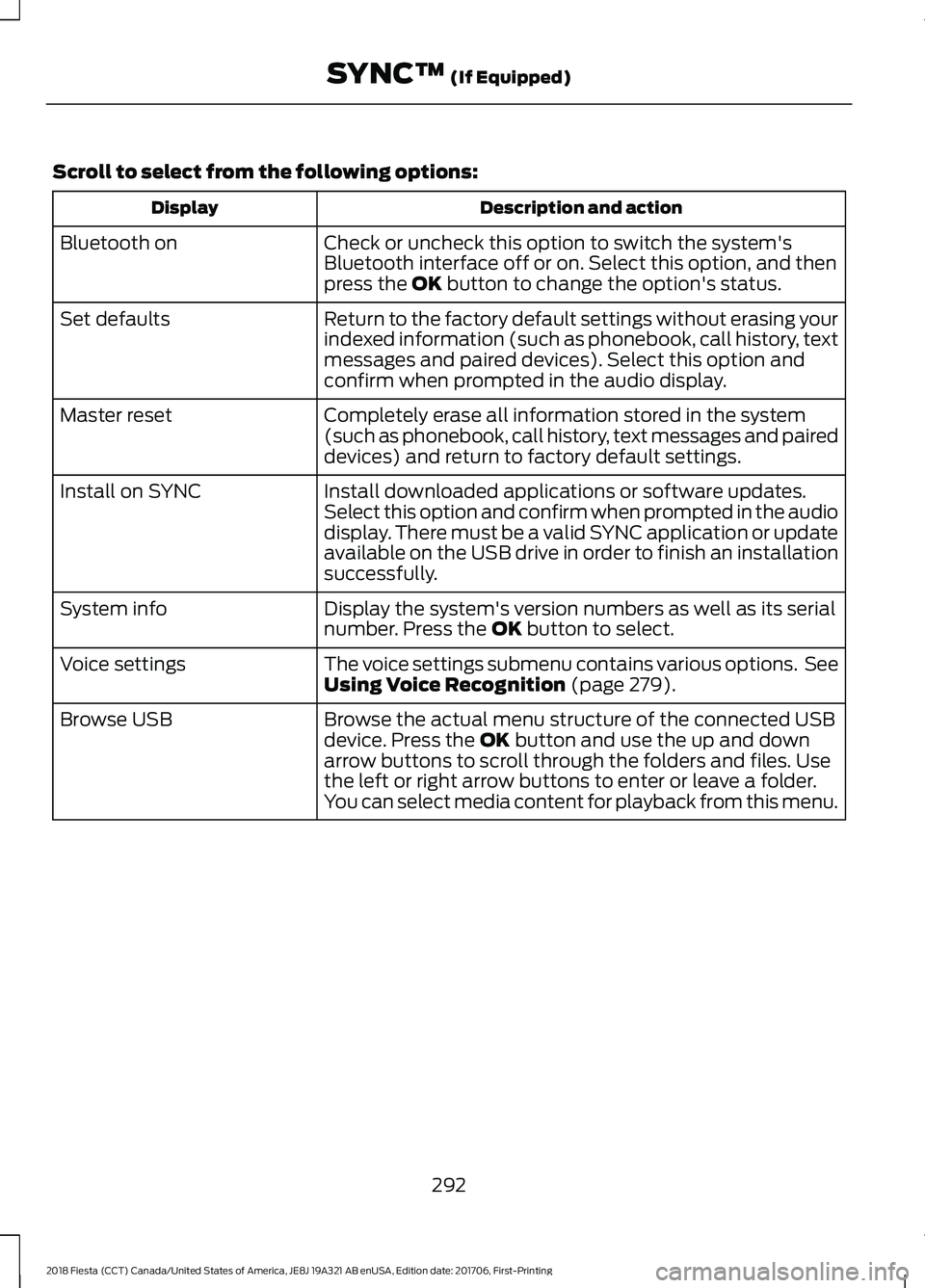
Scroll to select from the following options:
Description and action
Display
Check or uncheck this option to switch the system's
Bluetooth interface off or on. Select this option, and then
press the OK button to change the option's status.
Bluetooth on
Return to the factory default settings without erasing your
indexed information (such as phonebook, call history, text
messages and paired devices). Select this option and
confirm when prompted in the audio display.
Set defaults
Completely erase all information stored in the system
(such as phonebook, call history, text messages and paired
devices) and return to factory default settings.
Master reset
Install downloaded applications or software updates.
Select this option and confirm when prompted in the audio
display. There must be a valid SYNC application or update
available on the USB drive in order to finish an installation
successfully.
Install on SYNC
Display the system's version numbers as well as its serial
number. Press the
OK button to select.
System info
The voice settings submenu contains various options. See
Using Voice Recognition
(page 279).
Voice settings
Browse the actual menu structure of the connected USB
device. Press the
OK button and use the up and down
arrow buttons to scroll through the folders and files. Use
the left or right arrow buttons to enter or leave a folder.
You can select media content for playback from this menu.
Browse USB
292
2018 Fiesta (CCT) Canada/United States of America, JE8J 19A321 AB enUSA, Edition date: 201706, First-Printing SYNC™
(If Equipped)
Page 302 of 449
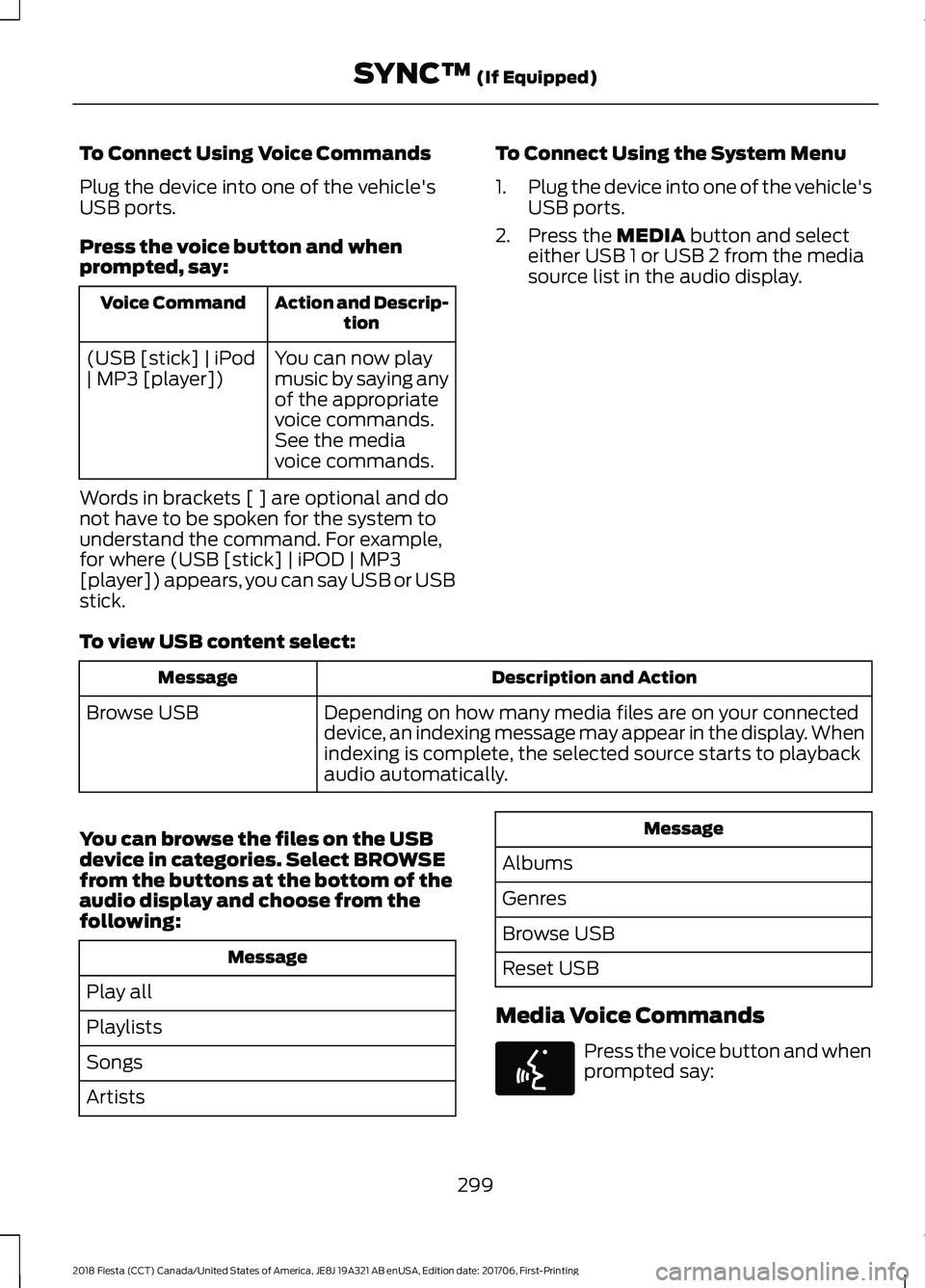
To Connect Using Voice Commands
Plug the device into one of the vehicle's
USB ports.
Press the voice button and when
prompted, say:
Action and Descrip-
tion
Voice Command
You can now play
music by saying any
of the appropriate
voice commands.
See the media
voice commands.
(USB [stick] | iPod
| MP3 [player])
Words in brackets [ ] are optional and do
not have to be spoken for the system to
understand the command. For example,
for where (USB [stick] | iPOD | MP3
[player]) appears, you can say USB or USB
stick. To Connect Using the System Menu
1.
Plug the device into one of the vehicle's
USB ports.
2. Press the MEDIA button and select
either USB 1 or USB 2 from the media
source list in the audio display.
To view USB content select: Description and Action
Message
Depending on how many media files are on your connected
device, an indexing message may appear in the display. When
indexing is complete, the selected source starts to playback
audio automatically.
Browse USB
You can browse the files on the USB
device in categories. Select
BROWSE
from the buttons at the bottom of the
audio display and choose from the
following: Message
Play all
Playlists
Songs
Artists Message
Albums
Genres
Browse USB
Reset USB
Media Voice Commands Press the voice button and when
prompted say:
299
2018 Fiesta (CCT) Canada/United States of America, JE8J 19A321 AB enUSA, Edition date: 201706, First-Printing SYNC™
(If Equipped)E142599
Page 307 of 449
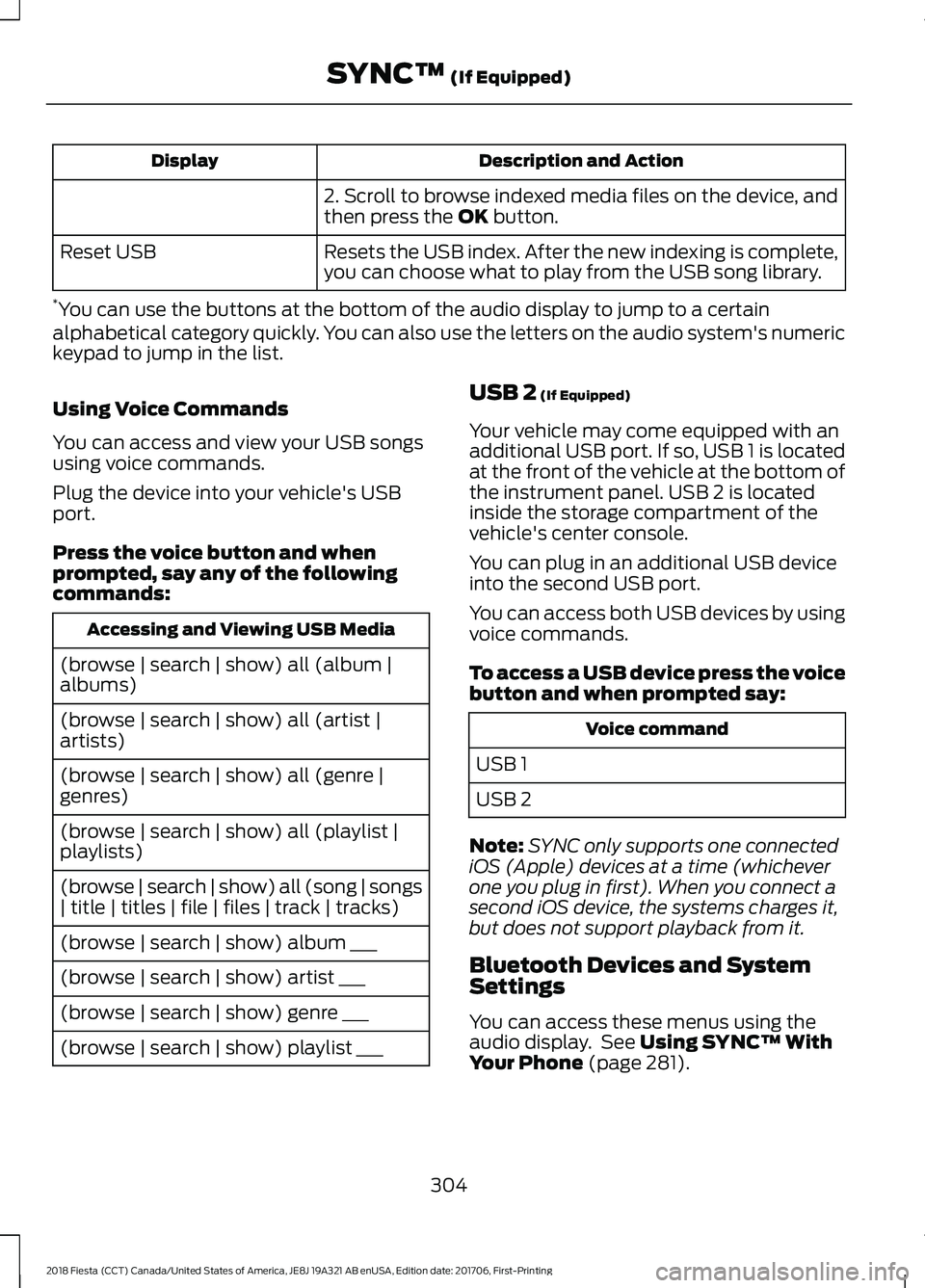
Description and Action
Display
2. Scroll to browse indexed media files on the device, and
then press the OK button.
Resets the USB index. After the new indexing is complete,
you can choose what to play from the USB song library.
Reset USB
* You can use the buttons at the bottom of the audio display to jump to a certain
alphabetical category quickly. You can also use the letters on the audio system's numeric
keypad to jump in the list.
Using Voice Commands
You can access and view your USB songs
using voice commands.
Plug the device into your vehicle's USB
port.
Press the voice button and when
prompted, say any of the following
commands: Accessing and Viewing USB Media
(browse | search | show) all (album |
albums)
(browse | search | show) all (artist |
artists)
(browse | search | show) all (genre |
genres)
(browse | search | show) all (playlist |
playlists)
(browse | search | show) all (song | songs
| title | titles | file | files | track | tracks)
(browse | search | show) album ___
(browse | search | show) artist ___
(browse | search | show) genre ___
(browse | search | show) playlist ___ USB 2
(If Equipped)
Your vehicle may come equipped with an
additional USB port. If so, USB 1 is located
at the front of the vehicle at the bottom of
the instrument panel. USB 2 is located
inside the storage compartment of the
vehicle's center console.
You can plug in an additional USB device
into the second USB port.
You can access both USB devices by using
voice commands.
To access a USB device press the voice
button and when prompted say: Voice command
USB 1
USB 2
Note: SYNC only supports one connected
iOS (Apple) devices at a time (whichever
one you plug in first). When you connect a
second iOS device, the systems charges it,
but does not support playback from it.
Bluetooth Devices and System
Settings
You can access these menus using the
audio display. See
Using SYNC™ With
Your Phone (page 281).
304
2018 Fiesta (CCT) Canada/United States of America, JE8J 19A321 AB enUSA, Edition date: 201706, First-Printing SYNC™
(If Equipped)