phone FORD FIESTA 2019 Workshop Manual
[x] Cancel search | Manufacturer: FORD, Model Year: 2019, Model line: FIESTA, Model: FORD FIESTA 2019Pages: 443, PDF Size: 31.51 MB
Page 320 of 443
Restricted features
Pairing a Bluetooth phone.
Cellular Phone
Browsing of list entries is limited for phone contacts and
recent phone calls.
Editing the keypad code.
System Functionality
Enabling Valet Mode.
Editing settings while the rear view camera or active park
assist are active.
Editing Wi-Fi settings.
Wi-Fi
Editing the list of wireless networks.
Connecting to a new Wi-Fi network.
Viewing received text messages.
Text Messages
Using the keyboard to enter a destination.
Navigation
Adding or editing Navigation Favorites entries or Avoid
Areas.
Creating an Owner Account
Why do I need an owner account?
• Essential for keeping up with the latest
software and connected features.
• Access to customer support for any
questions you may have.
• Maintain account permissions.
Visit the website to sign up and register. Website
www.owner.ford.com
www.syncmyride.ca Website
www.syncmaroute.ca
SYNC Connect (If Equipped)
With a SYNC® Connect-equipped vehicle,
you can use FordPass® to track your
vehicle ’s location and remotely access
vehicle features such as start, lock and
unlock and vehicle status including fuel
level and approximate mileage. You can
also schedule specific times to remotely
start your vehicle so it’ s ready to hit the
road as soon as you are. SYNC Connect is
an optional feature on select 2017 MY
vehicles. FordPass® is available through
a free download via the Apple App Store®
or Google Play ™. Message and data rates
may apply. Services may be limited by
mobile phone network coverage area.
317
2019 Fiesta (CCT) Canada/United States of America, KE8J 19A321 AA enUSA, Edition date: 201806, Second-Printing SYNC™ 3
Page 322 of 443
If you would like to switch this feature
on later, select:
Menu Item
Settings
General From this menu, you can
enable automatic updates.
If you have not done so
already, the system
prompts you to set up a
Wi-Fi connection when you
enable this feature.
Automatic
System
Updates
When Wi-Fi and automatic updates are
enabled, your system checks for software
updates periodically. If a new version is
available, it downloads at that time.
Software downloads can take place for up
to 30 minutes after you have switched your
vehicle off. The updates do not interrupt
the normal use of your SYNC 3 system. If
a download does not complete for any
reason, the download continues where it
left off at the next Wi-Fi connected
opportunity. Upon activation of an update,
a banner displays on the touchscreen
indicating the system update. Select the
icon to see more detail. This icon displays
for two ignition cycles.
To switch this feature off: Menu Item
Settings
General In this menu selection, you
can change the selection
for automatic updates to
OFF.
Automatic
System
Updates Customer Assistance
The SYNC support team is available to
help you with any questions you are not
able to answer on your own.
Monday-Saturday, 8:30am-8:00pm EST.
Sunday, 10:30am-7:30pm EST.
United States: 1-800-392-3673.
Canada: 1-800-565-3673.
Times are subject to change due to
holidays.
Privacy Information
When you connect a cellular phone to
SYNC 3, the system creates a profile within
your vehicle that links to that cellular
phone. This profile helps in offering you
more cellular features and operating more
efficiently. Among other things, this profile
may contain data about your cellular
phone book, text messages (read and
unread), and call history, including history
of calls when your cell phone was not
connected to the system. In addition, if you
connect a media device, the system
creates and retains an index of supported
media content. The system also records a
short diagnostic log of approximately 10
minutes of all recent system activity. The
log profile and other system data may be
used to improve the system and help
diagnose any problems that may occur.
The cellular profile, media device index,
and diagnostic log remain in your vehicle
unless you delete them and are generally
accessible only in your vehicle when the
cellular phone or media player is
connected.
If you sell or transfer your vehicle, we
recommend you perform a Master Reset
to erase all stored information. You can
find more information about the Master
Reset in General Settings. See Settings
(page 353). System data cannot be
319
2019 Fiesta (CCT) Canada/United States of America, KE8J 19A321 AA enUSA, Edition date: 201806, Second-Printing SYNC™ 3
Page 324 of 443
Home screen display
Tile
Item
If your vehicle does not have navigation, this space contains the
compass.
The name of the connected phone appears on the screen. The
status of the phone features also appear. This includes signal
strength, battery charge, 911 assist setting state (On or Off),
text messaging and roaming.
Phone
B
This map displays your current location or current route in real
time.
*
Navigation
C
When you have navigation active, you also see the next turn
and the length of time and distance to your destination.
If your vehicle does not have navigation, this space contains the
audio information.
* If equipped.
You can touch any of the feature displays
to access that feature.
Anytime you select the home button, the
system returns you to this screen.
USING VOICE RECOGNITION
The system allows you to interact with the
entertainment, information and
communication systems on your vehicle
using voice commands. This allows you
to keep your hands on the steering wheel
and focus on what is in front of you. Press the voice control button
on the steering wheel and wait
for the voice prompt.
Note:
Press the voice control button again
to interrupt a voice prompt and begin
speaking.
Note: Turn the volume control when a voice
prompt plays to adjust the volume.
Note: Press and hold the voice control
button on the steering wheel to use Siri on
your iOS device.
The following voice commands are
designed to help you from any screen:
• List of Commands
• Help
The following tables list some of the more
frequently used voice commands. For a
complete list of voice commands, refer to
the local Ford website.
General Description
Voice Command
Get a list of voice commands for a specific feature. 1
___ List of Commands
Cancel an active voice session.
Cancel
Get a list of voice commands for a specific feature. 1
___ Help
321
2019 Fiesta (CCT) Canada/United States of America, KE8J 19A321 AA enUSA, Edition date: 201806, Second-Printing SYNC™ 3E142599
Page 327 of 443
Description
Voice Command
Set a temperature between 60°F (15.5°C) and 85°F
(29.5°C).1
Set Temperature ___
Set the temperature to maximum.
Max
Set the temperature to minimum.
Min
1 Add the required temperature to the command.
Phone Description
Voice Command
Pair a cell phone or Bluetooth enabled device.
Pair Phone
Redial the last number that you dialed.
Redial
Dial a number.1
Dial ___
Call a specific contact from your phonebook. 2
Call ___
Call a specific contact from your phonebook at a
specific location.3
Call ___ ___
Listen to a text message.
Listen to Message
Listen to a specific text message from a list of text
messages.
Listen to Message ___
Reply to the last text message.
Reply to Message
1 Add the number you want to dial to the command.
2 Add a contact name from your phonebook to the command. Say the first and last name
of your contact exactly as it appears on your device.
3 Add a contact name and location from your phonebook to the command. Say the first
and last name of your contact exactly as it appears on your device.
324
2019 Fiesta (CCT) Canada/United States of America, KE8J 19A321 AA enUSA, Edition date: 201806, Second-Printing SYNC™ 3
Page 330 of 443

Voice Settings
Description
Voice Command
Go to the voice settings menu.
Voice Settings
Switch long voice prompts on.
Interaction Mode Novice
Switch short voice prompts on.
Interaction Mode Advanced
Switch call confirmation on. The system prompts
you to confirm before making a call.
Phone Confirmation On
Switch call confirmation off. The system does not
prompt you to confirm before making a call.
Phone Confirmation Off
Switch the display of voice commands on.
Voice Command Lists On
Switch the display of voice commands off.
Voice Command Lists Off
Automatic Blower Motor Speed
Reduction
If necessary, the system decreases the
blower motor speed when you are using
voice commands to reduce the amount of
background noise in your vehicle. It returns
to normal when you are finished.
Switching Automatic Blower Motor
Speed Reduction Off
Simultaneously press the A/C and
recirculated air buttons. ENTERTAINMENT Message and description
Message
Sources
A
Direct Tune
B
Presets
C
You can access these options using the
touchscreen or voice commands.
327
2019 Fiesta (CCT) Canada/United States of America, KE8J 19A321 AA enUSA, Edition date: 201806, Second-Printing SYNC™ 3E279740
Page 331 of 443
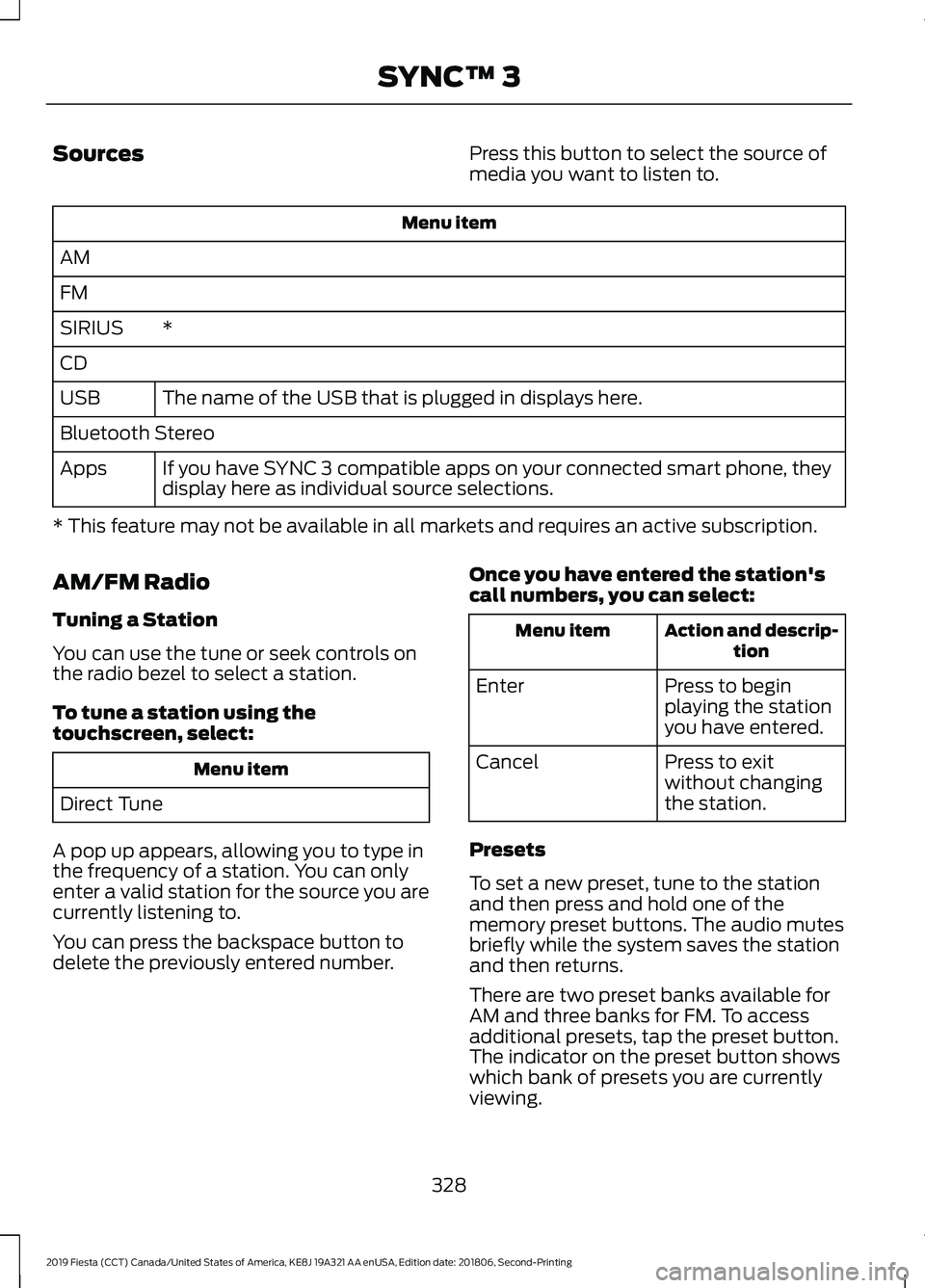
Sources
Press this button to select the source of
media you want to listen to.Menu item
AM
FM *
SIRIUS
CD
The name of the USB that is plugged in displays here.
USB
Bluetooth Stereo
If you have SYNC 3 compatible apps on your connected smart phone, they
display here as individual source selections.
Apps
* This feature may not be available in all markets and requires an active subscription.
AM/FM Radio
Tuning a Station
You can use the tune or seek controls on
the radio bezel to select a station.
To tune a station using the
touchscreen, select: Menu item
Direct Tune
A pop up appears, allowing you to type in
the frequency of a station. You can only
enter a valid station for the source you are
currently listening to.
You can press the backspace button to
delete the previously entered number. Once you have entered the station's
call numbers, you can select: Action and descrip-
tion
Menu item
Press to begin
playing the station
you have entered.
Enter
Press to exit
without changing
the station.
Cancel
Presets
To set a new preset, tune to the station
and then press and hold one of the
memory preset buttons. The audio mutes
briefly while the system saves the station
and then returns.
There are two preset banks available for
AM and three banks for FM. To access
additional presets, tap the preset button.
The indicator on the preset button shows
which bank of presets you are currently
viewing.
328
2019 Fiesta (CCT) Canada/United States of America, KE8J 19A321 AA enUSA, Edition date: 201806, Second-Printing SYNC™ 3
Page 339 of 443
Function
Button
Composers
This button allows you to choose a specific
letter to view within the category you are
browsing.
A-Z Jump
If available, this allows you to browse the
folders and files on your USB device.
Explore Device
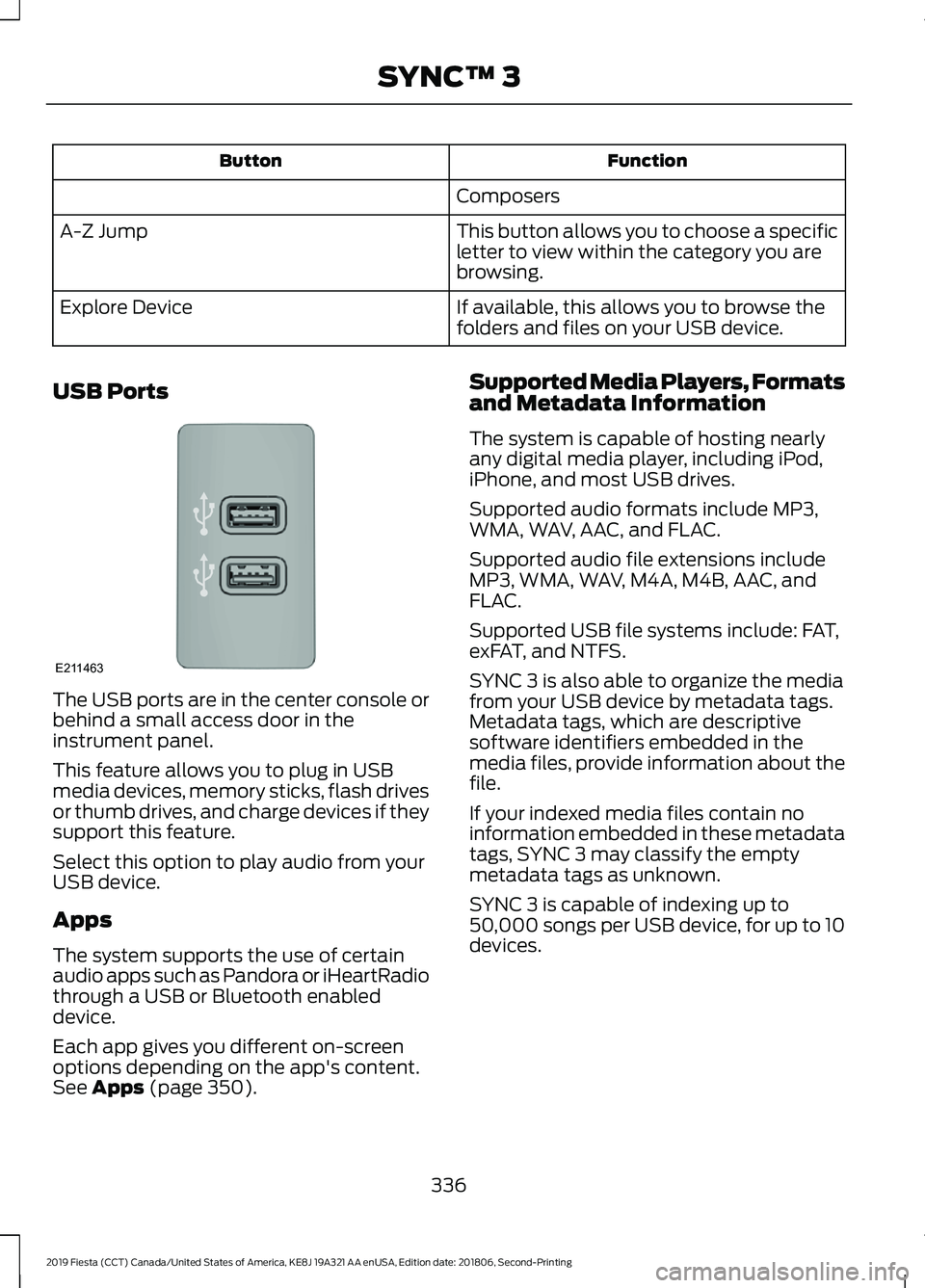
USB Ports The USB ports are in the center console or
behind a small access door in the
instrument panel.
This feature allows you to plug in USB
media devices, memory sticks, flash drives
or thumb drives, and charge devices if they
support this feature.
Select this option to play audio from your
USB device.
Apps
The system supports the use of certain
audio apps such as Pandora or iHeartRadio
through a USB or Bluetooth enabled
device.
Each app gives you different on-screen
options depending on the app's content.
See Apps (page 350). Supported Media Players, Formats
and Metadata Information
The system is capable of hosting nearly
any digital media player, including iPod,
iPhone, and most USB drives.
Supported audio formats include MP3,
WMA, WAV, AAC, and FLAC.
Supported audio file extensions include
MP3, WMA, WAV, M4A, M4B, AAC, and
FLAC.
Supported USB file systems include: FAT,
exFAT, and NTFS.
SYNC 3 is also able to organize the media
from your USB device by metadata tags.
Metadata tags, which are descriptive
software identifiers embedded in the
media files, provide information about the
file.
If your indexed media files contain no
information embedded in these metadata
tags, SYNC 3 may classify the empty
metadata tags as unknown.
SYNC 3 is capable of indexing up to
50,000 songs per USB device, for up to 10
devices.
336
2019 Fiesta (CCT) Canada/United States of America, KE8J 19A321 AA enUSA, Edition date: 201806, Second-Printing SYNC™ 3E211463
Page 340 of 443
PHONE
WARNING: Driving while
distracted can result in loss of vehicle
control, crash and injury. We strongly
recommend that you use extreme
caution when using any device that may
take your focus off the road. Your
primary responsibility is the safe
operation of your vehicle. We
recommend against the use of any
hand-held device while driving and
encourage the use of voice-operated
systems when possible. Make sure you
are aware of all applicable local laws
that may affect the use of electronic
devices while driving.
Hands-free calling is one of the main
features of the system. Once you pair your
cell phone, you can access many options
using the touchscreen or voice commands.
While the system supports a variety of
features, many are dependent on your cell
phone ’s functionality.
Pairing Your Cell Phone for the
First Time
Pair your Bluetooth enabled phone with
the system before using the functions in
hands-free mode.
Switch on Bluetooth on your device to
begin pairing. See your phone ’s manual if
necessary.
To add a phone, select: Menu Item
Add Phone
1. Follow the on-screen instructions.
2. A prompt alerts you to search for the system on your phone. 3. Select your vehicle's make and model
as it displays on your phone.
4. Confirm that the six-digit number appearing on your phone matches the
six-digit number on the touchscreen.
5. The touchscreen indicates when the pairing is successful.
6. Your phone may prompt you to give the system permission to access
information. To check your phone ’s
compatibility, see your phone ’s manual
or visit the website.
Alternatively, to add a phone, select: Menu Item
Add Phone
Then select:
Discover Other Bluetooth Devices
1. Follow the on-screen instructions.
2. Select your phone's name when it appears on the touchscreen.
3. Confirm that the six-digit number appearing on your phone matches the
six-digit number on the touchscreen.
4. The touchscreen indicates when the pairing is successful.
5. Your phone may prompt you to give the system permission to access
information. To check your phone ’s
compatibility, see your phone ’s manual
or visit the website.
At a minimum, most cell phones with
Bluetooth wireless technology support the
following functions:
• Answering an incoming call.
• Ending a call.
• Dialing a number.
• Call waiting notification.
• Caller identification.
337
2019 Fiesta (CCT) Canada/United States of America, KE8J 19A321 AA enUSA, Edition date: 201806, Second-Printing SYNC™ 3
Page 341 of 443
Other features, such as text messaging
using Bluetooth and automatic phonebook
download, are phone-dependent features.
To check your phone
’s compatibility,
see your phone ’s manual or visit the
website: Websites
owner.ford.com Websites
www.syncmyride.ca
www.syncmaroute.ca
Phone Menu
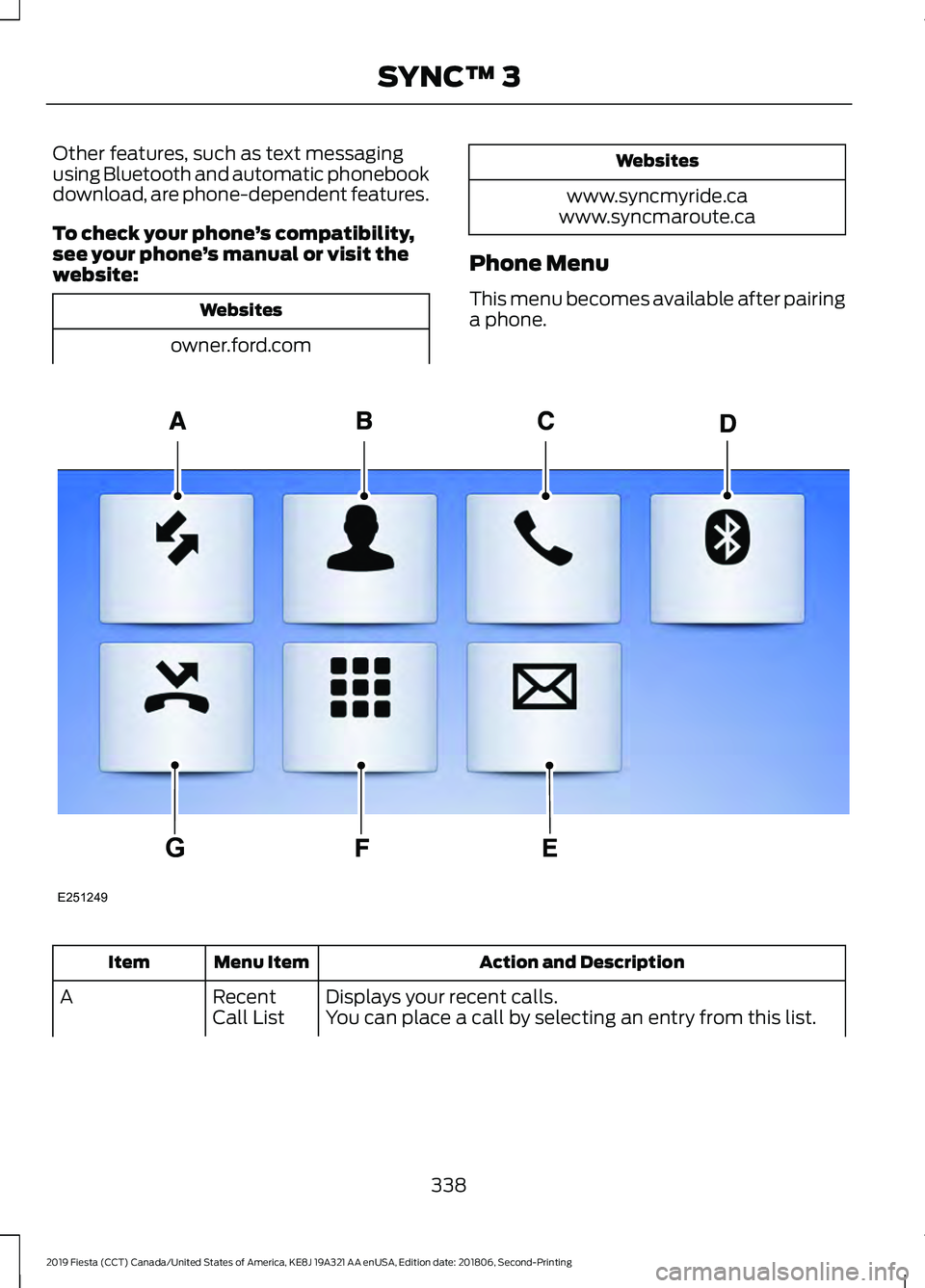
This menu becomes available after pairing
a phone. Action and Description
Menu Item
Item
Displays your recent calls.
Recent
Call List
A
You can place a call by selecting an entry from this list.
338
2019 Fiesta (CCT) Canada/United States of America, KE8J 19A321 AA enUSA, Edition date: 201806, Second-Printing SYNC™ 3E251249
G
Page 342 of 443
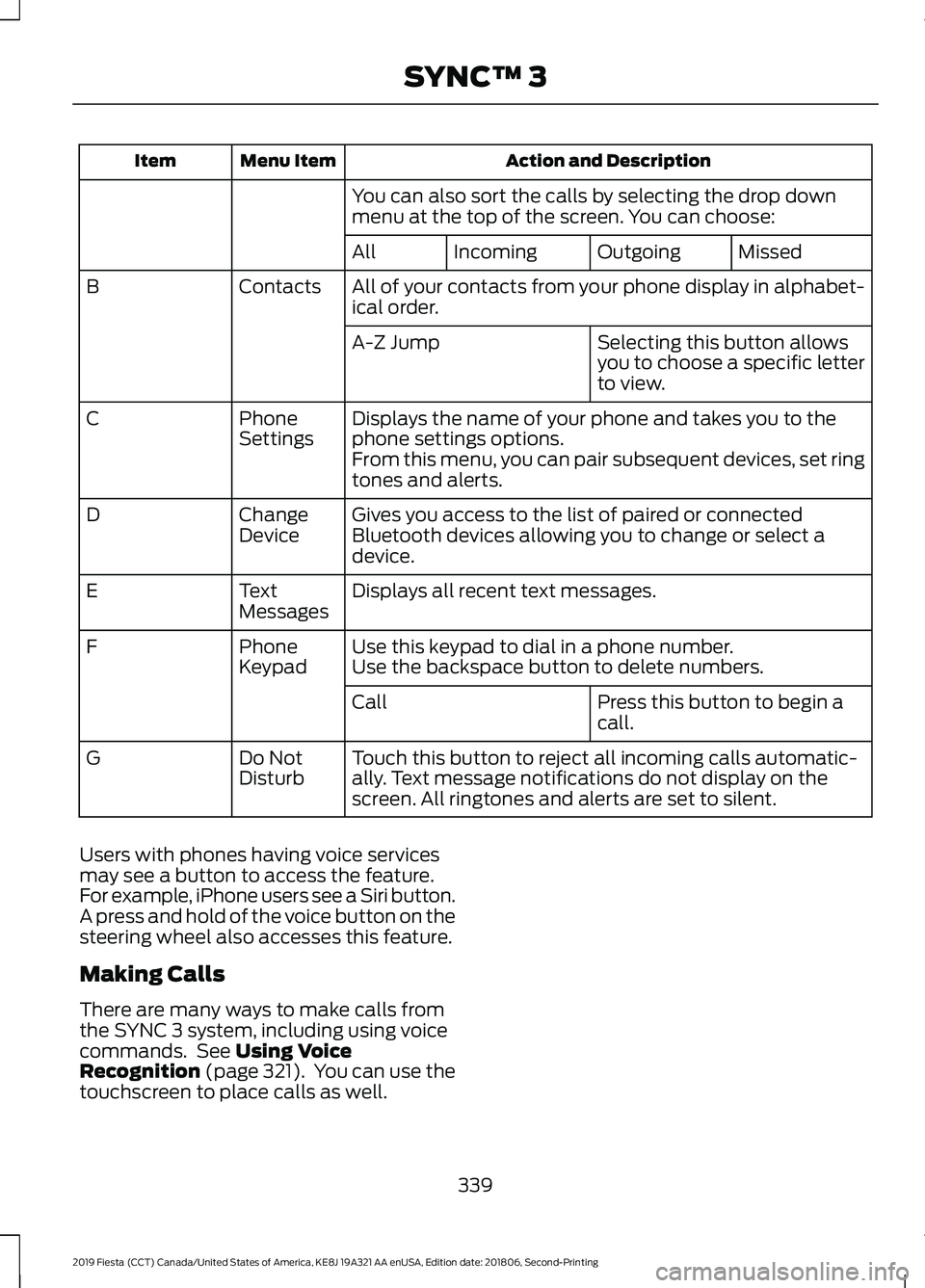
Action and Description
Menu Item
Item
You can also sort the calls by selecting the drop down
menu at the top of the screen. You can choose: Missed
Outgoing
Incoming
All
All of your contacts from your phone display in alphabet-
ical order.
Contacts
B
Selecting this button allows
you to choose a specific letter
to view.
A-Z Jump
Displays the name of your phone and takes you to the
phone settings options.
Phone
Settings
C
From this menu, you can pair subsequent devices, set ring
tones and alerts.
Gives you access to the list of paired or connected
Bluetooth devices allowing you to change or select a
device.
Change
Device
D
Displays all recent text messages.
Text
Messages
E
Use this keypad to dial in a phone number.
Phone
Keypad
F
Use the backspace button to delete numbers.
Press this button to begin a
call.
Call
Touch this button to reject all incoming calls automatic-
ally. Text message notifications do not display on the
screen. All ringtones and alerts are set to silent.
Do Not
Disturb
G
Users with phones having voice services
may see a button to access the feature.
For example, iPhone users see a Siri button.
A press and hold of the voice button on the
steering wheel also accesses this feature.
Making Calls
There are many ways to make calls from
the SYNC 3 system, including using voice
commands. See Using Voice
Recognition (page 321). You can use the
touchscreen to place calls as well.
339
2019 Fiesta (CCT) Canada/United States of America, KE8J 19A321 AA enUSA, Edition date: 201806, Second-Printing SYNC™ 3