light FORD FLEX 2009 1.G User Guide
[x] Cancel search | Manufacturer: FORD, Model Year: 2009, Model line: FLEX, Model: FORD FLEX 2009 1.GPages: 374
Page 28 of 374
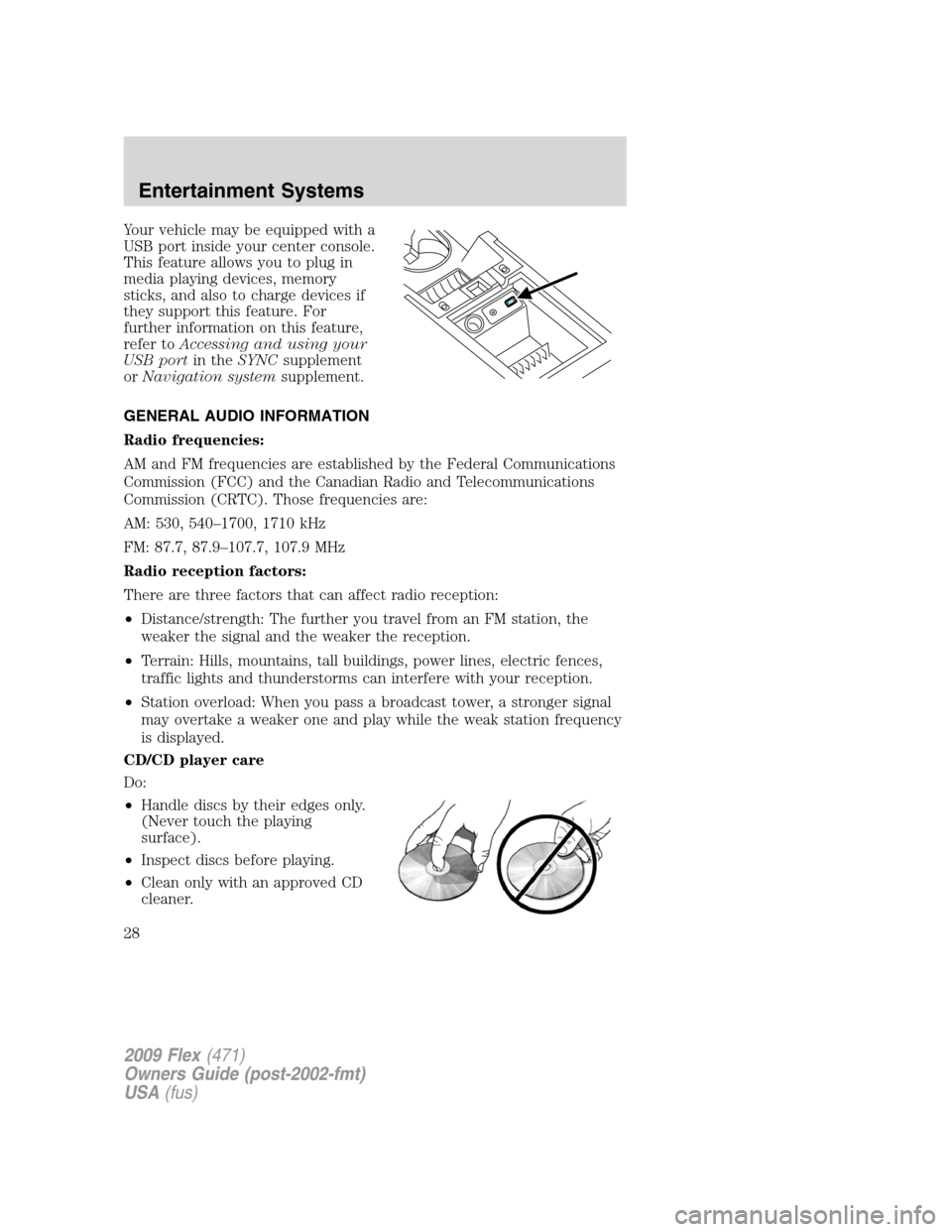
Your vehicle may be equipped with a
USB port inside your center console.
This feature allows you to plug in
media playing devices, memory
sticks, and also to charge devices if
they support this feature. For
further information on this feature,
refer toAccessing and using your
USB portin theSYNCsupplement
orNavigation systemsupplement.
GENERAL AUDIO INFORMATION
Radio frequencies:
AM and FM frequencies are established by the Federal Communications
Commission (FCC) and the Canadian Radio and Telecommunications
Commission (CRTC). Those frequencies are:
AM: 530, 540–1700, 1710 kHz
FM: 87.7, 87.9–107.7, 107.9 MHz
Radio reception factors:
There are three factors that can affect radio reception:
•Distance/strength: The further you travel from an FM station, the
weaker the signal and the weaker the reception.
•Terrain: Hills, mountains, tall buildings, power lines, electric fences,
traffic lights and thunderstorms can interfere with your reception.
•Station overload: When you pass a broadcast tower, a stronger signal
may overtake a weaker one and play while the weak station frequency
is displayed.
CD/CD player care
Do:
•Handle discs by their edges only.
(Never touch the playing
surface).
•Inspect discs before playing.
•Clean only with an approved CD
cleaner.
2009 Flex(471)
Owners Guide (post-2002-fmt)
USA(fus)
Entertainment Systems
28
Page 29 of 374
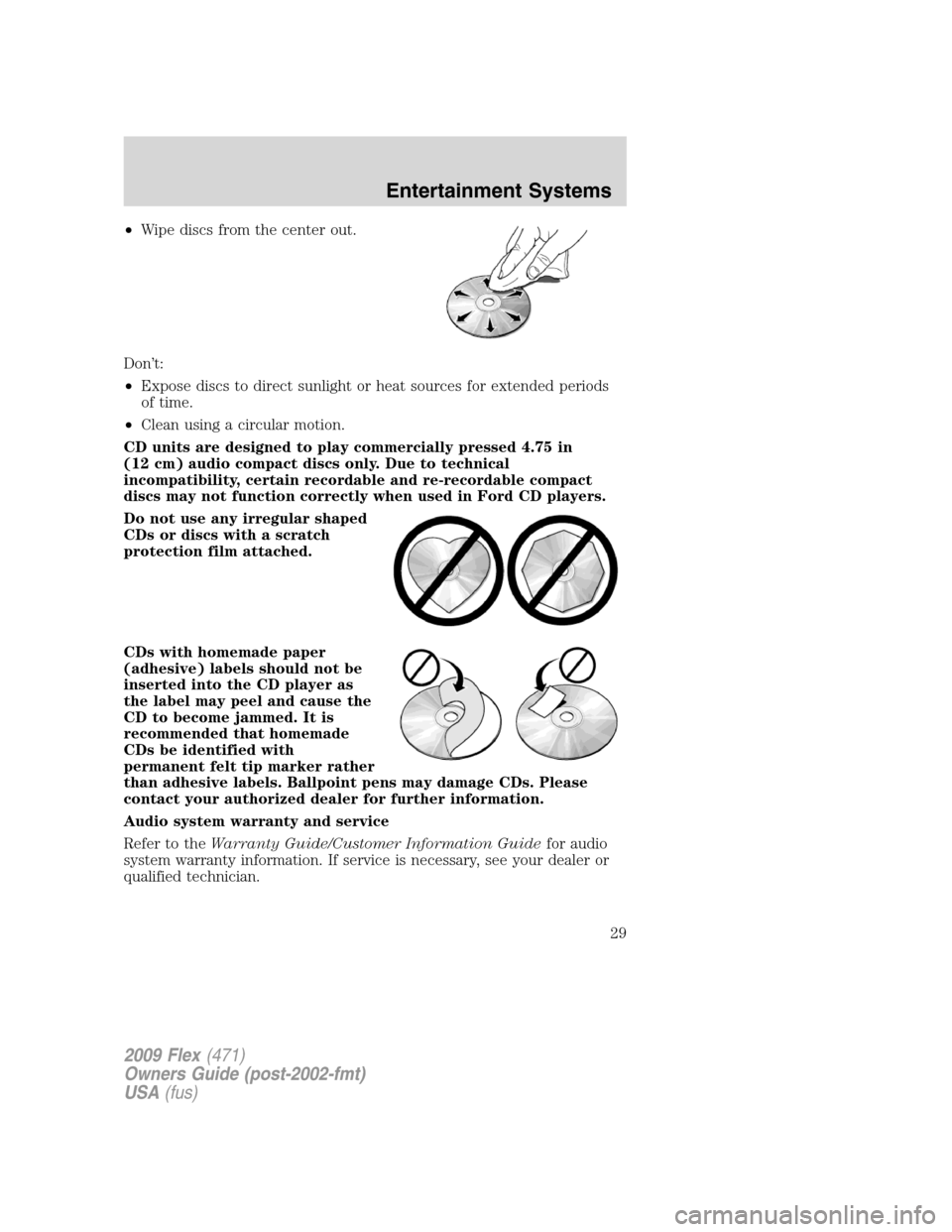
•Wipe discs from the center out.
Don’t:
•Expose discs to direct sunlight or heat sources for extended periods
of time.
•Clean using a circular motion.
CD units are designed to play commercially pressed 4.75 in
(12 cm) audio compact discs only. Due to technical
incompatibility, certain recordable and re-recordable compact
discs may not function correctly when used in Ford CD players.
Do not use any irregular shaped
CDs or discs with a scratch
protection film attached.
CDs with homemade paper
(adhesive) labels should not be
inserted into the CD player as
the label may peel and cause the
CD to become jammed. It is
recommended that homemade
CDs be identified with
permanent felt tip marker rather
than adhesive labels. Ballpoint pens may damage CDs. Please
contact your authorized dealer for further information.
Audio system warranty and service
Refer to theWarranty Guide/Customer Information Guidefor audio
system warranty information. If service is necessary, see your dealer or
qualified technician.
2009 Flex(471)
Owners Guide (post-2002-fmt)
USA(fus)
Entertainment Systems
29
Page 35 of 374
Note (navigation based radio
systems only):When a disc is
inserted, the FES switches to
dual-play mode–rear speakers turn off, and headphones turn on. To
switch back to all four speakers on, press the headphone button.
Press VIDEO to change the source
displayed on the screen. Press
repeatedly to cycle through:
DVD-DISC, DVD-AUX, NON-DVD,
OFF.
Press the power button to turn the
system off. The indicator light will
turn off indicating the system is off.
Note:The audio from the DVD system will play over all vehicle speakers
and can be adjusted by the radio volume control.
To play a CD in the DVD system:
The DVD system can play audio CDs, CD-R and CD-R/W, CD-ROM and
video CDs. To ensure proper disc operation, check the disc for finger
prints and scratches. Clean the disc with a soft cloth, wiping from the
center to the edge.
1. Ensure that the vehicle is on or the ignition is in accessory mode.
2. Insert a CD into the system,
label-side up to turn on the DVD
system. It will load and
automatically begin to play. If there
is already a CD in the system, press
PLAY on the DVD player.
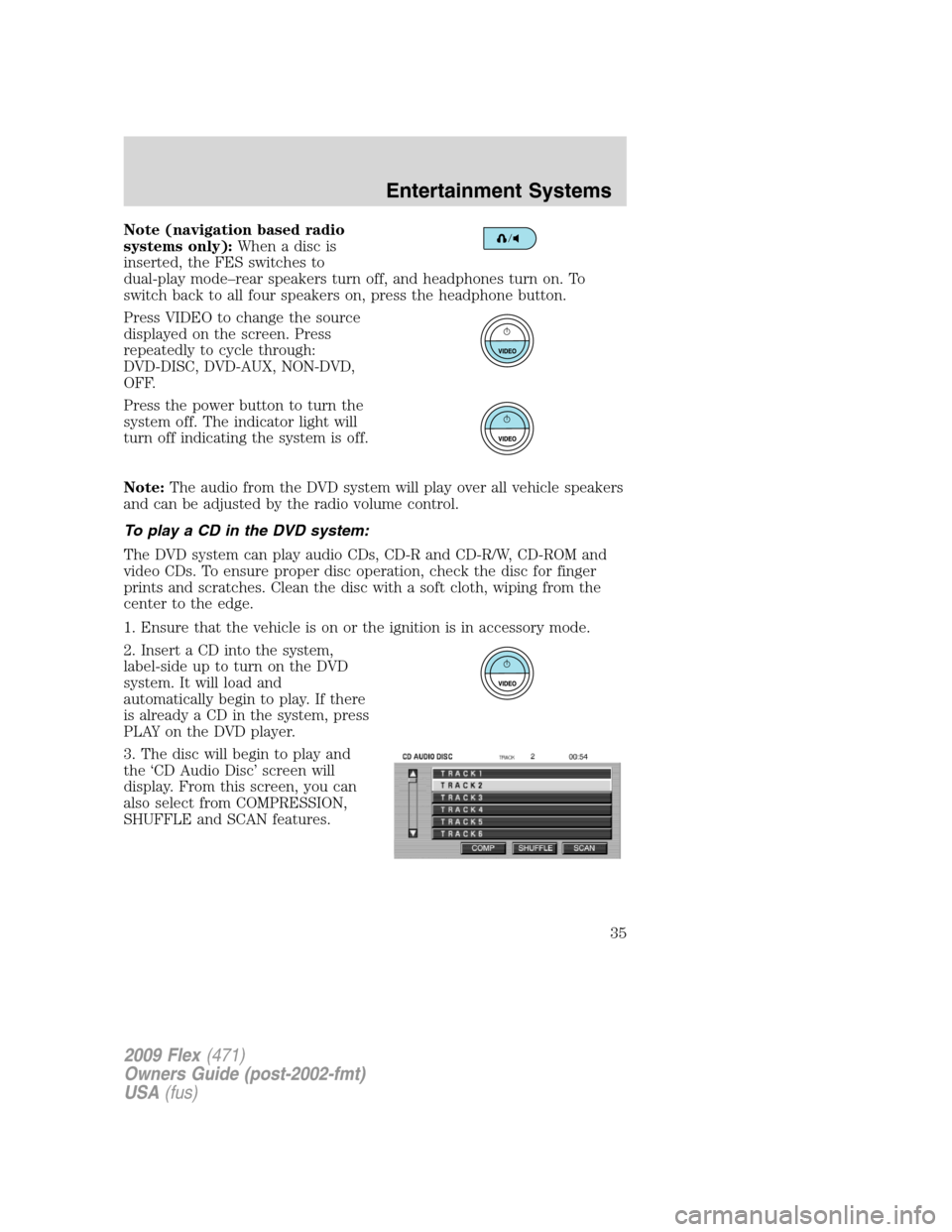
3. The disc will begin to play and
the ‘CD Audio Disc’ screen will
display. From this screen, you can
also select from COMPRESSION,
SHUFFLE and SCAN features.
2009 Flex(471)
Owners Guide (post-2002-fmt)
USA(fus)
Entertainment Systems
35
Page 36 of 374
Note (navigation based radio
systems only):When a disc is
inserted, the FES switches to
dual-play mode–rear speakers turn off, and headphones turn on. To
switch back to all four speakers on, press the headphone button.
To play an MP3 disc in the DVD system:
1. Ensure that the vehicle is on or the ignition is in accessory mode.
2. Insert an MP3 disc into the
system, label-side up to turn on the
DVD system. It will load and
automatically begin to play. If there
is already a disc in the system, press
PLAY on the DVD player.
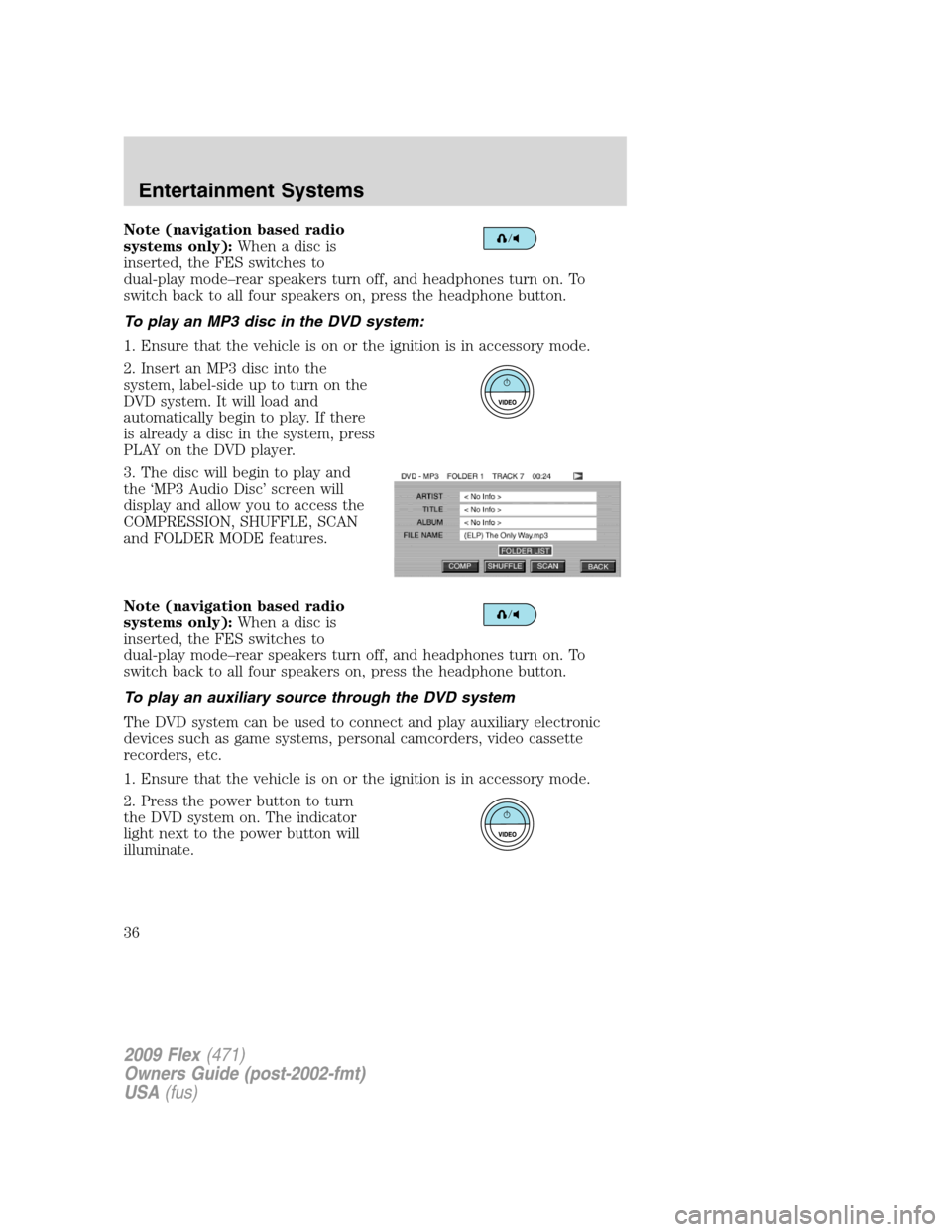
3. The disc will begin to play and
the ‘MP3 Audio Disc’ screen will
display and allow you to access the
COMPRESSION, SHUFFLE, SCAN
and FOLDER MODE features.
Note (navigation based radio
systems only):When a disc is
inserted, the FES switches to
dual-play mode–rear speakers turn off, and headphones turn on. To
switch back to all four speakers on, press the headphone button.
To play an auxiliary source through the DVD system
The DVD system can be used to connect and play auxiliary electronic
devices such as game systems, personal camcorders, video cassette
recorders, etc.
1. Ensure that the vehicle is on or the ignition is in accessory mode.
2. Press the power button to turn
the DVD system on. The indicator
light next to the power button will
illuminate.
2009 Flex(471)
Owners Guide (post-2002-fmt)
USA(fus)
Entertainment Systems
36
Page 37 of 374
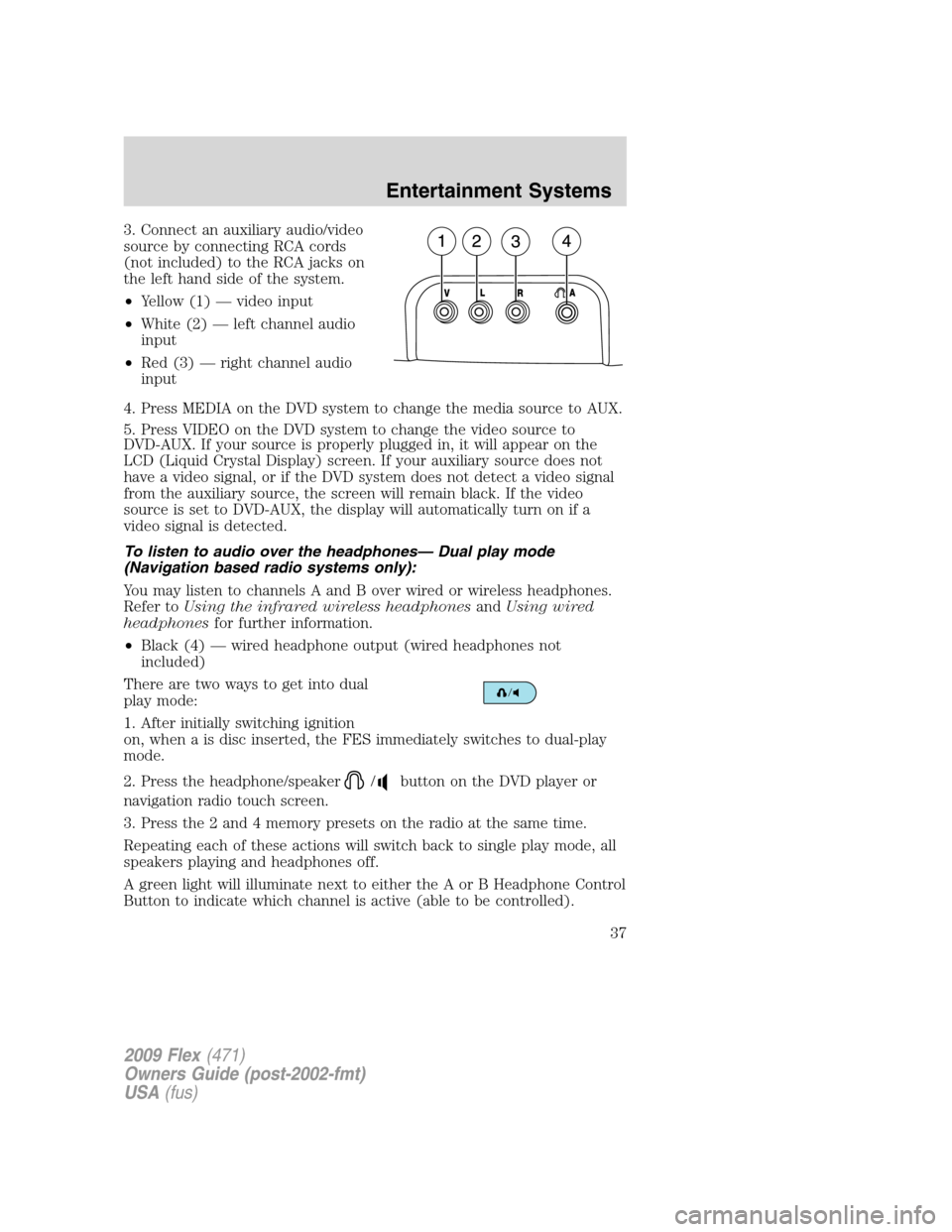
3. Connect an auxiliary audio/video
source by connecting RCA cords
(not included) to the RCA jacks on
the left hand side of the system.
•Yellow (1) — video input
•White (2) — left channel audio
input
•Red (3) — right channel audio
input
4. Press MEDIA on the DVD system to change the media source to AUX.
5. Press VIDEO on the DVD system to change the video source to
DVD-AUX. If your source is properly plugged in, it will appear on the
LCD (Liquid Crystal Display) screen. If your auxiliary source does not
have a video signal, or if the DVD system does not detect a video signal
from the auxiliary source, the screen will remain black. If the video
source is set to DVD-AUX, the display will automatically turn on if a
video signal is detected.
To listen to audio over the headphones— Dual play mode
(Navigation based radio systems only):
You may listen to channels A and B over wired or wireless headphones.
Refer toUsing the infrared wireless headphonesandUsing wired
headphonesfor further information.
•Black (4) — wired headphone output (wired headphones not
included)
There are two ways to get into dual
play mode:
1. After initially switching ignition
on, when a is disc inserted, the FES immediately switches to dual-play
mode.
2. Press the headphone/speaker
/button on the DVD player or
navigation radio touch screen.
3. Press the 2 and 4 memory presets on the radio at the same time.
Repeating each of these actions will switch back to single play mode, all
speakers playing and headphones off.
A green light will illuminate next to either the A or B Headphone Control
Button to indicate which channel is active (able to be controlled).
2009 Flex(471)
Owners Guide (post-2002-fmt)
USA(fus)
Entertainment Systems
37
Page 38 of 374
4. Press MEDIA to change the audio source of the active channel (A or
B). The audio source will be shown on the display. You may change the
active channel by pressing the A or B headphone control button.
Note:Channel A can access any possible media source (AM, FM1, FM2,
SAT (if equipped), CD, DVD, AUX). Channel B can only access DVD and
AUX sources.
Note:Refer toSingle play/Dual playfor more information.
To listen to audio over the headphones— Dual play mode
(Non-navigation based radio systems):
You may listen to channels A and B over wired or wireless headphones.
Refer toUsing the infrared wireless headphonesandUsing wired
headphonesfor further information.
•Black (4) — wired headphone output (wired headphones not
included)
1. Press the
headphone/speaker
/button
on the DVD player or press the 2
and 4 memory presets on the radio at the same time.
A green light will illuminate next to either the A or B Headphone Control
Button to indicate which channel is active (able to be controlled).
2. Press MEDIA to change the audio source of the active channel (A or
B). The audio source will be shown on the display. You may change the
active channel by pressing the A or B headphone control button.
Note:Channel A can access any possible media source (AM, FM1, FM2,
SAT (if equipped), CD, DVD, AUX). Channel B can only access DVD and
AUX sources.
Note:Refer toSingle play/Dual playfor more information.
Using the infrared (IR) wireless headphones:
1. Press the power control on the earpiece to turn the headphones ON.
2. Select Channel A or B for each set of wireless headphones by using
the A/B control on the ear piece.
3. Adjust the headphone volume using the rotary dial on the earpiece.
2009 Flex(471)
Owners Guide (post-2002-fmt)
USA(fus)
Entertainment Systems
38
Page 44 of 374
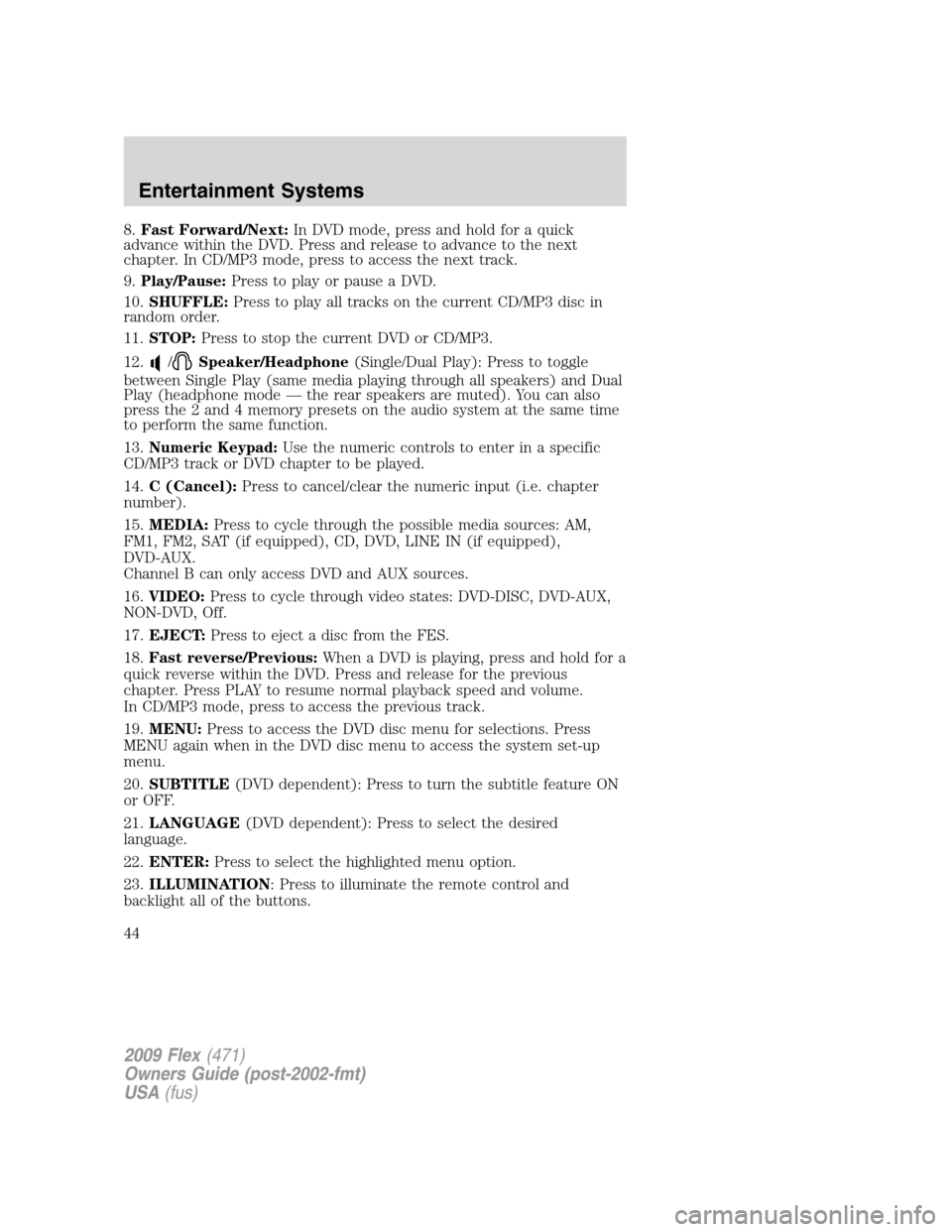
8.Fast Forward/Next:In DVD mode, press and hold for a quick
advance within the DVD. Press and release to advance to the next
chapter. In CD/MP3 mode, press to access the next track.
9.Play/Pause:Press to play or pause a DVD.
10.SHUFFLE:Press to play all tracks on the current CD/MP3 disc in
random order.
11.STOP:Press to stop the current DVD or CD/MP3.
12.
/Speaker/Headphone(Single/Dual Play): Press to toggle
between Single Play (same media playing through all speakers) and Dual
Play (headphone mode — the rear speakers are muted). You can also
press the 2 and 4 memory presets on the audio system at the same time
to perform the same function.
13.Numeric Keypad:Use the numeric controls to enter in a specific
CD/MP3 track or DVD chapter to be played.
14.C (Cancel):Press to cancel/clear the numeric input (i.e. chapter
number).
15.MEDIA:Press to cycle through the possible media sources: AM,
FM1, FM2, SAT (if equipped), CD, DVD, LINE IN (if equipped),
DVD-AUX.
Channel B can only access DVD and AUX sources.
16.VIDEO:Press to cycle through video states: DVD-DISC, DVD-AUX,
NON-DVD, Off.
17.EJECT:Press to eject a disc from the FES.
18.Fast reverse/Previous:When a DVD is playing, press and hold for a
quick reverse within the DVD. Press and release for the previous
chapter. Press PLAY to resume normal playback speed and volume.
In CD/MP3 mode, press to access the previous track.
19.MENU:Press to access the DVD disc menu for selections. Press
MENU again when in the DVD disc menu to access the system set-up
menu.
20.SUBTITLE(DVD dependent): Press to turn the subtitle feature ON
or OFF.
21.LANGUAGE(DVD dependent): Press to select the desired
language.
22.ENTER:Press to select the highlighted menu option.
23.ILLUMINATION: Press to illuminate the remote control and
backlight all of the buttons.
2009 Flex(471)
Owners Guide (post-2002-fmt)
USA(fus)
Entertainment Systems
44
Page 46 of 374
Additional infrared wireless headphones may be purchased for use with
the system. Also, wired headphones may be purchased and plugged in
where indicated on the left and right hand sides of the system. Refer to
Wired Headphonesfollowing.
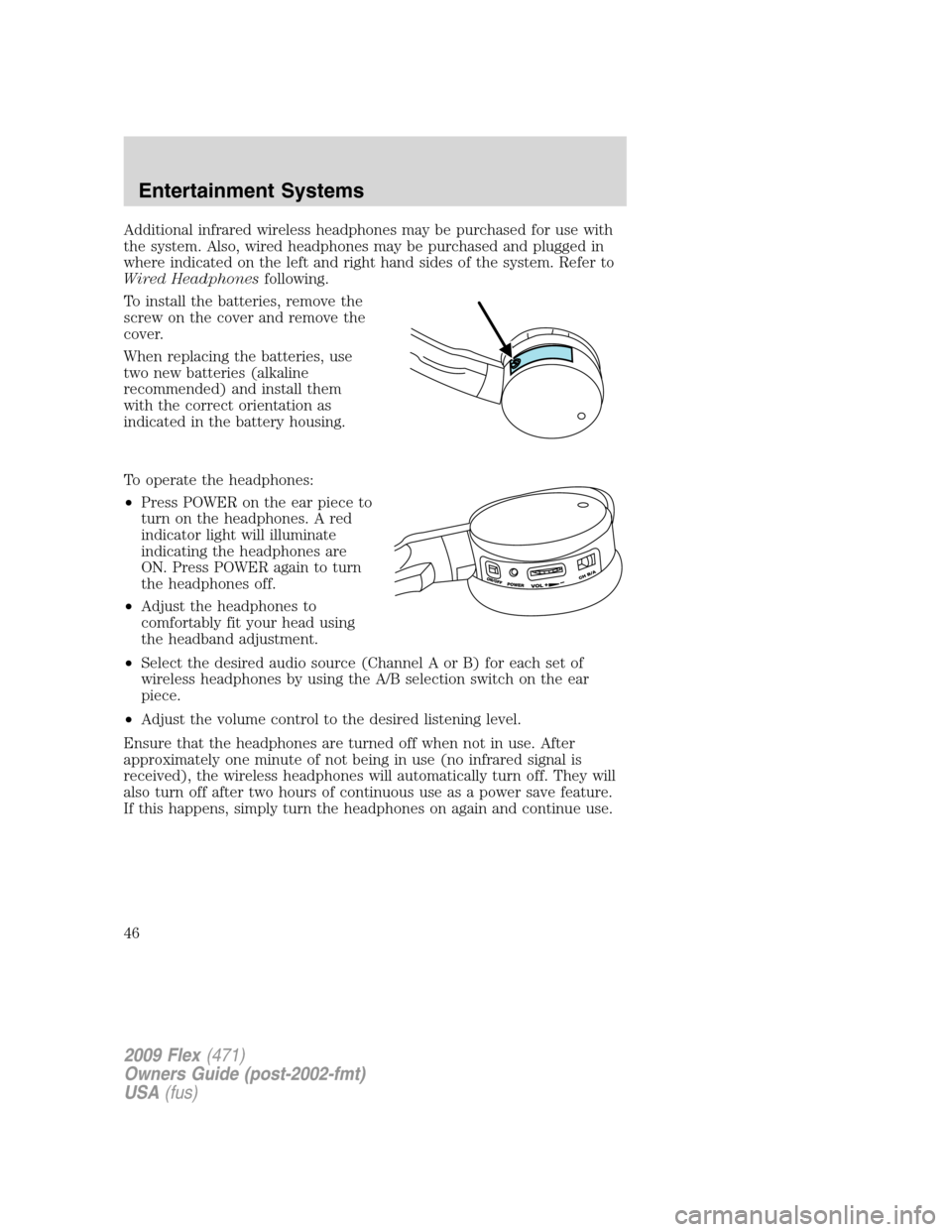
To install the batteries, remove the
screw on the cover and remove the
cover.
When replacing the batteries, use
two new batteries (alkaline
recommended) and install them
with the correct orientation as
indicated in the battery housing.
To operate the headphones:
•Press POWER on the ear piece to
turn on the headphones. A red
indicator light will illuminate
indicating the headphones are
ON. Press POWER again to turn
the headphones off.
•Adjust the headphones to
comfortably fit your head using
the headband adjustment.
•Select the desired audio source (Channel A or B) for each set of
wireless headphones by using the A/B selection switch on the ear
piece.
•Adjust the volume control to the desired listening level.
Ensure that the headphones are turned off when not in use. After
approximately one minute of not being in use (no infrared signal is
received), the wireless headphones will automatically turn off. They will
also turn off after two hours of continuous use as a power save feature.
If this happens, simply turn the headphones on again and continue use.
2009 Flex(471)
Owners Guide (post-2002-fmt)
USA(fus)
Entertainment Systems
46
Page 49 of 374
The headphone control will now be active and a green light next to the
A or B headphone control buttons will illuminate. The system can output
two different audio sources over the headphones. These are called
Channel A and Channel B. Both Channel A and Channel B can be
listened to on the wired headphones (not included) or on the infrared
(IR) wireless headphones.
Press the Headphone Control button
A to change the audio source for
Channel A.
Press MEDIA to change the audio
source for Channel A. This
information will display on the DVD
system screen.
Press the Headphone Control button
B to change the audio source for
Channel B.
Press MEDIA to change the audio source for Channel B. This information
will display on the DVD system screen. Channel B can listen to either
the DVD media or the DVD system auxiliary inputs (DVD-AUX).
Dual Play (non-navigation based radio systems):Dual play is when
the rear seat passengers choose to listen to a different playing media
than the front seat passengers. With the DVD and Rear Seat Controls
turned ON, the rear seat passengers may choose to listen to the radio,
CD, MP3, DVD, or DVD-AUX media sources over headphones while the
front speakers play the chosen selection for the front audio system, they
may listen to another over the headphones. DUAL PLAY will appear in
the radio display.
When both the front seat passengers and the rear seat passengers listen
to the same audio source, SHARED MODE will appear on the radio.
Note:If the front seat passengers are listening to the radio, the rear seat
passengers can also listen to the radio; however, they will be limited to
listening to the same radio channel.
Press the
/headphone/speaker
button on the DVD player or
navigation radio touch screen.
2009 Flex(471)
Owners Guide (post-2002-fmt)
USA(fus)
Entertainment Systems
49
Page 50 of 374
The headphone control will now be active and a green light next to the
A or B headphone control buttons will illuminate. The system can output
two different audio sources over the headphones. These are called
Channel A and Channel B. Both Channel A and Channel B can be
listened to on the wired headphones (not included) or on the infrared
(IR) wireless headphones.
Press the Headphone Control button
A to change the audio source for
Channel A.
Press MEDIA to change the audio
source for Channel A. This
information will display on the DVD
system screen.
Press the Headphone Control button
B to change the audio source for
Channel B.
Press MEDIA to change the audio source for Channel B. This information
will display on the DVD system screen. Channel B can listen to either
the DVD media or the DVD system auxiliary inputs (DVD-AUX).
Operation with an aftermarket audio system
(Headphone only mode)
When the Family Entertainment System (FES) detects that the original
radio supplied by Ford Motor Company has been removed from the
vehicle, the Family Entertainment System will work in a state referred to
as “Headphone Only Mode”.
While operating in Headphone Only Mode, the system will have limited
functionality.
•The system will only output audio to the headphones. It will not be
capable of providing audio to the speakers.
•The available sources in FES Headphone Only Mode are DVD-DISC
and DVD-AUX, regardless of headphone channel (A or B).
•When a disc is inserted into the FES while in Headphone Only Mode,
both headphone channels (A&B) will be connected to FES-DISC.
2009 Flex(471)
Owners Guide (post-2002-fmt)
USA(fus)
Entertainment Systems
50