buttons FORD FLEX 2014 1.G Owner's Manual
[x] Cancel search | Manufacturer: FORD, Model Year: 2014, Model line: FLEX, Model: FORD FLEX 2014 1.GPages: 554, PDF Size: 8.04 MB
Page 370 of 554
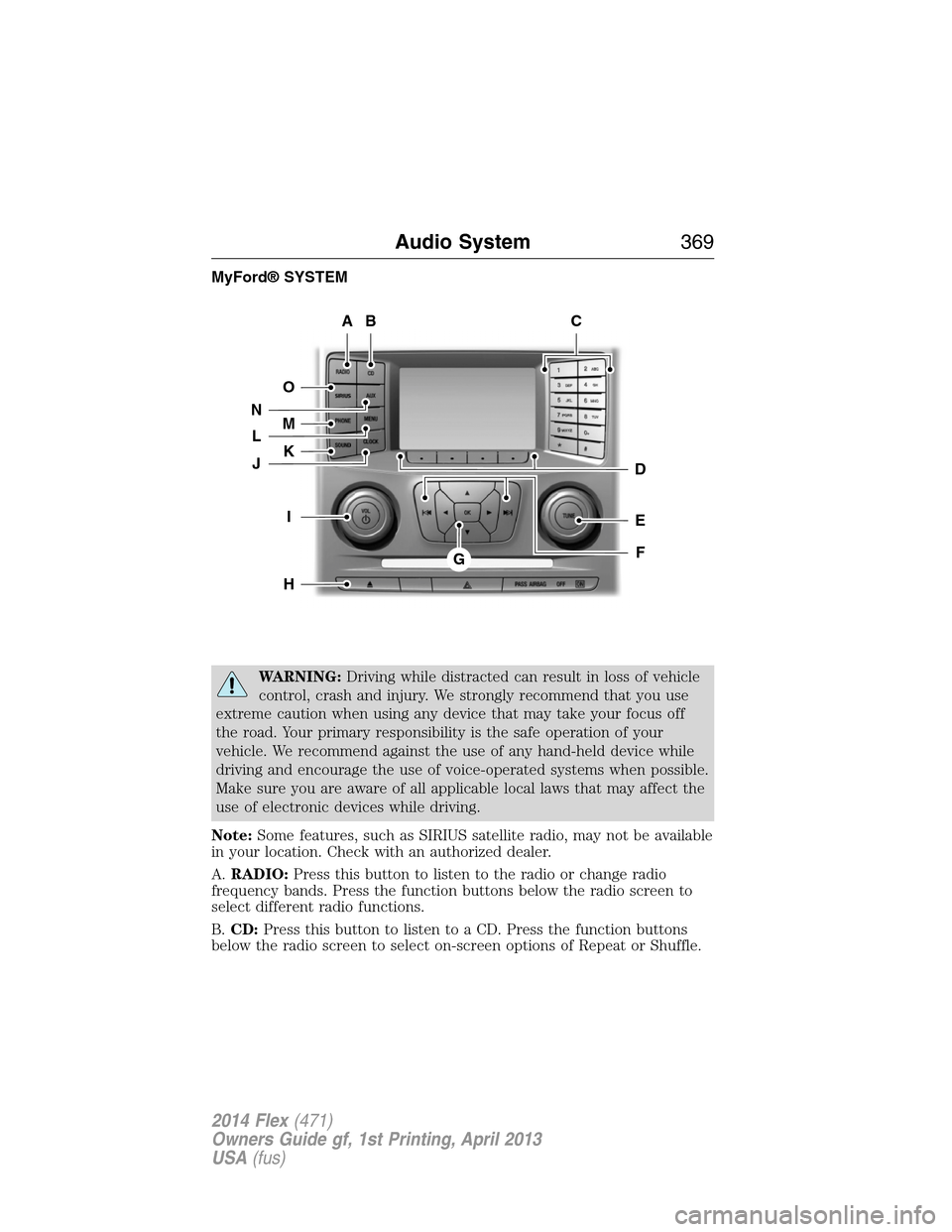
MyFord® SYSTEM
WARNING:Driving while distracted can result in loss of vehicle
control, crash and injury. We strongly recommend that you use
extreme caution when using any device that may take your focus off
the road. Your primary responsibility is the safe operation of your
vehicle. We recommend against the use of any hand-held device while
driving and encourage the use of voice-operated systems when possible.
Make sure you are aware of all applicable local laws that may affect the
use of electronic devices while driving.
Note:Some features, such as SIRIUS satellite radio, may not be available
in your location. Check with an authorized dealer.
A.RADIO:Press this button to listen to the radio or change radio
frequency bands. Press the function buttons below the radio screen to
select different radio functions.
B.CD:Press this button to listen to a CD. Press the function buttons
below the radio screen to select on-screen options of Repeat or Shuffle.
AB
O
NMLKJ
EI
H
C
FG
D
Audio System369
2014 Flex(471)
Owners Guide gf, 1st Printing, April 2013
USA(fus)
Page 371 of 554
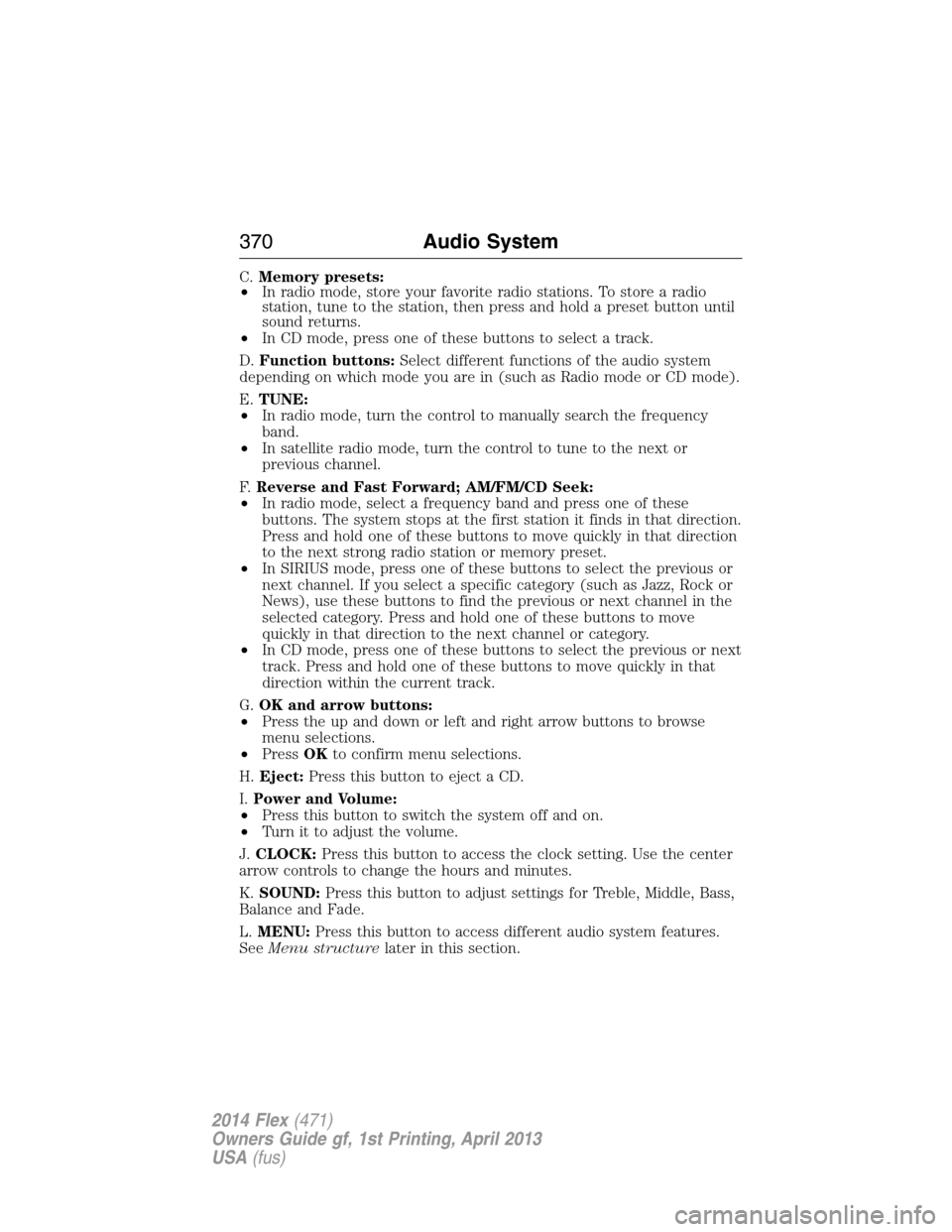
C.Memory presets:
•In radio mode, store your favorite radio stations. To store a radio
station, tune to the station, then press and hold a preset button until
sound returns.
•In CD mode, press one of these buttons to select a track.
D.Function buttons:Select different functions of the audio system
depending on which mode you are in (such as Radio mode or CD mode).
E.TUNE:
•In radio mode, turn the control to manually search the frequency
band.
•In satellite radio mode, turn the control to tune to the next or
previous channel.
F.Reverse and Fast Forward; AM/FM/CD Seek:
•In radio mode, select a frequency band and press one of these
buttons. The system stops at the first station it finds in that direction.
Press and hold one of these buttons to move quickly in that direction
to the next strong radio station or memory preset.
•In SIRIUS mode, press one of these buttons to select the previous or
next channel. If you select a specific category (such as Jazz, Rock or
News), use these buttons to find the previous or next channel in the
selected category. Press and hold one of these buttons to move
quickly in that direction to the next channel or category.
•In CD mode, press one of these buttons to select the previous or next
track. Press and hold one of these buttons to move quickly in that
direction within the current track.
G.OK and arrow buttons:
•Press the up and down or left and right arrow buttons to browse
menu selections.
•PressOKto confirm menu selections.
H.Eject:Press this button to eject a CD.
I.Power and Volume:
•Press this button to switch the system off and on.
•Turn it to adjust the volume.
J.CLOCK:Press this button to access the clock setting. Use the center
arrow controls to change the hours and minutes.
K.SOUND:Press this button to adjust settings for Treble, Middle, Bass,
Balance and Fade.
L.MENU:Press this button to access different audio system features.
SeeMenu structurelater in this section.
370Audio System
2014 Flex(471)
Owners Guide gf, 1st Printing, April 2013
USA(fus)
Page 372 of 554
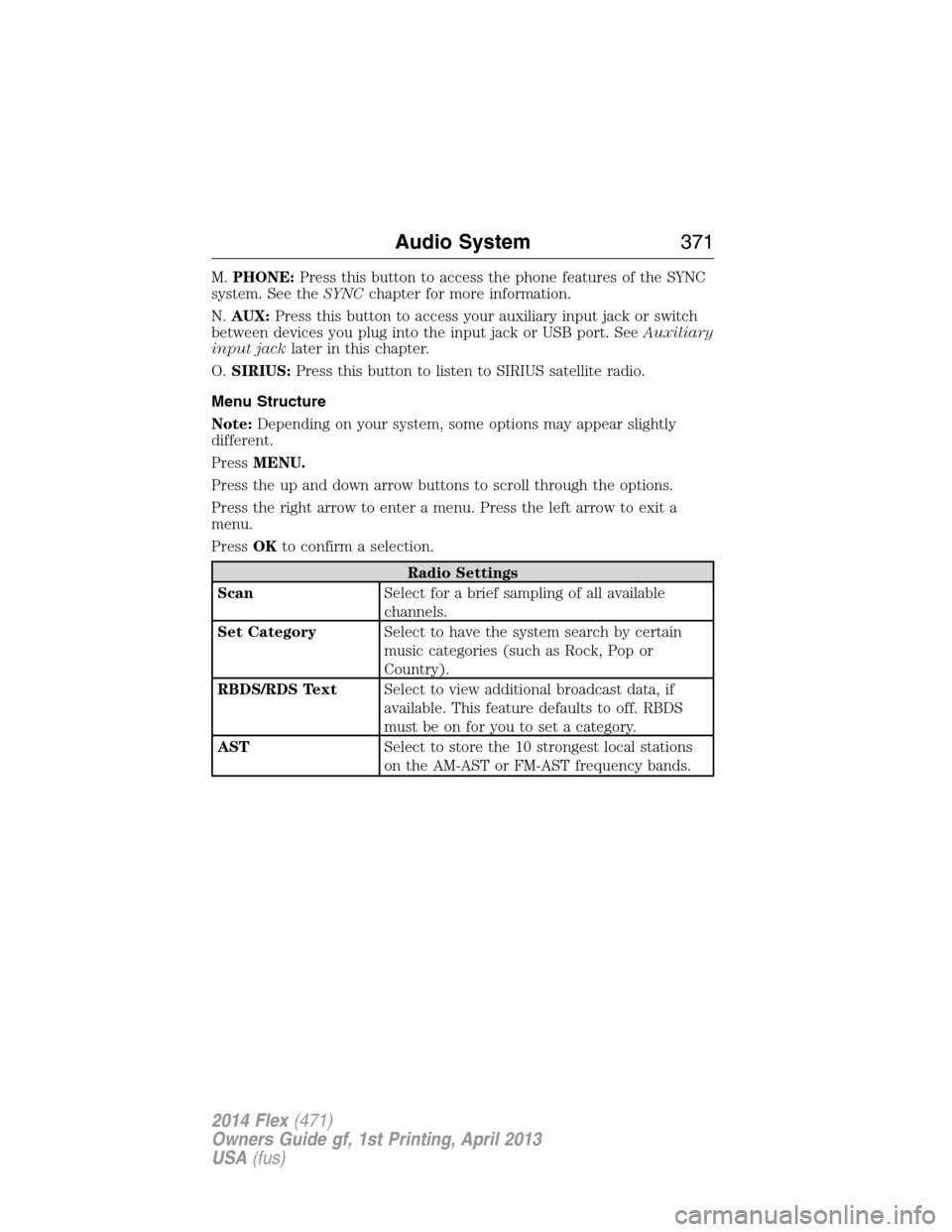
M.PHONE:Press this button to access the phone features of the SYNC
system. See theSYNCchapter for more information.
N.AUX:Press this button to access your auxiliary input jack or switch
between devices you plug into the input jack or USB port. SeeAuxiliary
input jacklater in this chapter.
O.SIRIUS:Press this button to listen to SIRIUS satellite radio.
Menu Structure
Note:Depending on your system, some options may appear slightly
different.
PressMENU.
Press the up and down arrow buttons to scroll through the options.
Press the right arrow to enter a menu. Press the left arrow to exit a
menu.
PressOKto confirm a selection.
Radio Settings
ScanSelect for a brief sampling of all available
channels.
Set CategorySelect to have the system search by certain
music categories (such as Rock, Pop or
Country).
RBDS/RDS TextSelect to view additional broadcast data, if
available. This feature defaults to off. RBDS
must be on for you to set a category.
ASTSelect to store the 10 strongest local stations
on the AM-AST or FM-AST frequency bands.
Audio System371
2014 Flex(471)
Owners Guide gf, 1st Printing, April 2013
USA(fus)
Page 375 of 554
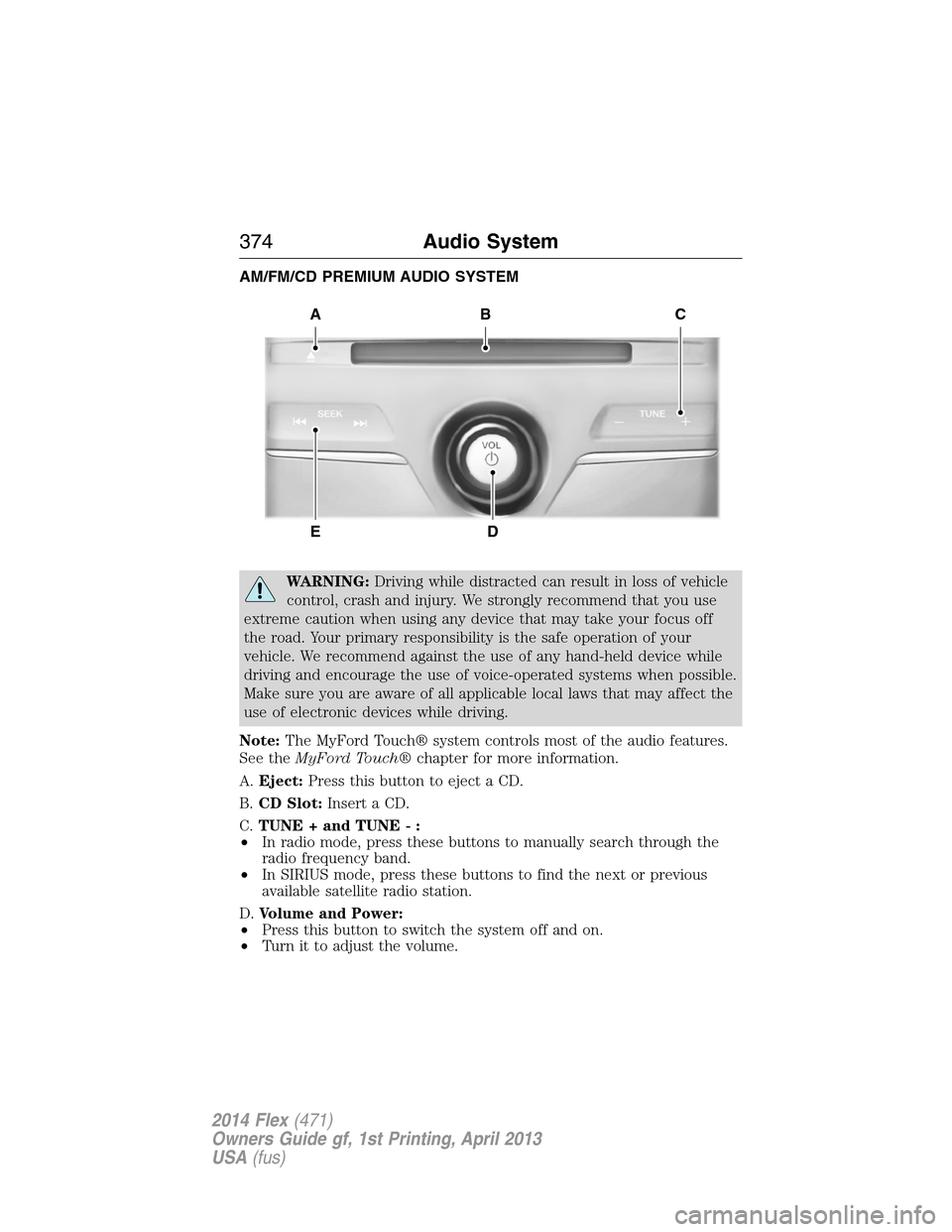
AM/FM/CD PREMIUM AUDIO SYSTEM
WARNING:Driving while distracted can result in loss of vehicle
control, crash and injury. We strongly recommend that you use
extreme caution when using any device that may take your focus off
the road. Your primary responsibility is the safe operation of your
vehicle. We recommend against the use of any hand-held device while
driving and encourage the use of voice-operated systems when possible.
Make sure you are aware of all applicable local laws that may affect the
use of electronic devices while driving.
Note:The MyFord Touch® system controls most of the audio features.
See theMyFord Touch®chapter for more information.
A.Eject:Press this button to eject a CD.
B.CD Slot:Insert a CD.
C.TUNE + and TUNE - :
•In radio mode, press these buttons to manually search through the
radio frequency band.
•In SIRIUS mode, press these buttons to find the next or previous
available satellite radio station.
D.Volume and Power:
•Press this button to switch the system off and on.
•Turn it to adjust the volume.
A
ED
BC
374Audio System
2014 Flex(471)
Owners Guide gf, 1st Printing, April 2013
USA(fus)
Page 376 of 554
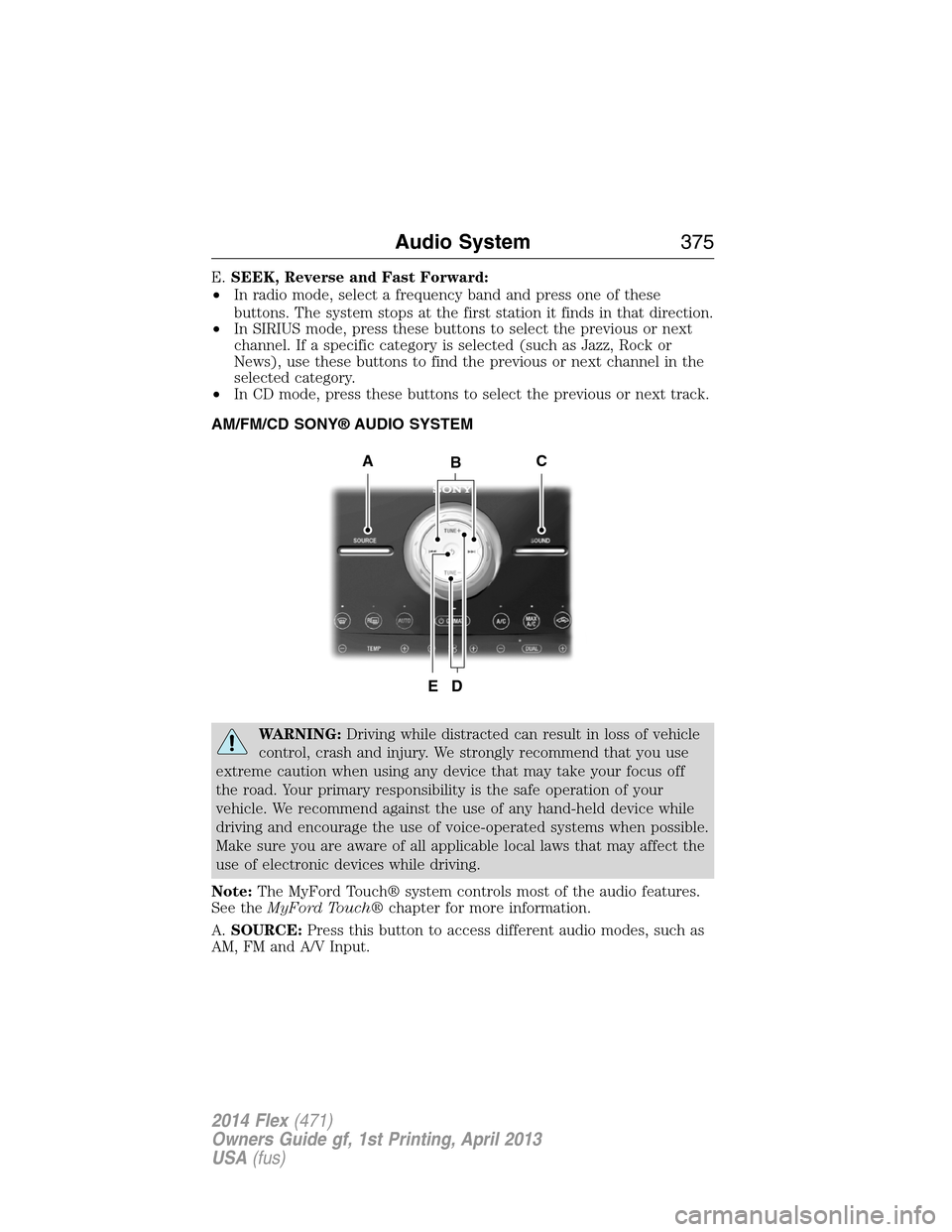
E.SEEK, Reverse and Fast Forward:
•In radio mode, select a frequency band and press one of these
buttons. The system stops at the first station it finds in that direction.
•In SIRIUS mode, press these buttons to select the previous or next
channel. If a specific category is selected (such as Jazz, Rock or
News), use these buttons to find the previous or next channel in the
selected category.
•In CD mode, press these buttons to select the previous or next track.
AM/FM/CD SONY® AUDIO SYSTEM
WARNING:Driving while distracted can result in loss of vehicle
control, crash and injury. We strongly recommend that you use
extreme caution when using any device that may take your focus off
the road. Your primary responsibility is the safe operation of your
vehicle. We recommend against the use of any hand-held device while
driving and encourage the use of voice-operated systems when possible.
Make sure you are aware of all applicable local laws that may affect the
use of electronic devices while driving.
Note:The MyFord Touch® system controls most of the audio features.
See theMyFord Touch®chapter for more information.
A.SOURCE:Press this button to access different audio modes, such as
AM, FM and A/V Input.
B
D
AC
E
Audio System375
2014 Flex(471)
Owners Guide gf, 1st Printing, April 2013
USA(fus)
Page 377 of 554
B.Seek, Reverse and Fast Forward:
•In radio mode, select a frequency band and press one of these
buttons. The system stops at the first station it finds in that direction.
•In SIRIUS mode, press these buttons to select the previous or next
channel. If a specific category is selected (such as Jazz, Rock or
News), use these buttons to find the previous or next channel in the
selected category.
•In CD mode, press these buttons to select the previous or next track.
C.SOUND:Press this button to access settings for Treble, Middle, Bass,
Balance and Fade.
D.TUNE + and TUNE - :
•In radio mode, press these buttons to manually search through the
radio frequency band.
•In SIRIUS mode, press these buttons to find the next or previous
available satellite radio station.
E.Power and Volume:
•Press this button to switch the system off and on.
•Turn it to adjust the volume.
HD RADIO™ INFORMATION (IF AVAILABLE)
Note:HD Radio broadcasts are not available in all markets.
HD Radio technology is the digital evolution of analog AM/FM radio. Your
system has a special receiver that allows it to receive digital broadcasts
(where available) in addition to the analog broadcasts, it already
receives. Digital broadcasts provide a better sound quality than analog
broadcasts with free, crystal-clear audio and no static or distortion. For
more information, and a guide to available stations and programming,
please visit www.hdradio.com.
When HD Radio is on and you tune to a station broadcasting HD Radio
technology, you may notice the HD Radio logo on your screen. When this
logo is available, you may also see Title and Artist fields on-screen.
The multicast indicator appears in FM mode (only) if the current station
is broadcasting multiple digital broadcasts. The highlighted numbers
signify available digital channels where new or different content is
available. HD1 signifies the main programming status and is available in
analog and digital broadcasts. Other multicast stations (HD2 through
HD7) are only available digitally.
376Audio System
2014 Flex(471)
Owners Guide gf, 1st Printing, April 2013
USA(fus)
Page 395 of 554
Making Calls
Press the voice icon and when prompted say:
1. Say “Call
2. When the system confirms the number, say “Dial” again to initiate the
call.
To erase the last spoken digit, say “Delete” or press the left arrow button.
To erase all spoken digits, say “Clear” or press and hold the left arrow
button.
To end the call, press and hold the phone button.
Receiving Calls
When receiving a call, you can:
•Answer the call by pressing the phone button.
•Reject the call by pressing and holding the phone button.
•Ignore the call by doing nothing.
Phone Options during an Active Call
During an active call, you have additional menu features which become
available such as putting a call on hold, joining calls, etc. Use the arrow
buttons to scroll through the menu options.
To access:
1. Press MENU during an active call.
2. When Active Call Menu is selected, press OK.
3. Scroll to cycle through the following options:
When you select: You can:
Mute Call?Mute the call.
PrivacySwitch a call from an active hands-free
environment to your cellular phone for a more
private conversation.
Press OK when Privacy on/off appears. (The
display indicates In Privacy and the system
transfers your call.)
Call HoldPut an active call on hold.
Press OK when Place Call on Hold? appears.
To answer another call at this time, press the
phone button.
394SYNC®
2014 Flex(471)
Owners Guide gf, 1st Printing, April 2013
USA(fus)
Page 403 of 554
System Settings
System Settings provide access to your Bluetooth Devices and
Advanced menu features. Use the arrow buttons to scroll through the
menu options.
The Bluetooth Devices menu allows you to add, connect, delete and set a
phone as primary as well as turn your Bluetooth feature on and off.
The Advanced menu allows you to access and set prompts, languages,
defaults, perform a master reset, install an application and view system
information.
Bluetooth Devices Menu Options
This menu allows you to add, connect, delete, set a phone as primary,
and turn Bluetooth on or off.
1. Press the phone button to enter the Phone Menu.
2. Scroll until System Settings appears and press OK.
3. Scroll until Bluetooth Devices appears and select OK.
4. Scroll to select from the following options:
If you select: You can:
Add Bluetooth
Device
*SeeUsing SYNC with your phoneearlier in
this chapter for pairing instructions.
Connect Bluetooth
DeviceConnect a previously paired
Bluetooth-enabled phone.
1. Press OK to select and view a list of
previously paired phones.
2. Scroll until the desired device is chosen,
then press OK to connect the phone.
Note:Only one device can be connected at a
time. When another phone is connected, the
previous one is disconnected.
Set Primary PhoneSet a previously paired phone as your primary
phone.
Press OK to select and scroll to select the
desired phone. Press OK to confirm.
Note:SYNC attempts to connect with the
primary phone at every ignition cycle. When a
phone is selected as primary, it appears first
in the list and is marked with an asterisk (*).
402SYNC®
2014 Flex(471)
Owners Guide gf, 1st Printing, April 2013
USA(fus)
Page 437 of 554
Using the Touch-sensitive Controls on Your System
To turn a feature on and off, just touch the graphic with your finger. To
get the best performance from the touch-sensitive controls:
•Do not press hard on the controls. They are sensitive to light touch.
•Use your bare finger to touch the center of a touch-control graphic.
Touching off-center of the graphic may affect operation of a nearby
control.
•Make sure your hands are clean and dry.
•Keep metal and other conductive material away from the surface of
the touchscreen as this may cause electronic interference (for
example, inadvertently turning on a feature other than the one you
meant to turn on).
Depending on your vehicle and option package, you may also have these
controls on your bezel:
•Power: Switch the media or climate features off and on.
•VOL:Control the volume of playing media.
•Fan: Control the speed of the climate system fan.
•Seek and Tune buttons: Use as you normally would in media modes.
•Eject: Eject a CD from the entertainment system.
•SOURCE:Touch the word repeatedly to see all available media
modes. The screen does not change, but you see the media change in
the lower left status bar.
•SOUND:Touch the word to access the Sound menu where you can
adjust settings such as: Bass, Treble, Midrange, Balance and Fade,
THX Deep Note Demo, DSP (Digital Signal Processing), Occupancy
Mode and Speed Compensated Volume. (Your vehicle may not have
all of these sound options.)
•Hazard flasher: Switch the hazard flashers off and on.
Cleaning the Touchscreen Display
Use a clean, soft cloth such as one used for cleaning glasses. If dirt or
fingerprints are still visible, apply a small amount of alcohol to the cloth.
Do not pour or spray alcohol onto the display. Do not use detergent or
any type of solvent to clean the display.
Support
The SYNC support team is available to help you with any questions you
aren’t able to answer on your own.
Monday-Saturday, 8:30 am-8pm EST
In the United States, call: 1–888–270–1055
In Canada, call: 1–800–565–3673
Times are subject to change due to holidays.
436MyFord Touch® (If Equipped)
2014 Flex(471)
Owners Guide gf, 1st Printing, April 2013
USA(fus)
Page 441 of 554
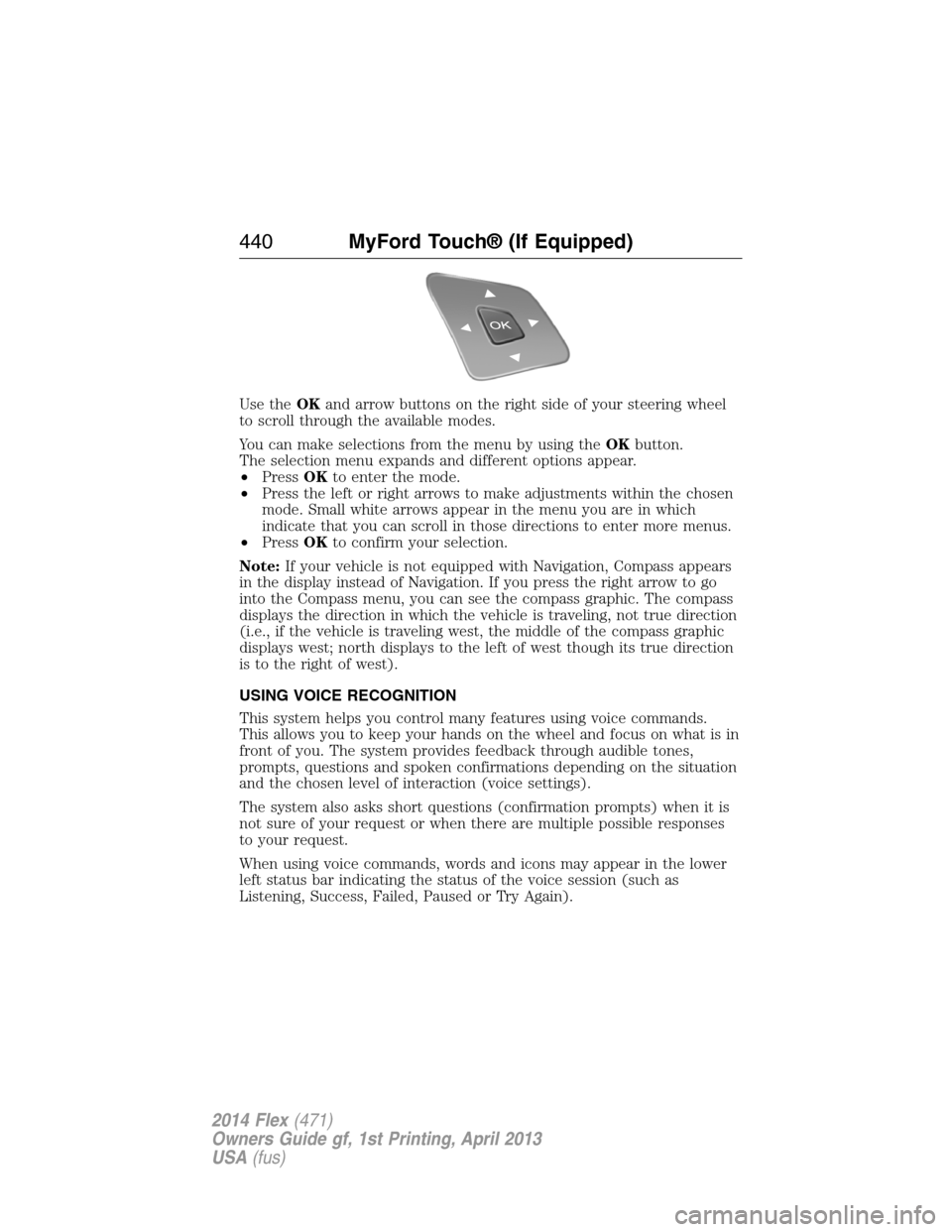
Use theOKand arrow buttons on the right side of your steering wheel
to scroll through the available modes.
You can make selections from the menu by using theOKbutton.
The selection menu expands and different options appear.
•PressOKto enter the mode.
•Press the left or right arrows to make adjustments within the chosen
mode. Small white arrows appear in the menu you are in which
indicate that you can scroll in those directions to enter more menus.
•PressOKto confirm your selection.
Note:If your vehicle is not equipped with Navigation, Compass appears
in the display instead of Navigation. If you press the right arrow to go
into the Compass menu, you can see the compass graphic. The compass
displays the direction in which the vehicle is traveling, not true direction
(i.e., if the vehicle is traveling west, the middle of the compass graphic
displays west; north displays to the left of west though its true direction
is to the right of west).
USING VOICE RECOGNITION
This system helps you control many features using voice commands.
This allows you to keep your hands on the wheel and focus on what is in
front of you. The system provides feedback through audible tones,
prompts, questions and spoken confirmations depending on the situation
and the chosen level of interaction (voice settings).
The system also asks short questions (confirmation prompts) when it is
not sure of your request or when there are multiple possible responses
to your request.
When using voice commands, words and icons may appear in the lower
left status bar indicating the status of the voice session (such as
Listening, Success, Failed, Paused or Try Again).
440MyFord Touch® (If Equipped)
2014 Flex(471)
Owners Guide gf, 1st Printing, April 2013
USA(fus)