ignition FORD FLEX 2016 1.G Manual PDF
[x] Cancel search | Manufacturer: FORD, Model Year: 2016, Model line: FLEX, Model: FORD FLEX 2016 1.GPages: 417, PDF Size: 4.52 MB
Page 259 of 417
7. While the engine is running, press the
brake pedal and shift into neutral (N).
8. Allow the engine to run for at least one
minute by pressing on the accelerator
pedal.
9. Drive the vehicle at least 12 mi (20 km)
to completely relearn the idle and fuel
trim strategy.
Note: If you do not allow the engine to
relearn the idle and fuel trim strategy, the
idle quality of your vehicle may be adversely
affected until the engine computer
eventually relearns the idle trim and fuel
trim strategy.
Make sure that you dispose of old batteries
in an environmentally friendly way. Seek
advice from your local authority about
recycling old batteries.
CHECKING THE WIPER
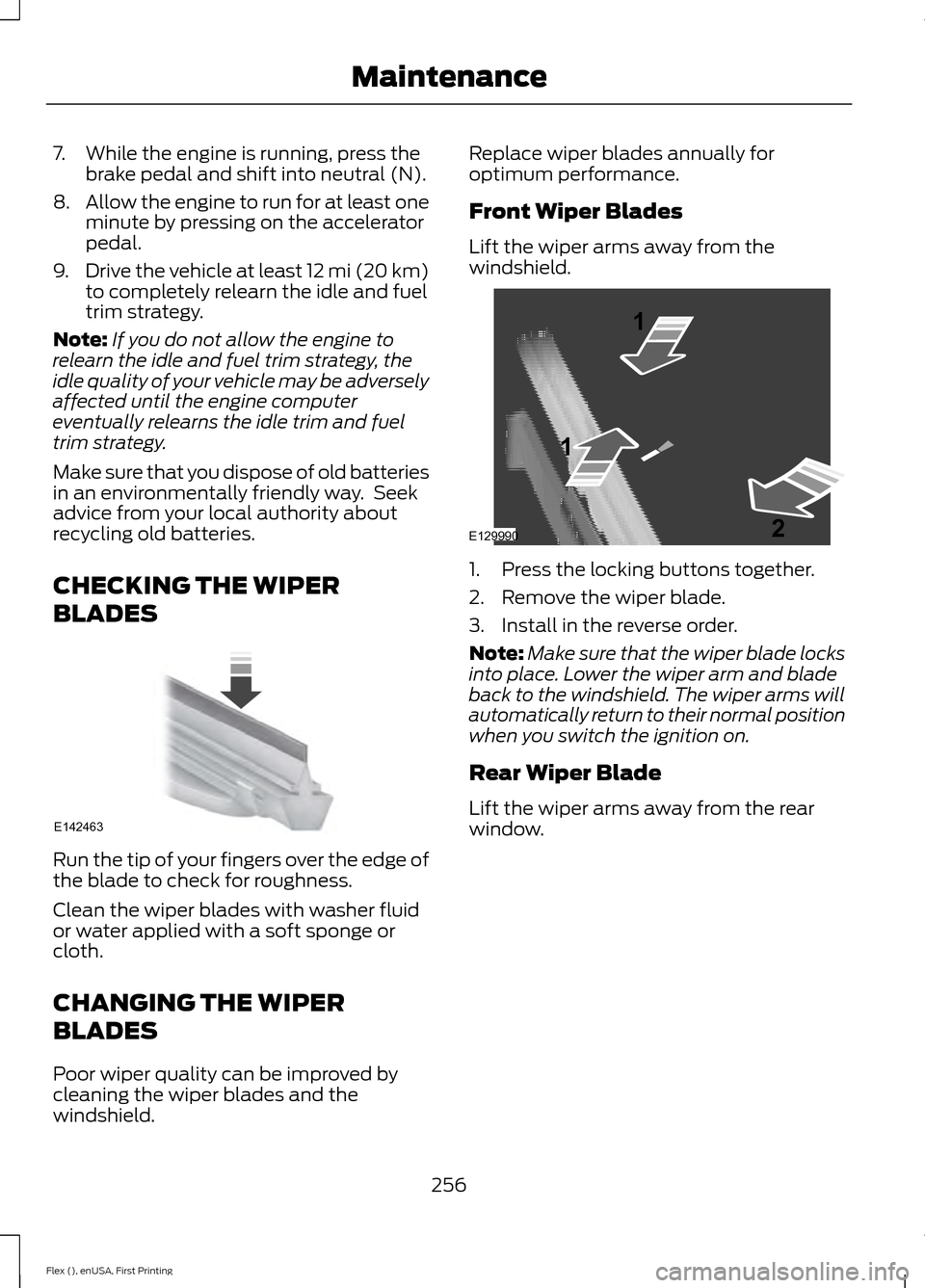
BLADES Run the tip of your fingers over the edge of
the blade to check for roughness.
Clean the wiper blades with washer fluid
or water applied with a soft sponge or
cloth.
CHANGING THE WIPER
BLADES
Poor wiper quality can be improved by
cleaning the wiper blades and the
windshield. Replace wiper blades annually for
optimum performance.
Front Wiper Blades
Lift the wiper arms away from the
windshield.
1. Press the locking buttons together.
2. Remove the wiper blade.
3. Install in the reverse order.
Note:
Make sure that the wiper blade locks
into place. Lower the wiper arm and blade
back to the windshield. The wiper arms will
automatically return to their normal position
when you switch the ignition on.
Rear Wiper Blade
Lift the wiper arms away from the rear
window.
256
Flex (), enUSA, First Printing MaintenanceE142463 E129990
1
1 2
Page 261 of 417
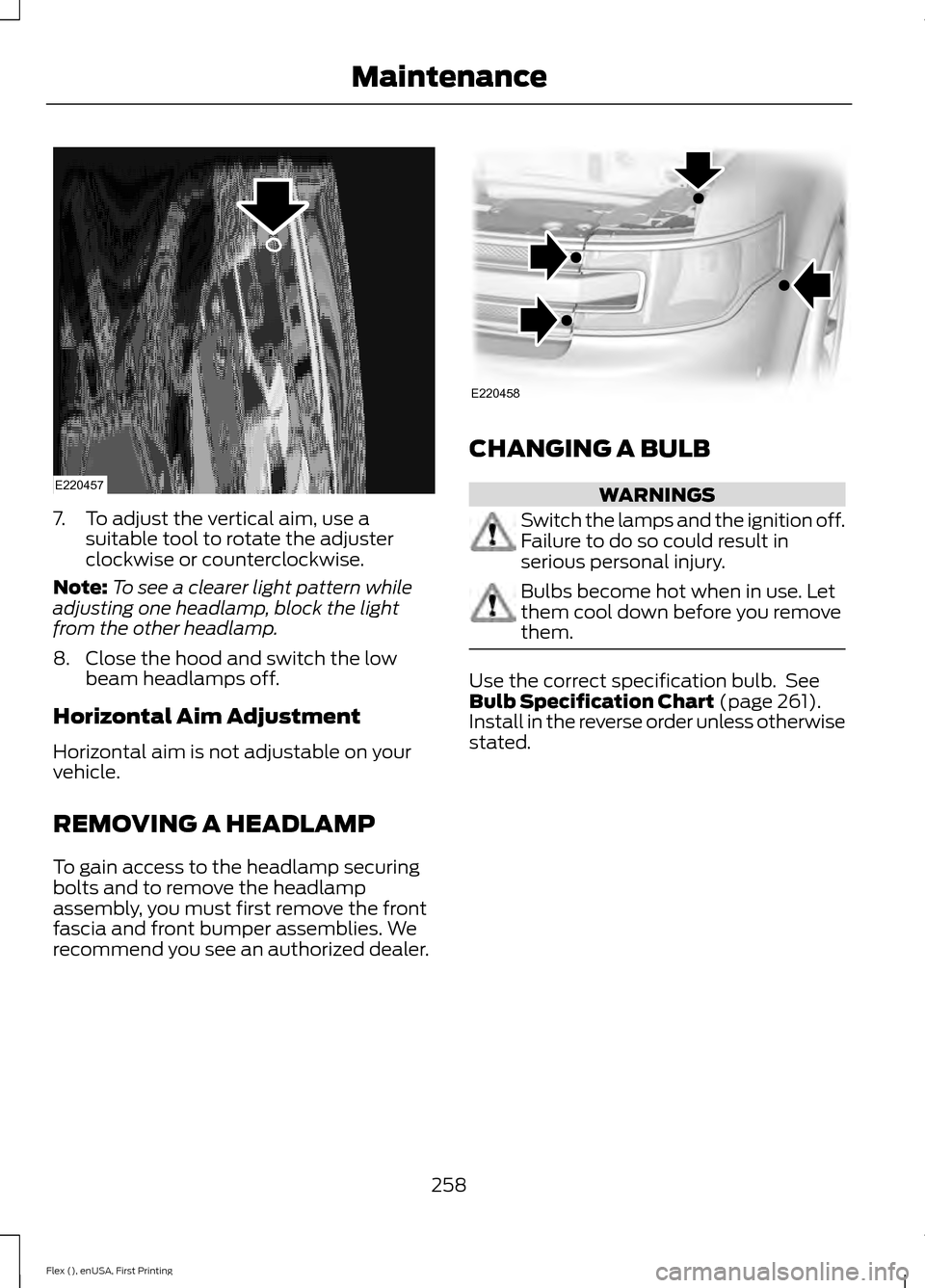
7. To adjust the vertical aim, use a
suitable tool to rotate the adjuster
clockwise or counterclockwise.
Note: To see a clearer light pattern while
adjusting one headlamp, block the light
from the other headlamp.
8. Close the hood and switch the low beam headlamps off.
Horizontal Aim Adjustment
Horizontal aim is not adjustable on your
vehicle.
REMOVING A HEADLAMP
To gain access to the headlamp securing
bolts and to remove the headlamp
assembly, you must first remove the front
fascia and front bumper assemblies. We
recommend you see an authorized dealer. CHANGING A BULB
WARNINGS
Switch the lamps and the ignition off.
Failure to do so could result in
serious personal injury.
Bulbs become hot when in use. Let
them cool down before you remove
them.
Use the correct specification bulb. See
Bulb Specification Chart (page 261).
Install in the reverse order unless otherwise
stated.
258
Flex (), enUSA, First Printing MaintenanceE220457 E220458
Page 262 of 417
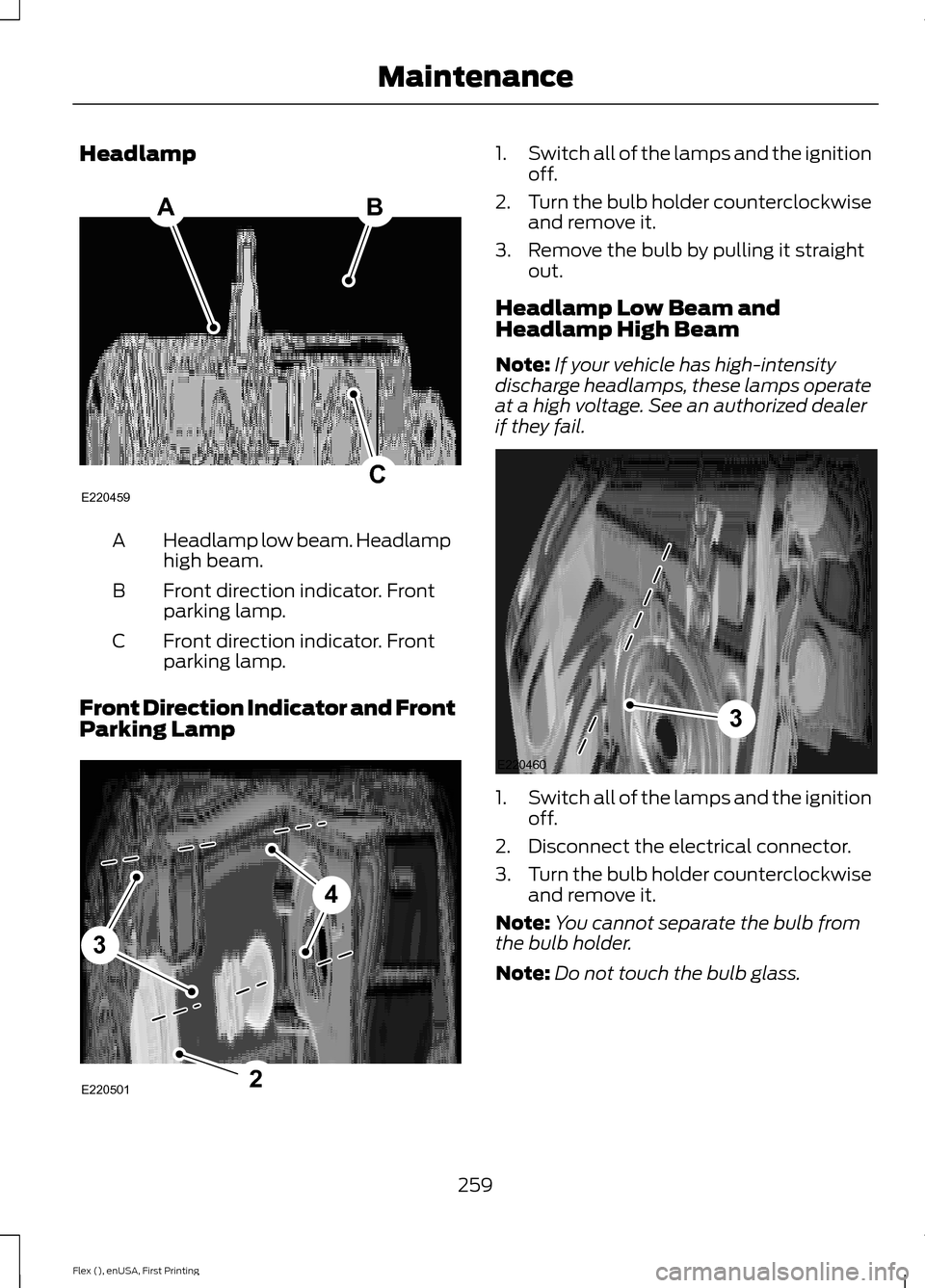
Headlamp
Headlamp low beam. Headlamp
high beam.
A
Front direction indicator. Front
parking lamp.
B
Front direction indicator. Front
parking lamp.
C
Front Direction Indicator and Front
Parking Lamp 1.
Switch all of the lamps and the ignition
off.
2. Turn the bulb holder counterclockwise
and remove it.
3. Remove the bulb by pulling it straight out.
Headlamp Low Beam and
Headlamp High Beam
Note: If your vehicle has high-intensity
discharge headlamps, these lamps operate
at a high voltage. See an authorized dealer
if they fail. 1.
Switch all of the lamps and the ignition
off.
2. Disconnect the electrical connector.
3. Turn the bulb holder counterclockwise
and remove it.
Note: You cannot separate the bulb from
the bulb holder.
Note: Do not touch the bulb glass.
259
Flex (), enUSA, First Printing MaintenanceE220459
AB
C 2
4
3
E220501 3
E220460
Page 263 of 417
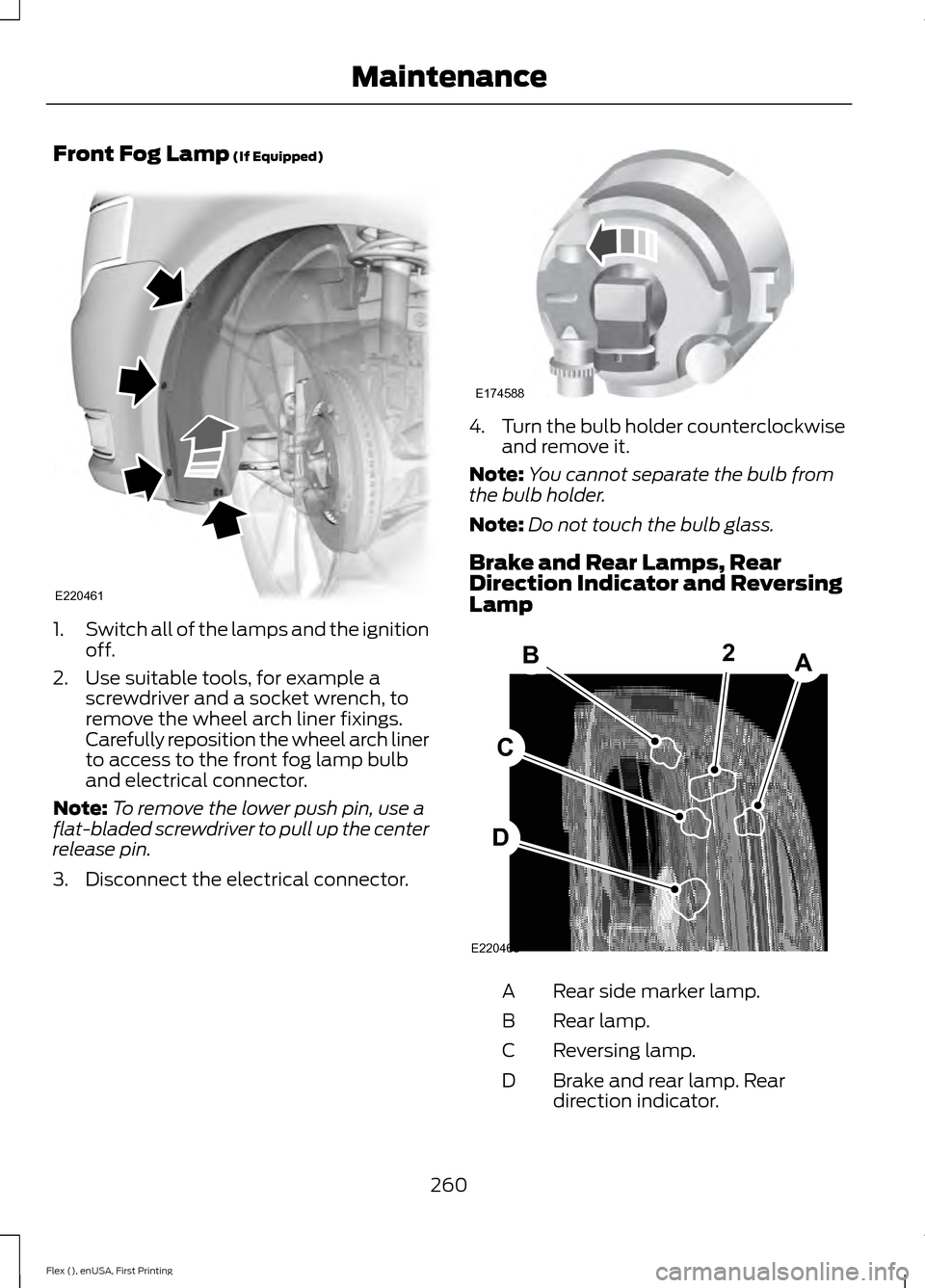
Front Fog Lamp (If Equipped)
1.
Switch all of the lamps and the ignition
off.
2. Use suitable tools, for example a screwdriver and a socket wrench, to
remove the wheel arch liner fixings.
Carefully reposition the wheel arch liner
to access to the front fog lamp bulb
and electrical connector.
Note: To remove the lower push pin, use a
flat-bladed screwdriver to pull up the center
release pin.
3. Disconnect the electrical connector. 4.
Turn the bulb holder counterclockwise
and remove it.
Note: You cannot separate the bulb from
the bulb holder.
Note: Do not touch the bulb glass.
Brake and Rear Lamps, Rear
Direction Indicator and Reversing
Lamp Rear side marker lamp.
A
Rear lamp.
B
Reversing lamp.
C
Brake and rear lamp. Rear
direction indicator.
D
260
Flex (), enUSA, First Printing MaintenanceE220461 E174588 E220463
C
BA
D
2
Page 269 of 417
•
Do not allow wax to come in contact
with any non-body (low-gloss black)
colored trim. The wax will discolor or
stain the parts over time.
•Roof racks.
• Bumpers.
• Grained door handles.
• Side moldings.
• Mirror housings.
• Windshield cowl area.
• Do not apply wax to glass areas.
• After waxing, your car's paint should
feel smooth, and be free of streaks and
smudges.
CLEANING THE ENGINE
Engines are more efficient when they are
clean because grease and dirt buildup keep
the engine warmer than normal.
When washing:
• Take care when using a power washer
to clean the engine. The high-pressure
fluid could penetrate the sealed parts
and cause damage.
• Do not spray a hot engine with cold
water to avoid cracking the engine
block or other engine components.
• Spray Motorcraft Engine Shampoo and
Degreaser on all parts that require
cleaning and pressure rinse clean. In
Canada, use Motorcraft Engine
Shampoo.
• Never wash or rinse the engine while it
is hot or running; water in the running
engine may cause internal damage. •
Never wash or rinse any ignition coil,
spark plug wire or spark plug well, or
the area in and around these locations.
• Cover the battery, power distribution
box, and air filter assembly to prevent
water damage when cleaning the
engine.
CLEANING THE WINDOWS AND
WIPER BLADES
Car wash chemicals and environmental
fallout can result in windshield and wiper
blade contamination. Dirty windshield and
wipers will result in poor windshield wiper
operation. Keep the windshield and wiper
blades clean to maintain windshield wiper
performance.
To clean the windshield and wiper blades:
• Clean the windshield with a
non-abrasive glass cleaner. When
cleaning the interior of the windshield,
avoid getting any glass cleaner on the
instrument panel or door panels. Wipe
any glass cleaner off these surfaces
immediately.
• For windshields contaminated with
tree sap, chemicals, wax or bugs, clean
the entire windshield using steel wool
(no greater than 0000 grade) in a
circular motion and rinse with water.
• Clean the wiper blades with isopropyl
rubbing alcohol or windshield washer
concentrate.
Note: Do not use razor blades or other
sharp objects to clean or remove decals
from the inside of the heated rear window.
The vehicle warranty does not cover
damage caused to the heated rear window
grid lines.
266
Flex (), enUSA, First Printing Vehicle Care
Page 300 of 417
ENGINE SPECIFICATIONS - 3.5L DURATEC
3.5L V6
Engine
214
Cubic inches
Minimum 87 octane
Required fuel
1-4-2-5-3-6
Firing order
Coil on plug
Ignition system
0.049 - 0.053 in (1.25 mm - 1.35 mm)
Spark plug gap
10.8:1
Compression ratio
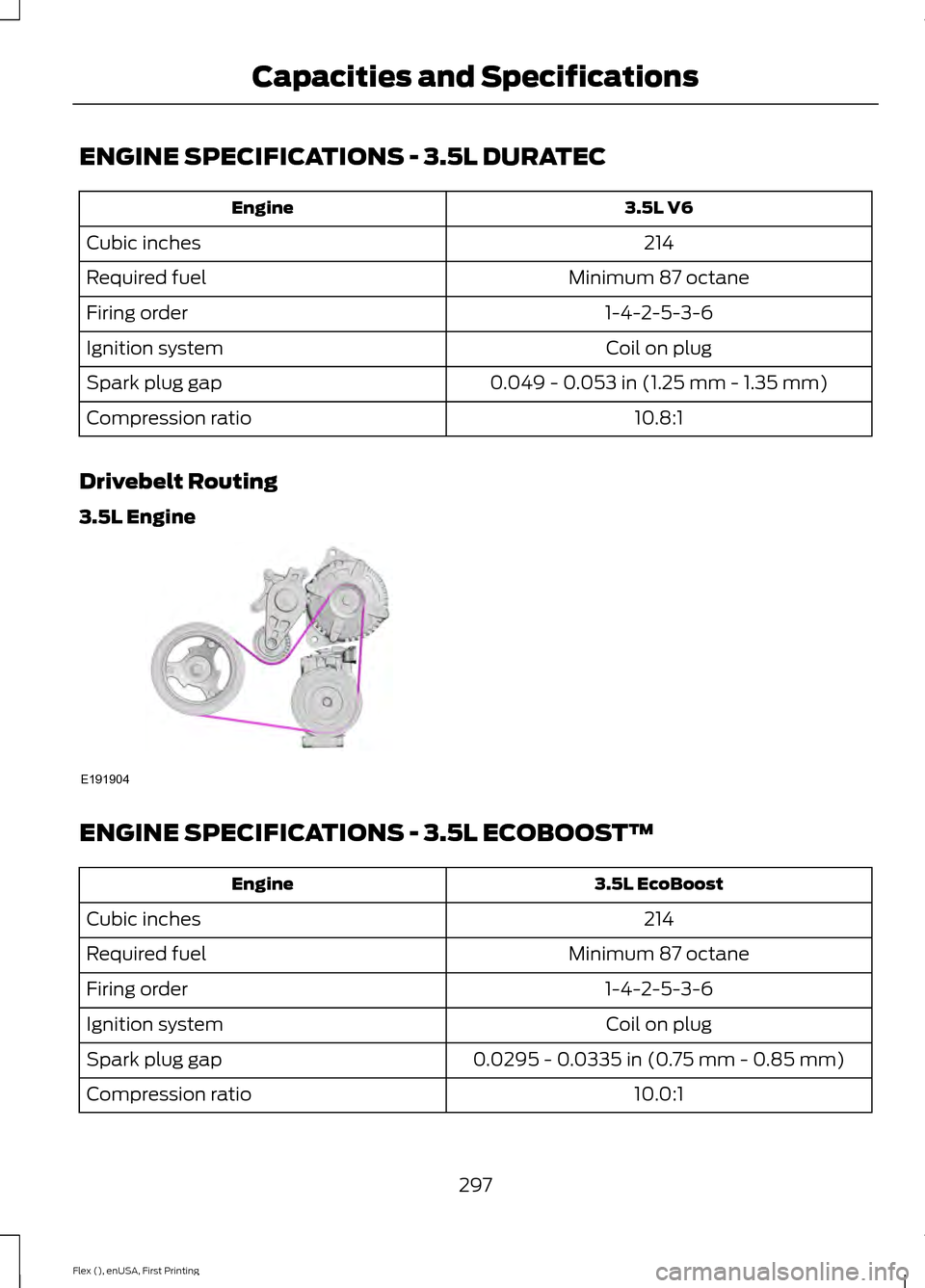
Drivebelt Routing
3.5L Engine ENGINE SPECIFICATIONS - 3.5L ECOBOOST™
3.5L EcoBoost
Engine
214
Cubic inches
Minimum 87 octane
Required fuel
1-4-2-5-3-6
Firing order
Coil on plug
Ignition system
0.0295 - 0.0335 in (0.75 mm - 0.85 mm)
Spark plug gap
10.0:1
Compression ratio
297
Flex (), enUSA, First Printing Capacities and SpecificationsE191904
Page 326 of 417
USING SYNC™ WITH YOUR
PHONE
Hands-free calling is one of the main
features of SYNC. While the system
supports a variety of features, many are
dependent on your cell phone's
functionality. At a minimum, most cell
phones with Bluetooth wireless technology
support the following functions:
•
Answering an incoming call.
• Ending a call.
• Using privacy mode.
• Dialing a number.
• Redialing.
• Call waiting notification.
• Caller ID. Other features, such as text messaging
using Bluetooth and automatic phonebook
download, are cell phone-dependent
features. To check your cell phone's
compatibility, see your cell phone's manual
and visit www.SYNCMyRide.com,
www.SYNCMyRide.ca or
www.syncmaroute.ca.
Pairing a Cell Phone for the First
Time
Note:
SYNC can support downloading up
to approximately 1000 entries per
Bluetooth-enabled cell phone.
Note: Make sure to switch on the ignition
and the radio. Put the transmission in
position park (P) (automatic transmission)
or neutral with the parking brake applied
(manual transmission).
Note: To scroll through the menus, press
the up and down arrows on your audio
system.
Wirelessly pairing your cell phone with
SYNC allows you to make and receive
hands-free calls.
Press the phone button. When the display indicates there is no cell phone paired,
do the following: Action and Description
Message
Press the
OK button.
NO PHONE
FIND SYNC 1. Press the
OK button.
2. Put your cell phone into Bluetooth discovery mode. See your device's manual if necessary.
3. When prompted on your cell phone's display, enter the six-digit PIN provided by SYNC in the radio display. The
display indicates when the pairing is successful.
323
Flex (), enUSA, First Printing SYNC™
(If Equipped)
Page 327 of 417
Depending on your cell phone's capability
and your market, the system may prompt
you with questions, such as setting the
current cell phone as the primary cell
phone (the cell phone SYNC automatically
tries to connect with first upon vehicle
start-up) and downloading your
phonebook.
Pairing Subsequent Cell Phones
Note:
To scroll through the menus, press
the up and down arrows on your audio
system.
Note: Make sure to switch on the ignition
and the radio. Put the transmission in
position park (P) (automatic transmission)
or neutral with the parking brake applied
(manual transmission).
Press the phone button, then scroll to: Action
Message
Press the
OK button.
PHONE SETNGS
Press the
OK button.
BT DEVICES
Press the
OK button. When the following message appears
in the display.
ADD DEVICE
FIND SYNC
1. Press the
OK button.
2. Put your cell phone into Bluetooth discovery mode. See your device's manual if necessary.
3. When prompted on your cell phone's display, enter the six-digit PIN provided by SYNC in the radio display. The
display indicates when the pairing is successful.
The system then prompts with questions, such as if you would like to set the current cell
phone as the primary cell phone (the cell phone SYNC automatically tries to connect
with first upon vehicle start-up) or download your phonebook.
Phone Voice Commands
Press the voice icon and say: Voice Commands
Phone
You can then say any of the following
commands.
Call History Incoming
Call History Missed
Call History Outgoing Voice Commands
Phonebook ___
Phonebook ___ at Home
Phonebook ___ at Work
Phonebook ___ in Office
Phonebook ___ on Cell
___ is a dynamic listing that should be the
name of a contact in your phonebook. For
example you could say "Call Mom".
324
Flex (), enUSA, First Printing SYNC™
(If Equipped)
Page 337 of 417
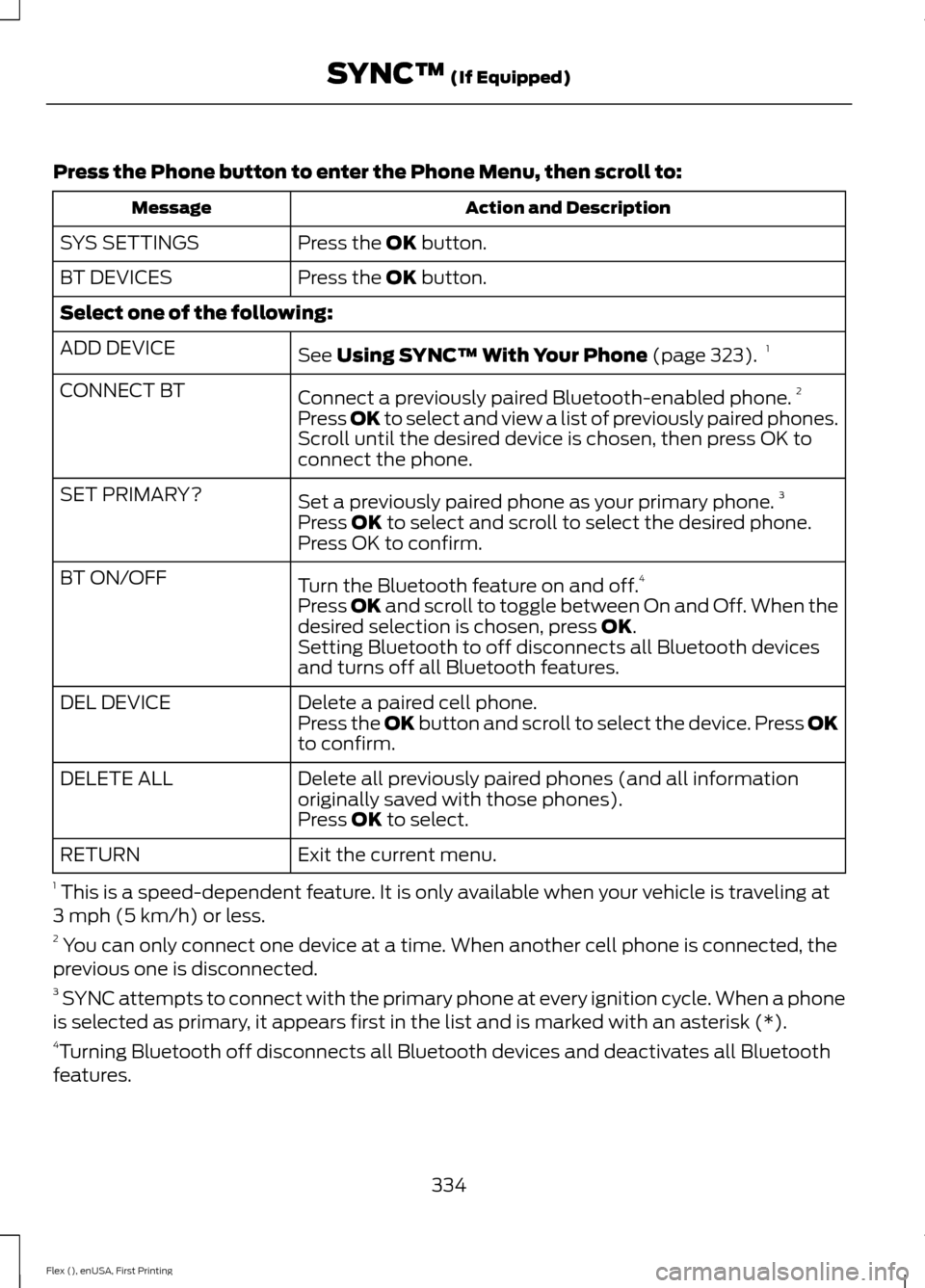
Press the Phone button to enter the Phone Menu, then scroll to:
Action and Description
Message
Press the OK button.
SYS SETTINGS
Press the
OK button.
BT DEVICES
Select one of the following:
See
Using SYNC™ With Your Phone (page 323).1
ADD DEVICE
Connect a previously paired Bluetooth-enabled phone. 2
CONNECT BT
Press OK to select and view a list of previously paired phones.
Scroll until the desired device is chosen, then press OK to
connect the phone.
Set a previously paired phone as your primary phone. 3
SET PRIMARY?
Press
OK to select and scroll to select the desired phone.
Press OK to confirm.
Turn the Bluetooth feature on and off. 4
BT ON/OFF
Press
OK and scroll to toggle between On and Off. When the
desired selection is chosen, press OK.
Setting Bluetooth to off disconnects all Bluetooth devices
and turns off all Bluetooth features.
Delete a paired cell phone.
DEL DEVICE
Press the OK button and scroll to select the device. Press OK
to confirm.
Delete all previously paired phones (and all information
originally saved with those phones).
DELETE ALL
Press
OK to select.
Exit the current menu.
RETURN
1 This is a speed-dependent feature. It is only available when your vehicle is traveling at
3 mph (5 km/h) or less.
2 You can only connect one device at a time. When another cell phone is connected, the
previous one is disconnected.
3 SYNC attempts to connect with the primary phone at every ignition cycle. When a phone
is selected as primary, it appears first in the list and is marked with an asterisk (*).
4 Turning Bluetooth off disconnects all Bluetooth devices and deactivates all Bluetooth
features.
334
Flex (), enUSA, First Printing SYNC™
(If Equipped)
Page 365 of 417
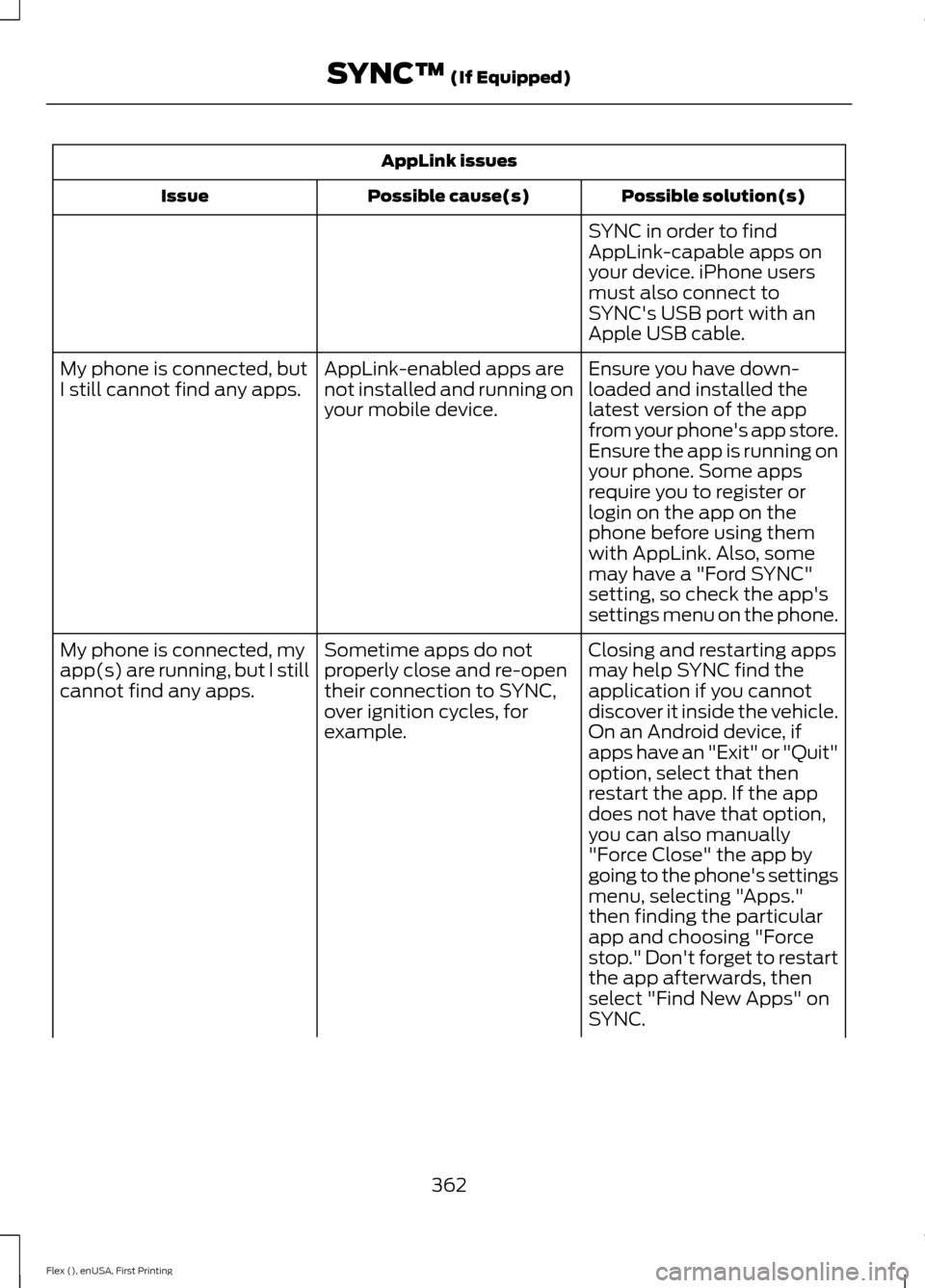
AppLink issues
Possible solution(s)
Possible cause(s)
Issue
SYNC in order to find
AppLink-capable apps on
your device. iPhone users
must also connect to
SYNC's USB port with an
Apple USB cable.
Ensure you have down-
loaded and installed the
latest version of the app
from your phone's app store.
Ensure the app is running on
your phone. Some apps
AppLink-enabled apps are
not installed and running on
your mobile device.
My phone is connected, but
I still cannot find any apps.
require you to register or
login on the app on the
phone before using them
with AppLink. Also, some
may have a "Ford SYNC"
setting, so check the app's
settings menu on the phone.
Closing and restarting apps
may help SYNC find the
application if you cannot
discover it inside the vehicle.
On an Android device, if
apps have an "Exit" or "Quit"
Sometime apps do not
properly close and re-open
their connection to SYNC,
over ignition cycles, for
example.
My phone is connected, my
app(s) are running, but I still
cannot find any apps.
option, select that then
restart the app. If the app
does not have that option,
you can also manually
"Force Close" the app by
going to the phone's settings
menu, selecting "Apps."
then finding the particular
app and choosing "Force
stop." Don't forget to restart
the app afterwards, then
select "Find New Apps" on
SYNC.
362
Flex (), enUSA, First Printing SYNC™ (If Equipped)