ad blue FORD FLEX 2017 1.G Owner's Manual
[x] Cancel search | Manufacturer: FORD, Model Year: 2017, Model line: FLEX, Model: FORD FLEX 2017 1.GPages: 496, PDF Size: 5.92 MB
Page 352 of 496
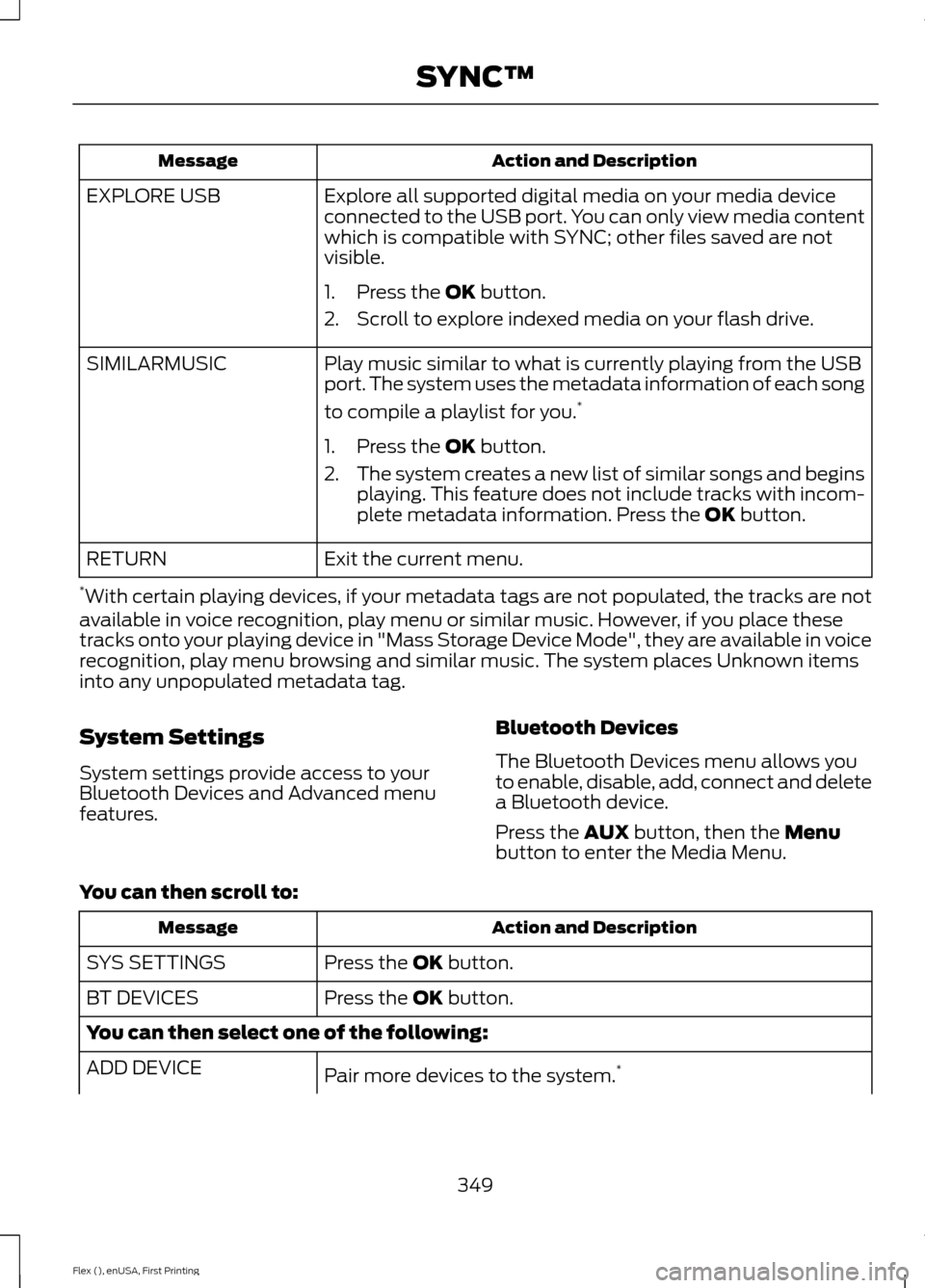
Action and Description
Message
Explore all supported digital media on your media device
connected to the USB port. You can only view media content
which is compatible with SYNC; other files saved are not
visible.
EXPLORE USB
1. Press the OK button.
2. Scroll to explore indexed media on your flash drive.
Play music similar to what is currently playing from the USB
port. The system uses the metadata information of each song
to compile a playlist for you. *
SIMILARMUSIC
1. Press the
OK button.
2. The system creates a new list of similar songs and begins
playing. This feature does not include tracks with incom-
plete metadata information. Press the
OK button.
Exit the current menu.
RETURN
* With certain playing devices, if your metadata tags are not populated, the tracks are not
available in voice recognition, play menu or similar music. However, if you place these
tracks onto your playing device in "Mass Storage Device Mode", they are available in voice
recognition, play menu browsing and similar music. The system places Unknown items
into any unpopulated metadata tag.
System Settings
System settings provide access to your
Bluetooth Devices and Advanced menu
features. Bluetooth Devices
The Bluetooth Devices menu allows you
to enable, disable, add, connect and delete
a Bluetooth device.
Press the
AUX button, then the Menu
button to enter the Media Menu.
You can then scroll to: Action and Description
Message
Press the
OK button.
SYS SETTINGS
Press the
OK button.
BT DEVICES
You can then select one of the following:
Pair more devices to the system. *
ADD DEVICE
349
Flex (), enUSA, First Printing SYNC™
Page 353 of 496
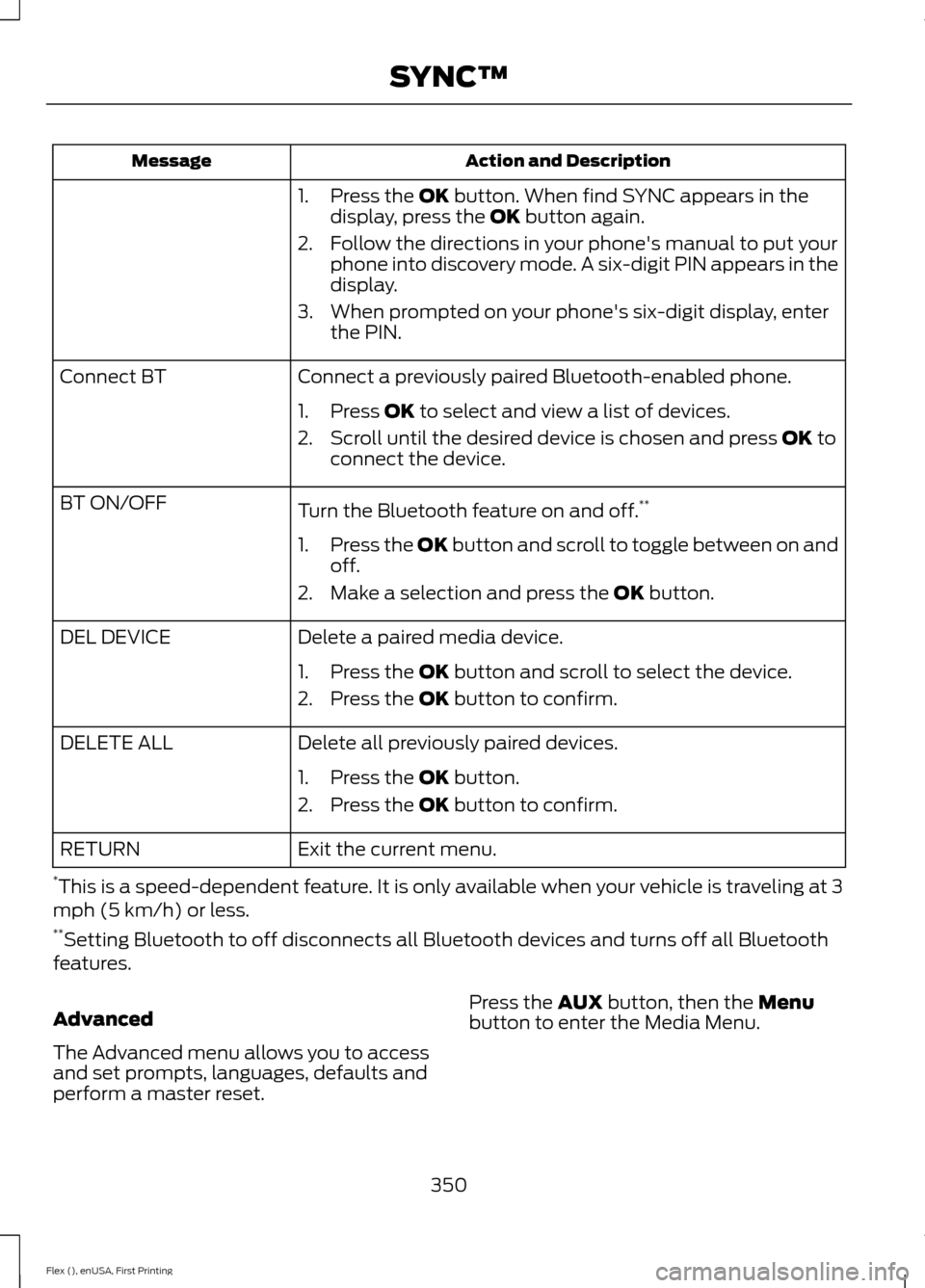
Action and Description
Message
1. Press the OK button. When find SYNC appears in the
display, press the OK button again.
2. Follow the directions in your phone's manual to put your phone into discovery mode. A six-digit PIN appears in the
display.
3. When prompted on your phone's six-digit display, enter the PIN.
Connect a previously paired Bluetooth-enabled phone.
Connect BT
1. Press
OK to select and view a list of devices.
2. Scroll until the desired device is chosen and press
OK to
connect the device.
Turn the Bluetooth feature on and off. **
BT ON/OFF
1.Press the OK button and scroll to toggle between on and
off.
2. Make a selection and press the
OK button.
Delete a paired media device.
DEL DEVICE
1. Press the
OK button and scroll to select the device.
2. Press the
OK button to confirm.
Delete all previously paired devices.
DELETE ALL
1. Press the
OK button.
2. Press the
OK button to confirm.
Exit the current menu.
RETURN
* This is a speed-dependent feature. It is only available when your vehicle is traveling at 3
mph (5 km/h) or less.
** Setting Bluetooth to off disconnects all Bluetooth devices and turns off all Bluetooth
features.
Advanced
The Advanced menu allows you to access
and set prompts, languages, defaults and
perform a master reset. Press the
AUX button, then the Menu
button to enter the Media Menu.
350
Flex (), enUSA, First Printing SYNC™
Page 356 of 496
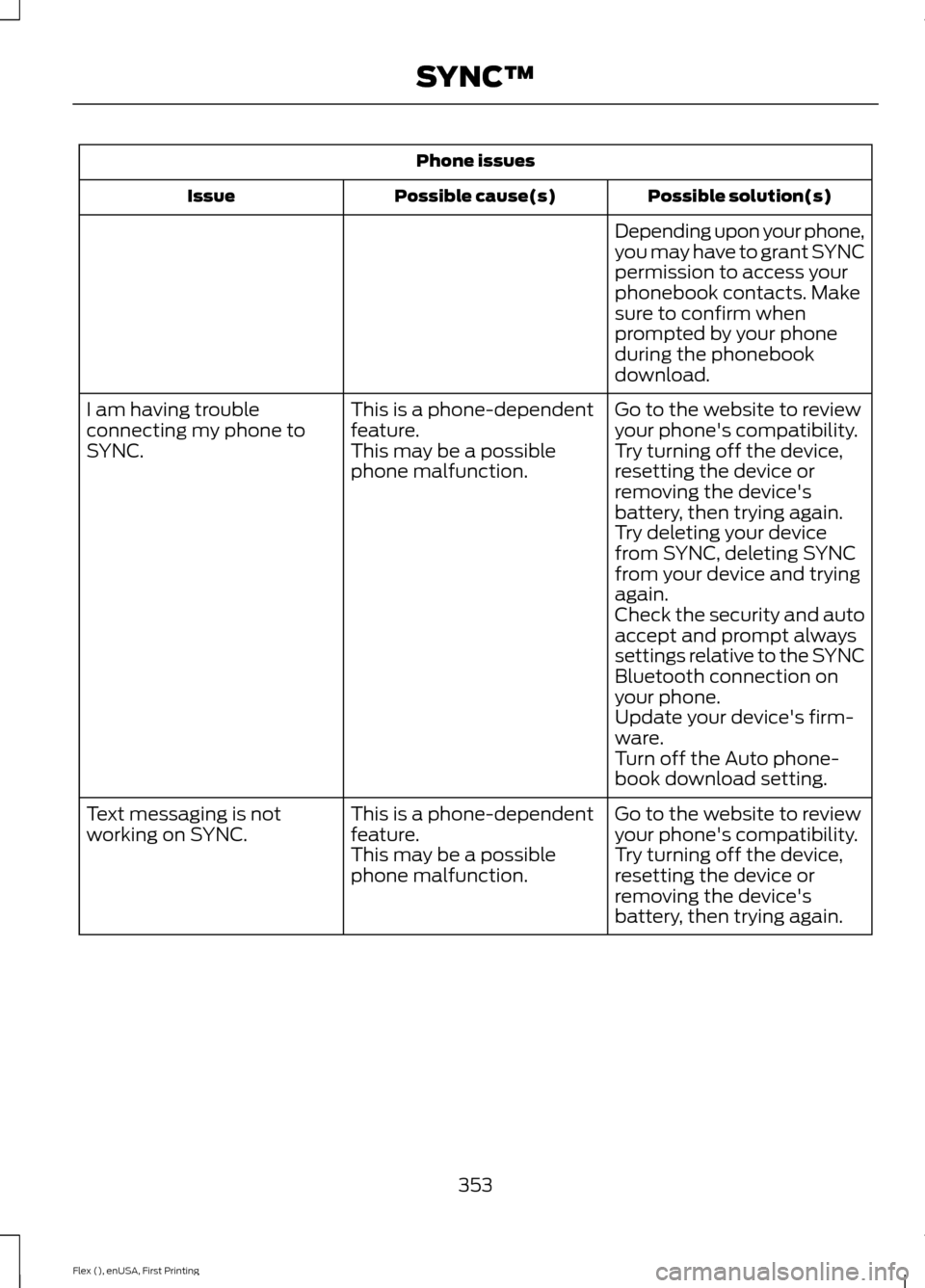
Phone issues
Possible solution(s)
Possible cause(s)
Issue
Depending upon your phone,
you may have to grant SYNC
permission to access your
phonebook contacts. Make
sure to confirm when
prompted by your phone
during the phonebook
download.
Go to the website to review
your phone's compatibility.
This is a phone-dependent
feature.
I am having trouble
connecting my phone to
SYNC.
Try turning off the device,
resetting the device or
removing the device's
battery, then trying again.
This may be a possible
phone malfunction.
Try deleting your device
from SYNC, deleting SYNC
from your device and trying
again.
Check the security and auto
accept and prompt always
settings relative to the SYNC
Bluetooth connection on
your phone.
Update your device's firm-
ware.
Turn off the Auto phone-
book download setting.
Go to the website to review
your phone's compatibility.
This is a phone-dependent
feature.
Text messaging is not
working on SYNC.
Try turning off the device,
resetting the device or
removing the device's
battery, then trying again.
This may be a possible
phone malfunction.
353
Flex (), enUSA, First Printing SYNC™
Page 357 of 496
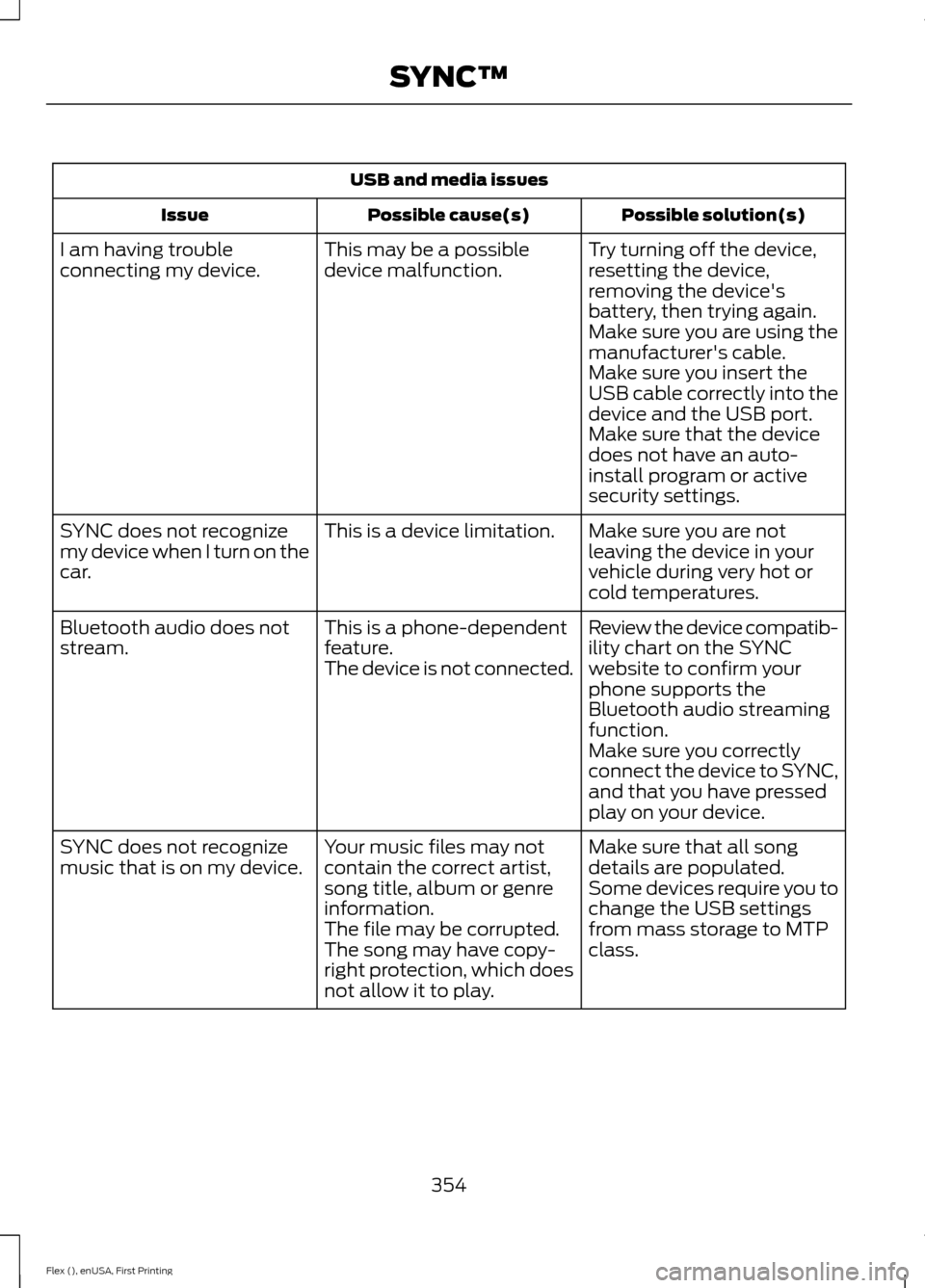
USB and media issues
Possible solution(s)
Possible cause(s)
Issue
Try turning off the device,
resetting the device,
removing the device's
battery, then trying again.
This may be a possible
device malfunction.
I am having trouble
connecting my device.
Make sure you are using the
manufacturer's cable.
Make sure you insert the
USB cable correctly into the
device and the USB port.
Make sure that the device
does not have an auto-
install program or active
security settings.
Make sure you are not
leaving the device in your
vehicle during very hot or
cold temperatures.
This is a device limitation.
SYNC does not recognize
my device when I turn on the
car.
Review the device compatib-
ility chart on the SYNC
website to confirm your
phone supports the
Bluetooth audio streaming
function.
This is a phone-dependent
feature.
The device is not connected.
Bluetooth audio does not
stream.
Make sure you correctly
connect the device to SYNC,
and that you have pressed
play on your device.
Make sure that all song
details are populated.
Your music files may not
contain the correct artist,
song title, album or genre
information.
SYNC does not recognize
music that is on my device.
Some devices require you to
change the USB settings
from mass storage to MTP
class.
The file may be corrupted.
The song may have copy-
right protection, which does
not allow it to play.
354
Flex (), enUSA, First Printing SYNC™
Page 361 of 496
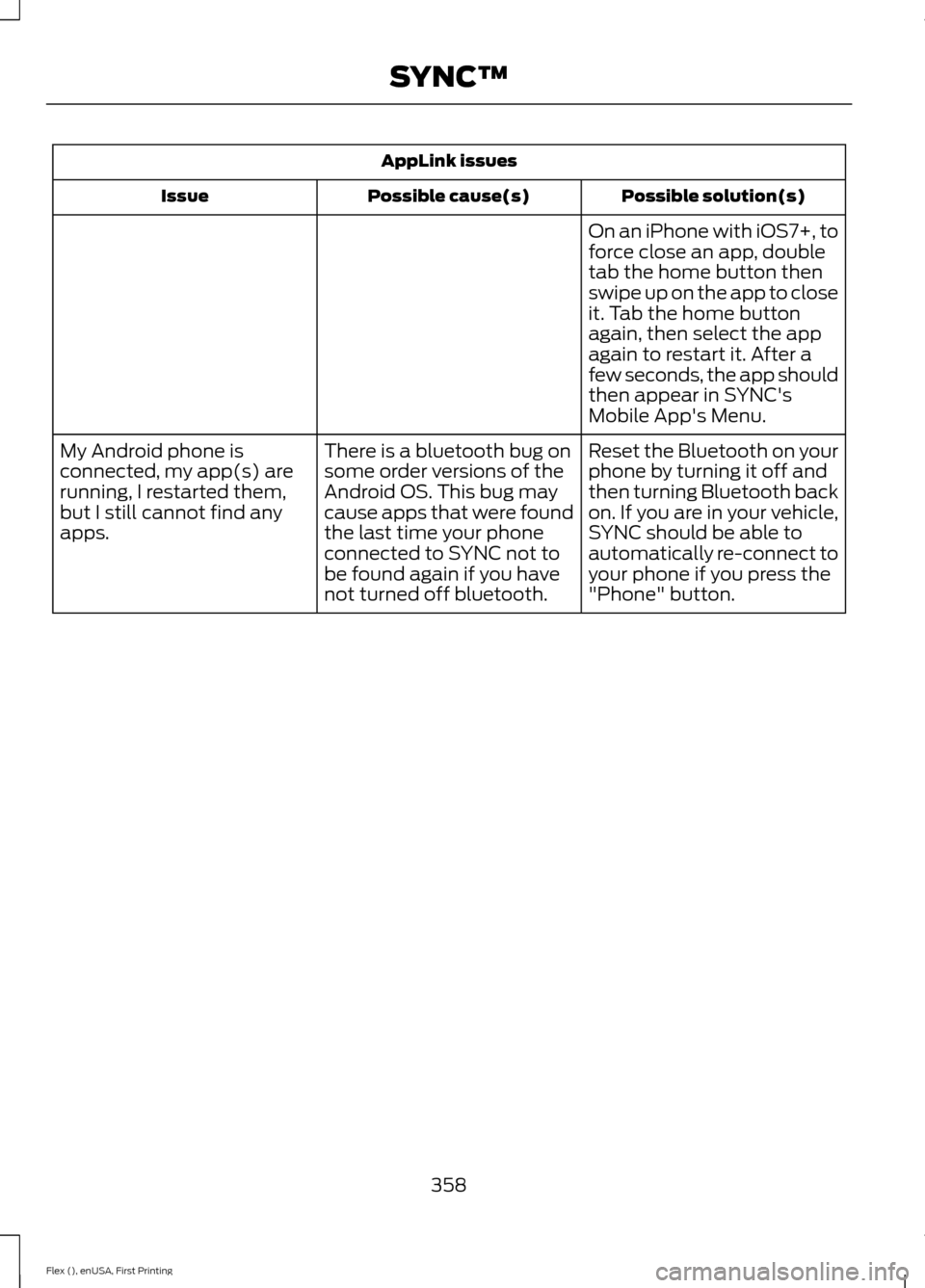
AppLink issues
Possible solution(s)
Possible cause(s)
Issue
On an iPhone with iOS7+, to
force close an app, double
tab the home button then
swipe up on the app to close
it. Tab the home button
again, then select the app
again to restart it. After a
few seconds, the app should
then appear in SYNC's
Mobile App's Menu.
Reset the Bluetooth on your
phone by turning it off and
then turning Bluetooth back
on. If you are in your vehicle,
SYNC should be able to
automatically re-connect to
your phone if you press the
"Phone" button.
There is a bluetooth bug on
some order versions of the
Android OS. This bug may
cause apps that were found
the last time your phone
connected to SYNC not to
be found again if you have
not turned off bluetooth.
My Android phone is
connected, my app(s) are
running, I restarted them,
but I still cannot find any
apps.
358
Flex (), enUSA, First Printing SYNC™
Page 362 of 496
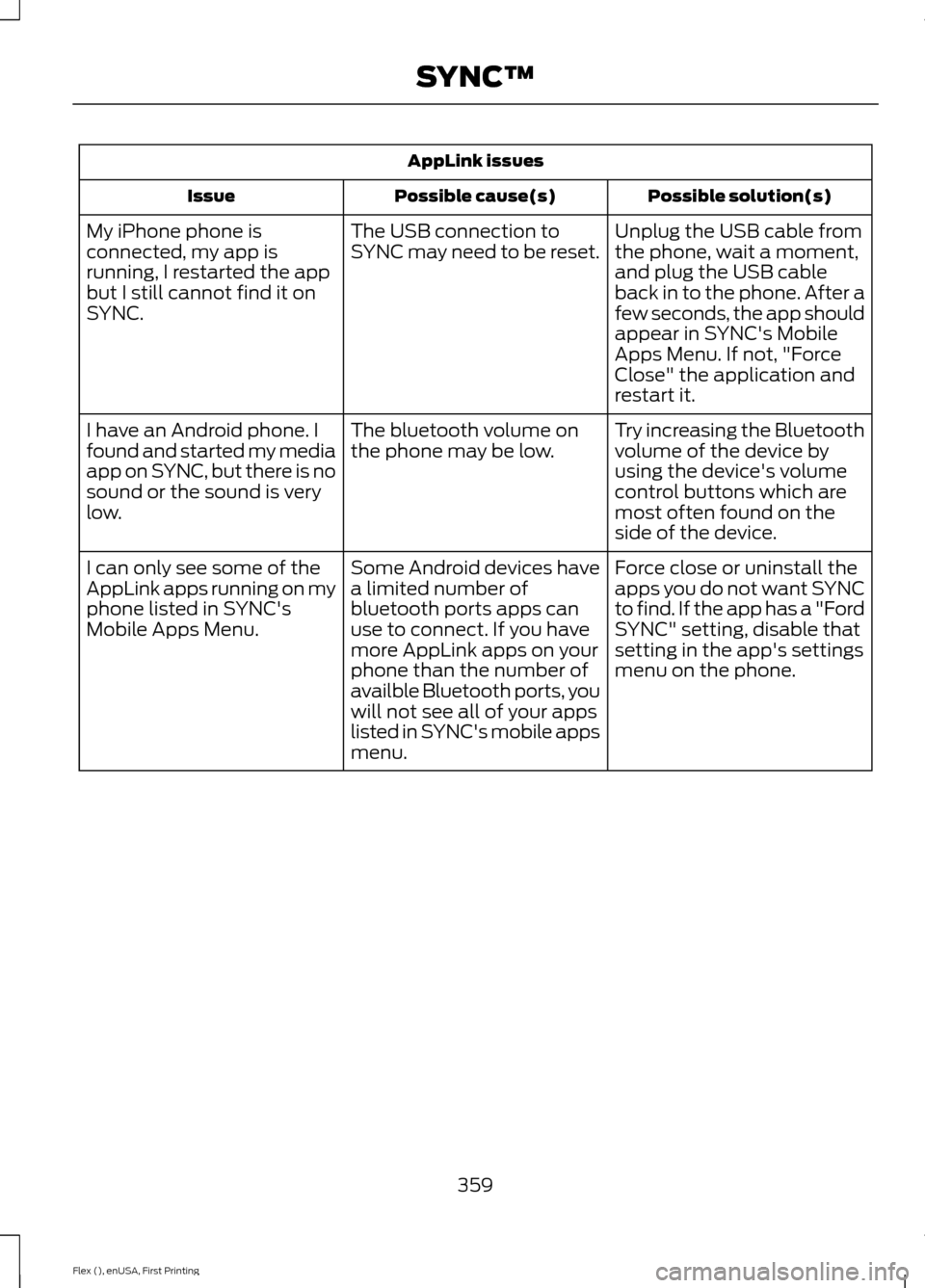
AppLink issues
Possible solution(s)
Possible cause(s)
Issue
Unplug the USB cable from
the phone, wait a moment,
and plug the USB cable
back in to the phone. After a
few seconds, the app should
appear in SYNC's Mobile
Apps Menu. If not, "Force
Close" the application and
restart it.
The USB connection to
SYNC may need to be reset.
My iPhone phone is
connected, my app is
running, I restarted the app
but I still cannot find it on
SYNC.
Try increasing the Bluetooth
volume of the device by
using the device's volume
control buttons which are
most often found on the
side of the device.
The bluetooth volume on
the phone may be low.
I have an Android phone. I
found and started my media
app on SYNC, but there is no
sound or the sound is very
low.
Force close or uninstall the
apps you do not want SYNC
to find. If the app has a "Ford
SYNC" setting, disable that
setting in the app's settings
menu on the phone.
Some Android devices have
a limited number of
bluetooth ports apps can
use to connect. If you have
more AppLink apps on your
phone than the number of
availble Bluetooth ports, you
will not see all of your apps
listed in SYNC's mobile apps
menu.
I can only see some of the
AppLink apps running on my
phone listed in SYNC's
Mobile Apps Menu.
359
Flex (), enUSA, First Printing SYNC™
Page 363 of 496
GENERAL INFORMATION
WARNING
Driving while distracted can result in
loss of vehicle control, crash and
injury. We strongly recommend that
you use extreme caution when using any
device that may take your focus off the
road. Your primary responsibility is the safe
operation of your vehicle. We recommend
against the use of any hand-held device
while driving and encourage the use of
voice-operated systems when possible.
Make sure you are aware of all applicable
local laws that may affect the use of
electronic devices while driving. Getting to Know Your System
The SYNC 3 system allows you to interact
with a variety of features using the
touchscreen and voice commands. By
integrating with your Bluetooth-enabled
phone, the touchscreen provides easy
interaction with audio, multimedia, climate
control, navigation, and your phone's SYNC
3 compatible apps.
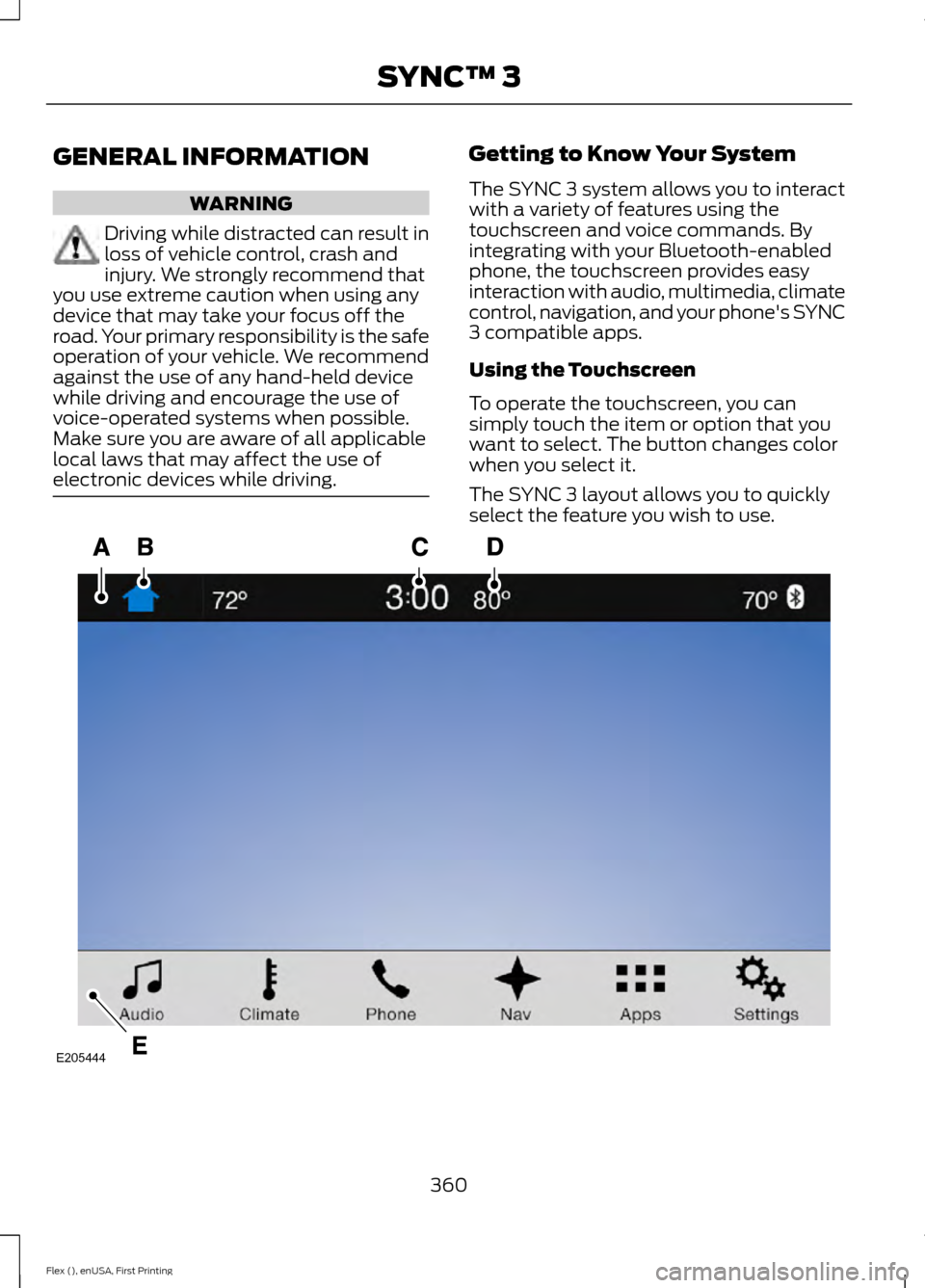
Using the Touchscreen
To operate the touchscreen, you can
simply touch the item or option that you
want to select. The button changes color
when you select it.
The SYNC 3 layout allows you to quickly
select the feature you wish to use.
360
Flex (), enUSA, First Printing SYNC™ 3E205444
Page 366 of 496
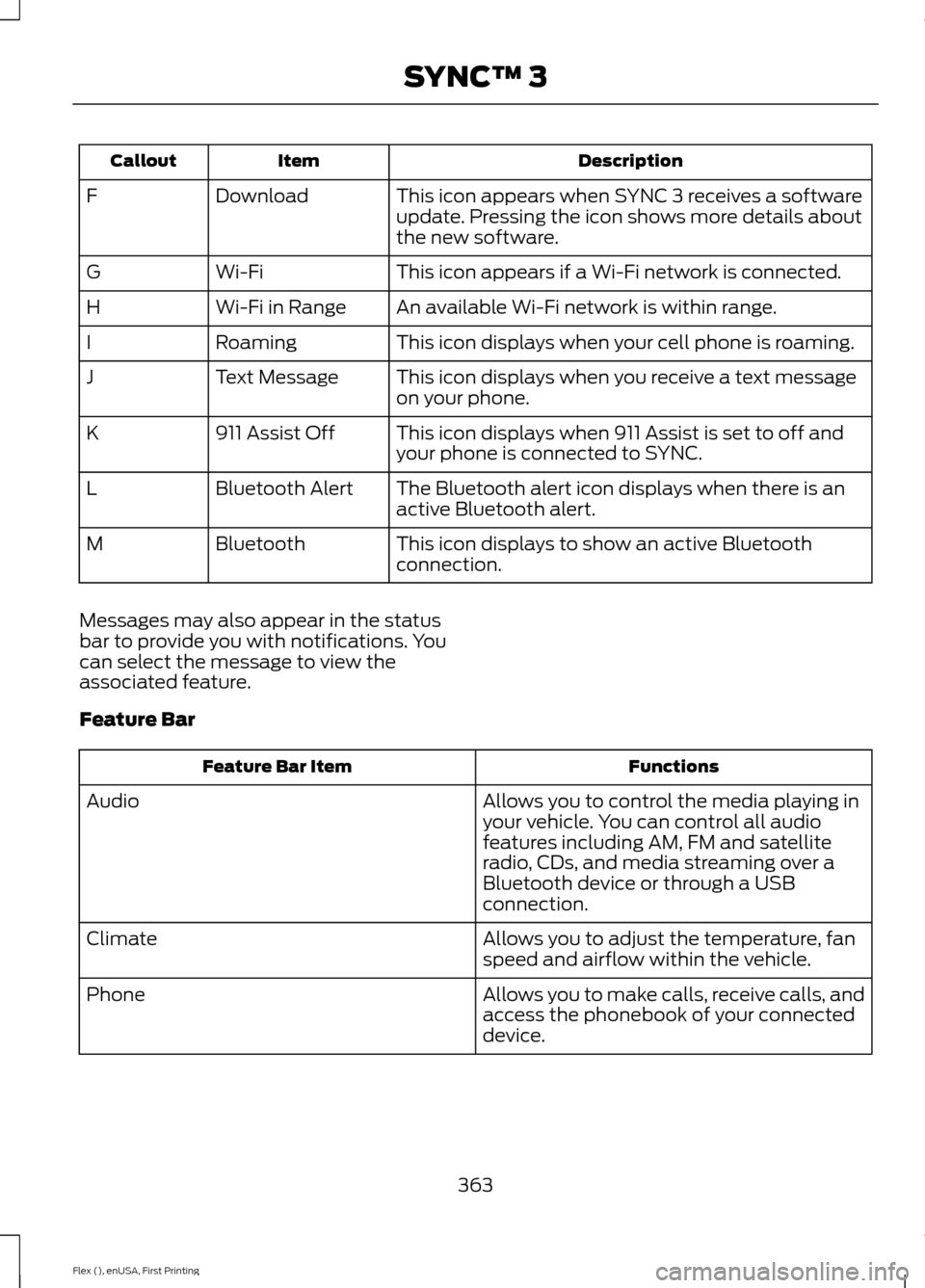
Description
Item
Callout
This icon appears when SYNC 3 receives a software
update. Pressing the icon shows more details about
the new software.
Download
F
This icon appears if a Wi-Fi network is connected.
Wi-Fi
G
An available Wi-Fi network is within range.
Wi-Fi in Range
H
This icon displays when your cell phone is roaming.
Roaming
I
This icon displays when you receive a text message
on your phone.
Text Message
J
This icon displays when 911 Assist is set to off and
your phone is connected to SYNC.
911 Assist Off
K
The Bluetooth alert icon displays when there is an
active Bluetooth alert.
Bluetooth Alert
L
This icon displays to show an active Bluetooth
connection.
Bluetooth
M
Messages may also appear in the status
bar to provide you with notifications. You
can select the message to view the
associated feature.
Feature Bar Functions
Feature Bar Item
Allows you to control the media playing in
your vehicle. You can control all audio
features including AM, FM and satellite
radio, CDs, and media streaming over a
Bluetooth device or through a USB
connection.
Audio
Allows you to adjust the temperature, fan
speed and airflow within the vehicle.
Climate
Allows you to make calls, receive calls, and
access the phonebook of your connected
device.
Phone
363
Flex (), enUSA, First Printing SYNC™ 3
Page 369 of 496
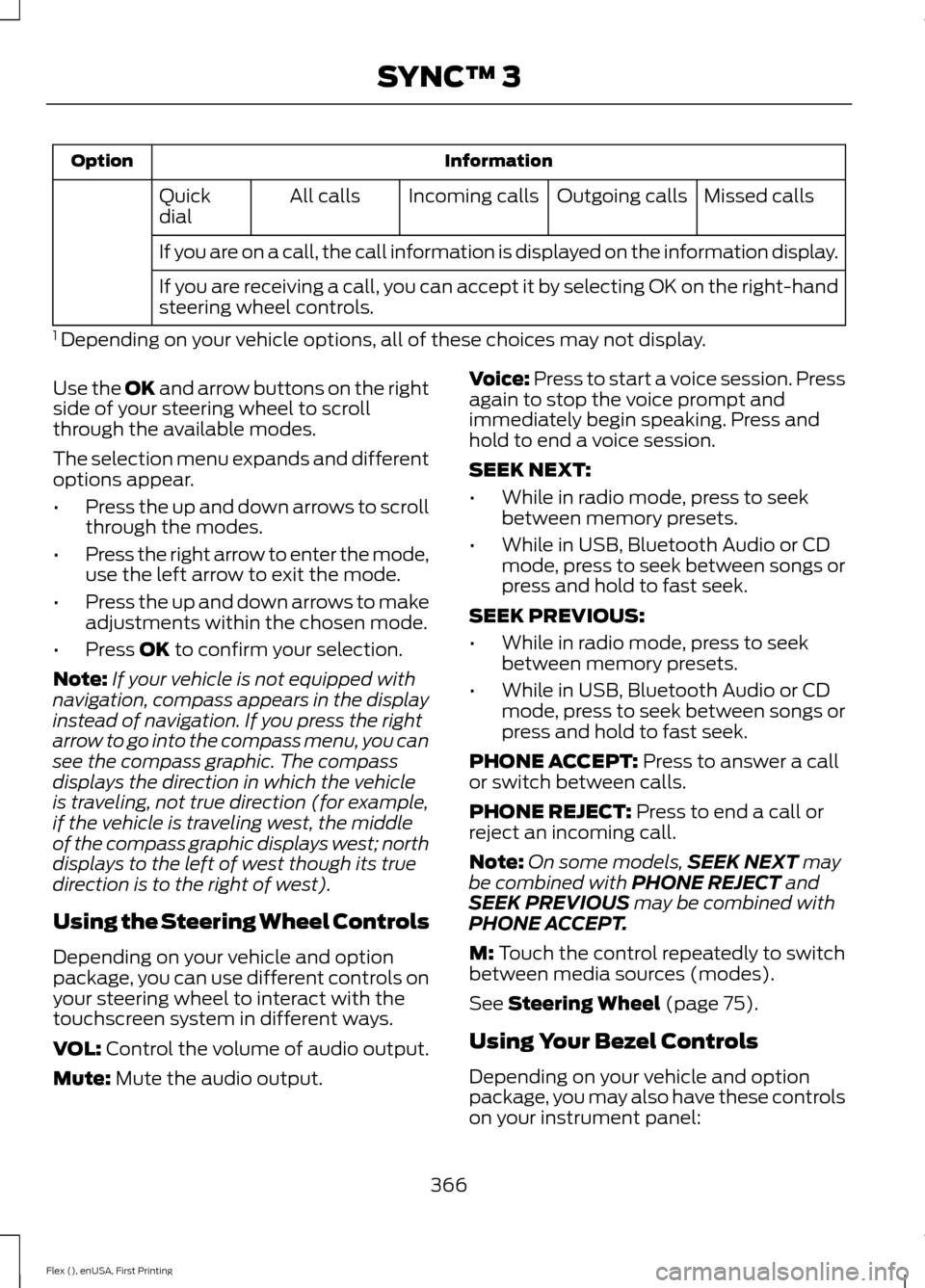
Information
Option
Missed calls
Outgoing calls
Incoming calls
All calls
Quick
dial
If you are on a call, the call information is displayed on the information display.
If you are receiving a call, you can accept it by selecting OK on the right-hand
steering wheel controls.
1 Depending on your vehicle options, all of these choices may not display.
Use the OK and arrow buttons on the right
side of your steering wheel to scroll
through the available modes.
The selection menu expands and different
options appear.
• Press the up and down arrows to scroll
through the modes.
• Press the right arrow to enter the mode,
use the left arrow to exit the mode.
• Press the up and down arrows to make
adjustments within the chosen mode.
• Press
OK to confirm your selection.
Note: If your vehicle is not equipped with
navigation, compass appears in the display
instead of navigation. If you press the right
arrow to go into the compass menu, you can
see the compass graphic. The compass
displays the direction in which the vehicle
is traveling, not true direction (for example,
if the vehicle is traveling west, the middle
of the compass graphic displays west; north
displays to the left of west though its true
direction is to the right of west).
Using the Steering Wheel Controls
Depending on your vehicle and option
package, you can use different controls on
your steering wheel to interact with the
touchscreen system in different ways.
VOL:
Control the volume of audio output.
Mute:
Mute the audio output. Voice:
Press to start a voice session. Press
again to stop the voice prompt and
immediately begin speaking. Press and
hold to end a voice session.
SEEK NEXT:
• While in radio mode, press to seek
between memory presets.
• While in USB, Bluetooth Audio or CD
mode, press to seek between songs or
press and hold to fast seek.
SEEK PREVIOUS:
• While in radio mode, press to seek
between memory presets.
• While in USB, Bluetooth Audio or CD
mode, press to seek between songs or
press and hold to fast seek.
PHONE ACCEPT:
Press to answer a call
or switch between calls.
PHONE REJECT:
Press to end a call or
reject an incoming call.
Note: On some models, SEEK NEXT
may
be combined with PHONE REJECT and
SEEK PREVIOUS may be combined with
PHONE ACCEPT.
M:
Touch the control repeatedly to switch
between media sources (modes).
See
Steering Wheel (page 75).
Using Your Bezel Controls
Depending on your vehicle and option
package, you may also have these controls
on your instrument panel:
366
Flex (), enUSA, First Printing SYNC™ 3
Page 371 of 496
![FORD FLEX 2017 1.G Owners Manual If a crash deploys an airbag (excluding
knee airbags and rear inflatable safety
belts [if equipped]) or activates the fuel
pump shut-off, your SYNC-equipped
vehicle may be able to contact emergency
se](/img/11/5120/w960_5120-370.png "FORD FLEX 2017 1.G Owners Manual If a crash deploys an airbag (excluding
knee airbags and rear inflatable safety
belts [if equipped]) or activates the fuel
pump shut-off, your SYNC-equipped
vehicle may be able to contact emergency
se")
If a crash deploys an airbag (excluding
knee airbags and rear inflatable safety
belts [if equipped]) or activates the fuel
pump shut-off, your SYNC-equipped
vehicle may be able to contact emergency
services by dialing 911 through a paired and
connected Bluetooth-enabled phone. You
can learn more about the 911 Assist
feature, by visiting:
Website
www.owner.ford.com
www.syncmyride.ca
www.syncmaroute.ca
For important information about airbag
deployment and the fuel pump shut-off
please see the Supplementary Restrains
and Roadside Emergencies sections of
your owner manual.
To switch 911 Assist on and off please view
the settings information. See Settings
(page 410).
To make sure that 911 Assist works
correctly:
• SYNC must be powered and working
properly at the time of the incident and
throughout feature activation and use.
• The 911 Assist feature must be set on
before the incident.
• You must pair and connect a
Bluetooth-enabled and compatible
cell phone to SYNC.
• A connected Bluetooth-enabled phone
must have the ability to make and
maintain an outgoing call at the time
of the incident.
• A connected Bluetooth-enabled phone
must have adequate network coverage,
battery power and signal strength.
• The vehicle must have battery power
and be located in the U.S., Canada or
in a territory in which 911 is the
emergency number. In the Event of a Crash
Not all crashes will deploy an airbag or
activate the fuel pump shut-off (the
triggers for 911 Assist). If a connected cell
phone sustains damage or loses its
connection to SYNC during a crash, SYNC
will search for and try to connect to a
previously paired cell phone; SYNC will
then attempt to call the emergency
services.
Before making the call:
•
SYNC provides a short window of time
(about 10 seconds) to cancel the call.
If you fail to cancel the call, SYNC
attempts to dial 911.
• SYNC says the following, or a similar
message: "SYNC will attempt to call
911, to cancel the call, press Cancel on
your screen or press and hold the
phone button on your steering wheel."
If you do not cancel the call, and SYNC
makes a successful call, a pre-recorded
message plays for the 911 operator, and
then the occupant(s) in your vehicle is able
to talk with the operator. Be prepared to
provide your name, phone number and
location immediately, because not all 911
systems are capable of receiving this
information electronically.
911 Assist May Not Work If
• Your cellular phone or 911 Assist
hardware sustains damage in a crash.
• The vehicle's battery or the SYNC
system has no power.
• The phone(s) thrown from your vehicle
are the ones paired and connected to
the system.
368
Flex (), enUSA, First Printing SYNC™ 3