clock FORD FOCUS 2016 3.G User Guide
[x] Cancel search | Manufacturer: FORD, Model Year: 2016, Model line: FOCUS, Model: FORD FOCUS 2016 3.GPages: 385, PDF Size: 5.23 MB
Page 287 of 385
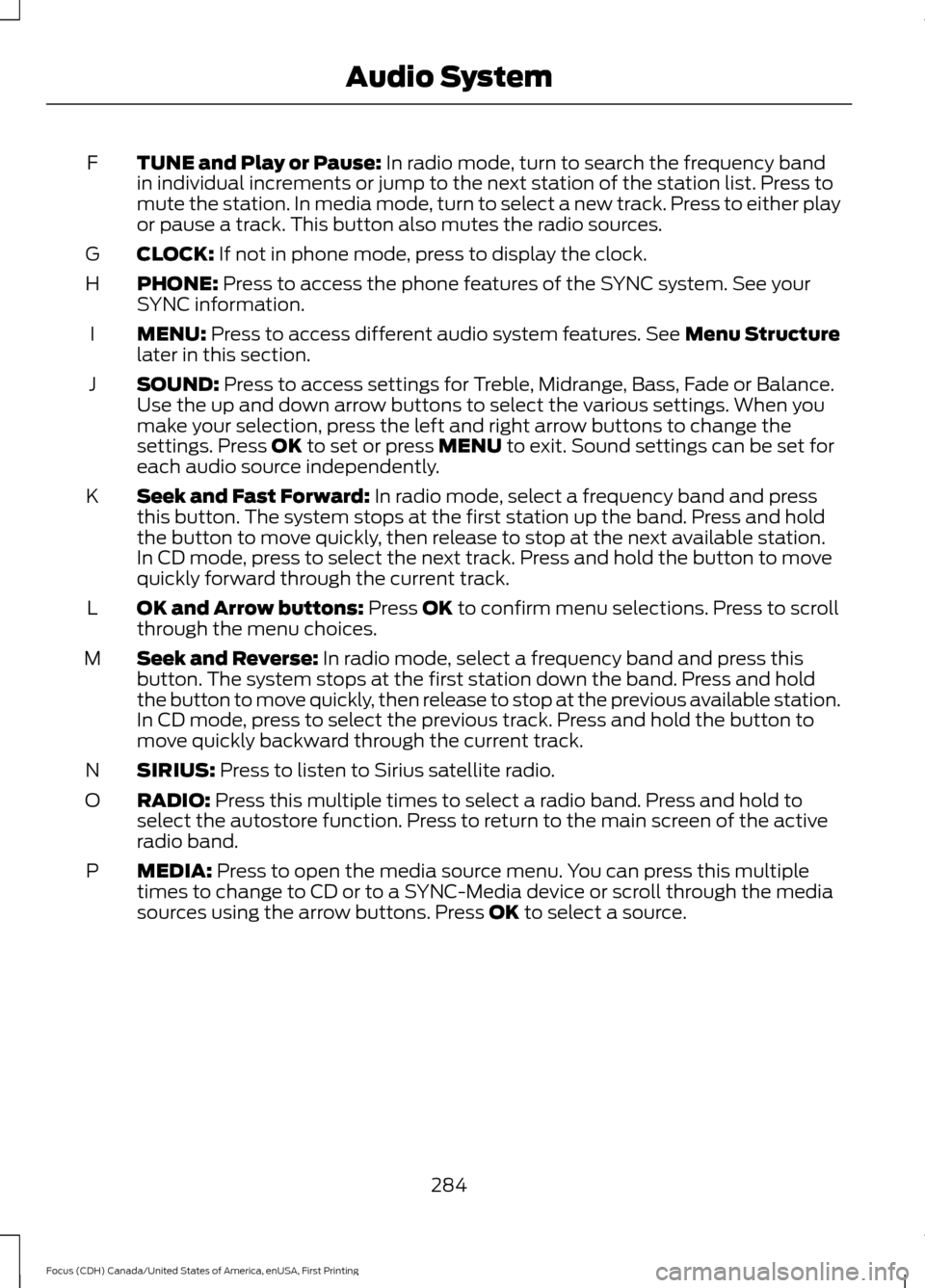
TUNE and Play or Pause: In radio mode, turn to search the frequency band
in individual increments or jump to the next station of the station list. Press to
mute the station. In media mode, turn to select a new track. Press to either play
or pause a track. This button also mutes the radio sources.
F
CLOCK:
If not in phone mode, press to display the clock.
G
PHONE:
Press to access the phone features of the SYNC system. See your
SYNC information.
H
MENU:
Press to access different audio system features. See Menu Structure
later in this section.
I
SOUND:
Press to access settings for Treble, Midrange, Bass, Fade or Balance.
Use the up and down arrow buttons to select the various settings. When you
make your selection, press the left and right arrow buttons to change the
settings. Press
OK to set or press MENU to exit. Sound settings can be set for
each audio source independently.
J
Seek and Fast Forward:
In radio mode, select a frequency band and press
this button. The system stops at the first station up the band. Press and hold
the button to move quickly, then release to stop at the next available station.
In CD mode, press to select the next track. Press and hold the button to move
quickly forward through the current track.
K
OK and Arrow buttons:
Press OK to confirm menu selections. Press to scroll
through the menu choices.
L
Seek and Reverse:
In radio mode, select a frequency band and press this
button. The system stops at the first station down the band. Press and hold
the button to move quickly, then release to stop at the previous available station.
In CD mode, press to select the previous track. Press and hold the button to
move quickly backward through the current track.
M
SIRIUS:
Press to listen to Sirius satellite radio.
N
RADIO:
Press this multiple times to select a radio band. Press and hold to
select the autostore function. Press to return to the main screen of the active
radio band.
O
MEDIA:
Press to open the media source menu. You can press this multiple
times to change to CD or to a SYNC-Media device or scroll through the media
sources using the arrow buttons. Press
OK to select a source.
P
284
Focus (CDH) Canada/United States of America, enUSA, First Printing Audio System
Page 291 of 385
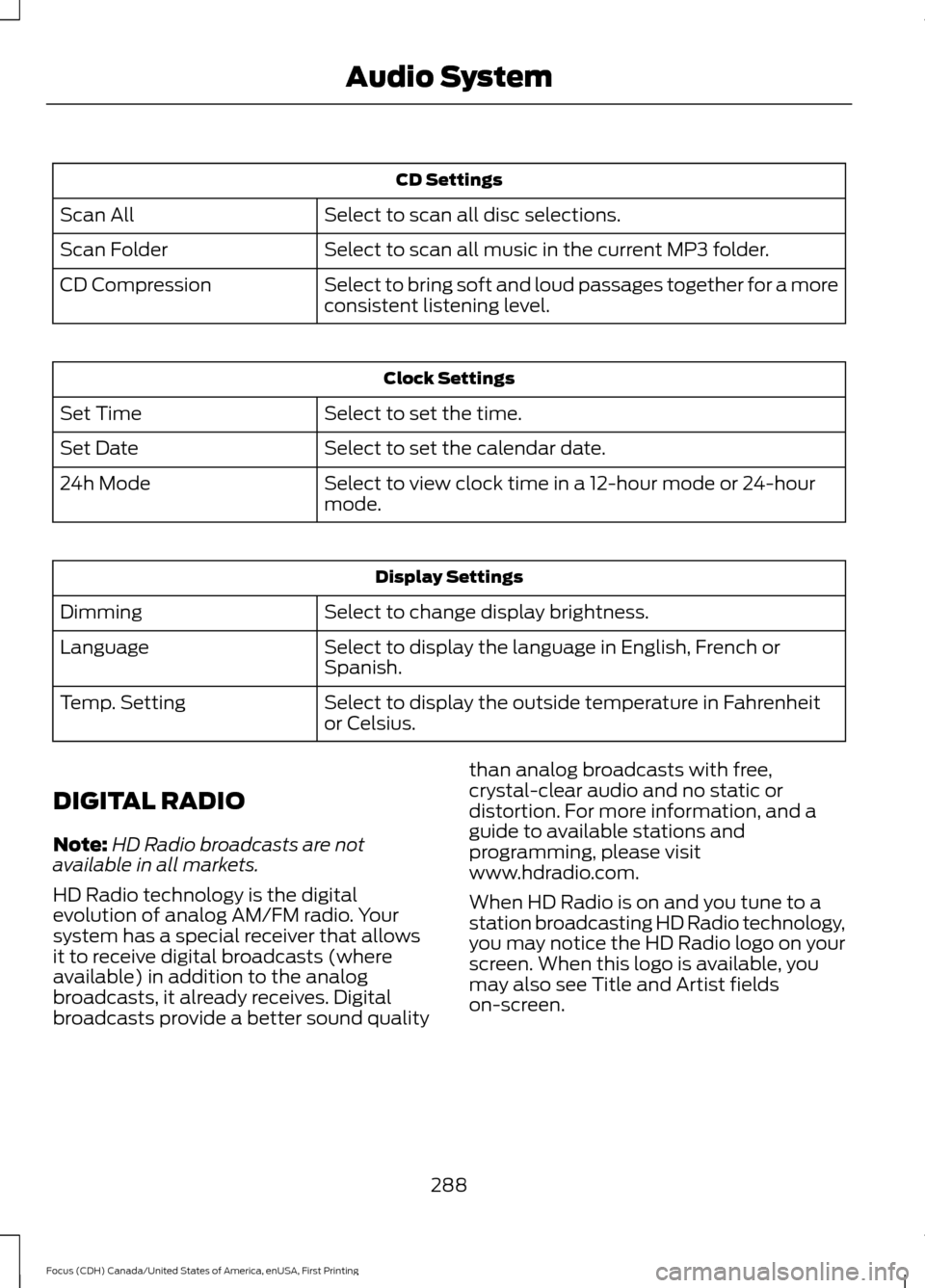
CD Settings
Select to scan all disc selections.
Scan All
Select to scan all music in the current MP3 folder.
Scan Folder
Select to bring soft and loud passages together for a more
consistent listening level.
CD Compression Clock Settings
Select to set the time.
Set Time
Select to set the calendar date.
Set Date
Select to view clock time in a 12-hour mode or 24-hour
mode.
24h Mode Display Settings
Select to change display brightness.
Dimming
Select to display the language in English, French or
Spanish.
Language
Select to display the outside temperature in Fahrenheit
or Celsius.
Temp. Setting
DIGITAL RADIO
Note: HD Radio broadcasts are not
available in all markets.
HD Radio technology is the digital
evolution of analog AM/FM radio. Your
system has a special receiver that allows
it to receive digital broadcasts (where
available) in addition to the analog
broadcasts, it already receives. Digital
broadcasts provide a better sound quality than analog broadcasts with free,
crystal-clear audio and no static or
distortion. For more information, and a
guide to available stations and
programming, please visit
www.hdradio.com.
When HD Radio is on and you tune to a
station broadcasting HD Radio technology,
you may notice the HD Radio logo on your
screen. When this logo is available, you
may also see Title and Artist fields
on-screen.
288
Focus (CDH) Canada/United States of America, enUSA, First Printing Audio System