radio FORD FOCUS 2018 User Guide
[x] Cancel search | Manufacturer: FORD, Model Year: 2018, Model line: FOCUS, Model: FORD FOCUS 2018Pages: 473, PDF Size: 39.91 MB
Page 264 of 473
2.This device must accept anyinterference received, includinginterference that may cause undesiredoperation.
Note:Changes or modifications notexpressively approved by the partyresponsible for compliance could void theuser's authority to operate the equipment.The term "IC:" before the radio certificationnumber only signifies that Industry Canadatechnical specifications were met.
Changing Tires With a TirePressure Monitoring System
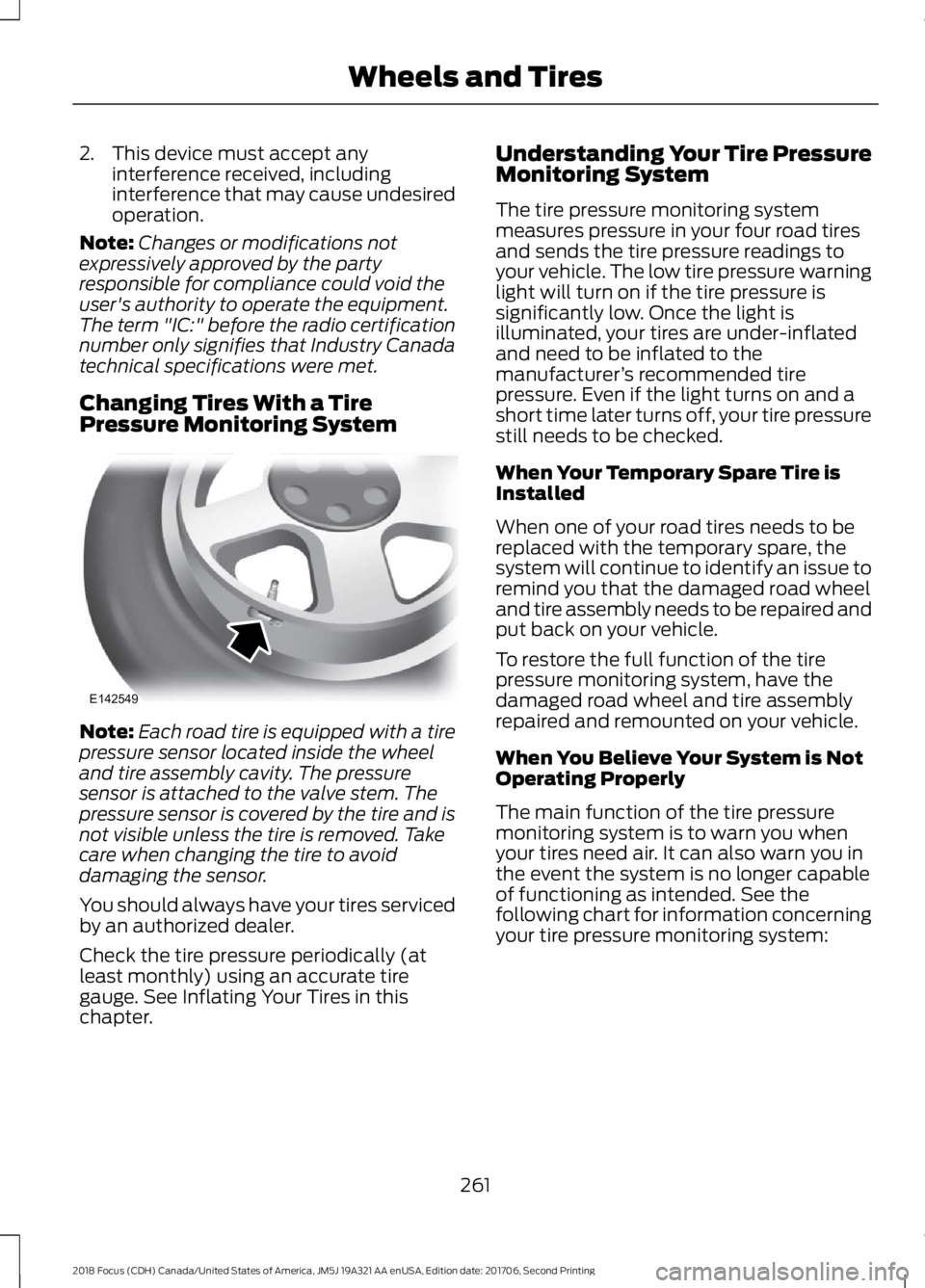
Note:Each road tire is equipped with a tirepressure sensor located inside the wheeland tire assembly cavity. The pressuresensor is attached to the valve stem. Thepressure sensor is covered by the tire and isnot visible unless the tire is removed. Takecare when changing the tire to avoiddamaging the sensor.
You should always have your tires servicedby an authorized dealer.
Check the tire pressure periodically (atleast monthly) using an accurate tiregauge. See Inflating Your Tires in thischapter.
Understanding Your Tire PressureMonitoring System
The tire pressure monitoring systemmeasures pressure in your four road tiresand sends the tire pressure readings toyour vehicle. The low tire pressure warninglight will turn on if the tire pressure issignificantly low. Once the light isilluminated, your tires are under-inflatedand need to be inflated to themanufacturer’s recommended tirepressure. Even if the light turns on and ashort time later turns off, your tire pressurestill needs to be checked.
When Your Temporary Spare Tire isInstalled
When one of your road tires needs to bereplaced with the temporary spare, thesystem will continue to identify an issue toremind you that the damaged road wheeland tire assembly needs to be repaired andput back on your vehicle.
To restore the full function of the tirepressure monitoring system, have thedamaged road wheel and tire assemblyrepaired and remounted on your vehicle.
When You Believe Your System is NotOperating Properly
The main function of the tire pressuremonitoring system is to warn you whenyour tires need air. It can also warn you inthe event the system is no longer capableof functioning as intended. See thefollowing chart for information concerningyour tire pressure monitoring system:
2612018 Focus (CDH) Canada/United States of America, JM5J 19A321 AA enUSA, Edition date: 201706, Second PrintingWheels and TiresE142549
Page 284 of 473
GENERAL INFORMATION
Radio Frequencies and ReceptionFactors
AM and FM frequencies are established bythe Federal Communications Commission(FCC) and the Canadian Radio andTelecommunications Commission (CRTC).Those frequencies are:
•AM: 530-1710 kHz
•FM: 87.9-107.9 MHz
Radio Reception Factors
The further you travel from an AM or FM station, theweaker the signal and the weaker the reception.Distance and strength
Hills, mountains, tall buildings, bridges, tunnels, freewayoverpasses, parking garages, dense tree foliage andthunderstorms can interfere with the reception.
Terrain
When you pass a ground-based broadcast repeatingtower, a stronger signal may overtake a weaker one andresult in the audio system muting.
Station overload
CD and CD Player Information
Note:CD units play commercially pressed4.7 in (12 cm) audio compact discs only. Dueto technical incompatibility, certainrecordable and re-recordable compact discsmay not function correctly when used inFord CD players.
Note: Do not insert CDs with homemadepaper (adhesive) labels into the CD playeras the label may peel and cause the CD tobecome jammed. You should use apermanent felt tip marker rather thanadhesive labels on your homemade CDs.Ballpoint pens may damage CDs. Ask anauthorized dealer for more information.
Note:Do not use any irregularly shapeddiscs or discs with a scratch protection filmattached.
Always handle discs by their edges only.Clean the disc with an approved CDcleaner only. Wipe it from the center ofthe disc toward the edge. Do not clean ina circular motion.
Do not expose discs to direct sunlight orheat sources for extended periods.
MP3 and WMA Track and FolderStructure
Audio systems capable of recognizing andplaying MP3 and WMA individual tracksand folder structures work as follows:
•There are two different modes for MP3and WMA disc playback: MP3 andWMA track mode (system default) andMP3 and WMA folder mode.
•MP3 and WMA track mode ignores anyfolder structure on the MP3 and WMAdisc. The player numbers each MP3and WMA track on the disc (noted bythe MP3 or WMA file extension) fromT001 to a maximum of T255. Themaximum number of playable MP3 andWMA files may be less depending onthe structure of the CD and exactmodel of radio present.
2812018 Focus (CDH) Canada/United States of America, JM5J 19A321 AA enUSA, Edition date: 201706, Second PrintingAudio System
Page 286 of 473
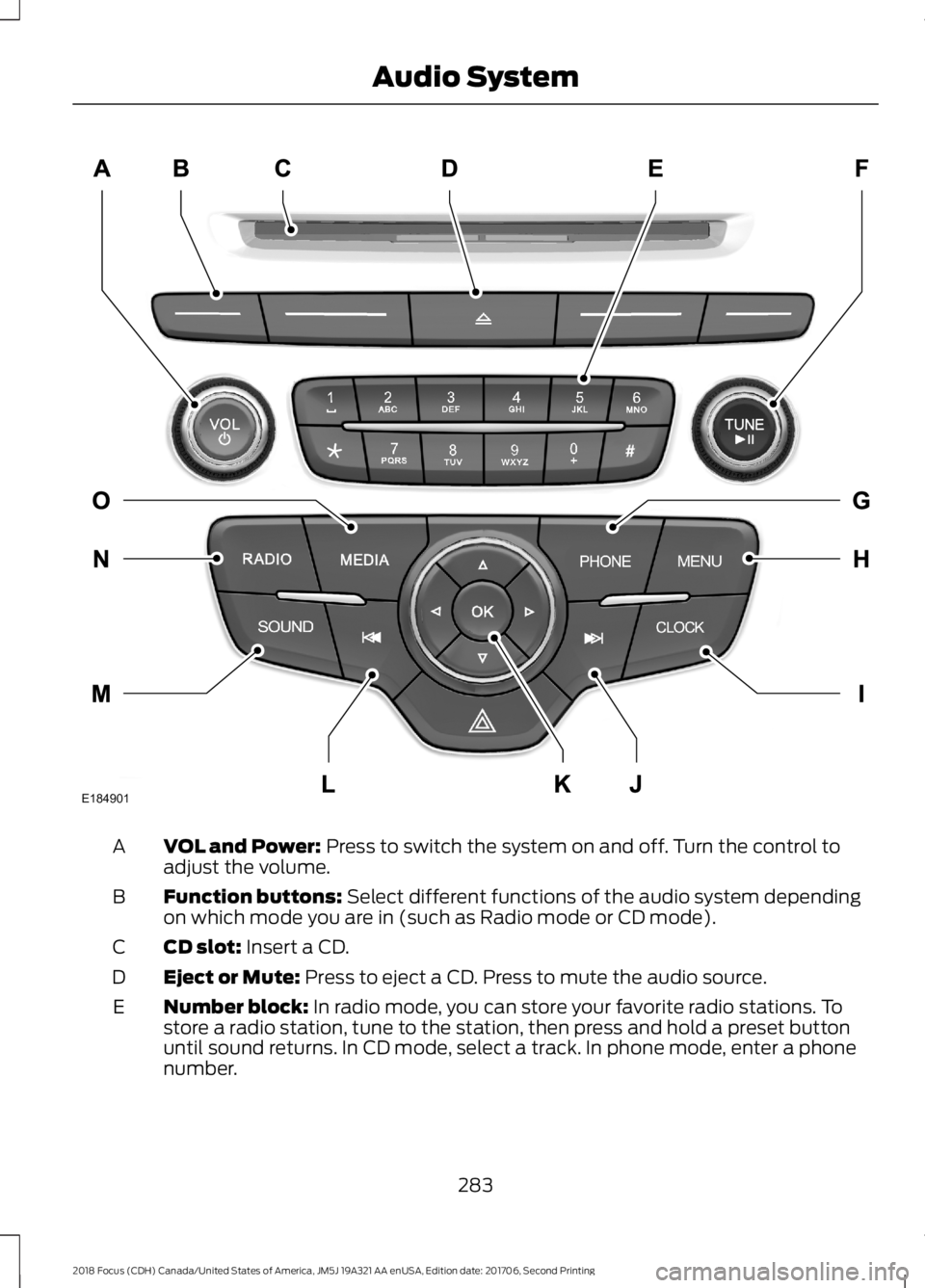
VOL and Power: Press to switch the system on and off. Turn the control toadjust the volume.A
Function buttons: Select different functions of the audio system dependingon which mode you are in (such as Radio mode or CD mode).B
CD slot: Insert a CD.C
Eject or Mute: Press to eject a CD. Press to mute the audio source.D
Number block: In radio mode, you can store your favorite radio stations. Tostore a radio station, tune to the station, then press and hold a preset buttonuntil sound returns. In CD mode, select a track. In phone mode, enter a phonenumber.
E
2832018 Focus (CDH) Canada/United States of America, JM5J 19A321 AA enUSA, Edition date: 201706, Second PrintingAudio SystemE184901
Page 287 of 473
TUNE and Play or Pause: In radio mode, turn to search the frequency bandin individual increments. Press to mute the station. In media mode, turn to selecta new track. Press to either play or pause a track. This button also mutes theradio sources.
F
PHONE: Press to access the phone features of the SYNC system. See yourSYNC information.G
MENU: Press to access different audio system features. See Menu Structurelater in this chapter.H
CLOCK: If not in phone mode, press to display the clock.I
Seek and Fast Forward: In radio mode, select a frequency band and pressthis button. The system stops at the first station up the band. Press and holdthe button to move quickly, then release to stop at the next available station.In CD mode, press to select the next track. Press and hold the button to movequickly forward through the current track.
J
OK and Arrow buttons: Press OK to confirm menu selections. Press to scrollthrough the menu choices.K
Seek and Reverse: In radio mode, select a frequency band and press thisbutton. The system stops at the first station down the band. Press and holdthe button to move quickly, then release to stop at the previous available station.In CD mode, press to select the previous track. Press and hold the button tomove quickly backward through the current track.
L
SOUND: Press to access settings for Treble, Midrange, Bass, Fade or Balance.Use the up and down arrow buttons to select the various settings. When youmake your selection, press the left and right arrow buttons to change thesettings. Press OK to set or press MENU to exit. Sound settings can be set foreach audio source independently.
M
RADIO: Press this multiple times to select a radio band. Press and hold toselect the autostore function. Press to return to the main screen of the activeradio band.
N
MEDIA: Press to open the media source menu. You can press this multipletimes to change to CD or to a SYNC-Media device or scroll through the mediasources using the arrow buttons. Press OK to select a source.
O
2842018 Focus (CDH) Canada/United States of America, JM5J 19A321 AA enUSA, Edition date: 201706, Second PrintingAudio System
Page 289 of 473
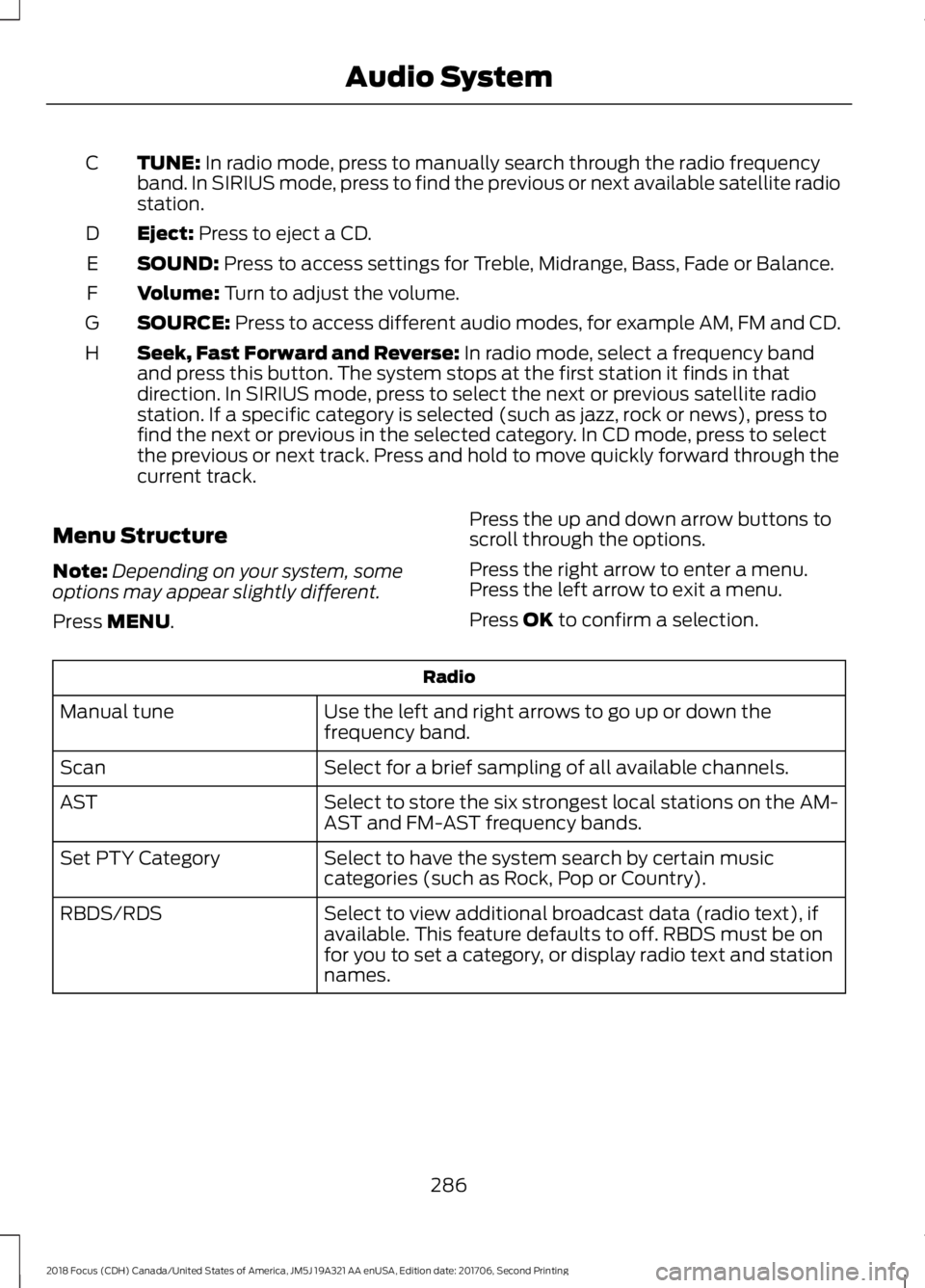
TUNE: In radio mode, press to manually search through the radio frequencyband. In SIRIUS mode, press to find the previous or next available satellite radiostation.
C
Eject: Press to eject a CD.D
SOUND: Press to access settings for Treble, Midrange, Bass, Fade or Balance.E
Volume: Turn to adjust the volume.F
SOURCE: Press to access different audio modes, for example AM, FM and CD.G
Seek, Fast Forward and Reverse: In radio mode, select a frequency bandand press this button. The system stops at the first station it finds in thatdirection. In SIRIUS mode, press to select the next or previous satellite radiostation. If a specific category is selected (such as jazz, rock or news), press tofind the next or previous in the selected category. In CD mode, press to selectthe previous or next track. Press and hold to move quickly forward through thecurrent track.
H
Menu Structure
Note:Depending on your system, someoptions may appear slightly different.
Press MENU.
Press the up and down arrow buttons toscroll through the options.
Press the right arrow to enter a menu.Press the left arrow to exit a menu.
Press OK to confirm a selection.
Radio
Use the left and right arrows to go up or down thefrequency band.Manual tune
Select for a brief sampling of all available channels.Scan
Select to store the six strongest local stations on the AM-AST and FM-AST frequency bands.AST
Select to have the system search by certain musiccategories (such as Rock, Pop or Country).Set PTY Category
Select to view additional broadcast data (radio text), ifavailable. This feature defaults to off. RBDS must be onfor you to set a category, or display radio text and stationnames.
RBDS/RDS
2862018 Focus (CDH) Canada/United States of America, JM5J 19A321 AA enUSA, Edition date: 201706, Second PrintingAudio System
Page 290 of 473
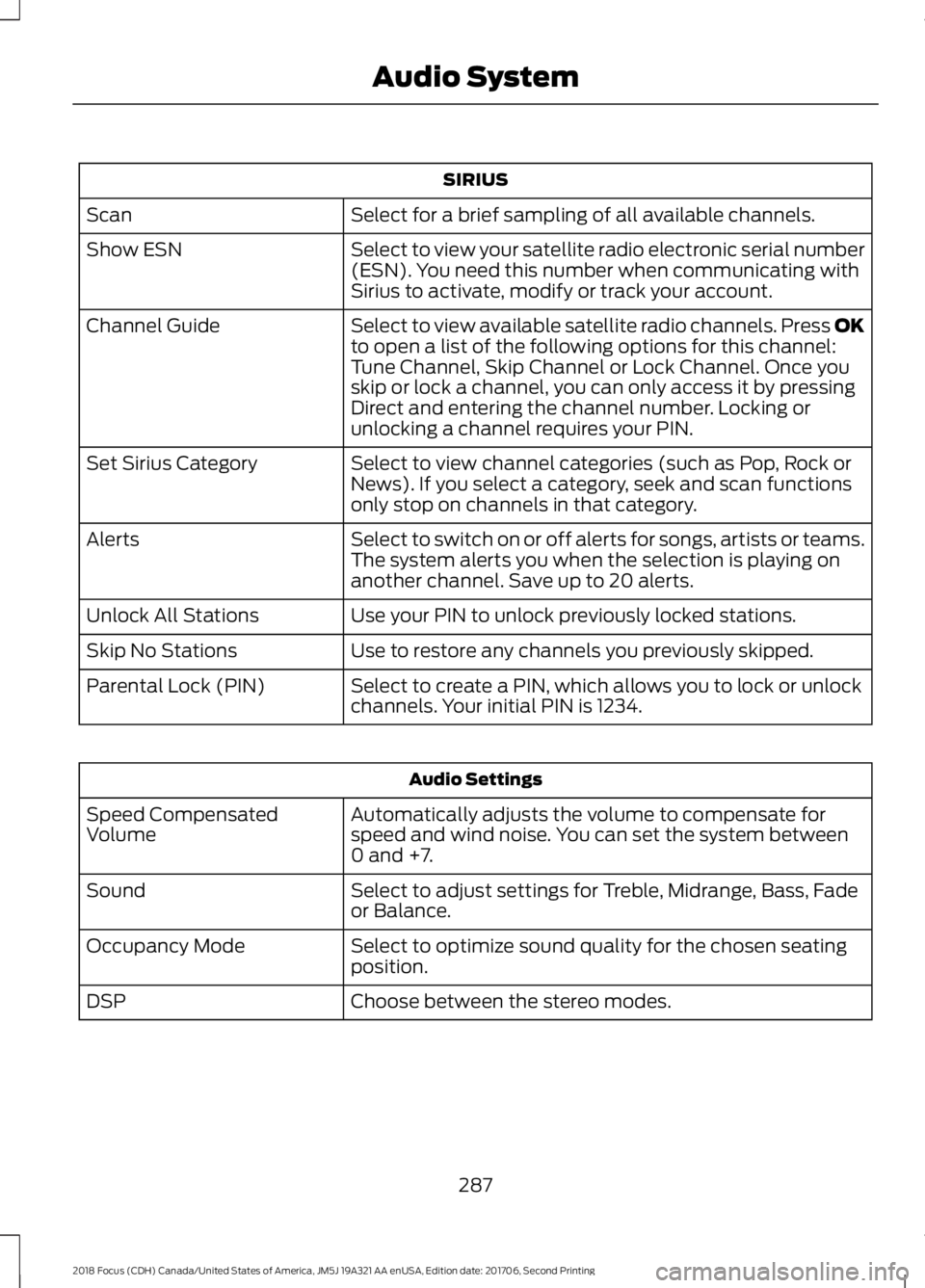
SIRIUS
Select for a brief sampling of all available channels.Scan
Select to view your satellite radio electronic serial number(ESN). You need this number when communicating withSirius to activate, modify or track your account.
Show ESN
Select to view available satellite radio channels. Press OKto open a list of the following options for this channel:Tune Channel, Skip Channel or Lock Channel. Once youskip or lock a channel, you can only access it by pressingDirect and entering the channel number. Locking orunlocking a channel requires your PIN.
Channel Guide
Select to view channel categories (such as Pop, Rock orNews). If you select a category, seek and scan functionsonly stop on channels in that category.
Set Sirius Category
Select to switch on or off alerts for songs, artists or teams.The system alerts you when the selection is playing onanother channel. Save up to 20 alerts.
Alerts
Use your PIN to unlock previously locked stations.Unlock All Stations
Use to restore any channels you previously skipped.Skip No Stations
Select to create a PIN, which allows you to lock or unlockchannels. Your initial PIN is 1234.Parental Lock (PIN)
Audio Settings
Automatically adjusts the volume to compensate forspeed and wind noise. You can set the system between0 and +7.
Speed CompensatedVolume
Select to adjust settings for Treble, Midrange, Bass, Fadeor Balance.Sound
Select to optimize sound quality for the chosen seatingposition.Occupancy Mode
Choose between the stereo modes.DSP
2872018 Focus (CDH) Canada/United States of America, JM5J 19A321 AA enUSA, Edition date: 201706, Second PrintingAudio System
Page 292 of 473
AUDIO UNIT - VEHICLES WITH:
SATELLITE RADIO
WARNING
Driving while distracted can result inloss of vehicle control, crash andinjury. We strongly recommend thatyou use extreme caution when using anydevice that may take your focus off theroad. Your primary responsibility is the safeoperation of your vehicle. We recommendagainst the use of any hand-held devicewhile driving and encourage the use ofvoice-operated systems when possible.Make sure you are aware of all applicablelocal laws that may affect the use ofelectronic devices while driving.
Note:Some features, such as SIRIUSsatellite radio, may not be available in yourlocation. Check with an authorized dealer.
Note:Depending on your vehicle optionpackage, your system may look differentfrom what you see here.
2892018 Focus (CDH) Canada/United States of America, JM5J 19A321 AA enUSA, Edition date: 201706, Second PrintingAudio System
Page 293 of 473
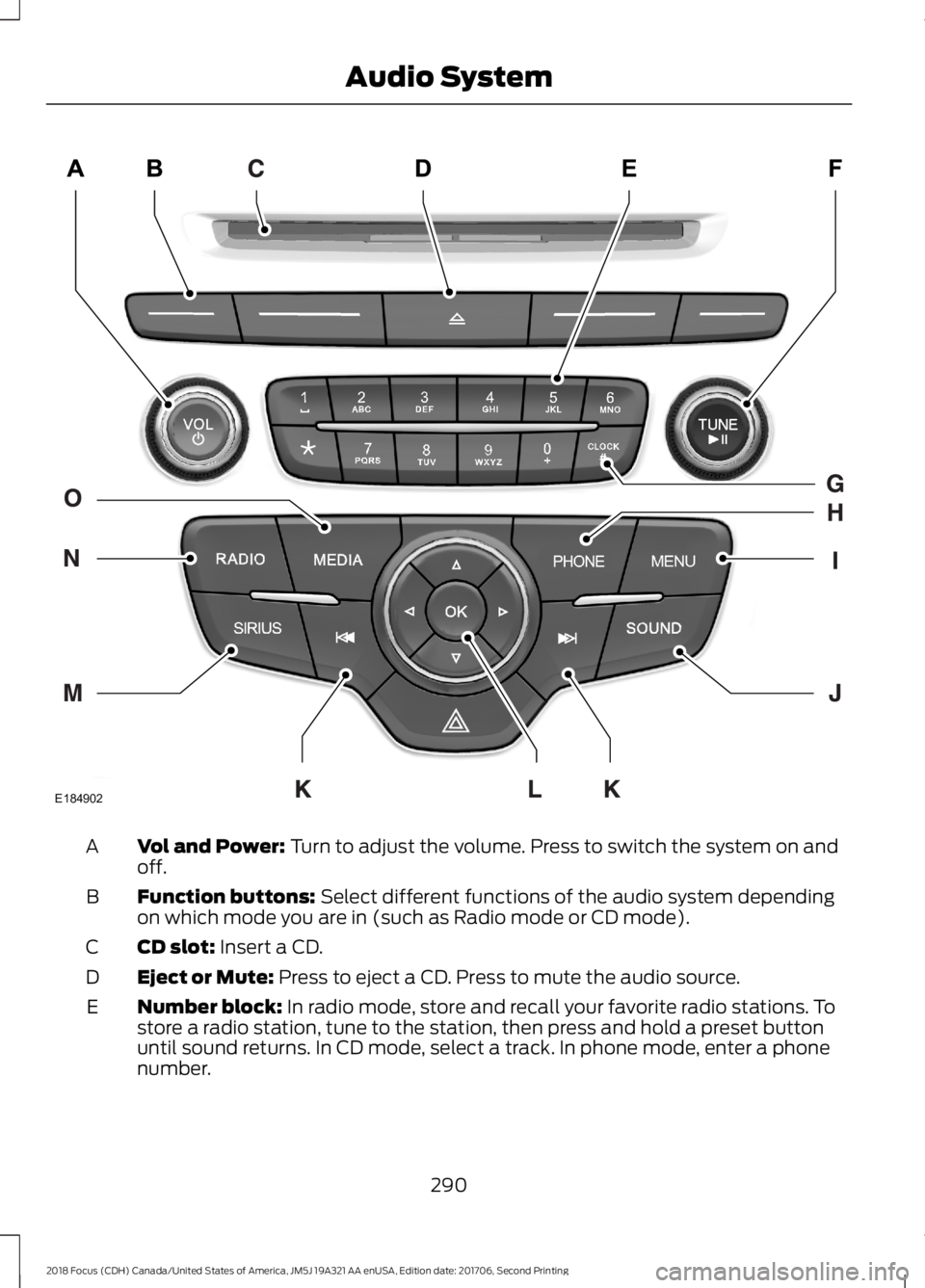
Vol and Power: Turn to adjust the volume. Press to switch the system on andoff.A
Function buttons: Select different functions of the audio system dependingon which mode you are in (such as Radio mode or CD mode).B
CD slot: Insert a CD.C
Eject or Mute: Press to eject a CD. Press to mute the audio source.D
Number block: In radio mode, store and recall your favorite radio stations. Tostore a radio station, tune to the station, then press and hold a preset buttonuntil sound returns. In CD mode, select a track. In phone mode, enter a phonenumber.
E
2902018 Focus (CDH) Canada/United States of America, JM5J 19A321 AA enUSA, Edition date: 201706, Second PrintingAudio SystemE184902
Page 294 of 473
TUNE and Play or Pause: In radio mode, turn to search the frequency bandin individual increments. Press to mute the station. In media mode, turn to selecta new track. Press to either play or pause a track. This button also mutes theradio sources.
F
Clock: Press to access the clock setting. Use the center arrow controls to changethe hours and minutes. You can also set the clock by pressing MENU andscrolling to Clock Settings. If not in phone mode, press to display the clock.
G
PHONE: Press to access the phone features of the SYNC system. See yourSYNC information.H
MENU: Press to access different audio system features. See Menu Structure.I
SOUND: Press to access settings for Treble, Midrange, Bass, Fade and Balance.Use the up and down arrow buttons to select the various settings. When youmake your selection, press the left and right arrow buttons to change thesettings. Press OK to set or press MENU to exit. Sound settings can be set foreach audio source independently.
J
Seek, Fast Forward and Reverse: In radio mode, select a frequency bandand press either button. The system stops at the first station it finds in thatdirection. In SIRIUS mode, press to select the next or previous satellite radiostation. If a specific category is selected (such as jazz, rock or news), press tofind the next or previous station in the selected category. In CD mode, press toselect the next or previous track. Press and hold to move quickly forward orbackward through the current track.
K
OK and cursor arrows: Press the up and down arrow buttons to select thevarious settings. When you make your selection, press the left and right arrowbuttons to change the settings. Press OK to set, or press MENU to exit.
L
SIRIUS: Press to listen to SIRIUS satellite radio.M
RADIO: Press to listen to the radio or change radio stations. Press the functionbuttons below the radio screen to select different radio functions.N
MEDIA: Press to open the media source menu. You can press this multipletimes to change to CD or to a SYNC-Media device or scroll through the mediasources using the arrow buttons. Press OK to select a source.
O
DIGITAL RADIO
Note:HD Radio broadcasts are notavailable in all markets.
HD Radio technology is the digitalevolution of analog AM/FM radio. Yoursystem has a special receiver that allowsit to receive digital broadcasts (whereavailable) in addition to the analogbroadcasts, it already receives. Digitalbroadcasts provide a better sound quality
2912018 Focus (CDH) Canada/United States of America, JM5J 19A321 AA enUSA, Edition date: 201706, Second PrintingAudio System
Page 295 of 473
than analog broadcasts with free,crystal-clear audio and no static ordistortion. For more information, and aguide to available stations andprogramming, please visitwww.hdradio.com.
When HD Radio is on and you tune to astation broadcasting HD Radio technology,you may notice the HD Radio logo on yourscreen. When this logo is available, youmay also see Title and Artist fieldson-screen.
The multicast indicator appears in FMmode (only) if the current station isbroadcasting multiple digital broadcasts.The highlighted numbers signify availabledigital channels where new or differentcontent is available. HD1 signifies the mainprogramming status and is available inanalog and digital broadcasts. Othermulticast stations (HD2 through HD7) areonly available digitally.
When HD Radio broadcasts are active, youcan access the following functions:
•Scan allows you to hear a briefsampling of all available stations. Thisfeature still works when HD Radioreception is on, although it does notscan for HD2-HD7 channels. You maysee the HD logo appear if the stationhas a digital broadcast.
•Memory presets allow you to save anactive channel as a memory preset.Touch and hold a memory preset slotuntil the sound returns. There is a briefmute while the radio saves the station.Sound returns when finished. Whenswitching to an HD2 or HD3 memorypreset, the sound mutes before thedigital audio plays, because the systemhas to reacquire the digital signal.
Note:As with any saved radio station, youcannot access the saved station if yourvehicle is outside the station’s receptionarea.
HD Radio Reception and Station Troubleshooting
Potential reception issues
If you are listening to a multicast station and you are onthe fringe of the reception area, the station may mute dueto weak signal strength.
Reception area
If you are listening to HD1, the system switches back tothe analog broadcast until the digital broadcast is availableagain. However, if you are listening to any of the possibleHD2-HD7 multicast channels, the station mutes and staysmuted unless it is able to connect to the digital signalagain.
When the system first receives a station (aside from HD2-HD7 multicast stations), it first plays the station in theanalog version. Once the receiver verifies the station is anHD Radio station, it shifts to the digital version. Dependingon the station quality, you may hear a slight sound changewhen the station changes from analog to digital. Blendingis the shift from analog to digital sound or digital back toanalog sound.
Station blending
2922018 Focus (CDH) Canada/United States of America, JM5J 19A321 AA enUSA, Edition date: 201706, Second PrintingAudio System