USB FORD FOCUS 2018 Owner's Manual
[x] Cancel search | Manufacturer: FORD, Model Year: 2018, Model line: FOCUS, Model: FORD FOCUS 2018Pages: 473, PDF Size: 39.91 MB
Page 339 of 473
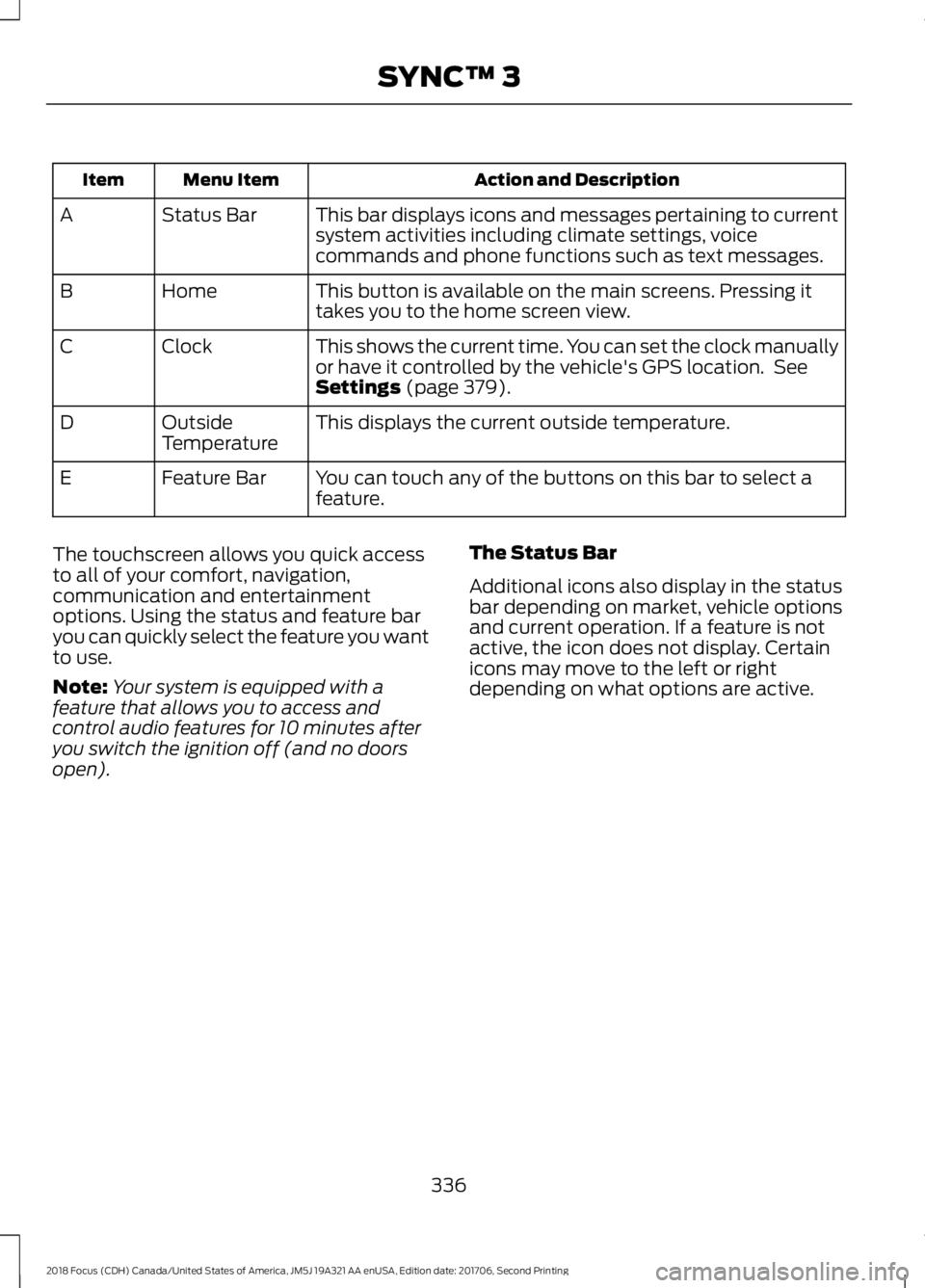
Action and DescriptionMenu ItemItem
This bar displays icons and messages pertaining to currentsystem activities including climate settings, voicecommands and phone functions such as text messages.
Status BarA
This button is available on the main screens. Pressing ittakes you to the home screen view.HomeB
This shows the current time. You can set the clock manuallyor have it controlled by the vehicle's GPS location. SeeSettings (page 379).
ClockC
This displays the current outside temperature.OutsideTemperatureD
You can touch any of the buttons on this bar to select afeature.Feature BarE
The touchscreen allows you quick accessto all of your comfort, navigation,communication and entertainmentoptions. Using the status and feature baryou can quickly select the feature you wantto use.
Note:Your system is equipped with afeature that allows you to access andcontrol audio features for 10 minutes afteryou switch the ignition off (and no doorsopen).
The Status Bar
Additional icons also display in the statusbar depending on market, vehicle optionsand current operation. If a feature is notactive, the icon does not display. Certainicons may move to the left or rightdepending on what options are active.
3362018 Focus (CDH) Canada/United States of America, JM5J 19A321 AA enUSA, Edition date: 201706, Second PrintingSYNC™ 3
Page 341 of 473
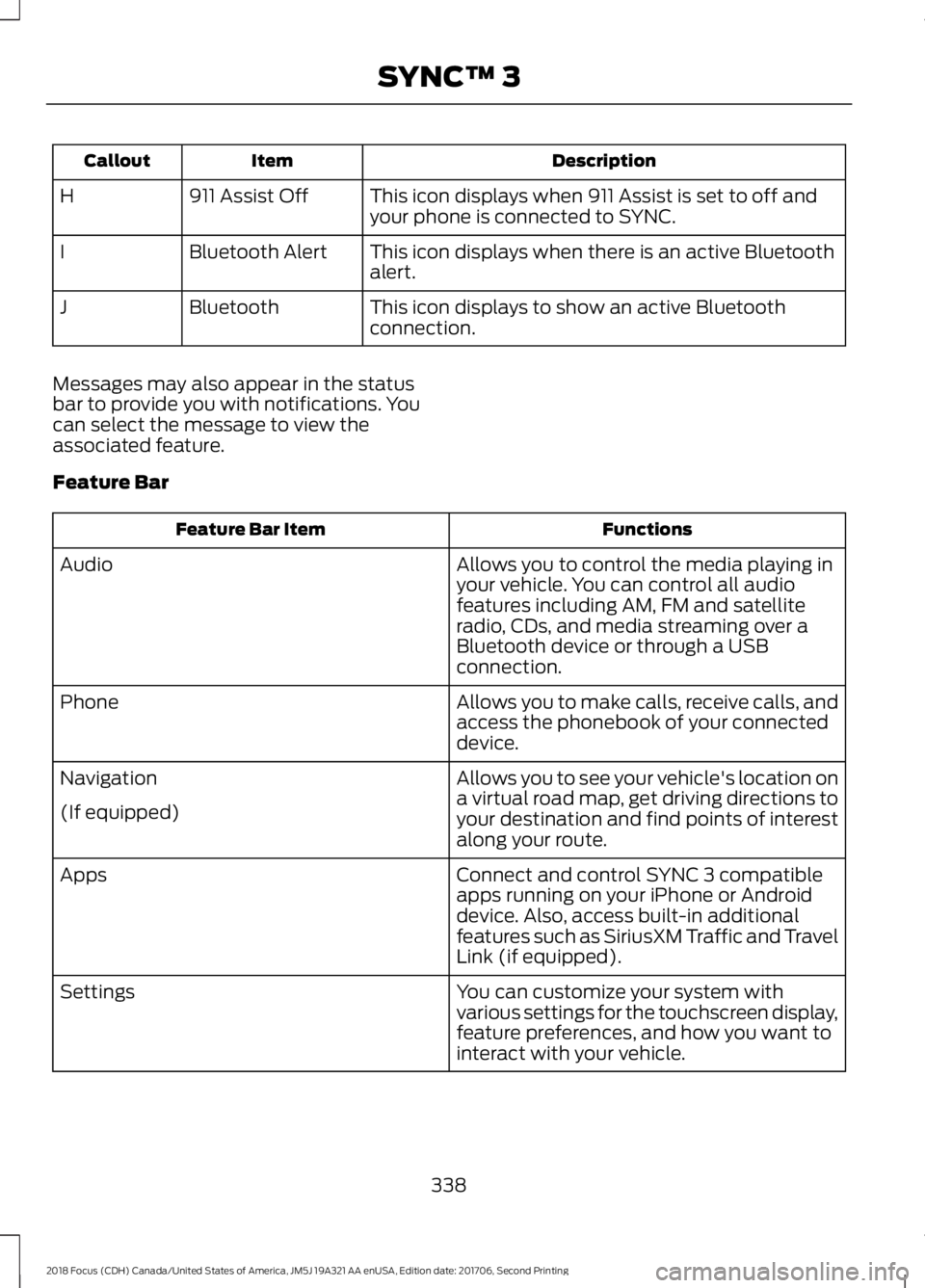
DescriptionItemCallout
This icon displays when 911 Assist is set to off andyour phone is connected to SYNC.911 Assist OffH
This icon displays when there is an active Bluetoothalert.Bluetooth AlertI
This icon displays to show an active Bluetoothconnection.BluetoothJ
Messages may also appear in the statusbar to provide you with notifications. Youcan select the message to view theassociated feature.
Feature Bar
FunctionsFeature Bar Item
Allows you to control the media playing inyour vehicle. You can control all audiofeatures including AM, FM and satelliteradio, CDs, and media streaming over aBluetooth device or through a USBconnection.
Audio
Allows you to make calls, receive calls, andaccess the phonebook of your connecteddevice.
Phone
Allows you to see your vehicle's location ona virtual road map, get driving directions toyour destination and find points of interestalong your route.
Navigation
(If equipped)
Connect and control SYNC 3 compatibleapps running on your iPhone or Androiddevice. Also, access built-in additionalfeatures such as SiriusXM Traffic and TravelLink (if equipped).
Apps
You can customize your system withvarious settings for the touchscreen display,feature preferences, and how you want tointeract with your vehicle.
Settings
3382018 Focus (CDH) Canada/United States of America, JM5J 19A321 AA enUSA, Edition date: 201706, Second PrintingSYNC™ 3
Page 342 of 473
Cleaning the Touchscreen
You can remove fingerprints with a dry,clean, soft cloth.
If dirt or fingerprints are still on the screen,apply a small amount of alcohol to thecloth and try to clean it again.
Note: Do not use detergent or any type ofsolvent to clean the touchscreen.
Note:Do not pour or spray alcohol onto thetouchscreen.
Using Voice Recognition
Using voice commands allows you to keepyour hands on the wheel and eyes on theroad. The system provides feedbackthrough audible tones, prompts, questionsand spoken confirmations depending onthe situation and the chosen level ofinteraction (voice settings).
The system also asks short questions(confirmation prompts) when it is not sureof your request or when there are multiplepossible responses to your request.
When using voice commands, words andicons may appear in the status barindicating the status of the voice commandsession. See Using Voice Recognition(page 347).
Using the Steering Wheel Controls
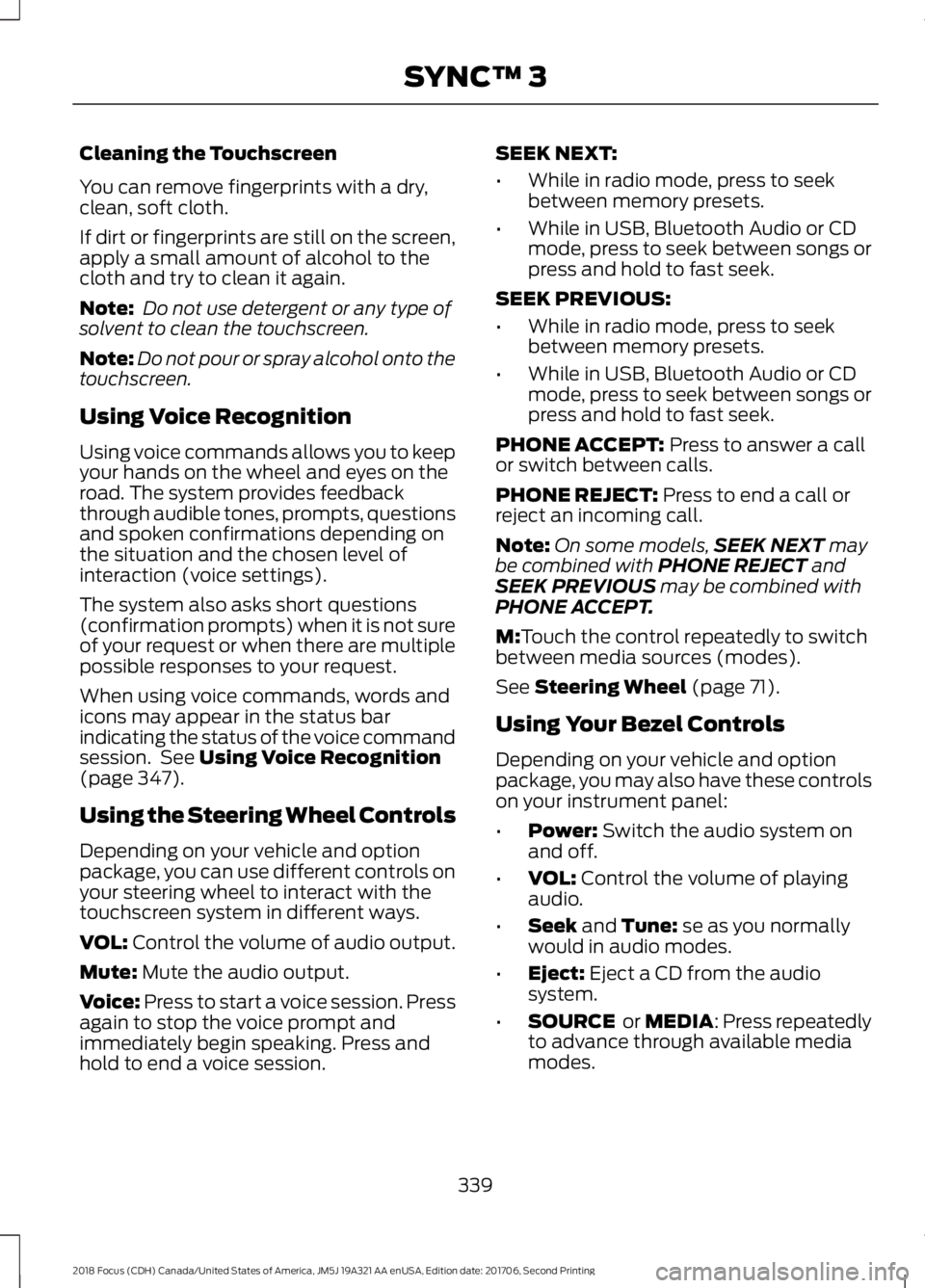
Depending on your vehicle and optionpackage, you can use different controls onyour steering wheel to interact with thetouchscreen system in different ways.
VOL: Control the volume of audio output.
Mute: Mute the audio output.
Voice: Press to start a voice session. Pressagain to stop the voice prompt andimmediately begin speaking. Press andhold to end a voice session.
SEEK NEXT:
•While in radio mode, press to seekbetween memory presets.
•While in USB, Bluetooth Audio or CDmode, press to seek between songs orpress and hold to fast seek.
SEEK PREVIOUS:
•While in radio mode, press to seekbetween memory presets.
•While in USB, Bluetooth Audio or CDmode, press to seek between songs orpress and hold to fast seek.
PHONE ACCEPT: Press to answer a callor switch between calls.
PHONE REJECT: Press to end a call orreject an incoming call.
Note:On some models,SEEK NEXT maybe combined with PHONE REJECT andSEEK PREVIOUS may be combined withPHONE ACCEPT.
M:Touch the control repeatedly to switchbetween media sources (modes).
See Steering Wheel (page 71).
Using Your Bezel Controls
Depending on your vehicle and optionpackage, you may also have these controlson your instrument panel:
•Power: Switch the audio system onand off.
•VOL: Control the volume of playingaudio.
•Seek and Tune: se as you normallywould in audio modes.
•Eject: Eject a CD from the audiosystem.
•SOURCE or MEDIA: Press repeatedlyto advance through available mediamodes.
3392018 Focus (CDH) Canada/United States of America, JM5J 19A321 AA enUSA, Edition date: 201706, Second PrintingSYNC™ 3
Page 346 of 473
Creating an Owner Account
Why do I need an owner account?
•Essential for keeping up with the latestsoftware and connected features.
•Access to customer support for anyquestions you may have.
•Maintain account permissions.
Visit the website to sign up and register.
Website
www.owner.ford.comwww.syncmyride.cawww.syncmaroute.ca
SYNC Connect (If Equipped)
With a SYNC® Connect-equipped vehicle,you can use FordPass® to track yourvehicle’s location and remotely accessvehicle features such as start, lock andunlock and vehicle status including fuellevel and approximate mileage. You canalso schedule specific times to remotelystart your vehicle so it’s ready to hit theroad as soon as you are. SYNC Connect isan optional feature on select 2017 MYvehicles. FordPass® is available througha free download via the Apple App Store®or Google Play™. Message and data ratesmay apply. Services may be limited bymobile phone network coverage area.
•FCC: LHJ-FAN
•IC: 2807E-FAN
Updating Your System
You can choose to download the updateonto a USB drive or use Wi-Fi to deliverautomatic updates.
USB Updates
To use the USB update you need to loginto your owner account and visit the SYNCsoftware update page.
Website
www.owner.ford.comwww.syncmyride.cawww.syncmaroute.ca
The website notifies you if an update isavailable. You can then select to downloadthe update.
You will need an empty USB drive. Pleasecheck the website for minimumrequirements. Once you have inserted theUSB drive into your computer, choose tostart the download. Follow the instructionsprovided to download the files to the USBdrive.
To install the update in your vehicle,remove anything that is plugged in the USBports on the media hub and plug in theUSB drive containing the update. Whenthe USB drive is plugged in, the installationshould begin immediately. After asuccessful installation, the update isavailable the next time the vehicle isstarted.
The installation of most files occurs in thebackground, and does not interrupt youruse of the system. Navigation updatescannot be installed in the background,because the files are too large.
Please refer to the website for any furtheractions.
Updating Over Wi-Fi
To update your System over Wi-Fi yourvehicle must be within the range of a Wi-Fiaccess point. Data rates may apply.
3432018 Focus (CDH) Canada/United States of America, JM5J 19A321 AA enUSA, Edition date: 201706, Second PrintingSYNC™ 3
Page 351 of 473
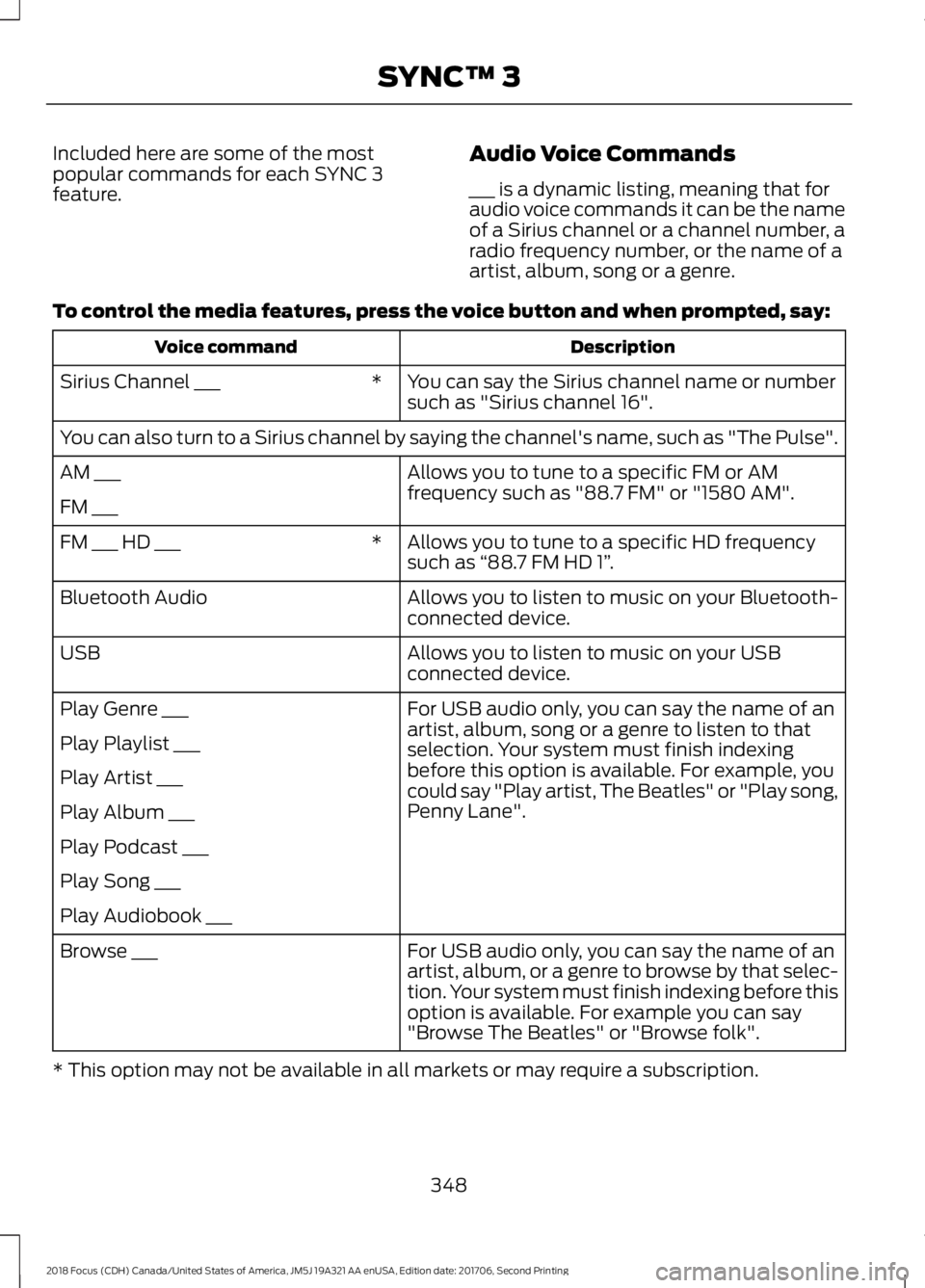
Included here are some of the mostpopular commands for each SYNC 3feature.
Audio Voice Commands
___ is a dynamic listing, meaning that foraudio voice commands it can be the nameof a Sirius channel or a channel number, aradio frequency number, or the name of aartist, album, song or a genre.
To control the media features, press the voice button and when prompted, say:
DescriptionVoice command
You can say the Sirius channel name or numbersuch as "Sirius channel 16".*Sirius Channel ___
You can also turn to a Sirius channel by saying the channel's name, such as "The Pulse".
Allows you to tune to a specific FM or AMfrequency such as "88.7 FM" or "1580 AM".AM ___
FM ___
Allows you to tune to a specific HD frequencysuch as “88.7 FM HD 1”.*FM ___ HD ___
Allows you to listen to music on your Bluetooth-connected device.Bluetooth Audio
Allows you to listen to music on your USBconnected device.USB
For USB audio only, you can say the name of anartist, album, song or a genre to listen to thatselection. Your system must finish indexingbefore this option is available. For example, youcould say "Play artist, The Beatles" or "Play song,Penny Lane".
Play Genre ___
Play Playlist ___
Play Artist ___
Play Album ___
Play Podcast ___
Play Song ___
Play Audiobook ___
For USB audio only, you can say the name of anartist, album, or a genre to browse by that selec-tion. Your system must finish indexing before thisoption is available. For example you can say"Browse The Beatles" or "Browse folk".
Browse ___
* This option may not be available in all markets or may require a subscription.
3482018 Focus (CDH) Canada/United States of America, JM5J 19A321 AA enUSA, Edition date: 201706, Second PrintingSYNC™ 3
Page 357 of 473
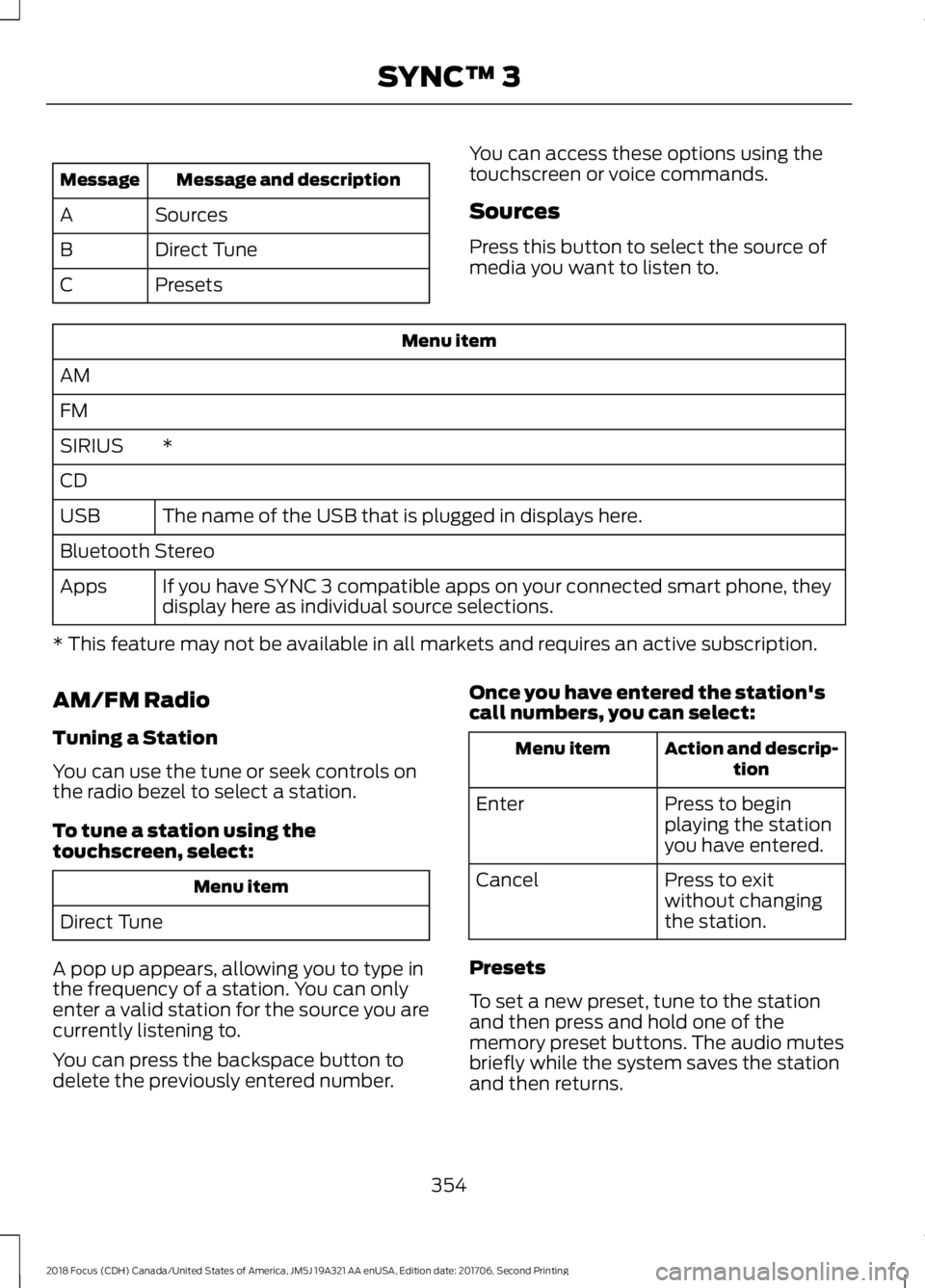
Message and descriptionMessage
SourcesA
Direct TuneB
PresetsC
You can access these options using thetouchscreen or voice commands.
Sources
Press this button to select the source ofmedia you want to listen to.
Menu item
AM
FM
*SIRIUS
CD
The name of the USB that is plugged in displays here.USB
Bluetooth Stereo
If you have SYNC 3 compatible apps on your connected smart phone, theydisplay here as individual source selections.Apps
* This feature may not be available in all markets and requires an active subscription.
AM/FM Radio
Tuning a Station
You can use the tune or seek controls onthe radio bezel to select a station.
To tune a station using thetouchscreen, select:
Menu item
Direct Tune
A pop up appears, allowing you to type inthe frequency of a station. You can onlyenter a valid station for the source you arecurrently listening to.
You can press the backspace button todelete the previously entered number.
Once you have entered the station'scall numbers, you can select:
Action and descrip-tionMenu item
Press to beginplaying the stationyou have entered.
Enter
Press to exitwithout changingthe station.
Cancel
Presets
To set a new preset, tune to the stationand then press and hold one of thememory preset buttons. The audio mutesbriefly while the system saves the stationand then returns.
3542018 Focus (CDH) Canada/United States of America, JM5J 19A321 AA enUSA, Edition date: 201706, Second PrintingSYNC™ 3
Page 364 of 473
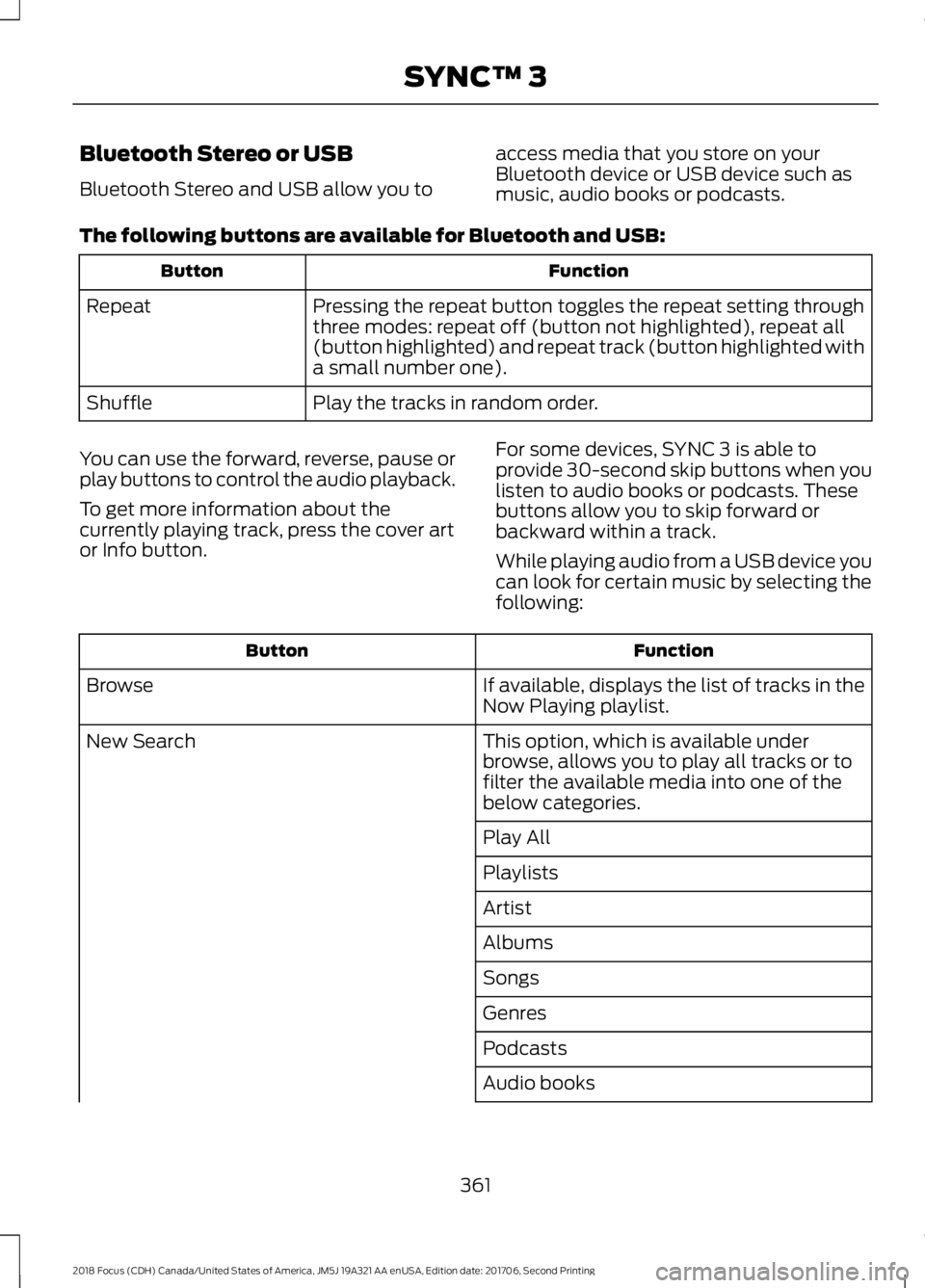
Bluetooth Stereo or USB
Bluetooth Stereo and USB allow you to
access media that you store on yourBluetooth device or USB device such asmusic, audio books or podcasts.
The following buttons are available for Bluetooth and USB:
FunctionButton
Pressing the repeat button toggles the repeat setting throughthree modes: repeat off (button not highlighted), repeat all(button highlighted) and repeat track (button highlighted witha small number one).
Repeat
Play the tracks in random order.Shuffle
You can use the forward, reverse, pause orplay buttons to control the audio playback.
To get more information about thecurrently playing track, press the cover artor Info button.
For some devices, SYNC 3 is able toprovide 30-second skip buttons when youlisten to audio books or podcasts. Thesebuttons allow you to skip forward orbackward within a track.
While playing audio from a USB device youcan look for certain music by selecting thefollowing:
FunctionButton
If available, displays the list of tracks in theNow Playing playlist.Browse
This option, which is available underbrowse, allows you to play all tracks or tofilter the available media into one of thebelow categories.
New Search
Play All
Playlists
Artist
Albums
Songs
Genres
Podcasts
Audio books
3612018 Focus (CDH) Canada/United States of America, JM5J 19A321 AA enUSA, Edition date: 201706, Second PrintingSYNC™ 3
Page 365 of 473
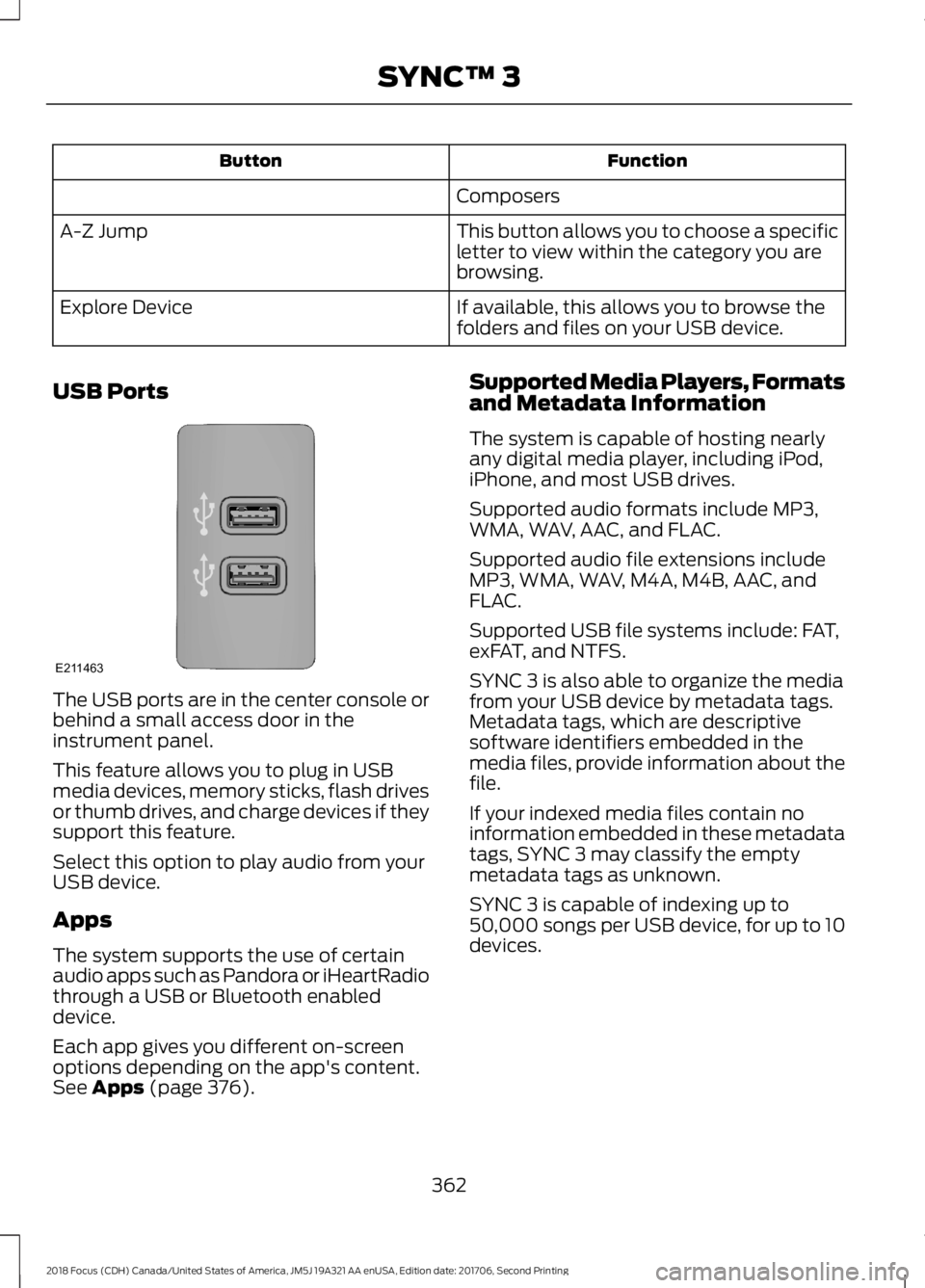
FunctionButton
Composers
This button allows you to choose a specificletter to view within the category you arebrowsing.
A-Z Jump
If available, this allows you to browse thefolders and files on your USB device.Explore Device
USB Ports
The USB ports are in the center console orbehind a small access door in theinstrument panel.
This feature allows you to plug in USBmedia devices, memory sticks, flash drivesor thumb drives, and charge devices if theysupport this feature.
Select this option to play audio from yourUSB device.
Apps
The system supports the use of certainaudio apps such as Pandora or iHeartRadiothrough a USB or Bluetooth enableddevice.
Each app gives you different on-screenoptions depending on the app's content.See Apps (page 376).
Supported Media Players, Formatsand Metadata Information
The system is capable of hosting nearlyany digital media player, including iPod,iPhone, and most USB drives.
Supported audio formats include MP3,WMA, WAV, AAC, and FLAC.
Supported audio file extensions includeMP3, WMA, WAV, M4A, M4B, AAC, andFLAC.
Supported USB file systems include: FAT,exFAT, and NTFS.
SYNC 3 is also able to organize the mediafrom your USB device by metadata tags.Metadata tags, which are descriptivesoftware identifiers embedded in themedia files, provide information about thefile.
If your indexed media files contain noinformation embedded in these metadatatags, SYNC 3 may classify the emptymetadata tags as unknown.
SYNC 3 is capable of indexing up to50,000 songs per USB device, for up to 10devices.
3622018 Focus (CDH) Canada/United States of America, JM5J 19A321 AA enUSA, Edition date: 201706, Second PrintingSYNC™ 3E211463
Page 370 of 473
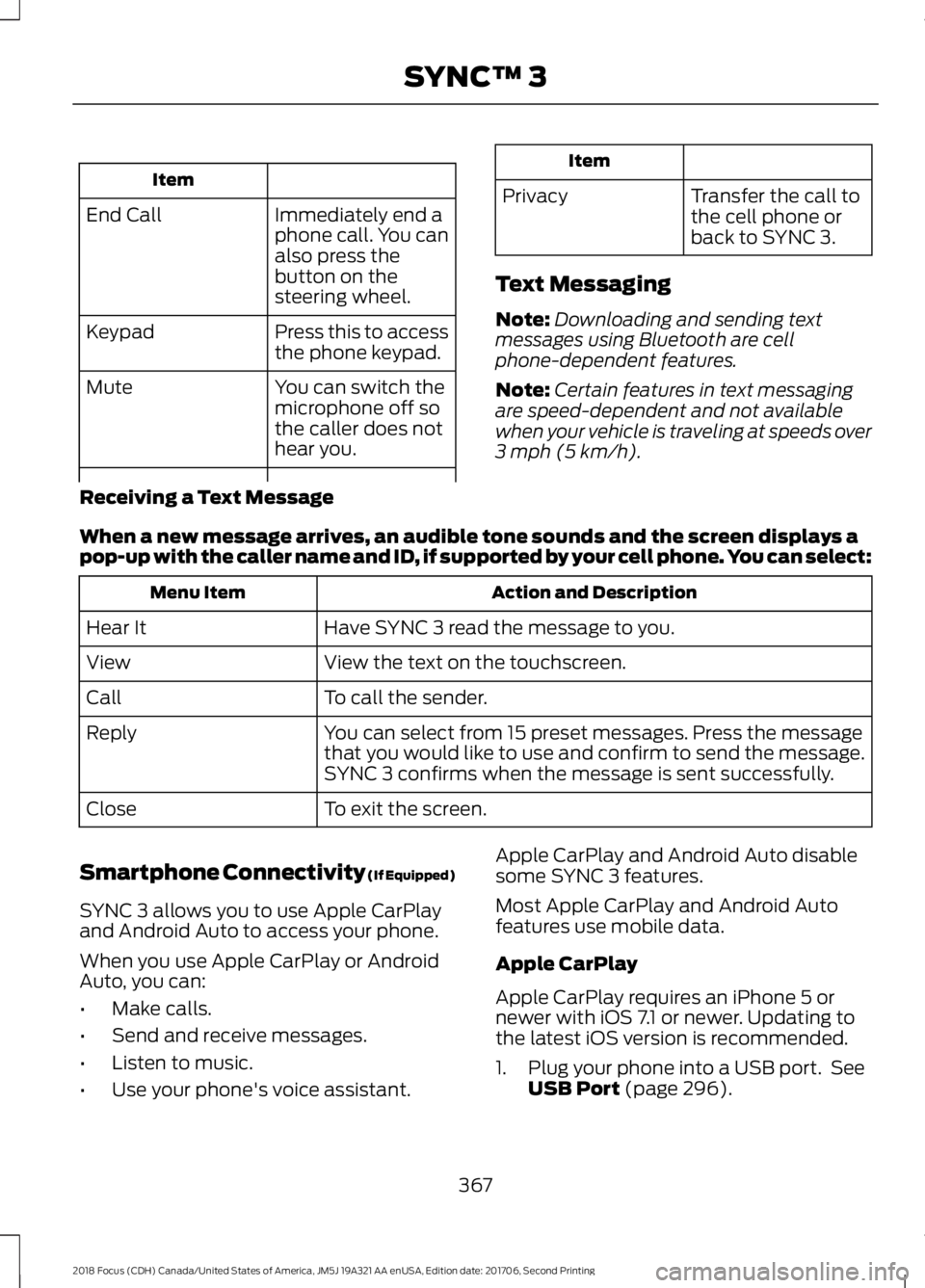
Item
Immediately end aphone call. You canalso press thebutton on thesteering wheel.
End Call
Press this to accessthe phone keypad.Keypad
You can switch themicrophone off sothe caller does nothear you.
Mute
Item
PrivacyTransfer the call tothe cell phone orback to SYNC 3.
Text Messaging
Note:Downloading and sending textmessages using Bluetooth are cellphone-dependent features.
Note:Certain features in text messagingare speed-dependent and not availablewhen your vehicle is traveling at speeds over3 mph (5 km/h).
Receiving a Text Message
When a new message arrives, an audible tone sounds and the screen displays apop-up with the caller name and ID, if supported by your cell phone. You can select:
Action and DescriptionMenu Item
Have SYNC 3 read the message to you.Hear It
View the text on the touchscreen.View
To call the sender.Call
You can select from 15 preset messages. Press the messagethat you would like to use and confirm to send the message.SYNC 3 confirms when the message is sent successfully.
Reply
To exit the screen.Close
Smartphone Connectivity (If Equipped)
SYNC 3 allows you to use Apple CarPlayand Android Auto to access your phone.
When you use Apple CarPlay or AndroidAuto, you can:
•Make calls.
•Send and receive messages.
•Listen to music.
•Use your phone's voice assistant.
Apple CarPlay and Android Auto disablesome SYNC 3 features.
Most Apple CarPlay and Android Autofeatures use mobile data.
Apple CarPlay
Apple CarPlay requires an iPhone 5 ornewer with iOS 7.1 or newer. Updating tothe latest iOS version is recommended.
1.Plug your phone into a USB port. SeeUSB Port (page 296).
3672018 Focus (CDH) Canada/United States of America, JM5J 19A321 AA enUSA, Edition date: 201706, Second PrintingSYNC™ 3
Page 371 of 473
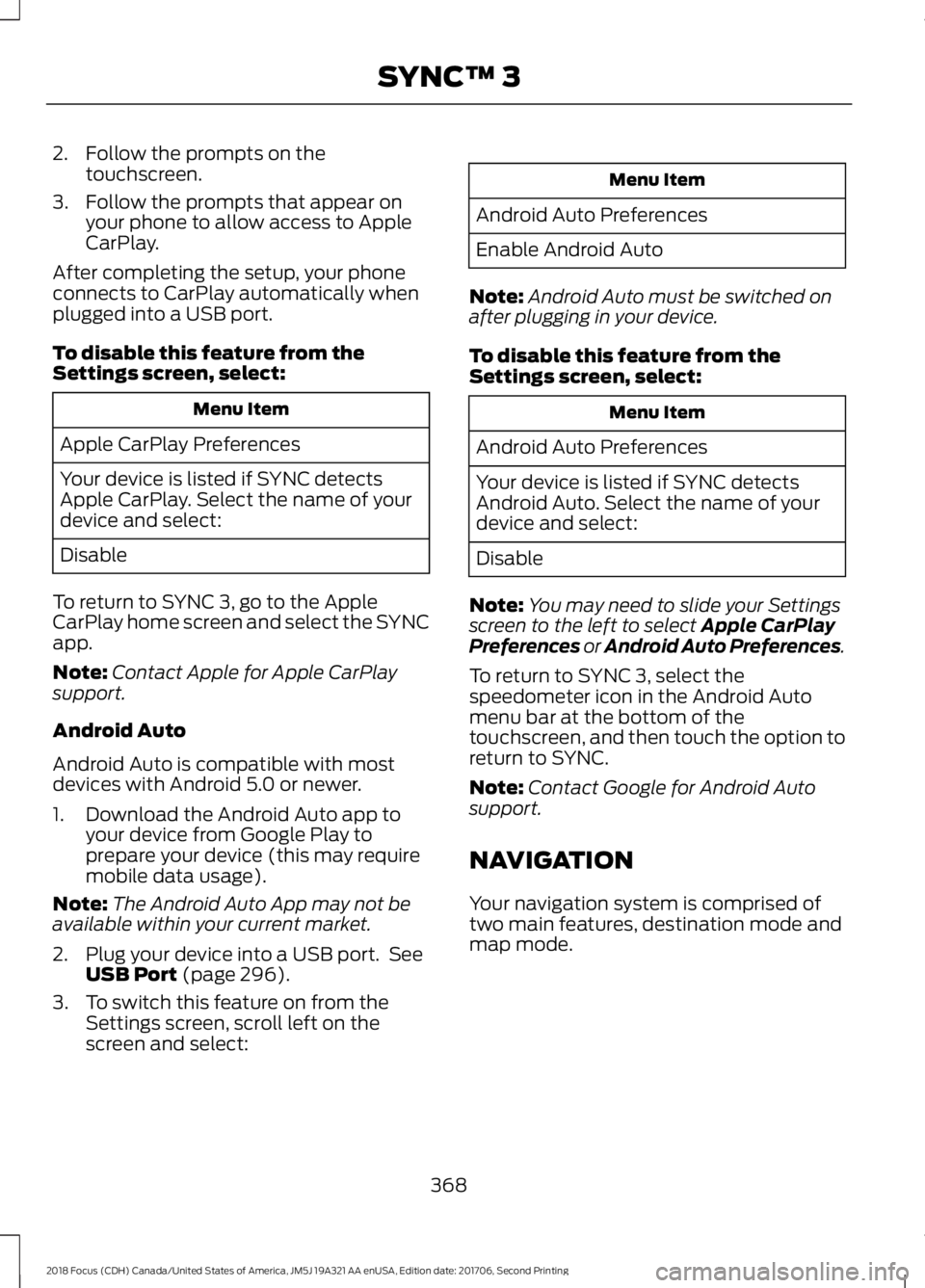
2.Follow the prompts on thetouchscreen.
3.Follow the prompts that appear onyour phone to allow access to AppleCarPlay.
After completing the setup, your phoneconnects to CarPlay automatically whenplugged into a USB port.
To disable this feature from theSettings screen, select:
Menu Item
Apple CarPlay Preferences
Your device is listed if SYNC detectsApple CarPlay. Select the name of yourdevice and select:
Disable
To return to SYNC 3, go to the AppleCarPlay home screen and select the SYNCapp.
Note:Contact Apple for Apple CarPlaysupport.
Android Auto
Android Auto is compatible with mostdevices with Android 5.0 or newer.
1.Download the Android Auto app toyour device from Google Play toprepare your device (this may requiremobile data usage).
Note:The Android Auto App may not beavailable within your current market.
2.Plug your device into a USB port. SeeUSB Port (page 296).
3.To switch this feature on from theSettings screen, scroll left on thescreen and select:
Menu Item
Android Auto Preferences
Enable Android Auto
Note:Android Auto must be switched onafter plugging in your device.
To disable this feature from theSettings screen, select:
Menu Item
Android Auto Preferences
Your device is listed if SYNC detectsAndroid Auto. Select the name of yourdevice and select:
Disable
Note:You may need to slide your Settingsscreen to the left to select Apple CarPlayPreferences or Android Auto Preferences.
To return to SYNC 3, select thespeedometer icon in the Android Automenu bar at the bottom of thetouchscreen, and then touch the option toreturn to SYNC.
Note:Contact Google for Android Autosupport.
NAVIGATION
Your navigation system is comprised oftwo main features, destination mode andmap mode.
3682018 Focus (CDH) Canada/United States of America, JM5J 19A321 AA enUSA, Edition date: 201706, Second PrintingSYNC™ 3