ESP FORD FOCUS ELECTRIC 2014 3.G Owner's Guide
[x] Cancel search | Manufacturer: FORD, Model Year: 2014, Model line: FOCUS ELECTRIC, Model: FORD FOCUS ELECTRIC 2014 3.GPages: 403, PDF Size: 6.42 MB
Page 280 of 403
INTRODUCTION
WARNING:Driving while distracted can result in loss of vehicle
control, crash and injury. We strongly recommend that you use
extreme caution when using any device that may take your focus off
the road. Your primary responsibility is the safe operation of your
vehicle. We recommend against the use of any hand-held device while
driving and encourage the use of voice-operated systems when possible.
Make sure you are aware of all applicable local laws that may affect the
use of electronic devices while driving.
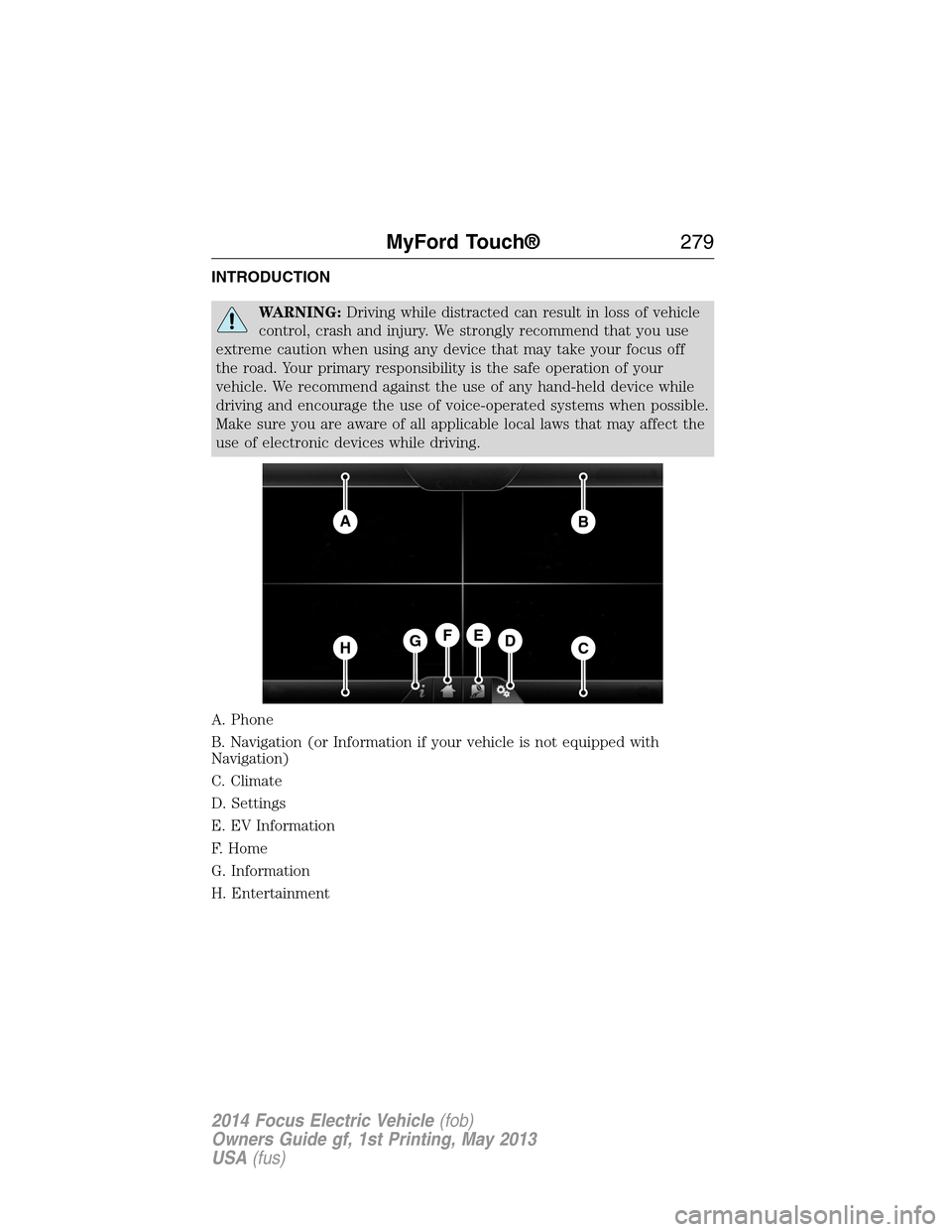
A. Phone
B. Navigation (or Information if your vehicle is not equipped with
Navigation)
C. Climate
D. Settings
E. EV Information
F. Home
G. Information
H. Entertainment
AB
HCDGEF
MyFord Touch®279
2014 Focus Electric Vehicle(fob)
Owners Guide gf, 1st Printing, May 2013
USA(fus)
Page 284 of 403
Support
The SYNC support team is available to help you with any questions you
cannot answer on your own.
Monday-Saturday, 8:30am-9:00pm EST.
Sunday, 10:30am-7:30pm EST.
In the United States, call: 1–800–392–3673.
In Canada, call: 1–800–565–3673.
Times are subject to change due to holidays.
Safety Information
WARNING:Driving while distracted can result in loss of vehicle
control, crash and injury. We strongly recommend that you use
extreme caution when using any device that may take your focus off
the road. Your primary responsibility is the safe operation of your
vehicle. We recommend against the use of any handheld device while
driving and encourage the use of voice-operated systems when possible.
Make sure you are aware of all applicable local laws that may affect the
use of electronic devices while driving.
When using SYNC:
•Do not operate playing devices if the power cords or cables are
broken, split or damaged. Place cords and cables out of the way,
so they do not interfere with the operation of pedals, seats,
compartments or safe driving abilities.
•Do not leave playing devices in your vehicle during extreme conditions
as it could cause them damage. See your device’s manual for further
information.
•Do not attempt to service or repair the system. See your authorized
dealer.
For your safety, some SYNC functions are speed-dependent. Their use is
limited to when your vehicle is traveling at speeds under 3 mph (5 km/h).
Make sure that you review your device’s manual before using it with
SYNC.
MyFord Touch®283
2014 Focus Electric Vehicle(fob)
Owners Guide gf, 1st Printing, May 2013
USA(fus)
Page 288 of 403
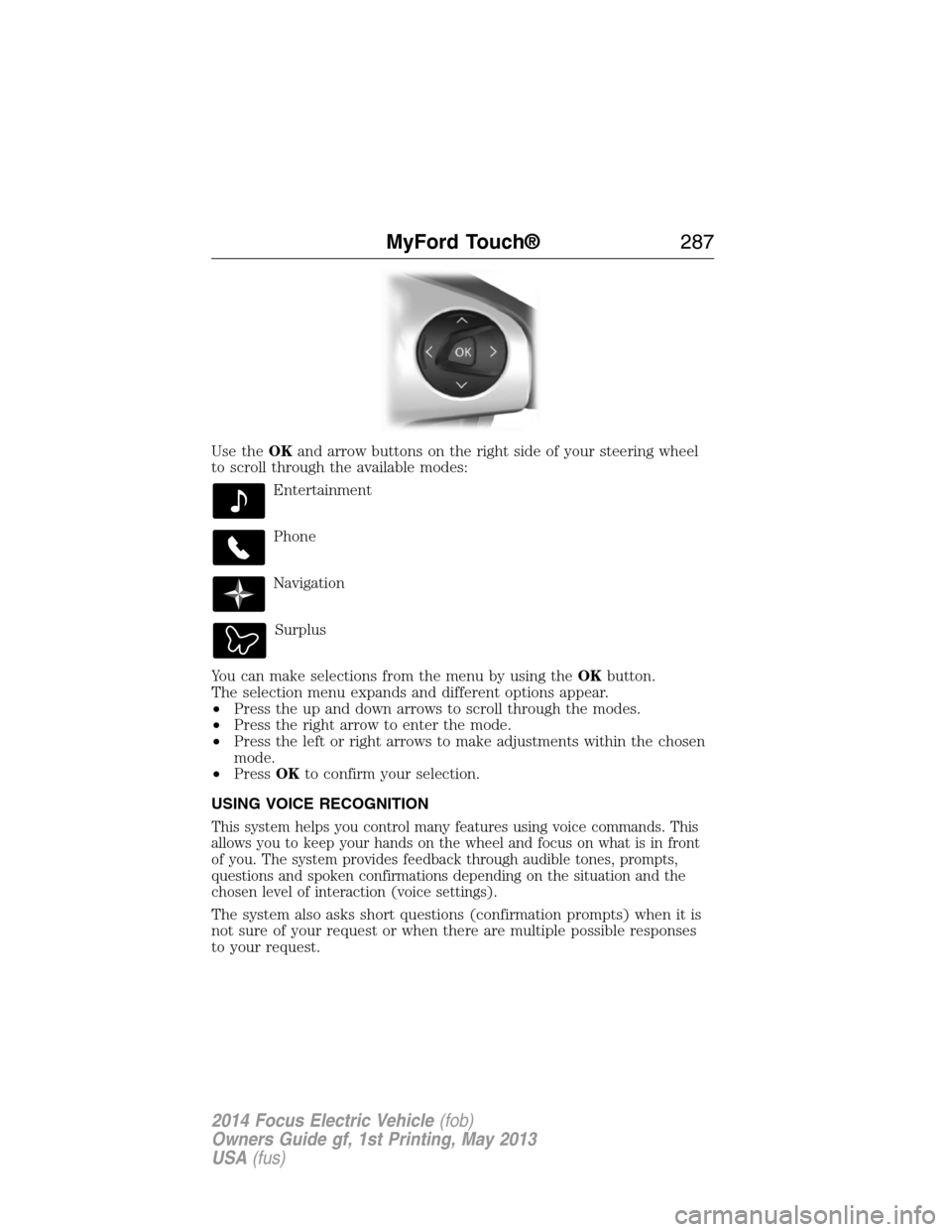
Use theOKand arrow buttons on the right side of your steering wheel
to scroll through the available modes:
Entertainment
Phone
Navigation
Surplus
You can make selections from the menu by using theOKbutton.
The selection menu expands and different options appear.
•Press the up and down arrows to scroll through the modes.
•Press the right arrow to enter the mode.
•Press the left or right arrows to make adjustments within the chosen
mode.
•PressOKto confirm your selection.
USING VOICE RECOGNITION
This system helps you control many features using voice commands. This
allows you to keep your hands on the wheel and focus on what is in front
of you. The system provides feedback through audible tones, prompts,
questions and spoken confirmations depending on the situation and the
chosen level of interaction (voice settings).
The system also asks short questions (confirmation prompts) when it is
not sure of your request or when there are multiple possible responses
to your request.
MyFord Touch®287
2014 Focus Electric Vehicle(fob)
Owners Guide gf, 1st Printing, May 2013
USA(fus)
Page 297 of 403
•Memory presetsallow you to save an active channel as a memory
preset. Touch and hold a memory preset slot until the sound returns.
There is a brief mute while the radio saves the station. Sound returns
when finished. When switching to an HD2 or HD3 memory preset, the
sound mutes before the digital audio plays, because the system has to
reacquire the digital signal.
•Note:As with any saved radio station, you cannot access the
saved station if your vehicle is outside the station’s reception area.
HD Radio Reception and Station Troubleshooting
Potential Reception Issues
Reception areaIf you are listening to a multicast station and
you are on the fringe of the reception area,
the station may mute due to weak signal
strength.
If you are listening to HD1, the system
switches back to the analog broadcast until
the digital broadcast is available again.
However, if you are listening to any of the
possible HD2 through HD7 multicast
channels, the station mutes and stays muted
unless it is able to connect to the digital
signal again.
Station blendingWhen the system first receives a station
(aside from HD2-HD7 multicast stations), it
first plays the station in the analog version.
Once the receiver verifies the station is an HD
Radio station, it shifts to the digital version.
Depending on the station quality, you may
hear a slight sound change when the station
changes from analog to digital. Blending is the
shift from analog to digital sound or digital
back to analog sound.
In order to provide the best possible experience, use the contact form to
report any station issues found while listening to a station broadcasting
with HD Radio technology. Independent entities own and operate each
station. These stations are responsible for making sure all audio streams
and data fields are accurate.
296MyFord Touch®
2014 Focus Electric Vehicle(fob)
Owners Guide gf, 1st Printing, May 2013
USA(fus)
Page 298 of 403
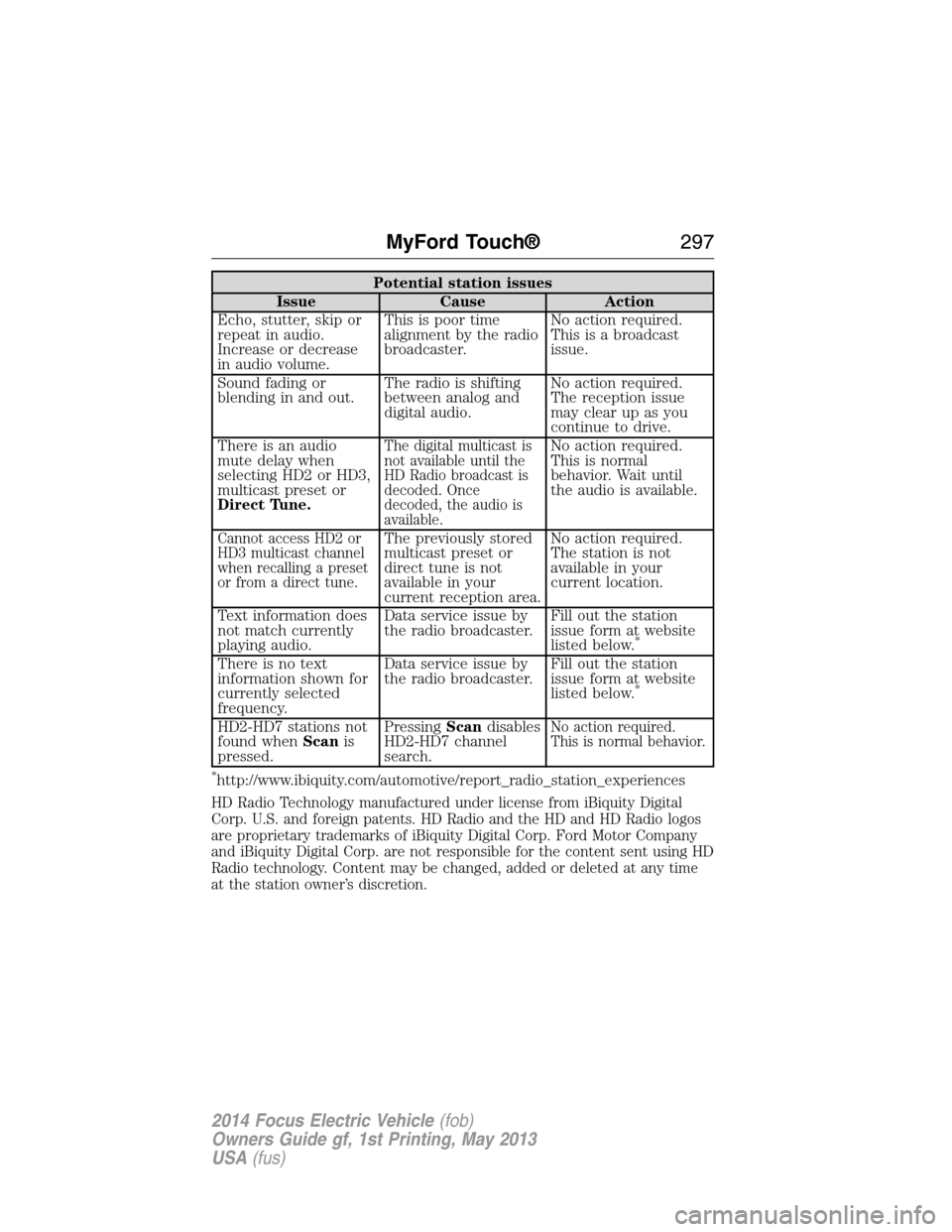
Potential station issues
Issue Cause Action
Echo, stutter, skip or
repeat in audio.
Increase or decrease
in audio volume.This is poor time
alignment by the radio
broadcaster.No action required.
This is a broadcast
issue.
Sound fading or
blending in and out.The radio is shifting
between analog and
digital audio.No action required.
The reception issue
may clear up as you
continue to drive.
There is an audio
mute delay when
selecting HD2 or HD3,
multicast preset or
Direct Tune.
The digital multicast is
not available until the
HD Radio broadcast is
decoded. Once
decoded, the audio is
available.No action required.
This is normal
behavior. Wait until
the audio is available.
Cannot access HD2 or
HD3 multicast channel
when recalling a preset
or from a direct tune.The previously stored
multicast preset or
direct tune is not
available in your
current reception area.No action required.
The station is not
available in your
current location.
Text information does
not match currently
playing audio.Data service issue by
the radio broadcaster.Fill out the station
issue form at website
listed below.
*
There is no text
information shown for
currently selected
frequency.Data service issue by
the radio broadcaster.Fill out the station
issue form at website
listed below.
*
HD2-HD7 stations not
found whenScanis
pressed.PressingScandisables
HD2-HD7 channel
search.No action required.
This is normal behavior.
*http://www.ibiquity.com/automotive/report_radio_station_experiences
HD Radio Technology manufactured under license from iBiquity Digital
Corp. U.S. and foreign patents. HD Radio and the HD and HD Radio logos
are proprietary trademarks of iBiquity Digital Corp. Ford Motor Company
and iBiquity Digital Corp. are not responsible for the content sent using HD
Radio technology. Content may be changed, added or deleted at any time
at the station owner’s discretion.
MyFord Touch®297
2014 Focus Electric Vehicle(fob)
Owners Guide gf, 1st Printing, May 2013
USA(fus)
Page 301 of 403
Parental Lockoutallows you to lock and unlock channels, change or
reset your PIN or unlock all channels. To use this feature, you need your
initial PIN, which is 1234.
Artist/Title/Team Alertsallows you to select Artists, Titles and Teams
that you would like the system to alert you to when they are playing on
other channels. PressEdit Alertsto delete or turn off alerts. You can
also set all alerts to on or off. When an alert appears on the screen, you
can choose to Tune to the channel, to Cancel the alert or to Disable
Alerts. If you are listening to a sporting event, you can save your favorite
teams so that the system can alert you when they are playing on a
satellite radio channel.
Note:Sirius does not support the Alert feature on all channels. Ford
Motor Company shall not be responsible for Alert feature variation.
Electronic Serial Number (ESN)is required when communicating
with Sirius about your account.
Direct Tune
Touch this button to manually enter the desired satellite channel
number. TouchEnterwhen you are done.
Browse
Touch this button to view a list of all available stations. Scroll to see
more categories. Touch the station you want to listen to.
TouchSkipif you want to skip this channel.
TouchLockif you do not want anyone to listen to this channel.
TouchTi t l eorArtistto see song and artists on other stations.
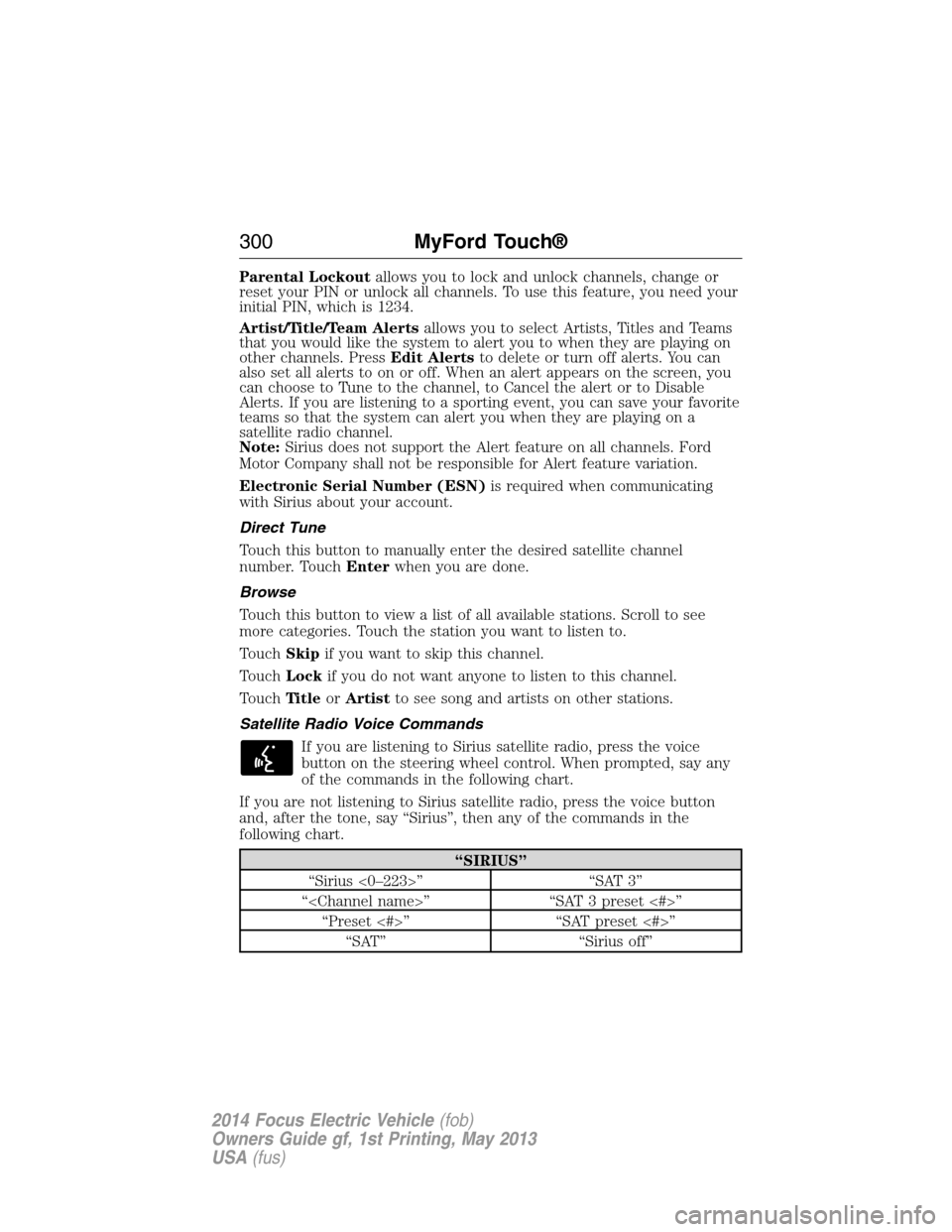
Satellite Radio Voice Commands
If you are listening to Sirius satellite radio, press the voice
button on the steering wheel control. When prompted, say any
of the commands in the following chart.
If you are not listening to Sirius satellite radio, press the voice button
and, after the tone, say “Sirius”, then any of the commands in the
following chart.
“SIRIUS”
“Sirius <0–223>” “SAT 3”
“
“Preset <#>” “SAT preset <#>”
“SAT” “Sirius off”
300MyFord Touch®
2014 Focus Electric Vehicle(fob)
Owners Guide gf, 1st Printing, May 2013
USA(fus)
Page 302 of 403
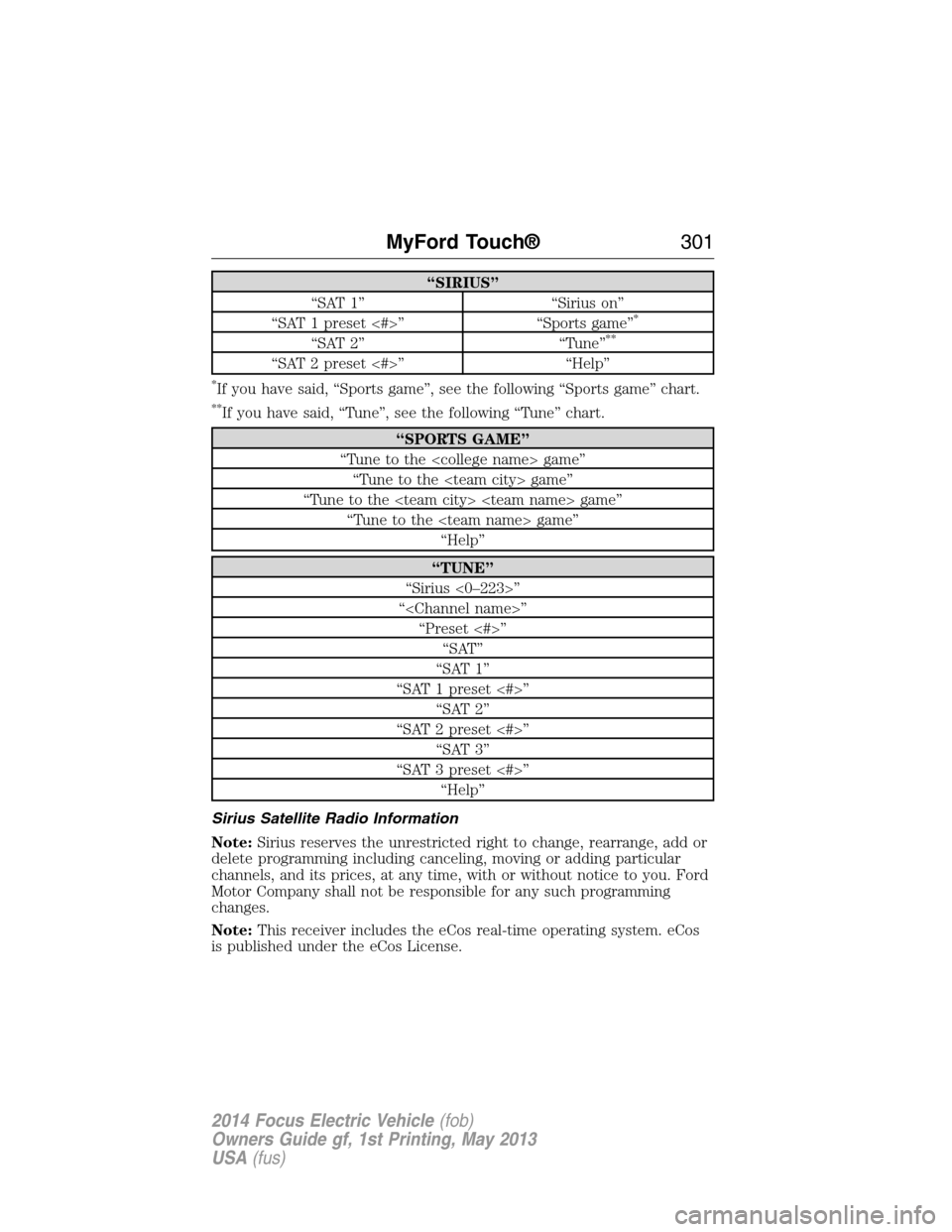
“SIRIUS”
“SAT 1” “Sirius on”
“SAT 1 preset <#>” “Sports game”
*
“SAT 2” “Tune”**
“SAT 2 preset <#>” “Help”
*If you have said, “Sports game”, see the following “Sports game” chart.
**If you have said, “Tune”, see the following “Tune” chart.
“SPORTS GAME”
“Tune to the
“Tune to the
“Tune to the
“Tune to the
“Help”
“TUNE”
“Sirius <0–223>”
“
“Preset <#>”
“SAT”
“SAT 1”
“SAT 1 preset <#>”
“SAT 2”
“SAT 2 preset <#>”
“SAT 3”
“SAT 3 preset <#>”
“Help”
Sirius Satellite Radio Information
Note:Sirius reserves the unrestricted right to change, rearrange, add or
delete programming including canceling, moving or adding particular
channels, and its prices, at any time, with or without notice to you. Ford
Motor Company shall not be responsible for any such programming
changes.
Note:This receiver includes the eCos real-time operating system. eCos
is published under the eCos License.
MyFord Touch®301
2014 Focus Electric Vehicle(fob)
Owners Guide gf, 1st Printing, May 2013
USA(fus)
Page 310 of 403
Supported Media Players, Formats and Metadata Information
SYNC is capable of hosting nearly any digital media player, including
iPod®, Zune™, plays from device players, and most USB drives.
Supported audio formats include MP3, WMA, WAV and AAC.
It is also able to organize your indexed media from your playing device by
metadata tags. Metadata tags, which are descriptive software identifiers
embedded in the media files, provide information about the file.
If your indexed media files contain no information embedded in these
metadata tags, SYNC may classify the empty metadata tags as
Unknown.
In order to playback video from your iPod® or iPhone®, (if compatible),
you MUST have a special combination USB/RCA composite video cable
(which you can buy from Apple®). When the cable is connected to your
iPod® or iPhone®, plug the other end into both the RCA jacks and the
USB port.
Bluetooth Audio
Your system allows you to stream audio over your vehicle’s speakers from
your connected, Bluetooth-enabled cellular phone.
To access, press the lower left corner on the touchscreen, then
select theBT Stereotab.
Bluetooth Audio Voice Commands
If you are listening to a Bluetooth audio device, press the voice
button on the steering wheel control. When prompted, say
“Next song”, “Pause”, “Play” or “Previous song”.
If you are not listening to a Bluetooth audio device, press the voice
button and, after the tone, say “Bluetooth Audio”, then “Next song”,
“Pause”, “Play” or “Previous song”.
A/V Inputs
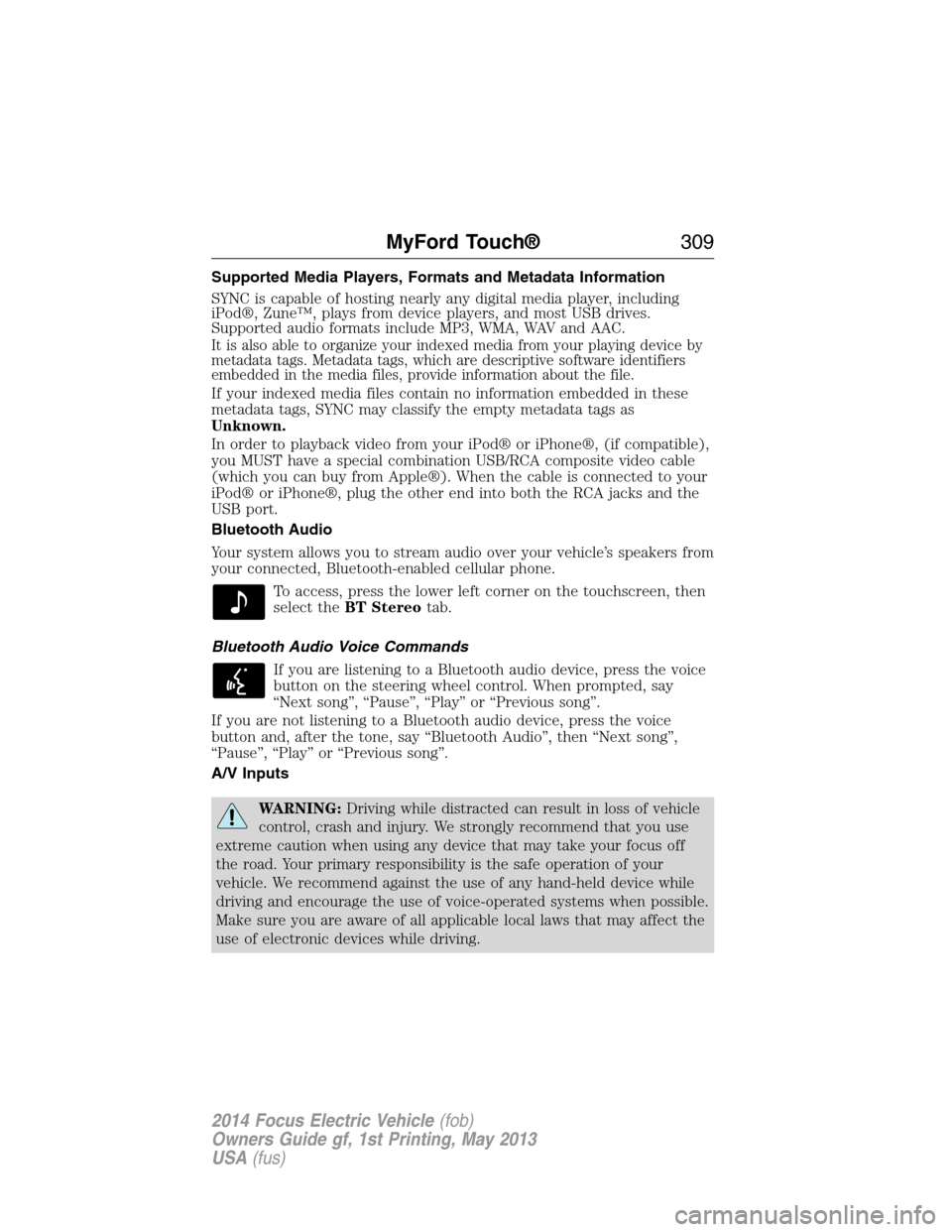
WARNING:Driving while distracted can result in loss of vehicle
control, crash and injury. We strongly recommend that you use
extreme caution when using any device that may take your focus off
the road. Your primary responsibility is the safe operation of your
vehicle. We recommend against the use of any hand-held device while
driving and encourage the use of voice-operated systems when possible.
Make sure you are aware of all applicable local laws that may affect the
use of electronic devices while driving.
MyFord Touch®309
2014 Focus Electric Vehicle(fob)
Owners Guide gf, 1st Printing, May 2013
USA(fus)
Page 314 of 403
Pairing Your Phone for the First Time
WARNING:Driving while distracted can result in loss of vehicle
control, crash and injury. We strongly recommend that you use
extreme caution when using any device that may take your focus off
the road. Your primary responsibility is the safe operation of your
vehicle. We recommend against the use of any hand-held device while
driving and encourage the use of voice-operated systems when possible.
Make sure you are aware of all applicable local laws that may affect the
use of electronic devices while driving.
The first thing you must do to use the phone features of SYNC is to pair
your Bluetooth-enabled cellular phone with SYNC. This allows you to use
your phone in a hands-free manner.
Note:Put the transmission in positionP.Turn on your vehicle ignition
and the radio.
1. TouchAdd Phonein the upper left corner of the touchscreen.Find
SYNCappears on the screen and instructs you to begin the pairing
process from your device.
2. Make sure that Bluetooth is set toOnand that your cellular phone is
in the proper mode. See your phone’s manual if necessary.
•SelectSYNC,and a six-digit PIN appears on your device.
3. If you are prompted to enter a PIN on your device, it does not
support Secure Simple Pairing. To pair, enter the PIN displayed on
the touchscreen. Skip the next step.
4. When prompted on your phone’s display, confirm that the PIN
provided by SYNC matches the PIN displayed on your cellular phone.
5. The display indicates when the pairing is successful.
SYNC may prompt you with more phone options. For more information
on your phone’s capability, see your phone’s manual and visit the
website.
Pairing Subsequent Phones
Note:Put the transmission in positionP.Turn on your vehicle ignition
and the radio.
1. Press thePhonecorner of the touchscreen >Settings>BT
Devices>Add Device.
2. Make sure that Bluetooth is set toOnand that your cellular phone is
in the proper mode. See your phone’s manual if necessary.
•SelectSYNC,and a six-digit PIN appears on your device.
MyFord Touch®313
2014 Focus Electric Vehicle(fob)
Owners Guide gf, 1st Printing, May 2013
USA(fus)
Page 331 of 403
Note:The driver is ultimately responsible for the safe operation of the
vehicle, and therefore, must evaluate whether it is safe to follow the
suggested directions. Any navigation features are provided only as an aid.
Make your driving decisions based on your observations of local conditions
and existing traffic regulations. Do not follow the route suggestions if doing
so would result in an unsafe or illegal maneuver, if you would be placed
in an unsafe situation, or if you would be directed into an area that you
consider unsafe. Maps used by this system may be inaccurate because of
errors, changes in roads, traffic conditions or driving conditions.
Note:When you connect, the service uses GPS technology and advanced
vehicle sensors to collect your vehicle’s current location, travel direction
and speed to help provide you with the directions, traffic reports, or
business searches you request. Further, to provide the services you
request, for continuous improvement, the service may collect and record
call details and voice communications. For more information, see SYNC
Services Terms and Conditions at www.SYNCMyRide.com. If you do not
want Ford or its service providers to collect your vehicle travel
information or other information identified in the Terms and Conditions,
do not subscribe or use the service.
SYNC Services uses advanced vehicle sensors, integrated GPS technology
and comprehensive map and traffic data, to give you personalized traffic
reports, precise turn-by-turn directions, business search, news, sports,
weather and more. For a complete list of services, or to learn more,
please visit www.SYNCMyRide.com.
Connecting to SYNC Services Using Voice Commands
Press the voice button on the steering wheel controls.
1. When prompted, say “Services”. This initiates an outgoing
call to SYNC Services using your paired and connected
Bluetooth-enabled cellular phone.
2. Once you connect to the service, follow the voice prompts to request
the desired service, such as “Traffic” or “Directions”. You can also
say, “What are my choices?” to receive a list of available services
from which to choose.
3. Say, “Services” to return to the Services main menu or for help, say,
“Help”.
330MyFord Touch®
2014 Focus Electric Vehicle(fob)
Owners Guide gf, 1st Printing, May 2013
USA(fus)