battery location FORD FOCUS ELECTRIC 2018 Owner's Manual
[x] Cancel search | Manufacturer: FORD, Model Year: 2018, Model line: FOCUS ELECTRIC, Model: FORD FOCUS ELECTRIC 2018Pages: 375, PDF Size: 12.81 MB
Page 233 of 375
Description
Item
Callout
This icon displays when 911 Assist is set to off and
your phone is connected to SYNC.
911 Assist Off
H
This icon displays when there is an active Bluetooth
alert.
Bluetooth Alert
I
This icon displays to show an active Bluetooth
connection.
Bluetooth
J
Messages may also appear in the status
bar to provide you with notifications. You
can select the message to view the
associated feature.
Feature Bar Functions
Feature Bar Item
Allows you to control the media playing in
your vehicle. You can control all audio
features including AM, FM and satellite
radio, CDs, and media streaming over a
Bluetooth device or through a USB
connection.
Audio
Allows you to make calls, receive calls, and
access the phonebook of your connected
device.
Phone
Allows you to see your vehicle's location on
a virtual road map, get driving directions to
your destination and find points of interest
along your route.
Navigation
(If equipped)
Connect and control SYNC 3 compatible
apps running on your iPhone or Android
device. Also, access built-in additional
features such as SiriusXM Traffic and Travel
Link (if equipped).
Apps
You can customize your system with
various settings for the touchscreen display,
feature preferences, and how you want to
interact with your vehicle.
Settings
230
2018 Focus (CDH) Battery Electric Vehicle (BEV), Canada/United States of America, JM5J 19A321 RA enUSA, Edition date: 201706, First Printing SYNC™ 3
Page 235 of 375
•
SOUND: Press to access the Sound
menu where you can adjust sound and
other audio settings.
• 1-6:
Press and hold to store or press to
select an AM, FM or SIRIUS memory
preset. See Audio System (page 223).
• DISP:
Switch the display on or off. You
can also touch the screen to switch the
display back on.
• Temperature, fan and climate
control buttons:
Control the
temperature, fan speed or settings of
the climate control system. See
Climate Control
(page 94).
911 Assist WARNINGS
Unless the 911 Assist setting is set on
before a crash, the system will not
dial for help which could delay
response time, potentially increasing the
risk of serious injury or death after a crash. Do not wait for 911 Assist to make an
emergency call if you can do it
yourself. Dial emergency services
immediately to avoid delayed response
time which could increase the risk of
serious injury or death after a crash. If you
do not hear 911 Assist within five seconds
of the crash, the system or phone may be
damaged or non-functional. Always place your phone in a secure
location in your vehicle so it does not
become a projectile or get damaged
in a crash. Failure to do so may cause
serious injury to someone or damage the
phone which could prevent 911 Assist from
working properly. Note:
The SYNC 911 Assist feature must be
set on before the incident.
Note: The SYNC 911 Assist feature only
operates in the U.S., Canada or in a territory
in which 911 is the emergency number. Note:
Before setting this feature on, make
sure that you read the 911 Assist Privacy
Notice later in this section for important
information.
Note: If any user sets 911 Assist to on or off,
that setting applies for all paired phones. If
911 Assist is switched off and the phone is
connected to SYNC, an icon displays on the
status bar.
Note: Every phone operates differently.
While SYNC 911 Assist works with most
cellular phones, some may have trouble
using this feature.
If a crash deploys an airbag (excluding
knee airbags and rear inflatable safety
belts [if equipped]) or activates the fuel
pump shut-off, your SYNC-equipped
vehicle may be able to contact emergency
services by dialing 911 through a paired and
connected Bluetooth-enabled phone. You
can learn more about the 911 Assist
feature, by visiting: Website
www.owner.ford.com
www.syncmyride.ca
www.syncmaroute.ca
For important information about airbag
deployment and the fuel pump shut-off
please see the Supplementary Restrains
and Roadside Emergencies sections of
your owner manual.
To switch 911 Assist on and off please view
the settings information.
See Settings
(page 290).
To make sure that 911 Assist works
correctly:
• SYNC must be powered and working
properly at the time of the incident and
throughout feature activation and use.
• The 911 Assist feature must be set on
before the incident.
232
2018 Focus (CDH) Battery Electric Vehicle (BEV), Canada/United States of America, JM5J 19A321 RA enUSA, Edition date: 201706, First Printing SYNC™ 3
Page 236 of 375
•
You must pair and connect a
Bluetooth-enabled and compatible
cell phone to SYNC.
• A connected Bluetooth-enabled phone
must have the ability to make and
maintain an outgoing call at the time
of the incident.
• A connected Bluetooth-enabled phone
must have adequate network coverage,
battery power and signal strength.
• The vehicle must have battery power
and be located in the U.S., Canada or
in a territory in which 911 is the
emergency number.
In the Event of a Crash
Not all crashes will deploy an airbag or
activate the fuel pump shut-off (the
triggers for 911 Assist). If a connected cell
phone sustains damage or loses its
connection to SYNC during a crash, SYNC
will search for and try to connect to a
previously paired cell phone; SYNC will
then attempt to call the emergency
services.
Before making the call:
• SYNC provides a short window of time
(about 10 seconds) to cancel the call.
If you fail to cancel the call, SYNC
attempts to dial 911.
• SYNC says the following, or a similar
message: "SYNC will attempt to call
911, to cancel the call, press Cancel on
your screen or press and hold the
phone button on your steering wheel."
If you do not cancel the call, and SYNC
makes a successful call, a pre-recorded
message plays for the 911 operator, and
then the occupant(s) in your vehicle is able
to talk with the operator. Be prepared to
provide your name, phone number and
location immediately, because not all 911
systems are capable of receiving this
information electronically. 911 Assist May Not Work If
•
Your cellular phone or 911 Assist
hardware sustains damage in a crash.
• The vehicle's battery or the SYNC
system has no power.
• The phone(s) thrown from your vehicle
are the ones paired and connected to
the system.
911 Assist Privacy Notice
When you switch on 911 Assist, it may
disclose to emergency services that your
vehicle has been in a crash involving the
deployment of an airbag or activation of
the fuel pump shut-off. Certain versions or
updates to 911 Assist may also be capable
of electronically or verbally disclosing to
911 operators your vehicle location or other
details about your vehicle or crash to assist
911 operators to provide the most
appropriate emergency services. If you do
not want to disclose this information, do
not switch the feature on.
Safety Information WARNING
Driving while distracted can result in
loss of vehicle control, crash and
injury. We strongly recommend that
you use extreme caution when using any
device that may take your focus off the
road. Your primary responsibility is the safe
operation of your vehicle. We recommend
against the use of any hand-held device
while driving and encourage the use of
voice-operated systems when possible.
Make sure you are aware of all applicable
local laws that may affect the use of
electronic devices while driving. 233
2018 Focus (CDH) Battery Electric Vehicle (BEV), Canada/United States of America, JM5J 19A321 RA enUSA, Edition date: 201706, First Printing SYNC™ 3
Page 238 of 375
Creating an Owner Account
Why do I need an owner account?
•
Essential for keeping up with the latest
software and connected features.
• Access to customer support for any
questions you may have.
• Maintain account permissions.
Visit the website to sign up and register. Website
www.owner.ford.com
www.syncmyride.ca
www.syncmaroute.ca
SYNC Connect (If Equipped)
With a SYNC® Connect-equipped vehicle,
you can use FordPass® to track your
vehicle ’s location and remotely access
vehicle features such as start, lock and
unlock and vehicle status including fuel
level and approximate mileage. You can
also schedule specific times to remotely
start your vehicle so it’ s ready to hit the
road as soon as you are. SYNC Connect is
an optional feature on select 2017 MY
vehicles. FordPass® is available through
a free download via the Apple App Store®
or Google Play ™. Message and data rates
may apply. Services may be limited by
mobile phone network coverage area.
• FCC: LHJ-FAN
• IC: 2807E-FAN
Updating Your System
You can choose to download the update
onto a USB drive or use Wi-Fi to deliver
automatic updates.
USB Updates
To use the USB update you need to log
into your owner account and visit the SYNC
software update page. Website
www.owner.ford.com
www.syncmyride.ca
www.syncmaroute.ca
The website notifies you if an update is
available. You can then select to download
the update.
You will need an empty USB drive. Please
check the website for minimum
requirements. Once you have inserted the
USB drive into your computer, choose to
start the download. Follow the instructions
provided to download the files to the USB
drive.
To install the update in your vehicle,
remove anything that is plugged in the USB
ports on the media hub and plug in the
USB drive containing the update. When
the USB drive is plugged in, the installation
should begin immediately. After a
successful installation, the update is
available the next time the vehicle is
started.
The installation of most files occurs in the
background, and does not interrupt your
use of the system. Navigation updates
cannot be installed in the background,
because the files are too large.
Please refer to the website for any further
actions.
Updating Over Wi-Fi
To update your System over Wi-Fi your
vehicle must be within the range of a Wi-Fi
access point. Data rates may apply.
235
2018 Focus (CDH) Battery Electric Vehicle (BEV), Canada/United States of America, JM5J 19A321 RA enUSA, Edition date: 201706, First Printing SYNC™ 3
Page 241 of 375
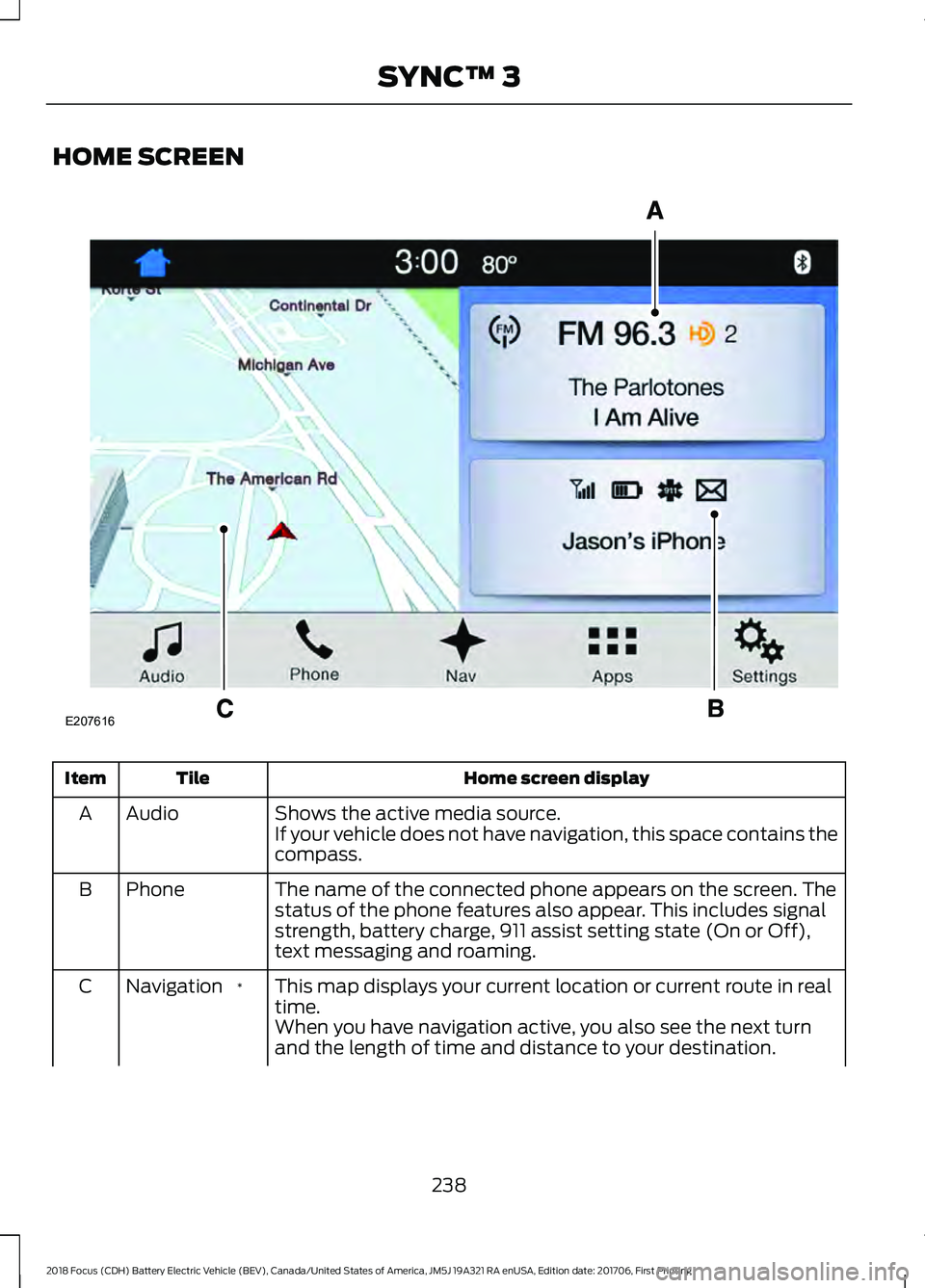
HOME SCREEN
Home screen display
Tile
Item
Shows the active media source.
Audio
A
If your vehicle does not have navigation, this space contains the
compass.
The name of the connected phone appears on the screen. The
status of the phone features also appear. This includes signal
strength, battery charge, 911 assist setting state (On or Off),
text messaging and roaming.
Phone
B
This map displays your current location or current route in real
time.
*
Navigation
C
When you have navigation active, you also see the next turn
and the length of time and distance to your destination.
238
2018 Focus (CDH) Battery Electric Vehicle (BEV), Canada/United States of America, JM5J 19A321 RA enUSA, Edition date: 201706, First Printing SYNC™ 3E207616
Page 244 of 375
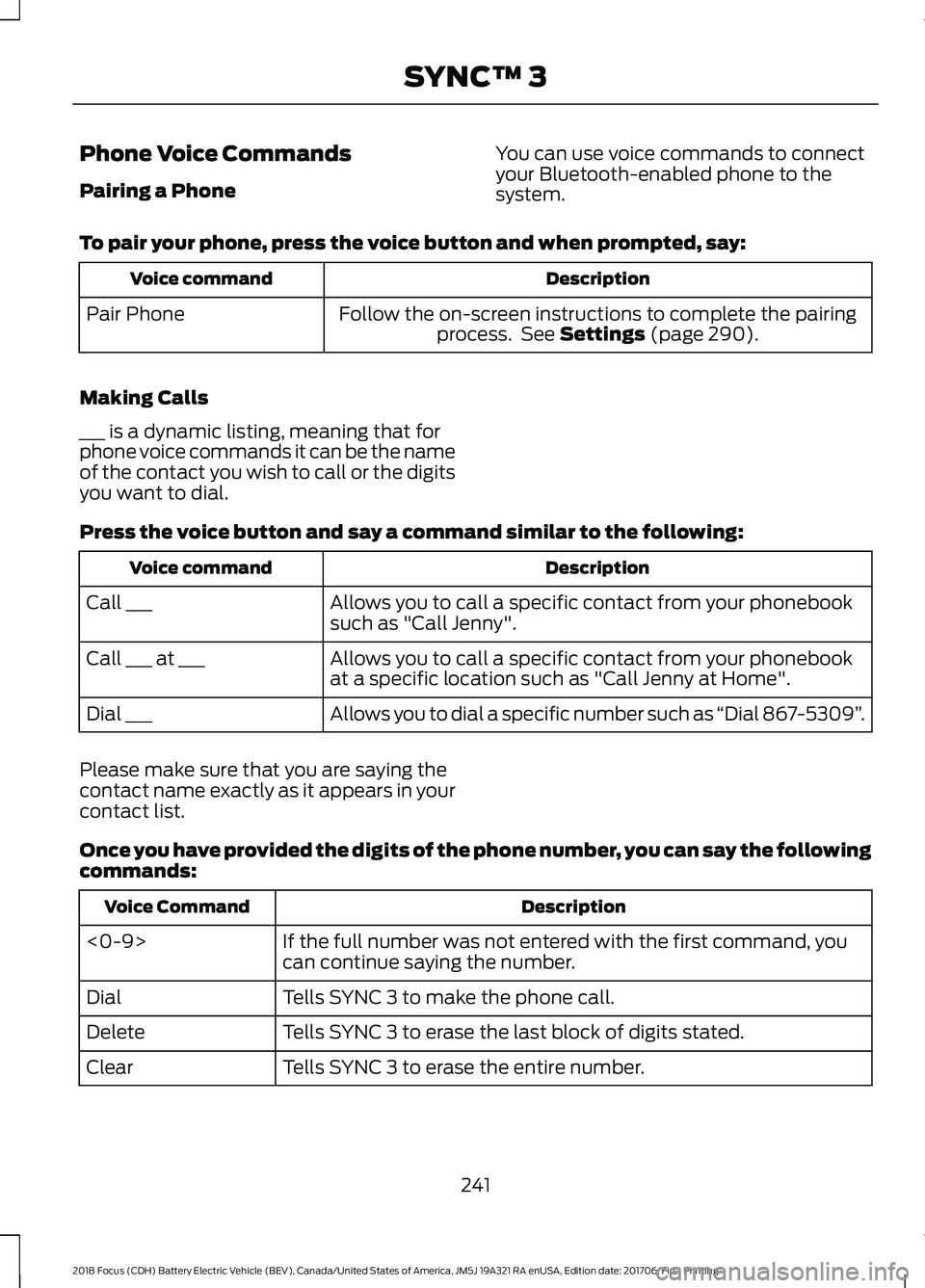
Phone Voice Commands
Pairing a Phone
You can use voice commands to connect
your Bluetooth-enabled phone to the
system.
To pair your phone, press the voice button and when prompted, say: Description
Voice command
Follow the on-screen instructions to complete the pairingprocess. See Settings (page 290).
Pair Phone
Making Calls
___ is a dynamic listing, meaning that for
phone voice commands it can be the name
of the contact you wish to call or the digits
you want to dial.
Press the voice button and say a command similar to the following: Description
Voice command
Allows you to call a specific contact from your phonebook
such as "Call Jenny".
Call ___
Allows you to call a specific contact from your phonebook
at a specific location such as "Call Jenny at Home".
Call ___ at ___
Allows you to dial a specific number such as “Dial 867-5309”.
Dial ___
Please make sure that you are saying the
contact name exactly as it appears in your
contact list.
Once you have provided the digits of the phone number, you can say the following
commands: Description
Voice Command
If the full number was not entered with the first command, you
can continue saying the number.
<0-9>
Tells SYNC 3 to make the phone call.
Dial
Tells SYNC 3 to erase the last block of digits stated.
Delete
Tells SYNC 3 to erase the entire number.
Clear
241
2018 Focus (CDH) Battery Electric Vehicle (BEV), Canada/United States of America, JM5J 19A321 RA enUSA, Edition date: 201706, First Printing SYNC™ 3
Page 246 of 375
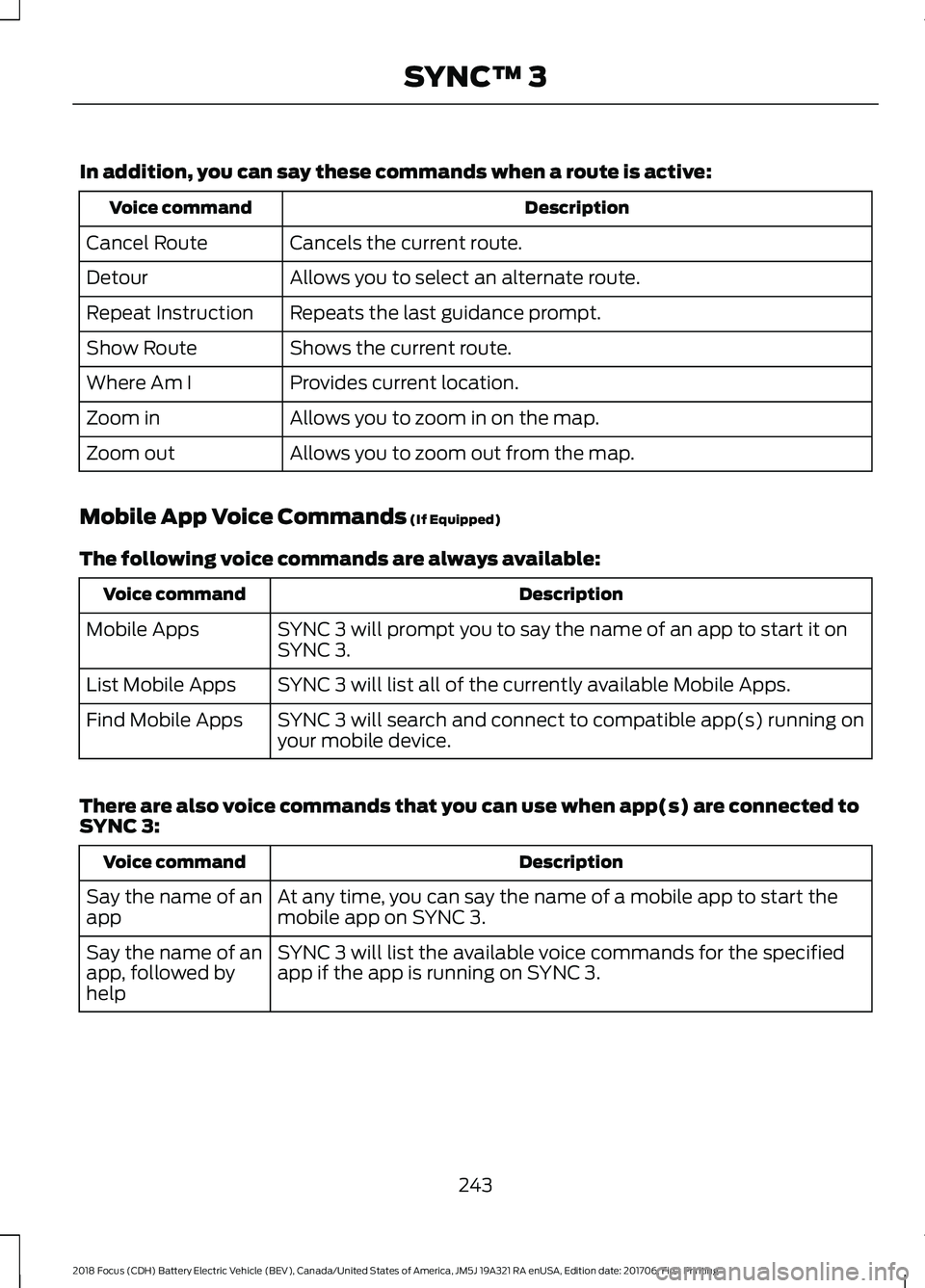
In addition, you can say these commands when a route is active:
Description
Voice command
Cancels the current route.
Cancel Route
Allows you to select an alternate route.
Detour
Repeats the last guidance prompt.
Repeat Instruction
Shows the current route.
Show Route
Provides current location.
Where Am I
Allows you to zoom in on the map.
Zoom in
Allows you to zoom out from the map.
Zoom out
Mobile App Voice Commands (If Equipped)
The following voice commands are always available: Description
Voice command
SYNC 3 will prompt you to say the name of an app to start it on
SYNC 3.
Mobile Apps
SYNC 3 will list all of the currently available Mobile Apps.
List Mobile Apps
SYNC 3 will search and connect to compatible app(s) running on
your mobile device.
Find Mobile Apps
There are also voice commands that you can use when app(s) are connected to
SYNC 3: Description
Voice command
At any time, you can say the name of a mobile app to start the
mobile app on SYNC 3.
Say the name of an
app
SYNC 3 will list the available voice commands for the specified
app if the app is running on SYNC 3.
Say the name of an
app, followed by
help
243
2018 Focus (CDH) Battery Electric Vehicle (BEV), Canada/United States of America, JM5J 19A321 RA enUSA, Edition date: 201706, First Printing SYNC™ 3
Page 255 of 375
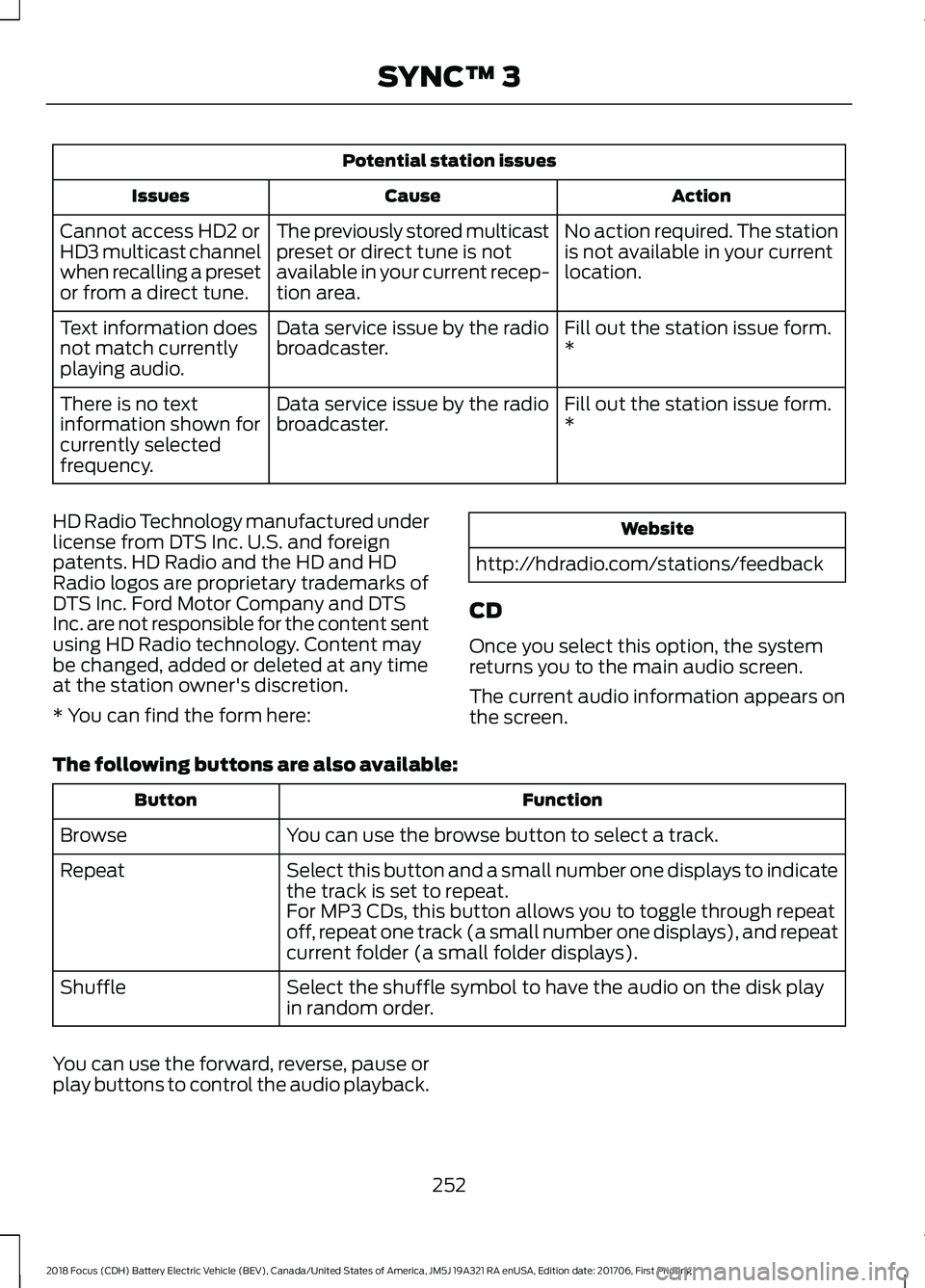
Potential station issues
Action
Cause
Issues
No action required. The station
is not available in your current
location.
The previously stored multicast
preset or direct tune is not
available in your current recep-
tion area.
Cannot access HD2 or
HD3 multicast channel
when recalling a preset
or from a direct tune.
Fill out the station issue form.
*
Data service issue by the radio
broadcaster.
Text information does
not match currently
playing audio.
Fill out the station issue form.
*
Data service issue by the radio
broadcaster.
There is no text
information shown for
currently selected
frequency.
HD Radio Technology manufactured under
license from DTS Inc. U.S. and foreign
patents. HD Radio and the HD and HD
Radio logos are proprietary trademarks of
DTS Inc. Ford Motor Company and DTS
Inc. are not responsible for the content sent
using HD Radio technology. Content may
be changed, added or deleted at any time
at the station owner's discretion.
* You can find the form here: Website
http://hdradio.com/stations/feedback
CD
Once you select this option, the system
returns you to the main audio screen.
The current audio information appears on
the screen.
The following buttons are also available: Function
Button
You can use the browse button to select a track.
Browse
Select this button and a small number one displays to indicate
the track is set to repeat.
Repeat
For MP3 CDs, this button allows you to toggle through repeat
off, repeat one track (a small number one displays), and repeat
current folder (a small folder displays).
Select the shuffle symbol to have the audio on the disk play
in random order.
Shuffle
You can use the forward, reverse, pause or
play buttons to control the audio playback.
252
2018 Focus (CDH) Battery Electric Vehicle (BEV), Canada/United States of America, JM5J 19A321 RA enUSA, Edition date: 201706, First Printing SYNC™ 3
Page 264 of 375
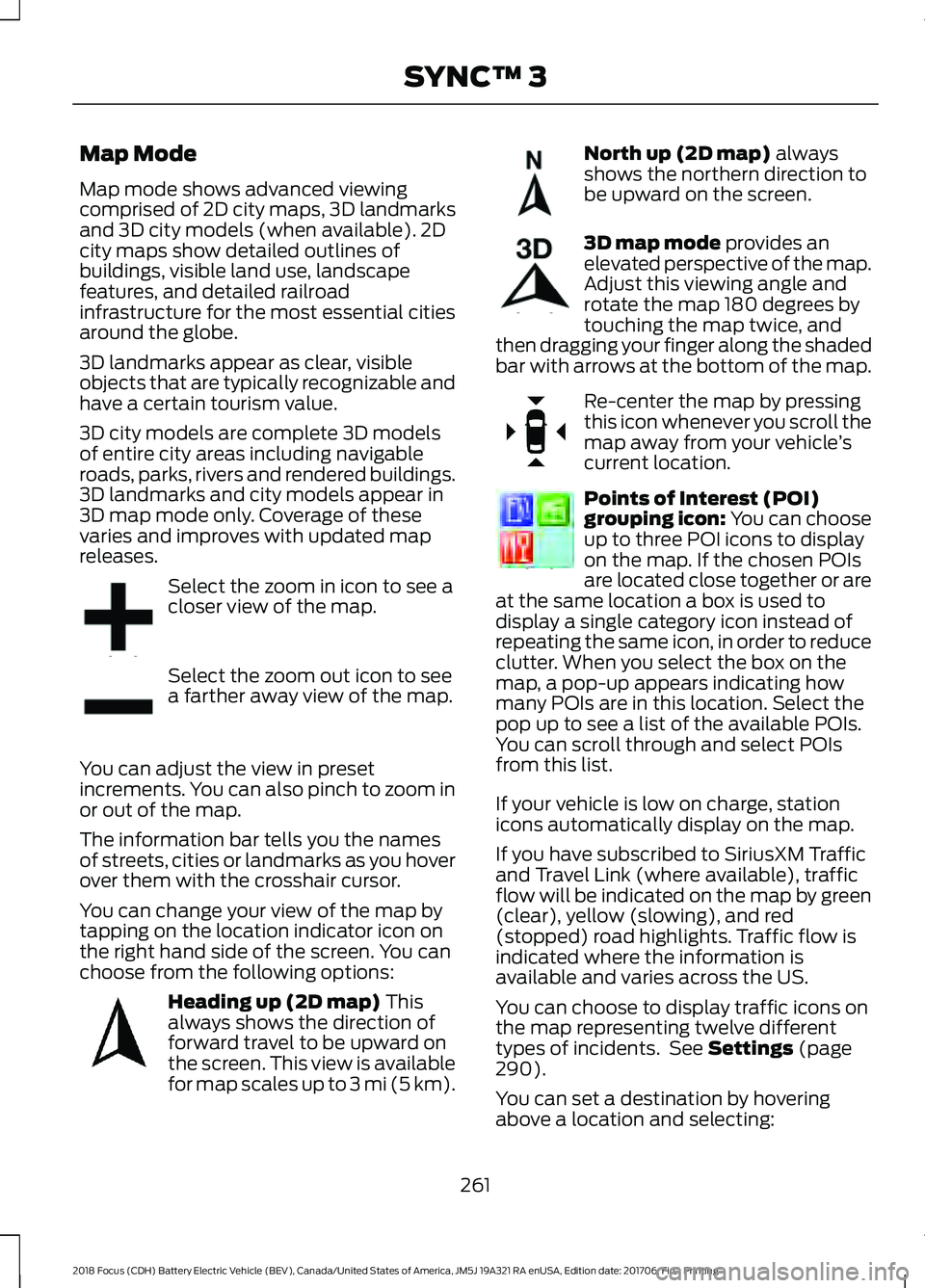
Map Mode
Map mode shows advanced viewing
comprised of 2D city maps, 3D landmarks
and 3D city models (when available). 2D
city maps show detailed outlines of
buildings, visible land use, landscape
features, and detailed railroad
infrastructure for the most essential cities
around the globe.
3D landmarks appear as clear, visible
objects that are typically recognizable and
have a certain tourism value.
3D city models are complete 3D models
of entire city areas including navigable
roads, parks, rivers and rendered buildings.
3D landmarks and city models appear in
3D map mode only. Coverage of these
varies and improves with updated map
releases.
Select the zoom in icon to see a
closer view of the map.
Select the zoom out icon to see
a farther away view of the map.
You can adjust the view in preset
increments. You can also pinch to zoom in
or out of the map.
The information bar tells you the names
of streets, cities or landmarks as you hover
over them with the crosshair cursor.
You can change your view of the map by
tapping on the location indicator icon on
the right hand side of the screen. You can
choose from the following options: Heading up (2D map) This
always shows the direction of
forward travel to be upward on
the screen. This view is available
for map scales up to
3 mi (5 km). North up (2D map)
always
shows the northern direction to
be upward on the screen. 3D map mode
provides an
elevated perspective of the map.
Adjust this viewing angle and
rotate the map 180 degrees by
touching the map twice, and
then dragging your finger along the shaded
bar with arrows at the bottom of the map. Re-center the map by pressing
this icon whenever you scroll the
map away from your vehicle
’s
current location. Points of Interest (POI)
grouping icon: You can choose
up to three POI icons to display
on the map. If the chosen POIs
are located close together or are
at the same location a box is used to
display a single category icon instead of
repeating the same icon, in order to reduce
clutter. When you select the box on the
map, a pop-up appears indicating how
many POIs are in this location. Select the
pop up to see a list of the available POIs.
You can scroll through and select POIs
from this list.
If your vehicle is low on charge, station
icons automatically display on the map.
If you have subscribed to SiriusXM Traffic
and Travel Link (where available), traffic
flow will be indicated on the map by green
(clear), yellow (slowing), and red
(stopped) road highlights. Traffic flow is
indicated where the information is
available and varies across the US.
You can choose to display traffic icons on
the map representing twelve different
types of incidents. See
Settings (page
290).
You can set a destination by hovering
above a location and selecting:
261
2018 Focus (CDH) Battery Electric Vehicle (BEV), Canada/United States of America, JM5J 19A321 RA enUSA, Edition date: 201706, First Printing SYNC™ 3E207752 E207753 E207750 E207749 E207748 E207751 E207754
Page 267 of 375
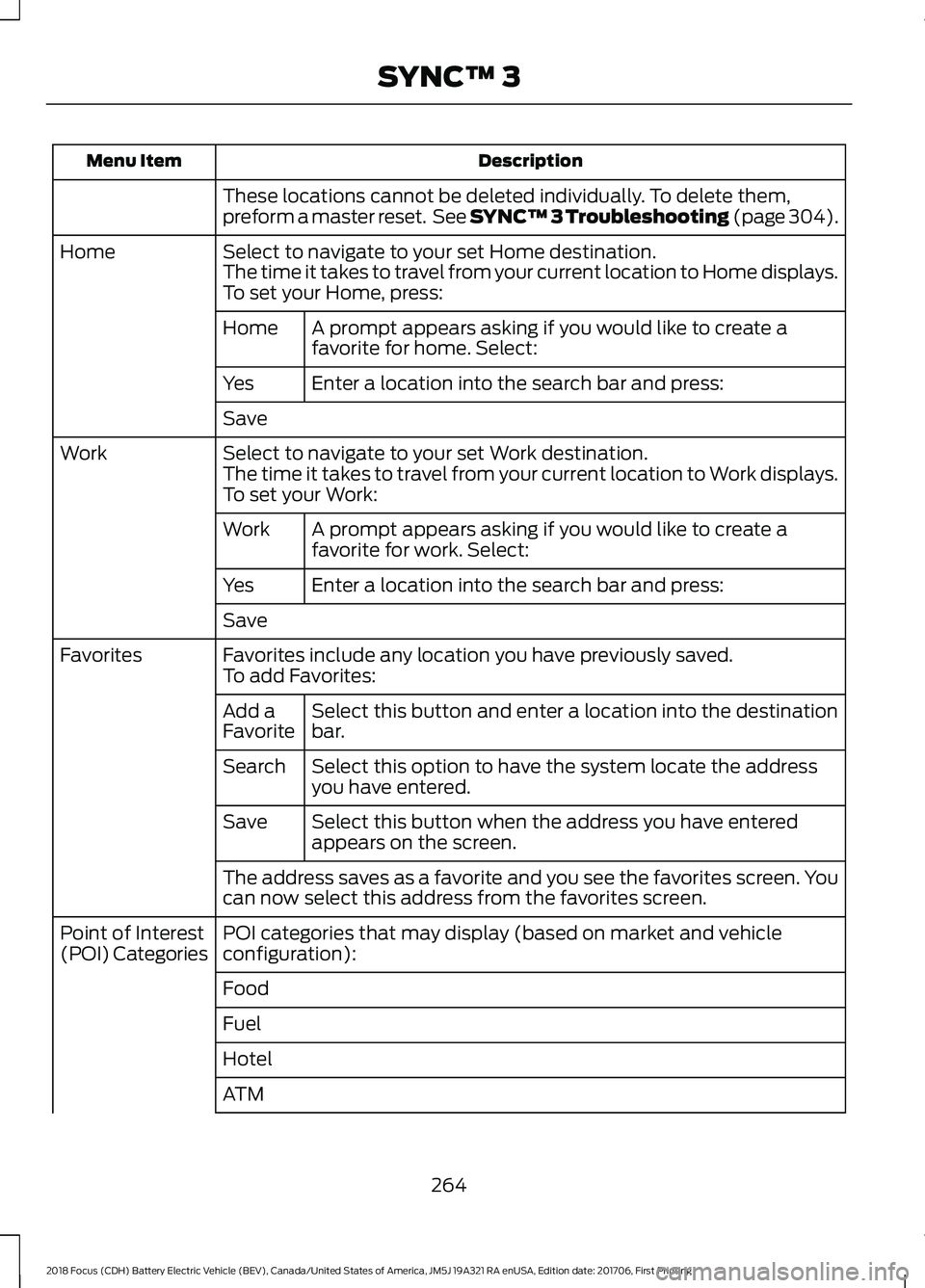
Description
Menu Item
These locations cannot be deleted individually. To delete them,
preform a master reset. See SYNC™ 3 Troubleshooting (page 304).
Select to navigate to your set Home destination.
Home
The time it takes to travel from your current location to Home displays.
To set your Home, press:
A prompt appears asking if you would like to create a
favorite for home. Select:
Home
Enter a location into the search bar and press:
Yes
Save
Select to navigate to your set Work destination.
Work
The time it takes to travel from your current location to Work displays.
To set your Work:
A prompt appears asking if you would like to create a
favorite for work. Select:
Work
Enter a location into the search bar and press:
Yes
Save
Favorites include any location you have previously saved.
Favorites
To add Favorites:
Select this button and enter a location into the destination
bar.
Add a
Favorite
Select this option to have the system locate the address
you have entered.
Search
Select this button when the address you have entered
appears on the screen.
Save
The address saves as a favorite and you see the favorites screen. You
can now select this address from the favorites screen.
POI categories that may display (based on market and vehicle
configuration):
Point of Interest
(POI) Categories
Food
Fuel
Hotel
ATM
264
2018 Focus (CDH) Battery Electric Vehicle (BEV), Canada/United States of America, JM5J 19A321 RA enUSA, Edition date: 201706, First Printing SYNC™ 3