display FORD FOCUS ELECTRIC 2018 Repair Manual
[x] Cancel search | Manufacturer: FORD, Model Year: 2018, Model line: FOCUS ELECTRIC, Model: FORD FOCUS ELECTRIC 2018Pages: 375, PDF Size: 12.81 MB
Page 249 of 375
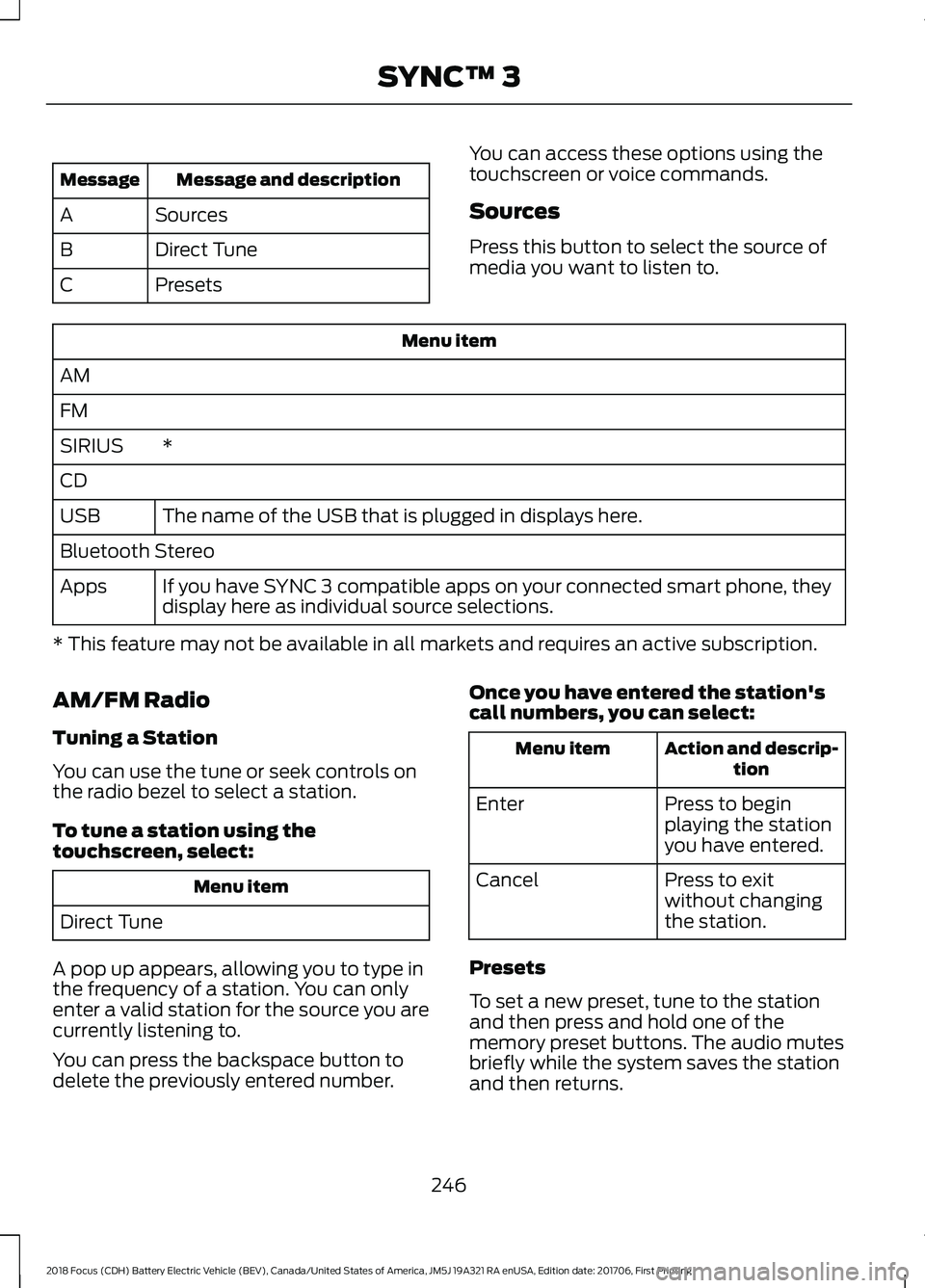
Message and description
Message
Sources
A
Direct Tune
B
Presets
C You can access these options using the
touchscreen or voice commands.
Sources
Press this button to select the source of
media you want to listen to.Menu item
AM
FM *
SIRIUS
CD
The name of the USB that is plugged in displays here.
USB
Bluetooth Stereo
If you have SYNC 3 compatible apps on your connected smart phone, they
display here as individual source selections.
Apps
* This feature may not be available in all markets and requires an active subscription.
AM/FM Radio
Tuning a Station
You can use the tune or seek controls on
the radio bezel to select a station.
To tune a station using the
touchscreen, select: Menu item
Direct Tune
A pop up appears, allowing you to type in
the frequency of a station. You can only
enter a valid station for the source you are
currently listening to.
You can press the backspace button to
delete the previously entered number. Once you have entered the station's
call numbers, you can select: Action and descrip-
tion
Menu item
Press to begin
playing the station
you have entered.
Enter
Press to exit
without changing
the station.
Cancel
Presets
To set a new preset, tune to the station
and then press and hold one of the
memory preset buttons. The audio mutes
briefly while the system saves the station
and then returns.
246
2018 Focus (CDH) Battery Electric Vehicle (BEV), Canada/United States of America, JM5J 19A321 RA enUSA, Edition date: 201706, First Printing SYNC™ 3
Page 251 of 375
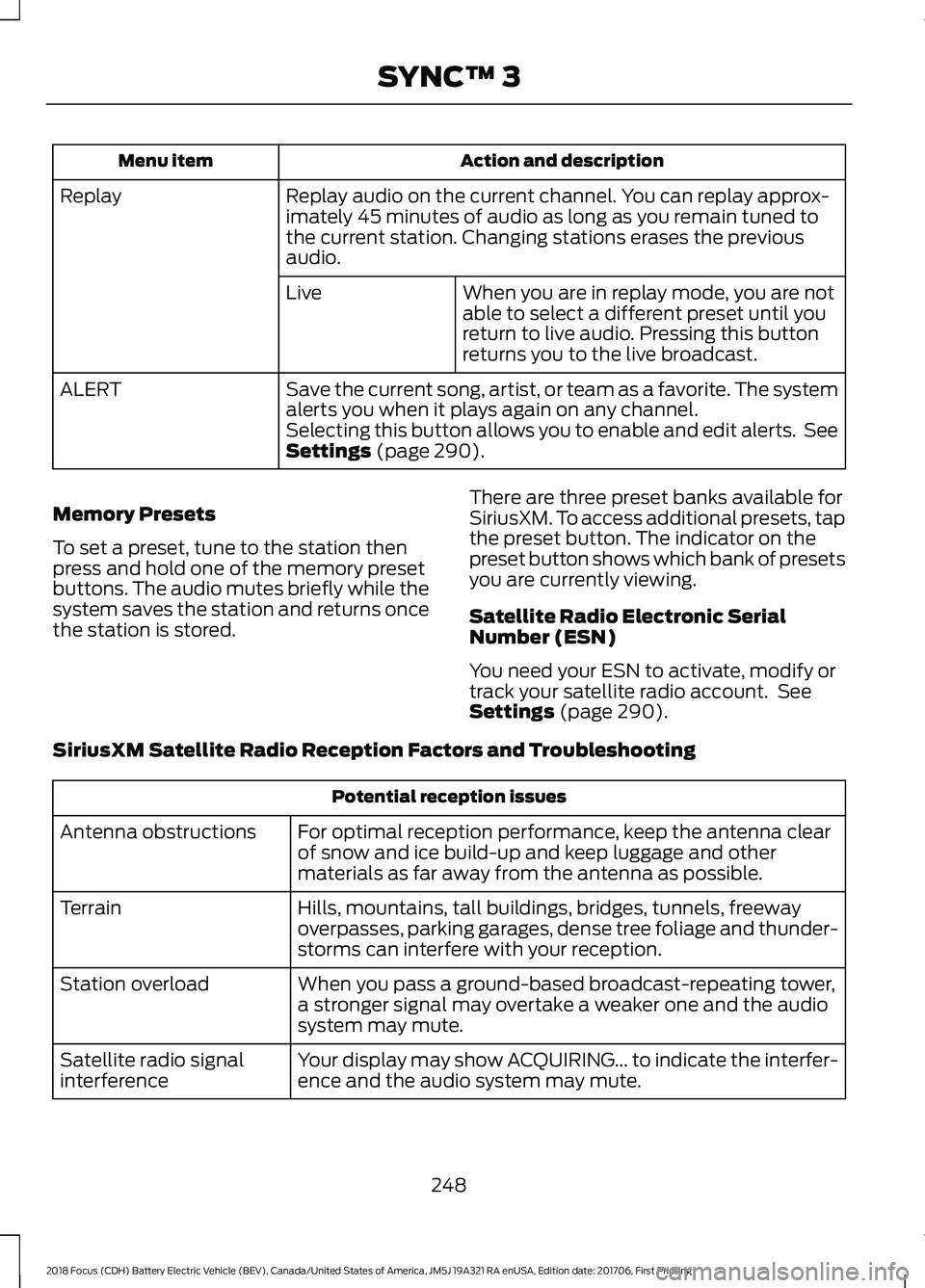
Action and description
Menu item
Replay audio on the current channel. You can replay approx-
imately 45 minutes of audio as long as you remain tuned to
the current station. Changing stations erases the previous
audio.
Replay
When you are in replay mode, you are not
able to select a different preset until you
return to live audio. Pressing this button
returns you to the live broadcast.
Live
Save the current song, artist, or team as a favorite. The system
alerts you when it plays again on any channel.
ALERT
Selecting this button allows you to enable and edit alerts. See
Settings (page 290).
Memory Presets
To set a preset, tune to the station then
press and hold one of the memory preset
buttons. The audio mutes briefly while the
system saves the station and returns once
the station is stored. There are three preset banks available for
SiriusXM. To access additional presets, tap
the preset button. The indicator on the
preset button shows which bank of presets
you are currently viewing.
Satellite Radio Electronic Serial
Number (ESN)
You need your ESN to activate, modify or
track your satellite radio account. See
Settings
(page 290).
SiriusXM Satellite Radio Reception Factors and Troubleshooting Potential reception issues
For optimal reception performance, keep the antenna clear
of snow and ice build-up and keep luggage and other
materials as far away from the antenna as possible.
Antenna obstructions
Hills, mountains, tall buildings, bridges, tunnels, freeway
overpasses, parking garages, dense tree foliage and thunder-
storms can interfere with your reception.
Terrain
When you pass a ground-based broadcast-repeating tower,
a stronger signal may overtake a weaker one and the audio
system may mute.
Station overload
Your display may show ACQUIRING... to indicate the interfer-
ence and the audio system may mute.
Satellite radio signal
interference
248
2018 Focus (CDH) Battery Electric Vehicle (BEV), Canada/United States of America, JM5J 19A321 RA enUSA, Edition date: 201706, First Printing SYNC™ 3
Page 255 of 375
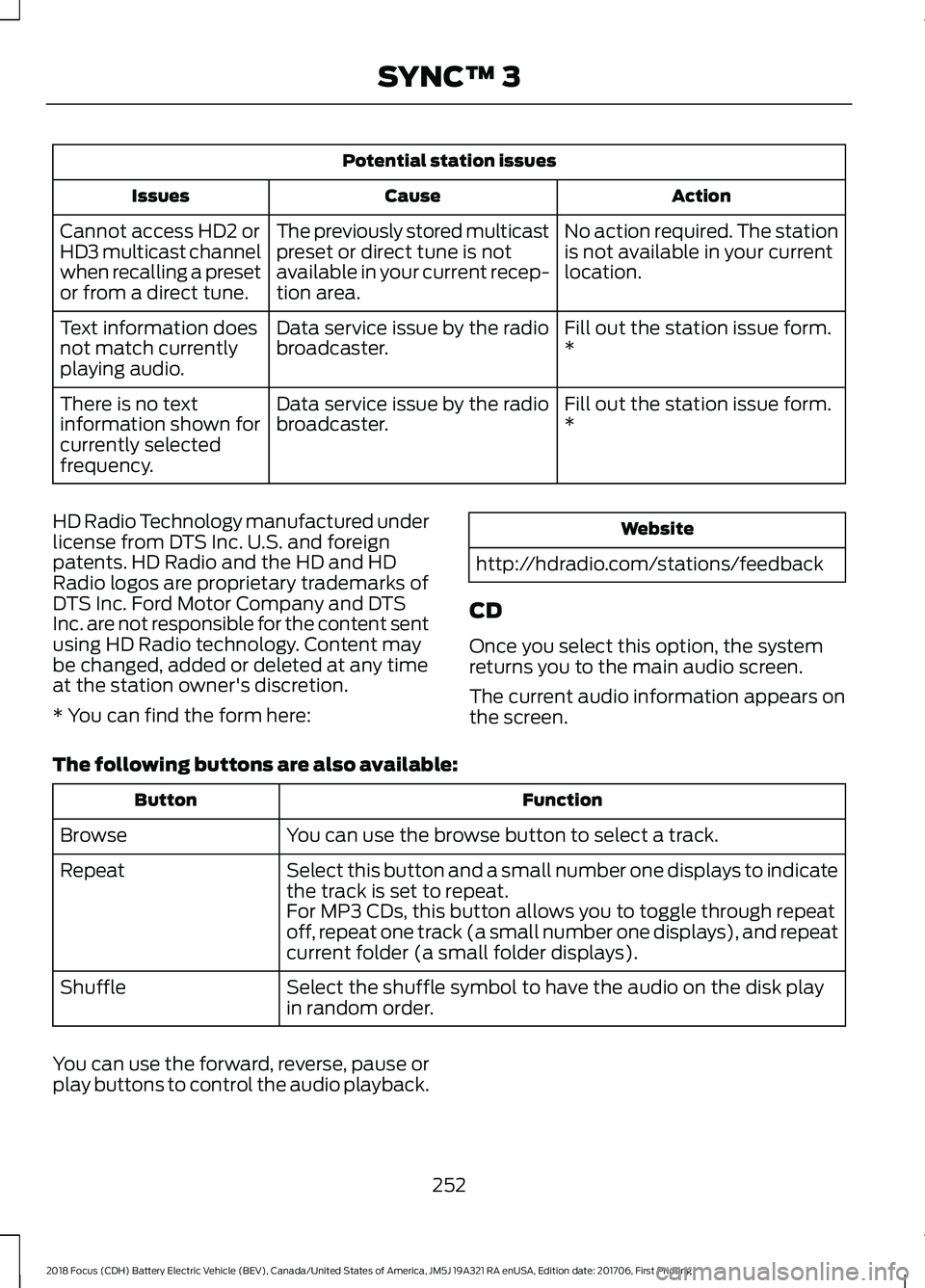
Potential station issues
Action
Cause
Issues
No action required. The station
is not available in your current
location.
The previously stored multicast
preset or direct tune is not
available in your current recep-
tion area.
Cannot access HD2 or
HD3 multicast channel
when recalling a preset
or from a direct tune.
Fill out the station issue form.
*
Data service issue by the radio
broadcaster.
Text information does
not match currently
playing audio.
Fill out the station issue form.
*
Data service issue by the radio
broadcaster.
There is no text
information shown for
currently selected
frequency.
HD Radio Technology manufactured under
license from DTS Inc. U.S. and foreign
patents. HD Radio and the HD and HD
Radio logos are proprietary trademarks of
DTS Inc. Ford Motor Company and DTS
Inc. are not responsible for the content sent
using HD Radio technology. Content may
be changed, added or deleted at any time
at the station owner's discretion.
* You can find the form here: Website
http://hdradio.com/stations/feedback
CD
Once you select this option, the system
returns you to the main audio screen.
The current audio information appears on
the screen.
The following buttons are also available: Function
Button
You can use the browse button to select a track.
Browse
Select this button and a small number one displays to indicate
the track is set to repeat.
Repeat
For MP3 CDs, this button allows you to toggle through repeat
off, repeat one track (a small number one displays), and repeat
current folder (a small folder displays).
Select the shuffle symbol to have the audio on the disk play
in random order.
Shuffle
You can use the forward, reverse, pause or
play buttons to control the audio playback.
252
2018 Focus (CDH) Battery Electric Vehicle (BEV), Canada/United States of America, JM5J 19A321 RA enUSA, Edition date: 201706, First Printing SYNC™ 3
Page 256 of 375
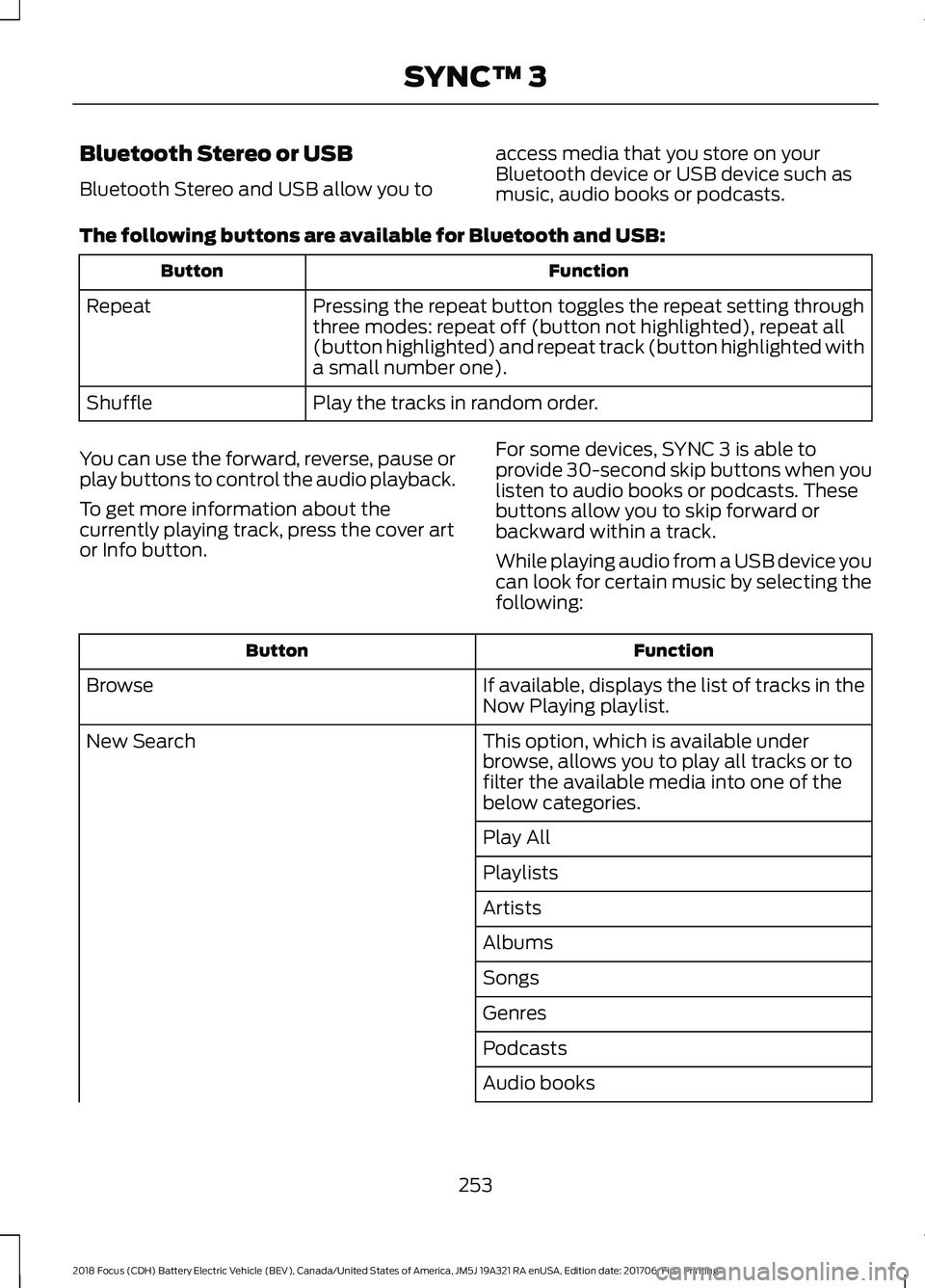
Bluetooth Stereo or USB
Bluetooth Stereo and USB allow you to
access media that you store on your
Bluetooth device or USB device such as
music, audio books or podcasts.
The following buttons are available for Bluetooth and USB: Function
Button
Pressing the repeat button toggles the repeat setting through
three modes: repeat off (button not highlighted), repeat all
(button highlighted) and repeat track (button highlighted with
a small number one).
Repeat
Play the tracks in random order.
Shuffle
You can use the forward, reverse, pause or
play buttons to control the audio playback.
To get more information about the
currently playing track, press the cover art
or Info button. For some devices, SYNC 3 is able to
provide 30-second skip buttons when you
listen to audio books or podcasts. These
buttons allow you to skip forward or
backward within a track.
While playing audio from a USB device you
can look for certain music by selecting the
following: Function
Button
If available, displays the list of tracks in the
Now Playing playlist.
Browse
This option, which is available under
browse, allows you to play all tracks or to
filter the available media into one of the
below categories.
New Search
Play All
Playlists
Artists
Albums
Songs
Genres
Podcasts
Audio books
253
2018 Focus (CDH) Battery Electric Vehicle (BEV), Canada/United States of America, JM5J 19A321 RA enUSA, Edition date: 201706, First Printing SYNC™ 3
Page 258 of 375
PHONE
WARNING
Driving while distracted can result in
loss of vehicle control, crash and
injury. We strongly recommend that
you use extreme caution when using any
device that may take your focus off the
road. Your primary responsibility is the safe
operation of your vehicle. We recommend
against the use of any hand-held device
while driving and encourage the use of
voice-operated systems when possible.
Make sure you are aware of all applicable
local laws that may affect the use of
electronic devices while driving. Hands-free calling is one of the main
features of the system. Once you pair your
cell phone, you can access many options
using the touchscreen or voice commands.
While the system supports a variety of
features, many are dependent on your cell
phone
’s functionality.
Pairing Your Cell Phone for the
First Time
Pair your Bluetooth-enabled phone with
the system before using the functions in
hands-free mode.
Switch on Bluetooth on your device to
begin pairing. See your phone ’s manual if
necessary.
To add a phone, select: Menu Item
Add Phone
1. Follow the on-screen instructions.
2. A prompt alerts you to search for the system on your phone.
3. Select your vehicle's make and model as it displays on your phone. 4. Confirm that the six-digit number
appearing on your phone matches the
six-digit number on the touchscreen.
5. The touchscreen indicates when the pairing is successful.
6. Your phone may prompt you to give the system permission to access
information. To check your phone ’s
compatibility, see your phone ’s manual
or visit the website.
Alternatively, to add a phone, select: Menu Item
Add Phone
Then select:
Discover Other Bluetooth Devices
1. Follow the on-screen instructions.
2. Select your phone's name when it appears on the touchscreen.
3. Confirm that the six-digit number appearing on your phone matches the
six-digit number on the touchscreen.
4. The touchscreen indicates when the pairing is successful.
5. Your phone may prompt you to give the system permission to access
information. To check your phone ’s
compatibility, see your phone ’s manual
or visit the website.
At a minimum, most cell phones with
Bluetooth wireless technology support the
following functions:
• Answering an incoming call.
• Ending a call.
• Dialing a number.
• Call waiting notification.
• Caller identification.
255
2018 Focus (CDH) Battery Electric Vehicle (BEV), Canada/United States of America, JM5J 19A321 RA enUSA, Edition date: 201706, First Printing SYNC™ 3
Page 259 of 375
Other features, such as text messaging
using Bluetooth and automatic phonebook
download, are phone-dependent features.
To check your phone
’s compatibility,
see your phone ’s manual or visit the
website: Websites
owner.ford.com Websites
www.syncmyride.ca
www.syncmaroute.ca
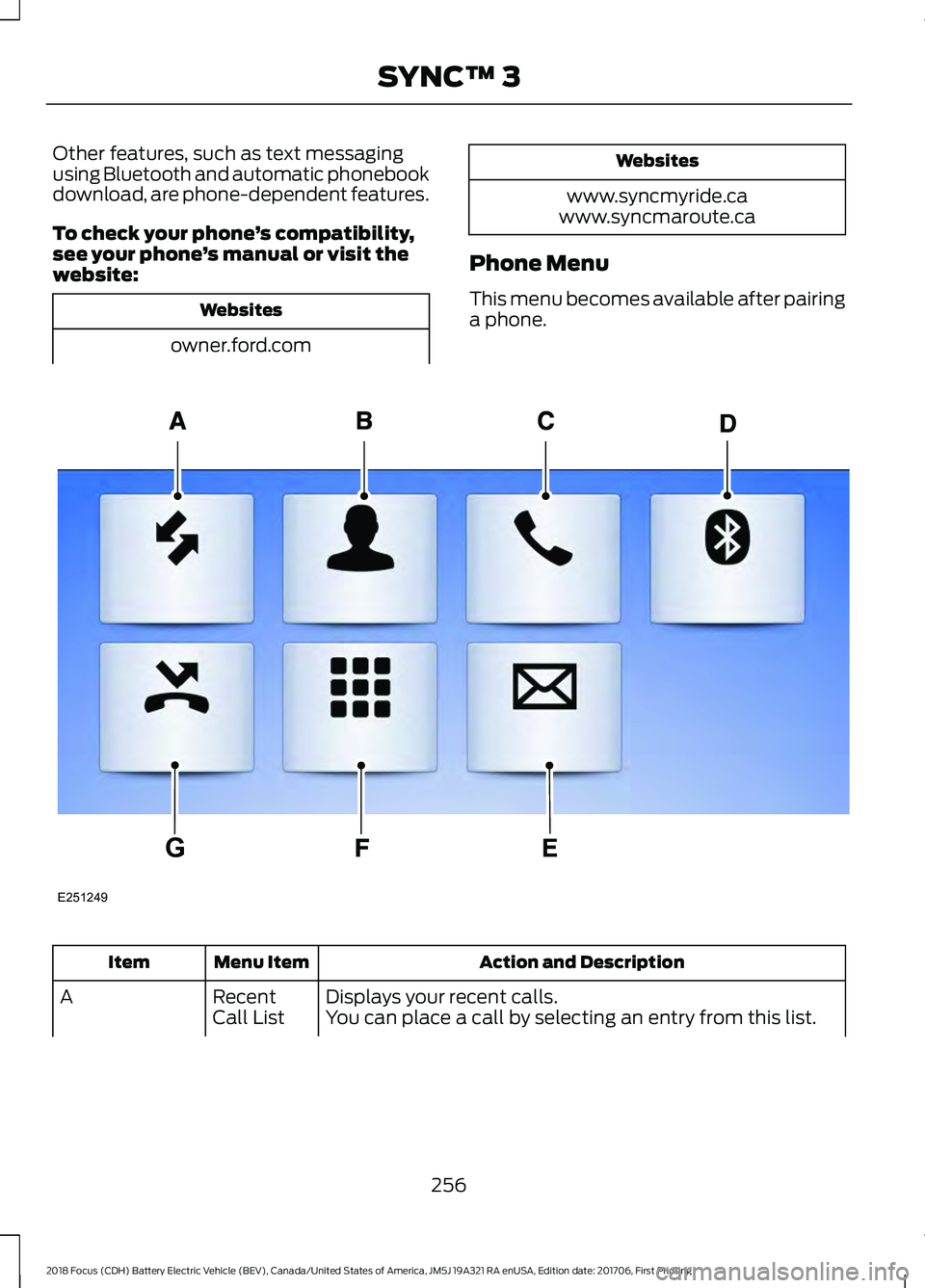
Phone Menu
This menu becomes available after pairing
a phone. Action and Description
Menu Item
Item
Displays your recent calls.
Recent
Call List
A
You can place a call by selecting an entry from this list.
256
2018 Focus (CDH) Battery Electric Vehicle (BEV), Canada/United States of America, JM5J 19A321 RA enUSA, Edition date: 201706, First Printing SYNC™ 3E251249
G
Page 260 of 375
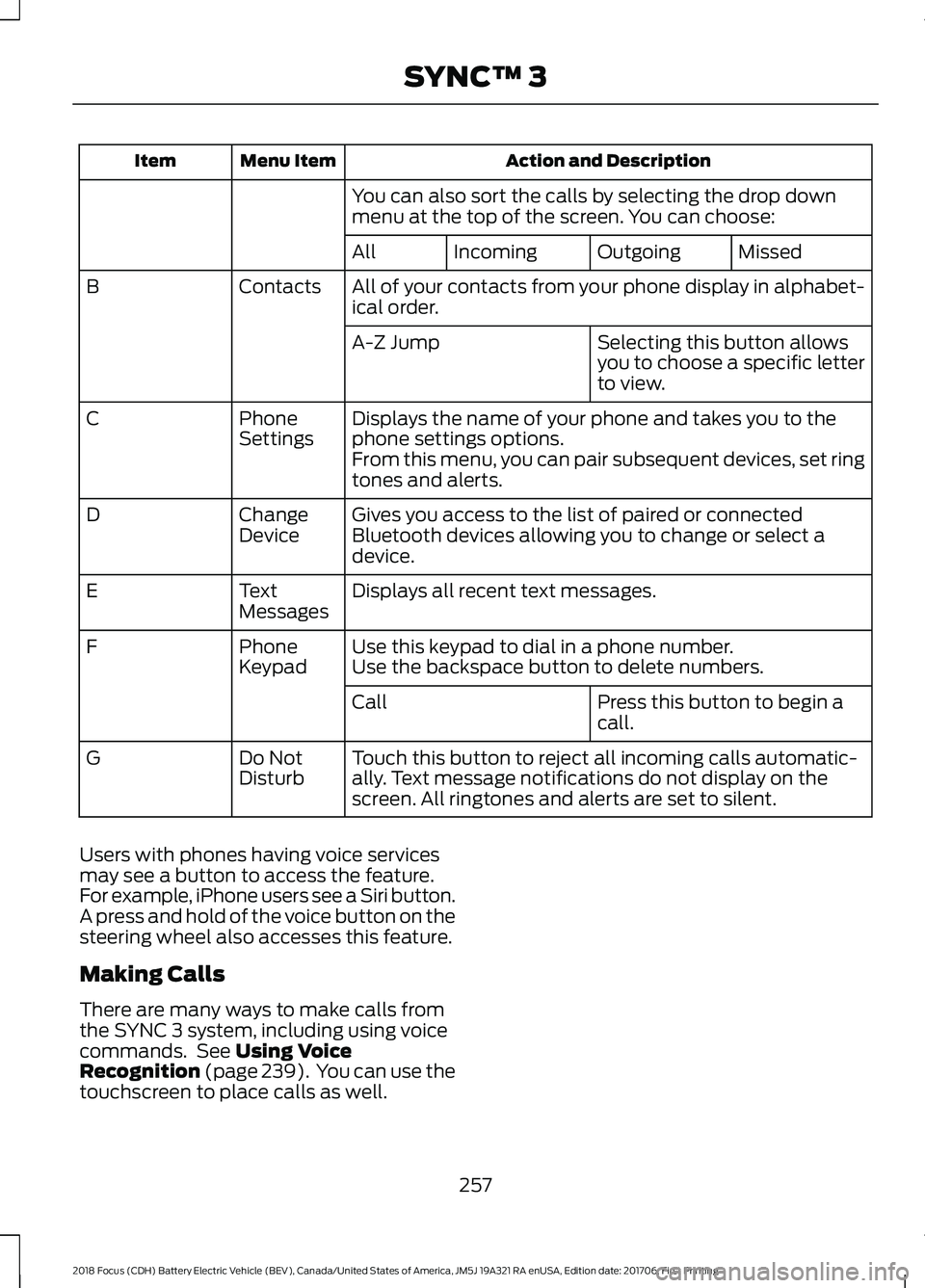
Action and Description
Menu Item
Item
You can also sort the calls by selecting the drop down
menu at the top of the screen. You can choose: Missed
Outgoing
Incoming
All
All of your contacts from your phone display in alphabet-
ical order.
Contacts
B
Selecting this button allows
you to choose a specific letter
to view.
A-Z Jump
Displays the name of your phone and takes you to the
phone settings options.
Phone
Settings
C
From this menu, you can pair subsequent devices, set ring
tones and alerts.
Gives you access to the list of paired or connected
Bluetooth devices allowing you to change or select a
device.
Change
Device
D
Displays all recent text messages.
Text
Messages
E
Use this keypad to dial in a phone number.
Phone
Keypad
F
Use the backspace button to delete numbers.
Press this button to begin a
call.
Call
Touch this button to reject all incoming calls automatic-
ally. Text message notifications do not display on the
screen. All ringtones and alerts are set to silent.
Do Not
Disturb
G
Users with phones having voice services
may see a button to access the feature.
For example, iPhone users see a Siri button.
A press and hold of the voice button on the
steering wheel also accesses this feature.
Making Calls
There are many ways to make calls from
the SYNC 3 system, including using voice
commands. See Using Voice
Recognition (page 239). You can use the
touchscreen to place calls as well.
257
2018 Focus (CDH) Battery Electric Vehicle (BEV), Canada/United States of America, JM5J 19A321 RA enUSA, Edition date: 201706, First Printing SYNC™ 3
Page 261 of 375
To call a number in your contacts,
select:
Action and Description
Menu Item
You can then select the
name of the contact you
want to call. Any numbers
stored for that contact
display along with any
stored contact photos. You
can then select the
number that you want to
call. The system begins the
call.
Contacts
To call a number from your recent calls,
select: Action and Description
Menu Item
You can then select an
entry that you want to call.
The system begins the call.
Recent Call
List
To call a number that is not stored in
your phone, select: Action and Description
Menu Item
Select the digits of the
number you wish to call.
Phone
Keypad
The system begins the call.
Call
Pressing the backspace button deletes the
last digit you typed.
Receiving Calls
During an incoming call, an audible tone
sounds. Caller information appears in the
display if it is available. To accept the call, select: Menu Item
Accept
Note: You can also accept the call by
pressing the phone button on the steering
wheel.
To reject the call, select: Menu Item
Reject
Note: You can also reject the call by
pressing the phone button on the steering
wheel.
Ignore the call by doing nothing. SYNC 3
logs it as a missed call.
During a Phone Call
During a phone call, the contacts name
and number display on the screen along
with the call duration.
The phone status items are also visible:
• Signal Strength.
• Battery.
• 911 Assist (United States and Canada
only). See Settings (page 290).
You can select any of the following during
an active phone call:
258
2018 Focus (CDH) Battery Electric Vehicle (BEV), Canada/United States of America, JM5J 19A321 RA enUSA, Edition date: 201706, First Printing SYNC™ 3
Page 262 of 375
Item
Immediately end a
phone call. You can
also press the
button on the
steering wheel.
End Call
Press this to access
the phone keypad.
Keypad
You can switch the
microphone off so
the caller does not
hear you.
Mute Item
Privacy Transfer the call to
the cell phone or
back to SYNC 3.
Text Messaging
Note: Downloading and sending text
messages using Bluetooth are cell
phone-dependent features.
Note: Certain features in text messaging
are speed-dependent and not available
when your vehicle is traveling at speeds over
3 mph (5 km/h).
Receiving a Text Message
When a new message arrives, an audible tone sounds and the screen displays a
pop-up with the caller name and ID, if supported by your cell phone. You can select: Action and Description
Menu Item
Have SYNC 3 read the message to you.
Hear It
View the text on the touchscreen.
View
To call the sender.
Call
You can select from 15 preset messages. Press the message
that you would like to use and confirm to send the message.
SYNC 3 confirms when the message is sent successfully.
Reply
To exit the screen.
Close
Smartphone Connectivity (If Equipped)
SYNC 3 allows you to use Apple CarPlay
and Android Auto to access your phone.
When you use Apple CarPlay or Android
Auto, you can:
• Make calls.
• Send and receive messages.
• Listen to music.
• Use your phone's voice assistant. Apple CarPlay and Android Auto disable
some SYNC 3 features.
Most Apple CarPlay and Android Auto
features use mobile data.
Apple CarPlay
Apple CarPlay requires an iPhone 5 or
newer with iOS 7.1 or newer. Updating to
the latest iOS version is recommended.
1. Plug your phone into a USB port.
2. Follow the prompts on the
touchscreen.
259
2018 Focus (CDH) Battery Electric Vehicle (BEV), Canada/United States of America, JM5J 19A321 RA enUSA, Edition date: 201706, First Printing SYNC™ 3
Page 264 of 375
Map Mode
Map mode shows advanced viewing
comprised of 2D city maps, 3D landmarks
and 3D city models (when available). 2D
city maps show detailed outlines of
buildings, visible land use, landscape
features, and detailed railroad
infrastructure for the most essential cities
around the globe.
3D landmarks appear as clear, visible
objects that are typically recognizable and
have a certain tourism value.
3D city models are complete 3D models
of entire city areas including navigable
roads, parks, rivers and rendered buildings.
3D landmarks and city models appear in
3D map mode only. Coverage of these
varies and improves with updated map
releases.
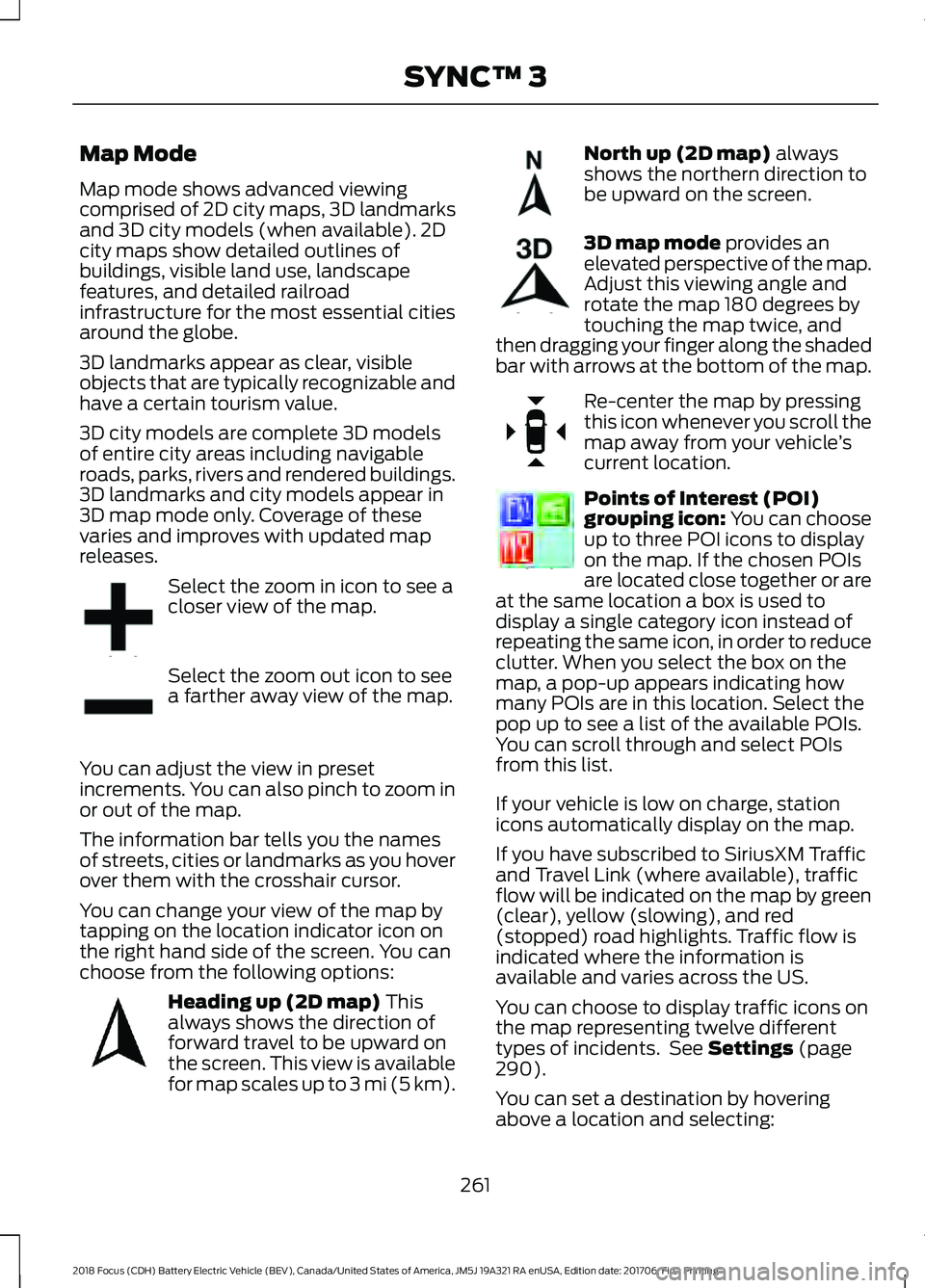
Select the zoom in icon to see a
closer view of the map.
Select the zoom out icon to see
a farther away view of the map.
You can adjust the view in preset
increments. You can also pinch to zoom in
or out of the map.
The information bar tells you the names
of streets, cities or landmarks as you hover
over them with the crosshair cursor.
You can change your view of the map by
tapping on the location indicator icon on
the right hand side of the screen. You can
choose from the following options: Heading up (2D map) This
always shows the direction of
forward travel to be upward on
the screen. This view is available
for map scales up to
3 mi (5 km). North up (2D map)
always
shows the northern direction to
be upward on the screen. 3D map mode
provides an
elevated perspective of the map.
Adjust this viewing angle and
rotate the map 180 degrees by
touching the map twice, and
then dragging your finger along the shaded
bar with arrows at the bottom of the map. Re-center the map by pressing
this icon whenever you scroll the
map away from your vehicle
’s
current location. Points of Interest (POI)
grouping icon: You can choose
up to three POI icons to display
on the map. If the chosen POIs
are located close together or are
at the same location a box is used to
display a single category icon instead of
repeating the same icon, in order to reduce
clutter. When you select the box on the
map, a pop-up appears indicating how
many POIs are in this location. Select the
pop up to see a list of the available POIs.
You can scroll through and select POIs
from this list.
If your vehicle is low on charge, station
icons automatically display on the map.
If you have subscribed to SiriusXM Traffic
and Travel Link (where available), traffic
flow will be indicated on the map by green
(clear), yellow (slowing), and red
(stopped) road highlights. Traffic flow is
indicated where the information is
available and varies across the US.
You can choose to display traffic icons on
the map representing twelve different
types of incidents. See
Settings (page
290).
You can set a destination by hovering
above a location and selecting:
261
2018 Focus (CDH) Battery Electric Vehicle (BEV), Canada/United States of America, JM5J 19A321 RA enUSA, Edition date: 201706, First Printing SYNC™ 3E207752 E207753 E207750 E207749 E207748 E207751 E207754