lights FORD FUSION 2019 Owner's Manual
[x] Cancel search | Manufacturer: FORD, Model Year: 2019, Model line: FUSION, Model: FORD FUSION 2019Pages: 550, PDF Size: 8.5 MB
Page 374 of 550
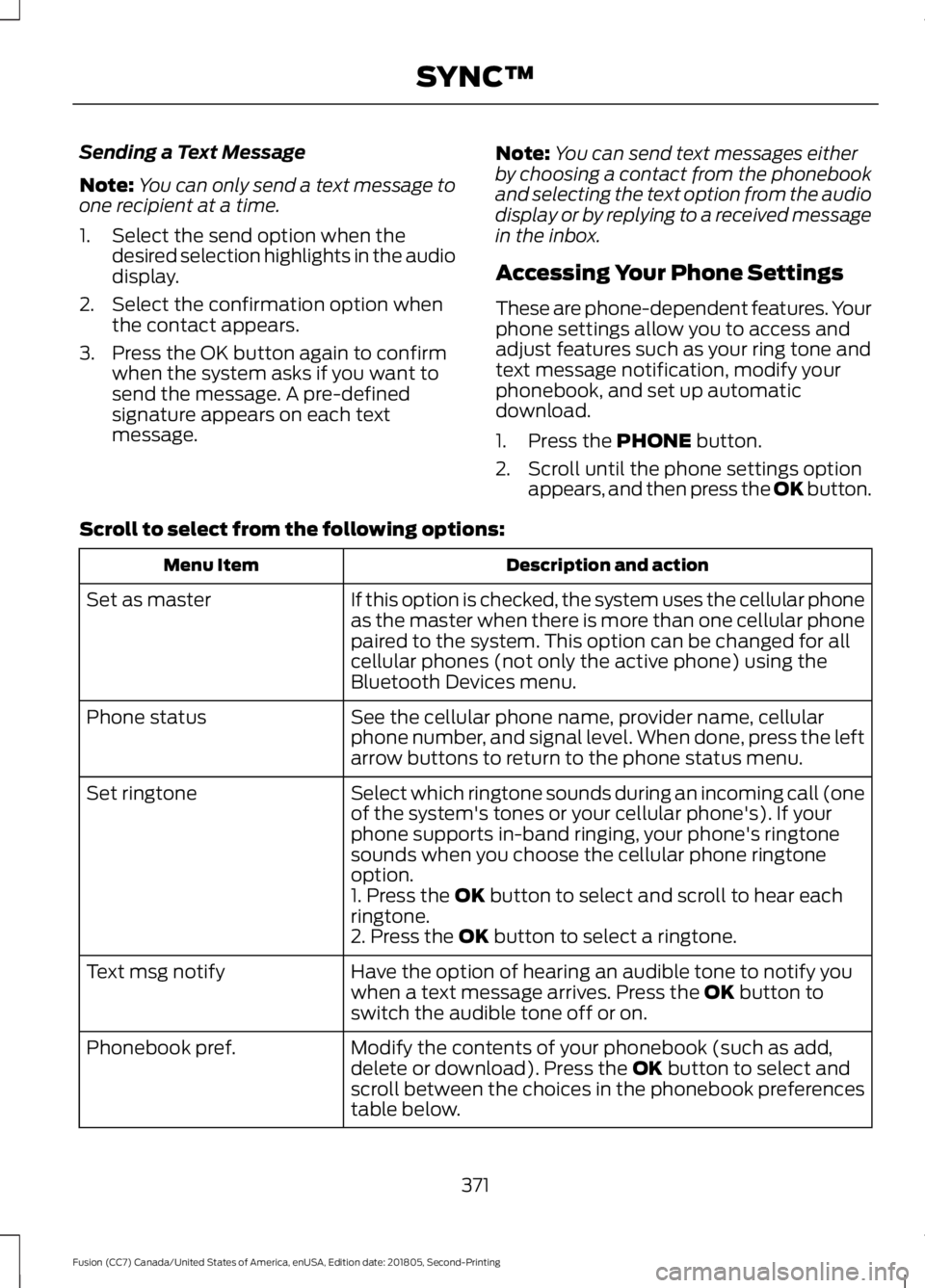
Sending a Text Message
Note:
You can only send a text message to
one recipient at a time.
1. Select the send option when the desired selection highlights in the audio
display.
2. Select the confirmation option when the contact appears.
3. Press the OK button again to confirm when the system asks if you want to
send the message. A pre-defined
signature appears on each text
message. Note:
You can send text messages either
by choosing a contact from the phonebook
and selecting the text option from the audio
display or by replying to a received message
in the inbox.
Accessing Your Phone Settings
These are phone-dependent features. Your
phone settings allow you to access and
adjust features such as your ring tone and
text message notification, modify your
phonebook, and set up automatic
download.
1. Press the PHONE button.
2. Scroll until the phone settings option appears, and then press the OK button.
Scroll to select from the following options: Description and action
Menu Item
If this option is checked, the system uses the cellular phone
as the master when there is more than one cellular phone
paired to the system. This option can be changed for all
cellular phones (not only the active phone) using the
Bluetooth Devices menu.
Set as master
See the cellular phone name, provider name, cellular
phone number, and signal level. When done, press the left
arrow buttons to return to the phone status menu.
Phone status
Select which ringtone sounds during an incoming call (one
of the system's tones or your cellular phone's). If your
phone supports in-band ringing, your phone's ringtone
sounds when you choose the cellular phone ringtone
option.
Set ringtone
1. Press the
OK button to select and scroll to hear each
ringtone.
2. Press the
OK button to select a ringtone.
Have the option of hearing an audible tone to notify you
when a text message arrives. Press the
OK button to
switch the audible tone off or on.
Text msg notify
Modify the contents of your phonebook (such as add,
delete or download). Press the
OK button to select and
scroll between the choices in the phonebook preferences
table below.
Phonebook pref.
371
Fusion (CC7) Canada/United States of America, enUSA, Edition date: 201805, Second-Printing SYNC™
Page 439 of 550
3D city models are complete 3D models
of entire city areas including navigable
roads, parks, rivers and rendered buildings.
3D landmarks and city models appear in
3D map mode only. Coverage of these
varies and improves with updated map
releases.
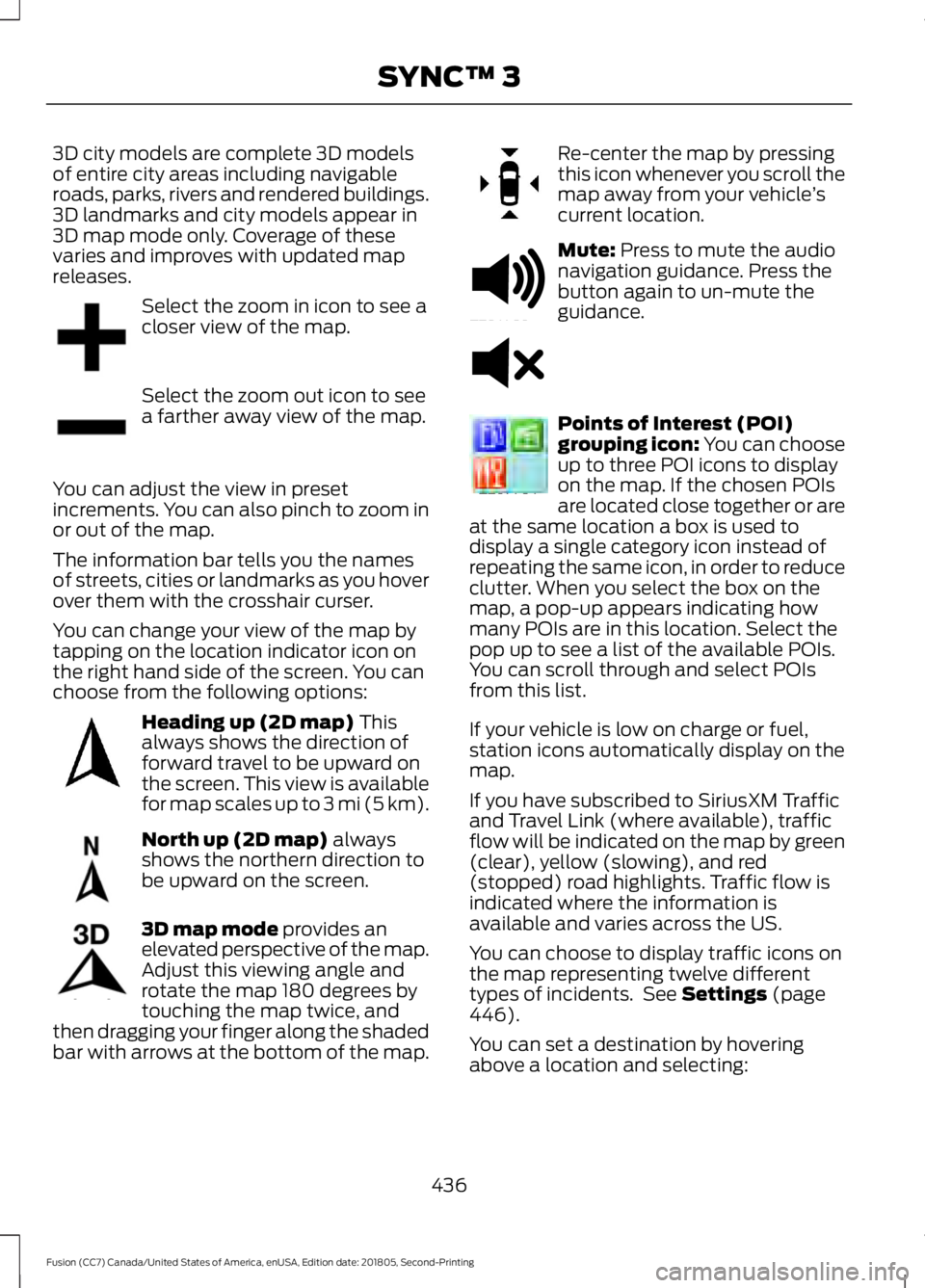
Select the zoom in icon to see a
closer view of the map.
Select the zoom out icon to see
a farther away view of the map.
You can adjust the view in preset
increments. You can also pinch to zoom in
or out of the map.
The information bar tells you the names
of streets, cities or landmarks as you hover
over them with the crosshair curser.
You can change your view of the map by
tapping on the location indicator icon on
the right hand side of the screen. You can
choose from the following options: Heading up (2D map) This
always shows the direction of
forward travel to be upward on
the screen. This view is available
for map scales up to
3 mi (5 km). North up (2D map)
always
shows the northern direction to
be upward on the screen. 3D map mode
provides an
elevated perspective of the map.
Adjust this viewing angle and
rotate the map 180 degrees by
touching the map twice, and
then dragging your finger along the shaded
bar with arrows at the bottom of the map. Re-center the map by pressing
this icon whenever you scroll the
map away from your vehicle
’s
current location. Mute:
Press to mute the audio
navigation guidance. Press the
button again to un-mute the
guidance. Points of Interest (POI)
grouping icon: You can choose
up to three POI icons to display
on the map. If the chosen POIs
are located close together or are
at the same location a box is used to
display a single category icon instead of
repeating the same icon, in order to reduce
clutter. When you select the box on the
map, a pop-up appears indicating how
many POIs are in this location. Select the
pop up to see a list of the available POIs.
You can scroll through and select POIs
from this list.
If your vehicle is low on charge or fuel,
station icons automatically display on the
map.
If you have subscribed to SiriusXM Traffic
and Travel Link (where available), traffic
flow will be indicated on the map by green
(clear), yellow (slowing), and red
(stopped) road highlights. Traffic flow is
indicated where the information is
available and varies across the US.
You can choose to display traffic icons on
the map representing twelve different
types of incidents. See
Settings (page
446).
You can set a destination by hovering
above a location and selecting:
436
Fusion (CC7) Canada/United States of America, enUSA, Edition date: 201805, Second-Printing SYNC™ 3E207752 E207753 E207750 E207749 E207748 E207751 E251780 E251779 E207754
Page 480 of 550
When the oil change message appears in
the information display, it is time for an oil
change. Make sure you perform the oil
change within two weeks or 500 mi
(800 km) of the message appearing. Make
sure you reset the Intelligent Oil-Life
Monitor after each oil change. See
Oil
Change Indicator Reset (page 262).
If your information display resets
prematurely or becomes inoperative, you
should perform the oil change interval at
six months or
5,000 mi (8,000 km) from
your last oil change. Never exceed one year
or
10,000 mi (16,000 km) between oil
change intervals,
Your vehicle is very sophisticated and built
with multiple, complex, performance
systems. Every manufacturer develops
these systems using different
specifications and performance features.
That is why it is important to rely upon your
dealership to properly diagnose and repair
your vehicle.
We have recommended maintenance
intervals for various parts and component
systems based upon engineering testing.
We rely upon this testing to determine the
most appropriate mileage for replacement
of oils and fluids to protect your vehicle at
the lowest overall cost to you and
recommends against maintenance
schedules that deviate from the scheduled
maintenance information.
We strongly recommend the use of only
genuine Ford, Motorcraft or
Ford-authorized re-manufactured
replacement parts engineered for your
vehicle. Additives and Chemicals
This owner's manual and the our
Workshop Manual list the recommended
additives and chemicals for your vehicle.
We do not recommend using chemicals or
additives not approved by us as part of
your vehicle
’s normal maintenance. Please
consult your warranty information.
Oils, Fluids and Flushing
In many cases, fluid discoloration is a
normal operating characteristic and, by
itself, does not necessarily indicate a
concern or that the fluid needs to be
changed. However, a qualified expert, such
as the factory-trained technicians at your
dealership, should inspect discolored fluids
that also show signs of overheating or
foreign material contamination
immediately.
Make sure to change your vehicle ’s oils and
fluids at the specified intervals or in
conjunction with a repair. Flushing is a
viable way to change fluid for many vehicle
sub-systems during scheduled
maintenance. It is critical that systems are
flushed only with new fluid that is the same
as that required to fill and operate the
system or using a Ford-approved flushing
chemical.
Owner Checks and Services
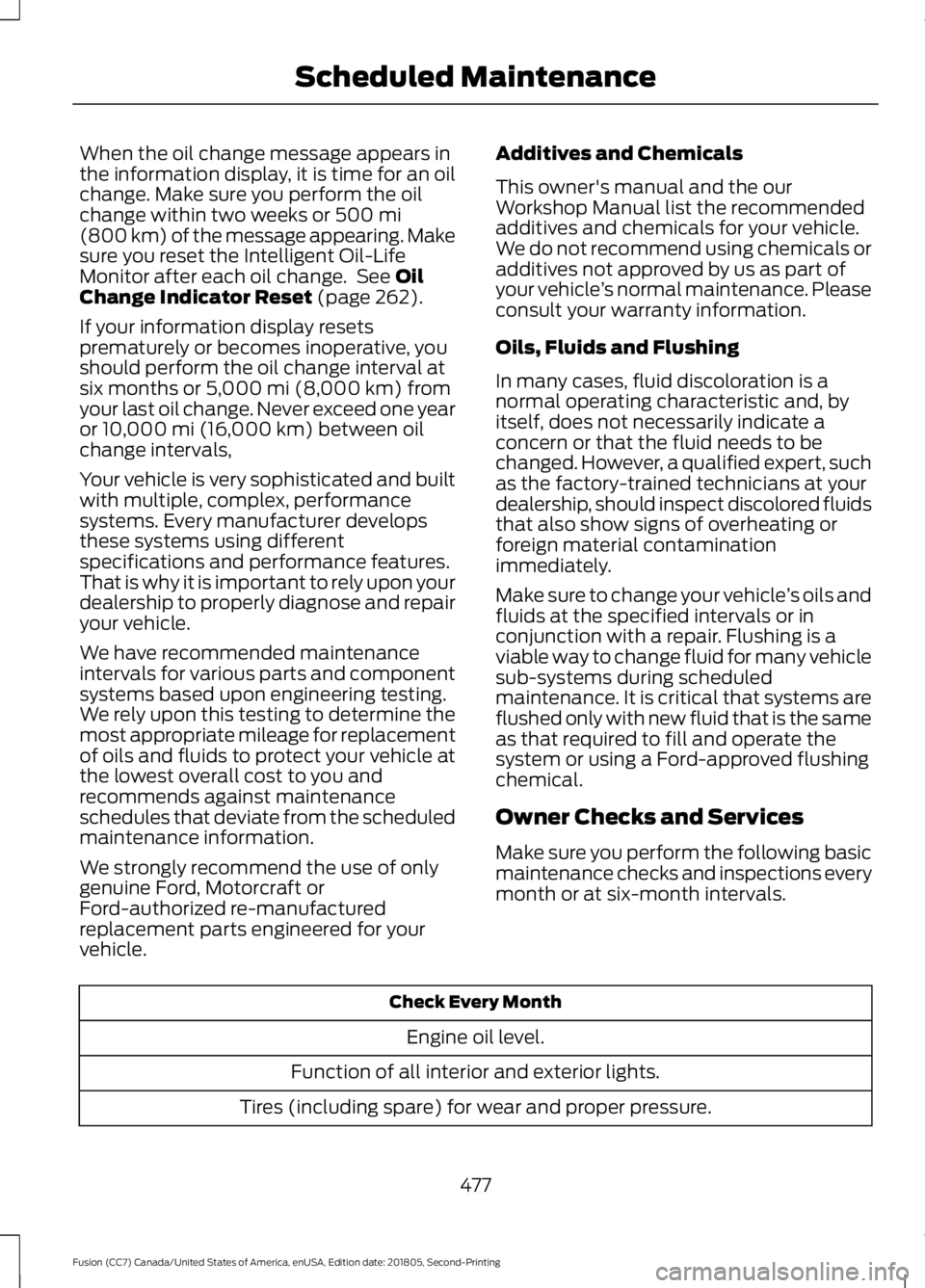
Make sure you perform the following basic
maintenance checks and inspections every
month or at six-month intervals. Check Every Month
Engine oil level.
Function of all interior and exterior lights.
Tires (including spare) for wear and proper pressure.
477
Fusion (CC7) Canada/United States of America, enUSA, Edition date: 201805, Second-Printing Scheduled Maintenance
Page 541 of 550
Cleaning Products......................................280
Materials............................................................... 280
Cleaning the Engine
....................................282
Cleaning the Exterior.................................280
Cleaning the Headlamps................................. 281
Exterior Chrome Parts....................................... 281
Exterior Plastic Parts......................................... 281
Stripes or Graphics............................................. 281
Underbody............................................................ 281
Under Hood.......................................................... 281
Cleaning the Instrument Panel and Instrument Cluster Lens........................283
Cleaning the Interior...................................283 Mirrors.................................................................... 283
Cleaning the Wheels
..................................285
Cleaning the Windows and Wiper Blades...........................................................282
Clearing All MyKeys
........................................61
Climate............................................................426 Accessing Rear Climate Controls................429
Accessing the Climate Control Menu.........427
Directing the Airflow......................................... 427
Rear Climate Control Lock Indicator..........429
Setting the Blower Motor Speed.................. 427
Setting the Temperature................................. 427
Switching Auto Mode On and Off................427
Switching Dual Zone Mode On and Off...................................................................... 428
Switching Maximum Air Conditioning On and Off............................................................. 428
Switching Maximum Defrost On and Off...................................................................... 428
Switching Rear Auto Mode On and Off...................................................................... 429
Switching Recirculated Air On and Off...................................................................... 428
Switching the Air Conditioning On and Off....................................................................... 427
Switching the Climate Controlled Seats On and Off.............................................................. 427
Switching the Climate Control On and Off....................................................................... 427
Switching the Heated Exterior Mirrors On and Off............................................................. 428
Switching the Heated Rear Window On and Off...................................................................... 428
Switching the Heated Seats On and Off...................................................................... 428Switching the Heated Steering Wheel On
and Off............................................................. 428
Switching the Rear Climate Controlled Seats On and Off.......................................... 429
Switching the Rear Heated Seats On and Off...................................................................... 429
Switching the Rear Ventilated Seats On and Off............................................................. 429
Switching the Ventilated Seats On and Off...................................................................... 428
Climate Control
..............................................121
Climate Controlled Seats..........................138 Cooled Seats........................................................ 139
Coolant Check See: Engine Coolant Check............................ 263
Crash Sensors and Airbag Indicator.........51
Creating a MyKey...........................................60 Programming or Changing Configurable
Settings................................................................ 61
Cross Traffic Alert.........................................212 Blocked Sensors.................................................. 214
Switching the System Off and On................214
System Errors....................................................... 214
System Lights, Messages and Audible Alerts.................................................................. 214
System Limitations............................................ 214
Using the Cross Traffic Alert System...........212
Cruise Control
..................................................74
Principle of Operation....................................... 197
Type One.................................................................. 74
Type Two.................................................................. 74
Cruise control See: Using Cruise Control................................ 197
Customer Assistance
.................................238
D
Data Recording
..................................................9
Comfort, Convenience and Entertainment
Data........................................................................\
11
Emergency Call System...................................... 13
Event Data................................................................. 11
Service Data............................................................ 10
Services That Third Parties Provide...............12
Services That We Provide.................................. 12
Vehicles With a Modem...................................... 12
Vehicles With SYNC............................................. 12
538
Fusion (CC7) Canada/United States of America, enUSA, Edition date: 201805, Second-Printing Index
Page 549 of 550
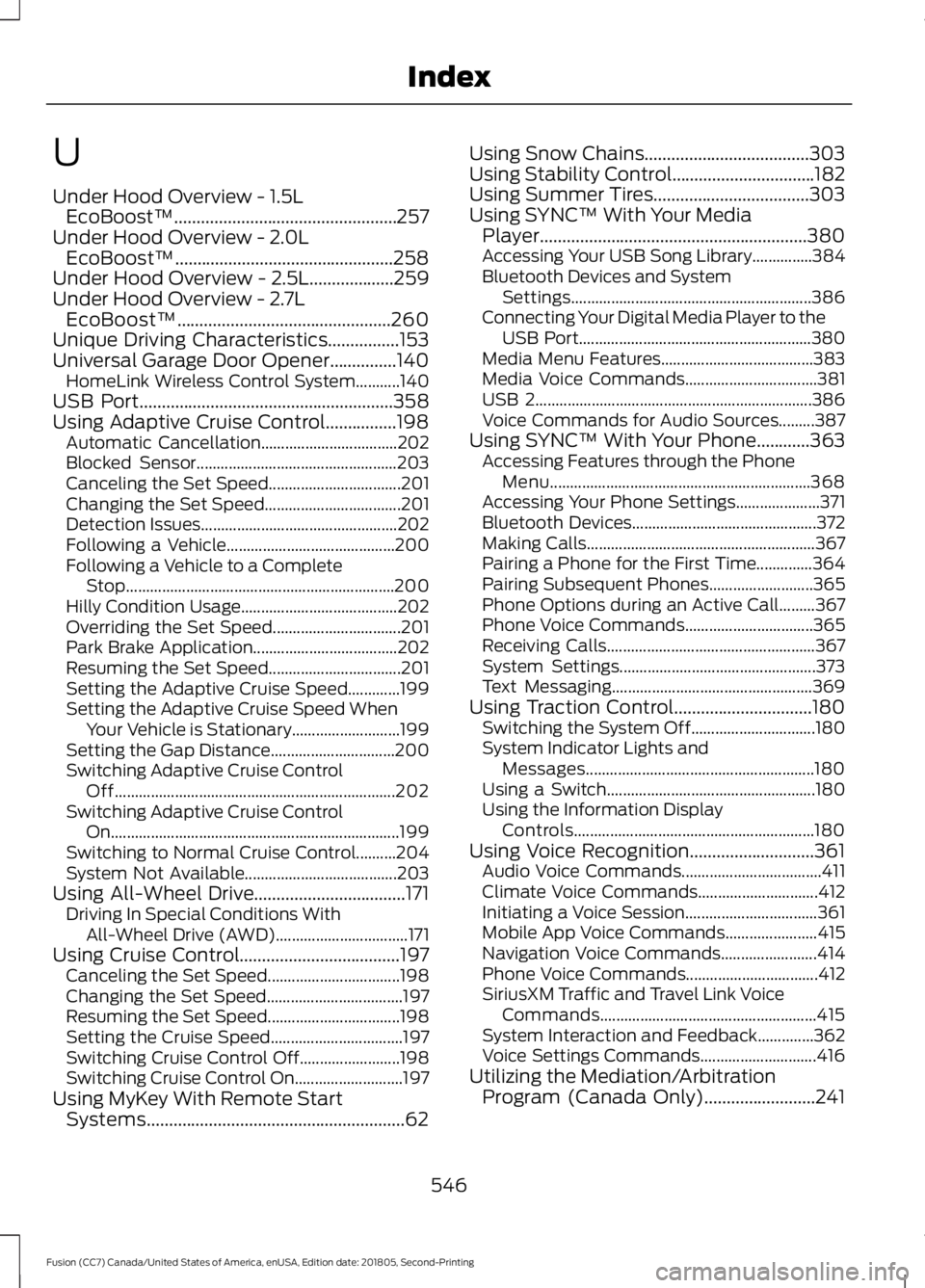
U
Under Hood Overview - 1.5L
EcoBoost™..................................................257
Under Hood Overview - 2.0L EcoBoost™.................................................258
Under Hood Overview - 2.5L...................259
Under Hood Overview - 2.7L EcoBoost™................................................260
Unique Driving Characteristics................153
Universal Garage Door Opener...............140
HomeLink Wireless Control System...........140
USB Port
.........................................................358
Using Adaptive Cruise Control................198 Automatic Cancellation.................................. 202
Blocked Sensor.................................................. 203
Canceling the Set Speed................................. 201
Changing the Set Speed.................................. 201
Detection Issues................................................. 202
Following a Vehicle.......................................... 200
Following a Vehicle to a Complete Stop................................................................... 200
Hilly Condition Usage....................................... 202
Overriding the Set Speed................................ 201
Park Brake Application.................................... 202
Resuming the Set Speed................................. 201
Setting the Adaptive Cruise Speed.............199
Setting the Adaptive Cruise Speed When Your Vehicle is Stationary........................... 199
Setting the Gap Distance............................... 200
Switching Adaptive Cruise Control Off...................................................................... 202
Switching Adaptive Cruise Control On........................................................................\
199
Switching to Normal Cruise Control..........204
System Not Available...................................... 203
Using All-Wheel Drive..................................171 Driving In Special Conditions With
All-Wheel Drive (AWD)................................. 171
Using Cruise Control
....................................197
Canceling the Set Speed................................. 198
Changing the Set Speed.................................. 197
Resuming the Set Speed................................. 198
Setting the Cruise Speed................................. 197
Switching Cruise Control Off......................... 198
Switching Cruise Control On........................... 197
Using MyKey With Remote Start Systems..........................................................62 Using Snow Chains
.....................................303
Using Stability Control................................182
Using Summer Tires...................................303
Using SYNC™ With Your Media Player
............................................................380
Accessing Your USB Song Library...............384
Bluetooth Devices and System
Settings............................................................ 386
Connecting Your Digital Media Player to the USB Port.......................................................... 380
Media Menu Features...................................... 383
Media Voice Commands................................. 381
USB 2..................................................................... 386
Voice Commands for Audio Sources.........387
Using SYNC™ With Your Phone............363 Accessing Features through the Phone
Menu................................................................. 368
Accessing Your Phone Settings..................... 371
Bluetooth Devices.............................................. 372
Making Calls......................................................... 367
Pairing a Phone for the First Time..............364
Pairing Subsequent Phones.......................... 365
Phone Options during an Active Call.........367
Phone Voice Commands................................ 365
Receiving Calls.................................................... 367
System Settings................................................. 373
Text Messaging.................................................. 369
Using Traction Control...............................180 Switching the System Off............................... 180
System Indicator Lights and Messages......................................................... 180
Using a Switch.................................................... 180
Using the Information Display Controls............................................................ 180
Using Voice Recognition............................361 Audio Voice Commands................................... 411
Climate Voice Commands.............................. 412
Initiating a Voice Session................................. 361
Mobile App Voice Commands....................... 415
Navigation Voice Commands........................ 414
Phone Voice Commands................................. 412
SiriusXM Traffic and Travel Link Voice Commands...................................................... 415
System Interaction and Feedback..............362
Voice Settings Commands............................. 416
Utilizing the Mediation/Arbitration Program (Canada Only)
.........................241
546
Fusion (CC7) Canada/United States of America, enUSA, Edition date: 201805, Second-Printing Index