steering FORD FUSION 2019 Repair Manual
[x] Cancel search | Manufacturer: FORD, Model Year: 2019, Model line: FUSION, Model: FORD FUSION 2019Pages: 550, PDF Size: 8.5 MB
Page 306 of 550
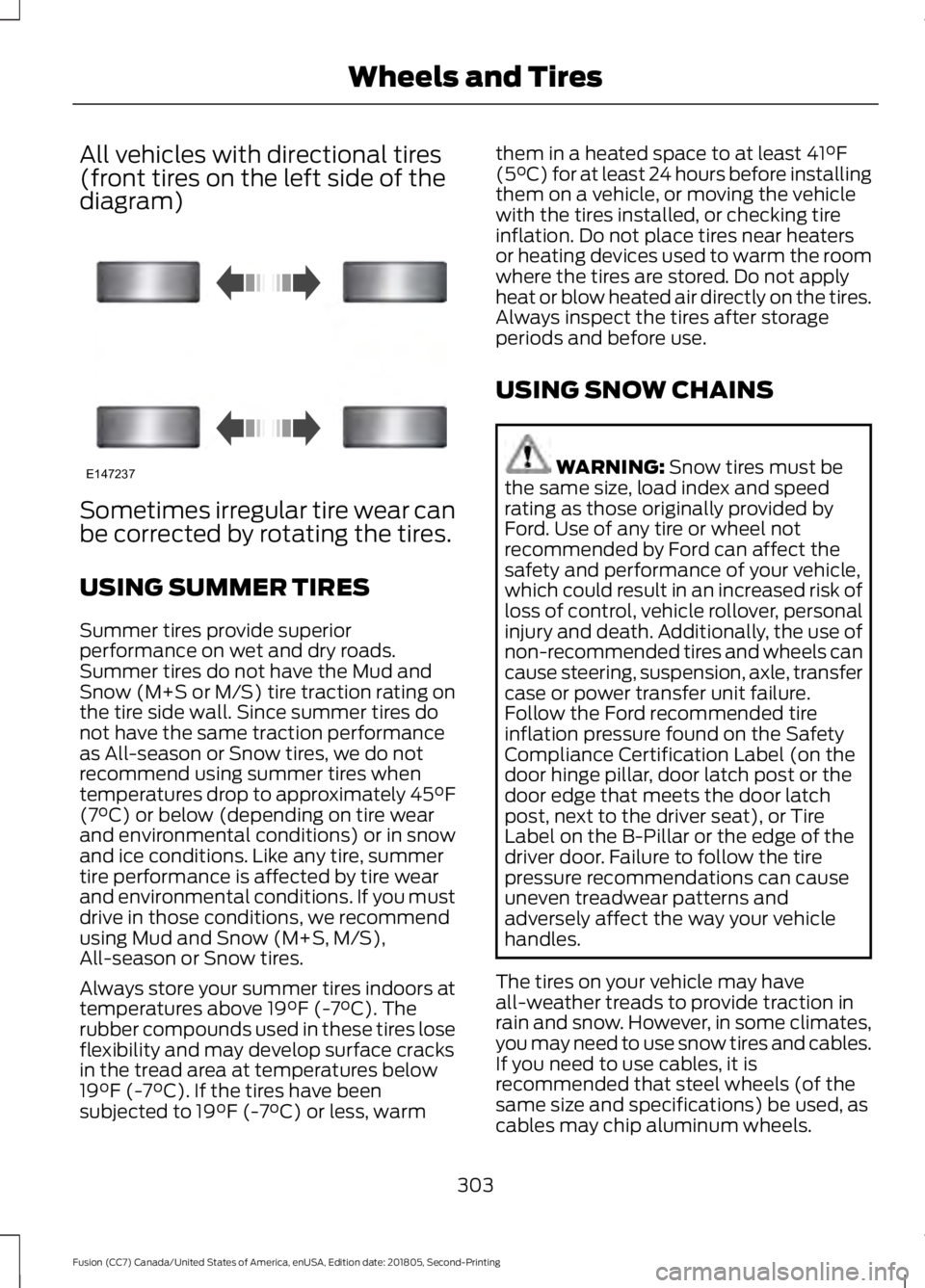
All vehicles with directional tires
(front tires on the left side of the
diagram)
Sometimes irregular tire wear can
be corrected by rotating the tires.
USING SUMMER TIRES
Summer tires provide superior
performance on wet and dry roads.
Summer tires do not have the Mud and
Snow (M+S or M/S) tire traction rating on
the tire side wall. Since summer tires do
not have the same traction performance
as All-season or Snow tires, we do not
recommend using summer tires when
temperatures drop to approximately 45°F
(7°C) or below (depending on tire wear
and environmental conditions) or in snow
and ice conditions. Like any tire, summer
tire performance is affected by tire wear
and environmental conditions. If you must
drive in those conditions, we recommend
using Mud and Snow (M+S, M/S),
All-season or Snow tires.
Always store your summer tires indoors at
temperatures above
19°F (-7°C). The
rubber compounds used in these tires lose
flexibility and may develop surface cracks
in the tread area at temperatures below
19°F (-7°C)
. If the tires have been
subjected to 19°F (-7°C) or less, warm them in a heated space to at least
41°F
(5°C) for at least 24 hours before installing
them on a vehicle, or moving the vehicle
with the tires installed, or checking tire
inflation. Do not place tires near heaters
or heating devices used to warm the room
where the tires are stored. Do not apply
heat or blow heated air directly on the tires.
Always inspect the tires after storage
periods and before use.
USING SNOW CHAINS WARNING:
Snow tires must be
the same size, load index and speed
rating as those originally provided by
Ford. Use of any tire or wheel not
recommended by Ford can affect the
safety and performance of your vehicle,
which could result in an increased risk of
loss of control, vehicle rollover, personal
injury and death. Additionally, the use of
non-recommended tires and wheels can
cause steering, suspension, axle, transfer
case or power transfer unit failure.
Follow the Ford recommended tire
inflation pressure found on the Safety
Compliance Certification Label (on the
door hinge pillar, door latch post or the
door edge that meets the door latch
post, next to the driver seat), or Tire
Label on the B-Pillar or the edge of the
driver door. Failure to follow the tire
pressure recommendations can cause
uneven treadwear patterns and
adversely affect the way your vehicle
handles.
The tires on your vehicle may have
all-weather treads to provide traction in
rain and snow. However, in some climates,
you may need to use snow tires and cables.
If you need to use cables, it is
recommended that steel wheels (of the
same size and specifications) be used, as
cables may chip aluminum wheels.
303
Fusion (CC7) Canada/United States of America, enUSA, Edition date: 201805, Second-Printing Wheels and TiresE147237
Page 313 of 550
11.
Set all four tires to the recommended
air pressure as indicated on the
Safety Compliance Certification
Label, affixed to either the door hinge
pillar, door-latch post, or the door
edge that meets the door-latch post,
next to the driver seating position or
Tire Label located on the B-Pillar or
the edge of the driver door.
CHANGING A ROAD WHEEL WARNING: If the tire pressure
monitor sensor becomes damaged it
may not function.
Note: The tire pressure monitoring system
indicator light illuminates when the spare
tire is in use. To restore the full function of
the monitoring system, mount all road
wheels equipped with tire pressure
monitoring sensors on the vehicle.
Note: You should only use tire sealants in
roadside emergencies as they may cause
damage to the tire pressure monitoring
system sensor. If you get a flat tire when driving, do not
apply the brake heavily. Instead, gradually
decrease your speed. Hold the steering
wheel firmly and slowly move to a safe
place on the side of the road.
Have a flat serviced by an authorized
dealer to prevent damage to the tire
pressure monitoring system sensors.
See
Tire Pressure Monitoring System (page
304). Replace the spare tire with a road tire
as soon as possible. During repairing or
replacing of the flat tire, have an authorized
dealer inspect the tire pressure monitoring
system sensor for damage.
Dissimilar Spare Wheel and Tire
Assembly Information WARNING:
Failure to follow these
guidelines could result in an increased
risk of loss of vehicle control, injury or
death.
If you have a dissimilar spare wheel and
tire, use it for temporary use only. This
means that if you need to use it, you should
replace it as soon as possible with a road
wheel and tire assembly that is the same
size and type as the road tires and wheels
that originally came with your vehicle. If
the dissimilar spare tire or wheel is
damaged, replace it instead of repairing it.
310
Fusion (CC7) Canada/United States of America, enUSA, Edition date: 201805, Second-Printing Wheels and Tires
Page 315 of 550
Give additional caution to the following
when driving with the full-size dissimilar
spare wheel and tire assembly:
•
Towing a trailer.
• Driving vehicles equipped with a
camper body.
• Driving vehicles with a load on the
cargo rack.
Drive cautiously when using a full-size
dissimilar spare wheel and tire assembly
and seek service as soon as possible.
Changing a Road Wheel Procedure WARNING: When one of the front
wheels is off the ground, the
transmission alone will not prevent the
vehicle from moving or slipping off the
jack, even if the transmission is in park
(P). WARNING:
To help prevent your
vehicle from moving when changing a
wheel, shift the transmission into park
(P), set the parking brake and use an
appropriate block or wheel chock to
secure the wheel diagonally opposite to
the wheel being changed. For example,
when changing the front left wheel,
place an appropriate block or wheel
chock on the right rear wheel. WARNING:
Do not work on your
vehicle when the jack is the only support.
If the vehicle slips off the jack, you or
someone else could be seriously injured. WARNING:
Check that the vehicle
jack is not damaged or deformed and
the thread is lubricated and clean. WARNING:
Never place anything
between the vehicle jack and your
vehicle. WARNING:
Never place anything
between the vehicle jack and the ground. WARNING:
Do not attempt to
change a tire on the side of the vehicle
close to moving traffic. Pull far enough
off the road to avoid the danger of being
hit when operating the jack or changing
the wheel. WARNING:
Park your vehicle so
that you do not obstruct the flow of
traffic or place yourself in any danger and
set up a warning triangle. WARNING: The jack supplied with
this vehicle is only intended for changing
wheels. Do not use the vehicle jack other
than when you are changing a wheel in
an emergency. WARNING:
Always use the jack
provided as original equipment with your
vehicle. If using a jack other than the one
provided, make sure the jack capacity is
adequate for the vehicle weight,
including any vehicle cargo or
modifications. If you are unsure if the jack
capacity is adequate, contact the
authorized dealer. WARNING:
Use only the specified
jacking points. If you use other positions,
you may damage the body, steering,
suspension, engine, braking system or
the fuel lines. WARNING:
Failure to follow these
guidelines could result in an increased
risk of loss of vehicle control, injury or
death.
312
Fusion (CC7) Canada/United States of America, enUSA, Edition date: 201805, Second-Printing Wheels and Tires
Page 370 of 550
Voice Command
You can state the name of
the desired device, such as“My iPhone ”,“My Galaxy ”
or “My iPod ”. SYNC may
ask you to confirm the type of device (Phone, USB, or Bluetooth Audio).
(connect |
device) ___
Making Calls Press the voice button. When
prompted, say:
Voice Command
call [[a] name] SYNC prompts you to say
the numbers that you wish
to dial. After you say the
numbers, the system
confirms it. You can then
say:
dial [[a]
number]
When the system has stated the
number, you say any of the following: Voice Command
This initiates the call.
(dial | send)
This erases the spoken
digits.
(delete |
correct)
To end the call, press the end call button on the steering wheel or select the end call
option in the audio display.
Receiving Calls
Accepting calls
When receiving a call, you can answer the
call by pressing the accept call button on
the steering wheel or use the screen.
To use the screen to accept a call
select:
Menu Item
Accept
Rejecting Calls
When receiving a call, you can reject the
call by pressing the reject call button on
the steering wheel or use the screen.
To use the screen to reject a call select: Menu Item
Reject
Ignore the call by doing nothing.
Phone Options during an Active
Call
During an active call, you have more menu
features that become available, such as
putting a call on hold or joining calls.
To access this menu, choose one of the
options available at the bottom of the
audio display or select More to choose
from the following options:
367
Fusion (CC7) Canada/United States of America, enUSA, Edition date: 201805, Second-Printing SYNC™E142599
Page 379 of 550
See Roadside Emergencies (page 232).
Important information about the fuel pump
shut-off is in this chapter.
Setting 911 Assist On or Off
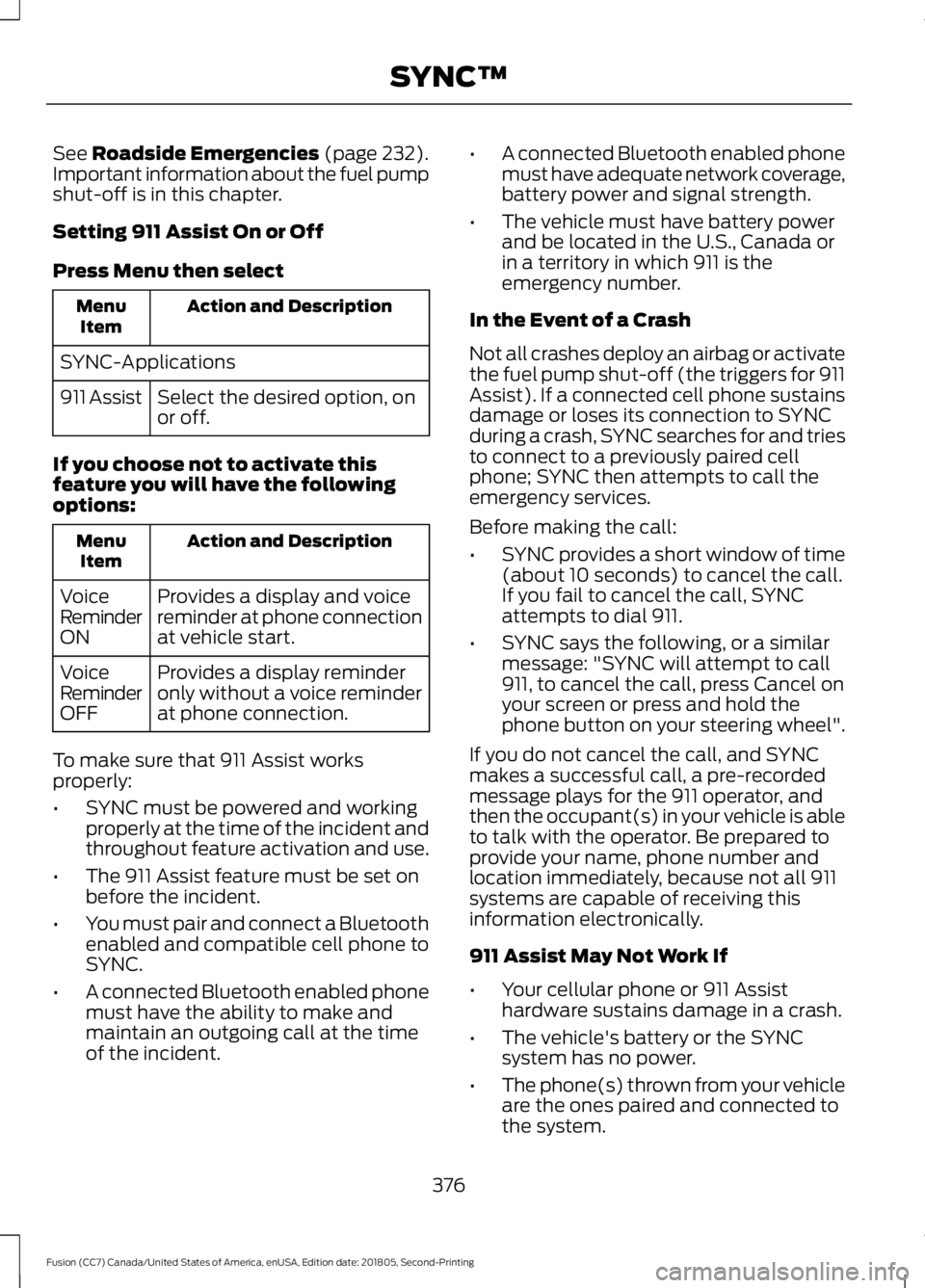
Press Menu then select Action and Description
Menu
Item
SYNC-Applications Select the desired option, on
or off.
911 Assist
If you choose not to activate this
feature you will have the following
options: Action and Description
Menu
Item
Provides a display and voice
reminder at phone connection
at vehicle start.
Voice
Reminder
ON
Provides a display reminder
only without a voice reminder
at phone connection.
Voice
Reminder
OFF
To make sure that 911 Assist works
properly:
• SYNC must be powered and working
properly at the time of the incident and
throughout feature activation and use.
• The 911 Assist feature must be set on
before the incident.
• You must pair and connect a Bluetooth
enabled and compatible cell phone to
SYNC.
• A connected Bluetooth enabled phone
must have the ability to make and
maintain an outgoing call at the time
of the incident. •
A connected Bluetooth enabled phone
must have adequate network coverage,
battery power and signal strength.
• The vehicle must have battery power
and be located in the U.S., Canada or
in a territory in which 911 is the
emergency number.
In the Event of a Crash
Not all crashes deploy an airbag or activate
the fuel pump shut-off (the triggers for 911
Assist). If a connected cell phone sustains
damage or loses its connection to SYNC
during a crash, SYNC searches for and tries
to connect to a previously paired cell
phone; SYNC then attempts to call the
emergency services.
Before making the call:
• SYNC provides a short window of time
(about 10 seconds) to cancel the call.
If you fail to cancel the call, SYNC
attempts to dial 911.
• SYNC says the following, or a similar
message: "SYNC will attempt to call
911, to cancel the call, press Cancel on
your screen or press and hold the
phone button on your steering wheel".
If you do not cancel the call, and SYNC
makes a successful call, a pre-recorded
message plays for the 911 operator, and
then the occupant(s) in your vehicle is able
to talk with the operator. Be prepared to
provide your name, phone number and
location immediately, because not all 911
systems are capable of receiving this
information electronically.
911 Assist May Not Work If
• Your cellular phone or 911 Assist
hardware sustains damage in a crash.
• The vehicle's battery or the SYNC
system has no power.
• The phone(s) thrown from your vehicle
are the ones paired and connected to
the system.
376
Fusion (CC7) Canada/United States of America, enUSA, Edition date: 201805, Second-Printing SYNC™
Page 380 of 550
911 Assist Privacy Notice
When you switch on 911 Assist, it may
disclose to emergency services that your
vehicle has been in a crash involving the
deployment of an airbag or activation of
the fuel pump shut-off. Certain versions or
updates to 911 Assist may also be capable
of electronically or verbally disclosing to
911 operators your vehicle location or other
details about your vehicle or crash to assist
911 operators to provide the most
appropriate emergency services. If you do
not want to disclose this information, do
not switch the feature on.
SYNC Mobile Apps
The system enables voice and steering
wheel control of SYNC AppLink enabled
smartphone apps. When an app is running
through AppLink, you can control main
features of the app through voice
commands and steering wheel controls.
Note:
You must pair and connect your
smartphone to SYNC to access AppLink.
Note: iPhone users need to connect the
phone to the USB port.
Note: Android users need to connect the
phone to SYNC using Bluetooth.
Note: For information on available apps,
supported smartphone devices and
troubleshooting tips please visit the local
website.
Note: Availability of SYNC AppLink enabled
Apps will vary by region. Note:
Make sure you have an active account
for the app that you have downloaded.
Some apps work automatically with no
setup. Other apps want you to configure
your personal settings and personalize your
experience by creating stations or favorites.
We recommend you do this at home or
outside of your vehicle.
Note: AppLink is not available if your
vehicle is equipped with the MyFord Touch
system.
To Access Using the SYNC Menu
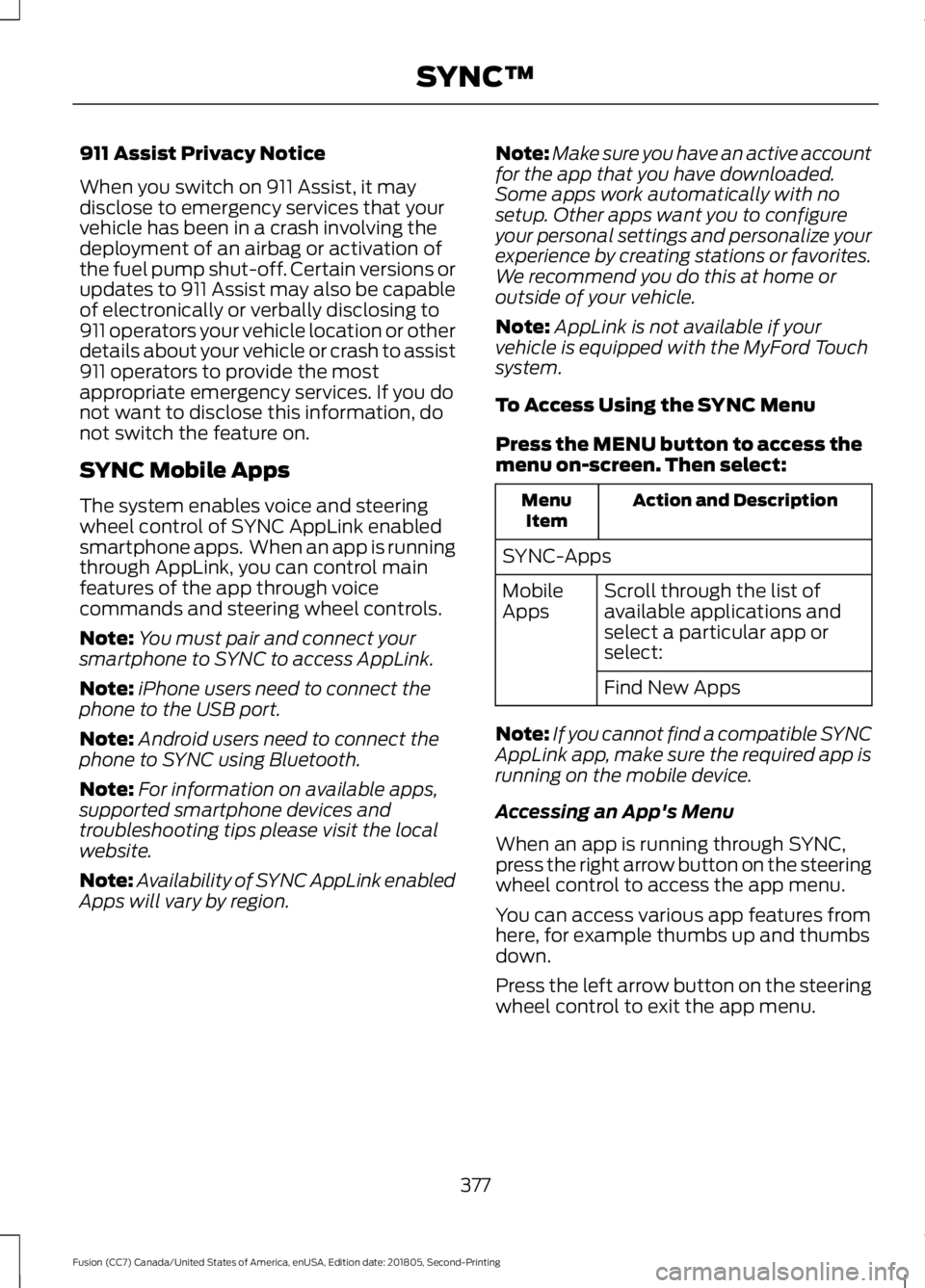
Press the MENU button to access the
menu on-screen. Then select: Action and Description
Menu
Item
SYNC-Apps Scroll through the list of
available applications and
select a particular app or
select:
Mobile
Apps
Find New Apps
Note: If you cannot find a compatible SYNC
AppLink app, make sure the required app is
running on the mobile device.
Accessing an App's Menu
When an app is running through SYNC,
press the right arrow button on the steering
wheel control to access the app menu.
You can access various app features from
here, for example thumbs up and thumbs
down.
Press the left arrow button on the steering
wheel control to exit the app menu.
377
Fusion (CC7) Canada/United States of America, enUSA, Edition date: 201805, Second-Printing SYNC™
Page 381 of 550
To Access Using Voice Commands
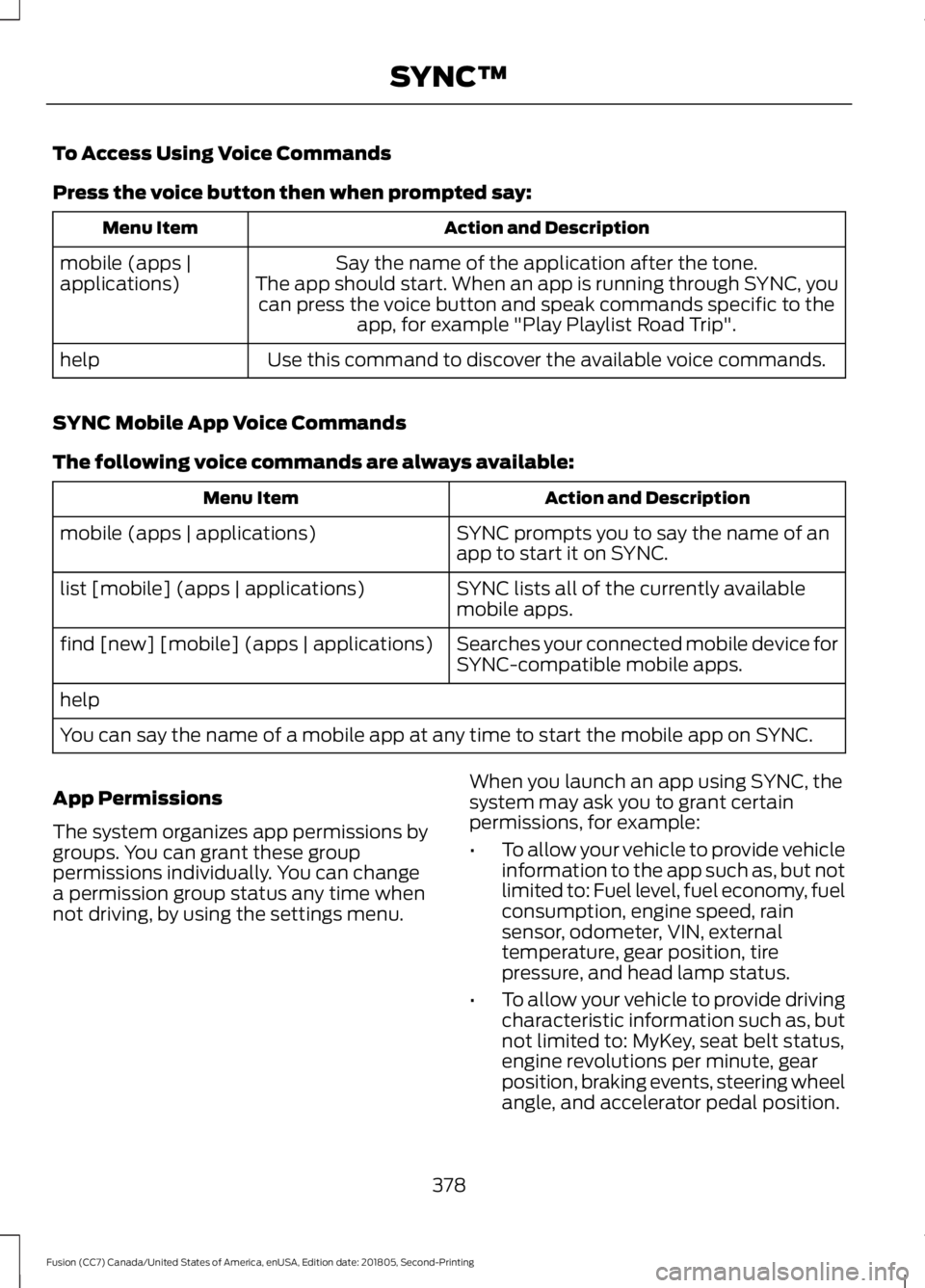
Press the voice button then when prompted say:
Action and Description
Menu Item
Say the name of the application after the tone.
The app should start. When an app is running through SYNC, you can press the voice button and speak commands specific to the app, for example "Play Playlist Road Trip".
mobile (apps |
applications)
Use this command to discover the available voice commands.
help
SYNC Mobile App Voice Commands
The following voice commands are always available: Action and Description
Menu Item
SYNC prompts you to say the name of an
app to start it on SYNC.
mobile (apps | applications)
SYNC lists all of the currently available
mobile apps.
list [mobile] (apps | applications)
Searches your connected mobile device for
SYNC-compatible mobile apps.
find [new] [mobile] (apps | applications)
help
You can say the name of a mobile app at any time to start the mobile app on SYNC.
App Permissions
The system organizes app permissions by
groups. You can grant these group
permissions individually. You can change
a permission group status any time when
not driving, by using the settings menu. When you launch an app using SYNC, the
system may ask you to grant certain
permissions, for example:
•
To allow your vehicle to provide vehicle
information to the app such as, but not
limited to: Fuel level, fuel economy, fuel
consumption, engine speed, rain
sensor, odometer, VIN, external
temperature, gear position, tire
pressure, and head lamp status.
• To allow your vehicle to provide driving
characteristic information such as, but
not limited to: MyKey, seat belt status,
engine revolutions per minute, gear
position, braking events, steering wheel
angle, and accelerator pedal position.
378
Fusion (CC7) Canada/United States of America, enUSA, Edition date: 201805, Second-Printing SYNC™
Page 402 of 550
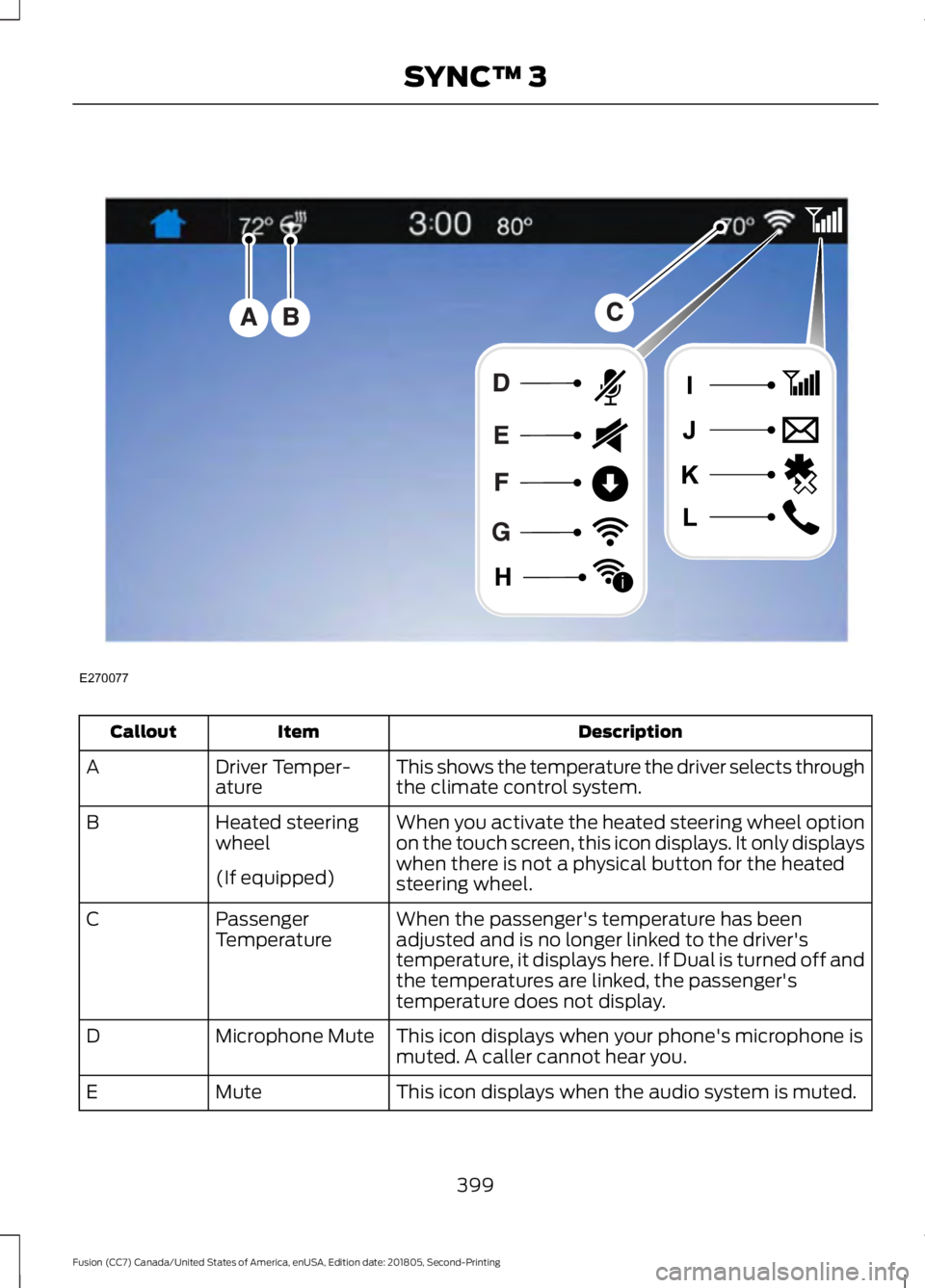
Description
Item
Callout
This shows the temperature the driver selects through
the climate control system.
Driver Temper-
ature
A
When you activate the heated steering wheel option
on the touch screen, this icon displays. It only displays
when there is not a physical button for the heated
steering wheel.
Heated steering
wheel
B
(If equipped) When the passenger's temperature has been
adjusted and is no longer linked to the driver's
temperature, it displays here. If Dual is turned off and
the temperatures are linked, the passenger's
temperature does not display.
Passenger
Temperature
C
This icon displays when your phone's microphone is
muted. A caller cannot hear you.
Microphone Mute
D
This icon displays when the audio system is muted.
Mute
E
399
Fusion (CC7) Canada/United States of America, enUSA, Edition date: 201805, Second-Printing SYNC™ 3E270077
i
Page 405 of 550
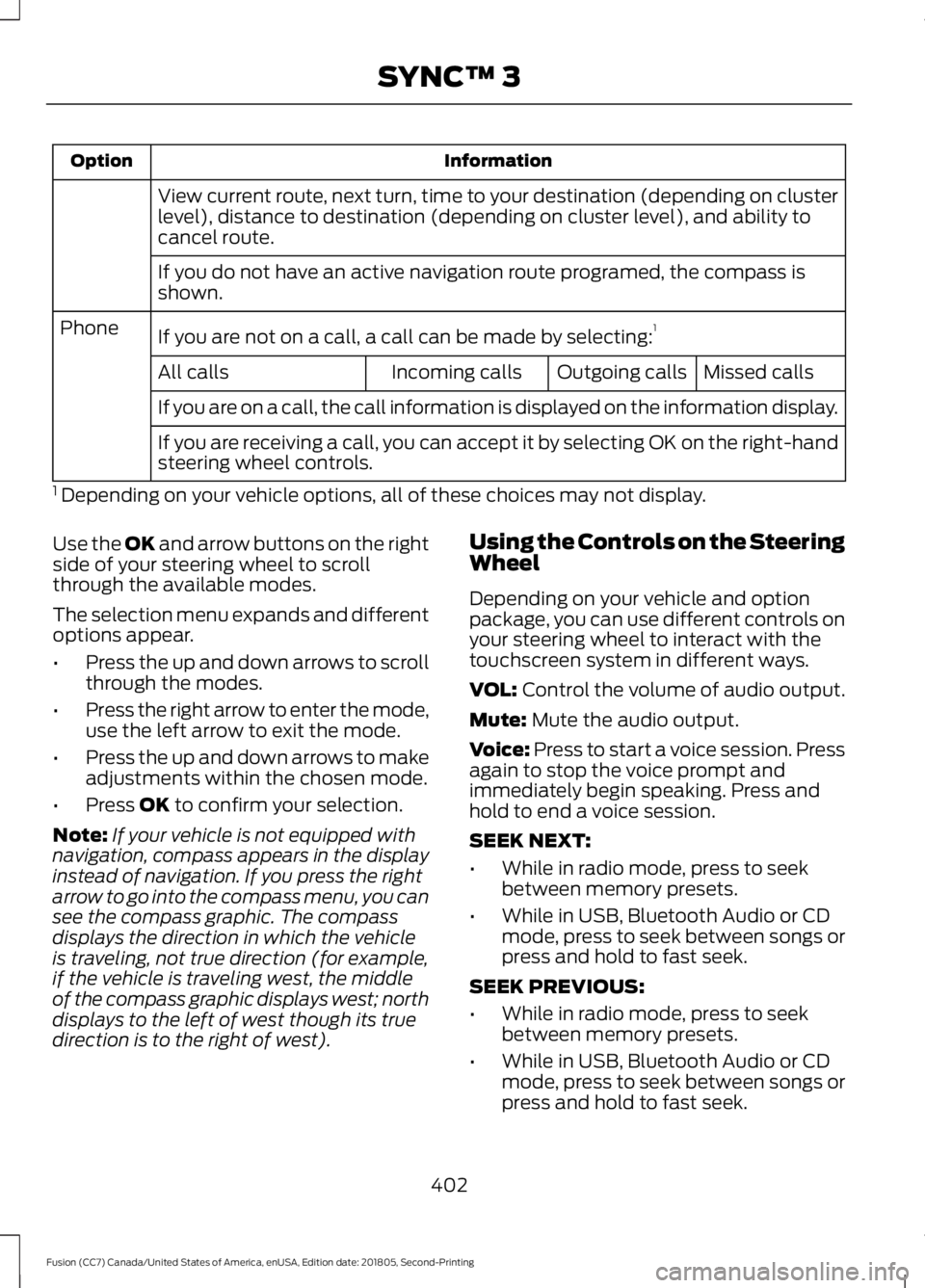
Information
Option
View current route, next turn, time to your destination (depending on cluster
level), distance to destination (depending on cluster level), and ability to
cancel route.
If you do not have an active navigation route programed, the compass is
shown.
If you are not on a call, a call can be made by selecting: 1
Phone
Missed calls
Outgoing calls
Incoming calls
All calls
If you are on a call, the call information is displayed on the information display.
If you are receiving a call, you can accept it by selecting OK on the right-hand
steering wheel controls.
1 Depending on your vehicle options, all of these choices may not display.
Use the OK and arrow buttons on the right
side of your steering wheel to scroll
through the available modes.
The selection menu expands and different
options appear.
• Press the up and down arrows to scroll
through the modes.
• Press the right arrow to enter the mode,
use the left arrow to exit the mode.
• Press the up and down arrows to make
adjustments within the chosen mode.
• Press
OK to confirm your selection.
Note: If your vehicle is not equipped with
navigation, compass appears in the display
instead of navigation. If you press the right
arrow to go into the compass menu, you can
see the compass graphic. The compass
displays the direction in which the vehicle
is traveling, not true direction (for example,
if the vehicle is traveling west, the middle
of the compass graphic displays west; north
displays to the left of west though its true
direction is to the right of west). Using the Controls on the Steering
Wheel
Depending on your vehicle and option
package, you can use different controls on
your steering wheel to interact with the
touchscreen system in different ways.
VOL:
Control the volume of audio output.
Mute:
Mute the audio output.
Voice:
Press to start a voice session. Press
again to stop the voice prompt and
immediately begin speaking. Press and
hold to end a voice session.
SEEK NEXT:
• While in radio mode, press to seek
between memory presets.
• While in USB, Bluetooth Audio or CD
mode, press to seek between songs or
press and hold to fast seek.
SEEK PREVIOUS:
• While in radio mode, press to seek
between memory presets.
• While in USB, Bluetooth Audio or CD
mode, press to seek between songs or
press and hold to fast seek.
402
Fusion (CC7) Canada/United States of America, enUSA, Edition date: 201805, Second-Printing SYNC™ 3
Page 406 of 550
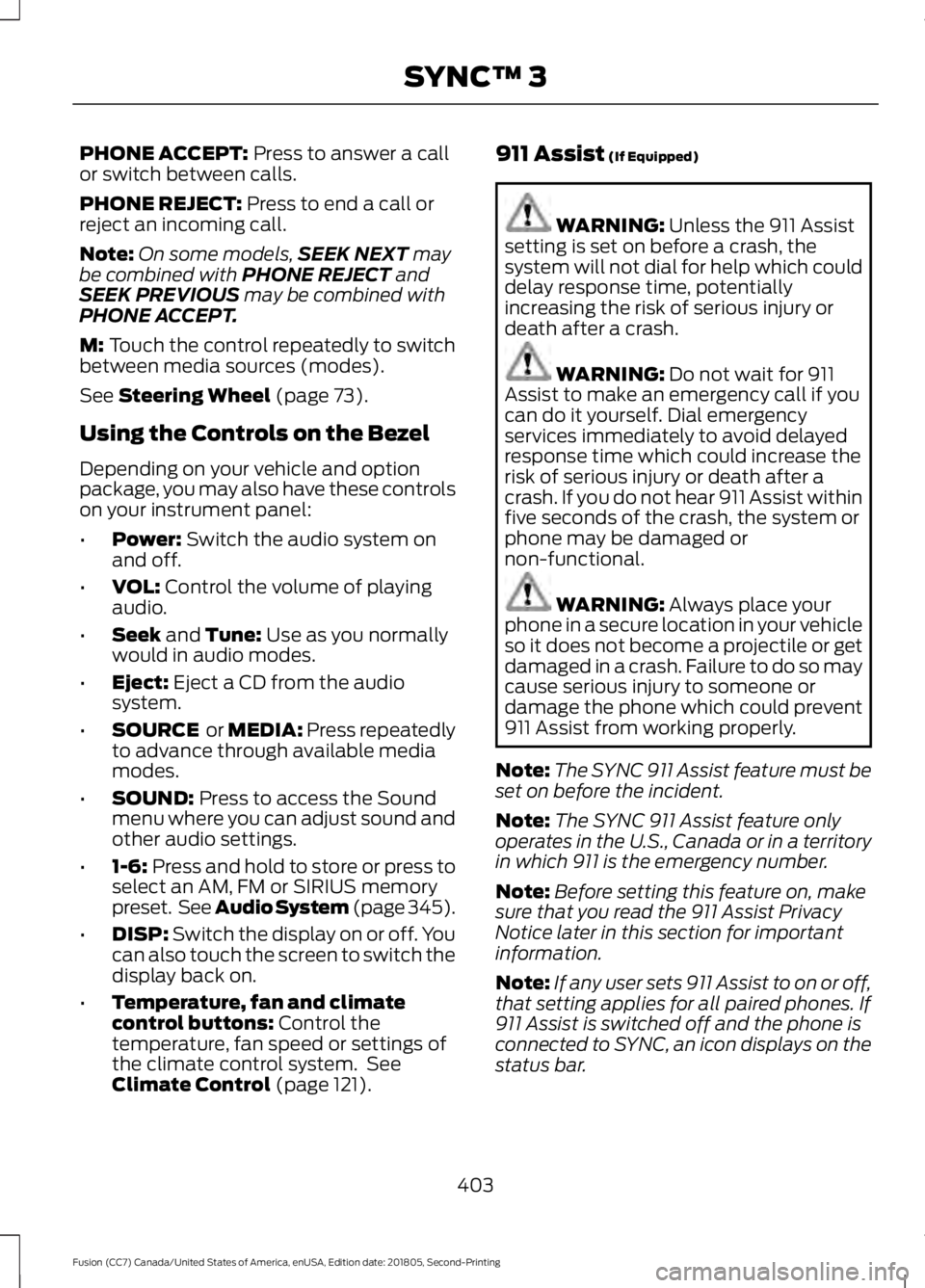
PHONE ACCEPT: Press to answer a call
or switch between calls.
PHONE REJECT:
Press to end a call or
reject an incoming call.
Note: On some models, SEEK NEXT
may
be combined with PHONE REJECT and
SEEK PREVIOUS may be combined with
PHONE ACCEPT.
M:
Touch the control repeatedly to switch
between media sources (modes).
See
Steering Wheel (page 73).
Using the Controls on the Bezel
Depending on your vehicle and option
package, you may also have these controls
on your instrument panel:
• Power:
Switch the audio system on
and off.
• VOL:
Control the volume of playing
audio.
• Seek
and Tune: Use as you normally
would in audio modes.
• Eject:
Eject a CD from the audio
system.
• SOURCE
or MEDIA: Press repeatedly
to advance through available media
modes.
• SOUND:
Press to access the Sound
menu where you can adjust sound and
other audio settings.
• 1-6:
Press and hold to store or press to
select an AM, FM or SIRIUS memory
preset. See Audio System (page 345
).
• DISP:
Switch the display on or off. You
can also touch the screen to switch the
display back on.
• Temperature, fan and climate
control buttons:
Control the
temperature, fan speed or settings of
the climate control system. See
Climate Control
(page 121). 911 Assist
(If Equipped) WARNING:
Unless the 911 Assist
setting is set on before a crash, the
system will not dial for help which could
delay response time, potentially
increasing the risk of serious injury or
death after a crash. WARNING:
Do not wait for 911
Assist to make an emergency call if you
can do it yourself. Dial emergency
services immediately to avoid delayed
response time which could increase the
risk of serious injury or death after a
crash. If you do not hear 911 Assist within
five seconds of the crash, the system or
phone may be damaged or
non-functional. WARNING:
Always place your
phone in a secure location in your vehicle
so it does not become a projectile or get
damaged in a crash. Failure to do so may
cause serious injury to someone or
damage the phone which could prevent
911 Assist from working properly.
Note: The SYNC 911 Assist feature must be
set on before the incident.
Note: The SYNC 911 Assist feature only
operates in the U.S., Canada or in a territory
in which 911 is the emergency number.
Note: Before setting this feature on, make
sure that you read the 911 Assist Privacy
Notice later in this section for important
information.
Note: If any user sets 911 Assist to on or off,
that setting applies for all paired phones. If
911 Assist is switched off and the phone is
connected to SYNC, an icon displays on the
status bar.
403
Fusion (CC7) Canada/United States of America, enUSA, Edition date: 201805, Second-Printing SYNC™ 3