tow FORD FUSION 2019 Repair Manual
[x] Cancel search | Manufacturer: FORD, Model Year: 2019, Model line: FUSION, Model: FORD FUSION 2019Pages: 550, PDF Size: 8.5 MB
Page 314 of 550
Important Use of Spare Wheel
A dissimilar spare wheel and tire assembly is a spare wheel and tire assembly
that is different in brand, size or appearance from the road tires and wheels and
can be one of three types:
Types of Spare Wheels
T-type mini-spare. 1
Full-size dissimilar spare with label on wheel. 2
Full-size dissimilar spare without label on wheel.
1 This spare tire begins with the letter T for tire size and may have Temporary Use Only
molded in the sidewall.
2 This spare tire has a label on the wheel that states: THIS WHEEL AND TIRE ASSEMBLY
FOR TEMPORARY USE ONLY.
Driving with a T-type Mini-spare or Full-
size Dissimilar Spare with Label on Wheel
Do not:
• Exceed 50 mph (80 km/h).
• Load the vehicle beyond maximum
vehicle load rating listed on the Safety
Compliance Label.
• Tow a trailer.
• Use snow chains on the end of the
vehicle with the dissimilar spare tire.
• Use more than one dissimilar spare tire
at a time.
• Use commercial car washing
equipment.
• Try to repair the dissimilar spare tire.
Use of the above dissimilar spare wheel at
any one wheel location can lead to
impairment of the following:
• Handling, stability and braking
performance.
• Comfort and noise.
• Ground clearance and parking at curbs.
• Winter weather driving capability. •
Wet weather driving capability.
• All-wheel driving capability, if
applicable.
Driving with a Full-size Dissimilar Spare
Wheel and Tire Assembly
Do not:
• Exceed
70 mph (113 km/h).
• Use more than one dissimilar spare
wheel and tire assembly at a time.
• Use commercial car washing
equipment.
• Use snow chains on the end of the
vehicle with the dissimilar spare wheel
and tire assembly.
Use of the above dissimilar spare wheel at
any one wheel location can lead to
impairment of the following:
• Handling, stability and braking
performance.
• Comfort and noise.
• Ground clearance and parking at curbs.
• Winter weather driving capability.
• Wet weather driving capability.
• All-wheel driving capability.
311
Fusion (CC7) Canada/United States of America, enUSA, Edition date: 201805, Second-Printing Wheels and Tires
Page 315 of 550
Give additional caution to the following
when driving with the full-size dissimilar
spare wheel and tire assembly:
•
Towing a trailer.
• Driving vehicles equipped with a
camper body.
• Driving vehicles with a load on the
cargo rack.
Drive cautiously when using a full-size
dissimilar spare wheel and tire assembly
and seek service as soon as possible.
Changing a Road Wheel Procedure WARNING: When one of the front
wheels is off the ground, the
transmission alone will not prevent the
vehicle from moving or slipping off the
jack, even if the transmission is in park
(P). WARNING:
To help prevent your
vehicle from moving when changing a
wheel, shift the transmission into park
(P), set the parking brake and use an
appropriate block or wheel chock to
secure the wheel diagonally opposite to
the wheel being changed. For example,
when changing the front left wheel,
place an appropriate block or wheel
chock on the right rear wheel. WARNING:
Do not work on your
vehicle when the jack is the only support.
If the vehicle slips off the jack, you or
someone else could be seriously injured. WARNING:
Check that the vehicle
jack is not damaged or deformed and
the thread is lubricated and clean. WARNING:
Never place anything
between the vehicle jack and your
vehicle. WARNING:
Never place anything
between the vehicle jack and the ground. WARNING:
Do not attempt to
change a tire on the side of the vehicle
close to moving traffic. Pull far enough
off the road to avoid the danger of being
hit when operating the jack or changing
the wheel. WARNING:
Park your vehicle so
that you do not obstruct the flow of
traffic or place yourself in any danger and
set up a warning triangle. WARNING: The jack supplied with
this vehicle is only intended for changing
wheels. Do not use the vehicle jack other
than when you are changing a wheel in
an emergency. WARNING:
Always use the jack
provided as original equipment with your
vehicle. If using a jack other than the one
provided, make sure the jack capacity is
adequate for the vehicle weight,
including any vehicle cargo or
modifications. If you are unsure if the jack
capacity is adequate, contact the
authorized dealer. WARNING:
Use only the specified
jacking points. If you use other positions,
you may damage the body, steering,
suspension, engine, braking system or
the fuel lines. WARNING:
Failure to follow these
guidelines could result in an increased
risk of loss of vehicle control, injury or
death.
312
Fusion (CC7) Canada/United States of America, enUSA, Edition date: 201805, Second-Printing Wheels and Tires
Page 318 of 550
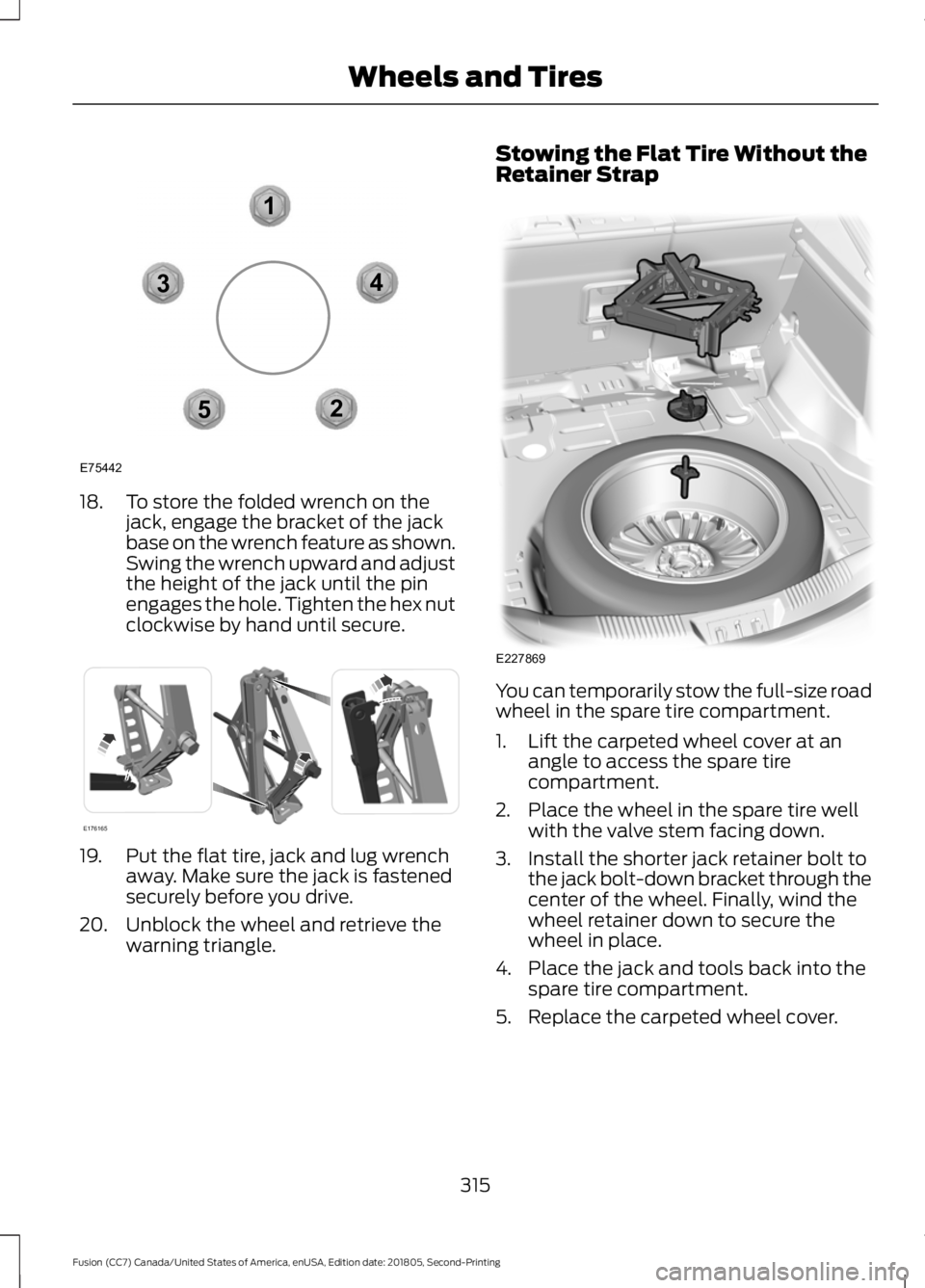
18. To store the folded wrench on the
jack, engage the bracket of the jack
base on the wrench feature as shown.
Swing the wrench upward and adjust
the height of the jack until the pin
engages the hole. Tighten the hex nut
clockwise by hand until secure. 19. Put the flat tire, jack and lug wrench
away. Make sure the jack is fastened
securely before you drive.
20. Unblock the wheel and retrieve the warning triangle. Stowing the Flat Tire Without the
Retainer Strap
You can temporarily stow the full-size road
wheel in the spare tire compartment.
1. Lift the carpeted wheel cover at an
angle to access the spare tire
compartment.
2. Place the wheel in the spare tire well with the valve stem facing down.
3. Install the shorter jack retainer bolt to the jack bolt-down bracket through the
center of the wheel. Finally, wind the
wheel retainer down to secure the
wheel in place.
4. Place the jack and tools back into the spare tire compartment.
5. Replace the carpeted wheel cover.
315
Fusion (CC7) Canada/United States of America, enUSA, Edition date: 201805, Second-Printing Wheels and Tires12
3
4
5
E75442 E176165 E227869
Page 319 of 550
Stowing the Flat Tire Using the
Retainer Strap (If Equipped)
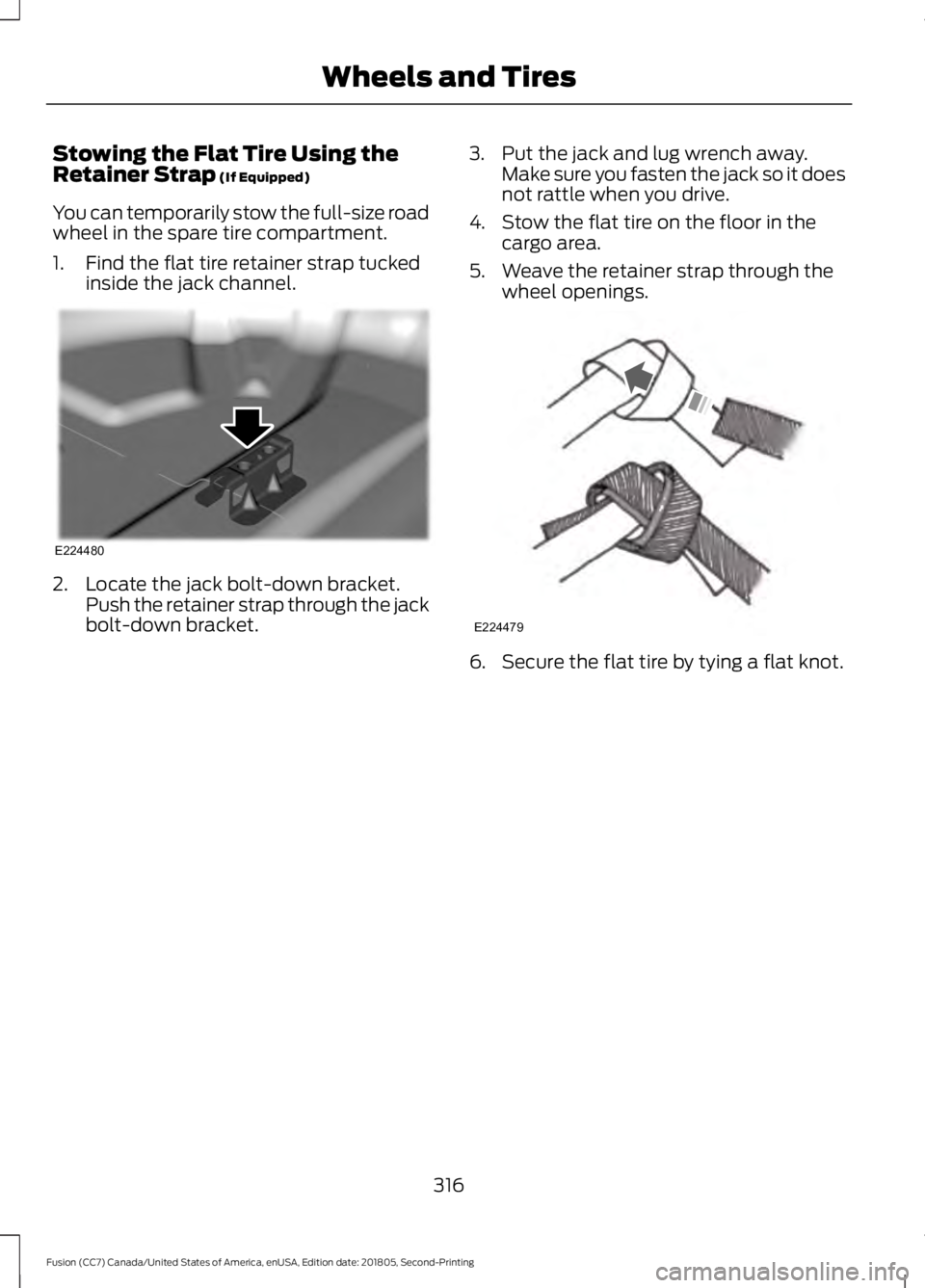
You can temporarily stow the full-size road
wheel in the spare tire compartment.
1. Find the flat tire retainer strap tucked inside the jack channel. 2. Locate the jack bolt-down bracket.
Push the retainer strap through the jack
bolt-down bracket. 3. Put the jack and lug wrench away.
Make sure you fasten the jack so it does
not rattle when you drive.
4. Stow the flat tire on the floor in the cargo area.
5. Weave the retainer strap through the wheel openings. 6. Secure the flat tire by tying a flat knot.
316
Fusion (CC7) Canada/United States of America, enUSA, Edition date: 201805, Second-Printing Wheels and TiresE224480 E224479
Page 348 of 550
GENERAL INFORMATION
WARNING: Driving while
distracted can result in loss of vehicle
control, crash and injury. We strongly
recommend that you use extreme
caution when using any device that may
take your focus off the road. Your
primary responsibility is the safe
operation of your vehicle. We
recommend against the use of any
hand-held device while driving and
encourage the use of voice-operated
systems when possible. Make sure you
are aware of all applicable local laws
that may affect the use of electronic
devices while driving. Radio Frequencies and Reception
Factors
AM and FM frequencies are established by
the Federal Communications Commission
(FCC) and the Canadian Radio and
Telecommunications Commission (CRTC).
Those frequencies are:
•
AM: 530-1710 kHz
• FM: 87.9-107.9 MHz
Note: Listening to loud audio for long
periods of time could damage your hearing. Radio Reception Factors
The further you travel from an AM or FM station, the
weaker the signal and the weaker the reception.
Distance and strength
Hills, mountains, tall buildings, bridges, tunnels, freeway
overpasses, parking garages, dense tree foliage and
thunderstorms can interfere with the reception.
Terrain
When you pass a ground-based broadcast repeating
tower, a stronger signal may overtake a weaker one and
result in the audio system muting.
Station overload
CD and CD Player Information
Note: CD units play commercially pressed
4.7 in (12 cm) audio compact discs only. Due
to technical incompatibility, certain
recordable and re-recordable compact discs
may not function correctly when used in the
vehicle ’s CD player. Note:
Do not insert CDs with homemade
paper (adhesive) labels into the CD player
as the label may peel and cause the CD to
become jammed. You should use a
permanent felt tip marker rather than
adhesive labels on your homemade CDs.
Ballpoint pens may damage CDs. Ask an
authorized dealer for more information.
Note: Do not use any irregularly shaped
discs or discs with a scratch protection film
attached.
345
Fusion (CC7) Canada/United States of America, enUSA, Edition date: 201805, Second-Printing Audio System
Page 349 of 550
Always handle discs by their edges only.
Clean the disc with an approved CD
cleaner only. Wipe it from the center of
the disc toward the edge. Do not clean in
a circular motion.
Do not expose discs to direct sunlight or
heat sources for extended periods.
MP3 and WMA Track and Folder
Structure
Audio systems capable of recognizing and
playing MP3 and WMA individual tracks
and folder structures work as follows:
•
There are two different modes for MP3
and WMA disc playback: MP3 and
WMA track mode (system default) and
MP3 and WMA folder mode.
• MP3 and WMA track mode ignores any
folder structure on the MP3 and WMA
disc. The player numbers each MP3
and WMA track on the disc (noted by
the MP3 or WMA file extension) from
T001 to a maximum of T255. The
maximum number of playable MP3 and
WMA files may be less depending on
the structure of the CD and exact
model of radio present.
• MP3 and WMA folder mode represents
a folder structure consisting of one
level of folders. The CD player numbers
all MP3 and WMA tracks on the disc
(noted by the MP3 or WMA file
extension) and all folders containing
MP3 and WMA files, from F001 (folder)
T001 (track) to F253 T255.
• Creating discs with only one level of
folders helps with navigation through
the disc files.
If you are burning your own MP3 and WMA
discs, it is important to understand how
the system reads the structures you create.
While various files may be present (files
with extensions other than MP3 and
WMA), only files with the MP3 and WMA extension are played; other files are
ignored by the system. This enables you to
use the same MP3 and WMA disc for a
variety of tasks on your work computer,
home computer and your in-vehicle
system.
In track mode, the system displays and
plays the structure as if it were only one
level deep (all MP3 and WMA files play,
regardless of being in a specific folder). In
folder mode, the system only plays the
MP3 and WMA files in the current folder.
AUDIO UNIT - VEHICLES WITH:
TOUCHSCREEN DISPLAY,
VEHICLES WITHOUT: SONY
AUDIO SYSTEM
WARNING: Driving while
distracted can result in loss of vehicle
control, crash and injury. We strongly
recommend that you use extreme
caution when using any device that may
take your focus off the road. Your
primary responsibility is the safe
operation of your vehicle. We
recommend against the use of any
hand-held device while driving and
encourage the use of voice-operated
systems when possible. Make sure you
are aware of all applicable local laws
that may affect the use of electronic
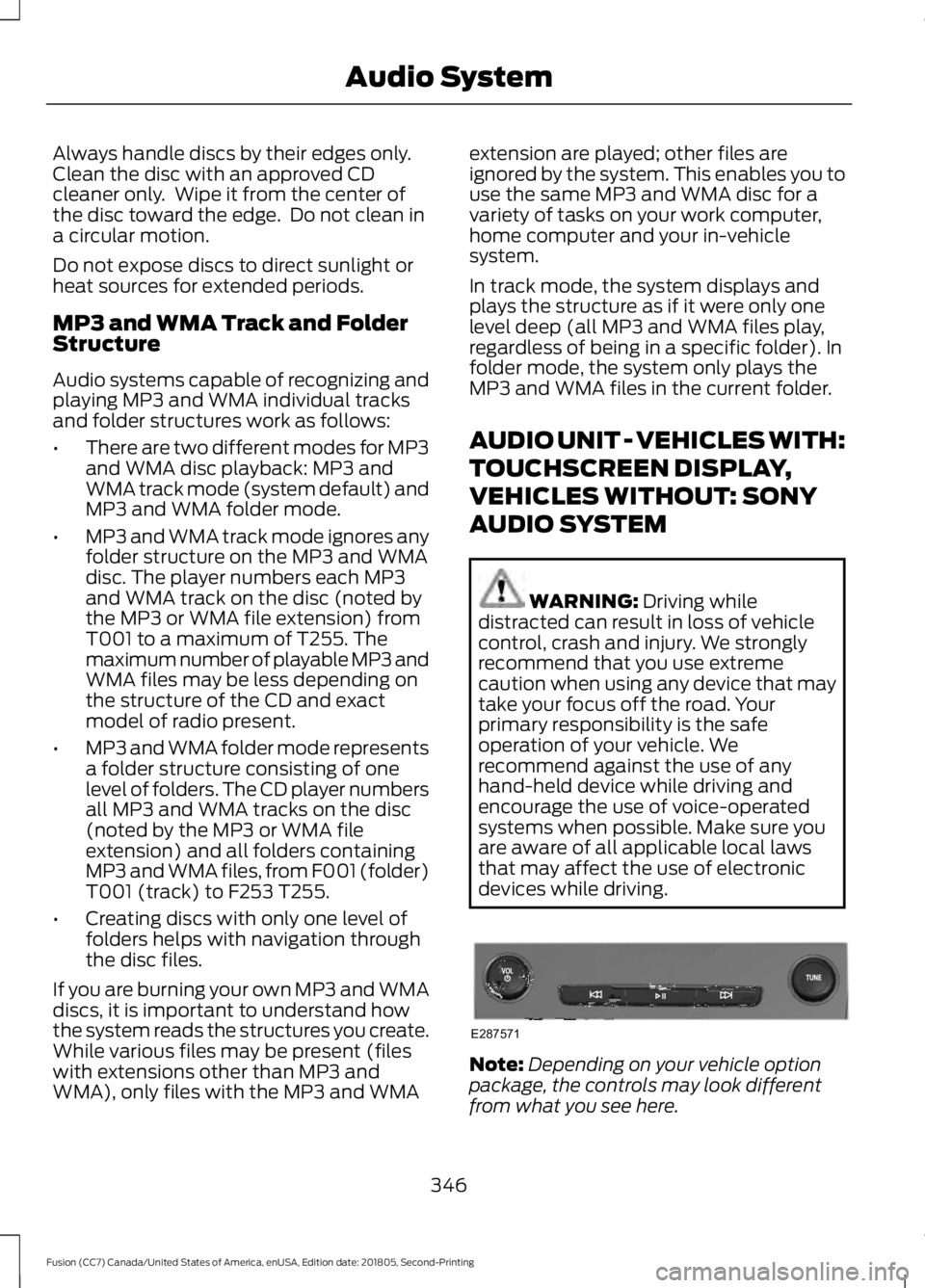
devices while driving. Note:
Depending on your vehicle option
package, the controls may look different
from what you see here.
346
Fusion (CC7) Canada/United States of America, enUSA, Edition date: 201805, Second-Printing Audio SystemE287571
Page 359 of 550
Note:
This receiver includes the eCos
real-time operating system. eCos is
published under the eCos License.
Satellite Radio Reception Factors Potential satellite radio reception issues
For optimal reception performance, keep the antenna
clear of snow and ice build-up and keep luggage and other
material as far away from the antenna as possible.
Antenna obstructions
Hills, mountains, tall buildings, bridges, tunnels, freeway
overpasses, parking garages, dense tree foliage and
thunderstorms can interfere with your reception.
Terrain
When you pass a ground-based broadcast-repeating
tower, a stronger signal may overtake a weaker one and
the audio system may mute.
Station overload
Your display may show ACQUIRING . . . to indicate the
interference and the audio system may mute.
Satellite radio signal interfer-
ence
SiriusXM Satellite Radio Service
Note: SiriusXM reserves the unrestricted
right to change, rearrange, add or delete
programming including canceling, moving
or adding particular channels, and its prices,
at any time, with or without notice to you.
Ford Motor Company shall not be
responsible for any such programming
changes. SiriusXM satellite radio is a
subscription-based satellite radio service
that broadcasts a variety of music, sports,
news, weather, traffic and entertainment
programming. Your factory-installed
SiriusXM satellite radio system includes
hardware and a limited subscription term,
which begins on the date of sale or lease
of your vehicle. See an authorized dealer
for availability.
For more information on extended
subscription terms (a service fee is
required), the online media player and a
complete list of SiriusXM satellite radio
channels, and other features, please visit
www.siriusxm.com in the United States,
www.siriusxm.ca in Canada, or call
SiriusXM at 1-888-539-7474.
Satellite Radio Electronic Serial
Number (ESN)
You need your ESN to activate, modify or
track your satellite radio account. When in
satellite radio mode, tune to channel 0.
356
Fusion (CC7) Canada/United States of America, enUSA, Edition date: 201805, Second-Printing Audio SystemE208625
Page 360 of 550
Troubleshooting
Action
Condition
Message
No action required. This
message should disappear
shortly.
Radio requires more than
two seconds to produce
audio for the selected
channel.
Acquiring…
If this message does not
clear shortly, or with an igni-
tion key cycle, your receiver
may have a fault. See an
authorized dealer for service.
There is an internal module
or system failure present.
Satellite antenna fault
SIRIUS system failure
Tune to another channel or
choose another preset.
The channel is no longer
available.
Invalid Channel
Contact SiriusXM at 1-888-
539-7474 to subscribe to
the channel, or tune to
another channel.
Your subscription does not
include this channel.
Unsubscribed Channel
The signal is blocked. When
you move into an open area,
the signal should return.
The signal is lost from the
SiriusXM satellite or Siri-
usXM tower to your vehicle
antenna.
No Signal
No action required. The
process may take up to
three minutes.
Update of channel
programming in progress.
Updating…
Contact SiriusXM at 1-888-
539-7474 to resolve
subscription issues.
Your satellite service is no
longer available.
Questions? Call
1-888-539-7474
Use the channel guide to
turn off the Lock or Skip
function on that station.
All the channels in the
selected category are either
skipped or locked.
None found
Check Channel Guide
No action required.
SiriusXM has updated the
channels available for your
vehicle.
Subscription Updated
357
Fusion (CC7) Canada/United States of America, enUSA, Edition date: 201805, Second-Printing Audio System
Page 423 of 550
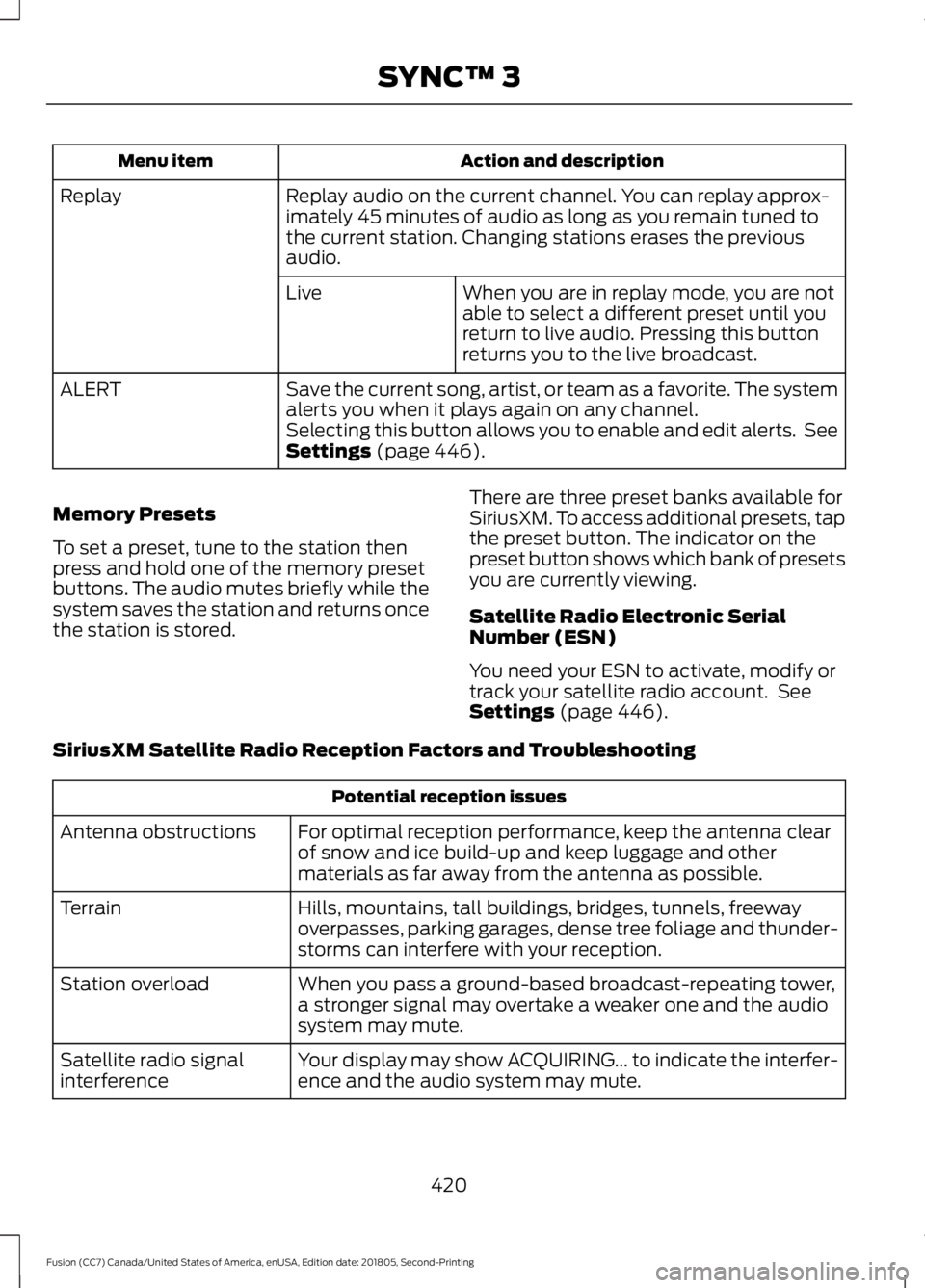
Action and description
Menu item
Replay audio on the current channel. You can replay approx-
imately 45 minutes of audio as long as you remain tuned to
the current station. Changing stations erases the previous
audio.
Replay
When you are in replay mode, you are not
able to select a different preset until you
return to live audio. Pressing this button
returns you to the live broadcast.
Live
Save the current song, artist, or team as a favorite. The system
alerts you when it plays again on any channel.
ALERT
Selecting this button allows you to enable and edit alerts. See
Settings (page 446).
Memory Presets
To set a preset, tune to the station then
press and hold one of the memory preset
buttons. The audio mutes briefly while the
system saves the station and returns once
the station is stored. There are three preset banks available for
SiriusXM. To access additional presets, tap
the preset button. The indicator on the
preset button shows which bank of presets
you are currently viewing.
Satellite Radio Electronic Serial
Number (ESN)
You need your ESN to activate, modify or
track your satellite radio account. See
Settings
(page 446).
SiriusXM Satellite Radio Reception Factors and Troubleshooting Potential reception issues
For optimal reception performance, keep the antenna clear
of snow and ice build-up and keep luggage and other
materials as far away from the antenna as possible.
Antenna obstructions
Hills, mountains, tall buildings, bridges, tunnels, freeway
overpasses, parking garages, dense tree foliage and thunder-
storms can interfere with your reception.
Terrain
When you pass a ground-based broadcast-repeating tower,
a stronger signal may overtake a weaker one and the audio
system may mute.
Station overload
Your display may show ACQUIRING... to indicate the interfer-
ence and the audio system may mute.
Satellite radio signal
interference
420
Fusion (CC7) Canada/United States of America, enUSA, Edition date: 201805, Second-Printing SYNC™ 3
Page 424 of 550
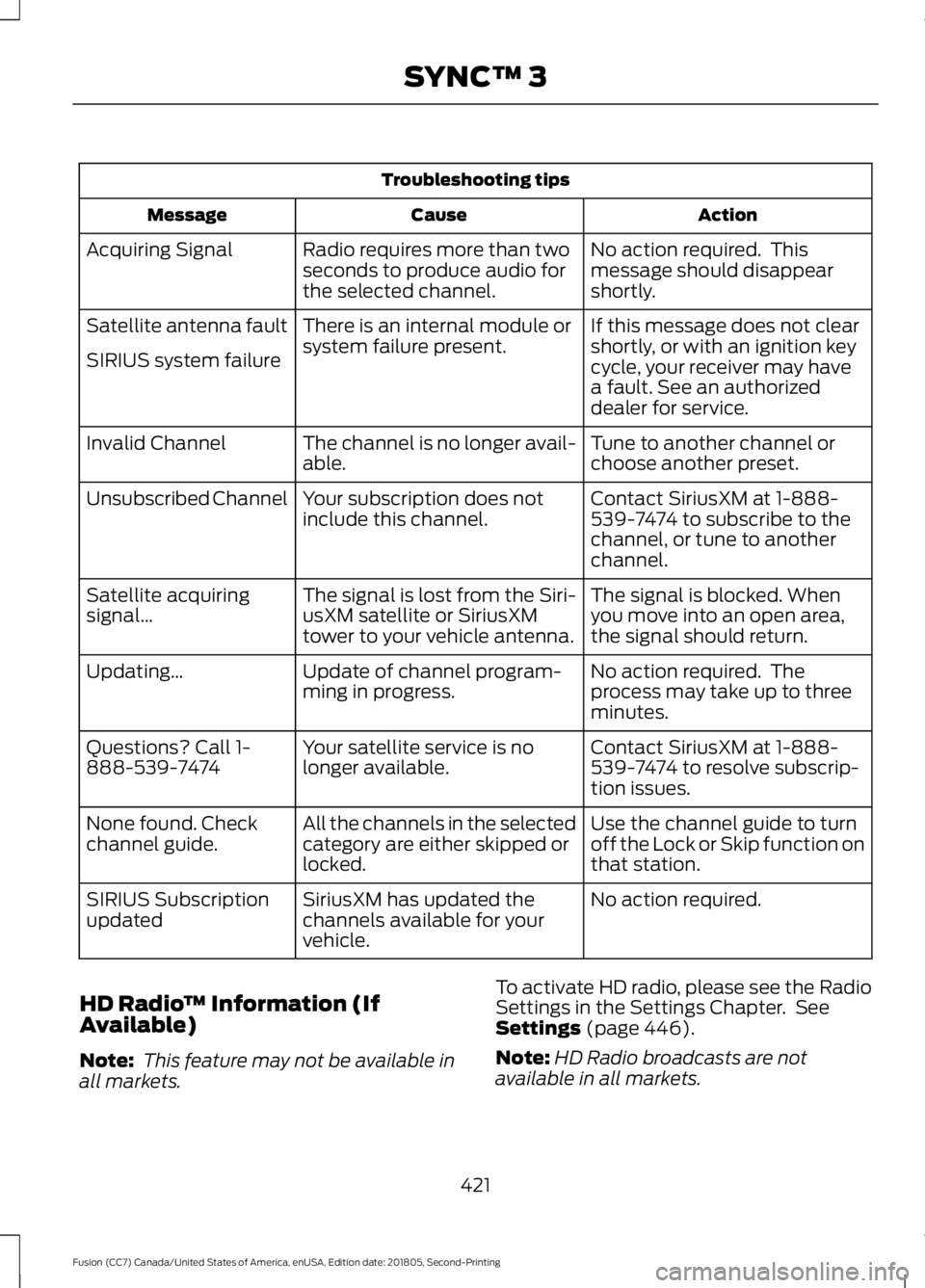
Troubleshooting tips
Action
Cause
Message
No action required. This
message should disappear
shortly.
Radio requires more than two
seconds to produce audio for
the selected channel.
Acquiring Signal
If this message does not clear
shortly, or with an ignition key
cycle, your receiver may have
a fault. See an authorized
dealer for service.
There is an internal module or
system failure present.
Satellite antenna fault
SIRIUS system failure
Tune to another channel or
choose another preset.
The channel is no longer avail-
able.
Invalid Channel
Contact SiriusXM at 1-888-
539-7474 to subscribe to the
channel, or tune to another
channel.
Your subscription does not
include this channel.
Unsubscribed Channel
The signal is blocked. When
you move into an open area,
the signal should return.
The signal is lost from the Siri-
usXM satellite or SiriusXM
tower to your vehicle antenna.
Satellite acquiring
signal…
No action required. The
process may take up to three
minutes.
Update of channel program-
ming in progress.
Updating…
Contact SiriusXM at 1-888-
539-7474 to resolve subscrip-
tion issues.
Your satellite service is no
longer available.
Questions? Call 1-
888-539-7474
Use the channel guide to turn
off the Lock or Skip function on
that station.
All the channels in the selected
category are either skipped or
locked.
None found. Check
channel guide.
No action required.
SiriusXM has updated the
channels available for your
vehicle.
SIRIUS Subscription
updated
HD Radio ™ Information (If
Available)
Note: This feature may not be available in
all markets. To activate HD radio, please see the Radio
Settings in the Settings Chapter. See
Settings (page 446).
Note: HD Radio broadcasts are not
available in all markets.
421
Fusion (CC7) Canada/United States of America, enUSA, Edition date: 201805, Second-Printing SYNC™ 3