audio FORD FUSION 2019 Manual PDF
[x] Cancel search | Manufacturer: FORD, Model Year: 2019, Model line: FUSION, Model: FORD FUSION 2019Pages: 550, PDF Size: 8.5 MB
Page 455 of 550
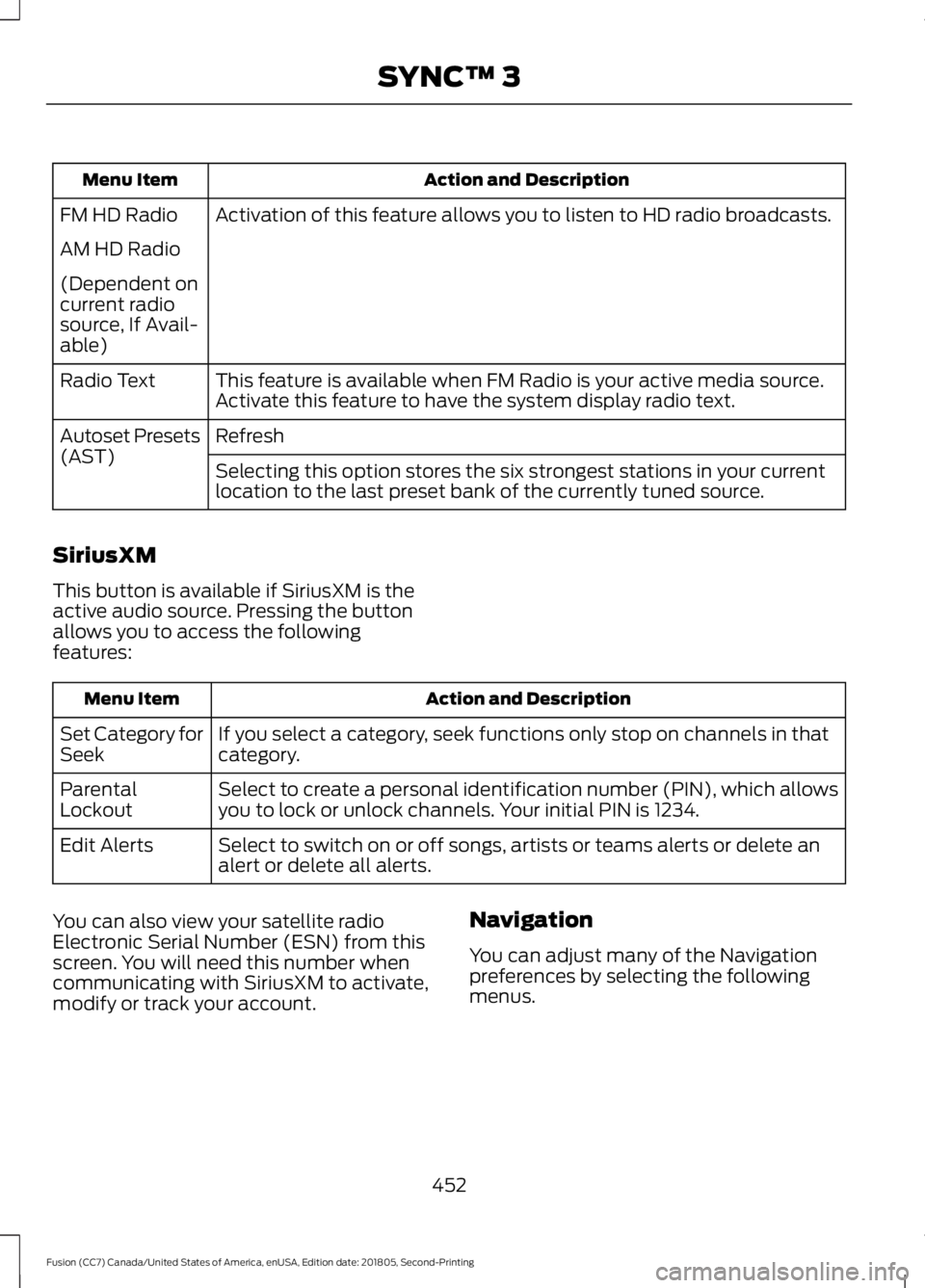
Action and Description
Menu Item
Activation of this feature allows you to listen to HD radio broadcasts.
FM HD Radio
AM HD Radio
(Dependent on
current radio
source, If Avail-
able)
This feature is available when FM Radio is your active media source.
Activate this feature to have the system display radio text.
Radio Text
Refresh
Autoset Presets
(AST)
Selecting this option stores the six strongest stations in your current
location to the last preset bank of the currently tuned source.
SiriusXM
This button is available if SiriusXM is the
active audio source. Pressing the button
allows you to access the following
features: Action and Description
Menu Item
If you select a category, seek functions only stop on channels in that
category.
Set Category for
Seek
Select to create a personal identification number (PIN), which allows
you to lock or unlock channels. Your initial PIN is 1234.
Parental
Lockout
Select to switch on or off songs, artists or teams alerts or delete an
alert or delete all alerts.
Edit Alerts
You can also view your satellite radio
Electronic Serial Number (ESN) from this
screen. You will need this number when
communicating with SiriusXM to activate,
modify or track your account. Navigation
You can adjust many of the Navigation
preferences by selecting the following
menus.
452
Fusion (CC7) Canada/United States of America, enUSA, Edition date: 201805, Second-Printing SYNC™ 3
Page 463 of 550
Valet Mode
Valet mode allows you to lock the system.
No information is accessible until the
system is unlocked with the correct PIN.
When you select valet mode a pop up
appears informing you that a four digit
code must be entered to enable and
disable valet mode. You can use any PIN
you chose but you must use the same PIN
to disable valet mode. The system asks
you to input the code.
Note:
If the system is locked and you
cannot remember the PIN, please contact
the Customer Relationship Center.
United States: 1-800-392-3673
Canada: 1-800-565-3673
To enable valet mode, enter your chosen
PIN. The system then asks to confirm your
PIN by reentering it. The system then locks. To unlock the system, enter the same pin
number. The system reconnects to your
phone and all of your options are available
again.
SYNC™ 3 TROUBLESHOOTING
Your SYNC 3 system is easy to use.
However, should questions arise, please
refer to the tables below.
To check your cell phone's compatibility,
visit the Ford website. Website
owner.ford.com
www.syncmyride.ca
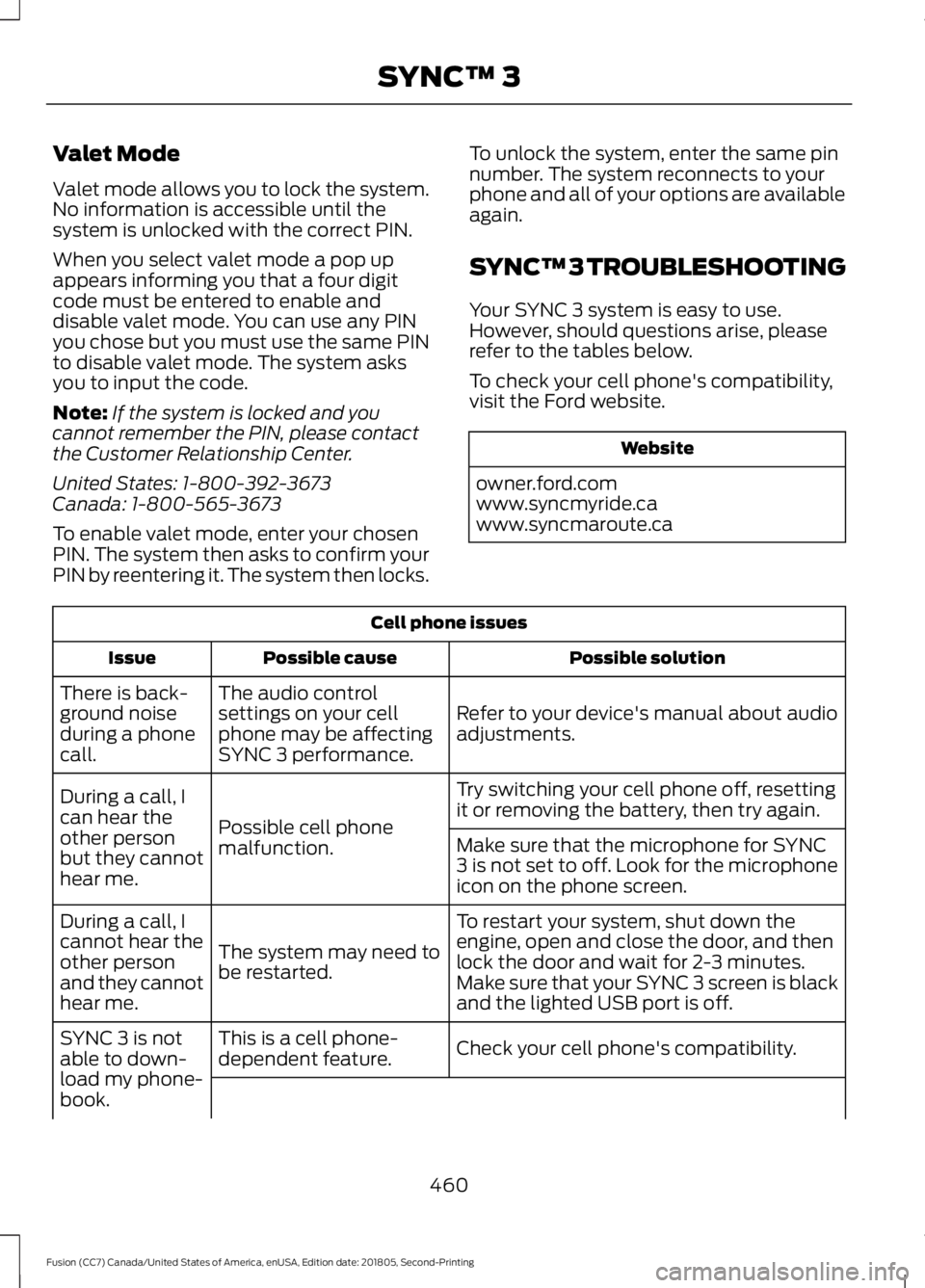
www.syncmaroute.ca Cell phone issues
Possible solution
Possible cause
Issue
Refer to your device's manual about audio
adjustments.
The audio control
settings on your cell
phone may be affecting
SYNC 3 performance.
There is back-
ground noise
during a phone
call.
Try switching your cell phone off, resetting
it or removing the battery, then try again.
Possible cell phone
malfunction.
During a call, I
can hear the
other person
but they cannot
hear me.
Make sure that the microphone for SYNC
3 is not set to off. Look for the microphone
icon on the phone screen.
To restart your system, shut down the
engine, open and close the door, and then
lock the door and wait for 2-3 minutes.
Make sure that your SYNC 3 screen is black
and the lighted USB port is off.
The system may need to
be restarted.
During a call, I
cannot hear the
other person
and they cannot
hear me.
Check your cell phone's compatibility.
This is a cell phone-
dependent feature.
SYNC 3 is not
able to down-
load my phone-
book.
460
Fusion (CC7) Canada/United States of America, enUSA, Edition date: 201805, Second-Printing SYNC™ 3
Page 466 of 550
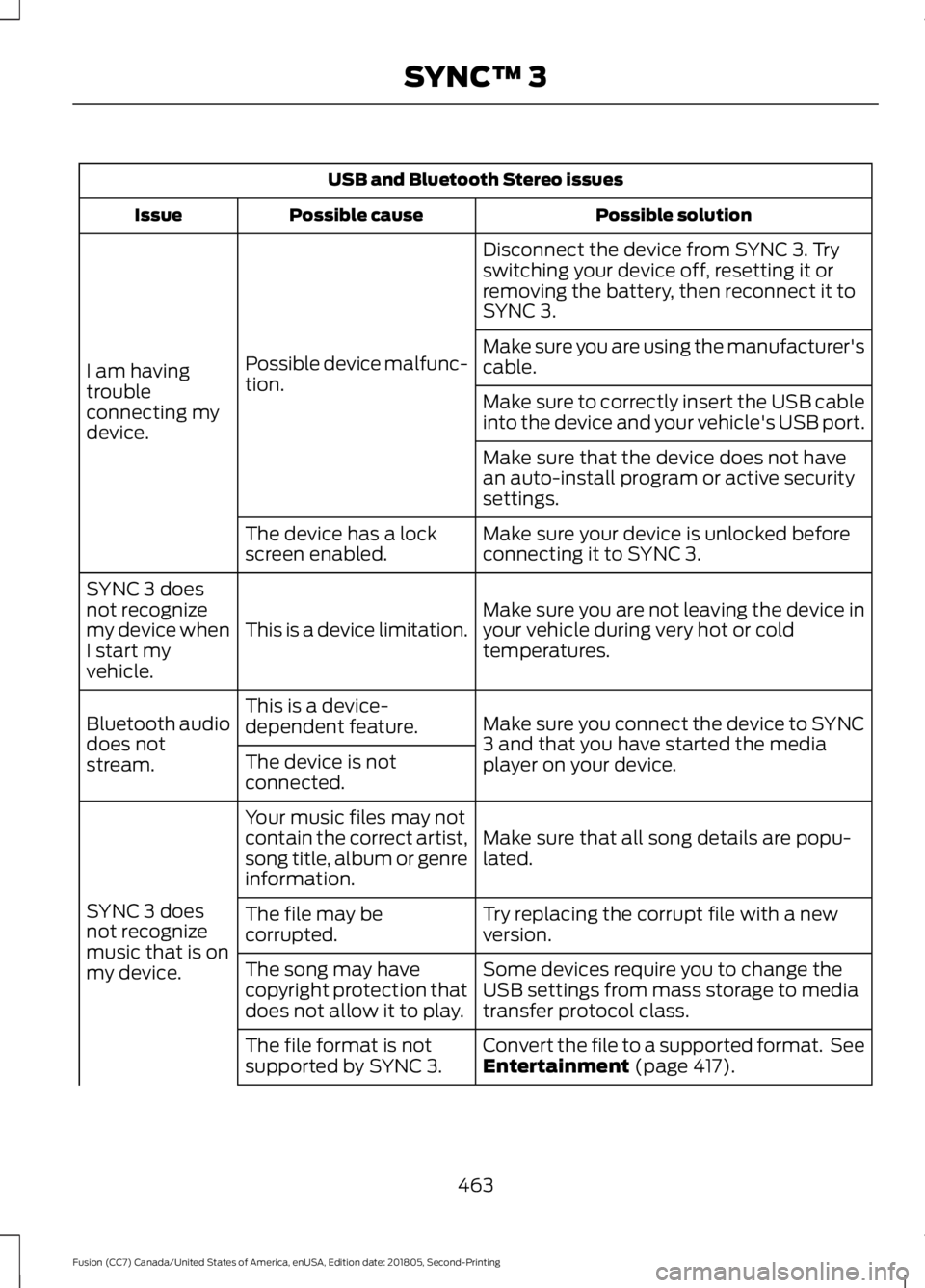
USB and Bluetooth Stereo issues
Possible solution
Possible cause
Issue
Disconnect the device from SYNC 3. Try
switching your device off, resetting it or
removing the battery, then reconnect it to
SYNC 3.
Possible device malfunc-
tion.
I am having
trouble
connecting my
device. Make sure you are using the manufacturer's
cable.
Make sure to correctly insert the USB cable
into the device and your vehicle's USB port.
Make sure that the device does not have
an auto-install program or active security
settings.
Make sure your device is unlocked before
connecting it to SYNC 3.
The device has a lock
screen enabled.
Make sure you are not leaving the device in
your vehicle during very hot or cold
temperatures.
This is a device limitation.
SYNC 3 does
not recognize
my device when
I start my
vehicle.
Make sure you connect the device to SYNC
3 and that you have started the media
player on your device.
This is a device-
dependent feature.
Bluetooth audio
does not
stream. The device is not
connected.
Make sure that all song details are popu-
lated.
Your music files may not
contain the correct artist,
song title, album or genre
information.
SYNC 3 does
not recognize
music that is on
my device. Try replacing the corrupt file with a new
version.
The file may be
corrupted.
Some devices require you to change the
USB settings from mass storage to media
transfer protocol class.
The song may have
copyright protection that
does not allow it to play.
Convert the file to a supported format. See
Entertainment (page 417).
The file format is not
supported by SYNC 3.
463
Fusion (CC7) Canada/United States of America, enUSA, Edition date: 201805, Second-Printing SYNC™ 3
Page 471 of 550
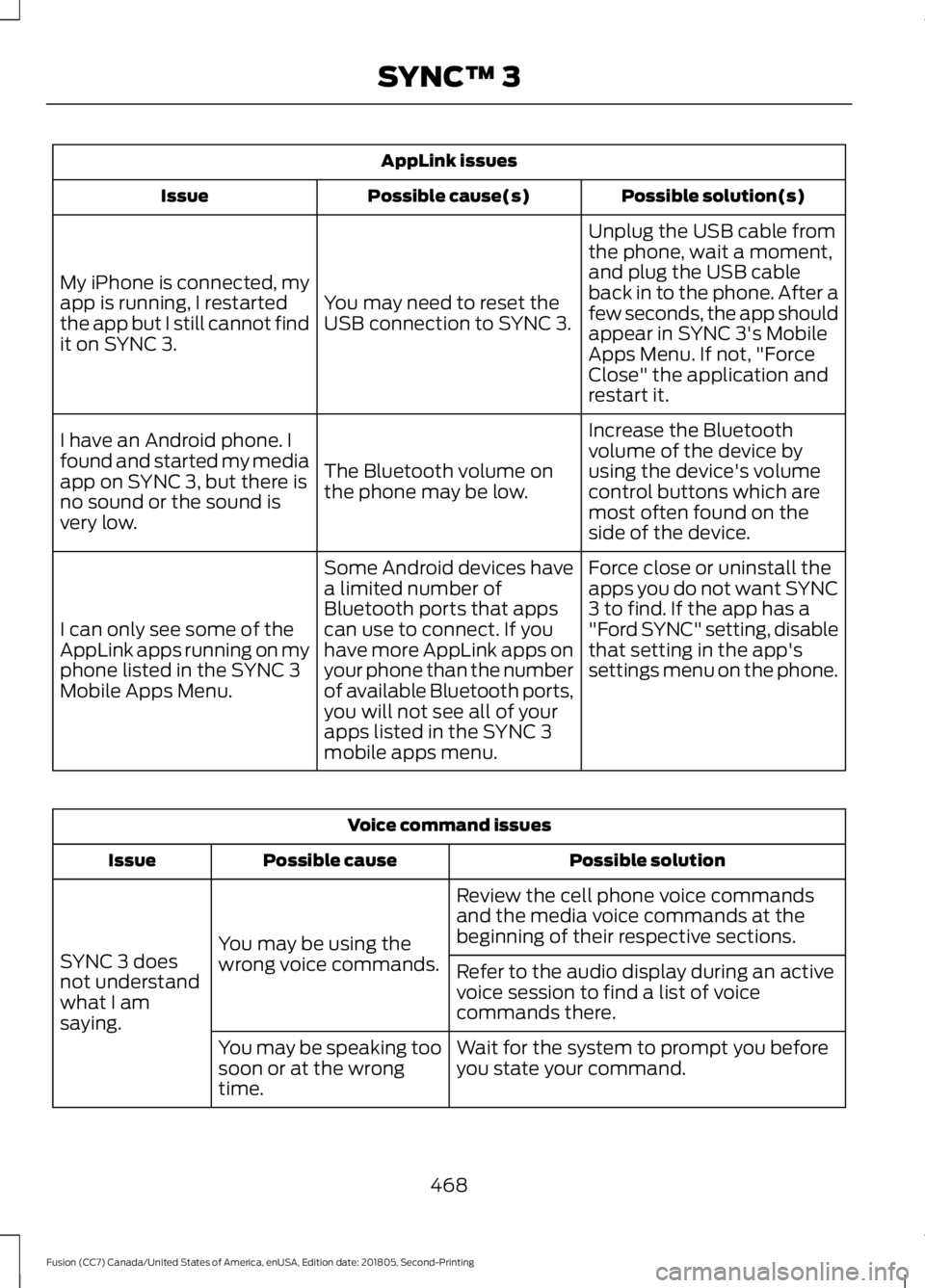
AppLink issues
Possible solution(s)
Possible cause(s)
Issue
Unplug the USB cable from
the phone, wait a moment,
and plug the USB cable
back in to the phone. After a
few seconds, the app should
appear in SYNC 3's Mobile
Apps Menu. If not, "Force
Close" the application and
restart it.
You may need to reset the
USB connection to SYNC 3.
My iPhone is connected, my
app is running, I restarted
the app but I still cannot find
it on SYNC 3.
Increase the Bluetooth
volume of the device by
using the device's volume
control buttons which are
most often found on the
side of the device.
The Bluetooth volume on
the phone may be low.
I have an Android phone. I
found and started my media
app on SYNC 3, but there is
no sound or the sound is
very low.
Force close or uninstall the
apps you do not want SYNC
3 to find. If the app has a
"Ford SYNC" setting, disable
that setting in the app's
settings menu on the phone.
Some Android devices have
a limited number of
Bluetooth ports that apps
can use to connect. If you
have more AppLink apps on
your phone than the number
of available Bluetooth ports,
you will not see all of your
apps listed in the SYNC 3
mobile apps menu.
I can only see some of the
AppLink apps running on my
phone listed in the SYNC 3
Mobile Apps Menu. Voice command issues
Possible solution
Possible cause
Issue
Review the cell phone voice commands
and the media voice commands at the
beginning of their respective sections.
You may be using the
wrong voice commands.
SYNC 3 does
not understand
what I am
saying. Refer to the audio display during an active
voice session to find a list of voice
commands there.
Wait for the system to prompt you before
you state your command.
You may be speaking too
soon or at the wrong
time.
468
Fusion (CC7) Canada/United States of America, enUSA, Edition date: 201805, Second-Printing SYNC™ 3
Page 474 of 550
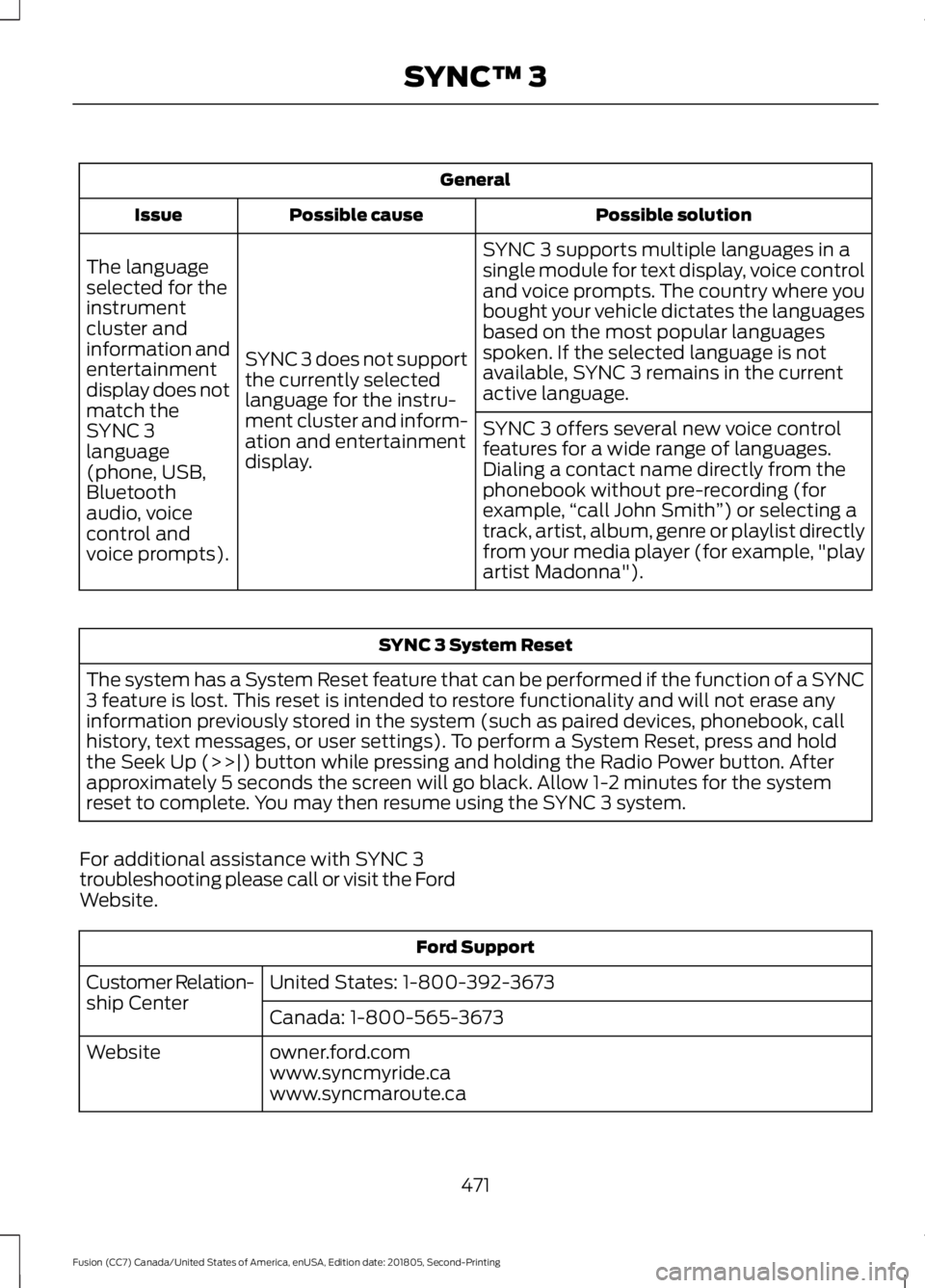
General
Possible solution
Possible cause
Issue
SYNC 3 supports multiple languages in a
single module for text display, voice control
and voice prompts. The country where you
bought your vehicle dictates the languages
based on the most popular languages
spoken. If the selected language is not
available, SYNC 3 remains in the current
active language.
SYNC 3 does not support
the currently selected
language for the instru-
ment cluster and inform-
ation and entertainment
display.
The language
selected for the
instrument
cluster and
information and
entertainment
display does not
match the
SYNC 3
SYNC 3 offers several new voice control
features for a wide range of languages.
Dialing a contact name directly from the
phonebook without pre-recording (for
example,
“call John Smith ”) or selecting a
track, artist, album, genre or playlist directly
from your media player (for example, "play
artist Madonna").
language
(phone, USB,
Bluetooth
audio, voice
control and
voice prompts). SYNC 3 System Reset
The system has a System Reset feature that can be performed if the function of a SYNC
3 feature is lost. This reset is intended to restore functionality and will not erase any
information previously stored in the system (such as paired devices, phonebook, call
history, text messages, or user settings). To perform a System Reset, press and hold
the Seek Up (>>|) button while pressing and holding the Radio Power button. After
approximately 5 seconds the screen will go black. Allow 1-2 minutes for the system
reset to complete. You may then resume using the SYNC 3 system.
For additional assistance with SYNC 3
troubleshooting please call or visit the Ford
Website. Ford Support
United States: 1-800-392-3673
Customer Relation-
ship Center
Canada: 1-800-565-3673
owner.ford.com
Website
www.syncmyride.ca
www.syncmaroute.ca
471
Fusion (CC7) Canada/United States of America, enUSA, Edition date: 201805, Second-Printing SYNC™ 3
Page 502 of 550
UPGRADES AND RECOVERY MEDIA:
If the SOFTWARE is provided by FORD
MOTOR COMPANY separate from the
DEVICES on media such as a ROM chip,
CD ROM disk(s) or via web download or
other means, and is labeled "For Upgrade
Purposes Only" or "For Recovery Purposes
Only" you may install one (1) copy of such
SOFTWARE onto the DEVICES as a
replacement copy for the existing
SOFTWARE, and use it in accordance with
this EULA, including any additional EULA
terms accompanying the upgrade
SOFTWARE.
INTELLECTUAL PROPERTY RIGHTS:
All title and intellectual property rights in
and to the SOFTWARE (including but not
limited to any images, photographs,
animations, video, audio, music, text and
"applets" incorporated into the
SOFTWARE), the accompanying printed
materials, and any copies of the
SOFTWARE, are owned by FORD MOTOR
COMPANY, or its affiliates or suppliers. The
SOFTWARE is licensed, not sold. You may
not copy the printed materials
accompanying the SOFTWARE. All title
and intellectual property rights in and to
the content which may be accessed
through use of the SOFTWARE is the
property of the respective content owner
and may be protected by applicable
copyright or other intellectual property
laws and treaties. This EULA grants you no
rights to use such content outside its
intended use. All rights not specifically
granted under this EULA are reserved by
FORD MOTOR COMPANY, its affiliates,
and third party software and service
providers and suppliers. Use of any on-line
services which may be accessed through
the SOFTWARE may be governed by the
respective terms of use relating to such
services. If this SOFTWARE contains
documentation that is provided only in
electronic form, you may print one copy of
such electronic documentation.
EXPORT RESTRICTIONS: You
acknowledge that the SOFTWARE is
subject to U.S. and European Union export
jurisdiction. You agree to comply with all
applicable international and national laws
that apply to the SOFTWARE, including
the U.S. Export Administration Regulations,
as well as end-user, end-use and
destination restrictions issued by U.S. and
other governments.
TRADEMARKS: This EULA does not grant
you any rights in connection with any
trademarks or service marks of FORD
MOTOR COMPANY, its affiliates, and third
party software and service providers.
PRODUCT SUPPORT:
Please refer to
FORD MOTOR COMPANY instructions
provided in the documentation for the
DEVICES product support, such as the
vehicle owner guide.
Should you have any questions concerning
this EULA, or if you desire to contact FORD
MOTOR COMPANY for any other reason,
please refer to the address provided in the
documentation for the DEVICES.
No Liability for Certain Damages:
EXCEPT AS PROHIBITED BY LAW, FORD
MOTOR COMPANY, ANY THIRD PARTY
SOFTWARE OR SERVICES SUPPLIERS,
AND THEIR AFFILIATES SHALL HAVE NO
LIABILITY FOR ANY INDIRECT, SPECIAL,
CONSEQUENTIAL OR INCIDENTAL
DAMAGES ARISING FROM OR IN
CONNECTION WITH THE USE OR
PERFORMANCE OF THE SOFTWARE. THIS
LIMITATION SHALL APPLY EVEN IF ANY
REMEDY FAILS OF ITS ESSENTIAL
PURPOSE. THERE ARE NO WARRANTIES
OTHER THAN THOSE THAT MAY BE
EXPRESSLY PROVIDED FOR YOUR NEW
VEHICLE.
499
Fusion (CC7) Canada/United States of America, enUSA, Edition date: 201805, Second-Printing Appendices
Page 508 of 550
2. Account Information
You agree: (a) when registering the
TeleNav Software, to provide TeleNav with
true, accurate, current, and complete
information about yourself, and (b) to
inform TeleNav promptly of any changes
to such information, and to keep it true,
accurate, current and complete.
3. Software License
•
Subject to your compliance with the
terms of this Agreement, TeleNav
hereby grants to you a personal,
non-exclusive, non-transferable license
(except as expressly permitted below
in connection with your permanent
transfer of the TeleNav Software
license), without the right to
sublicense, to use the TeleNav
Software (in object code form only) in
order to access and use the TeleNav
Software. This license shall terminate
upon any termination or expiration of
this Agreement. You agree that you will
use the TeleNav Software only for your
personal business or leisure purposes,
and not to provide commercial
navigation services to other parties.
3.1 License Limitations
• (a) reverse engineer, decompile,
disassemble, translate, modify, alter
or otherwise change the TeleNav
Software or any part thereof;
(b)
attempt to derive the source code,
audio library or structure of the
TeleNav Software without the prior
express written consent of TeleNav;
(c)
remove from the TeleNav
Software, or alter, any of TeleNav's or
its suppliers' trademarks, trade names,
logos, patent or copyright notices, or
other notices or markings;
(d) distribute, sublicense or otherwise
transfer the TeleNav Software to
others, except as part of your
permanent transfer of the TeleNav
Software; or
(e) use the TeleNav
Software in any manner that
I. infringes the intellectual property or
proprietary rights, rights of publicity or
privacy or other rights of any party,
ii. violates any law, statute, ordinance or
regulation, including but not limited to laws
and regulations related to spamming,
privacy, consumer and child protection,
obscenity or defamation, or
iii. is harmful, threatening, abusive,
harassing, tortuous, defamatory, vulgar,
obscene, libelous, or otherwise
objectionable; and (f) lease, rent out, or
otherwise permit unauthorized access by
third parties to the TeleNav Software
without advanced written permission of
TeleNav.
4. Disclaimers
• To the fullest extent permissible
pursuant to applicable law, in no event
will TeleNav, its licensors and suppliers,
or agents or employees of any of the
foregoing, be liable for any decision
made or action taken by you or anyone
else in reliance on the information
provided by the TeleNav Software.
TeleNav also does not warrant the
accuracy of the map or other data used
for the TeleNav Software. Such data
may not always reflect reality due to,
among other things, road closures,
construction, weather, new roads and
other changing conditions. You are
responsible for the entire risk arising
out of your use of the TeleNav
Software. For example but without
limitation, you agree not to rely on the
TeleNav Software for critical
navigation in areas where the
well-being or survival of you or others
505
Fusion (CC7) Canada/United States of America, enUSA, Edition date: 201805, Second-Printing Appendices
Page 536 of 550
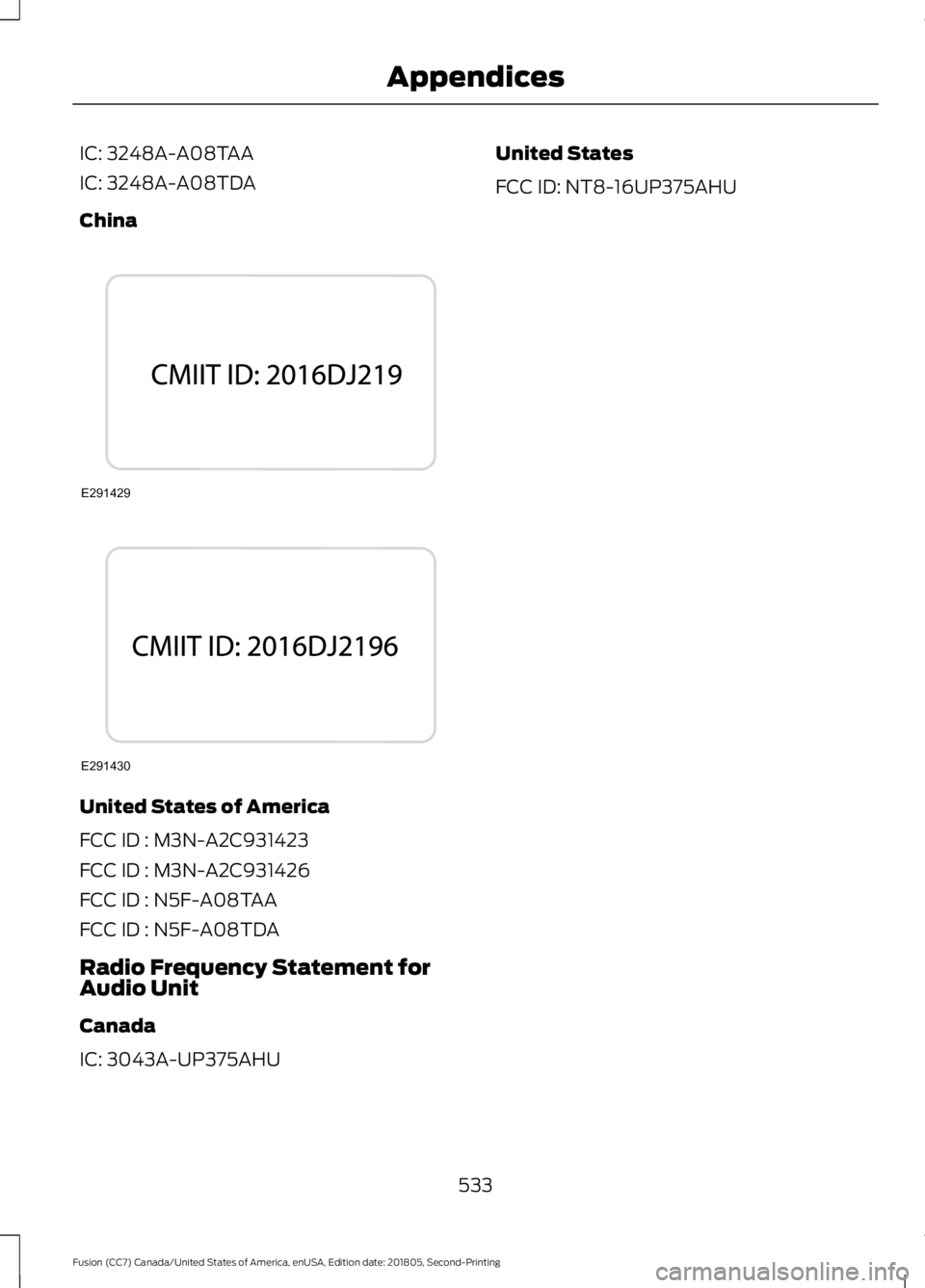
IC: 3248A-A08TAA
IC: 3248A-A08TDA
China
United States of America
FCC ID : M3N-A2C931423
FCC ID : M3N-A2C931426
FCC ID : N5F-A08TAA
FCC ID : N5F-A08TDA
Radio Frequency Statement for
Audio Unit
Canada
IC: 3043A-UP375AHU United States
FCC ID: NT8-16UP375AHU
533
Fusion (CC7) Canada/United States of America, enUSA, Edition date: 201805, Second-Printing AppendicesE291429 E291430
Page 538 of 550
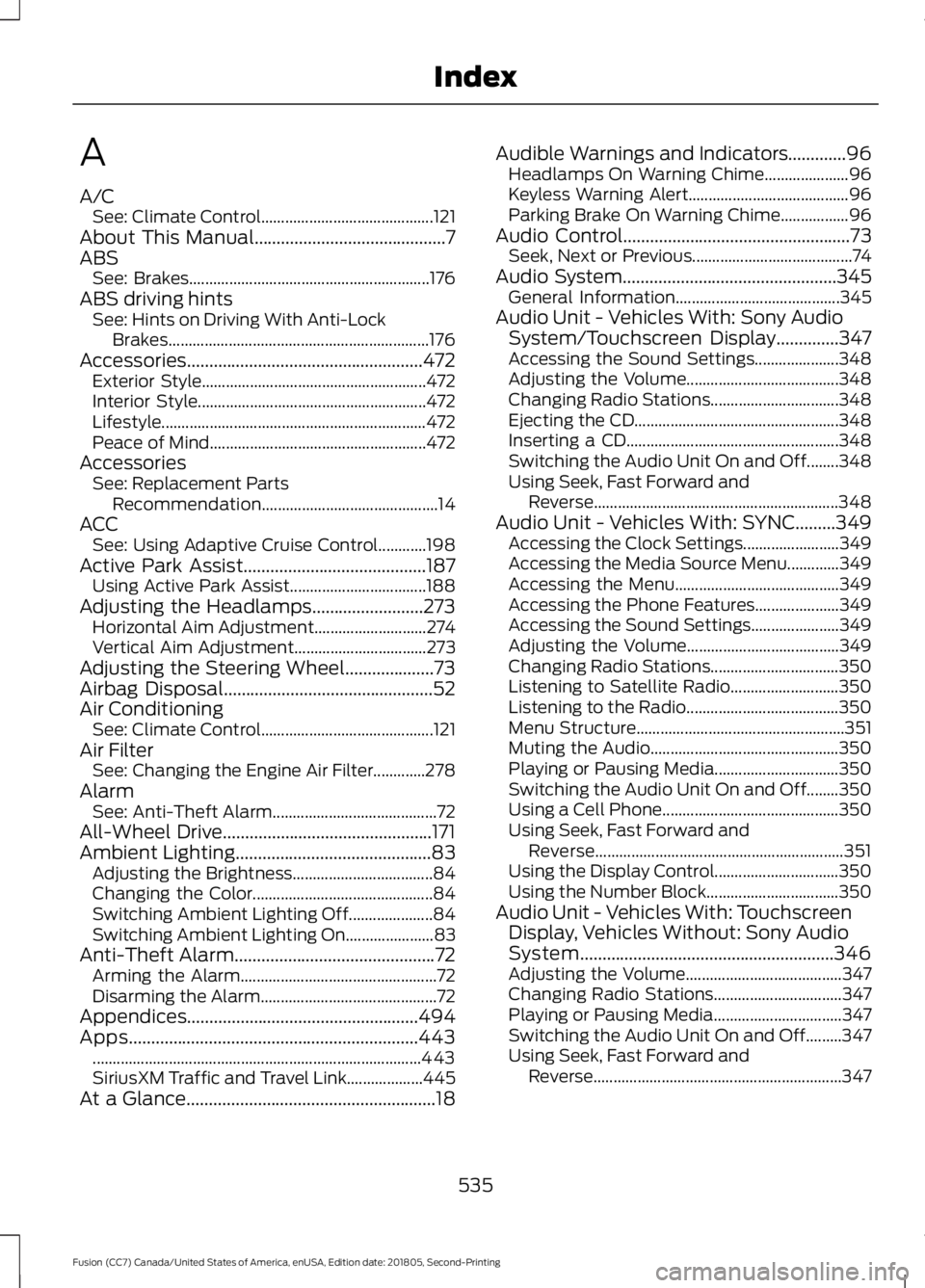
A
A/C
See: Climate Control........................................... 121
About This Manual...........................................7
ABS See: Brakes............................................................ 176
ABS driving hints See: Hints on Driving With Anti-Lock
Brakes................................................................. 176
Accessories.....................................................472 Exterior Style........................................................ 472
Interior Style......................................................... 472
Lifestyle.................................................................. 472
Peace of Mind...................................................... 472
Accessories See: Replacement Parts
Recommendation............................................ 14
ACC See: Using Adaptive Cruise Control............198
Active Park Assist.........................................187 Using Active Park Assist.................................. 188
Adjusting the Headlamps.........................273 Horizontal Aim Adjustment............................ 274
Vertical Aim Adjustment................................. 273
Adjusting the Steering Wheel....................73
Airbag Disposal
...............................................52
Air Conditioning See: Climate Control........................................... 121
Air Filter See: Changing the Engine Air Filter.............278
Alarm See: Anti-Theft Alarm......................................... 72
All-Wheel Drive...............................................171
Ambient Lighting
............................................83
Adjusting the Brightness................................... 84
Changing the Color............................................. 84
Switching Ambient Lighting Off..................... 84
Switching Ambient Lighting On...................... 83
Anti-Theft Alarm
.............................................72
Arming the Alarm................................................. 72
Disarming the Alarm............................................ 72
Appendices....................................................494
Apps.................................................................443 ........................................................................\
.......... 443
SiriusXM Traffic and Travel Link................... 445
At a Glance........................................................18 Audible Warnings and Indicators.............96
Headlamps On Warning Chime..................... 96
Keyless Warning Alert........................................ 96
Parking Brake On Warning Chime.................96
Audio Control
...................................................73
Seek, Next or Previous........................................ 74
Audio System
................................................345
General Information......................................... 345
Audio Unit - Vehicles With: Sony Audio System/Touchscreen Display
..............347
Accessing the Sound Settings..................... 348
Adjusting the Volume...................................... 348
Changing Radio Stations................................ 348
Ejecting the CD................................................... 348
Inserting a CD..................................................... 348
Switching the Audio Unit On and Off........348
Using Seek, Fast Forward and Reverse............................................................. 348
Audio Unit - Vehicles With: SYNC
.........349
Accessing the Clock Settings........................ 349
Accessing the Media Source Menu.............349
Accessing the Menu......................................... 349
Accessing the Phone Features..................... 349
Accessing the Sound Settings...................... 349
Adjusting the Volume...................................... 349
Changing Radio Stations................................ 350
Listening to Satellite Radio........................... 350
Listening to the Radio...................................... 350
Menu Structure.................................................... 351
Muting the Audio............................................... 350
Playing or Pausing Media............................... 350
Switching the Audio Unit On and Off........350
Using a Cell Phone............................................ 350
Using Seek, Fast Forward and Reverse.............................................................. 351
Using the Display Control............................... 350
Using the Number Block................................. 350
Audio Unit - Vehicles With: Touchscreen Display, Vehicles Without: Sony Audio
System.........................................................346
Adjusting the Volume....................................... 347
Changing Radio Stations................................ 347
Playing or Pausing Media................................ 347
Switching the Audio Unit On and Off.........347
Using Seek, Fast Forward and Reverse.............................................................. 347
535
Fusion (CC7) Canada/United States of America, enUSA, Edition date: 201805, Second-Printing Index
Page 539 of 550
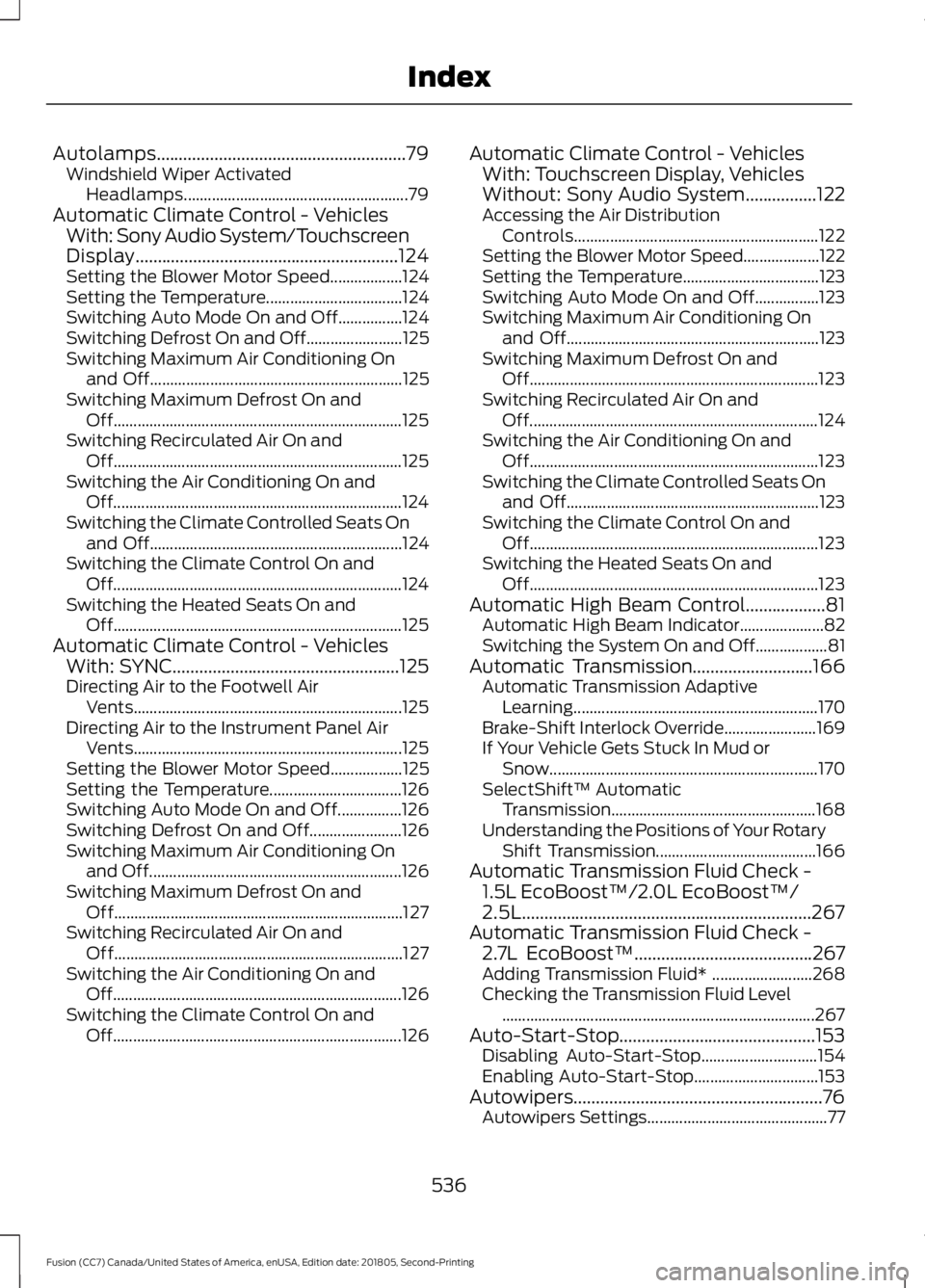
Autolamps........................................................79
Windshield Wiper Activated
Headlamps........................................................ 79
Automatic Climate Control - Vehicles With: Sony Audio System/Touchscreen
Display...........................................................124
Setting the Blower Motor Speed.................. 124
Setting the Temperature.................................. 124
Switching Auto Mode On and Off................124
Switching Defrost On and Off........................ 125
Switching Maximum Air Conditioning On and Off............................................................... 125
Switching Maximum Defrost On and Off........................................................................\
125
Switching Recirculated Air On and Off........................................................................\
125
Switching the Air Conditioning On and Off........................................................................\
124
Switching the Climate Controlled Seats On and Off............................................................... 124
Switching the Climate Control On and Off........................................................................\
124
Switching the Heated Seats On and Off........................................................................\
125
Automatic Climate Control - Vehicles With: SYNC...................................................125
Directing Air to the Footwell Air Vents................................................................... 125
Directing Air to the Instrument Panel Air Vents................................................................... 125
Setting the Blower Motor Speed.................. 125
Setting the Temperature................................. 126
Switching Auto Mode On and Off................126
Switching Defrost On and Off....................... 126
Switching Maximum Air Conditioning On and Off............................................................... 126
Switching Maximum Defrost On and Off........................................................................\
127
Switching Recirculated Air On and Off........................................................................\
127
Switching the Air Conditioning On and Off........................................................................\
126
Switching the Climate Control On and Off........................................................................\
126Automatic Climate Control - Vehicles
With: Touchscreen Display, Vehicles
Without: Sony Audio System................122
Accessing the Air Distribution
Controls............................................................. 122
Setting the Blower Motor Speed................... 122
Setting the Temperature.................................. 123
Switching Auto Mode On and Off................123
Switching Maximum Air Conditioning On and Off............................................................... 123
Switching Maximum Defrost On and Off........................................................................\
123
Switching Recirculated Air On and Off........................................................................\
124
Switching the Air Conditioning On and Off........................................................................\
123
Switching the Climate Controlled Seats On and Off............................................................... 123
Switching the Climate Control On and Off........................................................................\
123
Switching the Heated Seats On and Off........................................................................\
123
Automatic High Beam Control..................81 Automatic High Beam Indicator..................... 82
Switching the System On and Off.................. 81
Automatic Transmission
...........................166
Automatic Transmission Adaptive
Learning............................................................. 170
Brake-Shift Interlock Override....................... 169
If Your Vehicle Gets Stuck In Mud or Snow................................................................... 170
SelectShift™ Automatic Transmission................................................... 168
Understanding the Positions of Your Rotary Shift Transmission........................................ 166
Automatic Transmission Fluid Check - 1.5L EcoBoost™/2.0L EcoBoost™/
2.5L
.................................................................267
Automatic Transmission Fluid Check - 2.7L EcoBoost™
........................................267
Adding Transmission Fluid* ......................... 268
Checking the Transmission Fluid Level ........................................................................\
...... 267
Auto-Start-Stop............................................153 Disabling Auto-Start-Stop............................. 154
Enabling Auto-Start-Stop............................... 153
Autowipers........................................................76 Autowipers Settings............................................. 77
536
Fusion (CC7) Canada/United States of America, enUSA, Edition date: 201805, Second-Printing Index