lock FORD FUSION 2020 Owners Manual
[x] Cancel search | Manufacturer: FORD, Model Year: 2020, Model line: FUSION, Model: FORD FUSION 2020Pages: 497, PDF Size: 6.64 MB
Page 418 of 497
Action and Description
Menu Item
Select to choose from a listing of
weather locations.
Area
Touch this button to view scores and schedules from a variety
of sports. You can also save up to 10 favorite teams for easier
access. The score automatically refreshes when a game is in
progress.
Sports Info
Touch this button to view ski conditions for a specific area.
Ski Conditions
SETTINGS Press the button to enter the
settings menu.
Once you select a tile, press the
button next to a menu item to
view an explanation of the
feature or setting.
Sound
Select this tile to adjust sound the settings.
Clock
Select this tile to adjust the clock settings.
Bluetooth
Select this tile to switch Bluetooth on and
off and adjust the settings.
Phone
Select this tile to connect, disconnect, and
manage the connected device settings.
Audio
Select this tile to adjust the audio settings. Driver Assist (If Equipped)
Select this tile to adjust Driver Assist
features like Parking Aids, Lane Keeping
System, Pedestrian Detection, and
Auto-Start-Stop.
Vehicle
Select this tile to adjust vehicle settings
like windows, alarm, lighting, and MyKey
settings.
FordPass
Select this tile to adjust the FordPass
settings
General
Select this tile to adjust settings like
language, measurement units, or to reset
the system.
911 Assist
(If Equipped)
Select this tile to switch 911 Assist on and
off.
Automatic Updates
Select this tile to adjust the automatic
update settings.
Mobile Apps
Select this tile to adjust permissions,
enable, disable, and update mobile apps.
415
Fusion (CC7) Canada/United States of America, enUSA, Edition date: 201905, Second-Printing SYNC™ 3E280315 E268570
Page 422 of 497

Possible Cause and Resolution
Symptom
–Incorrect device settings.
•Make sure that your device does not have an auto-
install program or active security settings.
• Check that your device is not set only to charge.
– Device lock screen enabled.
•Unlock your device before connecting it.
The system does not recog-
nize my device. –
Device limitation.
•Do not leave your device in your vehicle during very
hot or very cold weather conditions.
– Cable connection issue.
•Correctly connect the cable to your device and the
vehicle USB port.
– Incompatible cable.
•Use the cable recommended by the manufacturer
of your device.
The system does not under-
stand the name of a track or
artist. –
Device limitation. Bluetooth does not support voice
commands.
•Connect your device to a USB port.
• If you have an iOS device, press and hold the voice
control button on the steering wheel to use Siri to
play specific tracks.
I cannot stream audio from
my Bluetooth device. –
Incompatible device.
•Check the compatibility of your device on our
website.
– Device not connected.
•Pair your device. See Phone (page 405).
– Media player not running.
•Start the media player on your device.
The system does not recog-
nize the music on my device. –
Missing or incorrect audio file metadata, for example
artist, song title, album or genre.
•Repair the files on your device.
– Corrupt files.
•Repair the files on your device.
419
Fusion (CC7) Canada/United States of America, enUSA, Edition date: 201905, Second-Printing SYNC™ 3
Page 423 of 497
Possible Cause and Resolution
Symptom
–Copyright protected files.
•Use a device that contains files that are not copy-
right protected.
– Unsupported file format.
•Repair or convert the files to a supported format.
See Entertainment (page 393).
– Device indexing required.
•Re-index your device. See
Settings (page 415).
– Device lock screen enabled.
•Unlock your device before connecting it.
Sometimes I cannot hear a
track playing on my device. –
Device malfunction.
•Disconnect your device. Switch your device off,
reset it and try again.
When I disconnect my iOS
device the audio volume is
set to maximum. –
Device limitation.
•Turn the volume down on your device
If the system does not play the tracks on your USB device
in the correct order, the following information could help:
The system does not play
the tracks on my USB drive
in the correct order.
–If you are selecting USB as the audio source when the
system is still indexing, SYNC plays tracks sorted
alphabetically by file name in the root directory.
– If you are selecting USB as the audio source after the
system has finished indexing, SYNC plays all tracks
sorted alphabetically by the title in the ID3 tag
regardless of where they are located. SYNC uses the
file name if the title in the ID3 Tag does not exist.
– If you are selecting the option to play all tracks from
the browsing menu, SYNC plays all tracks sorted
alphabetically by the title in the ID3 tag regardless of
where they are located. SYNC uses the file name if the
title in the ID3 Tag does not exist.
– If you are selecting a track when using the explore
device option, SYNC plays tracks sorted alphabetically
by file name in the folder you have selected. SYNC
then plays all tracks in any subfolders in the folder you
have selected.
420
Fusion (CC7) Canada/United States of America, enUSA, Edition date: 201905, Second-Printing SYNC™ 3
Page 424 of 497
Phone
Possible Cause and Resolution
Symptom
During a call, I can hear
excessive background noise. –
Incorrect cell phone settings.
•Check and adjust the audio settings on your cell
phone. Refer to your cell phone's user manual.
– Cell phone malfunction.
•Switch your cell phone off, reset it and try again.
– Cell phone microphone muted.
•Unmute your cell phone microphone.
During a call, I can hear the
other person but they
cannot hear me.
During a call, I cannot hear
the other person and they
cannot hear me.
–
System restart required.
•Restart the system. Switch the ignition off and
open the door. Close the door and lock the vehicle.
Wait until the touchscreen is off and any illumin-
ated USB ports are not illuminated. Unlock the
vehicle, switch the ignition on and try again.
I cannot download phone-
book. –
Incompatible cell phone.
•Check the compatibility of your cell phone on our
website.
– Incorrect cell phone settings.
•Allow the system to retrieve contacts from your
cell phone. Refer to your cell phone's user manual.
– Incorrect system settings.
•Switch automatic phonebook download on. See
Settings (page 415).
– Cell phone malfunction.
•Switch your cell phone off, reset it and try again.
– Incorrect cell phone settings.
•Allow the system to retrieve contacts from your
cell phone. Refer to your cell phone's user manual.
• Check the location of the missing contacts on your
cell phone. If they are stored on the SIM card, move
them to the cell phone memory.
– Incorrect system settings.
•Switch automatic phonebook download on. See
Settings
(page 415).
A message displays
suggesting that my phone-
book has downloaded but it
is empty or it has missing
contacts.
421
Fusion (CC7) Canada/United States of America, enUSA, Edition date: 201905, Second-Printing SYNC™ 3
Page 430 of 497
Possible Cause and Resolution
Symptom
I cannot see SYNC when I
search for Wi-Fi networks on
my cell phone or other
device. –
System limitation.
•SYNC does not provide a Wi-Fi hotspot at this time.
– Weak network signal
•Move your vehicle closer to the Wi-Fi hotspot or to
a place where the network signal is not obstructed.
– Wi-Fi hotspot in high demand or has a slow Internet
connection.
•Use a more reliable Wi-Fi hotspot.
Software downloads take
too long.
–No software update available.
– Wi-Fi network requires a subscription or acceptance
of terms and conditions.
•Test the connection using another device. If the
network requires a subscription or acceptance of
terms and conditions, contact the network service
provider.
The system seems to
connect to a Wi-Fi network
and the signal strength is
excellent but the software
does not update.
Personal Profiles (If Equipped) Possible Cause and Solution
Symptom
You have not set up Personal Profiles.
I cannot create a profile. You entered an invalid profile.
You did not select a memory button when prompted.
You did not have the ignition on or in park (P), or you
shifted out park (P) when creating a profile.
Personal Profiles has been switched off.
You did not select the lock button on the remote control.
I cannot link a remote
control. The remote control selected was already associated with
another profile and the system declined to overwrite.
The system performed a profile recall when linking a
remote control.
You did not have the ignition on or in park (P), or you
shifted out park (P) when creating a profile.
427
Fusion (CC7) Canada/United States of America, enUSA, Edition date: 201905, Second-Printing SYNC™ 3
Page 431 of 497
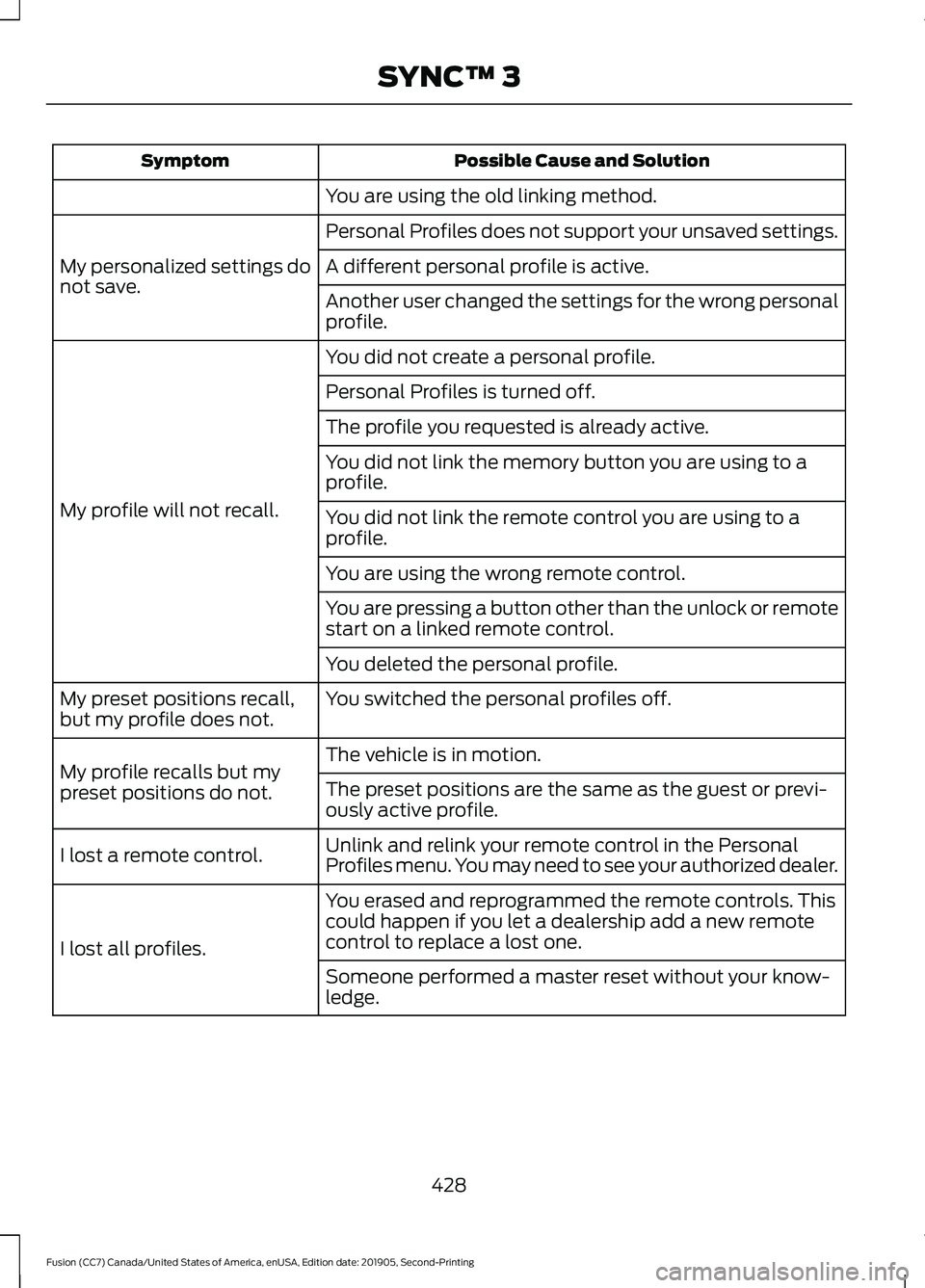
Possible Cause and Solution
Symptom
You are using the old linking method.
Personal Profiles does not support your unsaved settings.
My personalized settings do
not save. A different personal profile is active.
Another user changed the settings for the wrong personal
profile.
You did not create a personal profile.
My profile will not recall. Personal Profiles is turned off.
The profile you requested is already active.
You did not link the memory button you are using to a
profile.
You did not link the remote control you are using to a
profile.
You are using the wrong remote control.
You are pressing a button other than the unlock or remote
start on a linked remote control.
You deleted the personal profile.
You switched the personal profiles off.
My preset positions recall,
but my profile does not.
The vehicle is in motion.
My profile recalls but my
preset positions do not. The preset positions are the same as the guest or previ-
ously active profile.
Unlink and relink your remote control in the Personal
Profiles menu. You may need to see your authorized dealer.
I lost a remote control.
You erased and reprogrammed the remote controls. This
could happen if you let a dealership add a new remote
control to replace a lost one.
I lost all profiles.
Someone performed a master reset without your know-
ledge.
428
Fusion (CC7) Canada/United States of America, enUSA, Edition date: 201905, Second-Printing SYNC™ 3
Page 434 of 497
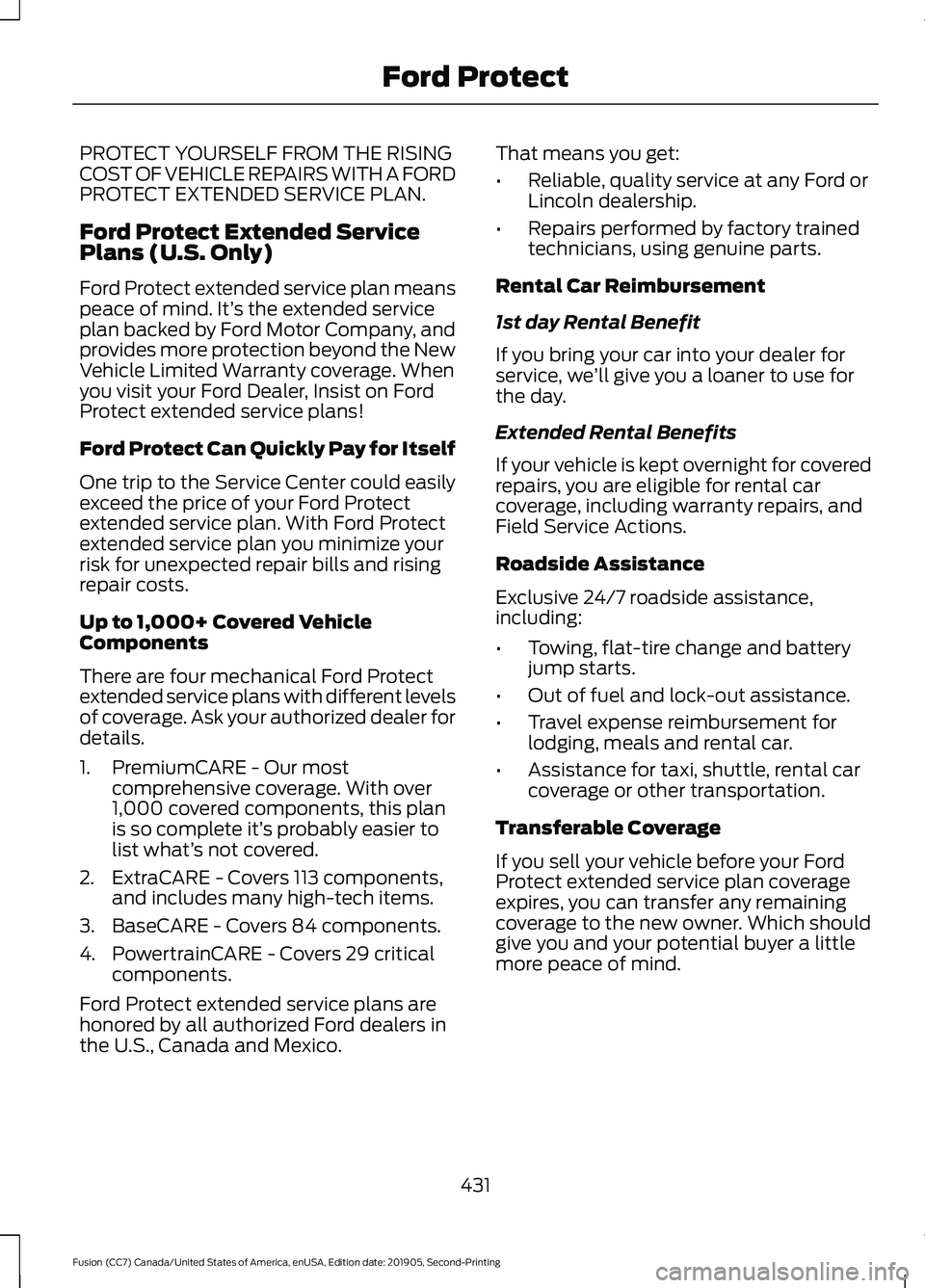
PROTECT YOURSELF FROM THE RISING
COST OF VEHICLE REPAIRS WITH A FORD
PROTECT EXTENDED SERVICE PLAN.
Ford Protect Extended Service
Plans (U.S. Only)
Ford Protect extended service plan means
peace of mind. It’
s the extended service
plan backed by Ford Motor Company, and
provides more protection beyond the New
Vehicle Limited Warranty coverage. When
you visit your Ford Dealer, Insist on Ford
Protect extended service plans!
Ford Protect Can Quickly Pay for Itself
One trip to the Service Center could easily
exceed the price of your Ford Protect
extended service plan. With Ford Protect
extended service plan you minimize your
risk for unexpected repair bills and rising
repair costs.
Up to 1,000+ Covered Vehicle
Components
There are four mechanical Ford Protect
extended service plans with different levels
of coverage. Ask your authorized dealer for
details.
1. PremiumCARE - Our most comprehensive coverage. With over
1,000 covered components, this plan
is so complete it’ s probably easier to
list what’ s not covered.
2. ExtraCARE - Covers 113 components, and includes many high-tech items.
3. BaseCARE - Covers 84 components.
4. PowertrainCARE - Covers 29 critical components.
Ford Protect extended service plans are
honored by all authorized Ford dealers in
the U.S., Canada and Mexico. That means you get:
•
Reliable, quality service at any Ford or
Lincoln dealership.
• Repairs performed by factory trained
technicians, using genuine parts.
Rental Car Reimbursement
1st day Rental Benefit
If you bring your car into your dealer for
service, we ’ll give you a loaner to use for
the day.
Extended Rental Benefits
If your vehicle is kept overnight for covered
repairs, you are eligible for rental car
coverage, including warranty repairs, and
Field Service Actions.
Roadside Assistance
Exclusive 24/7 roadside assistance,
including:
• Towing, flat-tire change and battery
jump starts.
• Out of fuel and lock-out assistance.
• Travel expense reimbursement for
lodging, meals and rental car.
• Assistance for taxi, shuttle, rental car
coverage or other transportation.
Transferable Coverage
If you sell your vehicle before your Ford
Protect extended service plan coverage
expires, you can transfer any remaining
coverage to the new owner. Which should
give you and your potential buyer a little
more peace of mind.
431
Fusion (CC7) Canada/United States of America, enUSA, Edition date: 201905, Second-Printing Ford Protect
Page 438 of 497
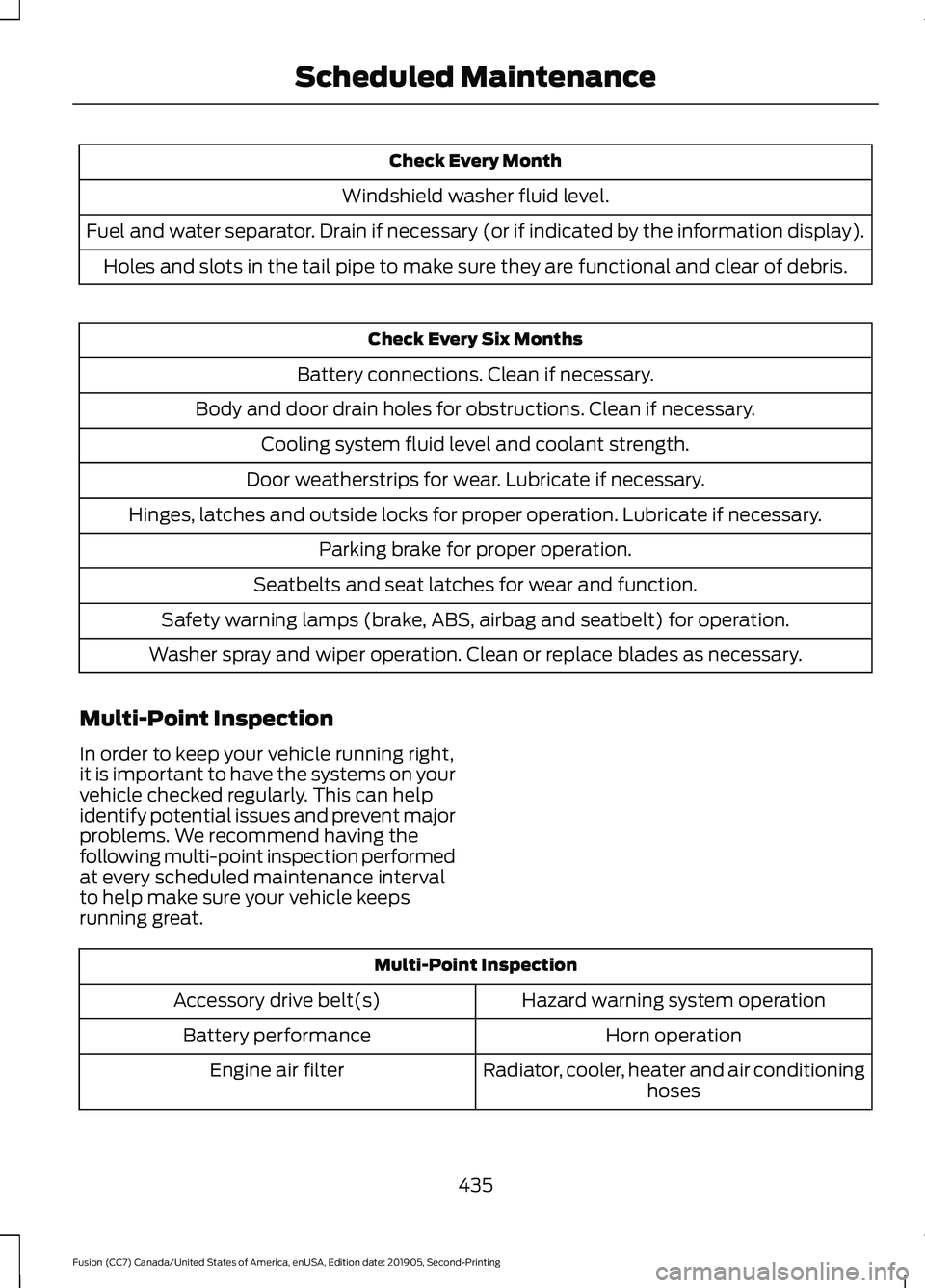
Check Every Month
Windshield washer fluid level.
Fuel and water separator. Drain if necessary (or if indicated by the information display). Holes and slots in the tail pipe to make sure they are functional and clear of debris. Check Every Six Months
Battery connections. Clean if necessary.
Body and door drain holes for obstructions. Clean if necessary. Cooling system fluid level and coolant strength.
Door weatherstrips for wear. Lubricate if necessary.
Hinges, latches and outside locks for proper operation. Lubricate if necessary. Parking brake for proper operation.
Seatbelts and seat latches for wear and function.
Safety warning lamps (brake, ABS, airbag and seatbelt) for operation.
Washer spray and wiper operation. Clean or replace blades as necessary.
Multi-Point Inspection
In order to keep your vehicle running right,
it is important to have the systems on your
vehicle checked regularly. This can help
identify potential issues and prevent major
problems. We recommend having the
following multi-point inspection performed
at every scheduled maintenance interval
to help make sure your vehicle keeps
running great. Multi-Point Inspection
Hazard warning system operation
Accessory drive belt(s)
Horn operation
Battery performance
Radiator, cooler, heater and air conditioninghoses
Engine air filter
435
Fusion (CC7) Canada/United States of America, enUSA, Edition date: 201905, Second-Printing Scheduled Maintenance
Page 484 of 497
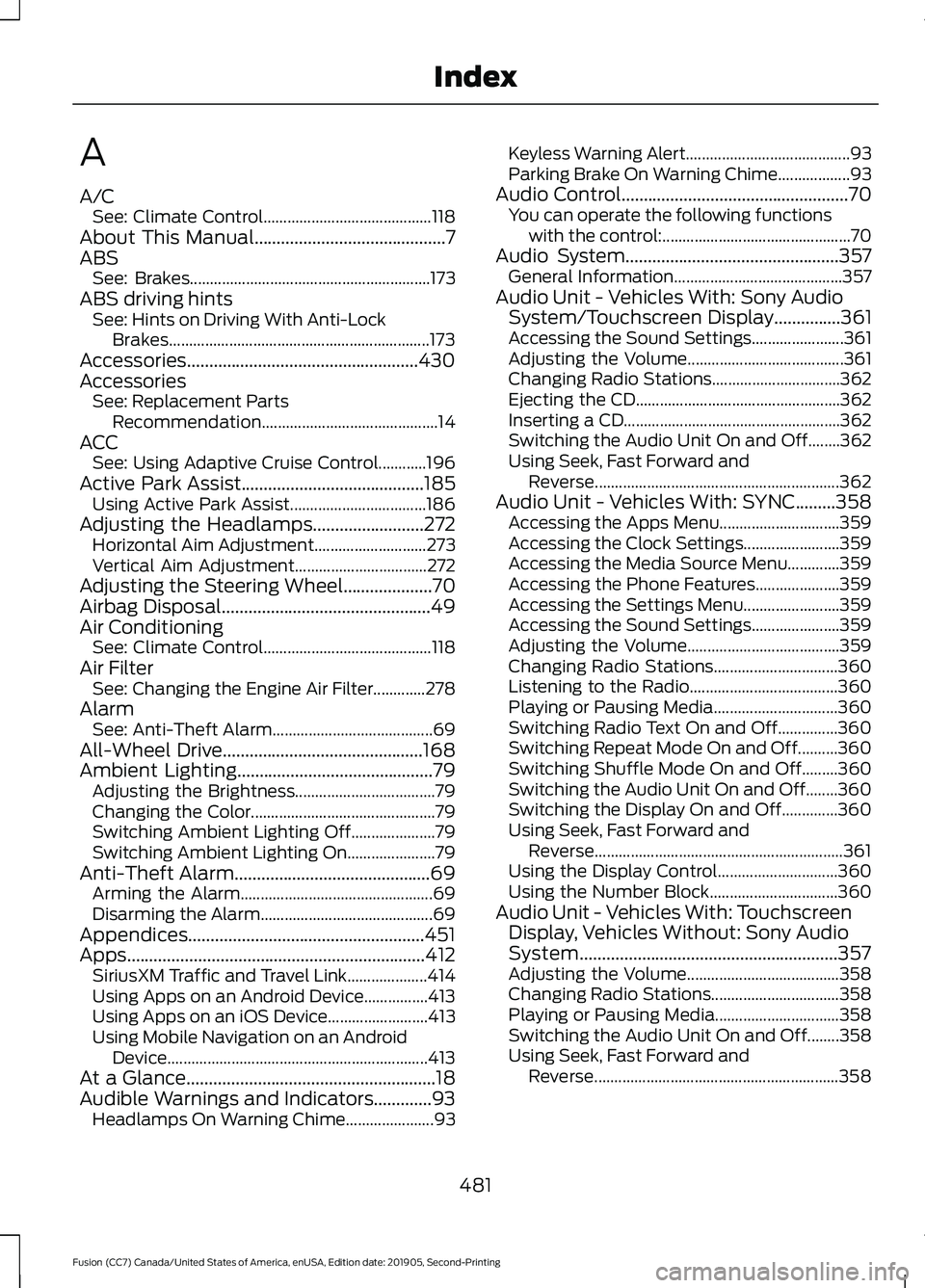
A
A/C
See: Climate Control.......................................... 118
About This Manual...........................................7
ABS See: Brakes............................................................ 173
ABS driving hints See: Hints on Driving With Anti-Lock
Brakes................................................................. 173
Accessories....................................................430
Accessories See: Replacement Parts
Recommendation............................................ 14
ACC See: Using Adaptive Cruise Control............196
Active Park Assist
.........................................185
Using Active Park Assist.................................. 186
Adjusting the Headlamps
.........................272
Horizontal Aim Adjustment............................ 273
Vertical Aim Adjustment................................. 272
Adjusting the Steering Wheel....................70
Airbag Disposal
...............................................49
Air Conditioning See: Climate Control.......................................... 118
Air Filter See: Changing the Engine Air Filter.............278
Alarm See: Anti-Theft Alarm........................................ 69
All-Wheel Drive.............................................168
Ambient Lighting............................................79 Adjusting the Brightness................................... 79
Changing the Color.............................................. 79
Switching Ambient Lighting Off..................... 79
Switching Ambient Lighting On...................... 79
Anti-Theft Alarm............................................69 Arming the Alarm................................................ 69
Disarming the Alarm........................................... 69
Appendices.....................................................451
Apps...................................................................412 SiriusXM Traffic and Travel Link.................... 414
Using Apps on an Android Device................413
Using Apps on an iOS Device......................... 413
Using Mobile Navigation on an Android Device................................................................. 413
At a Glance........................................................18
Audible Warnings and Indicators.............93 Headlamps On Warning Chime...................... 93Keyless Warning Alert.........................................
93
Parking Brake On Warning Chime.................. 93
Audio Control...................................................70 You can operate the following functions
with the control:............................................... 70
Audio System................................................357 General Information.......................................... 357
Audio Unit - Vehicles With: Sony Audio System/Touchscreen Display
...............361
Accessing the Sound Settings....................... 361
Adjusting the Volume....................................... 361
Changing Radio Stations................................ 362
Ejecting the CD................................................... 362
Inserting a CD...................................................... 362
Switching the Audio Unit On and Off........362
Using Seek, Fast Forward and Reverse............................................................. 362
Audio Unit - Vehicles With: SYNC.........358 Accessing the Apps Menu.............................. 359
Accessing the Clock Settings........................ 359
Accessing the Media Source Menu.............359
Accessing the Phone Features..................... 359
Accessing the Settings Menu........................ 359
Accessing the Sound Settings...................... 359
Adjusting the Volume...................................... 359
Changing Radio Stations............................... 360
Listening to the Radio..................................... 360
Playing or Pausing Media............................... 360
Switching Radio Text On and Off...............360
Switching Repeat Mode On and Off..........360
Switching Shuffle Mode On and Off.........360
Switching the Audio Unit On and Off........360
Switching the Display On and Off..............360
Using Seek, Fast Forward and Reverse.............................................................. 361
Using the Display Control.............................. 360
Using the Number Block................................ 360
Audio Unit - Vehicles With: Touchscreen Display, Vehicles Without: Sony Audio
System..........................................................357
Adjusting the Volume...................................... 358
Changing Radio Stations................................ 358
Playing or Pausing Media............................... 358
Switching the Audio Unit On and Off........358
Using Seek, Fast Forward and Reverse............................................................. 358
481
Fusion (CC7) Canada/United States of America, enUSA, Edition date: 201905, Second-Printing Index
Page 485 of 497
Autolamps........................................................76
Windshield Wiper Activated
Headlamps........................................................ 76
Automatic Climate Control - Vehicles With: Sony Audio System/Touchscreen
Display.............................................................121
Setting the Blower Motor Speed................... 121
Setting the Temperature................................... 121
Switching Auto Mode On and Off.................121
Switching Defrost On and Off........................ 122
Switching Maximum Air Conditioning On and Off............................................................... 122
Switching Maximum Defrost On and Off........................................................................\
122
Switching Recirculated Air On and Off........................................................................\
122
Switching the Air Conditioning On and Off........................................................................\
. 121
Switching the Climate Control On and Off........................................................................\
. 121
Automatic Climate Control - Vehicles With: SYNC...................................................122
Directing Air to the Footwell Air Vents........122
Directing Air to the Instrument Panel Air
Vents................................................................... 122
Setting the Blower Motor Speed.................. 123
Setting the Temperature.................................. 123
Switching Auto Mode On and Off................123
Switching Defrost On and Off........................ 123
Switching Maximum Air Conditioning On and Off............................................................... 123
Switching Maximum Defrost On and Off........................................................................\
124
Switching Recirculated Air On and Off........................................................................\
124
Switching the Air Conditioning On and Off........................................................................\
123
Switching the Climate Control On and Off........................................................................\
123
Automatic Climate Control - Vehicles With: Touchscreen Display, Vehicles
Without: Sony Audio System.................119
Accessing the Air Distribution Controls.............................................................. 119
Setting the Blower Motor Speed.................. 120
Setting the Temperature................................. 120
Switching Auto Mode On and Off................120 Switching Maximum Air Conditioning On
and Off.............................................................. 120
Switching Maximum Defrost On and Off....................................................................... 120
Switching Recirculated Air On and Off....................................................................... 120
Switching the Air Conditioning On and Off....................................................................... 120
Switching the Climate Control On and Off....................................................................... 120
Automatic High Beam Control.................80
Automatic High Beam Control Indicators.......................................................80
Automatic Transmission............................163 Automatic Transmission Adaptive
Learning............................................................. 167
Brake-Shift Interlock Override...................... 166
If Your Vehicle Gets Stuck In Mud or Snow................................................................... 167
SelectShift™ Automatic Transmission................................................... 165
Understanding the Positions of Your Rotary Shift Transmission........................................ 163
Automatic Transmission Fluid Check - 1.5L EcoBoost™/2.0L EcoBoost™/
2.5L................................................................266
Automatic Transmission Fluid Check - 2.7L EcoBoost™........................................266
Adding Transmission Fluid* .......................... 267
Checking the Transmission Fluid Level ........................................................................\
..... 266
Auto-Start-Stop
...........................................150
Disabling Auto-Start-Stop............................... 151
Enabling Auto-Start-Stop.............................. 150
Autowipers........................................................73 Autowipers Settings............................................ 74
Auxiliary Power Points
................................142
110 Volt AC Power Point................................... 142
12 Volt DC Power Point..................................... 142
Locations............................................................... 142
AWD See: All-Wheel Drive......................................... 168
B
Battery See: Changing the 12V Battery..................... 270
482
Fusion (CC7) Canada/United States of America, enUSA, Edition date: 201905, Second-Printing Index