audio FORD FUSION 2020 Service Manual
[x] Cancel search | Manufacturer: FORD, Model Year: 2020, Model line: FUSION, Model: FORD FUSION 2020Pages: 497, PDF Size: 6.64 MB
Page 405 of 497
Function
Button
Playlists
Artist
Albums
Songs
Genres
Podcasts
Audio books
Composers
This button allows you to choose a specific
letter to view within the category you are
browsing.
A-Z Jump
If available, this allows you to browse the
folders and files on your USB device.
Explore Device
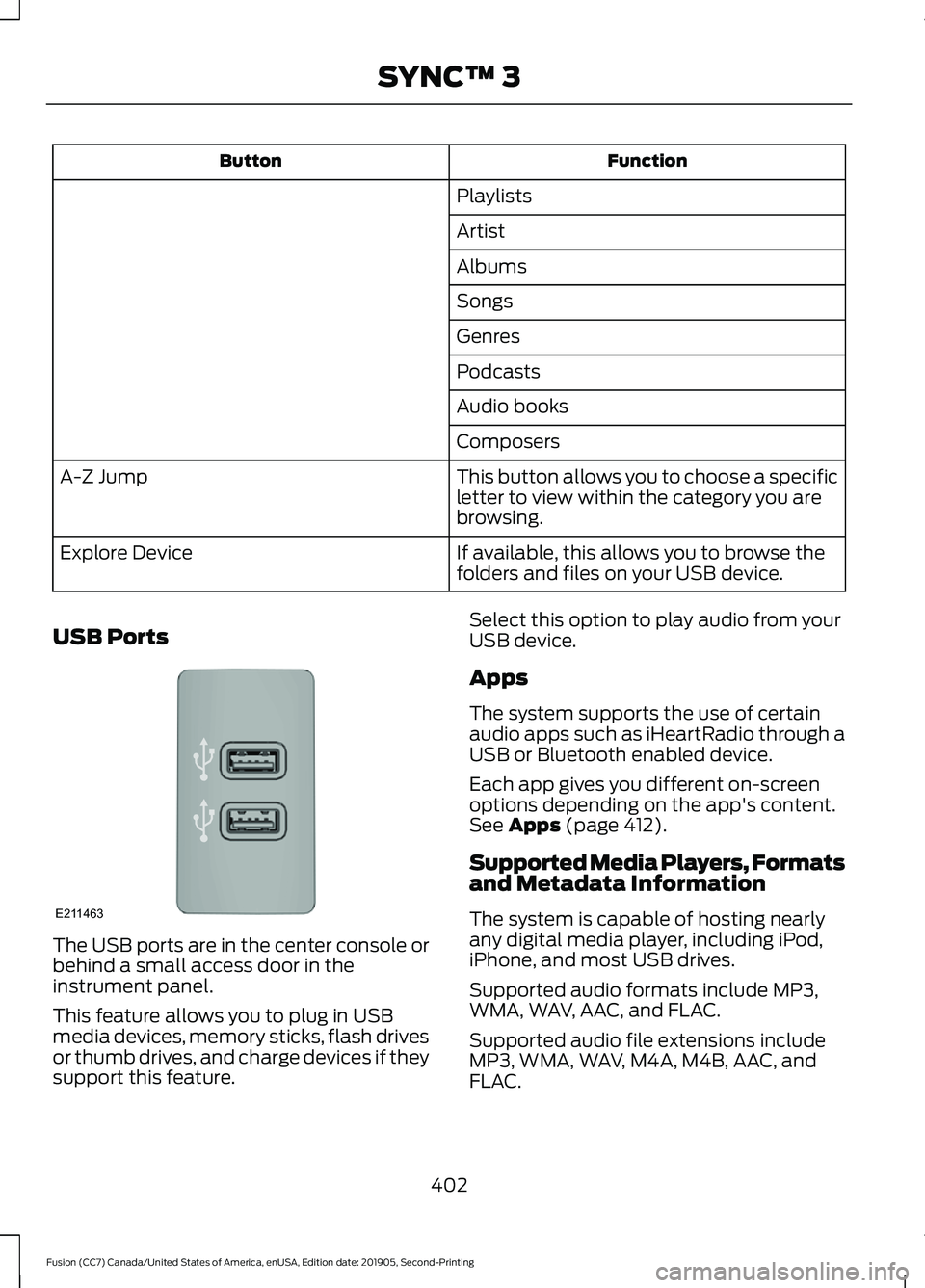
USB Ports The USB ports are in the center console or
behind a small access door in the
instrument panel.
This feature allows you to plug in USB
media devices, memory sticks, flash drives
or thumb drives, and charge devices if they
support this feature. Select this option to play audio from your
USB device.
Apps
The system supports the use of certain
audio apps such as iHeartRadio through a
USB or Bluetooth enabled device.
Each app gives you different on-screen
options depending on the app's content.
See Apps (page 412).
Supported Media Players, Formats
and Metadata Information
The system is capable of hosting nearly
any digital media player, including iPod,
iPhone, and most USB drives.
Supported audio formats include MP3,
WMA, WAV, AAC, and FLAC.
Supported audio file extensions include
MP3, WMA, WAV, M4A, M4B, AAC, and
FLAC.
402
Fusion (CC7) Canada/United States of America, enUSA, Edition date: 201905, Second-Printing SYNC™ 3E211463
Page 418 of 497
Action and Description
Menu Item
Select to choose from a listing of
weather locations.
Area
Touch this button to view scores and schedules from a variety
of sports. You can also save up to 10 favorite teams for easier
access. The score automatically refreshes when a game is in
progress.
Sports Info
Touch this button to view ski conditions for a specific area.
Ski Conditions
SETTINGS Press the button to enter the
settings menu.
Once you select a tile, press the
button next to a menu item to
view an explanation of the
feature or setting.
Sound
Select this tile to adjust sound the settings.
Clock
Select this tile to adjust the clock settings.
Bluetooth
Select this tile to switch Bluetooth on and
off and adjust the settings.
Phone
Select this tile to connect, disconnect, and
manage the connected device settings.
Audio
Select this tile to adjust the audio settings. Driver Assist (If Equipped)
Select this tile to adjust Driver Assist
features like Parking Aids, Lane Keeping
System, Pedestrian Detection, and
Auto-Start-Stop.
Vehicle
Select this tile to adjust vehicle settings
like windows, alarm, lighting, and MyKey
settings.
FordPass
Select this tile to adjust the FordPass
settings
General
Select this tile to adjust settings like
language, measurement units, or to reset
the system.
911 Assist
(If Equipped)
Select this tile to switch 911 Assist on and
off.
Automatic Updates
Select this tile to adjust the automatic
update settings.
Mobile Apps
Select this tile to adjust permissions,
enable, disable, and update mobile apps.
415
Fusion (CC7) Canada/United States of America, enUSA, Edition date: 201905, Second-Printing SYNC™ 3E280315 E268570
Page 421 of 497
Possible Cause and Resolution
Symptom
–You are not saying the name exactly as it appears on
your device.
•Say the first and last name of the contact exactly
as it appears on your device. Spell out any abbrevi-
ations in the name.
– The name contains special characters, for example *,
- or +.
•Rename the contact on your device or use the
touchscreen to select and call the contact.
The system does not under-
stand the name of a contact
in the phonebook on my
device and calls the wrong
contact.
–You are not saying the name exactly as it appears on
your device.
•Say the first and last name of the contact exactly
as it appears on your device. The system applies
phonetic pronunciation rules of the selected
language to the names of contacts in the phone-
book on your device. Select the name of the
contact on the touchscreen and use the Hear it
option to get an idea of how the system expects
you to pronounce it.
The system does not under-
stand foreign names of
contacts in the phonebook
on my device.
–Device limitation.
•The system uses text-to-speech technology and
uses a synthetically generated voice rather than
pre-recorded human voice.
The system voice prompts
and the pronunciation of
some words does not seem
to be very accurate.
USB and Bluetooth Audio Possible Cause and Resolution
Symptom
I cannot connect my device. –Device malfunction.
•Disconnect your device. Switch your device off,
reset it and try again.
– Cable connection issue.
•Correctly connect the cable to your device and the
vehicle USB port.
– Incompatible cable.
•Use the cable recommended by the manufacturer
of your device.
418
Fusion (CC7) Canada/United States of America, enUSA, Edition date: 201905, Second-Printing SYNC™ 3
Page 422 of 497

Possible Cause and Resolution
Symptom
–Incorrect device settings.
•Make sure that your device does not have an auto-
install program or active security settings.
• Check that your device is not set only to charge.
– Device lock screen enabled.
•Unlock your device before connecting it.
The system does not recog-
nize my device. –
Device limitation.
•Do not leave your device in your vehicle during very
hot or very cold weather conditions.
– Cable connection issue.
•Correctly connect the cable to your device and the
vehicle USB port.
– Incompatible cable.
•Use the cable recommended by the manufacturer
of your device.
The system does not under-
stand the name of a track or
artist. –
Device limitation. Bluetooth does not support voice
commands.
•Connect your device to a USB port.
• If you have an iOS device, press and hold the voice
control button on the steering wheel to use Siri to
play specific tracks.
I cannot stream audio from
my Bluetooth device. –
Incompatible device.
•Check the compatibility of your device on our
website.
– Device not connected.
•Pair your device. See Phone (page 405).
– Media player not running.
•Start the media player on your device.
The system does not recog-
nize the music on my device. –
Missing or incorrect audio file metadata, for example
artist, song title, album or genre.
•Repair the files on your device.
– Corrupt files.
•Repair the files on your device.
419
Fusion (CC7) Canada/United States of America, enUSA, Edition date: 201905, Second-Printing SYNC™ 3
Page 423 of 497
Possible Cause and Resolution
Symptom
–Copyright protected files.
•Use a device that contains files that are not copy-
right protected.
– Unsupported file format.
•Repair or convert the files to a supported format.
See Entertainment (page 393).
– Device indexing required.
•Re-index your device. See
Settings (page 415).
– Device lock screen enabled.
•Unlock your device before connecting it.
Sometimes I cannot hear a
track playing on my device. –
Device malfunction.
•Disconnect your device. Switch your device off,
reset it and try again.
When I disconnect my iOS
device the audio volume is
set to maximum. –
Device limitation.
•Turn the volume down on your device
If the system does not play the tracks on your USB device
in the correct order, the following information could help:
The system does not play
the tracks on my USB drive
in the correct order.
–If you are selecting USB as the audio source when the
system is still indexing, SYNC plays tracks sorted
alphabetically by file name in the root directory.
– If you are selecting USB as the audio source after the
system has finished indexing, SYNC plays all tracks
sorted alphabetically by the title in the ID3 tag
regardless of where they are located. SYNC uses the
file name if the title in the ID3 Tag does not exist.
– If you are selecting the option to play all tracks from
the browsing menu, SYNC plays all tracks sorted
alphabetically by the title in the ID3 tag regardless of
where they are located. SYNC uses the file name if the
title in the ID3 Tag does not exist.
– If you are selecting a track when using the explore
device option, SYNC plays tracks sorted alphabetically
by file name in the folder you have selected. SYNC
then plays all tracks in any subfolders in the folder you
have selected.
420
Fusion (CC7) Canada/United States of America, enUSA, Edition date: 201905, Second-Printing SYNC™ 3
Page 424 of 497
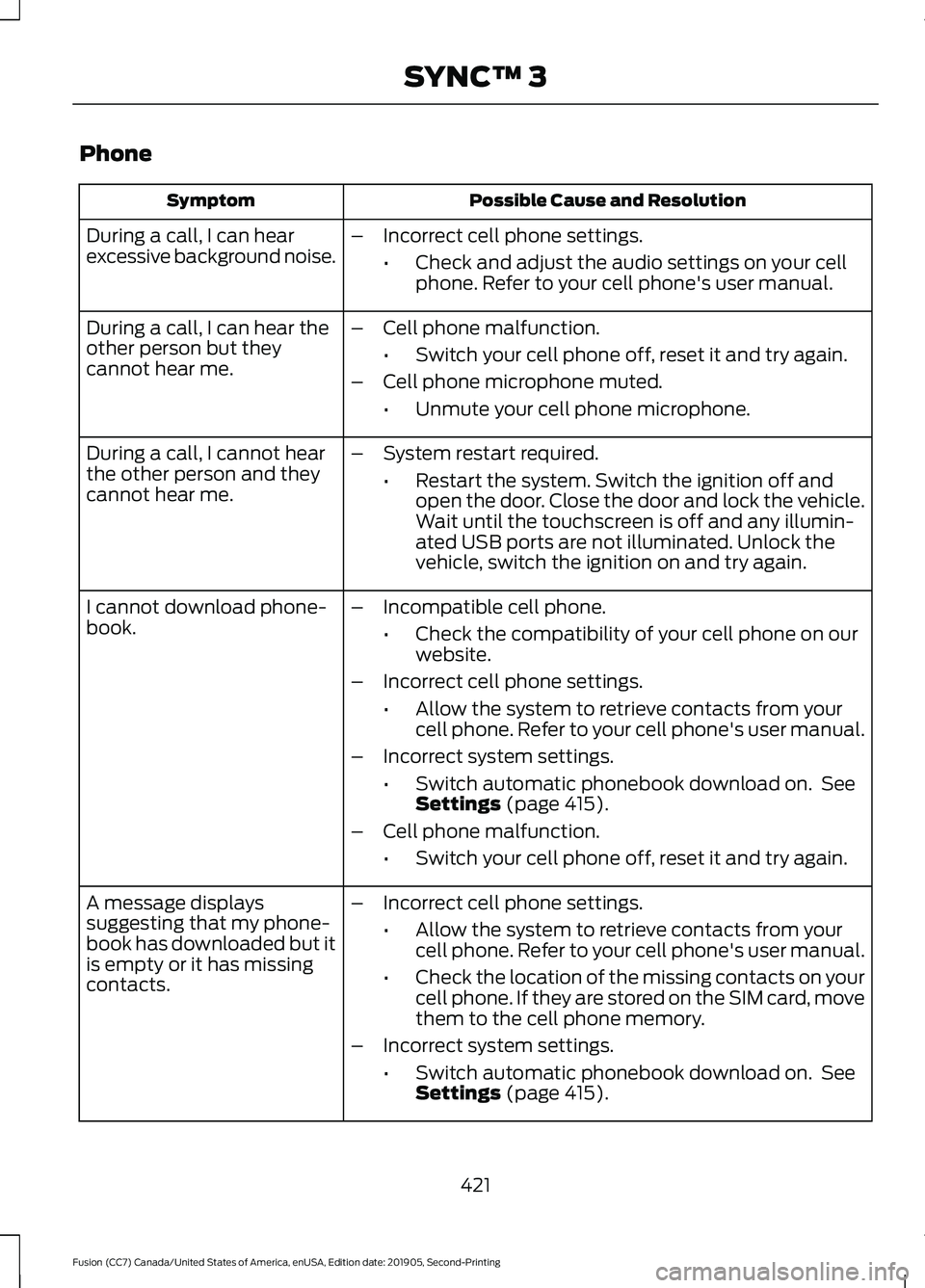
Phone
Possible Cause and Resolution
Symptom
During a call, I can hear
excessive background noise. –
Incorrect cell phone settings.
•Check and adjust the audio settings on your cell
phone. Refer to your cell phone's user manual.
– Cell phone malfunction.
•Switch your cell phone off, reset it and try again.
– Cell phone microphone muted.
•Unmute your cell phone microphone.
During a call, I can hear the
other person but they
cannot hear me.
During a call, I cannot hear
the other person and they
cannot hear me.
–
System restart required.
•Restart the system. Switch the ignition off and
open the door. Close the door and lock the vehicle.
Wait until the touchscreen is off and any illumin-
ated USB ports are not illuminated. Unlock the
vehicle, switch the ignition on and try again.
I cannot download phone-
book. –
Incompatible cell phone.
•Check the compatibility of your cell phone on our
website.
– Incorrect cell phone settings.
•Allow the system to retrieve contacts from your
cell phone. Refer to your cell phone's user manual.
– Incorrect system settings.
•Switch automatic phonebook download on. See
Settings (page 415).
– Cell phone malfunction.
•Switch your cell phone off, reset it and try again.
– Incorrect cell phone settings.
•Allow the system to retrieve contacts from your
cell phone. Refer to your cell phone's user manual.
• Check the location of the missing contacts on your
cell phone. If they are stored on the SIM card, move
them to the cell phone memory.
– Incorrect system settings.
•Switch automatic phonebook download on. See
Settings
(page 415).
A message displays
suggesting that my phone-
book has downloaded but it
is empty or it has missing
contacts.
421
Fusion (CC7) Canada/United States of America, enUSA, Edition date: 201905, Second-Printing SYNC™ 3
Page 432 of 497
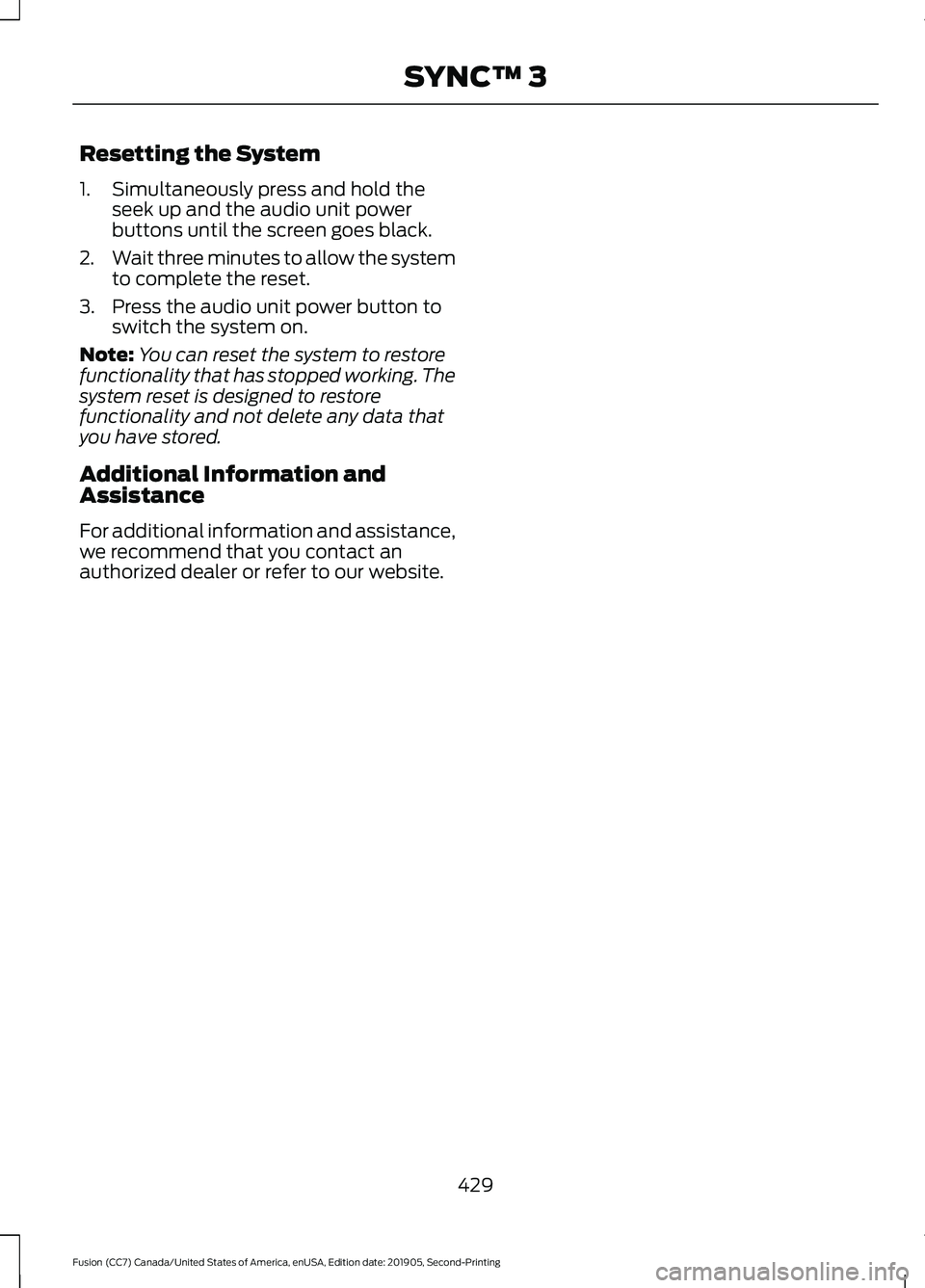
Resetting the System
1. Simultaneously press and hold the
seek up and the audio unit power
buttons until the screen goes black.
2. Wait three minutes to allow the system
to complete the reset.
3. Press the audio unit power button to switch the system on.
Note: You can reset the system to restore
functionality that has stopped working. The
system reset is designed to restore
functionality and not delete any data that
you have stored.
Additional Information and
Assistance
For additional information and assistance,
we recommend that you contact an
authorized dealer or refer to our website.
429
Fusion (CC7) Canada/United States of America, enUSA, Edition date: 201905, Second-Printing SYNC™ 3
Page 459 of 497
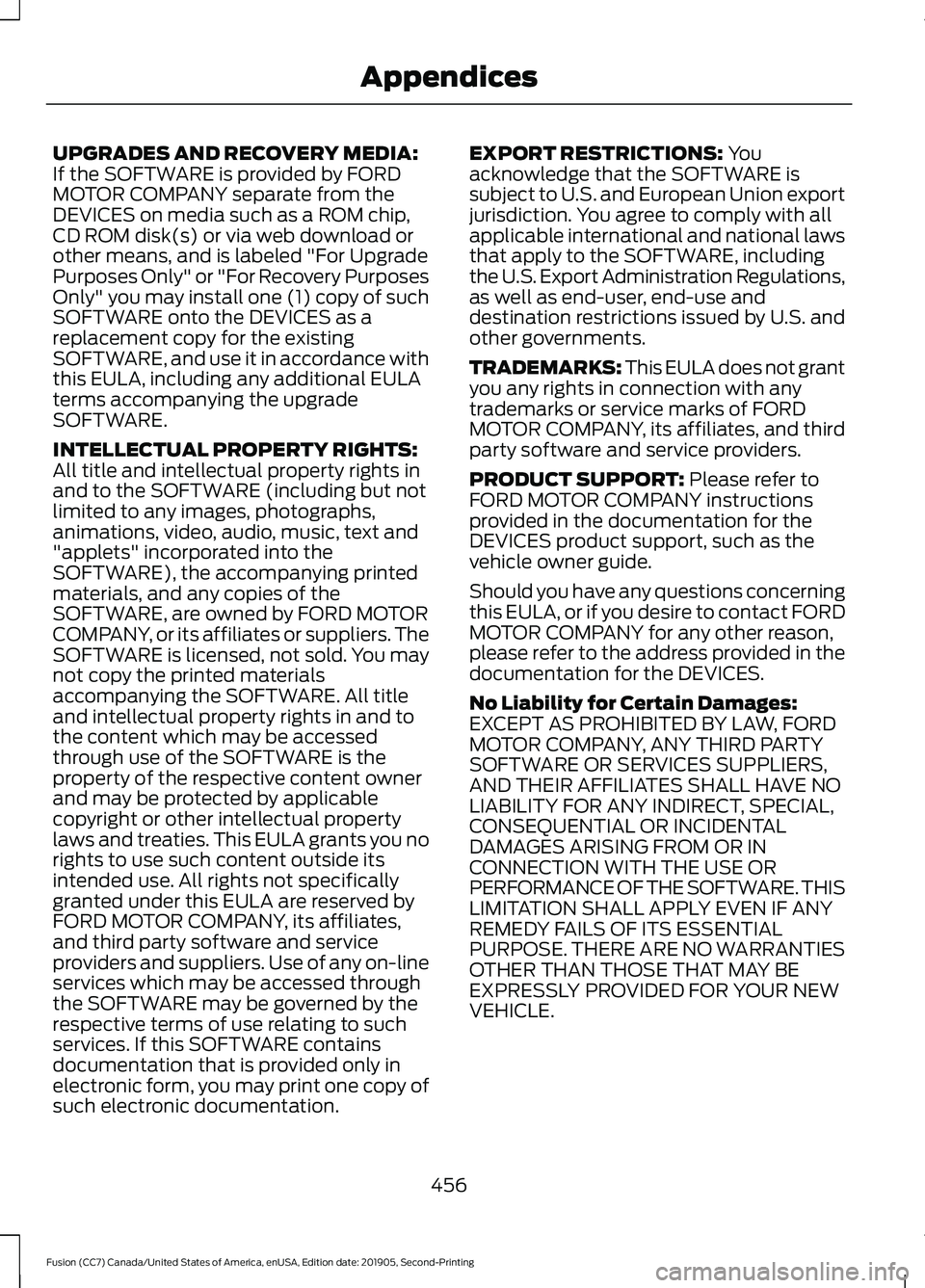
UPGRADES AND RECOVERY MEDIA:
If the SOFTWARE is provided by FORD
MOTOR COMPANY separate from the
DEVICES on media such as a ROM chip,
CD ROM disk(s) or via web download or
other means, and is labeled "For Upgrade
Purposes Only" or "For Recovery Purposes
Only" you may install one (1) copy of such
SOFTWARE onto the DEVICES as a
replacement copy for the existing
SOFTWARE, and use it in accordance with
this EULA, including any additional EULA
terms accompanying the upgrade
SOFTWARE.
INTELLECTUAL PROPERTY RIGHTS:
All title and intellectual property rights in
and to the SOFTWARE (including but not
limited to any images, photographs,
animations, video, audio, music, text and
"applets" incorporated into the
SOFTWARE), the accompanying printed
materials, and any copies of the
SOFTWARE, are owned by FORD MOTOR
COMPANY, or its affiliates or suppliers. The
SOFTWARE is licensed, not sold. You may
not copy the printed materials
accompanying the SOFTWARE. All title
and intellectual property rights in and to
the content which may be accessed
through use of the SOFTWARE is the
property of the respective content owner
and may be protected by applicable
copyright or other intellectual property
laws and treaties. This EULA grants you no
rights to use such content outside its
intended use. All rights not specifically
granted under this EULA are reserved by
FORD MOTOR COMPANY, its affiliates,
and third party software and service
providers and suppliers. Use of any on-line
services which may be accessed through
the SOFTWARE may be governed by the
respective terms of use relating to such
services. If this SOFTWARE contains
documentation that is provided only in
electronic form, you may print one copy of
such electronic documentation.
EXPORT RESTRICTIONS: You
acknowledge that the SOFTWARE is
subject to U.S. and European Union export
jurisdiction. You agree to comply with all
applicable international and national laws
that apply to the SOFTWARE, including
the U.S. Export Administration Regulations,
as well as end-user, end-use and
destination restrictions issued by U.S. and
other governments.
TRADEMARKS: This EULA does not grant
you any rights in connection with any
trademarks or service marks of FORD
MOTOR COMPANY, its affiliates, and third
party software and service providers.
PRODUCT SUPPORT:
Please refer to
FORD MOTOR COMPANY instructions
provided in the documentation for the
DEVICES product support, such as the
vehicle owner guide.
Should you have any questions concerning
this EULA, or if you desire to contact FORD
MOTOR COMPANY for any other reason,
please refer to the address provided in the
documentation for the DEVICES.
No Liability for Certain Damages:
EXCEPT AS PROHIBITED BY LAW, FORD
MOTOR COMPANY, ANY THIRD PARTY
SOFTWARE OR SERVICES SUPPLIERS,
AND THEIR AFFILIATES SHALL HAVE NO
LIABILITY FOR ANY INDIRECT, SPECIAL,
CONSEQUENTIAL OR INCIDENTAL
DAMAGES ARISING FROM OR IN
CONNECTION WITH THE USE OR
PERFORMANCE OF THE SOFTWARE. THIS
LIMITATION SHALL APPLY EVEN IF ANY
REMEDY FAILS OF ITS ESSENTIAL
PURPOSE. THERE ARE NO WARRANTIES
OTHER THAN THOSE THAT MAY BE
EXPRESSLY PROVIDED FOR YOUR NEW
VEHICLE.
456
Fusion (CC7) Canada/United States of America, enUSA, Edition date: 201905, Second-Printing Appendices
Page 465 of 497
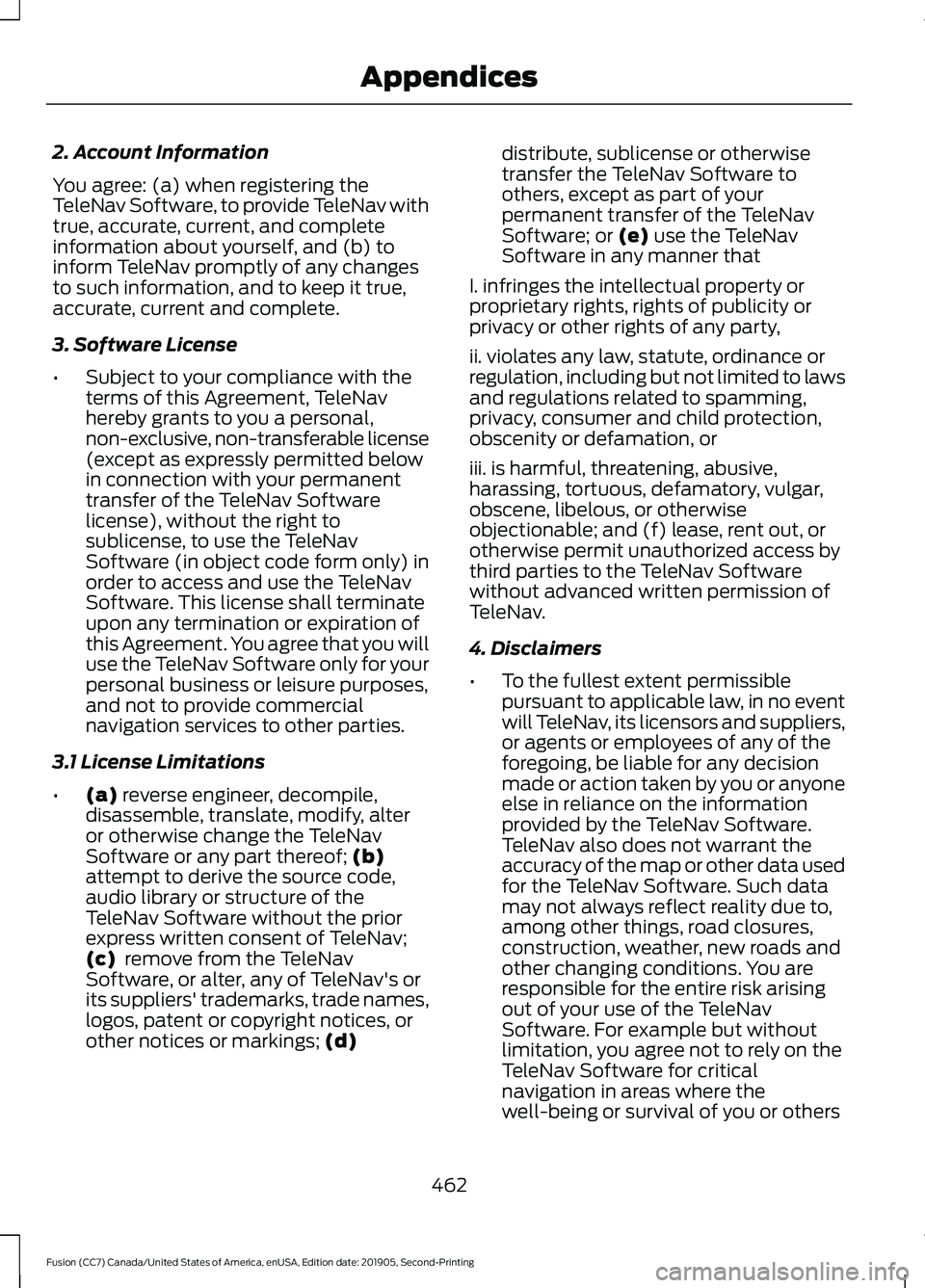
2. Account Information
You agree: (a) when registering the
TeleNav Software, to provide TeleNav with
true, accurate, current, and complete
information about yourself, and (b) to
inform TeleNav promptly of any changes
to such information, and to keep it true,
accurate, current and complete.
3. Software License
•
Subject to your compliance with the
terms of this Agreement, TeleNav
hereby grants to you a personal,
non-exclusive, non-transferable license
(except as expressly permitted below
in connection with your permanent
transfer of the TeleNav Software
license), without the right to
sublicense, to use the TeleNav
Software (in object code form only) in
order to access and use the TeleNav
Software. This license shall terminate
upon any termination or expiration of
this Agreement. You agree that you will
use the TeleNav Software only for your
personal business or leisure purposes,
and not to provide commercial
navigation services to other parties.
3.1 License Limitations
• (a) reverse engineer, decompile,
disassemble, translate, modify, alter
or otherwise change the TeleNav
Software or any part thereof;
(b)
attempt to derive the source code,
audio library or structure of the
TeleNav Software without the prior
express written consent of TeleNav;
(c)
remove from the TeleNav
Software, or alter, any of TeleNav's or
its suppliers' trademarks, trade names,
logos, patent or copyright notices, or
other notices or markings;
(d) distribute, sublicense or otherwise
transfer the TeleNav Software to
others, except as part of your
permanent transfer of the TeleNav
Software; or
(e) use the TeleNav
Software in any manner that
I. infringes the intellectual property or
proprietary rights, rights of publicity or
privacy or other rights of any party,
ii. violates any law, statute, ordinance or
regulation, including but not limited to laws
and regulations related to spamming,
privacy, consumer and child protection,
obscenity or defamation, or
iii. is harmful, threatening, abusive,
harassing, tortuous, defamatory, vulgar,
obscene, libelous, or otherwise
objectionable; and (f) lease, rent out, or
otherwise permit unauthorized access by
third parties to the TeleNav Software
without advanced written permission of
TeleNav.
4. Disclaimers
• To the fullest extent permissible
pursuant to applicable law, in no event
will TeleNav, its licensors and suppliers,
or agents or employees of any of the
foregoing, be liable for any decision
made or action taken by you or anyone
else in reliance on the information
provided by the TeleNav Software.
TeleNav also does not warrant the
accuracy of the map or other data used
for the TeleNav Software. Such data
may not always reflect reality due to,
among other things, road closures,
construction, weather, new roads and
other changing conditions. You are
responsible for the entire risk arising
out of your use of the TeleNav
Software. For example but without
limitation, you agree not to rely on the
TeleNav Software for critical
navigation in areas where the
well-being or survival of you or others
462
Fusion (CC7) Canada/United States of America, enUSA, Edition date: 201905, Second-Printing Appendices
Page 484 of 497
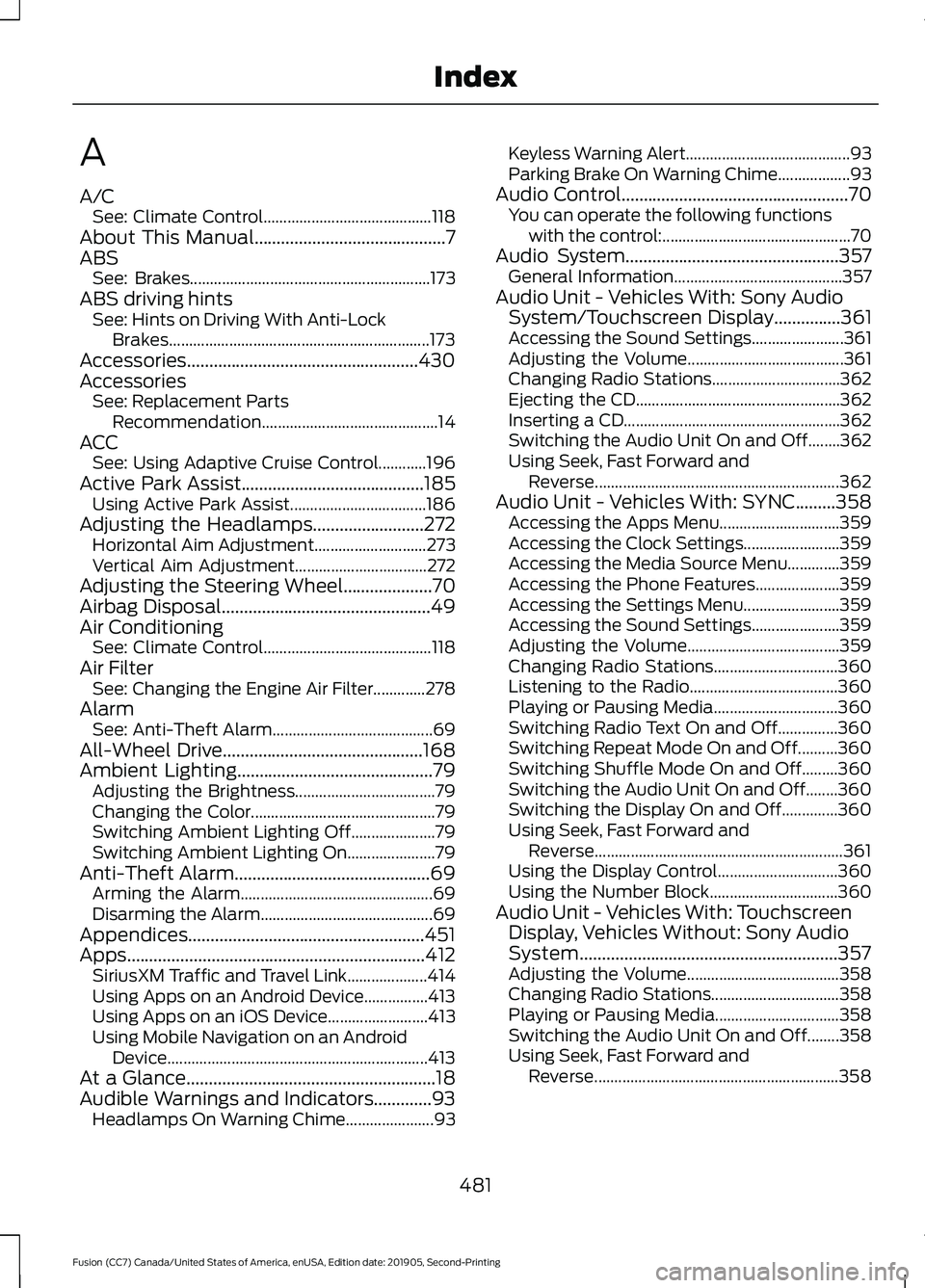
A
A/C
See: Climate Control.......................................... 118
About This Manual...........................................7
ABS See: Brakes............................................................ 173
ABS driving hints See: Hints on Driving With Anti-Lock
Brakes................................................................. 173
Accessories....................................................430
Accessories See: Replacement Parts
Recommendation............................................ 14
ACC See: Using Adaptive Cruise Control............196
Active Park Assist
.........................................185
Using Active Park Assist.................................. 186
Adjusting the Headlamps
.........................272
Horizontal Aim Adjustment............................ 273
Vertical Aim Adjustment................................. 272
Adjusting the Steering Wheel....................70
Airbag Disposal
...............................................49
Air Conditioning See: Climate Control.......................................... 118
Air Filter See: Changing the Engine Air Filter.............278
Alarm See: Anti-Theft Alarm........................................ 69
All-Wheel Drive.............................................168
Ambient Lighting............................................79 Adjusting the Brightness................................... 79
Changing the Color.............................................. 79
Switching Ambient Lighting Off..................... 79
Switching Ambient Lighting On...................... 79
Anti-Theft Alarm............................................69 Arming the Alarm................................................ 69
Disarming the Alarm........................................... 69
Appendices.....................................................451
Apps...................................................................412 SiriusXM Traffic and Travel Link.................... 414
Using Apps on an Android Device................413
Using Apps on an iOS Device......................... 413
Using Mobile Navigation on an Android Device................................................................. 413
At a Glance........................................................18
Audible Warnings and Indicators.............93 Headlamps On Warning Chime...................... 93Keyless Warning Alert.........................................
93
Parking Brake On Warning Chime.................. 93
Audio Control...................................................70 You can operate the following functions
with the control:............................................... 70
Audio System................................................357 General Information.......................................... 357
Audio Unit - Vehicles With: Sony Audio System/Touchscreen Display
...............361
Accessing the Sound Settings....................... 361
Adjusting the Volume....................................... 361
Changing Radio Stations................................ 362
Ejecting the CD................................................... 362
Inserting a CD...................................................... 362
Switching the Audio Unit On and Off........362
Using Seek, Fast Forward and Reverse............................................................. 362
Audio Unit - Vehicles With: SYNC.........358 Accessing the Apps Menu.............................. 359
Accessing the Clock Settings........................ 359
Accessing the Media Source Menu.............359
Accessing the Phone Features..................... 359
Accessing the Settings Menu........................ 359
Accessing the Sound Settings...................... 359
Adjusting the Volume...................................... 359
Changing Radio Stations............................... 360
Listening to the Radio..................................... 360
Playing or Pausing Media............................... 360
Switching Radio Text On and Off...............360
Switching Repeat Mode On and Off..........360
Switching Shuffle Mode On and Off.........360
Switching the Audio Unit On and Off........360
Switching the Display On and Off..............360
Using Seek, Fast Forward and Reverse.............................................................. 361
Using the Display Control.............................. 360
Using the Number Block................................ 360
Audio Unit - Vehicles With: Touchscreen Display, Vehicles Without: Sony Audio
System..........................................................357
Adjusting the Volume...................................... 358
Changing Radio Stations................................ 358
Playing or Pausing Media............................... 358
Switching the Audio Unit On and Off........358
Using Seek, Fast Forward and Reverse............................................................. 358
481
Fusion (CC7) Canada/United States of America, enUSA, Edition date: 201905, Second-Printing Index