phone FORD FUSION (AMERICAS) 2013 2.G Workshop Manual
[x] Cancel search | Manufacturer: FORD, Model Year: 2013, Model line: FUSION (AMERICAS), Model: FORD FUSION (AMERICAS) 2013 2.GPages: 458
Page 349 of 458
Safety Information
WARNING
Driving while distracted can result in
loss of vehicle control, crash and
injury. We strongly recommend that
you use extreme caution when using any
device that may take your focus off the
road. Your primary responsibility is the safe
operation of your vehicle. We recommend
against the use of any handheld device
while driving and encourage the use of
voice-operated systems when possible.
Make sure you are aware of all applicable
local laws that may affect the use of
electronic devices while driving •
Do not attempt to service or repair the
system. See an authorized dealer.
• Do not operate playing devices if the
power cords or cables are broken, split
or damaged. Place cords and cables
out of the way, so they do not interfere
with the operation of pedals, seats,
compartments or safe driving abilities. •
Do not leave playing devices in your
vehicle during extreme conditions as it
could cause them damage. See your
device's user guide for further
information.
• For your safety, some SYNC functions
are speed-dependent. Their use is
limited to when your vehicle is traveling
at speeds under 3 mph (5 km/h).
Make sure that you review your device's
manual before using it with SYNC.
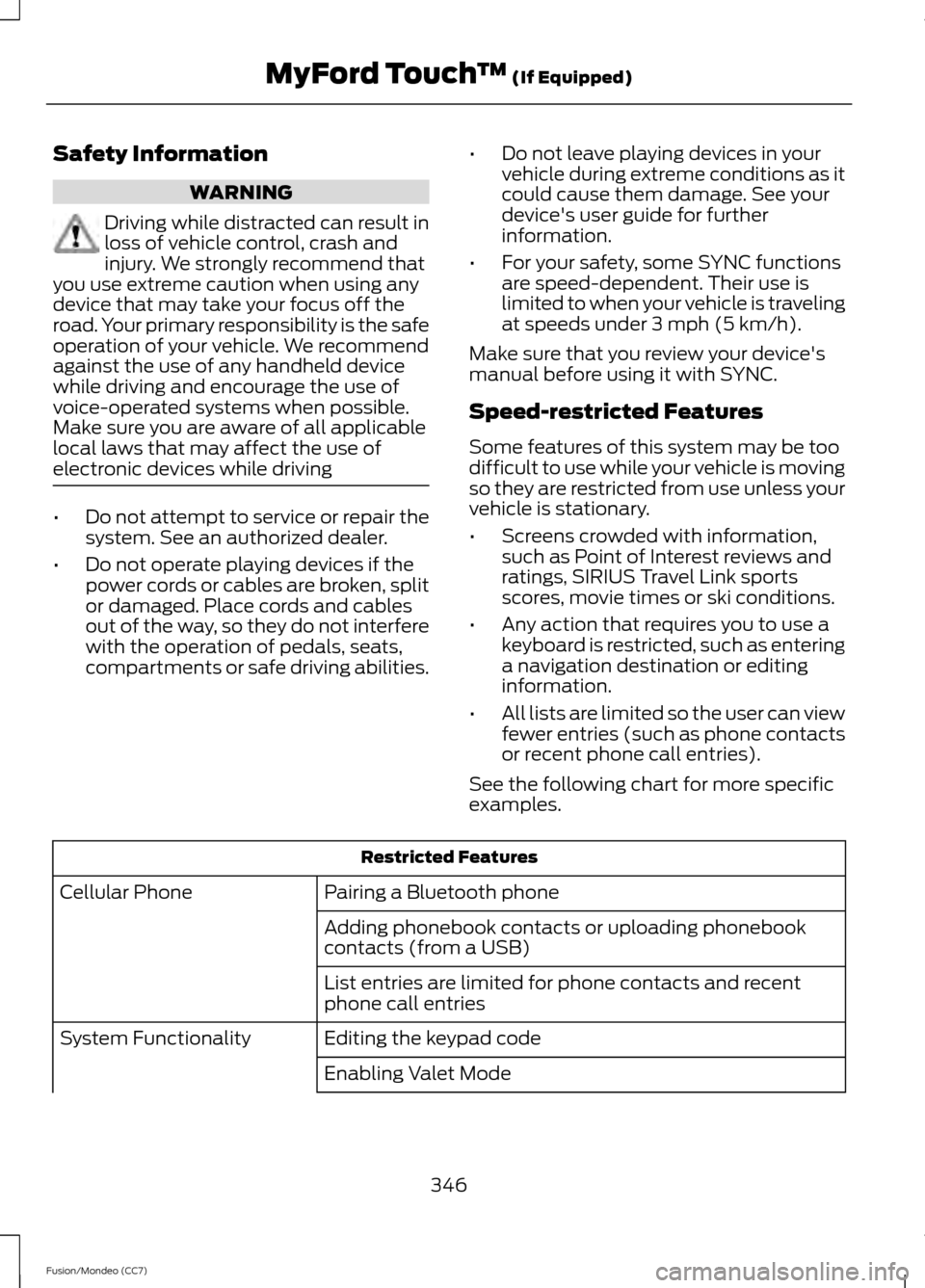
Speed-restricted Features
Some features of this system may be too
difficult to use while your vehicle is moving
so they are restricted from use unless your
vehicle is stationary.
• Screens crowded with information,
such as Point of Interest reviews and
ratings, SIRIUS Travel Link sports
scores, movie times or ski conditions.
• Any action that requires you to use a
keyboard is restricted, such as entering
a navigation destination or editing
information.
• All lists are limited so the user can view
fewer entries (such as phone contacts
or recent phone call entries).
See the following chart for more specific
examples. Restricted Features
Pairing a Bluetooth phone
Cellular Phone
Adding phonebook contacts or uploading phonebook
contacts (from a USB)
List entries are limited for phone contacts and recent
phone call entries
Editing the keypad code
System Functionality
Enabling Valet Mode
346
Fusion/Mondeo (CC7) MyFord Touch
™ (If Equipped)
Page 350 of 458
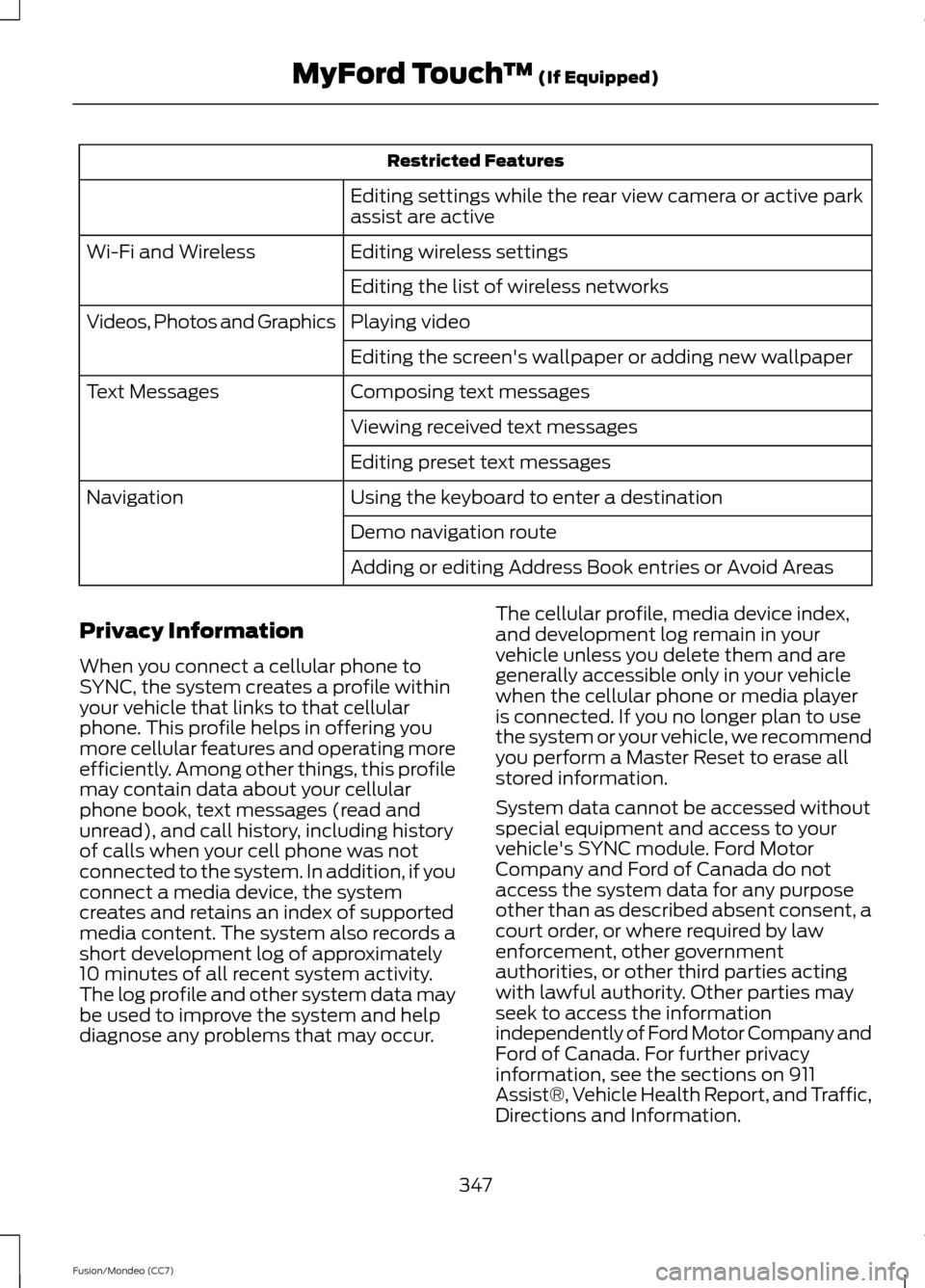
Restricted Features
Editing settings while the rear view camera or active park
assist are active
Editing wireless settings
Wi-Fi and Wireless
Editing the list of wireless networks
Playing video
Videos, Photos and Graphics
Editing the screen's wallpaper or adding new wallpaper
Composing text messages
Text Messages
Viewing received text messages
Editing preset text messages
Using the keyboard to enter a destination
Navigation
Demo navigation route
Adding or editing Address Book entries or Avoid Areas
Privacy Information
When you connect a cellular phone to
SYNC, the system creates a profile within
your vehicle that links to that cellular
phone. This profile helps in offering you
more cellular features and operating more
efficiently. Among other things, this profile
may contain data about your cellular
phone book, text messages (read and
unread), and call history, including history
of calls when your cell phone was not
connected to the system. In addition, if you
connect a media device, the system
creates and retains an index of supported
media content. The system also records a
short development log of approximately
10 minutes of all recent system activity.
The log profile and other system data may
be used to improve the system and help
diagnose any problems that may occur. The cellular profile, media device index,
and development log remain in your
vehicle unless you delete them and are
generally accessible only in your vehicle
when the cellular phone or media player
is connected. If you no longer plan to use
the system or your vehicle, we recommend
you perform a Master Reset to erase all
stored information.
System data cannot be accessed without
special equipment and access to your
vehicle's SYNC module. Ford Motor
Company and Ford of Canada do not
access the system data for any purpose
other than as described absent consent, a
court order, or where required by law
enforcement, other government
authorities, or other third parties acting
with lawful authority. Other parties may
seek to access the information
independently of Ford Motor Company and
Ford of Canada. For further privacy
information, see the sections on 911
Assist®, Vehicle Health Report, and Traffic,
Directions and Information.
347
Fusion/Mondeo (CC7) MyFord Touch
™ (If Equipped)
Page 351 of 458
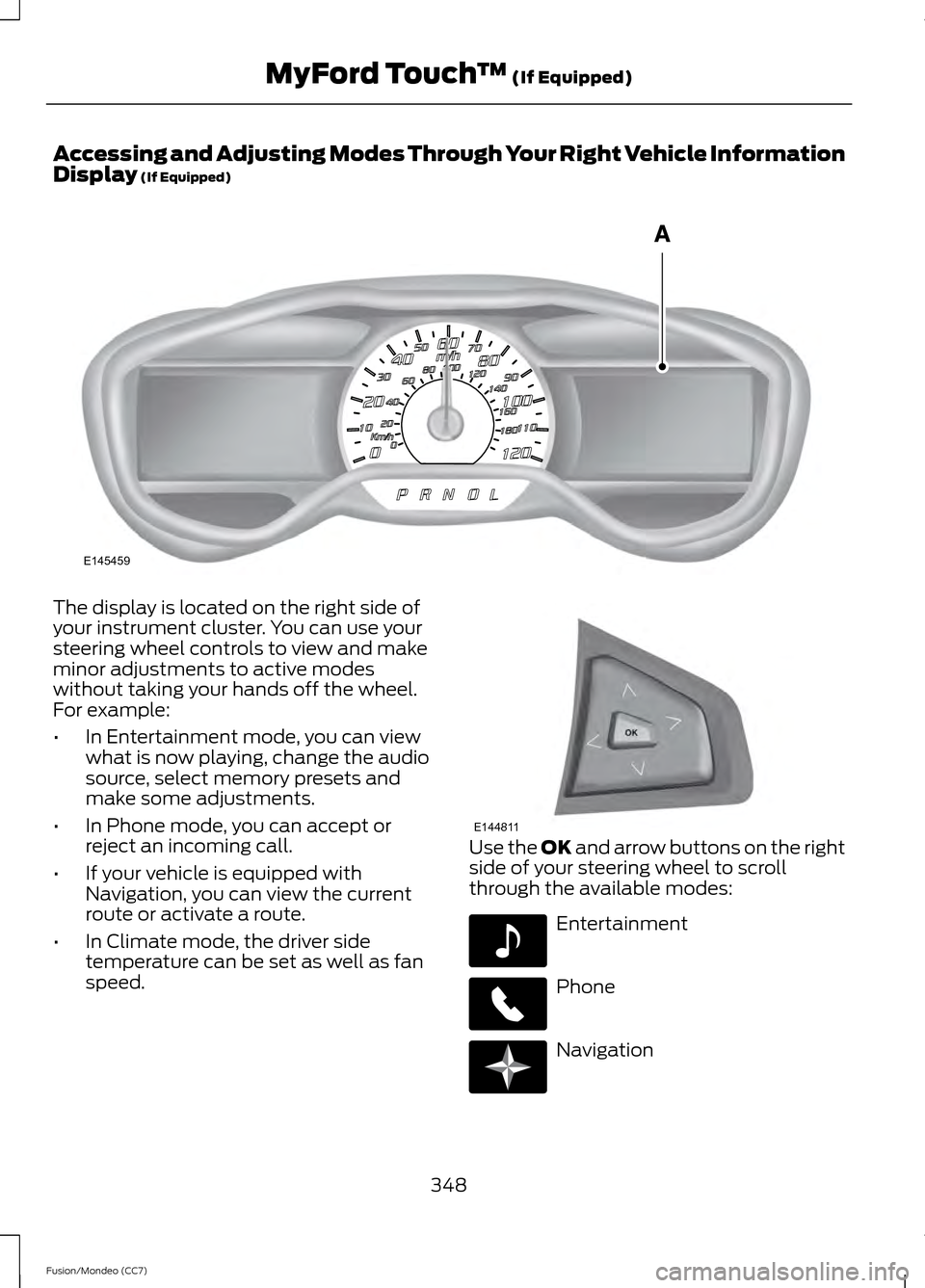
Accessing and Adjusting Modes Through Your Right Vehicle Information
Display (If Equipped)
The display is located on the right side of
your instrument cluster. You can use your
steering wheel controls to view and make
minor adjustments to active modes
without taking your hands off the wheel.
For example:
•
In Entertainment mode, you can view
what is now playing, change the audio
source, select memory presets and
make some adjustments.
• In Phone mode, you can accept or
reject an incoming call.
• If your vehicle is equipped with
Navigation, you can view the current
route or activate a route.
• In Climate mode, the driver side
temperature can be set as well as fan
speed. Use the
OK and arrow buttons on the right
side of your steering wheel to scroll
through the available modes: Entertainment
Phone
Navigation
348
Fusion/Mondeo (CC7) MyFord Touch
™
(If Equipped)E145459 E144811 E142611 E142609 E142610
Page 353 of 458
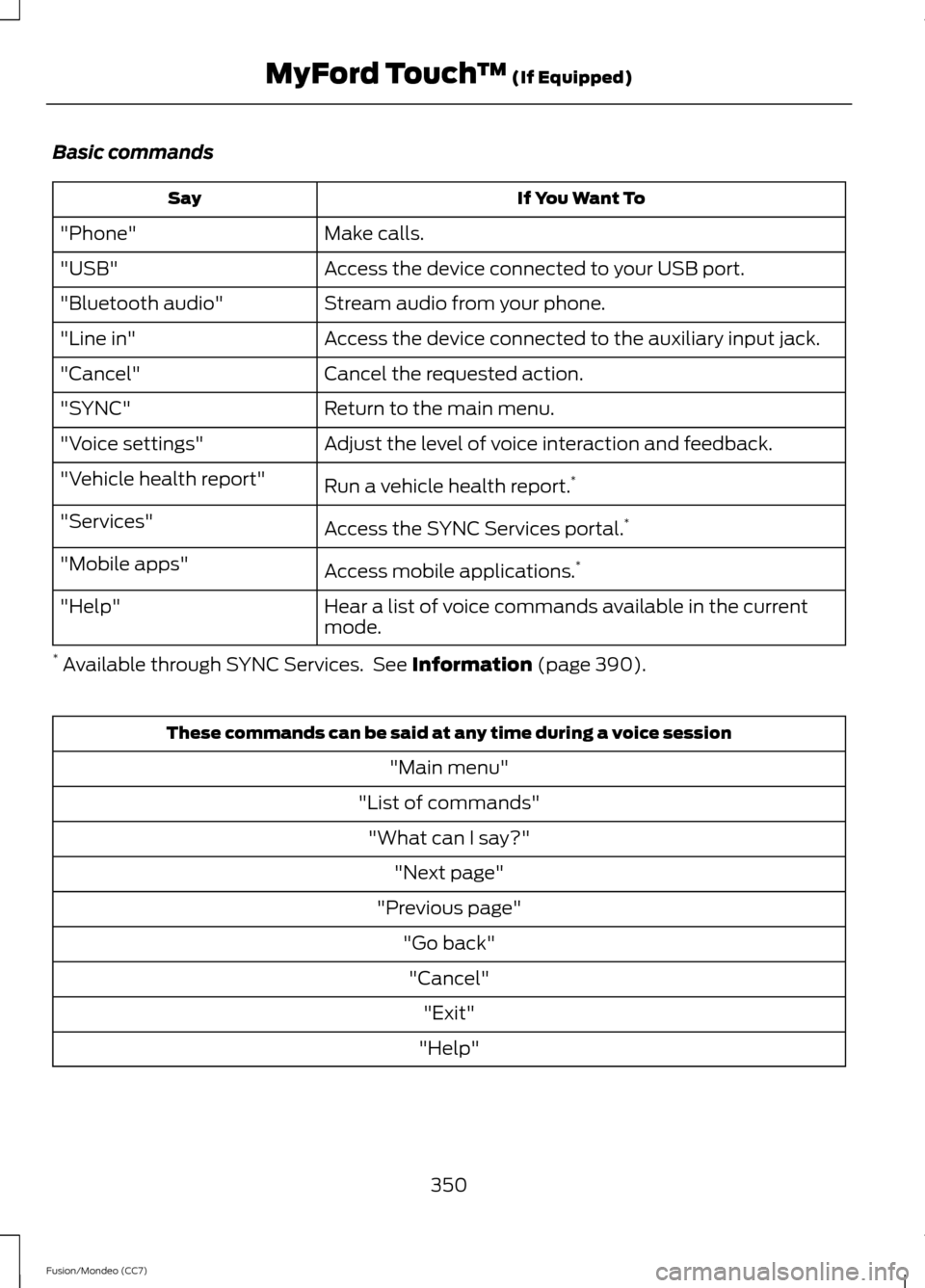
Basic commands
If You Want To
Say
Make calls.
"Phone"
Access the device connected to your USB port.
"USB"
Stream audio from your phone.
"Bluetooth audio"
Access the device connected to the auxiliary input jack.
"Line in"
Cancel the requested action.
"Cancel"
Return to the main menu.
"SYNC"
Adjust the level of voice interaction and feedback.
"Voice settings"
Run a vehicle health report.*
"Vehicle health report"
Access the SYNC Services portal. *
"Services"
Access mobile applications.*
"Mobile apps"
Hear a list of voice commands available in the current
mode.
"Help"
* Available through SYNC Services. See Information (page 390). These commands can be said at any time during a voice session
"Main menu"
"List of commands" "What can I say?" "Next page"
"Previous page" "Go back""Cancel" "Exit"
"Help"
350
Fusion/Mondeo (CC7) MyFord Touch
™
(If Equipped)
Page 354 of 458
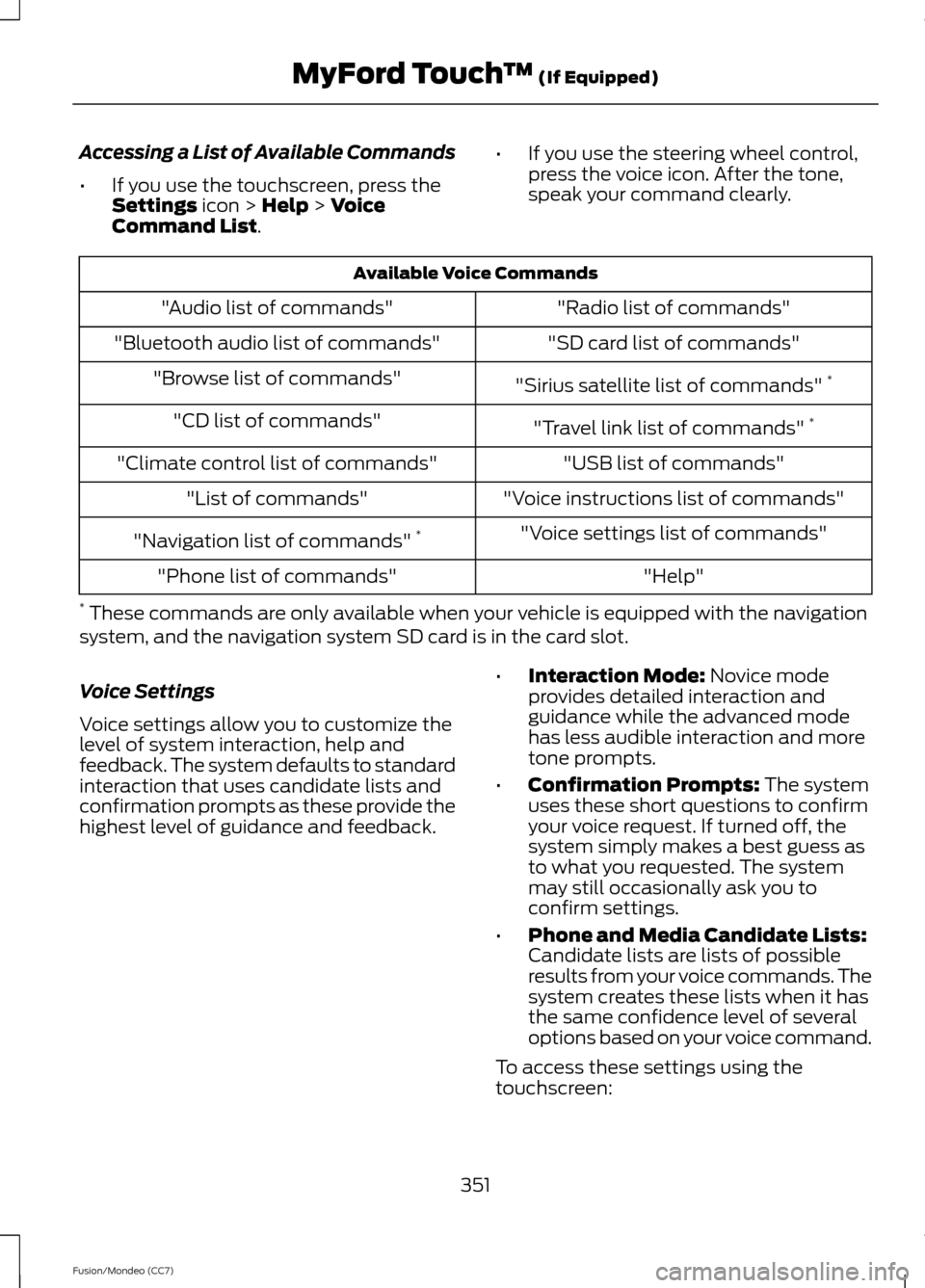
Accessing a List of Available Commands
•
If you use the touchscreen, press the
Settings icon > Help > Voice
Command List. •
If you use the steering wheel control,
press the voice icon. After the tone,
speak your command clearly. Available Voice Commands
"Radio list of commands"
"Audio list of commands"
"SD card list of commands"
"Bluetooth audio list of commands"
"Sirius satellite list of commands" *
"Browse list of commands"
"Travel link list of commands" *
"CD list of commands"
"USB list of commands"
"Climate control list of commands"
"Voice instructions list of commands"
"List of commands"
"Voice settings list of commands"
"Navigation list of commands" *
"Help"
"Phone list of commands"
* These commands are only available when your vehicle is equipped with the navigation
system, and the navigation system SD card is in the card slot.
Voice Settings
Voice settings allow you to customize the
level of system interaction, help and
feedback. The system defaults to standard
interaction that uses candidate lists and
confirmation prompts as these provide the
highest level of guidance and feedback. •
Interaction Mode:
Novice mode
provides detailed interaction and
guidance while the advanced mode
has less audible interaction and more
tone prompts.
• Confirmation Prompts:
The system
uses these short questions to confirm
your voice request. If turned off, the
system simply makes a best guess as
to what you requested. The system
may still occasionally ask you to
confirm settings.
• Phone and Media Candidate Lists:
Candidate lists are lists of possible
results from your voice commands. The
system creates these lists when it has
the same confidence level of several
options based on your voice command.
To access these settings using the
touchscreen:
351
Fusion/Mondeo (CC7) MyFord Touch
™
(If Equipped)
Page 355 of 458
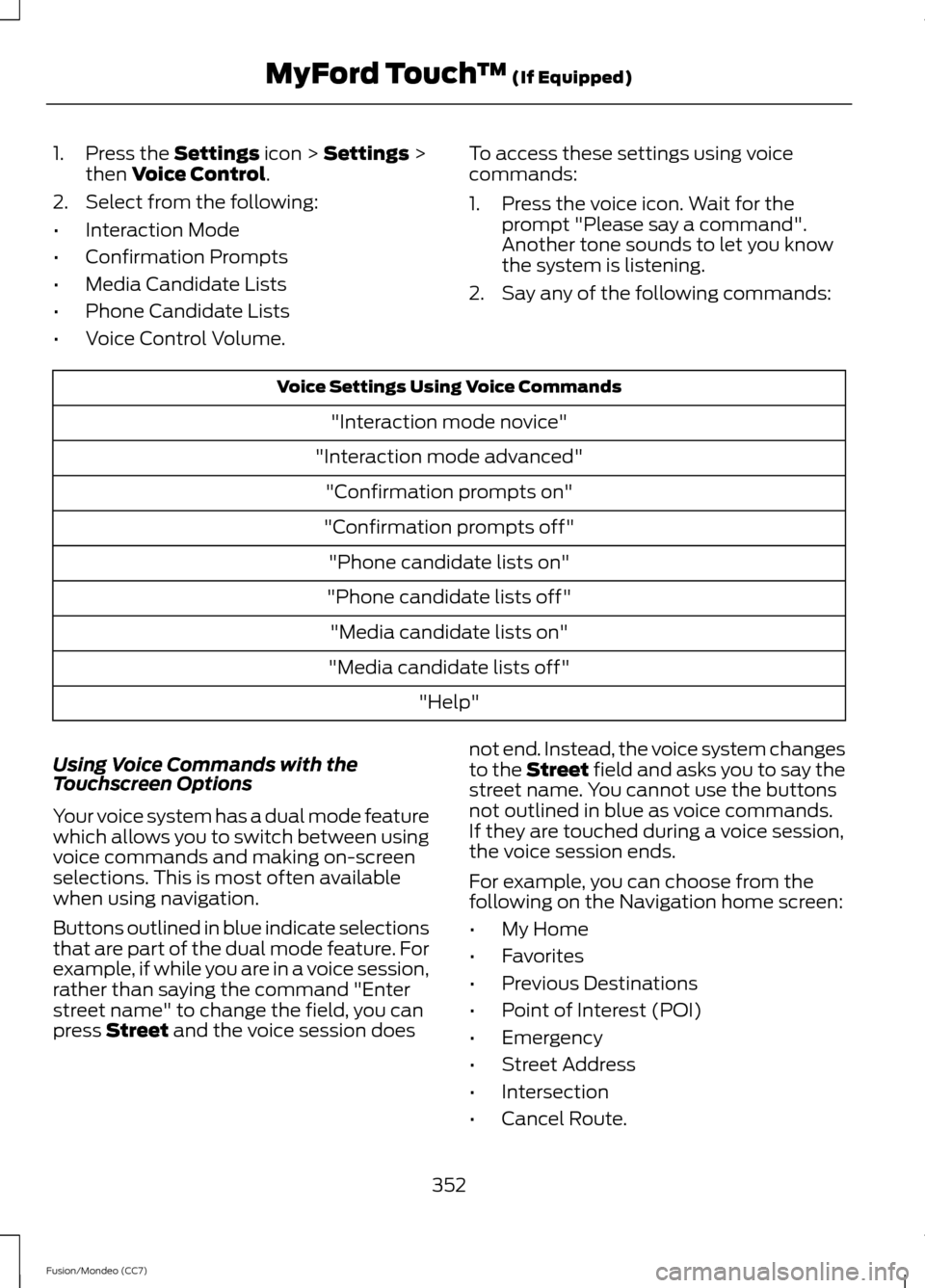
1. Press the Settings icon > Settings >
then Voice Control.
2. Select from the following:
• Interaction Mode
• Confirmation Prompts
• Media Candidate Lists
• Phone Candidate Lists
• Voice Control Volume. To access these settings using voice
commands:
1. Press the voice icon. Wait for the
prompt "Please say a command".
Another tone sounds to let you know
the system is listening.
2. Say any of the following commands: Voice Settings Using Voice Commands
"Interaction mode novice"
"Interaction mode advanced" "Confirmation prompts on"
"Confirmation prompts off" "Phone candidate lists on"
"Phone candidate lists off" "Media candidate lists on"
"Media candidate lists off" "Help"
Using Voice Commands with the
Touchscreen Options
Your voice system has a dual mode feature
which allows you to switch between using
voice commands and making on-screen
selections. This is most often available
when using navigation.
Buttons outlined in blue indicate selections
that are part of the dual mode feature. For
example, if while you are in a voice session,
rather than saying the command "Enter
street name" to change the field, you can
press
Street and the voice session does not end. Instead, the voice system changes
to the
Street field and asks you to say the
street name. You cannot use the buttons
not outlined in blue as voice commands.
If they are touched during a voice session,
the voice session ends.
For example, you can choose from the
following on the Navigation home screen:
• My Home
• Favorites
• Previous Destinations
• Point of Interest (POI)
• Emergency
• Street Address
• Intersection
• Cancel Route.
352
Fusion/Mondeo (CC7) MyFord Touch
™
(If Equipped)
Page 360 of 458
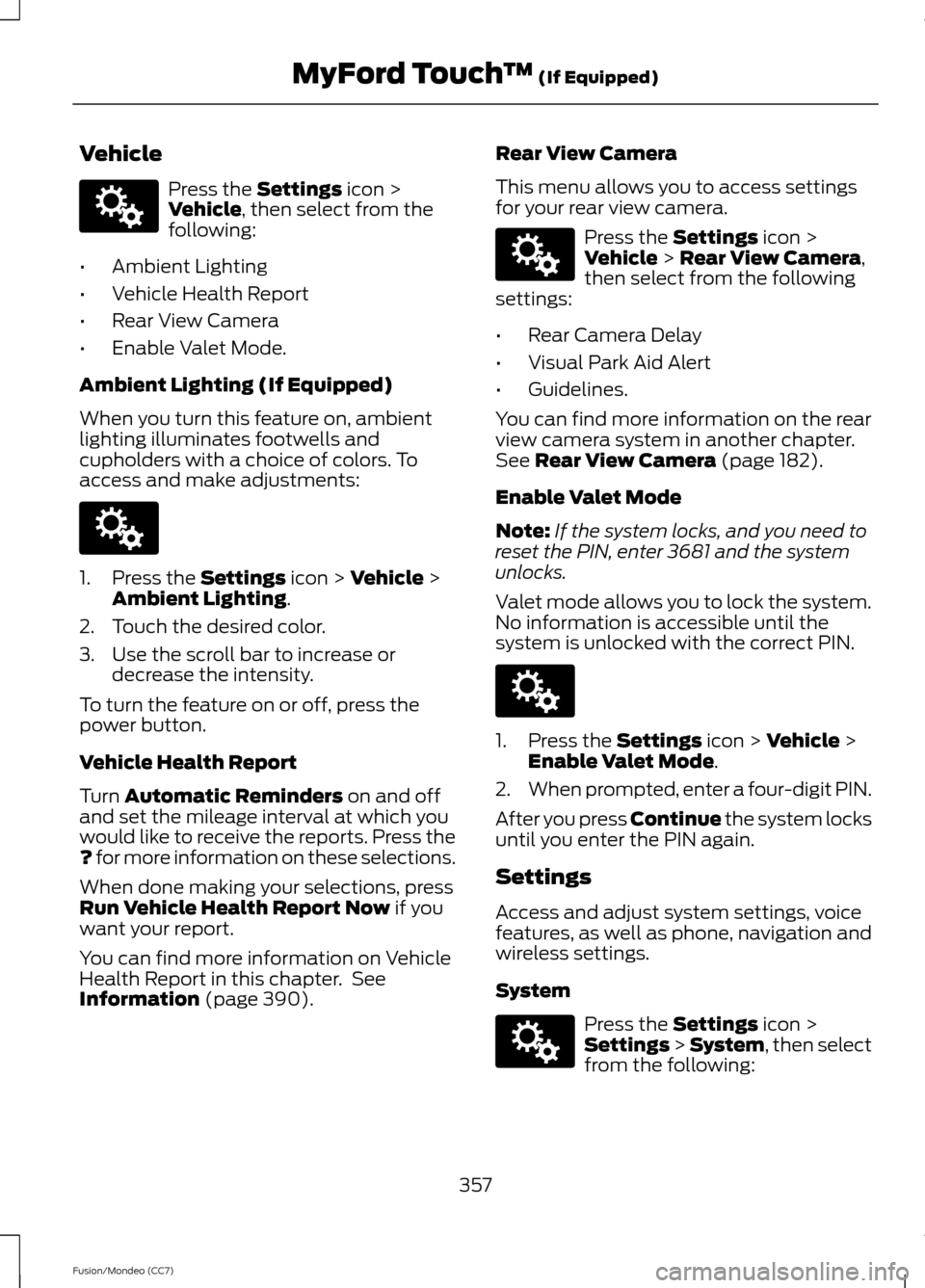
Vehicle
Press the Settings icon >
Vehicle, then select from the
following:
• Ambient Lighting
• Vehicle Health Report
• Rear View Camera
• Enable Valet Mode.
Ambient Lighting (If Equipped)
When you turn this feature on, ambient
lighting illuminates footwells and
cupholders with a choice of colors. To
access and make adjustments: 1. Press the
Settings icon > Vehicle >
Ambient Lighting.
2. Touch the desired color.
3. Use the scroll bar to increase or decrease the intensity.
To turn the feature on or off, press the
power button.
Vehicle Health Report
Turn
Automatic Reminders on and off
and set the mileage interval at which you
would like to receive the reports. Press the
?
for more information on these selections.
When done making your selections, press
Run Vehicle Health Report Now
if you
want your report.
You can find more information on Vehicle
Health Report in this chapter. See
Information
(page 390). Rear View Camera
This menu allows you to access settings
for your rear view camera. Press the
Settings icon >
Vehicle > Rear View Camera,
then select from the following
settings:
• Rear Camera Delay
• Visual Park Aid Alert
• Guidelines.
You can find more information on the rear
view camera system in another chapter.
See
Rear View Camera (page 182).
Enable Valet Mode
Note: If the system locks, and you need to
reset the PIN, enter 3681 and the system
unlocks.
Valet mode allows you to lock the system.
No information is accessible until the
system is unlocked with the correct PIN. 1. Press the
Settings icon > Vehicle >
Enable Valet Mode.
2. When prompted, enter a four-digit PIN.
After you press Continue the system locks
until you enter the PIN again.
Settings
Access and adjust system settings, voice
features, as well as phone, navigation and
wireless settings.
System Press the
Settings icon >
Settings > System, then select
from the following:
357
Fusion/Mondeo (CC7) MyFord Touch
™
(If Equipped)E142607 E142607 E142607 E142607 E142607
Page 362 of 458
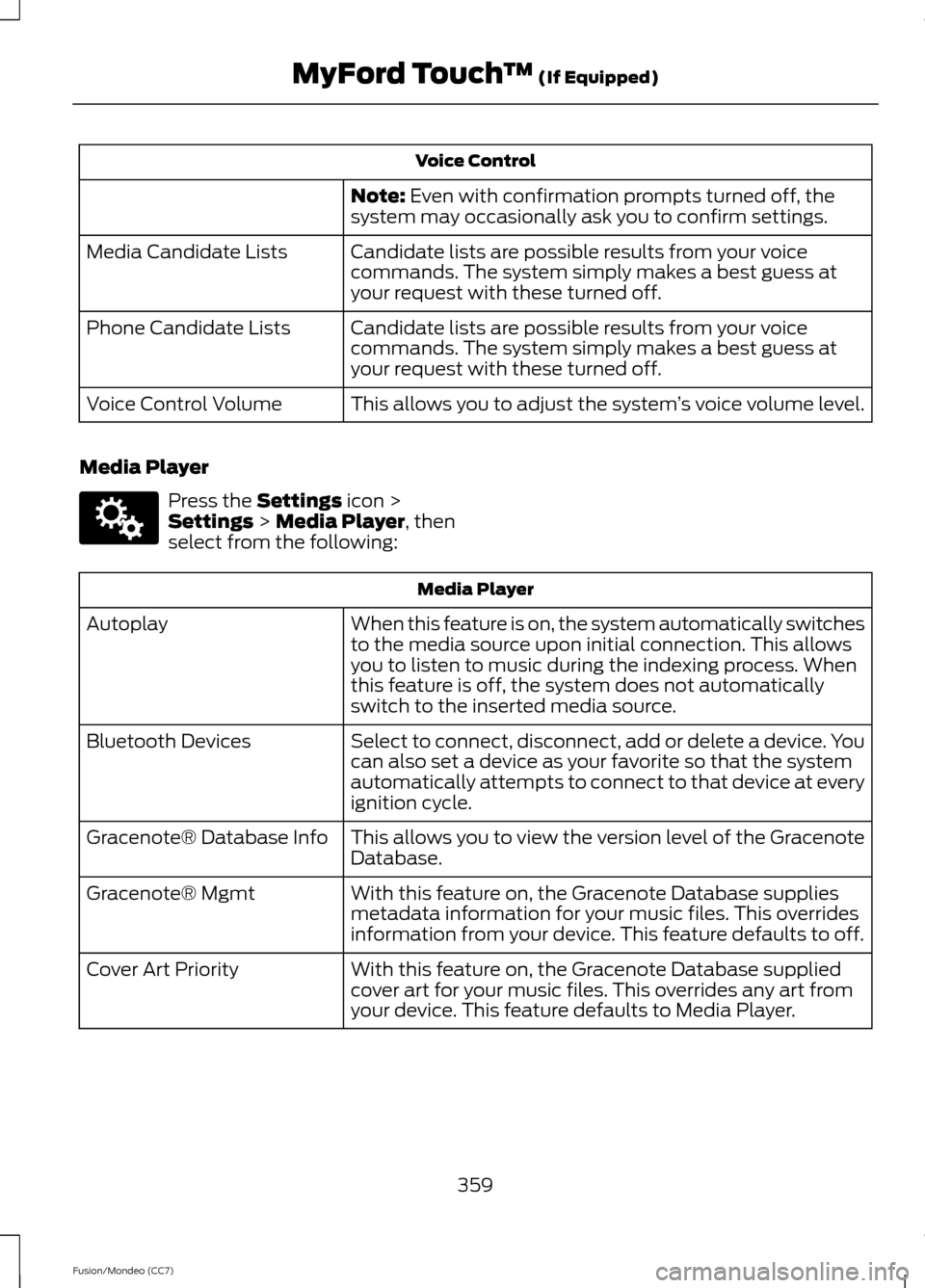
Voice Control
Note: Even with confirmation prompts turned off, the
system may occasionally ask you to confirm settings.
Candidate lists are possible results from your voice
commands. The system simply makes a best guess at
your request with these turned off.
Media Candidate Lists
Candidate lists are possible results from your voice
commands. The system simply makes a best guess at
your request with these turned off.
Phone Candidate Lists
This allows you to adjust the system ’s voice volume level.
Voice Control Volume
Media Player Press the
Settings icon >
Settings > Media Player, then
select from the following: Media Player
When this feature is on, the system automatically switches
to the media source upon initial connection. This allows
you to listen to music during the indexing process. When
this feature is off, the system does not automatically
switch to the inserted media source.
Autoplay
Select to connect, disconnect, add or delete a device. You
can also set a device as your favorite so that the system
automatically attempts to connect to that device at every
ignition cycle.
Bluetooth Devices
This allows you to view the version level of the Gracenote
Database.
Gracenote® Database Info
With this feature on, the Gracenote Database supplies
metadata information for your music files. This overrides
information from your device. This feature defaults to off.
Gracenote® Mgmt
With this feature on, the Gracenote Database supplied
cover art for your music files. This overrides any art from
your device. This feature defaults to Media Player.
Cover Art Priority
359
Fusion/Mondeo (CC7) MyFord Touch
™
(If Equipped)E142607
Page 364 of 458
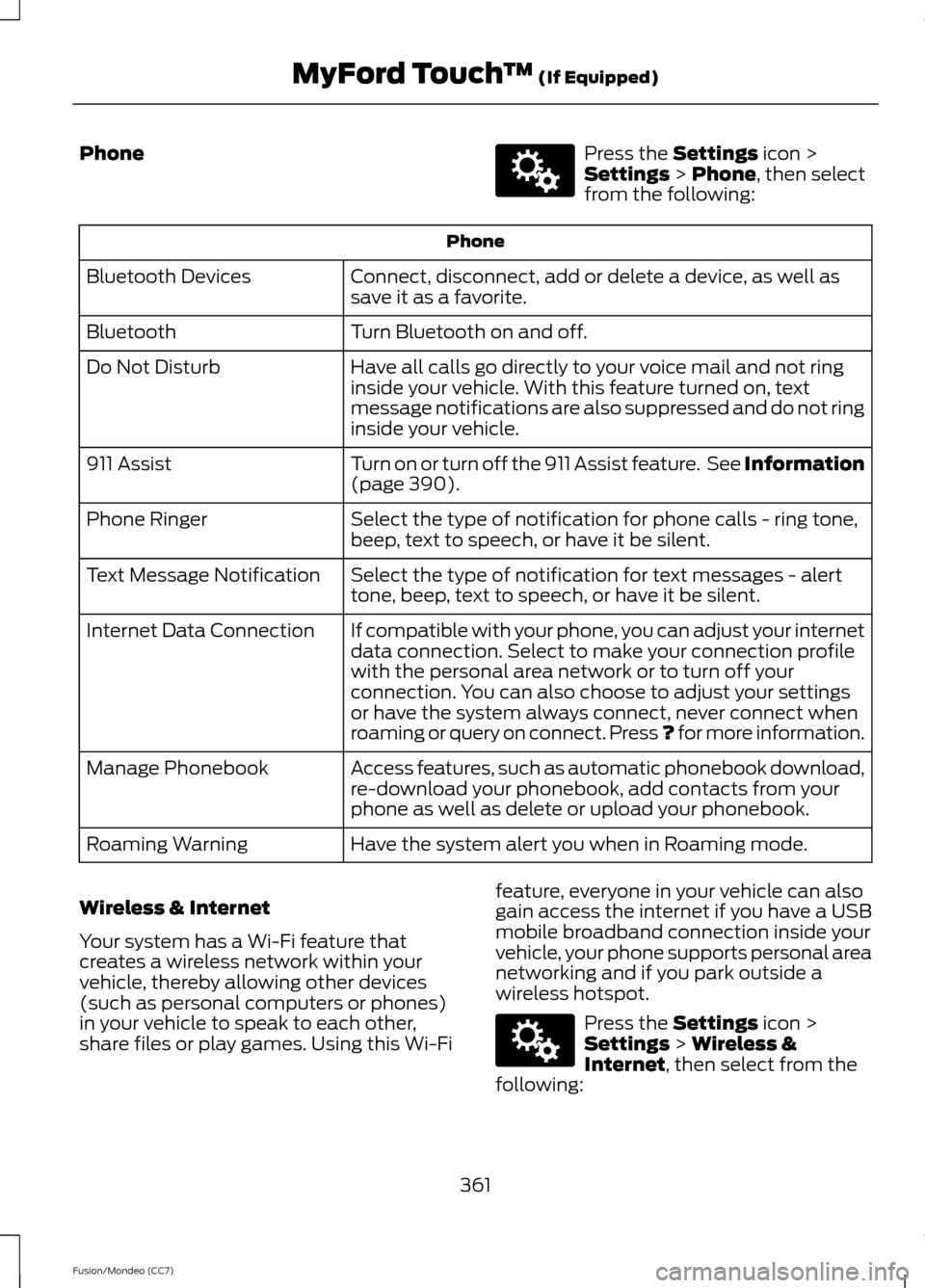
Phone Press the Settings icon >
Settings > Phone, then select
from the following: Phone
Connect, disconnect, add or delete a device, as well as
save it as a favorite.
Bluetooth Devices
Turn Bluetooth on and off.
Bluetooth
Have all calls go directly to your voice mail and not ring
inside your vehicle. With this feature turned on, text
message notifications are also suppressed and do not ring
inside your vehicle.
Do Not Disturb
Turn on or turn off the 911 Assist feature. See Information
(page
390).
911 Assist
Select the type of notification for phone calls - ring tone,
beep, text to speech, or have it be silent.
Phone Ringer
Select the type of notification for text messages - alert
tone, beep, text to speech, or have it be silent.
Text Message Notification
If compatible with your phone, you can adjust your internet
data connection. Select to make your connection profile
with the personal area network or to turn off your
connection. You can also choose to adjust your settings
or have the system always connect, never connect when
roaming or query on connect. Press ? for more information.
Internet Data Connection
Access features, such as automatic phonebook download,
re-download your phonebook, add contacts from your
phone as well as delete or upload your phonebook.
Manage Phonebook
Have the system alert you when in Roaming mode.
Roaming Warning
Wireless & Internet
Your system has a Wi-Fi feature that
creates a wireless network within your
vehicle, thereby allowing other devices
(such as personal computers or phones)
in your vehicle to speak to each other,
share files or play games. Using this Wi-Fi feature, everyone in your vehicle can also
gain access the internet if you have a USB
mobile broadband connection inside your
vehicle, your phone supports personal area
networking and if you park outside a
wireless hotspot. Press the
Settings icon >
Settings > Wireless &
Internet, then select from the
following:
361
Fusion/Mondeo (CC7) MyFord Touch
™
(If Equipped)E142607 E142607
Page 365 of 458
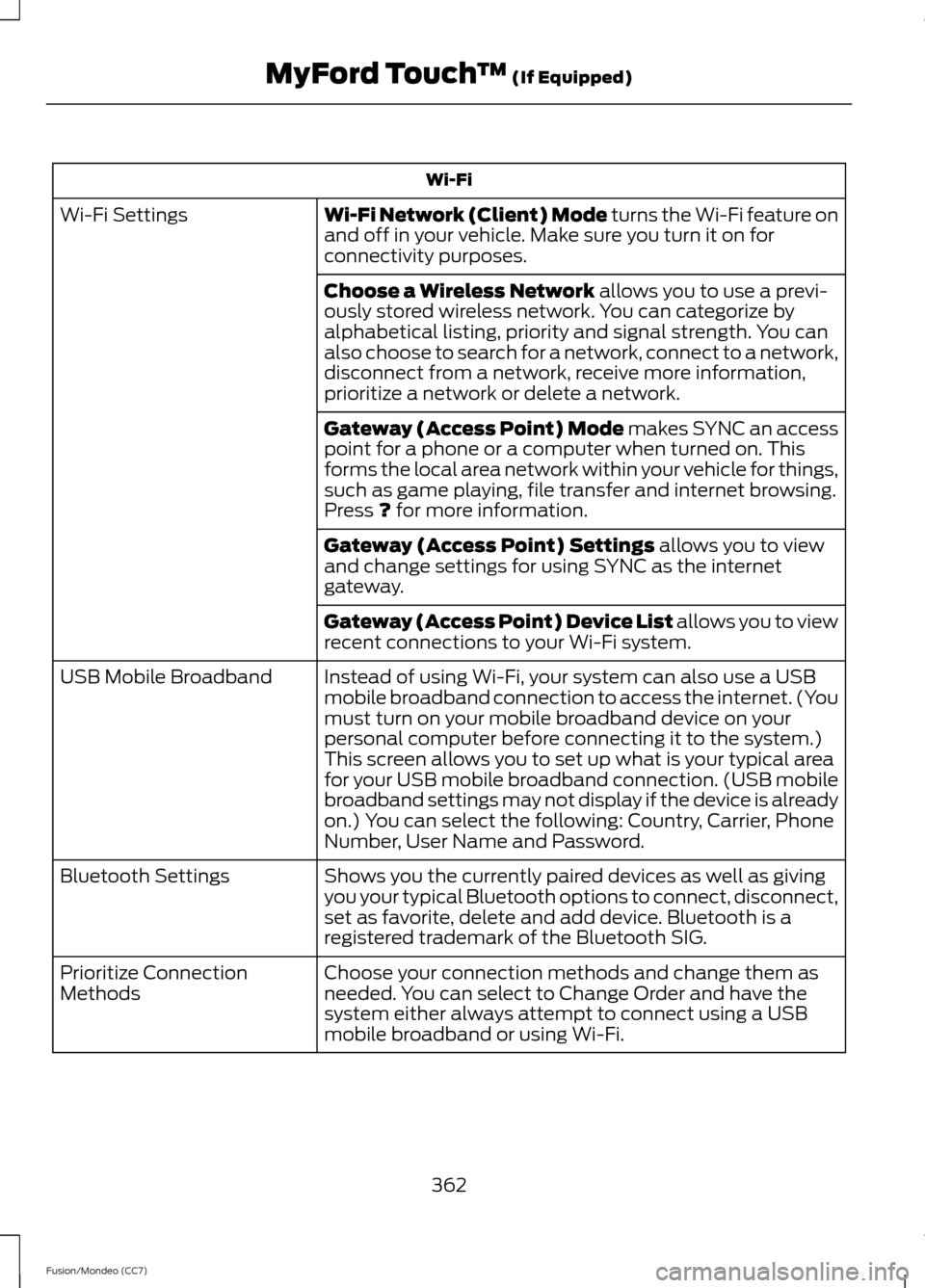
Wi-Fi
Wi-Fi Network (Client) Mode turns the Wi-Fi feature on
and off in your vehicle. Make sure you turn it on for
connectivity purposes.
Wi-Fi Settings
Choose a Wireless Network
allows you to use a previ-
ously stored wireless network. You can categorize by
alphabetical listing, priority and signal strength. You can
also choose to search for a network, connect to a network,
disconnect from a network, receive more information,
prioritize a network or delete a network.
Gateway (Access Point) Mode makes SYNC an access
point for a phone or a computer when turned on. This
forms the local area network within your vehicle for things,
such as game playing, file transfer and internet browsing.
Press
? for more information.
Gateway (Access Point) Settings
allows you to view
and change settings for using SYNC as the internet
gateway.
Gateway (Access Point) Device List allows you to view
recent connections to your Wi-Fi system.
Instead of using Wi-Fi, your system can also use a USB
mobile broadband connection to access the internet. (You
must turn on your mobile broadband device on your
personal computer before connecting it to the system.)
This screen allows you to set up what is your typical area
for your USB mobile broadband connection. (USB mobile
broadband settings may not display if the device is already
on.) You can select the following: Country, Carrier, Phone
Number, User Name and Password.
USB Mobile Broadband
Shows you the currently paired devices as well as giving
you your typical Bluetooth options to connect, disconnect,
set as favorite, delete and add device. Bluetooth is a
registered trademark of the Bluetooth SIG.
Bluetooth Settings
Choose your connection methods and change them as
needed. You can select to Change Order and have the
system either always attempt to connect using a USB
mobile broadband or using Wi-Fi.
Prioritize Connection
Methods
362
Fusion/Mondeo (CC7) MyFord Touch
™
(If Equipped)