charging FORD FUSION HYBRID 2014 User Guide
[x] Cancel search | Manufacturer: FORD, Model Year: 2014, Model line: FUSION HYBRID, Model: FORD FUSION HYBRID 2014Pages: 473, PDF Size: 5.93 MB
Page 170 of 473
Grade assist:
• Provides additional grade braking with
a combination of engine motoring and
high-voltage battery charging to help
maintain vehicle speed when
descending a grade.
• As the vehicle determines the amount
of engine motoring and high-voltage
battery charging, you may notice the
engine speed increasing and
decreasing to help maintain your
vehicle speed when descending a
grade.
• The grade assist lamp in the instrument
cluster is illuminated. E144523
The grade assist lamp will
appear in the instrument cluster
when grade assist is turned on.
Press the transmission control switch
again to return to normal D (Drive).
L (Low)
• Provides maximum engine braking.
• The transmission may be shifted into
L (Low) at any vehicle speed.
Brake-Shift Interlock WARNINGS
Do not drive your vehicle until you
verify that the brake lamps are
working.
When doing this procedure, you will
be taking the vehicle out of park
which means the vehicle can roll
freely. To avoid unwanted vehicle
movement, always fully set the parking
brake prior to doing this procedure. Use
wheel chocks if appropriate.
If the parking brake is fully released,
but the brake warning lamp remains
illuminated, the brakes may not be
working properly. See your authorized
dealer. Note: See your authorized dealer as soon
as possible if this procedure is used.
Note: For some markets this feature will be
disabled.
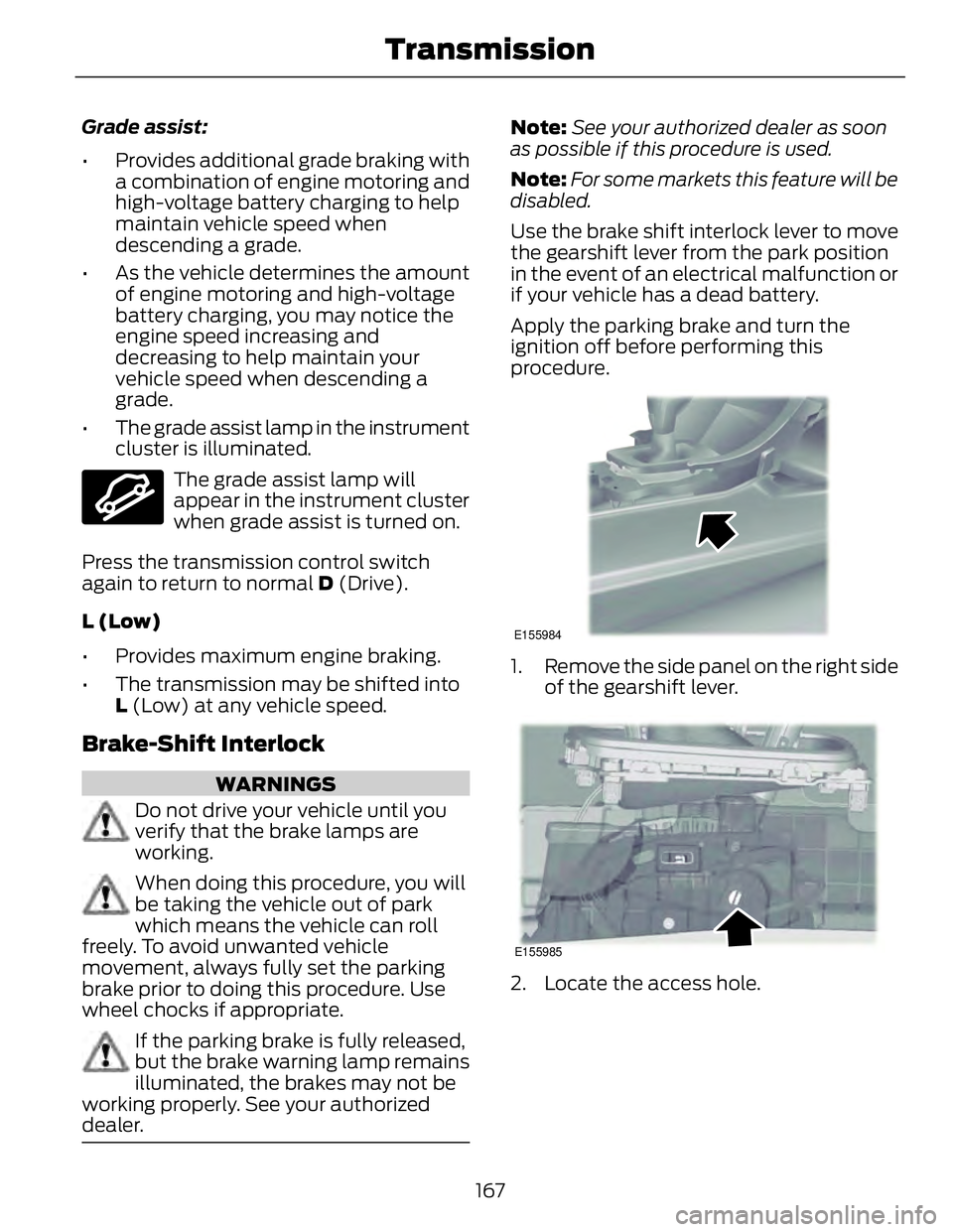
Use the brake shift interlock lever to move
the gearshift lever from the park position
in the event of an electrical malfunction or
if your vehicle has a dead battery.
Apply the parking brake and turn the
ignition off before performing this
procedure. E155984
1. Remove the side panel on the right side
of the gearshift lever.
E155985
2. Locate the access hole.
167Transmission
Page 173 of 473
When you release the accelerator pedal or
press the brake pedal, the brake controller
automatically detects the amount of
deceleration requested and optimizes how
much of the deceleration will be produced
by regenerative braking. The remaining
portion is generated by standard friction
braking. When the battery is almost fully
charged, the amount of regenerative
braking is limited to avoid overcharging,
and the requested deceleration is
produced by standard friction braking
alone.
Regenerative braking does not take the
place of the standard friction brakes; it only
assists them. Regenerative braking has
also been designed to interact with the
anti-lock brake system. Regenerative
braking is disabled when the anti-lock
brake system is activated or the battery is
fully charged.
HINTS ON DRIVING WITH
ANTI-LOCK BRAKES Note: When the system is operating, the
brake pedal will pulse and may travel
further. Maintain pressure on the brake
pedal. You may also hear a noise from the
system. This is normal.
The anti-lock braking system will not
eliminate the risks when:
• you drive too closely to the vehicle in
front of you
• your vehicle is hydroplaning
• you take corners too fast
• the road surface is poor.
ELECTRIC PARKING BRAKE The electric parking brake replaces the
conventional handbrake. The operating
switch is located in the center console. WARNING
Always set the parking brake and
leave your vehicle with the
transmission selector lever in
position P.
Note: When you apply the electric parking
brake in certain conditions, for example, on
a steep hill, the electric parking brake may
reapply the brakes within three to ten
minutes.
Note: You may notice various noises when
you apply and release the electric parking
brake. This is normal and no cause for
concern.
Applying the electric parking brake WARNING
If the brake system warning lamp
does not illuminate or flashes, there
could be a problem with your electric
parking brake. Have the system checked
by an authorized dealer as soon as
possible.
Note: The brake system warning lamp will
illuminate for ten seconds, if the ignition is
turned off after the electric parking brake
has been applied, or the electric parking
brake has been applied after the ignition has
been turned off.
Note: The electric parking brake will not
automatically apply. You must apply the
electric parking brake using the electric
parking brake switch.
170Brakes
Page 206 of 473
If it is, a red warning light illuminates and
an audible warning chime sounds.
The brake support system assists the driver
in reducing the collision speed by charging
the brakes. If the risk of collision further
increases after the warning light
illuminates, the brake support prepares
the brake system for rapid braking. This
may be apparent to the driver. The system
does not automatically activate the brakes
but, if the brake pedal is pressed, full force
braking is applied even if the brake pedal
is lightly pressed.
Using the Collision Warning System
WARNING
The collision warning system’s brake
support can only help reduce the
speed at which a collision occurs if
the driver applies the vehicle’s brakes. The
brake pedal must be pressed just like any
typical braking situation.
The warning system sensitivity can be
adjusted to one of three possible settings
by using the information display control.
See General Information (page 86).
Note: If the system cannot be turned off in
a vehicle equipped with MyKey®, See
Principle of Operation (page 50). Note: If collision warnings are perceived as
being too frequent or disturbing then the
warning sensitivity can be reduced, though
the manufacturer recommends using the
highest sensitivity setting where possible.
Setting lower sensitivity would lead to fewer
and later system warnings. See General
Information (page 86).
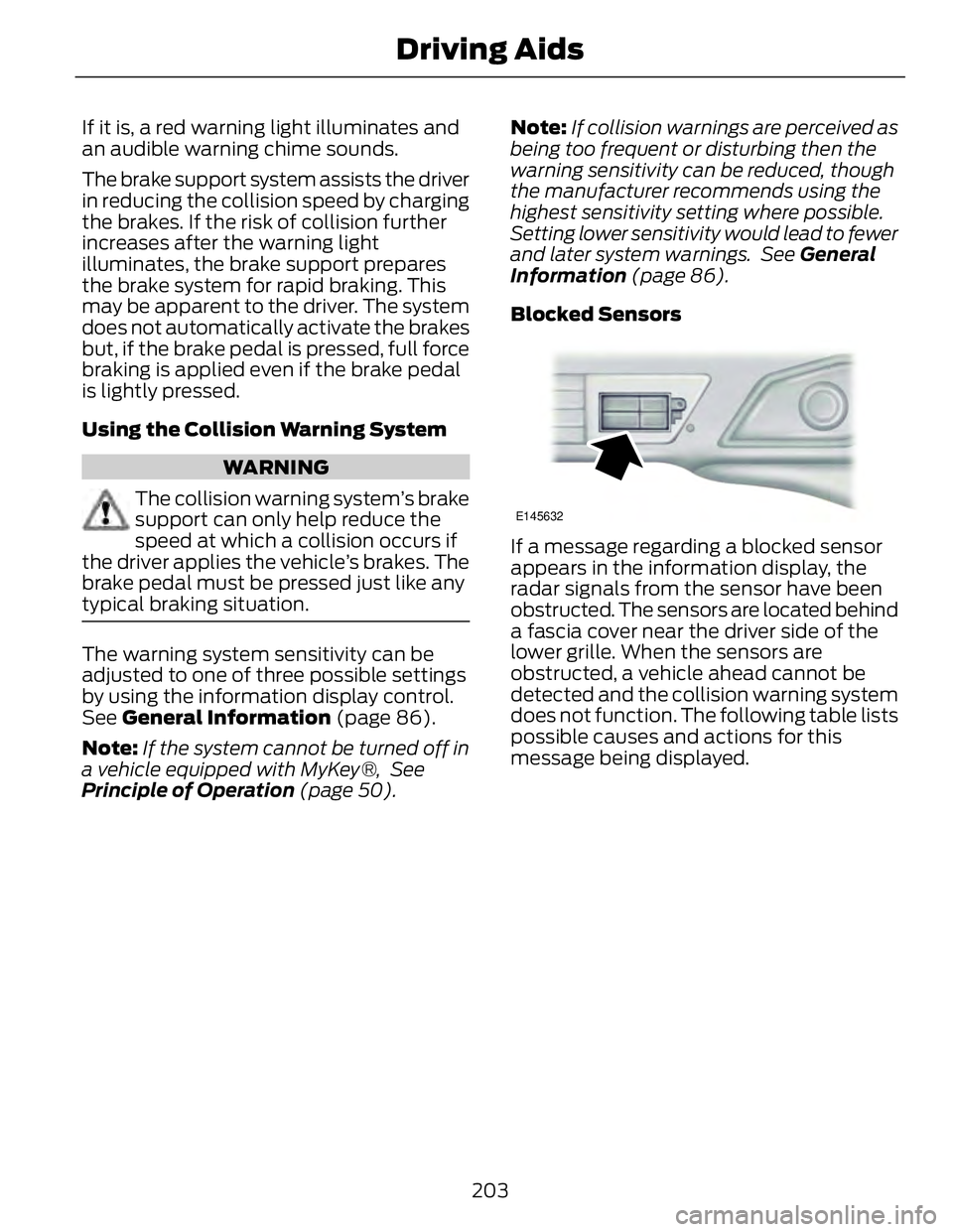
Blocked Sensors E145632
If a message regarding a blocked sensor
appears in the information display, the
radar signals from the sensor have been
obstructed. The sensors are located behind
a fascia cover near the driver side of the
lower grille. When the sensors are
obstructed, a vehicle ahead cannot be
detected and the collision warning system
does not function. The following table lists
possible causes and actions for this
message being displayed.
203Driving Aids
Page 268 of 473
VEHICLE STORAGE If you plan on storing your vehicle for an
extended period of time (30 days or more),
read the following maintenance
recommendations to make sure your
vehicle stays in good operating condition.
All motor vehicles and their components
were engineered and tested for reliable,
regular driving. Long term storage under
various conditions may lead to component
degradation or failure unless specific
precautions are taken to preserve the
components.
General • Store all vehicles in a dry, ventilated
place.
• Protect from sunlight, if possible.
• If vehicles are stored outside, they
require regular maintenance to protect
against rust and damage.
Body • Wash your vehicle thoroughly to
remove dirt, grease, oil, tar or mud from
exterior surfaces, rear-wheel housing
and underside of front fenders.
• Periodically wash your vehicle stored
in exposed locations.
• Touch-up exposed or primed metal to
prevent rust.
• Cover chrome and stainless steel parts
with a thick coat of auto wax to prevent
discoloration. Re-wax as necessary
when your vehicle is washed.
• Lubricate all hood, door and trunk lid
hinges, and latches with a light grade
oil.
• Cover interior trim to prevent fading.
• Keep all rubber parts free from oil and
solvents. Engine • The engine oil and filter should be
changed prior to storage, as used
engine oil contain contaminates that
may cause engine damage.
• Start the engine every 15 days. Run at
fast idle until it reaches normal
operating temperature
• With your foot on the brake, shift
through all the gears while the engine
is running.
Fuel system • Fill the fuel tank with high-quality fuel
until the first automatic shutoff of the
fuel pump nozzle.
Note: During extended periods of vehicle
storage (30 days or more), fuel may
deteriorate due to oxidation. Add a quality
gas stabilizer product to your vehicle's fuel
system whenever actual or expected
storage periods exceed 30 days. Follow the
instructions on the additive label. your
vehicle should then be operated at idle
speed to circulate the additive throughout
the fuel system.
Cooling system • Protect against freezing temperatures.
• When removing your vehicle from
storage, check coolant fluid level.
Confirm there are no cooling system
leaks, and fluid is at the recommended
level.
Battery
• Check and recharge as necessary. Keep
connections clean.
• If storing your vehicle for more than 30
days without recharging the battery, it
may be advisable to disconnect the
battery cables to ensure battery charge
is maintained for quick starting.
265Vehicle Care
Page 370 of 473
You can find more information on the rear
view camera in another chapter. See Rear
View Camera (page 181).
Enable Valet Mode
Note: If the system locks, and you need to
reset the PIN, enter 3681 and the system
unlocks.
Valet mode allows you to lock the system.
No information is accessible until the
system is unlocked with the correct PIN. E142607
1. Press the Settings icon > Vehicle >
Enable Valet Mode .
2. When prompted, enter a four-digit PIN.
After you press Continue , the system locks
until you enter the PIN again.
Charge Point Light Ring E142607
Press the Settings icon >
Vehicle > Charge Point Light
Ring , then select from the
following:
Charge point light ring
Illuminates when plugging in, opening doors, pressing the
unlock button on your remote, and while charging.On
Does not illuminate.Off
Cord Acknowledgement: Illuminates when plugging in.Limited
Charge Status: Illuminates when opening doors or
pressing the unlock button on your remote.
Note: Details on the charge port light ring
functions are in another chapter. See High
Voltage Battery (page 160).
Settings Access and adjust system settings, voice
features, as well as phone, navigation and
wireless settings. System E142607
Press the Settings icon >
Settings > System , then select
from the following:
System
Select to have the touchscreen display in English, Spanish
or French.Language
Select to display units in kilometers or miles.Distance
Select to display units in Celsius or Fahrenheit.Temperature
Adjust the volume of voice prompts from the system.System Prompt Volume
367MyFord Touch™ (If Equipped)
Page 400 of 473
"PHONE"
"Unmute call" *
"Help"*
This command is only available during an
active call. **
If you say "Messages", see the following
"Messages" chart for additional
commands. "MESSAGES"
"Call"
"Forward text messages"
"Listen to text message <#>" "MESSAGES"
"Listen to text messages"
"Reply to text messages"
"Help"
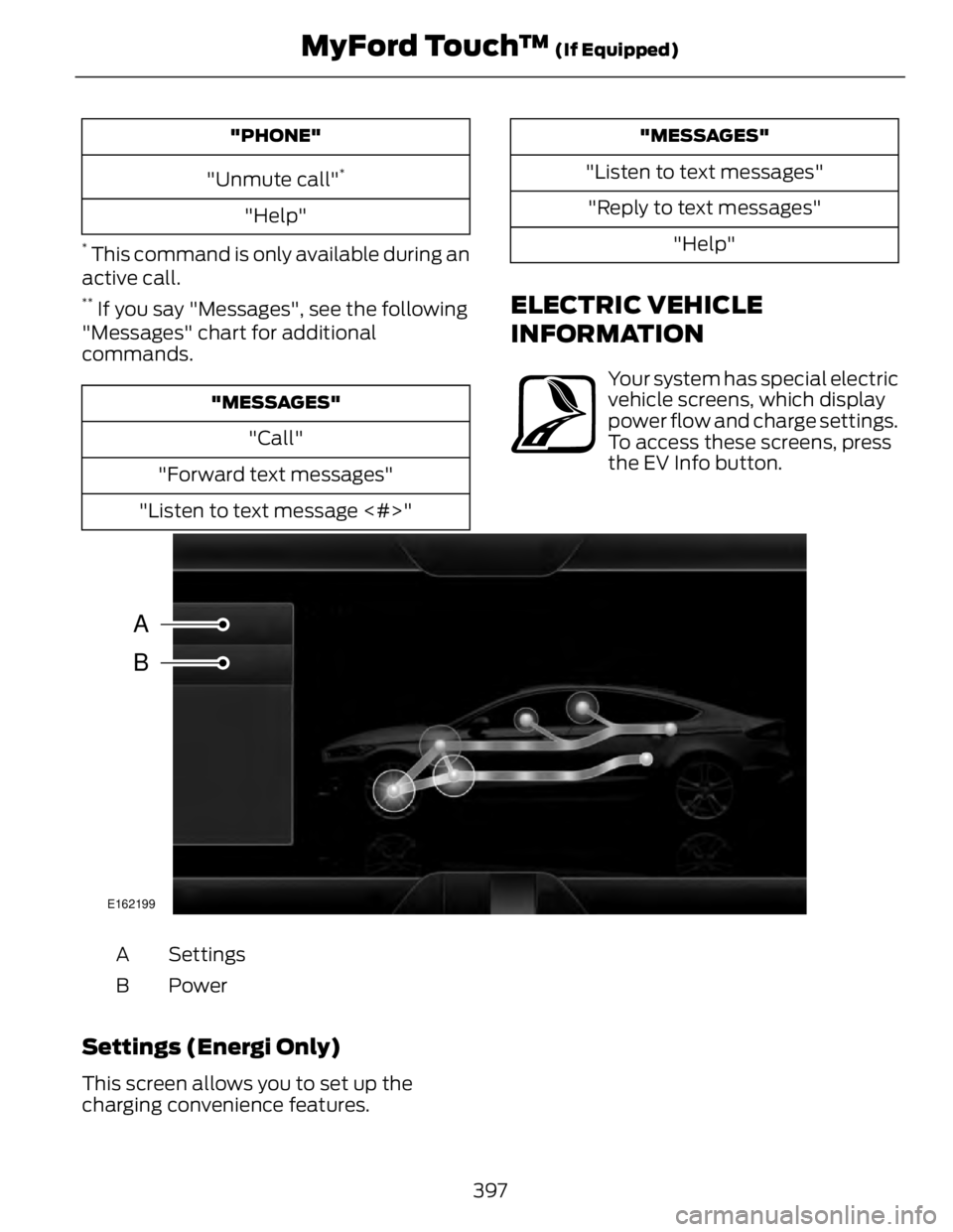
ELECTRIC VEHICLE
INFORMATION E161716
Your system has special electric
vehicle screens, which display
power flow and charge settings.
To access these screens, press
the EV Info button.
E162199
A
B
SettingsA
PowerB
Settings (Energi Only)
This screen allows you to set up the
charging convenience features.
397MyFord Touch™ (If Equipped)
Page 401 of 473
Note: You can also set up the charging
convenience features using MyFord Mobile
over the internet or smartphone application.
For more information on MyFord Mobile, and
to set up your MyFord Mobile account, visit
www.myfordmobile.com.
To improve the charging experience, your
vehicle has the following convenience
features:
• Value Charge: Your vehicle schedules
its charging time for when the utility
rates are lowest. Contact your utility
company to see what rates are
available.
• Charge Now: Your vehicle starts
charging immediately after you
connect the charging plug.
• GO Time: Setting GO Times allows you
to control charging schedules and
cabin conditioning settings so your
vehicle is ready to drive when you are.
By setting a GO Time, your vehicle can
use your value charge settings to
minimize your electricity costs but still
prioritize getting a full charge before
your GO Time. A calendar view allows
you to program two GO Times per day
for each day of the week. Note: Remember, you must plug in your
vehicle for My GO Time to work.
• Cabin Conditioning: Get the most
miles out of every charge by
conditioning your vehicle while it is
plugged in. Set the cabin temperature
when you set your GO Time in order to
use energy from your home (or
charging station) instead of from your
vehicle’s battery.
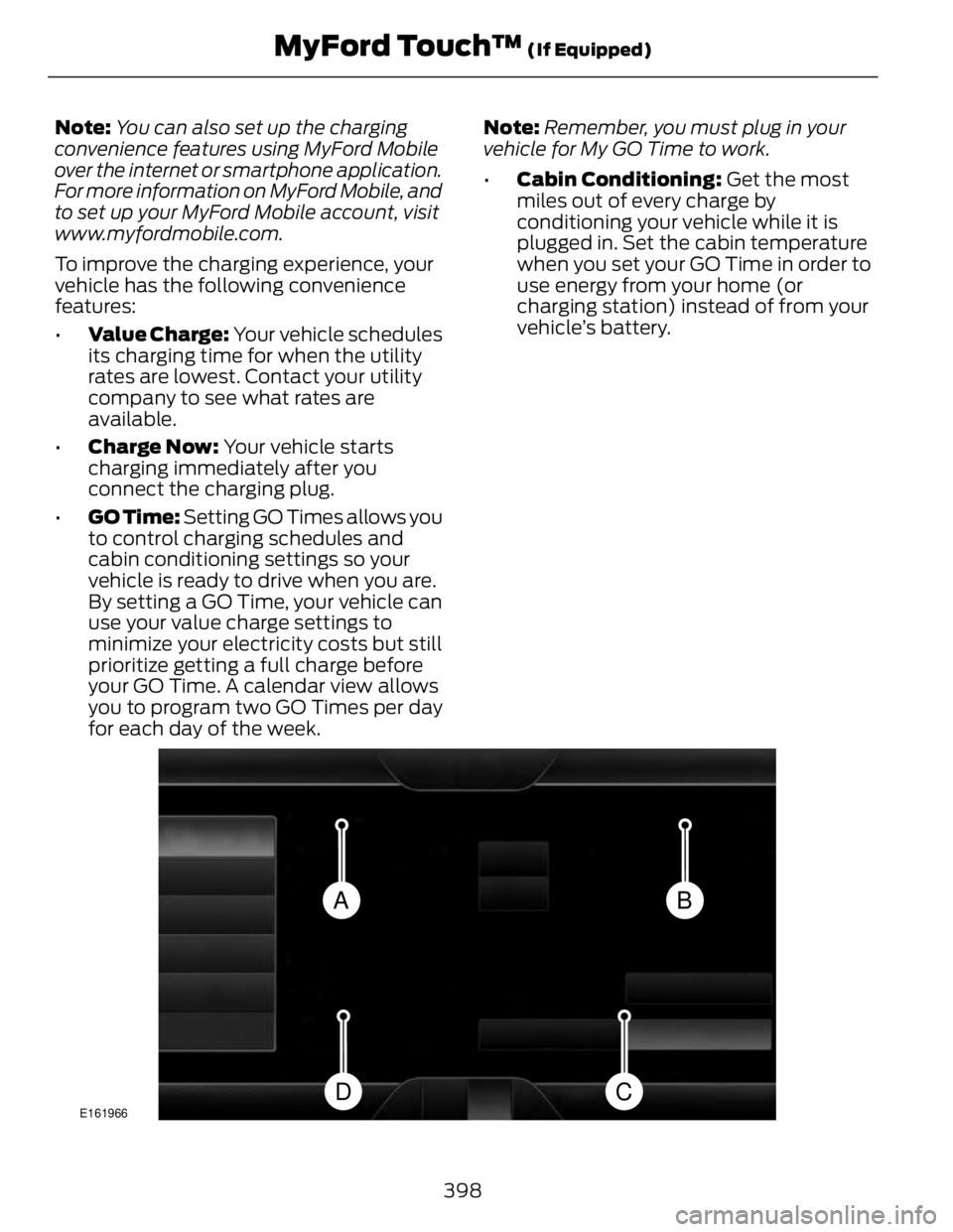
BA
CDE161966
398MyFord Touch™ (If Equipped)
Page 402 of 473
My GO Time summary displays the next GO Time and cabin temperature
setting.A
Estimated charge time limits displays the estimated minimum and maximum
times to fully charge the high-voltage battery and the battery’s present state
of charge as a percentage of total capacity.B
Charge profile and mode displays the charging profile and charging mode for
the vehicle's present location.C
Charging status and actual times displays charging status with the charging
start time, end time, and duration.D
My GO Time Summary
GO Time
This is the time and date of your next set
drive time. Your vehicle automatically
schedules charging and cabin conditioning
to finish by this time.
Temperature
This is the chosen cabin conditioning
setting for this GO Time.
Skip
This cancels the cabin conditioning for the
present GO Time. Once you touch Skip, the
GO Time and Temperature grey out, and
the LED illuminates on the Skip button.
Touch the button again to turn on the
cabin conditioning. This feature allows you
to ignore the present GO Time without
having to delete it or having to turn off the
entire schedule (see GO Time Schedule
later in this section). After the present GO
Time passes, the Skip feature resets.
Edit
This accesses your GO Time Schedule (see
GO Time Schedule later in this section). The system also alerts you to any conflicts
by highlighting areas of the screen in
yellow. If your battery cannot have a full
charge by the scheduled drive time, the
system highlights your next GO Time and
Charge Complete time and a message
Charge at GO Time: under 100%
appears. This is normal; the vehicle is
informing you of the conflicting situation.
This notification only displays when the
gearshift selector lever is in position P .
Note: Charging occurs as soon as you plug
the vehicle in. The system limits cabin
conditioning to 15 minutes before your GO
Time.
To eliminate the conflict notification
immediately or to prevent a conflict in the
future, try the following:
• Change the present GO Time to occur
later.
• Plug the vehicle into a 240V charging
station instead of the 120V
convenience cord. Higher power
charging yields shorter charge times.
• Plug the vehicle in sooner.
Estimated Charge Time Limits
Battery
This shows you the battery's current
charge displayed as a percentage. A
reading of 100% means the battery has a
full charge. A reading of 0% indicates the
battery has no plug-in energy left.
399MyFord Touch™ (If Equipped)
Page 403 of 473
To fully charge
240V is the estimated minimum charging
time from the present high-voltage battery
level to full charge (100%). This represents
the shortest amount of time you should
expect the high-voltage battery to
recharge under ideal conditions. Ideal
conditions include a 240V charging station
and a minimum 30A service and
high-voltage battery at a moderate
temperature.
Note: This charging time is only an
estimate. It is normal for your actual charge
duration to be longer.
Note: Some charging stations use lower
voltage (208V), which result in longer
charge times.
120V is the estimated maximum charging
time from the present high-voltage battery
level to full charge (100%). This represents
the longest amount of time you should
expect the high-voltage battery to
recharge under normal conditions. Normal
conditions include a 120V convenience
cord and 12A service.
Note: This charging time is only an
estimate. It is possible for your actual charge
duration to be longer. This occurs when the
AC line voltage is low and may indicate your
electrical source is not meeting certain
requirements. See Charging the High
Voltage Battery (page 161).
Value Charge Profile and Mode
Value Charge Profile Name
This is the name of the presently detected
Value Charge Profile. The system detects
a customer defined value charge profile
when the vehicle is within approximately
300 feet (100 meters) of the GPS location
registered for the profile. If the vehicle is
close to more than one charge profile, it chooses the closest. When the vehicle is
not at a defined profile, it uses the Default
Va l u e charge profile. The system normally
displays Default Profile while you are
driving because the vehicle is typically
between defined value charge profiles.
Edit
Touch this button to access your Value
Charge profiles settings screen (see Va l u e
Charge Profiles later in this section).
Charge Now
Touch this button if you want your vehicle
to immediately charge when plugged in at
this profile location. This button illuminates
when Charge Now is the charge mode
selected for the presently detected charge
profile.
Value Charge
Touch this button if you want to take
advantage of off-peak electricity rates. The
vehicle optimizes the charge schedule to
be complete by the next GO Time. This
button illuminates when Value Charge is
the charge mode selected for the presently
detected charge profile.
Charging Status and Actual Times
This is the status of the charging system,
which includes the charging plug,
high-voltage battery and charger.
Next Charge
This means the vehicle is unplugged.
Charge Start and Complete information is
for the present vehicle location.
Waiting to Charge
This means you plugged the vehicle in and
it is ready to charge. Typical of Value
Charge mode, the vehicle may not start
charging right away because it is set to
charge at times with lower utility costs.
400MyFord Touch™ (If Equipped)
Page 404 of 473
Charging
This means the high-voltage battery is
charging.
Charged
This informs you that the high-voltage
battery is fully charged and not currently
scheduled for further charging.
Charge Fault
This alerts you that a fault is present and
is preventing the high-voltage battery from
charging. Inspect the charge plug
connection, charge cord and charging
station.
Start
This is the scheduled start time of charging.
• At Plug In: When the vehicle is in
Charge Now mode, and unplugged, the
message At Plug In appears, indicating
the vehicle immediately starts charging
once you plug it in. Once you plug it in,
the system shows the actual charge
start time.
• Scheduled Charge Start Time: When
the vehicle is in Value Charge mode,
the system displays the scheduled
charge start time (for example, 8:00
PM). Once charging starts, the system
continues to display the actual charge
start time. Complete
This is the estimated time of charge
completion.
• Charge Now Duration: When the
vehicle is in Charge Now mode, and
unplugged, the system displays the
charging duration in hours. Once you
plug in the vehicle, the value shows the
estimated time to finish charging.
• Scheduled Charge Complete Time:
When the vehicle is in Value Charge
mode, the system displays the
estimated charge complete time. It is
normal for the estimated complete
time to change while charging. The
vehicle keeps charging until the
high-voltage battery is fully charged.
GO Time Schedule
Touch the Edit button in the My GO Time
section of the Settings screen to see the
GO Time Schedule.
On
This turns on the GO Time schedule.
Off
This turns off the GO Time schedule. This
also turns off the cabin conditioning
function. Use this mode to prevent using
energy for cabin preconditioning when you
leave your vehicle plugged in and don't
plan to use it for a while, such as when on
vacation.
Note: If you choose to perform Value
Charging with the schedule off, the vehicle
schedules charging to finish at the lowest
cost within 24 hours of plugging the vehicle
in.
401MyFord Touch™ (If Equipped)