ignition FORD FUSION HYBRID 2017 Manual PDF
[x] Cancel search | Manufacturer: FORD, Model Year: 2017, Model line: FUSION HYBRID, Model: FORD FUSION HYBRID 2017Pages: 516, PDF Size: 7.53 MB
Page 337 of 516
1. Make sure to switch on your phone'sBluetooth feature before starting thesearch. See your device's manual ifnecessary.
2. Press the PHONE button. When theaudio display indicates there is nopaired phone, select the option to add.
3. When a message to begin pairingappears in the audio display, search forSYNC on your phone to start the pairingprocess.
4. When prompted on your cell phone’sdisplay, confirm that the PIN providedby SYNC matches the PIN displayedon your cell phone. Your phone is nowpaired and the display indicates thatthe pairing was successful. If you areprompted to enter a PIN on your device,enter the PIN displayed on the screen.The display indicates when the pairingis successful.
Depending on your phone's capability andyour market, the system may prompt youwith questions, such as setting the currentphone as the primary phone (the phoneSYNC automatically tries to connect withfirst upon vehicle start-up) anddownloading your phonebook.
Using Voice Commands
Make sure to switch on yourphone's Bluetooth featurebefore starting the search. Seeyour device's manual if necessary.
Press the voice and when promptedsay:
Action and Descrip-tionVoice Command
Follow the instruc-tions on the audiodisplay.
(pair ([Bluetooth]device | phone |Bluetooth audio) |add phone)
You can say any of the voice commandsthat appear within open and close bracketsthat are separated by |. For example,where; (what's | what is) appears you say;what's or what is.
The commands that have [ ] around theword means that the word is optional.
Depending on your phone's capability andyour market, the system may prompt youwith questions, such as setting the currentphone as the primary phone (the phoneSYNC automatically tries to connect withfirst upon vehicle start-up) anddownloading your phonebook.
Pairing Subsequent Phones
Note:Make sure to switch on the ignitionand the radio. Shift the transmission intopark (P) for automatic transmission or firstgear for manual transmission.
Note:To scroll through the menus, pressthe up and down arrows on your audiosystem.
1. Make sure to switch on your phone'sBluetooth feature before starting thesearch. See your device's manual ifnecessary.
2. Press the PHONE button.
3. Select the option for BluetoothDevices.
4. Press the OK button.
334
Fusion Energi / Fusion Hybrid (CC7) Hybrid Electric Vehicle (HEV)/Plug-In Hybrid Electric Vehicle (PHEV), Canada/United States of America, enUSA, First Printing
SYNC™E142599
Page 346 of 516
Description and actionMenu Item
2. When a message to begin pairing appears in the audiodisplay, search for SYNC on your phone. See your phone'smanual if necessary.3. When prompted on your cell phone’s display, confirmthat the PIN provided by SYNC matches the PIN displayedon your cell phone. Skip the next step. If you are promptedto enter a PIN on your device, it does not support SecureSimple Pairing. To pair, enter the PIN displayed on thescreen. The display indicates when the pairing issuccessful.4. When the option to set the phone as primary appears,select either yes or no.5. SYNC may prompt you with more cell phone options.Your cell phone may also prompt you to give SYNCpermission to access information. For more informationon your cell phone’s capability, see your cell phone’smanual and visit the website.
Select the delete option and confirm when the systemasks to delete the selected device. After deleting a phonefrom the list, you have to repeat the pairing process to pairit again.
Delete
The system attempts to connect with the primary cellularphone each time you switch on the ignition. When youselect a cellular phone as primary, it appears first in thelist, marked with an asterisk. Set a previously paired phoneas master by selecting the master option and confirmingit as the primary.
Master
Connect a previously connected phone. You can only haveone phone connected at a time to use the phone's func-tionality. When you connect another phone, the previousphone disconnects from the telephone services. Thesystem allows you to use different Bluetooth devices forthe cellular phone functionality and the Bluetooth audiomusic playback feature at the same time.
Conn.
Disconnects the selected cellular phone. Select this optionand confirm when asked. After disconnecting a phone,you can reconnect it again without repeating the full pairingprocess.
Discon.
System Settings
1. Press the MENU button.
2. Select the SYNC settings option, andthen press the OK button.
343
Fusion Energi / Fusion Hybrid (CC7) Hybrid Electric Vehicle (HEV)/Plug-In Hybrid Electric Vehicle (PHEV), Canada/United States of America, enUSA, First Printing
SYNC™
Page 368 of 516
AppLink issues
Possible solution(s)Possible cause(s)Issue
login on the app on thephone before using themwith AppLink. Also, somemay have a "Ford SYNC"setting, so check the app'ssettings menu on the phone.
Closing and restarting appsmay help SYNC find theapplication if you cannotdiscover it inside the vehicle.On an Android device, ifapps have an "Exit' or 'Quit'
Sometime apps do notproperly close and re-opentheir connection to SYNC,over ignition cycles, forexample.
My phone is connected, myapp(s) are running, but I stillcannot find any apps.
option, select that thenrestart the app. If the appdoes not have that option,you can also manually"Force Close" the app bygoing to the phone's settingsmenu, selecting 'Apps.' thenfinding the particular appand choosing 'Force stop.'Don't forget to restart theapp afterwards, then select"Find New Apps" on SYNC.
On an iPhone with iOS7+, toforce close an app, doubletab the home button thenswipe up on the app to closeit. Tab the home buttonagain, then select the appagain to restart it. After afew seconds, the app shouldthen appear in SYNC'sMobile App's Menu.
Reset the Bluetooth on yourphone by turning it off andthen turning Bluetooth backon. If you are in your vehicle,SYNC should be able toautomatically re-connect toyour phone if you press the"Phone" button.
There is a Bluetooth bug onsome order versions of theAndroid operating systemthat may cause apps thatwere found on your previousvehicle drive to not be foundagain if you have not turnedoff Bluetooth.
My Android phone isconnected, my app(s) arerunning, I restarted them,but I still cannot find anyapps.
365
Fusion Energi / Fusion Hybrid (CC7) Hybrid Electric Vehicle (HEV)/Plug-In Hybrid Electric Vehicle (PHEV), Canada/United States of America, enUSA, First Printing
SYNC™
Page 371 of 516
Action and DescriptionMenu ItemItem
This bar displays icons and messages pertaining to currentsystem activities including climate settings, voicecommands and phone functions such as text messages.
Status BarA
This button is available on the main screens. Pressing ittakes you to the home screen view.HomeB
This shows the current time. You can set the clock manuallyor have it controlled by the vehicle's GPS location. SeeSettings (page 437).
ClockC
This displays the current outside temperature.OutsideTemperatureD
You can touch any of the buttons on this bar to select afeature.Feature BarE
The touchscreen allows you quick accessto all of your comfort, navigation,communication and entertainmentoptions. Using the status and feature baryou can quickly select the feature you wantto use.
Note:Your system is equipped with afeature that allows you to access andcontrol audio features for 10 minutes afteryou switch the ignition off (and no doorsopen).
The Status Bar
Additional icons also display in the statusbar depending on market, vehicle optionsand current operation. If a feature is notactive, the icon does not display. Certainicons may move to the left or rightdepending on what options are active.
368
Fusion Energi / Fusion Hybrid (CC7) Hybrid Electric Vehicle (HEV)/Plug-In Hybrid Electric Vehicle (PHEV), Canada/United States of America, enUSA, First Printing
SYNC™ 3
Page 382 of 516
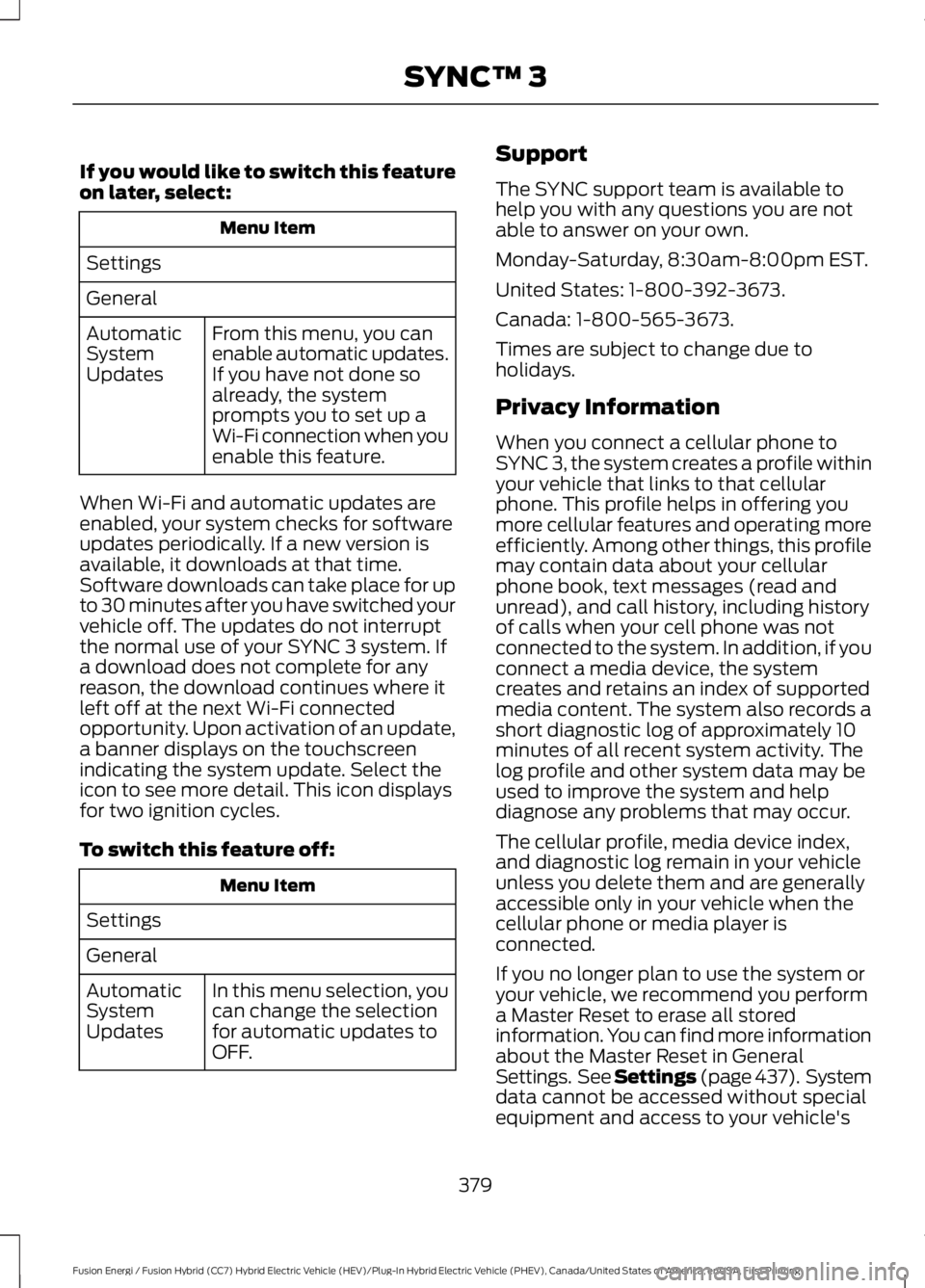
If you would like to switch this featureon later, select:
Menu Item
Settings
General
From this menu, you canenable automatic updates.If you have not done soalready, the systemprompts you to set up aWi-Fi connection when youenable this feature.
AutomaticSystemUpdates
When Wi-Fi and automatic updates areenabled, your system checks for softwareupdates periodically. If a new version isavailable, it downloads at that time.Software downloads can take place for upto 30 minutes after you have switched yourvehicle off. The updates do not interruptthe normal use of your SYNC 3 system. Ifa download does not complete for anyreason, the download continues where itleft off at the next Wi-Fi connectedopportunity. Upon activation of an update,a banner displays on the touchscreenindicating the system update. Select theicon to see more detail. This icon displaysfor two ignition cycles.
To switch this feature off:
Menu Item
Settings
General
In this menu selection, youcan change the selectionfor automatic updates toOFF.
AutomaticSystemUpdates
Support
The SYNC support team is available tohelp you with any questions you are notable to answer on your own.
Monday-Saturday, 8:30am-8:00pm EST.
United States: 1-800-392-3673.
Canada: 1-800-565-3673.
Times are subject to change due toholidays.
Privacy Information
When you connect a cellular phone toSYNC 3, the system creates a profile withinyour vehicle that links to that cellularphone. This profile helps in offering youmore cellular features and operating moreefficiently. Among other things, this profilemay contain data about your cellularphone book, text messages (read andunread), and call history, including historyof calls when your cell phone was notconnected to the system. In addition, if youconnect a media device, the systemcreates and retains an index of supportedmedia content. The system also records ashort diagnostic log of approximately 10minutes of all recent system activity. Thelog profile and other system data may beused to improve the system and helpdiagnose any problems that may occur.
The cellular profile, media device index,and diagnostic log remain in your vehicleunless you delete them and are generallyaccessible only in your vehicle when thecellular phone or media player isconnected.
If you no longer plan to use the system oryour vehicle, we recommend you performa Master Reset to erase all storedinformation. You can find more informationabout the Master Reset in GeneralSettings. See Settings (page 437). Systemdata cannot be accessed without specialequipment and access to your vehicle's
379
Fusion Energi / Fusion Hybrid (CC7) Hybrid Electric Vehicle (HEV)/Plug-In Hybrid Electric Vehicle (PHEV), Canada/United States of America, enUSA, First Printing
SYNC™ 3
Page 395 of 516
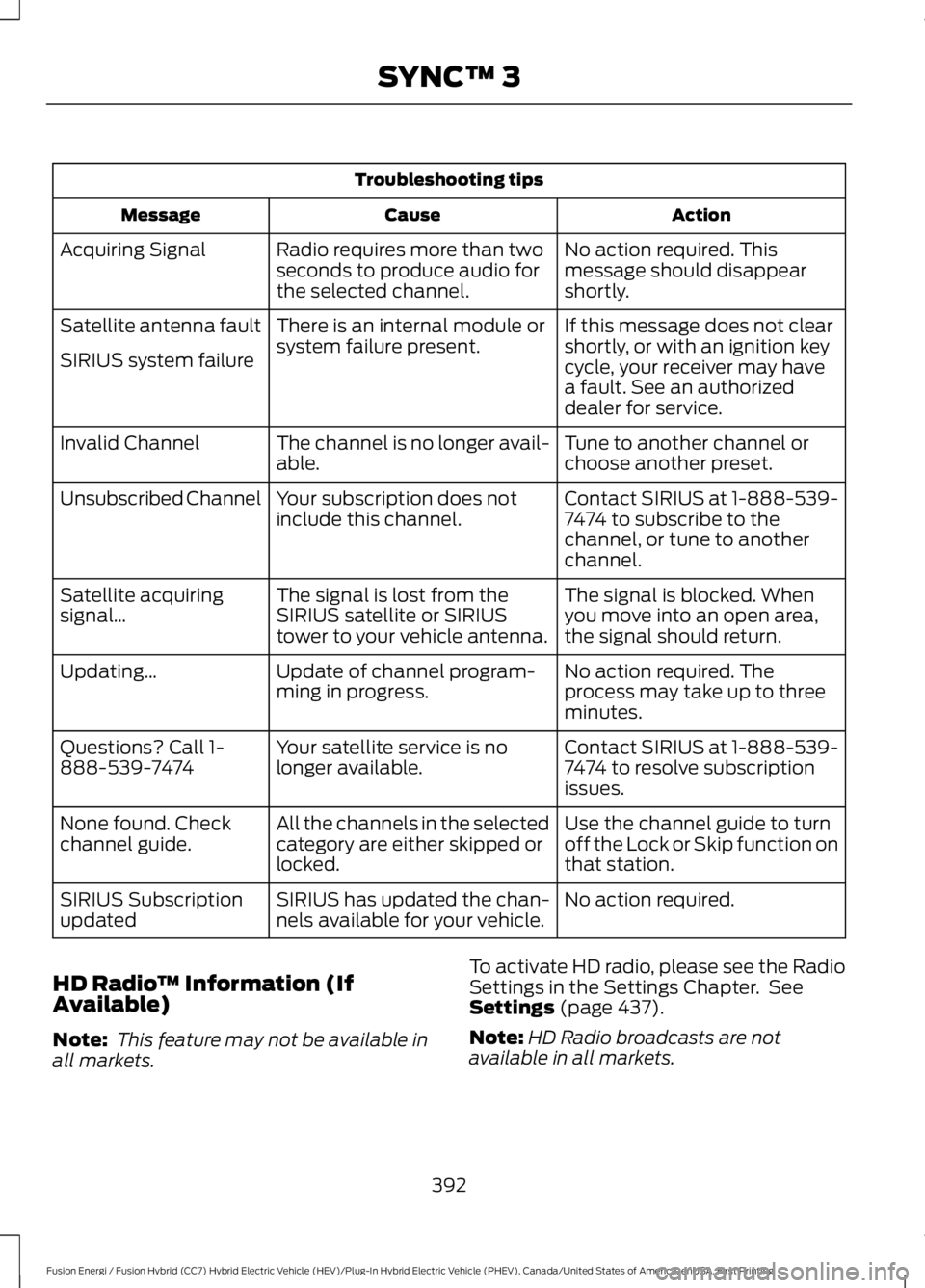
Troubleshooting tips
ActionCauseMessage
No action required. Thismessage should disappearshortly.
Radio requires more than twoseconds to produce audio forthe selected channel.
Acquiring Signal
If this message does not clearshortly, or with an ignition keycycle, your receiver may havea fault. See an authorizeddealer for service.
There is an internal module orsystem failure present.Satellite antenna fault
SIRIUS system failure
Tune to another channel orchoose another preset.The channel is no longer avail-able.Invalid Channel
Contact SIRIUS at 1-888-539-7474 to subscribe to thechannel, or tune to anotherchannel.
Your subscription does notinclude this channel.Unsubscribed Channel
The signal is blocked. Whenyou move into an open area,the signal should return.
The signal is lost from theSIRIUS satellite or SIRIUStower to your vehicle antenna.
Satellite acquiringsignal…
No action required. Theprocess may take up to threeminutes.
Update of channel program-ming in progress.Updating…
Contact SIRIUS at 1-888-539-7474 to resolve subscriptionissues.
Your satellite service is nolonger available.Questions? Call 1-888-539-7474
Use the channel guide to turnoff the Lock or Skip function onthat station.
All the channels in the selectedcategory are either skipped orlocked.
None found. Checkchannel guide.
No action required.SIRIUS has updated the chan-nels available for your vehicle.SIRIUS Subscriptionupdated
HD Radio™ Information (IfAvailable)
Note: This feature may not be available inall markets.
To activate HD radio, please see the RadioSettings in the Settings Chapter. SeeSettings (page 437).
Note:HD Radio broadcasts are notavailable in all markets.
392
Fusion Energi / Fusion Hybrid (CC7) Hybrid Electric Vehicle (HEV)/Plug-In Hybrid Electric Vehicle (PHEV), Canada/United States of America, enUSA, First Printing
SYNC™ 3
Page 459 of 516
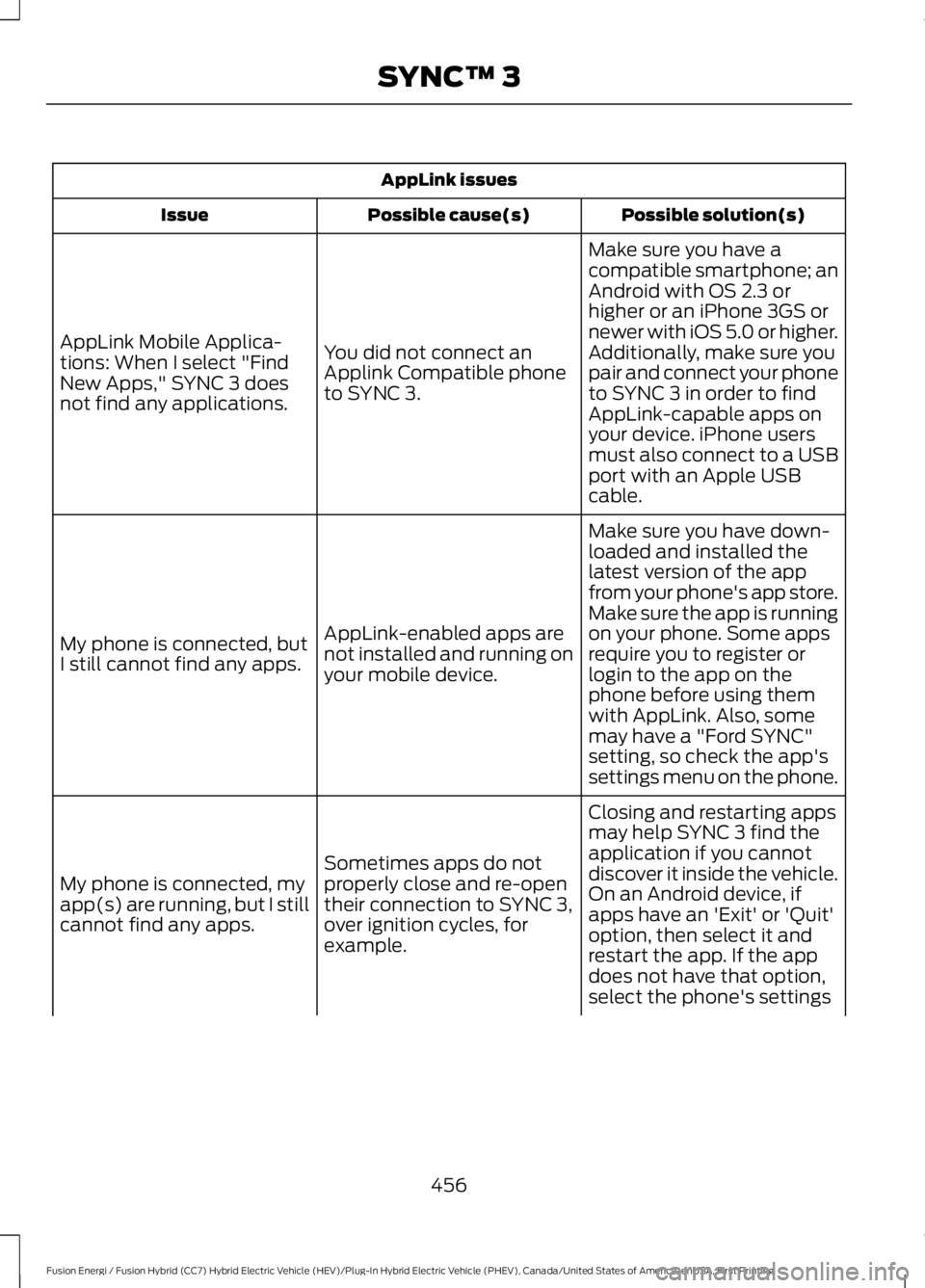
AppLink issues
Possible solution(s)Possible cause(s)Issue
Make sure you have acompatible smartphone; anAndroid with OS 2.3 orhigher or an iPhone 3GS ornewer with iOS 5.0 or higher.Additionally, make sure youYou did not connect anApplink Compatible phoneto SYNC 3.
AppLink Mobile Applica-tions: When I select "FindNew Apps," SYNC 3 doesnot find any applications.
pair and connect your phoneto SYNC 3 in order to findAppLink-capable apps onyour device. iPhone usersmust also connect to a USBport with an Apple USBcable.
Make sure you have down-loaded and installed thelatest version of the appfrom your phone's app store.Make sure the app is runningon your phone. Some appsAppLink-enabled apps arenot installed and running onyour mobile device.
My phone is connected, butI still cannot find any apps.require you to register orlogin to the app on thephone before using themwith AppLink. Also, somemay have a "Ford SYNC"setting, so check the app'ssettings menu on the phone.
Closing and restarting appsmay help SYNC 3 find theapplication if you cannotdiscover it inside the vehicle.On an Android device, ifapps have an 'Exit' or 'Quit'
Sometimes apps do notproperly close and re-opentheir connection to SYNC 3,over ignition cycles, forexample.
My phone is connected, myapp(s) are running, but I stillcannot find any apps.option, then select it andrestart the app. If the appdoes not have that option,select the phone's settings
456
Fusion Energi / Fusion Hybrid (CC7) Hybrid Electric Vehicle (HEV)/Plug-In Hybrid Electric Vehicle (PHEV), Canada/United States of America, enUSA, First Printing
SYNC™ 3
Page 510 of 516
Hood LockSee: Opening and Closing the Hood..........253Hybrid Vehicle Frequently AskedQuestions......................................................151Hybrid Vehicle Operation..........................146Battery:....................................................................147Braking:...................................................................147Driving:....................................................................146Driving to Optimize Fuel Economy...............147Engine:.....................................................................147EV+ Mode..............................................................148Starting:.................................................................146Stopping:...............................................................146Transmission Operation:.................................146
I
In California (U.S. Only)............................236Information Display Control.......................70Information Display Control Features..........70Information Displays....................................94General Information............................................94Information Messages................................103Active Park............................................................103Adaptive Cruise Control...................................104AdvanceTrac™....................................................104Airbag......................................................................105Alarm......................................................................105Automatic Engine Shutdown........................105Battery and Charging System (12volt)....................................................................106Battery and Charging System (HighVoltage)............................................................106Blind Spot Information and Cross TrafficAlert System....................................................107Doors and Locks..................................................107Driver Alert............................................................108Fuel..........................................................................108Hill Start Assist...................................................109Keys and Intelligent Access............................109Lane Keeping System........................................110Maintenance.........................................................110MyKey........................................................................111Park Aid....................................................................112Park Brake...............................................................112Power Steering.....................................................113Pre-Collision Assist.............................................113Remote Start.........................................................113
Seats.........................................................................113Starting System ...................................................114Tire Pressure Monitoring System...................114Traction Control...................................................114Transmission.........................................................115Installing Child Restraints.............................17Child Seats...............................................................17Using Lap and Shoulder Belts..........................18Using Lower Anchors and Tethers forCHildren (LATCH)............................................22Using Tether Straps.............................................24Instrument Cluster........................................86Instrument Lighting Dimmer......................75Vehicles With Front Fog Lamps......................75Vehicles Without Front Fog Lamps...............75Interior Lamps.................................................78Front Interior Lamp..............................................78Rear Interior Lamp..............................................80Interior Luggage CompartmentRelease............................................................63Interior Mirror...................................................84Auto-Dimming Mirror.........................................84Introduction.........................................................7
J
Jump Starting the Vehicle........................229Connecting the Jumper Cables....................229Jump Starting......................................................230Preparing Your Vehicle.....................................229Removing the Jumper Cables.......................230
K
Keyless Entry.....................................................61SECURICODE™ Keyless Entry Keypad.........61Keyless Starting.............................................141Ignition Modes......................................................141Keys and Remote Controls........................48
L
Lane Keeping System................................204Switching the System On and Off..............205Lighting Control...............................................73Headlamp Flasher................................................74High Beams.............................................................73
507
Fusion Energi / Fusion Hybrid (CC7) Hybrid Electric Vehicle (HEV)/Plug-In Hybrid Electric Vehicle (PHEV), Canada/United States of America, enUSA, First Printing
Index