phone FORD FUSION HYBRID 2017 Manual PDF
[x] Cancel search | Manufacturer: FORD, Model Year: 2017, Model line: FUSION HYBRID, Model: FORD FUSION HYBRID 2017Pages: 516, PDF Size: 7.53 MB
Page 416 of 516
2. Set your destination using any of thegiven methods. Once the destinationhas been selected, the screen allows
you to set the destination as awaypoint by selecting:
Menu Item
The waypoint list then appears and you areable to re-order all of your waypoints byselecting the menu icon on the right handside of the location. You can select up tofive waypoints.
Add Waypoint
Optimize OrderYou can also have the system set the orderfor you by pressing:
GoTo return to your route, press:
cityseeker (If Equipped)
Note:cityseeker point of interest (POI)information is limited to approximately 1110cities (1049 in the United States, 36 inCanada and 15 in Mexico).
cityseeker, when available, is a service thatprovides more information about certainpoints of interest such as restaurants,hotels and attractions.
When you have selected a point of interest,the location and information appear, suchas address, phone number and a starrating.
Press More Information to see a photo,a review, a list of services and facilities, theaverage room or meal price and the webaddress. This screen displays the point ofinterest icons.
For restaurants, cityseeker can provideinformation such as star rating, averagecost, review, handicap access, hours ofoperation, and website address.
For hotels, cityseeker can provideinformation such as star rating, pricecategory, review, check-in and checkouttimes, hotel service icons and websiteaddress. Hotel service icons include:
•Restaurant
•Business center
•Handicap facilities
•Laundry
•Refrigerator
•24 hour room service
•Fitness center
•Internet access
•Pool
•Wi-Fi
Attractions include nearby landmarks,amusement parks, historic buildings andmore. cityseeker can provide informationsuch as star rating, reviews, hour ofoperation and admission price.
413
Fusion Energi / Fusion Hybrid (CC7) Hybrid Electric Vehicle (HEV)/Plug-In Hybrid Electric Vehicle (PHEV), Canada/United States of America, enUSA, First Printing
SYNC™ 3E225487
Page 437 of 516
Engine On due to
The engine is on to charge the high-voltage battery. Thevehicle returns to electric mode once the battery ischarged.
Battery Charging
The engine is on to maintain engine oil quality. Thevehicle returns to electric mode when low engine usemode is complete. See Engine Oil Check (page 255).
Low Use
(Energi Only)
The engine is on due to high or low high-voltage batterytemperature. This is a normal operating condition. Thevehicle returns to electric mode automatically whenpossible.
Battery Temperature
(Energi Only)
The engine is on to optimize vehicle operation. Thevehicle returns to electric mode when possible.Normal Operation
The engine is on to provide increased powertrainbraking. This can occur when you turn on the gradeassist feature, when speed control is on or when drivingwith your foot off the accelerator pedal. Turning offgrade assist or speed control may allow the vehicle toreturn to electric mode.
Engine Braking Active
Privacy Notice for GPS Mapping withMyFord
MyFord allows for GPS mapping when avehicle is registered to a MyFord Mobileaccount. To remove the vehicle from theaccount, thereby removing GPS mappingability, a Master Reset can be performedin the vehicle. See Settings (page 437).
Before transferring ownership of a vehicle,owners may choose to execute a MasterReset or Factory Reset (completed via theMyFord Mobile website). Either methodremoves the vehicle from all MyFordMobile accounts.
It is recommended that new ownersconduct a Master Reset upon takingpossession of the vehicle to remove it fromany existing MyFord Mobile accounts. Thenew owner can activate a MyFord Mobileaccount by completing registration processon the website.
Website
www.myfordmobile.comwww.syncmyride.cawww.syncmaroute.ca
APPS
The system enables voice, steering wheel,and touch screen control of SYNC 3AppLink enabled smartphone apps. Oncean app is running through AppLink, you cancontrol main features of the app throughvoice commands and steering wheelcontrols.
Note:Available AppLink enabled apps willvary by market.
Note:You must pair and connect yoursmartphone via Bluetooth to SYNC 3 toaccess AppLink.
434
Fusion Energi / Fusion Hybrid (CC7) Hybrid Electric Vehicle (HEV)/Plug-In Hybrid Electric Vehicle (PHEV), Canada/United States of America, enUSA, First Printing
SYNC™ 3
Page 438 of 516
Note:iPhone users need to connect thephone to the USB port.
Note:For information on available apps,supported smartphone devices andtroubleshooting tips please visit:
Websites
owner.ford.comwww.syncmyride.cawww.syncmaroute.ca
Note:Make sure you have an active accountfor the app that you have downloaded.Some apps will work automatically with nosetup. Other apps will want you to configureyour personal settings and personalize yourexperience by creating stations or favorites.We recommend you do this at home oroutside of your vehicle.
Note:We encourage you to review thesmartphone app’s terms of service andprivacy policies because Ford is notresponsible for your app or its use of data.
Note:AppLink is a native SYNC systemfeature. Accessing mobile apps throughAppLink is only possible when Android Autoor Apple CarPlay are disabled. Some appsmay only be accessible in the car throughApplink and others only through AndroidAuto or Apple CarPlay. Please refer to theSmartphone Connectivity information todisable Android Auto or Apple CarPlay.
Note:In order to use an app with SYNC 3,the App needs to be running in thebackground of your phone. If you shut downthe app on your phone, it shuts down theapp on SYNC 3 as well.
Note:If a SYNC 3 AppLink compatible appis not shown in the Apps Domain, make surethe required app is running on the mobiledevice.
Action and Descrip-tionMenu Item
SYNC 3 will searchand connect tocompatible app(s)running on yourmobile device.
Connect MobileApps
Enabling SYNC 3 Mobile Apps
In order to enable mobile apps, SYNC 3requires user consent to send and receiveapp authorization information and updatesusing the data plan associated with theconnected device.
The connected device sends data to Fordin the United States. The information isencrypted and includes your VIN, SYNC 3module number, odometer, usagestatistics and debugging information. Weretain this data for only as long asnecessary to provide this service,troubleshoot, and improve products andservices and to offer you products andservices that may interest you whereallowed by law.
Note:You must enable mobile apps foreach connected device the first time youselect a mobile app using the system.
Note:Ford reserves the right to limitfunctionality or deactivate mobile apps atany time.
Note:Standard data rates apply. Ford isnot responsible for any additional chargesyou may receive from your service provider,when your vehicle sends or receives datathrough the connected device. This includesany additional charges incurred due todriving in areas when roaming out of a homenetwork.
You can enable and disable apps throughsettings. See Settings (page 437).
435
Fusion Energi / Fusion Hybrid (CC7) Hybrid Electric Vehicle (HEV)/Plug-In Hybrid Electric Vehicle (PHEV), Canada/United States of America, enUSA, First Printing
SYNC™ 3
Page 442 of 516
Clock
To adjust the time, select the up and downarrows on either side of the screen. The
arrows on the left adjust the hour andarrows on the right adjust the minute. Youcan then select AM or PM.
You can adjust the following features:
Action and DescriptionMenu Item
Select how time displays.Clock Format
When active, the clock adjusts to time zone changes.Auto Time ZoneUpdateThis feature is only available in vehicles with navigation.
When selected, the vehicle clock resets to GPS satellite time.Reset Clock toGPS Time
The system automatically saves anyupdates you make to the settings.Bluetooth
Pressing this button allows you to accessthe following:
ActionMenu Item
Turning Bluetooth off disconnects all devices and does not permitnew connections.Bluetooth
You must activate Bluetooth to pair aBluetooth-enabled device.
The processes of pairing a Bluetoothdevice is the same as pairing a phone.SeePairing a Device in Phone settings for howto pair a device and the available options.
Phone
Pair your Bluetooth-enabled phone withthe system before using the functions inhands-free mode.
Switch on Bluetooth on your device tobegin pairing. See your phone’s manual ifnecessary.
To add a phone, select:
Menu Item
Add Phone
1. Follow the on-screen instructions.
2. A prompt alerts you to search for thesystem on your phone.
3. Select your vehicle's make and modelas it displays on your phone.
4. Confirm that the six-digit numberappearing on your phone matches thesix-digit number on the touchscreen.
5. The touchscreen indicates when thepairing is successful.
439
Fusion Energi / Fusion Hybrid (CC7) Hybrid Electric Vehicle (HEV)/Plug-In Hybrid Electric Vehicle (PHEV), Canada/United States of America, enUSA, First Printing
SYNC™ 3
Page 443 of 516
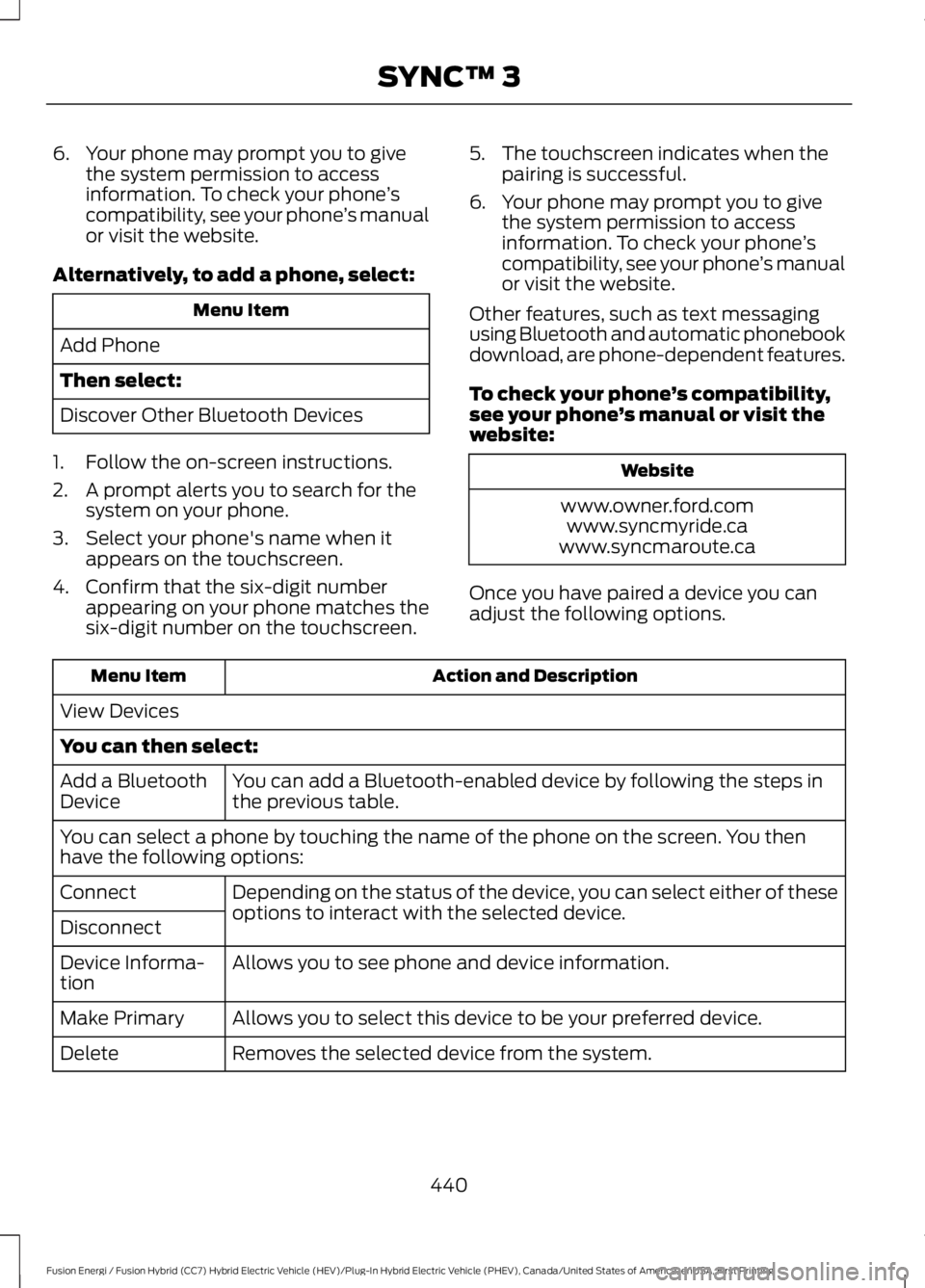
6. Your phone may prompt you to givethe system permission to accessinformation. To check your phone’scompatibility, see your phone’s manualor visit the website.
Alternatively, to add a phone, select:
Menu Item
Add Phone
Then select:
Discover Other Bluetooth Devices
1. Follow the on-screen instructions.
2. A prompt alerts you to search for thesystem on your phone.
3. Select your phone's name when itappears on the touchscreen.
4. Confirm that the six-digit numberappearing on your phone matches thesix-digit number on the touchscreen.
5. The touchscreen indicates when thepairing is successful.
6. Your phone may prompt you to givethe system permission to accessinformation. To check your phone’scompatibility, see your phone’s manualor visit the website.
Other features, such as text messagingusing Bluetooth and automatic phonebookdownload, are phone-dependent features.
To check your phone’s compatibility,see your phone’s manual or visit thewebsite:
Website
www.owner.ford.comwww.syncmyride.cawww.syncmaroute.ca
Once you have paired a device you canadjust the following options.
Action and DescriptionMenu Item
View Devices
You can then select:
You can add a Bluetooth-enabled device by following the steps inthe previous table.Add a BluetoothDevice
You can select a phone by touching the name of the phone on the screen. You thenhave the following options:
Depending on the status of the device, you can select either of theseoptions to interact with the selected device.Connect
Disconnect
Allows you to see phone and device information.Device Informa-tion
Allows you to select this device to be your preferred device.Make Primary
Removes the selected device from the system.Delete
440
Fusion Energi / Fusion Hybrid (CC7) Hybrid Electric Vehicle (HEV)/Plug-In Hybrid Electric Vehicle (PHEV), Canada/United States of America, enUSA, First Printing
SYNC™ 3
Page 444 of 516
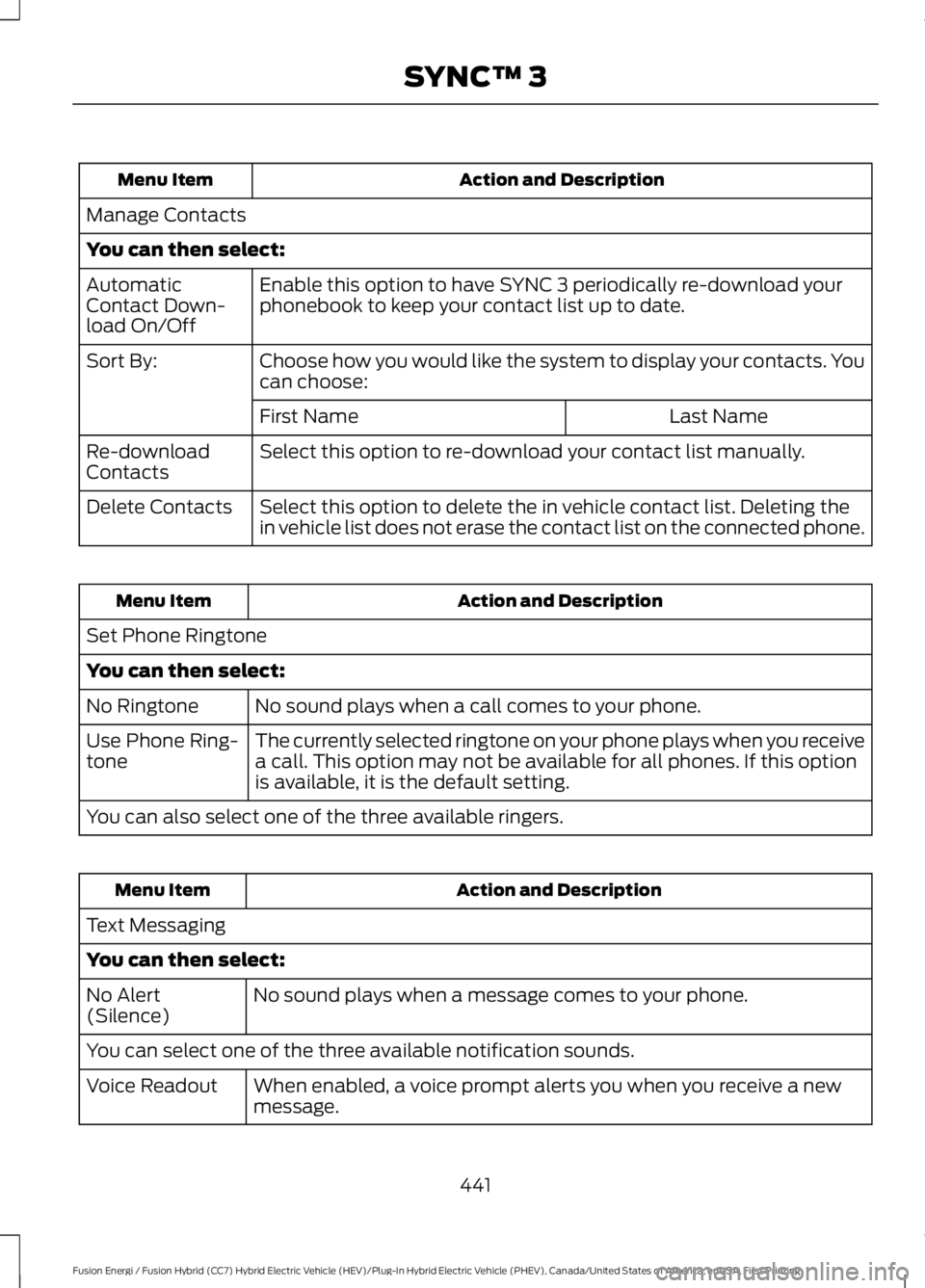
Action and DescriptionMenu Item
Manage Contacts
You can then select:
Enable this option to have SYNC 3 periodically re-download yourphonebook to keep your contact list up to date.AutomaticContact Down-load On/Off
Choose how you would like the system to display your contacts. Youcan choose:Sort By:
Last NameFirst Name
Select this option to re-download your contact list manually.Re-downloadContacts
Select this option to delete the in vehicle contact list. Deleting thein vehicle list does not erase the contact list on the connected phone.Delete Contacts
Action and DescriptionMenu Item
Set Phone Ringtone
You can then select:
No sound plays when a call comes to your phone.No Ringtone
The currently selected ringtone on your phone plays when you receivea call. This option may not be available for all phones. If this optionis available, it is the default setting.
Use Phone Ring-tone
You can also select one of the three available ringers.
Action and DescriptionMenu Item
Text Messaging
You can then select:
No sound plays when a message comes to your phone.No Alert(Silence)
You can select one of the three available notification sounds.
When enabled, a voice prompt alerts you when you receive a newmessage.Voice Readout
441
Fusion Energi / Fusion Hybrid (CC7) Hybrid Electric Vehicle (HEV)/Plug-In Hybrid Electric Vehicle (PHEV), Canada/United States of America, enUSA, First Printing
SYNC™ 3
Page 445 of 516
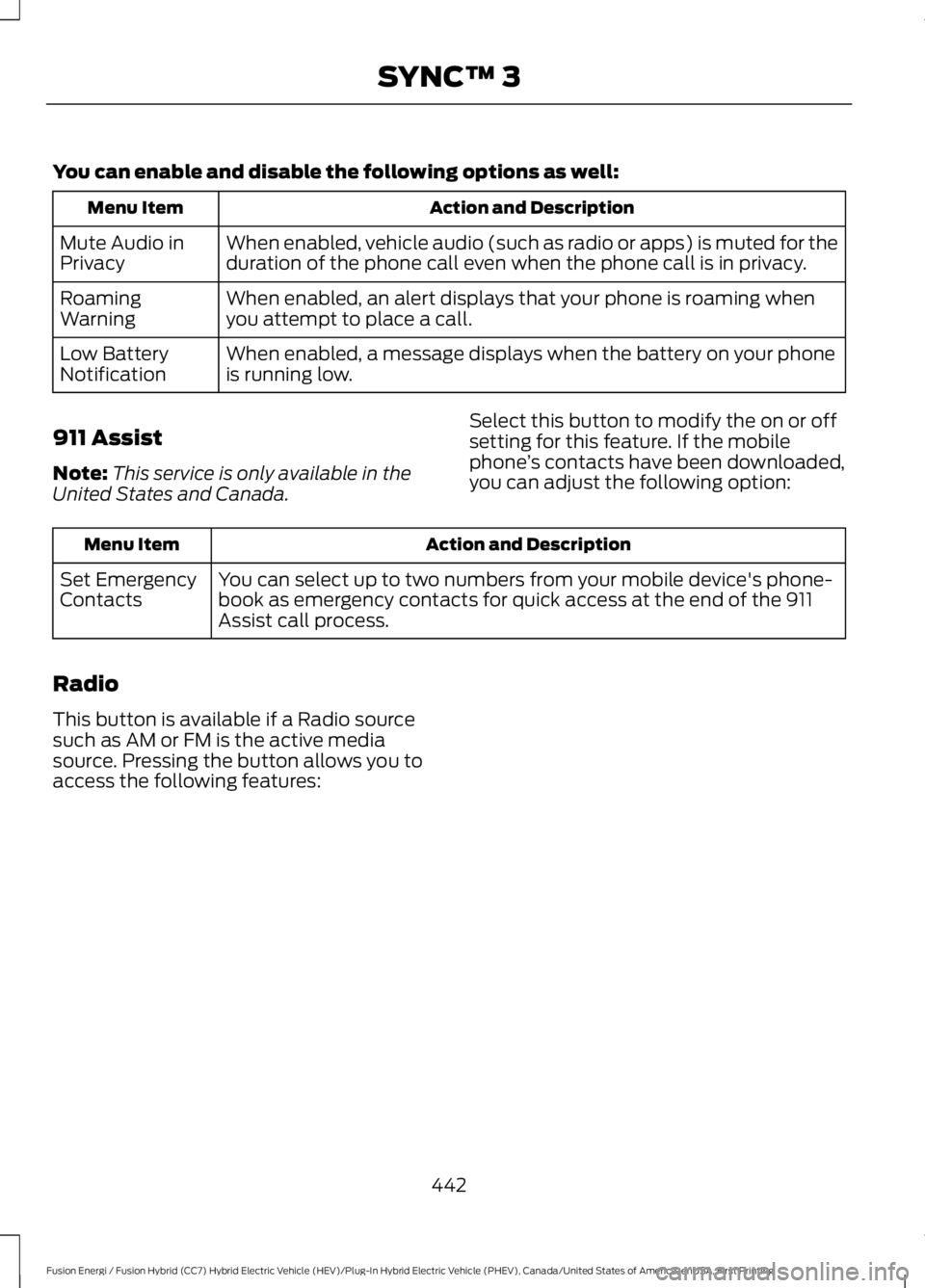
You can enable and disable the following options as well:
Action and DescriptionMenu Item
When enabled, vehicle audio (such as radio or apps) is muted for theduration of the phone call even when the phone call is in privacy.Mute Audio inPrivacy
When enabled, an alert displays that your phone is roaming whenyou attempt to place a call.RoamingWarning
When enabled, a message displays when the battery on your phoneis running low.Low BatteryNotification
911 Assist
Note:This service is only available in theUnited States and Canada.
Select this button to modify the on or offsetting for this feature. If the mobilephone’s contacts have been downloaded,you can adjust the following option:
Action and DescriptionMenu Item
You can select up to two numbers from your mobile device's phone-book as emergency contacts for quick access at the end of the 911Assist call process.
Set EmergencyContacts
Radio
This button is available if a Radio sourcesuch as AM or FM is the active mediasource. Pressing the button allows you toaccess the following features:
442
Fusion Energi / Fusion Hybrid (CC7) Hybrid Electric Vehicle (HEV)/Plug-In Hybrid Electric Vehicle (PHEV), Canada/United States of America, enUSA, First Printing
SYNC™ 3
Page 449 of 516
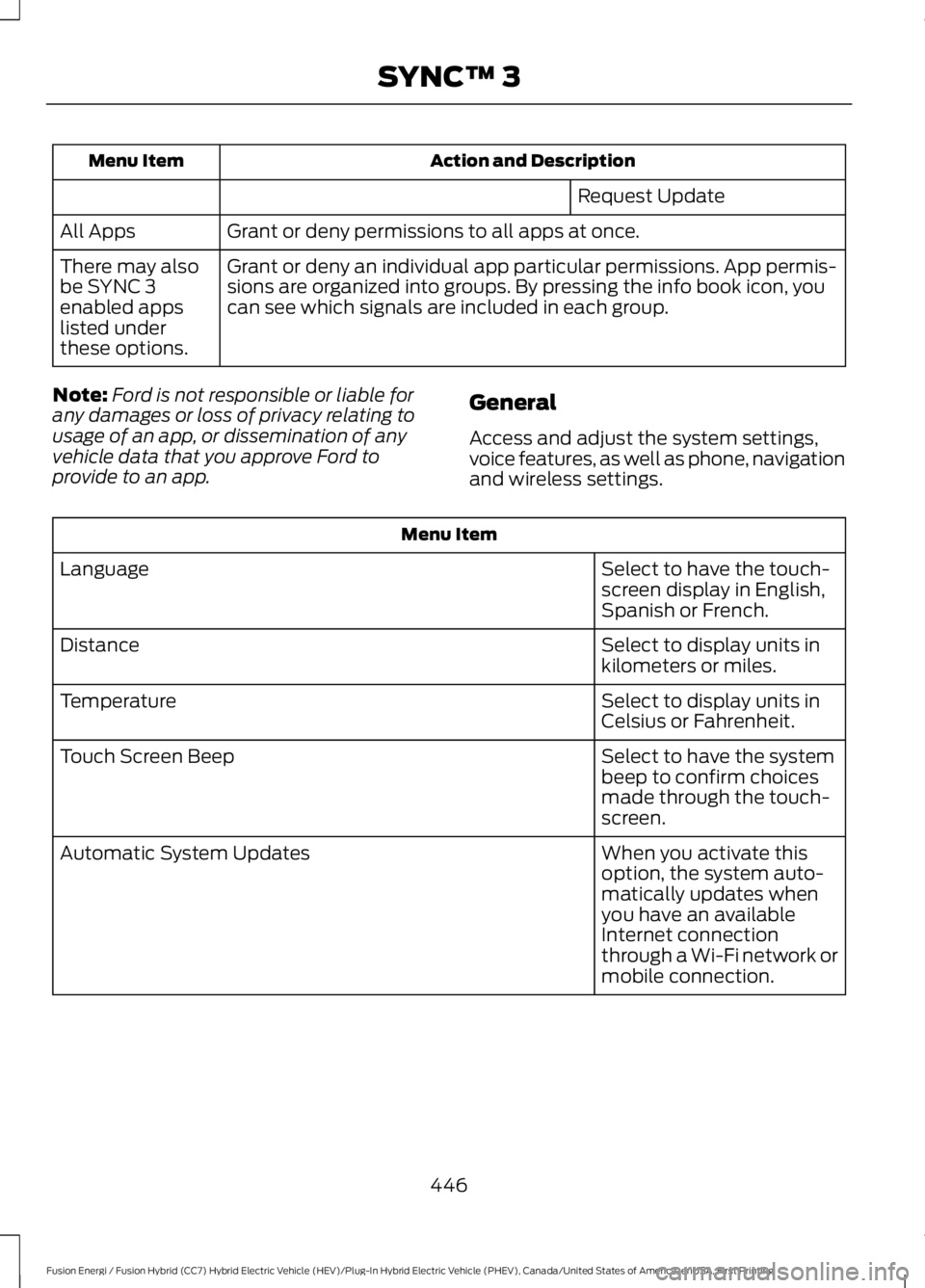
Action and DescriptionMenu Item
Request Update
Grant or deny permissions to all apps at once.All Apps
Grant or deny an individual app particular permissions. App permis-sions are organized into groups. By pressing the info book icon, youcan see which signals are included in each group.
There may alsobe SYNC 3enabled appslisted underthese options.
Note:Ford is not responsible or liable forany damages or loss of privacy relating tousage of an app, or dissemination of anyvehicle data that you approve Ford toprovide to an app.
General
Access and adjust the system settings,voice features, as well as phone, navigationand wireless settings.
Menu Item
Select to have the touch-screen display in English,Spanish or French.
Language
Select to display units inkilometers or miles.Distance
Select to display units inCelsius or Fahrenheit.Temperature
Select to have the systembeep to confirm choicesmade through the touch-screen.
Touch Screen Beep
When you activate thisoption, the system auto-matically updates whenyou have an availableInternet connectionthrough a Wi-Fi network ormobile connection.
Automatic System Updates
446
Fusion Energi / Fusion Hybrid (CC7) Hybrid Electric Vehicle (HEV)/Plug-In Hybrid Electric Vehicle (PHEV), Canada/United States of America, enUSA, First Printing
SYNC™ 3
Page 452 of 516
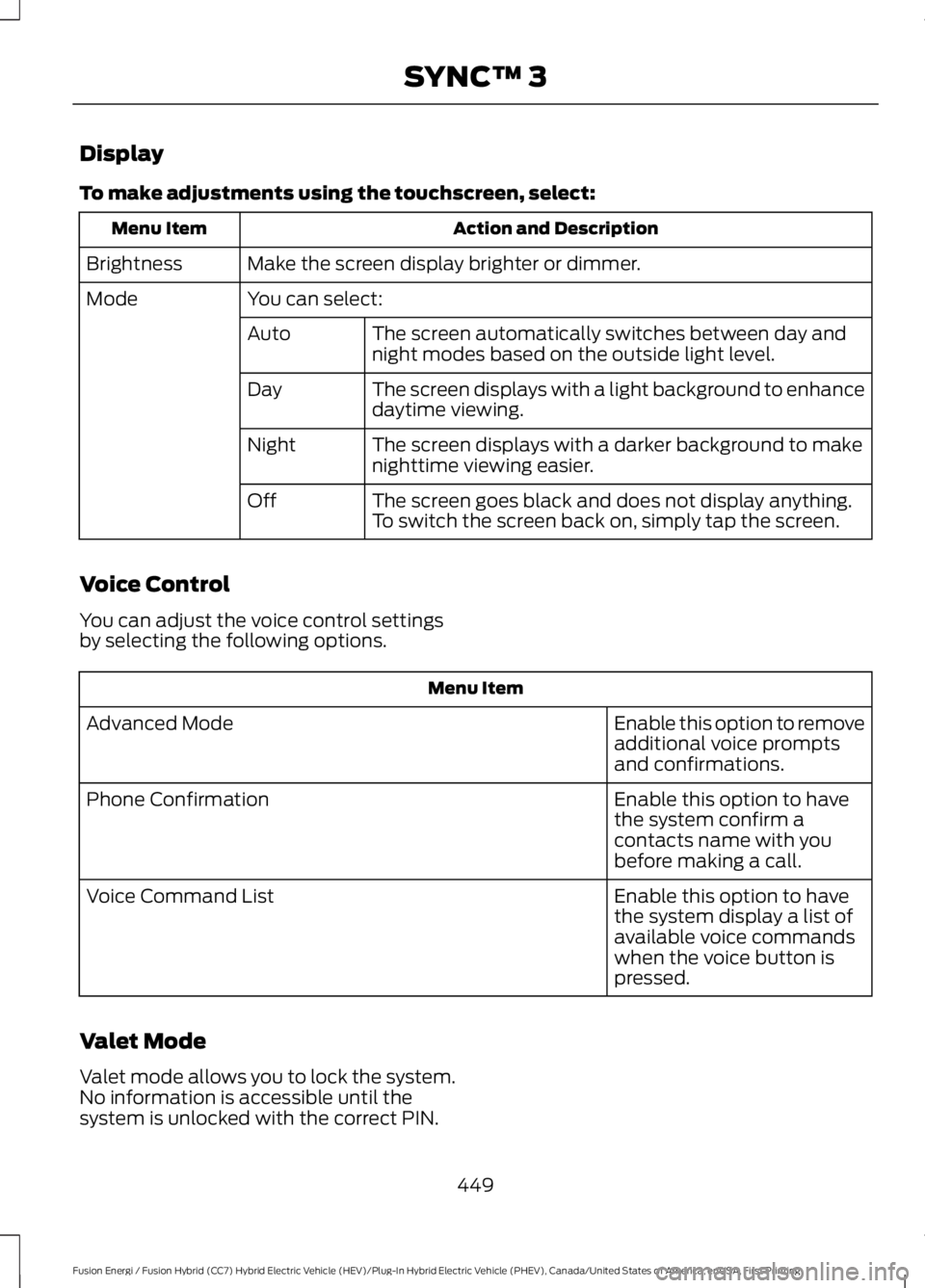
Display
To make adjustments using the touchscreen, select:
Action and DescriptionMenu Item
Make the screen display brighter or dimmer.Brightness
You can select:Mode
The screen automatically switches between day andnight modes based on the outside light level.Auto
The screen displays with a light background to enhancedaytime viewing.Day
The screen displays with a darker background to makenighttime viewing easier.Night
The screen goes black and does not display anything.To switch the screen back on, simply tap the screen.Off
Voice Control
You can adjust the voice control settingsby selecting the following options.
Menu Item
Enable this option to removeadditional voice promptsand confirmations.
Advanced Mode
Enable this option to havethe system confirm acontacts name with youbefore making a call.
Phone Confirmation
Enable this option to havethe system display a list ofavailable voice commandswhen the voice button ispressed.
Voice Command List
Valet Mode
Valet mode allows you to lock the system.No information is accessible until thesystem is unlocked with the correct PIN.
449
Fusion Energi / Fusion Hybrid (CC7) Hybrid Electric Vehicle (HEV)/Plug-In Hybrid Electric Vehicle (PHEV), Canada/United States of America, enUSA, First Printing
SYNC™ 3
Page 453 of 516
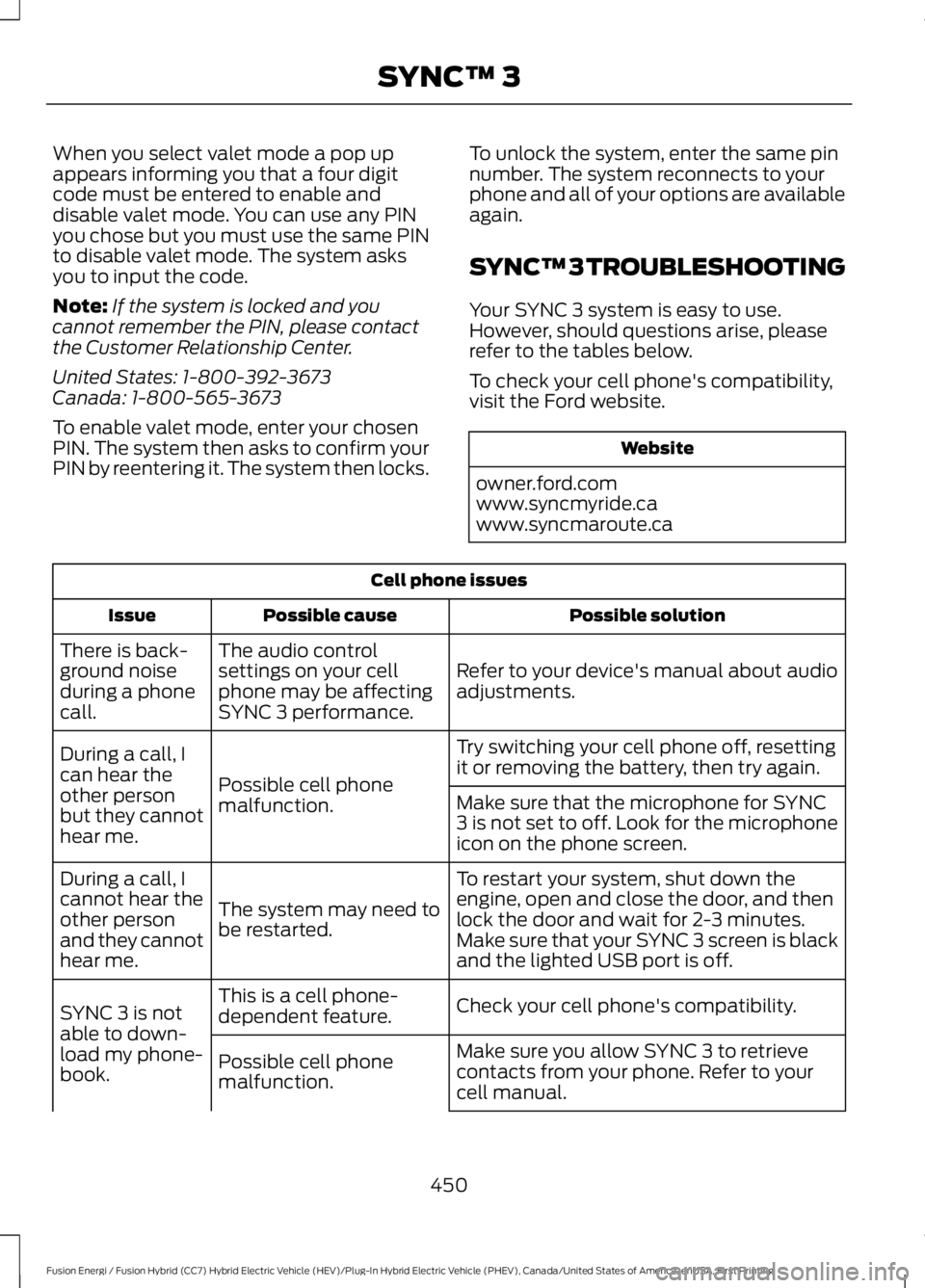
When you select valet mode a pop upappears informing you that a four digitcode must be entered to enable anddisable valet mode. You can use any PINyou chose but you must use the same PINto disable valet mode. The system asksyou to input the code.
Note:If the system is locked and youcannot remember the PIN, please contactthe Customer Relationship Center.
United States: 1-800-392-3673Canada: 1-800-565-3673
To enable valet mode, enter your chosenPIN. The system then asks to confirm yourPIN by reentering it. The system then locks.
To unlock the system, enter the same pinnumber. The system reconnects to yourphone and all of your options are availableagain.
SYNC™ 3 TROUBLESHOOTING
Your SYNC 3 system is easy to use.However, should questions arise, pleaserefer to the tables below.
To check your cell phone's compatibility,visit the Ford website.
Website
owner.ford.comwww.syncmyride.cawww.syncmaroute.ca
Cell phone issues
Possible solutionPossible causeIssue
Refer to your device's manual about audioadjustments.
The audio controlsettings on your cellphone may be affectingSYNC 3 performance.
There is back-ground noiseduring a phonecall.
Try switching your cell phone off, resettingit or removing the battery, then try again.Possible cell phonemalfunction.
During a call, Ican hear theother personbut they cannothear me.
Make sure that the microphone for SYNC3 is not set to off. Look for the microphoneicon on the phone screen.
To restart your system, shut down theengine, open and close the door, and thenlock the door and wait for 2-3 minutes.Make sure that your SYNC 3 screen is blackand the lighted USB port is off.
The system may need tobe restarted.
During a call, Icannot hear theother personand they cannothear me.
Check your cell phone's compatibility.This is a cell phone-dependent feature.SYNC 3 is notable to down-load my phone-book.
Make sure you allow SYNC 3 to retrievecontacts from your phone. Refer to yourcell manual.
Possible cell phonemalfunction.
450
Fusion Energi / Fusion Hybrid (CC7) Hybrid Electric Vehicle (HEV)/Plug-In Hybrid Electric Vehicle (PHEV), Canada/United States of America, enUSA, First Printing
SYNC™ 3