key FORD GT 2018 Owner's Manual
[x] Cancel search | Manufacturer: FORD, Model Year: 2018, Model line: GT, Model: FORD GT 2018Pages: 325, PDF Size: 6.61 MB
Page 108 of 325
Your vehicle may not pass the I/M test if
the service engine soon indicator is on or
not working properly (bulb is burned out),
or if the OBD-II system has determined
that some of the emission control systems
have not been properly checked. In this
case, the vehicle is not ready for I/M
testing.
If the vehicle
’s engine or transmission has
just been serviced, or the battery has
recently run down or been replaced, the
OBD-II system may indicate that the
vehicle is not ready for I/M testing. To
determine if the vehicle is ready for I/M
testing, turn the ignition key to the on
position for 15 seconds without cranking
the engine. If the service engine soon
indicator blinks eight times, it means that
the vehicle is not ready for I/M testing; if
the service engine soon indicator stays on
solid, it means that your vehicle is ready
for I/M testing.
The OBD-II system checks the emission
control system during normal driving. A
complete check may take several days.
If the vehicle is not ready for I/M testing,
you can perform the following driving cycle
consisting of mixed city and highway
driving:
1. 15 minutes of steady driving on an expressway or highway followed by 20
minutes of stop-and-go driving with at
least four 30-second idle periods.
2. Allow your vehicle to sit for at least eight hours with the ignition off. Then,
start the vehicle and complete the
above driving cycle. The vehicle must
warm up to its normal operating
temperature. Once started, do not turn
off the vehicle until the above driving
cycle is complete.
If the vehicle is still not ready for I/M
testing, you need to repeat the above
driving cycle.
105
Ford GT (CGX), enUSA, Edition date: 201711, First Printing Engine Emission Control
Page 109 of 325
AUTOMATIC TRANSMISSION
WARNINGS
Always fully apply the parking brake.
Make sure you shift into park (P) for
vehicles with an automatic
transmission. Switch the ignition off and
remove the key whenever you leave your
vehicle. Do not apply the brake pedal and
accelerator pedal simultaneously.
Applying both pedals simultaneously
for more than a few seconds will limit
engine performance, which may result in
difficulty maintaining speed in traffic and
could lead to serious injury. Your Ford GT vehicle is equipped with a
7-speed, dual clutch automatic
transmission. In drive (D), the transmission
shifts automatically, or you can shift with
the paddle shifters. In manual mode, you
must shift the transmission with the
paddle shifters.
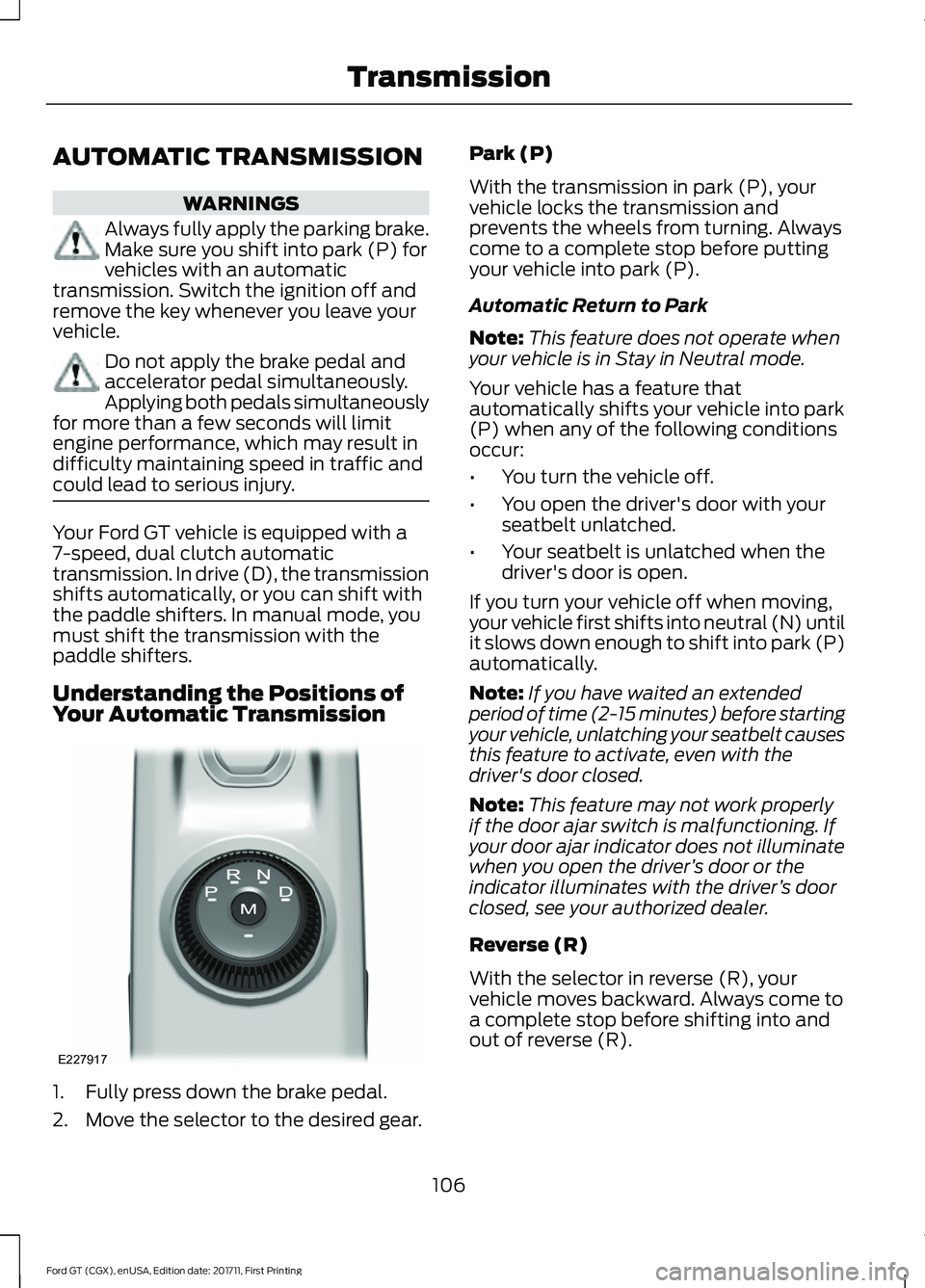
Understanding the Positions of
Your Automatic Transmission
1. Fully press down the brake pedal.
2. Move the selector to the desired gear. Park (P)
With the transmission in park (P), your
vehicle locks the transmission and
prevents the wheels from turning. Always
come to a complete stop before putting
your vehicle into park (P).
Automatic Return to Park
Note:
This feature does not operate when
your vehicle is in Stay in Neutral mode.
Your vehicle has a feature that
automatically shifts your vehicle into park
(P) when any of the following conditions
occur:
• You turn the vehicle off.
• You open the driver's door with your
seatbelt unlatched.
• Your seatbelt is unlatched when the
driver's door is open.
If you turn your vehicle off when moving,
your vehicle first shifts into neutral (N) until
it slows down enough to shift into park (P)
automatically.
Note: If you have waited an extended
period of time (2-15 minutes) before starting
your vehicle, unlatching your seatbelt causes
this feature to activate, even with the
driver's door closed.
Note: This feature may not work properly
if the door ajar switch is malfunctioning. If
your door ajar indicator does not illuminate
when you open the driver ’s door or the
indicator illuminates with the driver ’s door
closed, see your authorized dealer.
Reverse (R)
With the selector in reverse (R), your
vehicle moves backward. Always come to
a complete stop before shifting into and
out of reverse (R).
106
Ford GT (CGX), enUSA, Edition date: 201711, First Printing TransmissionE227917
Page 139 of 325
ROADSIDE ASSISTANCE
Vehicles Sold in the United States:
Getting Roadside Assistance
To fully assist you should you have a
vehicle concern, Ford Motor Company
offers a complimentary roadside
assistance program. This program is
separate from the New Vehicle Limited
Warranty.
The service is available:
•
24 hours a day, seven days a week.
• The coverage period is three years from
the date of purchase.
Roadside Assistance covers:
• Assistance with a flat tire.
• Battery jump start.
• Lock-out assistance (key replacement
cost is the customer's responsibility).
• Assistance if your vehicle runs out of
fuel.
• Winch out — available if your vehicle is
stuck.
• Towing — Ford dealership or
independent service contractors, if not
prohibited by state, local or municipal
law, shall tow your vehicle to the
nearest Certified Ford GT Dealership.
Vehicles Sold in the United States:
Using Roadside Assistance
United States Ford GT customers who
require Roadside Assistance, call the Ford
GT Concierge at 800-210-5795.
If you need to arrange roadside assistance
for yourself, Ford Motor Company
reimburses a reasonable amount for
towing to the nearest authorized
dealership. To obtain reimbursement
information, contact the Ford GT Concierge
at 800-210-5795. For assistance outside of the United
States, refer to the complete list of Ford
GT Concierge phone numbers. See About
This Manual (page 5).
HAZARD FLASHERS
Note: The hazard flashers operate when
the ignition is in any position. If used when
the vehicle is not running, the battery loses
charge. As a result, there may be insufficient
power to restart your vehicle. The hazard flasher control is on
the floor console. Use your
hazard flashers when your
vehicle is creating a safety hazard for other
motorists.
• Press the flasher control and all front
and rear direction indicators flash.
• Press the button again to switch them
off.
FUEL SHUTOFF WARNING
If your vehicle has been involved in a
crash, have the fuel system checked.
Failure to follow this instruction
could result in fire, personal injury or death. Note:
When you try to restart your vehicle
after a fuel shutoff, the vehicle makes sure
that various systems are safe to restart.
Once the vehicle determines the systems
are safe, then the vehicle allows you to
restart.
Note: In the event that your vehicle does
not restart after your third attempt, contact
a qualified technician.
The fuel pump shutoff stops the flow of
fuel to the engine in the event of a
moderate to severe crash. Not every
impact causes a shutoff.
136
Ford GT (CGX), enUSA, Edition date: 201711, First Printing Roadside EmergenciesE142663
Page 161 of 325
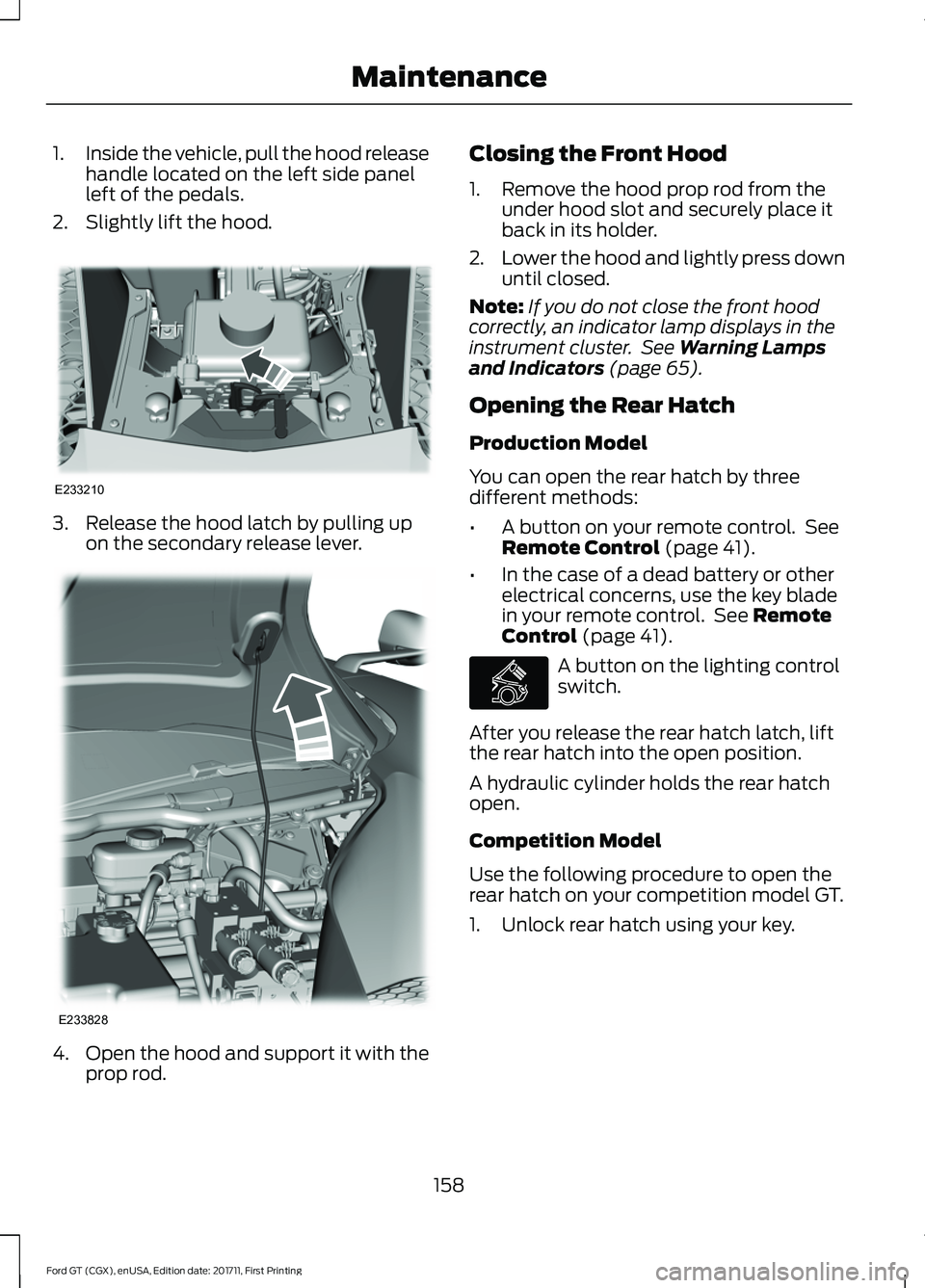
1.
Inside the vehicle, pull the hood release
handle located on the left side panel
left of the pedals.
2. Slightly lift the hood. 3. Release the hood latch by pulling up
on the secondary release lever. 4.
Open the hood and support it with the
prop rod. Closing the Front Hood
1. Remove the hood prop rod from the
under hood slot and securely place it
back in its holder.
2. Lower the hood and lightly press down
until closed.
Note: If you do not close the front hood
correctly, an indicator lamp displays in the
instrument cluster. See Warning Lamps
and Indicators (page 65).
Opening the Rear Hatch
Production Model
You can open the rear hatch by three
different methods:
• A button on your remote control. See
Remote Control
(page 41).
• In the case of a dead battery or other
electrical concerns, use the key blade
in your remote control. See
Remote
Control (page 41). A button on the lighting control
switch.
After you release the rear hatch latch, lift
the rear hatch into the open position.
A hydraulic cylinder holds the rear hatch
open.
Competition Model
Use the following procedure to open the
rear hatch on your competition model GT.
1. Unlock rear hatch using your key.
158
Ford GT (CGX), enUSA, Edition date: 201711, First Printing MaintenanceE233210 E233828 E268917
Page 205 of 325

CHANGING A ROAD WHEEL
Important Information for Lifting
or Jacking
A vehicle jack is not included with your
vehicle. If you are on the road and need to
change a wheel, it is recommended that
you contact the Ford GT Concierge to
obtain roadside assistance. See Special
Notices (page 10). Front lift points
A
Middle lift points
B
Rear lift points
C
To avoid damage to your vehicle, use a low
profile hydraulic jack when removing a road
wheel. Only place the jack on one of the
alloy lifting posts when lifting your vehicle.
Do not lift your vehicle on the carbon fiber
panels.
Note: It is recommended that an interface
be used between the alloy lifting point and
the vehicle jack (for example, a hockey puck
or dense rubber pad). DRIVING AT HIGH SPEED
Tire Pressure - Speeds Greater
Than
165 mph (265 km/h) WARNING
Always re-inflate tires to
recommended tire pressures before
the vehicle is operated on-road. The
recommended pressure is located on the
tire label or safety certification label,
located on the B-pillar, inside the driver's
door. Note:
When driving over
165 mph
(265 km/h), be sure to check and adjust
your tire pressures accordingly.
Note: If you are not sure about the proper
tire inflation pressures, contact an
authorized dealer or service center. Your tires may require additional inflation
pressure for operation at speeds greater
than
165 mph (265 km/h). If this label is
present on your vehicle, you must adjust
the tire pressure accordingly.
202
Ford GT (CGX), enUSA, Edition date: 201711, First Printing Wheels and TiresE228623 E247515
Page 223 of 325
•
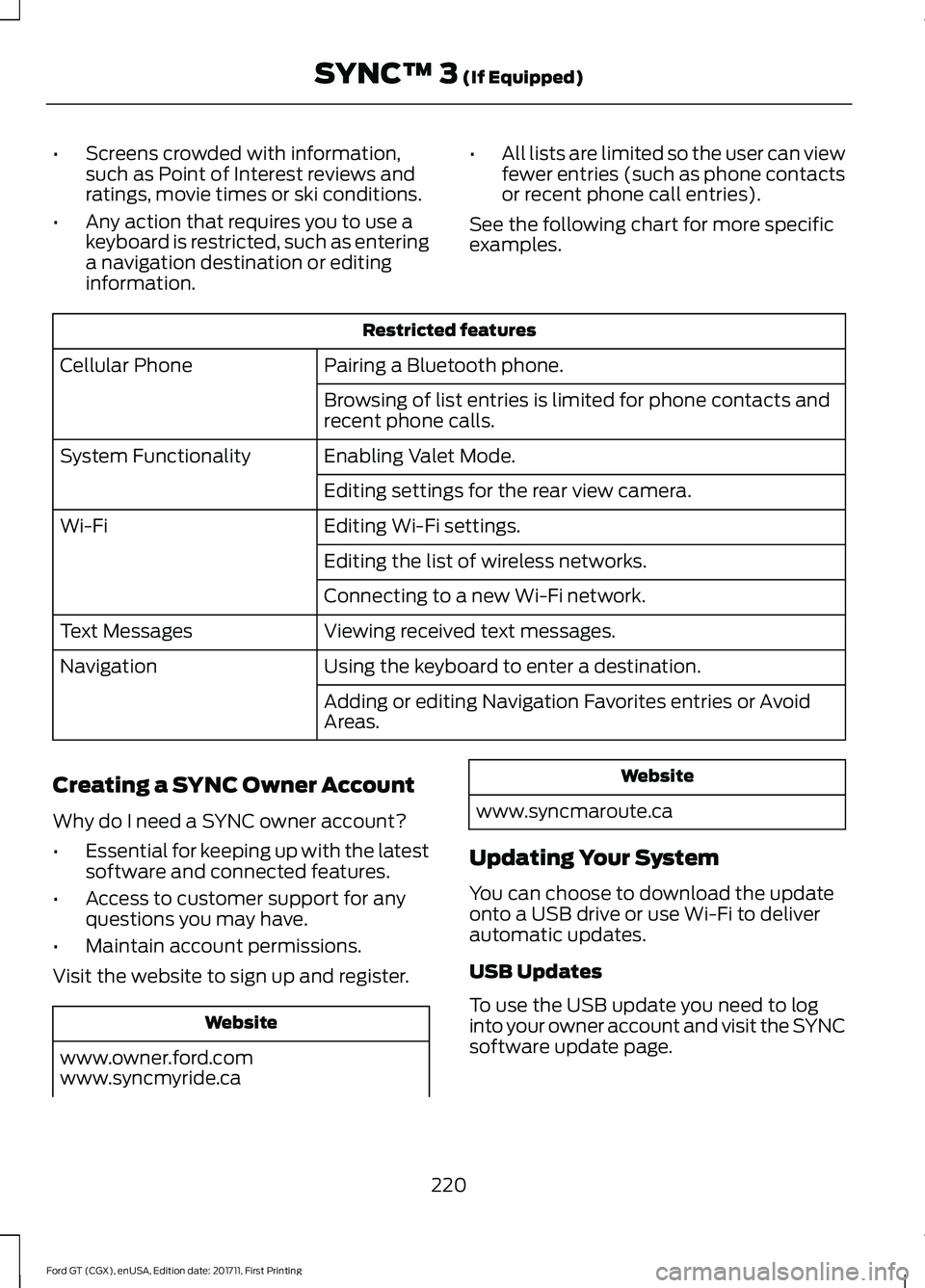
Screens crowded with information,
such as Point of Interest reviews and
ratings, movie times or ski conditions.
• Any action that requires you to use a
keyboard is restricted, such as entering
a navigation destination or editing
information. •
All lists are limited so the user can view
fewer entries (such as phone contacts
or recent phone call entries).
See the following chart for more specific
examples. Restricted features
Pairing a Bluetooth phone.
Cellular Phone
Browsing of list entries is limited for phone contacts and
recent phone calls.
Enabling Valet Mode.
System Functionality
Editing settings for the rear view camera.
Editing Wi-Fi settings.
Wi-Fi
Editing the list of wireless networks.
Connecting to a new Wi-Fi network.
Viewing received text messages.
Text Messages
Using the keyboard to enter a destination.
Navigation
Adding or editing Navigation Favorites entries or Avoid
Areas.
Creating a SYNC Owner Account
Why do I need a SYNC owner account?
• Essential for keeping up with the latest
software and connected features.
• Access to customer support for any
questions you may have.
• Maintain account permissions.
Visit the website to sign up and register. Website
www.owner.ford.com
www.syncmyride.ca Website
www.syncmaroute.ca
Updating Your System
You can choose to download the update
onto a USB drive or use Wi-Fi to deliver
automatic updates.
USB Updates
To use the USB update you need to log
into your owner account and visit the SYNC
software update page.
220
Ford GT (CGX), enUSA, Edition date: 201711, First Printing SYNC™ 3 (If Equipped)
Page 239 of 325
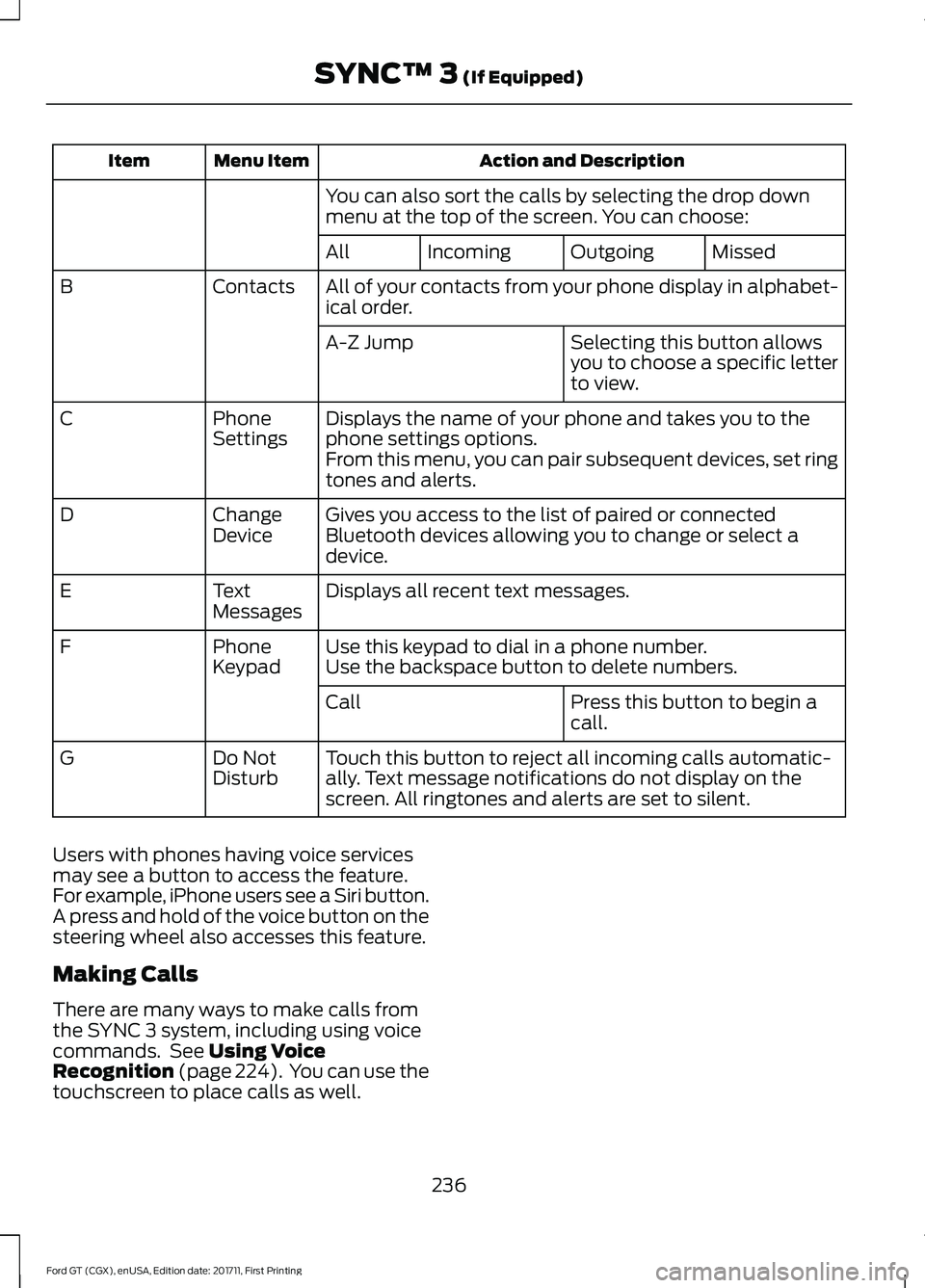
Action and Description
Menu Item
Item
You can also sort the calls by selecting the drop down
menu at the top of the screen. You can choose: Missed
Outgoing
Incoming
All
All of your contacts from your phone display in alphabet-
ical order.
Contacts
B
Selecting this button allows
you to choose a specific letter
to view.
A-Z Jump
Displays the name of your phone and takes you to the
phone settings options.
Phone
Settings
C
From this menu, you can pair subsequent devices, set ring
tones and alerts.
Gives you access to the list of paired or connected
Bluetooth devices allowing you to change or select a
device.
Change
Device
D
Displays all recent text messages.
Text
Messages
E
Use this keypad to dial in a phone number.
Phone
Keypad
F
Use the backspace button to delete numbers.
Press this button to begin a
call.
Call
Touch this button to reject all incoming calls automatic-
ally. Text message notifications do not display on the
screen. All ringtones and alerts are set to silent.
Do Not
Disturb
G
Users with phones having voice services
may see a button to access the feature.
For example, iPhone users see a Siri button.
A press and hold of the voice button on the
steering wheel also accesses this feature.
Making Calls
There are many ways to make calls from
the SYNC 3 system, including using voice
commands. See Using Voice
Recognition (page 224). You can use the
touchscreen to place calls as well.
236
Ford GT (CGX), enUSA, Edition date: 201711, First Printing SYNC™ 3
(If Equipped)
Page 240 of 325
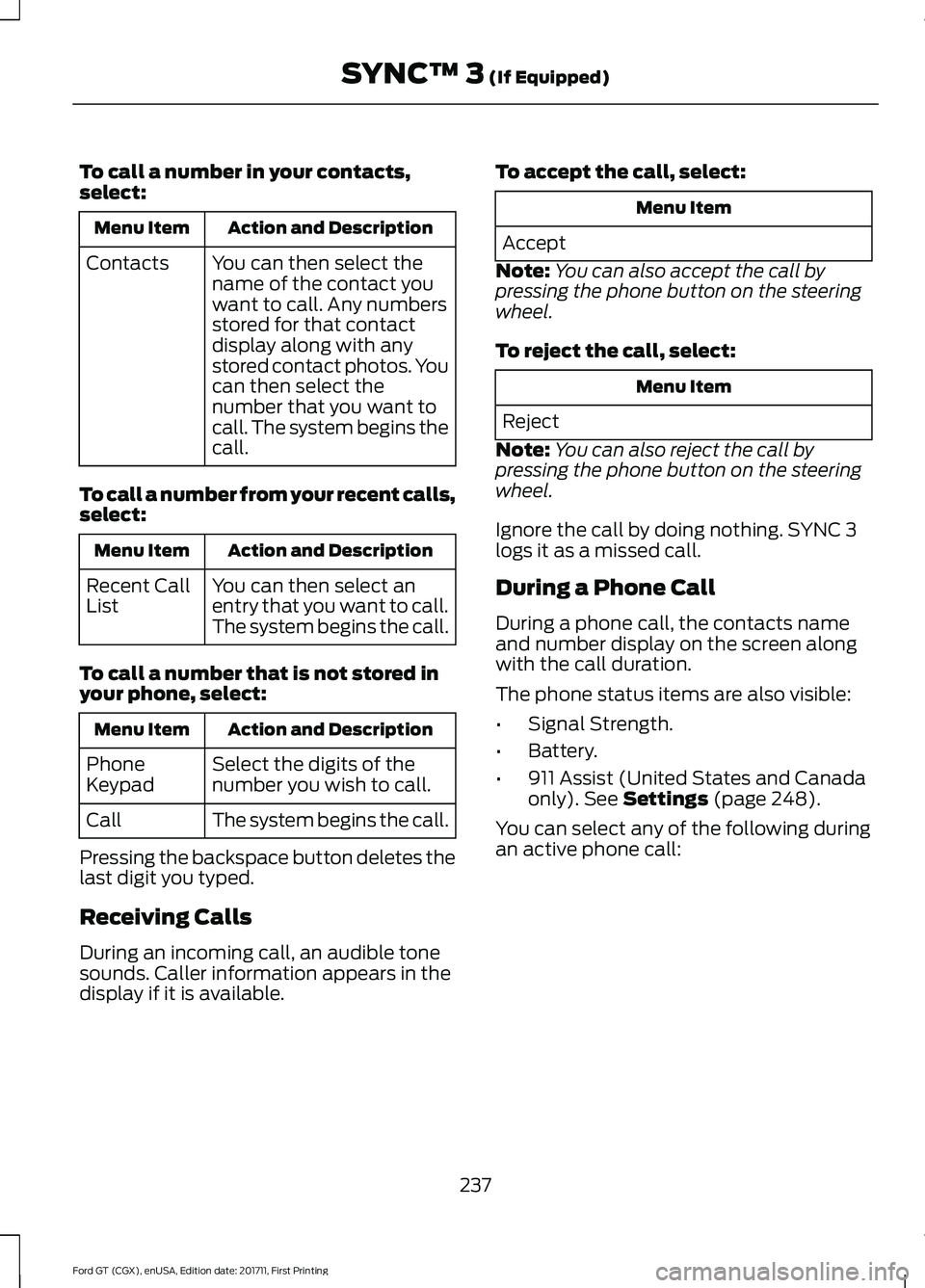
To call a number in your contacts,
select:
Action and Description
Menu Item
You can then select the
name of the contact you
want to call. Any numbers
stored for that contact
display along with any
stored contact photos. You
can then select the
number that you want to
call. The system begins the
call.
Contacts
To call a number from your recent calls,
select: Action and Description
Menu Item
You can then select an
entry that you want to call.
The system begins the call.
Recent Call
List
To call a number that is not stored in
your phone, select: Action and Description
Menu Item
Select the digits of the
number you wish to call.
Phone
Keypad
The system begins the call.
Call
Pressing the backspace button deletes the
last digit you typed.
Receiving Calls
During an incoming call, an audible tone
sounds. Caller information appears in the
display if it is available. To accept the call, select: Menu Item
Accept
Note: You can also accept the call by
pressing the phone button on the steering
wheel.
To reject the call, select: Menu Item
Reject
Note: You can also reject the call by
pressing the phone button on the steering
wheel.
Ignore the call by doing nothing. SYNC 3
logs it as a missed call.
During a Phone Call
During a phone call, the contacts name
and number display on the screen along
with the call duration.
The phone status items are also visible:
• Signal Strength.
• Battery.
• 911 Assist (United States and Canada
only). See Settings (page 248).
You can select any of the following during
an active phone call:
237
Ford GT (CGX), enUSA, Edition date: 201711, First Printing SYNC™ 3
(If Equipped)
Page 241 of 325
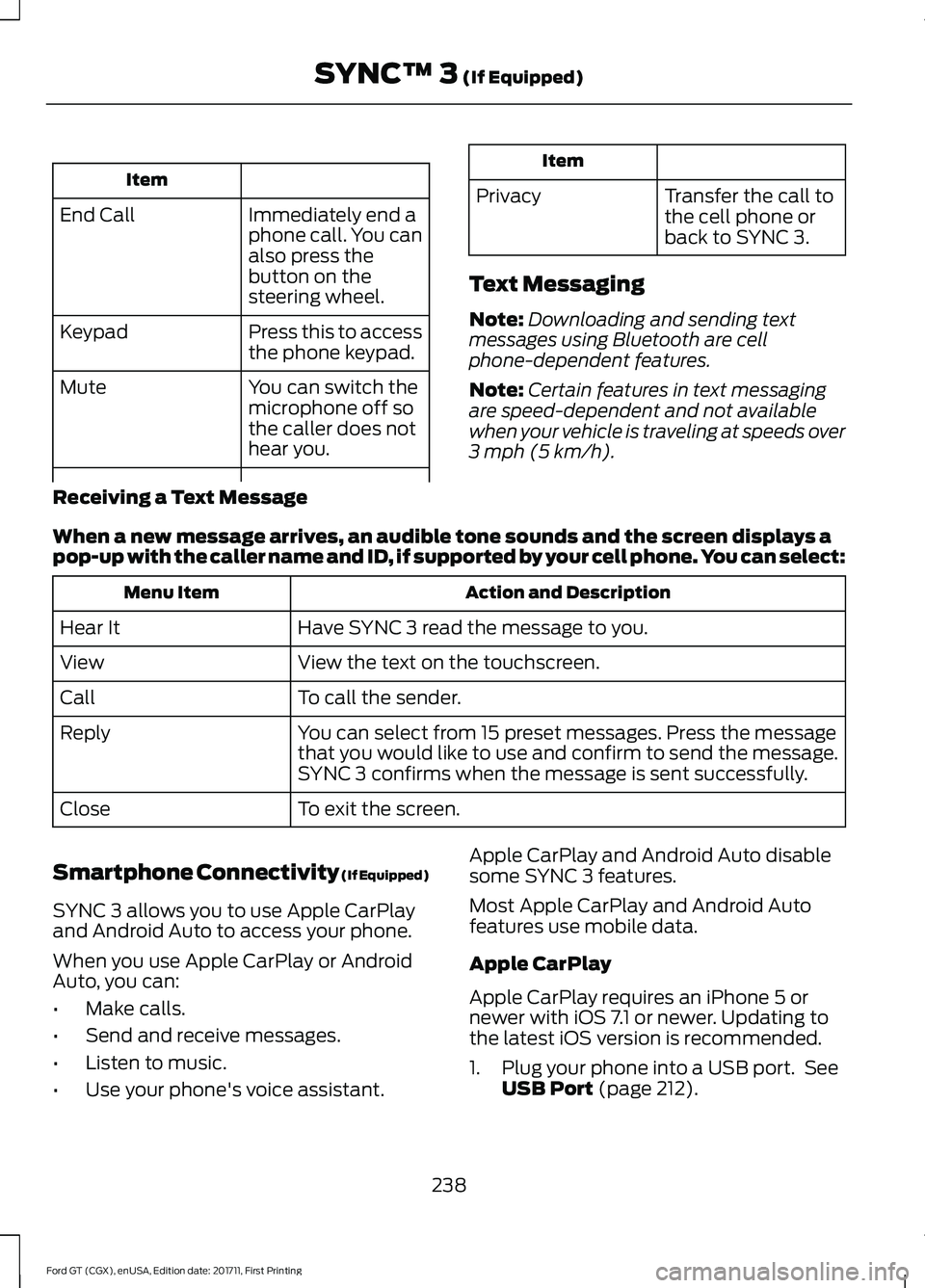
Item
Immediately end a
phone call. You can
also press the
button on the
steering wheel.
End Call
Press this to access
the phone keypad.
Keypad
You can switch the
microphone off so
the caller does not
hear you.
Mute Item
Privacy Transfer the call to
the cell phone or
back to SYNC 3.
Text Messaging
Note: Downloading and sending text
messages using Bluetooth are cell
phone-dependent features.
Note: Certain features in text messaging
are speed-dependent and not available
when your vehicle is traveling at speeds over
3 mph (5 km/h).
Receiving a Text Message
When a new message arrives, an audible tone sounds and the screen displays a
pop-up with the caller name and ID, if supported by your cell phone. You can select: Action and Description
Menu Item
Have SYNC 3 read the message to you.
Hear It
View the text on the touchscreen.
View
To call the sender.
Call
You can select from 15 preset messages. Press the message
that you would like to use and confirm to send the message.
SYNC 3 confirms when the message is sent successfully.
Reply
To exit the screen.
Close
Smartphone Connectivity (If Equipped)
SYNC 3 allows you to use Apple CarPlay
and Android Auto to access your phone.
When you use Apple CarPlay or Android
Auto, you can:
• Make calls.
• Send and receive messages.
• Listen to music.
• Use your phone's voice assistant. Apple CarPlay and Android Auto disable
some SYNC 3 features.
Most Apple CarPlay and Android Auto
features use mobile data.
Apple CarPlay
Apple CarPlay requires an iPhone 5 or
newer with iOS 7.1 or newer. Updating to
the latest iOS version is recommended.
1. Plug your phone into a USB port. See
USB Port
(page 212).
238
Ford GT (CGX), enUSA, Edition date: 201711, First Printing SYNC™ 3
(If Equipped)
Page 272 of 325
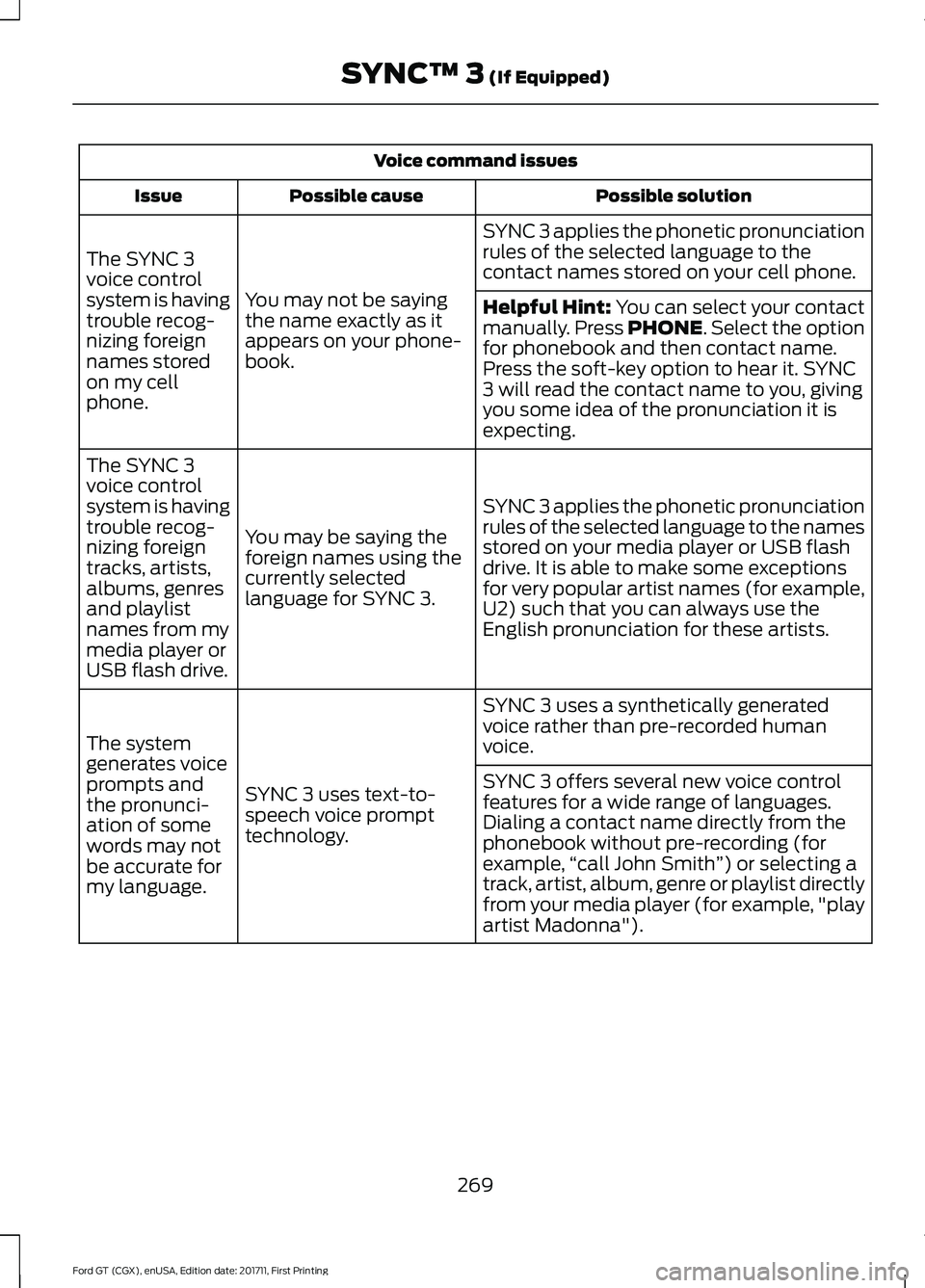
Voice command issues
Possible solution
Possible cause
Issue
SYNC 3 applies the phonetic pronunciation
rules of the selected language to the
contact names stored on your cell phone.
You may not be saying
the name exactly as it
appears on your phone-
book.
The SYNC 3
voice control
system is having
trouble recog-
nizing foreign
names stored
on my cell
phone.
Helpful Hint: You can select your contact
manually. Press PHONE. Select the option
for phonebook and then contact name.
Press the soft-key option to hear it. SYNC
3 will read the contact name to you, giving
you some idea of the pronunciation it is
expecting.
SYNC 3 applies the phonetic pronunciation
rules of the selected language to the names
stored on your media player or USB flash
drive. It is able to make some exceptions
for very popular artist names (for example,
U2) such that you can always use the
English pronunciation for these artists.
You may be saying the
foreign names using the
currently selected
language for SYNC 3.
The SYNC 3
voice control
system is having
trouble recog-
nizing foreign
tracks, artists,
albums, genres
and playlist
names from my
media player or
USB flash drive.
SYNC 3 uses a synthetically generated
voice rather than pre-recorded human
voice.
SYNC 3 uses text-to-
speech voice prompt
technology.
The system
generates voice
prompts and
the pronunci-
ation of some
words may not
be accurate for
my language. SYNC 3 offers several new voice control
features for a wide range of languages.
Dialing a contact name directly from the
phonebook without pre-recording (for
example,
“call John Smith ”) or selecting a
track, artist, album, genre or playlist directly
from your media player (for example, "play
artist Madonna").
269
Ford GT (CGX), enUSA, Edition date: 201711, First Printing SYNC™ 3
(If Equipped)