buttons FORD GT 2018 Owners Manual
[x] Cancel search | Manufacturer: FORD, Model Year: 2018, Model line: GT, Model: FORD GT 2018Pages: 325, PDF Size: 6.61 MB
Page 49 of 325
LOCKING AND UNLOCKING
You can use the power door lock control
or the remote control to lock and unlock
your vehicle.
Power Door Locks
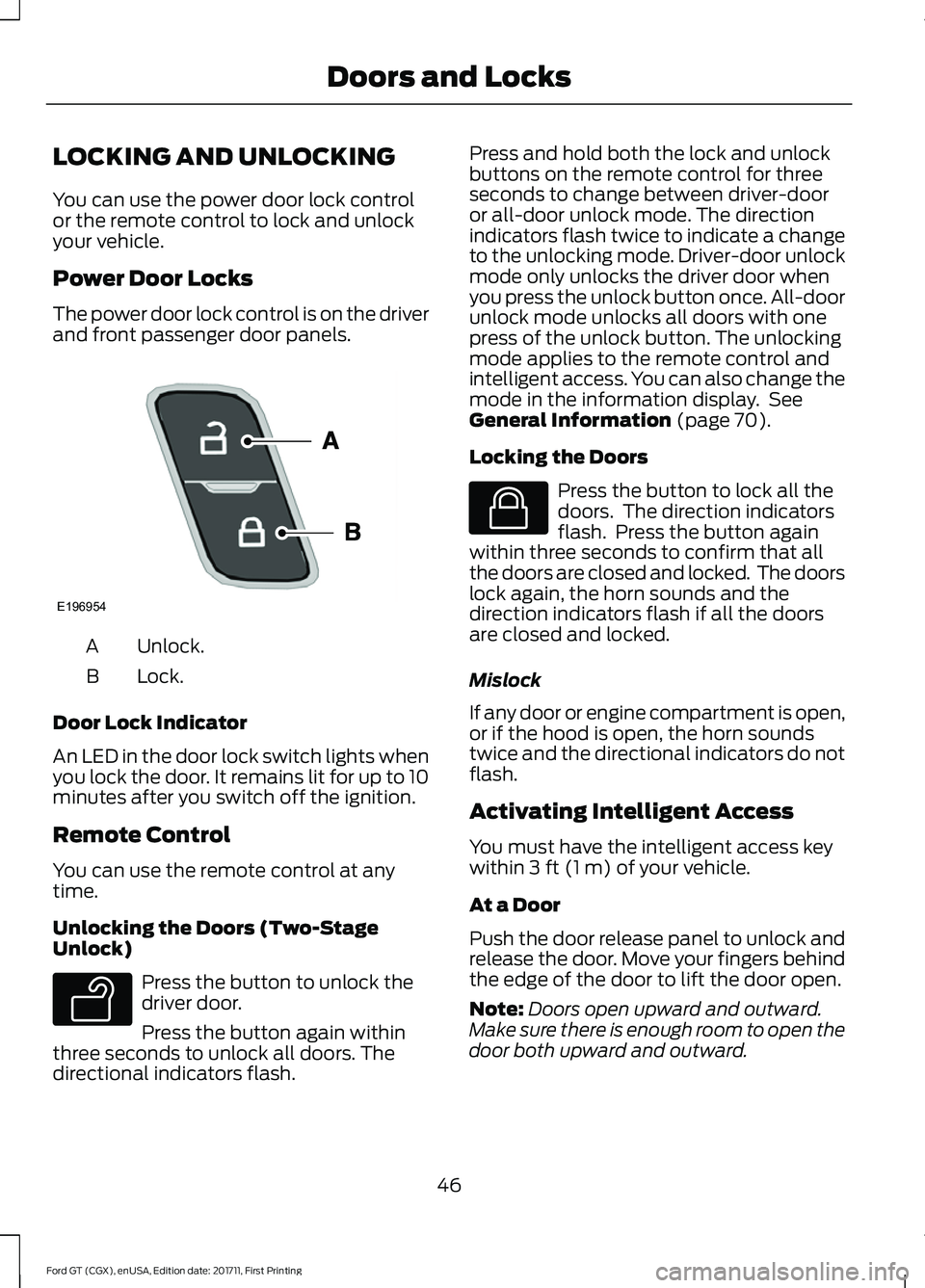
The power door lock control is on the driver
and front passenger door panels.
Unlock.
A
Lock.
B
Door Lock Indicator
An LED in the door lock switch lights when
you lock the door. It remains lit for up to 10
minutes after you switch off the ignition.
Remote Control
You can use the remote control at any
time.
Unlocking the Doors (Two-Stage
Unlock) Press the button to unlock the
driver door.
Press the button again within
three seconds to unlock all doors. The
directional indicators flash. Press and hold both the lock and unlock
buttons on the remote control for three
seconds to change between driver-door
or all-door unlock mode. The direction
indicators flash twice to indicate a change
to the unlocking mode. Driver-door unlock
mode only unlocks the driver door when
you press the unlock button once. All-door
unlock mode unlocks all doors with one
press of the unlock button. The unlocking
mode applies to the remote control and
intelligent access. You can also change the
mode in the information display. See
General Information (page 70).
Locking the Doors Press the button to lock all the
doors. The direction indicators
flash. Press the button again
within three seconds to confirm that all
the doors are closed and locked. The doors
lock again, the horn sounds and the
direction indicators flash if all the doors
are closed and locked.
Mislock
If any door or engine compartment is open,
or if the hood is open, the horn sounds
twice and the directional indicators do not
flash.
Activating Intelligent Access
You must have the intelligent access key
within
3 ft (1 m) of your vehicle.
At a Door
Push the door release panel to unlock and
release the door. Move your fingers behind
the edge of the door to lift the door open.
Note: Doors open upward and outward.
Make sure there is enough room to open the
door both upward and outward.
46
Ford GT (CGX), enUSA, Edition date: 201711, First Printing Doors and LocksE196954 E138629 E138623
Page 51 of 325
Note:
The doors will not autounlock if you
electronically lock your vehicle after you
switch the ignition off and before you open
the driver door.
Enabling or Disabling Autolock and
Autounlock
Note: You can switch autounlock and
autolock on or off independently of each
other.
Autolock is not configurable in all markets.
If the autolock settings are not available
in your information display, then the
system is not configurable. See General
Information (page 70).
Illuminated Entry
(If Equipped)
The interior lamp illuminates when you
unlock the doors with the remote entry
system.
The illuminated entry system turns off the
lights if:
• The ignition is on.
• You press the remote control lock
button.
• After 25 seconds of illumination.
The light does not turn off if:
• You switch them on with the lamp
control.
• Any door is open.
Illuminated Exit
(If Equipped)
The interior lamp illuminates when all
doors are closed and you switch the
ignition off.
The lamp turns off if all the doors remain
closed and:
• 25 seconds elapse.
• You press the push button ignition
switch. Battery Saver
If you leave on the courtesy lamps, dome
lamps or headlamps, the battery saver
turns them off 10 minutes after you switch
the ignition off.
Accessory Mode Battery Saver for
Intelligent Access Keys
If you leave your vehicle switched on, it
shuts off when it detects a certain amount
of battery drain, or after 45 minutes.
OPENING THE DOORS
Note:
While your vehicle is in motion, the
door release buttons only function if you
press the interior unlock button and door
interior release button within two seconds.
Opening the Doors from Inside Press the door release button
located on the arm rest to
release the door. Push the door
out and up to open the door. The hydraulic
lift cylinder assists in the door movement
once you start to open the door.
48
Ford GT (CGX), enUSA, Edition date: 201711, First Printing Doors and LocksE232417
Page 63 of 325
To switch the system on:
•
For vehicles sold in the United States,
the lighting control must be in the
autolamps position. The lamps turn on
in daylight and turn the headlamps on
when ambient light is low. You can
enable this feature in the information
display. See Information Displays
(page 70).
• For vehicles sold in Canada, daytime
running lamps turn on in both off and
autolamps position. You cannot
disable this feature.
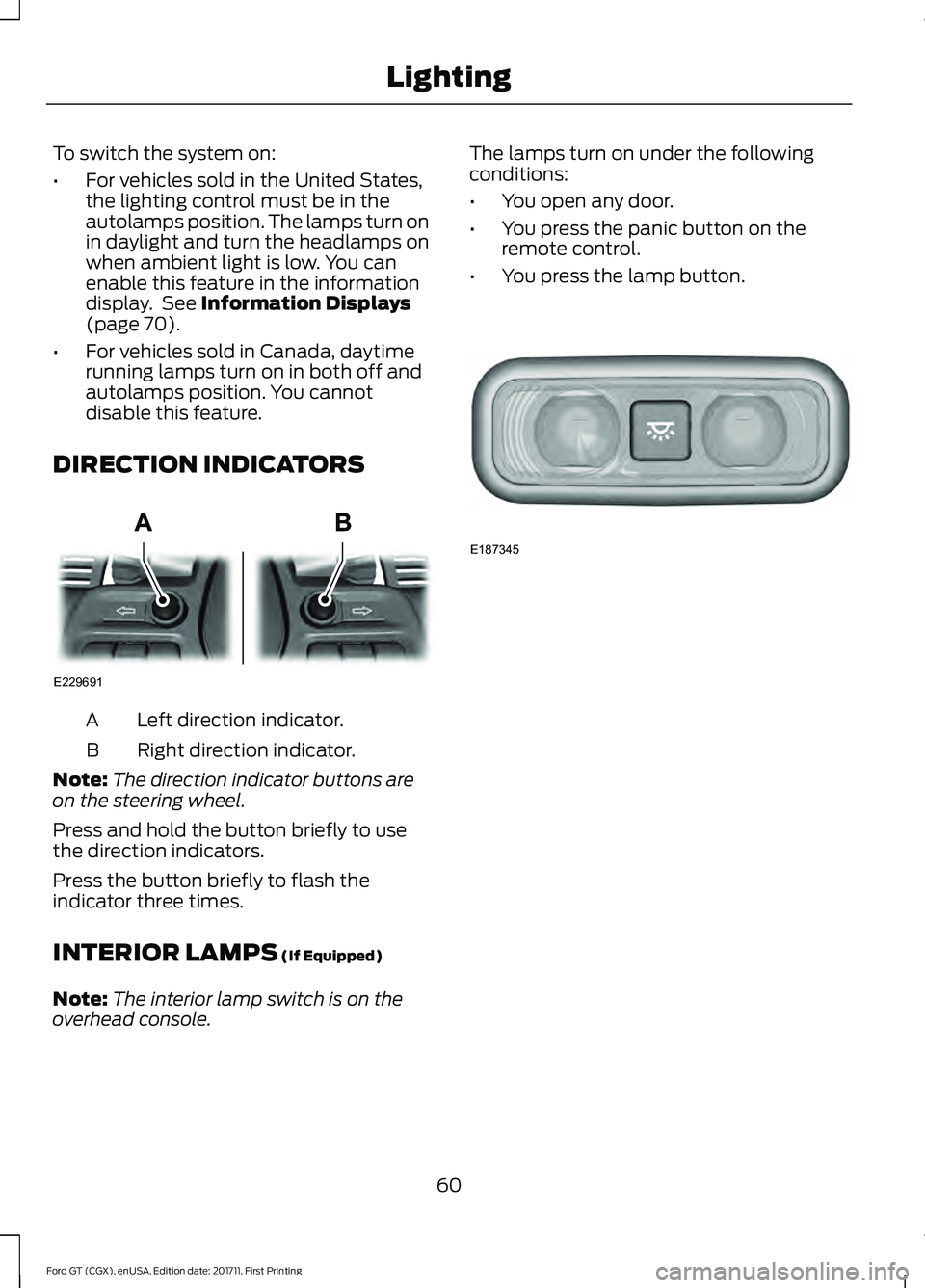
DIRECTION INDICATORS Left direction indicator.
A
Right direction indicator.
B
Note: The direction indicator buttons are
on the steering wheel.
Press and hold the button briefly to use
the direction indicators.
Press the button briefly to flash the
indicator three times.
INTERIOR LAMPS
(If Equipped)
Note: The interior lamp switch is on the
overhead console. The lamps turn on under the following
conditions:
•
You open any door.
• You press the panic button on the
remote control.
• You press the lamp button. 60
Ford GT (CGX), enUSA, Edition date: 201711, First Printing LightingE229691 E187345
Page 86 of 325
A/C: Press to switch the air conditioning on or off. Use A/C with recirculated
air to improve performance and efficiency.
E
Fan speed control:
Adjusts the volume of air circulated in the vehicle.
F
HINTS ON CONTROLLING THE
INTERIOR CLIMATE
General Hints
Note: Prolonged use of recirculated air may
cause the windows to fog up.
Note: You may feel a small amount of air
from the footwell air vents regardless of the
air distribution setting.
Note: To reduce humidity build-up inside
your vehicle, do not drive with the system
switched off or with recirculated air always
switched on.
Note: To improve the time to reach a
comfortable temperature in hot weather,
drive with the windows open until you feel
cold air through the air vents. Manual Climate Control
Note:
To reduce fogging of the windshield
during humid weather, adjust the air
distribution control to the windshield air
vents position.
Automatic Climate Control
Note: Adjusting the settings when your
vehicle interior is extremely hot or cold is
not necessary.
Note: The system adjusts to heat or cool
the interior to the temperature you select
as quickly as possible.
Note: For the system to function efficiently,
the instrument panel and side air vents
should be fully open.
Note: If you select
AUTO during cold
outside temperatures, the fan may run at a
slower speed until the engine warms up.
Quickly Heating the Interior Automatic climate control
Manual climate control
Press
AUTO.
Adjust the fan speed to the highest
setting.
1
Adjust the temperature control to the
desired setting.
Adjust the temperature control to the
full heat setting.
2
Direct air to the position you desire.
Direct air to the footwell using the air
distribution buttons.
3
83
Ford GT (CGX), enUSA, Edition date: 201711, First Printing Climate Control
Page 87 of 325
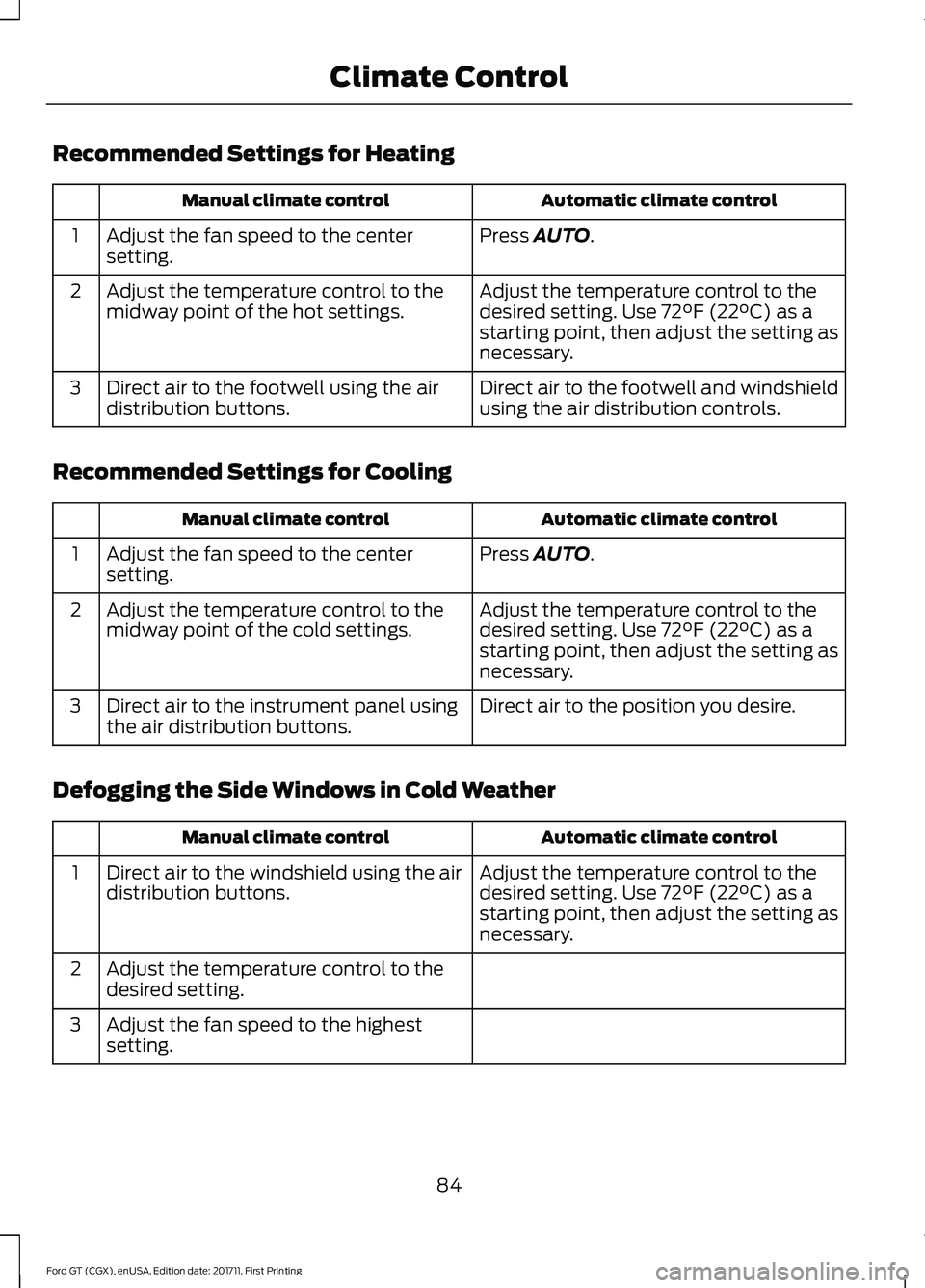
Recommended Settings for Heating
Automatic climate control
Manual climate control
Press AUTO.
Adjust the fan speed to the center
setting.
1
Adjust the temperature control to the
desired setting. Use
72°F (22°C) as a
starting point, then adjust the setting as
necessary.
Adjust the temperature control to the
midway point of the hot settings.
2
Direct air to the footwell and windshield
using the air distribution controls.
Direct air to the footwell using the air
distribution buttons.
3
Recommended Settings for Cooling Automatic climate control
Manual climate control
Press
AUTO.
Adjust the fan speed to the center
setting.
1
Adjust the temperature control to the
desired setting. Use
72°F (22°C) as a
starting point, then adjust the setting as
necessary.
Adjust the temperature control to the
midway point of the cold settings.
2
Direct air to the position you desire.
Direct air to the instrument panel using
the air distribution buttons.
3
Defogging the Side Windows in Cold Weather Automatic climate control
Manual climate control
Adjust the temperature control to the
desired setting. Use
72°F (22°C) as a
starting point, then adjust the setting as
necessary.
Direct air to the windshield using the air
distribution buttons.
1
Adjust the temperature control to the
desired setting.
2
Adjust the fan speed to the highest
setting.
3
84
Ford GT (CGX), enUSA, Edition date: 201711, First Printing Climate Control
Page 217 of 325
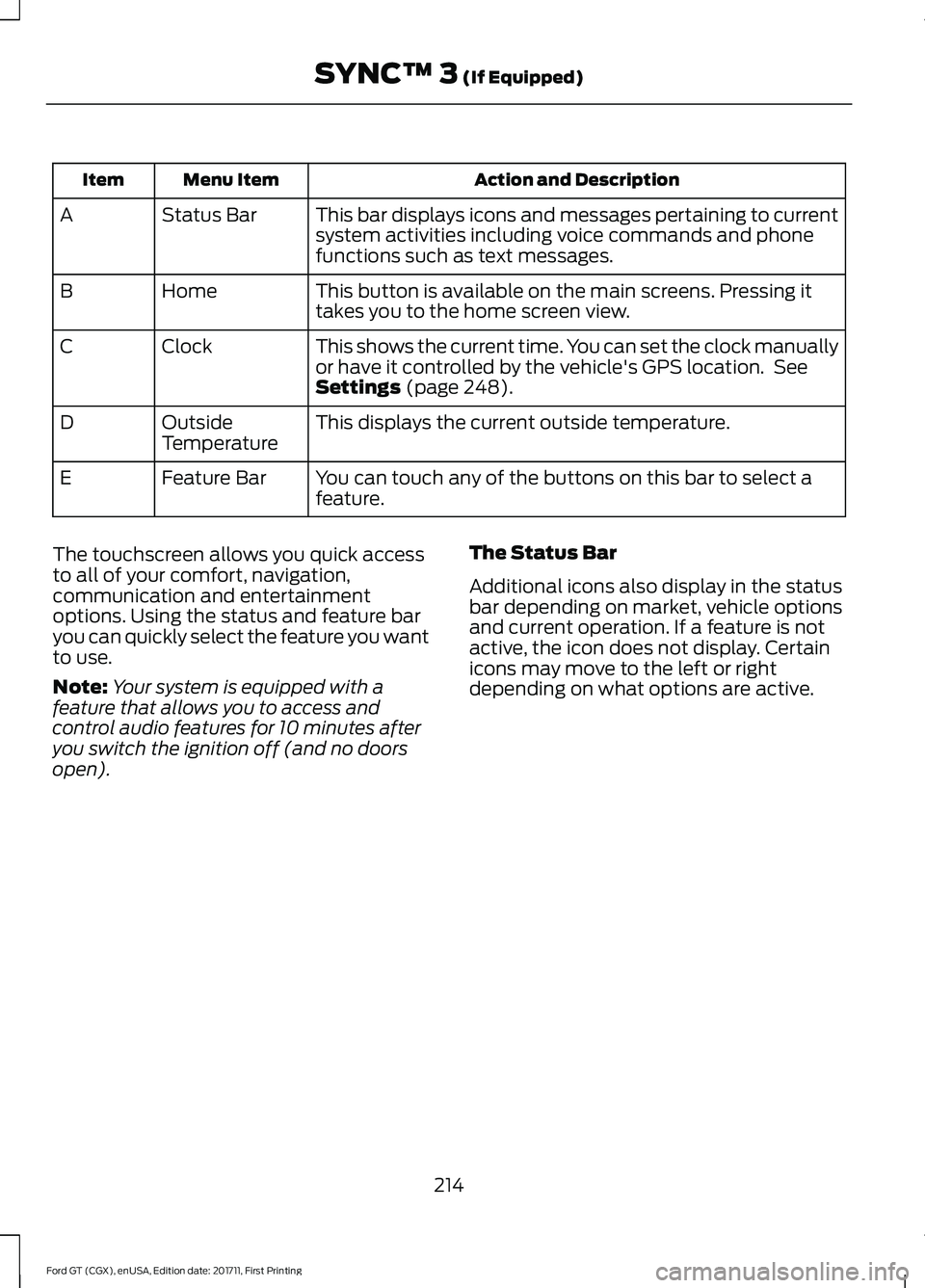
Action and Description
Menu Item
Item
This bar displays icons and messages pertaining to current
system activities including voice commands and phone
functions such as text messages.
Status Bar
A
This button is available on the main screens. Pressing it
takes you to the home screen view.
Home
B
This shows the current time. You can set the clock manually
or have it controlled by the vehicle's GPS location. See
Settings (page 248).
Clock
C
This displays the current outside temperature.
Outside
Temperature
D
You can touch any of the buttons on this bar to select a
feature.
Feature Bar
E
The touchscreen allows you quick access
to all of your comfort, navigation,
communication and entertainment
options. Using the status and feature bar
you can quickly select the feature you want
to use.
Note: Your system is equipped with a
feature that allows you to access and
control audio features for 10 minutes after
you switch the ignition off (and no doors
open). The Status Bar
Additional icons also display in the status
bar depending on market, vehicle options
and current operation. If a feature is not
active, the icon does not display. Certain
icons may move to the left or right
depending on what options are active.
214
Ford GT (CGX), enUSA, Edition date: 201711, First Printing SYNC™ 3
(If Equipped)
Page 234 of 325
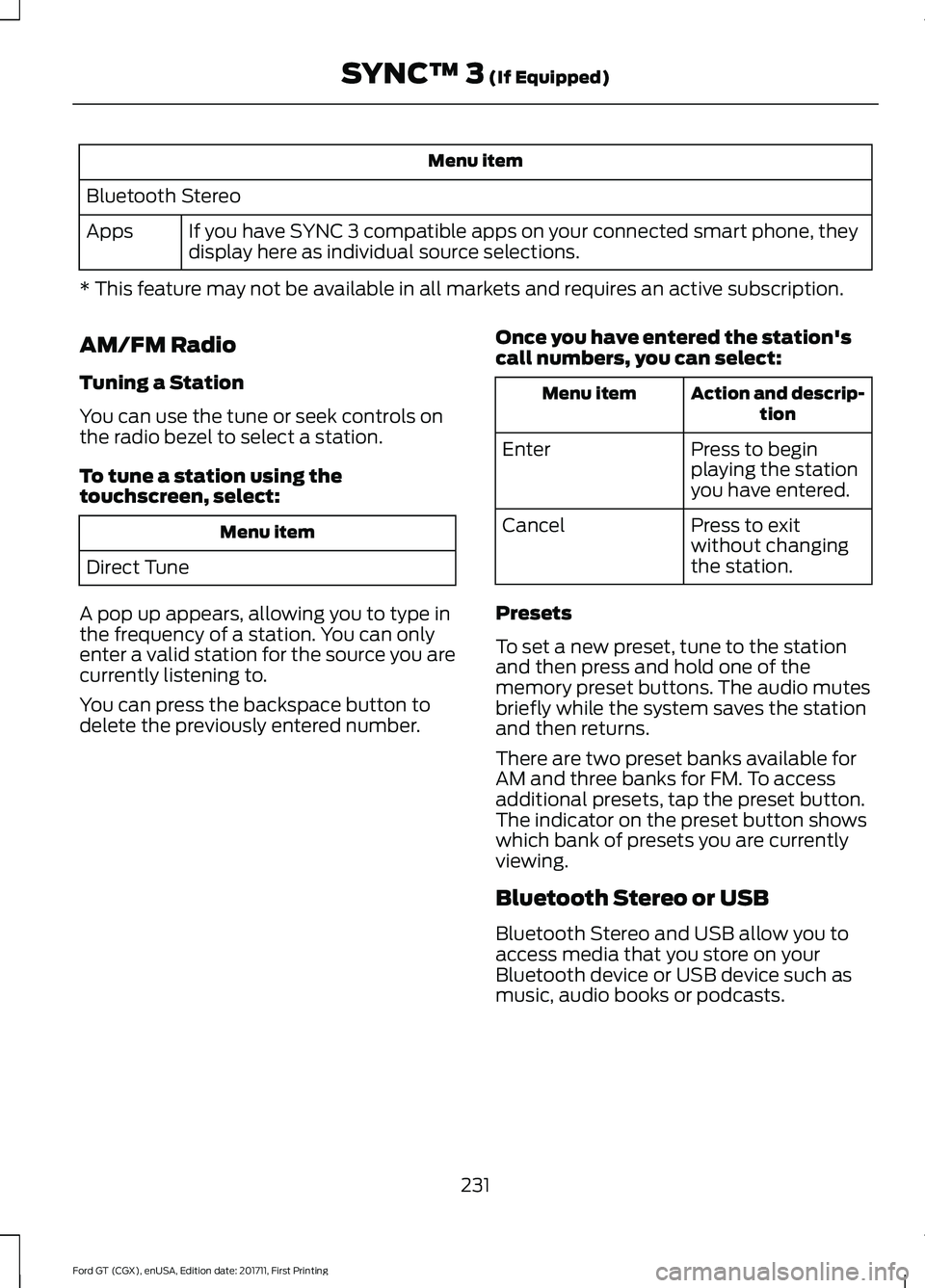
Menu item
Bluetooth Stereo If you have SYNC 3 compatible apps on your connected smart phone, they
display here as individual source selections.
Apps
* This feature may not be available in all markets and requires an active subscription.
AM/FM Radio
Tuning a Station
You can use the tune or seek controls on
the radio bezel to select a station.
To tune a station using the
touchscreen, select: Menu item
Direct Tune
A pop up appears, allowing you to type in
the frequency of a station. You can only
enter a valid station for the source you are
currently listening to.
You can press the backspace button to
delete the previously entered number. Once you have entered the station's
call numbers, you can select: Action and descrip-
tion
Menu item
Press to begin
playing the station
you have entered.
Enter
Press to exit
without changing
the station.
Cancel
Presets
To set a new preset, tune to the station
and then press and hold one of the
memory preset buttons. The audio mutes
briefly while the system saves the station
and then returns.
There are two preset banks available for
AM and three banks for FM. To access
additional presets, tap the preset button.
The indicator on the preset button shows
which bank of presets you are currently
viewing.
Bluetooth Stereo or USB
Bluetooth Stereo and USB allow you to
access media that you store on your
Bluetooth device or USB device such as
music, audio books or podcasts.
231
Ford GT (CGX), enUSA, Edition date: 201711, First Printing SYNC™ 3 (If Equipped)
Page 235 of 325
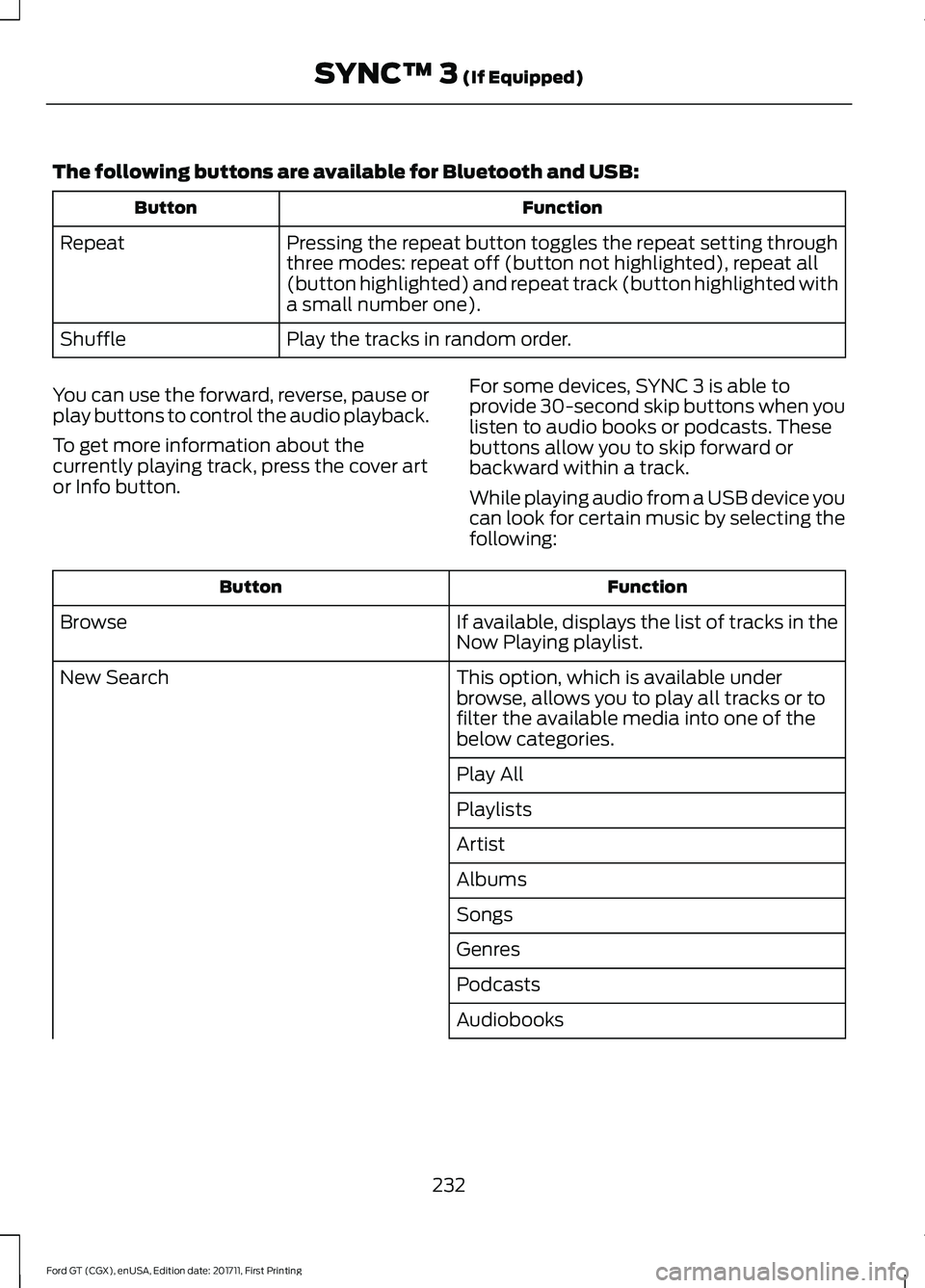
The following buttons are available for Bluetooth and USB:
Function
Button
Pressing the repeat button toggles the repeat setting through
three modes: repeat off (button not highlighted), repeat all
(button highlighted) and repeat track (button highlighted with
a small number one).
Repeat
Play the tracks in random order.
Shuffle
You can use the forward, reverse, pause or
play buttons to control the audio playback.
To get more information about the
currently playing track, press the cover art
or Info button. For some devices, SYNC 3 is able to
provide 30-second skip buttons when you
listen to audio books or podcasts. These
buttons allow you to skip forward or
backward within a track.
While playing audio from a USB device you
can look for certain music by selecting the
following: Function
Button
If available, displays the list of tracks in the
Now Playing playlist.
Browse
This option, which is available under
browse, allows you to play all tracks or to
filter the available media into one of the
below categories.
New Search
Play All
Playlists
Artist
Albums
Songs
Genres
Podcasts
Audiobooks
232
Ford GT (CGX), enUSA, Edition date: 201711, First Printing SYNC™ 3 (If Equipped)
Page 247 of 325
Action and Description
Menu Item
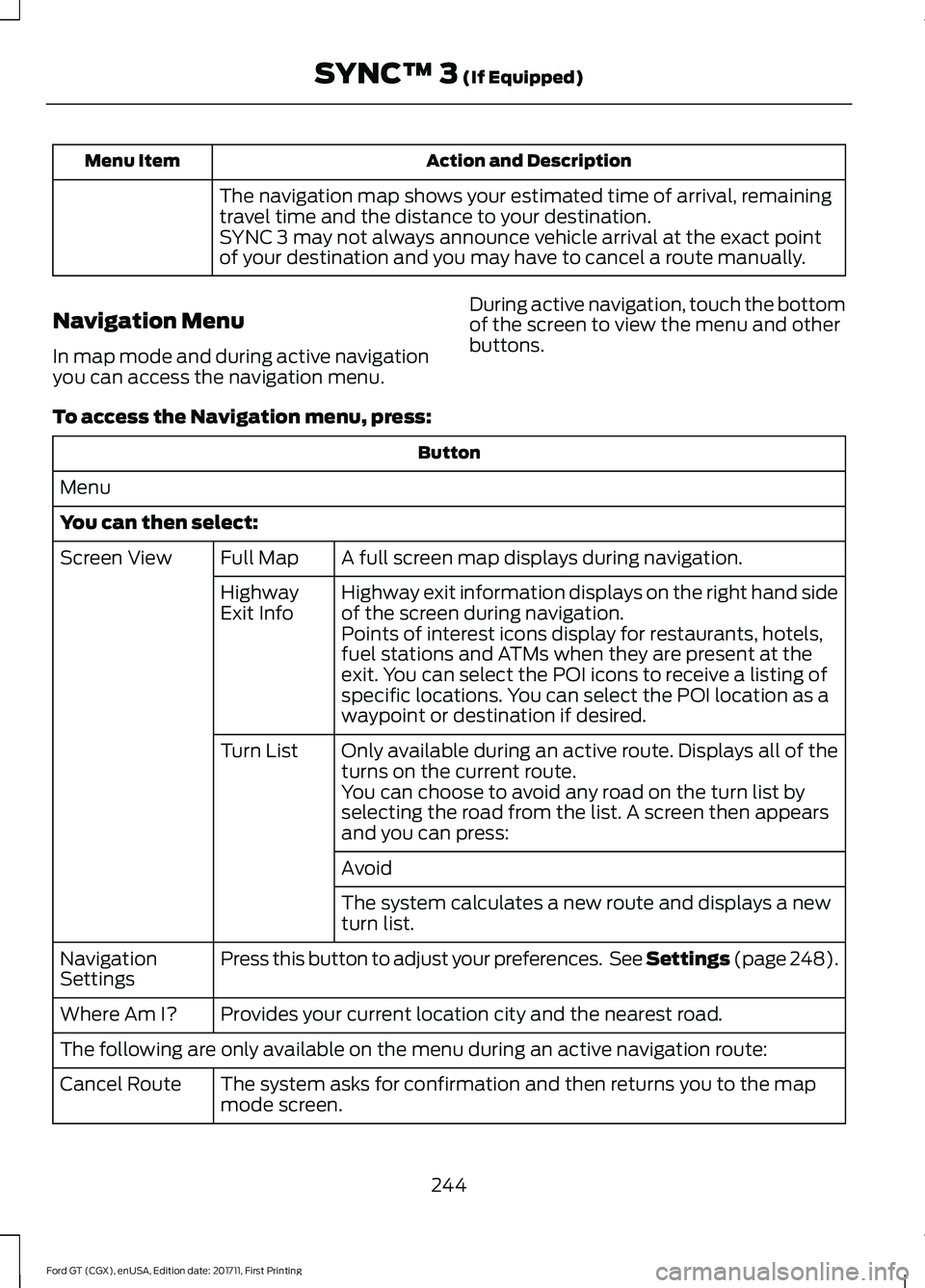
The navigation map shows your estimated time of arrival, remaining
travel time and the distance to your destination.
SYNC 3 may not always announce vehicle arrival at the exact point
of your destination and you may have to cancel a route manually.
Navigation Menu
In map mode and during active navigation
you can access the navigation menu. During active navigation, touch the bottom
of the screen to view the menu and other
buttons.
To access the Navigation menu, press: Button
Menu
You can then select: A full screen map displays during navigation.
Full Map
Screen View
Highway exit information displays on the right hand side
of the screen during navigation.
Highway
Exit Info
Points of interest icons display for restaurants, hotels,
fuel stations and ATMs when they are present at the
exit. You can select the POI icons to receive a listing of
specific locations. You can select the POI location as a
waypoint or destination if desired.
Only available during an active route. Displays all of the
turns on the current route.
Turn List
You can choose to avoid any road on the turn list by
selecting the road from the list. A screen then appears
and you can press:
Avoid
The system calculates a new route and displays a new
turn list.
Press this button to adjust your preferences. See Settings (page 248).
Navigation
Settings
Provides your current location city and the nearest road.
Where Am I?
The following are only available on the menu during an active navigation route:
The system asks for confirmation and then returns you to the map
mode screen.
Cancel Route
244
Ford GT (CGX), enUSA, Edition date: 201711, First Printing SYNC™ 3 (If Equipped)
Page 266 of 325
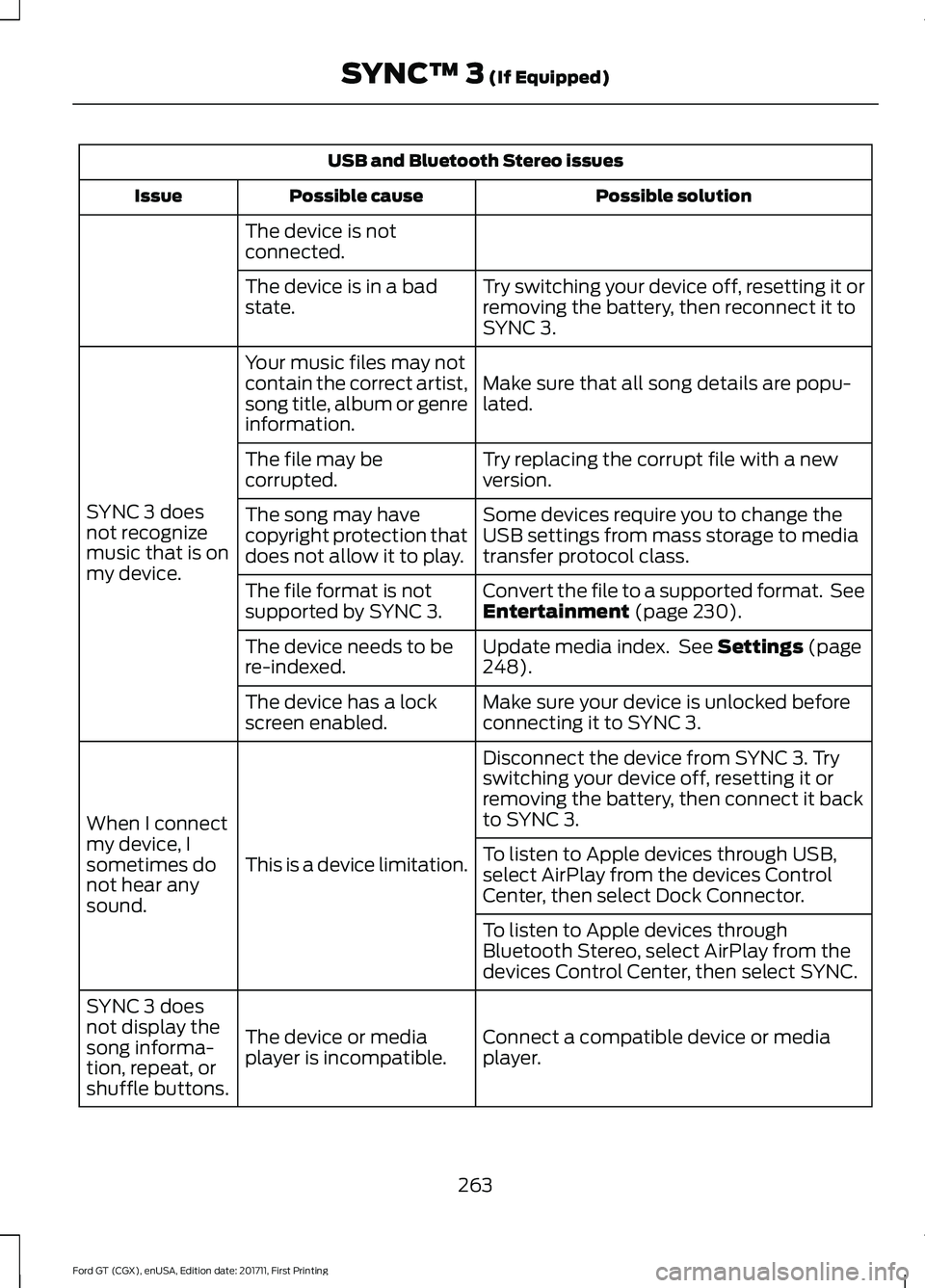
USB and Bluetooth Stereo issues
Possible solution
Possible cause
Issue
The device is not
connected. Try switching your device off, resetting it or
removing the battery, then reconnect it to
SYNC 3.
The device is in a bad
state.
Make sure that all song details are popu-
lated.
Your music files may not
contain the correct artist,
song title, album or genre
information.
SYNC 3 does
not recognize
music that is on
my device. Try replacing the corrupt file with a new
version.
The file may be
corrupted.
Some devices require you to change the
USB settings from mass storage to media
transfer protocol class.
The song may have
copyright protection that
does not allow it to play.
Convert the file to a supported format. See
Entertainment (page 230).
The file format is not
supported by SYNC 3.
Update media index. See
Settings (page
248).
The device needs to be
re-indexed.
Make sure your device is unlocked before
connecting it to SYNC 3.
The device has a lock
screen enabled.
Disconnect the device from SYNC 3. Try
switching your device off, resetting it or
removing the battery, then connect it back
to SYNC 3.
This is a device limitation.
When I connect
my device, I
sometimes do
not hear any
sound. To listen to Apple devices through USB,
select AirPlay from the devices Control
Center, then select Dock Connector.
To listen to Apple devices through
Bluetooth Stereo, select AirPlay from the
devices Control Center, then select SYNC.
Connect a compatible device or media
player.
The device or media
player is incompatible.
SYNC 3 does
not display the
song informa-
tion, repeat, or
shuffle buttons.
263
Ford GT (CGX), enUSA, Edition date: 201711, First Printing SYNC™ 3
(If Equipped)