ignition FORD GT 2019 Owner's Guide
[x] Cancel search | Manufacturer: FORD, Model Year: 2019, Model line: GT, Model: FORD GT 2019Pages: 321, PDF Size: 5.24 MB
Page 110 of 321
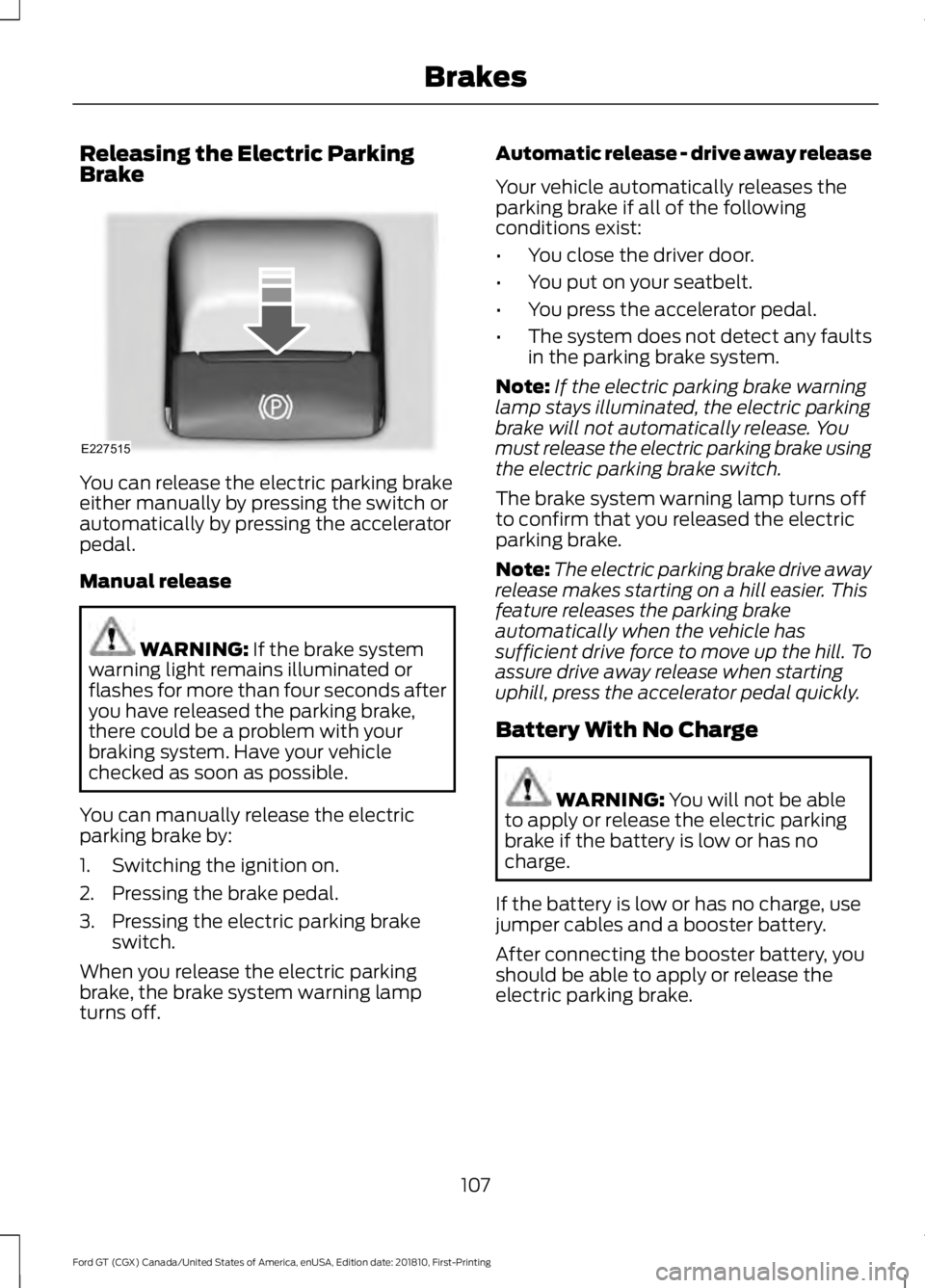
Releasing the Electric Parking
Brake
You can release the electric parking brake
either manually by pressing the switch or
automatically by pressing the accelerator
pedal.
Manual release
WARNING: If the brake system
warning light remains illuminated or
flashes for more than four seconds after
you have released the parking brake,
there could be a problem with your
braking system. Have your vehicle
checked as soon as possible.
You can manually release the electric
parking brake by:
1. Switching the ignition on.
2. Pressing the brake pedal.
3. Pressing the electric parking brake switch.
When you release the electric parking
brake, the brake system warning lamp
turns off. Automatic release - drive away release
Your vehicle automatically releases the
parking brake if all of the following
conditions exist:
•
You close the driver door.
• You put on your seatbelt.
• You press the accelerator pedal.
• The system does not detect any faults
in the parking brake system.
Note: If the electric parking brake warning
lamp stays illuminated, the electric parking
brake will not automatically release. You
must release the electric parking brake using
the electric parking brake switch.
The brake system warning lamp turns off
to confirm that you released the electric
parking brake.
Note: The electric parking brake drive away
release makes starting on a hill easier. This
feature releases the parking brake
automatically when the vehicle has
sufficient drive force to move up the hill. To
assure drive away release when starting
uphill, press the accelerator pedal quickly.
Battery With No Charge WARNING:
You will not be able
to apply or release the electric parking
brake if the battery is low or has no
charge.
If the battery is low or has no charge, use
jumper cables and a booster battery.
After connecting the booster battery, you
should be able to apply or release the
electric parking brake.
107
Ford GT (CGX) Canada/United States of America, enUSA, Edition date: 201810, First-Printing BrakesE227515
Page 112 of 321
PRINCIPLE OF OPERATION
WARNING: Vehicle modifications
involving braking system, aftermarket
roof racks, suspension, steering system,
tire construction and wheel and tire size
may change the handling characteristics
of your vehicle and may adversely affect
the performance of the electronic
stability control system. In addition,
installing any stereo loudspeakers may
interfere with and adversely affect the
electronic stability control system. Install
any aftermarket stereo loudspeaker as
far as possible from the front center
console, the tunnel, and the front seats
in order to minimize the risk of interfering
with the electronic stability control
sensors. Reducing the effectiveness of
the electronic stability control system
could lead to an increased risk of loss of
vehicle control, vehicle rollover, personal
injury and death. WARNING:
Remember that even
advanced technology cannot defy the
laws of physics. It's always possible to
lose control of a vehicle due to
inappropriate driver input for the
conditions. Aggressive driving on any
road condition can cause you to lose
control of your vehicle increasing the risk
of personal injury or property damage.
Activation of the electronic stability
control system is an indication that at
least some of the tires have exceeded
their ability to grip the road; this could
reduce the operator's ability to control
the vehicle potentially resulting in a loss
of vehicle control, vehicle rollover,
personal injury and death. If your
electronic stability control system
activates, SLOW DOWN. WARNING:
The stability and
traction control light illuminates steadily
if the system detects a failure. Make sure
you did not manually disable the traction
control system using the information
display controls or the switch. If the
stability control and traction control light
is still illuminating steadily, have the
system serviced by an authorized dealer
immediately. Operating your vehicle with
the traction control disabled could lead
to an increased risk of loss of vehicle
control, vehicle rollover, personal injury
and death.
The stability and traction control systems
help you to avoid drive wheel spin and loss
of traction. The system automatically
turns on each time you switch the ignition
on.
If a fault occurs in either the stability
control or the traction control system, you
may experience the following conditions:
• The stability and traction control light
illuminates steadily.
• The stability control and traction
control systems do not enhance your
vehicle's ability to maintain traction of
the wheels.
If a driving condition activates either the
stability control or the traction control
system you may experience the following
conditions:
• The stability and traction control light
flashes.
• Your vehicle slows down.
• Reduced engine power.
• A vibration in the brake pedal.
109
Ford GT (CGX) Canada/United States of America, enUSA, Edition date: 201810, First-Printing Stability Control
Page 113 of 321
•
The brake pedal is stiffer than usual.
• If the driving condition is severe and
your foot is not on the brake, the brake
pedal may move as the system applies
higher brake force.
The stability and traction control systems
have several features built into it to help
you maintain control of your vehicle:
AdvanceTrac ™ Electronic
Stability Control
The system enhances your vehicle ’s ability
to prevent skids or lateral slides by
applying brakes to one or more of the
wheels individually and, if necessary,
reducing engine power.
Traction Control
The system enhances your vehicle ’s ability
to maintain traction of the wheels by
detecting and controlling wheel spin.
Traction control settings on your vehicle
are integrated into the AdvanceTrac
Stability Control system. USING STABILITY CONTROL
AdvanceTrac
™ Electronic
Stability Control
The system automatically turns on each
time you switch the ignition on. You can
also use the stability control button on the
center console to adjust the operation of
the AdvanceTrac stability control system.
AdvanceTrac electronic stability control is
disabled when the transmission is in
reverse (R).
The amount of change you can make to
the AdvanceTrac stability control system
depends on the Drive Mode you have
selected.
The following chart describes how much you can change the functionality of
stability control and traction control in each Drive Mode: How to Select
Operation
Available Setting(s)
Drive Mode
No input required.
Normal.
On.
Normal, Wet and
V-Max.
No input required.
Normal.
On.
Sport and Track. Press the ESC
button once.
Stability control is
reduced, traction
control remains on.
Performance.
Press the ESC
button twice within 0.5 seconds.
Stability control is
reduced, traction
control is disabled.
Performance+.
Press the ESCbutton for 5 seconds.
Stability and traction
control is disabled.
Off.
110
Ford GT (CGX) Canada/United States of America, enUSA, Edition date: 201810, First-Printing Stability Control
Page 117 of 321
PRINCIPLE OF OPERATION
Cruise control lets you maintain a set
speed without keeping your foot on the
accelerator pedal. You can use cruise
control when your vehicle speed is greater
than 20 mph (30 km/h).
USING CRUISE CONTROL WARNING:
Do not use cruise
control on winding roads, in heavy traffic
or when the road surface is slippery. This
could result in loss of vehicle control,
serious injury or death. WARNING:
When you are going
downhill, your vehicle speed could
increase above the set speed. The
system does not apply the brakes.
Note: Cruise control disengages if the
vehicle speed decreases more than 10 mph
(16 km/h) below the set speed when driving
uphill. The cruise controls are on the steering
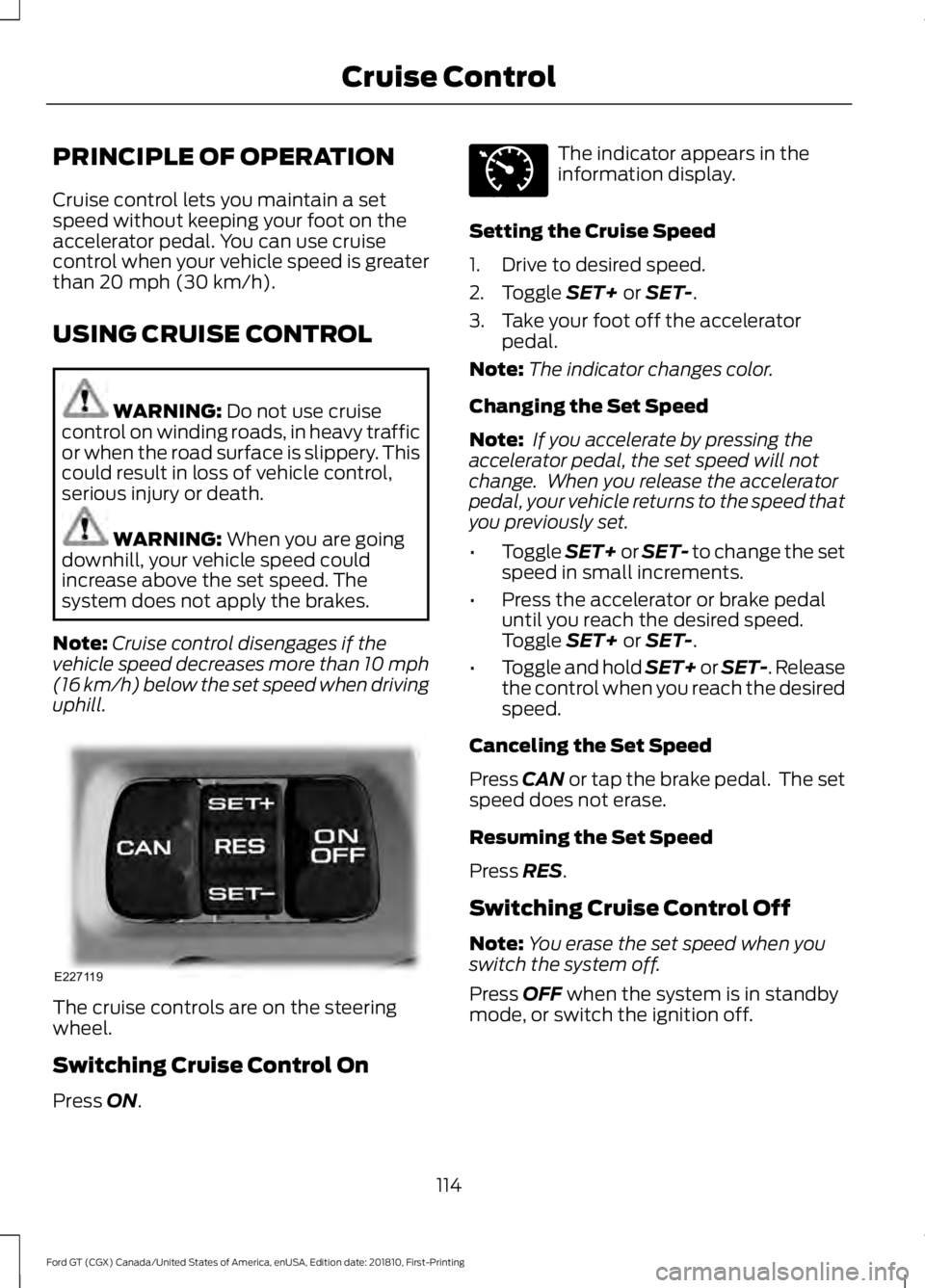
wheel.
Switching Cruise Control On
Press
ON. The indicator appears in the
information display.
Setting the Cruise Speed
1. Drive to desired speed.
2. Toggle
SET+ or SET-.
3. Take your foot off the accelerator pedal.
Note: The indicator changes color.
Changing the Set Speed
Note: If you accelerate by pressing the
accelerator pedal, the set speed will not
change. When you release the accelerator
pedal, your vehicle returns to the speed that
you previously set.
• Toggle
SET+ or SET- to change the set
speed in small increments.
• Press the accelerator or brake pedal
until you reach the desired speed.
Toggle
SET+ or SET-.
• Toggle and hold SET+ or SET-. Release
the control when you reach the desired
speed.
Canceling the Set Speed
Press
CAN or tap the brake pedal. The set
speed does not erase.
Resuming the Set Speed
Press
RES.
Switching Cruise Control Off
Note: You erase the set speed when you
switch the system off.
Press
OFF when the system is in standby
mode, or switch the ignition off.
114
Ford GT (CGX) Canada/United States of America, enUSA, Edition date: 201810, First-Printing Cruise ControlE227119 E71340
Page 132 of 321
ROADSIDE ASSISTANCE
Vehicles Sold in the United States:
Getting Roadside Assistance
To fully assist you should you have a
vehicle concern, Ford Motor Company
offers a complimentary roadside
assistance program. This program is
separate from the New Vehicle Limited
Warranty.
The service is available:
•
24 hours a day, seven days a week.
• The coverage period is three years from
the date of purchase.
Roadside Assistance covers:
• Assistance with a flat tire.
• Battery jump start.
• Lock-out assistance (key replacement
cost is the customer's responsibility).
• Assistance if your vehicle runs out of
fuel.
• Winch out — available if your vehicle is
stuck.
• Towing — Ford dealership or
independent service contractors, if not
prohibited by state, local or municipal
law, shall tow your vehicle to the
nearest Certified Ford GT Dealership.
Vehicles Sold in the United States:
Using Roadside Assistance
United States Ford GT customers who
require Roadside Assistance, call the Ford
GT Concierge at 800-210-5795.
If you need to arrange roadside assistance
for yourself, Ford Motor Company
reimburses a reasonable amount for
towing to the nearest authorized
dealership. To obtain reimbursement
information, contact the Ford GT Concierge
at 800-210-5795. For assistance outside of the United
States, refer to the complete list of Ford
GT Concierge phone numbers. See About
This Manual (page 5).
HAZARD FLASHERS
Note: The hazard flashers operate when
the ignition is in any position. If used when
the vehicle is not running, the battery loses
charge. As a result, there may be insufficient
power to restart your vehicle. The hazard flasher control is on
the floor console. Use your
hazard flashers when your
vehicle is creating a safety hazard for other
motorists.
• Press the flasher control and all front
and rear direction indicators flash.
• Press the button again to switch them
off.
FUEL SHUTOFF WARNING:
If your vehicle has
been involved in a crash, have the fuel
system checked. Failure to follow this
instruction could result in fire, personal
injury or death.
Note: When you try to restart your vehicle
after a fuel shutoff, the vehicle makes sure
that various systems are safe to restart.
Once the vehicle determines the systems
are safe, then the vehicle allows you to
restart.
Note: In the event that your vehicle does
not restart after your third attempt, contact
a qualified technician.
129
Ford GT (CGX) Canada/United States of America, enUSA, Edition date: 201810, First-Printing Roadside EmergenciesE142663
Page 173 of 321
Raising the Rear Wing
For routine cleaning, raise the wing.
Using the information display select the
following:
1. Rear wing deployment.
2. Select Raised.
After you have cleaned your vehicle, to
return the wing to the lowered position you
must drive the car at 15 mph (25 km/h) or
above. The wing will return to the lowered
position.
Note:
You cannot lower the wing when your
vehicle is stationary.
Exterior Plastic Parts
For routine cleaning we recommend
Motorcraft® Detail Wash. If tar or grease
spots are present, we recommend
Motorcraft® Bug and Tar Remover.
Under Hood
For removing black rubber marks from
under the hood we recommend
Motorcraft® Wheel and Tire Cleaner or
Motorcraft® Bug and Tar Remover.
WAXING
Note: If your vehicle has a matte paint
finish, do not wax your vehicle.
Regular waxing is necessary to protect your
car's paint from the elements. We
recommend that you wash and wax the
painted surface once or twice a year.
When washing and waxing, park your
vehicle in a shaded area out of direct
sunlight. Always wash your vehicle before
applying wax.
• Use a quality wax that does not contain
abrasives.
• Follow the manufacturer ’s instructions
to apply and remove the wax. •
Apply a small amount of wax in a
back-and-forth motion, not in circles.
• Do not allow wax to come in contact
with any non-body (low-gloss black)
colored trim. The wax will discolor or
stain the parts over time.
• Do not apply wax to glass areas.
• After waxing, your car's paint should
feel smooth, and be free of streaks and
smudges.
CLEANING THE ENGINE
Engines are more efficient when they are
clean because grease and dirt buildup keep
the engine warmer than normal.
When washing:
• Do not spray a hot engine with cold
water to avoid cracking the engine
block or other engine components.
• Spray Motorcraft® Engine Shampoo
and Degreaser on all parts that require
cleaning and pressure rinse clean. In
Canada, use Motorcraft Engine
Shampoo.
• Never wash or rinse the engine while it
is hot or running; water in the running
engine may cause internal damage.
• Never wash or rinse any ignition coil,
spark plug wire or spark plug well, or
the area in and around these locations.
• Never spray water on electrical
components such as modules,
connectors and fuse boxes. Cover all
electrical components before cleaning
to prevent water damage.
170
Ford GT (CGX) Canada/United States of America, enUSA, Edition date: 201810, First-Printing Vehicle Care
Page 203 of 321
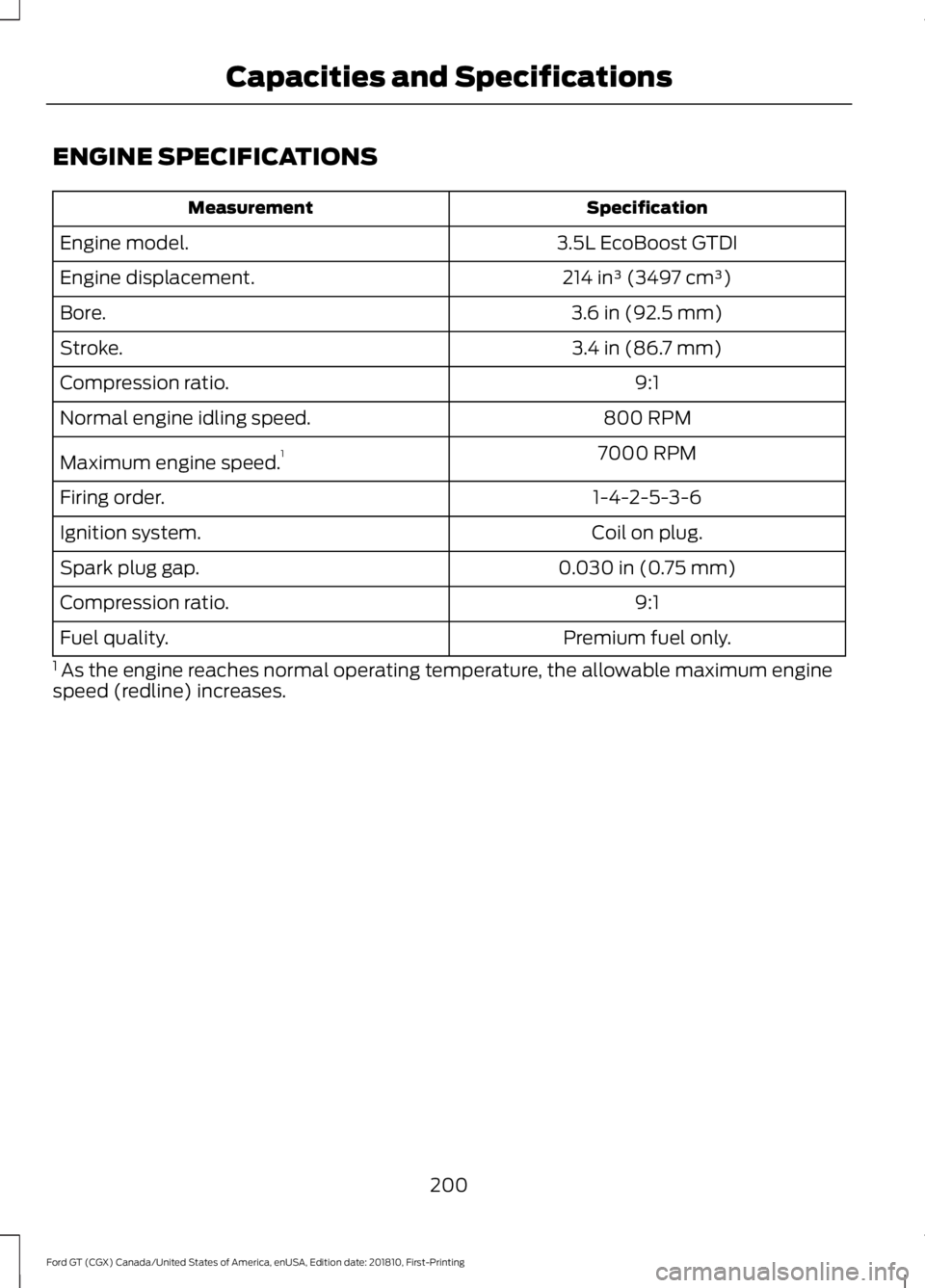
ENGINE SPECIFICATIONS
Specification
Measurement
3.5L EcoBoost GTDI
Engine model.
214 in³ (3497 cm³)
Engine displacement.
3.6 in (92.5 mm)
Bore.
3.4 in (86.7 mm)
Stroke.
9:1
Compression ratio.
800 RPM
Normal engine idling speed.
7000 RPM
Maximum engine speed. 1
1-4-2-5-3-6
Firing order.
Coil on plug.
Ignition system.
0.030 in (0.75 mm)
Spark plug gap.
9:1
Compression ratio.
Premium fuel only.
Fuel quality.
1 As the engine reaches normal operating temperature, the allowable maximum engine
speed (redline) increases.
200
Ford GT (CGX) Canada/United States of America, enUSA, Edition date: 201810, First-Printing Capacities and Specifications
Page 213 of 321
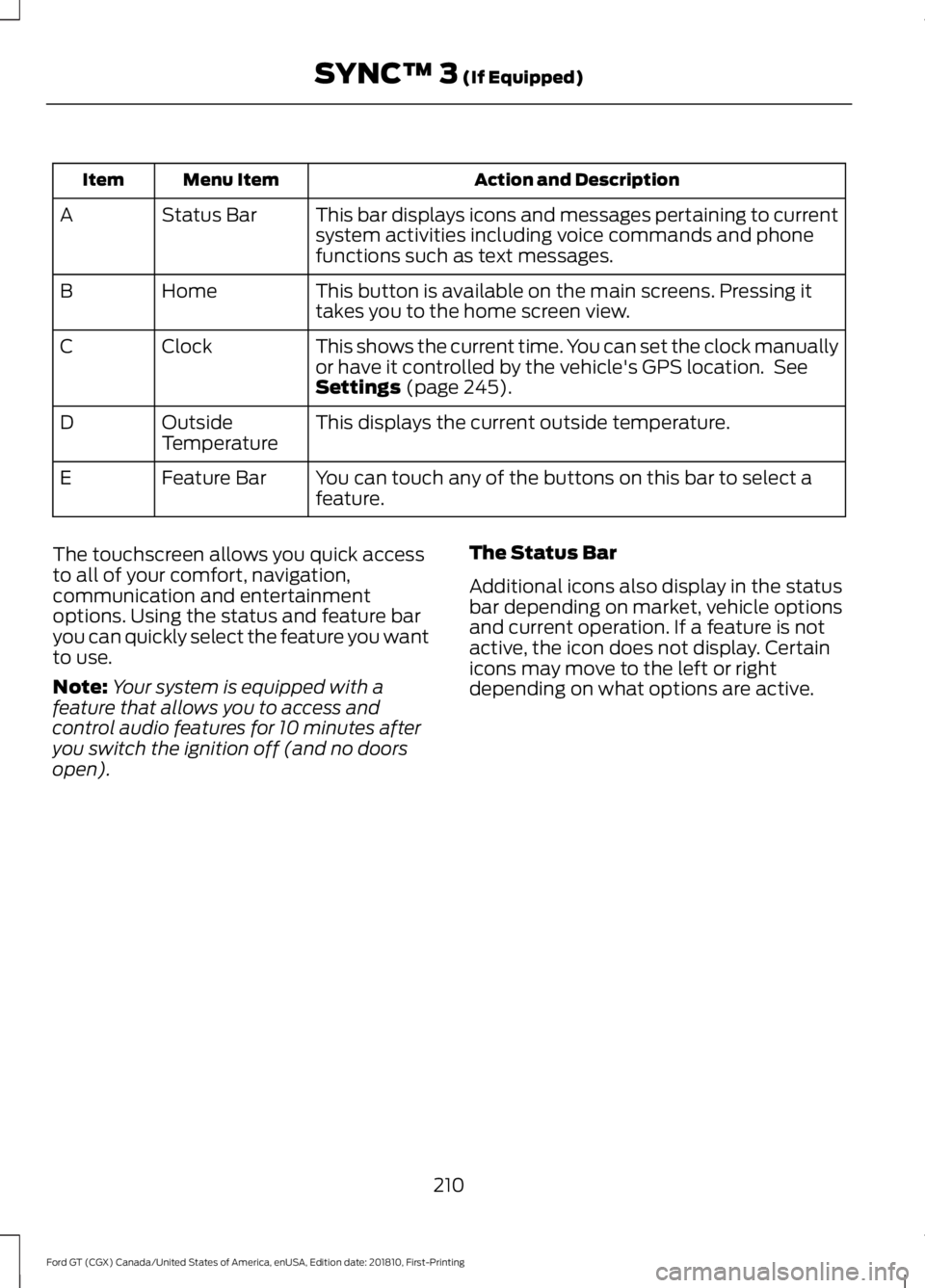
Action and Description
Menu Item
Item
This bar displays icons and messages pertaining to current
system activities including voice commands and phone
functions such as text messages.
Status Bar
A
This button is available on the main screens. Pressing it
takes you to the home screen view.
Home
B
This shows the current time. You can set the clock manually
or have it controlled by the vehicle's GPS location. See
Settings (page 245).
Clock
C
This displays the current outside temperature.
Outside
Temperature
D
You can touch any of the buttons on this bar to select a
feature.
Feature Bar
E
The touchscreen allows you quick access
to all of your comfort, navigation,
communication and entertainment
options. Using the status and feature bar
you can quickly select the feature you want
to use.
Note: Your system is equipped with a
feature that allows you to access and
control audio features for 10 minutes after
you switch the ignition off (and no doors
open). The Status Bar
Additional icons also display in the status
bar depending on market, vehicle options
and current operation. If a feature is not
active, the icon does not display. Certain
icons may move to the left or right
depending on what options are active.
210
Ford GT (CGX) Canada/United States of America, enUSA, Edition date: 201810, First-Printing SYNC™ 3
(If Equipped)
Page 220 of 321
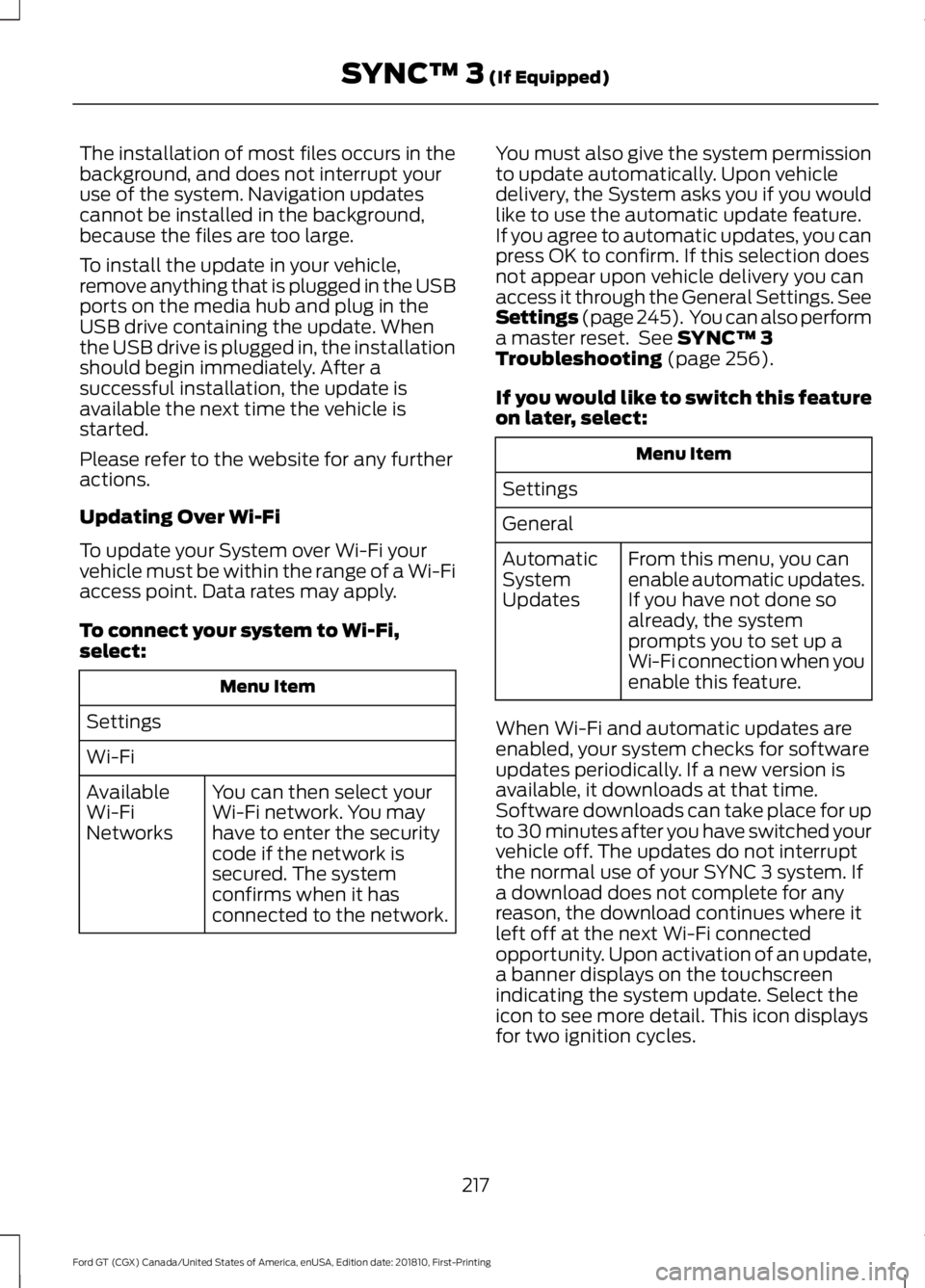
The installation of most files occurs in the
background, and does not interrupt your
use of the system. Navigation updates
cannot be installed in the background,
because the files are too large.
To install the update in your vehicle,
remove anything that is plugged in the USB
ports on the media hub and plug in the
USB drive containing the update. When
the USB drive is plugged in, the installation
should begin immediately. After a
successful installation, the update is
available the next time the vehicle is
started.
Please refer to the website for any further
actions.
Updating Over Wi-Fi
To update your System over Wi-Fi your
vehicle must be within the range of a Wi-Fi
access point. Data rates may apply.
To connect your system to Wi-Fi,
select:
Menu Item
Settings
Wi-Fi You can then select your
Wi-Fi network. You may
have to enter the security
code if the network is
secured. The system
confirms when it has
connected to the network.
Available
Wi-Fi
Networks You must also give the system permission
to update automatically. Upon vehicle
delivery, the System asks you if you would
like to use the automatic update feature.
If you agree to automatic updates, you can
press OK to confirm. If this selection does
not appear upon vehicle delivery you can
access it through the General Settings. See
Settings (page 245). You can also perform
a master reset. See SYNC™ 3
Troubleshooting (page 256).
If you would like to switch this feature
on later, select: Menu Item
Settings
General From this menu, you can
enable automatic updates.
If you have not done so
already, the system
prompts you to set up a
Wi-Fi connection when you
enable this feature.
Automatic
System
Updates
When Wi-Fi and automatic updates are
enabled, your system checks for software
updates periodically. If a new version is
available, it downloads at that time.
Software downloads can take place for up
to 30 minutes after you have switched your
vehicle off. The updates do not interrupt
the normal use of your SYNC 3 system. If
a download does not complete for any
reason, the download continues where it
left off at the next Wi-Fi connected
opportunity. Upon activation of an update,
a banner displays on the touchscreen
indicating the system update. Select the
icon to see more detail. This icon displays
for two ignition cycles.
217
Ford GT (CGX) Canada/United States of America, enUSA, Edition date: 201810, First-Printing SYNC™ 3
(If Equipped)
Page 266 of 321
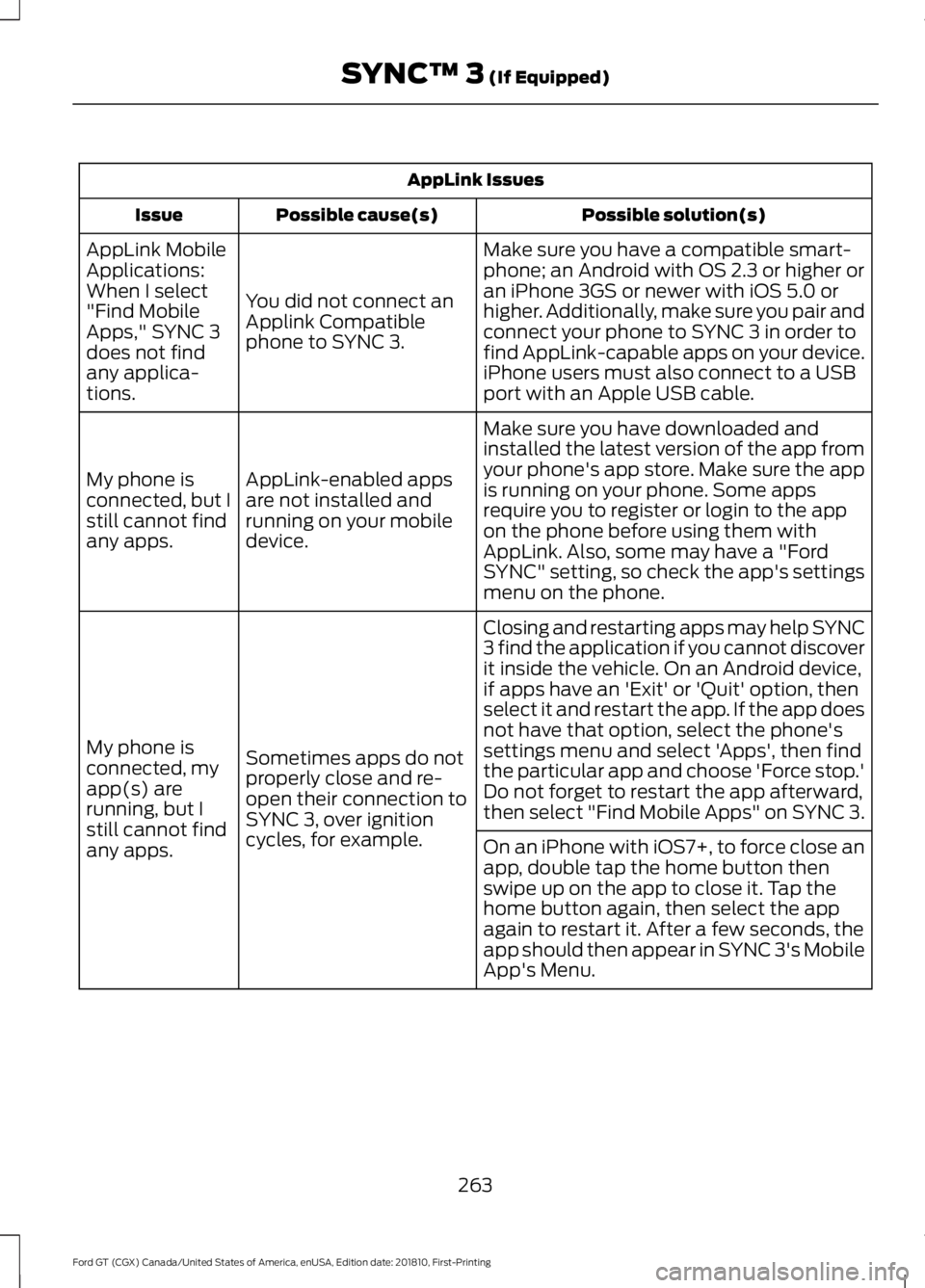
AppLink Issues
Possible solution(s)
Possible cause(s)
Issue
Make sure you have a compatible smart-
phone; an Android with OS 2.3 or higher or
an iPhone 3GS or newer with iOS 5.0 or
higher. Additionally, make sure you pair and
connect your phone to SYNC 3 in order to
find AppLink-capable apps on your device.
iPhone users must also connect to a USB
port with an Apple USB cable.
You did not connect an
Applink Compatible
phone to SYNC 3.
AppLink Mobile
Applications:
When I select
"Find Mobile
Apps," SYNC 3
does not find
any applica-
tions.
Make sure you have downloaded and
installed the latest version of the app from
your phone's app store. Make sure the app
is running on your phone. Some apps
require you to register or login to the app
on the phone before using them with
AppLink. Also, some may have a "Ford
SYNC" setting, so check the app's settings
menu on the phone.
AppLink-enabled apps
are not installed and
running on your mobile
device.
My phone is
connected, but I
still cannot find
any apps.
Closing and restarting apps may help SYNC
3 find the application if you cannot discover
it inside the vehicle. On an Android device,
if apps have an 'Exit' or 'Quit' option, then
select it and restart the app. If the app does
not have that option, select the phone's
settings menu and select 'Apps', then find
the particular app and choose 'Force stop.'
Do not forget to restart the app afterward,
then select "Find Mobile Apps" on SYNC 3.
Sometimes apps do not
properly close and re-
open their connection to
SYNC 3, over ignition
cycles, for example.
My phone is
connected, my
app(s) are
running, but I
still cannot find
any apps.
On an iPhone with iOS7+, to force close an
app, double tap the home button then
swipe up on the app to close it. Tap the
home button again, then select the app
again to restart it. After a few seconds, the
app should then appear in SYNC 3's Mobile
App's Menu.
263
Ford GT (CGX) Canada/United States of America, enUSA, Edition date: 201810, First-Printing SYNC™ 3 (If Equipped)