key FORD KUGA 2010 1.G Owner's Guide
[x] Cancel search | Manufacturer: FORD, Model Year: 2010, Model line: KUGA, Model: FORD KUGA 2010 1.GPages: 226, PDF Size: 8.07 MB
Page 158 of 226
GENERAL INFORMATION
CAUTIONS
Use only approved wheel and tyre
sizes. Using other sizes could
damage the vehicle and will make
the National Type Approval invalid. If you change the diameter of the
tyres from that fitted at the factory,
the speedometer may not display
the correct speed. Take the vehicle to
your dealer to have the engine
management system reprogrammed. A decal with tyre pressure data is located
in the driver’s door opening at the B-pillar.
Check and set the tyre pressure at the
ambient temperature in which you are
intending to drive the vehicle and when
the tyres are cold.
CHANGING A ROAD WHEEL
Locking wheel nuts
You can obtain a replacement locking
wheel nut key and replacement locking
wheel nuts from your dealer using the
reference number certificate.
Vehicles with a temporary
spare wheel
WARNINGS
If the spare wheel differs from the
other fitted wheels, these rules must
be followed:
Do not exceed 80 km/h (50 mph).
Drive the shortest possible
distances.
Do not fit more than one spare
wheel on your vehicle at any one
time. WARNINGS
Do not use snow chains on this type
of wheel.
Do not drive through an automatic
car wash.
Do not carry out any tyre repairs on
a temporary spare wheel.
CAUTION
The ground clearance of your vehicle
will be reduced. Take care when
parking next to a kerb.
Note:Your vehicle may exhibit some
unusual driving characteristics.
Vehicle jack WARNINGS
The vehicle jack supplied with your
vehicle should only be used when
changing a wheel in emergency
situations. Before using the vehicle jack, check
that it is not damaged or deformed
and that the thread is lubricated and
free from foreign matter. Never place anything between the
jack and the ground, or the jack and
the vehicle.
Note:
Vehicles with a tyre repair kit or run
flat tyres are not equipped with a vehicle jack or a wheel brace.
It is recommended to use a workshop
type hydraulic jack for changing between
summer and winter tyres.
Note:
Use a jack with a minimum lifting
capacity of 1.5 tonnes and a lifting plate with a minimum diameter of 80 millimetres(3.1 inches).
156
Wheels and tyres
Page 162 of 226
Note:The spare wheel is located under
the floor cover in the luggage compartment.
1. Install the locking wheel nut key. 2. Slacken the wheel nuts.
3. Jack up the vehicle until the tyre is
clear of the ground.
4. Remove the wheel nuts and the wheel.
Installing a road wheel WARNINGS
Use only approved wheel and tyre
sizes. Using other sizes could
damage the vehicle and will make
the National Type Approval invalid. See
Technical specifications (page 168). WARNINGS
Do not fit run flat tyres on vehicles
that were not originally fitted with
them. Please contact your dealer
for more details regarding compatibility. CAUTION
Do not install alloy wheels using
wheel nuts designed for use with
steel wheels.
Note:
Make sure the wheel and hub
contact surfaces are free from foreign matter.
Note:Make sure that the cones on the
wheel nuts are against the wheel.
1. Install the wheel.
2. Install the wheel nuts finger tight.
3. Install the locking wheel nut key. 4. Partially tighten the wheel nuts in the
sequence shown.
5. Lower the vehicle and remove the jack.
6. Fully tighten the wheel nuts in the sequence shown. See Technical
specifications (page 168).
160
Wheels and tyresE12188712 12345E75442
Page 178 of 226
Select the phone from the active phone
menu.
Turning the ignition and radio or navigation
unit back on again, the last active phone
is picked up by the system.
Note:In some cases the Bluetooth
connection must also be confirmed on the phone.
Bond another Bluetooth phone
Bond a new Bluetooth phone as
described in the requirements for a
Bluetooth connection.
Phones stored in the system are
accessible by using the phone list on the
audio unit.
Note:
A maximum of six devices may be
bonded. If six Bluetooth devices have already been bonded, one of these hasto be debonded in order to bond a newdevice.
BLUETOOTH SETUP
Before you can use your telephone with
your vehicle it must be bonded to the
vehicle telephone system.
Handling of phones
Up to six Bluetooth devices can be
bonded to the vehicle system.
Note:
If there is an ongoing call when the
phone in use is selected as the new active phone, the call is transferred to the vehicleaudio system.
Note:Even if connected to the car
system, your phone can still be used in the usual way.
Requirements for Bluetooth
connection
The following are required before a
Bluetooth phone connection can be
made.
1. The Bluetooth feature must be activated on the phone and on the
audio unit. Make sure the Bluetooth
menu option in the audio unit is set to
ON. For information on phone
settings, refer to your phone user
guide.
2. The private mode must not be activated on the Bluetooth phone.
3. Search for audio device.
4. Select Ford Audio.
5. Enter the code number shown on the vehicle display using the phone
keypad. If no code number is shown
on the display, enter the Bluetooth PIN
number 0000 using the phone
keypad. Now enter the Bluetooth PIN
number shown on the vehicle display.
Note:
A phone call will be disconnected
if the audio unit is switched off. If the ignition key is turned to the off positionthe phone call will remain in progress.
176
Telephone
Page 180 of 226
Dialling a number using the
telephone keypad
If you have an audio unit with a telephone
keypad (buttons 0-9, * and #):
1. Press the call accept button. Press
the PHONE button if you have a Sony
radio.
2. Dial the number using the telephone keypad on the audio unit.
3. Press the call accept button.
Note:If you enter an incorrect digit whilst
entering a phone number, press the seek left button to erase the last digit. A longpress will erase the complete string ofdigits.
Press and hold 0to enter a +digit.
Ending a call
Calls can be ended by pressing the call
reject button.
Audio units without a telephone keypad
can also end a call by pressing either
PHONE, CD,AM/FM orON/OFF, or
by pressing the MODEbutton on the
remote control
Redialling a number
1. Press the PHONEor the call accept
button.
2. Press the MENUbutton.
3. Select the CALL OUT list or the
CALL IN list. On some audio units,
select the MISSED, INCOMING or
OUTGOING calls list.
Note:
If the active phone does not
provide a call out list, the last outgoing call number/entry can be redialled.
4. Press the seek button on the audio unit.
5. Press the PHONEor the call accept
button to dial the desired phone
number. Redialling a number - Sony radio
1.
Press the PHONEor the call accept
button.
2. Press the seek button until the desired
list is displayed.
Note:
If the active phone does not
provide a call out list, the last outgoing call number/entry can be redialled.
3. Press the up/down buttons to select the desired phone number.
4. Press the PHONEor the call accept
button to dial the phone number.
Redialling the last dialled number -
Sony radio
1. Press the call accept button.
2. Press the call accept button a second time to dial the number.
Receiving an incoming call
Accepting an incoming call
Incoming calls can be accepted by
pressing either the call accept button, the
PHONE button or the MODEbutton on
the remote control.
Rejecting an incoming call
Incoming calls can be rejected by
pressing the call reject button.
Audio units without a telephone keypad
can also reject a call by pressing either
PHONE, CD,AM/FM orON/OFF.
Receiving a second incoming
call
Note:
The second incoming call function
must be activated in your phone.
If there is an incoming call whilst there is
an ongoing call, a beep will be heard and
you will have the option to end the active
call and to accept the incoming call.
178
Telephone
Page 181 of 226
Accepting a second incoming call
Second incoming calls can be accepted
by pressing either the call accept button,
the
PHONE button, or the MODEbutton
on the remote control.
Rejecting a second incoming call
Second incoming calls can be rejected by
pressing the call reject button. Units
without a telephone keypad can also
reject a second incoming call by pressing
the CD button, or the AM/FMbutton.
Muting the microphone
During a call, it is possible to mute the
microphone. Whilst muted, confirmation
will appear in the display.
Audio units with green call accept
button
Press the call accept button. Press the
button once again to turn this function off.
Audio units without green call
accept button
Press the seek up or down button. Press
the button once again to turn this function
off.
Changing the active phone
Note:Phones must be bonded to the
system before they can be made active.
Using the station storage button
Note:
This process is only for audio units
without a telephone keypad.
1. Press the PHONEbutton on the
audio unit.
2. Press the preset number required (using the station preset buttons 1 -
6). Using the audio unit menu
Note:
After bonding a phone to the
system, this becomes the active phone.
1. Press the PHONEor call accept
button.
2. Press the MENUbutton on the audio
unit.
3. Select the ACTIVE PHONE option
on the audio unit.
4. Scroll through the different stored phones by using the seek buttons to
display the bonded phones.
5. Press the MENUbutton to select the
phone which is to be the active phone.
Debonding a bonded phone
A bonded phone can be deleted from the
system at any time, unless a phone call is
in progress.
1. Press the PHONEor call accept
button.
2. Press the MENUbutton on the audio
unit.
3. Select the DEBOND option on the
audio unit.
4. Scroll through the different phones by using the seek buttons and display the
phone to be debonded.
5. Press the MENUbutton to select the
phone which is to be debonded.
Debonding a bonded phone -
Sony radio
A bonded phone can be deleted from the
system at any time, unless a phone call is
in progress.
1. Press the PHONEbutton.
2. Press the up/down arrow buttons until
you reach the DEBONDoption.
179
Telephone
Page 204 of 226
Bonding the device
Note:Some audio and navigation units
have a separate Bluetooth audio menu. Use this to access setup and control.
To connect the device to the system
follow the same procedure as for
Bluetooth hands free phones. See
Bluetooth setup (page 176).
Operating the device
Select Bluetooth audio as the active
source.
Tracks can be accessed by skipping
forwards and backwards using the
steering wheel controls, or directly from
the audio unit controls.
USING A USB DEVICE
Various icons are used to identify types
of audio file, folders etc. USB device is the active source
Folder
Playlist
Album
Artist
Filename
Track title Information not available
Sony radio
Operation
Select the USB device as the audio
source by repeatedly pressing the
CD/AUX button until USB appears in the
display. After first connecting the USB
device, the first track within the first folder
will start to play automatically.
Subsequently, following audio source
switching, the position of playback on the
USB device is remembered.
To browse the device contents, press the
up/down arrow key or the OK button
once.
The display will show the track
information, together with other important
information described below:
• A vertical scroll bar on the right side of
the display shows the current position
of the folder view.
• ">" after an entry indicates a further
level down is readable (for example a
folder named after an album, with
individual album tracks within that
folder).
• "<" before the list indicates that a
further level up is readable.
• Icons to the left of track/folder text
indicate the type of file/folder. Refer
to the list for an explanation of these
icons.
To navigate the USB device contents, use
the up/down arrow keys to scroll through
lists, and the left/right keys to move up or
down within the folder hierarchy. Once
your desired track, playlist or folder is
highlighted, press the OK button to select
playback.
202
ConnectivityE100029 E100022 E100023 E100024 E100025 E100026 E100027 E100028
Page 205 of 226
Note:If you wish to jump to the top level
of the USB device contents, press and hold the left arrow key.
Audio control
Press the left and right arrow keys to skip
backwards and forwards through tracks.
Press and hold the left/right arrow keys
to enable fast rewind/fast forward through
track content.
Press the up/down arrow key or the OK
button to browse the device contents.
Press the MENU key to enter the USB
menu. It is possible to enable shuffle and
repeat functions here with respect to
folders and playlists.
Press the SCAN button to scan the whole
device, current folder or a playlist if it is in
operation.
Press the INFObutton to display the
following:
• filename
• title
• artist
• album
• track number and playing time.
Repeated button presses will scroll
through these displays.
CD Navigation units
Operation
Select the USB device as the audio
source by pressing the CD/AUXbutton
until DEVICES appears in the display.
Select DEVICES and then select USB from
the available device list. After first
connecting the USB device, the first track
within the first folder will start to play
automatically. Subsequently, following
audio source switching, the position of
playback on the USB device is
remembered. To browse the device contents, press the
SELECT
button once.
The display will show the track
information, together with other important
information described below:
• A vertical scroll bar on the right side of
the display shows the current position
of the folder view.
• ">" after an entry indicates a further
level down is readable (for example a
folder named after an album, with
individual album tracks within that
folder).
• "<" to the left hand side of the display
indicates that a further level up is
readable.
• Icons to the left of track/folder text
indicate the type of file/folder. Refer
to the list for an explanation of these
icons.
To navigate the USB device contents, use
the rotary scroll/select button to browse
through lists. Push the button to expand
the contents within the highlighted playlist
or folder, or to commence playback of a
particular track. Press ESCto go up one
level.
Audio control
Press the SEEKup and down keys to
skip backwards and forwards through
tracks.
Press and hold the SEEKkeys to enable
fast rewind/fast forward through track
content.
Rotate or press the SELECTbutton to
browse the device contents.
Press SHUFFLE or REPEAT buttons to
enable shuffle and repeat functions with
respect to folders and playlists. Different
options may appear depending upon
whether or not a playlist is in operation.
203
Connectivity
Page 206 of 226
Press the SCAN button to scan the
current playlist if it is in operation, or the
complete USB device or folder.
Press the
INFObutton to display the
following:
• filename
• title
• artist
• album
• track number and playing time.
DVD Navigation units
Operation
Select the USB device as the audio
source by pressing the CD/AUXbutton
until the USB button appears to the left of
the display. Select USB from the available
device list.
Note:Some devices may be shown but
not selectable, depending if the device is connected or not.
After first connecting the USB device, the
first track within the first folder will start to
play automatically. Subsequently, following
audio source switching, the position of
playback on the USB device is
remembered.
To browse the device contents, press the
scroll up or down arrow button.
The display will show the track
information, together with other important
information described below:
• A vertical scroll bar on the right side of
the display shows the current position
of the folder view.
• ">" after an entry indicates a further
level down is readable (for example a
folder named after an album, with
individual album tracks within that
folder). •
"<" to the left hand side of the display
indicates that a further level up is
readable.
• Icons to the left of track/folder text
indicate the type of file/folder. Refer
to the list for an explanation of these
icons.
To navigate the USB device contents, use
the scroll buttons to browse through lists.
Push the button to expand the contents
within the highlighted playlist or folder, or
to commence playback of a particular
track. Press the left arrow key to go up
one level.
Audio control
Press the SEEKup and down keys to
skip backwards and forwards through
tracks.
Press and hold the SEEKkeys to enable
fast rewind/fast forward through track
content.
Press the scroll bar arrow keys to browse
the device contents.
Press SHUFFLE or REPEAT buttons to
enable shuffle and repeat functions with
respect to folders and playlists.
Press the SCAN button to scan the
current playlist if it is in operation, or the
complete USB device or folder.
Press the INFObutton to display the
following:
• filename
• title
• artist
• album
• track number and playing time.
USING AN IPOD
Various icons are used to identify types
of audio file, folders etc.
204
Connectivity
Page 207 of 226
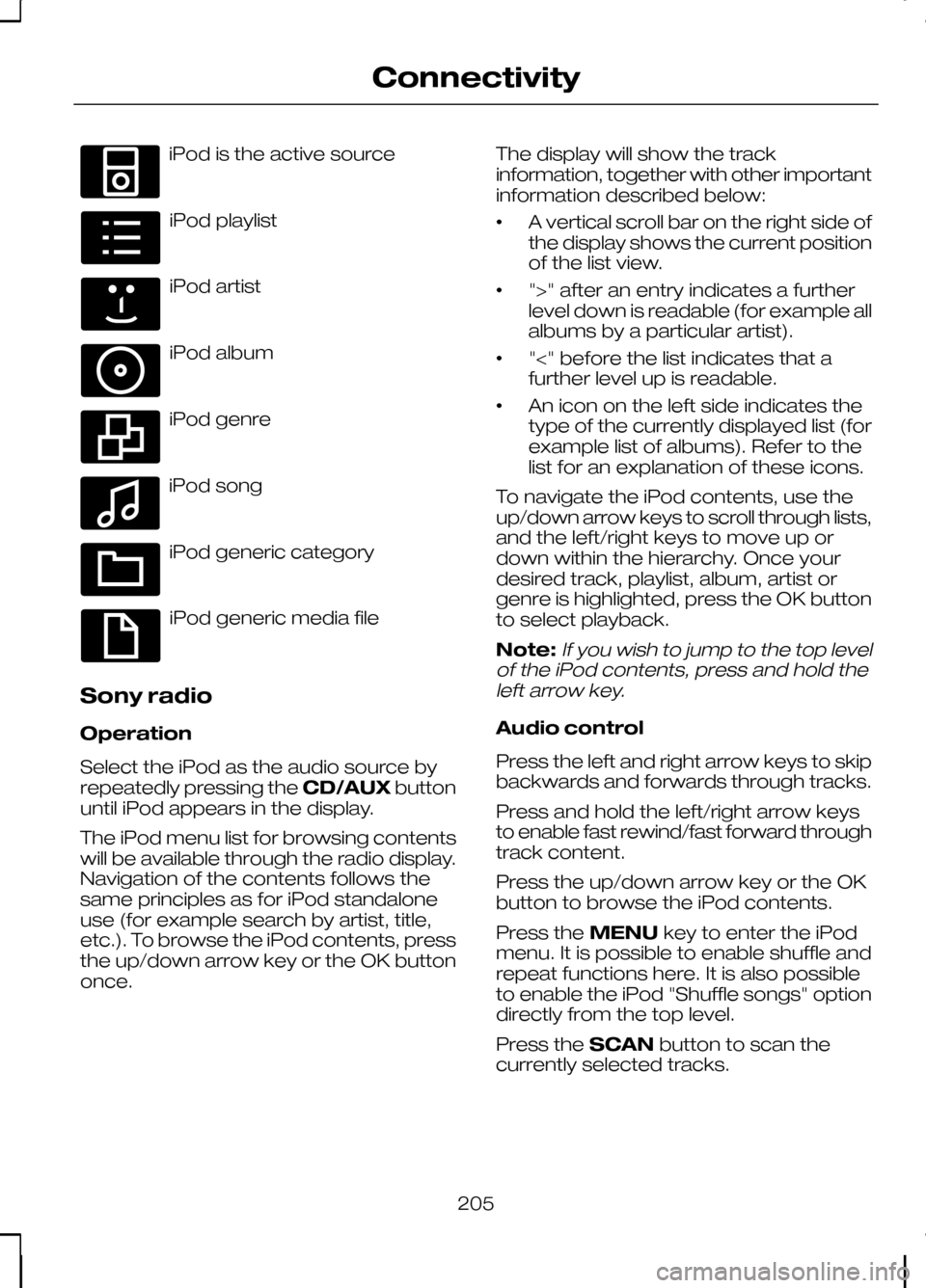
iPod is the active source
iPod playlist
iPod artist
iPod album
iPod genre
iPod song
iPod generic category
iPod generic media file
Sony radio
Operation
Select the iPod as the audio source by
repeatedly pressing the CD/AUXbutton
until iPod appears in the display.
The iPod menu list for browsing contents
will be available through the radio display.
Navigation of the contents follows the
same principles as for iPod standalone
use (for example search by artist, title,
etc.). To browse the iPod contents, press
the up/down arrow key or the OK button
once. The display will show the track
information, together with other important
information described below:
•
A vertical scroll bar on the right side of
the display shows the current position
of the list view.
• ">" after an entry indicates a further
level down is readable (for example all
albums by a particular artist).
• "<" before the list indicates that a
further level up is readable.
• An icon on the left side indicates the
type of the currently displayed list (for
example list of albums). Refer to the
list for an explanation of these icons.
To navigate the iPod contents, use the
up/down arrow keys to scroll through lists,
and the left/right keys to move up or
down within the hierarchy. Once your
desired track, playlist, album, artist or
genre is highlighted, press the OK button
to select playback.
Note:If you wish to jump to the top level
of the iPod contents, press and hold the left arrow key.
Audio control
Press the left and right arrow keys to skip
backwards and forwards through tracks.
Press and hold the left/right arrow keys
to enable fast rewind/fast forward through
track content.
Press the up/down arrow key or the OK
button to browse the iPod contents.
Press the MENUkey to enter the iPod
menu. It is possible to enable shuffle and
repeat functions here. It is also possible
to enable the iPod "Shuffle songs" option
directly from the top level.
Press the SCANbutton to scan the
currently selected tracks.
205
ConnectivityE100030 E100031 E100032 E100033 E100034 E100035 E100036 E100037
Page 208 of 226
Press the
INFObutton to display the
following:
• title
• artist
• track number and playing time.
Repeated button presses will scroll
through these displays.
CD Navigation units
Operation
Select the iPod as the audio source by
pressing the CD/AUXbutton until
DEVICES appears in the display. Select
DEVICES and then select iPod from the
available device list.
The iPod menu list for browsing contents
will be available through the display.
Navigation of the contents follows the
same principles as for iPod standalone
use (for example search by artist, title,
etc.). To browse the iPod contents, press
the SELECT button once.
The display will show the track
information, together with other important
information described below:
• A vertical scroll bar on the right side of
the display shows the current position
of the list view.
• ">" after an entry indicates a further
level down is readable (for example all
albums by a particular artist).
• "<" before the list indicates that a
further level up is readable.
• An icon on the left side indicates the
type of the currently displayed list (for
example list of albums). Refer to the
list for an explanation of these icons. To navigate the iPod contents, use the
rotary scroll/select button to browse
through lists. Push the button to expand
the contents within the highlighted playlist,
album, artist, genre or to commence
playback of a particular track. Press
ESC
to go up one level.
Audio control
Press the SEEKup and down keys to
skip backwards and forwards through
tracks.
Press and hold the SEEKkeys to enable
fast rewind/fast forward through track
content.
Rotate or press the SELECT button to
browse the iPod contents.
Press the MENU key to enter the iPod
menu. It is possible to enable shuffle and
repeat functions here. It is also possible
to enable the iPod "Shuffle songs" option
directly from the top level.
Press the SCAN button to scan the
currently selected tracks.
Press the INFObutton to display the
following:
• title
• artist
• track number and playing time.
DVD Navigation units
Operation
Select the iPod as the audio source by
pressing the CD/AUXbutton until the
iPod button appears to the left of the
display. Select iPod from the available
device list.
Note:Some devices may be shown but
not selectable, depending if the device is connected or not.
206
Connectivity