buttons FORD MONDEO 2014 4.G Owner's Manual
[x] Cancel search | Manufacturer: FORD, Model Year: 2014, Model line: MONDEO, Model: FORD MONDEO 2014 4.GPages: 446, PDF Size: 29.09 MB
Page 317 of 446
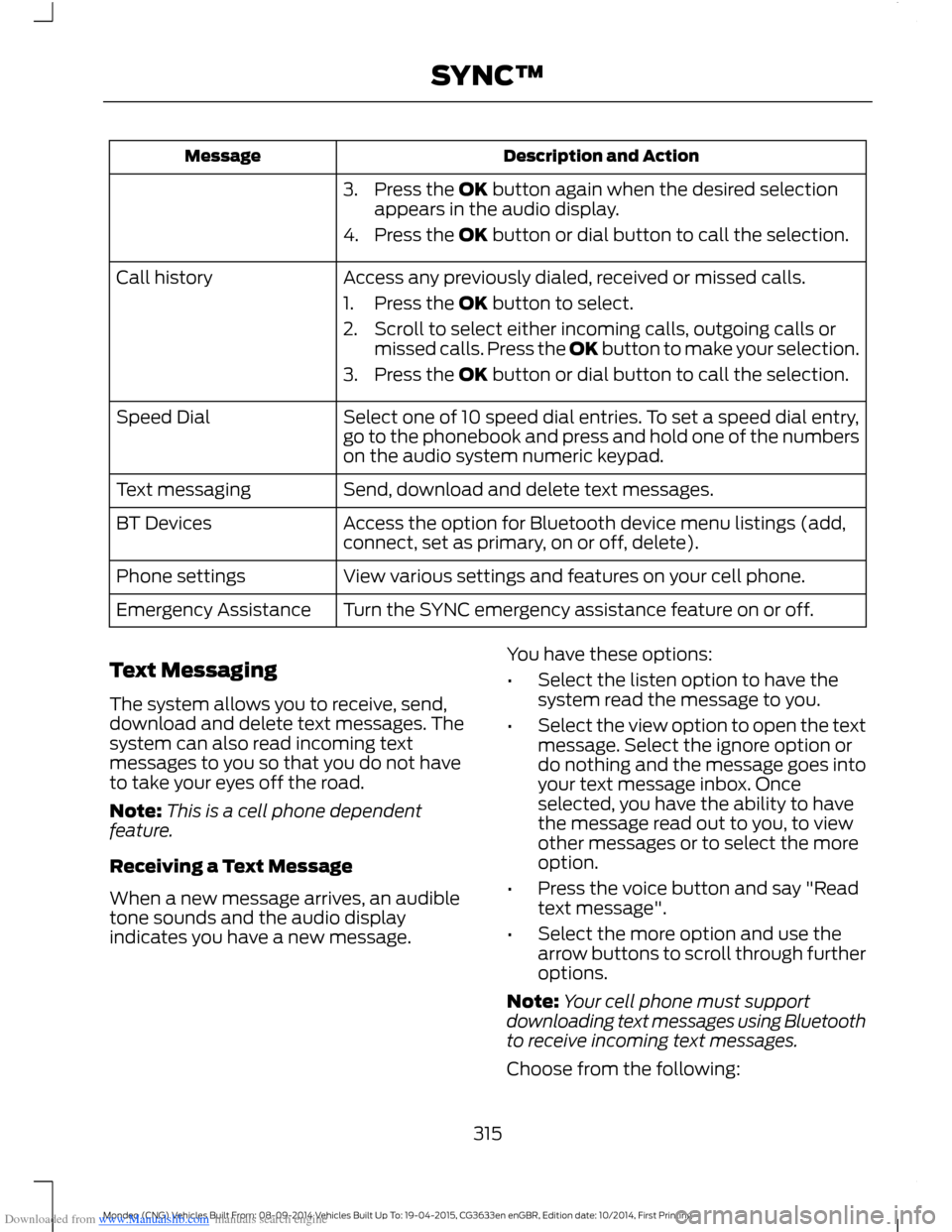
Downloaded from www.Manualslib.com manuals search engine Description and ActionMessage
3.Press the OK button again when the desired selectionappears in the audio display.
4.Press the OK button or dial button to call the selection.
Access any previously dialed, received or missed calls.Call history
1.Press the OK button to select.
2.Scroll to select either incoming calls, outgoing calls ormissed calls. Press the OK button to make your selection.
3.Press the OK button or dial button to call the selection.
Select one of 10 speed dial entries. To set a speed dial entry,go to the phonebook and press and hold one of the numberson the audio system numeric keypad.
Speed Dial
Send, download and delete text messages.Text messaging
Access the option for Bluetooth device menu listings (add,connect, set as primary, on or off, delete).BT Devices
View various settings and features on your cell phone.Phone settings
Turn the SYNC emergency assistance feature on or off.Emergency Assistance
Text Messaging
The system allows you to receive, send,download and delete text messages. Thesystem can also read incoming textmessages to you so that you do not haveto take your eyes off the road.
Note:This is a cell phone dependentfeature.
Receiving a Text Message
When a new message arrives, an audibletone sounds and the audio displayindicates you have a new message.
You have these options:
•Select the listen option to have thesystem read the message to you.
•Select the view option to open the textmessage. Select the ignore option ordo nothing and the message goes intoyour text message inbox. Onceselected, you have the ability to havethe message read out to you, to viewother messages or to select the moreoption.
•Press the voice button and say "Readtext message".
•Select the more option and use thearrow buttons to scroll through furtheroptions.
Note:Your cell phone must supportdownloading text messages using Bluetoothto receive incoming text messages.
Choose from the following:
315Mondeo (CNG) Vehicles Built From: 08-09-2014 Vehicles Built Up To: 19-04-2015, CG3633en enGBR, Edition date: 10/2014, First PrintingSYNC™
Page 320 of 446
Downloaded from www.Manualslib.com manuals search engine Description and ActionMessage
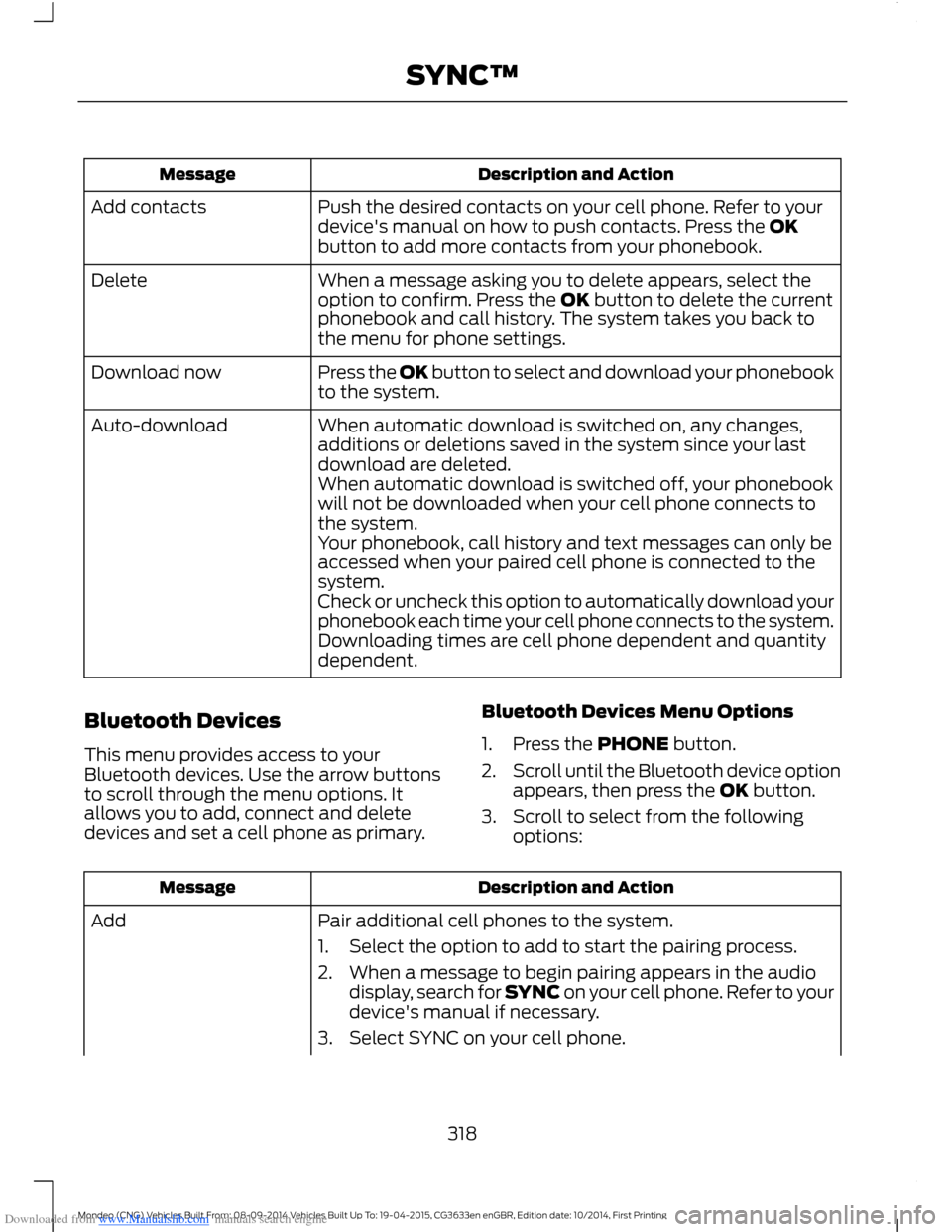
Push the desired contacts on your cell phone. Refer to yourdevice's manual on how to push contacts. Press the OKbutton to add more contacts from your phonebook.
Add contacts
When a message asking you to delete appears, select theoption to confirm. Press the OK button to delete the currentphonebook and call history. The system takes you back tothe menu for phone settings.
Delete
Press the OK button to select and download your phonebookto the system.Download now
When automatic download is switched on, any changes,additions or deletions saved in the system since your lastdownload are deleted.
Auto-download
When automatic download is switched off, your phonebookwill not be downloaded when your cell phone connects tothe system.Your phonebook, call history and text messages can only beaccessed when your paired cell phone is connected to thesystem.Check or uncheck this option to automatically download yourphonebook each time your cell phone connects to the system.Downloading times are cell phone dependent and quantitydependent.
Bluetooth Devices
This menu provides access to yourBluetooth devices. Use the arrow buttonsto scroll through the menu options. Itallows you to add, connect and deletedevices and set a cell phone as primary.
Bluetooth Devices Menu Options
1.Press the PHONE button.
2.Scroll until the Bluetooth device optionappears, then press the OK button.
3.Scroll to select from the followingoptions:
Description and ActionMessage
Pair additional cell phones to the system.Add
1.Select the option to add to start the pairing process.
2.When a message to begin pairing appears in the audiodisplay, search for SYNC on your cell phone. Refer to yourdevice's manual if necessary.
3.Select SYNC on your cell phone.
318Mondeo (CNG) Vehicles Built From: 08-09-2014 Vehicles Built Up To: 19-04-2015, CG3633en enGBR, Edition date: 10/2014, First PrintingSYNC™
Page 335 of 446
Downloaded from www.Manualslib.com manuals search engine Description and ActionMessage
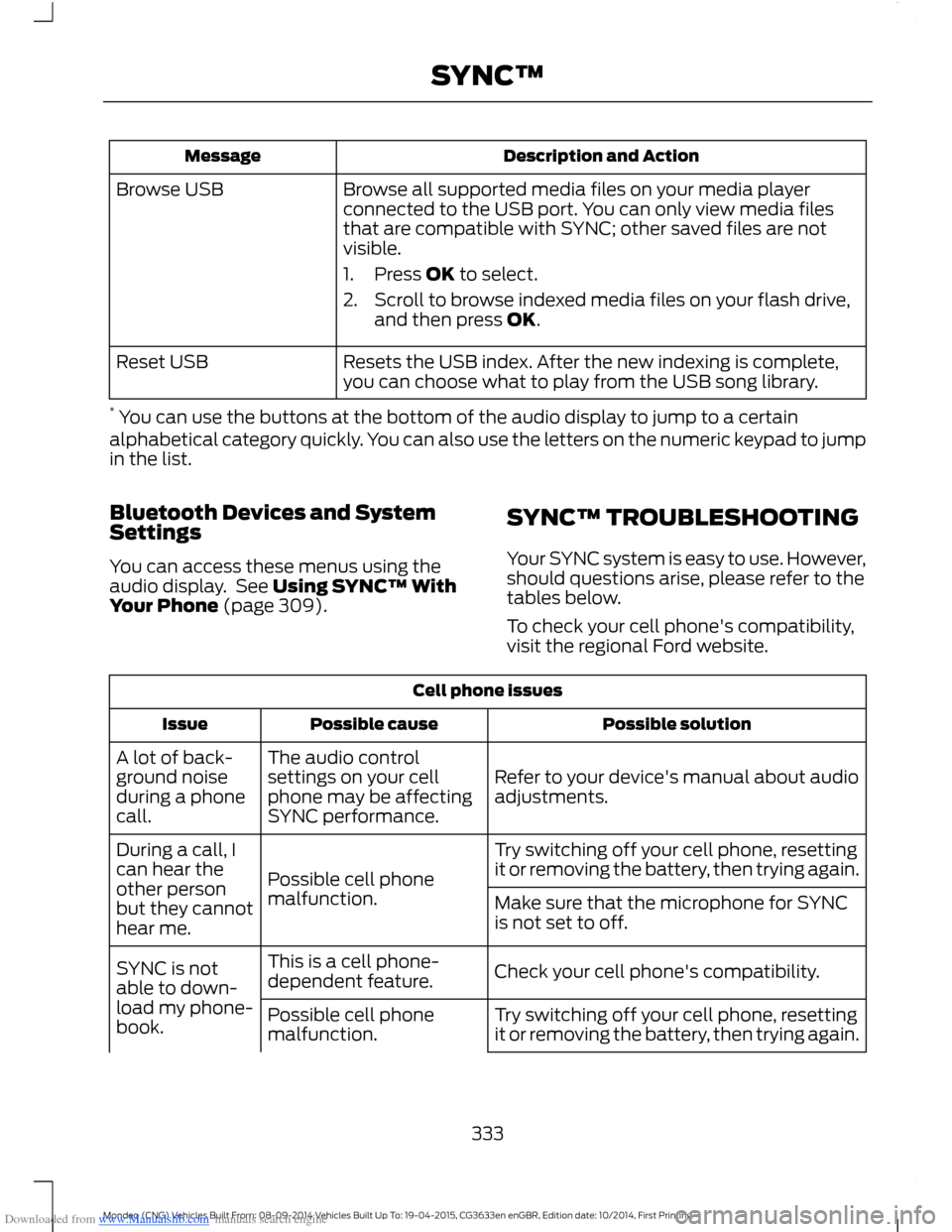
Browse all supported media files on your media playerconnected to the USB port. You can only view media filesthat are compatible with SYNC; other saved files are notvisible.
1.Press OK to select.
2.Scroll to browse indexed media files on your flash drive,and then press OK.
Browse USB
Resets the USB index. After the new indexing is complete,you can choose what to play from the USB song library.Reset USB
* You can use the buttons at the bottom of the audio display to jump to a certainalphabetical category quickly. You can also use the letters on the numeric keypad to jumpin the list.
Bluetooth Devices and SystemSettings
You can access these menus using theaudio display. See Using SYNC™ WithYour Phone (page 309).
SYNC™ TROUBLESHOOTING
Your SYNC system is easy to use. However,should questions arise, please refer to thetables below.
To check your cell phone's compatibility,visit the regional Ford website.
Cell phone issues
Possible solutionPossible causeIssue
Refer to your device's manual about audioadjustments.
The audio controlsettings on your cellphone may be affectingSYNC performance.
A lot of back-ground noiseduring a phonecall.
Try switching off your cell phone, resettingit or removing the battery, then trying again.Possible cell phonemalfunction.
During a call, Ican hear theother personbut they cannothear me.
Make sure that the microphone for SYNCis not set to off.
Check your cell phone's compatibility.This is a cell phone-dependent feature.SYNC is notable to down-load my phone-book.Try switching off your cell phone, resettingit or removing the battery, then trying again.Possible cell phonemalfunction.
333Mondeo (CNG) Vehicles Built From: 08-09-2014 Vehicles Built Up To: 19-04-2015, CG3633en enGBR, Edition date: 10/2014, First PrintingSYNC™
Page 344 of 446
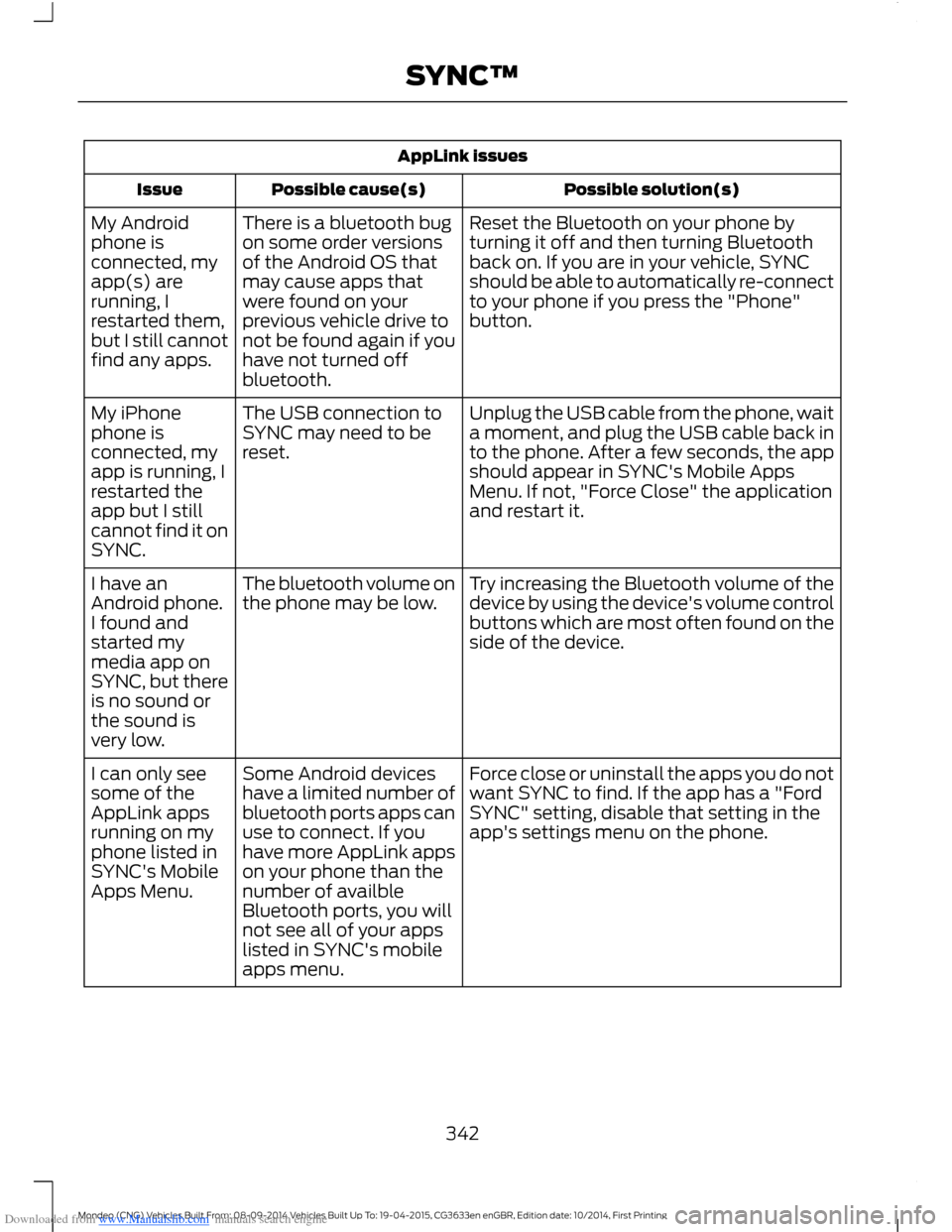
Downloaded from www.Manualslib.com manuals search engine AppLink issues
Possible solution(s)Possible cause(s)Issue
Reset the Bluetooth on your phone byturning it off and then turning Bluetoothback on. If you are in your vehicle, SYNCshould be able to automatically re-connectto your phone if you press the "Phone"button.
There is a bluetooth bugon some order versionsof the Android OS thatmay cause apps thatwere found on yourprevious vehicle drive tonot be found again if youhave not turned offbluetooth.
My Androidphone isconnected, myapp(s) arerunning, Irestarted them,but I still cannotfind any apps.
Unplug the USB cable from the phone, waita moment, and plug the USB cable back into the phone. After a few seconds, the appshould appear in SYNC's Mobile AppsMenu. If not, "Force Close" the applicationand restart it.
The USB connection toSYNC may need to bereset.
My iPhonephone isconnected, myapp is running, Irestarted theapp but I stillcannot find it onSYNC.
Try increasing the Bluetooth volume of thedevice by using the device's volume controlbuttons which are most often found on theside of the device.
The bluetooth volume onthe phone may be low.I have anAndroid phone.I found andstarted mymedia app onSYNC, but thereis no sound orthe sound isvery low.
Force close or uninstall the apps you do notwant SYNC to find. If the app has a "FordSYNC" setting, disable that setting in theapp's settings menu on the phone.
Some Android deviceshave a limited number ofbluetooth ports apps canuse to connect. If youhave more AppLink appson your phone than thenumber of availbleBluetooth ports, you willnot see all of your appslisted in SYNC's mobileapps menu.
I can only seesome of theAppLink appsrunning on myphone listed inSYNC's MobileApps Menu.
342Mondeo (CNG) Vehicles Built From: 08-09-2014 Vehicles Built Up To: 19-04-2015, CG3633en enGBR, Edition date: 10/2014, First PrintingSYNC™
Page 351 of 446
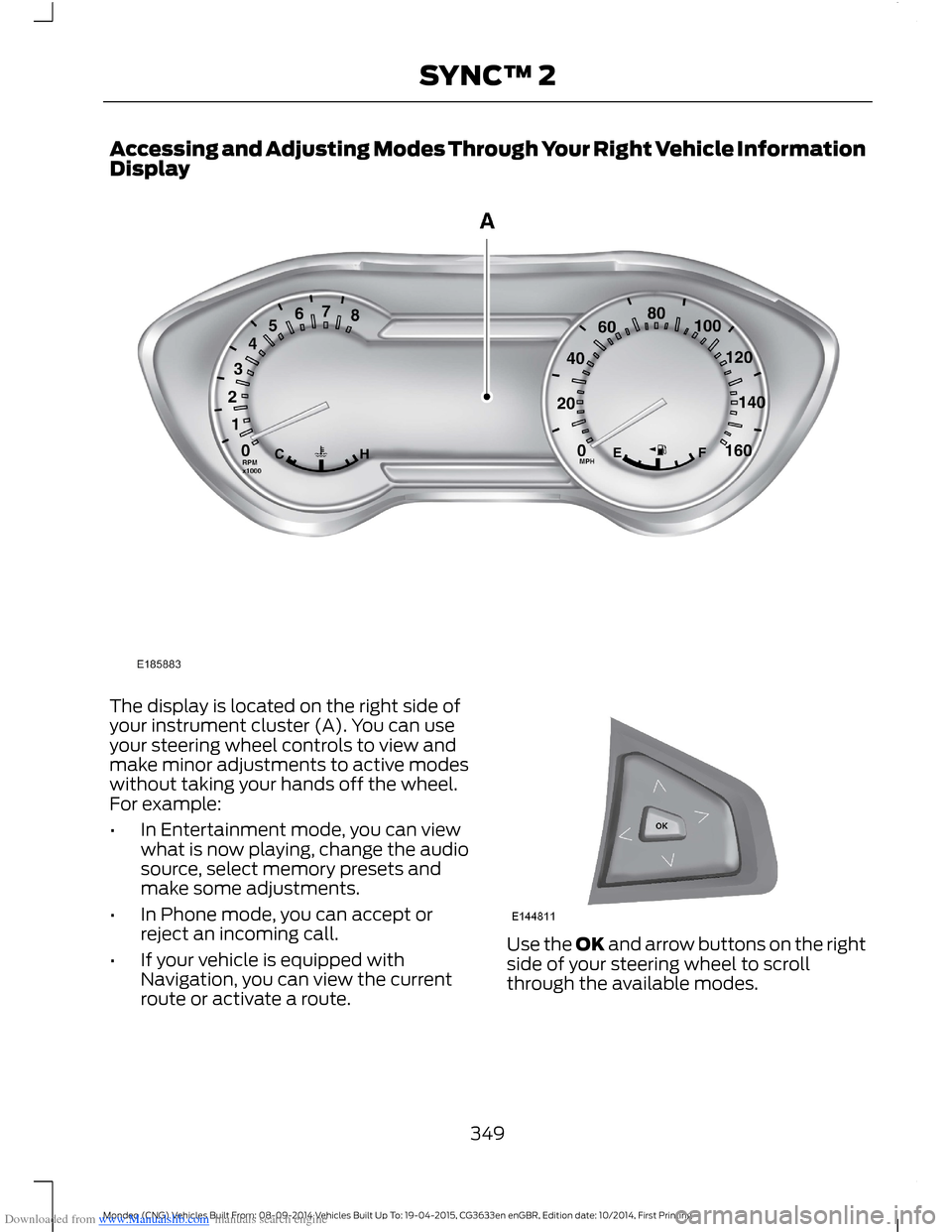
Downloaded from www.Manualslib.com manuals search engine Accessing and Adjusting Modes Through Your Right Vehicle InformationDisplay
The display is located on the right side ofyour instrument cluster (A). You can useyour steering wheel controls to view andmake minor adjustments to active modeswithout taking your hands off the wheel.For example:
•In Entertainment mode, you can viewwhat is now playing, change the audiosource, select memory presets andmake some adjustments.
•In Phone mode, you can accept orreject an incoming call.
•If your vehicle is equipped withNavigation, you can view the currentroute or activate a route.
Use the OK and arrow buttons on the rightside of your steering wheel to scrollthrough the available modes.
349Mondeo (CNG) Vehicles Built From: 08-09-2014 Vehicles Built Up To: 19-04-2015, CG3633en enGBR, Edition date: 10/2014, First PrintingSYNC™ 2
Page 367 of 446
Downloaded from www.Manualslib.com manuals search engine Action and DescriptionMenu Item
The ICE contacts you selectappear at the end of theEmergency Assistance callprocess.
Select to access your phone-book and then select thedesired contacts. Thenumbers then appear asoptions on this screen for theICE 1 and ICE 2 buttons.
Edit
View categorized lists of voice commands.VoiceCommand List
You can also access Help usingthe voice commands. Thesystem provides allowable voicecommands for the current mode.
Press the voice button and whenprompted say:
Voice command
help
You can say help at any time to getassistance with commands, menus orother information.
365Mondeo (CNG) Vehicles Built From: 08-09-2014 Vehicles Built Up To: 19-04-2015, CG3633en enGBR, Edition date: 10/2014, First PrintingSYNC™ 2
Page 368 of 446
Downloaded from www.Manualslib.com manuals search engine ENTERTAINMENT
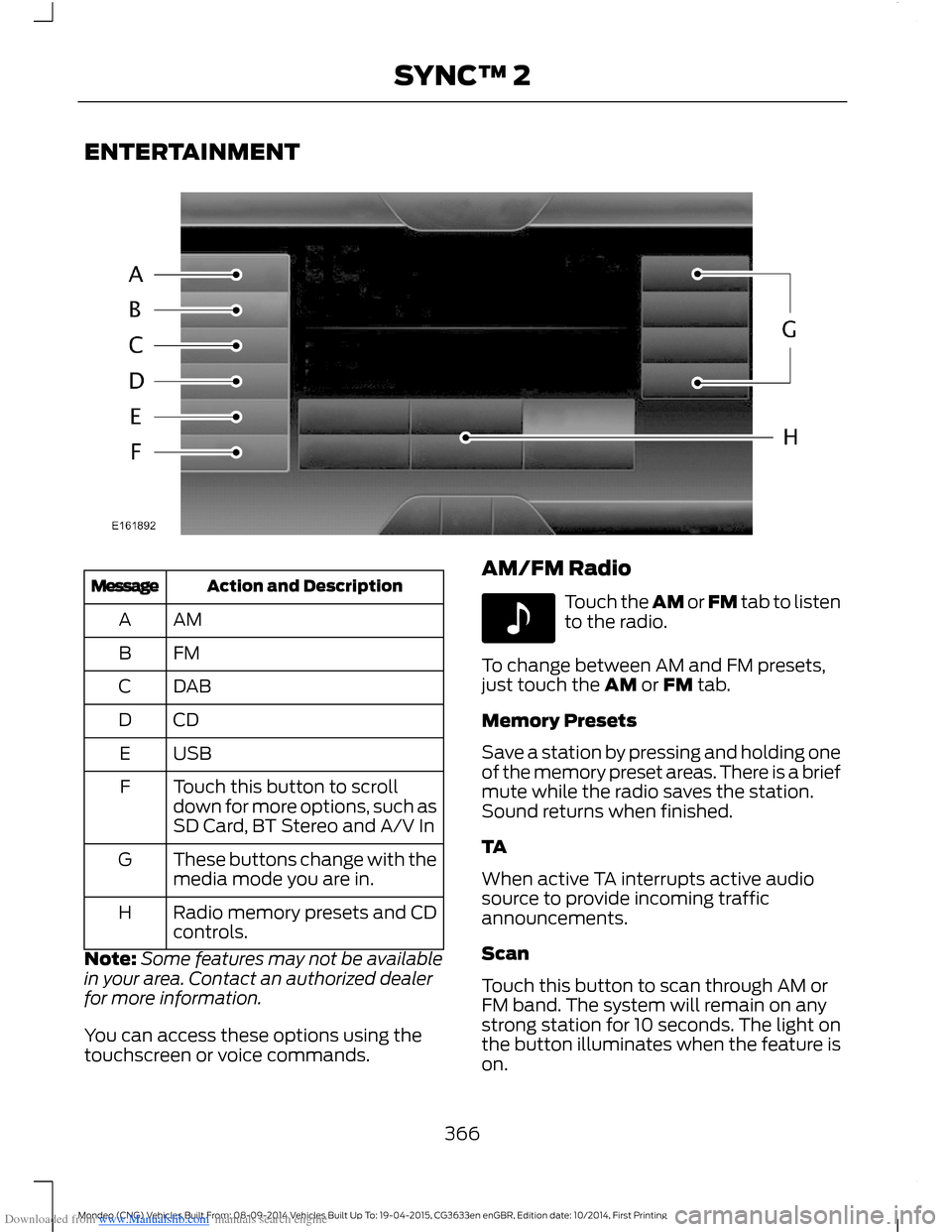
Action and DescriptionMessage
AMA
FMB
DABC
CDD
USBE
Touch this button to scrolldown for more options, such asSD Card, BT Stereo and A/V In
F
These buttons change with themedia mode you are in.G
Radio memory presets and CDcontrols.H
Note:Some features may not be availablein your area. Contact an authorized dealerfor more information.
You can access these options using thetouchscreen or voice commands.
AM/FM Radio
Touch the AM or FM tab to listento the radio.
To change between AM and FM presets,just touch the AM or FM tab.
Memory Presets
Save a station by pressing and holding oneof the memory preset areas. There is a briefmute while the radio saves the station.Sound returns when finished.
TA
When active TA interrupts active audiosource to provide incoming trafficannouncements.
Scan
Touch this button to scan through AM orFM band. The system will remain on anystrong station for 10 seconds. The light onthe button illuminates when the feature ison.
366Mondeo (CNG) Vehicles Built From: 08-09-2014 Vehicles Built Up To: 19-04-2015, CG3633en enGBR, Edition date: 10/2014, First PrintingSYNC™ 2
Page 399 of 446
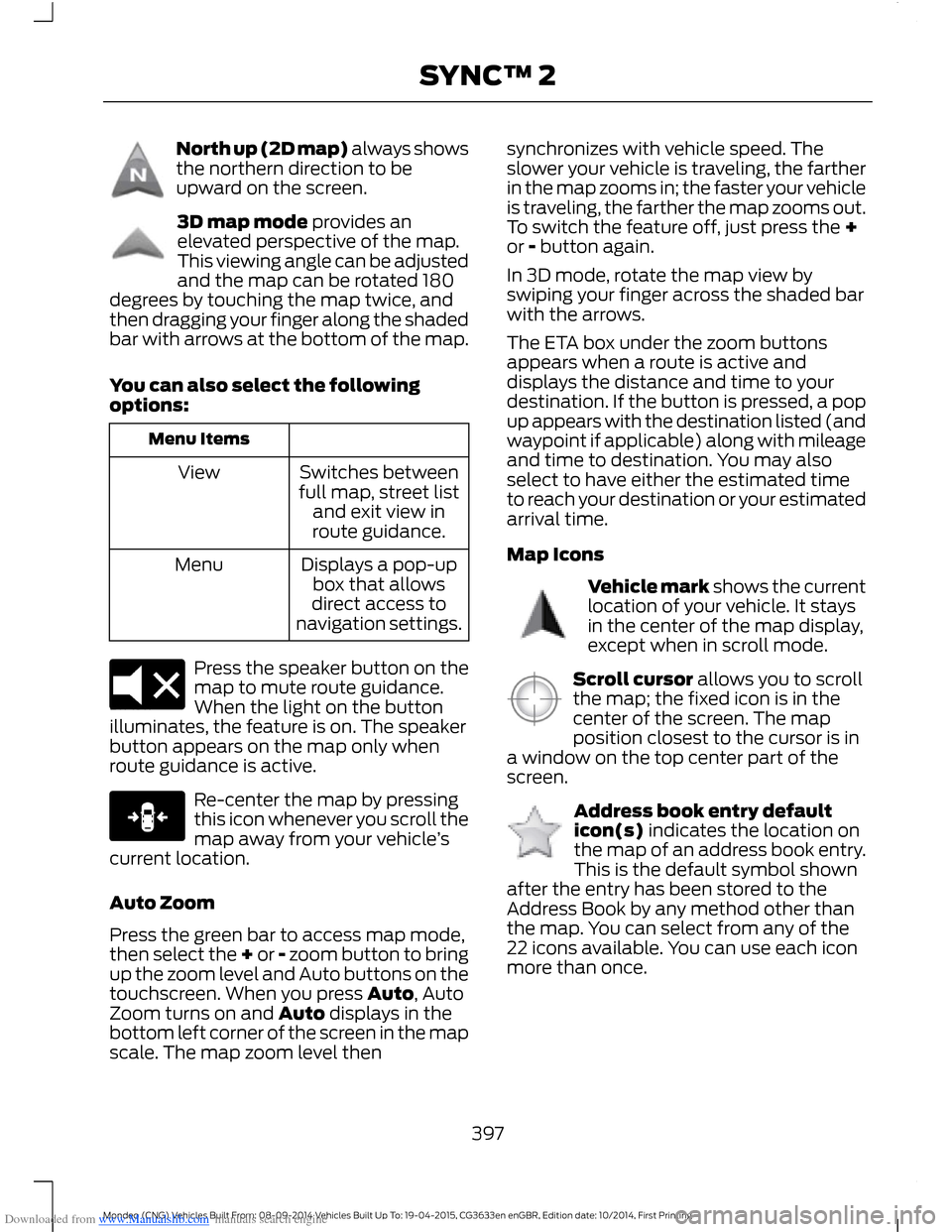
Downloaded from www.Manualslib.com manuals search engine North up (2D map) always showsthe northern direction to beupward on the screen.
3D map mode provides anelevated perspective of the map.This viewing angle can be adjustedand the map can be rotated 180degrees by touching the map twice, andthen dragging your finger along the shadedbar with arrows at the bottom of the map.
You can also select the followingoptions:
Menu Items
Switches betweenfull map, street listand exit view inroute guidance.
View
Displays a pop-upbox that allowsdirect access tonavigation settings.
Menu
Press the speaker button on themap to mute route guidance.When the light on the buttonilluminates, the feature is on. The speakerbutton appears on the map only whenroute guidance is active.
Re-center the map by pressingthis icon whenever you scroll themap away from your vehicle’scurrent location.
Auto Zoom
Press the green bar to access map mode,then select the + or - zoom button to bringup the zoom level and Auto buttons on thetouchscreen. When you press Auto, AutoZoom turns on and Auto displays in thebottom left corner of the screen in the mapscale. The map zoom level then
synchronizes with vehicle speed. Theslower your vehicle is traveling, the fartherin the map zooms in; the faster your vehicleis traveling, the farther the map zooms out.To switch the feature off, just press the +or - button again.
In 3D mode, rotate the map view byswiping your finger across the shaded barwith the arrows.
The ETA box under the zoom buttonsappears when a route is active anddisplays the distance and time to yourdestination. If the button is pressed, a popup appears with the destination listed (andwaypoint if applicable) along with mileageand time to destination. You may alsoselect to have either the estimated timeto reach your destination or your estimatedarrival time.
Map Icons
Vehicle mark shows the currentlocation of your vehicle. It staysin the center of the map display,except when in scroll mode.
Scroll cursor allows you to scrollthe map; the fixed icon is in thecenter of the screen. The mapposition closest to the cursor is ina window on the top center part of thescreen.
Address book entry defaulticon(s) indicates the location onthe map of an address book entry.This is the default symbol shownafter the entry has been stored to theAddress Book by any method other thanthe map. You can select from any of the22 icons available. You can use each iconmore than once.
397Mondeo (CNG) Vehicles Built From: 08-09-2014 Vehicles Built Up To: 19-04-2015, CG3633en enGBR, Edition date: 10/2014, First PrintingSYNC™ 2
Page 400 of 446
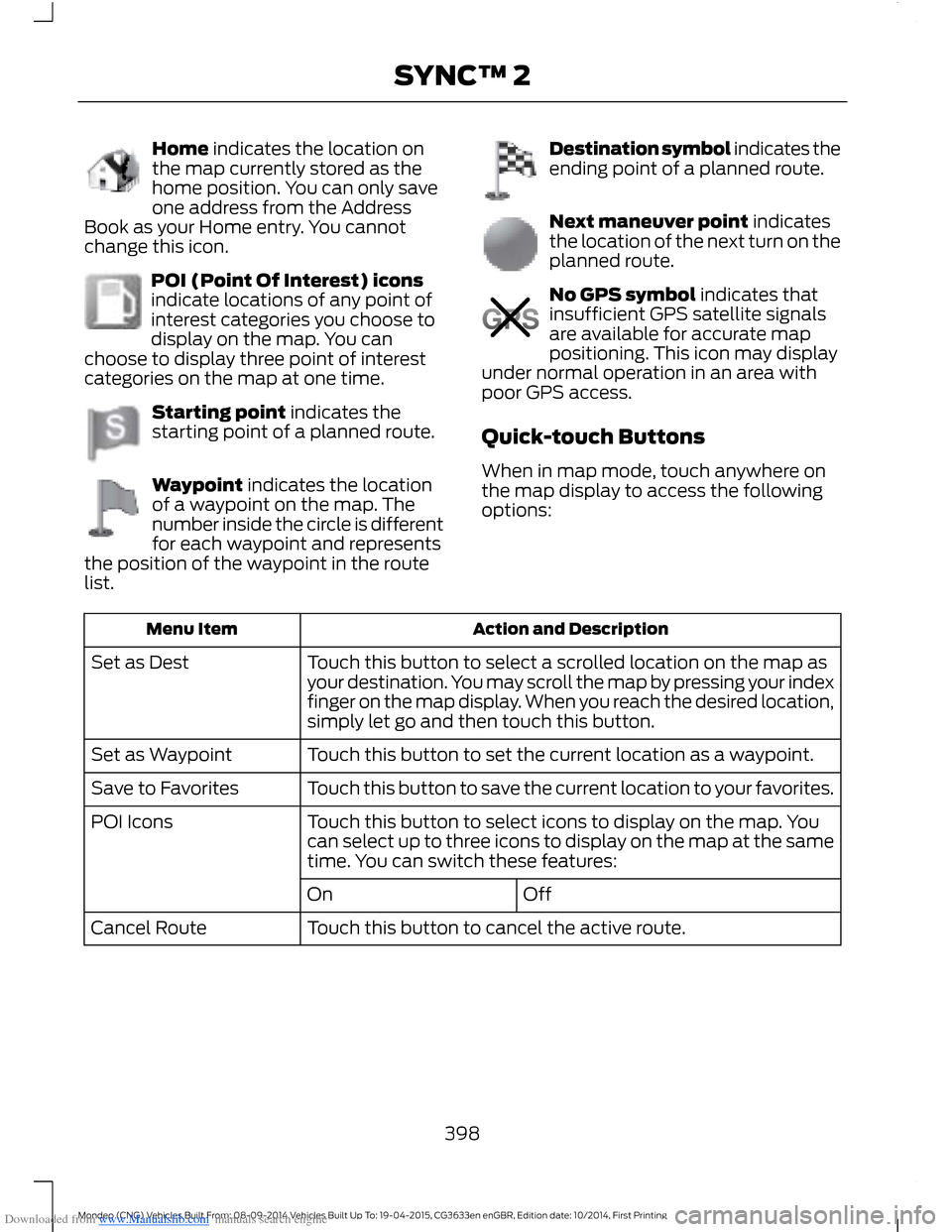
Downloaded from www.Manualslib.com manuals search engine Home indicates the location onthe map currently stored as thehome position. You can only saveone address from the AddressBook as your Home entry. You cannotchange this icon.
POI (Point Of Interest) iconsindicate locations of any point ofinterest categories you choose todisplay on the map. You canchoose to display three point of interestcategories on the map at one time.
Starting point indicates thestarting point of a planned route.
Waypoint indicates the locationof a waypoint on the map. Thenumber inside the circle is differentfor each waypoint and representsthe position of the waypoint in the routelist.
Destination symbol indicates theending point of a planned route.
Next maneuver point indicatesthe location of the next turn on theplanned route.
No GPS symbol indicates thatinsufficient GPS satellite signalsare available for accurate mappositioning. This icon may displayunder normal operation in an area withpoor GPS access.
Quick-touch Buttons
When in map mode, touch anywhere onthe map display to access the followingoptions:
Action and DescriptionMenu Item
Touch this button to select a scrolled location on the map asyour destination. You may scroll the map by pressing your indexfinger on the map display. When you reach the desired location,simply let go and then touch this button.
Set as Dest
Touch this button to set the current location as a waypoint.Set as Waypoint
Touch this button to save the current location to your favorites.Save to Favorites
Touch this button to select icons to display on the map. Youcan select up to three icons to display on the map at the sametime. You can switch these features:
POI Icons
OffOn
Touch this button to cancel the active route.Cancel Route
398Mondeo (CNG) Vehicles Built From: 08-09-2014 Vehicles Built Up To: 19-04-2015, CG3633en enGBR, Edition date: 10/2014, First PrintingSYNC™ 2
Page 439 of 446
Downloaded from www.Manualslib.com manuals search engine Locking and Unlocking.................................44Locking and Unlocking the Doors FromInside....................................................................45Locking and Unlocking the DoorsIndividually with the Key Blade..................45Locking and Unlocking the Doors with theKey Blade............................................................45Power Door Locks................................................44Remote Control....................................................44Locks...................................................................44Luggage Anchor Points.............................2074-door and 5-door............................................207Hybrid....................................................................208Wagon....................................................................207Luggage Covers............................................209Stowing the luggage cover - Estate withoutfull size spare wheel.....................................210Lug NutsSee: Changing a Road Wheel.......................268Lug Nuts..........................................................276
M
Maintenance..................................................237General Information..........................................237Manual Climate Control..............................112Manual Liftgate..............................................46Closing the Liftgate.............................................46Opening the Liftgate...........................................46Manual Seats.................................................128Manual Transmission..................................155Selecting Reverse Gear....................................155Media Hub......................................................304Memory Function...........................................131Easy Entry and Exit Function..........................132Linking a PreSet Position to Your RemoteControl or Intelligent Access Key.............132Saving a PreSet Position..................................132Message CenterSee: Information Displays.................................86MirrorsSee: Heated Windows and Mirrors................121See: Windows and Mirrors.................................72Mobile CommunicationsEquipment......................................................10
Moonroof...........................................................76Bounce-Back..........................................................77Opening and Closing the Moonroof..............76Venting the Moonroof.........................................77MyKey Troubleshooting...............................42MyKey™.............................................................38Principle of Operation........................................38
N
Navigation......................................................390Destination Mode..............................................390Map Mode............................................................396Michelin Travel Guide.......................................392Navigation Map Updates...............................399Navigation Voice Commands.......................399Point of Interest (POI) Categories...............392Quick-touch Buttons.......................................398Setting Your Navigation Preferences.........393
O
Oil CheckSee: Engine Oil Check......................................246Opening and Closing the Hood...............237Closing the Hood...............................................238Opening the Hood..............................................237Overhead Console........................................137
P
Parking Aids....................................................167Principle of Operation.......................................167Passenger Airbag...........................................28.....................................................................................28Switching the Passenger Airbag Off.............28Switching the Passenger Airbag On.............29Passive Anti-Theft System..........................51Arming the Engine Immobilizer........................51Coded Keys..............................................................51Disarming the Engine Immobilizer..................51Principle of Operation..........................................51PATSSee: Passive Anti-Theft System......................51
437Mondeo (CNG) Vehicles Built From: 08-09-2014 Vehicles Built Up To: 19-04-2015, CG3633en enGBR, Edition date: 10/2014, First PrintingIndex