radio FORD POLICE INTERCEPTOR 2020 User Guide
[x] Cancel search | Manufacturer: FORD, Model Year: 2020, Model line: POLICE INTERCEPTOR, Model: FORD POLICE INTERCEPTOR 2020Pages: 395, PDF Size: 5.62 MB
Page 312 of 395
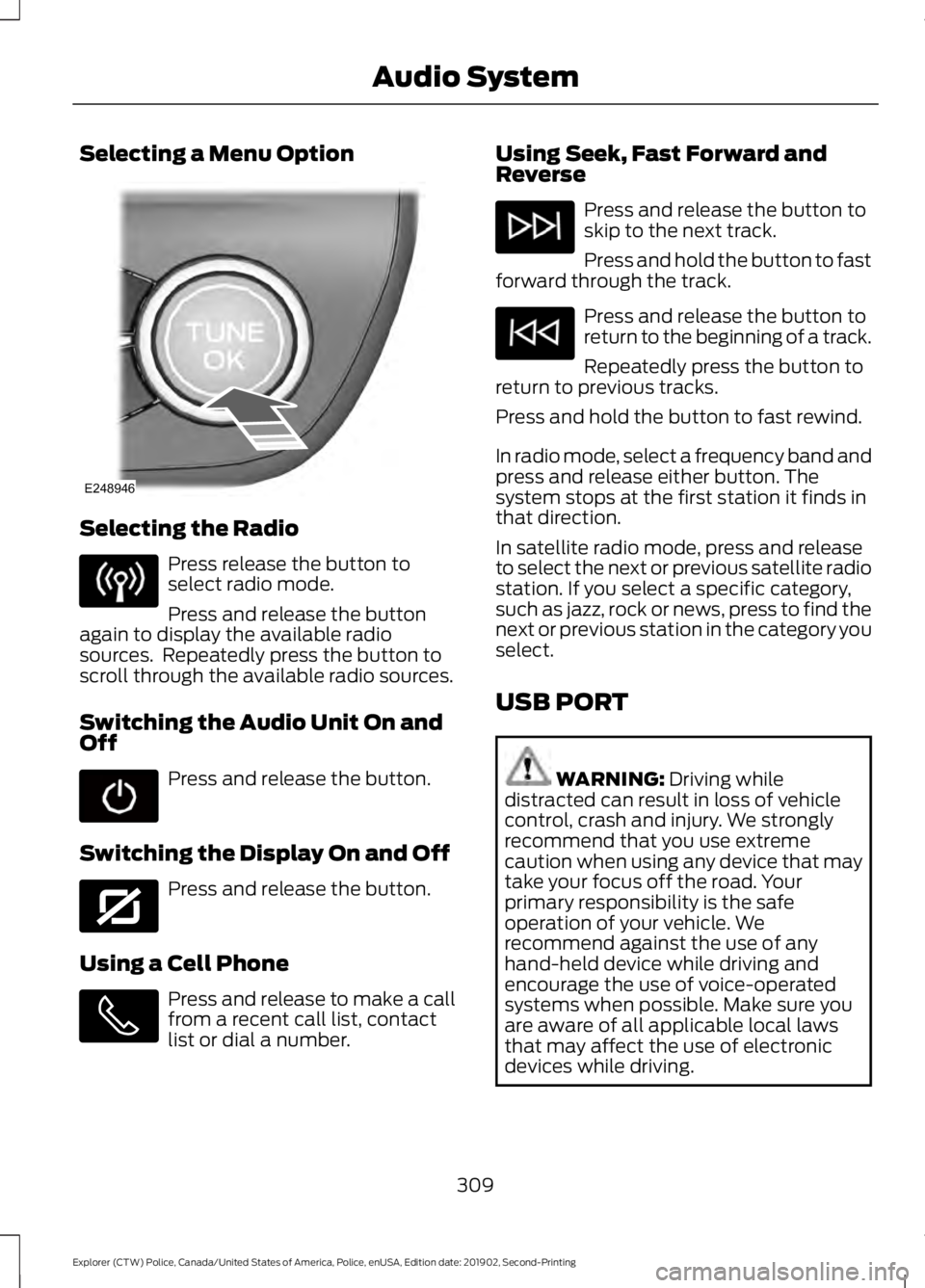
Selecting a Menu Option
Selecting the Radio
Press release the button to
select radio mode.
Press and release the button
again to display the available radio
sources. Repeatedly press the button to
scroll through the available radio sources.
Switching the Audio Unit On and
Off Press and release the button.
Switching the Display On and Off Press and release the button.
Using a Cell Phone Press and release to make a call
from a recent call list, contact
list or dial a number. Using Seek, Fast Forward and
Reverse Press and release the button to
skip to the next track.
Press and hold the button to fast
forward through the track. Press and release the button to
return to the beginning of a track.
Repeatedly press the button to
return to previous tracks.
Press and hold the button to fast rewind.
In radio mode, select a frequency band and
press and release either button. The
system stops at the first station it finds in
that direction.
In satellite radio mode, press and release
to select the next or previous satellite radio
station. If you select a specific category,
such as jazz, rock or news, press to find the
next or previous station in the category you
select.
USB PORT WARNING: Driving while
distracted can result in loss of vehicle
control, crash and injury. We strongly
recommend that you use extreme
caution when using any device that may
take your focus off the road. Your
primary responsibility is the safe
operation of your vehicle. We
recommend against the use of any
hand-held device while driving and
encourage the use of voice-operated
systems when possible. Make sure you
are aware of all applicable local laws
that may affect the use of electronic
devices while driving.
309
Explorer (CTW) Police, Canada/United States of America, Police, enUSA, Edition date: 201902, Second-Printing Audio SystemE248946 E272035
Page 317 of 395
To adjust this setting press the voice button, when prompted say:
Action and Description
Voice Command
Voice Settings
Then any of the following: When enabled, this feature will prompt you
to confirm any voice initiated call command
prior to the call being placed.
Phone Confirmation Off
The system will make a best guess; you
may still occasionally be asked to confirm
settings.
Phone Confirmation On
USING SYNC™ WITH YOUR
PHONE
Hands-free calling is one of the main
features of SYNC. While the system
supports a variety of features, many are
dependent on your cellular phone's
functionality. At a minimum, most cellular
phones with Bluetooth wireless technology
support the following functions:
• Answering an incoming call.
• Ending a call.
• Dialing a number.
• Redialing.
• Call waiting notification.
• Caller ID.
Other features, such as text messaging
using Bluetooth and automatic phonebook
download, are phone-dependent features.
Pairing a Phone
Wirelessly pairing your phone with SYNC
allows you to make and receive hands-free
calls. Note:
Make sure to switch on the ignition
and the radio. Shift the transmission into
park (P) for automatic transmission or first
gear for manual transmission.
Using the Audio System
Note: To scroll through the menus, press
the up and down arrows on your audio
system.
1. Make sure to switch on your phone's Bluetooth feature before starting the
search. See your device's manual if
necessary.
2. Press the Settings button.
3. Select Bluetooth from the menu.
4. Press the
OK button.
5. Select the option to add. This starts the pairing process.
6. When a message to begin pairing appears in the audio display, search for
SYNC on your device.
Depending on your phone's capability and
your market, the system may prompt you
with questions, such as setting the current
phone as the primary phone and
downloading your phonebook.
314
Explorer (CTW) Police, Canada/United States of America, Police, enUSA, Edition date: 201902, Second-Printing SYNC™
Page 322 of 395
Note:
You must enable mobile apps for
each connected device the first time you
select a mobile app using the system.
Note: Standard data rates apply. Ford is
not responsible for any additional charges
you may receive from your service provider,
when your vehicle sends or receives data
through the connected device. This includes
any additional charges incurred due to
driving in areas when roaming out of a home
network.
USING SYNC™ WITH YOUR
MEDIA PLAYER
SYNC supports digital media sources
including: iPod, Bluetooth devices, and
most USB drives. SYNC also supports
audio formats, such as MP3, WMA, WAV
and ACC.
Media Sources
The AUX or MEDIA button allows you to
view and select available media sources.
Press the
AUX or MEDIA button to view
your sources. Use the directional arrows
and OK button to select your source. You
can also use the steering wheel audio
controls.
Audio Voice Commands Press the voice button. You can
do things like play a specific song
or album, skip to the next song,
or tune to a radio station. When prompted,
say a command. See the following table
for example commands. Not all
commands may be available on your
vehicle. Command
___ List of Commands Help
Pause Play
Next Track
Previous Track AM ___FM ___
CD Player
Sirius Channel ___ USB
Bluetooth Audio
__ is a dynamic listing, meaning that it
could be the name of anything, such as an
artist, station, or media source.
SYNC™ TROUBLESHOOTING
Your SYNC system is easy to use. However,
should questions arise, see the tables
below.
Use your regional Ford website at any time
to check your phone's compatibility,
register your account and set preferences
as well as access a customer
representative via an online chat (during
certain hours). Website(s)
Market
www.SYNCMyRide.com
North America
www.SYNCMyRide.cawww.sync-
maroute.ca
319
Explorer (CTW) Police, Canada/United States of America, Police, enUSA, Edition date: 201902, Second-Printing SYNC™E142599
Page 326 of 395
USB and media issues
Possible solution(s)
Possible cause(s)
Issue
The file may be corrupted. Some devices require you tochange the USB settings
from mass storage to MTP class.
The song may have copy-
right protection, which does not allow it to play.
Switch radio bands and
return to Sirius or switch the feature off. You can then
change the Sirius station using the directional buttons.
Sirius Replay is active.
I cannot change the Sirius
station. Voice command issues
Possible solution(s)
Possible cause(s)
Issue
Review the phone voice
commands and the media voice commands at the
beginning of their respective sections.
You may be using the wrong
voice commands.
SYNC does not understand what I am saying. After pressing the voice icon,
wait until after the tonesounds and Listening
appears before saying a
command. Any command
spoken before this does not register with the system.
You may be speaking too
soon or at the wrong time.
Review the media voice
commands at the beginning of the media section.
You may be using the wrong
voice commands.
SYNC does not understand
the name of a song or artist. Say the song or artist
exactly as listed. If you say "Play Artist Prince", the
system does not play music
by Prince and the Revolution or Prince and the NewPower Generation.
You may be saying the
name differently than the way you saved it.
323
Explorer (CTW) Police, Canada/United States of America, Police, enUSA, Edition date: 201902, Second-Printing SYNC™
Page 330 of 395
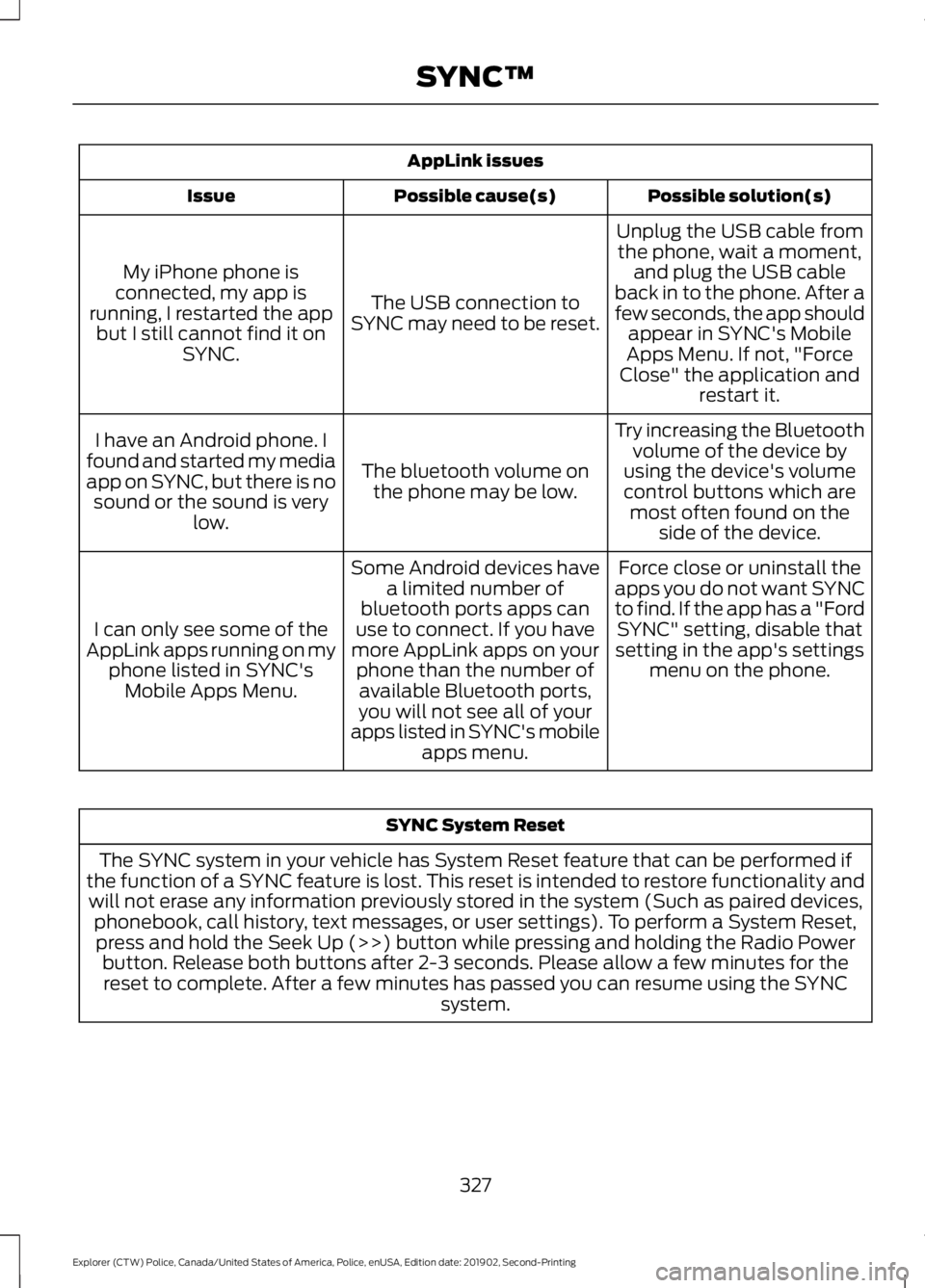
AppLink issues
Possible solution(s)
Possible cause(s)
Issue
Unplug the USB cable fromthe phone, wait a moment, and plug the USB cable
back in to the phone. After a
few seconds, the app should appear in SYNC's Mobile
Apps Menu. If not, "Force
Close" the application and restart it.
The USB connection to
SYNC may need to be reset.
My iPhone phone is
connected, my app is
running, I restarted the app but I still cannot find it on SYNC.
Try increasing the Bluetoothvolume of the device by
using the device's volume control buttons which are most often found on the side of the device.
The bluetooth volume on
the phone may be low.
I have an Android phone. I
found and started my media
app on SYNC, but there is no sound or the sound is very low.
Force close or uninstall the
apps you do not want SYNC
to find. If the app has a "Ford SYNC" setting, disable that
setting in the app's settings menu on the phone.
Some Android devices have
a limited number of
bluetooth ports apps can
use to connect. If you have
more AppLink apps on your phone than the number ofavailable Bluetooth ports,
you will not see all of your
apps listed in SYNC's mobile apps menu.
I can only see some of the
AppLink apps running on my phone listed in SYNC'sMobile Apps Menu. SYNC System Reset
The SYNC system in your vehicle has System Reset feature that can be performed if
the function of a SYNC feature is lost. This reset is intended to restore functionality and will not erase any information previously stored in the system (Such as paired devices, phonebook, call history, text messages, or user settings). To perform a System Reset,press and hold the Seek Up (>>) button while pressing and holding the Radio Power button. Release both buttons after 2-3 seconds. Please allow a few minutes for thereset to complete. After a few minutes has passed you can resume using the SYNC system.
327
Explorer (CTW) Police, Canada/United States of America, Police, enUSA, Edition date: 201902, Second-Printing SYNC™
Page 354 of 395
ELECTROMAGNETIC
COMPATIBILITY
WARNING: Do not place objects
or mount equipment on or near the
airbag cover, on the side of the seatbacks
(of the front seats), or in front seat areas
that may come into contact with a
deploying airbag. Failure to follow these
instructions may increase the risk of
personal injury in the event of a crash. WARNING:
Do not fasten antenna
cables to original vehicle wiring, fuel
pipes and brake pipes. WARNING:
Keep antenna and
power cables at least 4 in (10 cm) from
any electronic modules and airbags.
Note: We test and certify your vehicle to
meet electromagnetic compatibility
legislation (UNECE Regulation 10 or other
applicable local requirements). It is your
responsibility to make sure that any
equipment an authorized dealer installs on
your vehicle complies with applicable local
legislation and other requirements.
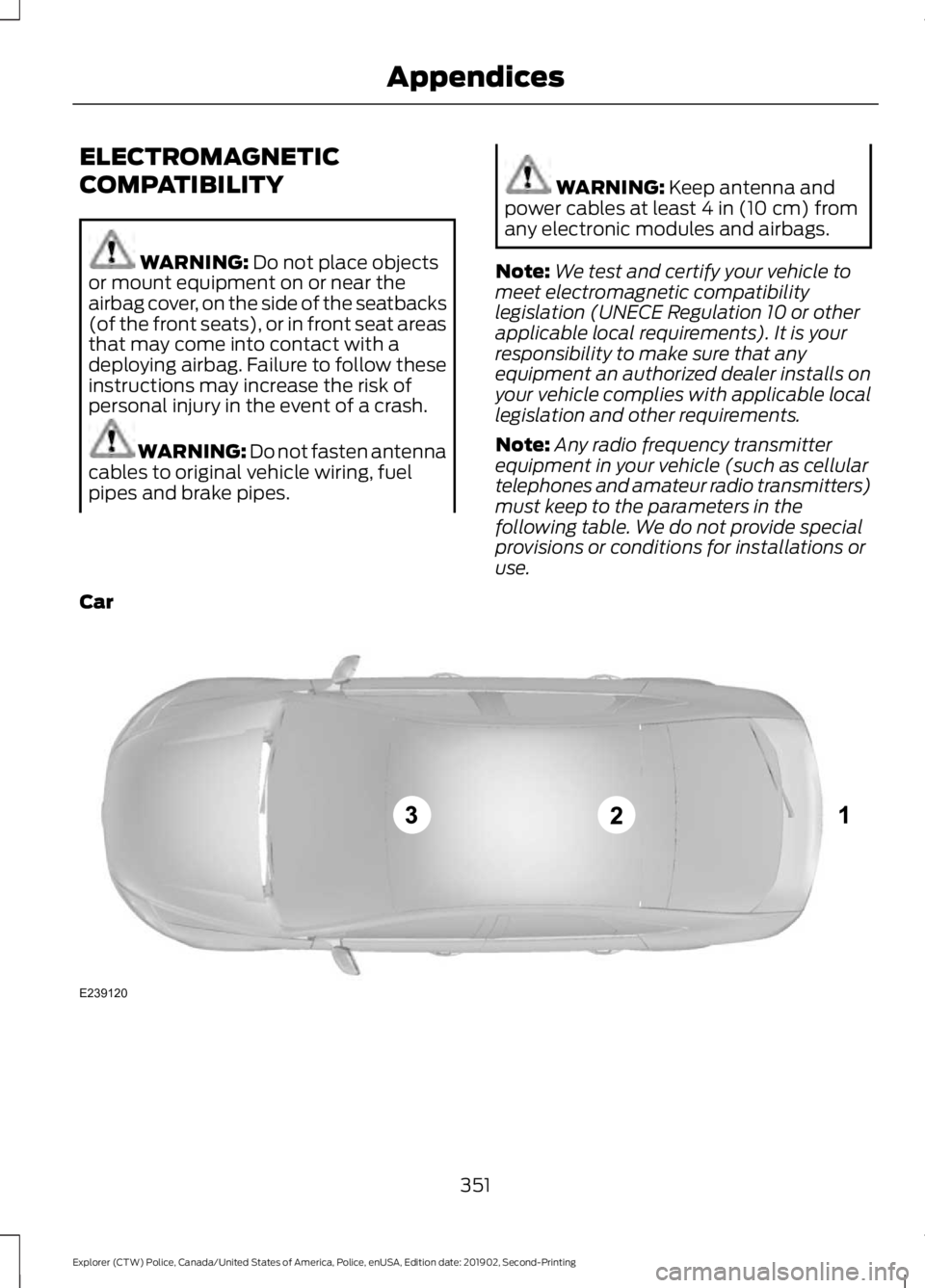
Note: Any radio frequency transmitter
equipment in your vehicle (such as cellular
telephones and amateur radio transmitters)
must keep to the parameters in the
following table. We do not provide special
provisions or conditions for installations or
use.
Car 351
Explorer (CTW) Police, Canada/United States of America, Police, enUSA, Edition date: 201902, Second-Printing AppendicesE239120
Page 356 of 395
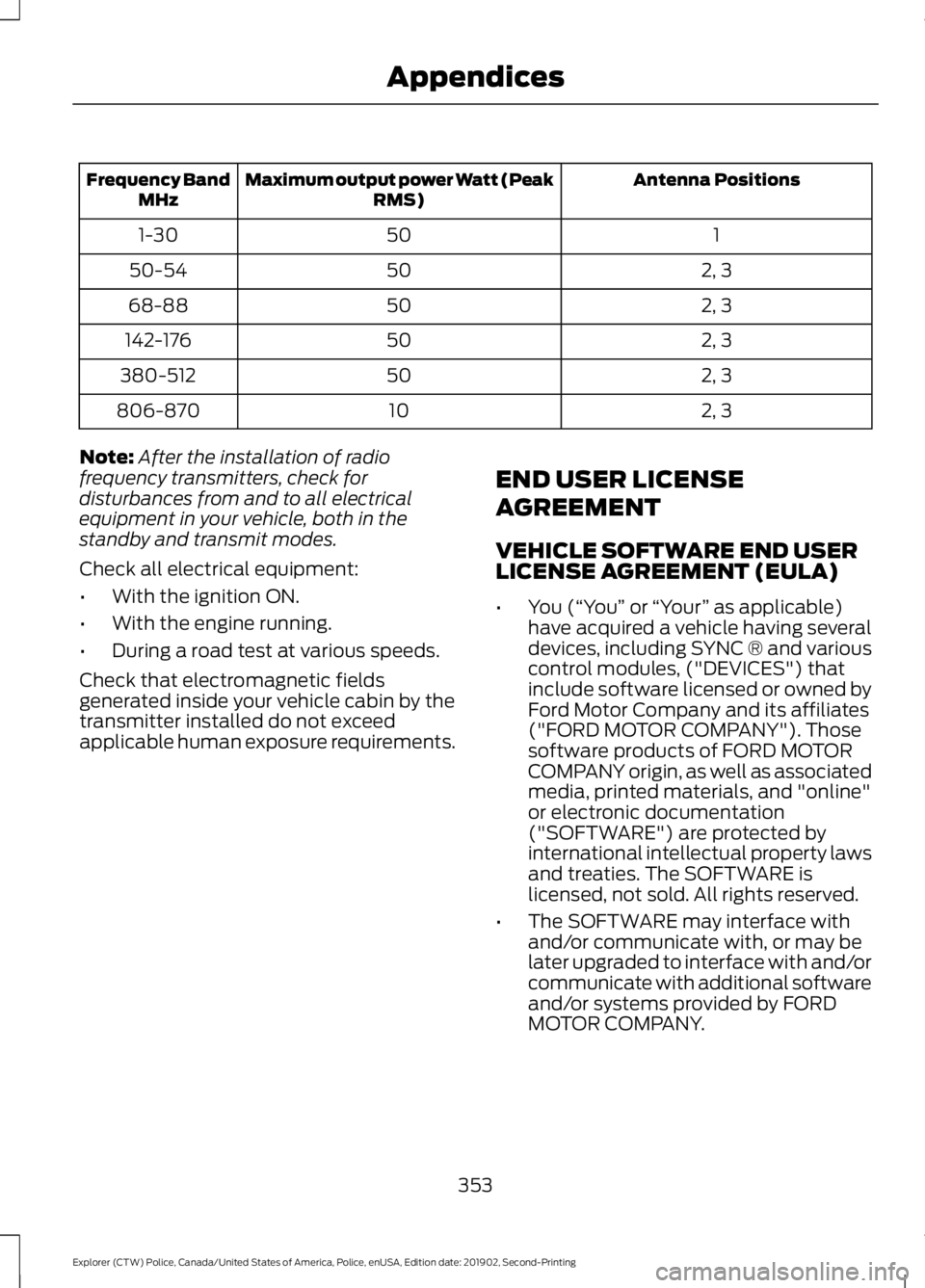
Antenna Positions
Maximum output power Watt (Peak
RMS)
Frequency Band
MHz
1
50
1-30
2, 3
50
50-54
2, 3
50
68-88
2, 3
50
142-176
2, 3
50
380-512
2, 3
10
806-870
Note: After the installation of radio
frequency transmitters, check for
disturbances from and to all electrical
equipment in your vehicle, both in the
standby and transmit modes.
Check all electrical equipment:
• With the ignition ON.
• With the engine running.
• During a road test at various speeds.
Check that electromagnetic fields
generated inside your vehicle cabin by the
transmitter installed do not exceed
applicable human exposure requirements. END USER LICENSE
AGREEMENT
VEHICLE SOFTWARE END USER
LICENSE AGREEMENT (EULA)
•
You (“You” or “Your ” as applicable)
have acquired a vehicle having several
devices, including SYNC ® and various
control modules, ("DEVICES") that
include software licensed or owned by
Ford Motor Company and its affiliates
("FORD MOTOR COMPANY"). Those
software products of FORD MOTOR
COMPANY origin, as well as associated
media, printed materials, and "online"
or electronic documentation
("SOFTWARE") are protected by
international intellectual property laws
and treaties. The SOFTWARE is
licensed, not sold. All rights reserved.
• The SOFTWARE may interface with
and/or communicate with, or may be
later upgraded to interface with and/or
communicate with additional software
and/or systems provided by FORD
MOTOR COMPANY.
353
Explorer (CTW) Police, Canada/United States of America, Police, enUSA, Edition date: 201902, Second-Printing Appendices
Page 380 of 395

IMPLIED WARRANTIES OF
MERCHANTABILITY, FITNESS FOR A
PARTICULAR PURPOSE, TITLE, AND
NON-INFRINGEMENT. NEITHER
GRACENOTE WARRANTS THE RESULTS
THAT WILL BE OBTAINED BY YOUR USE
OF THE GRACENOTE SOFTWARE OR ANY
GRACENOTE SERVER. IN NO CASE WILL
GRACENOTE BE LIABLE FOR ANY
CONSEQUENTIAL OR INCIDENTAL
DAMAGES OR FOR ANY LOST PROFITS
OR LOST REVENUES FOR ANY REASON
WHATSOEVER. © Gracenote 2007.
Radio Frequency Statement
FCC ID: ACJ-SYNCG3-L
IC: 216B-SYNCG3-L
This device complies with Part 15 of the
FCC Rules and with RSS-210 of Industry
Canada. Operation is subject to the
following two conditions:
(1) This device may not cause harmful
interference, and
(2)
this device must accept any
interference received, including
interference that may cause undesired
operation. WARNING:
Changes or
modifications not expressively approved
by the party responsible for compliance
could void the user's authority to operate
the equipment. The term "IC:" before the
radio certification number only signifies
that Industry Canada technical
specifications were met.
The antenna used for this transmitter must
not be co-located or operating in
conjunction with any other antenna or
transmitter. Taiwan Territory
Note: In accordance with the management
approach of low-power radio wave
radiation motors:
Article 12: For approved and certified
low-power radiation motor models,
companies, firms or users must not alter
the frequency, increase the power or
change the characteristics and functions
of the original design without authorization.
Article 14: The usage of low-power
radio-frequency motors must not affect
aviation safety and interfere with legal
telecommunications. Should interference
be detected, immediately stop using the
device and only resume usage after
ensuring that there is no longer any
interference. For the legal
telecommunication and wireless
telecommunication of the telco, the
low-power radio frequency motor must be
able to tolerate legal limits of interference
from telecommunication, industrial,
scientific and radio wave equipment.
SUNA TRAFFIC CHANNEL – TERMS
AND CONDITIONS
By activating, using and/or accessing the
SUNA Traffic Channel, SUNA Predictive or
other content or material provided by
Intelematics (together,
SUNA Products
and/or Services
), you must accept
certain terms and conditions. The following
is a brief summary of the terms and
conditions that apply to you. To view the
full terms and conditions relevant to your
use of the SUNA Products and/or Services,
please consult: Website
www.sunatraffic.com.au/termsandcon- ditions/
1. Acceptance
377
Explorer (CTW) Police, Canada/United States of America, Police, enUSA, Edition date: 201902, Second-Printing Appendices
Page 382 of 395
DECLARATION OF
CONFORMITY
Your vehicle could have components that
transmit and receive radio waves and are
therefore subject to government
regulation.
These components must accept any
interference received, including
interference that could cause undesired
operation. For certification labels and
declarations of conformity, visit
www.wirelessconformity.ford.com.
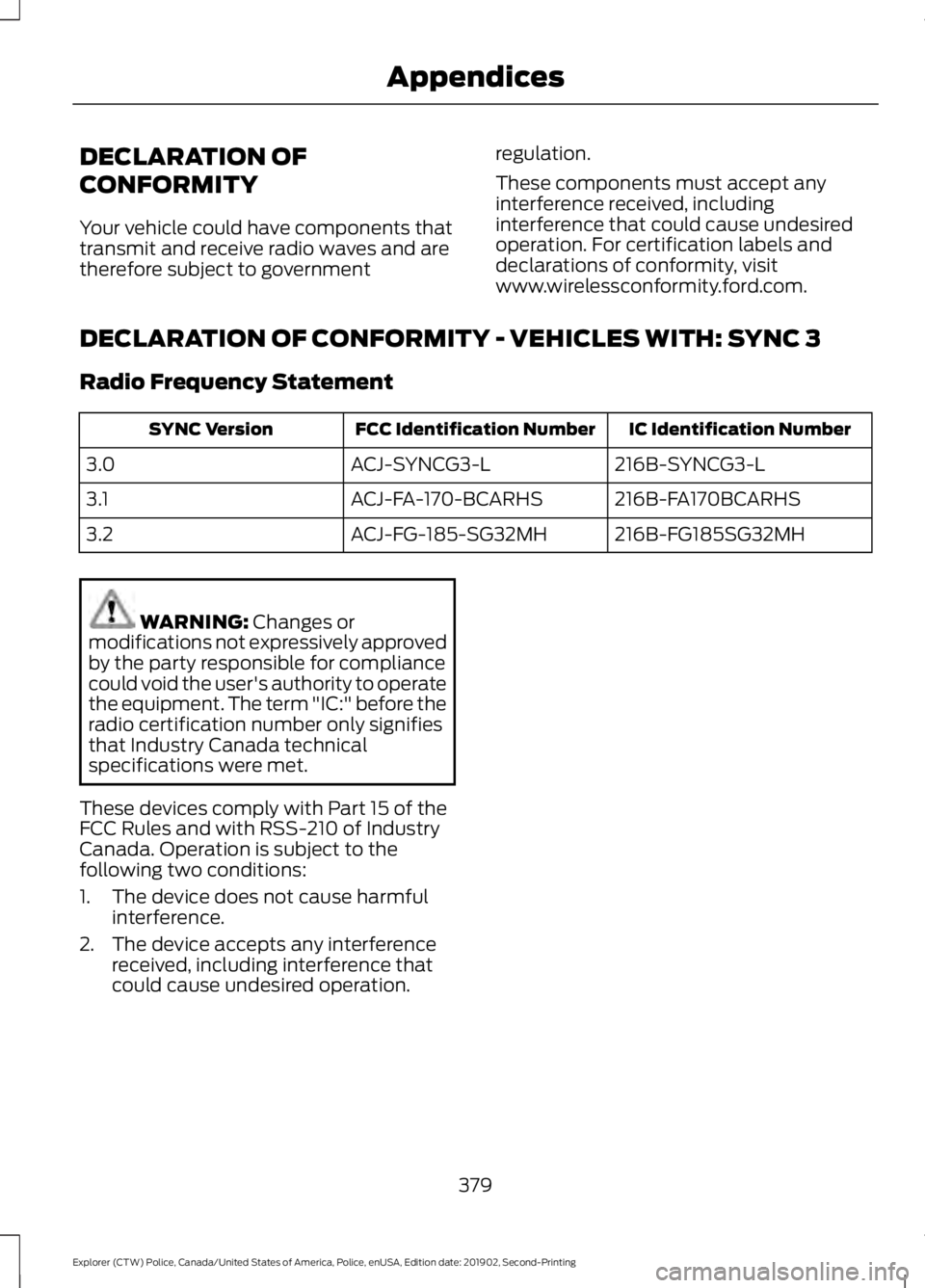
DECLARATION OF CONFORMITY - VEHICLES WITH: SYNC 3
Radio Frequency Statement IC Identification Number
FCC Identification Number
SYNC Version
216B-SYNCG3-L
ACJ-SYNCG3-L
3.0
216B-FA170BCARHS
ACJ-FA-170-BCARHS
3.1
216B-FG185SG32MH
ACJ-FG-185-SG32MH
3.2 WARNING: Changes or
modifications not expressively approved
by the party responsible for compliance
could void the user's authority to operate
the equipment. The term "IC:" before the
radio certification number only signifies
that Industry Canada technical
specifications were met.
These devices comply with Part 15 of the
FCC Rules and with RSS-210 of Industry
Canada. Operation is subject to the
following two conditions:
1. The device does not cause harmful interference.
2. The device accepts any interference received, including interference that
could cause undesired operation.
379
Explorer (CTW) Police, Canada/United States of America, Police, enUSA, Edition date: 201902, Second-Printing Appendices
Page 384 of 395
A
A/C
See: Climate Control......................................... 102
About Cruise Control..................................166
About Drive Mode Control.........................179
About the Cabin Air Filter..........................107
About This Manual...........................................7
ABS See: Brakes............................................................ 152
ABS driving hints See: Hints on Driving With Anti-Lock
Brakes................................................................. 153
Accessories See: Replacement Parts
Recommendation............................................ 13
Adjusting the Headlamps.........................234 Vertical Aim Adjustment................................. 234
Adjusting the Steering Wheel...................66
Airbag Disposal...............................................54
Air Conditioning See: Climate Control......................................... 102
Air Filter See: Changing the Engine Air Filter -
3.0L..................................................................... 237
See: Changing the Engine Air Filter - 3.3L..................................................................... 238
Alarm See: Anti-Theft Alarm........................................ 64
All-Wheel Drive
.............................................145
Anti-Theft Alarm............................................64
Alarm System........................................................ 64
Arming the Alarm................................................. 64
Disarming the Alarm........................................... 64
Object Detection.................................................. 65
Police Perimeter Alert Settings....................... 65
Police Perimeter Alert System........................ 64
Switching the Police Perimeter Alert On and Off................................................................ 64
System Configuration......................................... 65
System Error........................................................... 65
Triggering the Alarm........................................... 64
Appendices.....................................................351
At a Glance........................................................18
Audible Warnings and Indicators.............83 Automatic Transmission Warning
Chime.................................................................. 84
Headlamps On Warning Chime...................... 83Key in Ignition Warning Chime........................
83
Parking Brake On Warning Chime.................84
Audio Control
..................................................66
Auxiliary Steering Wheel Controls.................67
You can operate the following functions
with the control:.............................................. 66
Audio System
................................................307
General Information......................................... 307
Audio Unit
.......................................................307
Accessing the Sound Settings...................... 307
Accessing the System Settings................... 308
Adjusting the Volume...................................... 308
Changing Radio Stations............................... 308
Pausing or Playing Media............................... 308
Returning to the Previous Screen...............308
Scrolling Through the Menu Options........308
Selecting a Menu Option............................... 309
Selecting Media................................................. 308
Selecting the Radio.......................................... 309
Switching the Audio Unit On and Off........309
Switching the Display On and Off..............309
Using a Cell Phone........................................... 309
Using Seek, Fast Forward and Reverse............................................................. 309
Autolamps..........................................................71 Windshield Wiper Activated
Headlamps.......................................................... 71
Automatic Climate Control......................102 Directing the Airflow.......................................... 102
Setting the Blower Motor Speed.................. 102
Setting the Temperature................................. 102
Switching Auto Mode On and Off................102
Switching Maximum Air Conditioning On and Off.............................................................. 104
Switching Maximum Defrost On and Off....................................................................... 104
Switching Recirculated Air On and Off....................................................................... 104
Switching the Air Conditioning On and Off....................................................................... 103
Switching the Climate Control On and Off....................................................................... 103
Automatic Transmission............................143 If Your Vehicle Gets Stuck in Mud or
Snow................................................................... 143
Understanding the Positions of Your Automatic Transmission............................. 143
381
Explorer (CTW) Police, Canada/United States of America, Police, enUSA, Edition date: 201902, Second-Printing Index