radio FORD POLICE INTERCEPTOR 2021 User Guide
[x] Cancel search | Manufacturer: FORD, Model Year: 2021, Model line: POLICE INTERCEPTOR, Model: FORD POLICE INTERCEPTOR 2021Pages: 412, PDF Size: 7.51 MB
Page 308 of 412
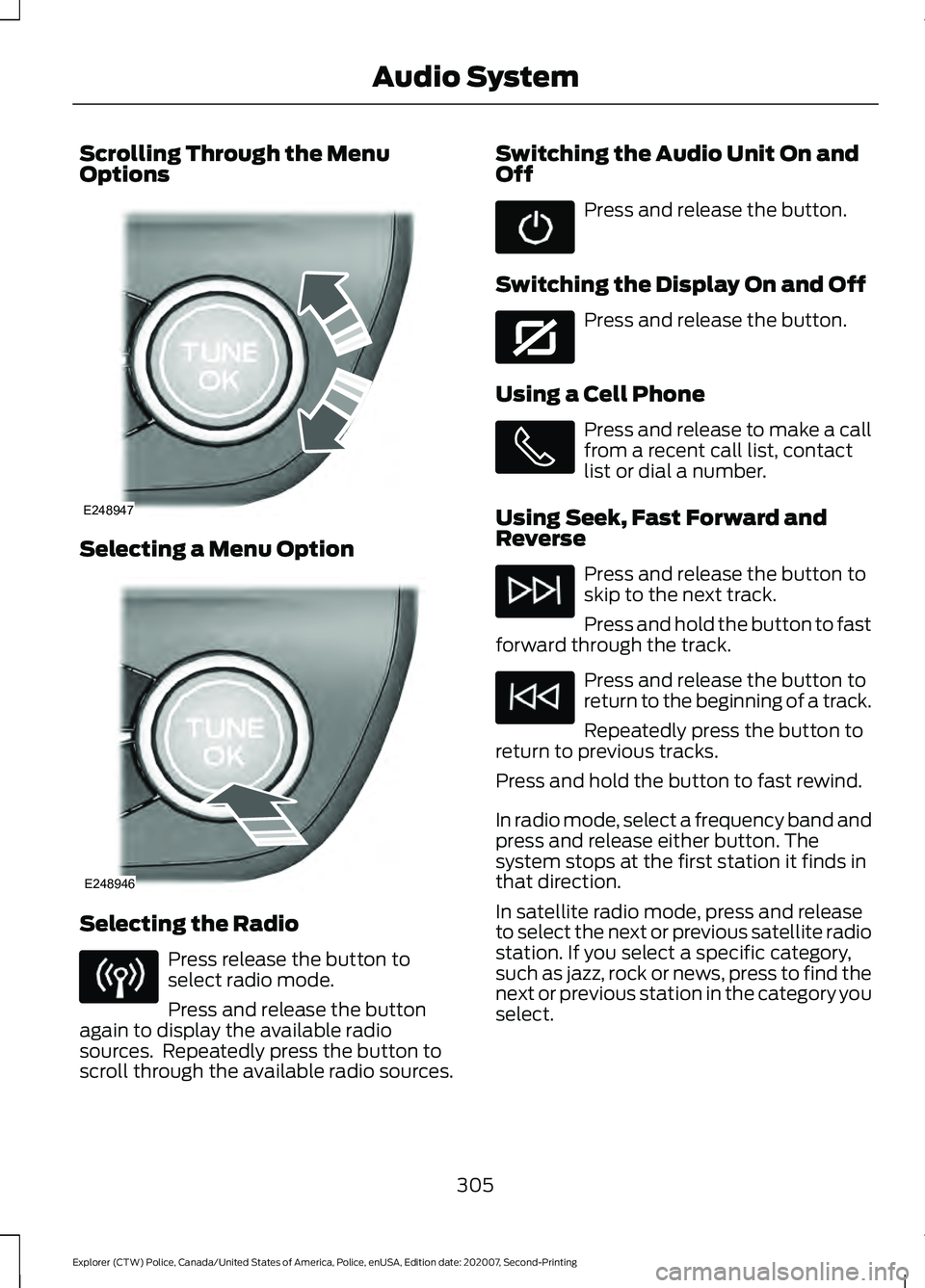
Scrolling Through the Menu
Options
Selecting a Menu Option
Selecting the Radio
Press release the button to
select radio mode.
Press and release the button
again to display the available radio
sources. Repeatedly press the button to
scroll through the available radio sources. Switching the Audio Unit On and
Off Press and release the button.
Switching the Display On and Off Press and release the button.
Using a Cell Phone Press and release to make a call
from a recent call list, contact
list or dial a number.
Using Seek, Fast Forward and
Reverse Press and release the button to
skip to the next track.
Press and hold the button to fast
forward through the track. Press and release the button to
return to the beginning of a track.
Repeatedly press the button to
return to previous tracks.
Press and hold the button to fast rewind.
In radio mode, select a frequency band and
press and release either button. The
system stops at the first station it finds in
that direction.
In satellite radio mode, press and release
to select the next or previous satellite radio
station. If you select a specific category,
such as jazz, rock or news, press to find the
next or previous station in the category you
select.
305
Explorer (CTW) Police, Canada/United States of America, Police, enUSA, Edition date: 202007, Second-Printing Audio SystemE248947 E248946 E272035
Page 313 of 412
USING SYNC™ WITH YOUR
PHONE
Hands-free calling is one of the main
features of SYNC. While the system
supports a variety of features, many are
dependent on your cellular phone's
functionality. At a minimum, most cellular
phones with Bluetooth wireless technology
support the following functions:
•
Answering an incoming call.
• Ending a call.
• Dialing a number.
• Redialing.
• Call waiting notification.
• Caller identification.
Other features, such as text messaging
using Bluetooth and automatic phonebook
download, are phone-dependent features.
Pairing a Phone
Wirelessly pairing your phone with SYNC
allows you to make and receive hands-free
calls.
Note: Make sure to switch on the ignition
and the radio. Shift the transmission into
park (P) for automatic transmission or
neutral (N) for manual transmission.
Using the Audio System
Note: To scroll through the menus, press
the up and down arrows on your audio
system.
1. Make sure to switch on your phone's Bluetooth feature before starting the
search. See your device's manual if
necessary.
2. Press the Settings button.
3. Select Bluetooth from the menu.
4. Press the
OK button.
5. Select the option to add. This starts the pairing process. 6. When a message to begin pairing
appears in the audio display, search for
SYNC on your device.
Depending on your phone's capability and
your market, the system may prompt you
with questions, such as setting the current
phone as the primary phone and
downloading your phonebook.
Using Voice Commands Make sure to switch on your
phone's Bluetooth feature
before starting the search. See
your device's manual if necessary.
Press the voice button and when
prompted say: Action and Descrip-
tion
Voice Command
Follow the instruc-
tions on the audio
display.
Pair Phone
Phone Voice Commands Press the voice button. You can
do things like place a phone call
and access text messages.
When prompted, say a command. See the
following table for examples of
commands. Voice Command
___ List of Commands
Help
Call ___
Dial ___
Text Messages
310
Explorer (CTW) Police, Canada/United States of America, Police, enUSA, Edition date: 202007, Second-Printing SYNC™E142599 E142599
Page 318 of 412
Audio Voice Commands
Press the voice button. You can
do things like play a specific song
or album, or tune to a radio
station. When prompted, say a command.
See the following table for example
commands. Not all commands may be
available on your vehicle. Command
___ List of Commands Help
Pause Play
AM ___ FM ___
CD Player
Sirius Channel ___ USB
Bluetooth Audio __ is a dynamic listing, meaning that it
could be the name of anything, such as an
artist, station, or media source.
SYNC™ TROUBLESHOOTING
Your SYNC system is easy to use. However,
should questions arise, see the tables
below.
Use your regional Ford website at any time
to check your phone's compatibility,
register your account and set preferences
as well as access a customer
representative via an online chat (during
certain hours). Website(s)
Market
www.SYNCMyRide.com
North America
www.SYNCMyRide.cawww.sync-
maroute.ca Phone issues
Possible solution(s)
Possible cause(s)
Issue
Review your phone's manualabout audio adjustments.
The audio control settings
on your phone may be
affecting SYNC perform- ance.
There is excessive back-
ground noise during a phone call.
Try turning off the device,resetting the device,
removing the device's
battery, then trying again.
This may be a possible
phone malfunction.
During a call, I can hear the
other person but theycannot hear me.
Go to the website to reviewyour phone's compatibility.
This is a phone-dependent
feature.
SYNC is not able to down-
load my phonebook.
315
Explorer (CTW) Police, Canada/United States of America, Police, enUSA, Edition date: 202007, Second-Printing SYNC™E142599
Page 321 of 412
USB and media issues
Possible solution(s)
Possible cause(s)
Issue
Make sure that the devicedoes not have an auto-
install program or active security settings.
Make sure you are not
leaving the device in your vehicle during very hot or cold temperatures.
This is a device limitation.
SYNC does not recognize
my device when I turn on the car.
Review the device compatib-ility chart on the SYNC
website to confirm your phone supports the
Bluetooth audio streaming function.
This is a phone-dependent
feature.
Bluetooth audio does not stream.
Make sure you correctly
connect the device to SYNC, and that you have pressed play on your device.
The device is not connected.
Make sure that all songdetails are populated.
Your music files may not
contain the correct artist,
song title, album or genre information.
SYNC does not recognize
music that is on my device. The file may be corrupted.
Some devices require you tochange the USB settings
from mass storage to MTP class.
The song may have copy-
right protection, which does not allow it to play.
Switch radio bands and
return to Sirius or switch the feature off. You can then
change the Sirius station using the directional buttons.
Sirius Replay is active.
I cannot change the Sirius
station.
318
Explorer (CTW) Police, Canada/United States of America, Police, enUSA, Edition date: 202007, Second-Printing SYNC™
Page 326 of 412
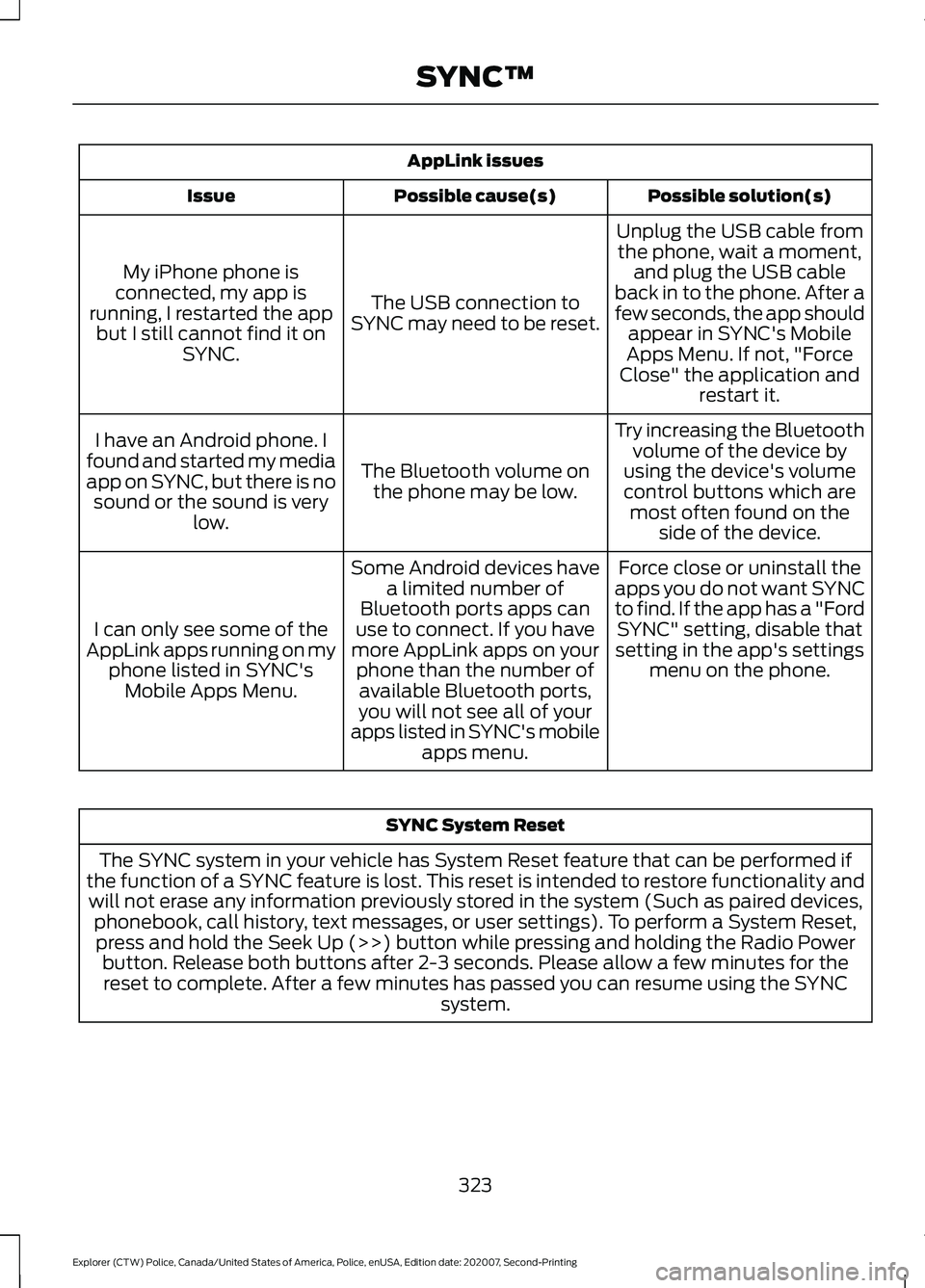
AppLink issues
Possible solution(s)
Possible cause(s)
Issue
Unplug the USB cable fromthe phone, wait a moment, and plug the USB cable
back in to the phone. After a
few seconds, the app should appear in SYNC's Mobile
Apps Menu. If not, "Force
Close" the application and restart it.
The USB connection to
SYNC may need to be reset.
My iPhone phone is
connected, my app is
running, I restarted the app but I still cannot find it on SYNC.
Try increasing the Bluetoothvolume of the device by
using the device's volume control buttons which are most often found on the side of the device.
The Bluetooth volume on
the phone may be low.
I have an Android phone. I
found and started my media
app on SYNC, but there is no sound or the sound is very low.
Force close or uninstall the
apps you do not want SYNC
to find. If the app has a "Ford SYNC" setting, disable that
setting in the app's settings menu on the phone.
Some Android devices have
a limited number of
Bluetooth ports apps can
use to connect. If you have
more AppLink apps on your phone than the number ofavailable Bluetooth ports,
you will not see all of your
apps listed in SYNC's mobile apps menu.
I can only see some of the
AppLink apps running on my phone listed in SYNC'sMobile Apps Menu. SYNC System Reset
The SYNC system in your vehicle has System Reset feature that can be performed if
the function of a SYNC feature is lost. This reset is intended to restore functionality and will not erase any information previously stored in the system (Such as paired devices, phonebook, call history, text messages, or user settings). To perform a System Reset,press and hold the Seek Up (>>) button while pressing and holding the Radio Power button. Release both buttons after 2-3 seconds. Please allow a few minutes for thereset to complete. After a few minutes has passed you can resume using the SYNC system.
323
Explorer (CTW) Police, Canada/United States of America, Police, enUSA, Edition date: 202007, Second-Printing SYNC™
Page 340 of 412
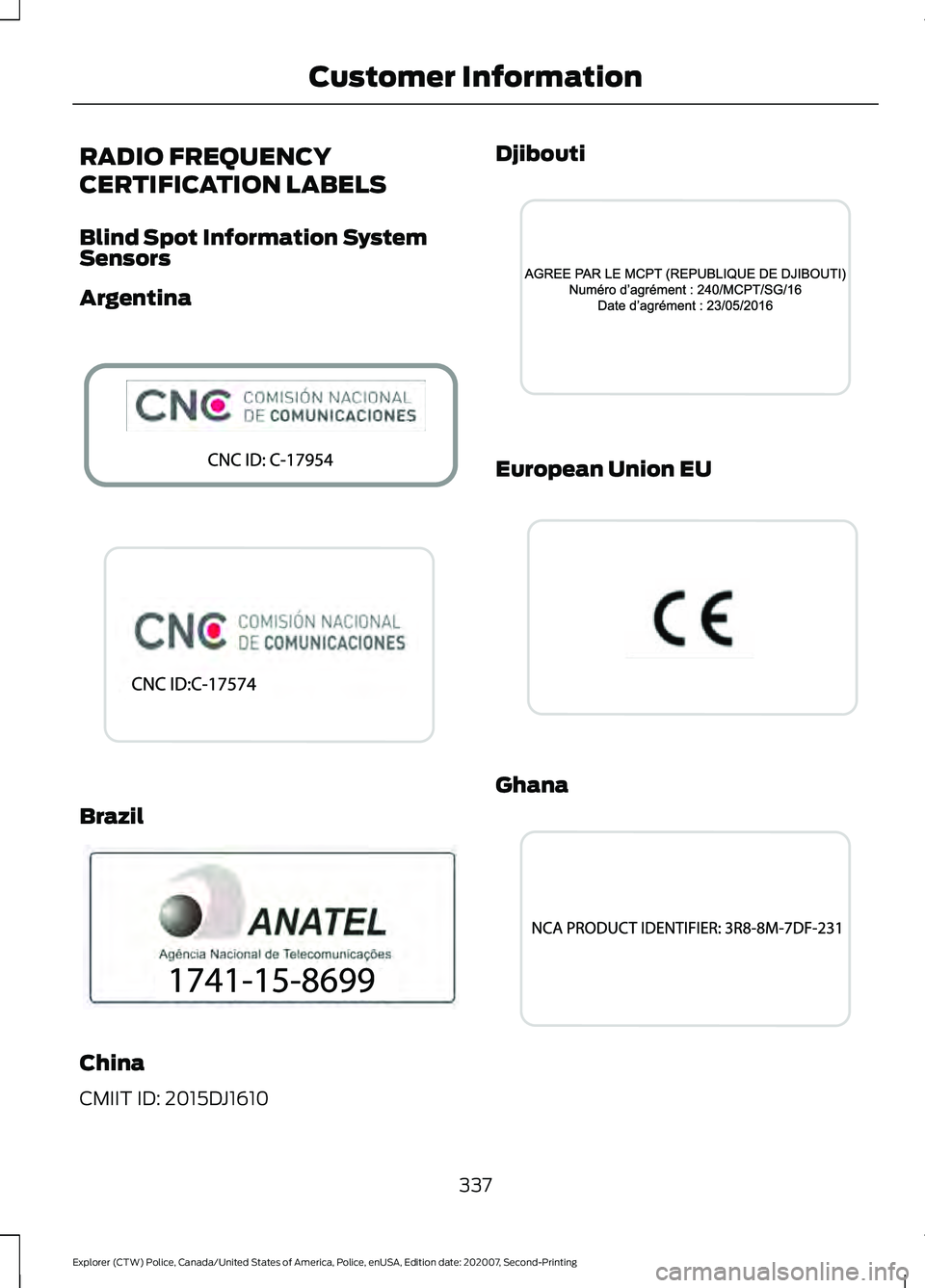
RADIO FREQUENCY
CERTIFICATION LABELS
Blind Spot Information System
Sensors
Argentina
Brazil
China
CMIIT ID: 2015DJ1610 Djibouti
European Union EU
Ghana
337
Explorer (CTW) Police, Canada/United States of America, Police, enUSA, Edition date: 202007, Second-Printing Customer InformationE337180 E340516 E340204 E340826 E310043 E269695
Page 343 of 412
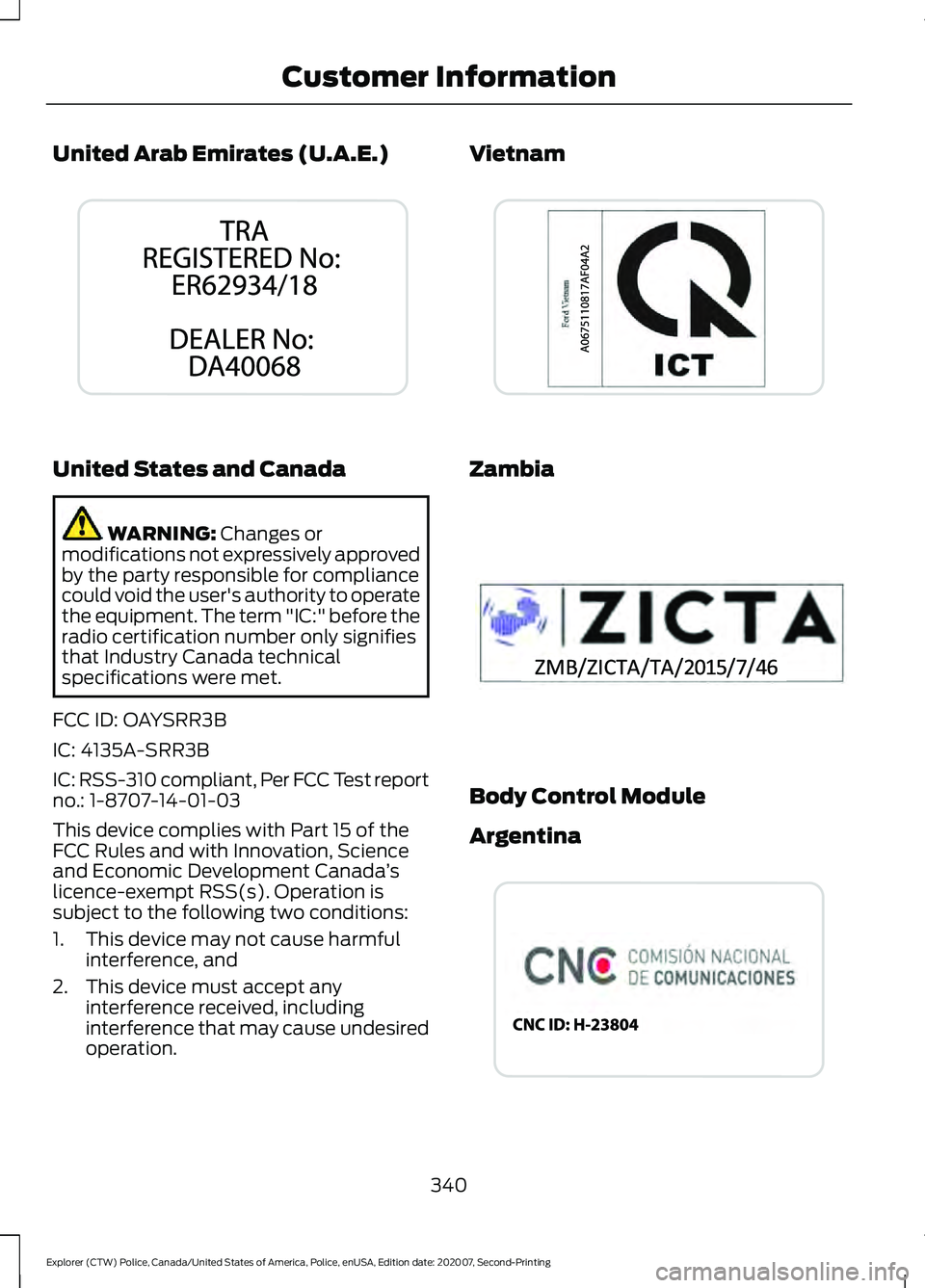
United Arab Emirates (U.A.E.)
United States and Canada
WARNING: Changes or
modifications not expressively approved
by the party responsible for compliance
could void the user's authority to operate
the equipment. The term "IC:" before the
radio certification number only signifies
that Industry Canada technical
specifications were met.
FCC ID: OAYSRR3B
IC: 4135A-SRR3B
IC: RSS-310 compliant, Per FCC Test report
no.: 1-8707-14-01-03
This device complies with Part 15 of the
FCC Rules and with Innovation, Science
and Economic Development Canada ’s
licence-exempt RSS(s). Operation is
subject to the following two conditions:
1. This device may not cause harmful interference, and
2. This device must accept any interference received, including
interference that may cause undesired
operation. Vietnam
Zambia
Body Control Module
Argentina
340
Explorer (CTW) Police, Canada/United States of America, Police, enUSA, Edition date: 202007, Second-Printing Customer InformationE338020 E269693 E340205 E338547
Page 345 of 412
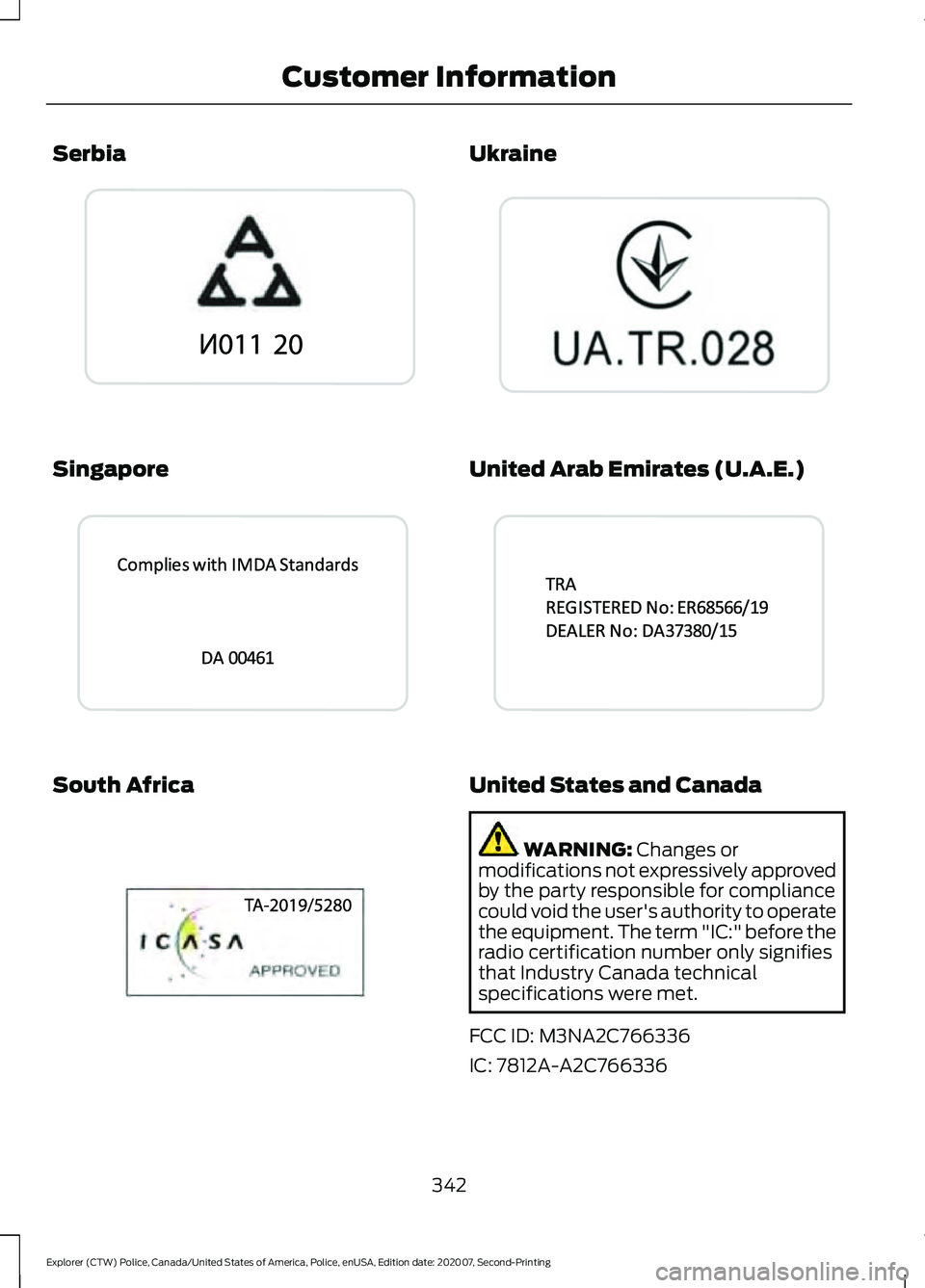
Serbia
Singapore
South Africa Ukraine
United Arab Emirates (U.A.E.)
United States and Canada
WARNING: Changes or
modifications not expressively approved
by the party responsible for compliance
could void the user's authority to operate
the equipment. The term "IC:" before the
radio certification number only signifies
that Industry Canada technical
specifications were met.
FCC ID: M3NA2C766336
IC: 7812A-A2C766336
342
Explorer (CTW) Police, Canada/United States of America, Police, enUSA, Edition date: 202007, Second-Printing Customer InformationE341434 E339940 E340510 E269682 E341432
Page 351 of 412
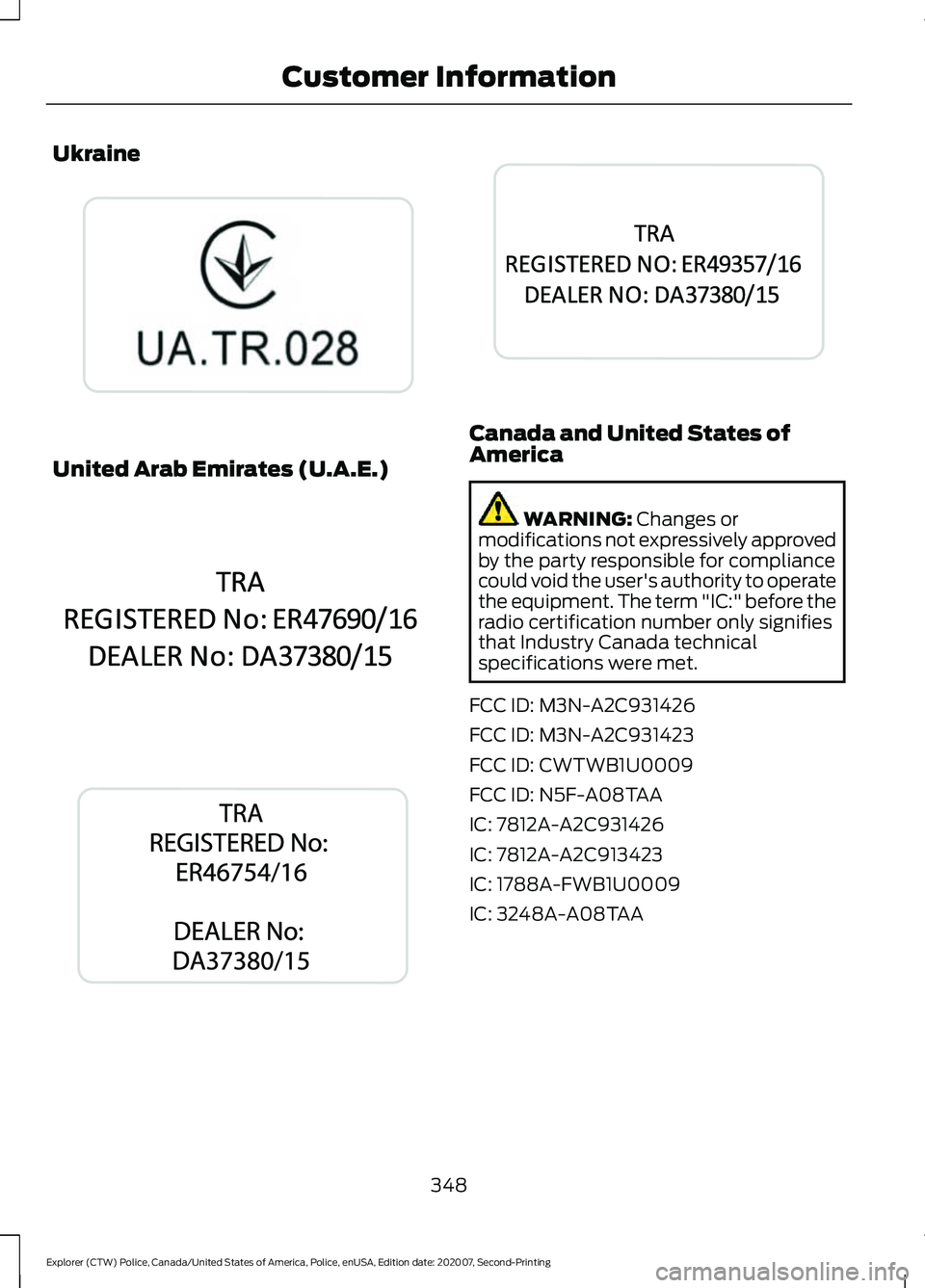
Ukraine
United Arab Emirates (U.A.E.) Canada and United States of
America
WARNING: Changes or
modifications not expressively approved
by the party responsible for compliance
could void the user's authority to operate
the equipment. The term "IC:" before the
radio certification number only signifies
that Industry Canada technical
specifications were met.
FCC ID: M3N-A2C931426
FCC ID: M3N-A2C931423
FCC ID: CWTWB1U0009
FCC ID: N5F-A08TAA
IC: 7812A-A2C931426
IC: 7812A-A2C913423
IC: 1788A-FWB1U0009
IC: 3248A-A08TAA
348
Explorer (CTW) Police, Canada/United States of America, Police, enUSA, Edition date: 202007, Second-Printing Customer InformationE269682 E340486 E340314 E344043
Page 353 of 412
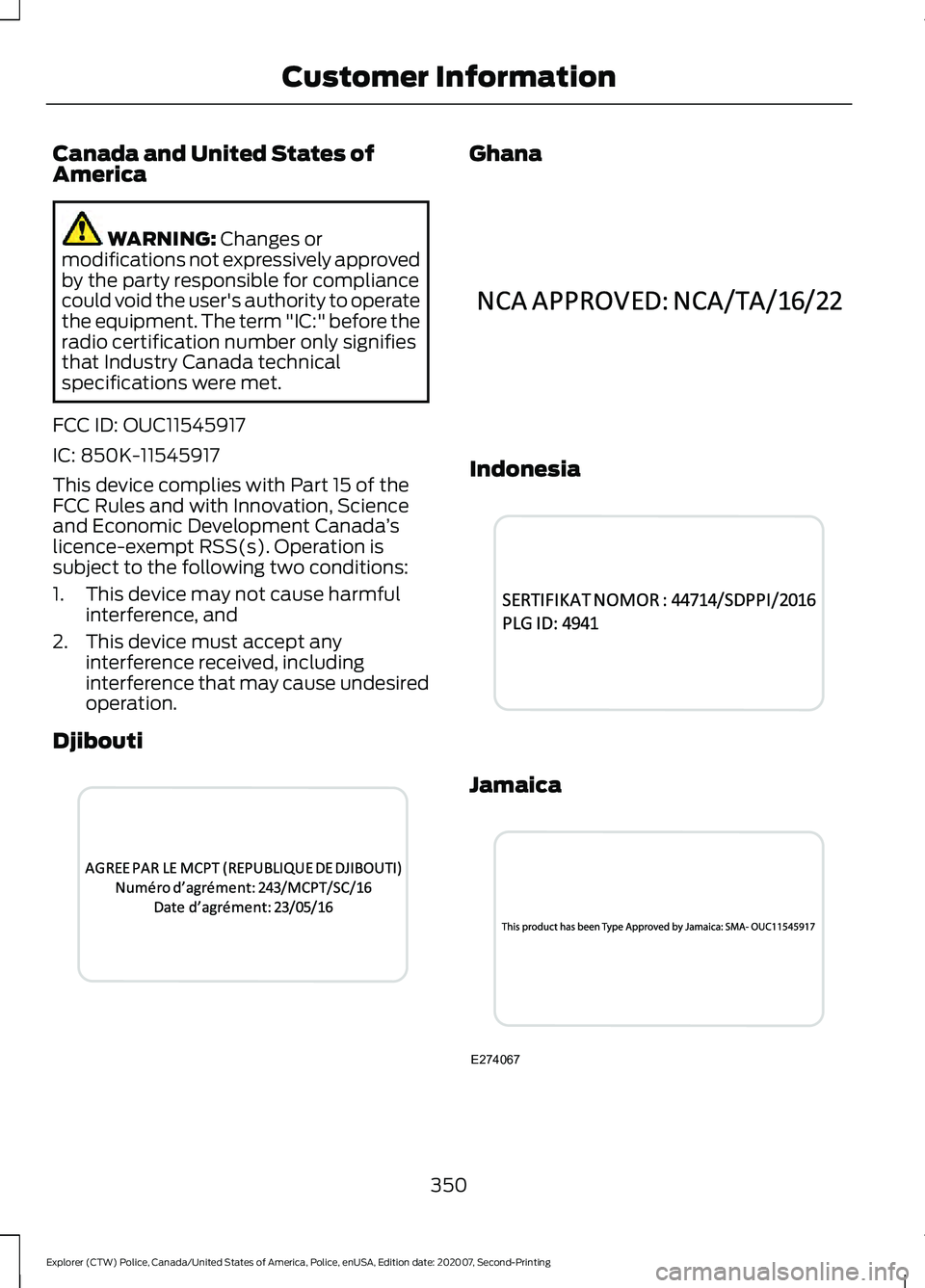
Canada and United States of
America
WARNING: Changes or
modifications not expressively approved
by the party responsible for compliance
could void the user's authority to operate
the equipment. The term "IC:" before the
radio certification number only signifies
that Industry Canada technical
specifications were met.
FCC ID: OUC11545917
IC: 850K-11545917
This device complies with Part 15 of the
FCC Rules and with Innovation, Science
and Economic Development Canada ’s
licence-exempt RSS(s). Operation is
subject to the following two conditions:
1. This device may not cause harmful interference, and
2. This device must accept any interference received, including
interference that may cause undesired
operation.
Djibouti Ghana
Indonesia
Jamaica
350
Explorer (CTW) Police, Canada/United States of America, Police, enUSA, Edition date: 202007, Second-Printing Customer InformationE339936 E340495 E339937 E274067