USB port FORD POLICE INTERCEPTOR SEDAN 2017 1.G User Guide
[x] Cancel search | Manufacturer: FORD, Model Year: 2017, Model line: POLICE INTERCEPTOR SEDAN, Model: FORD POLICE INTERCEPTOR SEDAN 2017 1.GPages: 358, PDF Size: 3.74 MB
Page 288 of 358
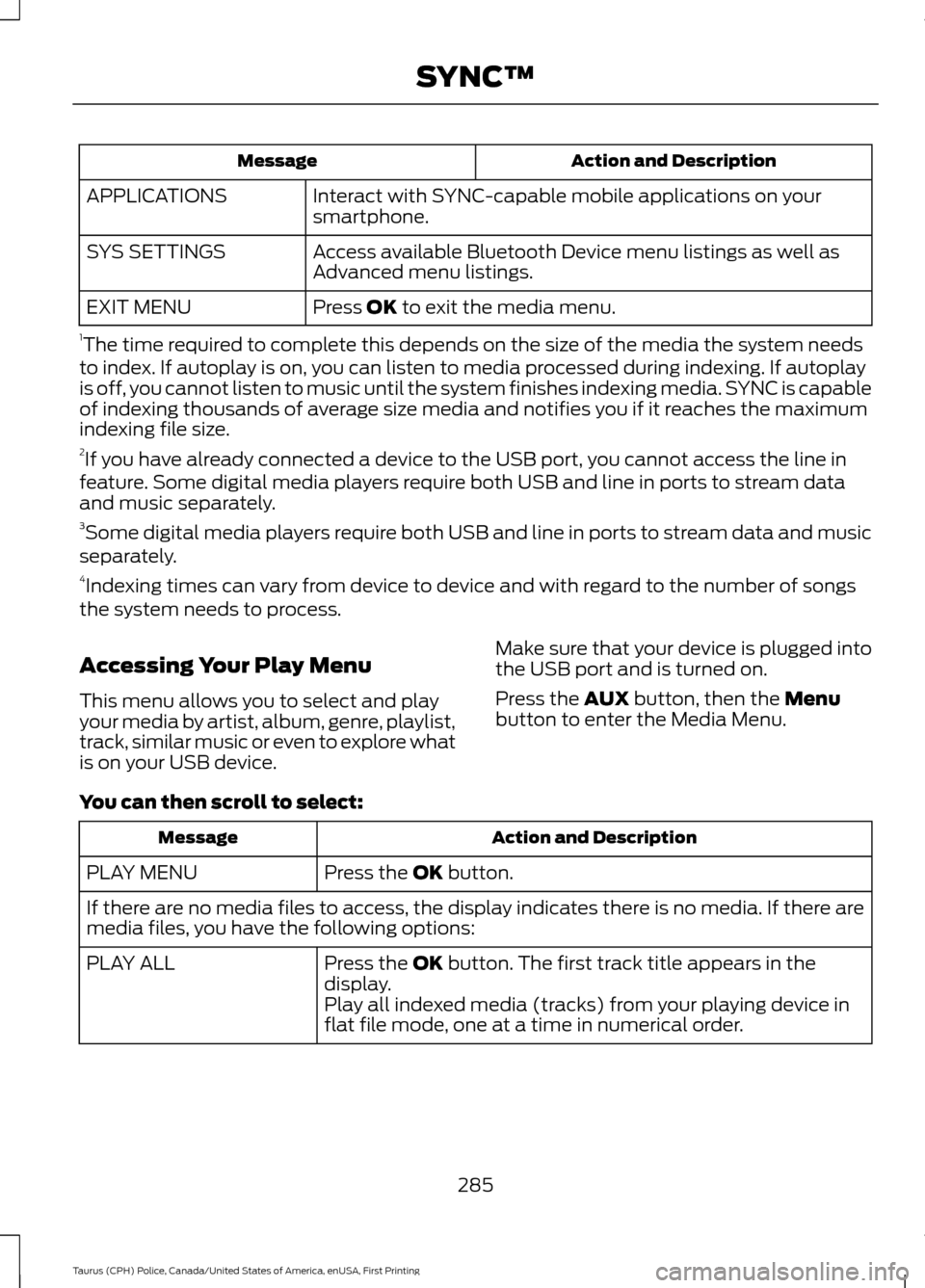
Action and Description
Message
Interact with SYNC-capable mobile applications on your
smartphone.
APPLICATIONS
Access available Bluetooth Device menu listings as well as
Advanced menu listings.
SYS SETTINGS
Press OK to exit the media menu.
EXIT MENU
1 The time required to complete this depends on the size of the media the system needs
to index. If autoplay is on, you can listen to media processed during indexing. If autoplay
is off, you cannot listen to music until the system finishes indexing media. SYNC is capable
of indexing thousands of average size media and notifies you if it reaches the maximum
indexing file size.
2 If you have already connected a device to the USB port, you cannot access the line in
feature. Some digital media players require both USB and line in ports to stream data
and music separately.
3 Some digital media players require both USB and line in ports to stream data and music
separately.
4 Indexing times can vary from device to device and with regard to the number of songs
the system needs to process.
Accessing Your Play Menu
This menu allows you to select and play
your media by artist, album, genre, playlist,
track, similar music or even to explore what
is on your USB device. Make sure that your device is plugged into
the USB port and is turned on.
Press the
AUX button, then the Menu
button to enter the Media Menu.
You can then scroll to select: Action and Description
Message
Press the
OK button.
PLAY MENU
If there are no media files to access, the display indicates there is no media. If there are
media files, you have the following options:
Press the
OK button. The first track title appears in the
display.
PLAY ALL
Play all indexed media (tracks) from your playing device in
flat file mode, one at a time in numerical order.
285
Taurus (CPH) Police, Canada/United States of America, enUSA, First Printing SYNC™
Page 290 of 358
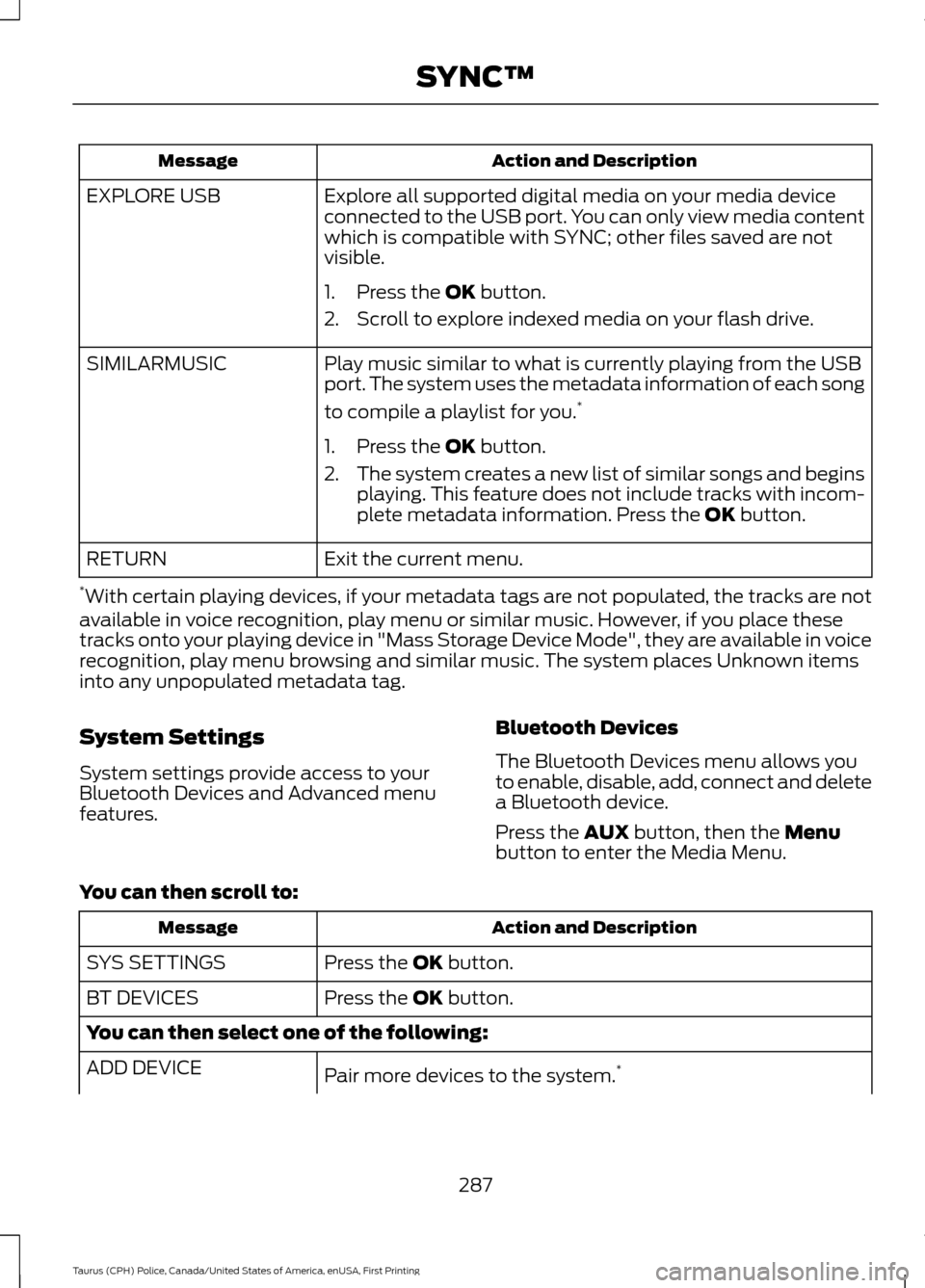
Action and Description
Message
Explore all supported digital media on your media device
connected to the USB port. You can only view media content
which is compatible with SYNC; other files saved are not
visible.
EXPLORE USB
1. Press the OK button.
2. Scroll to explore indexed media on your flash drive.
Play music similar to what is currently playing from the USB
port. The system uses the metadata information of each song
to compile a playlist for you. *
SIMILARMUSIC
1. Press the
OK button.
2. The system creates a new list of similar songs and begins
playing. This feature does not include tracks with incom-
plete metadata information. Press the
OK button.
Exit the current menu.
RETURN
* With certain playing devices, if your metadata tags are not populated, the tracks are not
available in voice recognition, play menu or similar music. However, if you place these
tracks onto your playing device in "Mass Storage Device Mode", they are available in voice
recognition, play menu browsing and similar music. The system places Unknown items
into any unpopulated metadata tag.
System Settings
System settings provide access to your
Bluetooth Devices and Advanced menu
features. Bluetooth Devices
The Bluetooth Devices menu allows you
to enable, disable, add, connect and delete
a Bluetooth device.
Press the
AUX button, then the Menu
button to enter the Media Menu.
You can then scroll to: Action and Description
Message
Press the
OK button.
SYS SETTINGS
Press the
OK button.
BT DEVICES
You can then select one of the following:
Pair more devices to the system. *
ADD DEVICE
287
Taurus (CPH) Police, Canada/United States of America, enUSA, First Printing SYNC™
Page 292 of 358
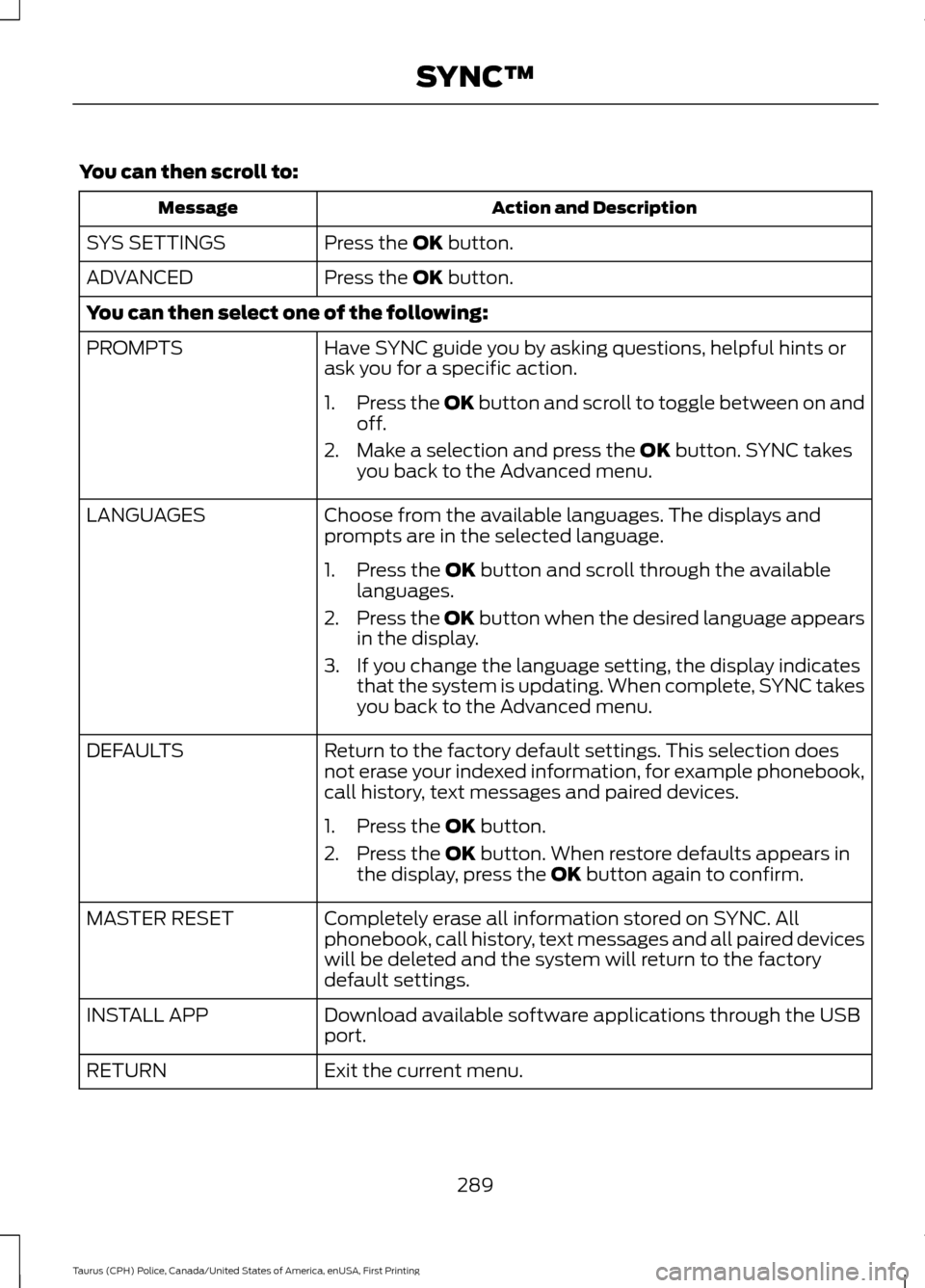
You can then scroll to:
Action and Description
Message
Press the OK button.
SYS SETTINGS
Press the
OK button.
ADVANCED
You can then select one of the following:
Have SYNC guide you by asking questions, helpful hints or
ask you for a specific action.
PROMPTS
1.Press the OK button and scroll to toggle between on and
off.
2. Make a selection and press the
OK button. SYNC takes
you back to the Advanced menu.
Choose from the available languages. The displays and
prompts are in the selected language.
LANGUAGES
1. Press the
OK button and scroll through the available
languages.
2. Press the OK button when the desired language appears
in the display.
3. If you change the language setting, the display indicates that the system is updating. When complete, SYNC takes
you back to the Advanced menu.
Return to the factory default settings. This selection does
not erase your indexed information, for example phonebook,
call history, text messages and paired devices.
DEFAULTS
1. Press the
OK button.
2. Press the
OK button. When restore defaults appears in
the display, press the OK button again to confirm.
Completely erase all information stored on SYNC. All
phonebook, call history, text messages and all paired devices
will be deleted and the system will return to the factory
default settings.
MASTER RESET
Download available software applications through the USB
port.
INSTALL APP
Exit the current menu.
RETURN
289
Taurus (CPH) Police, Canada/United States of America, enUSA, First Printing SYNC™
Page 295 of 358
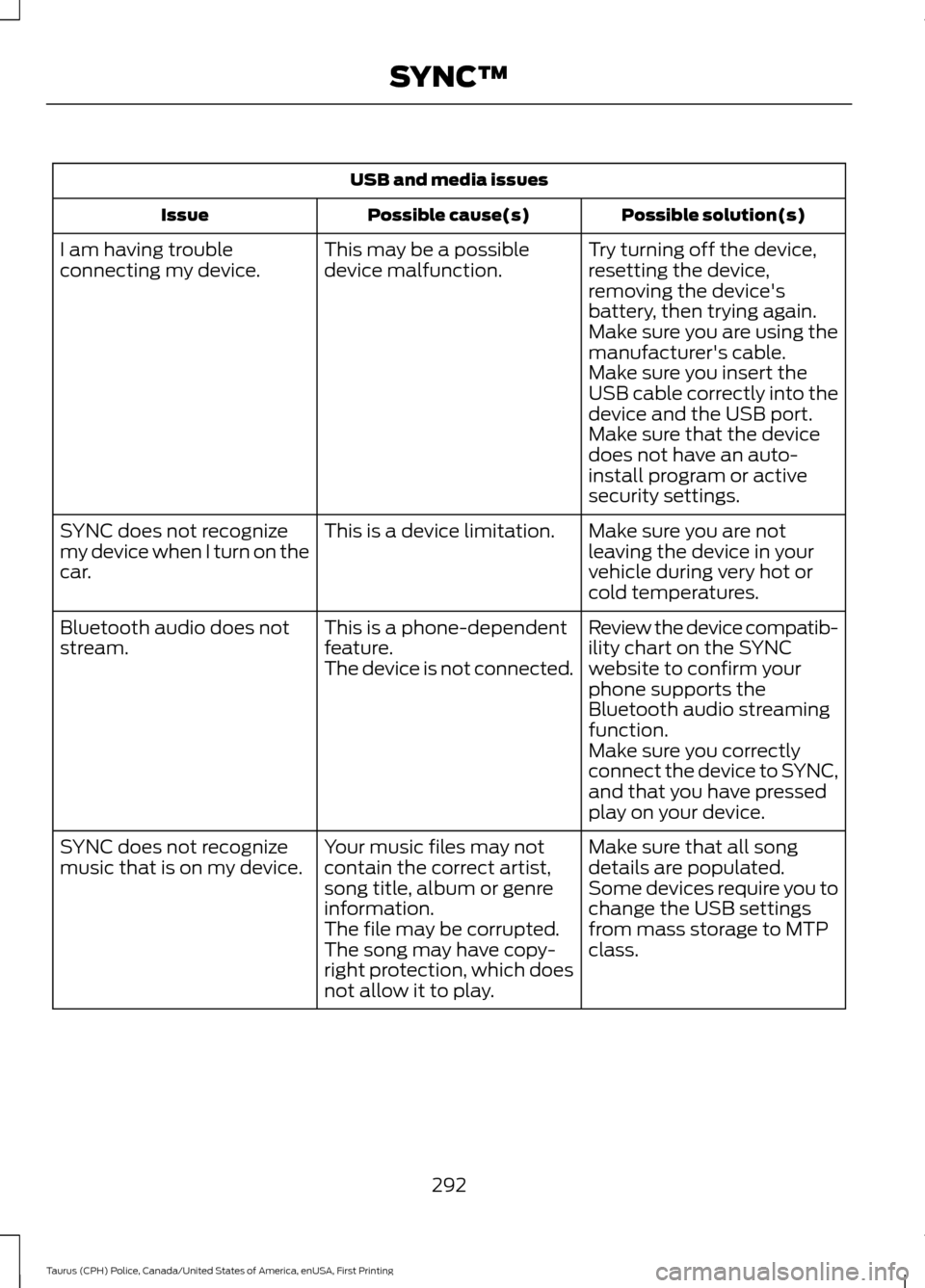
USB and media issues
Possible solution(s)
Possible cause(s)
Issue
Try turning off the device,
resetting the device,
removing the device's
battery, then trying again.
This may be a possible
device malfunction.
I am having trouble
connecting my device.
Make sure you are using the
manufacturer's cable.
Make sure you insert the
USB cable correctly into the
device and the USB port.
Make sure that the device
does not have an auto-
install program or active
security settings.
Make sure you are not
leaving the device in your
vehicle during very hot or
cold temperatures.
This is a device limitation.
SYNC does not recognize
my device when I turn on the
car.
Review the device compatib-
ility chart on the SYNC
website to confirm your
phone supports the
Bluetooth audio streaming
function.
This is a phone-dependent
feature.
The device is not connected.
Bluetooth audio does not
stream.
Make sure you correctly
connect the device to SYNC,
and that you have pressed
play on your device.
Make sure that all song
details are populated.
Your music files may not
contain the correct artist,
song title, album or genre
information.
SYNC does not recognize
music that is on my device.
Some devices require you to
change the USB settings
from mass storage to MTP
class.
The file may be corrupted.
The song may have copy-
right protection, which does
not allow it to play.
292
Taurus (CPH) Police, Canada/United States of America, enUSA, First Printing SYNC™
Page 299 of 358
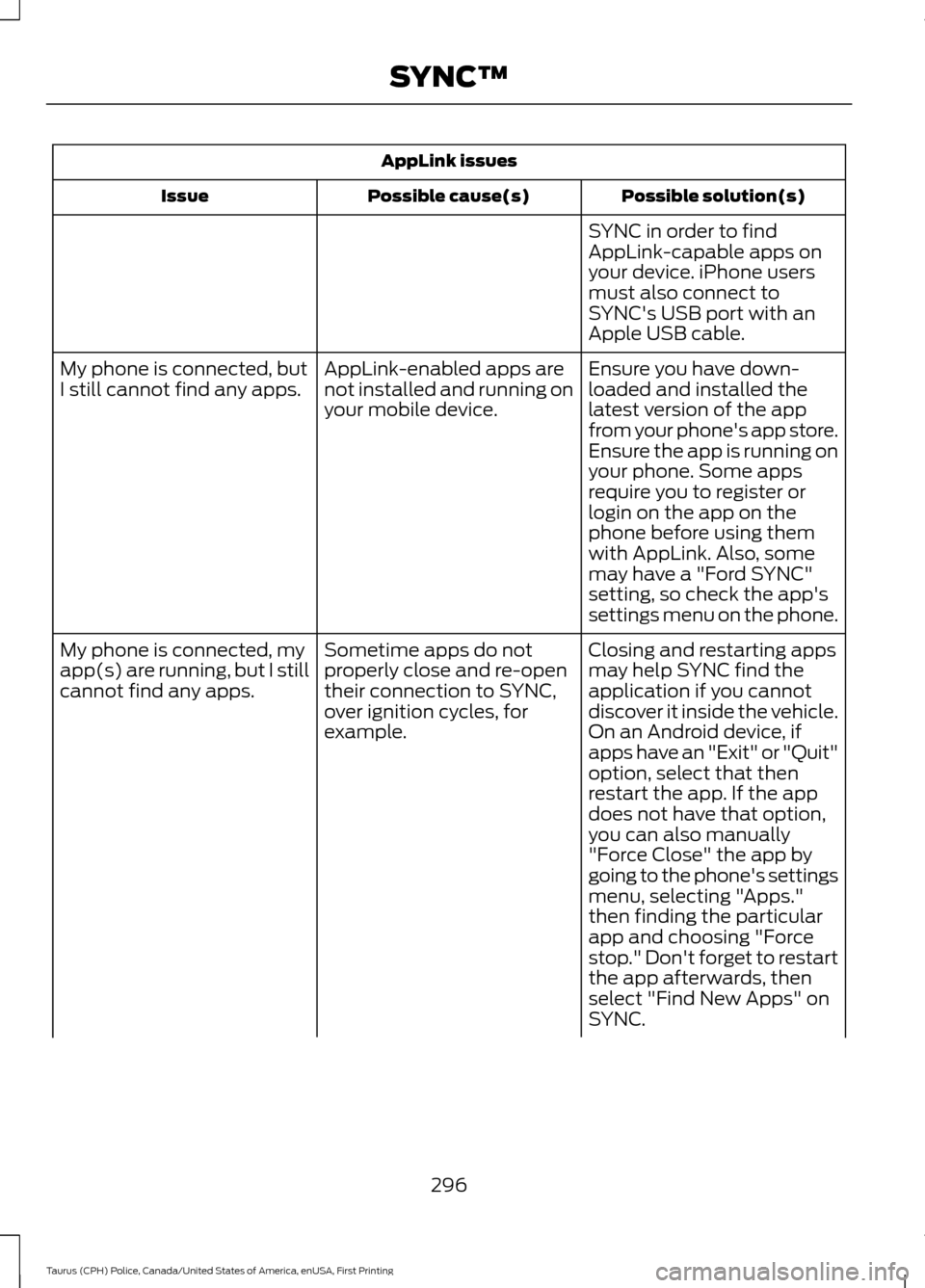
AppLink issues
Possible solution(s)
Possible cause(s)
Issue
SYNC in order to find
AppLink-capable apps on
your device. iPhone users
must also connect to
SYNC's USB port with an
Apple USB cable.
Ensure you have down-
loaded and installed the
latest version of the app
from your phone's app store.
Ensure the app is running on
your phone. Some apps
AppLink-enabled apps are
not installed and running on
your mobile device.
My phone is connected, but
I still cannot find any apps.
require you to register or
login on the app on the
phone before using them
with AppLink. Also, some
may have a "Ford SYNC"
setting, so check the app's
settings menu on the phone.
Closing and restarting apps
may help SYNC find the
application if you cannot
discover it inside the vehicle.
On an Android device, if
apps have an "Exit" or "Quit"
Sometime apps do not
properly close and re-open
their connection to SYNC,
over ignition cycles, for
example.
My phone is connected, my
app(s) are running, but I still
cannot find any apps.
option, select that then
restart the app. If the app
does not have that option,
you can also manually
"Force Close" the app by
going to the phone's settings
menu, selecting "Apps."
then finding the particular
app and choosing "Force
stop." Don't forget to restart
the app afterwards, then
select "Find New Apps" on
SYNC.
296
Taurus (CPH) Police, Canada/United States of America, enUSA, First Printing SYNC™
Page 301 of 358
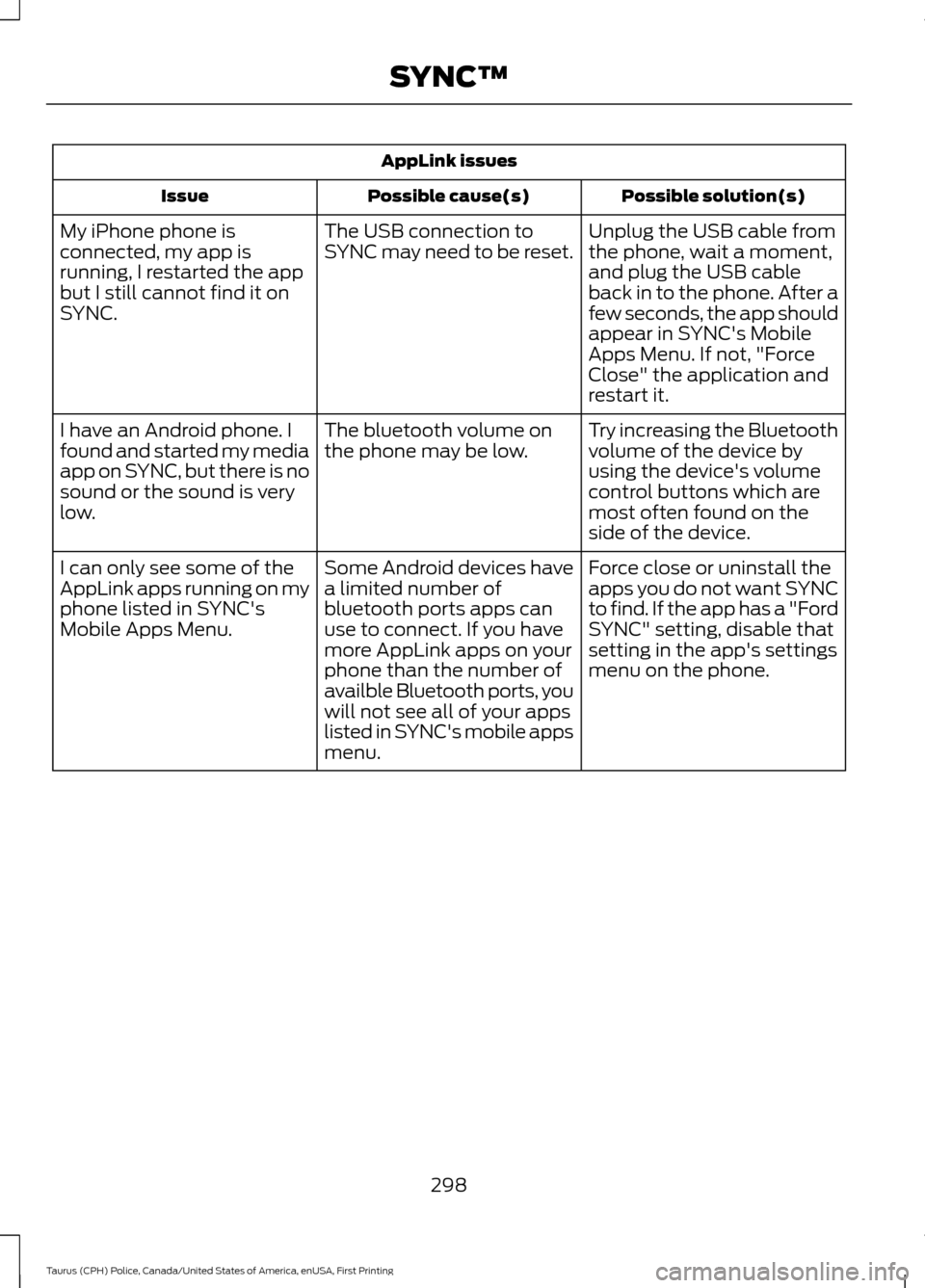
AppLink issues
Possible solution(s)
Possible cause(s)
Issue
Unplug the USB cable from
the phone, wait a moment,
and plug the USB cable
back in to the phone. After a
few seconds, the app should
appear in SYNC's Mobile
Apps Menu. If not, "Force
Close" the application and
restart it.
The USB connection to
SYNC may need to be reset.
My iPhone phone is
connected, my app is
running, I restarted the app
but I still cannot find it on
SYNC.
Try increasing the Bluetooth
volume of the device by
using the device's volume
control buttons which are
most often found on the
side of the device.
The bluetooth volume on
the phone may be low.
I have an Android phone. I
found and started my media
app on SYNC, but there is no
sound or the sound is very
low.
Force close or uninstall the
apps you do not want SYNC
to find. If the app has a "Ford
SYNC" setting, disable that
setting in the app's settings
menu on the phone.
Some Android devices have
a limited number of
bluetooth ports apps can
use to connect. If you have
more AppLink apps on your
phone than the number of
availble Bluetooth ports, you
will not see all of your apps
listed in SYNC's mobile apps
menu.
I can only see some of the
AppLink apps running on my
phone listed in SYNC's
Mobile Apps Menu.
298
Taurus (CPH) Police, Canada/United States of America, enUSA, First Printing SYNC™
Page 356 of 358
On-board Diagnostics (OBD-II).......................
13
Special Instructions.............................................. 12
Special Operating Conditions Scheduled Maintenance...............................................307
Engine Idle Hour Meter.................................... 308
Exceptions........................................................... 309
Speed Control See: Cruise Control............................................. 124
Stability Control.............................................118
Principle of Operation........................................ 118
Starter Switch See: Ignition Switch............................................ 90
Starting a Gasoline Engine........................90 Cold Weather Starting - Flex Fuel
Vehicles................................................................ 91
Failure to Start........................................................ 91
Guarding Against Exhaust Fumes.................92
Important Ventilating Information................92
Stopping the Engine When Your Vehicle is Moving................................................................. 92
Stopping the Engine When Your Vehicle is Stationary........................................................... 92
Starting and Stopping the Engine...........90 General Information........................................... 90
Steering.............................................................131 Electric Power Steering..................................... 131
Steering Wheel
...............................................54
Storage Compartments..............................89
Sun Visors
.........................................................65
Slide-on-rod.......................................................... 65
Supplementary Restraints System.........36 Principle of Operation........................................ 36
Symbols Glossary
.............................................7
SYNC™ Applications and Services.......276 911 Assist............................................................... 276
SYNC™ AppLink ™
......................................278
SYNC Mobile Apps............................................ 278
SYNC™...........................................................258 General Information......................................... 258
SYNC™ Troubleshooting
.........................290
T
Technical Specifications See: Capacities and Specifications............224
The Better Business Bureau (BBB) Auto Line Program (U.S. Only)
........................153 Tire Care.........................................................200
Glossary of Tire Terminology......................... 201
Information About Uniform Tire Quality Grading............................................................. 200
Information Contained on the Tire Sidewall........................................................... 202
Police Wheels and Tires................................... 213
Temperature A B C............................................. 201
Traction AA A B C............................................... 201
Treadwear............................................................ 200
Tire Pressure Monitoring System............215 Changing Tires With a Tire Pressure
Monitoring System........................................ 216
Understanding Your Tire Pressure Monitoring System ....................................... 216
Tires See: Wheels and Tires..................................... 200
Towing a Trailer.............................................138 Load Placement.................................................. 138
Towing the Vehicle on Four Wheels...........................................................142
Emergency Towing............................................. 142
Recreational Towing.......................................... 142
Towing..............................................................138
Traction Control
..............................................117
Principle of Operation........................................ 117
Transmission Code Designation............232
Transmission
..................................................105
Transmission See: Transmission.............................................. 105
U
Under Hood Overview - 2.0L EcoBoost™....................................................171
Under Hood Overview - 3.5L Duratec/ 3.7L
...................................................................172
Engine Shield........................................................ 173
Under Hood Overview - 3.5L Ecoboost™...................................................173
USB Port..........................................................257
Using All-Wheel Drive
................................108
Driving In Special Conditions With
All-Wheel Drive (AWD)................................ 110
Operating AWD Vehicles With Mismatched Tires..................................................................... 110
Operating AWD Vehicles With Spare Tires.................................................................... 109
353
Taurus (CPH) Police, Canada/United States of America, enUSA, First Printing Index
Page 357 of 358
Using Cruise Control....................................124
Switching Cruise Control Off.......................... 125
Switching Cruise Control On.......................... 124
Using Snow Chains......................................214
Using Stability Control................................119
Using SYNC™ With Your Media Player............................................................280
Accessing Your Play Menu............................. 285
Connecting Your Digital Media Player to the USB Port.......................................................... 280
Media Menu Features...................................... 283
Media Voice Commands................................. 282
System Settings................................................. 287
What's Playing?.................................................. 281
Using SYNC™ With Your Phone............263 Accessing Features Through the Phone
Menu.................................................................. 267
Accessing Your Phone Settings.................... 272
Making a Call....................................................... 266
Pairing a Cell Phone for the First Time................................................................... 263
Pairing Subsequent Cell Phones.................264
Phone Options during an Active Call.........266
Phone Voice Commands................................ 264
Receiving Calls................................................... 266
System Settings.................................................. 273
Text Messaging................................................... 270
Using Traction Control.................................117 Switching the System Off................................. 117
System Indicator Lights and Messages............................................................ 117
Using a Switch....................................................... 117
Using the Information Display Controls ............................................................... 117
Using Voice Recognition...........................260
Initiating a Voice Session............................... 260
System Interaction and Feedback...............261
Utilizing the Mediation/Arbitration Program (Canada Only)
.........................154
V
Vehicle Care
....................................................193
General Information.......................................... 193
Vehicle Certification Label
.......................232
Vehicle Identification Number.................231
Vehicle Storage
.............................................198
Battery.................................................................... 199Body........................................................................\
198
Brakes..................................................................... 199
Cooling system.................................................... 199
Engine..................................................................... 198
Fuel system.......................................................... 199
General................................................................... 198
Miscellaneous...................................................... 199
Removing Vehicle From Storage.................. 199
Tires........................................................................\
. 199
Ventilation See: Climate Control.......................................... 80
VIN See: Vehicle Identification Number.............231
Voice Control
...................................................54
W
Warning Lamps and Indicators.................67 Airbag readiness................................................... 67
Anti-Lock Braking System................................. 67
Brake System......................................................... 67
Charging System.................................................. 68
Cruise Control....................................................... 68
Direction Indicator............................................... 68
Door Ajar................................................................. 68
Engine Coolant Temperature.......................... 68
Engine Oil................................................................ 68
Fasten Seatbelt.................................................... 68
High Beam.............................................................. 68
Low Fuel Level...................................................... 68
Low Tire Pressure Warning............................... 69
Low Washer Fluid................................................ 69
Parking Lamps...................................................... 69
Police Engine Idle feature................................. 69
Powertrain Fault................................................... 69
Service Engine Soon........................................... 69
Silent Mode............................................................ 70
Stability Control.................................................... 70
Stability Control Off............................................ 70
Washer Fluid Check.....................................184
Washers See: Cleaning the Exterior............................... 193
See: Wipers and Washers.................................. 57
Waxing..............................................................194
Wheel Nuts See: Changing a Road Wheel........................ 218
Wheels and Tires........................................200 General Information......................................... 200
354
Taurus (CPH) Police, Canada/United States of America, enUSA, First Printing Index